WooCommerce Venmo payments come through the free WooCommerce PayPal Payments plugin, which shows a Venmo button to US shoppers who qualify. You install the plugin, run its setup wizard and connect a PayPal business account. The WordPress side takes about 15 minutes.
I walked through every screen of that setup on a test store in October 2026 with WooCommerce 11.2 and PayPal Payments 4.1.3. I stopped at the PayPal login because connecting needs a real PayPal account. This guide shows every screen up to that point. The rules on who sees the button come from PayPal’s Venmo docs, and the costs come from its fees page.
You get the requirements, the install and wizard steps with screenshots, and the fees. You also get the reasons the Venmo button does not show, plus the manual option for stores without a PayPal business account.
How to Set Up WooCommerce Venmo Payments
To set up WooCommerce Venmo payments, install WooCommerce PayPal Payments, choose Business in its setup wizard, pick your product types and connect your PayPal account. Venmo has no separate switch in the wizard. It comes with PayPal Checkout and appears for buyers who qualify once the account is connected.
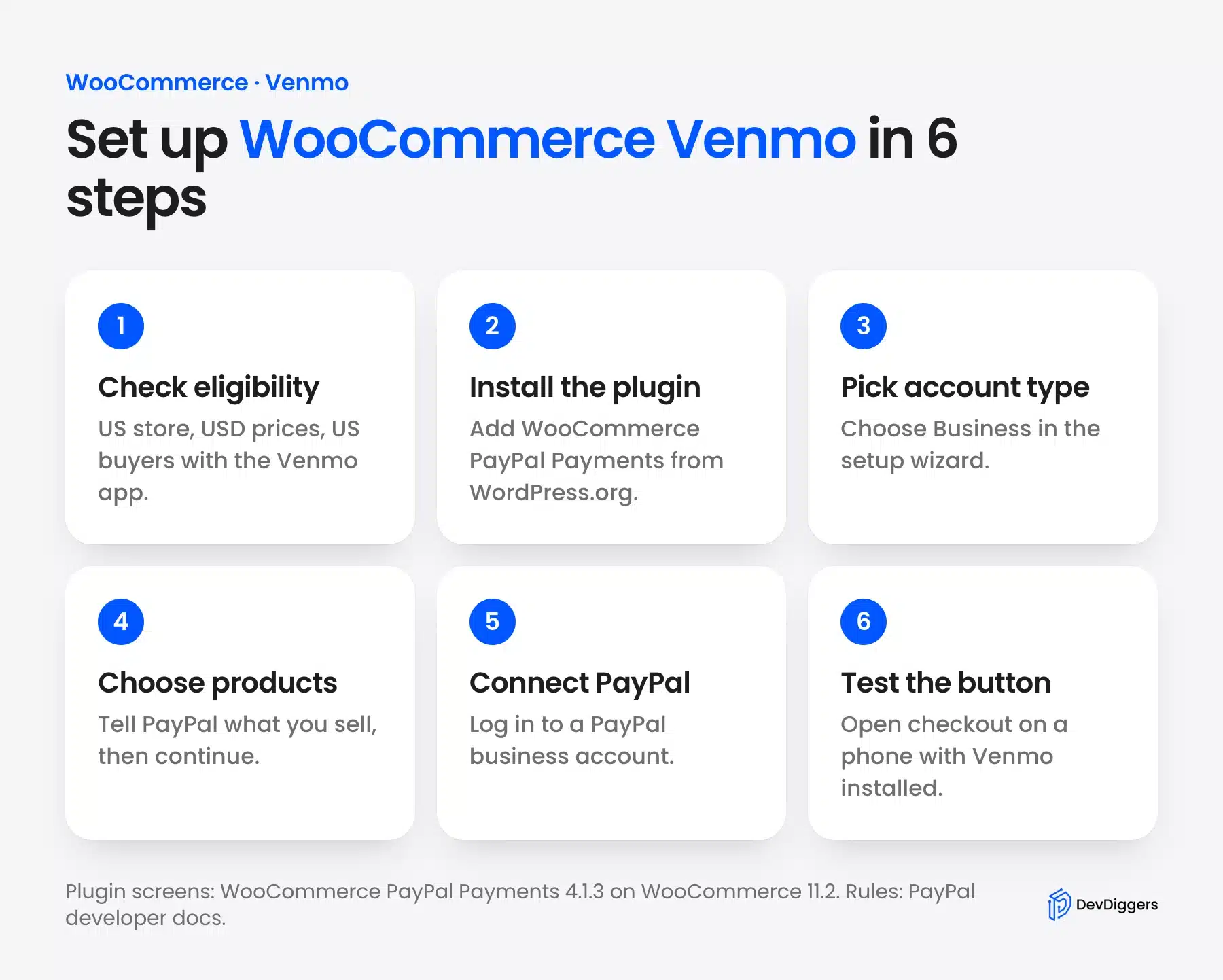
The WooCommerce docs for PayPal Payments say the plugin shows US buyers a Venmo button on its own when they qualify. That one sentence explains most setup questions. You do not install Venmo itself, and you never paste a Venmo username into WooCommerce.
Because Venmo rides on PayPal Checkout, every setting you change for PayPal also applies to it. That includes where the buttons show and how payments are captured.
The money lands in your PayPal account. The same WooCommerce PayPal Payments Venmo docs say all funds are forwarded to the connected PayPal account.
Before You Start: Venmo Requirements for a WooCommerce Store
Venmo checkout only works for US merchants selling in US dollars to US buyers who have the Venmo app. PayPal’s developer docs list these rules, plus browser limits on mobile. If your store fails any one of them, the button stays hidden no matter how the plugin is set up.
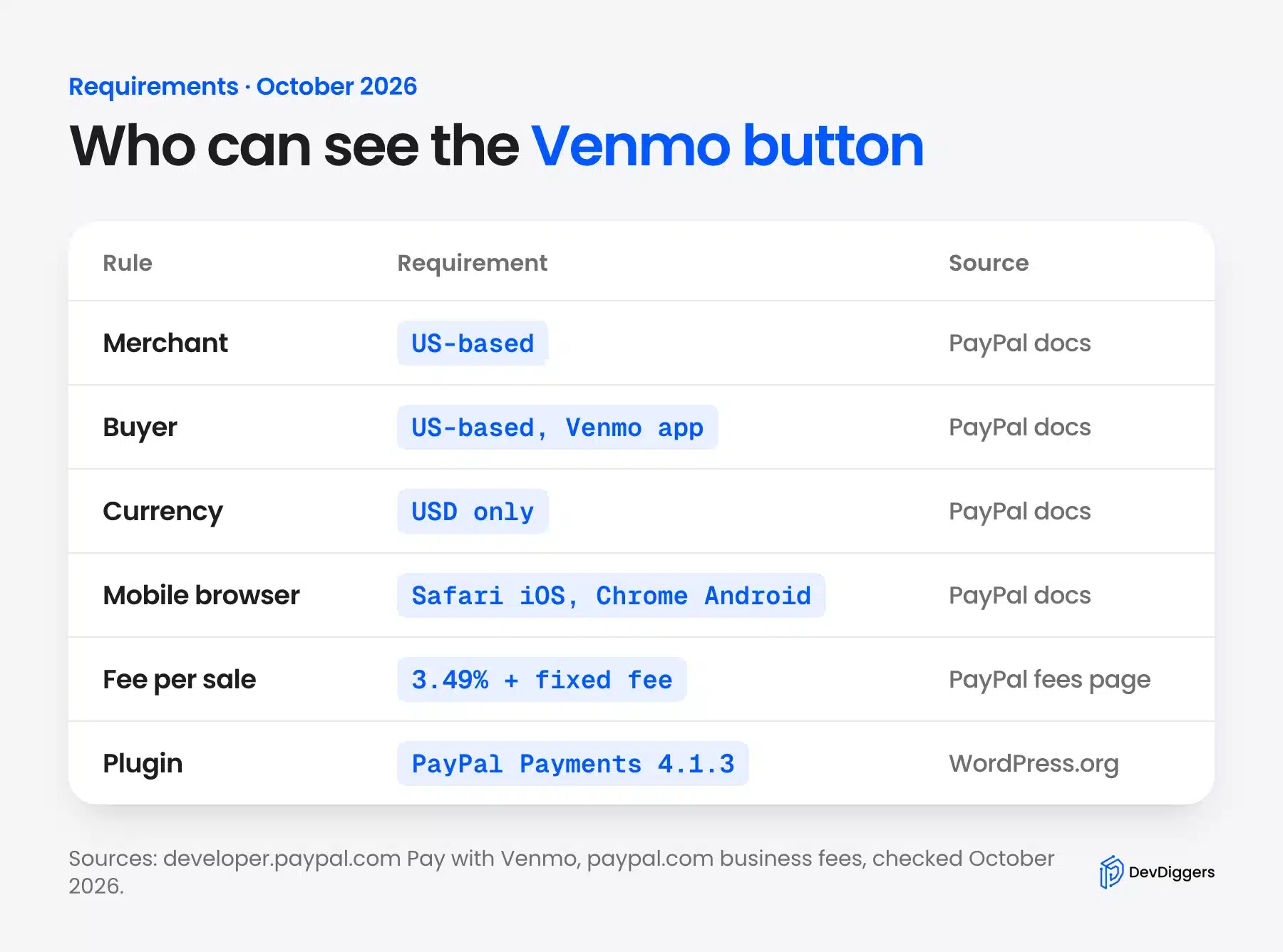
PayPal’s Pay with Venmo developer page lists the rules in full:
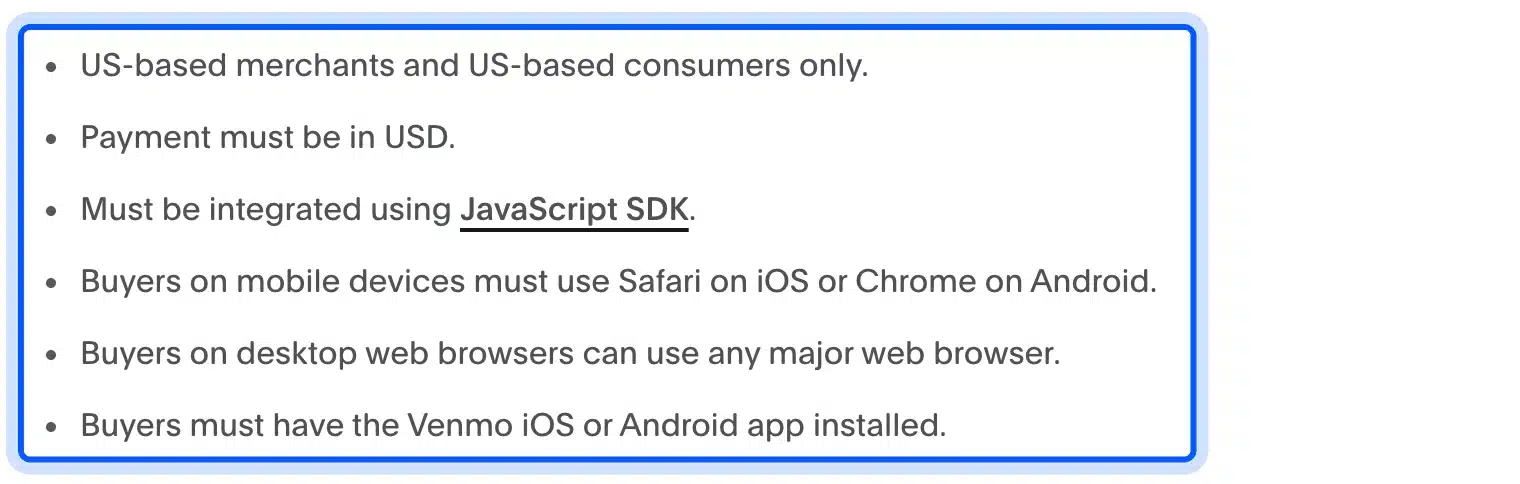
Here they are in plain words:
- Location: The merchant and the buyer must both be based in the US.
- Currency: The payment must be in USD.
- Mobile browser: Buyers on phones must use Safari on iOS or Chrome on Android.
- Desktop browser: Any major browser works, and the buyer scans a QR code with the Venmo app.
- App: The buyer must have the Venmo app installed.
My test store already met the store-side rules. Its WooCommerce settings had the country set to US:CA and the currency set to USD. You can check both under WooCommerce > Settings > General.
The WooCommerce docs add one more point about accounts. They say alternative payment methods, including Venmo, are supported by PayPal business and casual seller accounts.
Step 1: Install WooCommerce PayPal Payments
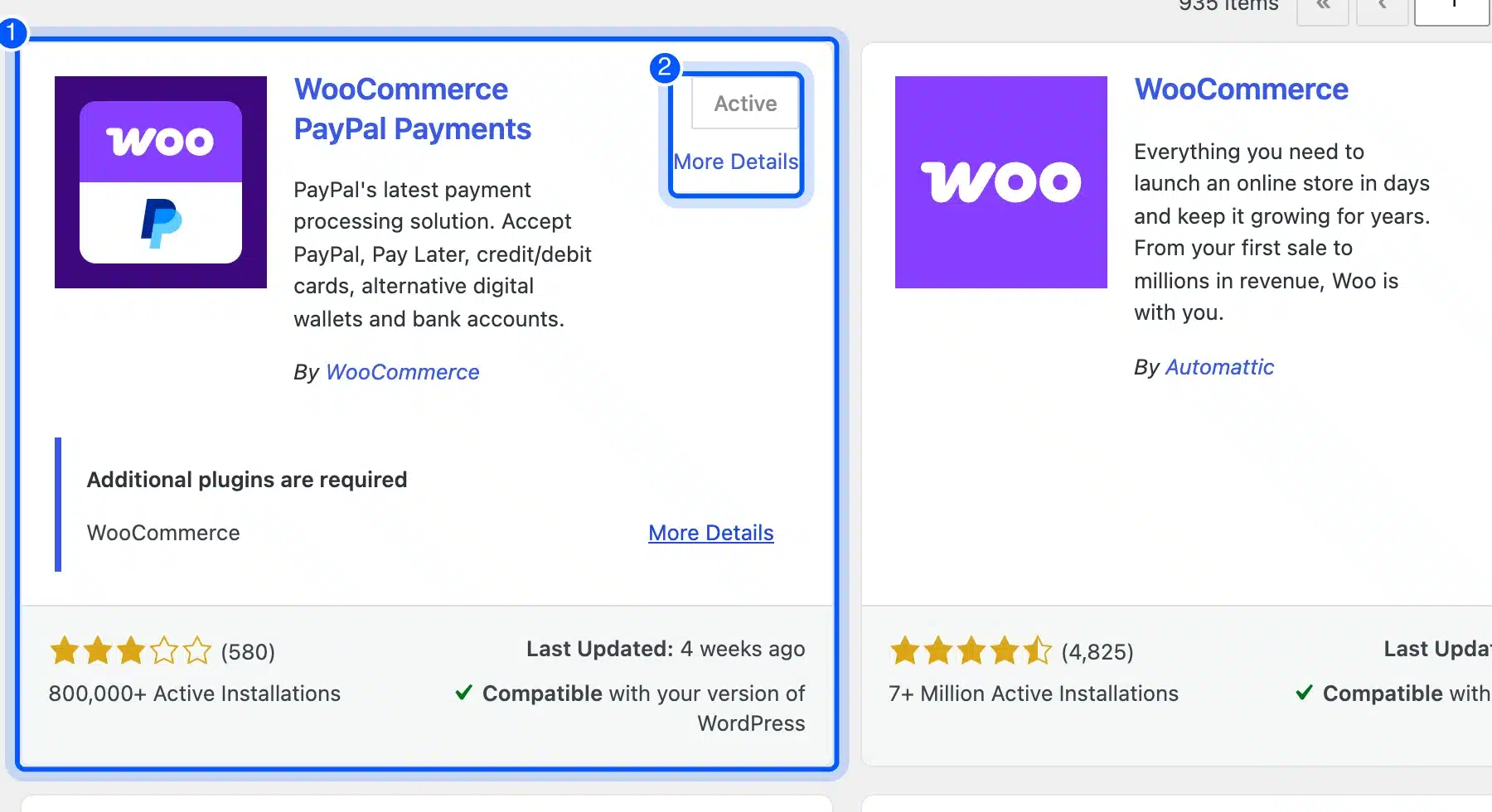
WooCommerce PayPal Payments is the official PayPal plugin for WooCommerce, and it is free on WordPress.org. Install it from Plugins > Add Plugin by searching for its name. On 9 October 2026, WordPress.org listed version 4.1.3 with more than 800,000 active installs.
If you are wondering how to set up Venmo on a store that already takes PayPal through an older plugin, start here as well. The same plugin adds Venmo. There is nothing extra to install.
Here are the steps:
- Open the plugin search: Go to Plugins > Add Plugin.
- Search for the plugin: Type WooCommerce PayPal Payments in the search box.
- Install and activate: Click Install Now on the plugin by WooCommerce and then click Activate.
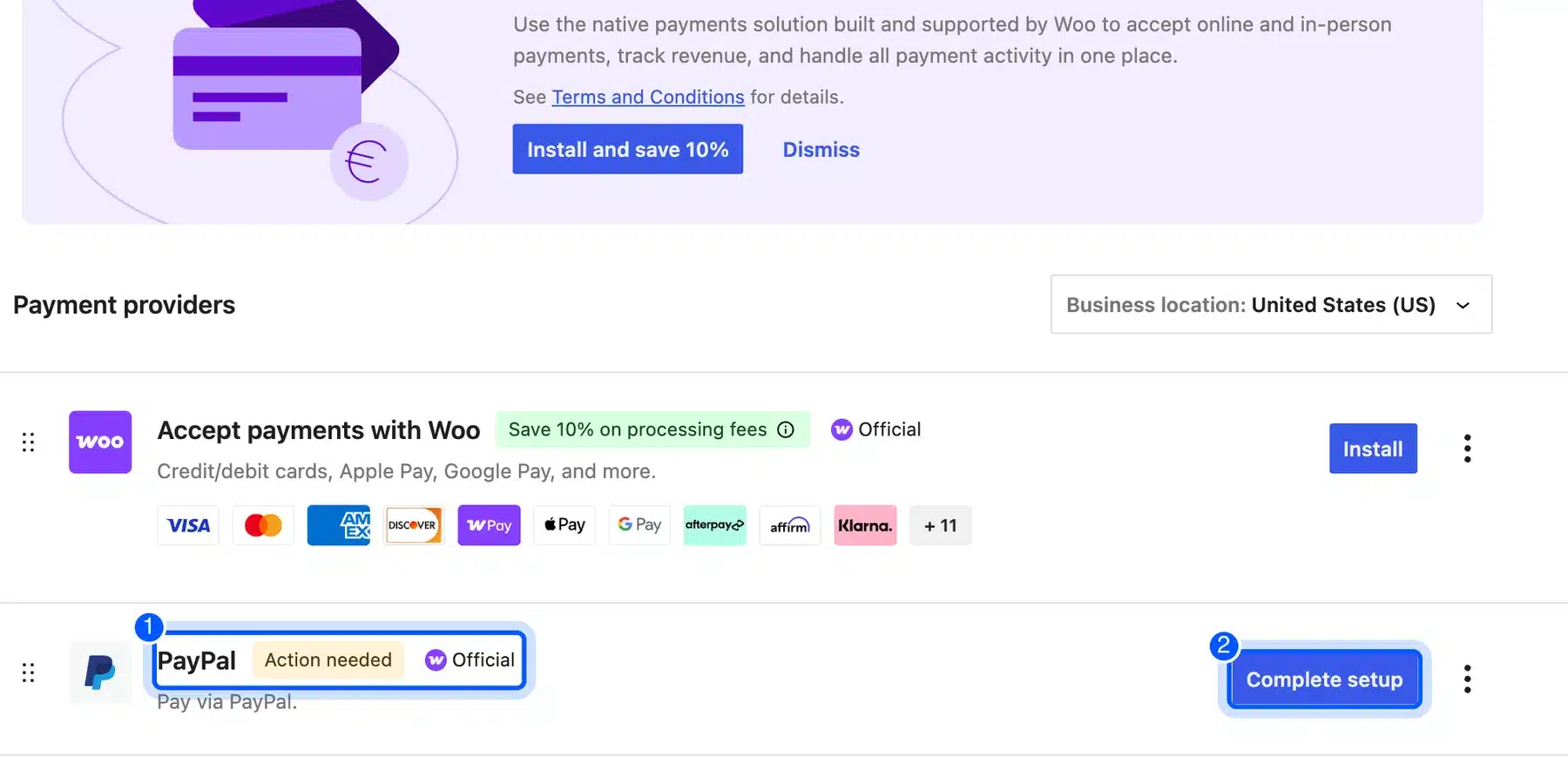
After activation, PayPal shows up in WooCommerce > Settings > Payments. On my test store it carried an Action needed label and a Complete setup button.
Step 2: Start the PayPal Payments Setup
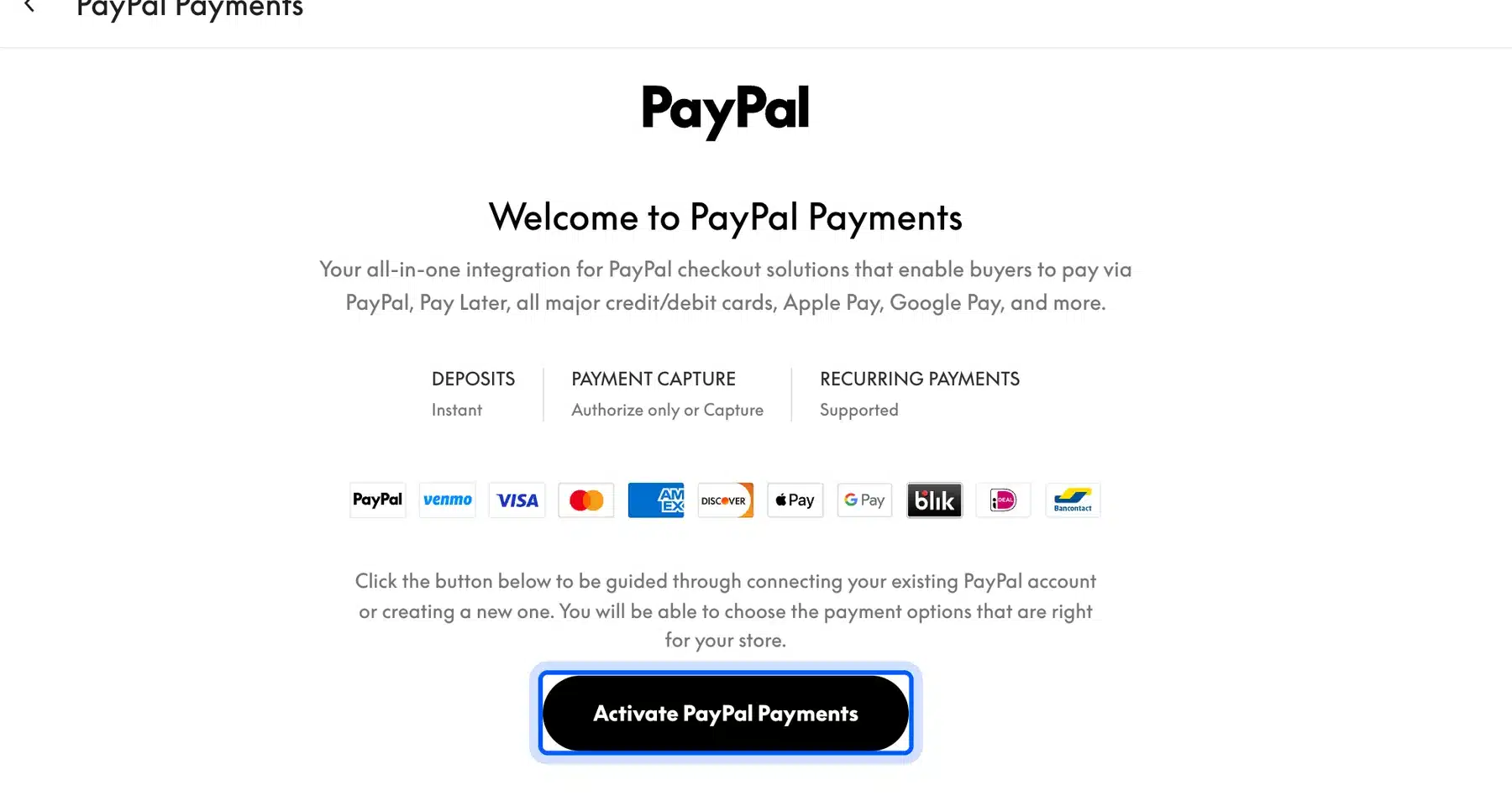
The PayPal Payments setup starts from the Complete setup button or the PayPal Payments screen. The welcome screen lists what PayPal Checkout includes, with Venmo named next to Pay with PayPal and Pay Later. Click Activate PayPal Payments to open the wizard.
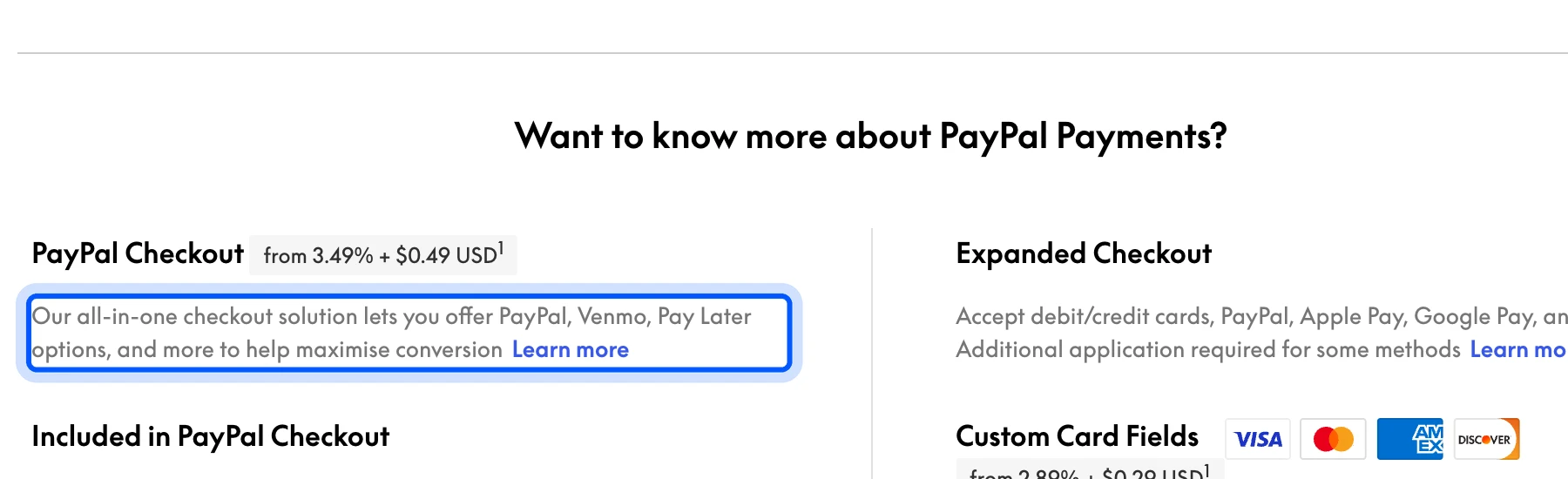
Scroll down the same screen and you will see the price of PayPal Checkout and the list of what it includes. On version 4.1.3 it read “from 3.49% + $0.49 USD”, with a note that prices are based on domestic transactions as of 1 February 2025.
The top of the screen also lists three facts about the account. Deposits are Instant, payment capture can be Authorize only or Capture, and recurring payments are Supported.
The card and wallet options sit in a second column called Expanded Checkout. The screen notes that some of those methods need an extra application to PayPal, while Venmo does not.
The welcome screen also has a See advanced options link. It holds Sandbox mode for testing and a Manually Connect option for developers with their own PayPal REST app.
Step 3: Choose the Account Type and Products
The wizard asks two questions before it connects anything: your account type and the products you sell. Pick Business for a store and then tick the product types that match your catalog. Each answer only shapes the next screens, and you can change them later with Save and exit.
On the first screen, choose your account type:
- Pick Business: The wizard describes it as the choice for selling goods or services, even if the business is not incorporated.
- Skip Personal Account: That option is for buying and sending money to friends.
- Click Continue: The button turns blue once a choice is made.
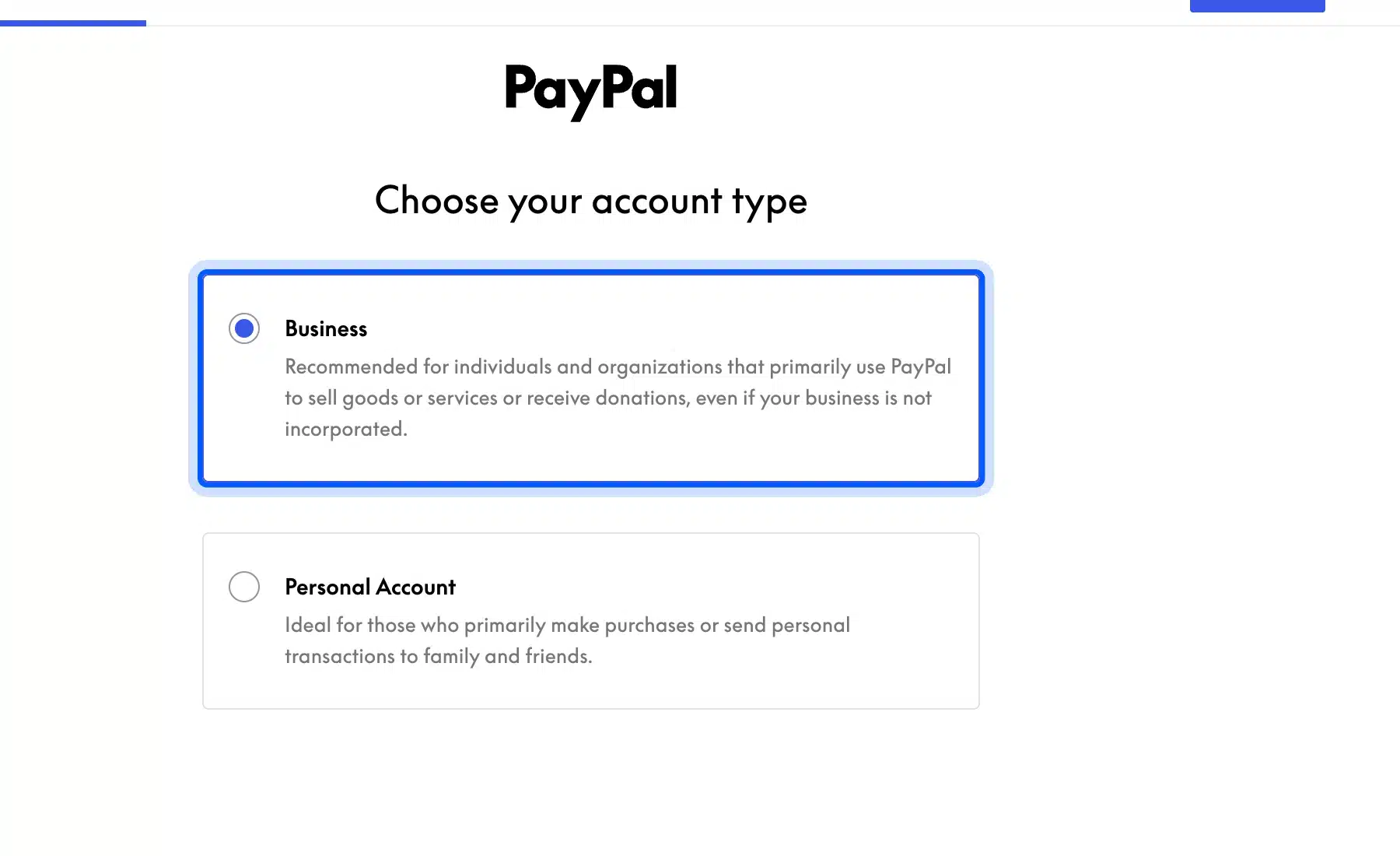
Business is the right pick even for a side business run under your own name. The wizard’s own description says it fits sellers whose business is not incorporated.
On the next screen, tick what you sell. The choices on my test store were Virtual, Physical Goods and Subscriptions. The Continue button stayed disabled until I ticked at least one.
The Subscriptions box carried a note on my test store. It said WooCommerce Subscriptions must be enabled to use it. Leave it off unless that plugin is active.
Step 4: Choose Checkout Options and Connect PayPal
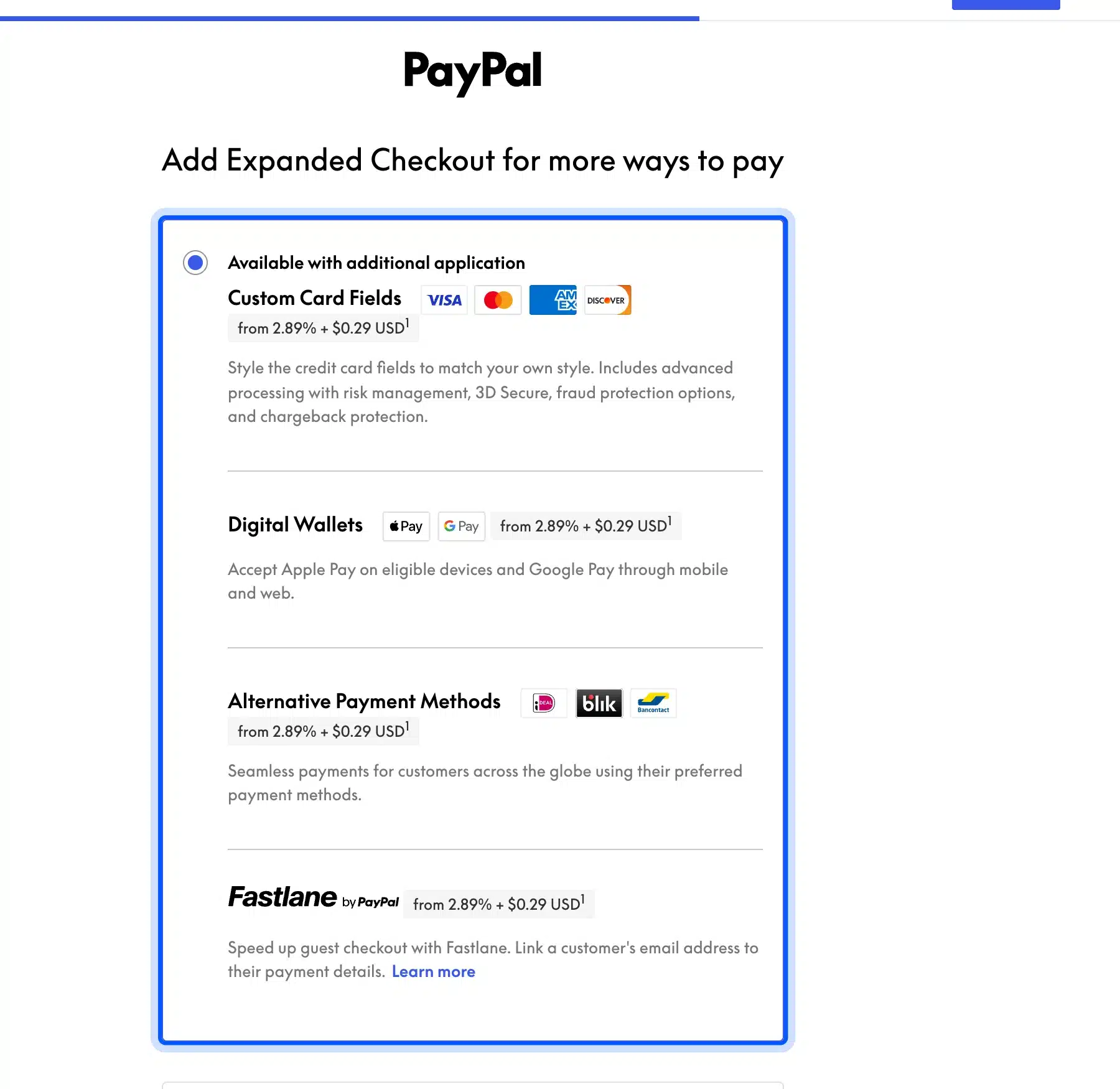
The checkout options screen offers Expanded Checkout for cards and wallets, or a choice to skip it. Venmo is not on this screen, because it is part of PayPal Checkout. The last screen asks you to log in to PayPal, which is where the connection is made.
On the checkout options screen:
- Pick the checkout type: Choose the Expanded Checkout box, or the No thanks option if another plugin handles cards.
- Read the fees: Each card and wallet option shows its own rate on this screen.
- Click Continue: You move to the PayPal connection screen.
- Connect your account: Click Connect to PayPal and log in, or create a business account in the PayPal window.
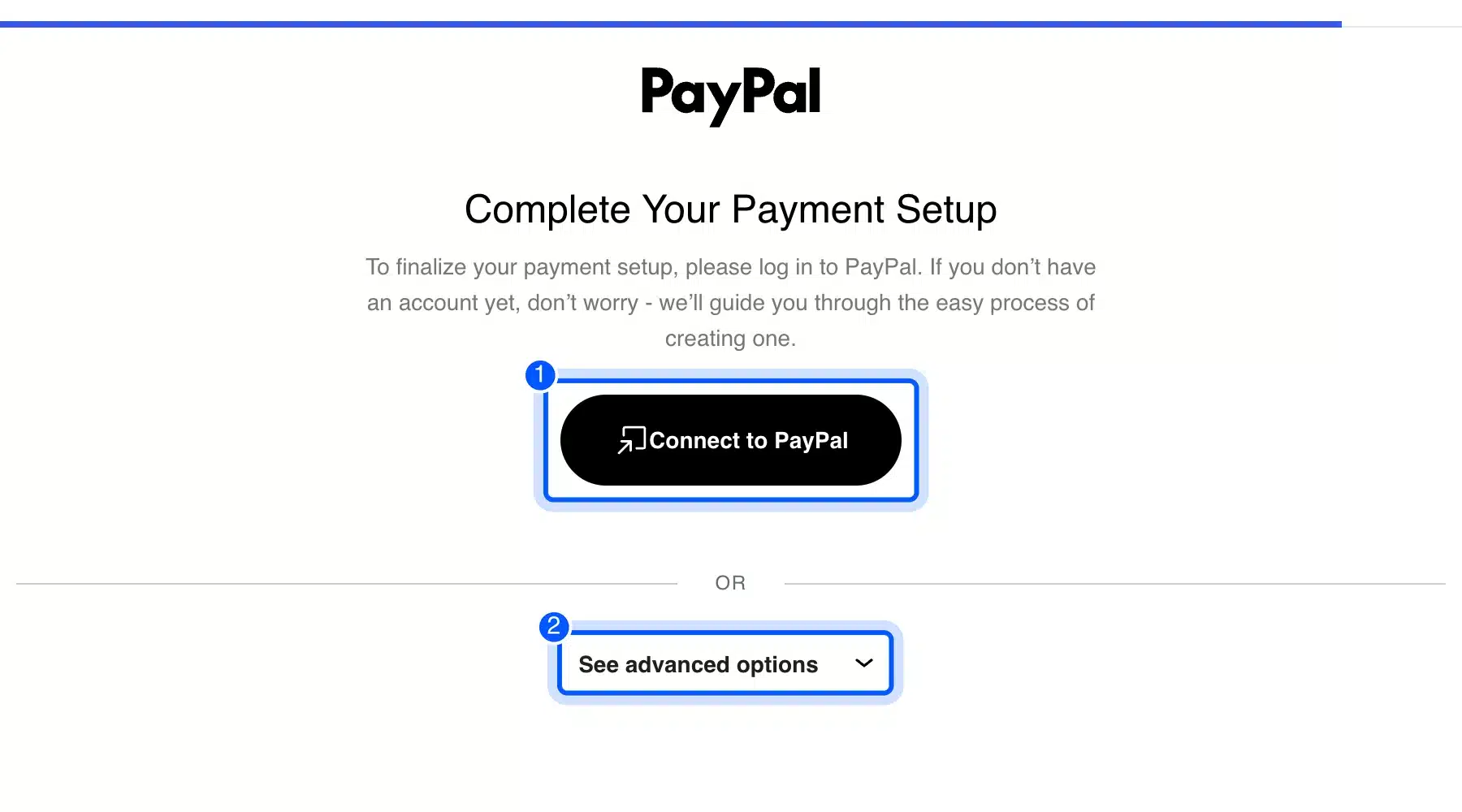
I stopped at step 4 on purpose. Logging in needs a real PayPal account, and a test guide has no business using one. Use Sandbox mode under See advanced options if you want to try the full flow with test data first.
After the connection, PayPal Checkout turns on with Venmo inside it for buyers who qualify. The WooCommerce docs say Venmo shows on the same pages as PayPal, including the product, cart and checkout pages.
How Much Does Venmo Cost a WooCommerce Store?
Venmo through PayPal Checkout costs the same as a PayPal Checkout payment. PayPal’s US fees page lists Pay with Venmo at 3.49% plus a fixed fee per sale. The plugin screen showed that fixed fee as $0.49 USD, with no monthly fee and nothing extra for the buyer.
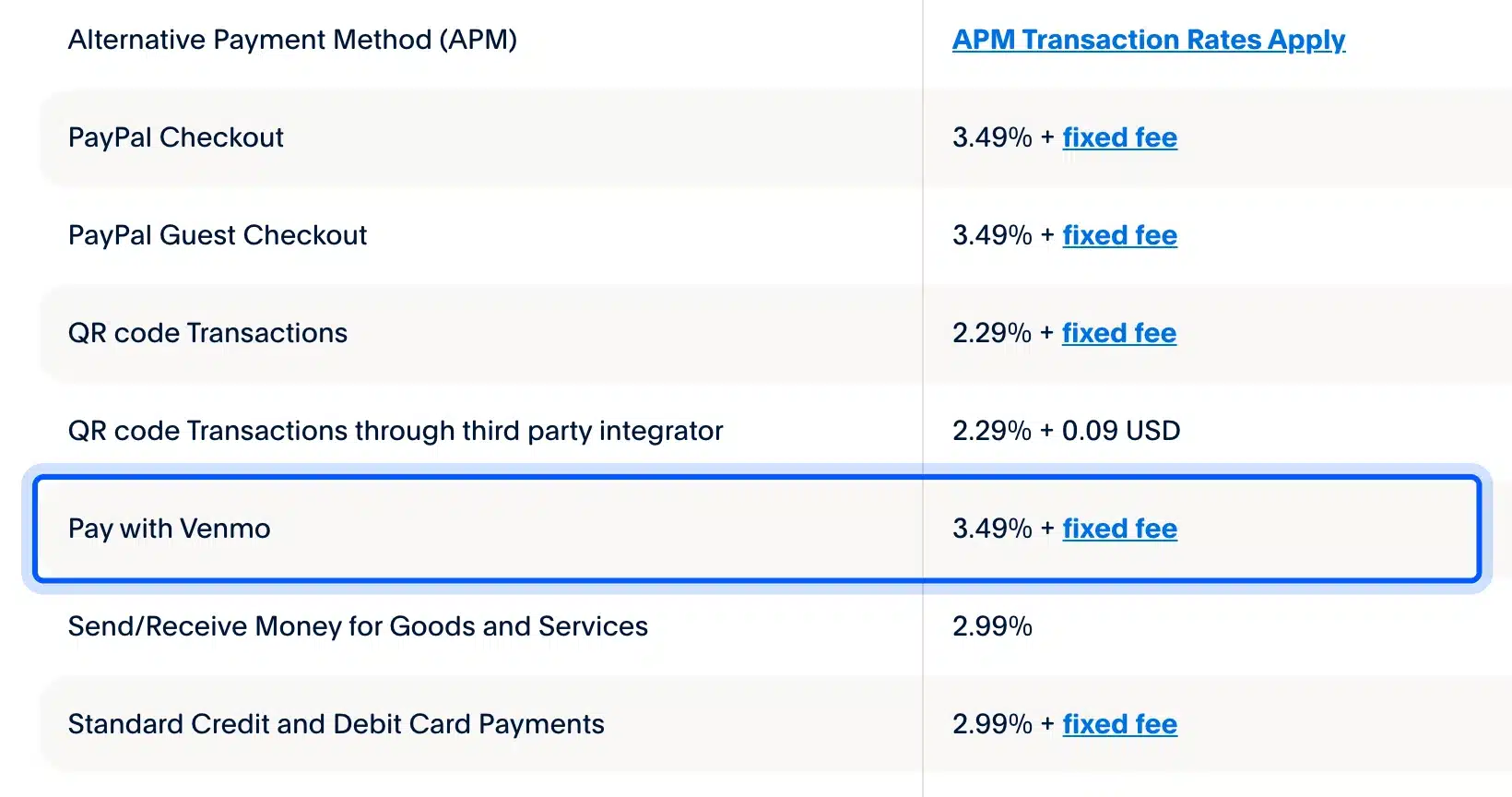
The numbers come from PayPal’s merchant fees page, which I checked in October 2026. The plugin’s own welcome screen showed the same 3.49% rate with a $0.49 fixed fee.
Here is a worked example with round numbers. A $50 order costs 3.49% of $50, which is $1.75, plus $0.49. That comes to $2.24 in fees, and you keep $47.76.
Card payments through Expanded Checkout showed a lower rate in the wizard, from 2.89% plus $0.29. So a store with many card buyers may pay less per sale on cards than on Venmo.
Why the Venmo Button Is Not Showing
The Venmo button hides when any one of PayPal’s rules fails. The usual causes are a store currency other than USD or a buyer outside the US. Buyers without the Venmo app or on the wrong mobile browser miss it too. Check those before you touch the plugin settings.
Run through these checks in order:
- Store currency: WooCommerce > Settings > General must show United States dollar.
- Buyer location: A tester outside the US will not see the button, even on a US store.
- The Venmo app: PayPal’s docs say buyers must have the Venmo app installed on iOS or Android.
- Mobile browser: In-app browsers, such as the one inside a social app, are not Safari or Chrome.
- Account connection: The plugin must show a connected live account and not Sandbox mode for real buyers.
- Cache: A page cache can keep serving checkout from before the plugin was connected.
If your store sells to other countries, keep PayPal and cards on too. Venmo only adds an option for US buyers. It should never be the only way to pay.
Can You Add Venmo to Your Website Without a PayPal Business Account?
You can add Venmo to your website without the PayPal plugin, but only as a manual payment outside WooCommerce checkout. Venmo offers business profiles for accepting payments for goods and services. Buyers then pay your profile in the Venmo app, and you mark the order paid by hand.
Venmo’s business profiles FAQ says these profiles let users accept payments for goods and services. It also says they come with fees and tax reporting rules.
This route has real limits. The order does not update by itself, refunds happen in the Venmo app, and you match each payment to an order by its note. That gets slow past a handful of orders a week.
There is also a tax side. The business profiles FAQ says profiles are subject to tax reporting. Keep the payment notes with your order records.
For a small shop or a one-off sale, it works. For a real store, the plugin route above is cleaner, because the payment and the order stay linked.
Still deciding how much of a store you need? Our guide to WordPress vs WooCommerce explains where a plain WordPress site stops and a store begins. For a custom checkout with Venmo, our WooCommerce developers can build and test it with you.
Conclusion
WooCommerce Venmo comes free with the official PayPal Payments plugin. The setup is really a PayPal setup. Install the plugin, choose Business, pick your products and connect your PayPal account.
The button then shows by itself to US buyers who pay in USD and have the Venmo app. Each sale costs 3.49% plus $0.49. If the button is missing, check the currency, the buyer’s location and the browser before anything else.
Frequently Asked Questions (FAQs)
Q1. How do I set up Venmo for my online store?
Install WooCommerce PayPal Payments, run its setup wizard and connect a PayPal business account. Venmo then shows as a button for US buyers who qualify. There is no separate Venmo plugin to add.
Q2. How do I add a Venmo button to my website?
On a WooCommerce site, the Venmo button for your website comes with PayPal Checkout in the PayPal Payments plugin. On a site without a store, use a Venmo business profile and share its link or QR code instead.
Q3. Do I need a Venmo account to accept Venmo in WooCommerce?
No. The WooCommerce docs say Venmo payments are forwarded to your connected PayPal account. You need a PayPal business or casual seller account, while your buyers need the Venmo app.
Q4. Can buyers outside the US pay with Venmo?
No. PayPal’s developer docs limit Venmo to US-based merchants and US-based buyers paying in USD. Keep PayPal and cards on for everyone else.
Q5. Does Venmo work on desktop checkout?
Yes. PayPal’s docs say desktop buyers click the Venmo button, which shows a QR code. They scan it with the Venmo app on their phone to finish the payment.
Q6. Can I test Venmo before going live?
Yes, the plugin has a Sandbox mode under See advanced options on its setup screens. It lets you run payments with test data before you connect your live PayPal account.