
Most stores do not need a native WooCommerce mobile app yet. A fast mobile site plus a progressive web app (PWA) gives shoppers an installable, app-like store for the price of a free plugin. A native app starts to pay off only when repeat buyers order often enough to keep it open on their phones.
We tested this on a WooCommerce 11.2.0 store running WordPress 7.1.3 in October 2026. We ran Lighthouse 13.5.0 in mobile mode three times and installed a free PWA plugin. Then we checked install readiness and offline pages in Chrome on an emulated Pixel 7.
Below you get a side by side of native apps, PWAs and mobile web. Then comes the official WooCommerce app, which is a tool for store owners. After that you get our mobile speed results, a five step PWA setup and the real costs of a native app.
Do You Need a WooCommerce Mobile App?
You need a WooCommerce mobile app for shoppers only when most of your buyers come back often, as with weekly groceries or monthly refills. For most stores, a quick mobile site and a PWA cover install, push alerts and cached pages. Start there, and build native later if the numbers ask for it.
The word “app” also means two different things in WooCommerce searches. Some people want an app that their customers download to shop. Others want an app to run their own store from a phone, and WooCommerce already makes that one for free.
Here is the quick way to decide:
- Stay on mobile web: Your mobile pages are slow or clumsy, because no app fixes a slow store underneath it.
- Add a PWA: Your site is quick and you want a home screen icon, push alerts and cached pages without app stores.
- Build a native app: You have many loyal repeat buyers and a budget for ongoing updates on two platforms.
- Use the official WooCommerce app: You want to manage orders and products from your own phone.
A rough worked example helps. Say 2,000 people buy from you in a year and 300 of them order every month. Those 300 are the shoppers who would keep an app icon, and they are about 15% of your buyers.
If that group is small, the other 85% will never install anything and will keep using your mobile site. That is why mobile speed and a smooth checkout come first, and an app comes after.
One more signal is how buyers return. Repeat orders that already arrive through email links or bookmarks are another clue. An installable PWA gives those buyers the same one-tap return for far less work than a mobile app for WooCommerce built from scratch.
Native App vs PWA vs Mobile Web for WooCommerce
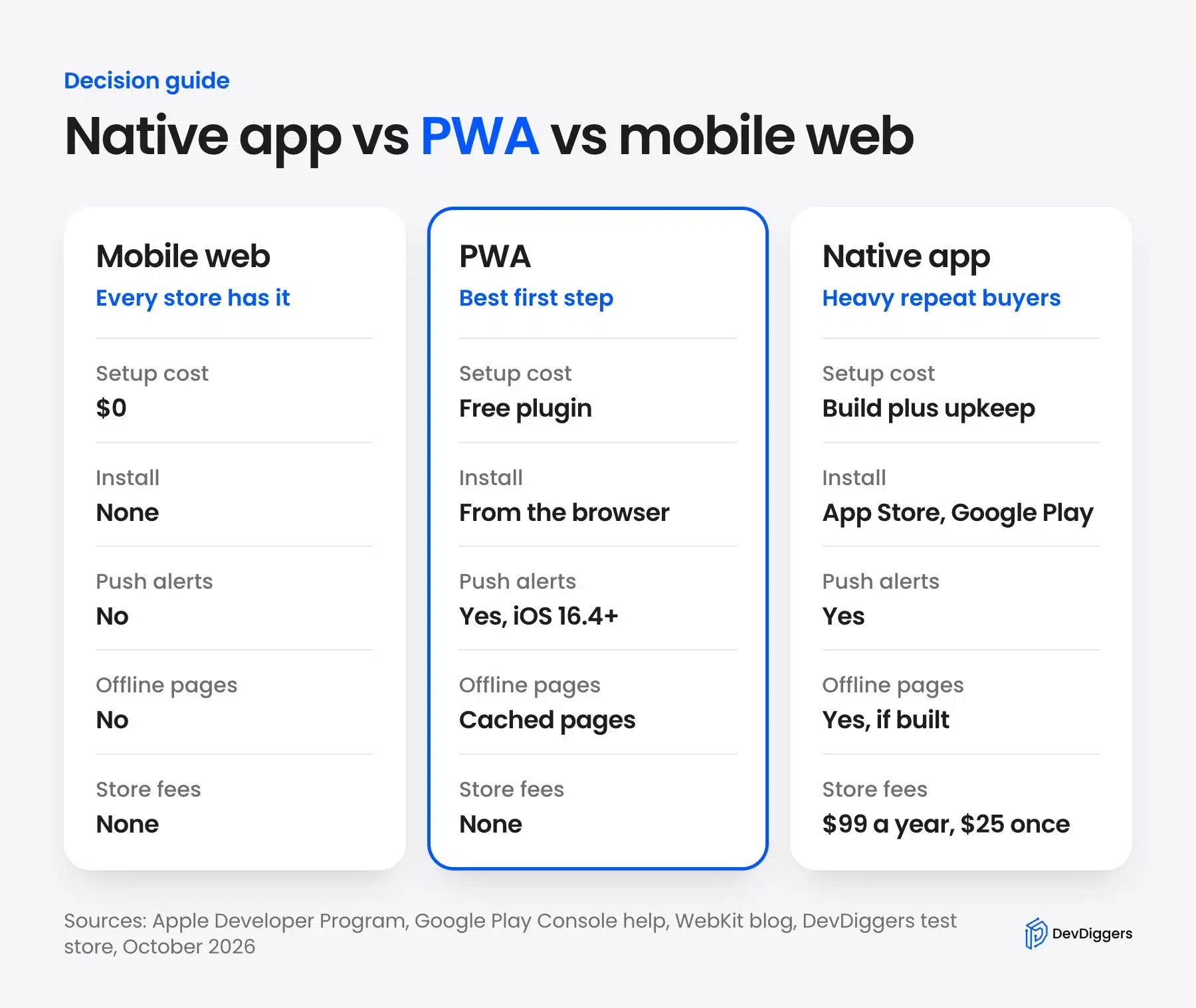
A native app is installed from the App Store or Google Play, while a PWA is your website made installable by the browser. Mobile web is your normal site in a phone browser. All three sell WooCommerce products, but they differ in cost, install path and features.
The PWA vs native question mostly comes down to reach and upkeep. A PWA ships every change the moment you update your site. A native app needs a new build and a store review for many changes, on two platforms.
| Feature | Mobile web | PWA | Native app |
|---|---|---|---|
| How shoppers get it | Open your URL | Install from the browser | Download from an app store |
| Setup cost | None | A plugin, often free | A custom build or an app builder plan |
| Push notifications | No | Yes, including iPhone on iOS 16.4 and later | Yes |
| Offline pages | No | Cached pages | Whatever you build |
| App store fees | None | None | $99 a year (Apple) and $25 once (Google) |
| Updates | Instant | Instant | New build per platform |
| Uses your WooCommerce data | Directly | Directly | Through the REST API |
Native apps still win on a few things. They can use more device features, and an app icon that already sits on a phone keeps your brand in front of loyal buyers. Those gains matter most for stores that sell the same items again and again.
Search is the other big difference. A PWA is still your website, so every product page stays indexable and shareable by link. Pages inside a native app do not appear in Google results, so the app adds a channel but never replaces the site.
The hidden cost of native is upkeep. Every new iOS and Android release can need an app update, and each update goes through store review before shoppers get it. A PWA skips that queue, because the browser loads the latest version of your site.
App builders sit in between. They read your products and orders through the WooCommerce REST API and wrap them in a native shell, usually for a monthly fee. Check that every plugin your checkout depends on, such as a gateway or a delivery date picker, works inside the builder before you commit.
Note: A PWA is not a lesser native app. On the shopper’s side, it opens full screen from an icon and looks like any other app. The difference is mostly in how it is built and shipped.
The Official WooCommerce App Is for Store Owners
The official WooCommerce app is a free app for iPhone, Android and watches that store owners and shop managers use. It handles orders, products, sales stats and in-person payments. Shoppers never see it, so it does not replace a customer app or a PWA.
People searching for a WooCommerce app or a WooCommerce Android app often mean this one. It is useful, and it costs nothing, but it solves a different problem from the one in the rest of this guide.
What the WooCommerce App Does
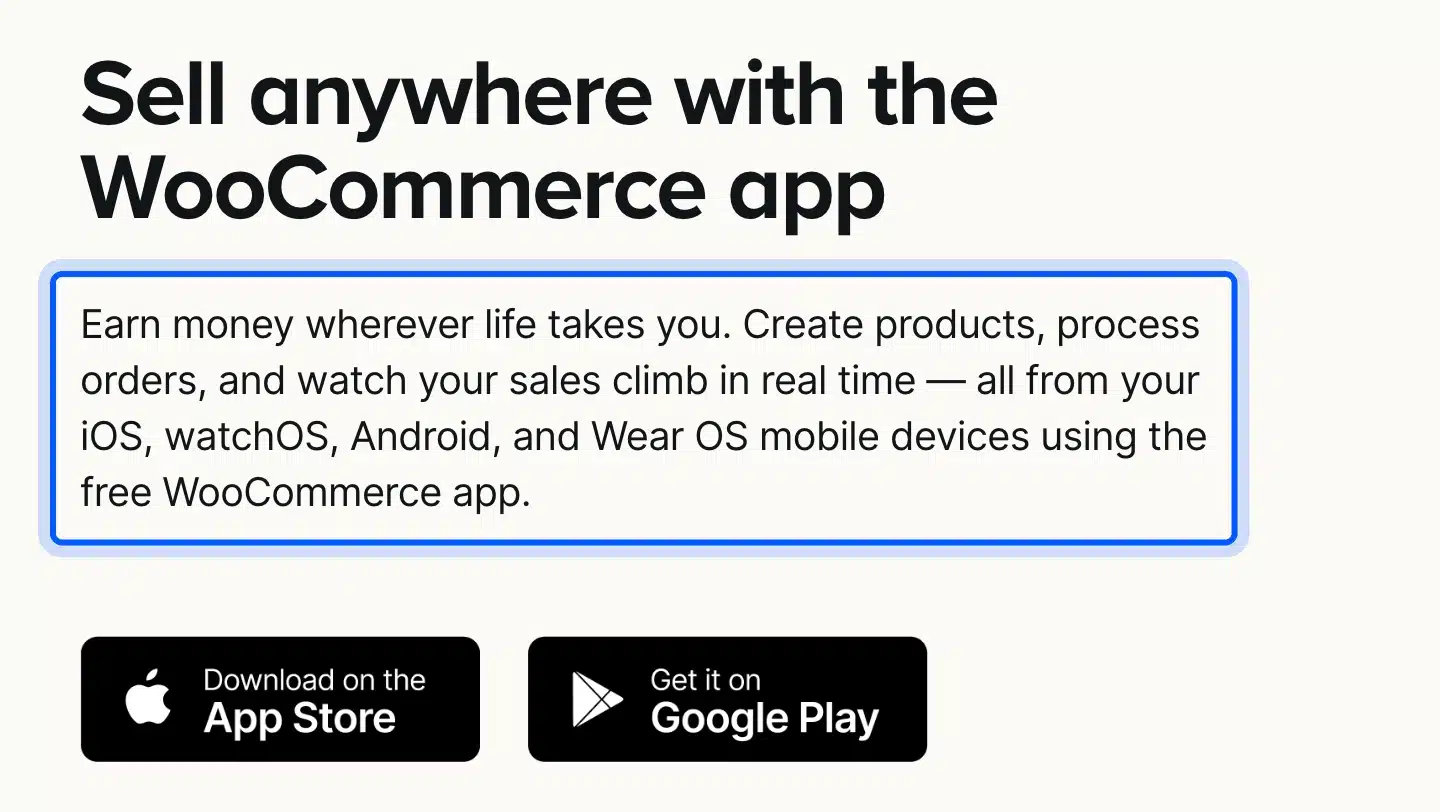
The official WooCommerce mobile app page describes an app for creating products, processing orders and watching sales on iOS, watchOS, Android and Wear OS. It also takes in-person payments with Tap to Pay on iPhone and Android without extra hardware.
On Android, WooCommerce’s Android app docs list Android 8.0 or later and WooCommerce 3.5 or later on the store. The same page says a tablet also shows a Point of Sale tab, so a counter can run on the app.
The WooCommerce Android app no longer needs Jetpack for push alerts on newer stores. From WooCommerce 10.9 and app version 24.9, you set up push notifications inside the app, while 10.8 and earlier still need Jetpack for them.
What the App Needs to Connect
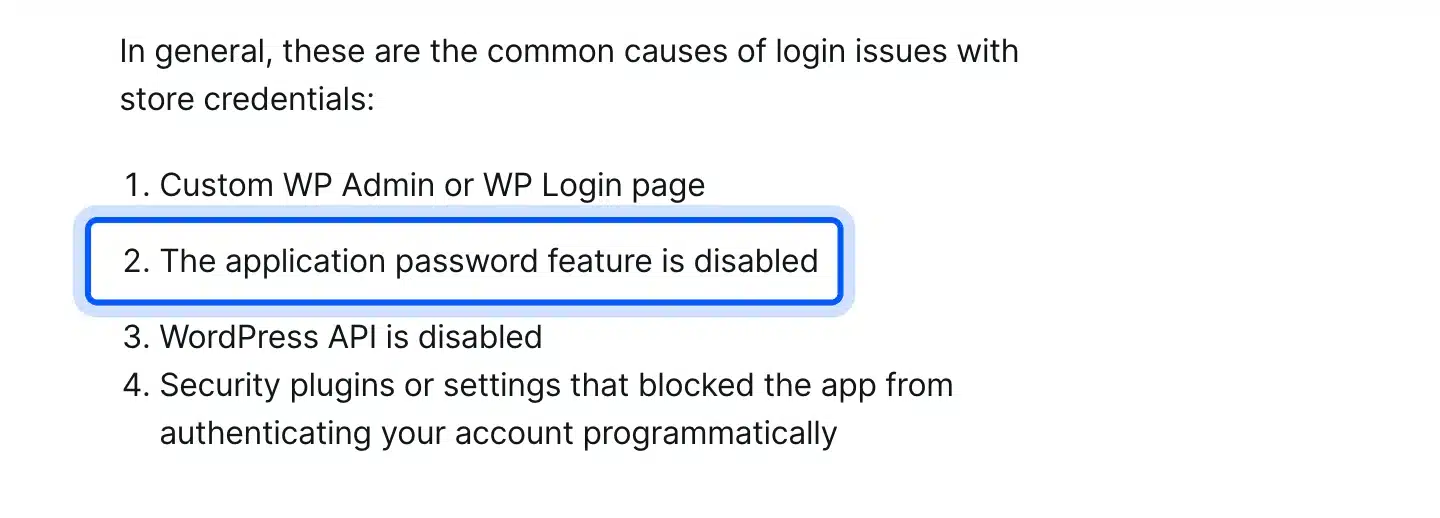
The app connects with your normal WordPress login, then asks your site for an application password to stay signed in. WooCommerce’s login help page lists a disabled application password feature as a common reason the login fails. The user also needs the Administrator or Shop Manager role.
We checked this on our test store, which ran over plain HTTP. WordPress reported application passwords as unavailable, and the Application Passwords section was missing from the user profile. WordPress’s own function reference explains why: the feature works only on sites using SSL or local environments.
So a store without HTTPS cannot connect the app with store credentials. Fix the certificate first, and check that no security plugin blocks application passwords.
Check How Your Store Performs on Mobile First
Your mobile speed decides more than the app question, because shoppers reach your store through a browser before any install. Run Lighthouse in mobile mode on your shop and product pages. If the score is poor, an app or PWA on top will feel slow too, so fix the site first.
We ran Lighthouse 13.5.0 three times on the shop page of our test store, with its default mobile throttling. The performance score came out at 62, 64 and 62. Largest Contentful Paint sat between 5.8 and 6.0 seconds, while blocking time and layout shift were both zero.
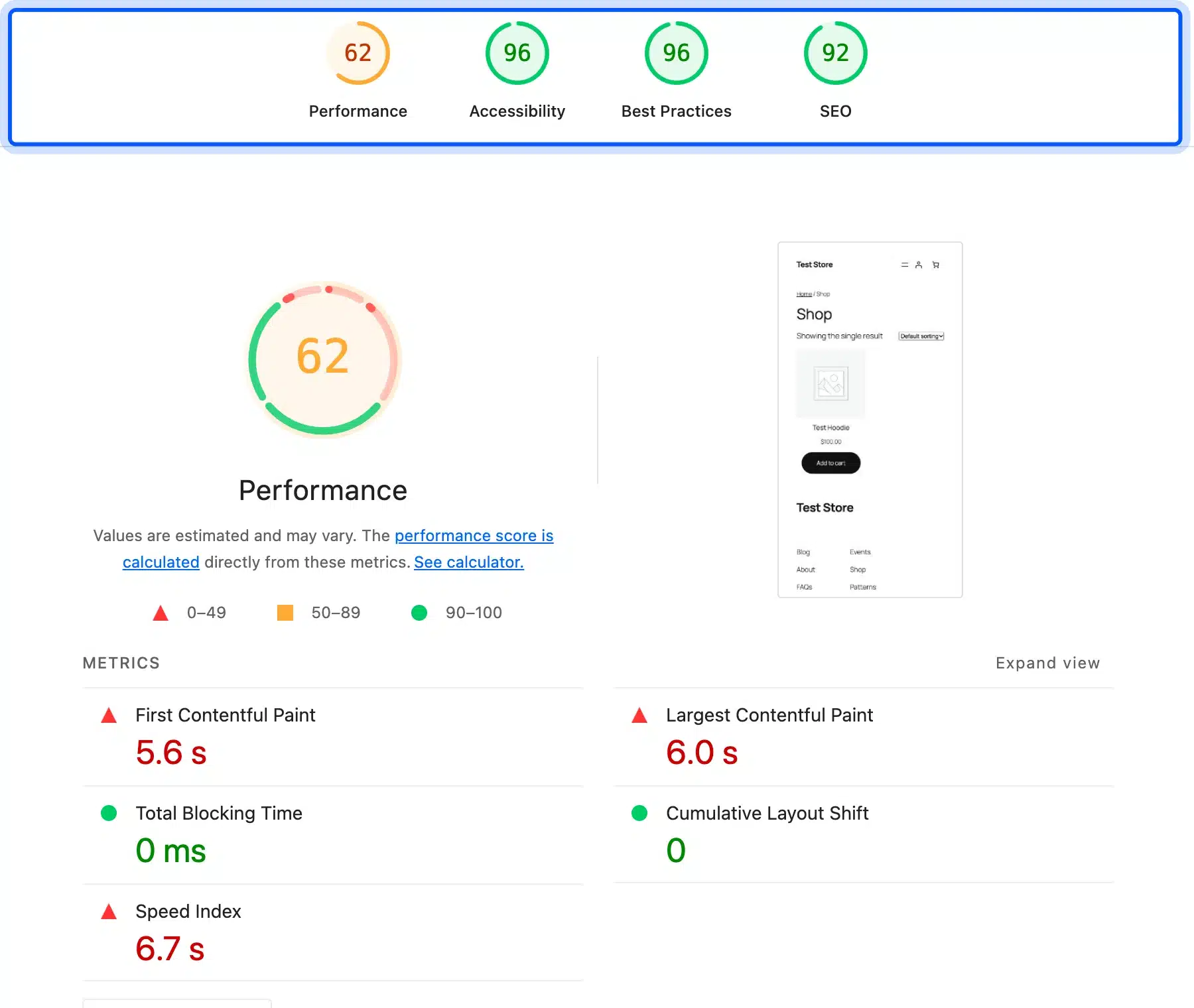
The slow part was the server. The first HTML response took 2.4 to 3.6 seconds, because our test server had no page cache. That is a worst case, yet the lesson holds: a slow server response hurts every mobile visit, app or not.
Accessibility scored 96, best practices 96 and SEO 92 on the default block theme, and the whole page weighed 806 KiB. Those are fine numbers, which shows that a stock theme is not the problem on most stores.
You can run the same test on your own store in a few minutes:
- Open your shop page in Chrome, then open DevTools and pick the Lighthouse tab.
- Choose Mobile as the device and tick Performance, Accessibility, Best Practices and SEO.
- Click Analyze page load and note the score and Largest Contentful Paint.
- Repeat it twice more, then do the same for a product page and the cart.
Three runs matter because scores move a few points between runs, as ours did from 62 to 64. Use the middle score of the three, because the best run flatters the store.
When the score is low, these are the usual first fixes on a WooCommerce store:
- Server response: Add page caching for shop and product pages, since our 2.4 second first response cost more than anything else.
- Largest image: Serve the main product image in a modern format at the size the phone shows.
- Plugin scripts: Remove plugins that load scripts on every page but are used on only one.
If your results look like ours, start with caching and hosting. Our guide on how to speed up a WooCommerce website covers the fixes in order.
Worth knowing: Lighthouse no longer has a PWA score. Google’s PageSpeed Insights release notes say the PWA category was removed with Lighthouse 12.0 on May 10, 2024. Check installability in Chrome’s DevTools instead.
How to Turn Your WooCommerce Store into a PWA
You can turn a WooCommerce store into a PWA in about 15 minutes with a plugin and no app store account. Install it, run the setup wizard, and set the app name and colors. Then add push keys if you want alerts, and test the install prompt and offline pages.
We used the free DevDiggers PWA plugin from WordPress.org, version 1.1.0, because it is our own and we know what it does. The same steps apply to other PWA plugins, which our roundup of the best WordPress PWA plugins compares.
Step 1: Install a PWA Plugin
Go to Plugins, then Add Plugin, and search for a PWA plugin by name. Install it and click Activate.
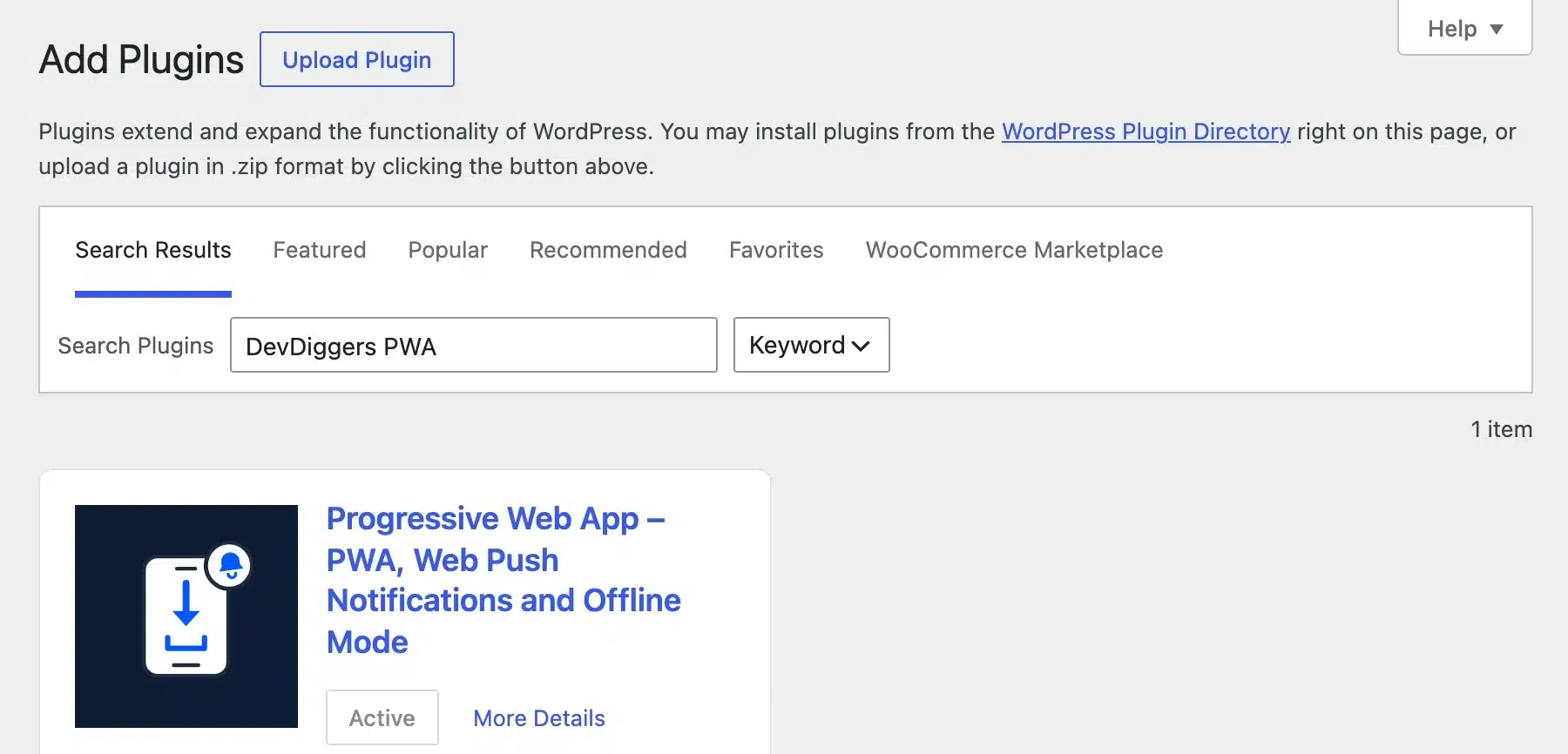
Pick a recently updated plugin that lists your WordPress version as compatible. A PWA plugin runs on every page view, so an abandoned one is a real risk to your store.
Step 2: Run the Setup Wizard
After activation, the plugin opened a four step onboarding wizard on its dashboard. The first screen explains that visitors will be able to install the store and receive push notifications.
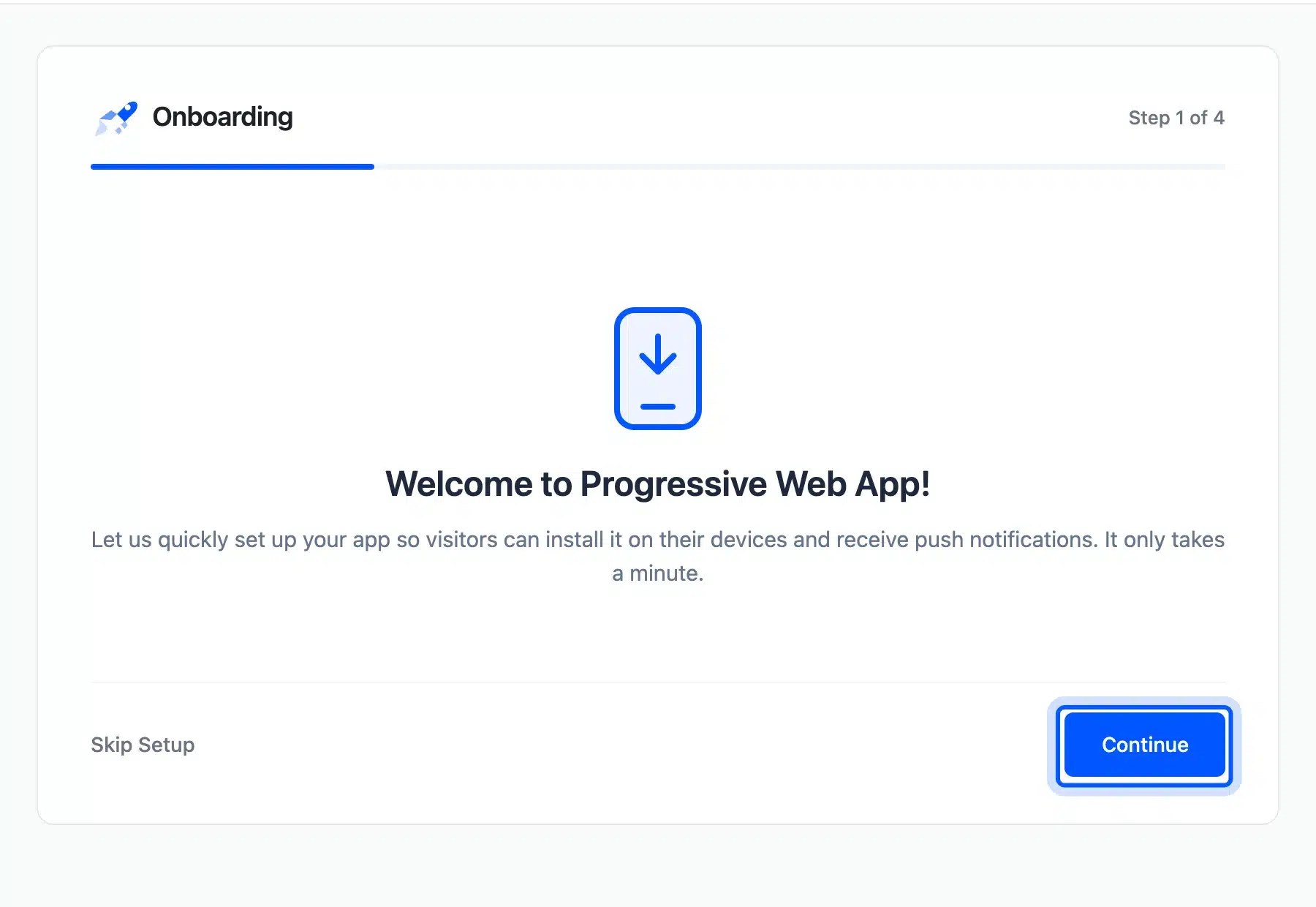
You can skip the wizard and set everything later under Configuration. We kept going, since it covers the settings that matter for a store.
Step 3: Set the App Name and Colors
Step 2 of the wizard asks for the app name, a short name, a theme color and a background color. The plugin pre-filled the app name with our site title and the theme color with our brand blue.
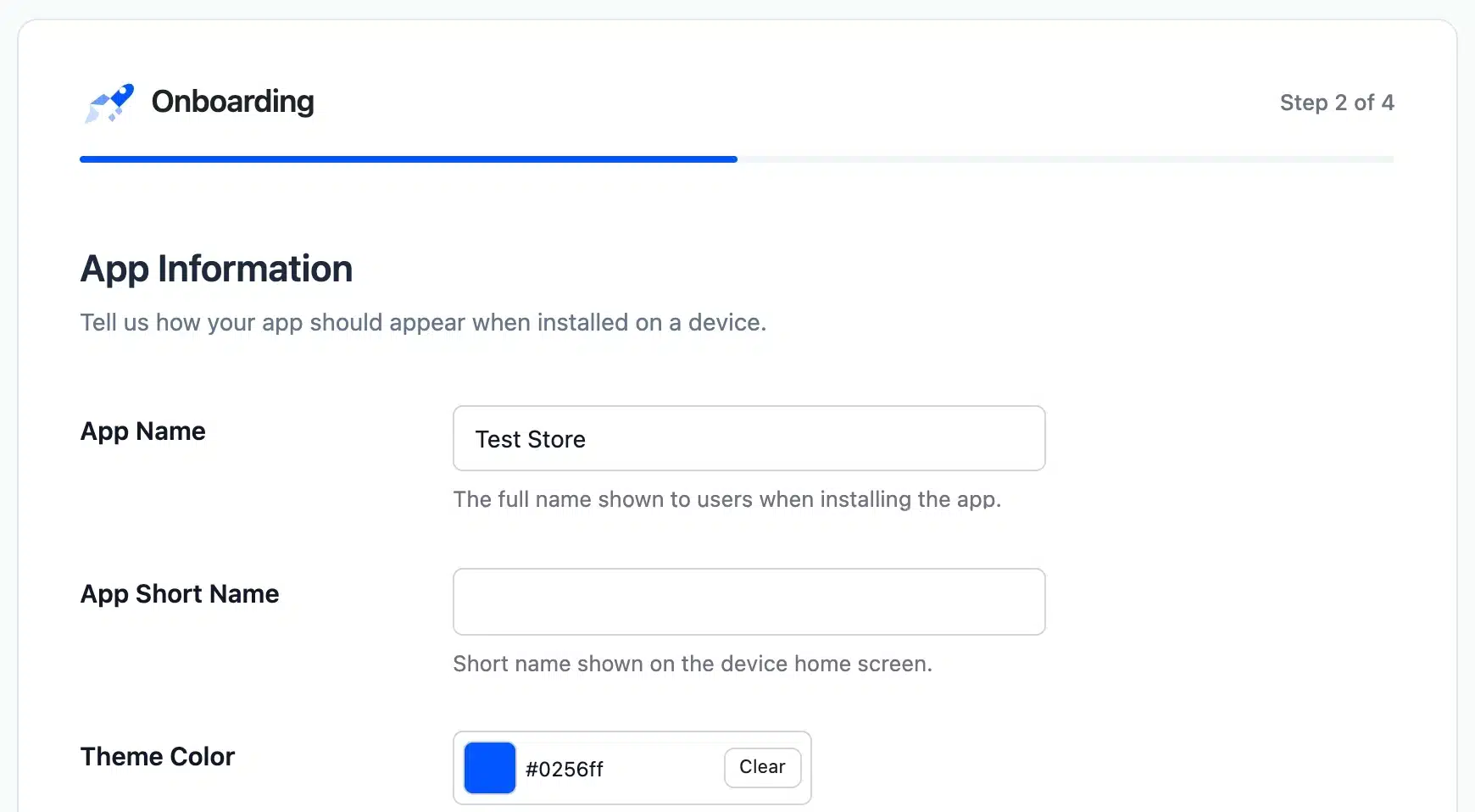
Add a short name of about 12 characters, because the full name gets cut under a home screen icon. The theme color tints the browser bar while the app is open.
Step 4: Add Push Notification Keys
Step 3 of the wizard covers push notifications. It needs a Web Push certificate public key and a sender ID from your own Firebase project. Two toggles below them turn on a permission popup and an install banner.
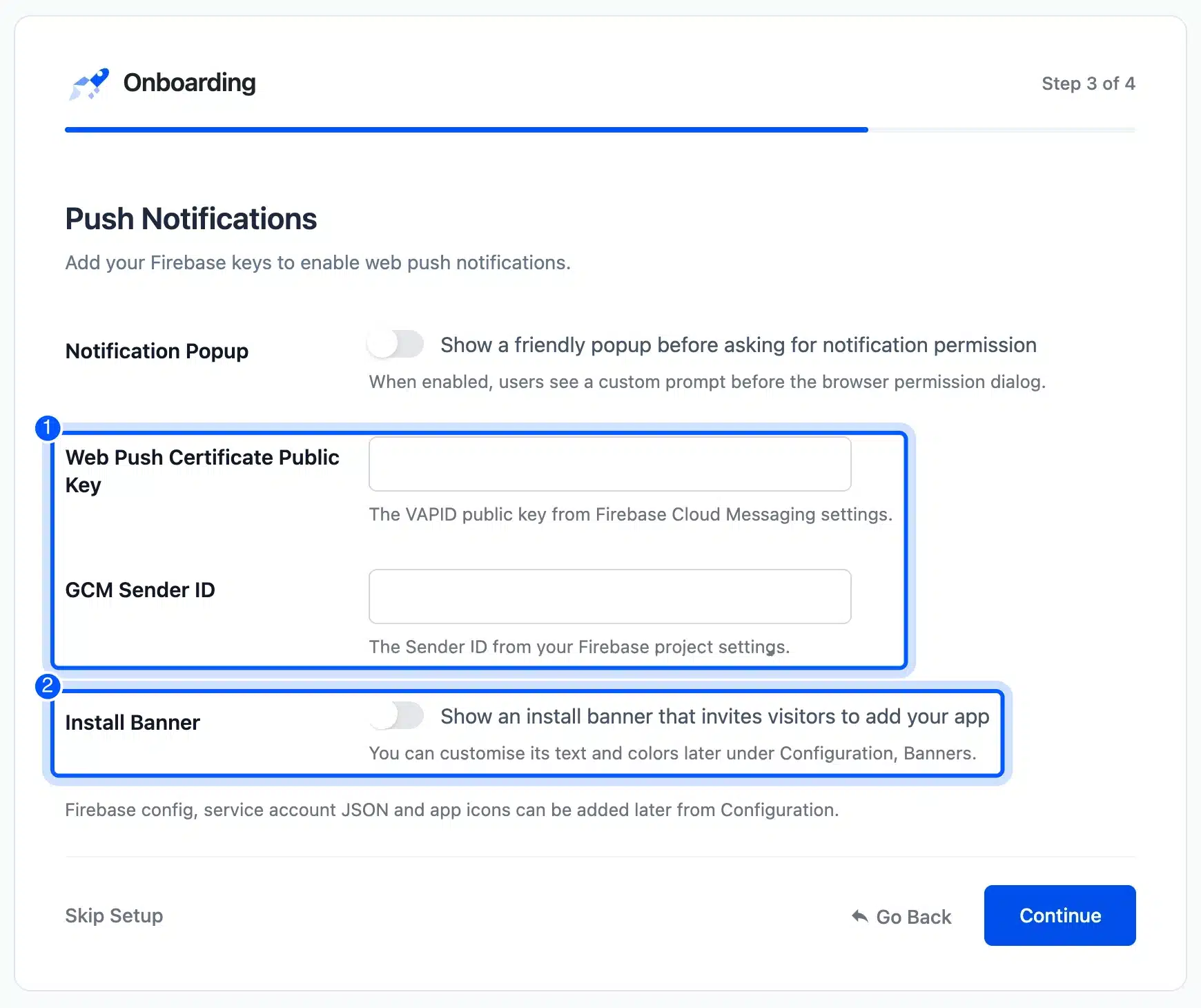
Push is optional, and the store installs fine without it. If you add it later, the plugin’s last wizard screen points you to Configuration for the Firebase config and service account file.
Step 5: Test the Install Prompt and Offline Pages
Open the store on a phone or in Chrome’s device mode and check that it can be installed. In our test, Chrome’s installability check returned no errors. The plugin’s Install our app banner appeared once we switched it on.
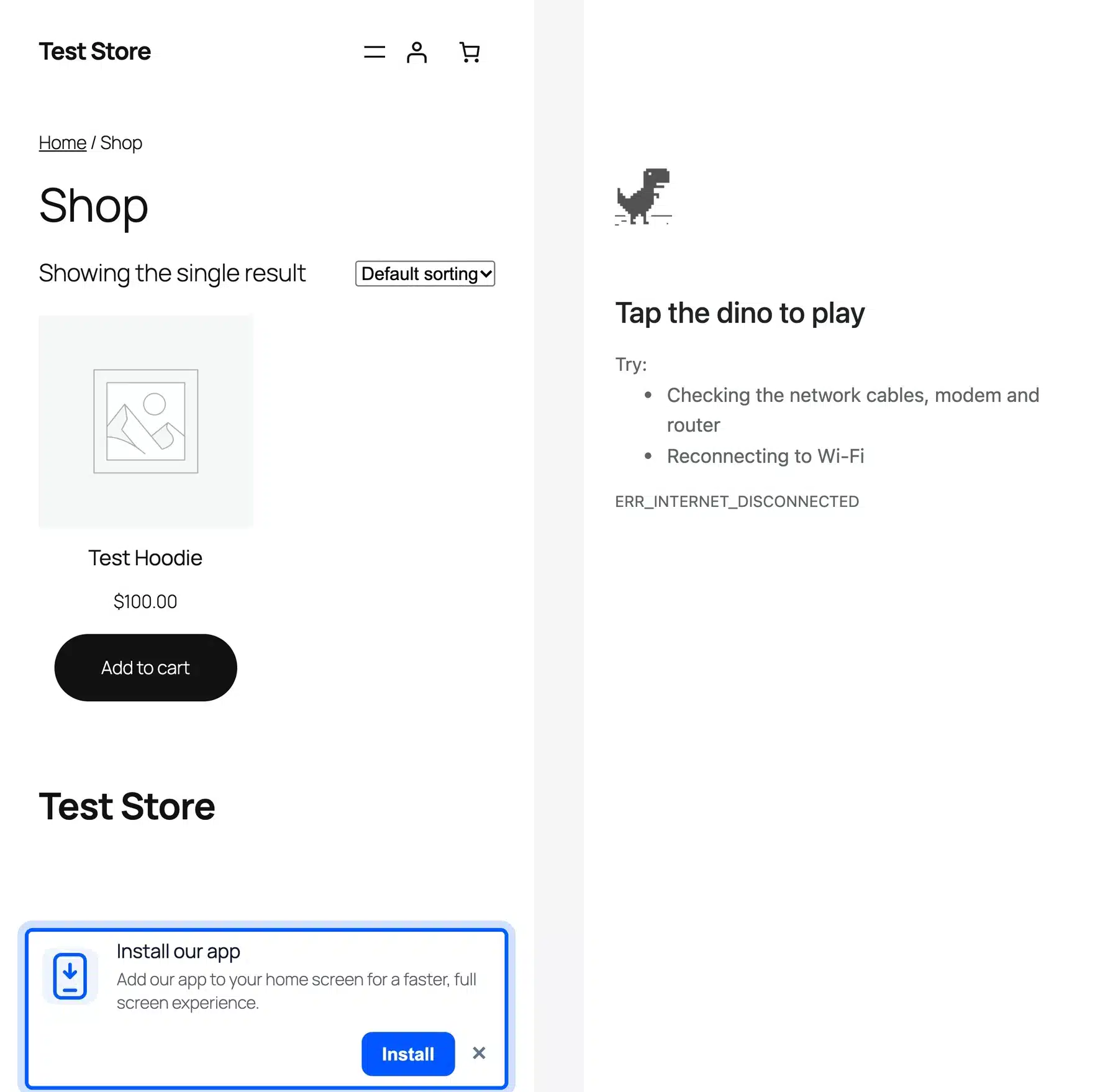
Then test offline. With the network cut, the shop page still loaded from the service worker cache. The cart page showed Chrome’s offline error instead, which is the right behavior because a cart needs live prices and stock.
On an iPhone the flow is manual. Safari has no automatic install prompt, so shoppers tap Share and then Add to Home Screen. The WebKit team notes that this has worked for any website since the first iPhone.
Tell iPhone visitors how to do it in your banner text, because many of them have never added a site to their Home Screen.
That result answers the offline cart question plainly: a PWA lets shoppers browse cached pages without a signal, but no one can check out offline. Payment always needs a connection.
The manifest the plugin served had display set to standalone, our theme color, and icons from 48 to 512 pixels. Google’s install criteria ask for a name, icons, a start URL and a standalone style display, and the plugin covered all four.
One small gap showed up. The install criteria name 192 and 512 pixel icons, while the plugin shipped 196 and 512, yet Chrome still reported no install errors.
Our paid WordPress PWA plugin is a yearly license from $49 as of October 2026. It adds the Pro features on top of the same setup.
When a Native WooCommerce App Is Worth It
A native WooCommerce app is worth it when frequent repeat orders drive most of your revenue. It also suits stores that need device features a browser cannot reach. Plan for two platforms, store reviews and yearly developer fees before you start.
A native app reads products and orders from your store through the WooCommerce REST API, so the store stays the single source of truth. That link also means every store plugin that changes checkout has to work with the app, which is where many app projects slow down.
A real native project also covers customer login, a cart that stays in sync with the website, and a payment SDK for each gateway. Budget time for each of those, plus testing on several phone sizes and OS versions before the first store review.
App Store and Google Play Fees
App store fees for a store selling physical goods are mostly the developer accounts. Apple’s Developer Program costs $99 a year, and the Google Play Console charges a $25 one-time registration fee, as of October 2026.
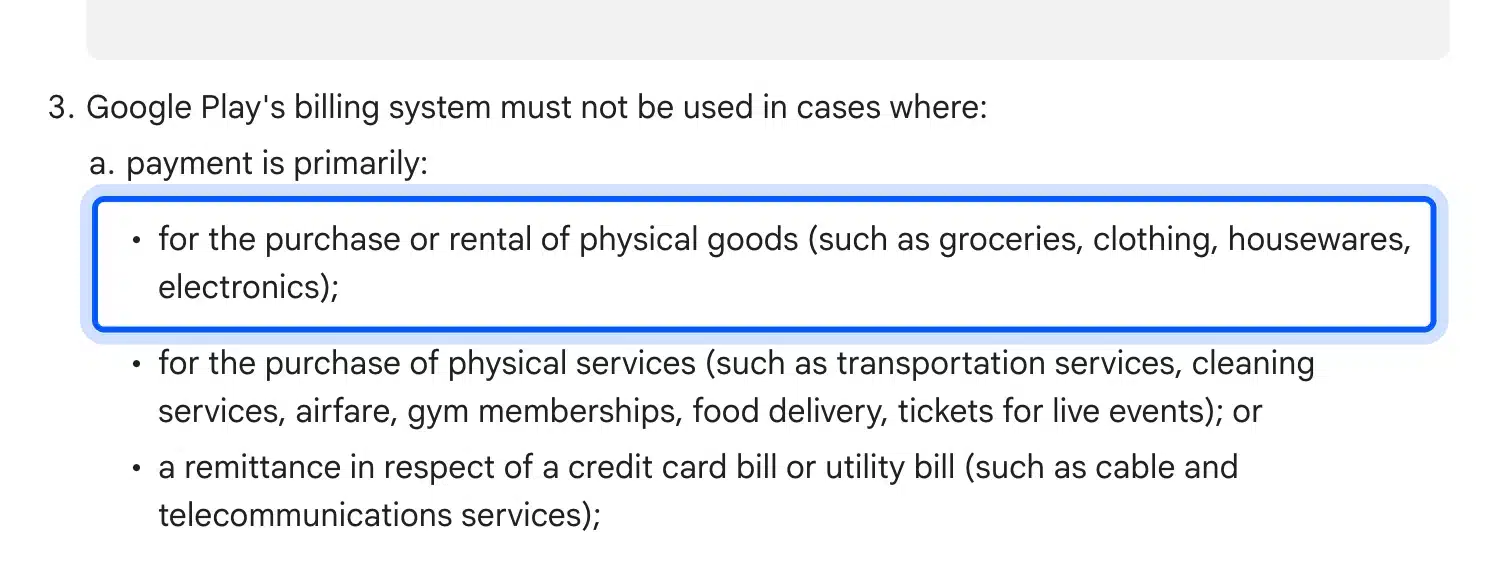
The commission on sales is the part people fear, and it mostly does not apply. Google’s payments policy says Google Play’s billing must not be used for physical goods such as clothing or electronics. Apple’s App Review Guidelines likewise send physical goods to payment methods other than in-app purchase.
So a WooCommerce app can keep using your normal payment gateway. Digital goods are different, so a store selling downloads, memberships or courses inside an app should read both policies closely.
Push Notifications on iPhone and Android
Push notifications used to be the strongest reason to build a native app, because iPhones did not support web push. That changed with iOS and iPadOS 16.4, which added web push for web apps added to the Home Screen.

The WebKit announcement adds one condition: the shopper must first add the site to the Home Screen and tap to allow alerts. On Android, Chrome shows web push without that step.
That gap still favors native apps a little, because an iPhone shopper has to install the PWA before any alert reaches them. For most stores, though, an install banner plus a clear reason to subscribe gets close enough.
Other channels can do the job too. Order updates through chat often reach more people than app alerts, and our list of the best WooCommerce WhatsApp order plugins covers that route. Quick payment also helps on small screens, for example with WooCommerce wallet payments that skip card entry for repeat buyers.
If your numbers do point to a native app, plan the build around your existing store rather than a separate catalog. Our custom WooCommerce development team can scope the API work and the checkout pieces a custom app needs.
Conclusion
A WooCommerce mobile app for shoppers makes sense once loyal, frequent buyers drive your sales. Before that, a fast mobile site and a PWA give you an installable store, push alerts and cached pages with no app store fees.
Lighthouse put the shop page at 62 on mobile, held back by a slow server response. A free PWA plugin then made the store installable in minutes. The cart still needed a connection, as it should.
For running the store yourself, install the free official WooCommerce app, and make sure your site runs on HTTPS so it can connect.
Frequently Asked Questions (FAQs)
Q1. Does WooCommerce have a mobile app?
Yes. WooCommerce has a free official app for iPhone, Android and smartwatches, but it is for store owners and shop managers. It manages orders, products and in-person payments, and shoppers never use it.
Q2. Can I turn my WooCommerce store into an app?
Yes, in two ways. A PWA plugin makes your store installable from the browser with no app stores. A native app needs a custom build or an app builder that reads your store through the REST API.
Q3. Is a PWA better than a native app for WooCommerce?
For most stores, yes, because a PWA costs far less, updates instantly and needs no app store review. A native app is better only for stores with many frequent repeat buyers or special device needs.
Q4. How much does it cost to put a WooCommerce app on the App Store?
Apple charges $99 a year for its Developer Program and Google charges a one-time $25 registration fee, as of October 2026. The bigger cost is building the app and keeping it updated on two platforms.
Q5. Do I need Jetpack for the WooCommerce app?
No. The app connects with your store login and an application password, and on WooCommerce 10.9 or later push notifications also work without Jetpack. Older stores still need Jetpack for push notifications.
Q6. Can customers check out in a PWA when they are offline?
No. In our test, cached shop pages loaded offline, but the cart and checkout needed a connection. Payment always requires the network, so a PWA can only let shoppers browse offline.
Q7. Why can I not log in to the WooCommerce app?
The most common causes are a disabled application password feature, a missing HTTPS certificate, or a user role other than Administrator or Shop Manager. A security plugin blocking the WordPress REST API can also stop the login.