
WooCommerce wallet cashback pays customers a share of each order back as store credit that only works in your shop. The credit lands in a wallet balance when the order is completed. We tested six ways to set it up.
We ran every test in October 2026 on a WooCommerce 11.2 store with WordPress 7.1.3 and the WooCommerce Wallet plugin, Pro version 3.2.0. Each number below comes from an order on that store.
You get six strategies with exact settings, the cashback each one paid, and what happens when rules stack. You also get a way to check the cost before you announce anything.
What Is WooCommerce Wallet Cashback?
WooCommerce wallet cashback is store credit that a customer earns on an order and receives in a wallet balance. The balance pays for later orders at your store only. It works like a discount that you hand out after the sale.
The flow has four steps. A shopper places an order and you mark it Completed.
The plugin credits the cashback to the customer wallet. The shopper then spends that balance at checkout.
The WooCommerce order status documentation says the Completed status means the order has been fulfilled and is complete. In our tests the cashback arrived at that moment and not before.
That makes it WooCommerce store credit with a reward rule attached, held in a WooCommerce customer wallet. If you are still choosing a plugin, read our comparison of WooCommerce wallet plugins first. The difference between wallet money and plain store credit is covered in WooCommerce wallet vs store credit.
The Plugin We Used for Every Test
We used our own WooCommerce Wallet plugin in its Pro version 3.2.0 for every test in this post. It adds product, role, payment method and top-up rules that the free version does not have. A free edition also exists on WordPress.org, and the last section covers what it can do.
Pro is sold as a yearly license, and as of October 2026 the plans start at $89. The Pro features switch on after you enter your license key under DevDiggers Plugins > Wallet > Configuration > License.
All cashback rules live in two places. Rules sit under DevDiggers Plugins > Wallet > Cashback Rules. Limits, delay, expiry and the cart messages sit under DevDiggers Plugins > Wallet > Configuration > Cashbacks.
6 WooCommerce Wallet Cashback Strategies We Tested
Each strategy below uses one setting and shows the cashback it paid on our test store. Every one comes with the exact menu path and the numbers we saw. A short section after the list covers how shoppers spend the balance.
1. Tier the Cashback by Cart Total
A tiered WooCommerce wallet cashback pays a higher percentage on bigger carts. Open DevDiggers Plugins > Wallet > Cashback Rules and add rows under Cart & Topup Cashback Rules. Each row has an amount range, a basis, a type and an amount.
We set the basis to Cart on two rows. A subtotal from $50 to $99.99 earns 5 percent. A subtotal from $100 to $1,000 earns 8 percent.
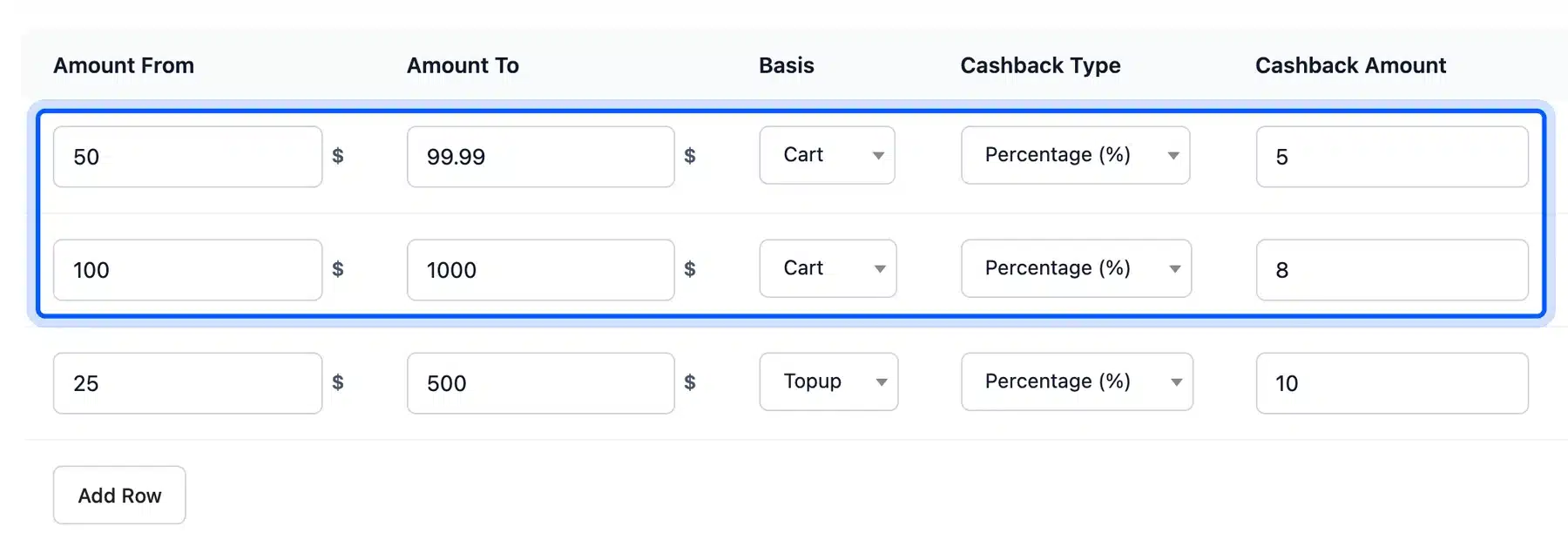
A $96 order earned $4.80, which is 5 percent. A $204 order earned $16.32, which is 8 percent.
A bigger basket pays a better rate. Shoppers get a reason to add one more item.
2. Reward the Products and Categories You Want to Move
Product and category rules pay extra cashback on the items you want to sell more of. They sit on the same Cashback Rules screen under Product Cashback Rules and Category Cashback Rules. A product rule also has a minimum quantity.
We added a 4 percent rule for the Plates category. We added a flat $6 rule for one Ceramic Dinner Set with a quantity of 1.
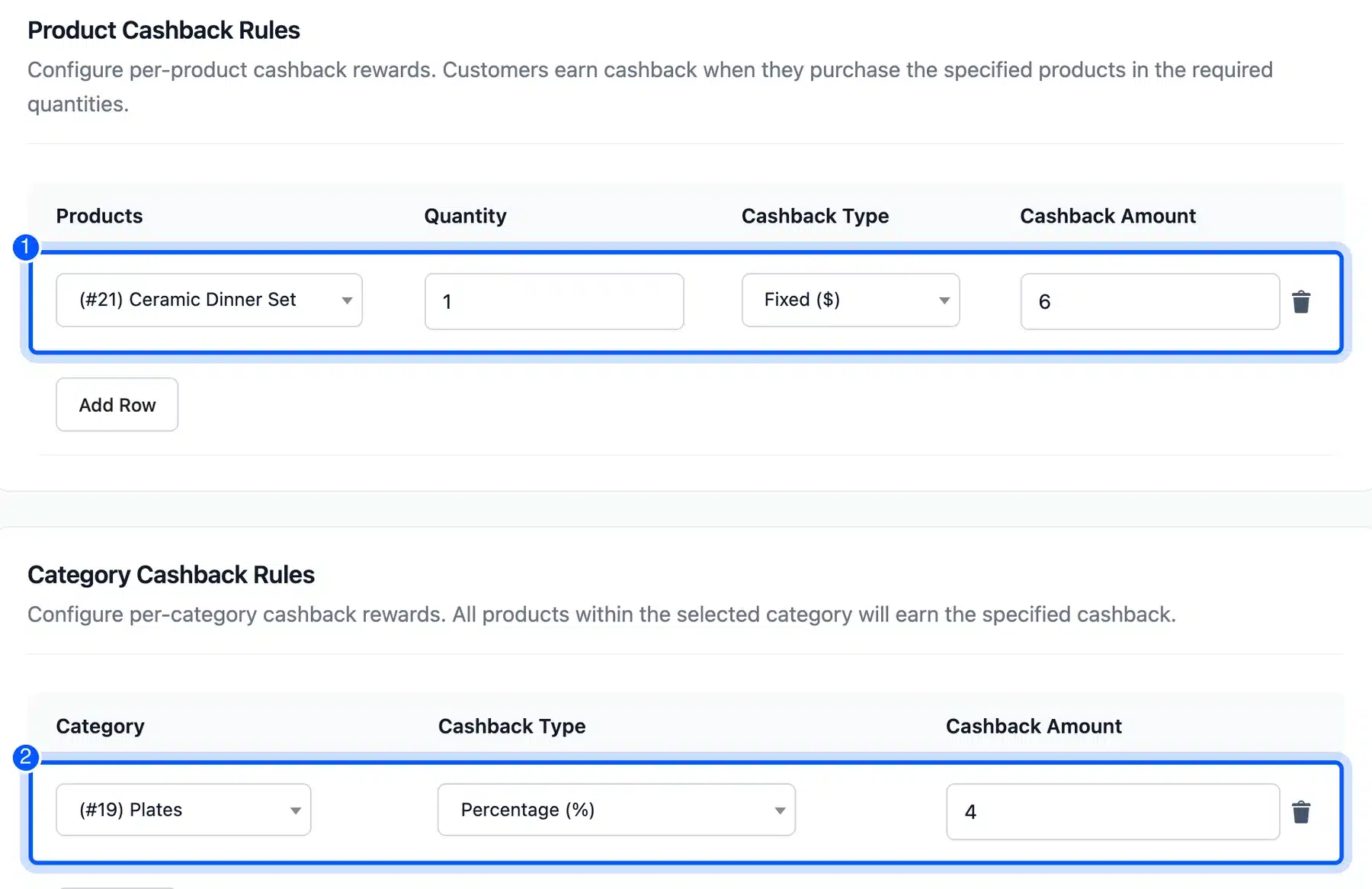
These rules add to the cart tier. A $96 order of plates earned $4.80 from the tier and $3.84 from the category rule, for $8.64. A $120 dinner set earned $9.60 from the 8 percent tier and $6 from the product rule, for $15.60.
The customer sees the total before checkout. Our cart showed “You will get $8.64 cashback on this order.”
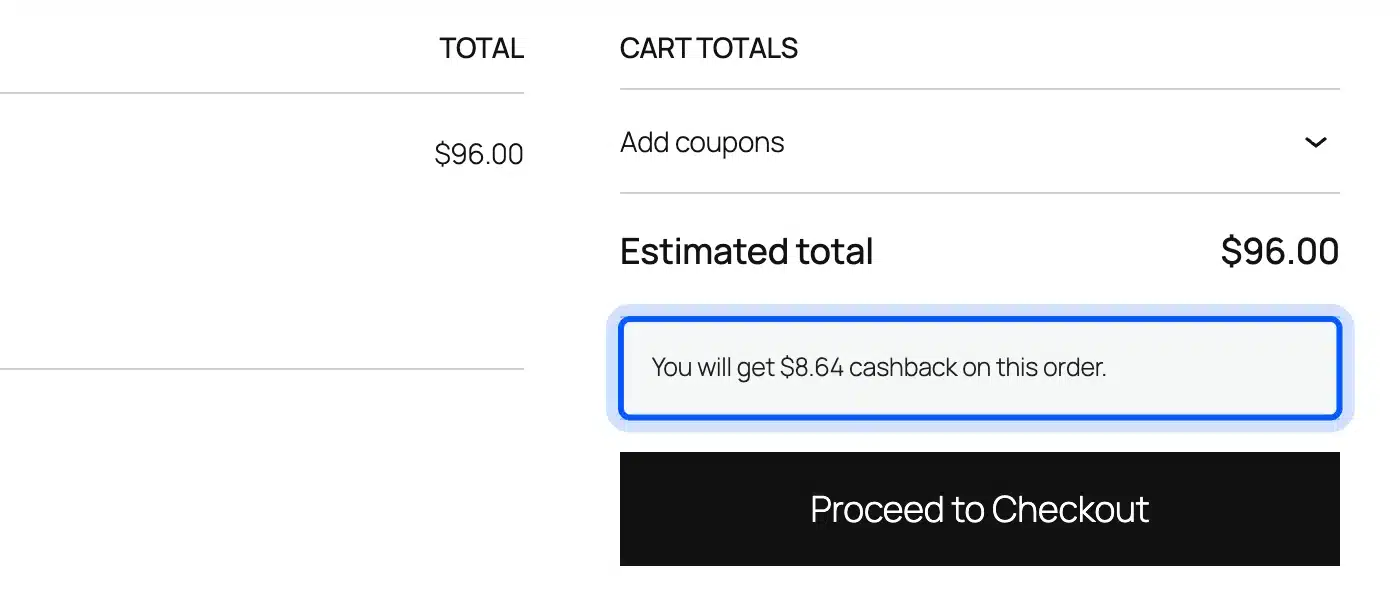
The message text and colors are set under Configuration > Cashbacks > Visuals & Notifications. The same setting shows the cashback on the shop, product, checkout and order pages.
3. Pay More for Wallet Payments and Loyal Customers
A payment method rule pays extra when a customer picks a payment method you prefer. A user role rule pays extra to one customer group. Both sit on the Cashback Rules screen, below the category rules.
We set 3 percent for the Wallet payment method and 2 percent for a VIP Customer role we added. One test customer had that role.
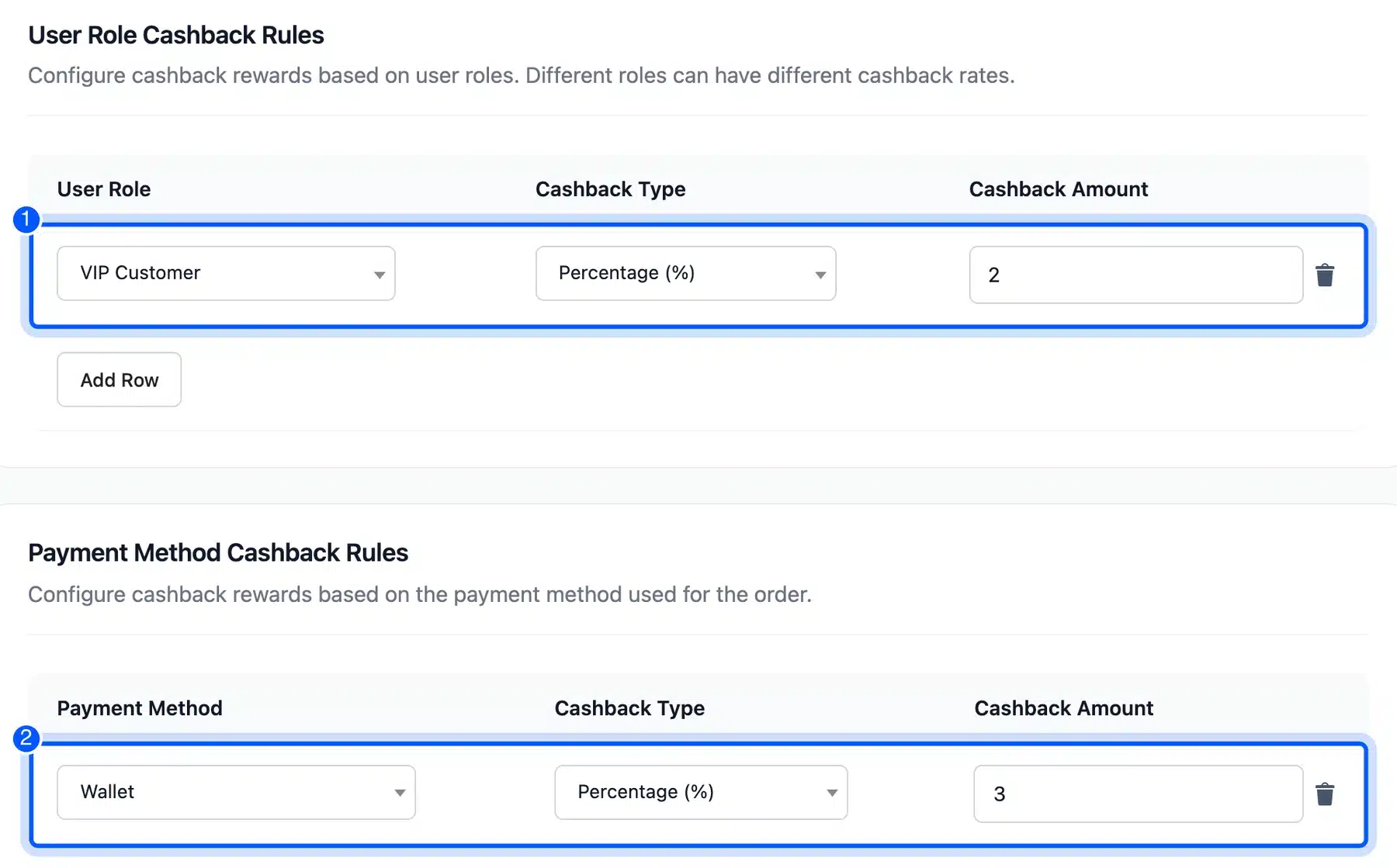
The VIP customer ordered the same $96 of plates twice. Paying cash on delivery earned $10.56, which is $4.80 plus $3.84 plus $1.92.
Paying with the wallet earned $13.44. The 3 percent wallet rule added $2.88.
A wallet payment keeps the money in your store. That makes this rule a cheap way to push customers toward spending their balance.
The rule follows the payment method of the order. A shopper who pays part of an order from the wallet and the rest by cash on delivery keeps the cash on delivery method. The wallet rule does not fire in that case.
4. Add a Bonus to Every Wallet Top-Up
A top-up bonus rewards customers who load money into the wallet before they buy. Add a row under Cart & Topup Cashback Rules and set the basis to Topup. We used a range of $25 to $500 at 10 percent.
A $50 top-up credited $50 to the wallet and a $5 cashback on top. The wallet history lists both lines and keeps the WooCommerce customer balance up to date.
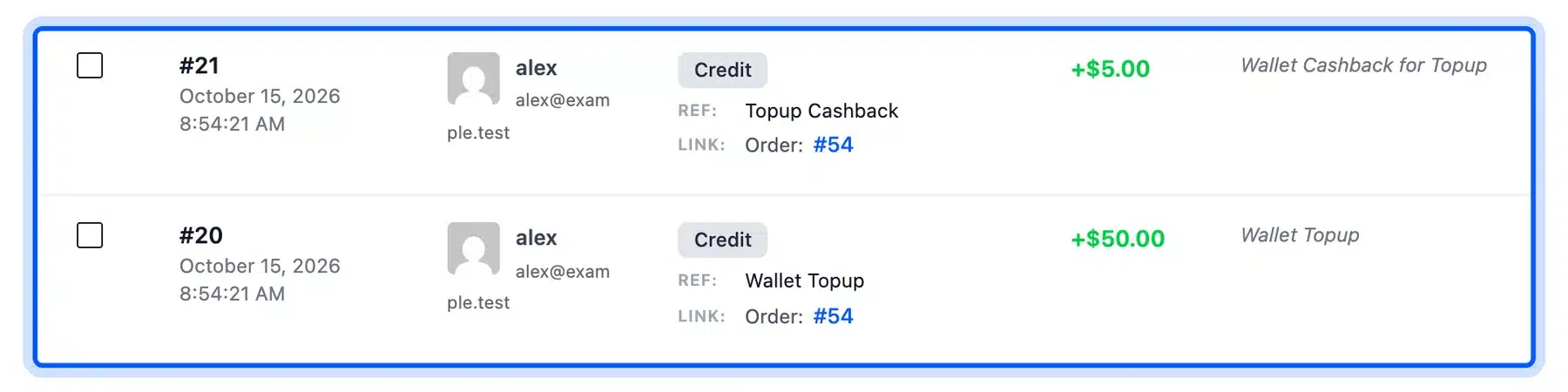
Top-up orders use the top-up rule only. A $50 order would have earned $2.50 under the 5 percent cart tier, but the top-up paid the $5 alone. Customers who add money in advance spend more at your store later.
5. Cap the Reward and Set a Minimum Order
Two settings protect your margin when several rules stack. Max Cashback Cap limits the total cashback on one order. Minimum Order Value blocks cashback on small baskets.
Both sit under DevDiggers Plugins > Wallet > Configuration > Cashbacks.
We set the cap to $20 and the minimum order to $50. The settings text says the minimum is the subtotal needed to qualify for any cashback rewards.
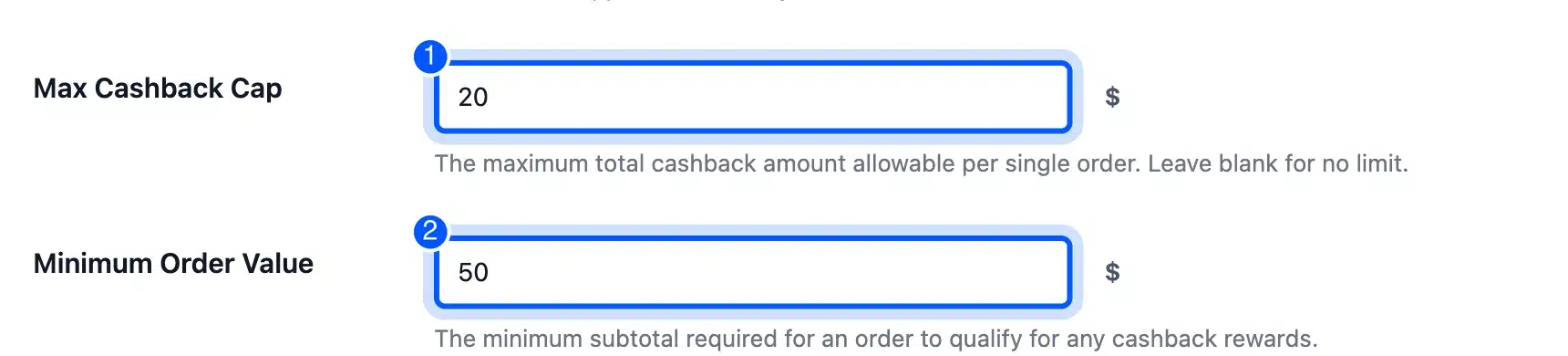
Three Ceramic Dinner Sets cost $360. They would have earned $28.80 from the cart tier plus the $6 product rule, which is $34.80. The wallet credited $20.00.
The plugin scaled each part down to fit. The cart tier paid $16.55 and the product rule paid $3.45. A $21 order paid nothing.
6. Delay the Credit and Let Cashback Expire
A delay holds the credit back for a set number of days after the order is completed. That gives you time for returns. Expiry then takes the unspent cashback back after a set period, which pushes customers to come back and use it.
We set Cashback Credit Delay to 7 days and turned on Enable Expiry with a duration of 30 days. A reminder email can go out 3 days before expiry.
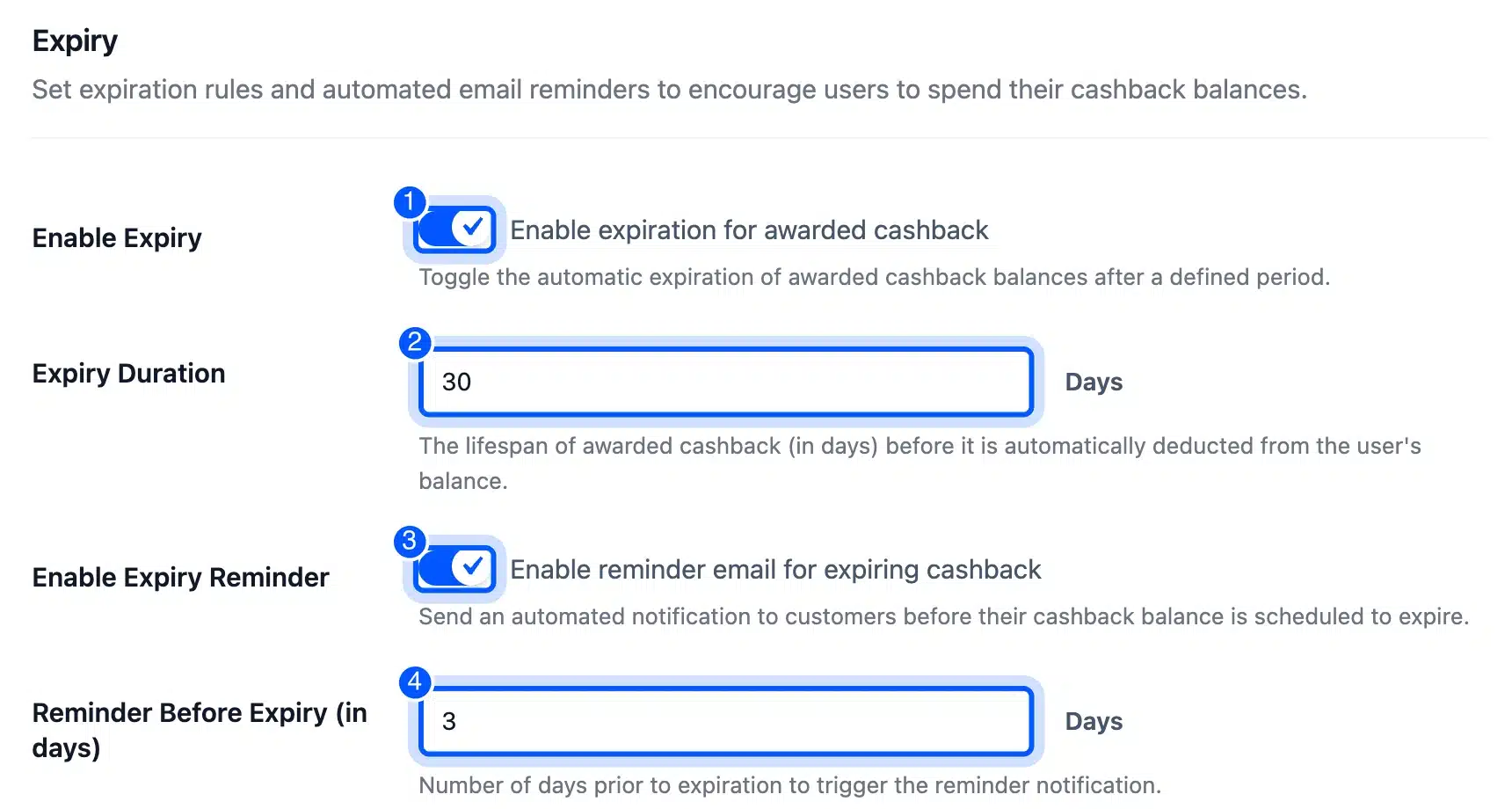
With the delay on, a completed $96 order paid nothing at once. The plugin scheduled the credit for seven days later. When we ran that scheduled job, the wallet received $8.64.
Each credit then showed an expiry date 30 days out, such as November 14, 2026.
To test expiry without waiting a month, we set one credit’s expiry date to yesterday and ran the daily job. The plugin took $3.84 back and marked the credit as expired. We did not check that the reminder email arrives.
Let Shoppers Spend the Wallet Balance in Part
Cashback only pays off when customers spend it, and partial payment makes that easy for any balance. It lets a shopper use the wallet for part of an order and pay the rest another way. Pro offers it under DevDiggers Plugins > Wallet > Configuration > General.
Turn on the Partial Payments toggle on that screen.
On our block checkout the order summary then shows a Wallet Partial Payment panel. Our customer had $30.00 in the wallet. We entered the amount and pressed Apply on a $96 order.
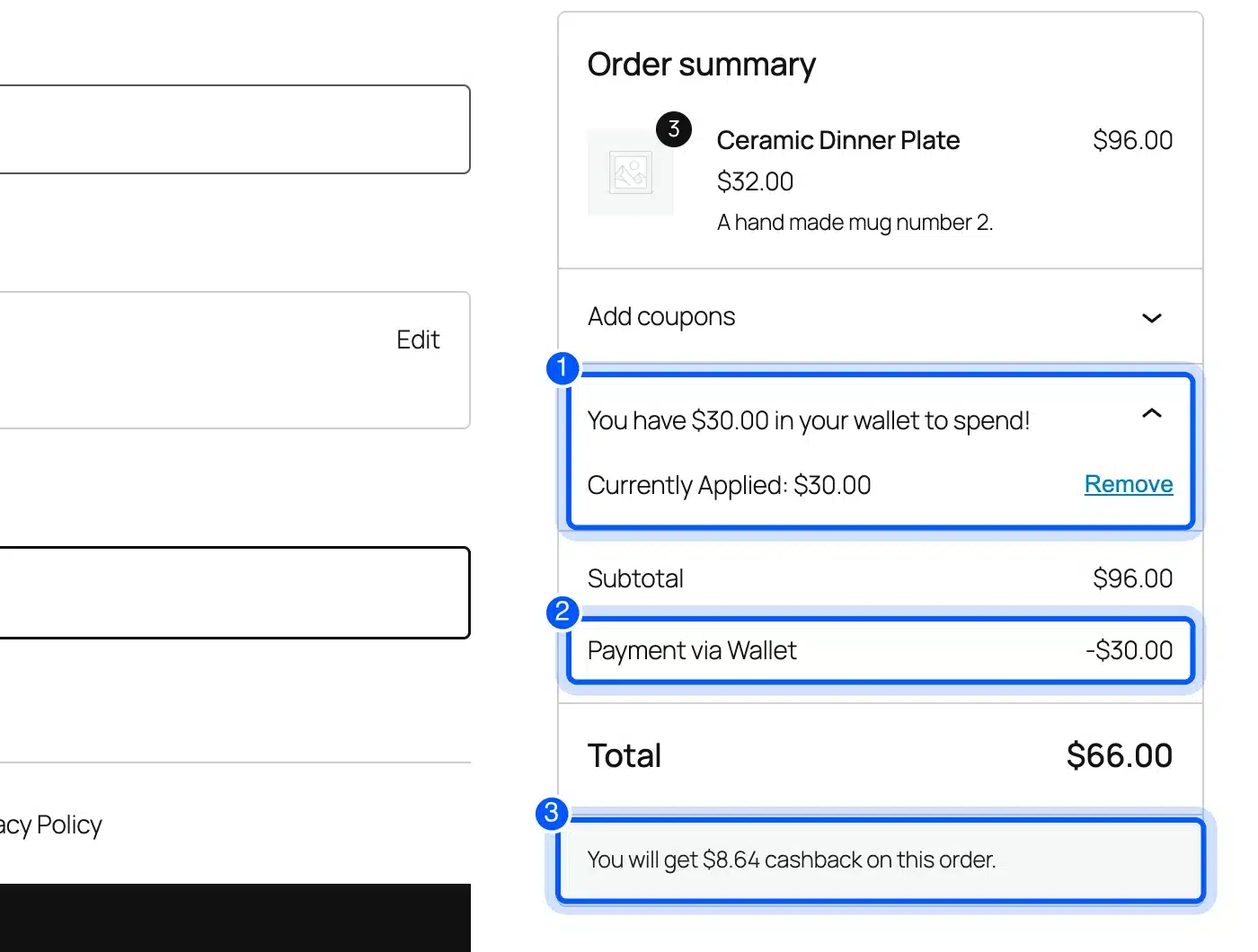
The total fell to $66.00 and the customer paid it by cash on delivery. The wallet balance dropped from $30.00 to $0.
After we completed the order, the cashback of $8.64 still arrived. The plugin works it out from the $96 subtotal.
How Stacked WooCommerce Wallet Cashback Rules Add Up
Cashback rules from different groups add together on one order. The cart tier, the product or category rule, the role rule and the payment method rule each pay their own amount. The cap then trims the total to your limit.
Our test orders show how this works in numbers. The same $96 of plates earned $8.64, $10.56 or $13.44, depending on who bought and how they paid.
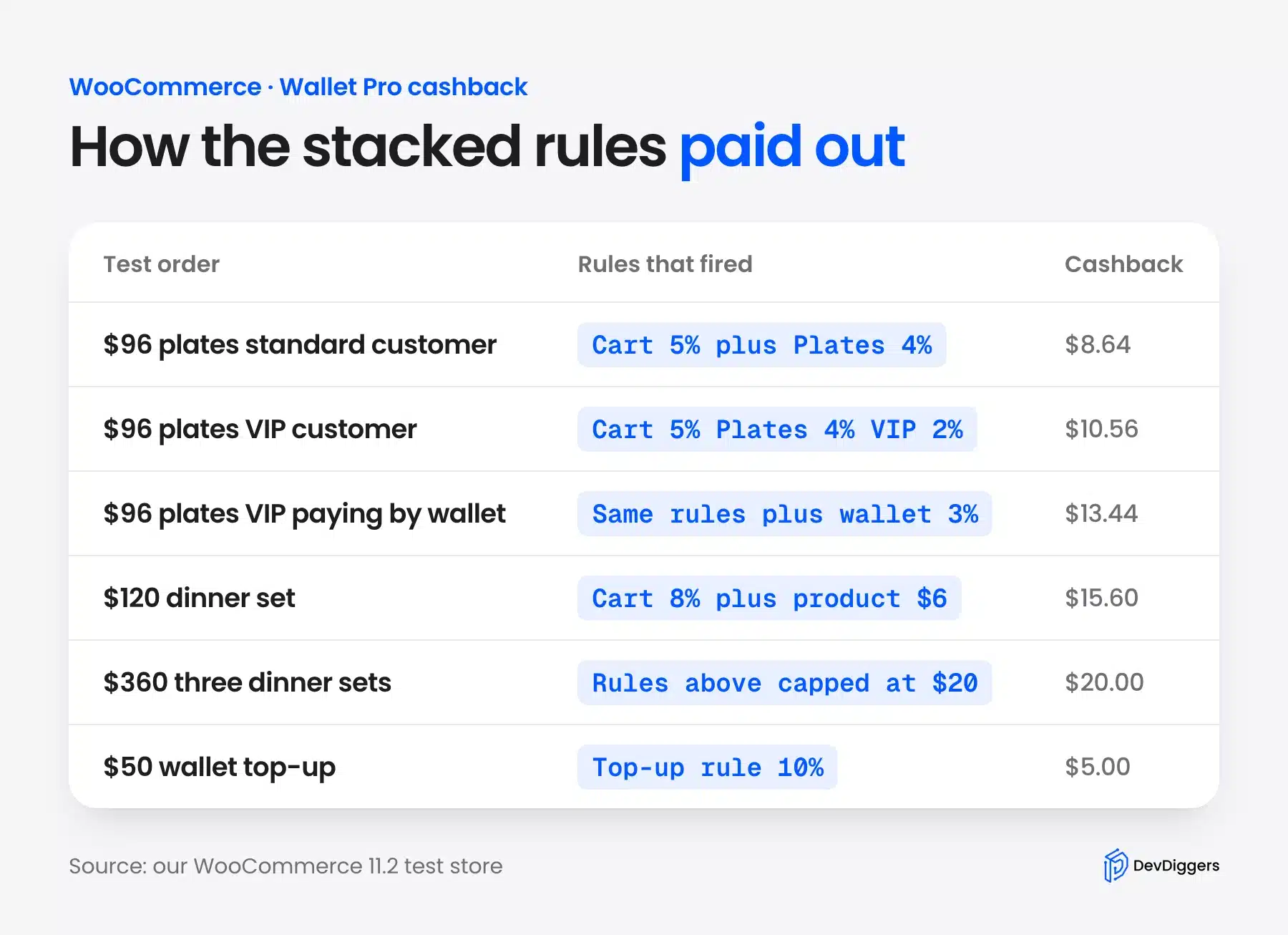
Stacking is why the cap matters. Without the $20 cap, the three dinner sets would have paid $34.80 on a $360 order. That is 9.7 percent of the order, more than the 8 percent tier alone.
Can You Use the Free WooCommerce Wallet Plugin Instead?
Yes, you can run the basic version of this cashback idea on the free plugin with no license. The free WooCommerce Wallet plugin on WordPress.org offers cart cashback rules, registration credit and refunds to the wallet. Strategies 1 and 5 work with it.
In an earlier test of the free version 1.1.0 we ran cart tiers, a cap and a minimum order. They paid out the same way. Product, category, role, payment method and top-up rules are Pro features. Partial payment, delay and expiry are Pro features too.
Choose Pro when you want to steer behavior with rules, such as rewarding one category or one customer group. Pro also adds withdrawals, referrals and an OTP check for wallet actions. A referral program for WooCommerce pairs well with wallet credit as the reward.
How Much Cashback Can You Afford?
Treat WooCommerce cashback as a delayed discount. A customer who earns $8 and spends it later has paid you $8 less on a future order. The cost becomes real only when the shopper spends that credit at your store and not when you award it.
Here is an example with round numbers. Say an order is $100 and your gross margin is 40 percent. The order earns you $40.
An 8 percent cashback costs $8. That leaves $32 of gross profit, or 32 percent of the order. Expiry lowers that cost: credit that expires unspent never leaves your margin.
Note: These numbers are an example for the math. They are not results from a real store.
How to Test Your Cashback Setup Before Launch
A test order from cart to Completed takes about ten minutes. It catches a wrong range and a rule you typed wrong. Run it on a staging site or with a test customer account before real shoppers see the offer.
- Create a test customer: Add a user with the Customer role and a known email address.
- Place an order above your minimum: Log in as that customer and check out with a basic gateway such as cash on delivery.
- Read the cart message: Confirm the amount matches your rules. Our $96 plates cart showed $8.64.
- Complete the order: Open WooCommerce > Orders and set the status to Completed. The credit should appear in the wallet history.
- Refund the order: Use the Refund button and check that the cashback is taken back.
On our store a full refund of the $96 plates order took back $4.80 and $3.84, the two cashback credits. The WooCommerce refund documentation warns that changing an order status to Refunded does not refund your customer. Use the Refund button on the order instead.
Conclusion
WooCommerce wallet cashback works best with a few simple rules. Tier the reward by cart total and add a category or role rule for the customers you want. Cap the total and let shoppers spend it in part.
Test one order from cart to Completed before you announce anything. Check the refund path too.
If you want product, role or top-up rules, look at the WooCommerce Wallet plugin. For rewards beyond the wallet, see our loyalty program guide.
Frequently Asked Questions (FAQs)
Q1. When does WooCommerce wallet cashback reach the customer?
The cashback is credited when the order status becomes Completed. With a delay of 7 days set, our completed order paid nothing until the scheduled job ran. Then the full $8.64 arrived.
Q2. What happens to the cashback when an order is refunded?
The plugin takes the cashback back. When we refunded a $96 order, it debited $4.80 and $3.84, the two parts it had credited. Use the Refund button on the order so the debit runs.
Q3. Can I cap the cashback per order?
Max Cashback Cap sits under Wallet > Configuration > Cashbacks. With a $20 cap, three dinner sets on a $360 order paid $20.00 instead of $34.80. The plugin scaled every rule down to fit the cap.
Q4. Does wallet cashback work with the WooCommerce block checkout?
Yes. We placed a wallet partial payment order through the block checkout on WooCommerce 11.2. The wallet panel, the cashback message and the cashback after completion all worked there.
Q5. Is there a free WooCommerce wallet plugin with cashback?
Yes. DevDiggers Wallet for WooCommerce is free on WordPress.org and includes cart cashback rules, registration credit and refunds to the wallet. Product, role, payment method and top-up rules need Pro.
Q6. Can customers pay for part of an order with the wallet?
Yes, Pro supports it under Wallet > Configuration > General > Partial Payments. At checkout the customer enters an amount and pays the rest another way. Our $96 order dropped to $66.00.
Q7. Can cashback expire?
Yes, turn on Enable Expiry under Wallet > Configuration > Cashbacks. Set a number of days, such as the 30 we used. Each credit then shows an expiry date.