
Deleting a theme in WordPress takes less than two minutes, but only if you do one check first.
Most guides skip straight to the steps and leave you staring at a missing Delete button, or worse, a broken site because you removed a parent theme your active child theme depended on.
This guide covers three methods: the WordPress dashboard, FTP or cPanel, and WP-CLI. You’ll also learn what to clean up after deletion, because removing a theme doesn’t always remove everything.
Before You Delete a WordPress Theme
Stop before you click anything. Two things can turn a simple theme removal into a headache, and both take under a minute to check.
Check Whether the Theme Is Active
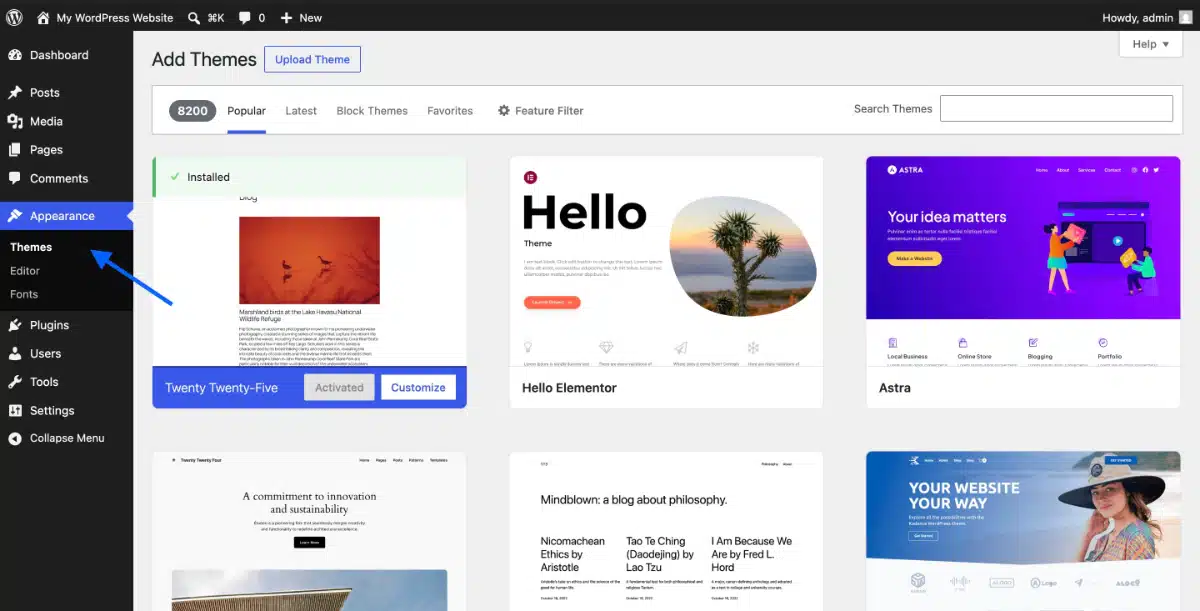
WordPress will not let you delete an active theme. There is no workaround. The Delete button simply won’t appear for whichever theme is currently running your site.
Go to Appearance > Themes in your dashboard. The active theme sits in the top-left position and shows an “Active” label. If the theme you want to remove is active, click on any other installed theme and hit Activate first. Then come back and delete the old one.
Worth knowing: Inactive themes sitting on your server still represent a security risk. Outdated theme files can be exploited even if the theme is never loaded on the front end. Removing them is basic site hygiene.
Check for Child and Parent Theme Relationships

This is the step most guides bury in a footnote. If your site uses a child theme, it depends on a parent theme to function. The parent theme is often inactive. It won’t show as “Active,” but deleting it will break your site immediately.
Go to Appearance > Themes. If you see a theme labelled as a child theme, check its details for a “Parent Theme” line. That parent theme stays on your server as long as the child is active. Don’t delete it.
If you’re not sure whether your site uses a child theme, look at the active theme’s details panel. WordPress shows a “This is a child of:” note there when relevant.
Take a Quick Backup First
Deleting a theme is permanent unless you have a backup. If the theme you’re removing holds custom code in its functions.php file or has settings stored in the WordPress Customizer, those are gone once you delete it.
Take a full site backup before proceeding. Most hosting panels offer one-click backups. Two minutes now saves a lot of trouble later.
How to Delete a WordPress Theme from the Dashboard
This is the method you’ll use 95% of the time. It requires administrator access and takes about 60 seconds.
- Log in to your WordPress admin dashboard.
- Go to Appearance > Themes.
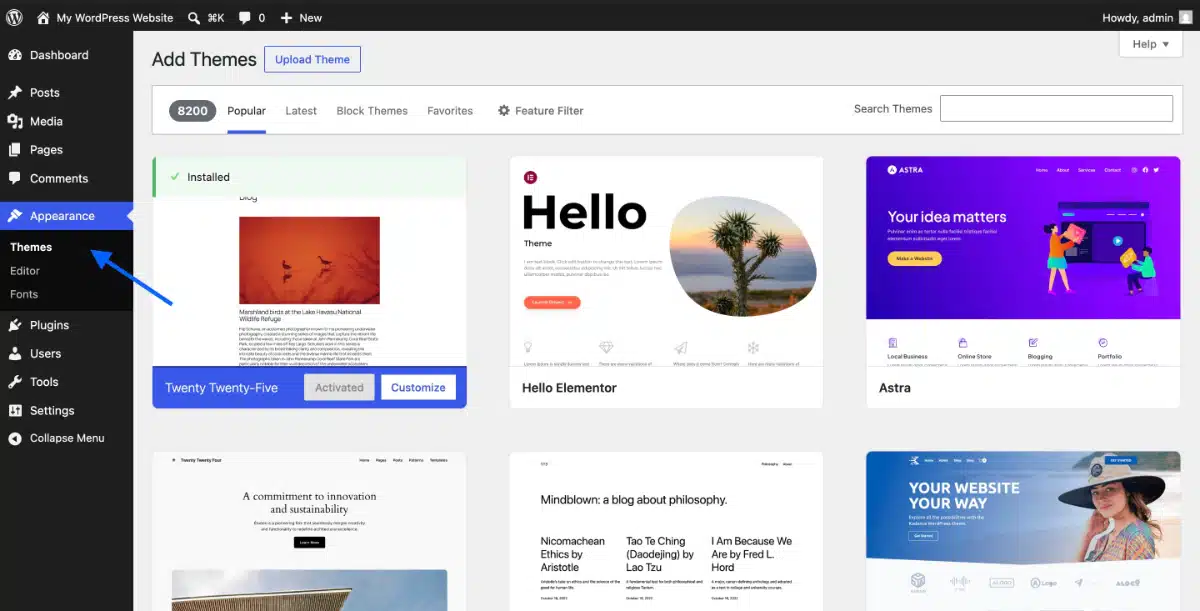
- Hover over the theme you want to delete. A “Theme Details” button will appear.
- Click Theme Details to open the theme’s information panel.
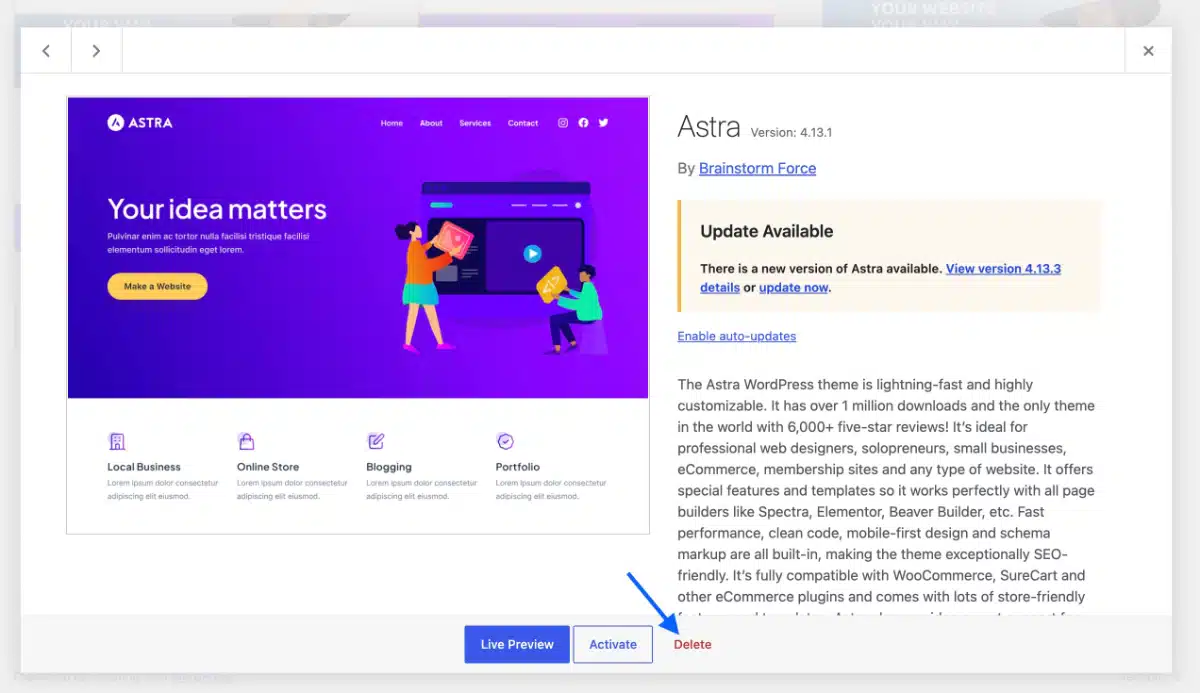
- In the bottom-right corner of the panel, click Delete.
- A confirmation prompt will appear. Click OK to confirm.
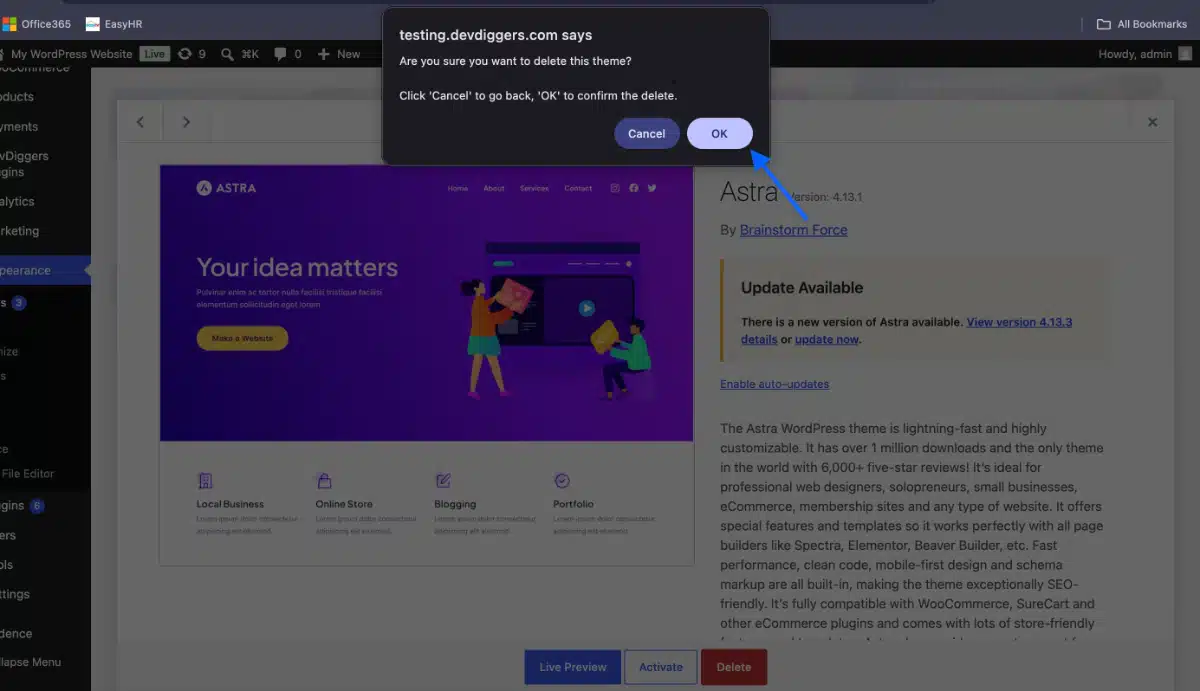
WordPress removes the theme folder from your server immediately.
One thing to note: you can only delete one theme at a time through the dashboard. If you need to remove five or six unused themes at once, the WP-CLI method below is much faster.
Why the Delete Button Is Missing (And How to Fix It)
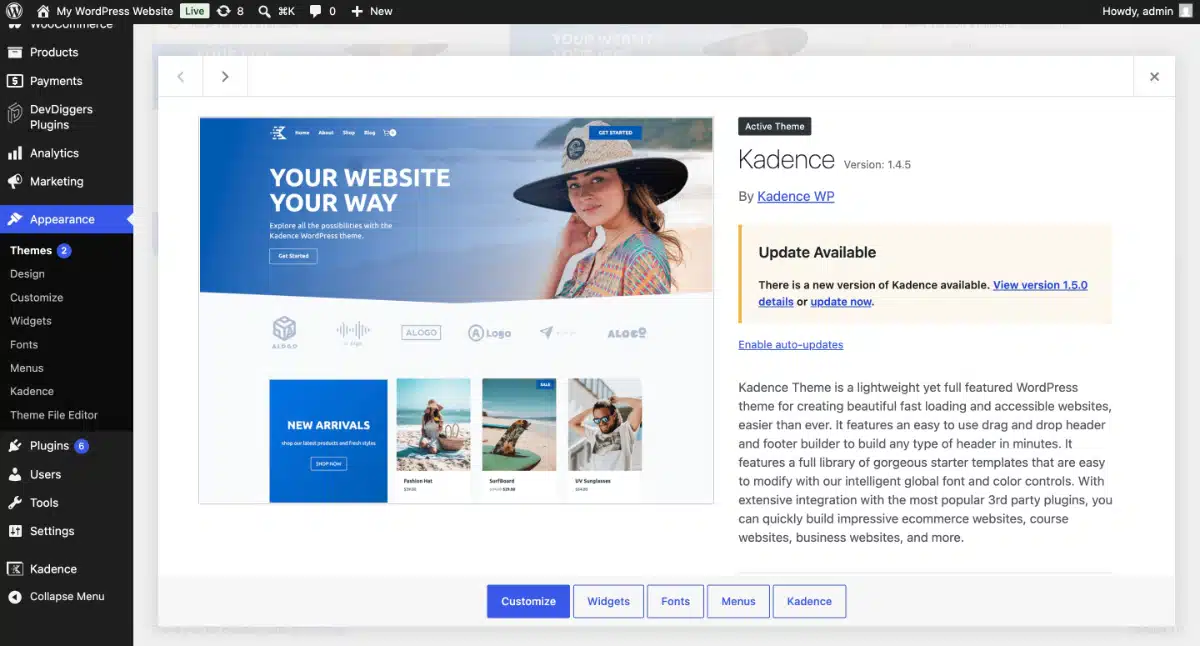
This trips up a lot of people. You’re looking at the Themes screen, you open the theme details, and there’s no Delete button anywhere.
Two reasons this happens:
- Reason 1: The theme is currently active: Only inactive themes show the Delete button. Activate a different theme first, then return to delete the one you want gone.
- Reason 2: You’re on a WordPress Multisite network: On a multisite setup, only the network administrator can install or delete themes. Regular site administrators don’t have that permission. If you see a “My Sites” item in your admin bar at the top, you’re on a multisite network. Contact your network admin to remove themes across the network.
A 2025 WordPress.org support thread confirmed this confusion is widespread. Users who had just switched themes were still not seeing the Delete option because they hadn’t fully refreshed the Themes screen after activation. A hard refresh (Ctrl + Shift + R or Cmd + Shift + R) usually sorts it out.
How to Delete a Theme in WordPress via FTP or cPanel
Use this method when you can’t access your WordPress dashboard. For example, if a broken theme is causing a white screen, or when you want to make sure all theme files are fully removed from the server.
WordPress stores all themes in one location on your server: wp-content/themes/. Each theme has its own folder there. Deleting that folder removes the theme completely.
Using FTP (FileZilla or similar):
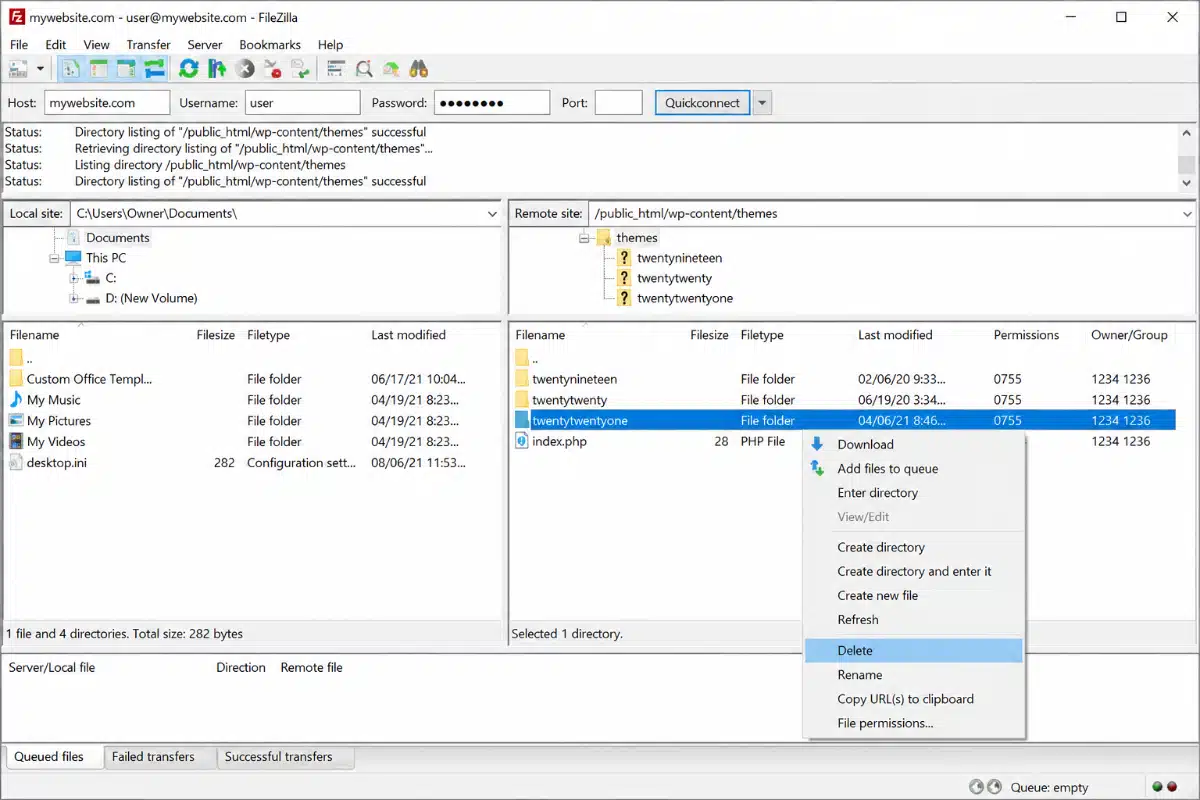
- Open your FTP client and connect to your server using your hosting FTP credentials.
- Navigate to your site’s root folder, usually
public_html. - Open
wp-content, then openthemes. - Right-click the folder of the theme you want to delete.
- Select Delete and confirm.
Using cPanel File Manager:
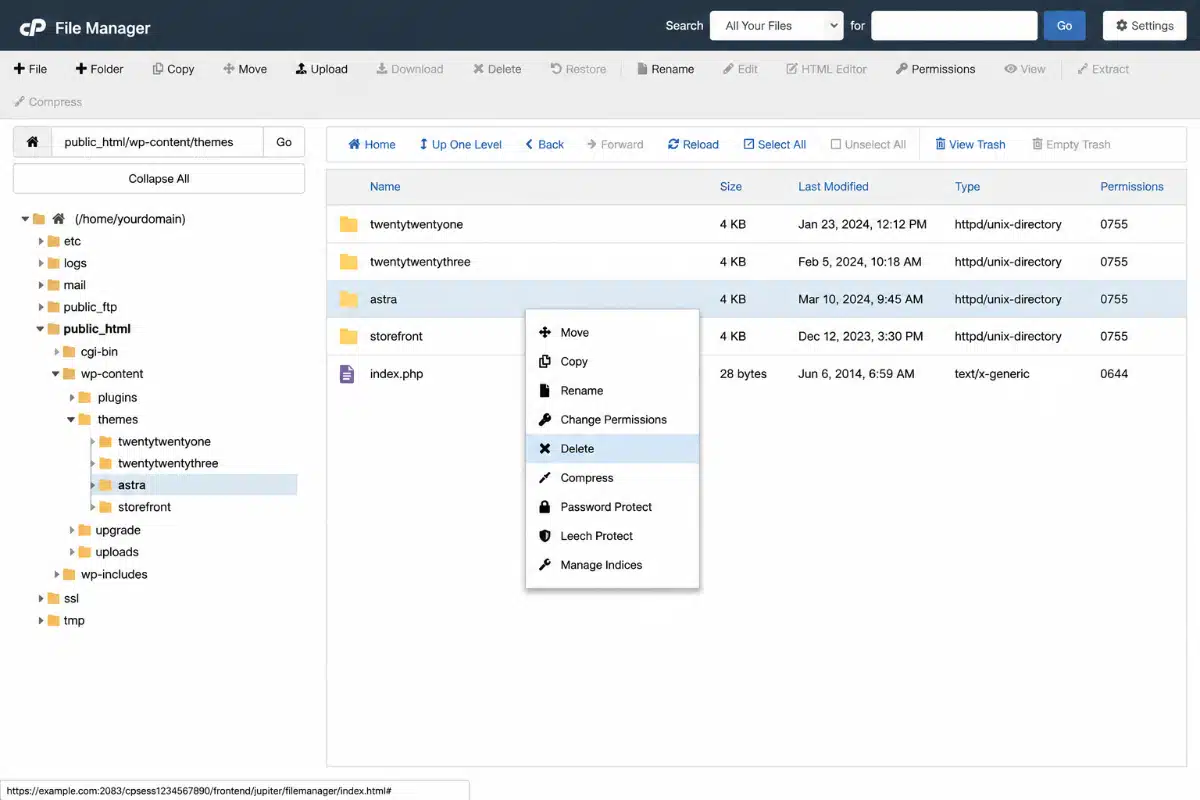
- Log in to your hosting cPanel.
- Open File Manager.
- Navigate to
public_html > wp-content > themes. - Right-click the theme folder and select Delete.
- Confirm the deletion.
cPanel’s File Manager is often easier than setting up an FTP client from scratch, especially if you’re not a developer. Most shared hosting providers include it.
One thing to watch: If you delete a theme via FTP while it’s still set as active in WordPress (for example, you’re locked out), WordPress will fall back to any other installed theme. Make sure you have at least one working theme in the themes folder before deleting anything there.
How to Delete a WordPress Theme via WP-CLI
WP-CLI is the command-line tool for managing WordPress without touching the browser. If you manage multiple sites or want to clean up several themes at once, this is the fastest option.
Step 1: Connect to your server via SSH.
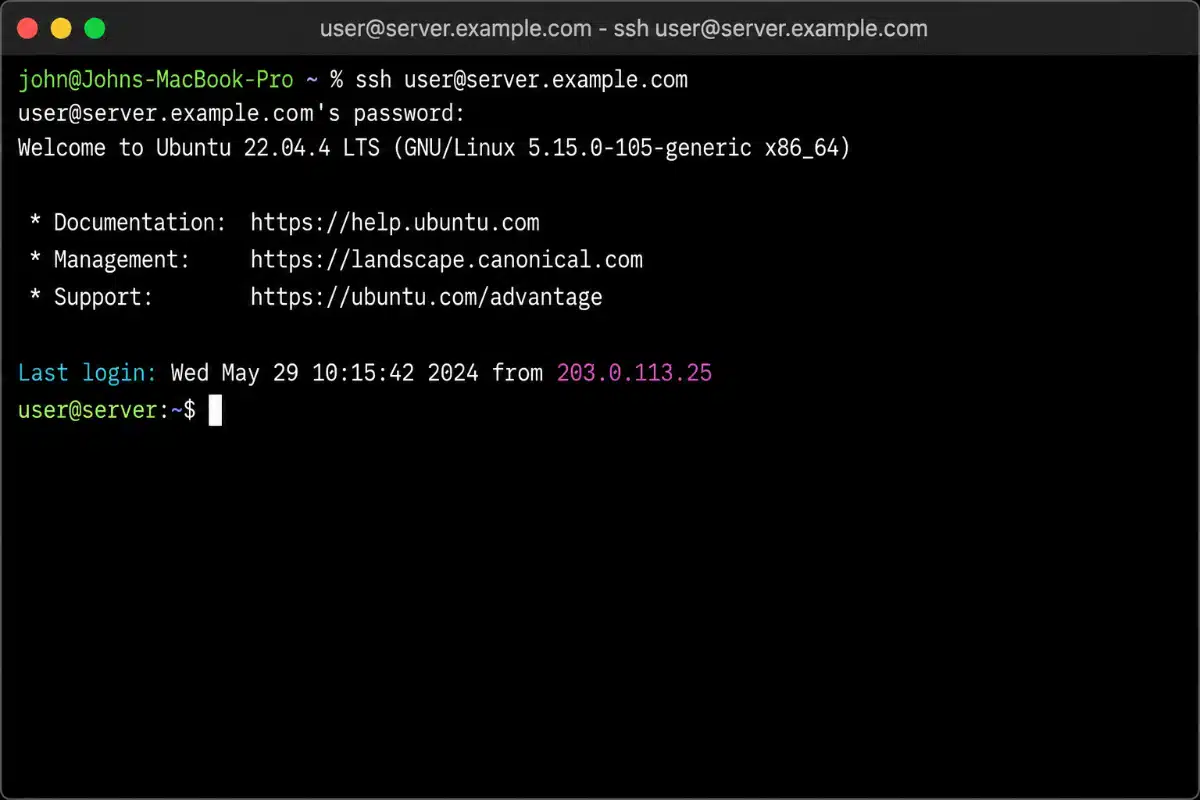
Step 2: Run this command to see all installed themes and their status:
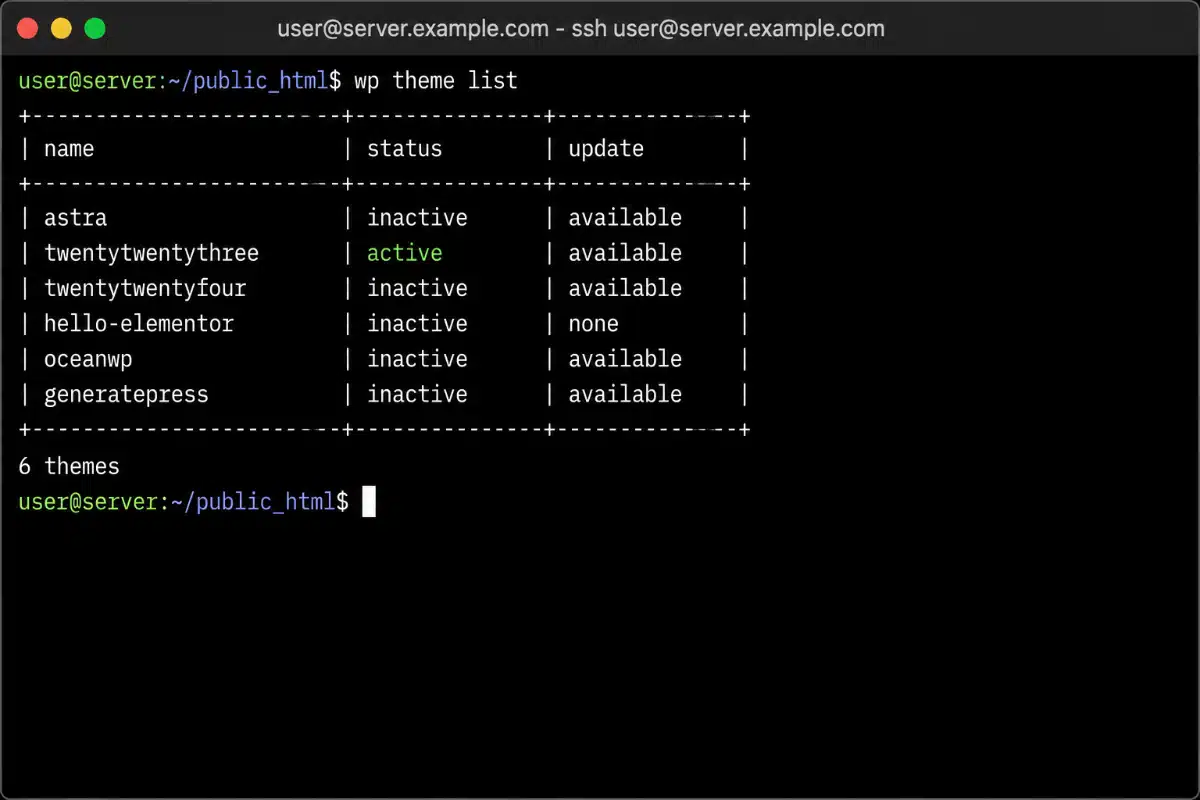
wp theme list
This shows each theme’s name, status (active or inactive), and update availability.
Step 3: To delete a specific theme, run:
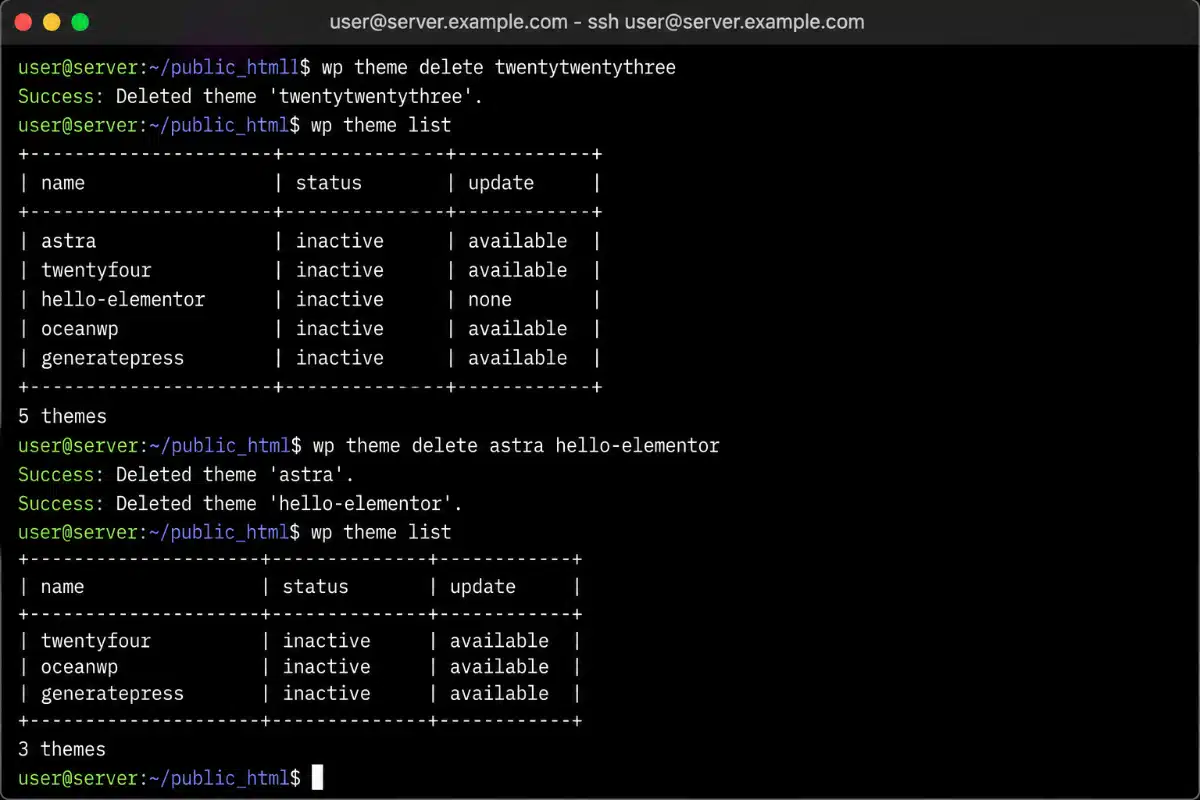
wp theme delete theme-folder-name
Replace theme-folder-name with the actual folder name of the theme — not the display name shown in the dashboard. For example, to delete Twenty Twenty-Three, you’d use twentytwentythree, not “Twenty Twenty-Three.” That detail catches people off guard more often than you’d expect.
WP-CLI will confirm deletion immediately. You can also delete multiple themes in one command by listing them separated by spaces:
wp theme delete theme-one theme-two theme-three
What Happens After You Delete a Theme (What to Clean Up)
Here’s something no guide talks about: deleting a theme removes its files from the server, but it doesn’t always remove everything from your database.
Customizer settings: Any settings you saved in the WordPress Customizer (colors, fonts, header images, or widget placements) are stored in the wp_options table in your database. When you delete a theme, those rows often stay behind. They don’t cause problems by themselves, but over time, across multiple installed-and-removed themes, they add up. As Dev4Press explains, the wp_options table holds all WordPress settings, transient cache records, widgets, plugin data, and theme settings — with no built-in method to remove old records automatically.
If you want a clean database after removing themes, use a plugin like WP-Optimize or Advanced Database Cleaner to identify and remove orphaned option rows. This is worth doing if you’ve cycled through several themes during a redesign.
Image cleanup: Themes often register custom image sizes for sliders, featured image ratios, and so on. When you delete the theme, those sizes no longer apply, but WordPress may still have generated images in those dimensions in your media library. The Regenerate Thumbnails plugin handles this by rebuilding only the sizes your active theme needs.
Custom post types: If the theme you deleted registered a custom post type (which is poor practice, but some older themes do it), any content in that post type becomes inaccessible once the theme is gone. Delete those posts before removing the theme, while the post type is still registered.
Taking five minutes to run a quick WordPress site cleanup after a theme change keeps your database lean and your site performing well.
If you’re rebuilding your theme setup from scratch or switching to a custom WooCommerce theme, the fastest WooCommerce themes guide covers lightweight options worth keeping installed.
Conclusion
Deleting a theme in WordPress is simple once you know the two checks to run first: confirm the theme isn’t active, and confirm it isn’t a parent theme your child theme depends on. From there, the dashboard method handles most situations in under a minute. FTP or cPanel is there when you need server-level access, and WP-CLI is the right tool when you’re managing multiple themes at once.
The one step most people skip is the cleanup afterward. A quick database check and a thumbnail regeneration keep things tidy long after the theme is gone.
If you need help with a WordPress site build, theme migration, or anything custom, DevDiggers’ WordPress development services cover the full scope.
Frequently Asked Questions
Q1. Is it safe to delete unused WordPress themes?
Yes. Unused themes sitting on your server are a security risk because their files can be exploited even if the theme is never active. Removing them is good practice. The one exception: never delete a parent theme while a child theme that depends on it is active.
Q2. Do I need to deactivate a theme before deleting it?
You can’t delete an active theme directly. WordPress blocks the deletion of the theme currently running your site. Activate a different theme first, then delete the one you no longer need.
Q3. Will deleting a theme delete my posts and pages?
No. Your content (posts, pages, and media) is stored in the database and stays there regardless of which theme you delete. What you may lose is theme-specific customizations saved in the Customizer, or content stored in a custom post type that the theme registered.
Q4. How do I delete a WordPress theme if the Delete button isn’t showing?
Two common causes: the theme is still set as active, or you’re on a WordPress Multisite network where only the network admin can delete themes. Switch to a different active theme first, then try again. On multisite, contact your network administrator.
Q5. Does deleting a theme free up database space?
Removing the theme’s files clears server disk space, but some theme data stays in the wp_options database table. Tools like WP-Optimize can identify and remove those leftover rows. For most sites, this is a minor amount, but it adds up if you’ve cycled through many themes.
Q6. Can I recover a deleted WordPress theme?
Not directly through WordPress. If you have a site backup, you can restore the theme folder from there. Otherwise, download and reinstall the theme fresh, though any customizations you made to the theme files directly will be gone.