There are four different methods for removing related products from WooCommerce: a single PHP hook in your functions.php file, using a free plugin, hiding them with CSS, or targeting specific products one at a time.
We have built more than 25 WooCommerce plugins and have seen removing related products come up all the time, so how you remove them is more important than most tutorials indicate.
Most tutorials will just give you a code snippet and not explain the difference between hiding an element and removing it. This is significant because it affects the speed of the load time on your page.
In this tutorial, you are going to learn about four different methods to remove related products from WooCommerce, when to use each method, what to use as replacements for those products, and how getting stuck in a CSS trap can affect the performance of your store without you even noticing!
What Makes WooCommerce Show Related Products (And When To Stop Showing Them)
It’s important first to know what you want your customers to see for this method.
How WooCommerce Determines What is “Related”
WooCommerce will automatically create related products from items in your store that use similar tags or categories. If the current item being viewed shares a tag or category with one or more other items in your store, WooCommerce will show these items below the item on the page so that you don’t need to manually set this up. It operates automatically.
There are also two other product recommendation types worth knowing. Upsells are products you manually link to a product, shown on the product page. Cross-sells are products you manually link, shown on the cart page. Both are controlled by you. Related products are not.
This automatic behaviour is exactly why it causes problems. The algorithm doesn’t know your store the way you do.
Situations Where it Makes Sense to Remove Them.
In a few basic scenarios, it makes sense to remove related products from WooCommerce product pages.
You can have a small catalog for your store. If you sell ten products and WooCommerce recommends the same three items on each page, it looks messy and provides little value. A store that offers limited-edition products or customized services is likely to get into such an issue early on.
It’s possible that your catalog contains recommendations that are intentionally ineffective. Think of a store that sells quality photography equipment, but WooCommerce keeps showing cheap accessories since they have the same category name. That undercuts your position.
And there are times when the section becomes super cluttered with more content on an already performing webpage. A product page that appears attractive, uses great sales copy, shows beautiful photography, and includes a strong call for action should not have required noise at the bottom as well.
Method 1 — Use CSS to Hide Related Products (Quickest Option)
This is the easiest method, but before you use it, read the instructions below.
- Log in to your WordPress dashboard.
- Navigate to Appearances > Customize.
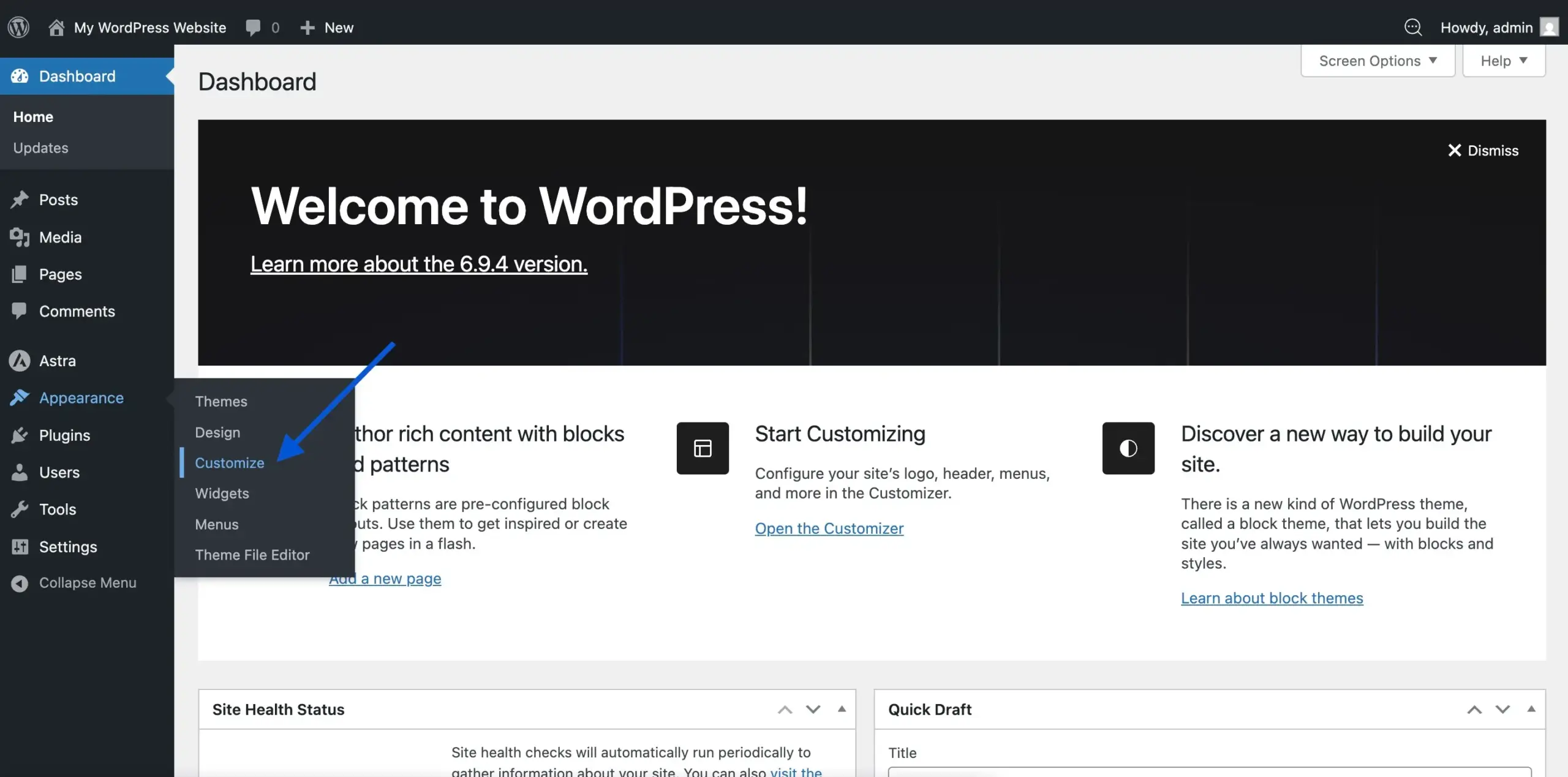
- Select Additional CSS from the left sidebar.
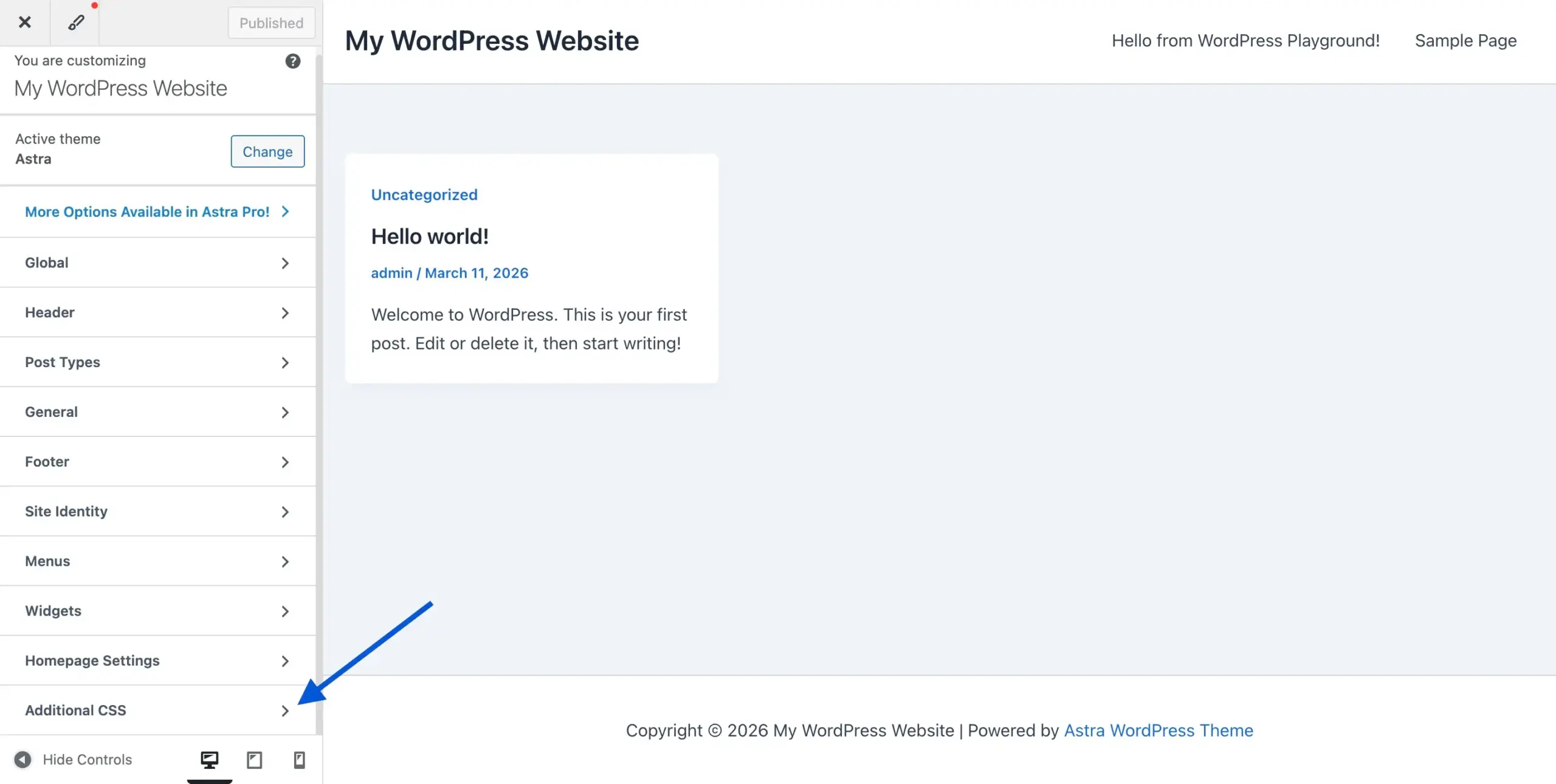
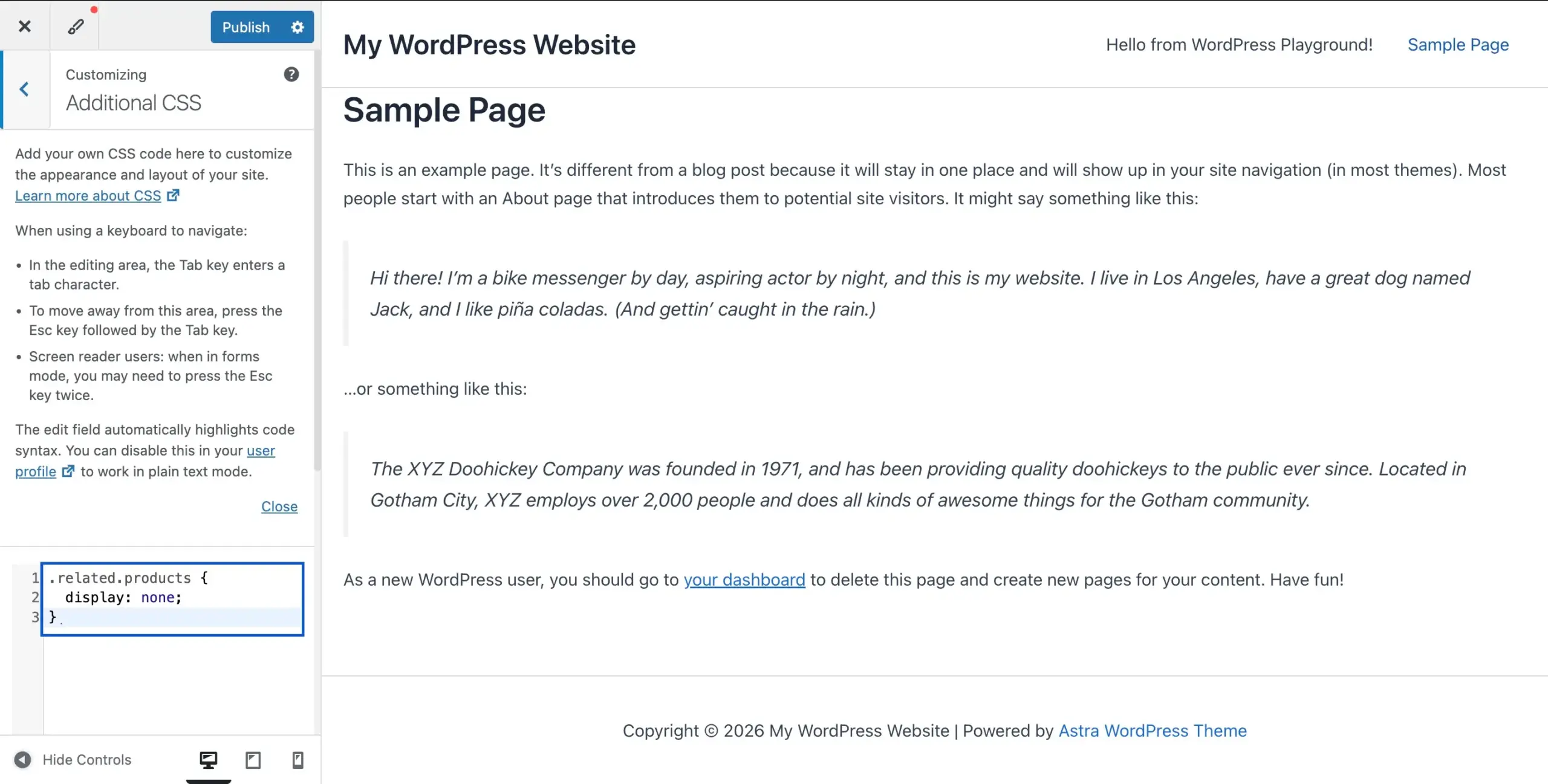
- Add this code:
.related.products {
  display: none;
}
- Click Publish.
That’s it. The related products section disappears from your product pages.
A major condition: The main limitation of this technique is that it only hides the item visually. However, the WooCommerce database query is running in the backend (with any potential ways to simplify queries, therefore saving time), retrieving related products every time the product page loads, so it will be charging you on your server for the processing time on each page load, regardless of whether they are shown to visitors or not.
For a low-traffic store with a small catalogue, this is unlikely to cause a noticeable difference. It adds up to a larger store with actual traffic. Additionally, it indicates that your page source still contains HTML, which is unwanted.
The below Method 2 completely removes the issue if you don’t mind employing a slightly more technical approach. Check out our WooCommerce SEO Guide for an explanation of how including page load options can help improve your store’s rankings.
Method 2: Using a PHP Hook To Disable Related Product Display (Most Preferred Method)
This is the most efficient approach. It prevents the related products’ function from running at all by using WooCommerce’s built-in hook function. No query is executed. There is no HTML generated. The section simply doesn’t exist.
The hook that you require is:
remove_action( 'woocommerce_after_single_product_summary', 'woocommerce_output_related_products', 20 );
There are two distinct approaches available for you to insert this code.
Inserting Code into Your Child Theme’s functions.php
This is easy as long as you can find your way around within the theme files.
- Log in to your WordPress dashboard and go to Appearance > Theme File Editor.
- Make sure to choose the child theme rather than the parent theme. It is critical that you do this because the code in the functions.php of the parent theme will be deleted once the parent theme is updated.
- Once you are on the correct Child Theme, go to the right side under Files and find the functions.php file.
- At the bottom of the functions.php, paste your code:
/**
 * Remove related products on all single product pages
 */
remove_action( 'woocommerce_after_single_product_summary', 'woocommerce_output_related_products', 20 );
- Click Update File.
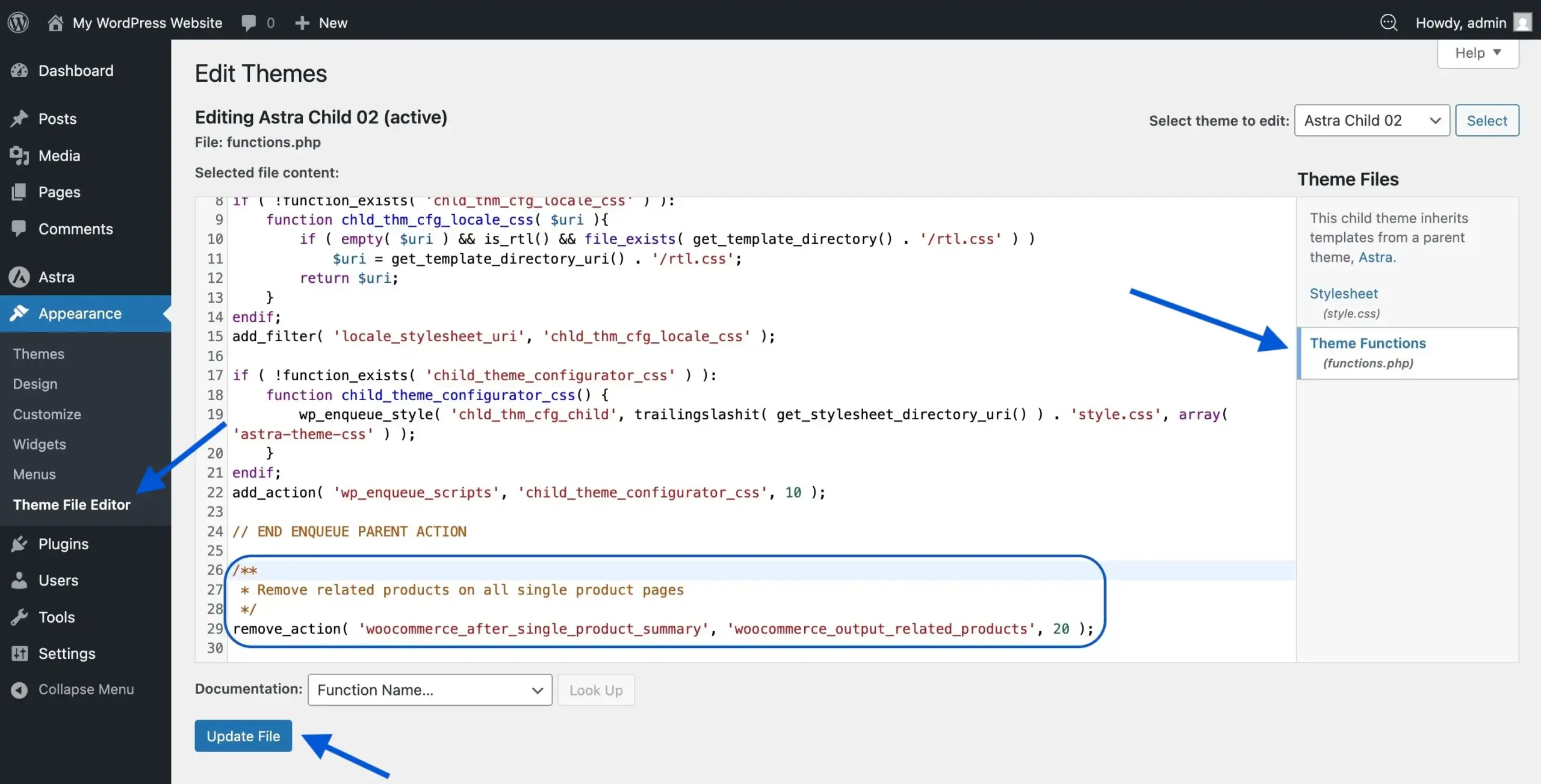
Visit any product page and confirm the related products section is gone.
Don’t have a child theme? If you’re running a parent theme directly, don’t edit its functions.php. Move to the Code Snippets method below.
Use the Code Snippets Plugin (No Editing of Theme Files)
For the majority of store owners, this is the safer option. You may add PHP functions directly from your WordPress dashboard using the free Code Snippets plugin. There is no chance that the next theme update will break your website because no theme files were altered.
- Look for Code Snippets under Plugins > Add New.
- Install and activate it.
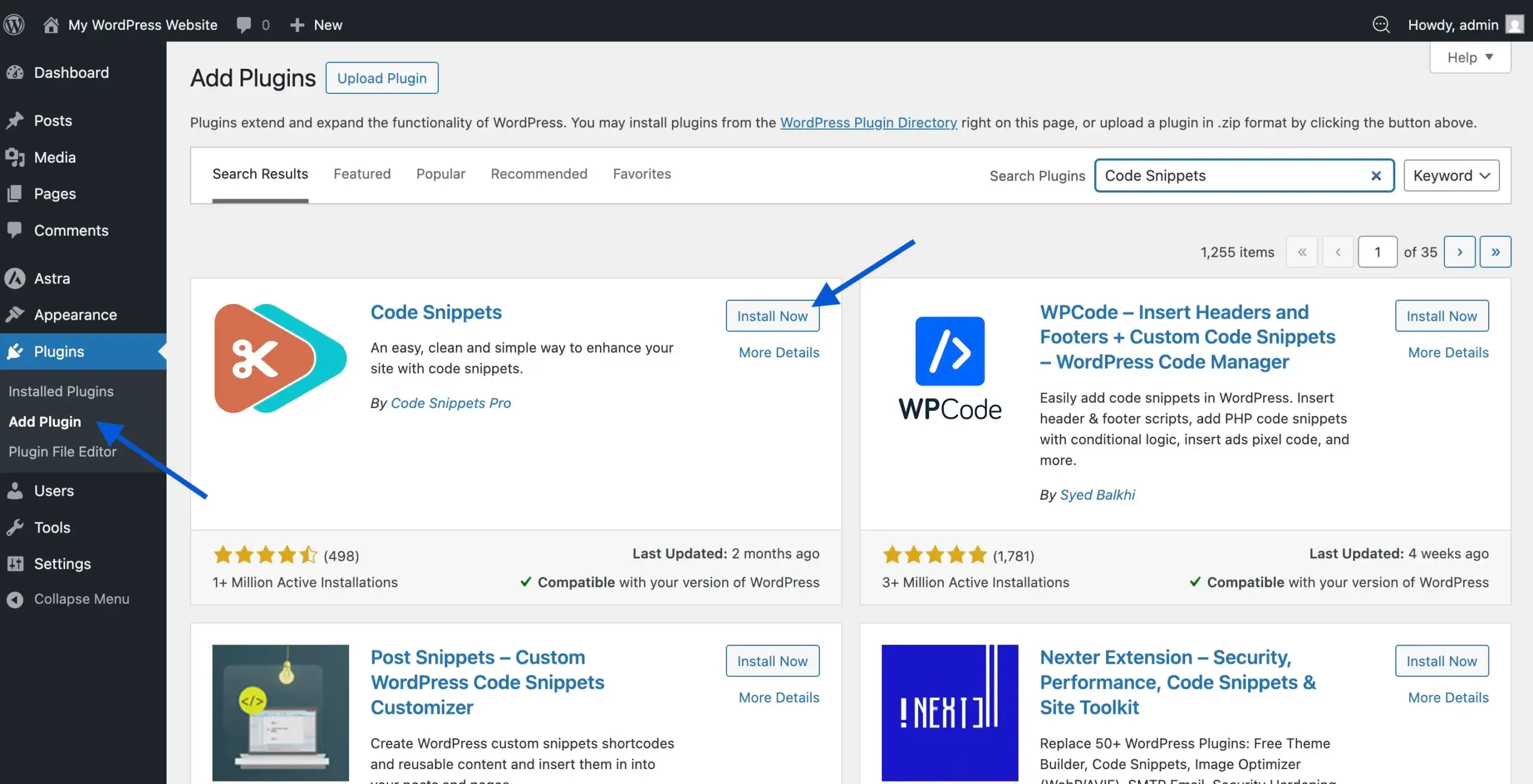
- Go to Snippets > Add New.
- Give it a name you’ll remember later, such as “Remove WooCommerce Related Products.”
- In the code box, paste your hook:
remove_action( 'woocommerce_after_single_product_summary', 'woocommerce_output_related_products', 20 );
- Set the scope to Run snippet everywhere.
- Click Save Changes and Activate.
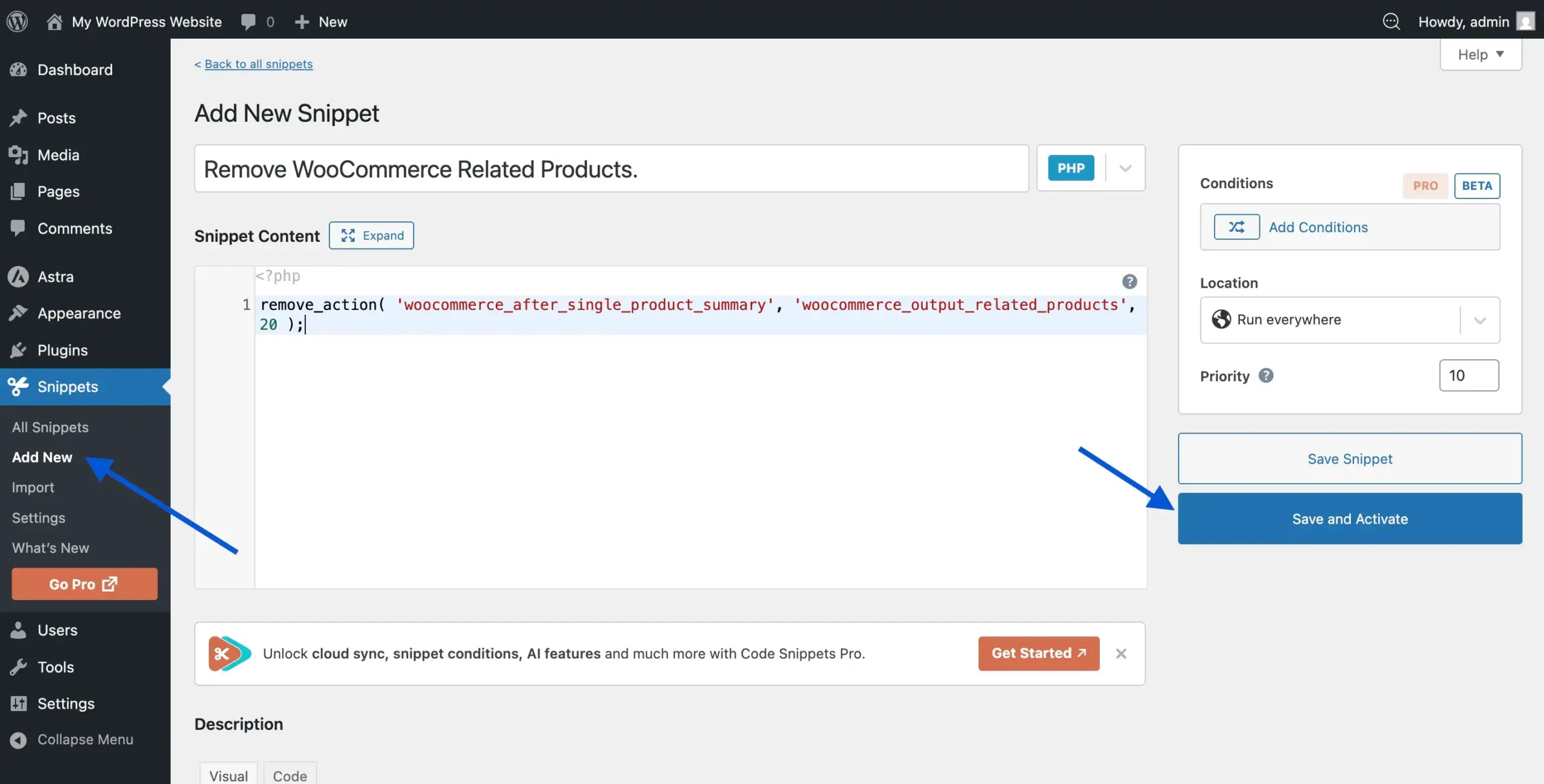
Completed. No query runs, the related products area is removed from the entire website, and theme upgrades won’t affect your modification.
Method 3: Use a Plugin (No-Code Option)
If you don’t want to alter any code, the NS Remove Related Products for WooCommerce plugin does it with a single checkbox. It is free, lightweight, and available directly from the WordPress plugin source.
- In your WordPress dashboard, navigate to Plugins > Add New.
- Look for NS Remove Related Products.
- Click Install Now and then Activate.
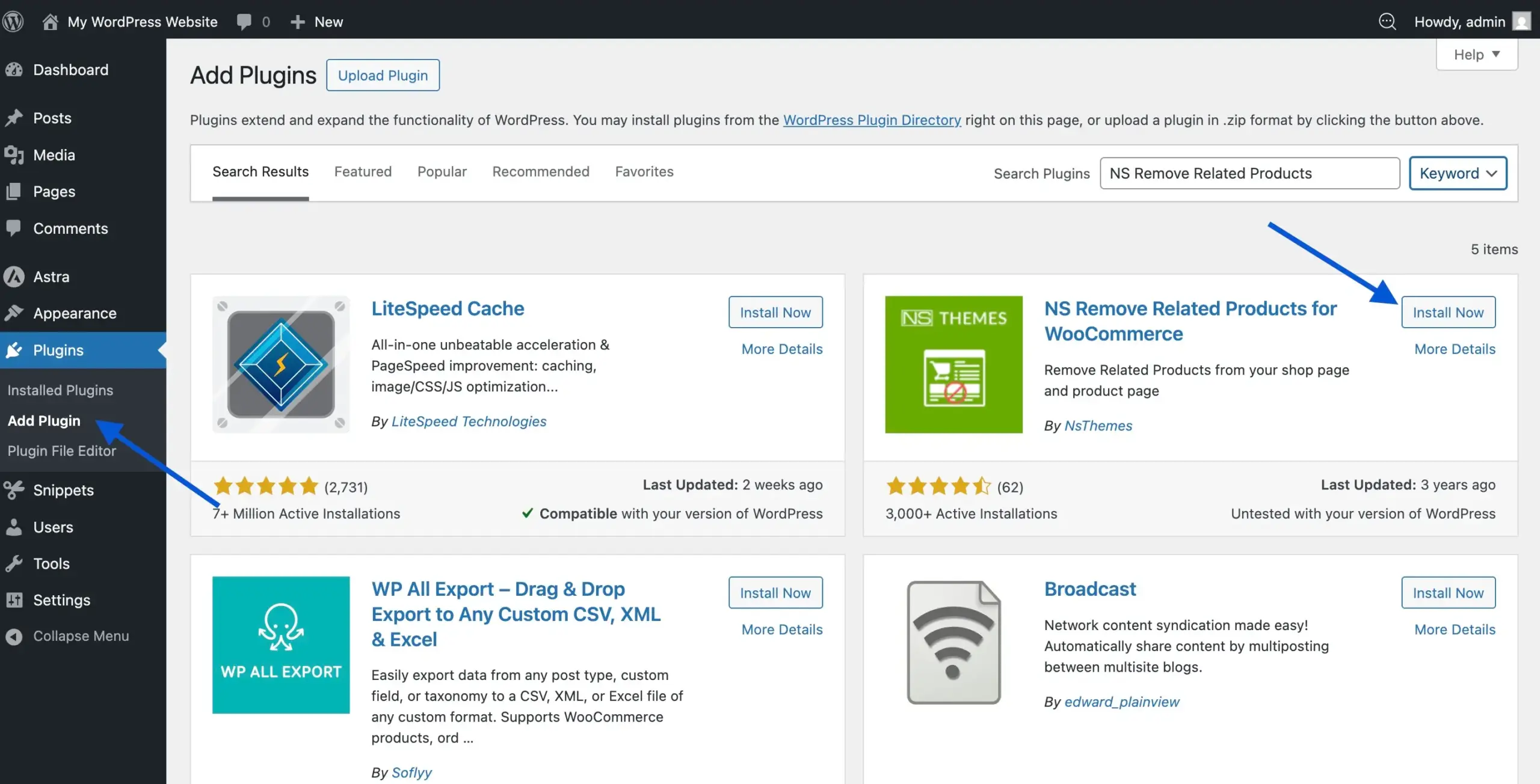
- Navigate to Remove Related and select the Enable Plugin checkbox and click Save Changes.
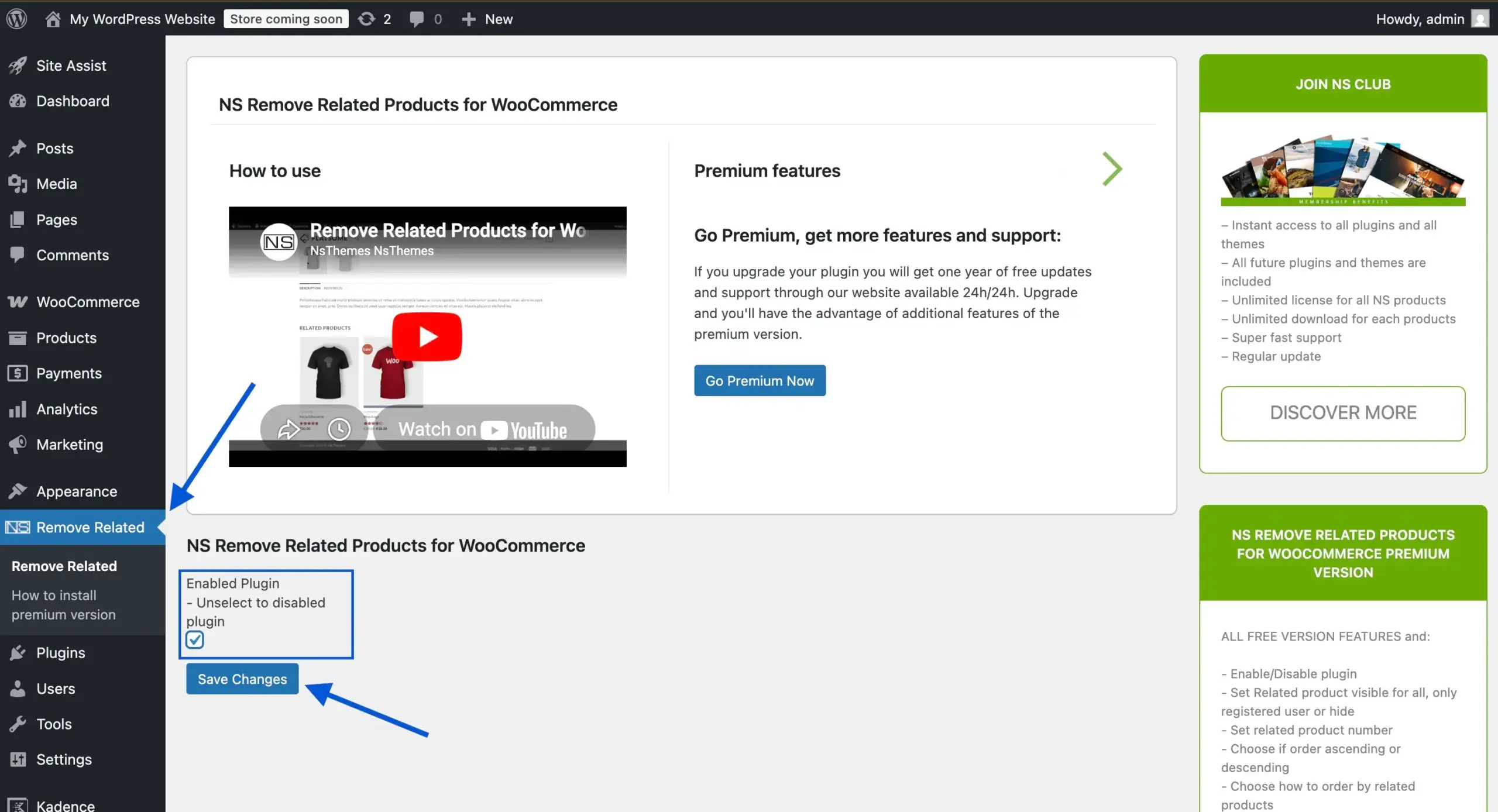
That’s all it takes. The plugin hooks into the same WooCommerce action as Method 2, so it removes the query from running entirely. It doesn’t just hide the output.
For more tools like this, see our roundup of the best WooCommerce plugins for eCommerce.
Method 4 — Remove Related Products from Specific Products Only
This is the method no other guide covers, but it’s often exactly what store owners and developers need.
Maybe you want related products to show on most of your catalogue, but there are specific products where the section doesn’t make sense. A primary product with a long, detailed page. A bundle where cross-shopping would hurt the deal. A product in a category that simply has no good related items.
You can target individual products using a custom conditional inside the hook. Here’s how.
Per-Product Removal Using a Conditional Check
This solution first determines whether the current product page matches a certain product ID, and then conditionally removes the related products output for that product only.
- Find the product ID of the product you want to target. Go to Products > All Products, hover over the product, and take note of the ID number displayed in the URL (e.g.,
?post=347). - Add the following code to your child theme’s functions.php or use the Code Snippets plugin:
/**
 * Remove related products on specific products only
 */
add_action( 'woocommerce_before_single_product', 'conditionally_remove_related_products' );

function conditionally_remove_related_products() {
    $excluded_product_ids = array( 347, 512, 891 ); // Replace with your product IDs
    if ( is_product() && in_array( get_the_ID(), $excluded_product_ids ) ) {
        remove_action( 'woocommerce_after_single_product_summary', 'woocommerce_output_related_products', 20 );
    }
}
- Replace
347, 512, 891with the exact product IDs from which you wish to delete related products. - Save and test by visiting the product pages.
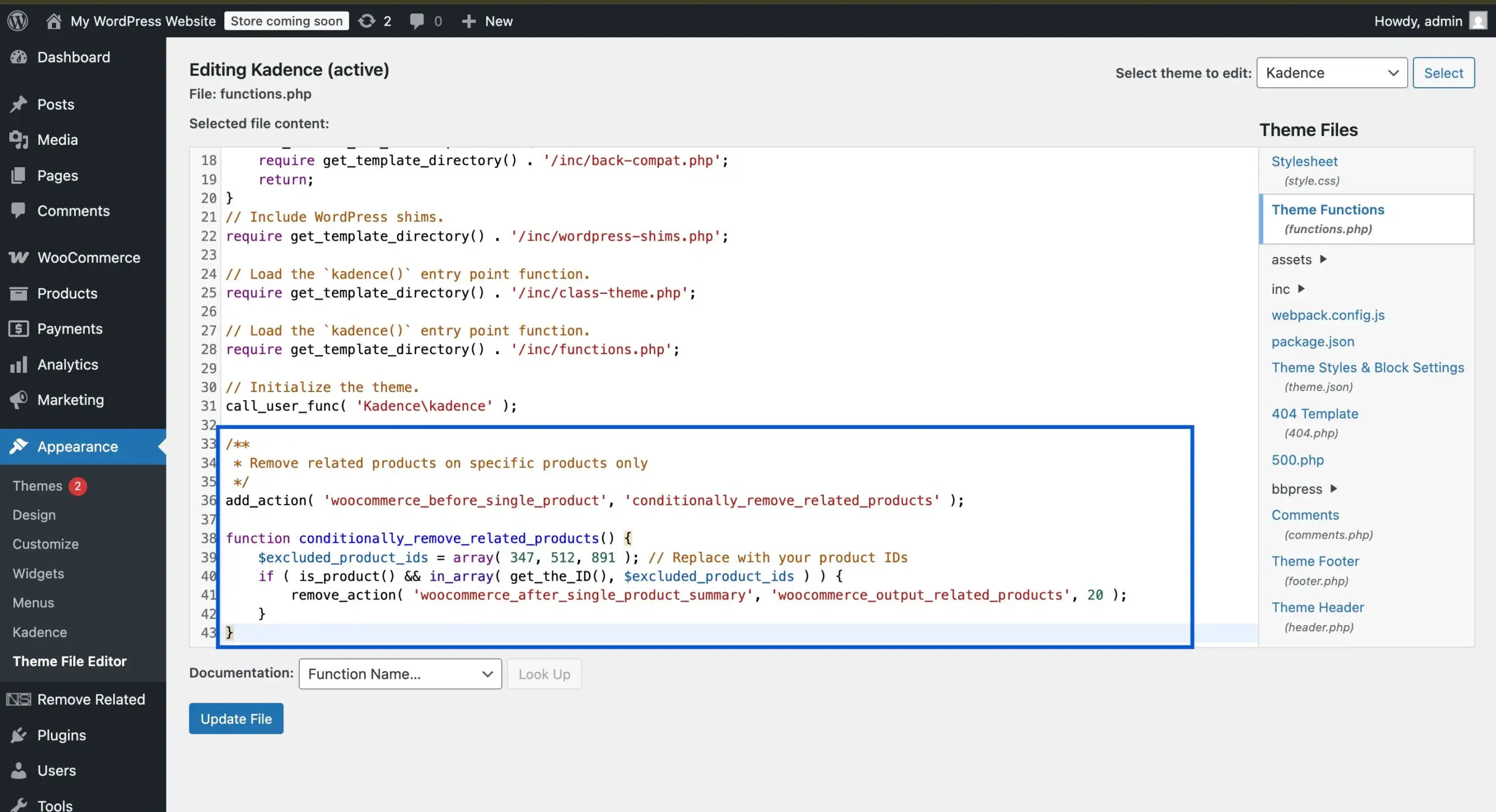
This approach is clean, efficient, and provides the required precision. The related products query only applies to product pages that you have not excluded.
When This Makes More Sense Than Sitewide Removal
When you have a variety of products in your store, use per-product removal. Some products really benefit from the related products section. Others do not. When similar products are consistently irrelevant over your whole catalogue, sitewide removal is the best option.
What Method Should You Use? A Quick Comparison.
Here’s a side-by-side comparison of all four approaches to help you decide.
| Method | Skill level | Only with a child theme | Survives theme updates |
|---|---|---|---|
| CSS (Method 1) | Beginner | No — query still runs | Yes |
| PHP hook in functions.php (Method 2) | Intermediate | Yes | Only with a child theme |
| Code Snippets plugin (Method 2 alt) | Beginner–intermediate | Yes | Yes |
| Plugin — NS Remove Related Products (Method 3) | Beginner | Yes | Yes |
| Per-product PHP conditional (Method 4) | Developer | Yes | Only with child theme |
For the majority of stores, the Code Snippets plugin and PHP hook combo provides the ideal balance. It removes the query entirely and eliminates the need to maintain a child theme.
What to Include Instead: Upsells and Manual Cross-Sells
Removing the related products section does not require you to leave that space empty. In most circumstances, it is better to replace WooCommerce’s automated suggestions with manual ones that you can control.
WooCommerce provides you with two options for this: upsells and cross-sells. Upsells are displayed on the product page, in the same location where similar products previously appeared. Cross-sells are displayed on the cart page. Both are set for each product under the product editor’s Linked Products tab.
Having worked with WooCommerce stores across a range of industries, we’ve consistently seen that manually configured upsells outperform automated related products when it comes to average order value. The reason is simple: you know your catalogue and your customers better than any algorithm does. A store selling running shoes knows to recommend a specific insole and sock bundle alongside a particular shoe model. WooCommerce’s algorithm sees tag overlap and guesses.
To set manual upsells on a product, open the product editor, go to the Product data panel, click the Linked Products tab, and search for the products you want to link in the Upsells field. Save. Those products will now appear where related products used to.
For a more in-depth look at how product page design and recommendation placement impact conversions, visit our guide on designing WooCommerce product pages.
If you want WooCommerce’s cross-selling features to work harder for your business, or if you require more advanced control over how product recommendations are shown, our WooCommerce development services can help.
Conclusion
To remove related products from WooCommerce, your best option in most cases is the PHP hook approach, either via the Code Snippets plugin or a child theme’s functions.php. It stops the query from running entirely, survives theme updates when done correctly, and takes about two minutes to implement.
If you’re a beginner, the NS Remove Related Products plugin gets the job done without touching a line of code. If you only want to remove related products from specific products rather than sitewide, the per-product conditional in Method 4 is the most precise approach available and one that most guides don’t cover.
Whatever method you choose, consider what you’re putting in the space instead. Manual upsells in WooCommerce take five minutes to configure and give you full control over what customers see after they’re done reading your product page. That’s almost always a better outcome than leaving it to an algorithm.
Got questions about any of the methods above? Leave a comment below and we’ll help you get it sorted.
Frequently Asked Questions
Q1. Does removing related products affect my WooCommerce SEO?
There is no negative SEO effect when using the PHP hook approach. It simply prevents a section of the content from loading. Using CSS to hide the part while the PHP query is still running has an impact on SEO since it causes unnecessary server processing time to be added to each product page load. Use PHP hooks or plugins instead of CSS if you want lean, clear product pages.
Q2. What makes related products, upsells, and cross-sells different in WooCommerce?
WooCommerce uses shared categories and tags to automatically create similar products. They cannot be chosen manually. Products that you actively link to a particular product are known as upsells, and they appear on the single product page. Products that you manually link to show up on the cart page are known as cross-sells. Although you have complete control over upsells and cross-sells, you have no control over similar products.
Q3. Will removing related products break anything on my WooCommerce store?
No. An independent output hook is a part found in related products. Removing it has no impact on your cart, checkout, product data, pricing, or any other WooCommerce feature. It just disables the query and display of that content block.
Q4. Can I remove related products without a plugin or code?
Several WooCommerce-compatible themes’ customizer options have the ability to toggle on or off related products. Check the Appearance > Customize or in its dedicated settings panel. Customize it or use the specific options panel. It is the simplest option if it is available. However, not all themes include it.
Q5. Why are my related products showing irrelevant items?
WooCommerce uses common categories and tags to match products. The related items section will frequently display poor results if your catalog has broad categories or if several product kinds share the same tags. Tightening up your tagging structure can assist, but a cleaner long-term solution is to remove the area and replace it with manual upsells if the recommendations are regularly ineffective.
Q6. Can I delete related products from one category rather than the entire store?
Yes, with a minor PHP update. Instead of searching for a product ID, you look for a category term. Use has_term( ‘your-category-slug‘, ‘product_cat‘ ) inside the conditional function in Method 4 to replace the product ID check. This eliminates the similar items section from all products in the category.