How do hackers mine WordPress for admin email addresses? They rely on a handful of predictable weak spots: author archive pages, the REST API, contact forms, comment sections, and outdated plugins that most site owners never think to check.
None of these methods requires advanced coding skills. Most are automated, meaning a bot can scan thousands of WordPress sites a day looking for exposed emails.
This guide breaks the problem into two parts. First, you’ll see exactly how hackers mine WordPress for admin email addresses, method by method. Second, you’ll get a step-by-step walkthrough to check your own site and lock it down, written so you can follow along and screenshot each step directly from your own dashboard.
WordPress now powers a large share of all websites worldwide, and that scale is exactly why it draws so much automated attention from attackers. Your admin email isn’t just a contact detail. It’s the recovery key to your entire site.
Why This Threat Keeps Growing?
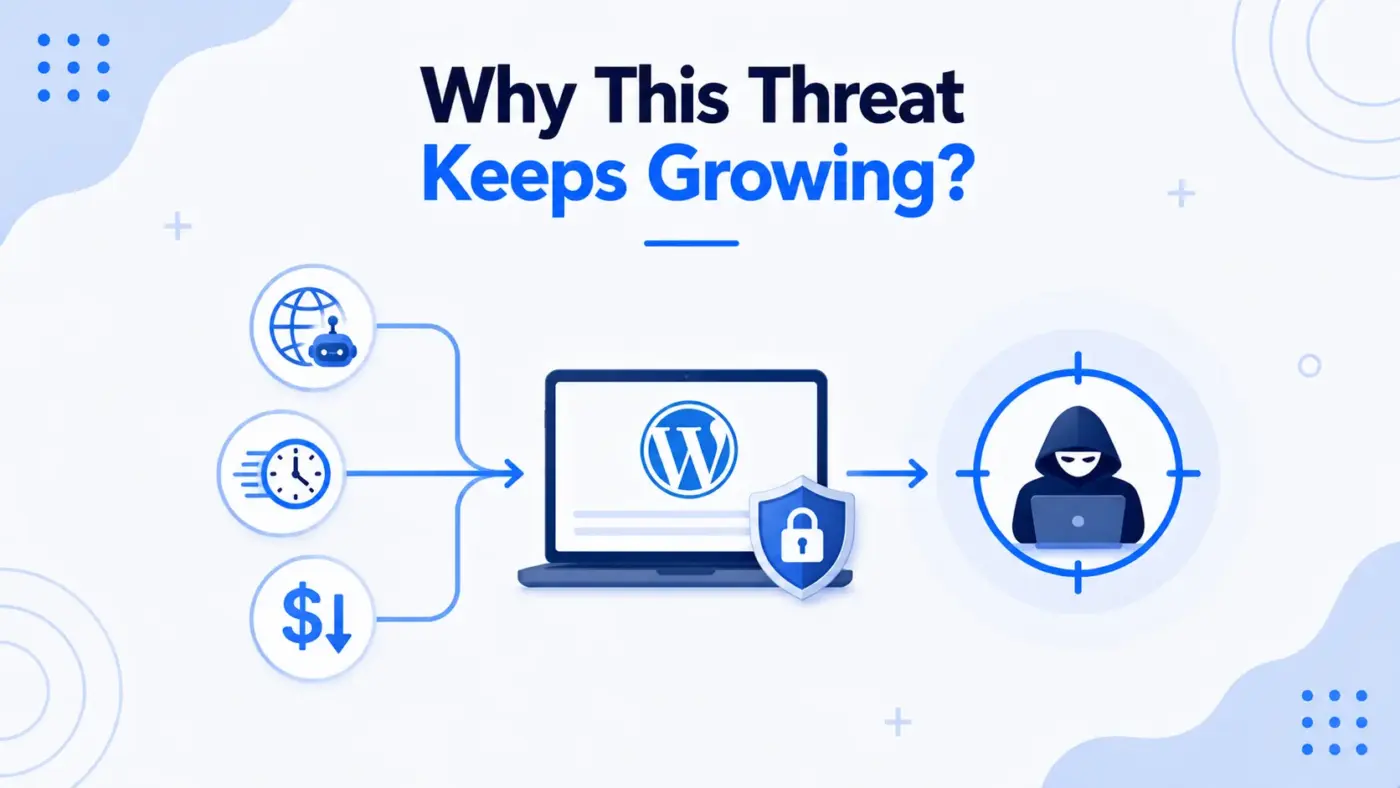
WordPress security has become a much bigger topic in recent years, and the numbers explain why.
According to Patchstack’s State of WordPress Security report, thousands of new WordPress vulnerabilities are disclosed every year, with plugin and theme flaws making up the overwhelming majority of them.
Separately, IBM’s annual Cost of a Data Breach research puts the average global breach cost in the millions of dollars, a figure that keeps climbing year over year.
Neither statistic is about admin emails specifically. But both point to the same trend: automated scanning of WordPress sites has become cheap, fast, and constant, which means any small exposure, including a guessable admin email, gets found far sooner than it used to.
Why Hackers Target Admin Email Addresses
Your admin email sits at the centre of WordPress account recovery. Once a hacker has it, several attack paths open up at once.
- Password reset abuse: Most password reset links go straight to the admin email. Owning that inbox is often the same as owning the account.
- Phishing: Attackers send convincing fake emails pretending to be your host, a plugin vendor, or WordPress itself.
- Credential stuffing: If your email appeared in an old data breach, hackers try the leaked password against your WordPress login.
- Brute-force targeting: A confirmed email or username narrows down half the guesswork in a brute-force attack.
- Social engineering: Attackers impersonate you to your host or support team, asking for account changes.
Each of these depends on one thing: knowing your admin email exists and is valid. That’s the part hackers work hardest to confirm.
It’s worth noting that none of these attacks requires your email to be guessed correctly on the first try. Automated tools are patient by design. They can run thousands of confirmation checks quietly in the background, without ever triggering a visible alert on your end, until one guess finally lands.
How Hackers Mine WordPress for Admin Email Addresses: 8 Common Methods
These are the same techniques used across real-world scans of WordPress sites. Understanding them is the first step to closing the gaps.
1. Author Archive Pages
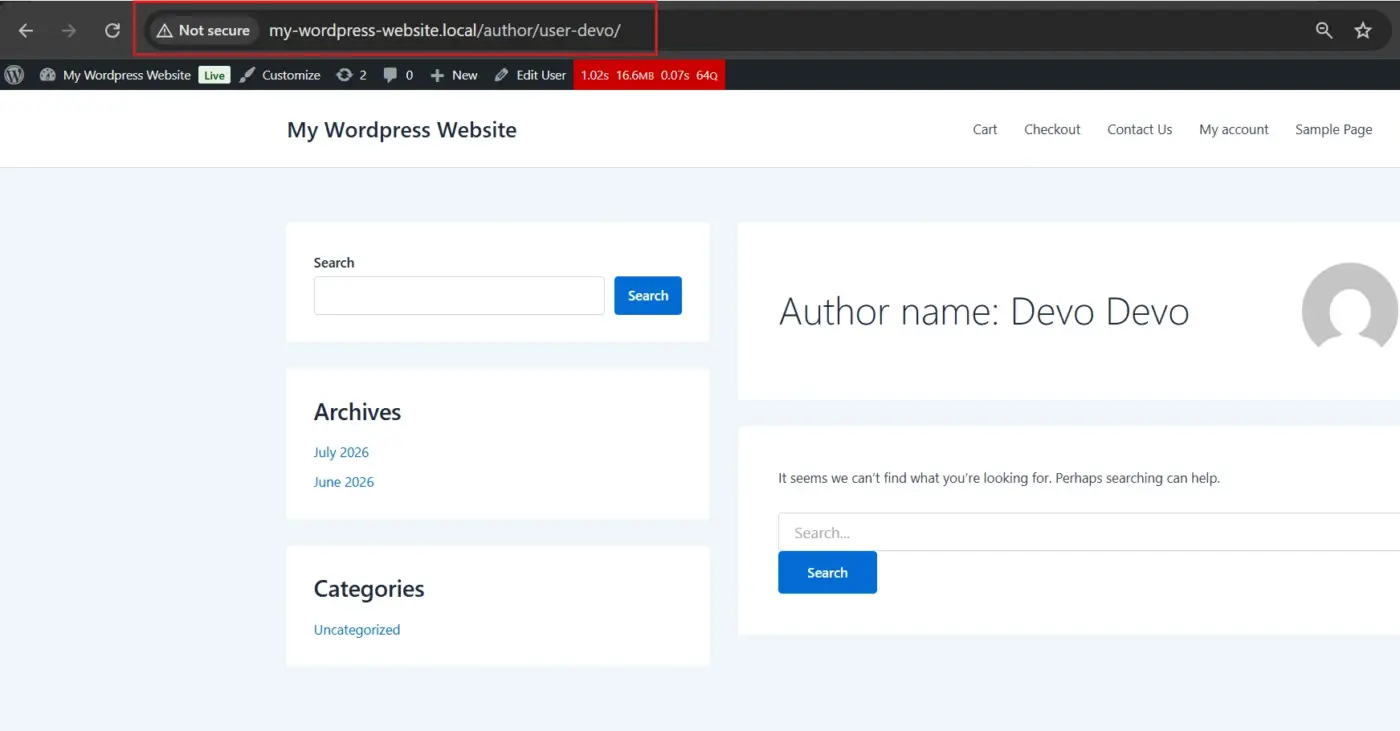
WordPress automatically creates a public author page for every user who publishes content.
The URL pattern is predictable: yoursite.com/author/username or yoursite.com/?author=1.
A bot simply cycles through ?author=1, ?author=2, and so on. Whichever number redirects to a live page confirms a real username.
The first user account created on almost every WordPress install is the site admin, so ?author=1 it is usually the first thing a bot checks.
If your username and email prefix match (for example, username johndoe and email johndoe@example.com) A hacker can guess your full email in seconds.
2. The WordPress REST API
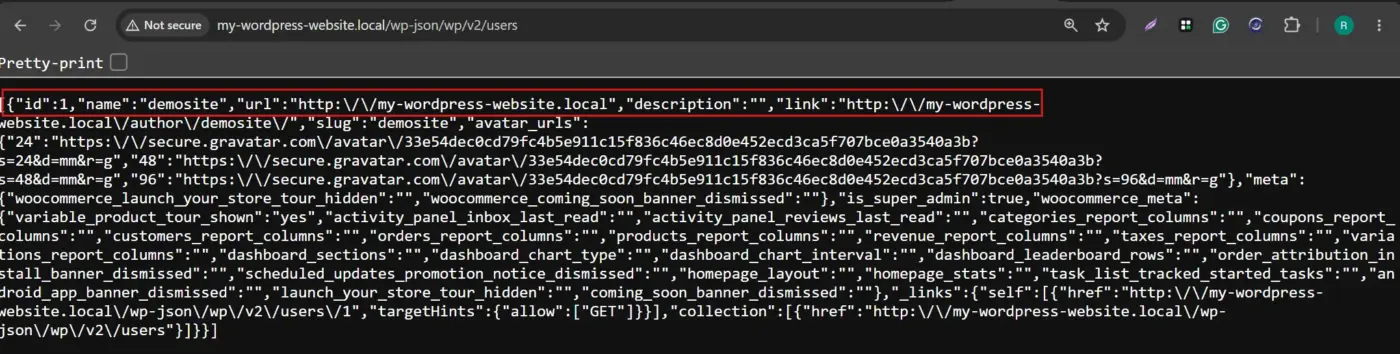
The WordPress REST API is a legitimate developer tool that powers plugins, apps, and headless WordPress setups.
But by default, an unauthenticated visitor can query:
yoursite.com/wp-json/wp/v2/users
This endpoint can return a list of registered users, including usernames and display names. On misconfigured sites, associated metadata sometimes points directly at the admin email.
No login or hacking tool is required. Just a browser and a URL.
3. Login Error Message Differences
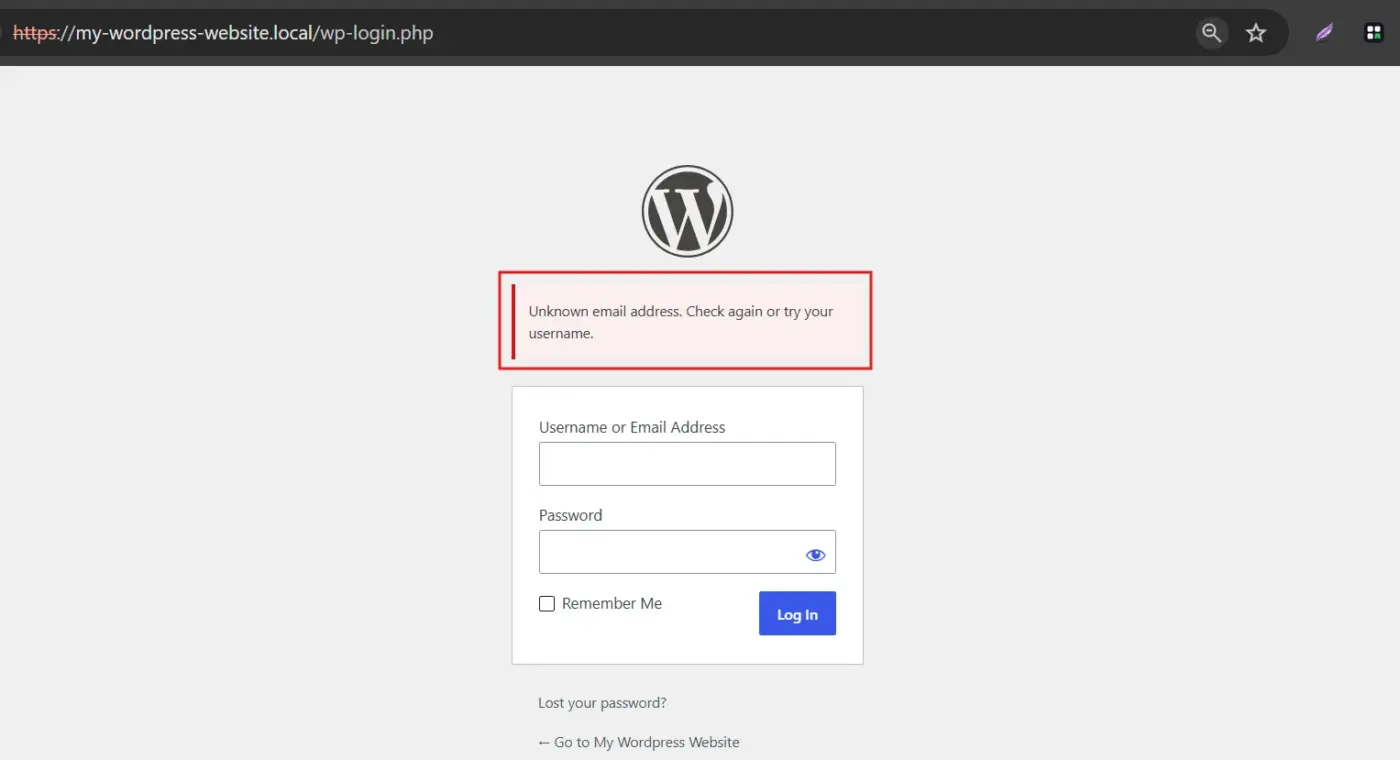
When someone tries to log in with a guessed email, WordPress’s response can accidentally confirm whether that email exists.An error like “unknown email address” means the guess was wrong.A message like “incorrect password” confirms the email is registered, even though the login itself failed.
Automated tools can run this check thousands of times per minute, quietly confirming valid admin emails one attempt at a time.
4. Scraping Contact Forms and Public Pages
Many WordPress sites list a contact or support email directly on a page, in a footer, or inside a contact form’s hidden fields.
Bots run continuous scans looking for anything resembling an email pattern (text@text.text), including addresses that are “hidden” like admin [at] yoursite [dot] com.
Modern AI-assisted scrapers can read these hidden formats just as easily as plain text, so simple hiding tricks no longer offer real protection.
5. Comment Section Metadata and Gravatar
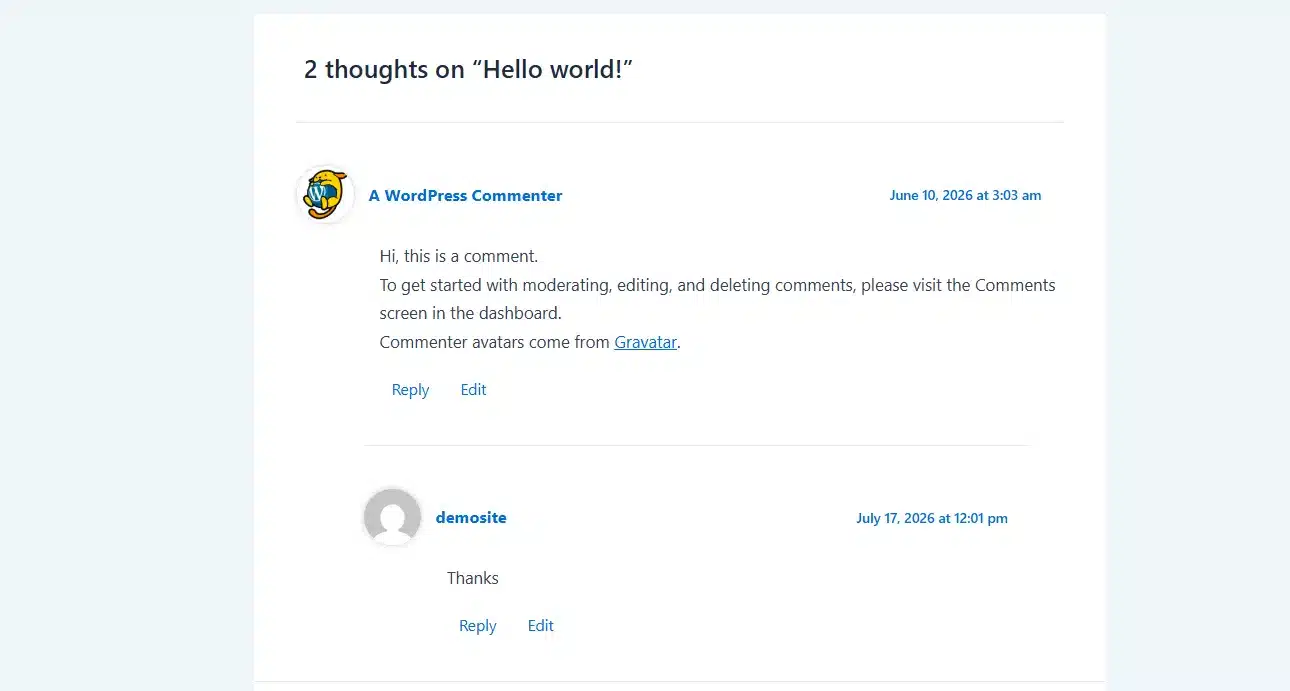
WordPress stores the email address tied to every comment, even if it’s never displayed on the front end.
If an admin has ever replied to a comment using their real account, that address may sit in the page’s underlying code, waiting to be scraped.
Gravatar adds a second angle. Since Gravatar images are generated from a hash of an email address, hackers can hash common email guesses and compare them to your site’s Gravatar image to confirm a match.
6. Vulnerable or Outdated Plugins and Themes
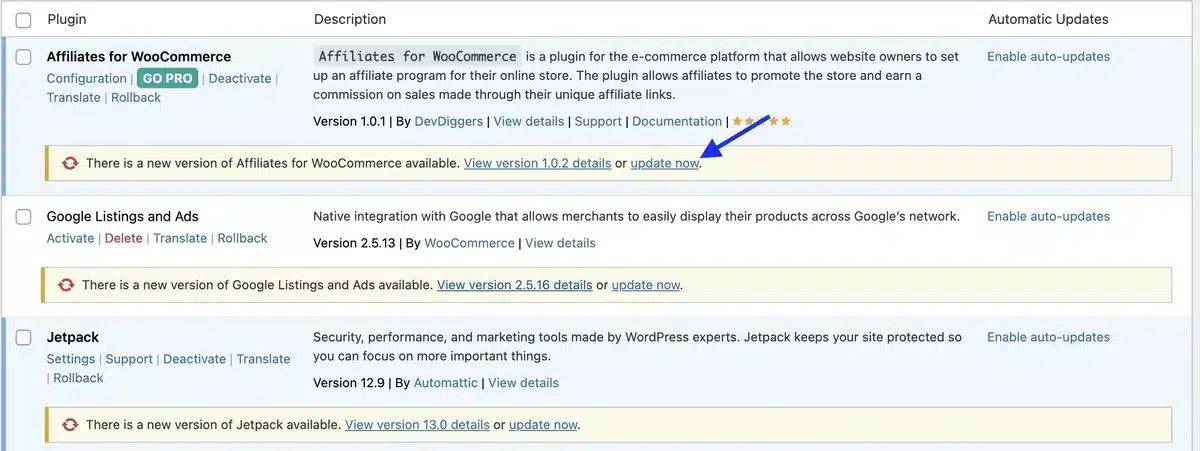
Plugins and themes that haven’t been updated in a long time are a frequent source of data leaks.
Some flaws accidentally output sensitive data, including full user tables with emails, into public-facing debug logs or error messages.
Attackers also fingerprint which plugins and versions a site is running, then cross-reference that against public vulnerability databases like the WPScan Vulnerability Database to find a matching, unpatched exploit.
Pirated or “nulled” premium plugins are a particularly common trap, since many are secretly modified to include hidden backdoors.
7. SQL Injection and Brute-Force Combinations
On sites running outdated WordPress core, plugins, or themes, SQL injection can let an attacker query the database directly, sometimes pulling admin emails straight from the wp_users table.
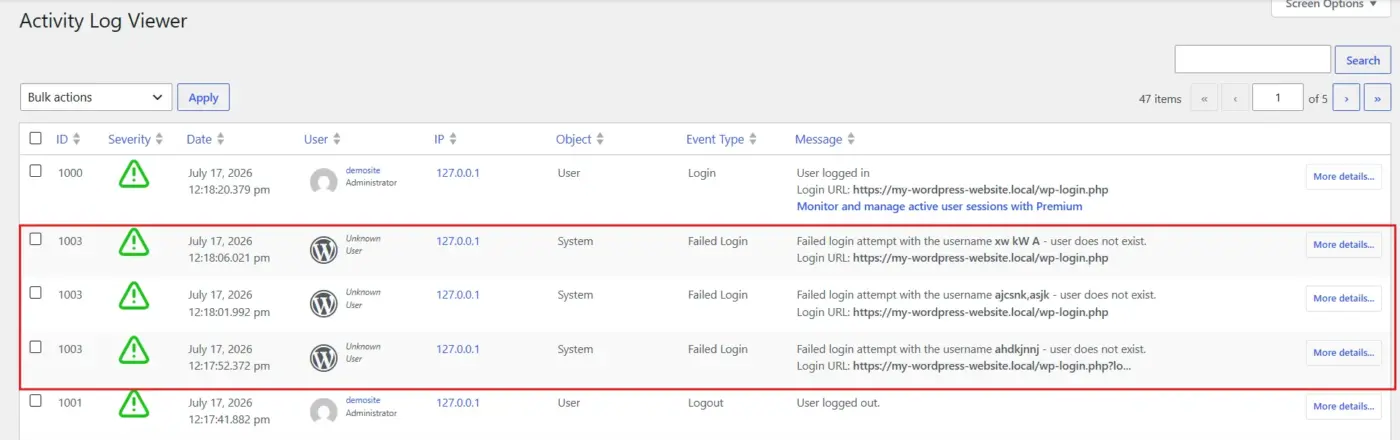
Separately, brute-force tools test large volumes of email-and-password combinations against the login page. Once a valid email is confirmed through any of the methods above, brute-forcing the matching password becomes far more efficient.
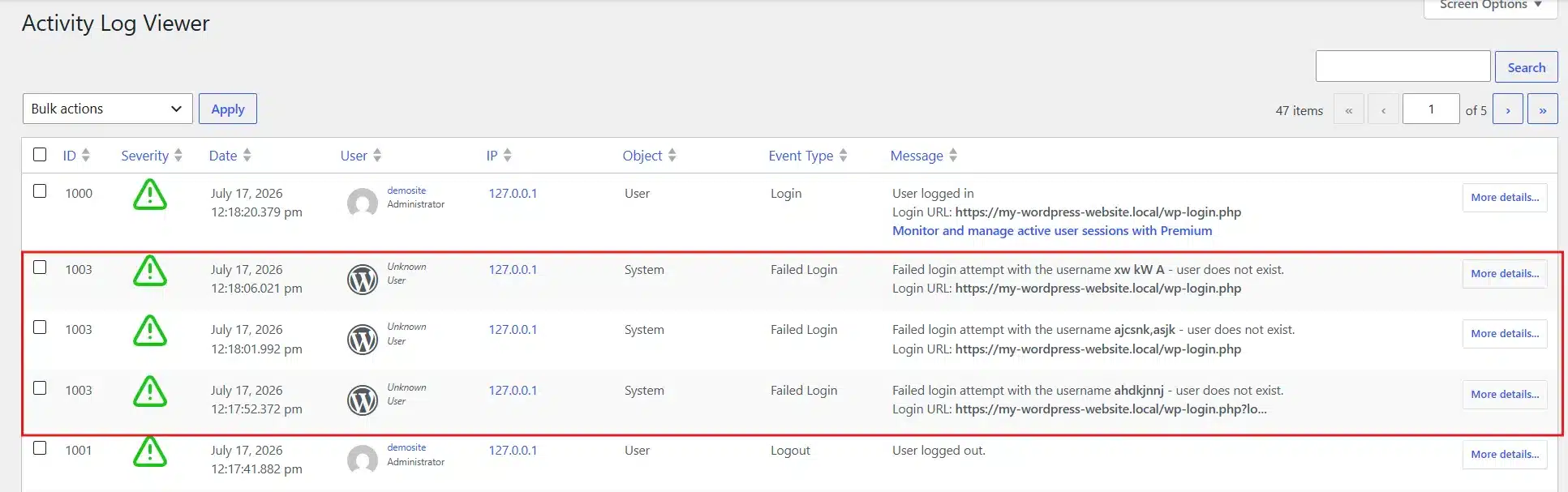
WP Activity Log Plugin helps you to see the logs if someone tries to log in again and again, so that you can step to 2-factor authentication.
8. WHOIS Records and Social Engineering
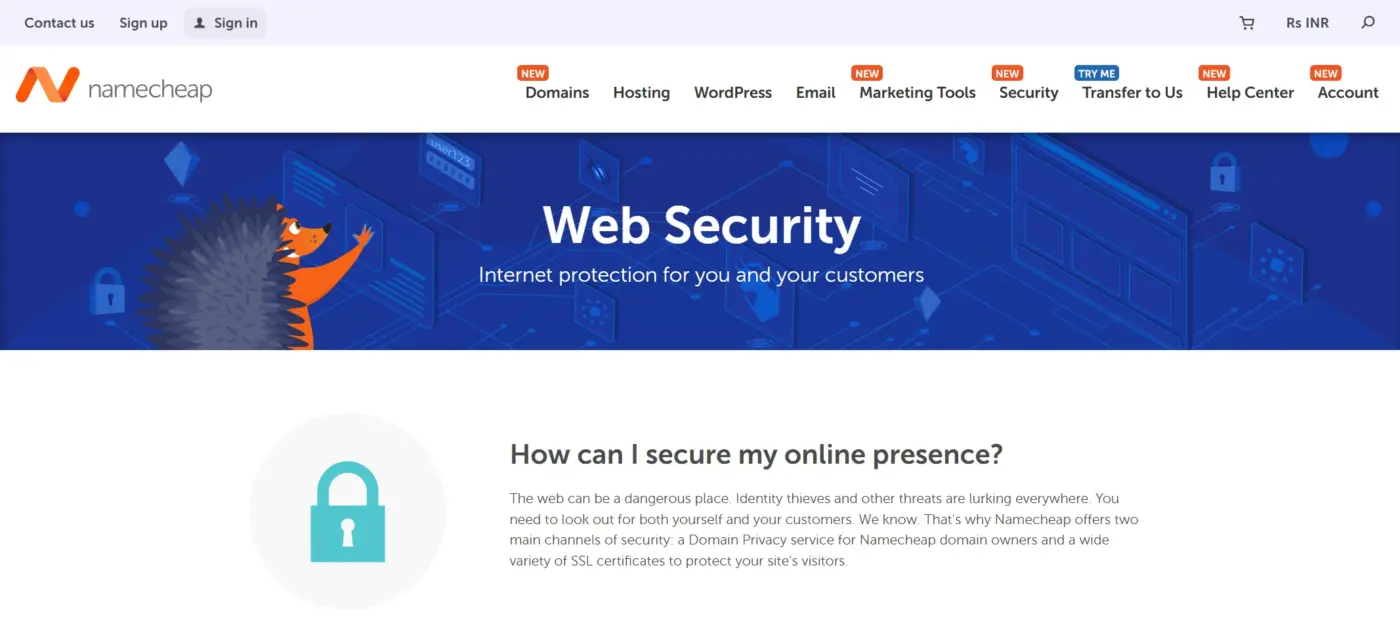
If a domain doesn’t use WHOIS privacy protection, the domain registration contact email is publicly searchable through any WHOIS lookup tool.
Beyond technical methods, some attackers simply ask. They may contact your hosting provider pretending to be you, or email other site users claiming to need help “fixing” something, hoping someone hands over admin details voluntarily.
Pro Tip: Hosting providers like Bluehost, Hostinger, SiteGround, Namecheap, etc provide pre-built WHOIS Privacy protection with their plans.
The Tools Behind the Scans
Most of the methods above aren’t performed by a person sitting at a keyboard, guessing one email at a time.
They’re run by automated scanners, several of which are publicly documented security-testing tools built for auditors and penetration testers.
WPScan is one of the most widely used WordPress vulnerability scanners. It’s built for legitimate security auditing, but the same scanning logic (checking usernames, plugin versions, and known flaws) is what a malicious actor’s script replicates.
Generic brute-force and credential-testing frameworks serve a similar dual purpose: security teams use them to test their own defenses, while attackers repurpose the same approach against unprotected sites.
The takeaway isn’t that these tools are inherently dangerous. It’s that anything an automated scanner can check on your site in seconds, an attacker’s script can check too, which is exactly why manual, one-off fixes rarely hold up over time.
Common Mistakes That Make This Easier for Hackers
A few habits show up again and again on sites that end up exposed:
- “Admin” as a username. It’s the very first guess every automated tool makes.
- Matching your email prefix to your username. This turns username enumeration into email enumeration instantly.
- Default REST API settings left untouched. Most site owners never realize the users endpoint is public by default.
- Replying to comments from the main admin account. This quietly leaks the admin email into comment metadata.
- Reusing the same password across multiple sites. One unrelated breach elsewhere can compromise your WordPress login too.
Fixing these five habits alone closes off a large share of the methods covered earlier in this guide.
Step-by-Step: How to Check If Your Own Admin Email Is Exposed
Before fixing anything, confirm what’s actually visible. Each step below is a single action you can perform and screenshot directly on your own site.
- Author archive URL: Open a new browser tab and visit
yoursite.com/?author=1. If it redirects to a page showing a username, that page is currently public.
- REST API users endpoint: Visit
yoursite.com/wp-json/wp/v2/usersin your browser. If you see a list of names and IDs, this data is exposed to anyone.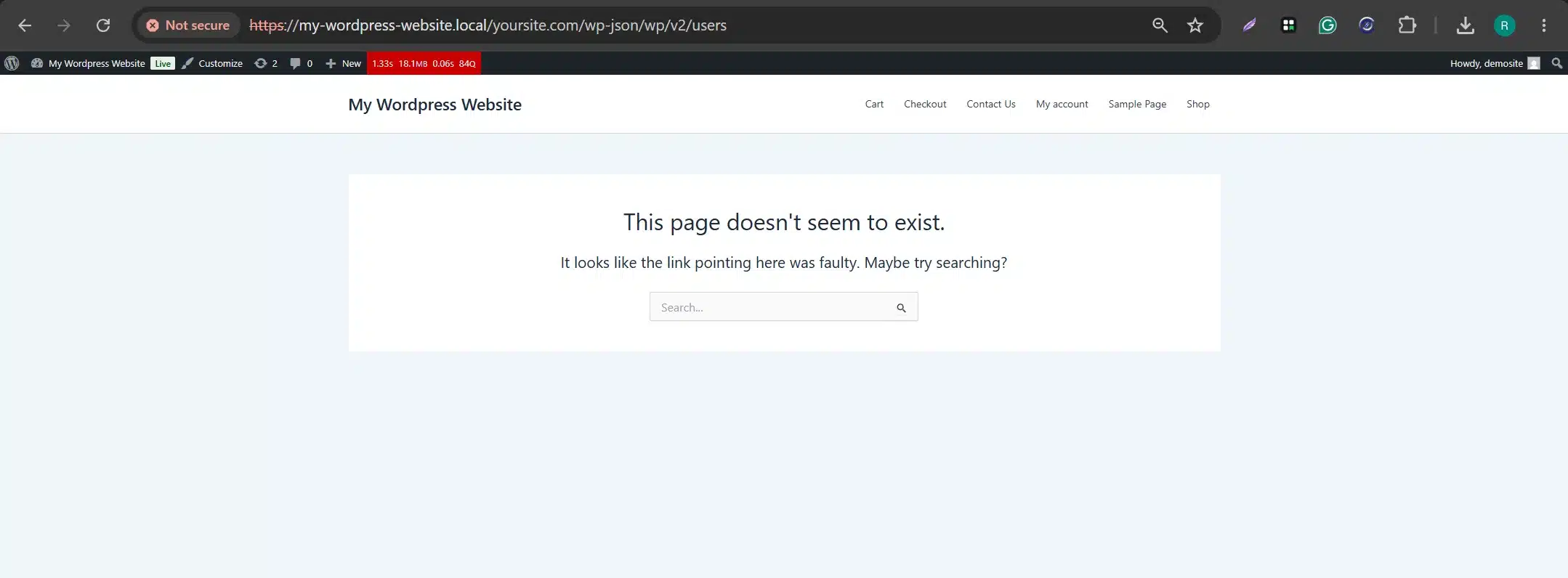
- Page source check: Right-click your homepage, select View Page Source, then press Ctrl+F and search for
@. Note every result that isn’t a generic support address.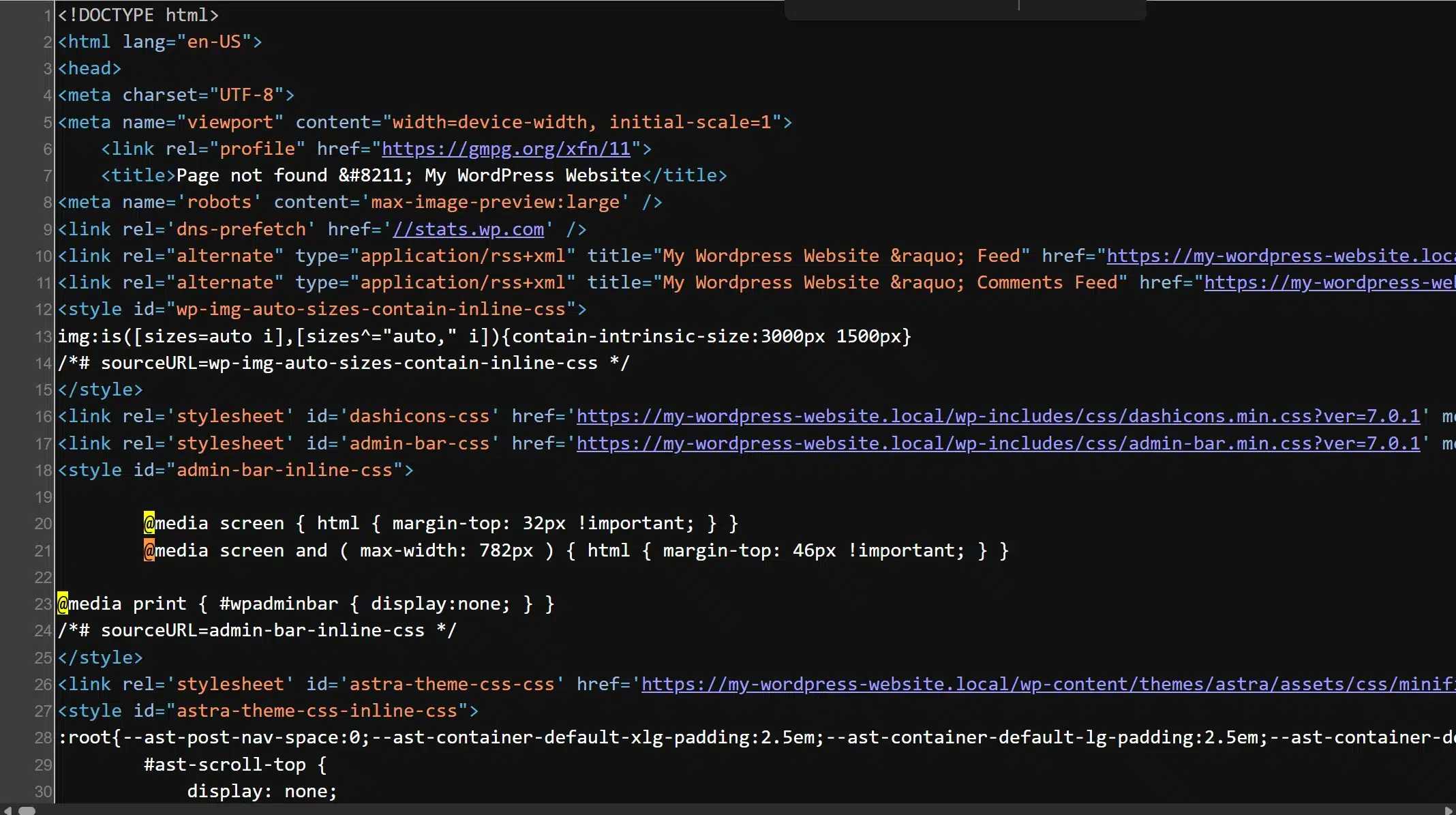
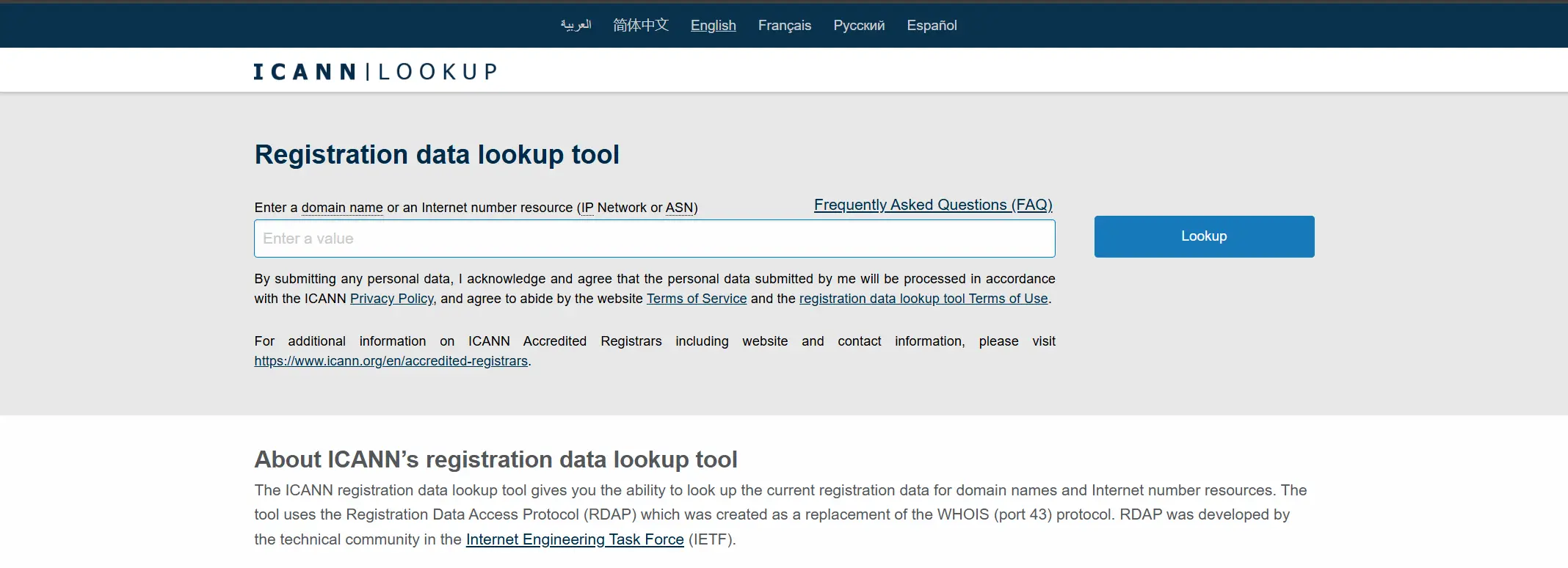
- WHOIS lookup: Visit a WHOIS tool such as ICANN Lookup and search your domain name. Check whether your real contact email appears.
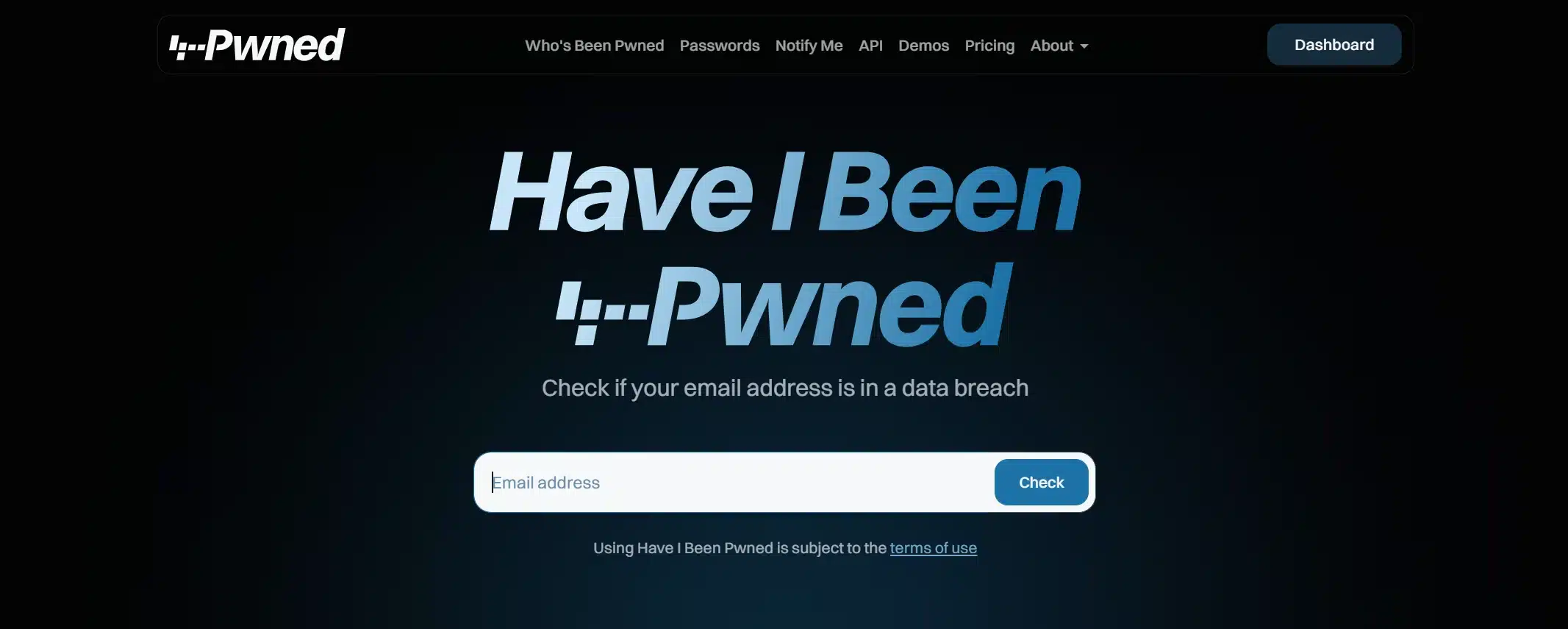
- Breach check: Visit Have I Been Pwned and enter your admin email address to see if it has surfaced in any known leak.
A Real-World Pattern Worth Knowing
Large-scale, automated attacks against WordPress logins aren’t imaginary. Security researchers have documented widescale botnet campaigns that targeted tens of thousands of WordPress sites at once, systematically trying the default “admin” username against thousands of common passwords.
These campaigns didn’t rely on sophisticated hacking. They succeeded because so many sites still used predictable usernames, weak passwords, and no second layer of verification.
The pattern repeats every few years with new tooling, but the underlying weakness is always the same: default settings left unchanged. That’s exactly what the steps in this guide are designed to close off.
Step-by-Step: How to Secure Your WordPress Admin Email
Work through these quickly to close the gaps covered above.
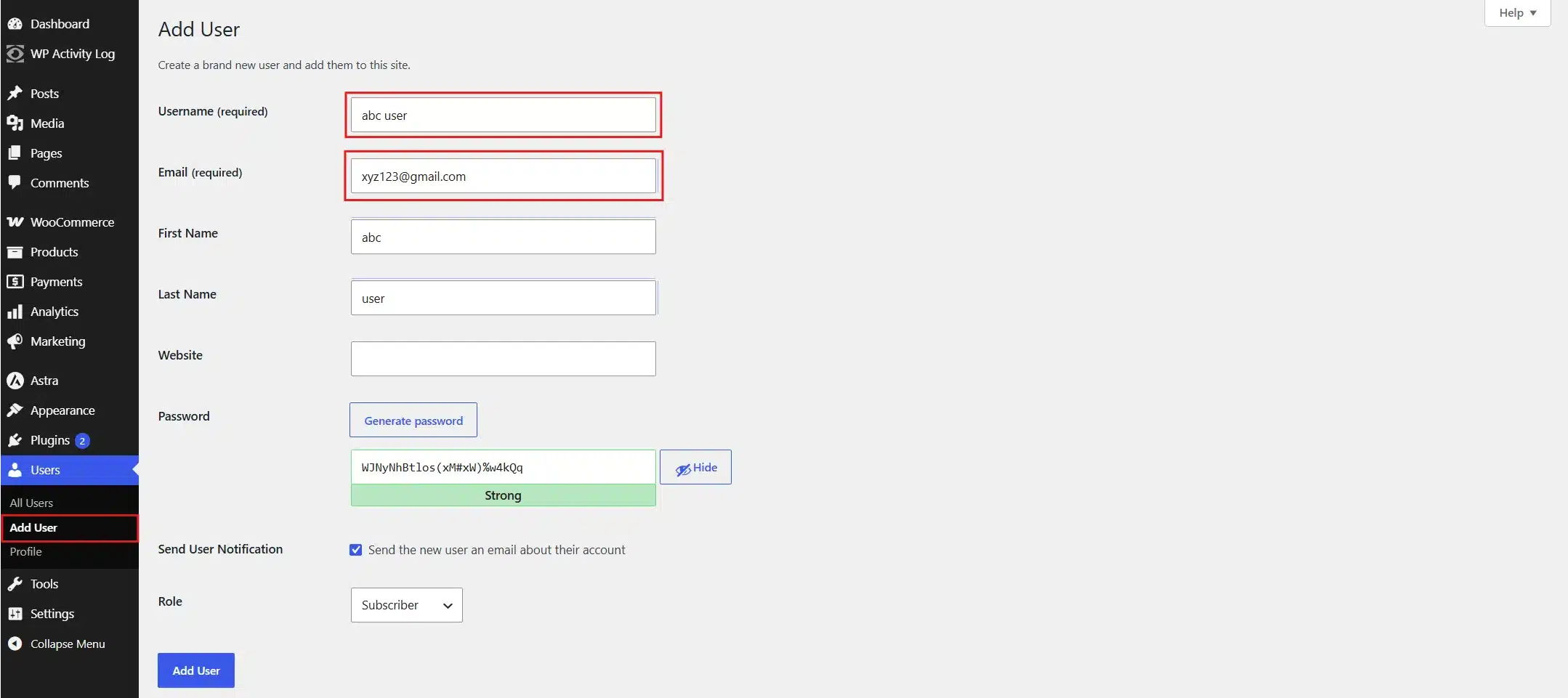
- Go to Users > All Users, add a new admin with a username that doesn’t match your email prefix, then delete or downgrade the old account.
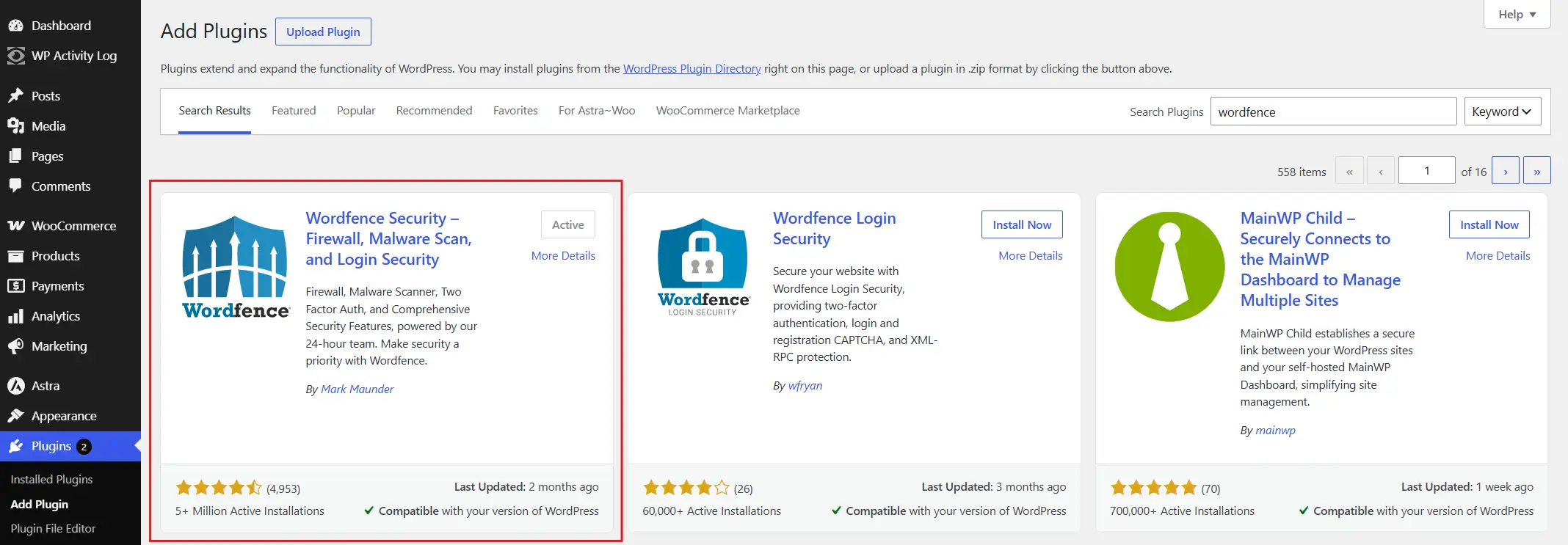
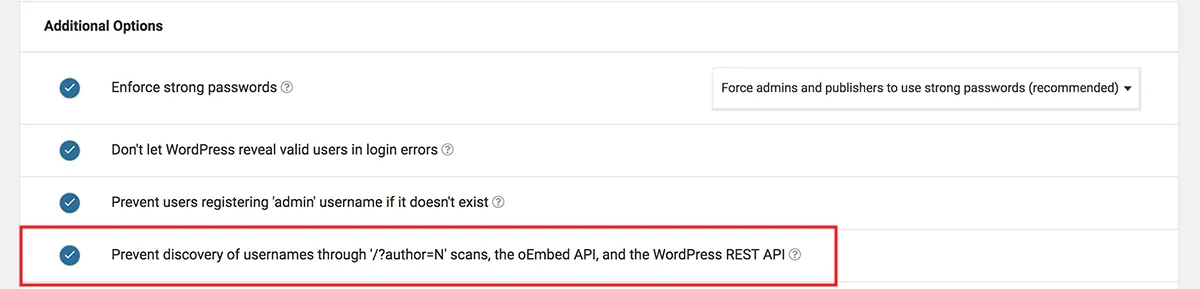
- Install a security plugin like Wordfence, then enable Prevent User Enumeration in its settings.
- In your security plugin’s Firewall settings, block REST API access for non-authenticated users.
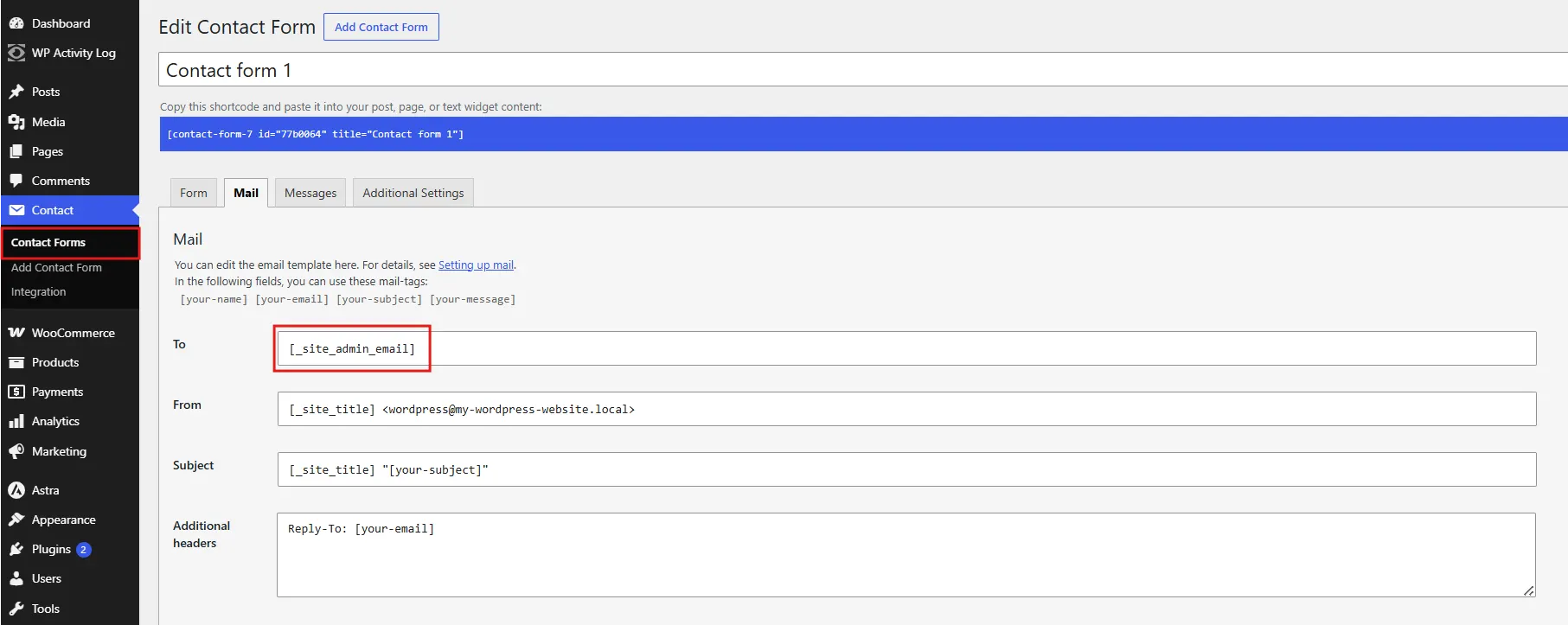
- In your contact form plugin’s settings, point the “Send To” field to something like hello@yourdomain.com instead of your admin email.
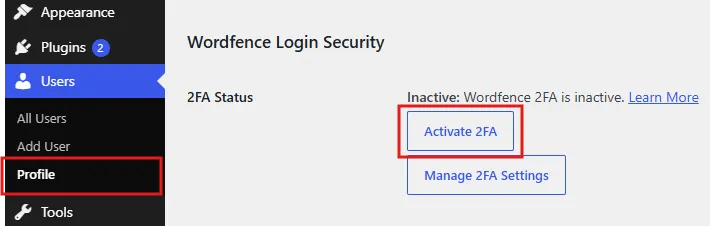
- Install a 2FA plugin, scan the QR code with an authenticator app, and confirm setup.
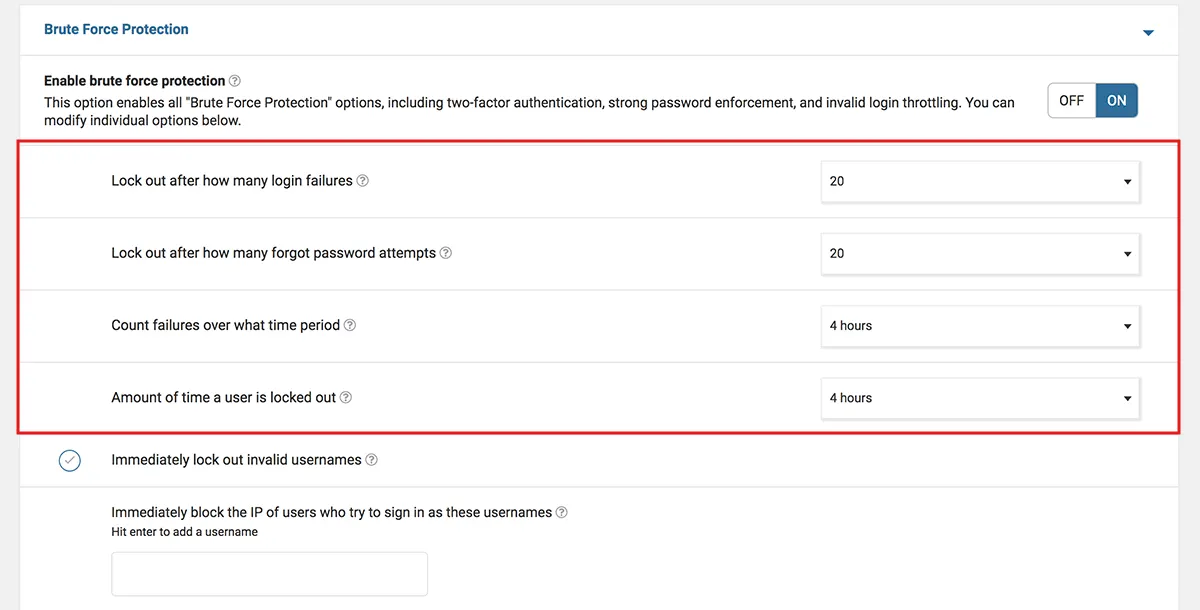
- In your security plugin, limit failed login attempts (3-5) with a lockout period (30-60 minutes).
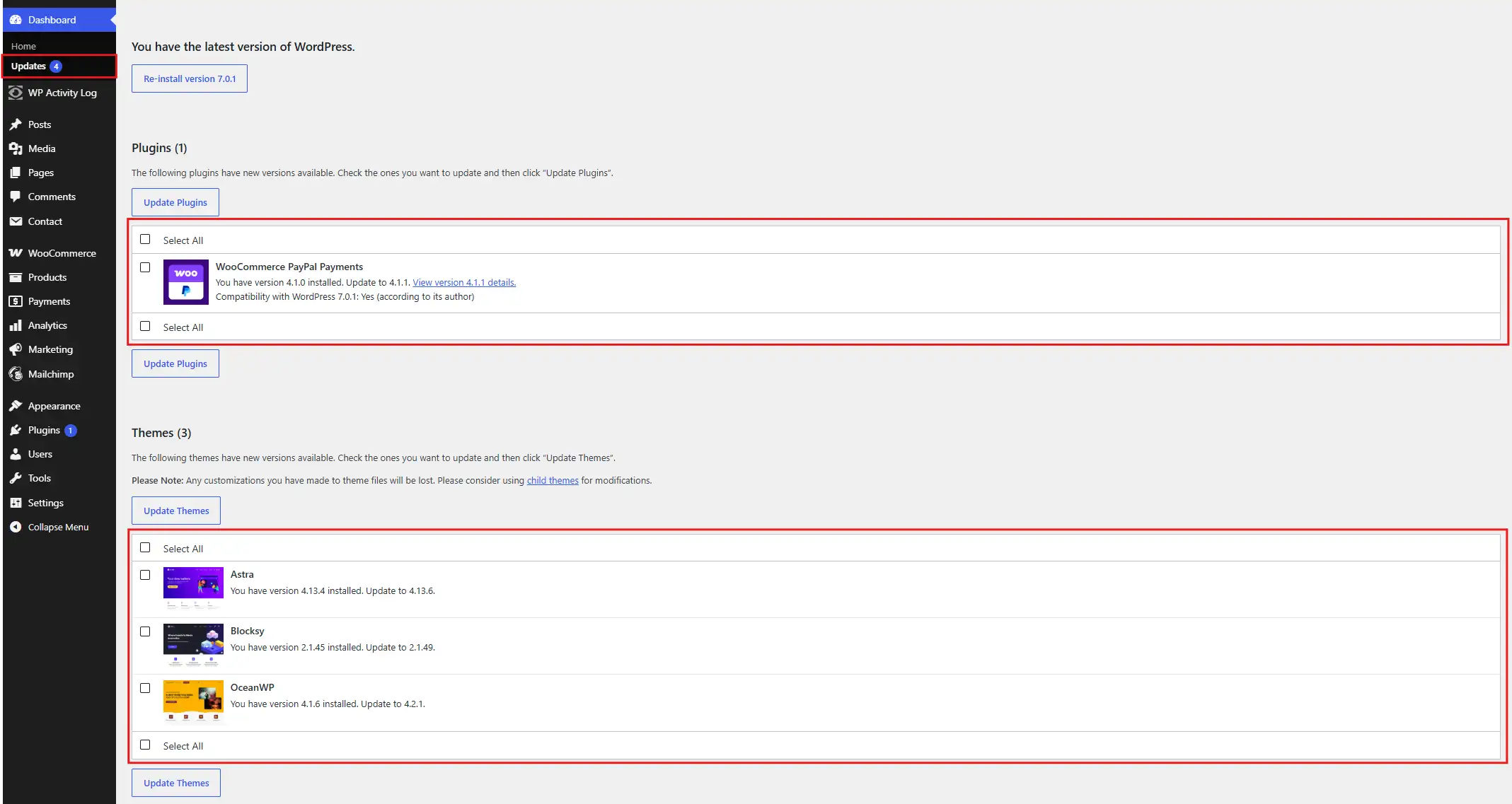
- Back up your site, then go to Dashboard > Updates and update everything outdated.
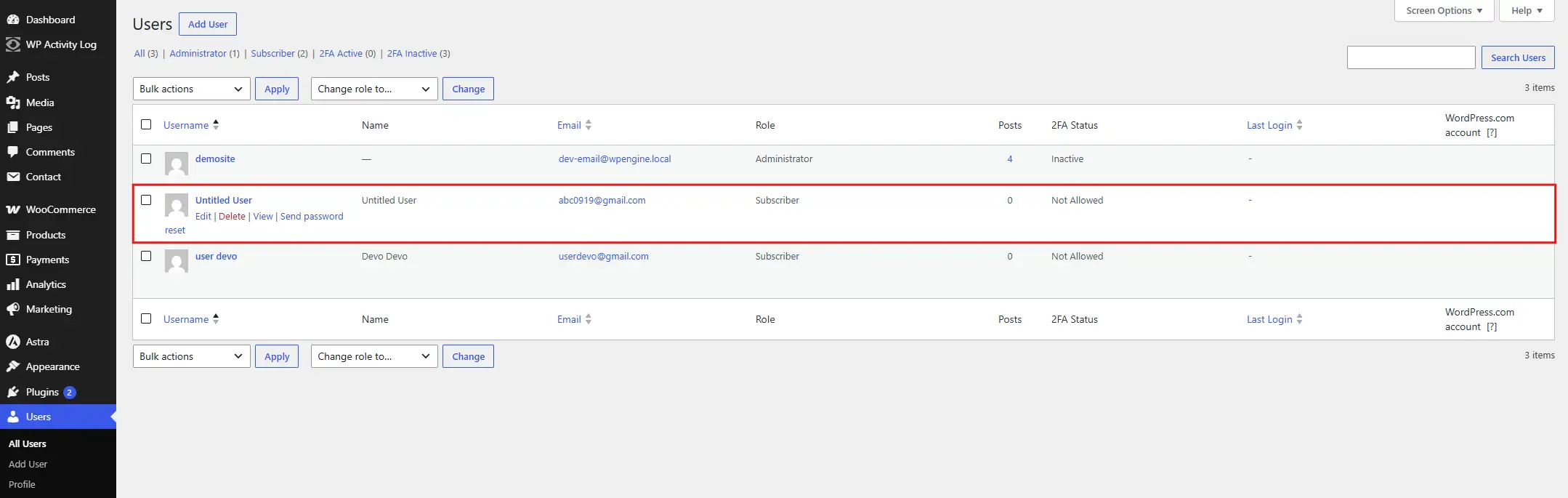
- Go to Users > All Users, sort by role, and delete any Administrator or Editor account you don’t recognise.
- Check your security plugin’s Activity Log regularly and set up alerts for suspicious activity.
Conclusion
Every method covered here (author archives, the REST API, contact forms, comments, plugin flaws, brute force, SQL injection, and WHOIS records) comes down to the same root cause: default settings that quietly expose more than they should.
None of it requires a skilled attacker. Most of it is fully automated.
The good news is that closing these gaps doesn’t require advanced technical skill either. Working through the two step-by-step sections above (checking your exposure, then locking it down) puts you ahead of the vast majority of WordPress sites that never bother to look.
Treat this as a recurring quarterly check rather than a one-time fix, since plugin updates and new user accounts can quietly reopen a closed gap. For a broader hardening pass, pair this with our WordPress Security Checklist and WordPress Brute Force Protection guide.
Frequently Asked Questions (FAQs)
Q1. Why do hackers target admin email addresses on WordPress?
Because the admin email controls password recovery, account notifications, and is often the first piece of information needed to plan a brute-force or phishing attack.
Q2. How do hackers mine WordPress for admin email addresses?
Mainly through author archive pages, the REST API users endpoint, login error messages, contact form scraping, comment metadata, vulnerable plugins, and public WHOIS records.
Q3. Can hackers bypass two-factor authentication with just an admin email?
Not directly. 2FA requires a second factor (an authenticator code), so having the email alone isn’t enough. It is, however, usually the first step attackers take before targeting the password and second factor together.
Q4. Is disabling the REST API safe for my site?
Fully disabling it can break plugins, page builders, or the block editor. It’s safer to restrict the users endpoint rather than disable the entire API. See Step 3 above.
Q5. How often should I recheck my site for exposure?
A quarterly check is a reasonable baseline, and immediately after adding new users, installing new plugins, or migrating hosts.
Q6. Does hiding my admin email guarantee my site can’t be hacked?
No single step guarantees full protection. Hiding the admin email removes one entry point, but it should be combined with strong passwords, 2FA, regular updates, and a security plugin for meaningful protection.
Q7. Will disabling author archives affect my site’s SEO?
Author pages carry minimal SEO value on most single-author sites. On multi-author blogs, consider customizing the author slug (Step 1) rather than removing archives entirely, so contributor author names still display correctly.
Q8. Is it safe to use a plugin instead of editing code directly?
Yes, for most site owners a well-reviewed security plugin is safer than hand-editing functions.php, since a plugin is tested across thousands of installs and easier to roll back if something breaks.