Chrome extensions are powerful means by which users can gain specific functionalities for their Chrome web browsing experience.
While all extensions are downloaded directly from the Chrome web store, developers and advanced users often wish to load an unpacked Chrome extension during testing or customization.
In this guide, we will explore how to load an unpacked Chrome extension quickly and efficiently.
Whether you are a developer testing your creation, an inquisitive user trying out open-source extensions or someone troubleshooting an issue, this detailed walkthrough will be of help.
What is an Unpacked Chrome Extension?
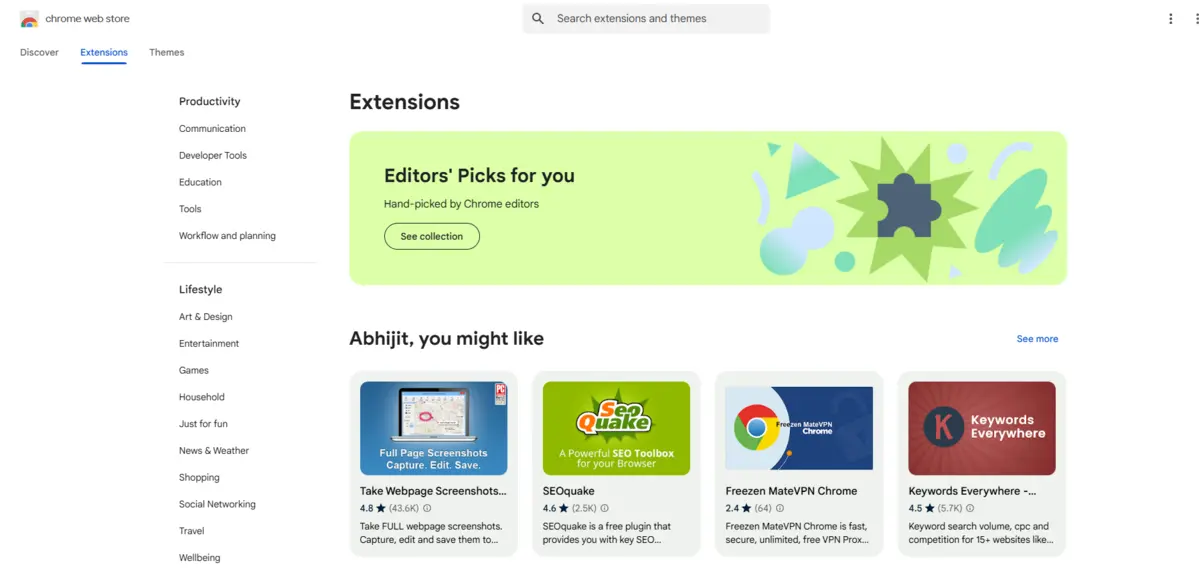
An unpacked Chrome extension is essentially the raw source code of the files of an extension in a folder.
Unlike packed extensions, which are usually in .crx format, unpacked extensions are not zipped and are often used during development or debugging because they permit immediate edits and updates without repackaging.
Common Scenarios Where Unpacked Extensions Are Needed:
- Developers are testing their Chrome extension.
- Users are experimenting with modified versions of extensions.
- Contributors are reviewing and tweaking open-source projects.
- Debug errors in existing extensions.
- Explore and understand how extensions work.
Prerequisites for Loading an Unpacked Chrome Extension
Before you dive into the process, ensure you have:
- Google Chrome Browser: The steps outlined work best on Chrome, although similar processes may apply to other Chromium-based browsers.
- Extension Source Files: You should already have the folder containing the extension files (HTML, CSS, JavaScript, manifest.json, etc.).
- Developer Mode Enabled: Chrome requires this to load unpacked extensions.
- A stable internet connection: Though not essential, it comes in handy in case there is a need to download extension files or browse some documentation along the process
- Knowledge of the structure: Understanding of where files reside, so how to browse and track problematic files based on the extension.
How to Load an Unpacked Chrome Extension: Step-by-Step Guide
1. Enable Developer Mode in Chrome
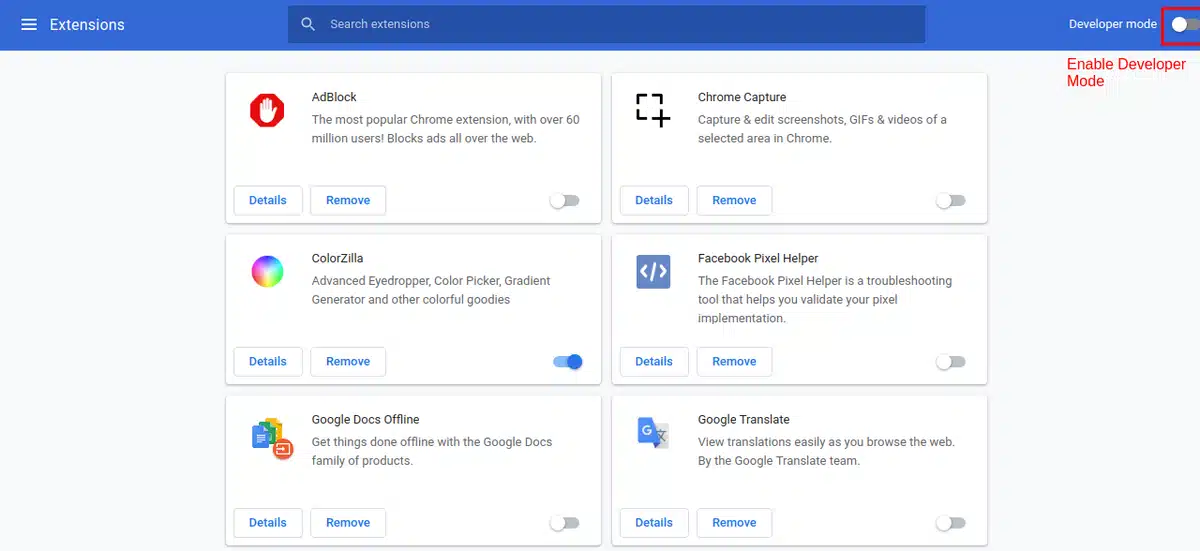
Developer Mode is crucial for accessing advanced features like loading unpacked extensions.
Steps:
- Open Google Chrome.
- In the address bar, type
chrome://extensionsand hit Enter.
Alternatively, click the three-dot menu (top-right corner) → More Tools → Extensions. - Toggle the Developer Mode switch (found in the top-right corner of the Extensions page).
Now, you’ll notice three new buttons: Load unpacked, Pack extension, and Update.
2. Locate the Extension Files
Ensure the extension’s source code is saved in a local folder. This folder must contain a manifest.json, configuration file defining the extension’s properties.
Tips:
- If you’re downloading an open-source extension, then ensure the files are extracted if they come in a zip folder.
- Verify the
manifest.jsonfile to ensure it’s formatted correctly and meets Chrome’s specifications.
3. Load the Unpacked Extension
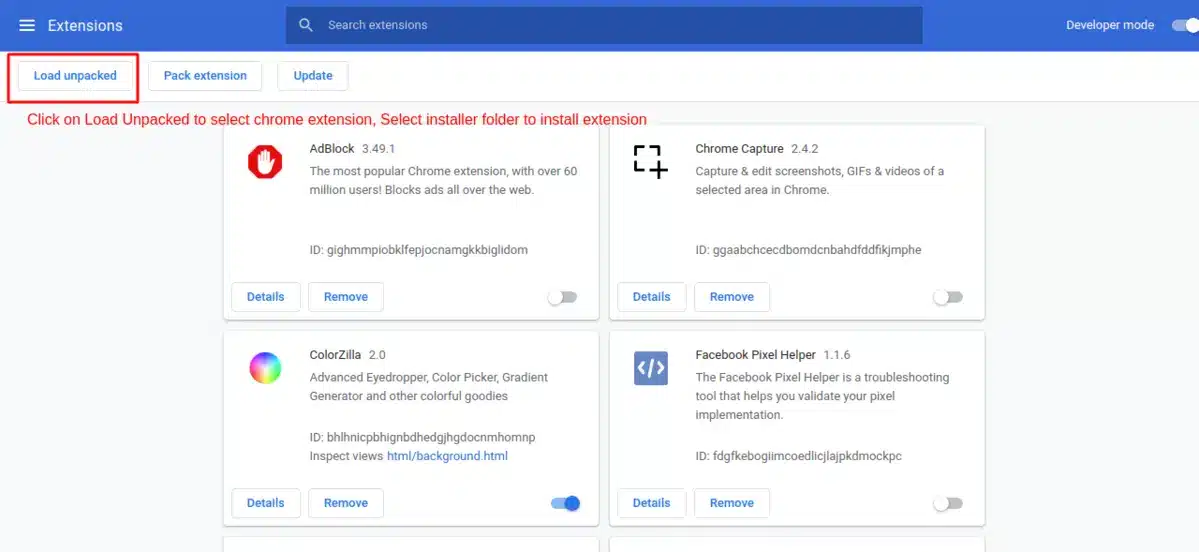
Steps:
- On the
chrome://extensionspage (with Developer Mode enabled), click Load unpacked. - In the file dialogue box, navigate to the folder containing the unpacked extension files.
- Select the folder and click Open (or Select Folder).
Once the folder is loaded, the extension should appear on the Extensions page, complete with its icon, name, and description from the manifest.json file.
4. Test the Loaded Extension
Once the unpacked extension is loaded, it should become active immediately. Here’s how to verify and test it:
- Check if the extension’s icon appears in the Chrome toolbar.
- Test its functionality to ensure it behaves as expected.
- Monitor for errors in the Extensions page or Chrome’s Developer Tools (
Ctrl + Shift + Ion Windows orCmd + Option + Ion Mac).
Troubleshooting Common Issues
Loading unpacked Chrome extensions can sometimes result in errors. Here are a few common problems and solutions:
1. Manifest Error
Error Message: The manifest file is missing or unreadable.
Solution: Make sure that the manifest.json file is in the root folder and well-formatted. Use a validator for JSON to check syntax errors.
2. Permission Errors
Error Message: Unrecognized permission.
Solution: Review the permissions listed in manifest.json. Refer to Chrome’s permissions documentation to ensure compatibility.
3. File Path Errors
Error Message: File not found.
Solution: Verify that all files referenced in the manifest.json file (e.g., icons, scripts, stylesheets) are in the correct locations.
4. Security Warnings
Error Message: This extension may harm your computer.
Solution: You may ignore the warning if it is from a trusted source. Otherwise, avoid the extension.
Conclusion
Knowing how to load an unpacked Chrome extension is a super skill, especially for developers and tech-savvy users.
With this guide, you can load and test the unpacked versions of your Chrome extensions without any fuss. Just be sure the source files you use come from a reliable source and are in accordance with the guidelines set out by Google for safe use.
So, the next time you need to test or tweak an extension, you’ll have the confidence to do it seamlessly. Ready to dive in?
Open your Chrome browser and start exploring the endless possibilities with unpacked extensions!
FAQs
Q1. Can I load unpacked extensions in all browsers?
No, this feature is specific to Chromium-based browsers like Chrome, Edge, and Brave.
Q2. Is Developer Mode safe to use?
Yes, but be cautious about loading extensions from untrusted sources.
Q3. Can unpacked extensions be shared with others?
Yes, you can share the source folder or package it into a .crx file.
Q4. What happens if I close Chrome?
The unpacked extension remains loaded until manually removed.
Q5. Can I load multiple unpacked extensions at once?
Yes, you can load multiple unpacked extensions simultaneously.