You can load an unpacked Chrome extension in under two minutes once Developer Mode is turned on. This is the same method professional extension developers use every day to test code before it ever touches the Chrome Web Store.
Most guides stop at the five basic steps and leave out one detail that now breaks people’s setups. Chrome changed how Developer Mode behaves in version 134, and if you skip that part, your extension can silently stop working after a restart.
Here’s what this guide actually covers: the step-by-step process to load an unpacked extension, how to reload it after code changes, what changed in the most common manifest errors, and whether leaving Developer Mode on is actually safe.
What Is an Unpacked Chrome Extension?
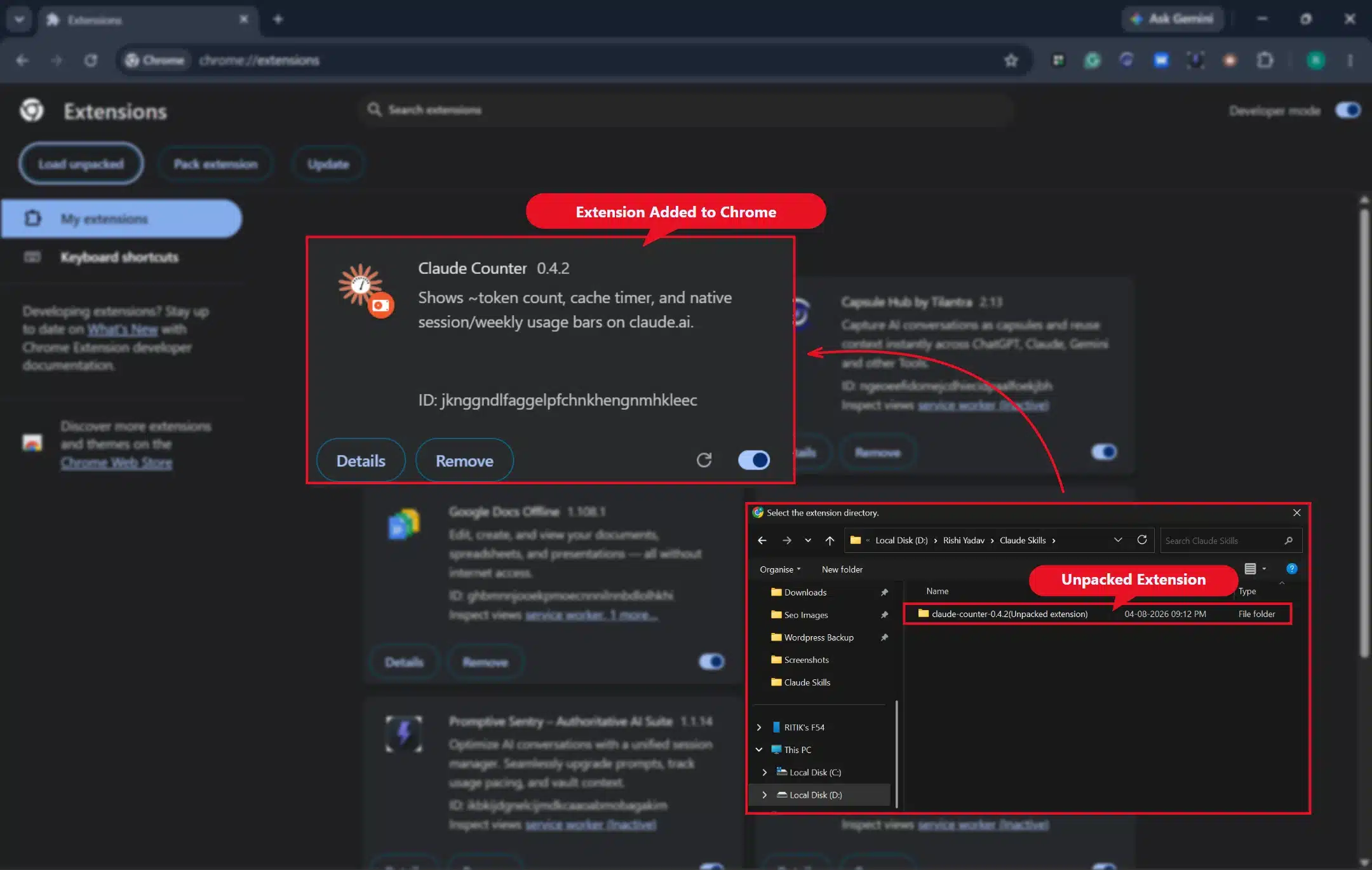
An unpacked extension is a raw, uncompressed folder of code, a manifest.json file, scripts, and assets, loaded straight into Chrome without going through the Chrome Web Store. Developers use this method to test builds locally before publishing, since it lets you see changes reflected almost instantly instead of waiting on a review process meant for public releases. For a real example of what the Web Store review asks of a new extension, see how we built and shipped Tabisto.
It matters more than it used to. Starting with Chrome version 139, extensions still running on Manifest V2 no longer work at all; Chrome loads them in a disabled state. Anyone testing an extension locally needs to confirm it runs on Manifest V3 first, since an unpacked folder built on the older format won’t run no matter how correctly you follow the loading steps below.
This distinction trips people up more than expected. A folder that worked perfectly a year ago can fail silently today simply because Chrome moved on from the manifest version it was written against. Nothing in the loading process changed.
How to Load an Unpacked Chrome Extension in Chrome: Step by Step
- Type
chrome://extensionsinto the address bar and press Enter. Or click the puzzle-piece icon in the toolbar and select Manage Extensions from the menu instead.
- Look for the toggle in the top-right corner of the page and switch on Developer Mode. This unlocks Load unpacked, Pack extension, and Update.

- Click Load unpacked. A file browser window will open on your screen.

- Use the file browser to navigate to your extension’s folder.

- Select the folder that directly contains your
manifest.jsonfile. A parent folder or a.zipfile will not work.
- Click Select Folder to confirm your choice. Chrome will validate the manifest file automatically and flag anything Incorrect.

- Your extension’s name, icon, and version number will now appear on the Extensions page, confirming it loaded successfully.

- Pin it to the toolbar from the puzzle-piece menu so you can access it quickly while testing changes.

How to Reload or Update Your Unpacked Extension
- Go to
chrome://extensions. - Find your extension’s card in the list.
- Click the reload icon (a circular arrow) on that card.

- If you edited a content script, also refresh the tab where it runs. Popups and options pages update automatically without a manifest reload.

What Changed in Chrome 134: Developer Mode Must Stay On
- Before Chrome 134, you could load an unpacked extension once, and it kept running even after switching Developer Mode off.
- From Chrome 134 onward, unpacked extensions only stay enabled while the Developer Mode toggle is on. Turn it off, and Chrome disables them immediately, with no warning dialog. Google confirmed this in its Chrome Enterprise release notes.
- This applies to extensions loaded from the
chrome://extensionspage. It does not apply to extensions launched with the--load-extensioncommand-line flag, which developers commonly use in automated testing. - Enterprise admins can control this behavior directly through the
ExtensionDeveloperModeSettingspolicy on managed Chrome browsers.
Worth knowing: If you build and test extensions regularly, plan on leaving Developer Mode on permanently rather than toggling it per session.
Common Errors When Loading an Unpacked Extension (and Fixes)
| Problem | Solution |
|---|---|
| “Manifest file is missing or unreadable” | Confirm you selected the folder that directly contains manifest.json. A parent folder or a zipped file will not work. |
| “This extension may have been corrupted” | Re-extract the ZIP file fresh. Delete any hidden system files (like .DS_Store) that sometimes end up in the folder. |
| Extension icon doesn’t appear in the toolbar | Click the puzzle-piece icon and pin the extension manually. Chrome doesn’t auto-pin new extensions. |
| “Manifest_version key is missing or invalid” | Open manifest.json in a code editor and confirm manifest_version, name, and version are all present and the JSON is valid. |
| Code changes aren’t reflecting in the browser | Click the reload icon on the extension’s card. For content scripts, also refresh the host page. |
| Extension disabled after restarting Chrome | Check that Developer Mode is still on. Since Chrome 134, this resets unpacked extensions automatically if it’s off. |
Load Unpacked Error Messages and How to Fix Each One
Chrome shows a Failed to load extension box when Load unpacked cannot read your folder. The box names the folder and gives one error line that tells you what to fix. We triggered four common errors in Chrome 155 on 14 October 2026 with a tiny test extension and copied the exact text below.
Manifest File Is Missing or Unreadable
Chrome shows Manifest file is missing or unreadable when the folder you picked has no manifest.json it can read. This usually means you picked a parent folder or a zip file. Select the folder that holds manifest.json directly, and check it in Finder or File Explorer before you retry.
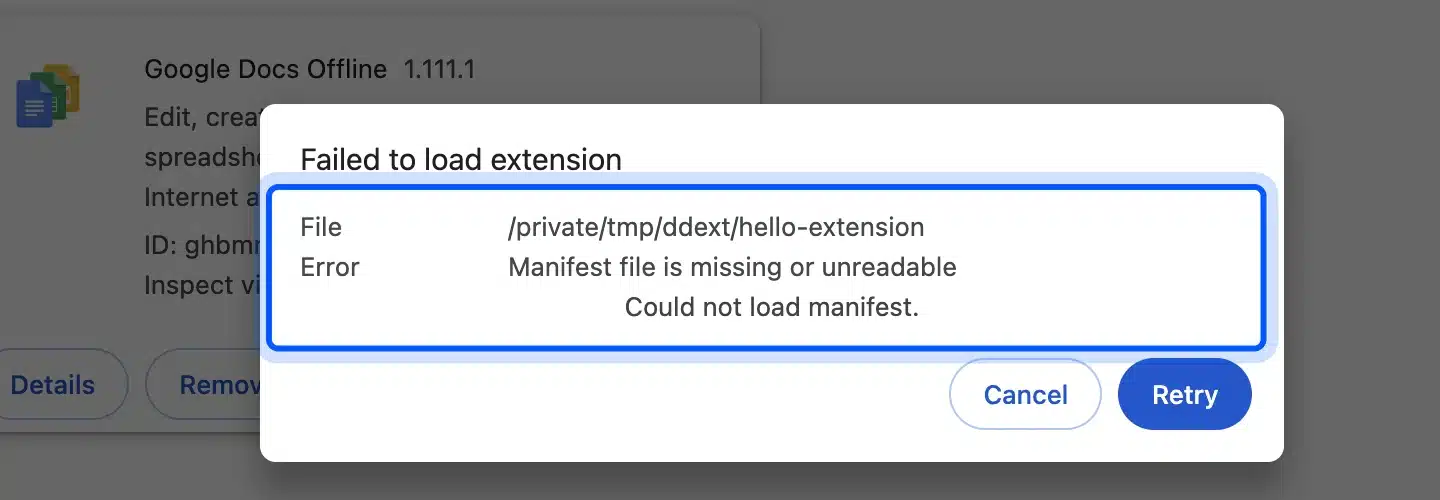
In our test the folder held only a readme.txt. Chrome added “Could not load manifest.” on a second line under the error.
Cannot Install Extension Because It Uses an Unsupported Manifest Version
Chrome shows Cannot install extension because it uses an unsupported manifest version when manifest.json says "manifest_version": 2. Chrome’s documentation says Manifest V2 extensions stop working for anyone on Chrome 139 or later. Change the value to 3 and move the file to the Manifest V3 format.
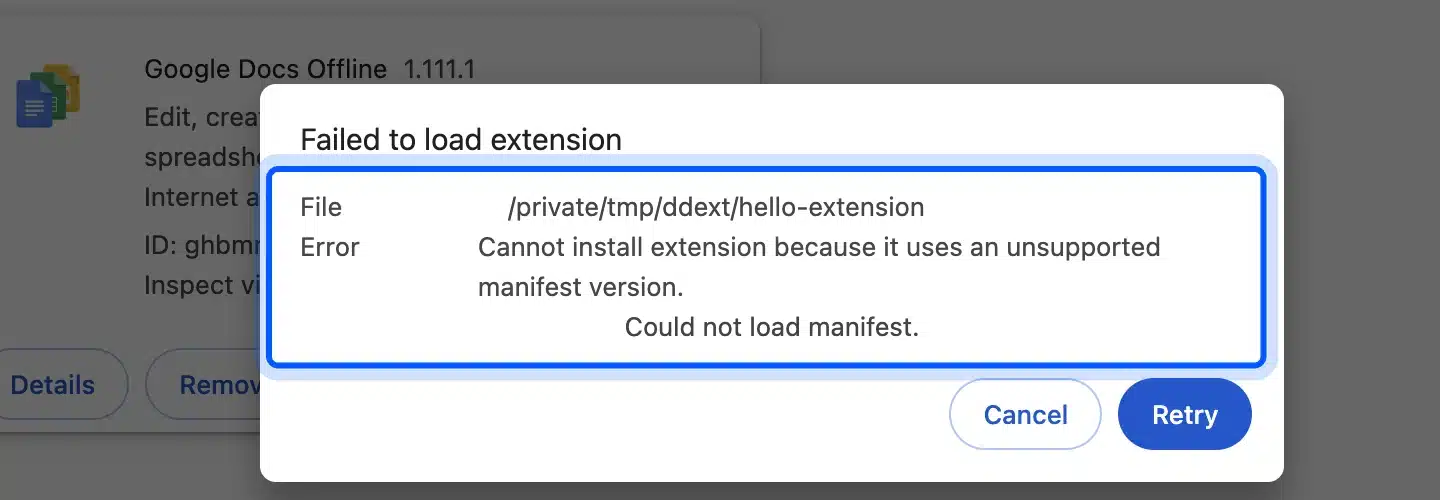
Our test manifest held only a name, a version and "manifest_version": 2. Chrome refused it with that message. An older extension can still say version 2. Check that line first.
Could Not Load Icon Specified in Icons
Chrome shows Could not load icon ‘icons/icon16.png’ specified in ‘icons’ when manifest.json lists an icon file that is not in the folder. The path in the message is the one written in the manifest. Add the missing image, or fix the path so it matches the real file name and folder.
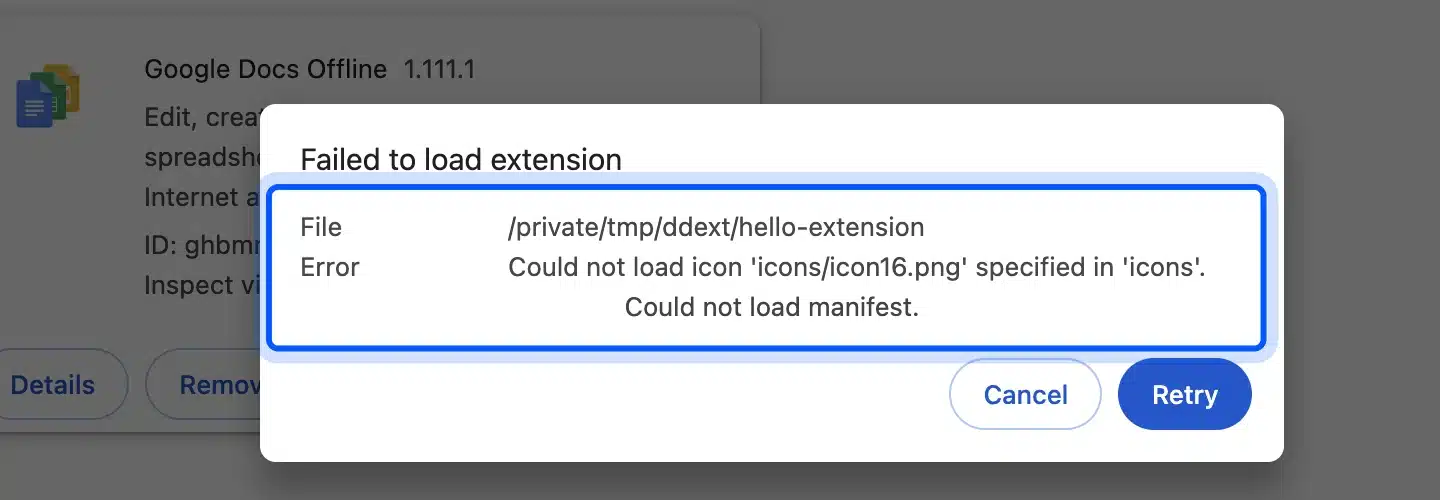
In our test we listed icons/icon16.png and icons/icon48.png but never created the folder. Chrome named the first missing file, icon16.png.
Service Worker Registration Failed
Chrome shows Service worker registration failed. Status code: 15 when the background script in manifest.json cannot start. The extension still loads, but its card gets a red Errors button. Click it and read the lines under the status code, because they name the real cause.
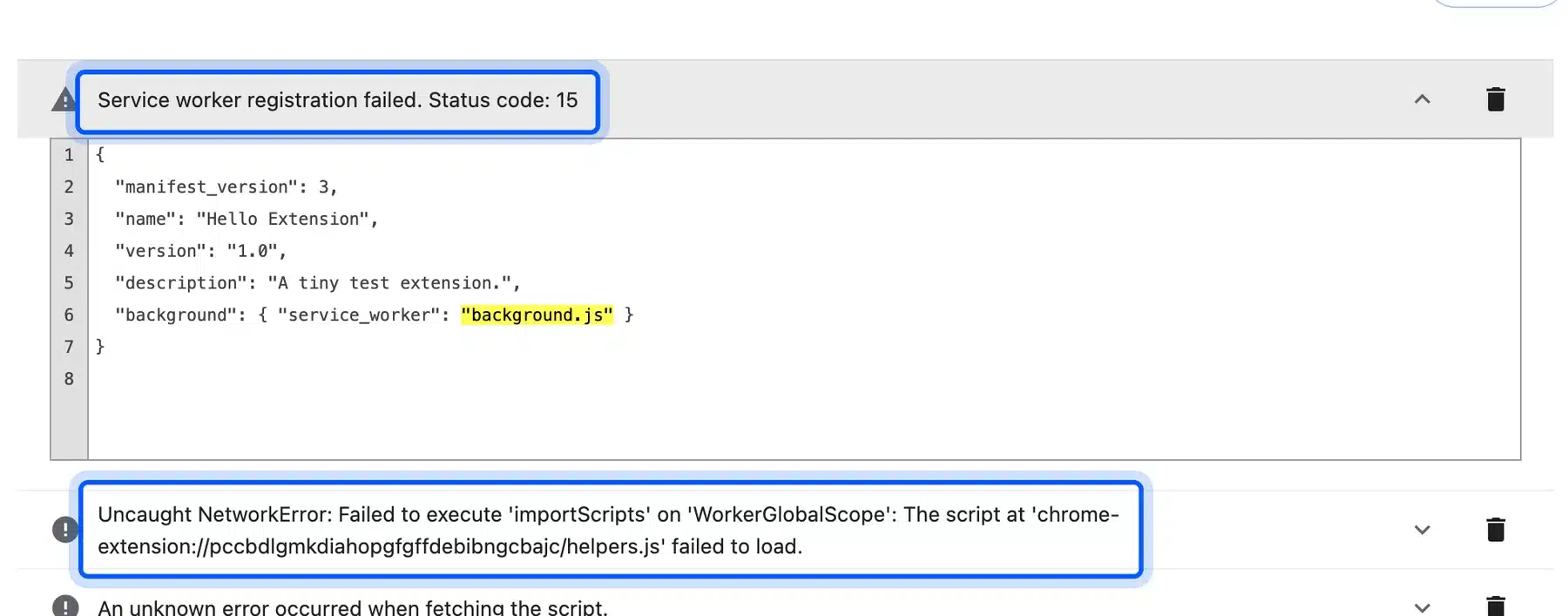
In our test, background.js called importScripts on a helpers.js file that did not exist. The next error line said that script failed to load. Add the file or fix the path and then click the reload icon on the extension card.
Load Unpacked Button Missing or Grayed Out? It Is Usually a Policy
Sometimes the Developer Mode toggle will not switch on. Or it switches on and the Load unpacked button never appears. On a work laptop, a school Chromebook or a managed profile, this is almost never a Chrome bug. An administrator has turned it off.
Check the policy first: type chrome://policy into the address bar and press Enter. Search that page for ExtensionDeveloperModeSettings.
| What you see on chrome://policy | What it means |
|---|---|
ExtensionDeveloperModeSettings set to 1 | Developer Mode is blocked. You cannot load unpacked extensions on this profile. |
DeveloperToolsAvailability set to 2 | Developer tools are blocked. Since Chrome 128 this only applies when the policy above is unset. |
ExtensionInstallBlocklist contains * | All extensions are blocked unless an allowlist names them. |
| No matching policy listed | The block is local. Try a fresh Chrome profile before anything else. |
What you can do about it: if a policy is set, no setting inside Chrome will override it. That is the point of a policy. You have three honest options.
- Ask your IT team to allow developer mode for your account, or to allowlist the specific extension ID.
- Use a personal Chrome profile that your organization does not manage.
- Test in a browser your organization does not control, such as Chromium or Firefox Developer Edition.
One thing worth ruling out first: a corporate antivirus or a parental control app can install the same policy without anyone telling you. If chrome://policy lists a source you do not recognize, that is where to look.
How to Pack a Chrome Extension into a .crx File
Loading unpacked is for development. When you want to hand the extension to someone else without publishing it, you pack it into a single .crx file. Chrome has this built in.
- Open
chrome://extensionsand turn on Developer Mode. - Click Pack extension at the top of the page.
- For Extension root directory, choose the folder that holds
manifest.json. - Leave Private key file empty the first time. Chrome creates one for you.
- Click Pack Extension.
Chrome writes two files next to your folder: a .crx file and a .pem private key. Keep the .pem file safe: you need the same key every time you pack an update. Without it, Chrome treats the result as a different extension with a new ID.
- Why the .crx may still refuse to install: Chrome blocks
.crxfiles dragged in from outside the Web Store on most desktop builds. A packed extension is useful for internal distribution through an enterprise policy, or for archiving a signed build. It is not a way around the store. To publish properly, use the Chrome Web Store developer console. - If packing fails with a manifest error: it is the same cause as the loading error above. You pointed Chrome at a parent folder or a ZIP file. Select the folder that contains
manifest.jsondirectly.
Is It Safe to Load Unpacked Extensions?
It’s safe for you as a developer testing your own code. The risk shows up when you load extensions from someone else without checking the source first.
Unpacked extensions skip Chrome Web Store review entirely. Nothing scans them for malicious code before they run. Only load one if you trust where it came from. Open manifest.json to confirm what permissions it’s asking for.
If you’re moving to a new machine and want your existing extensions to follow you instead, that’s a different process worth reading about separately: importing Chrome extensions from another Google account. Turn Developer Mode off when you’re not actively testing, unless you’re doing this regularly enough that Chrome 134’s requirement makes that impractical.
Conclusion
Loading an unpacked Chrome extension takes five steps: open the Extensions page, turn on Developer Mode, click Load unpacked, select the folder and confirm it’s running. The part most guides miss is that Chrome 134 now ties unpacked extensions directly to that Developer Mode toggle staying on. Treat it as a permanent setting rather than something to switch per session.
Also worth remembering: since Chrome 139, any extension still on Manifest V2 loads disabled no matter how correctly you follow these steps. Check manifest_version in manifest.json before assuming you made a mistake.
Keep your manifest.json valid, reload after every code change, and check the Errors button first if anything breaks. If you’re also building browser tools like bookmark managers or productivity extensions, our comparison of the best Chrome bookmark managers is worth a look before you start.
Frequently Asked Questions (FAQs)
Q1. What is the difference between a packed and an unpacked Chrome extension?
A packed extension is compressed into a single .crx file, typically distributed through the Chrome Web Store. An unpacked extension stays as an open folder of files, loaded directly through Developer Mode for testing. Most developers work in unpacked form throughout the entire build process and pack only at the very end.
Q2. Can I load an unpacked extension on a Chromebook?
Yes, but only if Developer Mode is enabled at the ChromeOS level first. Turning it on inside Chrome’s Extensions page is not enough. On managed school or work Chromebooks, an administrator may block this entirely. If the toggle is grayed out, that’s usually the sign a device policy is stopping you.
Q3. Does Chrome delete unpacked extensions automatically?
No, but Chrome disables them if you turn off Developer Mode, uninstall them manually, or move and delete the source folder they were loaded from. The extension’s settings and stored data usually stay Unchanged even after it gets disabled this way.
Q4. Can I publish an unpacked extension directly to the Chrome Web Store?
No. You need to package it into a .zip file and submit it through the Chrome Web Store Developer Dashboard, where it goes through Google’s review process first. That review typically checks permissions, code behavior, and listing content before approval.
Q5. Why does my unpacked extension disappear after restarting Chrome?
This usually means Developer Mode got switched off, or the extension’s source folder was moved, renamed, or deleted. Chrome needs that exact folder path to keep loading it. Reloading it manually through Load unpacked fixes this in most cases.
Q6. Can I load unpacked extensions in Microsoft Edge the same way?
Yes. Edge uses the same Chromium extension system. Go to edge://extensions, turn on Developer Mode, and click Load unpacked using the same folder. The manifest.json file works identically across both browsers.
Q7. Do I need to zip my extension folder before loading it?
No. Loading an unpacked extension works directly from the open folder. Zipping is only required when you’re packaging the extension for the Chrome Web Store. Local testing does not need it.
Q8. Is it risky to leave Developer Mode on permanently?
It’s a manageable risk if you only load extensions from trusted sources. The real risk comes from installing random unpacked extensions you find online. The toggle itself is not the risk. Reviewing permissions before loading anything new stays the better habit either way.
Q9. How do I know if my extension uses Manifest V2 or V3?
Open manifest.json and check the manifest_version field near the top of the file. Since Chrome 139, any extension still on V2 loads in a disabled state. Migrating to V3 mainly means updating background scripts to service workers.
Q10. What happens if I rename or move my extension’s folder?
Chrome loses track of it. Unpacked extensions aren’t copied into Chrome’s storage; it just remembers the folder path from when you ran Load unpacked. Rename, move, or delete that folder, and Chrome shows the extension as missing or disabled. Fix it by removing the broken entry at chrome://extensions and running Load unpacked again from the new location. Cloud-synced folders (Dropbox, OneDrive) can trigger this too if the sync client renames files mid-cycle.