A “plugin could not be activated because it triggered a fatal error” generally indicates that WordPress has stopped the plugin from loading because it’s caused a PHP error, which would have crashed your website if it had been allowed to continue. The fact that WordPress has protected your website from crashing by stopping the plugin from loading is an example of WordPress working correctly. The issue here lies within the plugin itself and not with WordPress.
Having developed 25+ WooCommerce plugins, we see more occurrences of this error occurring due to plugin conflicts and mismatched PHP versions than we do due to corrupted files; although corrupted files are often misdiagnosed as the root cause.
Guide after guide tells you to immediately begin disabling plugins. This solution is only half of what is necessary to resolve your issue. Prior to taking any actions with plugins whatsoever, you will want to read the actual error message and diagnosis provided by the site administrator.
In this guide, we will discuss how the WordPress plugin activation error is triggered, how to troubleshoot using WP_DEBUG, and what steps need to be taken in order to repair it. We also cover some common scenarios you could find yourself in if you were completely locked out of your dashboard.
What Does “Plugin Could Not Be Activated Because It Triggered a Fatal Error” Mean?
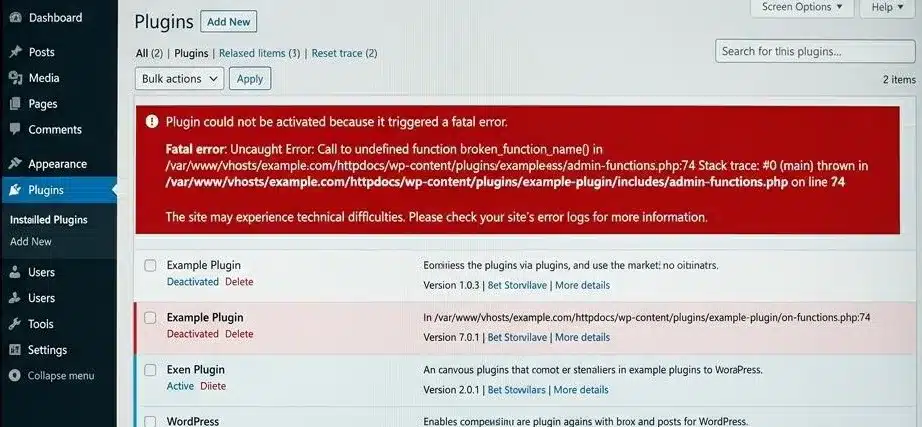
This error is a built-in safety precaution in WordPress. When you click to activate a plugin, it runs the plugin code. If that code generates a fatal PHP error, then WordPress will stop the activation immediately and roll it back. The site will stay active, and the plugin will remain deactivated.
When the error appears in your dashboard, the headline message is just one part of the error notice. Look closer. The notice will typically contain a file path, a line number, and some explanatory text about what has happened. This information tells you exactly where the issue exists. Most people ignore the message and start guessing. Don’t. The detail is your quickest way to fix the error.
A fatal error in PHP means that something is so broken that the script is unable to continue executing. Fatal errors do not allow execution to continue, whereas warnings and notices do allow for execution to continue.
Some common examples include: Attempting to call a function that does not exist, attempting to call a class that another plugin was supposed to load but did not, or using a type of PHP syntax that is not supported by the version of PHP running on your server.
Common Causes of the WordPress Plugin Activation Error
Understanding the reason for plugin activation errors will help you determine the resolution needed to rectify the issue at hand. This means that just because you have an issue with activating a WordPress plugin does not necessarily mean the plugin is defective. Understanding context is very important.
- Conflict between two or more installed WordPress plugins: This is by far the most common reason for a plugin activation error. A conflict like this occurs when two different plugins attempt to create a function or class with the same name; when this happens, the PHP interpreter will throw a fatal error indicating that two functions with the same name cannot be executed. A plugin activation error can occur due to dependencies between plugins; when Plugin A expects Plugin B to be activated first, but it is not, activation error messages will be generated. Understanding how third-party plugins and services affect your WordPress site is worth reading if you run a complex plugin stack.
- PHP version incompatibility: If you run a plugin using PHP 8.1+ on a server running PHP 7.4, this will cause problems. Similarly, if you run an older plugin written using outdated PHP syntax, those plugins will also generate errors when executed on servers running newer versions of PHP. Most plugin activation error messages are generated due to a lack of updates to previous WordPress plugins.
- Memory Limit Set Too Low: A limit imposes both WordPress and PHP’s decimal ranges. If your current limit is set too low, you cannot install any plugins that require more memory (after your current limit), as this will cause the process to result in a fatal error. Many shared hosting environments default to 64MB. That is not sufficient for most current plugin stacks.
- Corrupted or Incomplete Installation of a Plugin: If a downloaded plugin was interrupted while downloading or if the zip file was not fully extracted, it will include missing or corrupted files. When PHP tries to load a file that does not exist or has partial code, it will generate a fatal error.
- File Permission Problems: WordPress must have the ability to read a plugin’s files in order for it to execute the plugin. If the server has not set the appropriate permissions for the entire folder of the plugin or its files, then there will not be any access available to read those files from PHP. This error occurs mainly in VPS and dedicated server configurations that have been set to manual.
- Theme Conflict: It’s not commonly discussed, but it’s real. One of the issues could be due to a custom function in your theme conflicting with the plugin code. If your theme defines a function that is named the same as the plugin’s function that you are trying to activate, you will receive a fatal error. By switching to a default theme temporarily, you can establish whether or not this is the cause very quickly.
Read the Error Before You Fix It (Enable WP_DEBUG)
The majority of guides make this mistake: they go straight to how to fix something without first showing you where it went wrong. This makes troubleshooting take significantly longer if you read the actual error.
WordPress has a built-in debug mode, called WP_DEBUG, where if you have this enabled, it will log any PHP errors into a debug.log file located in your wp-content folder.
How to Enable WP_DEBUG
You’ll need FTP access or access to your hosting file manager. Open the wp-config.php file in the root of your WordPress installation.
Find this line:
define( 'WP_DEBUG', false );
Replace it with these three lines:
define( 'WP_DEBUG', true );
define( 'WP_DEBUG_LOG', true );
define( 'WP_DEBUG_DISPLAY', false );
Setting WP_DEBUG_DISPLAY to false keeps errors out of the front end. Setting WP_DEBUG_LOG to true writes them to the log file instead. Save and re-upload the file.
Now you should be able to attempt to activate the plugin again. Once this is completed, navigate to wp-content/debug.log to see any potential errors associated with that particular plugin. Each error will state the exact error, where it originated from (the filename), and what line number the error is.
Obtaining this information allows you to assess whether you have a plugin conflict, a missing function, a PHP version conflict, or something else entirely. See WordPress’s official debugging documentation for a complete breakdown of debug constants and what each constant does.
Note: Don’t forget to go back and turn off WP_DEBUG when you are finished.
How to Fix the Plugin Fatal Error (Step by Step)
Start by doing the short and simple checks.
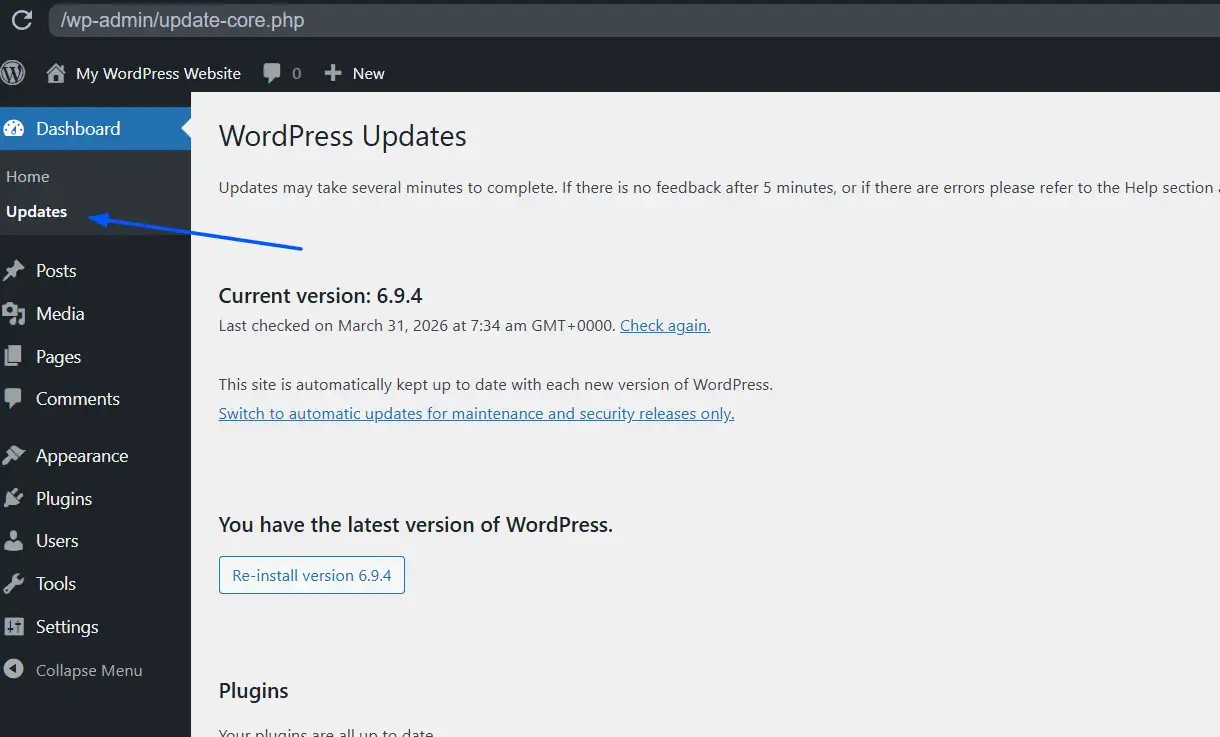
1. Upgrade to the current version of WordPress
Outdated versions of WordPress often lead to compatibility issues because WordPress plugins are developed against the newest version of WordPress. If your website uses an older version of WordPress because it doesn’t have an updated version, then you may have issues with the functions being checked for plugin compatibility.
Log in to your Dashboard > Update Posts and check for any updates to your WordPress software. Once you have your updated website, try loading the plugin again.
2. Turn Off Plugins That Are Interfering with Each Other
If your error logs have something similar to “Cannot redeclare function X” or “Class Y already defined,” you may have two plugins that have conflicting functions. The purpose of the following steps is to discover which plugin is interfering with the other.
From your dashboard, you will need to go to the Plugins > Installed Plugins and choose all of the plugins, except for the one you are trying to install, and choose Deactivate from the Dropdown Menu. After deactivating all of the plugins except for the one you want to activate, try activating that one.
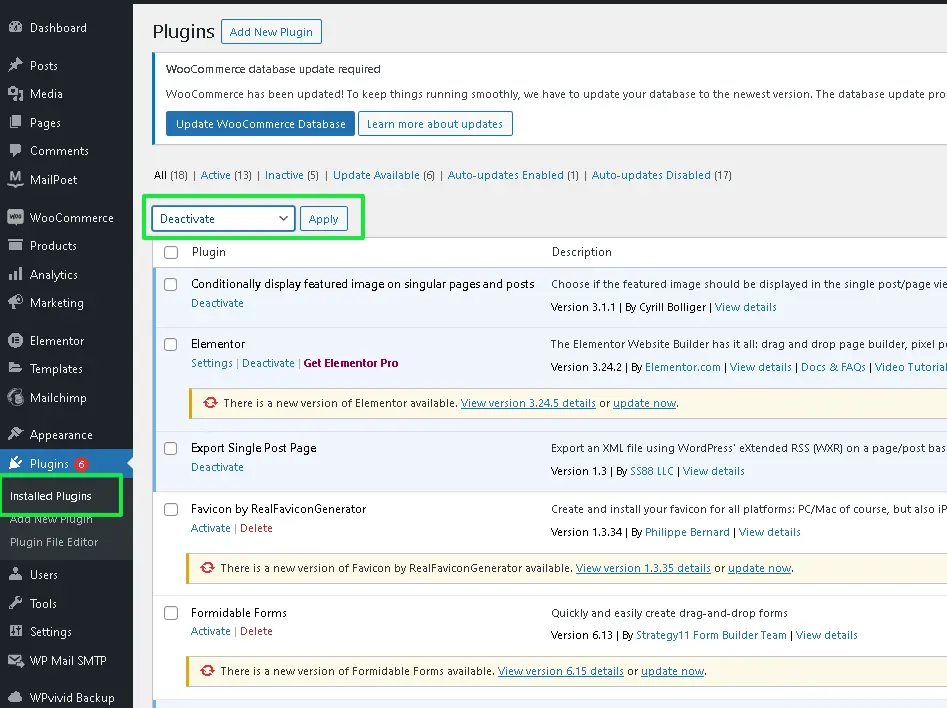
If the plugin activates, you have a conflict. You can then activate one plugin at a time and test each time you activate to see which one causes the problems.
If you cannot access your dashboard, you can skip to the “Fix Without wp-admin Access” section below.
3. Use the Default theme temporarily
To eliminate conflicts caused by your theme, use a default WordPress theme to test. To activate one of the standard themes, navigate to Appearance > Themes and choose Twenty Twenty-Four or any of the other WordPress standard themes. Activate the plugin again after doing so.
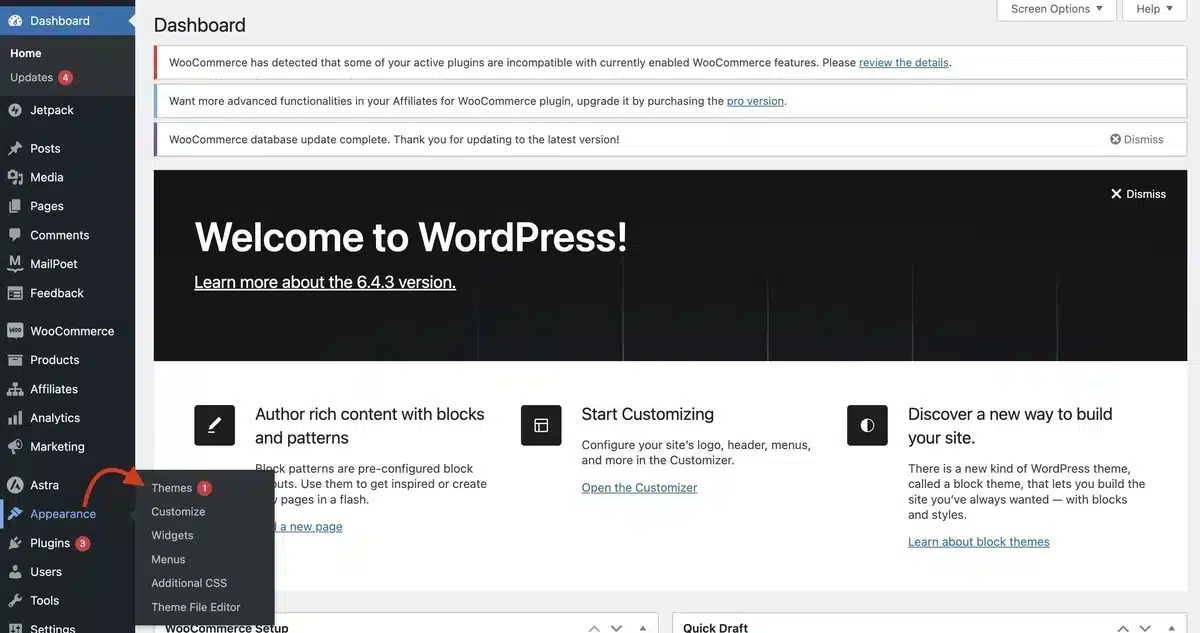
If the error has been eliminated now, then there is a theme conflict (by using the active theme). To identify the functional or class names of duplicated functions in your theme, check the functions.php file for duplicates. This type of issue is typically quite uncommon; however, it will only take you approximately thirty seconds to test.
4. Increase the PHP Memory Limit
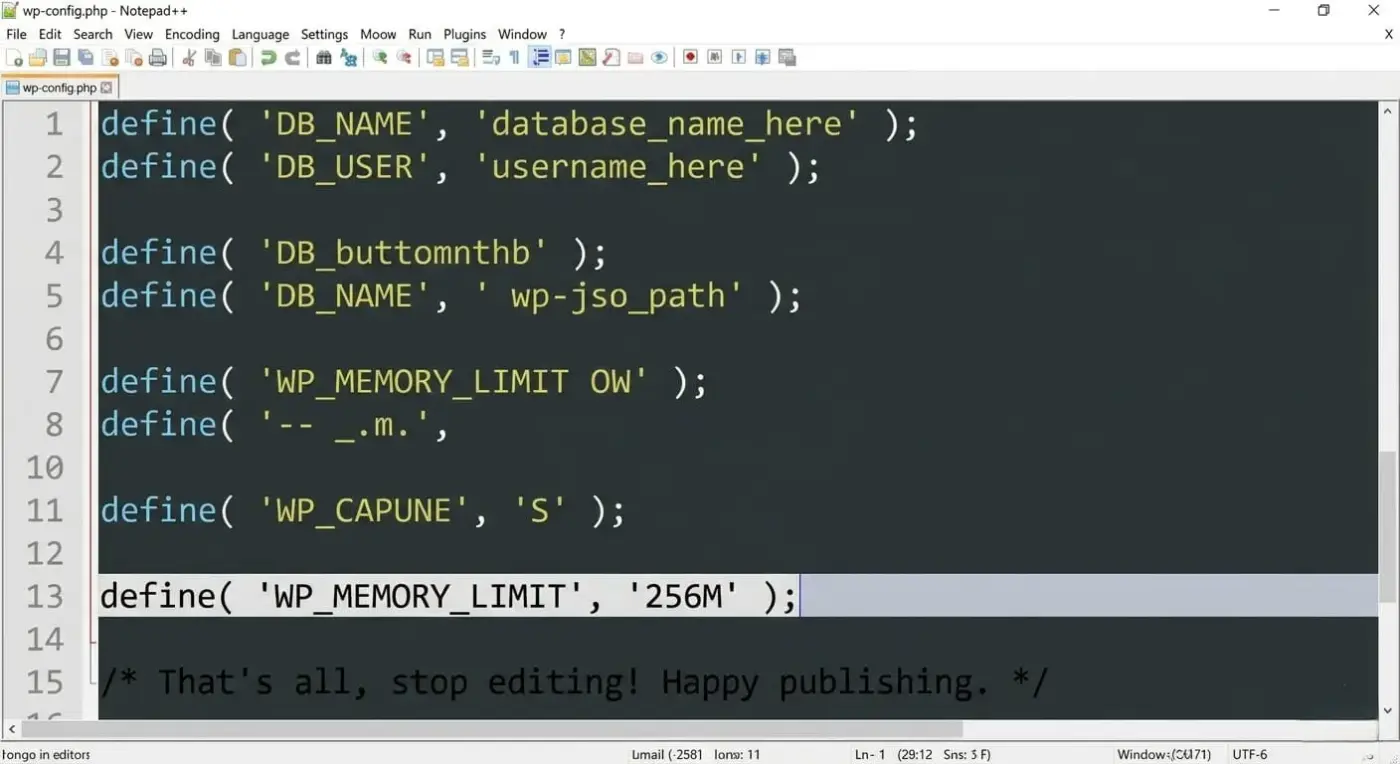
If your error log states “Allowed Memory Size of X bytes exhausted,” the problem is your PHP memory limit. The most straightforward way to increase your PHP memory limit is via wp-config.php.
Open your wp-config.php file, and find the first line of code that reads /* That's all, stop editing! */: and insert this line directly before it:
define( 'WP_MEMORY_LIMIT', '256M' );
After saving and uploading the revised file, activate the plugins again. If you have a hosting plan that has a set amount of memory available to you, then contact your host to request that they increase the total memory source on their servers.
5. Update your PHP version and verify
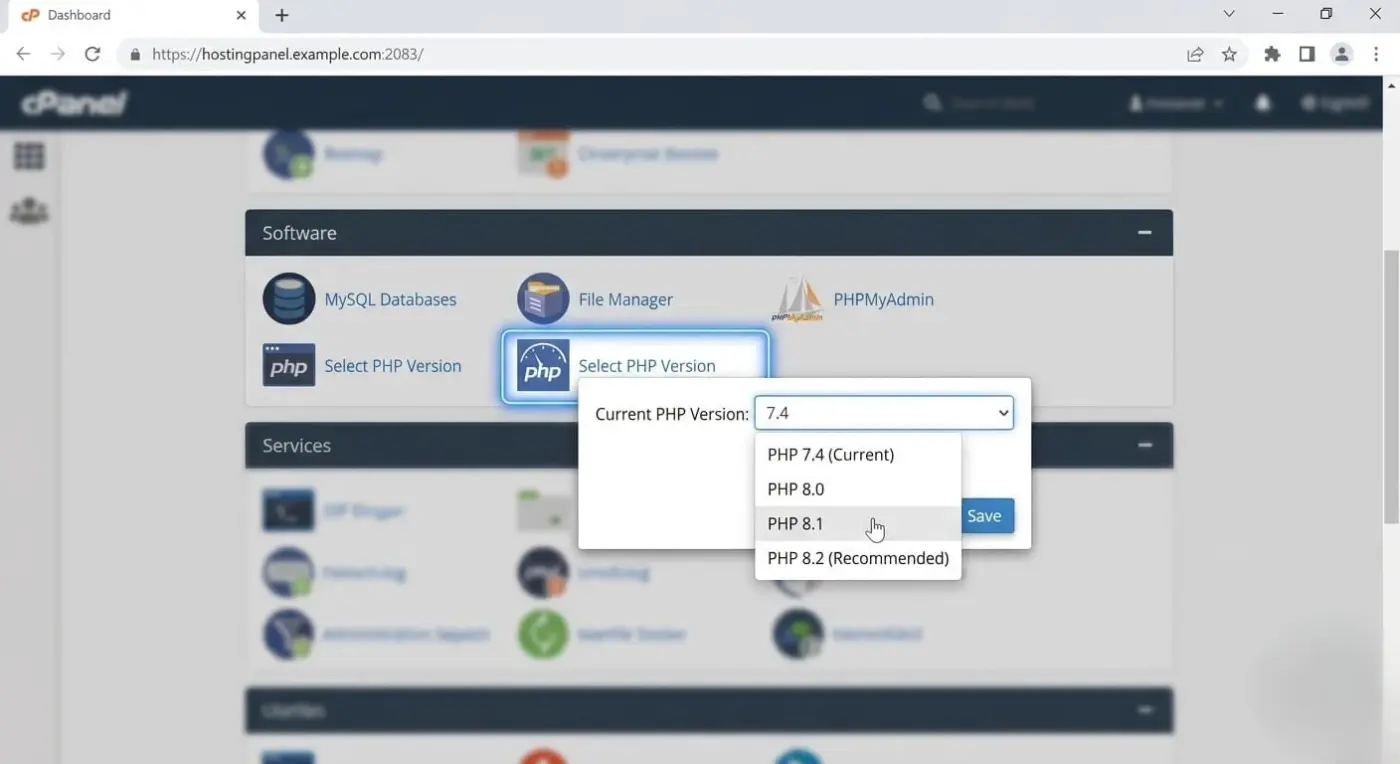
To find your hosting control panel and how to find your PHP version, log in to your account. Most control panels will display the version of PHP being used under the section labeled PHP or Software, and (if available), you can verify your current PHP version against the minimum requirement for each plugin being used by looking to the “requires PHP” area of each plugin’s information page on WordPress.org.
You can also see currently supported PHP versions (to make sure you’re using one that still has active security updates). Vast majorities of the time, you will be able to upgrade your PHP version by simply selecting an option from a dropdown box on your hosting panel’s main screen. If possible, always check to see if you can set up a staging site prior to making any changes.
6. Check your File Permissions to Confirm there are no Issues
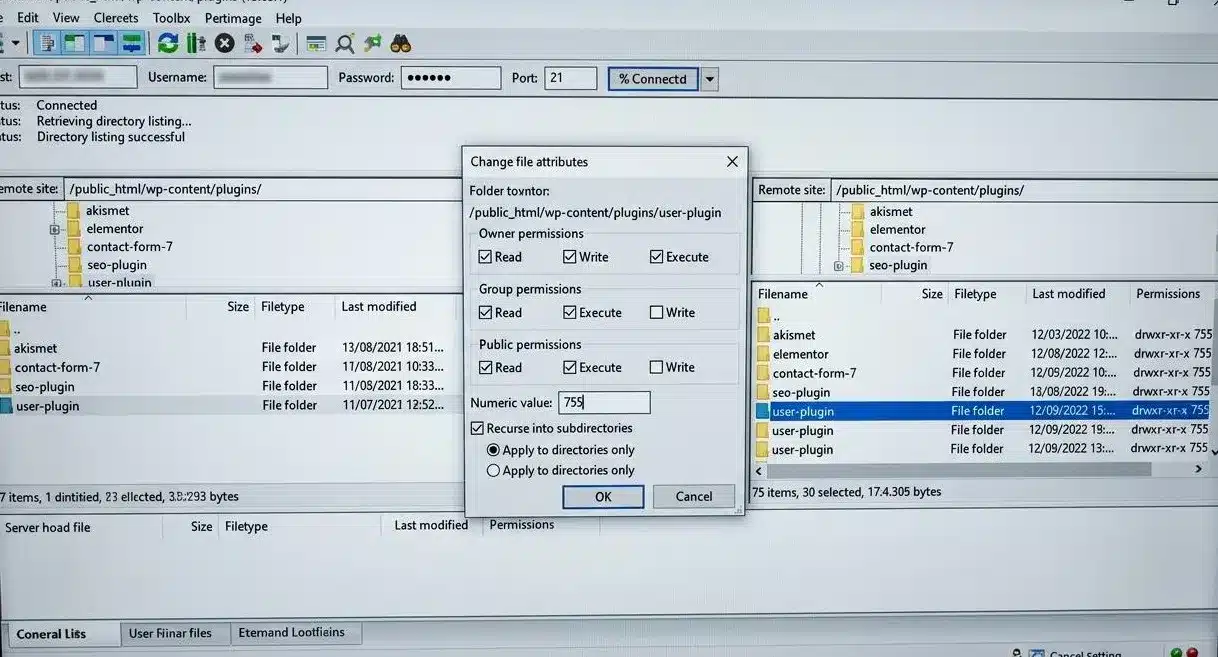
If your error messages state “failed to open stream: Permission denied,” the issue is likely with file permissions. Typically, file permissions for WordPress plugins will be 644 (for individual files) and 755 (for plugin directories).
You can confirm and/or change permissions through your FTP program. You’ll just have to connect to your FTP server, drill down to wp-content/plugins/ on your FTP server, right-click on the folder of the plugin through which you’re receiving an error message, and then select “File Permissions” or “CHMOD.”
Then, just change every directory to 755 and every file to 644. Setting those permissions under the options to recursively apply them should correctly set the permissions for every directory and file at the same time.
7. Re-download and Manually Reinstall the Plugin

It is likely that your plugin has been corrupted if your error log indicates either a missing file or a parse error. Delete the plugin folder using FTP, then download a fresh copy from the official plugin source.
To manually reinstall the plugin, go to your dashboard’s Plugins > Add New, then Upload Plugin, select the newly downloaded zip file, and click Install Now. After installing, try to activate it.
For any plugin downloaded from WordPress.org, always download it from wordpress.org/plugins instead of from a third-party site.
How to Fix This Without Access to Your wp-admin
Sometimes, due to errors that occur in your dashboard, you may not be able to access it. This can occur because a plugin loads partway through its process and causes an error, or because another plugin conflict occurred prior to accessing your dashboard. Don’t worry, you can repair all of this using FTP or the file manager from your hosting account.
- The first step is renaming the plugins folder via FTP connection through your server and locating the
wp-contentfolder; once there, find the folder with the namepluginsand rename it toplugins_old. WordPress is now unable to load any plugins; therefore, regain your access to the dashboard. After accessing the dashboard, you can rename the folder back to plugins and go to Plugins, then deactivate all the plugins, and after that, try to activate your plugins one by one. - The second option is to rename the specific plugin by navigating to
wp-content/plugins/and renaming the folder of the specific plugin that is causing the error. WordPress will then automatically deactivate that plugin. You may now log in to your account and troubleshoot from within your dashboard. - In the third method to troubleshoot, re-enable debugging on your WordPress site (WP_DEBUG) through FTP by directly editing
wp-config.phpas instructed in the WP_DEBUG documentation. The log file will be stored inwp-content/debug.log, regardless of whether you can log in or not.
How to Prevent the WordPress Plugin Fatal Error in the Future
The first step is to fix the issue there and then, but many have a chance to be avoided.
- Test Plugins on a Staging Environment Based on Web Hosting: If you can safely install and activate your plugins without worrying about making mistakes on your live site, it is called a staging environment. Most high-quality hosting services offer one-click staging options.
- Only Install & Use Plugins from Trusted Sources: WordPress.org is the only place to find plugins that have been tested against basic coding standards. When using untested third-party sites to download plugins, these are usually not supported by developers and can cause conflicts, contain malware, or have incompatible code.
- Keep Your WordPress Core, PHP, and Plugins Up to Date: Most of the outages we see in practice are due to using an outdated version of PHP, as required by the modern plugins you are using. Therefore, using a supported version of PHP with the latest version of the WordPress core will eliminate the majority of problems you could have with compatibility. If your site may need to be fast as well as safe and secure, we can optimize it via our WordPress speed optimization services to keep everything running great at the same time.
- Back Up Your Site Before You Install a Plugin: The quickest way to back up your entire site is through a quality backup plugin. If anything goes wrong after installing the new plugin, you can restore your site to just after the plugin was installed. This is the best way to keep your WordPress site secure and stable, starting with a reliable backup method.
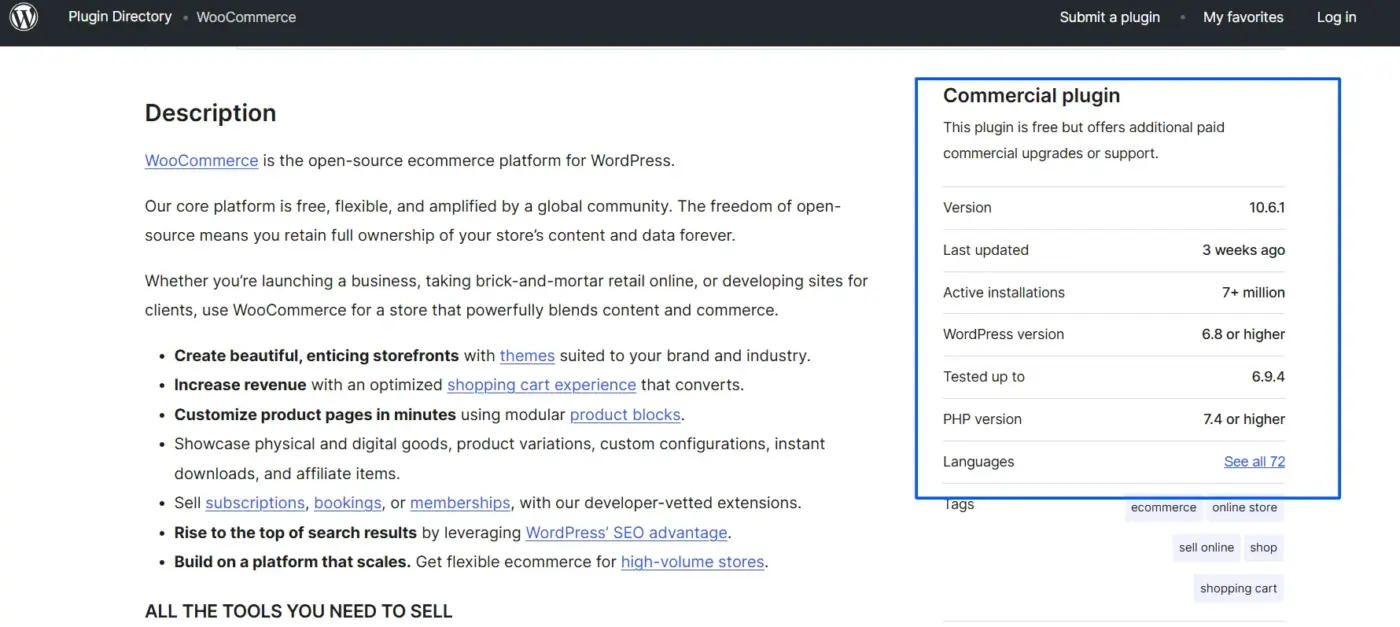
- Read the plugin’s requirements before installing: Every plugin on WordPress.org lists its required PHP version, required WordPress version, and tested-up-to version. Two minutes of checking those details before installation will save you a lot of time.
Conclusion
The reason for the occurrence of the message “the plugin failed to activate due to a fatal error” is the following: You must first read the error before you can begin eliminating possible reasons that led to the error occurring, and you will eventually need to enable WP_DEBUG. Most of the issues are either due to plugin conflicts, mismatches in the version of PHP being used, or low memory limits. All three could potentially be corrected without the need for assistance from a developer.
If you have been experiencing repeated failures with this error across multiple plugins on your WooCommerce store, it may be indicative that your server environment needs some level of remediation, whether that is the PHP version you currently have installed, the memory limits currently set for your website or possibly, a plugin stack that has not had an audit performed on it for a period of time.
Our WooCommerce development services have been specifically built to deal with these types of issues. Please reach out to us if you would like one of our professionals to assist you further by assessing what is occurring behind the scenes on your server.
Frequently Asked Questions
Q1.What is the reason that “the plugin could not be activated due to a fatal error” occurs?
The most common causes for this error are: plugin conflicts, incompatible PHP versions, low memory limits, or corrupted plugin files.
Q2. Where can I find out what the exact error was that caused the failure of activating a plugin?
If you enable WP_DEBUG in your wp-config.php file, the error messages will be logged to a file called debug.log, which can be found in your site’s root folder.
Q3. I cannot access the WordPress dashboard to fix the error; is there another way I can do this?
Yes, you can do this by renaming the plugin folder via FTP or through your host’s file manager, or you can disable all of your plugins to be able to access your site again.
Q4. Will updating the PHP version help fix the problems I am experiencing with activating plugins?
Yes, updating to a version of PHP that is compatible with your version of WordPress will usually fix issues that occur because of outdated or unsupported code.
Q5. How do I avoid getting plugin activation errors in the future?
Make sure to keep your version of WordPress, your plugins, and your version of PHP up to date. Always use plugins that you know are safe and try testing them out on a staging server before you install them on your production server.