
How to Add a PDF to Your WordPress Site (3 Easy Ways)

You can add a PDF to your WordPress site in under five minutes, using the built-in Media Library, the Gutenberg File block, or a dedicated plugin. Most guides pick one method and leave you to guess whether it suits your situation.
The right choice depends on one thing: do you want visitors to download the file, or read it directly on the page? That difference changes which method you should use.
This guide covers three main methods plus a bonus Google Drive option, with a comparison table so you can pick before you start, mobile display fixes, and a section on how PDFs interact with your SEO.
Which Method Should You Use?
Pick the right method before you start. Getting this wrong means extra work later.
Here is a quick comparison:
| Method | Best For | Plugin Needed | Inline Display | Download Option | Setup Time |
|---|---|---|---|---|---|
| Media Library link | Simple download links | No | No | Yes | 2 minutes |
| File block (Gutenberg) | Embedding PDF on the page | No | Yes | Optional | 3 minutes |
| PDF plugin | Tracking, gating, custom viewer | Yes (free) | Yes | Yes | 5–10 minutes |
| Google Drive embed | Large files, centrally updated PDFs | No | Yes | Optional | 5 minutes |
Three quick scenarios to help you decide:
- You just want a download link: A visitor clicks, and the PDF opens or saves. Method 1 (Media Library) is all you need. No plugin, no extra setup.
- You want visitors to read the PDF on the page without downloading it: The File block with “Show inline embed” turned on handles this natively in WordPress. No plugin required for basic inline display.
- You need download tracking, gated content, or a custom-styled viewer: A WordPress PDF plugin is worth adding. We cover that in Method 3.
Method 1: Upload and Link a PDF via the WordPress Media Library
This is the fastest way to add a PDF download link to any post or page. It works in both the Block Editor and the Classic Editor.
- Step 1: Log in to your WordPress dashboard and go to Media > Add New Media File.
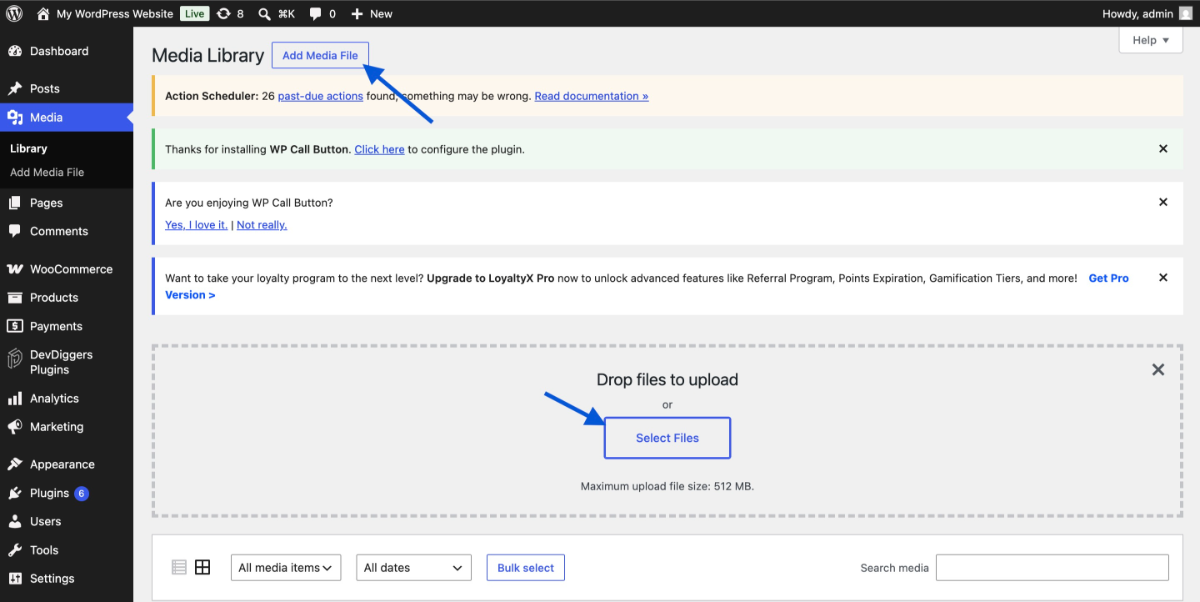
- Step 2: Click Select Files or drag your PDF directly into the upload area. WordPress accepts PDFs natively without any configuration changes.
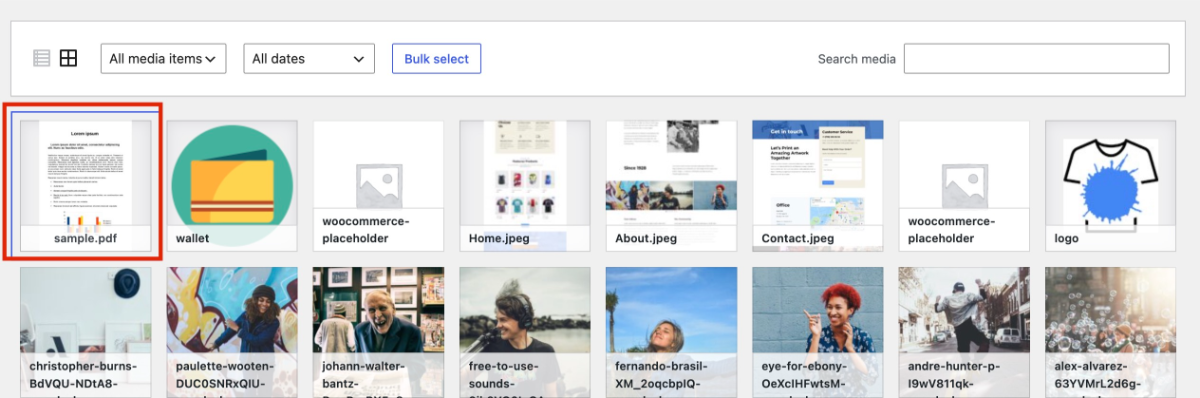
- Step 3: Once uploaded, click the file name in the Media Library to open its details panel.
- Step 4: Copy the File URL shown on the right. This is the direct public link to your PDF.
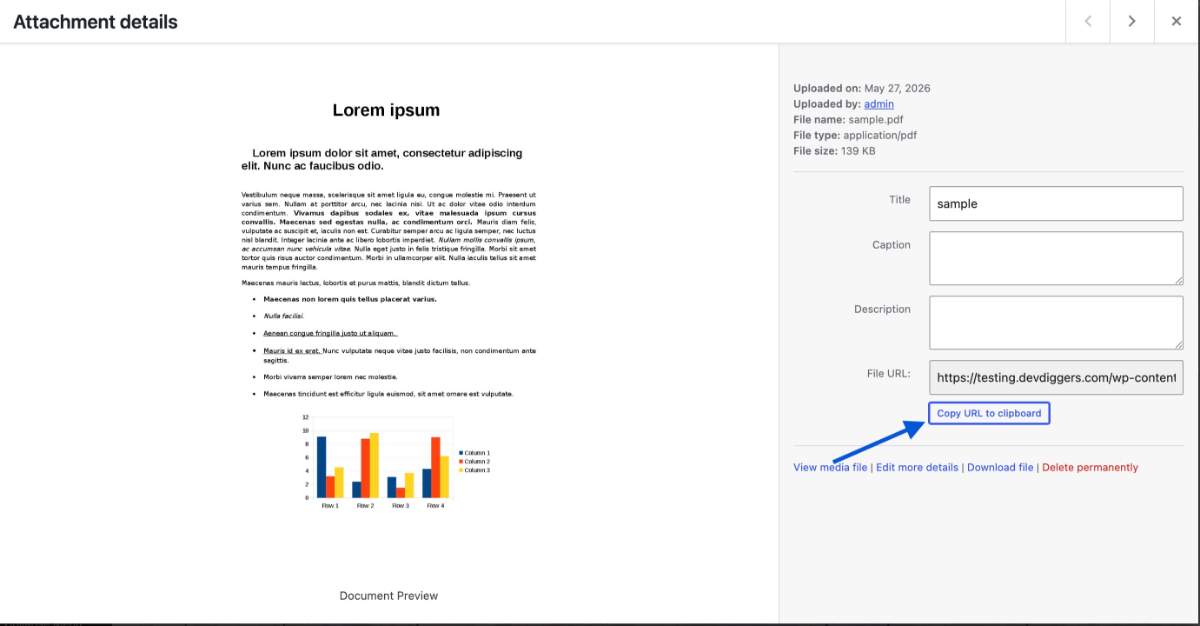
- Step 5: Open the post or page where you want the link to appear. Highlight your anchor text (for example, “Download the Free Guide”), then click the Insert Link icon in the toolbar and paste the PDF URL.
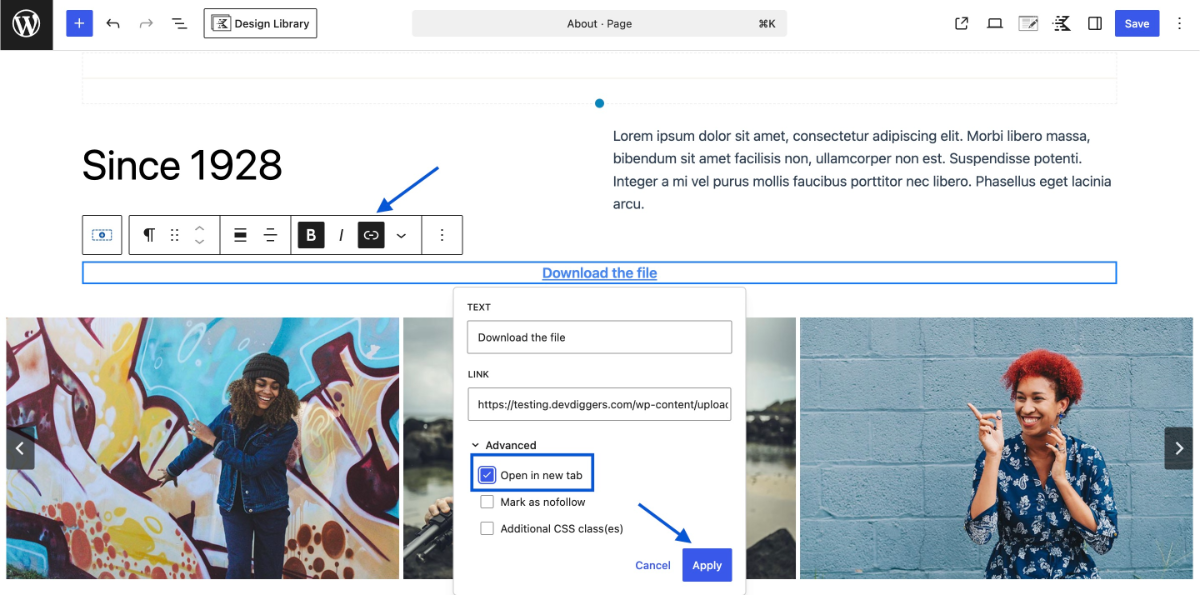
- Step 6: Toggle Open in new tab so visitors do not leave your current page when the file loads. Then save or update the page.
Classic Editor note: If your site still runs the Classic Editor, click Add Media above the editor, upload or select your PDF, and click Insert into post. WordPress adds a link automatically.
One thing to check before uploading: your PDF file size. The default WordPress upload limit is typically 32 MB, although many hosting providers set it lower. If your PDF is over 10 MB, compress it first using a tool like Smallpdf or Adobe Acrobat’s Reduce File Size option. Large uploads slow the page and frustrate mobile users.
If you are sharing a lot of PDFs this way, the guide on how to add a downloadable PDF to WordPress covers the Media Library approach in more detail, including how to style your download links as buttons.
Method 2: Embed a PDF Inline Using the File Block
The File block is the native way to display a PDF directly on a WordPress page, so visitors can read it without downloading it. The block is built into the Gutenberg editor since WordPress 5.0.
According to the WordPress File block documentation, the block renders a scrollable PDF viewer when the “Show inline embed” setting is turned on.
- Step 1: Upload your PDF to the Media Library first (follow Steps 1 to 4 from Method 1 above).
- Step 2: Open the post or page in the Block Editor. Click the + icon to add a new block.
- Step 3: Search for the File and select the File block.
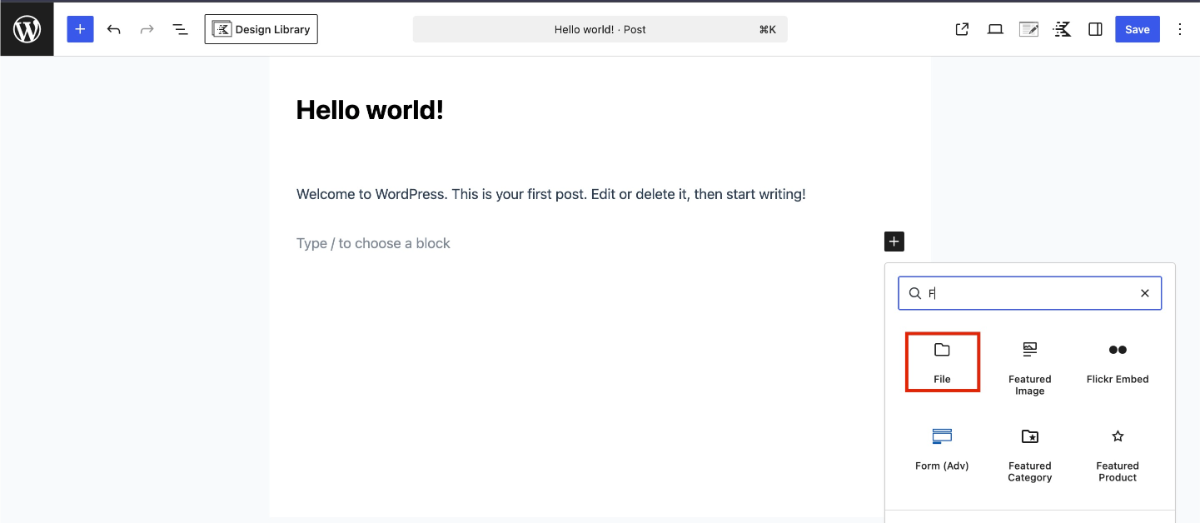
- Step 4: Click Media Library and choose your uploaded PDF. Click Insert.
- Step 5: Select the File block to open its settings in the right sidebar.
- Step 6: Under PDF settings, turn on Show inline embed. The PDF now displays inline rather than as a plain link.
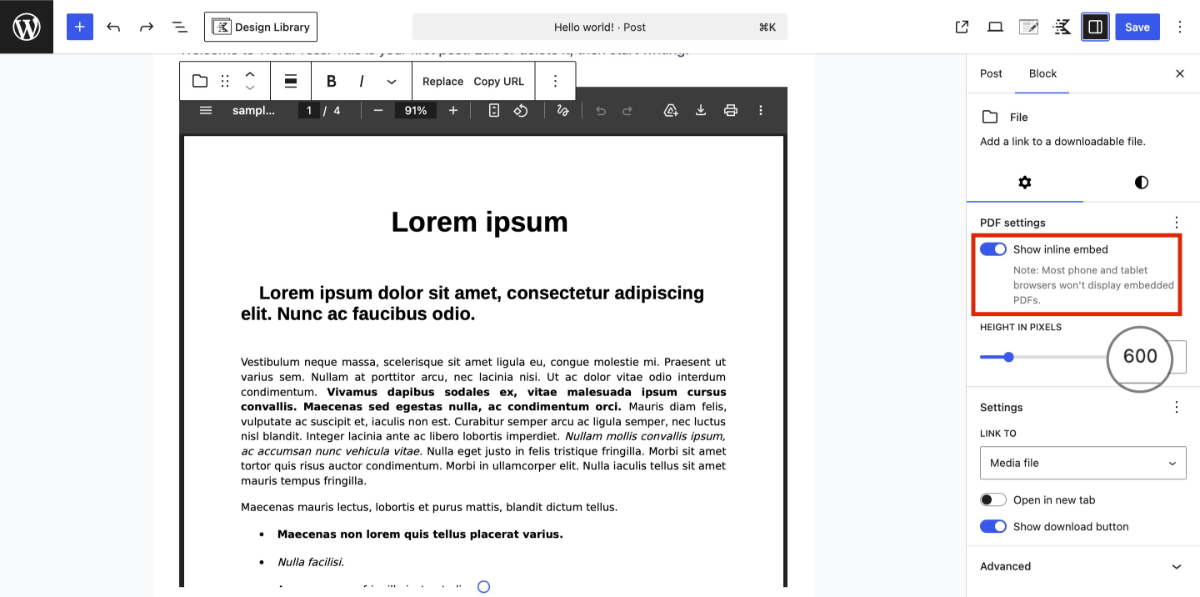
- Step 7: Set a Height in pixels if needed. 600 to 800 pixels is a reasonable starting point for most documents. Then save or publish.
The mobile display problem most guides skip: When you embed a PDF in WordPress using the File block, iOS Safari often shows a blank white area instead of the PDF. This happens because Safari on older iOS versions does not support inline PDF rendering in iframes. The fix is to also keep the download link visible below the embed, so mobile visitors still have a working fallback. Turn on the Download button option in the File block settings to handle this automatically. We see this issue regularly in support, and it catches a lot of site owners by surprise after they have already published.
The File block works well for single documents. It does not offer download tracking or access controls. For those, move to Method 3.
Method 3: Add a PDF with a WordPress PDF Plugin
A WordPress PDF plugin makes sense when you need more than a basic embed. Tracking how many times a file is downloaded, restricting access to logged-in users, or customizing the viewer beyond what the File block offers all require a plugin.
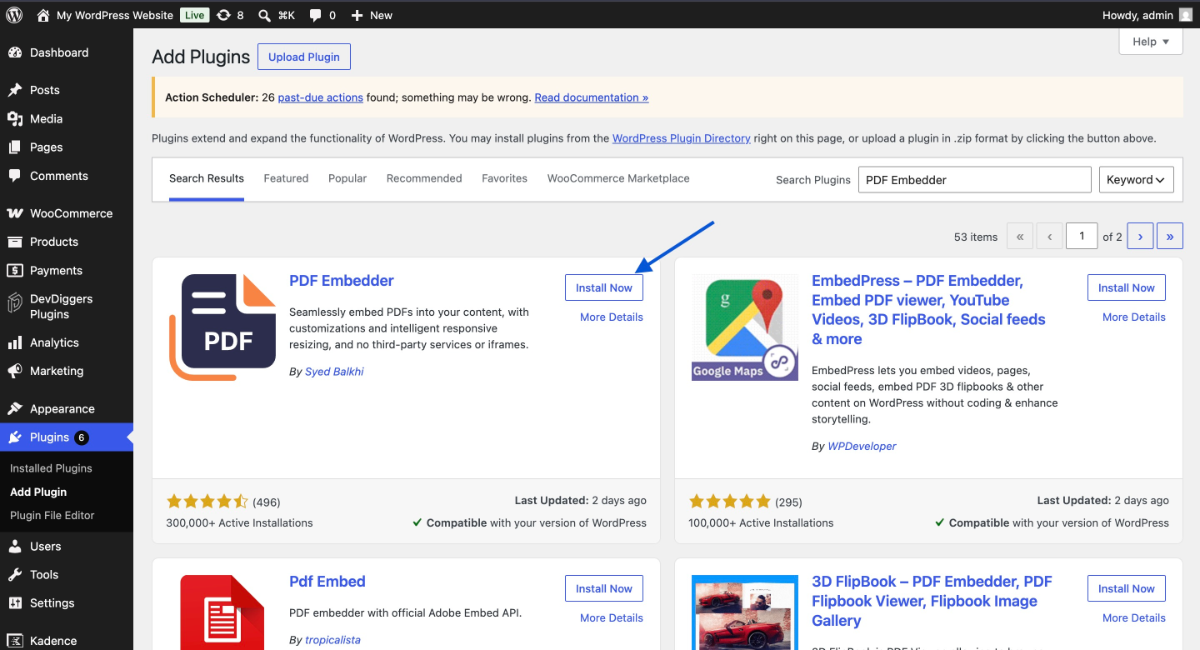
The PDF Embedder plugin is a reliable free option with over 100,000 active installs on WordPress.org. Here is how to set it up:
- Step 1: Go to Plugins > Add New Plugin in your dashboard. Search for PDF Embedder, then click Install Now and Activate.
- Step 2: Upload your PDF to the Media Library if you have not already.
- Step 3: Open the post or page where you want the PDF to appear. Click the + icon and search for PDF Embedder to add the block.
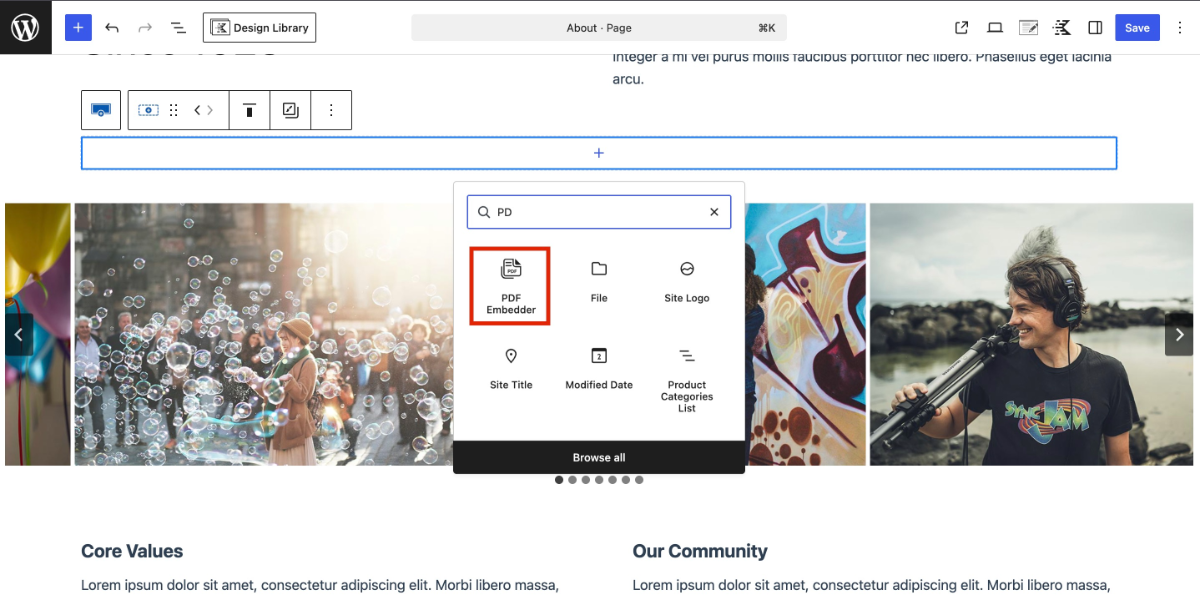
- Step 4: Click the block to open it, then select your PDF from the Media Library.
- Step 5: Use the block settings panel on the right to set width, height, and toolbar position (top or bottom). Setting the width to 100% keeps the viewer responsive on all screen sizes.
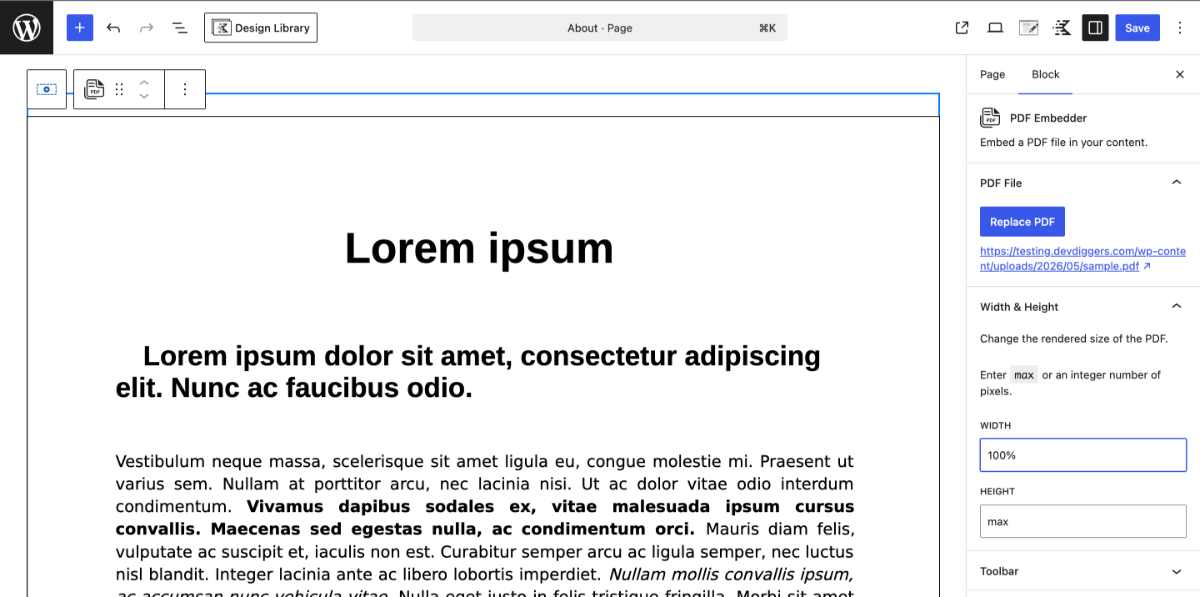
- Step 6: Save or publish the page. The PDF now renders in a scrollable viewer with built-in navigation controls.
If you want to go further, converting your existing WordPress posts and pages into downloadable PDFs is a separate but useful workflow. The WordPress Content to PDF plugin by DevDiggers handles exactly that. It lets visitors download a formatted PDF version of any post or page, which works well for blog content, product pages, and documentation. It is a complement to uploading external PDFs, not a replacement. If your goal is gated content or downloads as lead magnets, it is worth looking at both tools together.
Most readers do not need a plugin for a basic PDF embed. If you install one and the file still shows blank, the most common cause is a caching plugin serving a stale page. Clear your cache after setting up any PDF block or shortcode.
How to Add a PDF Using Google Drive (Bonus Method)
This method is best when your PDF is large, updated regularly, or already stored in Google Drive. Rather than uploading the file to WordPress, you embed it from Google’s servers. Your media library stays clean, and the PDF is always the current version.
- Step 1: Upload your PDF to Google Drive.
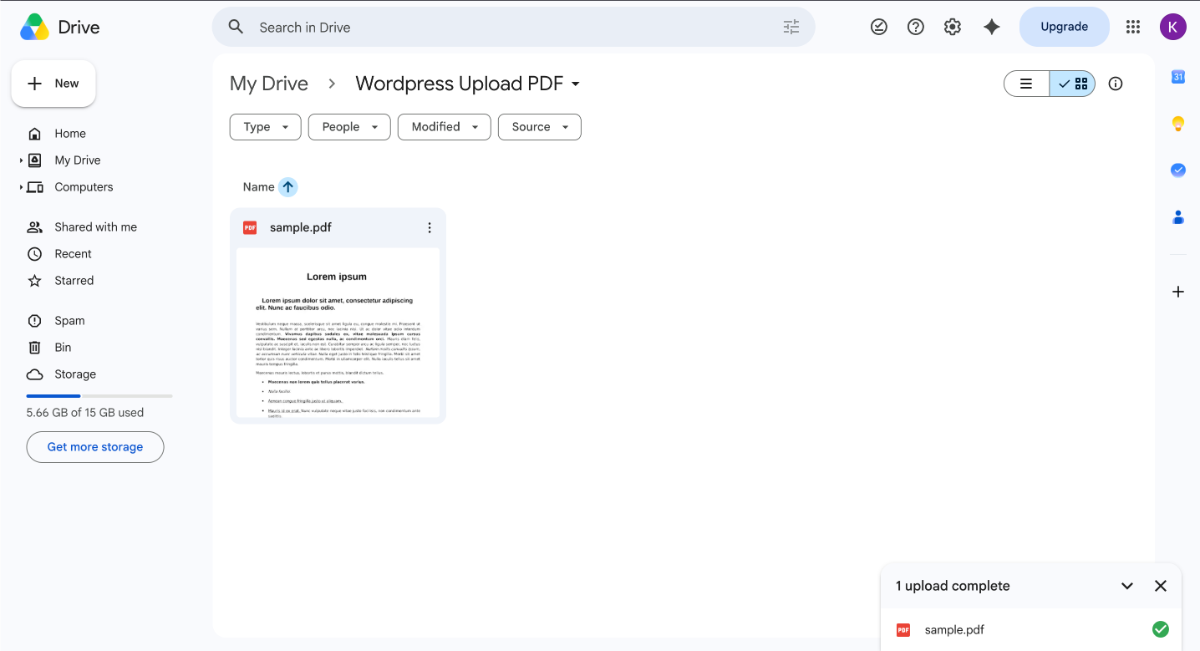
- Step 2: Right-click the file and select Share. Change the permission to Anyone with the link and click Done.
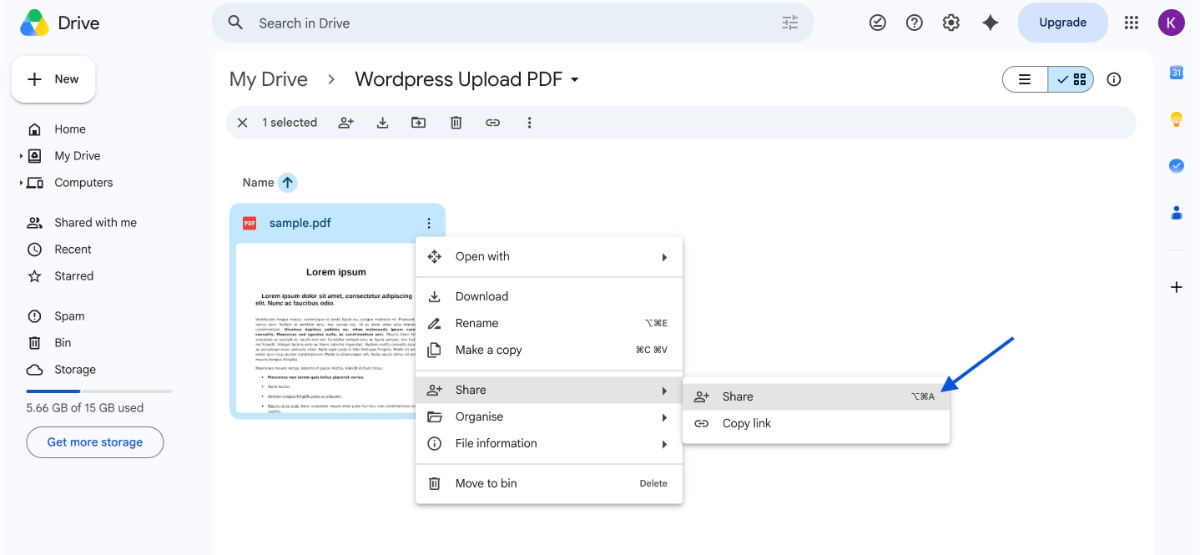
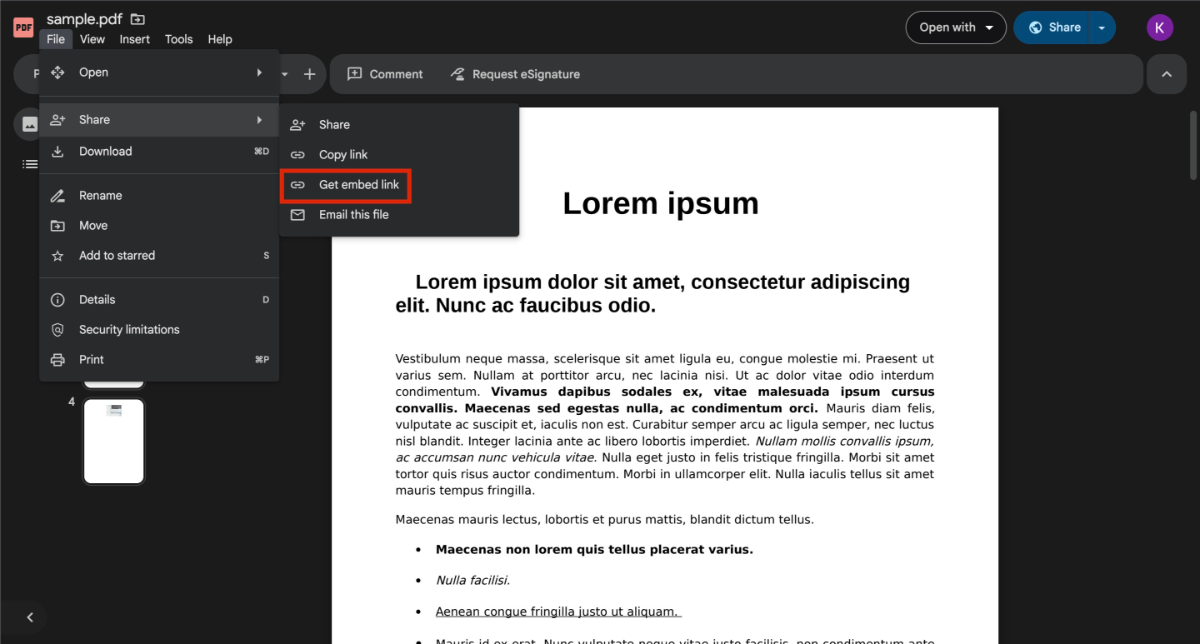
- Step 3: Click the file option and select Share, and select the Get Embed link.
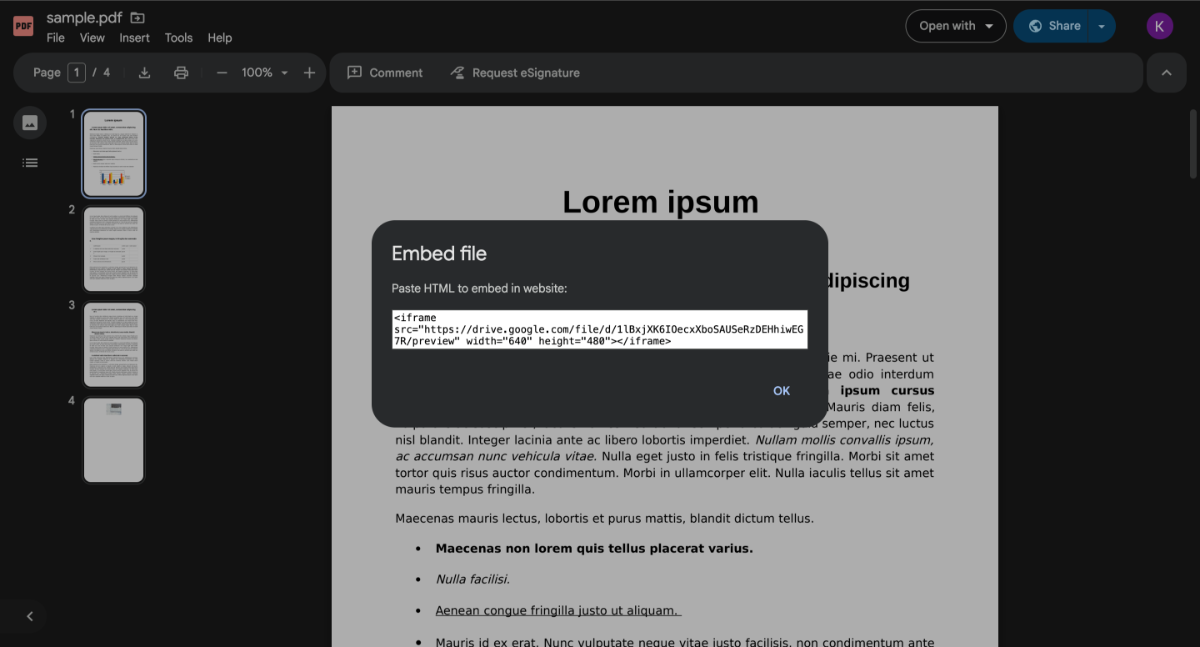
- Step 4: Copy the embed code Google provides.
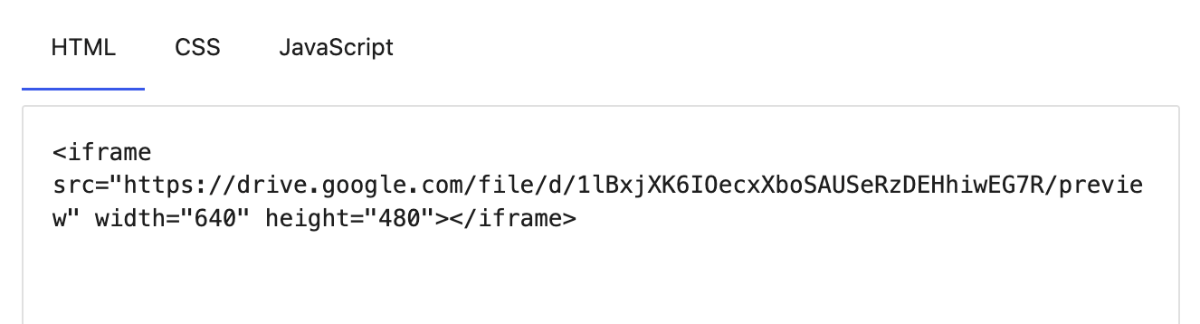
- Step 5: In WordPress, add an HTML block to your post or page. Paste the embed code. Save the page.
The downside is worth knowing: If the file in your Google Drive is deleted or moved, the embed breaks. Also, Google Drive embeds do not always load well on slow connections. For business-critical documents, hosting the PDF directly in WordPress is more reliable.
Common PDF Mistakes That Break User Experience
This section covers what goes wrong after you add a PDF to WordPress. None of these are covered in most how-to guides, but they come up constantly.
- Renaming the file after linking it: Once you upload a PDF to WordPress and link to it, the file gets a permanent URL in your media library. If you delete and re-upload the file under a new name (say, to fix a typo in the filename), every link and embed on your site pointing to the old URL breaks silently. No error page, just a broken download. Use a stable, descriptive filename from the start. A slug-style name like
2026-seo-checklist.pdfis better thanfinalv3.pdforSEO Checklist (1).pdf. Per the guidance on optimizing files before uploading, the same principle applies to all media: get the filename right before it goes live. - Skipping compression: A 40 MB annual report embedded inline will cause the page to load slowly, and many mobile visitors will time out before the PDF renders. Compress PDFs to under 5 MB for inline embeds. For download-only files, under 15 MB is a reasonable ceiling for most use cases.
- Not testing on mobile: The iOS Safari blank-embed issue from Method 2 is the most common complaint we see. Open your page on an actual iPhone after publishing, not just in desktop Chrome. They behave differently.
- Blocking search engines from indexing your PDF without meaning to: If you add
X-Robots-Tag: noindexto all file types at the server level (a setting some caching or security plugins apply by default), your PDFs will be excluded from Google entirely. More on this in the next section.
Good practice for managing media files in WordPress applies to PDFs too. Treat file uploads as permanent links from the moment they go live.
Does Adding a PDF Affect Your WordPress SEO?
Short answer: yes, and mostly in a good way, if you set it up correctly.
Google can index PDF files, and they can rank in search results as standalone pages. A well-structured PDF with text-based content (not scanned images), descriptive title metadata, and keyword-relevant content can rank for long-tail queries. Google reads the PDF’s internal title, author field, and body text.
A few things that affect whether your PDF helps or hurts SEO:
- Use text-based PDFs, not image scans: Google cannot read a scanned image of a document. If your PDF is a scanned file, it will not contribute search-readable content. A text-based PDF, exported from Word or Acrobat, is what you want.
- Name the file like a URL slug:
wordpress-pdf-guide-2026.pdfsignals topic relevance to Google.document (3).pdfdoes not. - Decide whether to let Google index it: If your PDF is a lead magnet behind a form, you probably do not want Google indexing it directly. In that case, add a
noindexmeta directive to the PDF or restrict access via server rules. If it is freely available content you want to rank, leave it open to crawlers. - Link to the PDF from relevant page content: Google uses anchor text and surrounding context to understand what a PDF is about. A link that says “download our complete eCommerce onboarding checklist” sends clearer signals than “click here.”
The SEO benefits of PDFs are real but limited. Think of them as supplementary pages, not replacements for well-improved blog posts.
Conclusion
Adding a PDF to your WordPress site is quick once you know which method fits your goal. For a simple download link, the WordPress Media Library takes two minutes. To display the PDF inline so visitors can read it on the page, the File block handles it without any plugins. When you need tracking, gating, or a custom viewer, a WordPress PDF plugin like PDF Embedder is the right tool. The Google Drive embed is a solid option for large or frequently updated documents.
Whichever method you choose, compress your file before uploading, use a stable filename from the start, and test on mobile before publishing. Those three steps prevent the most common problems.
If you want to let visitors download a PDF version of any post or page on your site, the WordPress Content to PDF plugin by DevDiggers handles that automatically, which is a different and useful workflow alongside the methods above.
Frequently Asked Questions
Q1. Can I add a PDF to WordPress without installing a plugin?
Yes. Two methods require no plugin at all. The Media Library lets you upload a PDF and link to it from any post or page. The File block (available in the Gutenberg editor since WordPress 5.0) lets you embed the PDF inline with a scrollable viewer. You only need a plugin if you want download tracking, access controls, or custom viewer styling.
Q2. Why is my embedded PDF showing a blank white space on mobile?
This is a known issue with iOS Safari. Older versions of Safari do not render inline PDF iframes correctly. The fastest fix is to enable the download button in your File block settings so mobile visitors get a working fallback link. If you are using a plugin like PDF Embedder, make sure the viewer width is set to 100%, so it scales correctly on narrow screens.
Q3. Will adding a PDF slow down my WordPress site?
It can, if the PDF is large and embedded inline. A 30 MB PDF loading inside a page viewer will add significant load time. Compress PDFs to under 5 MB before embedding inline. For download-only files, file size matters less since the file loads only when the visitor clicks the link, not when the page renders.
Q4. Can I password-protect a PDF on my WordPress site?
WordPress does not offer native PDF password protection. You have two options. First, apply password protection inside the PDF itself using Adobe Acrobat or a free tool like PDF24 before uploading. Visitors will need the password to open the file after downloading. Second, use a content restriction plugin to gate the page containing the PDF so only logged-in users or members can access it. This approach protects the page but does not encrypt the file itself.
Q5. Does renaming a PDF in the Media Library change its URL?
Yes, and this is a common source of broken links. When you upload a PDF to WordPress, it gets a URL based on the original filename. If you delete and re-upload the file under a different name, the old URL stops working and any links or embeds pointing to it break. Edit the file details within the Media Library to update the title or caption. If you must replace the file, use a redirect from the old URL to the new one to preserve existing links.
Q6. How do I make my PDF show up in Google search results?
Google can index text-based PDFs as long as they are accessible to crawlers. Make sure your PDF is not blocked by a robots.txt rule or a noindex directive. Use a descriptive, keyword-relevant filename. Link to the PDF from a relevant page on your site with descriptive anchor text. Google reads the PDF’s internal title field and body text, so use clear headings and real content rather than images of text.
Kartika Musle
Kartika Musle is a tech writer at DevDiggers covering WooCommerce features, web design, and development security. Her articles translate technically dense subjects into guides that a non-developer can follow without losing the detail that matters, drawing on a background that touches both design and development.
Join thousands of readers getting smarter every week.
Leave a Reply