You can fix WordPress timeout updates in under 15 minutes. Most cases come down to one of two settings that your host never configured properly. The most common fix takes two lines of code. That said, if the update already failed, your site might be sitting in a broken state right now. The timeout is only half the problem.
Most guides cover how to raise a PHP limit. Few bother to tell you what to do after the timeout has already happened. Visitors see a maintenance screen that will not go away. Every following update attempt fails with “another update is currently in progress.” This guide covers both. You will learn why timeouts happen and how to fix the PHP settings that cause most of them. You will also see how to recover a site stuck in maintenance mode and when WP-CLI is a better option.
Before anything else: back up your site. Any time you edit core files like wp-config.php or php.ini, you want a restore point. Use a plugin like UpdraftPlus or your host’s built-in backup tool. It takes two minutes and saves a lot of pain.
Why Does WordPress Update Time Out
A WordPress timeout update happens when the update process takes longer than your server allows, so the server cuts it off before it finishes. The most common trigger is PHP’s max_execution_time setting, which defaults to 30 seconds on most shared hosting plans. If your update needs longer than that, WordPress never gets to finish.
Other causes worth knowing:
- PHP memory limit: Defaults to 64MB on many shared hosts. Large plugin updates, especially WooCommerce or Elementor, can require 256MB or more
- Server load: If your server is already busy during a high-traffic period, updates slow down
- File size: Larger update packages take longer to download and extract
- File permissions: If WordPress cannot write to the files it needs to replace, the update fails
- Database connection issues: A slow or overloaded MySQL server can stall the update mid-process
- Large databases: As your database grows, the queries that run during updates take longer
The WordPress update failed error is not always a PHP timeout. A 504 Gateway Timeout usually points to a proxy or web server (Apache or Nginx) cutting off the connection before PHP does. The fix is slightly different in that case, but raising max_execution_time is still the first thing to try.
Worth knowing: If you run WooCommerce with several heavy extensions, your shared hosting plan works significantly harder during updates than a basic blog would. Default PHP limits that work fine for simple sites often fall short here.
How to Fix WordPress Timeout Updates (Step by Step)
These steps are ordered by effort. Start at Step 1 and work forward. Most sites get fixed at Step 2 or 3.
Step 1: Back Up Before You Touch Anything
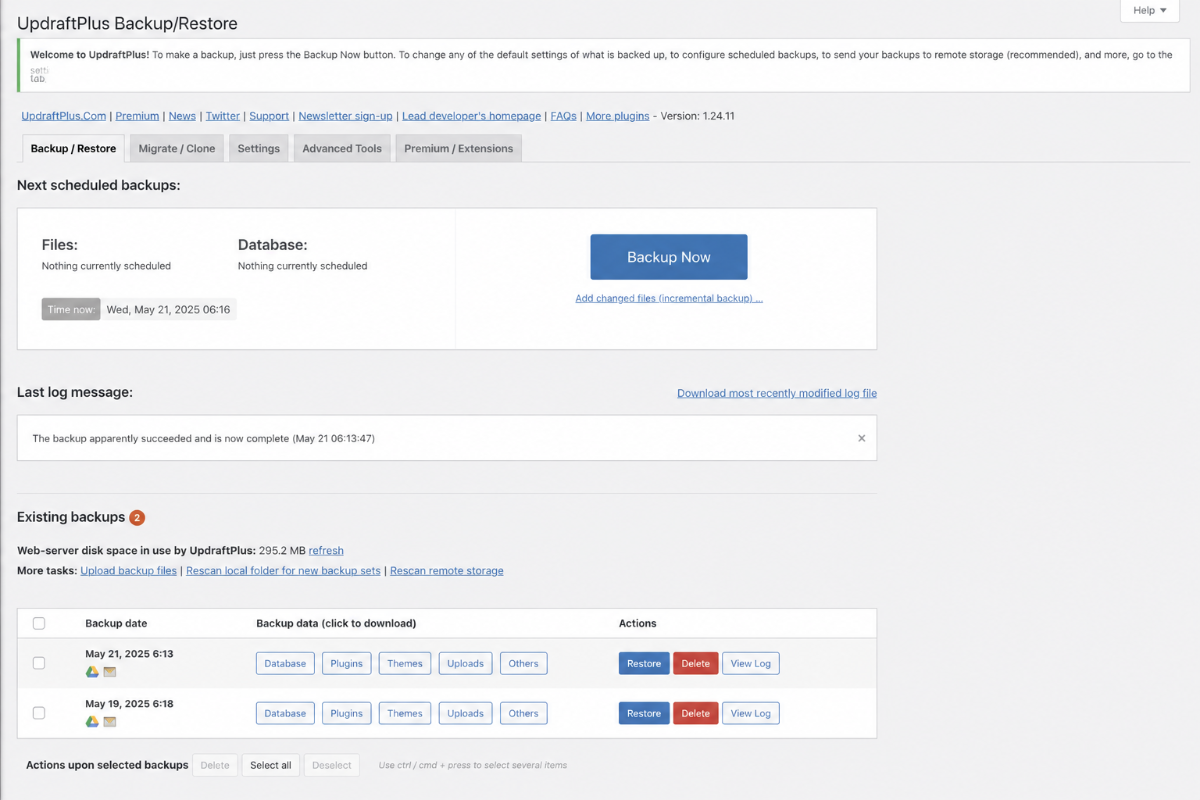
Connect to your backup plugin or cPanel backup tool and take a full site backup. This is not optional. You are about to edit PHP configuration files, and if something goes wrong, you need a way back.
Step 2: Increase the PHP Execution Time Limit
This fixes the majority of WordPress timeout cases. You need to raise PHP’s max_execution_time from its default (usually 30 seconds) to something higher. A value of 300 seconds works for most updates. For very large sites with many plugins, try 600.
You have three options. Pick the one that matches your setup.
Option A: Edit php.ini (best option if you have direct file access)
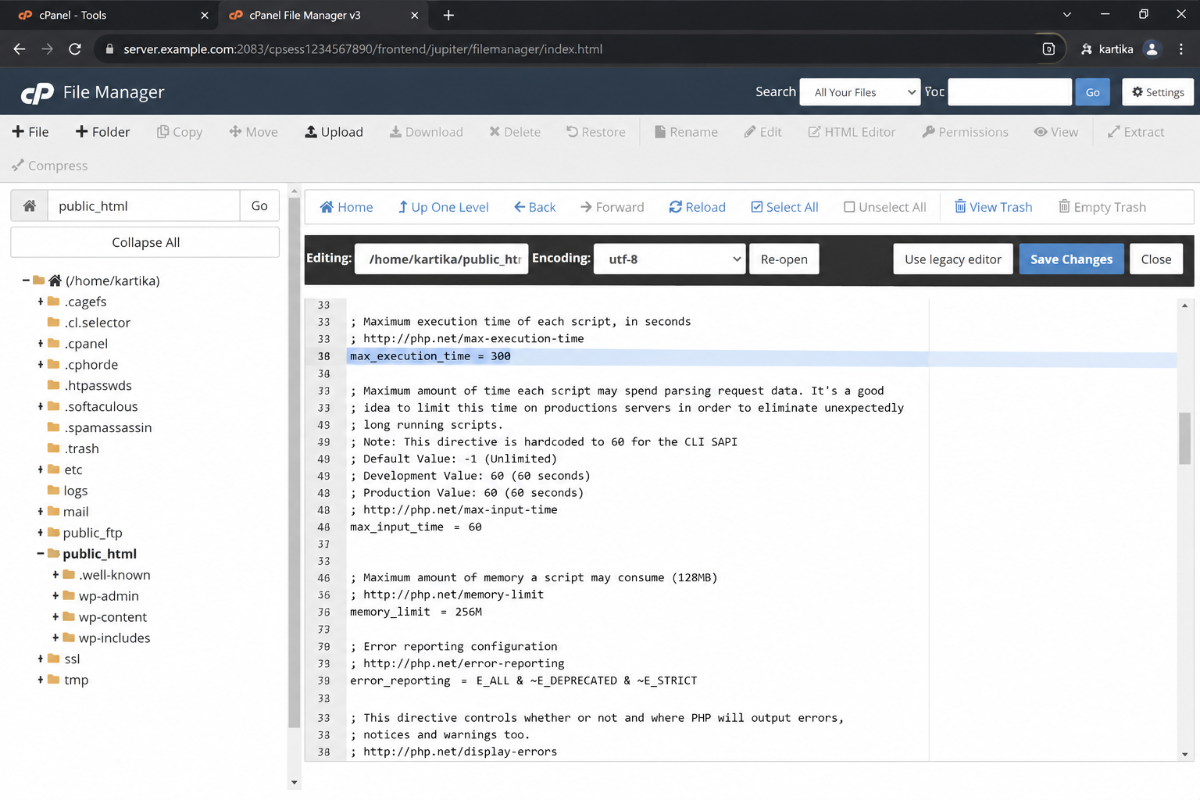
Find php.ini in your server root or via cPanel’s PHP Selector. Add or update this line:
max_execution_time = 300
Option B: Edit wp-config.php (works on most shared hosts)
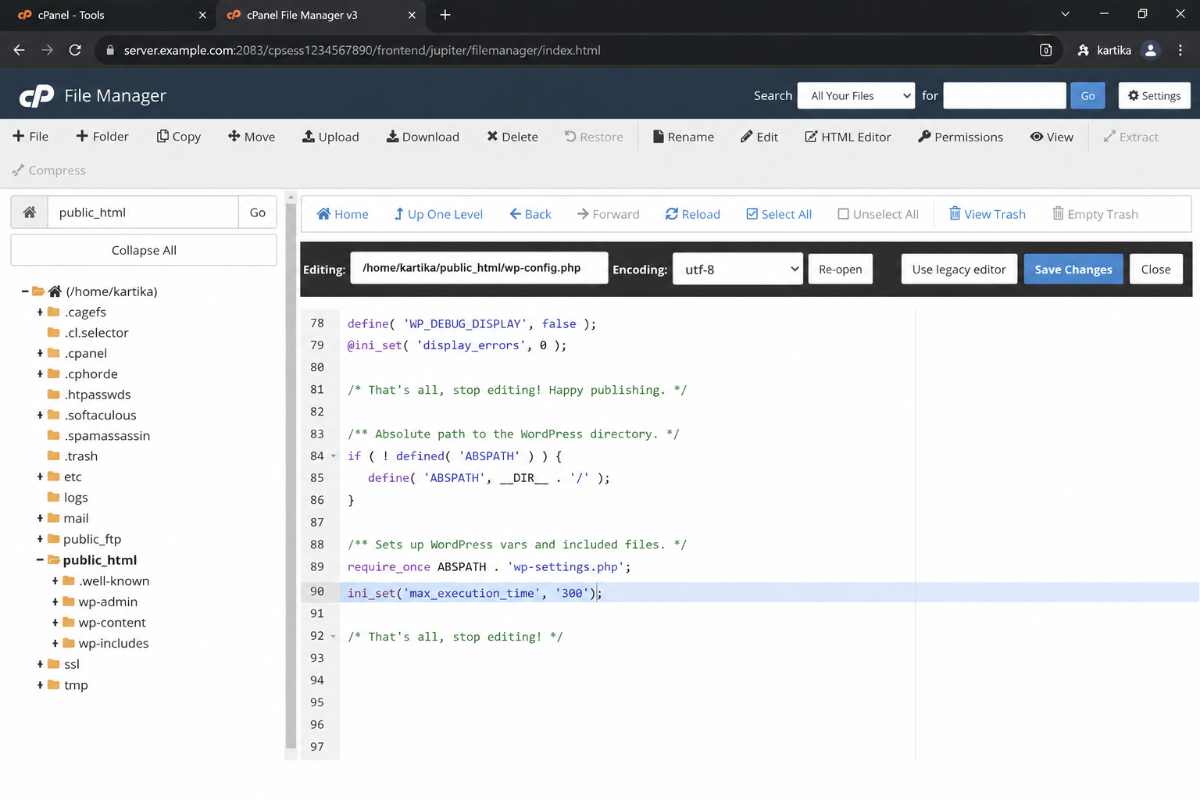
Open wp-config.php via cPanel File Manager, FTP, or a local file manager. Add this line anywhere before the /* That's all, stop editing! */ line:
ini_set( 'max_execution_time', '300' );
Option C: Edit .htaccess (Use if Options A and B are not available)
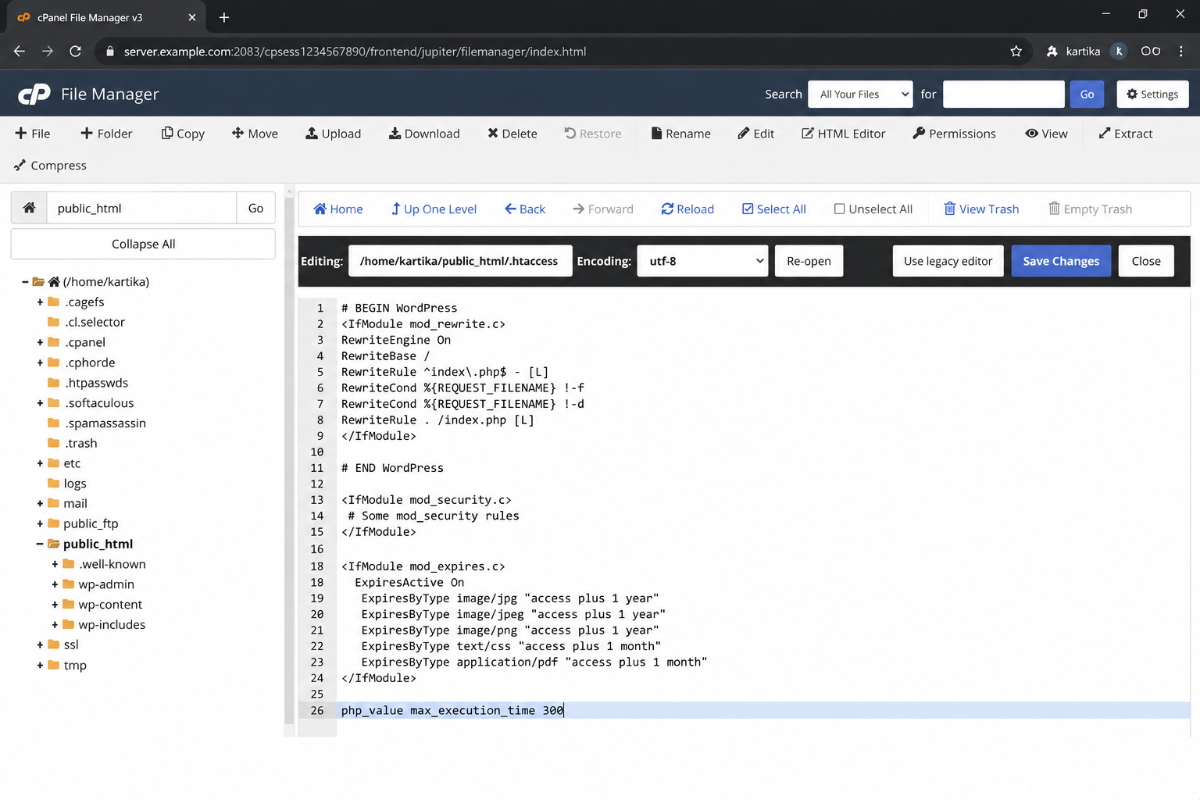
Open .htaccess in your WordPress root directory. Add this after the last </IfModule> line:
php_value max_execution_time 300
Note: the .htaccess method only works on Apache servers. If you are on Nginx, use Options A or B.
After making the change, retry the update. If it works, you are done.
Step 3: Increase the WordPress Memory Limit
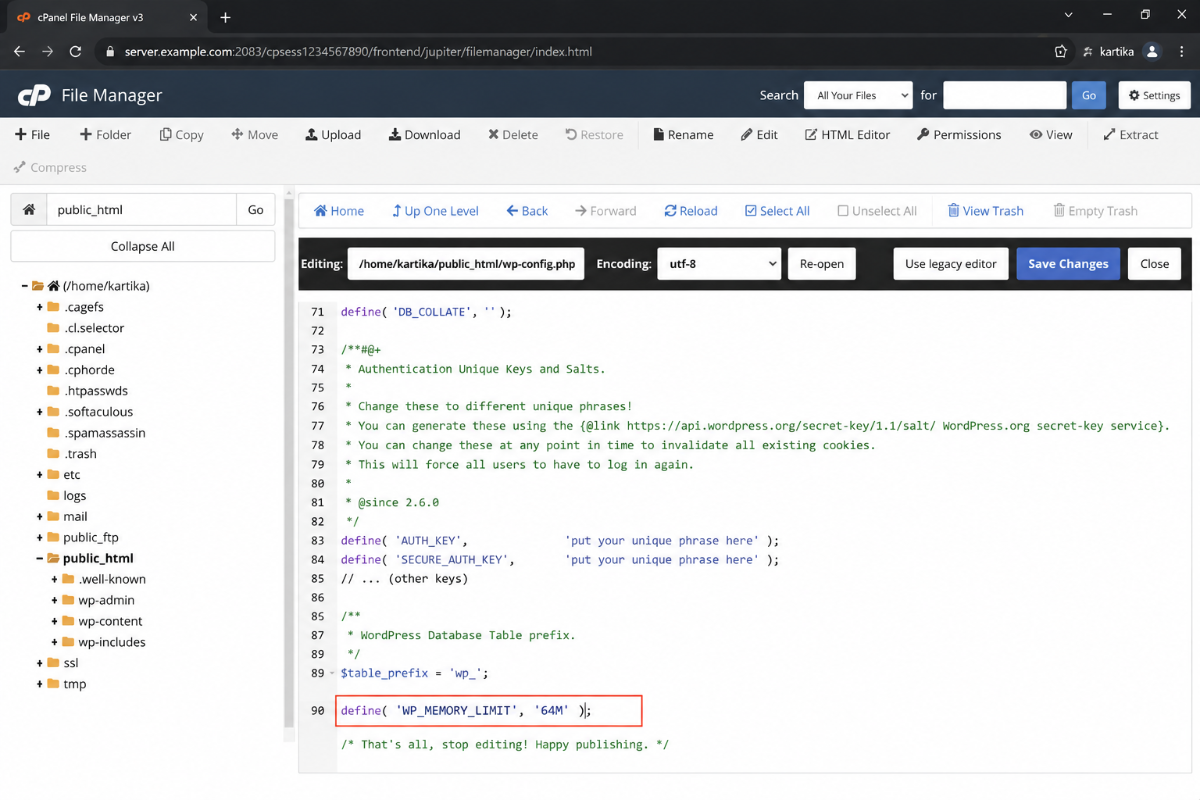
If raising the execution time did not solve it, low PHP memory is the next likely cause. Open wp-config.php and look for this line:
define( 'WP_MEMORY_LIMIT', '64M' );
Change 64M to 256M. If you cannot find the line, add it above the /* That's all, stop editing! */ comment:
define( 'WP_MEMORY_LIMIT', '256M' );
For sites running WooCommerce plus several resource-heavy plugins, 256M is a reasonable baseline. Some setups need 512M. Your host’s plan sets the ceiling on what you can actually use. If the value does not stick, contact your host to confirm what limit they allow.
Step 4: Deactivate All Other Plugins Before Updating
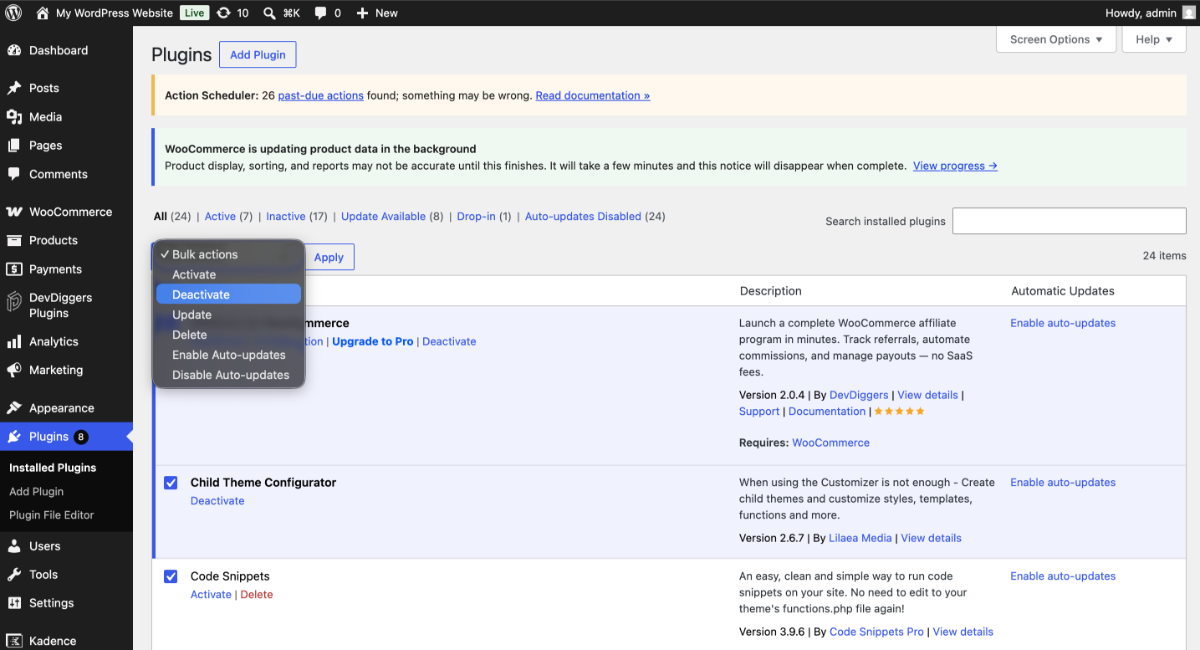
Plugin conflicts are a less common cause, but they do happen. One plugin interfering with another’s update process can cause a timeout, even if your PHP limits are fine.
Go to Plugins > Installed Plugins in your dashboard. Select all plugins except the one you are trying to update. Use Bulk Actions > Deactivate. Retry the update. If it succeeds, reactivate your other plugins one by one to find the conflict.
Step 5: Check File Permissions
WordPress needs write access to its own files to complete an update. If permissions changed at some point, the update process will hit a wall.
The correct permissions for a WordPress install are:
- Folders: 755
- Files: 644
Check via cPanel File Manager or connect via FTP and inspect the wp-content folder. If permissions look wrong, right-click the folder and select Change Permissions in cPanel, or use chmod via SSH. The WordPress official file permissions guide walks through the expected values in detail.
Step 6: Check the Database Connection
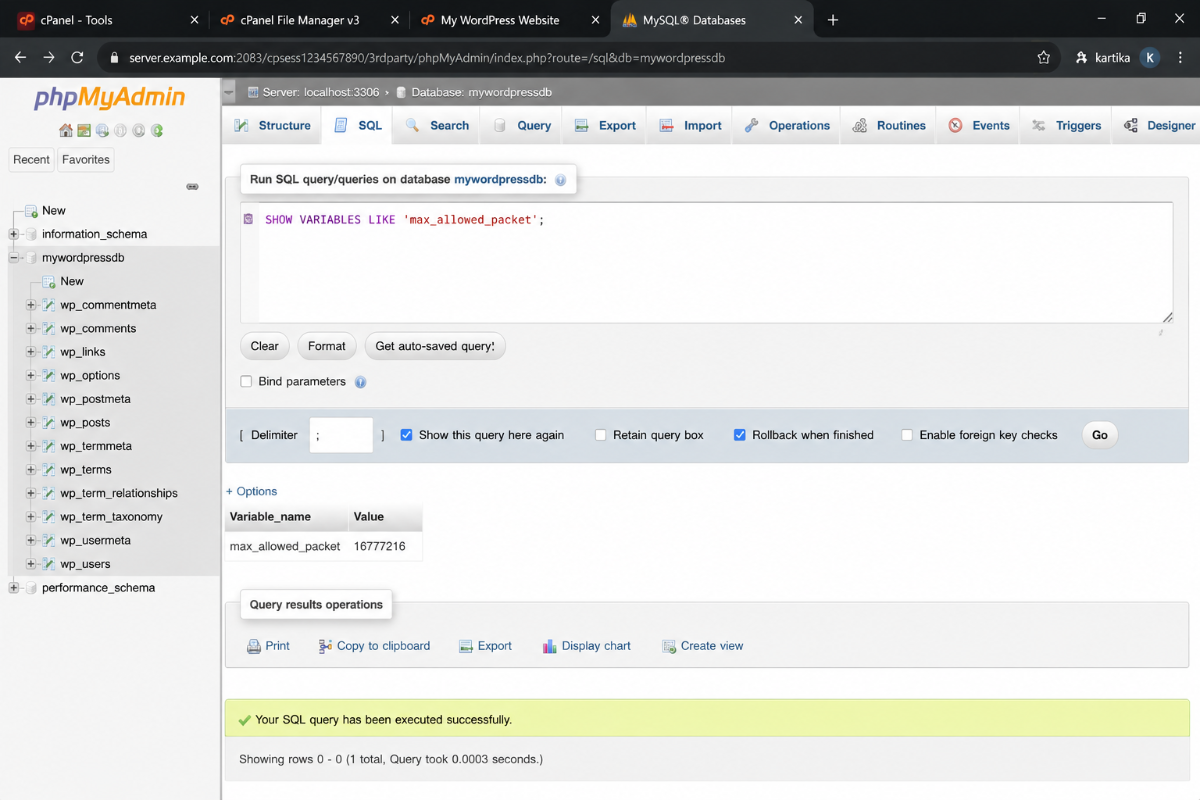
If your database is slow or the max_allowed_packet setting is too low, updates that involve large database operations will stall. Check the current value by running this query in phpMyAdmin:
SHOW VARIABLES LIKE 'max_allowed_packet';
A value below 16MB can cause problems on larger sites. If you are on a VPS or have MySQL access, raise it with:
SET GLOBAL max_allowed_packet=32M;
On shared hosting, you cannot change this directly. Ask your host to increase it if you suspect this is the cause.
Also, confirm that your wp-config.php database credentials are correct. A loose database connection can cause random update timeouts that look random but are not.
Step 7: Update in Stages, Not All at Once
Running 20 plugin updates at the same time is one of the fastest ways to hit a timeout on shared hosting. Each update opens its own PHP process, and your server has a finite number of concurrent processes available.
Update in this order:
- WordPress core
- Active theme
- Plugins, one at a time or in small batches of two or three
This is slower, but it is the difference between a clean update run and spending an hour recovering from a half-finished batch update.
What to Do When the Update Fails, and Your Site Is Stuck
This is the part most timeout guides skip entirely. Here is what actually happens when an update times out.
When WordPress runs an update, it creates a temporary file called .maintenance in your site root directory. That file triggers the “Briefly unavailable for scheduled maintenance” message. Normally, WordPress deletes it when the update finishes. If the update times out, the file stays behind, and your site sits in maintenance mode indefinitely.
Visitors see the maintenance screen. You have fixed the underlying PHP limit. But the site is still down. Here is how to get it back.
Delete the .maintenance file
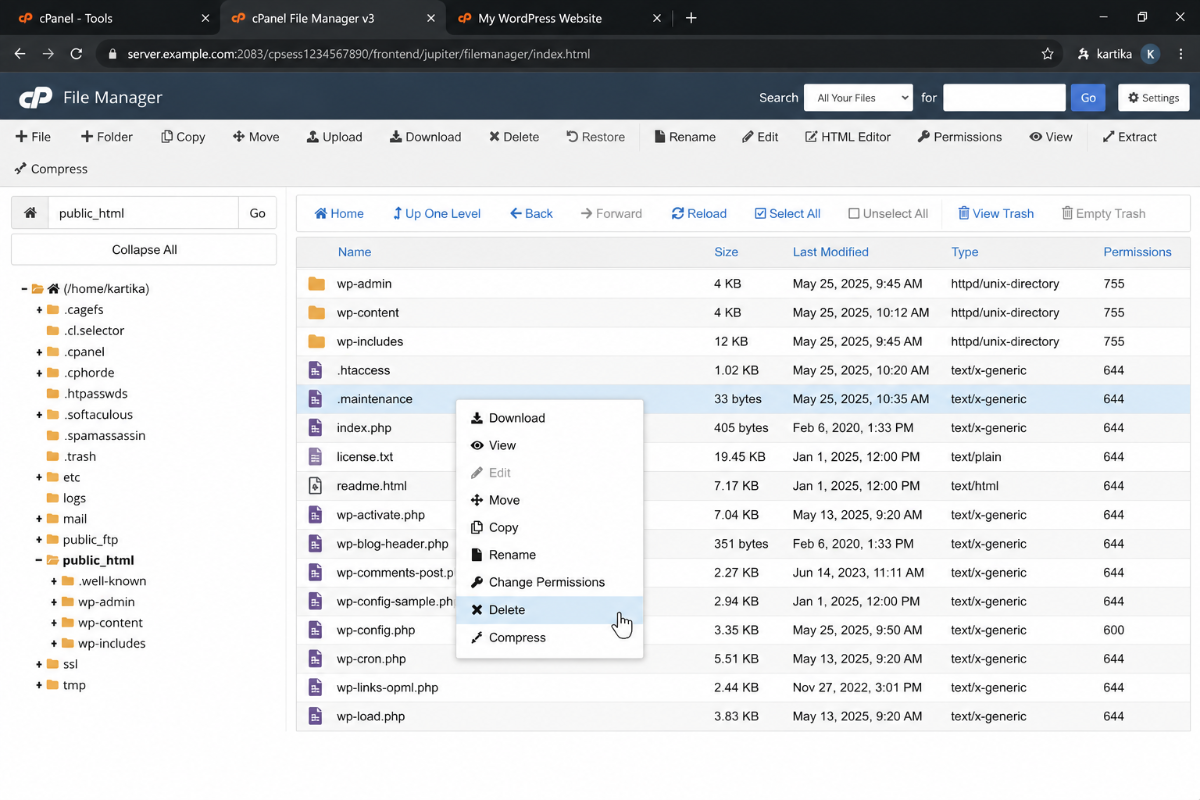
Connect via cPanel File Manager or FTP. Navigate to your WordPress root directory, the same folder that holds wp-config.php. The file is hidden by default because it starts with a dot. Enable “Show Hidden Files” in your file manager if you do not see it. Select it and delete it. Reload the site.
Clear your cache after deleting the file
Some caching plugins serve the maintenance page from memory even after the file is gone. Clear your caching plugin’s cache and your browser cache once the file is deleted.
The core_updater.lock problem
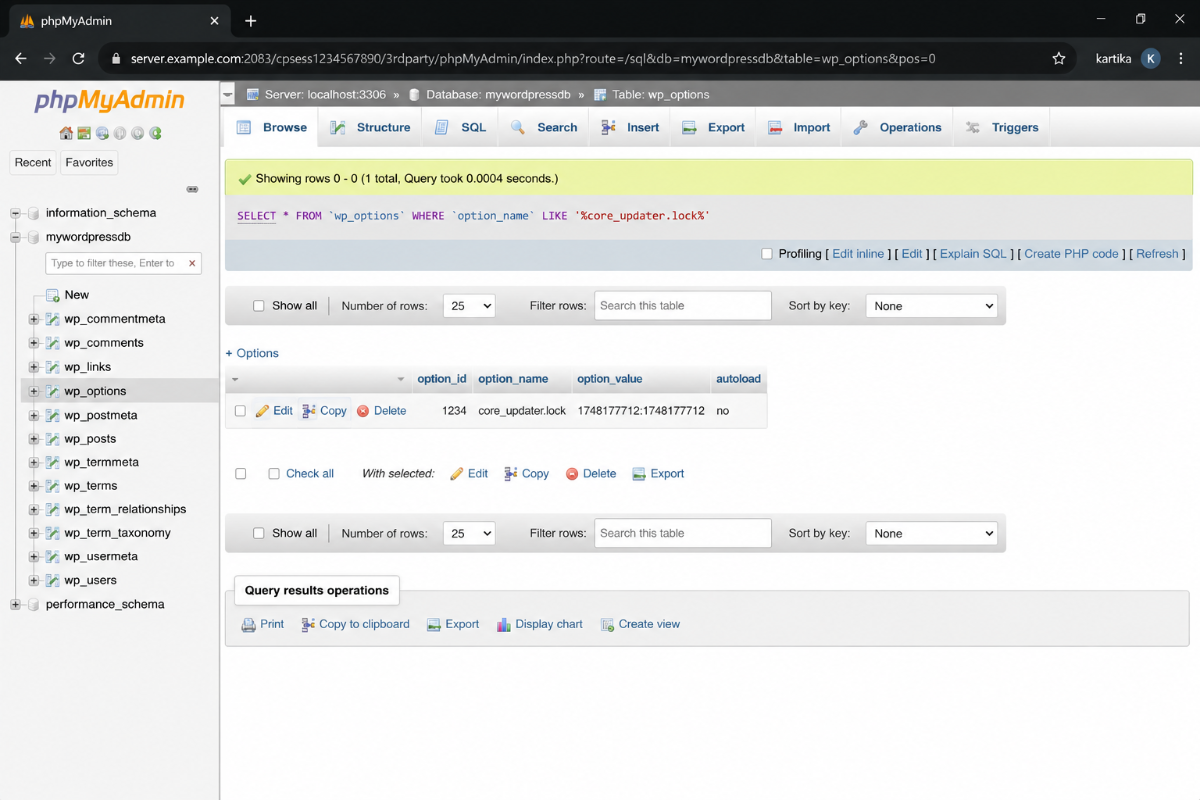
After a failed update, the next attempt sometimes fails with: “Another update is currently in progress.” That error comes from a database option called core_updater.lock that did not get cleared.
If you have WP-CLI access, covered in the next section, you can delete it with one command:
wp option delete core_updater.lock
Without WP-CLI, open phpMyAdmin, go to your WordPress database, find the wp_options table, and search for core_updater.lock. Delete that row. Then retry the update.
This is something we see often in support. A site fails a core update and then cannot attempt another one because the lock is still sitting in the database. It is a two-minute fix once you know where to look.
The Developer Path: Use WP-CLI to Skip the Browser Timeout
Here is what most timeout guides do not tell you: the browser-based updater in wp-admin is not the only way to run WordPress updates. If your server has SSH access, WP-CLI skips the browser’s HTTP timeout entirely.
WP-CLI is a command-line tool for managing WordPress. It runs updates directly on the server, so there is no browser connection to time out. The update either finishes or it does not. You will not hit a 30-second PHP execution limit from the browser side.
Basic WP-CLI update commands:
# Update WordPress core
wp core update

# Update all plugins
wp plugin update --all

# Update all themes
wp theme update --all
WP-CLI is available on most VPS and managed WordPress hosting plans. Some shared hosting providers also include it. Check your cPanel or ask your host. The official WP-CLI core update documentation covers the full set of flags.
Trade-off worth being honest about: WP-CLI will not fix a timeout caused by a memory limit or an overloaded MySQL server. It only removes the browser-side HTTP timeout from the equation. If your PHP memory is too low, the update will still fail, just with a different error message. Fix the memory limit first, then use WP-CLI for a cleaner update run.
We use WP-CLI on every production deployment we touch. It gives you a clean server log of what succeeded and what did not, which is far more useful than a browser error screen.
When to Stop Troubleshooting and Upgrade Your Hosting
Sometimes the honest answer is that your hosting plan is not built for your site anymore.
If you run WooCommerce, a page builder like Elementor, and 30 or more active plugins on a shared plan, raising PHP limits in config files might not stick. Plans with tight memory caps often have server-level settings that override what you put in php.ini or wp-config.php. You change the value, your host ignores it, and the timeout keeps happening.
Signs it is a hosting problem rather than a config problem:
- Your host says they cannot raise the PHP execution limit beyond 60 seconds
- Memory limit changes in
wp-config.phpare not reflected when you checkphpinfo() - Timeouts happen consistently, even on single small plugin updates
- Your site was fine a year ago, and timeouts are now frequent because the site has grown, but the plan has not
At that point, you are looking at upgrading to a higher-tier shared plan, moving to a VPS, or switching to managed WordPress hosting. Managed hosts run WordPress-tuned server configurations with higher default PHP limits and background update processes that do not depend on the browser connection at all.
Our WordPress development services include site audits that cover hosting health, PHP configuration, and performance slowdown. If speed and reliability are the bigger concerns, our WordPress speed optimization service covers the server-level configuration side directly.
Wrapping Up
Most WordPress timeout updates trace back to one of two places: PHP’s execution time limit or the memory limit. Raise those first. If the update already failed and your site is stuck, delete the .maintenance file and check for the core_updater.lock database option. For developers with SSH access, WP-CLI is the cleaner path. It removes browser timeouts from the equation entirely.
If you are fixing this on a WooCommerce store or a site with many active plugins, update in stages. Core first, then theme, then plugins one or two at a time. It is slower but much less likely to leave you in recovery mode.
When config changes do not stick and timeouts keep coming back, that is usually a hosting problem. The fixes above will tell you. If they work, it was configured. If they do not, it is the plan.
Frequently Asked Questions (FAQs)
Q1. What is the default PHP execution time limit in WordPress?
The default max_execution_time in PHP is 30 seconds on most hosting environments. WordPress does not set this value itself. It comes from your server’s PHP configuration. If an update needs more than 30 seconds, the server cuts it off, and the update fails.
Q2. How do I know if my WordPress site is stuck in maintenance mode after a timeout?
If visitors see a message saying “Briefly unavailable for scheduled maintenance. Check back in a minute,” and it does not clear on its own, the site is stuck. Connect via FTP or cPanel File Manager, navigate to your WordPress root directory, enable hidden files, and delete the .maintenance file.
Q3. Will increasing WP_MEMORY_LIMIT always fix WordPress timeout updates?
Not always. The WP_MEMORY_LIMIT setting in wp-config.php requests more memory from PHP, but your hosting plan has a server-level cap. If your host’s cap is 256MB and you set 512MB, the change will not apply. Contact your host to confirm what limit they allow if the setting does not take effect.
Q4. Can I use WP-CLI on a shared hosting plan?
Some shared hosting providers include WP-CLI. Check your cPanel or ask your host’s support team. It is more commonly available on VPS, cloud, and managed WordPress plans. If your host does not offer it, the php.ini and wp-config.php fixes in this guide are the practical alternatives.
Q5. Why does WordPress say “Another update is currently in progress” after a failed timeout?
A failed update sometimes leaves a core_updater.lock entry in the wp_options database table. WordPress interprets this as evidence that another update is in progress. Delete the row via phpMyAdmin or run wp option delete core_updater.lock via WP-CLI to clear it. Do not attempt multiple back-to-back updates before clearing this entry.
Q6. Why does WordPress say “Another update is currently in progress” after a failed timeout?
A failed update sometimes leaves a core_updater.lock entry in the wp_options database table. WordPress interprets this as evidence that another update is in progress. Delete the row via phpMyAdmin or run wp option delete core_updater.lock via WP-CLI to clear it. Do not attempt multiple back-to-back updates before clearing this entry.
Q7. Does a WordPress timeout update damage the site permanently?
Rarely. Most timeout failures leave the site in maintenance mode, which you fix by deleting .maintenance, or using a partially updated plugin that can cause issues. This is why backing up before updates matters. In most cases, the original plugin version is still unchanged, and you can deactivate the conflicting plugin while you sort out the issue.