
What is PDP in eCommerce? A PDP is a product detail page, the page that shows one product with its photos, price, options and Add to cart button. It is where a shopper decides to buy or leave.
I built a test store in October 2026 to see what a PDP does by default. It ran WooCommerce 11.2.0 with the Storefront theme and held one variable product with four images and two reviews. I also read Google’s product markup guide and the WCAG target size rule.
This guide explains the PDP meaning in eCommerce, the parts every PDP needs and how a PDP differs from a listing page. You will see what I measured on a phone and in the page code. Then you will get a short list of mistakes to avoid.
What Is PDP in eCommerce?
What is PDP in eCommerce? It is the product detail page, the single page for one product with its name, images, price, options and buy button. Shoppers usually reach it from search, a category page or an ad, and it is where the sale is closed.
The PDP meaning in eCommerce is simple, but the page has other names. Teams may say product page or single product page. Search for PDP meaning eCommerce, or the PDP eCommerce meaning, and every name gives the same answer.
Every product has its own PDP. A store with 500 products has 500 of them, and each one must stand on its own. Treat each eCommerce PDP as a small sales page.
For the full PDP eCommerce meaning, picture a digital shelf for one product. Small fixes on a template can change sales across the whole store. A change to the buy box reaches every product that uses it. Test on your best seller first.
PDP vs PLP: What Is the Difference?
A PDP shows one product and exists to close the sale. A product listing page, or PLP, shows many products and exists to help shoppers pick one. Shoppers move from the PLP to the PDP. Both pages must therefore agree on names, prices and images.
A mismatch makes the shopper doubt the store. Shoppers also go back from the PDP to the PLP when the product is not right. A clear breadcrumb trail keeps them in the store instead of sending them to search.
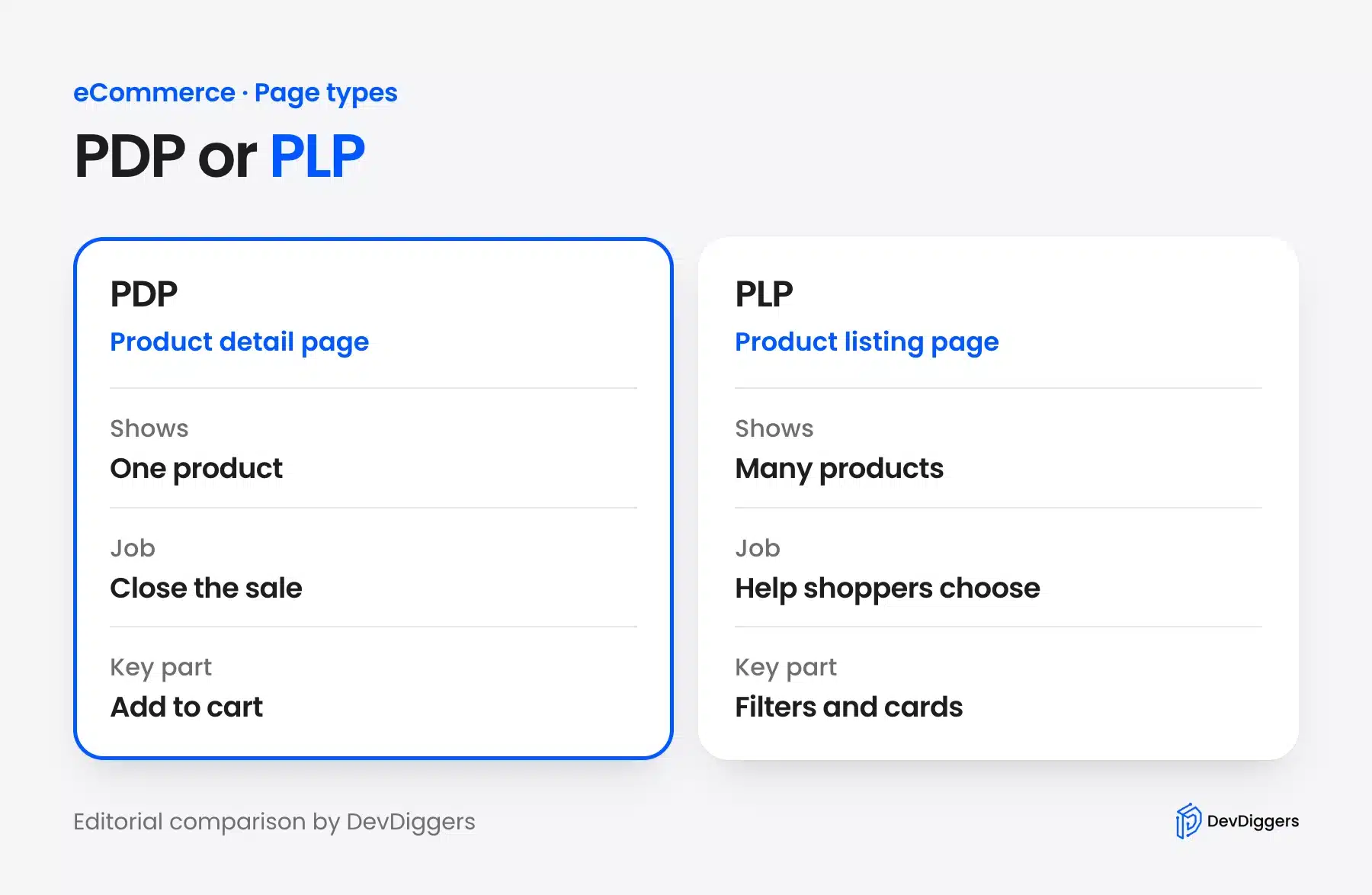
The two pages need different tools. A PLP needs filters, sorting and compact cards. A PDP needs depth, such as a gallery, options and proof.
Our guide to the product listing page in eCommerce covers the other half of the journey.
What Does a High-Converting PDP Include?
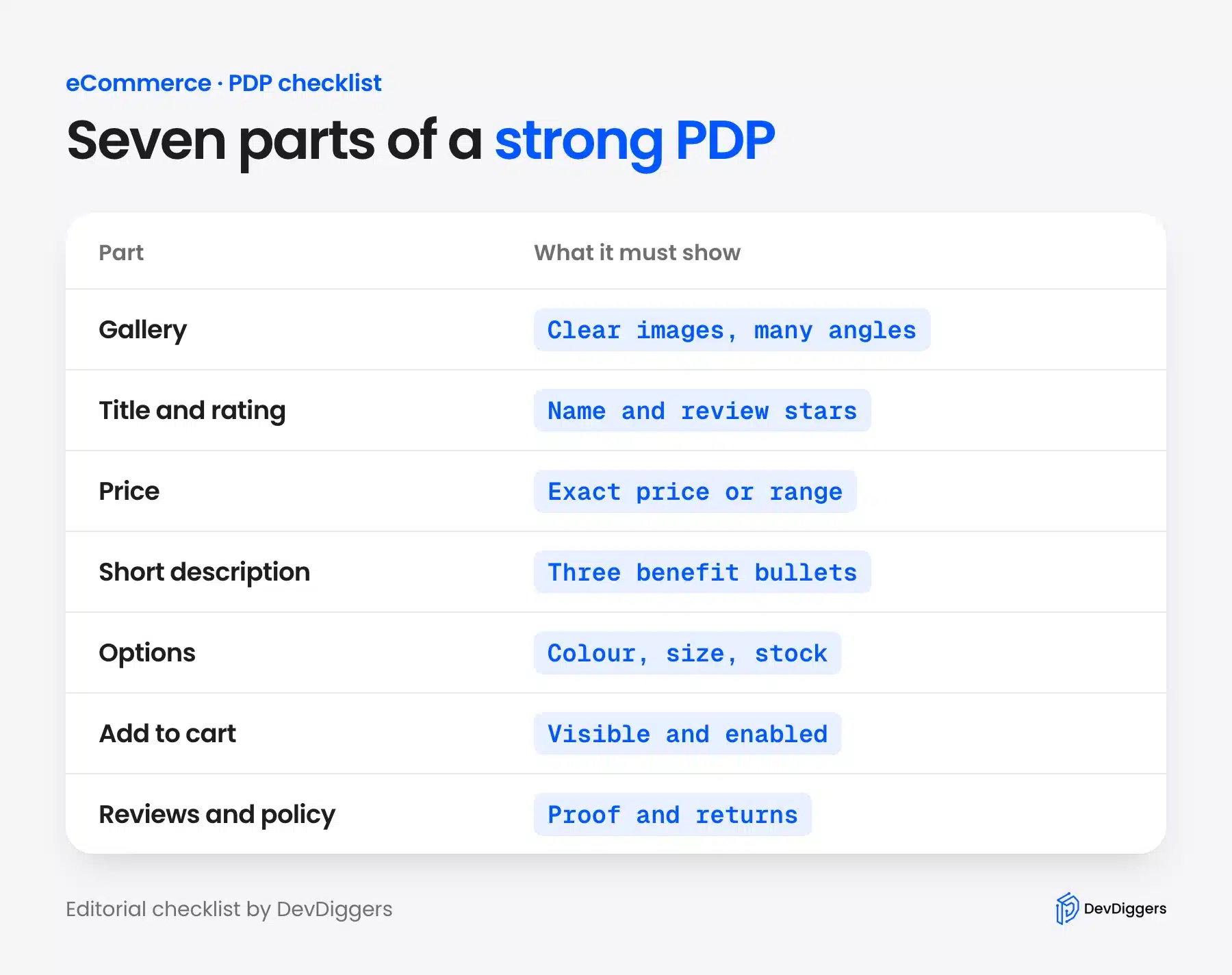
A high-converting PDP shows the shopper what the product is, what it costs and how to buy it, without scrolling far. It needs a clear gallery, title, price, short benefits, options, an Add to cart button and proof. Missing any part forces the shopper to guess.
Here is what each part does, in the order a shopper reads it:
- Gallery: Show clear images from several angles with thumbnails that switch the main image.
- Title and rating: Name the product plainly and show the review stars next to it.
- Price: Show the exact price, or a range when options change the price.
- Short description: List three or four benefits in bullets.
- Options: Show color, size and stock before the buy button so the shopper picks first.
- Add to cart: Keep the button large, visible and enabled once options are chosen.
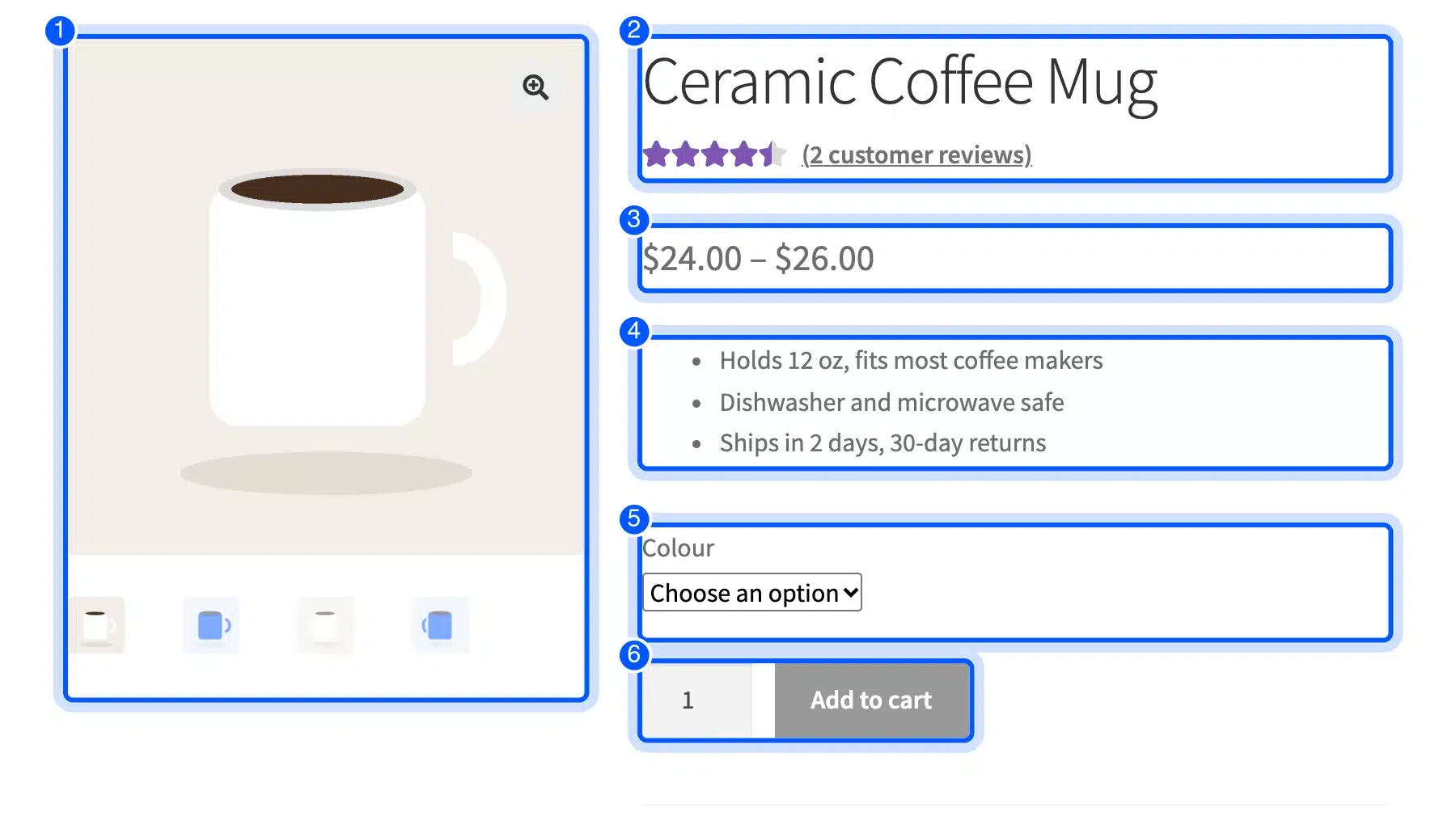
- Reviews and policies: Add reviews, shipping and returns information below or beside the buy box.
Order matters here. Shoppers read from the image to the title, the price and the button. A part that breaks that order, such as a price hidden in a tab, slows the decision.
The screenshot above comes from my test store. Number 6 is grayed out on purpose. WooCommerce disables Add to cart on a variable product until the shopper picks an option.
What a PDP in WooCommerce Gives You by Default
A default WooCommerce product page already holds most of these parts. It prints a breadcrumb trail, a gallery, the title, a rating, the price, the short description, the options and the buy button. It also adds tabs for the long description, extra details and reviews.
In my test, the Add to cart button carried the classes disabled and wc-variation-selection-needed until I chose a color. After I picked Blue, the price changed to $26.00 and the button became active. That behavior is built in and needs no plugin.
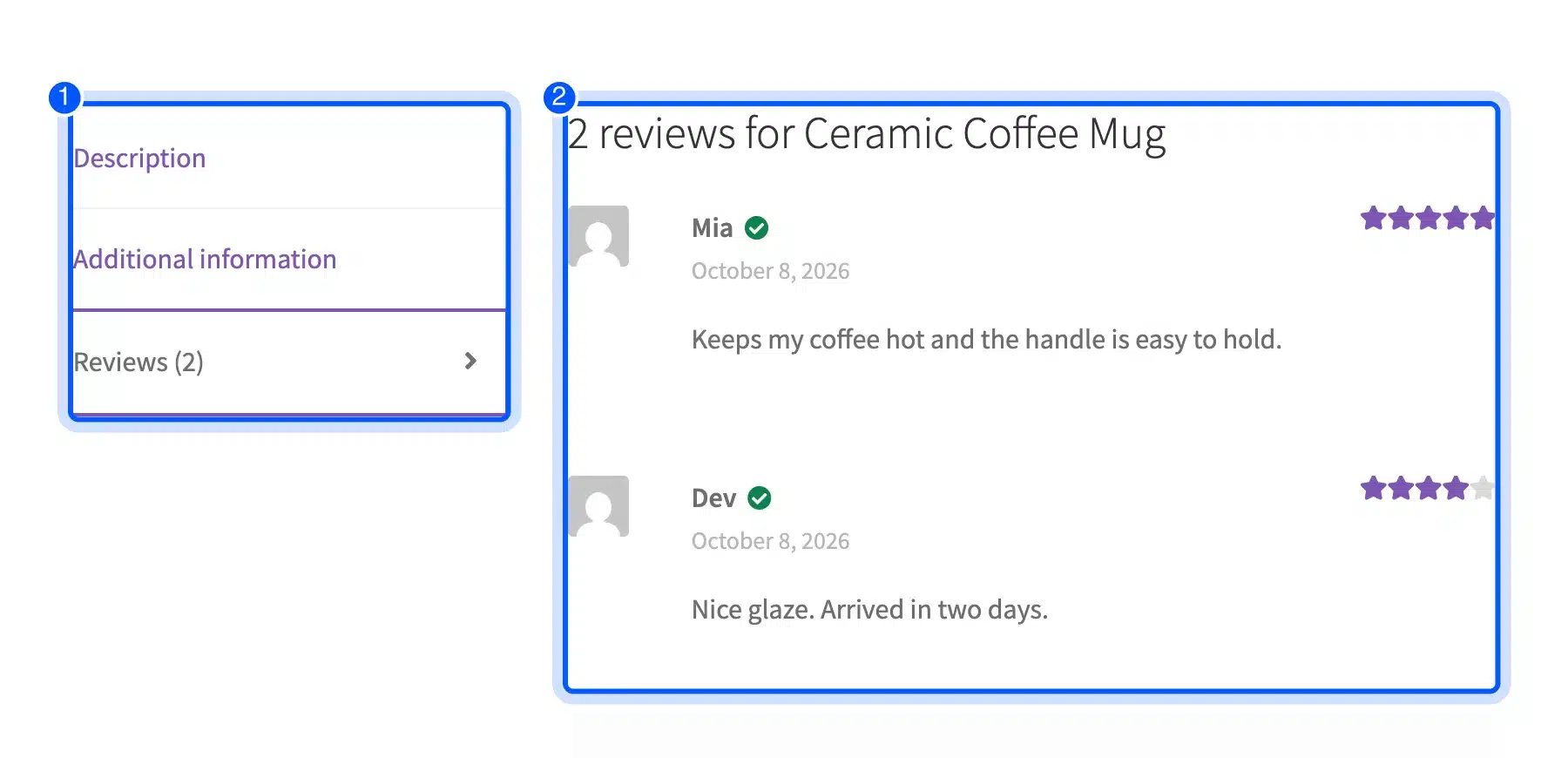
The tabs came in a fixed order: Description, a product details tab and Reviews (2). The reviews tab showed each review with a verified mark, the reviewer name, the date and the stars.
Three gaps showed up in my test. The page had no dedicated shipping and returns block, no size or care guide and no sticky buy bar on mobile. A short text block under the buy button fills the first gap, and a theme or plugin can fill the other two.
What you still add yourself depends on the goal. Most stores add trust badges, shipping and returns notes, size guides and a sticky buy button on mobile. Our guide to building buyer confidence in eCommerce shows how education content answers questions before checkout.
How a PDP in eCommerce Helps Your SEO
A PDP helps your SEO by giving search engines a clear page for one product. It carries the product name, images, price and reviews that Google can read. Good markup and fast images make that page easier to show in results.
WooCommerce prints Product schema on its own. On my test page it wrote a BreadcrumbList and a Product block in JSON-LD.
The product block held the name, SKU and image. It also had an AggregateOffer with a low price of 24.00 and a high price of 26.00. The aggregateRating showed 4.50 from two reviews.
{
  "@type": "Product",
  "name": "Ceramic Coffee Mug",
  "sku": "MUG-001",
  "offers": [{
    "@type": "AggregateOffer",
    "lowPrice": "24.00",
    "highPrice": "26.00",
    "offerCount": 2,
    "availability": "https://schema.org/InStock"
  }],
  "aggregateRating": { "@type": "AggregateRating", "ratingValue": "4.50", "reviewCount": 2 }
}
The test also showed a flaw. The description field read “Holds 12 oz, fits most coffee makersDishwasher and microwave safeShips in 2 days, 30-day returns”. WooCommerce built it from my bullet list and joined the items with no spaces.
To avoid that, write the short description as a sentence or check the output in the page source. Google documents which fields it reads in its product structured data guide.
Unique text matters too. Many stores copy the supplier description. Thousands of pages then share the same words. Write your own short and long description for each product. Google then gets a reason to rank yours.
Image ALT Text and Speed
Give every gallery image a clear alt text, such as “Ceramic coffee mug view 1”. WooCommerce used the alt text from my media library on the main image. It also printed fetchpriority="high" and a srcset with eight sizes on that first image.
Those two attributes help the main image load first. Google’s Largest Contentful Paint guide explains why the first large image matters. A PDP whose main image loads late feels slow even if the rest is fast.
Where the Add to Cart Button Lands on a Phone
On a phone, the Add to cart button can sit below the first screen. In my test at 390 by 844 pixels, the button started at 1,065 pixels from the top. The first screen ends at 844. The button was 221 pixels below it.
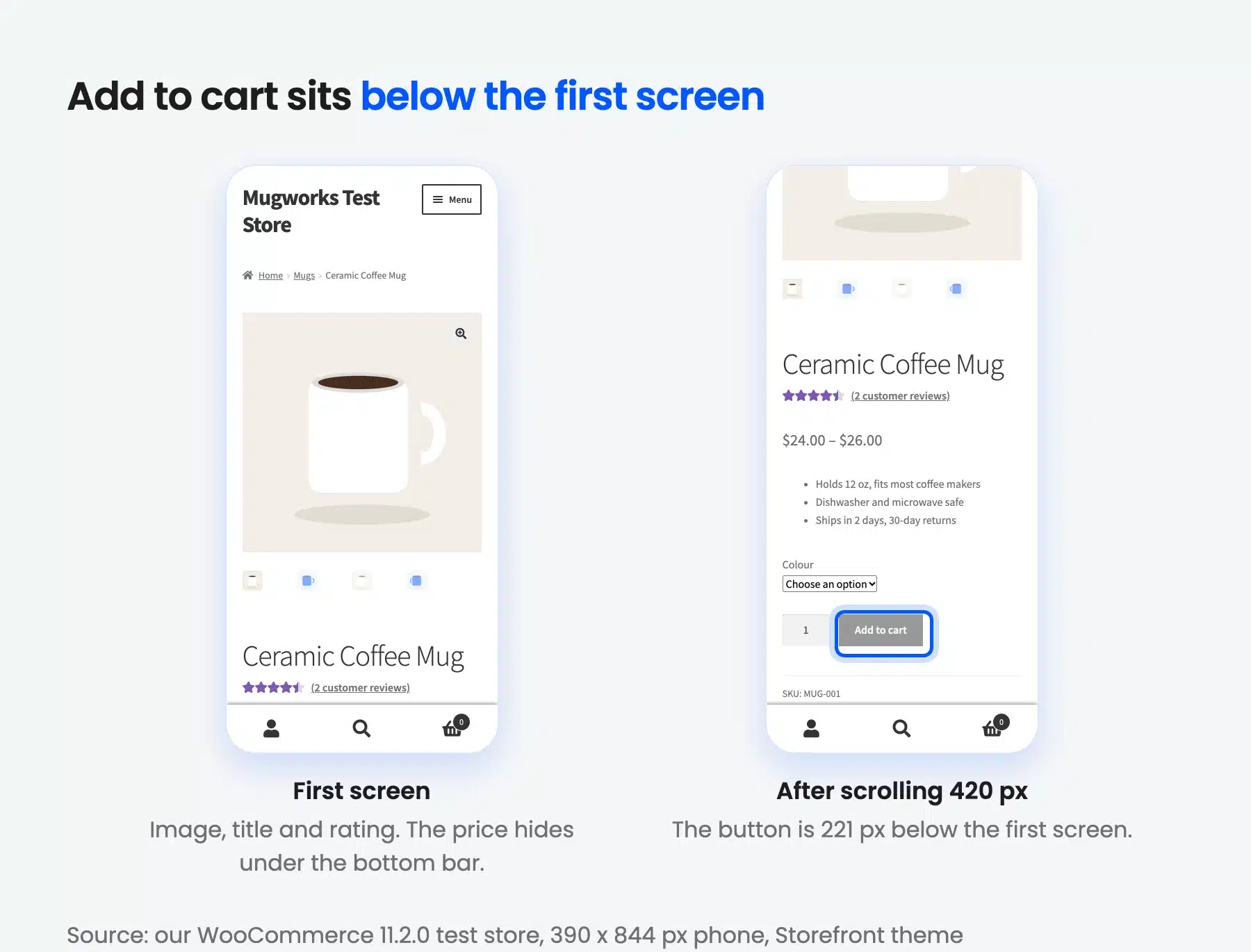
The title sat at 679 pixels and the color option at 981 pixels. The price was at 796 pixels, but the Storefront bottom bar covered it on the first screen. A shopper who only sees the image and title has no price and no button.
The fixes are small. Move the options and the button above the description, shrink the gallery height on phones, or add a sticky Add to cart bar. Each one pulls the button up the page. Measure again after the change.
Storefront is only one theme. Your numbers will differ. Another theme may put the button higher or lower, and a page builder can move it again. The only way to know is to measure your own page at a phone size.
This is why a mobile check matters more than the desktop view. The button itself was large enough. It measured about 120 by 46 pixels, and the W3C target size rule asks for at least 24 by 24.
Which PDP Numbers to Track
Track three numbers for each PDP: how many shoppers view it, how many add the product to the cart, and how many buy. Divide cart adds by views to get the add-to-cart rate. A low rate on a page with good traffic points to a PDP problem and not a traffic problem.
Google Analytics 4 records these steps with the view_item and add_to_cart events. The GA4 eCommerce guide lists the events and their fields. Check that your store sends both, or the rate will be wrong. To see what each shopper does inside WordPress, compare WooCommerce customer analytics plugins.
Compare products with similar prices, because a low-priced product and a high-priced one convert very differently. Look at your top ten by traffic first. Fix the page with the lowest rate before you touch the rest.
A single week of data can mislead on a small store. Wait for enough views before you call a page weak. The purchase rate matters most, but the add-to-cart rate shows where the page loses people before checkout.
Common PDP Mistakes That Cost Sales
Most PDP problems come from hiding information or making the buy step hard. Fixing them rarely needs a redesign, because each one sits in a single part of the page. A short audit of each part usually finds the leak within an hour.
- Features without benefits: “Holds 12 oz” is a feature. “Fits most coffee makers” tells the shopper why it matters.
- A buried buy button: If Add to cart sits far below the images on a phone, many shoppers never reach it.
- No proof: A product with no reviews, ratings or returns note looks risky to a new shopper.
- Options after the button: Put color and size before Add to cart so the shopper never wonders why it is grayed out.
- A heavy first image: An oversized hero image slows the page. Serve a resized file with a
srcset.
Do not stack trust badges until the page looks like a warning label. Pick two or three that matter to your shoppers, such as returns and secure checkout.
Run this list once a quarter. Theme, plugin and WooCommerce updates can change a PDP without anyone noticing.
If your catalog is large, check the top sellers first. A fix on one popular PDP pays back faster than a fix on a page nobody visits. Our eight tested fixes for a higher store conversion rate include delivery info beside Add to cart and verified-owner reviews.
How to Check Your Own PDP in Ten Minutes
You can test a PDP in about ten minutes with Chrome alone. Open the page, switch to a phone size and note where each part lands. Then view the source to confirm the product markup is there, because a missing block is easy to miss by eye.
Follow these steps:
- Open a product page: Pick a top seller instead of your newest product.
- Open DevTools: Press F12, or Ctrl+Shift+I (Cmd+Option+I on a Mac).
- Switch to a phone size: Click the device toolbar icon and choose a size such as 390 by 844.
- Note the first screen: Write down whether the title, price and Add to cart button are visible.
- Check the source: Press Ctrl+U (Cmd+Option+U on a Mac) and search for
"@type": "Product".
Repeat the check on one product from each category, because a template change can hit them differently. Then compare what the shopper sees with what you want them to do.
If you study rivals, our guide on how to tell what eCommerce platform a site is using shows what their pages run on.
Conclusion
That answers what is PDP in eCommerce and what makes one work. A strong PDP shows a clear gallery, price, benefits, options, proof and a visible buy button. WooCommerce gives you most parts, but you must check the phone view and the markup yourself.
Start with your top seller. Test its first phone screen. Then fix the part that hides the price or the button. Once the PDP works, measure the result with our guide on how to calculate customer lifetime value in eCommerce.
Frequently Asked Questions (FAQs)
Q1. What does PDP stand for in eCommerce?
PDP stands for product detail page. It is the page that shows one product with its images, price, options and buy button. Some stores call it the product page or single product page.
Q2. How many images should a PDP have?
There is no fixed number. Use enough images to show every angle and use case a shopper cares about. My test product had four images, and the main one loaded first.
Q3. Can a PDP rank in Google search results?
Yes. A PDP can rank for the product name and related searches. It helps to have unique text, clear alt text and valid Product markup, which WooCommerce adds by default.
Q4. What is the difference between a PDP and a landing page?
A PDP belongs to one product in your catalog. A landing page is built for one campaign and may feature one or several products. A PDP is permanent, while a landing page often is not.
Q5. How do I know if my WooCommerce PDP is underperforming?
Check the add-to-cart rate for each product in your analytics. Then test the page on a phone and look for a buried button or a missing price.
Q6. Why is my Add to cart button grayed out?
On a variable product, WooCommerce disables the button until the shopper picks every option. That is normal. If the button stays gray after the choice, a theme or plugin script may be breaking the form.