
WooCommerce Product Search By Image AI Plugin Documentation

The WooCommerce Product Search By Image AI plugin uses cutting-edge technology to improve online shops’ customer experiences by allowing customers to search for products using photos rather than text-based search queries. This technology is driven by artificial intelligence and uses image recognition algorithms to match an uploaded image to the closest product in the retailer’s database.
This new technology has the potential to transform how customers engage with e-commerce websites. Customers may take a photo of a product they want or upload an existing image, and the technology will generate a list of relevant goods from the retailer’s database. This removes the need for clients to spend time putting in keywords and helps them find new products they might not have found.
This plugin is highly accurate since it analyzes and compares images with complex algorithms. The system is also high-speed, allowing customers to see real-time outcomes. Furthermore, the technology is scalable and compatible with any WooCommerce website, regardless of size or complexity.
One of the primary advantages of WooCommerce Product Search By Image AI is its ability to increase consumer engagement and happiness significantly. Thanks to this technology, customers can discover what they need, which may lead to more excellent sales and customer loyalty. Furthermore, the technology can help shops minimize the frequency of returns and customer complaints, as customers are more likely to locate the precise product they want when they use this technology.
Another benefit of this technology is that it saves businesses time and money on images and descriptions. Retailers no longer need to spend time writing lengthy product descriptions or capturing each product because image recognition technology can match products to photographs. This may save retailers expenses while freeing up time for them to focus on other aspects of their business.
WooCommerce Product Search By Image AI is a sophisticated technology that may significantly assist online shops. By providing customers with a simple way to search for items, this technology may boost customer engagement and satisfaction, reduce the amount of returns and customer complaints, and save retailers time and money. If you are an online retailer looking to stay ahead of the competition, consider using this technology for your WooCommerce website today.
Why choose our plugin?
Our products stick to WordPress’s quality requirements in security, quality, performance, and contemporary coding standards. Envato has given us a WP Requirements Compliant Badge for our CodeCanyon Profile.
Installation
The customer must log in to the WordPress admin end and hover to the Plugins menu, which shows a submenu, then click the Add New submenu button.

Then, the user must click the Upload Plugin button to upload the plugin zip file.

After clicking the Upload Plugin button, you will see the image below. Then, click the Choose File option to explore the plugin.

Then, when you pick the plugin zip, it displays here. Finally, click the Install Now option to install the plugin.

After installing the plugin, click the Activate Plugin button to activate it.

Admin End of the Plugin
Click Configuration to get to the plugin’s configuration page or visit the WooCommerce Product Search By Image AI admin menu.

General Configuration
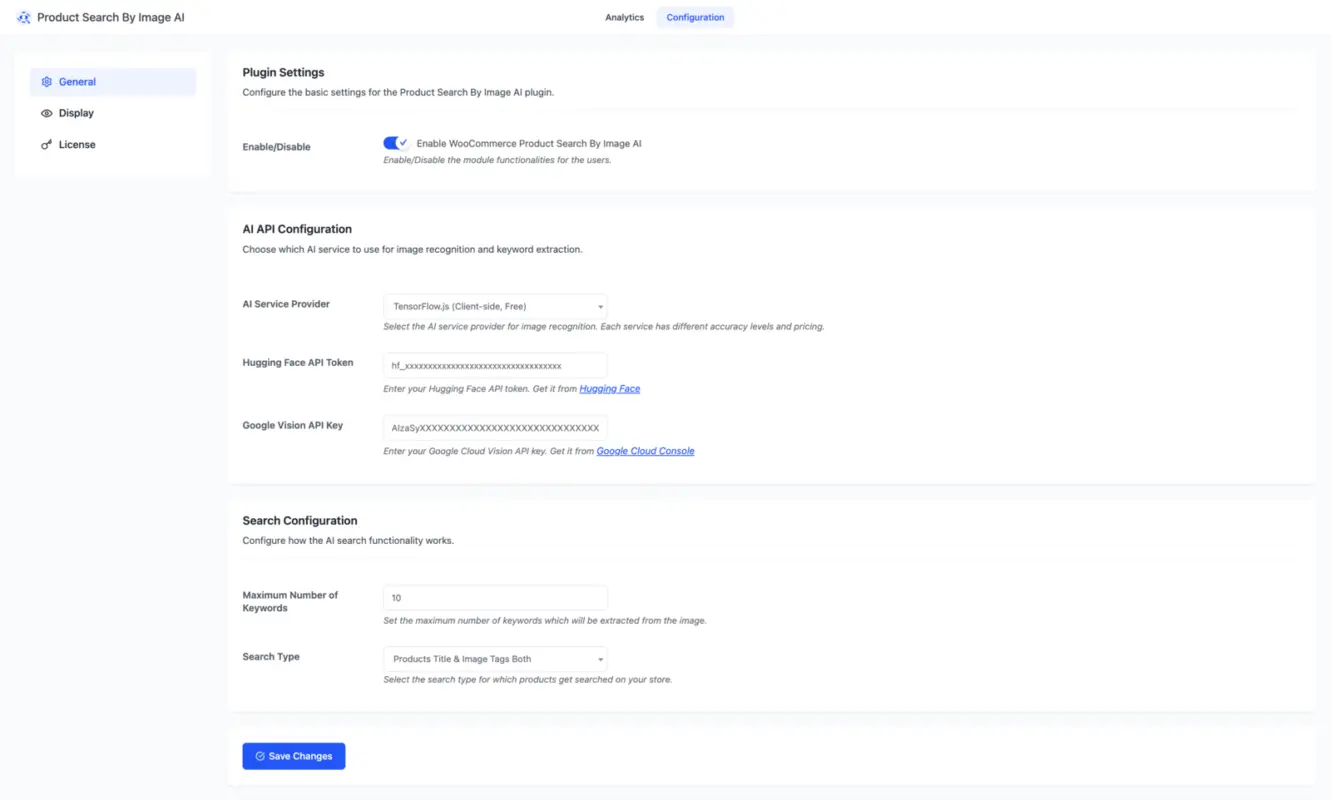
Plugin Settings
Enable WooCommerce Product Search By Image AI: Enable/Disable the module functionalities for the users.
AI API Configuration
Choose which AI service to use for image recognition and keyword extraction.
- AI Service Provider: Select the AI service provider for image recognition. Each service has different accuracy levels and pricing. Available options are TensorFlow.js (Client-side, Free), Hugging Face (1,000 free requests/month) and Google Vision API (1,000 free requests/month).
- Hugging Face API Token: Enter your Hugging Face API token. Get it from Hugging Face.
- Google Vision API Key: Enter your Google Cloud Vision API key. Get it from Google Cloud Console
Search Configuration
Configure how the AI search functionality works.
- Maximum Number of Keywords: Set the maximum number of keywords that will be extracted from the image.
- Search Type: Select the search type for which products get searched on your store.
Display Configuration
Keywords Display Settings
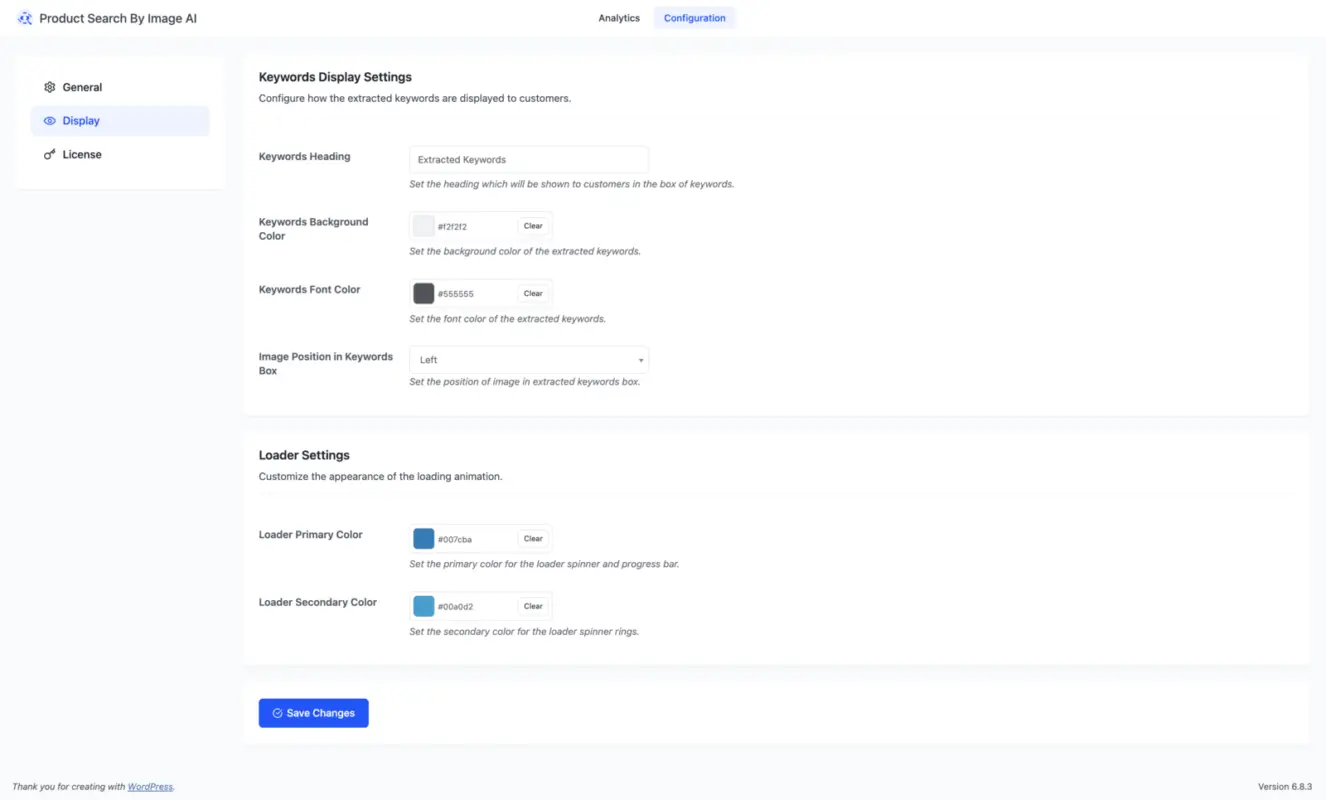
Configure how the extracted keywords are displayed to customers.
- Keywords Heading: Set the heading that will be shown to customers in the box of keywords.
- Keywords Background Color: Set the background color of the extracted keywords.
- Keywords Font Color: Set the font color of the extracted keywords.
- Image Position in Keywords Box: Set the position of the image in the extracted keywords box.
Loader Settings
Customize the appearance of the loading animation.
- Loader Primary Color: Set the primary color for the loader spinner and progress bar.
- Loader Secondary Color: Set the secondary color for the loader spinner rings.
Product End of the Plugin
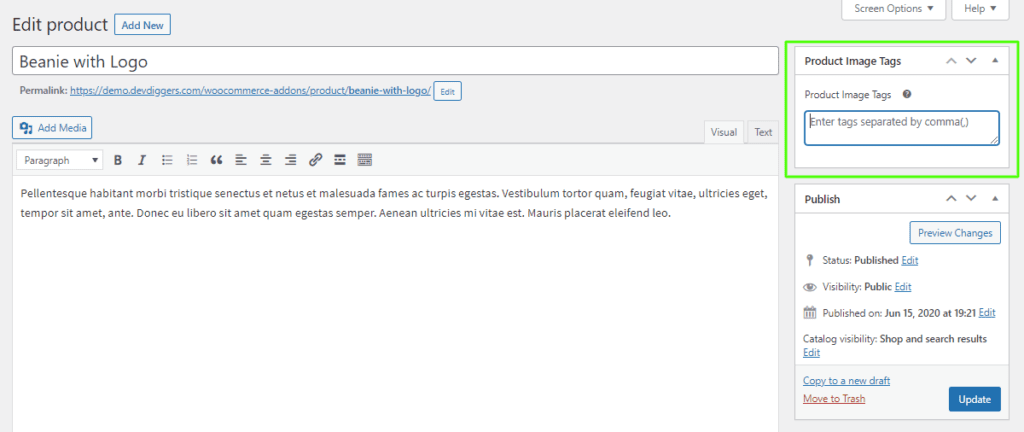
Suppose the WooCommerce Product Search By Image AI plugin setup page’s product image tags search option is chosen. In that case, the admin may add an infinite number of image tags to the products from the backend, allowing them to be searched for in the front end when users perform image searches.
Front End of the Plugin
When customers visit the store page, they may use this plugin to upload any image by finding the image icon in the search bar. The plugin then uses a machine learning algorithm to identify the content in the picture and provide the results displayed below.
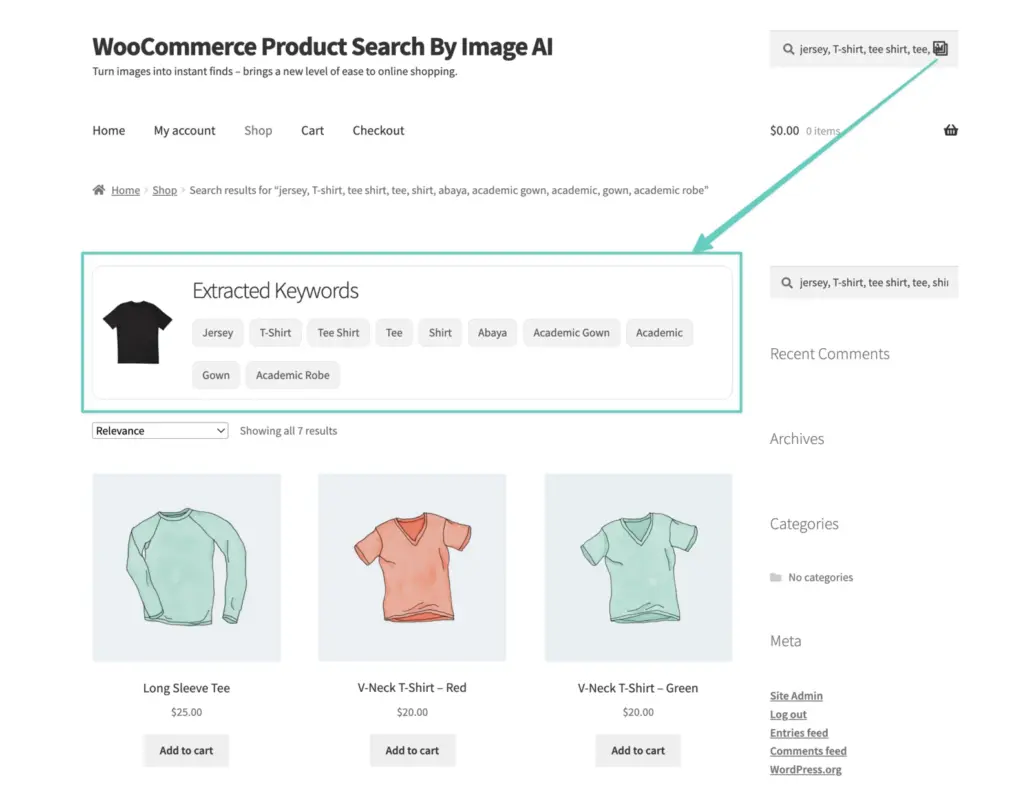
After the image upload, viewers can see the results as shown below.
Multilingual
The plugin’s languages folder contains a .pot file that the admin can use to translate the plugin.
Support
If you have any concerns, need assistance with our WooCommerce extensions, or want customizations, contact us through our contact page. We will do our best to provide immediate assistance.
Kartika Musle
Kartika Musle is a tech writer at DevDiggers covering WooCommerce features, web design, and development security. Her articles translate technically dense subjects into guides that a non-developer can follow without losing the detail that matters, drawing on a background that touches both design and development.
Join thousands of readers getting smarter every week.
Leave a Reply