You can fix ERR_NAME_NOT_RESOLVED in most cases within five to ten minutes, without touching a single line of code.
There’s one thing most guides skip, though: you need to know whether the problem lives on your device or on the website itself. The fix is completely different for each.
This guide starts with a 30-second diagnostic, then gives you exact fixes for Windows, Mac, Linux, Android, and iPhone.
If you manage a website or online store and it’s your own domain that’s throwing the error, there’s a dedicated section for you too, covering DNS records and nameservers.
What Does ERR_NAME_NOT_RESOLVED Mean?
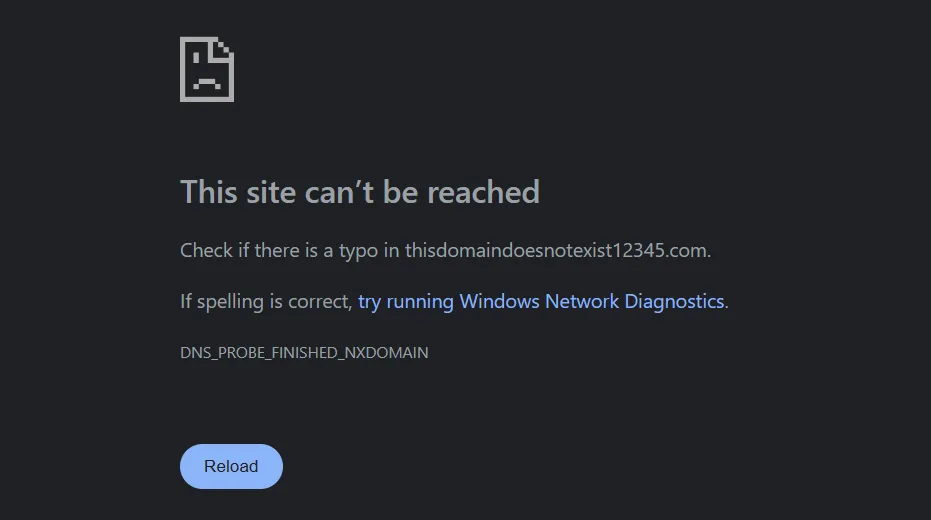
ERR_NAME_NOT_RESOLVED means your browser asked the Domain Name System (DNS) to translate a web address into an IP address, and the request failed. Without that IP address, your browser has nowhere to send the connection request, so the page never loads.
Think of DNS as a phone book for the internet. You type a name like example.com, and DNS looks up its IP address so your browser knows where to connect. When that lookup fails, Chrome shows “This site can’t be reached” with the ERR_NAME_NOT_RESOLVED code. Firefox shows “Hmm. We’re having trouble finding that site.” Safari and Edge use their own wording, but the underlying cause stays the same: the domain name never resolved to an address.
You’ll also see this written net::ERR_NAME_NOT_RESOLVED in developer consoles and error logs. It’s the same error, just Chrome’s internal network stack labelling.
This is a client-facing DNS error, not a server crash, and that distinction matters. A server crash usually still resolves the domain name and then fails to load the page content. ERR_NAME_NOT_RESOLVED fails one step earlier, before your browser even knows where to send the request.
That earlier failure point is exactly why this error confuses so many site owners. Your hosting dashboard can show everything green, and your server can be running fine, but visitors will still see ERR_NAME_NOT_RESOLVED if the domain-to-IP lookup itself is broken. The server never even gets a chance to respond because the request never arrives.
Quick Diagnostic: Is It Just You, or the Whole Site Down?
This is the step most guides skip, and it’s the one that saves the most time. Before clearing caches or touching DNS settings, spend 30 seconds figuring out where the problem actually sits.
People on Reddit and the Shopify community report the same mistake constantly. An hour gets lost on client-side fixes when the real issue was a DNS record, or it goes the other way, and someone chases a DNS change that was never the problem.
Run through this quick check:
| Test | If it works | If it fails too |
|---|---|---|
| Open the site on your phone using mobile data (not Wi-Fi) | The problem is with your Wi-Fi or router | Move to the next test |
| Open the site on a different network (a friend’s Wi-Fi, a hotspot) | The problem is your home or office network | Move to the next test |
| Open a different, well-known site (like google.com) | The issue is specific to that one domain | The issue is with your device or network |
| Ask someone in another location to try the same site | It loads for them, so the DNS problem is likely on the site owner’s end | Everyone’s affected, which usually points to DNS misconfiguration |
If only you’re affected on one network, the client-side fixes below will almost always solve it.
If the site is down for everyone, everywhere, skip ahead to the site-owner section. The fix lives in the domain’s DNS configuration, not your computer. No amount of cache flushing on your end will change that.r down. The fix lives on the domain’s DNS configuration in that case, not on your computer. No amount of cache flushing on your end will change that.
How to Fix ERR_NAME_NOT_RESOLVED on Desktop, Android and iPhone
Desktop and mobile devices resolve DNS a little differently, so the fixes below are split by platform. Chrome on mobile also keeps its own cache layer, separate from the operating system’s cache, which is why a fix that clears the problem on desktop sometimes doesn’t carry over to your phone at all.
On Windows, Mac and Linux
If the diagnostic pointed to your device or network, work through these steps in order. Most people are fixed by step 4.
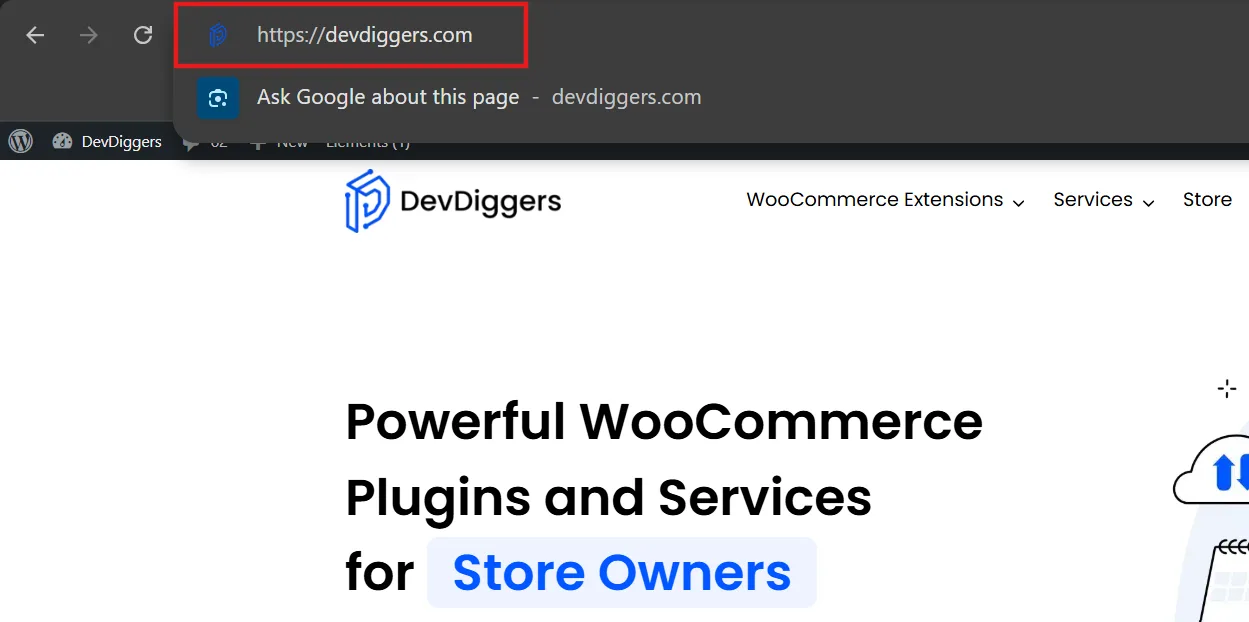
- Retype the address by hand instead of trusting autocomplete, since a misspelt domain or extra period triggers this exact error.
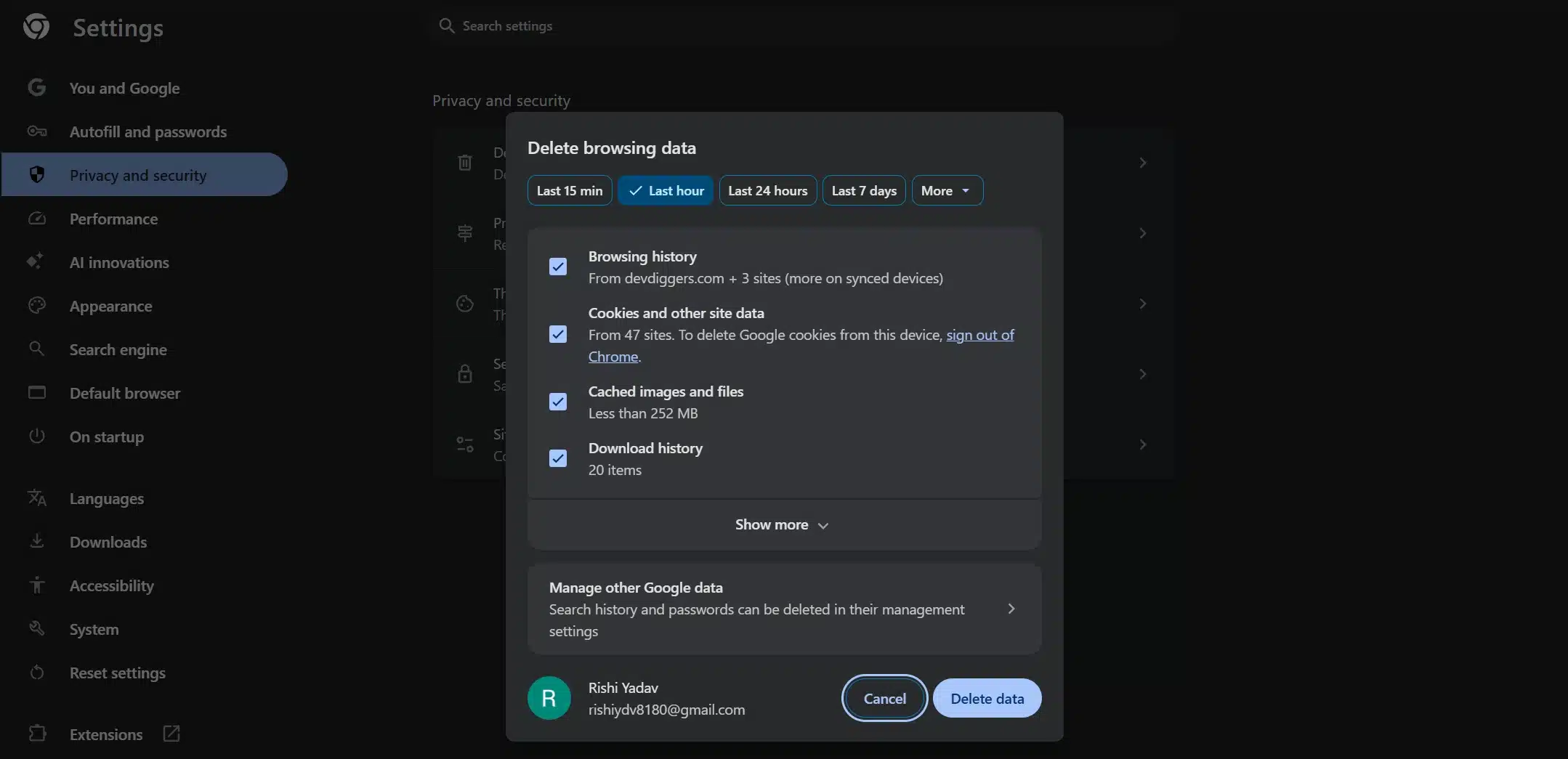
- Clear your browser’s cache and cookies for “all time,” not just the last hour or day, since outdated cached data can point to a dead IP.
- Flush your device’s DNS cache. Windows: run
ipconfig /flushdnsin Command Prompt as administrator. Mac: runsudo dscacheutil -flushcachein Terminal. Linux (systemd): runsudo systemd-resolve --flush-caches.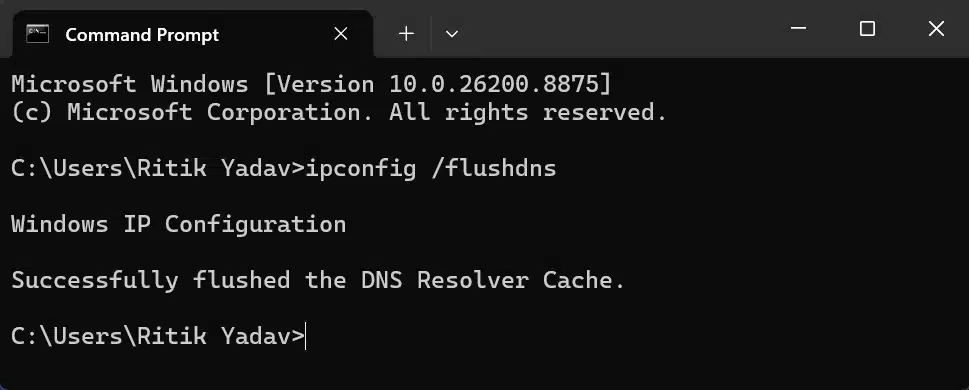
- Switch to Google DNS (
8.8.8.8/8.8.4.4) or Cloudflare DNS (1.1.1.1/1.0.0.1) through your network adapter settings.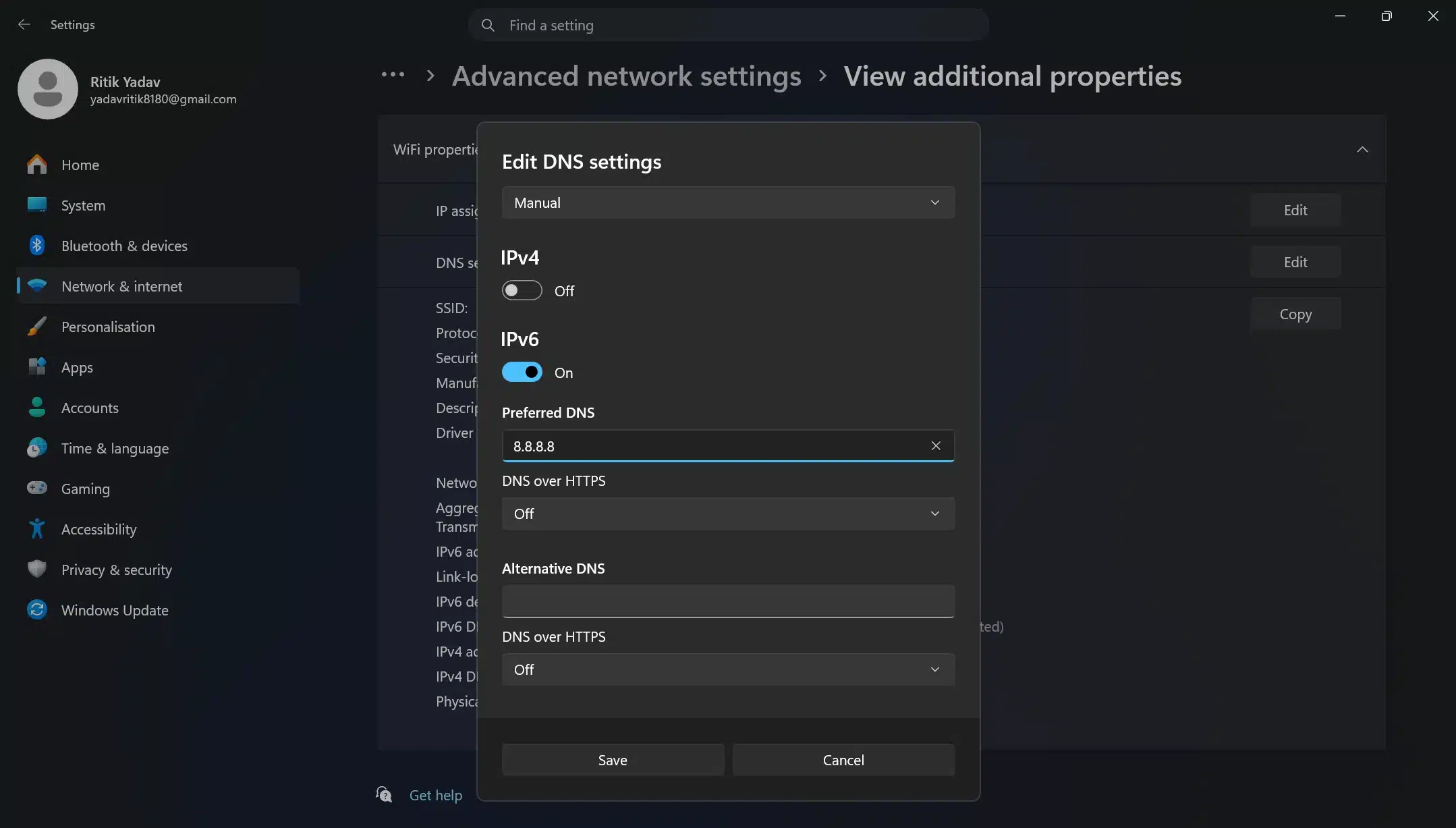
- Check your hosts file, located at
C:\Windows\System32\drivers\etc\hostson Windows or/etc/hostsOn Mac and Linux, fix bad entries and remove them after backing up the file.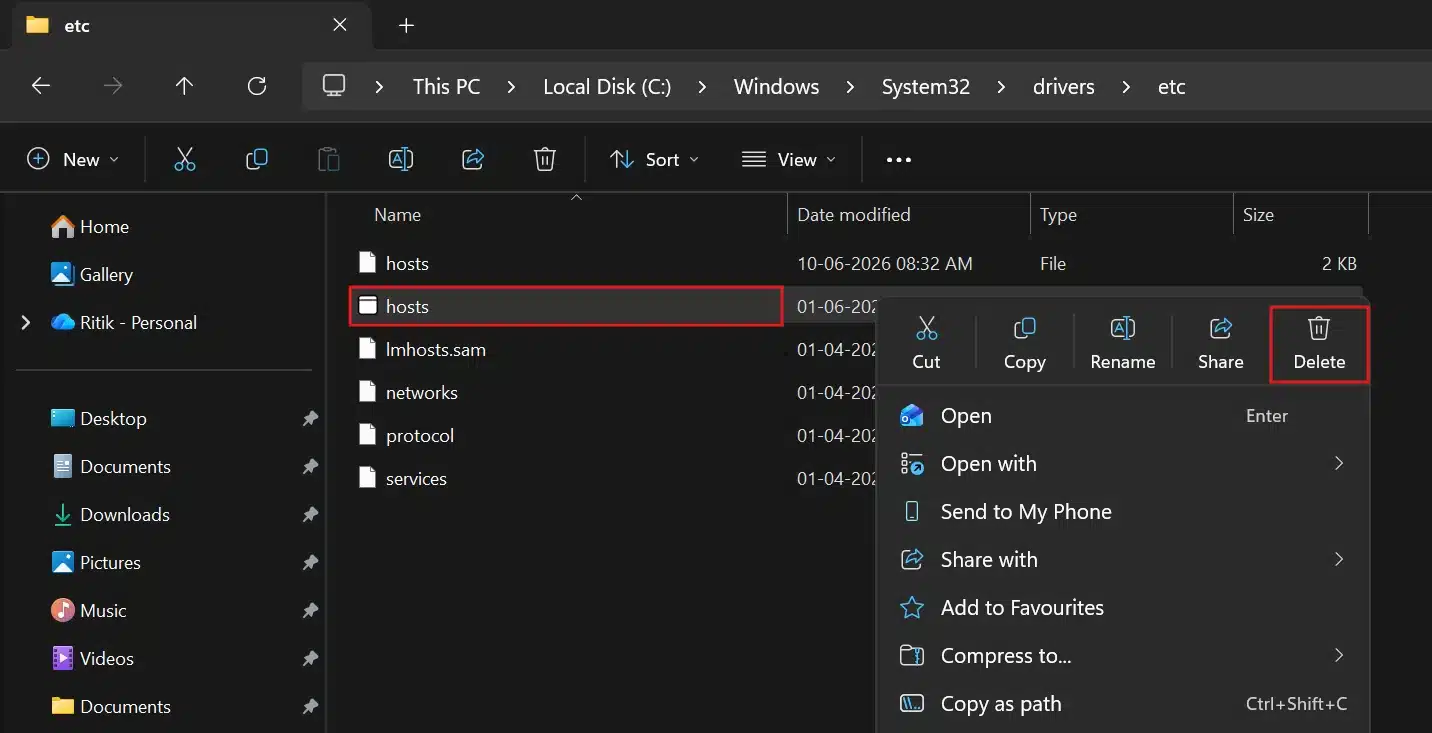
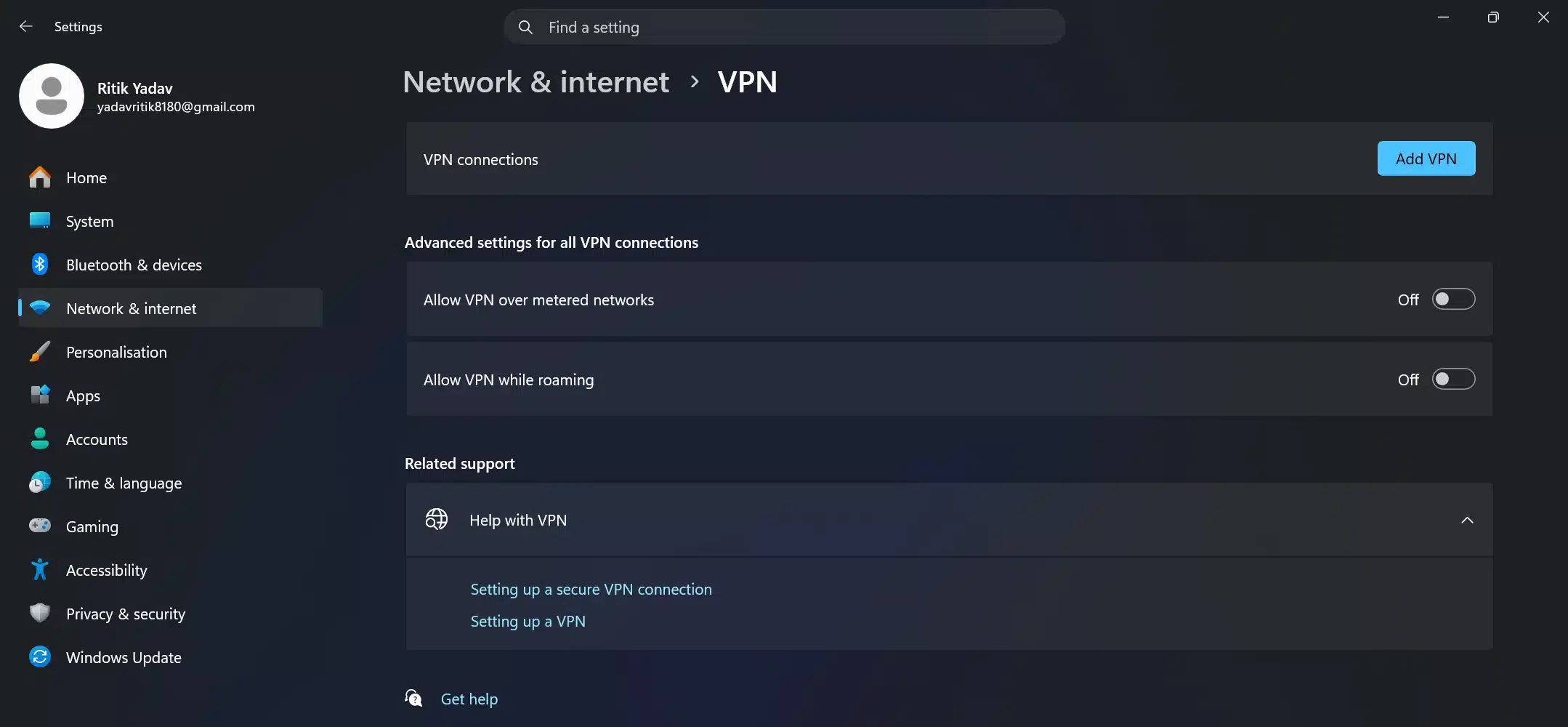
- Temporarily disable your VPN or proxy, since a misconfigured VPN server can produce this exact error.
- Reset your firewall to default settings to rule out overly strict rules blocking DNS queries.
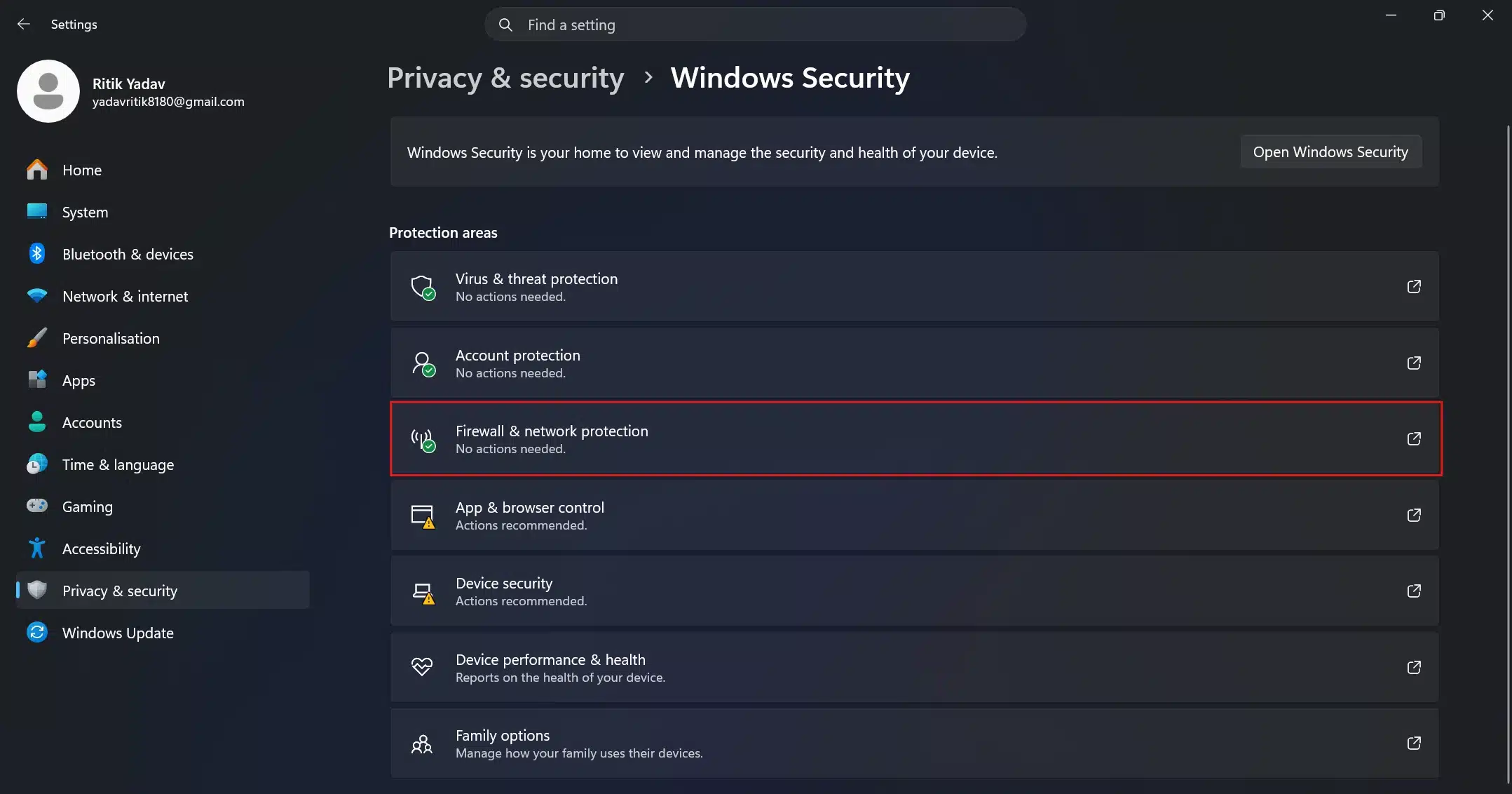
If you’ve worked through all eight steps and the error persists on every site you try, run a full malware scan. Malware that hijacks DNS settings produces the same symptoms as a simple misconfiguration. The cause is just less innocent.
On Android
- On your Android Phone, open Chrome → Settings.
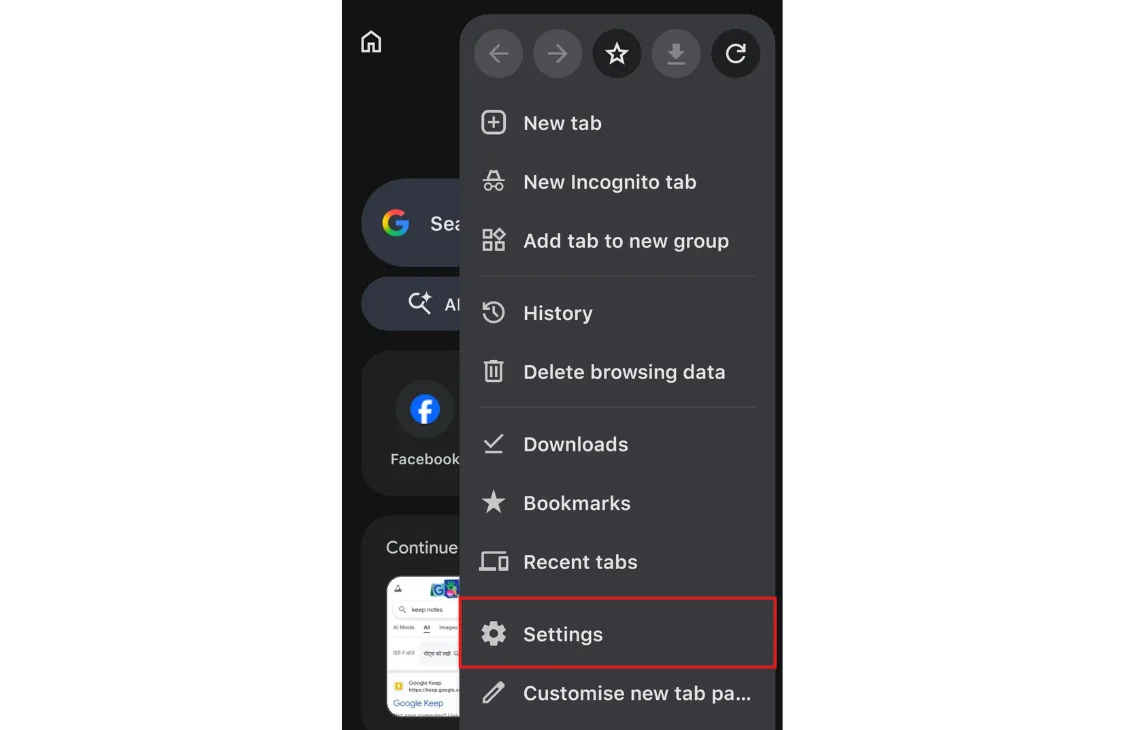
- Then, Privacy and Security → Preload pages.
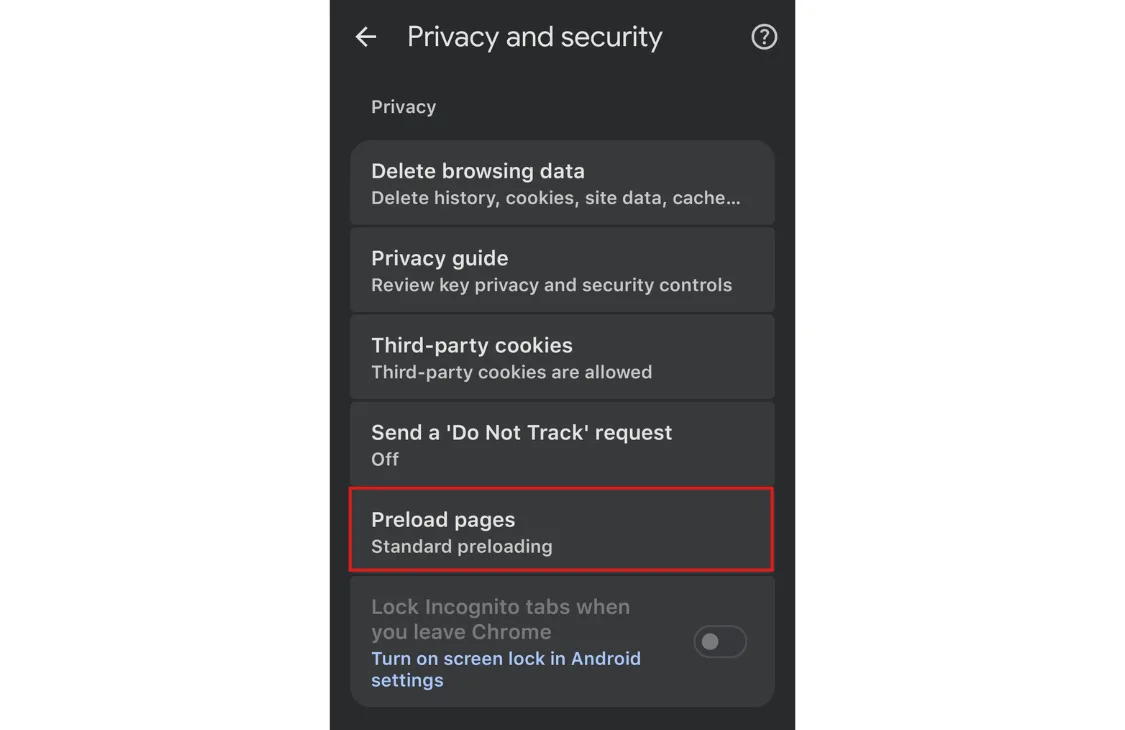
- Select “Turn off”. This setting silently caches DNS data for sites you haven’t even visited yet.
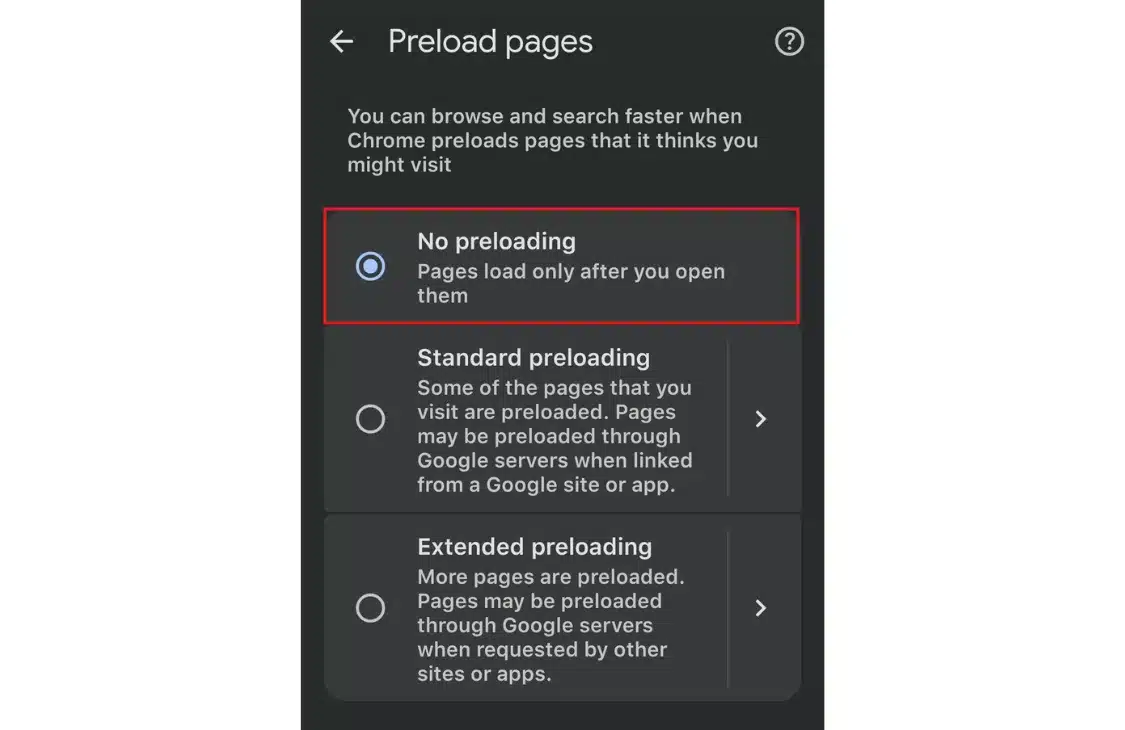
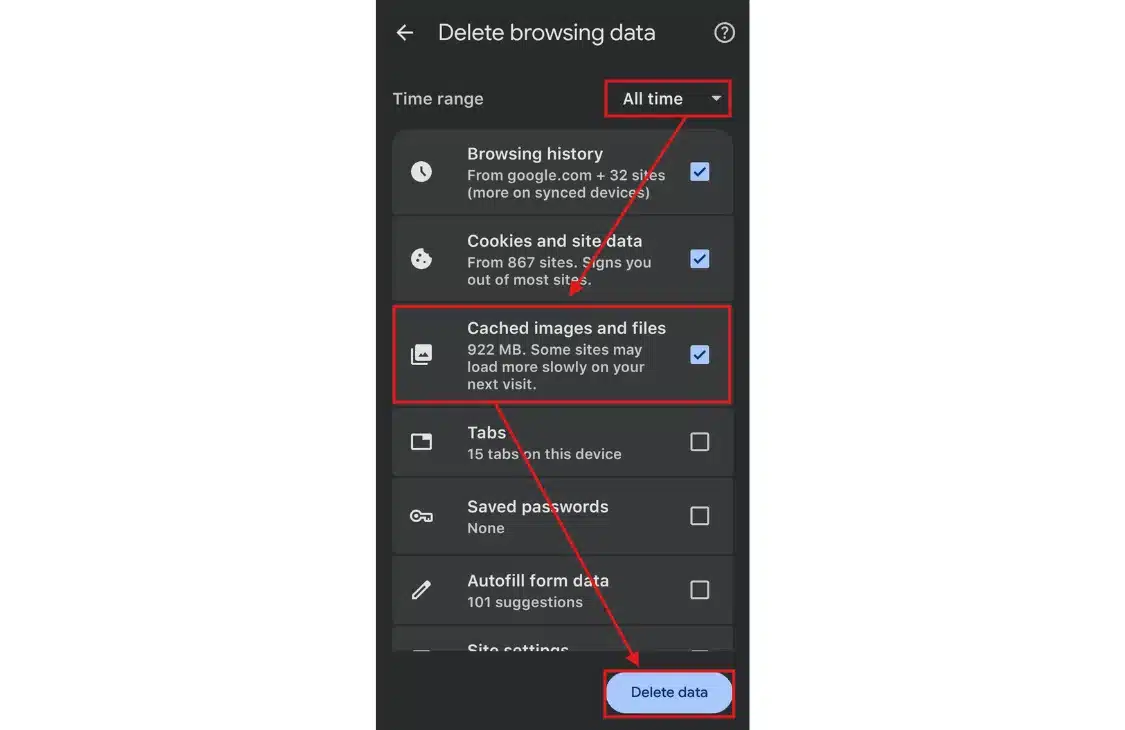
- Now, Privacy and Security → Delete browsing data.
- Select “All time,” check “Cached images and files,” and click Delete data.
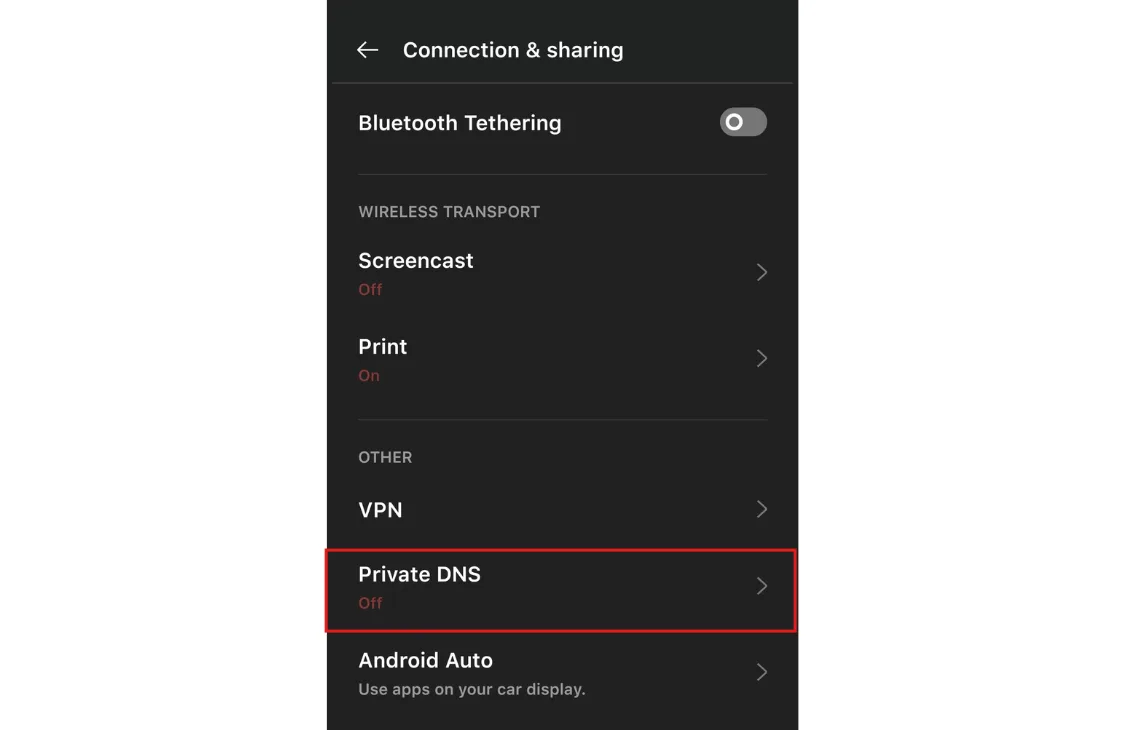
- If you’re a user on Android 9+, set a Private DNS provider. Go to Settings → Network and Internet → Private DNS.
- Then select Private DNS → Designated DNS, and enter
dns.googleas the hostname.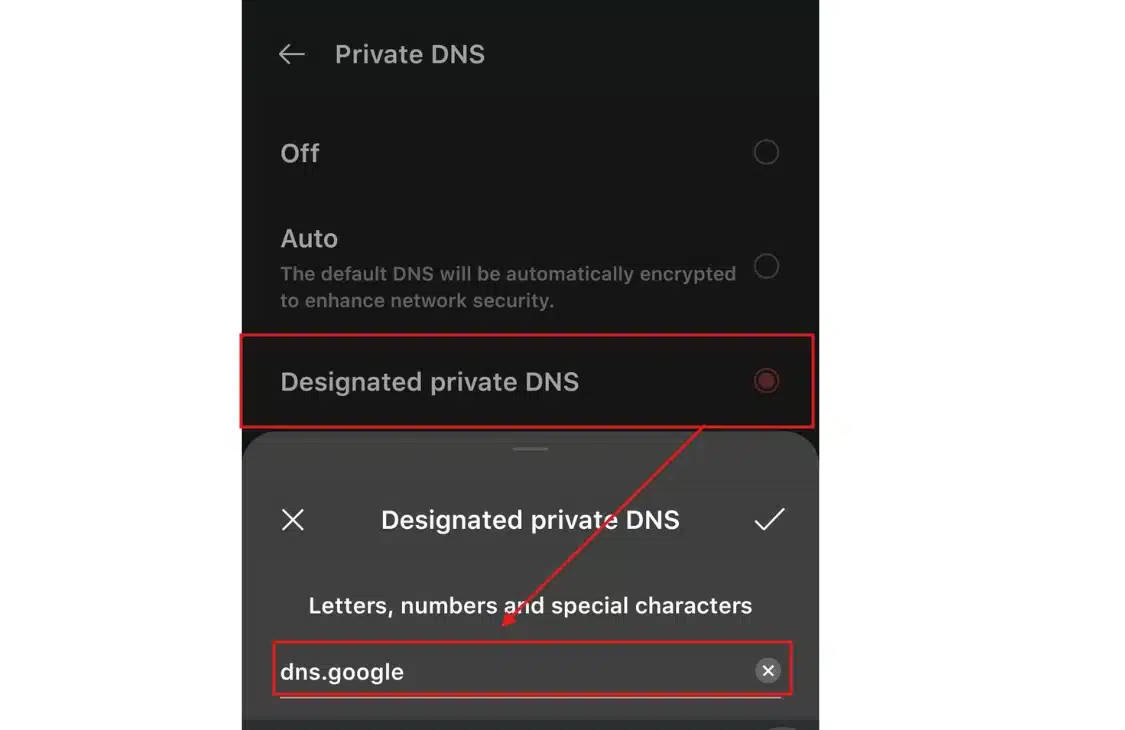
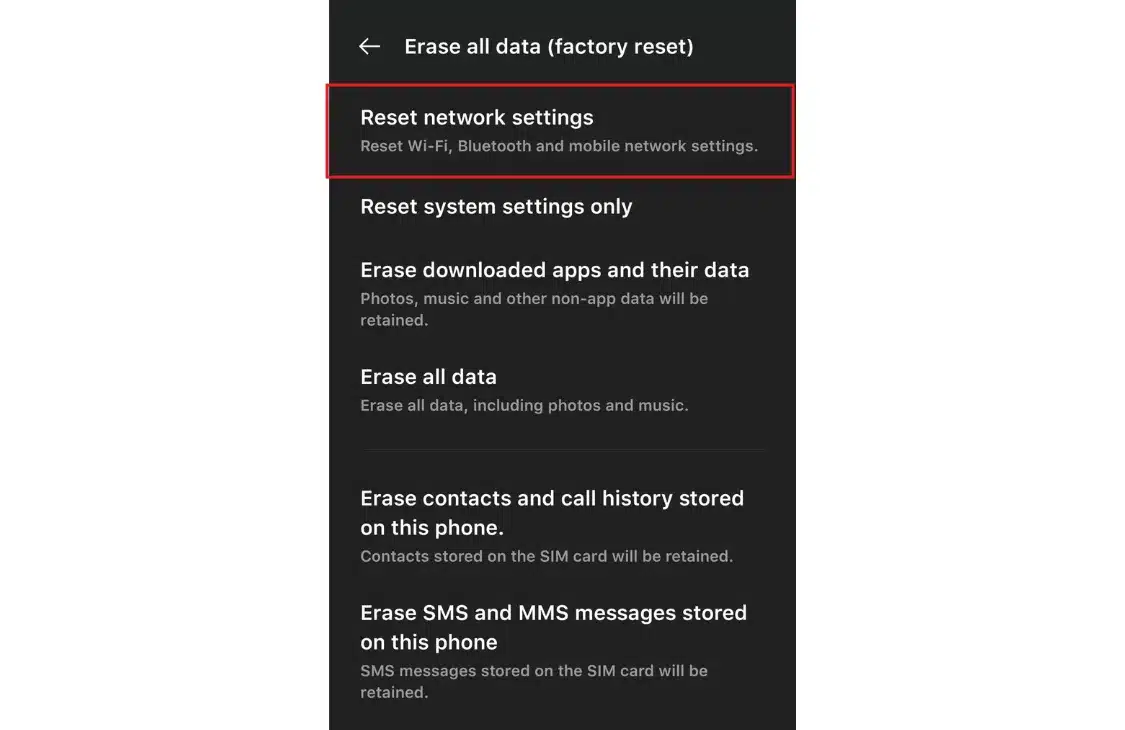
- As a last resort, go to Settings → Reset options → reset network settings. This clears saved Wi-Fi passwords too, so make sure you have them written down first.
On iPhone
- Go to Settings → Wi-Fi Tab.
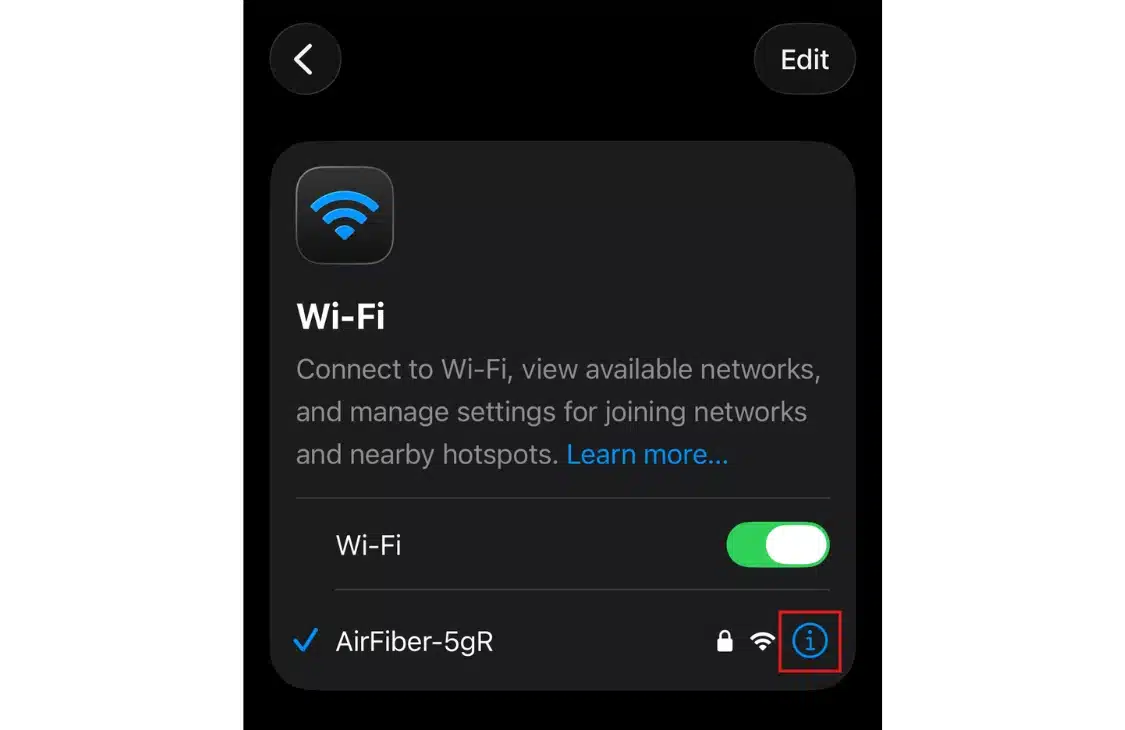
- Tap the “i” next to your network to select Configure DNS.
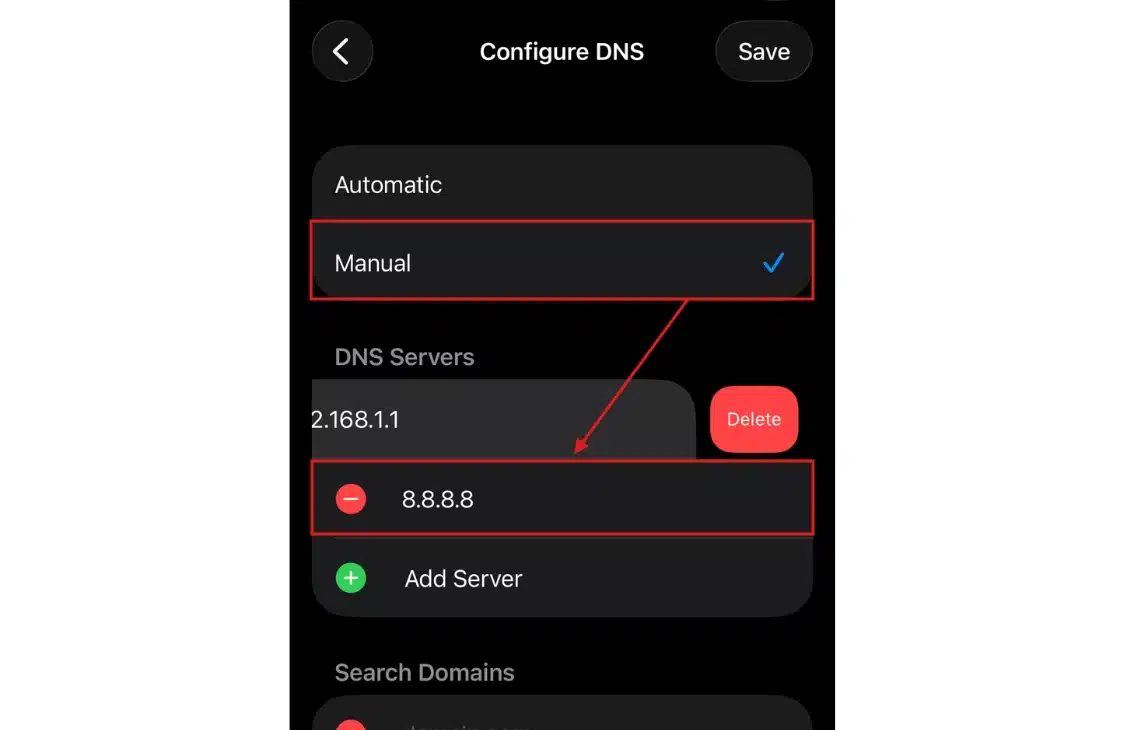
- Switch from Automatic to Manual, remove the existing entries, and add 8.8.8.8 and 8.8.4.4.
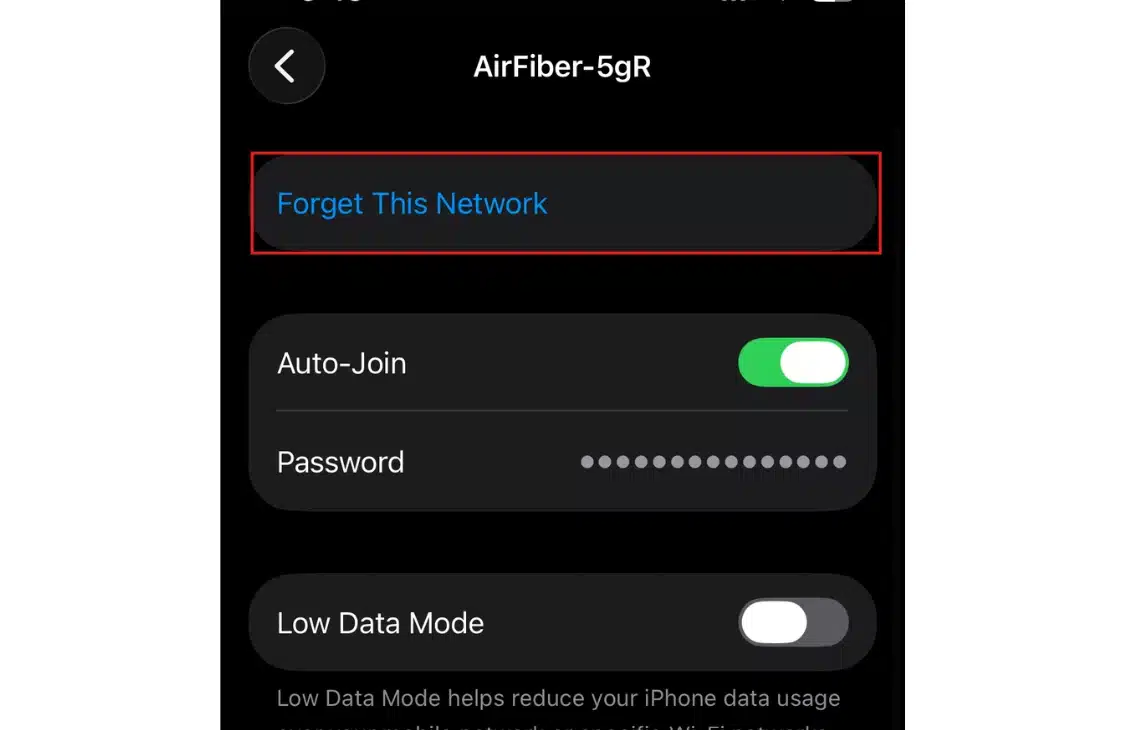
- If the site still won’t load, forget the Wi-Fi network entirely and reconnect. This forces a completely fresh DNS lookup instead of reusing whatever the network previously handed to your phone
Pro Tip: If the problem only happens inside one app rather than in Safari, check that app’s settings. Some apps carry their own DNS-over-HTTPS setting, and it can end up misconfigured or pointed somewhere unreachable.
If It’s Your Own Website: Fixing It at the DNS and Hosting Level
Here’s what most troubleshooting guides don’t tell you. If your diagnostic test showed the site is down for everyone, everywhere, none of the fixes above will help. The problThe problem isn’t on any visitor’s device. It’s in your domain’s DNS configuration, and only you or your host can fix it.
Work through this checklist:
- Confirm the domain hasn’t expired: An expired domain stops resolving almost immediately, and it’s the most common cause of a site-wide ERR_NAME_NOT_RESOLVED.
- Verify your nameservers: Run a WHOIS lookup and confirm they match what your host or DNS provider assigned. A typo, often left over from a migration, breaks the resolution for every visitor at once.
- Check that your A record points to the correct IP: If you recently changed hosts, your DNS records need to point to the new server. This gets missed constantly during migrations.
- Give DNS propagation time to finish: Changes can take a few minutes to 48 hours to reach every resolver worldwide. If you just made a change, the error might just mean propagation isn’t done yet.
We see this pattern often: A store owner migrates hosts, updates the A record, but forgets the domain is still pointed at the old registrar’s nameservers. The new host’s dashboard looks fine, but visitors still get ERR_NAME_NOT_RESOLVED because DNS never actually switched over at the registrar level. Check nameservers before touching anything else; it’s a five-minute step that saves hours of confusion later.
None of this is instant. Even a correctly executed DNS fix can take up to two days to reach every resolver globally, with no way to speed it up once submitted. If your site can’t afford that downtime during a migration, plan the cutover carefully. A team that handles both the DNS switch and WordPress speed optimization together tends to avoid this problem, sequencing the cutover to minimise the resolution gap.
If your site also feels slow once it’s back up, that’s worth a separate look. Slow response times and DNS misconfiguration often get diagnosed together, since both can be traced back to a recent hosting change. Our guide on slow website loading issues covers the most common causes once the problem itself is sorted out.
ERR_NAME_NOT_RESOLVED vs. Similar DNS Errors
Several browser errors look related to ERR_NAME_NOT_RESOLVED but point to different problems. Knowing which one you’re actually facing saves you from troubleshooting the wrong layer entirely.
| Error | What it means | Where the fix lives |
|---|---|---|
| ERR_NAME_NOT_RESOLVED | DNS lookup failed entirely; no IP address was found | Client DNS settings, or the domain’s DNS records |
| DNS_PROBE_FINISHED_NXDOMAIN | DNS responded, but the domain doesn’t exist | Almost always, the domain itself, often a typo or an unregistered domain |
| ERR_TOO_MANY_REDIRECTS | DNS worked fine, but the site is stuck in a redirect loop | Server-side redirect rules or SSL configuration |
| ERR_INTERNET_DISCONNECTED | Your device has no active internet connection at all | Your local network or ISP, before DNS is even involved |
If you’re seeing timeouts rather than an immediate failure, that’s a different symptom. It’s worth checking against a connection timed out error instead, since the underlying cause and the fix both differ from a straightforward DNS lookup failure.
Preventing ERR_NAME_NOT_RESOLVED in the Future
A few habits cut down on how often you’ll see this error again.
- Keep your browser and operating system updated as DNS handling occasionally changes between versions.
- Use a reliable public DNS provider by default instead of whatever your ISP assigns automatically.
- Set a calendar reminder well before any domain renewal date, so an expired registration never catches you off guard.
- If you manage a site, document your nameservers and DNS records somewhere outside your hosting dashboard. That way, a migration doesn’t turn into guesswork under time pressure, and you won’t be locked out of your own records if the dashboard itself becomes unreachable.
For site owners, add one more habit: whenever you change hosts or DNS providers, keep the old configuration active until the new one resolves correctly from multiple networks. A short overlap window costs nothing, and it turns a potential outage into a non-event.
Conclusion
ERR_NAME_NOT_RESOLVED almost always comes down to one of two things: either your device or network can’t complete a DNS lookup, or the domain’s own DNS configuration is broken for everyone. The 30-second diagnostic above tells you which one you’re dealing with before you waste time on steps that were never going to fix your specific problem.
For visitors, flushing your DNS cache and switching to a public DNS server clears up the vast majority of cases. For site owners, the fix almost always traces back to nameservers, DNS records, or propagation timing. Work through the right section above, and you should be back online well within the hour.
Frequently Asked Questions (FAQs)
Q1. Does ERR_NAME_NOT_RESOLVED mean my site was hacked?
Not on its own. The error simply means DNS couldn’t resolve your domain. That’s far more often caused by an expired domain, a nameserver typo, or unfinished propagation than by anything malicious. If you also notice unfamiliar DNS records you didn’t create, that’s worth investigating separately with your registrar.
Q2. Why does ERR_NAME_NOT_RESOLVED only happen in Chrome and not other browsers?
Chrome keeps its own separate DNS cache in addition to your operating system’s cache. It can hold onto outdated records after other browsers have already refreshed theirs. Clearing Chrome’s host cache at chrome://net-internals/#dns usually resolves browser-specific cases.
Q3. Can a VPN cause ERR_NAME_NOT_RESOLVED?
Yes. VPN apps route your DNS queries through their own servers. If that server is slow, misconfigured, or temporarily unreachable, you’ll see this exact error. Disabling the VPN and reloading the page is the fastest way to confirm it’s the cause.
Q4. How long does it take for a DNS fix to work after I change my DNS records?
Anywhere from a few minutes to 48 hours. It depends on the record type and the TTL(time to live) value set on your previous records. Nameserver changes generally take longer to fully propagate than individual record updates like an A record.
Q5. Does ERR_NAME_NOT_RESOLVED look different on Wi-Fi versus mobile data?
The error message itself is identical, but the cause often isn’t. If a site fails on Wi-Fi but loads fine on mobile data, the problem is almost always your router or local network. It’s rarely the website itself in that scenario.
Q6. Will restarting my computer fix ERR_NAME_NOT_RESOLVED?
Sometimes, but it’s a blunt fix. A restart clears your device’s DNS cache and resets network adapters, which solves the same class of problem as flushing DNS manually. If a restart doesn’t help, move on to changing your DNS server rather than restarting again, since repeating the same fix won’t change the outcome.