If you’re asking what WordPress is, here’s the short answer. It’s a free, open-source content management system that lets anyone build and run a website without writing a line of code. We work with WordPress sites every day at DevDiggers, and the platform still surprises people who think it’s only for blogs. More than 41% of all websites run on it, from personal projects to corporate newsrooms.
Most beginners picture WordPress as a rigid template you get stuck with. That’s not how it works anymore. In this guide, you’ll learn what WordPress actually is, how WordPress.org differs from WordPress.com, how the software works day to day, what kinds of sites you can build, what it really costs, and how to get your first site live.
What Is WordPress?
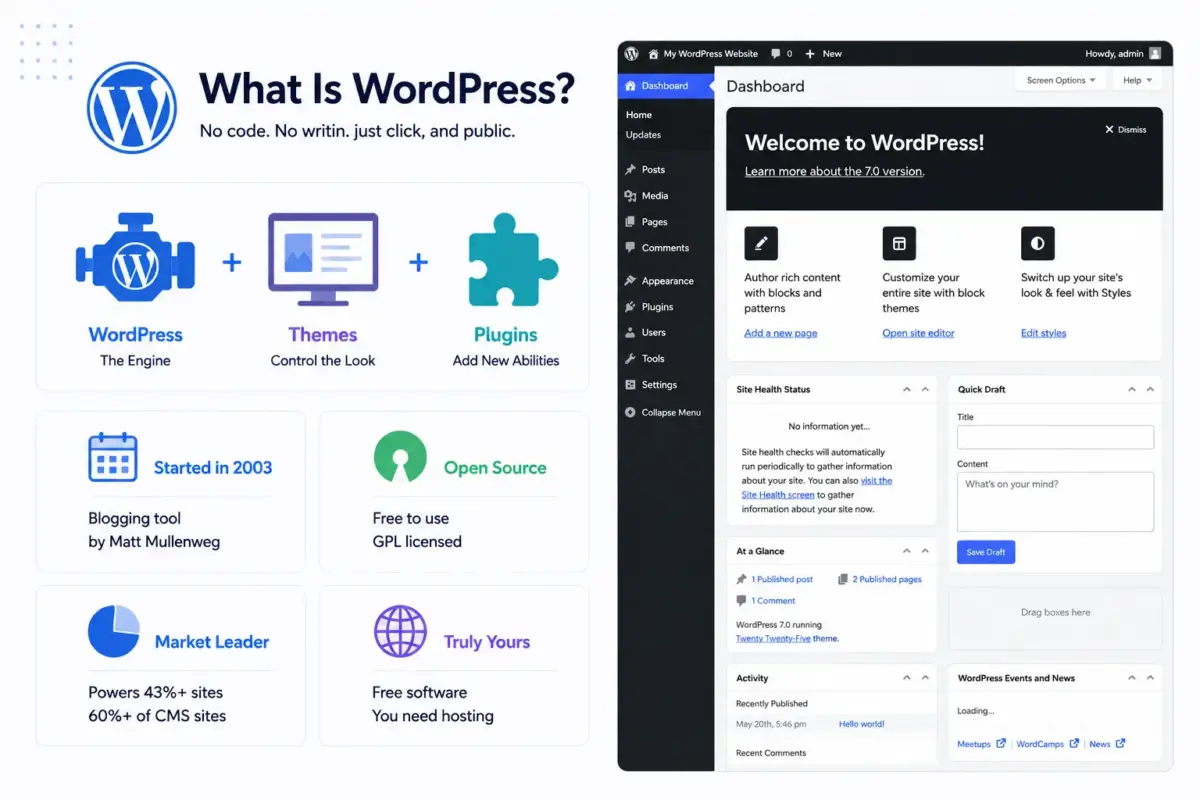
WordPress is a content management system, often shortened to CMS. That’s software that handles the Behind-the-scenes system of a website, so you can focus on writing, designing, and publishing content instead of code.
Picture it like this. WordPress is the engine. Themes control how your site looks. Plugins add new abilities, like a contact form or an online store. You don’t need to touch any of the wiring to make changes. You click, type, and publish.
WordPress started in 2003 as a small blogging tool built by Matt Mullenweg and Mike Little. It grew into something much bigger. Today, it’s open-source software, which means the code is free for anyone to use, study, and modify under the GPL license maintained by the WordPress open-source project.
That openness is the whole reason WordPress dominates the way it does. According to W3Techs, WordPress powers over 41% of all websites and more than 60% of sites built on a known CMS. No other platform comes close to that share.
Here’s the part beginners often miss. Free software doesn’t mean a free website. You still need a place to host your site and a domain name to point at it. WordPress itself, though, costs nothing, and nobody can take it away from you or shut it down.
WordPress.org vs WordPress.com: What’s the Difference?
This is the single most confusing thing for new users, and it trips up almost everyone at first. WordPress.org is the software itself, free to download and install anywhere. WordPress.com is a hosting company that runs the software for you, with its own rules and limits.
When people talk about “WordPress” as a flexible, fully customizable platform, they almost always mean self-hosted WordPress from WordPress.org. That’s the version this guide focuses on, and it’s what we set up for our clients.
| Feature | WordPress.org (Self-Hosted) | WordPress.com |
|---|---|---|
| Cost | Free software, you pay for hosting | Free plan available, paid tiers for more |
| Hosting | You choose your own provider | Included, locked to their servers |
| Themes and plugins | Unlimited, install anything | Limited unless on higher-paid plans |
| Custom domain | Yes, on any plan | Only on paid plans |
| Monetization | No restrictions | Limited on the free plan |
| Full control | Complete | Partial |
Think of it like renting versus owning. WordPress.com is renting an apartment. Someone else handles the building, but you follow their rules. Self-hosted WordPress owns the house. You’re responsible for the roof, but you can knock down walls whenever you want.
If you want full control over plugins, design, and how you make money from your site, a self-hosted WordPress setup is the route most serious site owners take. It costs a small amount for hosting, but the freedom is worth it for almost every business or growing blog.
How Does WordPress Actually Work?
WordPress runs on three main parts working together: the dashboard, themes, and plugins. Once you log in, everything happens through a visual interface. No code required.
The Dashboard
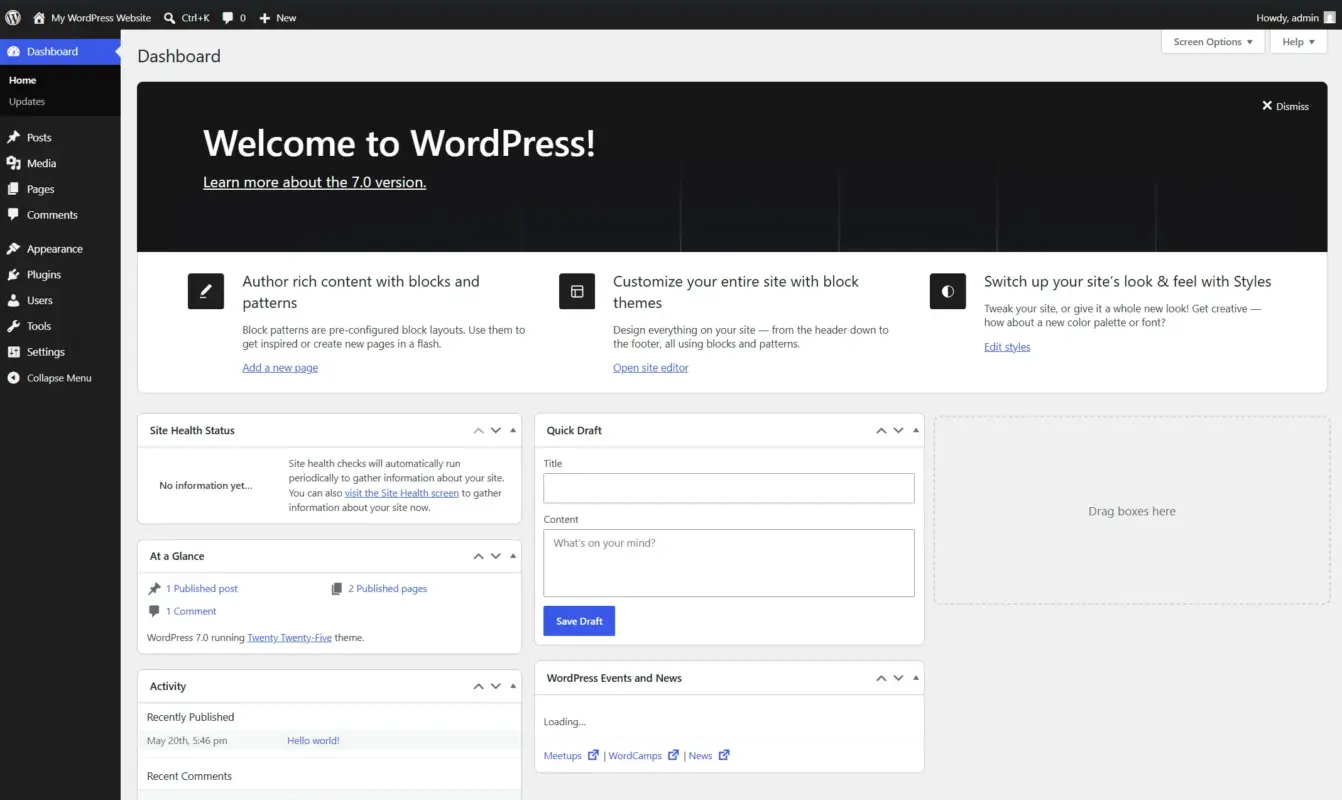
This is your control room. From here, you create posts and pages, upload images, check comments, and manage settings. Everything you do to your site starts here.
Themes
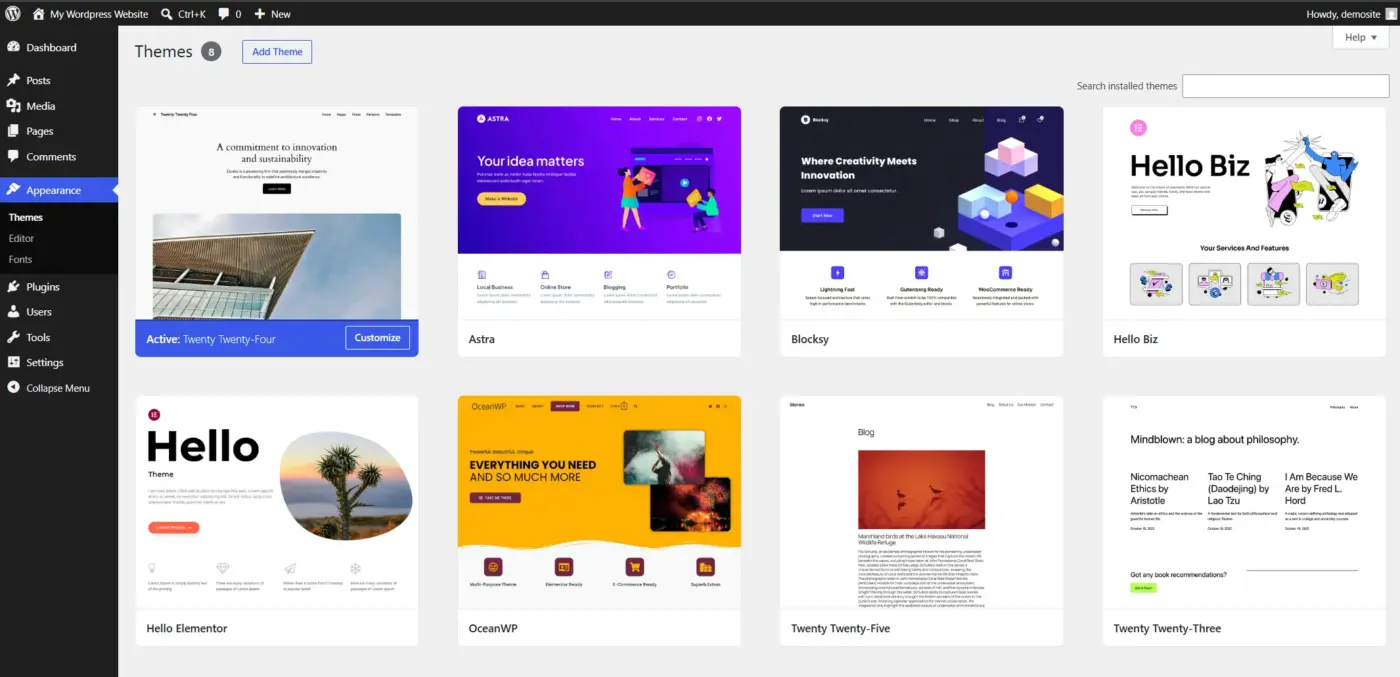
A theme controls your site’s design: colours, fonts, layout, and overall style. Switching themes can completely change how your site looks without touching your content. There are thousands of free options, plus premium themes with extra design features.
Plugins
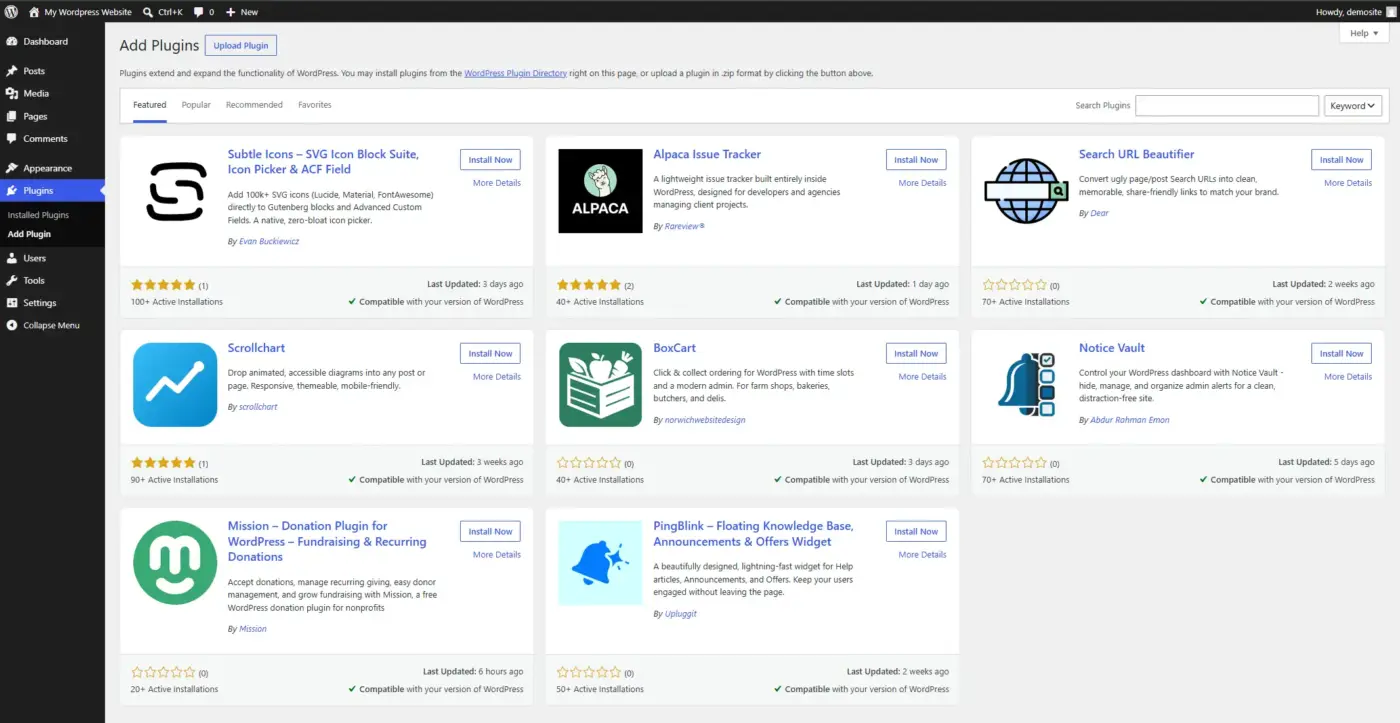
Plugins add features. Need a contact form? There’s a plugin. Want better SEO? Plugins like Yoast SEO walk you through optimising each page. Want to sell products? A plugin handles that too. The WordPress.org plugin directory alone has over 65,000 free options, and that doesn’t count premium ones.
The Block Editor
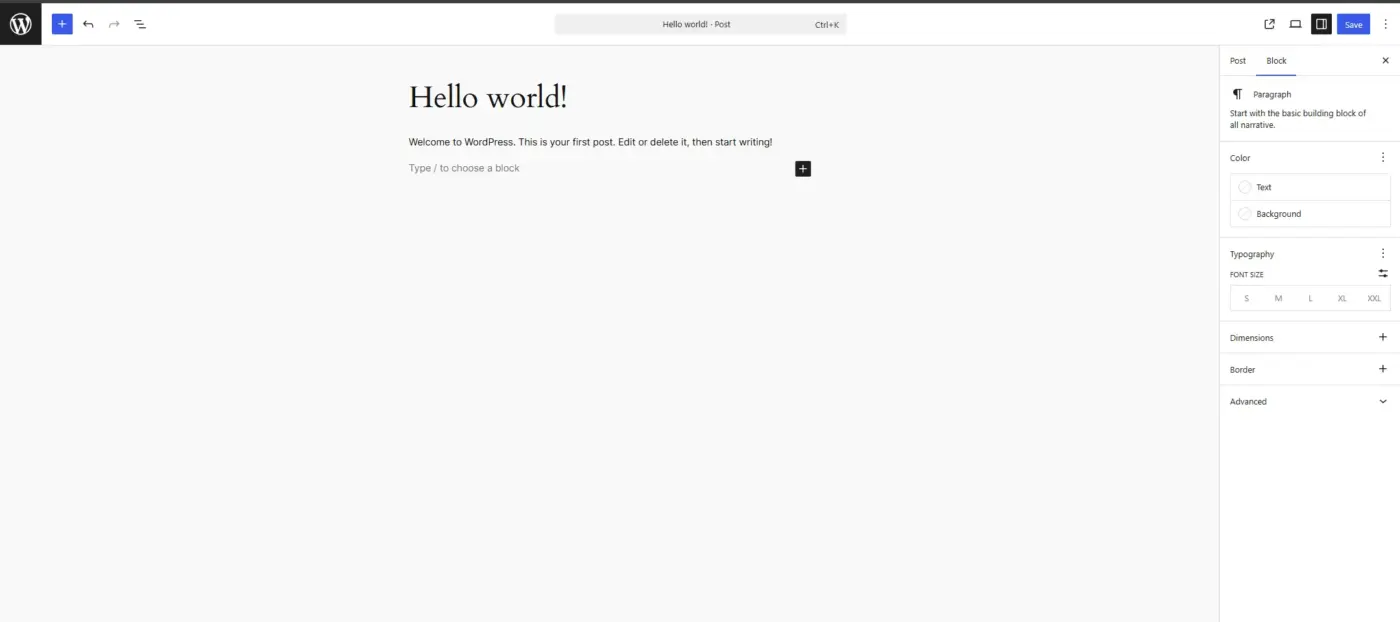
For writing posts and pages, WordPress uses what’s called the block editor, also known as Gutenberg. Every piece of content, a paragraph, an image, a button, a video, is its own block you can move, style, and rearrange. It’s closer to a drag-and-drop page builder than the plain text box WordPress used to have.
Here’s a practical example. Say you want to add a pull quote in the middle of a blog post. You click the plus icon, search for the “Quote” block, drop it in, and type. No HTML, no plugins needed for something that basic.
What Can You Build With WordPress?
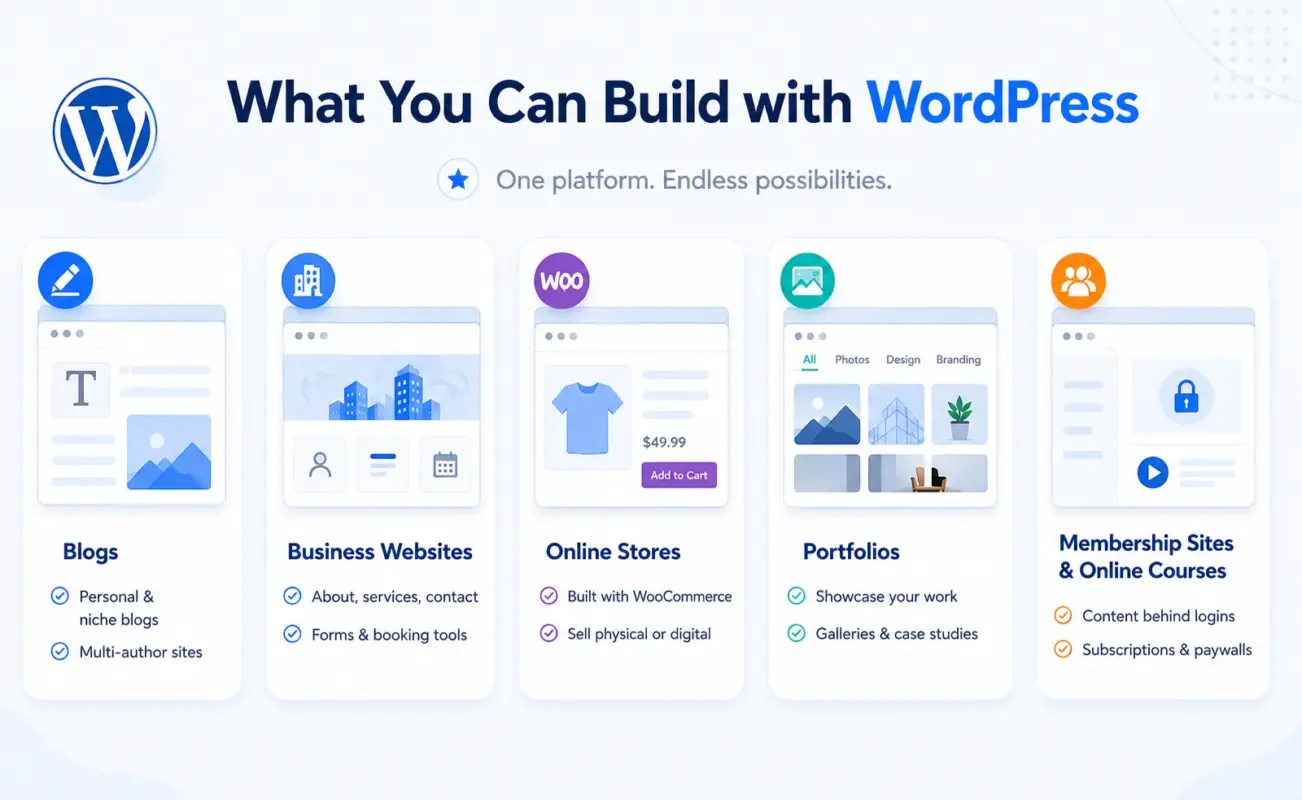
Short answer: almost anything. WordPress started as a blogging tool, but it grew into a full platform for any type of site.
Here’s what we see clients build most often:
- Blogs: The original use case is still a strong one. Personal sites, Specialized content hubs, and multi-author publications all run on WordPress.
- Business websites: About pages, service listings, contact forms, and booking tools are all manageable without a developer on retainer.
- Online stores: With the WooCommerce plugin, WordPress becomes a full eCommerce platform. You can set up WooCommerce on WordPress and start selling physical or digital products.
- Portfolios: Photographers, designers, and developers use WordPress to showcase work with galleries and case studies.
- Membership sites and online courses: Plugins can gate content behind logins or Paid access, turning a site into a subscription product.
That range is why WordPress shows up everywhere. Major outlets, government sites, and small local businesses all use the same core software, just configured differently. If you want a fuller breakdown of what’s possible, our guide to types of websites you can build with WordPress covers 25 examples with real screenshots.
One honest note here. WordPress can do almost anything, but can and should without help aren’t the same thing. A basic blog is a weekend project. A full WooCommerce store with custom shipping rules is not, and that’s where a lot of beginners get stuck.
What Does WordPress Really Cost?
The software is free. Running a real website on it isn’t, and most guides skip over this part. Here’s what you’re actually paying for.
The core costs:
- Domain name: Roughly $10-$20/year
- Hosting: Shared hosting starts around $3-$10/month, managed WordPress hosting runs $20-$60/month
- SSL certificate: Often included free with hosting now
- Premium theme (optional): $30-$100, one-time
- Premium plugins (optional): $20-$150/year, depending on what you need
A simple personal blog can run on $50-$100/year. A small business site or store usually costs between $300-$1,000/year once you factor in plugins and a decent host.
Pros of WordPress
- WordPress gives you full ownership of your content and design
- The plugin ecosystem means you rarely need custom development for common features
- The community is massive, so help is rarely more than a search away
Cons of WordPress
- You’re responsible for updates, backups, and security
- Plugins vary wildly in quality, and a poorly coded one can slow down or break your site
Here’s something we run into constantly with client sites. People budget for hosting and a theme, then forget that premium plugins often renew annually. A site that looked like it cost $200 to launch can quietly become a $400-$600/year bill once renewals stack up. Budget for that in advance, and you won’t get an unpleasant surprise later.
How to Get Started With WordPress: Step by Step
Getting a WordPress site running takes less time than most beginners expect. Here’s the realistic path.
Step 1: Try It Before You Commit
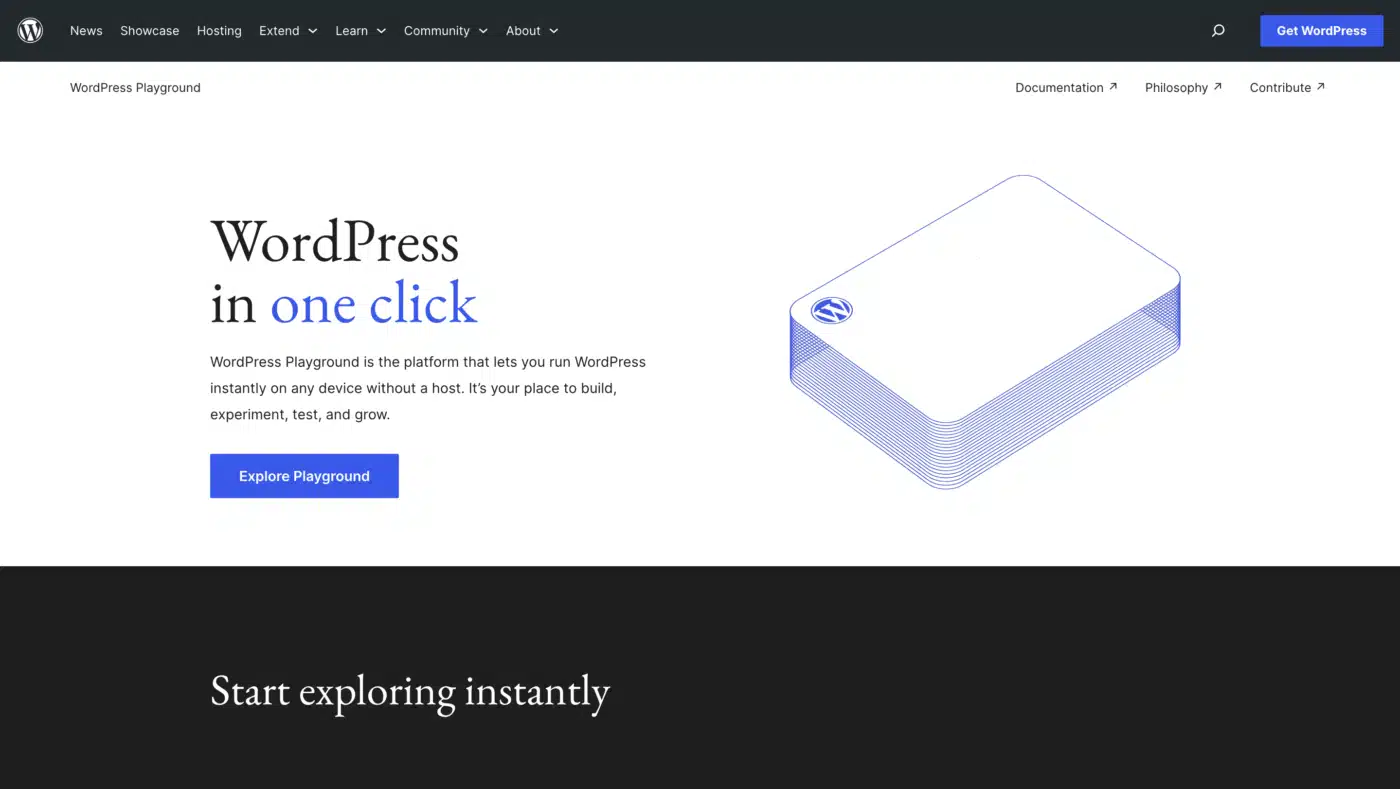
If you want to poke around the WordPress dashboard without buying anything yet, WordPress Playground lets you run a full WordPress site in your browser. No hosting, no signup, just instant access to see what you’d be working with.
Step 2: Buy a Domain and Hosting
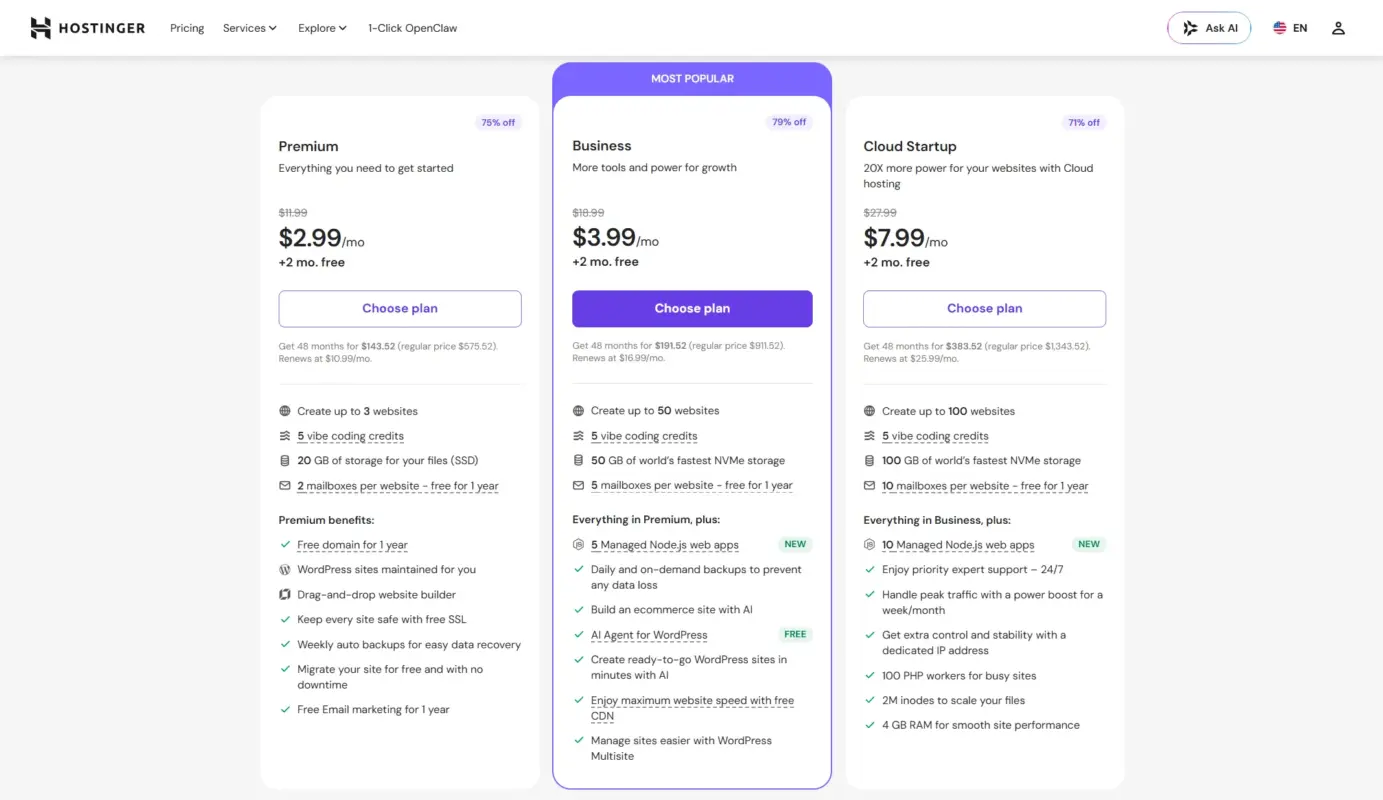
Pick a domain name that’s short and easy to remember. Choose a hosting plan that supports one-click WordPress installs, which most providers do now. You can either use Hostinger or Bluehost.
Step 3: Install WordPress
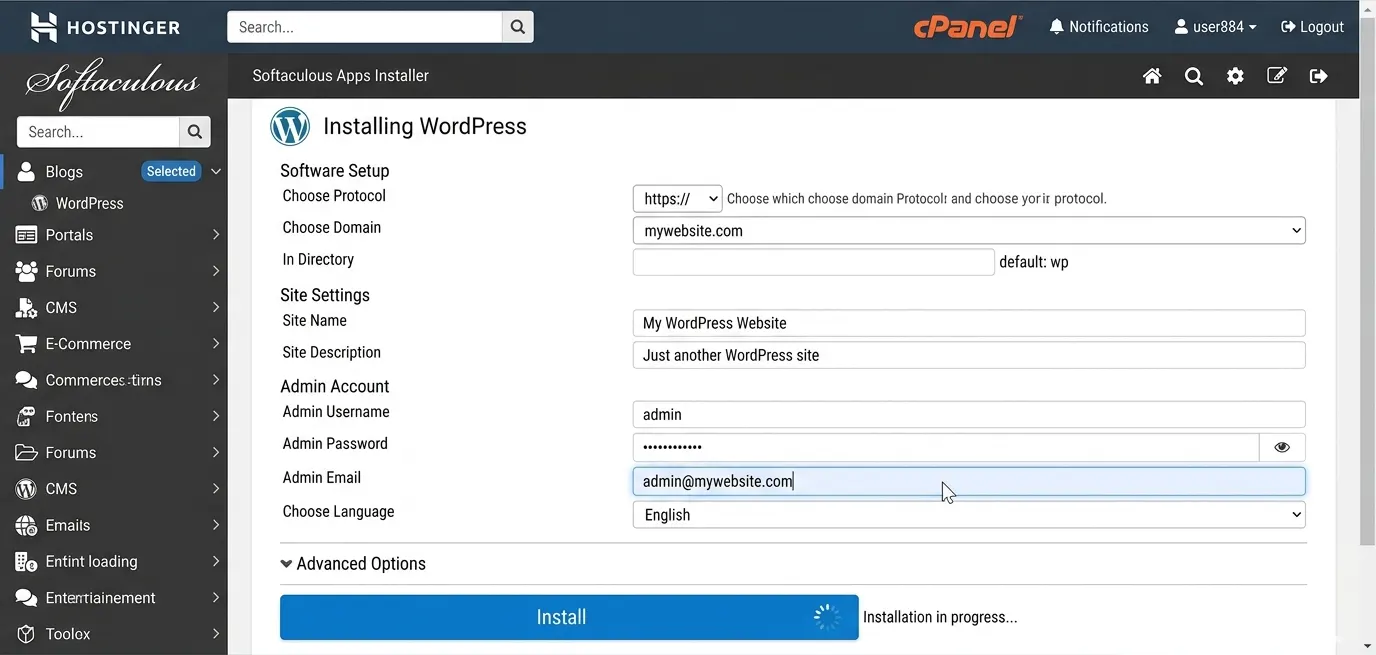
Most hosts offer this in a couple of clicks from their dashboard. The whole process usually takes under five minutes.
Step 4: Pick a Theme
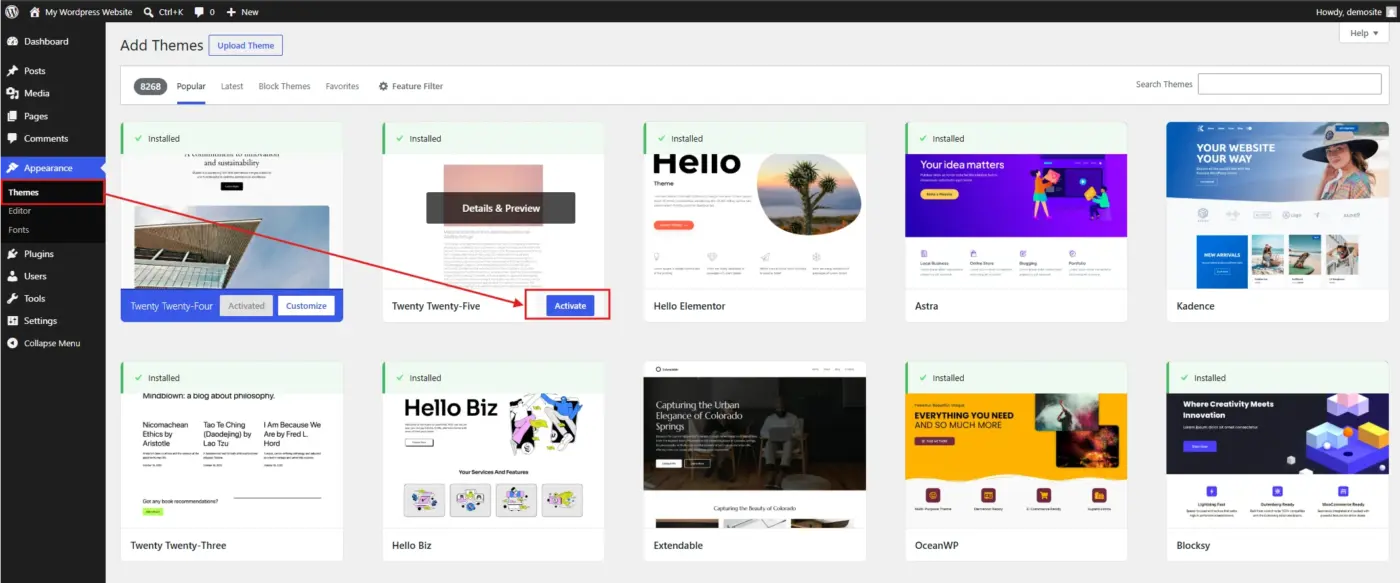
Browse the free theme library inside your dashboard under Appearance, or upload a premium one you’ve purchased.
Step 5: Add the Plugins You Actually Need
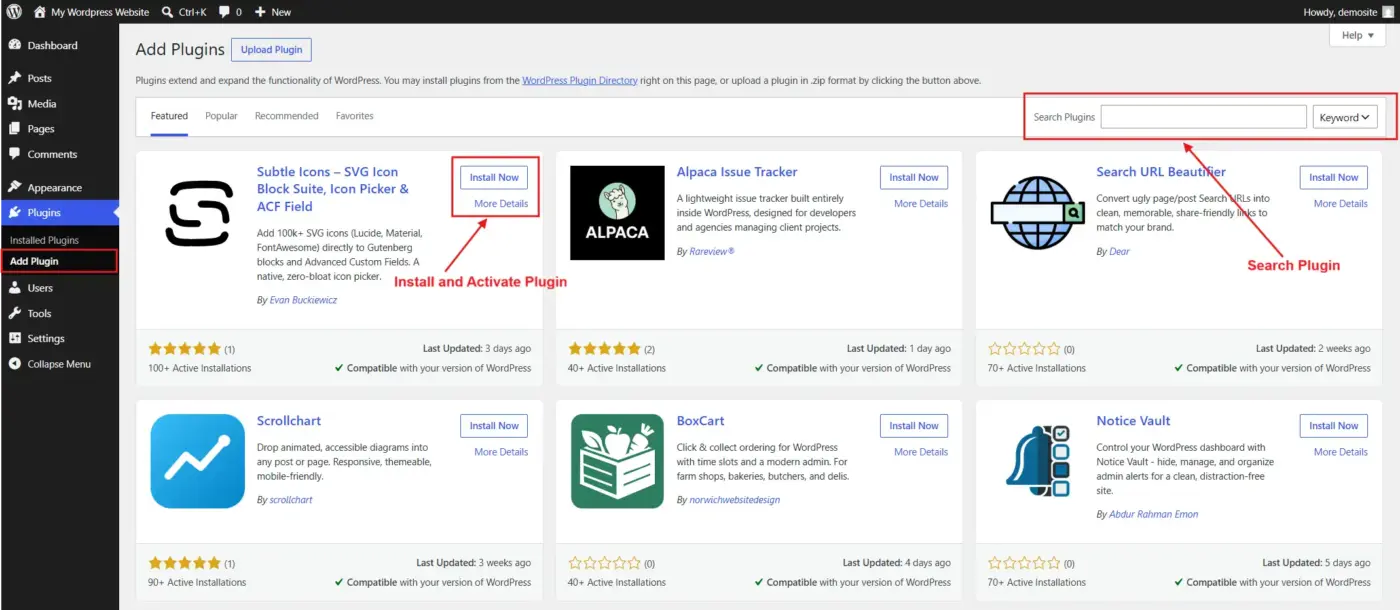
Start small. An SEO plugin and a security plugin cover most basics. Add more only when you have a specific need.
Step 6: Create your core pages and publish
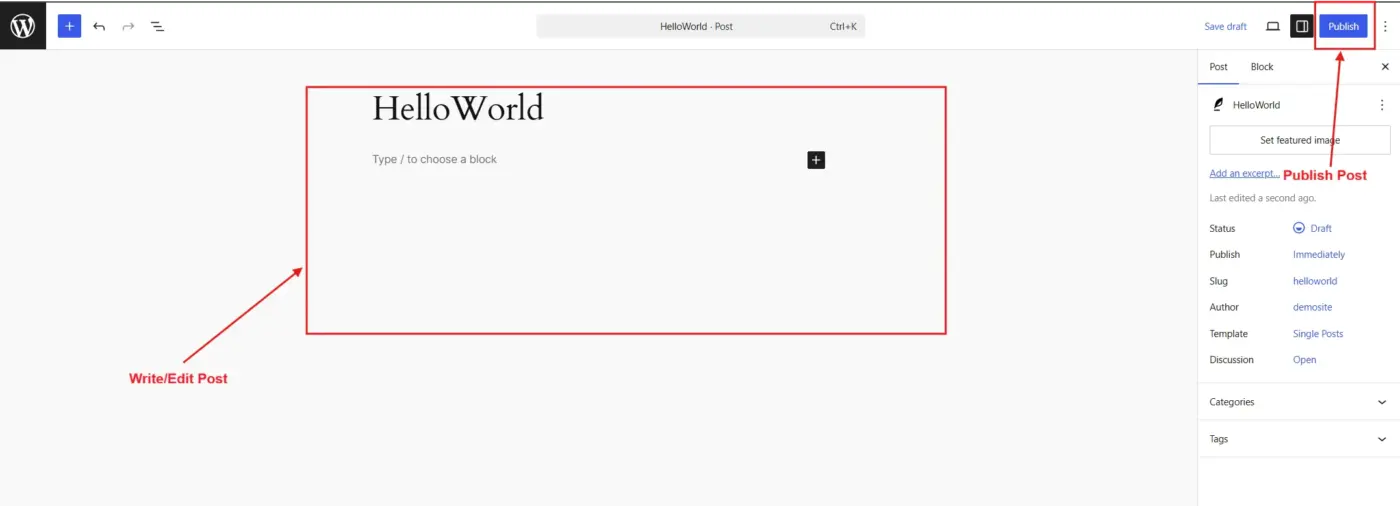
Home, About, Contact, and a Privacy Policy are the minimum for most sites. Once those are live, you’re officially running a WordPress website.
If steps three through six sound like more than you want to handle alone, that’s normal. A lot of business owners reach this point and decide their time is better spent running the business. That’s where WordPress development services come in, handling setup, configuration, and the messy parts so you get a working site without the trial and error.
Conclusion
WordPress is free, open-source software that powers a huge share of the internet because it’s flexible enough for almost any project and accessible enough for someone with zero coding background. The WordPress.org versus WordPress.com distinction matters more than people expect, and getting it right early saves problems later.
Start small. Try WordPress Playground if you want a no-risk preview, then move to real hosting once you know what you want to build. Whether that’s a blog, a portfolio, or a full WooCommerce store, the path from “what is WordPress” to “my site is live” is shorter than most beginners assume.
FAQs About WordPress
Q1. Is WordPress really free?
The WordPress software itself costs nothing and always will, since it’s open source. You’ll still pay for hosting and a domain name, which together usually run $50-$150/year for a basic site.
Q2. Do I need to know how to code to use WordPress?
No. The dashboard, block editor, and most plugins are built for non-coders. Some advanced customisations benefit from HTML or CSS knowledge, but you can run a full website without ever opening a code editor.
Q3. Is WordPress safe and secure?
WordPress core is actively maintained and updated for security. Most Security weaknesses come from outdated or poorly coded plugins and themes, not the software itself. Keeping everything updated and using a security plugin covers most risks.
Q4. What’s the difference between a WordPress theme and a plugin?
A theme controls how your site looks: layout, colours, and fonts. A plugin adds functionality, like a contact form, SEO tools, or an online store. You can change either independently without affecting the other.
Q5. Can I make money with a WordPress website?
Yes. Common methods include selling products through WooCommerce, running ads, offering paid memberships, or selling services through a business site. There are no platform restrictions on monetisation with self-hosted WordPress.
Q5. How long does it take to build a basic WordPress site?
A simple site with a theme, a handful of pages, and basic plugins can be live within a day. More complex sites, especially online stores, typically take longer depending on customisation needs.