You can display reading time on a WordPress blog without a plugin by adding a short PHP function to your theme’s functions.php file and calling it inside your post template. The setup takes about 10 minutes. You don’t need a dedicated plugin, and the code stays lightweight.
Most tutorials stop there, though. They give you the function, tell you to paste it somewhere, and call it done. What they skip is where to paste it safely, how to adjust the calculation for your audience, and what the code quietly misses. All of that is covered below.
You’ll learn the full method for classic themes, a separate path for block themes, a basic CSS snippet for styling, and an honest look at where these calculations fall short.
Why Reading Time Is Worth Adding to Your Blog
Reading time is a small signal that pays back more than it costs to add.
When someone visits a 2,500-word post, they have no idea what they’re committing to. Show them “8 min read,” and they can decide in two seconds whether to stay now or bookmark it for later. Either outcome is better than a mid-article exit. Readers who know what to expect tend to finish what they start.
There’s also a search engine angle. When readers stay longer and scroll further, Google treats that as a signal that your content is worth reading. It doesn’t guarantee a ranking boost, but reducing early exits helps. A study referenced by Nielsen Norman Group on reading online found that users often decide within seconds whether a page is worth their time. A reading time estimate gives them an anchor to stay.
Medium uses 200 words per minute for plain text. They add 12 seconds for the first image, 11 for the second, and keep dropping by one second per image until the tenth. After that, every image adds 3 seconds.
Worth knowing before you start: Reading time is a rough guide, not an exact number. Build it for your readers, not the metric.

What You Need Before You Start
Before touching any code, check these three things.
First: Do you have a child theme active?
This is the step most guides skip entirely. If you paste code directly into your parent theme’s functions.php file, that code disappears the next time you update the theme. Every change you make to a parent theme gets overwritten on update. The documentation on creating WordPress child themes is clear on this: put custom functions in a child theme, not the parent.
If you’re not sure whether you have a child theme, go to Appearance > Themes. If your active theme shows a ‘Parent theme’ label below it, you’re good. If not, you have two safe options before adding any code: create a child theme or use the Code Snippets plugin.
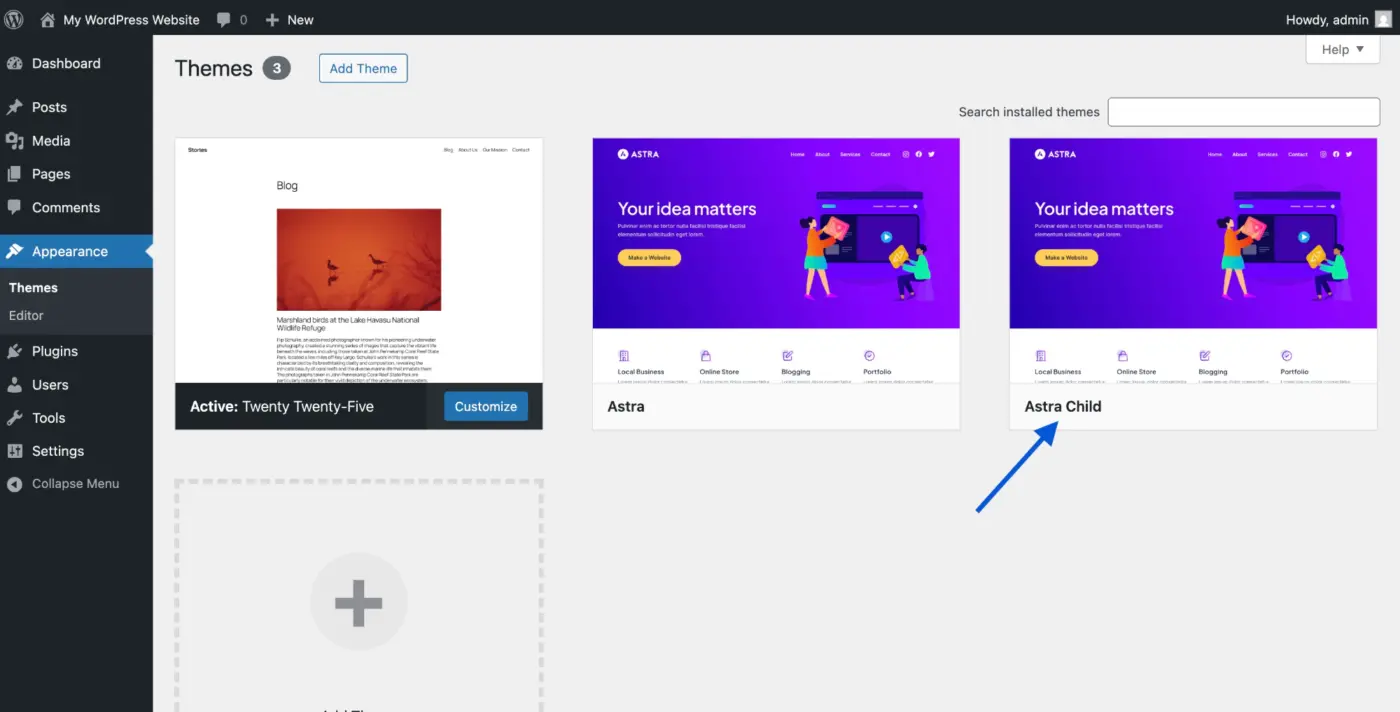
We see this in support regularly: someone adds reading time, it works fine, they update their theme a month later, and the feature vanishes. Add the code to the right place from the start.
Second: Pick your method based on your theme type.
Classic PHP themes (the majority of WordPress sites) use the PHP approach below. Block themes using Full Site Editing work differently. There’s a separate section for block themes further down.
Third: Make sure you have FTP or file manager access, or the Code Snippets plugin installed, if you prefer not to edit theme files directly.
How to Add Reading Time in WordPress (Classic Themes)
This takes about 10 minutes. Here are the steps.
Step 1: Open Your Child Theme’s functions.php File
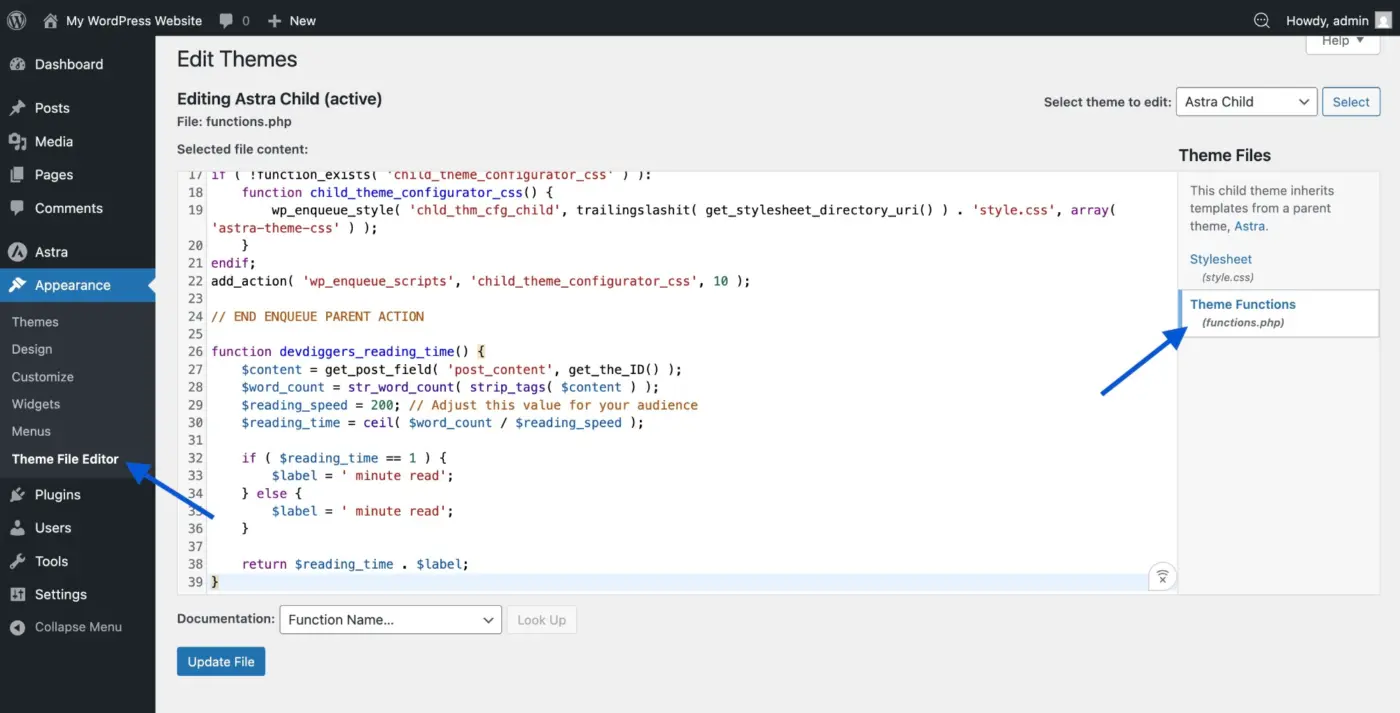
Go to Appearance > Theme File Editor in your WordPress dashboard. In the right-hand sidebar, select your child theme from the dropdown, then click functions.php to open it.
If you’d rather use the Code Snippets plugin (a solid choice if file editing feels risky), go to Snippets > Add New instead. The code is identical either way.
Step 2: Add the Reading Time Function
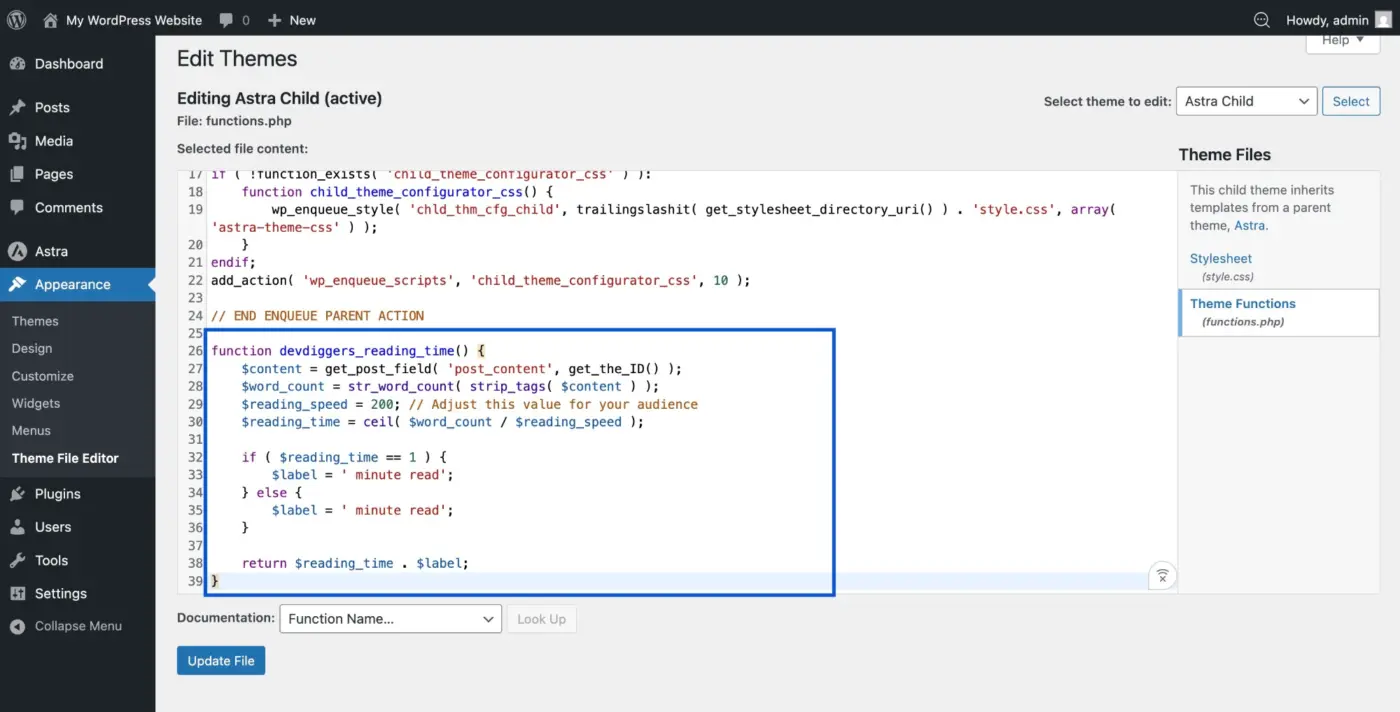
Paste this code at the bottom of your functions.php file, or into a new Code Snippet:
function devdiggers_reading_time() {
    $content = get_post_field( 'post_content', get_the_ID() );
    $word_count = str_word_count( strip_tags( $content ) );
    $reading_speed = 200; // Adjust this value for your audience
    $reading_time = ceil( $word_count / $reading_speed );

    if ( $reading_time == 1 ) {
        $label = ' minute read';
    } else {
        $label = ' minute read';
    }

    return $reading_time . $label;
}
Save the file. If you’re using Code Snippets, set it to run everywhere and activate it.
A note on function naming: prefix the function name with something unique to your site (like devdiggers_ above). Generic names like reading_time() can clash with other plugins or theme functions that use the same name, which causes a fatal error on activation.
Step 3: Choose Your Words-Per-Minute Rate
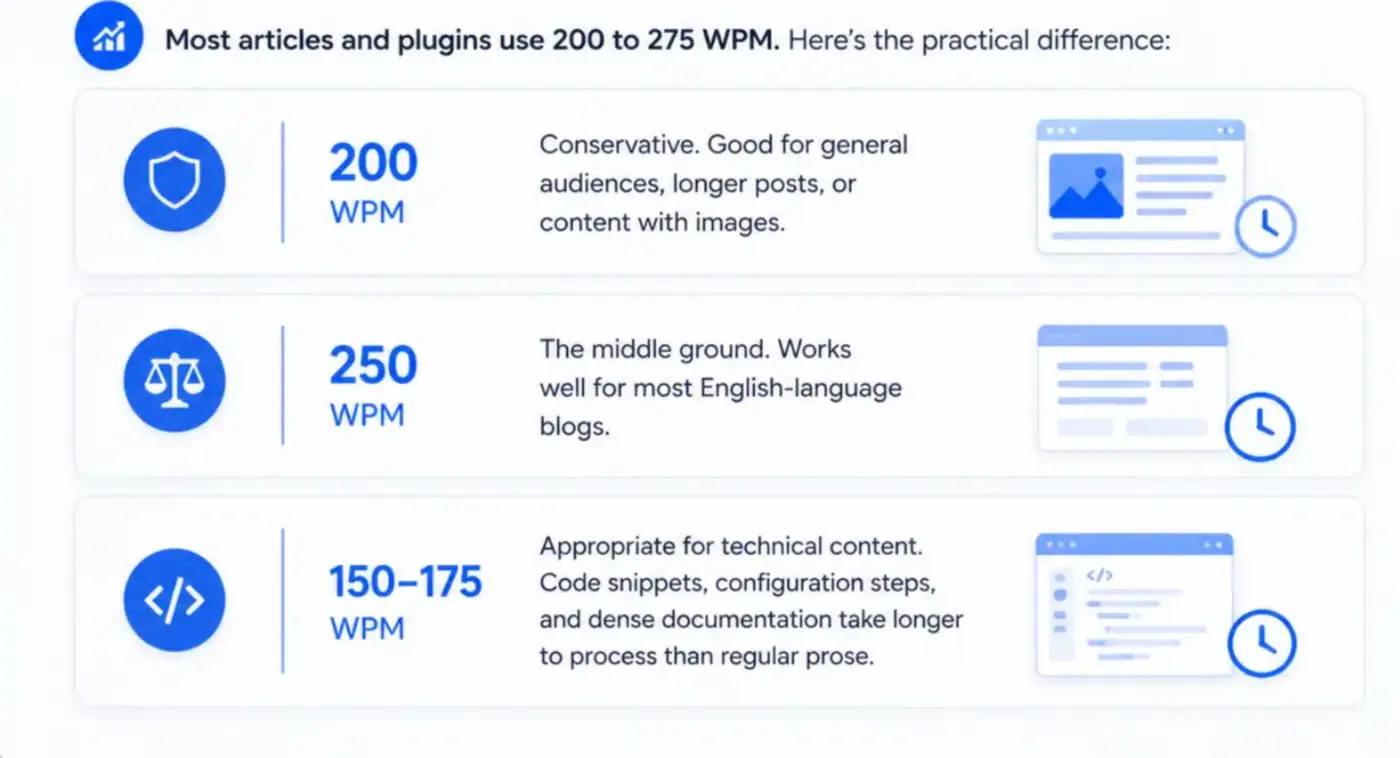
The $reading_speed = 200 line controls everything. Here’s how to set it for your audience.
Most articles and plugins use 200 to 275 WPM. Here’s the practical difference:
- 200 WPM is conservative. Good for general audiences, longer posts, or content with images.
- 250 WPM is the middle ground. Works well for most English-language blogs.
- 150 to 175 WPM is appropriate for technical content. Code snippets, configuration steps, and dense documentation take longer to process than regular prose. This is something worth adjusting if your blog covers developer topics.
Medium uses 200 WPM as its standard, which is where most implementations borrow from.
Step 4: Add the Display Call to Your Post Template
This is where most tutorials leave you on your own. You have two options.
Option A: Add it to your template file (single.php)
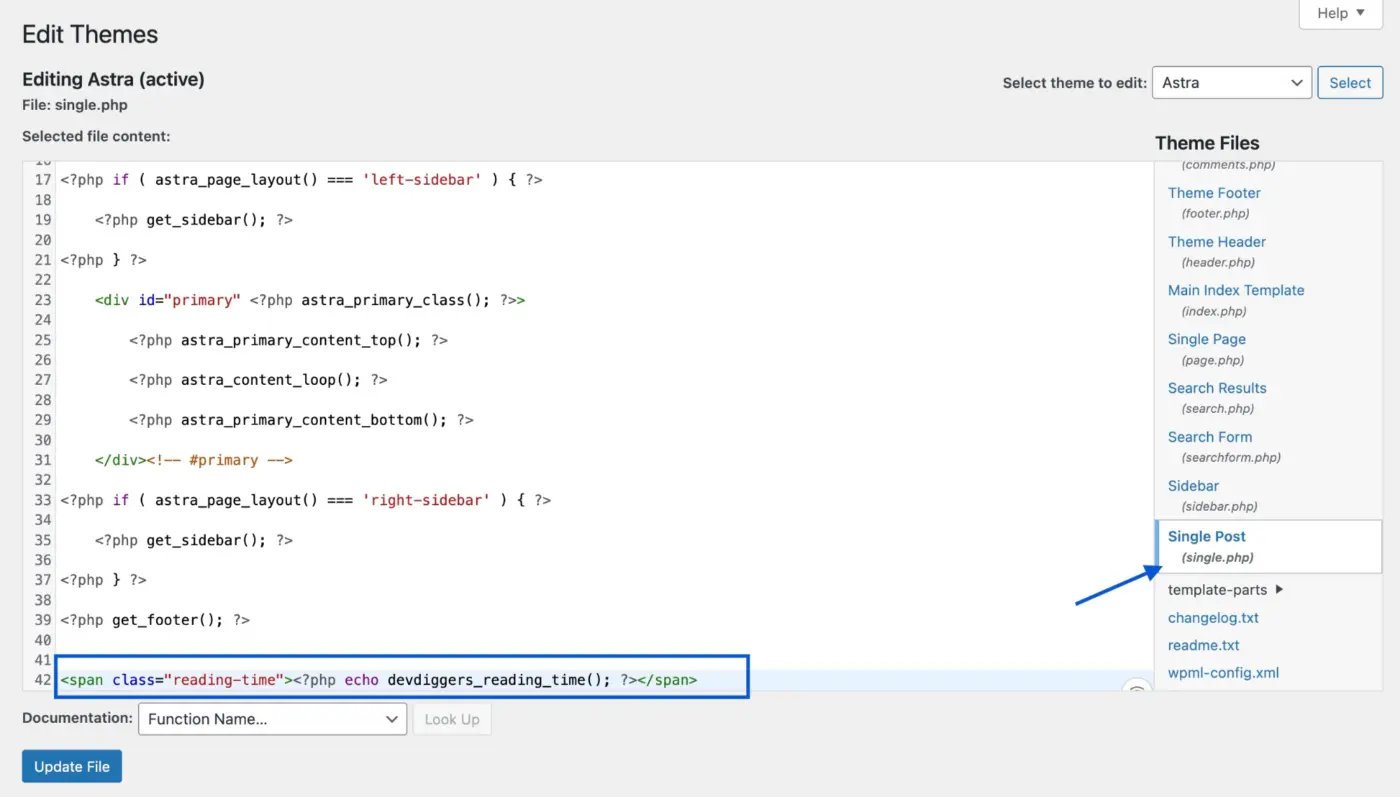
Find the single.php file in your child theme (copy it from the parent theme first if it doesn’t exist there already). Place this call wherever you want the reading time to appear, typically just below the post title or alongside the author and date:
<span class="reading-time"><?php echo devdiggers_reading_time(); ?></span>
Option B: Hook it into the content automatically
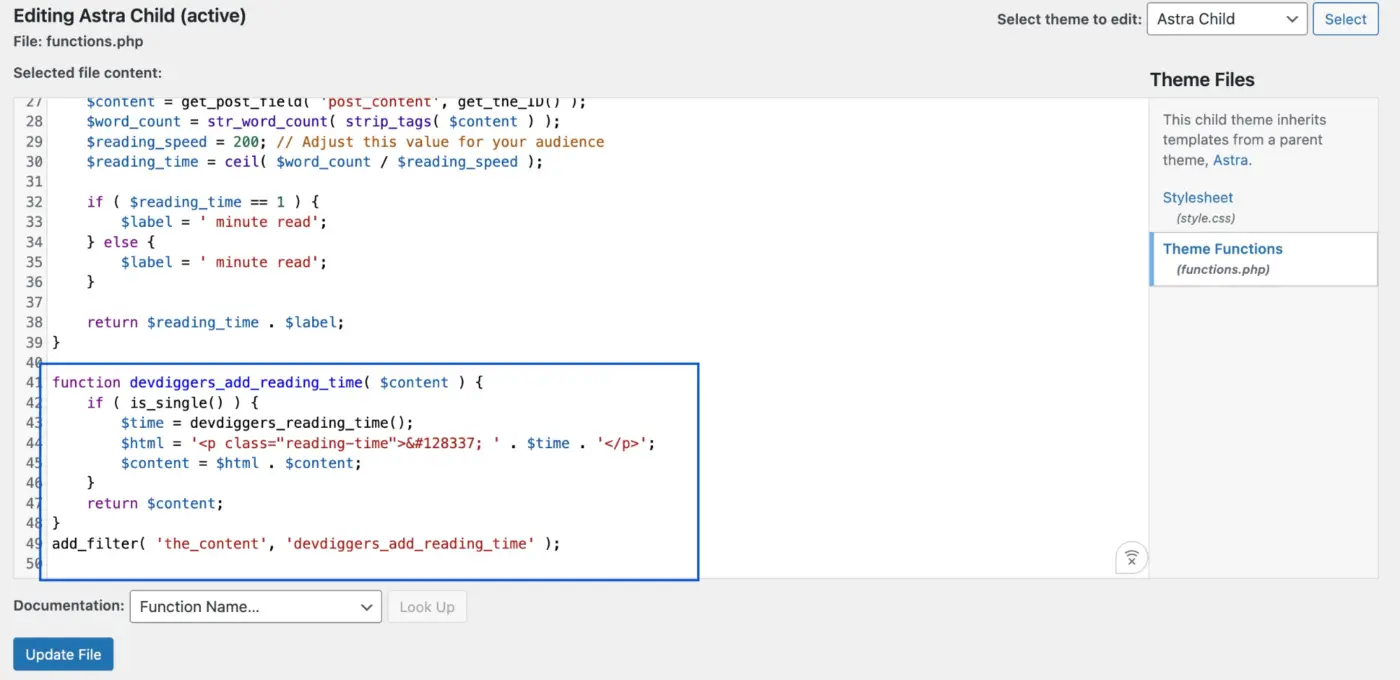
If you’d rather not touch template files, add this to your functions.php alongside the function above:
function devdiggers_add_reading_time( $content ) {
if ( is_single() ) {
$time = devdiggers_reading_time();
$html = '<p class="reading-time">🕑 ' . $time . '</p>';
$content = $html . $content;
}
return $content;
}
add_filter( 'the_content', 'devdiggers_add_reading_time' );
This prepends the reading time to every single post automatically, without touching any template file. The is_single() check keeps it off pages, archives, and shop listings.
Step 5: Save and Test on a Post

Open a published post on your site and check that the reading time appears. Try it on a short post (under 400 words) and a long one (over 1,500 words) to confirm the calculation scales correctly. A 500-word post at 200 WPM should show 3 minutes. A 1,000-word post should take 5 minutes.
If nothing appears, clear your cache. Caching plugins often serve a saved version of the page that doesn’t include the new code yet.
How to Display Reading Time on Block Themes (Gutenberg)
Block themes, those built for the Full Site Editing editor, work differently from classic PHP themes. The single.php method above won’t work here.
As of early 2026, it still hasn’t made it into WordPress core. The GitHub issue tracking its progress shows the holdup is wp_word_count, a PHP function that needed its own separate core review. If you run the Gutenberg plugin on your site, you can use this block today. Search for “Time to Read” in the block inserter.
If you’d rather not run the Gutenberg plugin separately, the PHP function from Step 2 still works on block themes. Use the Code Snippets plugin to add it, then call it inside your block theme template using the Site Editor. In Appearance > Editor, open the Single Post template. Add a Custom HTML block or a Shortcode block where you want the reading time to appear.
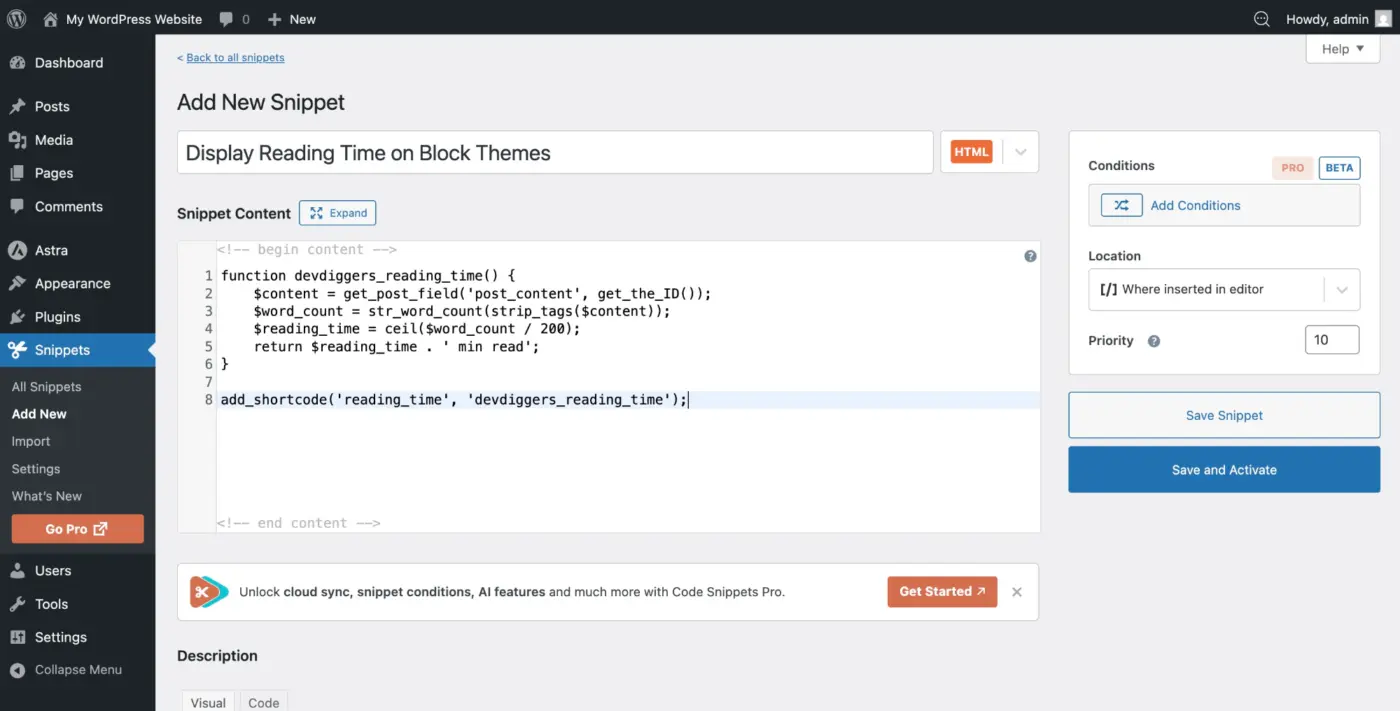
Or, register it as a shortcode instead. Add this alongside your function:
add_shortcode( 'reading_time', 'devdiggers_reading_time' );
Then use [reading_time] as a shortcode block anywhere in the Site Editor template.
This approach keeps your setup plugin-free while staying compatible with block-based themes.
Styling the Reading Time to Match Your Theme
By default, the output is unstyled text. A few lines of CSS go a long way.
Add this to your child theme’s style.css, or use Appearance > Customize > Additional CSS:
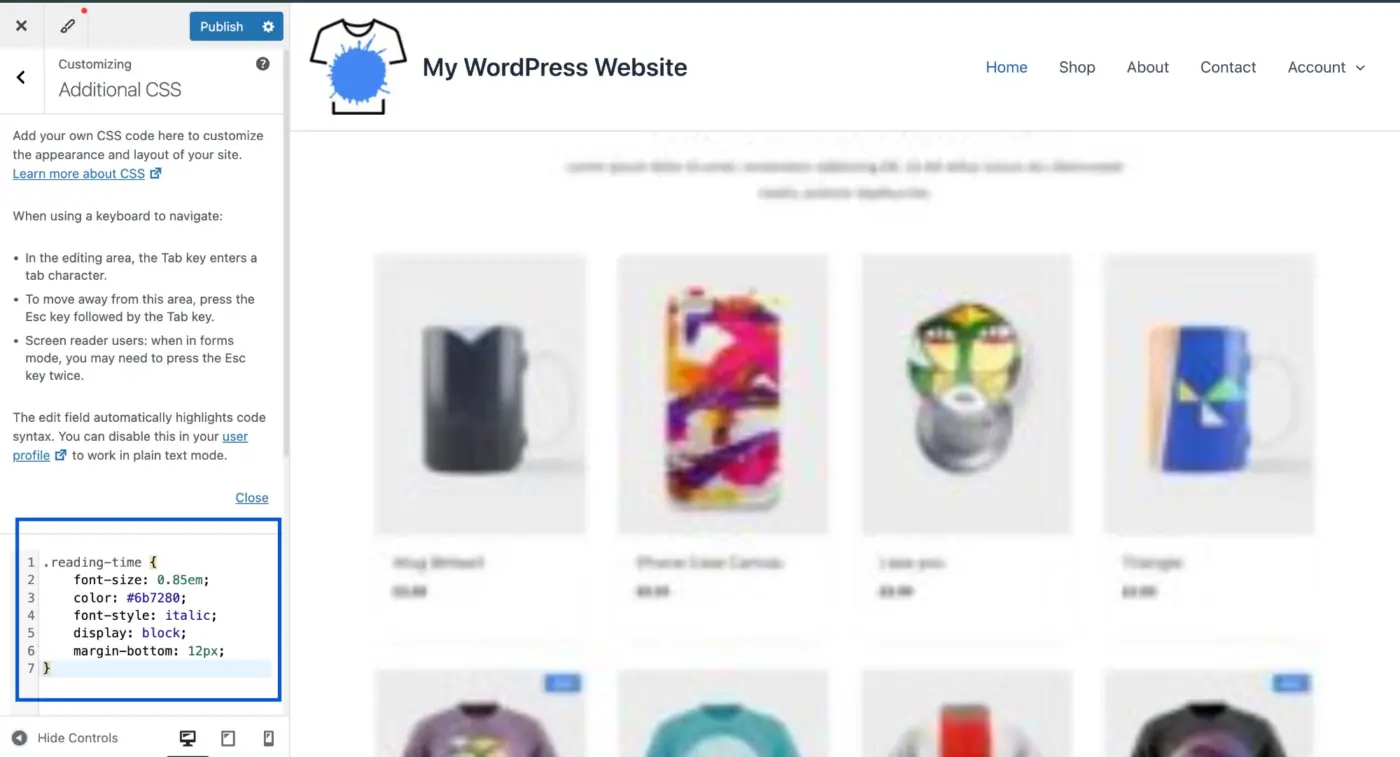
.reading-time {
    font-size: 0.85em;
    color: #6b7280;
    font-style: italic;
    display: block;
    margin-bottom: 12px;
}
Adjust the color to match your theme’s secondary text color. If your theme uses a design system with CSS variables, replace #6b7280 with the appropriate variable, such as var(--color-secondary).
Common placements bloggers use: below the post title but above the first paragraph, inside the post meta row alongside the date and author, or at the very top of the post in a sticky header row.
If you want the reading time to sit inline with your post meta (for example, “By Jane | April 20, 2026 | 5 min read”), adjust the display property:
.reading-time {
    display: inline;
    margin-left: 8px;
}
Keep it subtle. The reading time is context, not content.
What the Reading Time Calculation Won’t Count
Here’s the part worth knowing before you go live.
The str_word_count The function only counts words in plain text. After strip_tags runs, HTML tags are removed. Shortcode output is not rendered at that point. This means if your post content includes a WooCommerce product block, a contact form, or a Gutenberg block that renders dynamic content, those words are invisible to the counter.
A more accurate approach uses apply_filters( 'the_content', ... ) instead of get_post_field alone. That processes shortcodes and some block output before counting. The trade-off is a slight performance cost per page load. For most blogs, it doesn’t matter. For high-traffic sites, stick with the simple version.
For technical blogs, lower your WPM setting to 150 or 175. Code blocks, configuration steps, and command-line examples slow readers down far more than regular prose. A post that reads as “4 minutes” might genuinely take 8 on a developer tutorial. Setting an honest estimate builds more trust than an optimistic one.
What about images? The simple PHP approach ignores them entirely. If you want to factor in image viewing time the way Medium does, add about 12 seconds per image to your calculation. This isn’t critical for most blogs, but it matters if your posts are image-heavy, like photography or recipe blogs.
Finally, very short posts don’t always benefit from a reading time display. A 200-word post that shows “1 minute read” can feel like a signal that the post isn’t worth committing to. If your posts run under 400 words consistently, test with and without the feature before deciding to keep it.
For further WordPress performance tips, check out our guide on WordPress image optimization to keep your blog fast alongside any new features you add.
Conclusion
Displaying reading time on a WordPress blog without a plugin is a small, practical improvement that takes under 15 minutes to set up. Add the PHP function to your child theme’s functions.php or via Code Snippets, hook it into your post content or template, and add a few lines of CSS to style it.
Three things to get right before you go live. First, use a child theme or Code Snippets, not the parent theme directly. Second, pick a WPM rate that matches your content type. Third, test on both a short and a long post.
If your blog grows and you want more control over placement, styling, or per-post customization, our WordPress development services team can help you build exactly what you need. And for ideas on getting more readers to the posts you’ve worked hard to write, the guide on how to promote your blog covers the practical options worth your time.
Frequently Asked Questions
Q1. Will this reading time code slow down my WordPress site?
No, not in any meaningful way. The str_word_count function runs server-side on a small amount of text. It adds microseconds to page render time, not seconds. If you use the apply_filters(‘the_content’, …) approach for greater accuracy, the overhead is slightly higher but still small enough that most sites won’t notice.
Q2. Does this work with all WordPress themes?
The PHP approach works with any classic theme that has a functions.php file and a single.php template, or that supports the the_content filter. For block themes, use the shortcode method or the Gutenberg “Time to Read” block via the Gutenberg plugin.
Q3. What happens if I update my theme after adding this code?
If you added the code to your child theme’s functions.php, nothing happens. Your code stays intact. If you added it to the parent theme directly, the update will overwrite it. That’s exactly why using a child theme or Code Snippets matters.
Q4. Can I show reading time on archive pages and the blog index, not just single posts?
Yes. Remove the is_single() condition from the the_content filter version, or call devdiggers_reading_time() directly inside your archive loop template. Note that on archive pages, the post content may not be fully loaded depending on how your theme handles excerpts, which can affect accuracy.
Q5. What words-per-minute rate does Medium use?
Medium counts 200 words per minute for text. For images, it adds 12 seconds for the first, 11 for the second, and drops by one second each time. From the tenth image onward, each one adds 3 seconds. Most WordPress implementations use 200 to 250 WPM for text only and skip image time.
Q6. Is there a way to allow readers to adjust their own reading speed?
Not with this basic code alone. You’d need JavaScript to read a user preference (stored in localStorage) and update the displayed time on the fly. That’s a more advanced build. For most blogs, a fixed rate of 200 WPM is the right choice, set at a slightly conservative pace.