
Skip to content
DevDiggers
  • WooCommerce Extensions

      Most Popular Plugins

      • LoyaltyX – Points and Rewards
      • MultiPOS – Point of Sale (POS System)
      • Product View in Augmented Reality (AR)
      • Affiliates
      • Wallet Management
    • Browse All Plugins
    • Join our Affiliate Program

      Earn upto 30% commission

      Join Now
  • Services
      • WordPress Development Services
      • WooCommerce Development Services
      • WordPress Speed Optimization
  • Store
  • Blog
  • Contact
Cart
My Account
DevDiggers
  • WooCommerce Extensions

      Most Popular Plugins

      • LoyaltyX – Points and Rewards
      • MultiPOS – Point of Sale (POS System)
      • Product View in Augmented Reality (AR)
      • Affiliates
      • Wallet Management
    • Browse All Plugins
    • Join our Affiliate Program

      Earn upto 30% commission

      Join Now
  • Services
      • WordPress Development Services
      • WooCommerce Development Services
      • WordPress Speed Optimization
  • Store
  • Blog
  • Contact
My Account

Pre-Sales

1
  • Can the plugin be used on multilingual websites?

Getting Started

4
  • Using Logs for Debugging in WooCommerce Biometric Login
  • Introduction to WooCommerce Biometric Login Plugin
  • Configure the WooCommerce Biometric Login Plugin
  • Installing and Activating Plugin

Tutorials

4
  • How to Add Biometric Login to Your Account (Customer Tutorial)
  • How to Log In Using Biometric Authentication (Customer Tutorial)
  • Setting Up the Biometric Login Button Shortcode
  • Setting Up the Add Biometric Details Shortcode

FAQs

4
  • What is the primary benefit of using WooCommerce Biometric Login for my online store?
  • Is it Possible to Use a Default Username and Password for Login?
  • Does the plugin support all devices for biometric login?
  • Is Biometric Data Stored Securely?

Releases and Updates

1
  • WooCommerce Biometric Login Changelog

General

1
  • How to Pay for a Customization Request
  • Home
  • Knowledge Base
  • WooCommerce Biometric Login
  • Getting Started
View Categories

Configure the WooCommerce Biometric Login Plugin

To set up settings relative to your store’s needs after installing and activating the WooCommerce Biometric Login plugin, read this article for step-by-step instructions.

1. Start With Biometric Plugin Configuration #

  1. Open your WordPress admin dashboard.
  2. Access the Configuration page from the WooCommerce Biometric Login menu.

2. What Changes Can Be Made? #
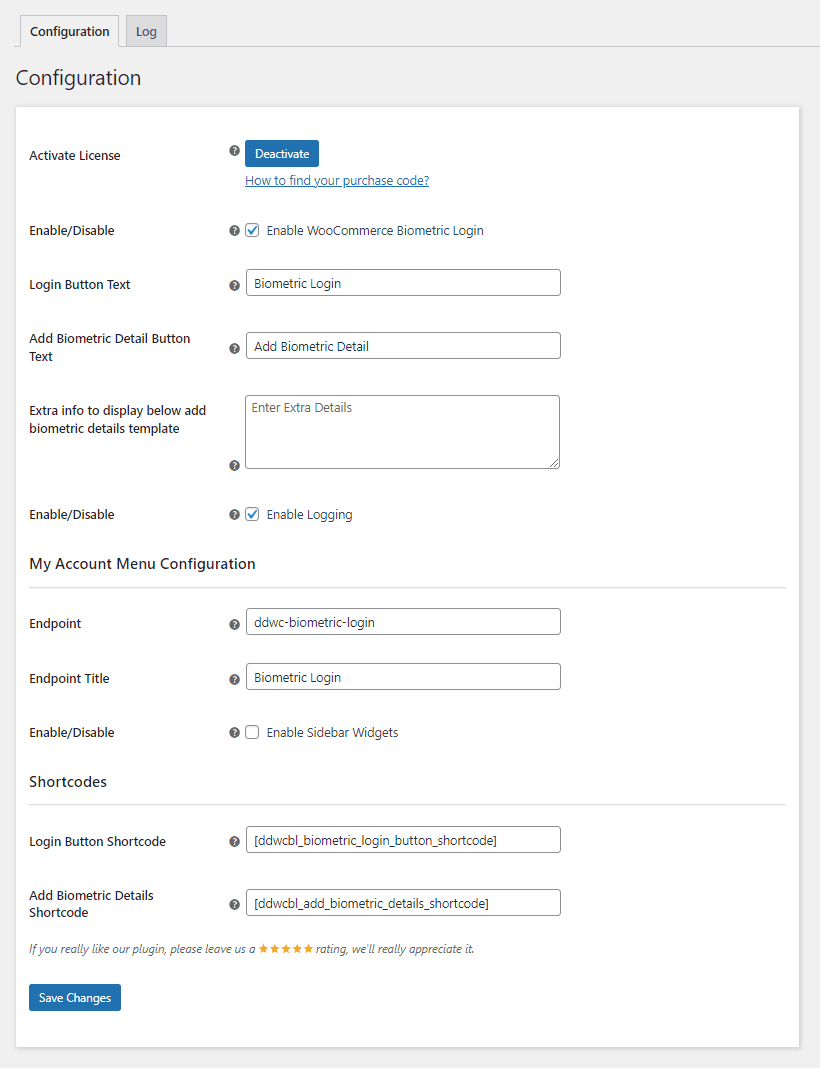
WooCommerce Biometric Login Configuration page

Enable or Disable the Plugin #

Clients may choose whether they wish to use the biometric login functionality.

Login Button Text #

Alter the login button texts seen by the users, such as changing them to Login with Biometrics.

Add Biometric Detail Button Text #

Change the button text used to add biometric details to one like Setup Biometrics, for example.

Extra Information Display #

Provide clarity by enabling more text to show underneath the users’ Add Biometric Details template.

Enable Or Disable Logging #

Turning logging on allows for debugging purposes. It is often crucial to resolve issues.

Set The Endpoint #

Determine the URL endpoint for Biometric Login configuration in the My Accounts page.

Endpoint Title #

Modify the name of the menu that is shown on the My Accounts page.

Enable Sidebar Widgets #

Activate or deactivate widgets to the My Accounts page menu.

Shortcodes #

Login Button Shortcode
Biometric Login Shortcode

This shortcode can be used anywhere in the store to display the button for logging in via biometrics.

Default Value: [ddwcbl_biometric_login_button_shortcode]

Add Biometric Details Shortcode:
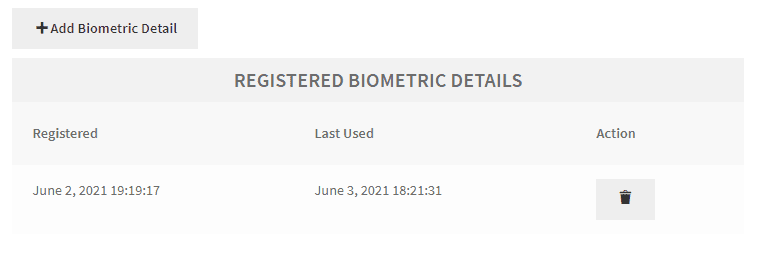
Register Biometric Details Shortcode

This shortcode enables users to add their biometric details from any spot on the site where the shortcode is placed.

Default Value: [ddwcbl_add_biometric_details_shortcode]

3. Save Changes #

After the changes are made, remember to click Save Changes to implement the new settings.

The correct configuration of the plugin setting enables your customers to have a smooth biometric login experience. Always remember to set the options that are most appropriate for your store.

Share

  • Facebook
  • X
  • LinkedIn
  • Pinterest
Table of Contents
  • 1. Start With Biometric Plugin Configuration
  • 2. What Changes Can Be Made?
    • Enable or Disable the Plugin
    • Login Button Text
    • Add Biometric Detail Button Text
    • Extra Information Display
    • Enable Or Disable Logging
    • Set The Endpoint
    • Endpoint Title
    • Enable Sidebar Widgets
    • Shortcodes
  • 3. Save Changes
Subscribe To Our Newsletter

Get the latest news, exclusive deals, and important updates delivered straight to your inbox.

Newsletter Form

DevDiggers

Top Quality WooCommerce Plugins

Facebook X Instagram Pinterest YouTube Linkedin Github
Company
  • About Us
  • WooCommerce Extensions
  • Affiliate Program
  • Store
  • WooCommerce Development Services
  • WordPress Development Services
Resources
  • Blog
  • Knowledge Base
  • Refund Policy
  • Terms and Conditions
  • Privacy Policy
  • Disclaimer
  • Sitemap
Help Center
  • Contact
  • License Activation
  • My account
  • Plugin Docs
  • Plugin Demos
  • Submit Ticket

Copyright 2026 © DevDiggers. All rights reserved.