
To remove WooCommerce from WordPress, you need to do more than delete the plugin. You also need to clear its data from your database, handle leftover extension files, and protect your SEO rankings.
Having worked on dozens of WooCommerce builds, we know that skipping any of these steps causes real problems: bloated databases, broken pages, and lost organic traffic. Most tutorials stop at step one. That’s why stores end up with 404 errors and database tables nobody asked for.
This guide walks you through the complete process: from backup to SEO cleanup, so you can uninstall WooCommerce without leaving a mess behind.
Before You Remove WooCommerce: Things to Do First
Removing WooCommerce is one thing, if you’re not careful. A few minutes of preparation now will save you hours of troubleshooting later.
Back Up Your Site and Export Your Data
Before touching anything, back up your entire site: files and database. Use a plugin like UpdraftPlus or your hosting control panel’s built-in backup tool. This is not negotiable.
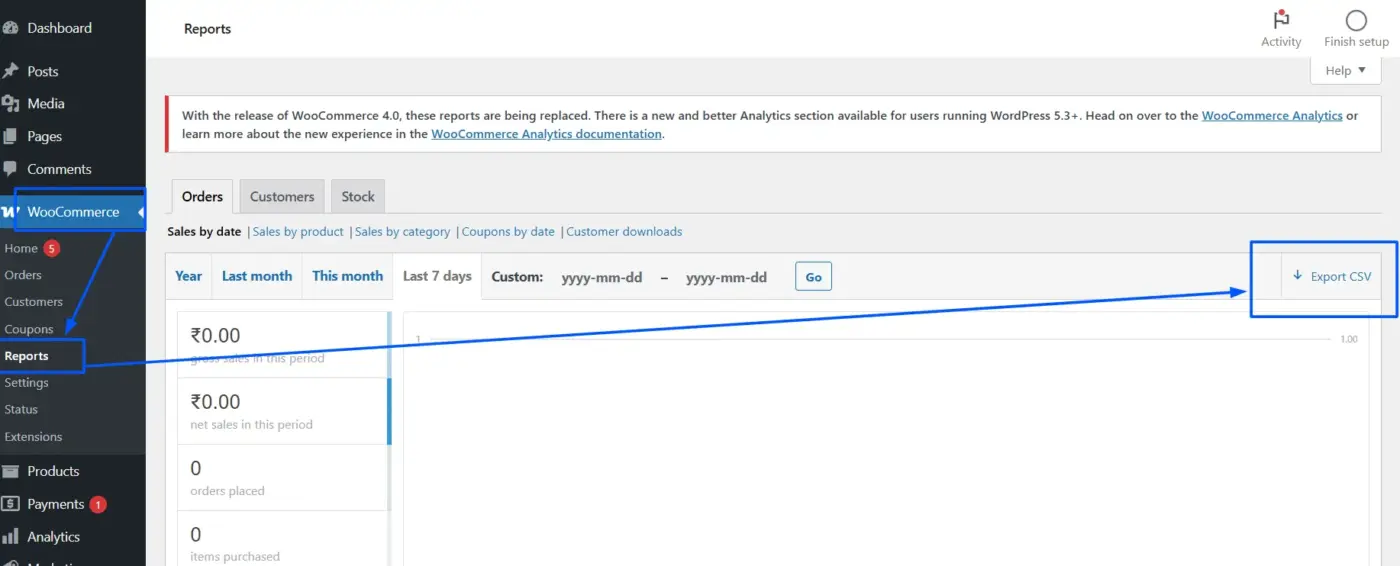
If your store has order history, customer records, or product data you might need later, export it first. Go to WooCommerce > Reports to download order data as a CSV. For products, go to Products > All Products, select all, and use the bulk export option.
Once you delete WooCommerce data, it’s gone. There’s no undo button.
Deactivate vs. Delete (What’s the Difference)
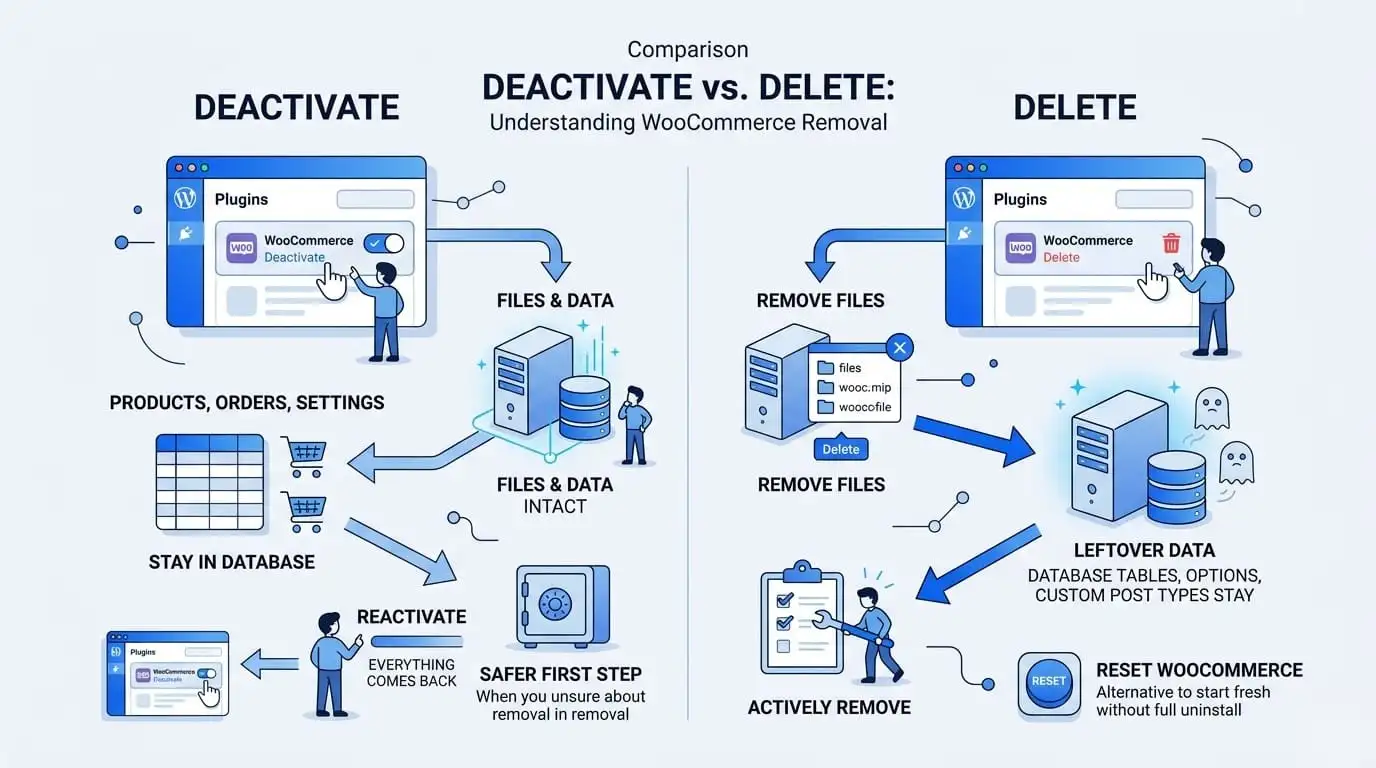
This confuses a lot of people. Deactivating WooCommerce turns it off but keeps all its files and data the same as before. Your products, orders, and settings stay in the database. If you reactivate the plugin later, everything comes back.
Deleting the plugin removes the plugin files but still leaves data in your database by default. The leftover data database tables, options, and custom post types stay behind until you actively remove them.
Worth Knowing: If you’re on the edge about removing WooCommerce permanently, deactivating is the safer first step. You can also learn how to reset WooCommerce if you want to start fresh without fully uninstalling it.
How to Remove WooCommerce from WordPress (Plugin Removal)
This part is straightforward. Two steps, and the plugin is gone.
Step 1: Deactivate the WooCommerce Plugin
- Log in to your WordPress admin dashboard.
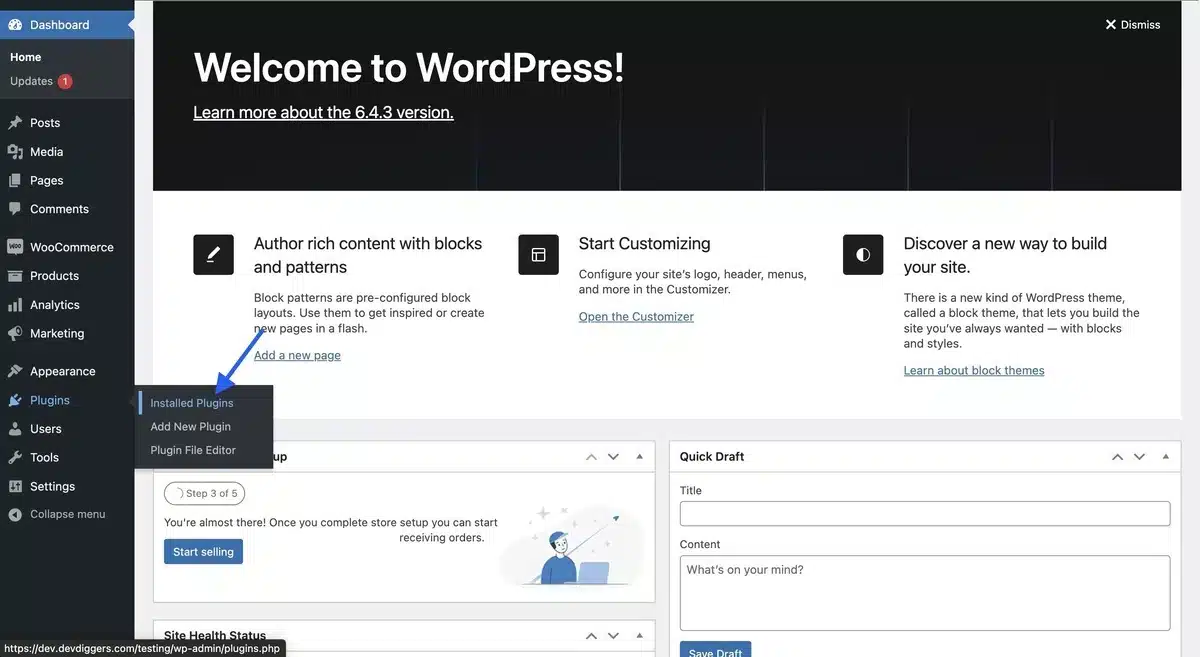
- Go to Plugins > Installed Plugins.
- Find WooCommerce in the list and click Deactivate below the plugin name.
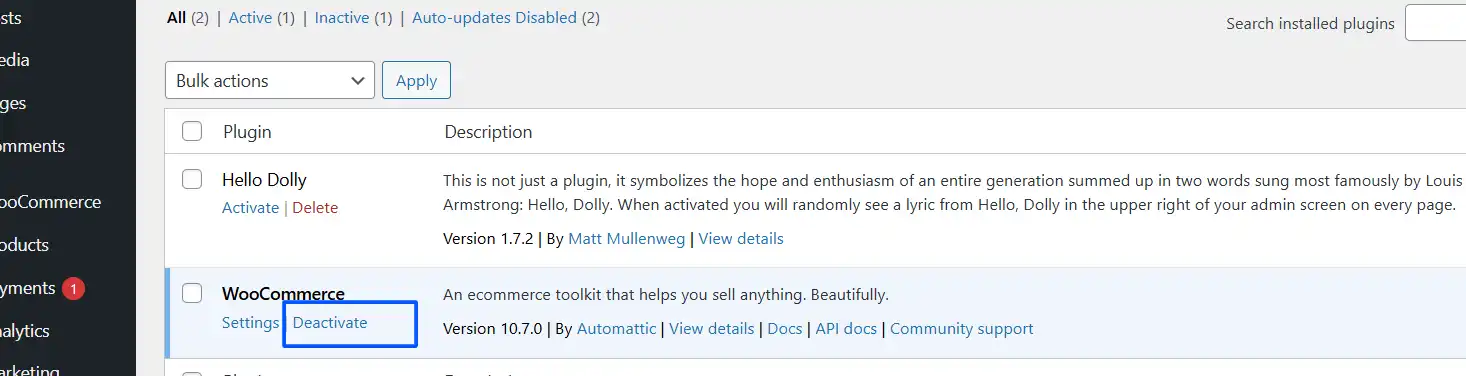
WordPress will disable WooCommerce immediately. Your site’s store functionality stops working, but no data is deleted yet.
Step 2: Delete the WooCommerce Plugin
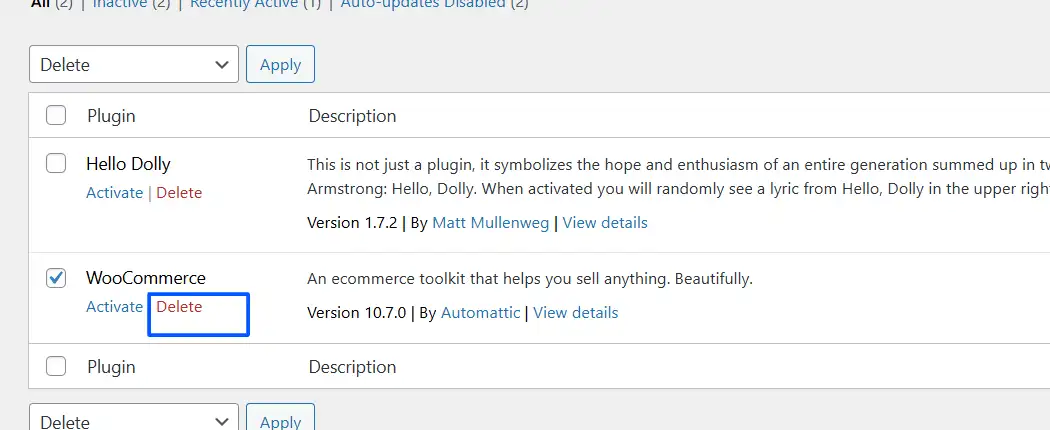
- After deactivating, the plugin row will now show a Delete link.
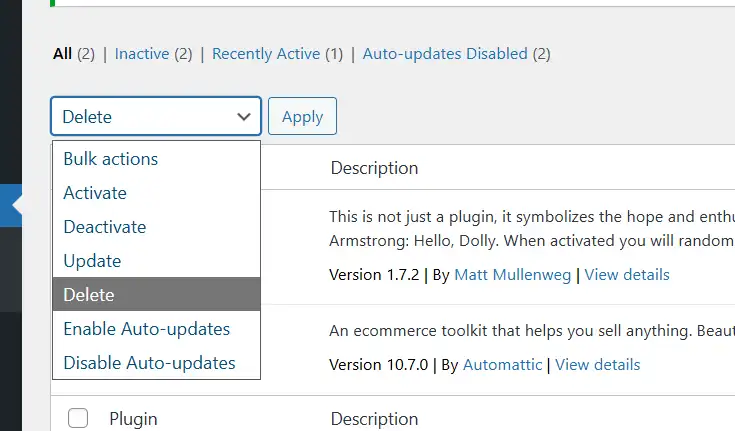
- Click Delete.
- Confirm the prompt when WordPress asks if you’re sure.
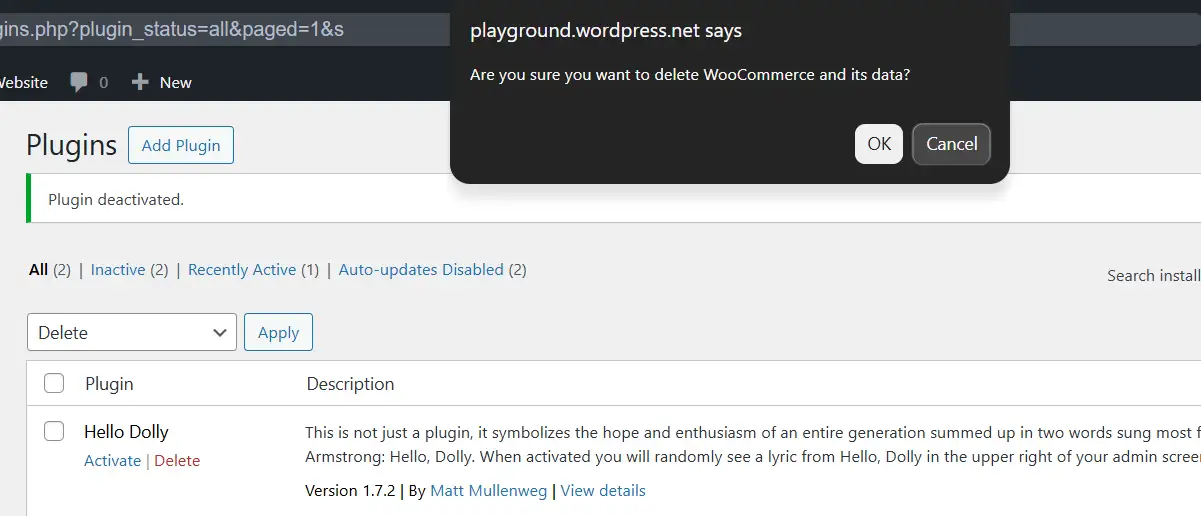
The plugin files have been removed from your server. But your database still contains all the WooCommerce data — products, orders, customer records, settings, and custom tables. That’s what the next section covers.
How to Remove WooCommerce Data Completely
This is the step most guides skip. Getting it wrong leaves your database filled with data that slows your site and can cause conflicts with future plugins.
There are two ways to approach this: a quick method using a single line of code, or a manual method where you delete the data yourself from the WordPress dashboard.
Quick Method: Using the WC_REMOVE_ALL_DATA Constant
WooCommerce includes a built-in flag that tells it to wipe all its data when the plugin is deleted. As per the official WooCommerce developer documentation, here’s how to use it:
- Access your site’s wp-config.php file. You can do this via FTP (using a tool like FileZilla) or through your hosting panel’s File Manager.
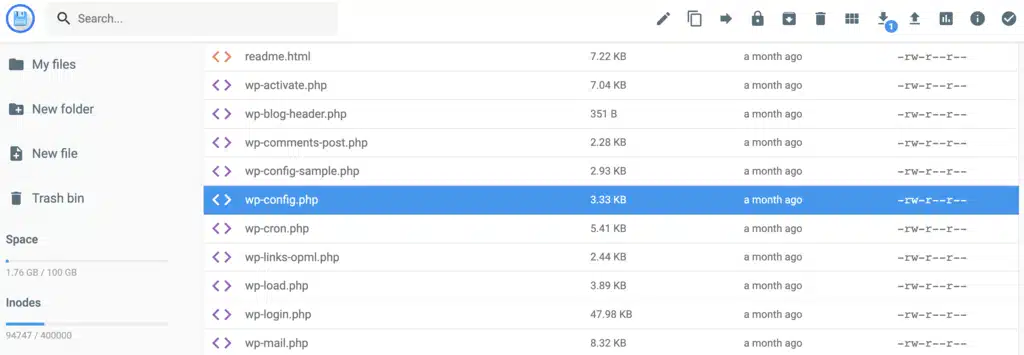
- Scroll to the bottom of the file and add this line above the line that reads
/* That's all, stop editing! Happy publishing. */:define( 'WC_REMOVE_ALL_DATA', true );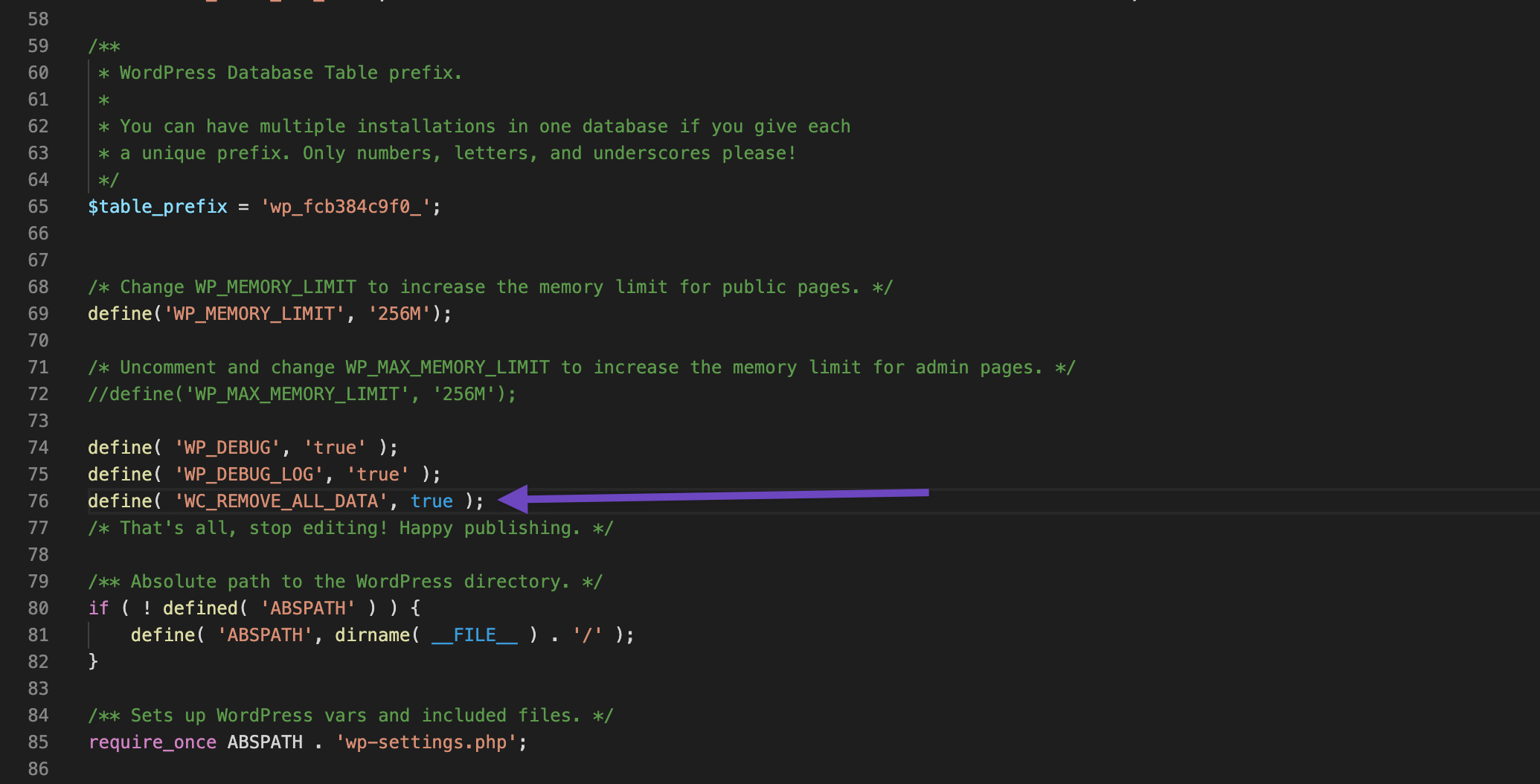
- Save the file.
- Go back to your WordPress admin and delete the WooCommerce plugin as described in Step 2 above.
- Once the plugin is deleted, return to wp-config.php and remove that line of code.
When WooCommerce is deleted with this constant in place, it removes its own database tables, settings, and data automatically. Clean and fast.
One important thing: This method is destructive and permanent. WooCommerce’s own documentation explicitly states that WooCommerce Support cannot assist with anything that goes wrong during this process. Always back up first.
Manual Method: Deleting Data from the WordPress Dashboard
If you prefer to control exactly what gets removed, do it manually from the admin panel before deleting the plugin.
Work through these areas in order:
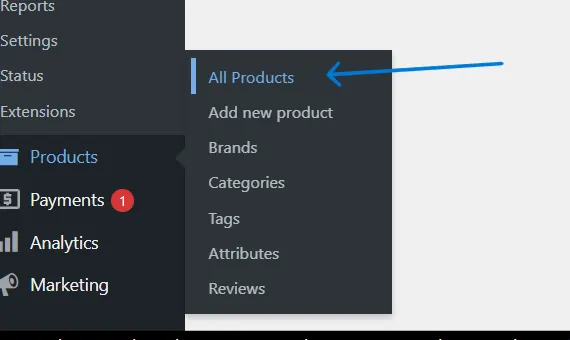
- Products: Go to Products > All Products. Select all and bulk delete. Then go to Products > Categories and do the same.
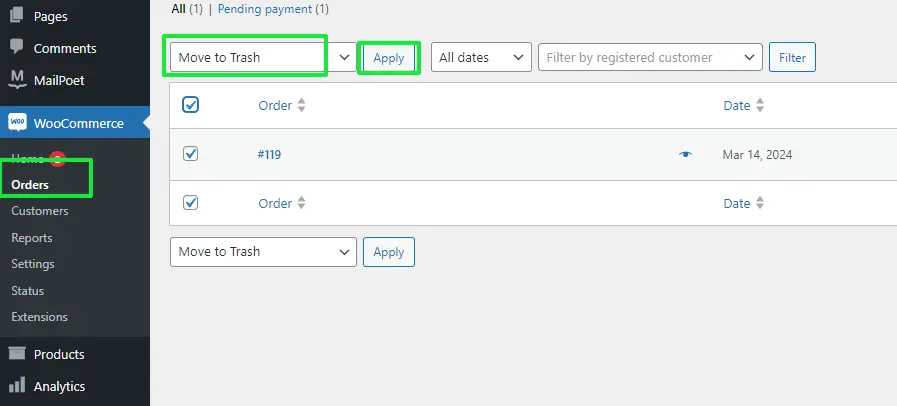
- Orders: Go to WooCommerce > Orders. Select all, bulk action: Move to Trash, then click Apply. Empty the trash.
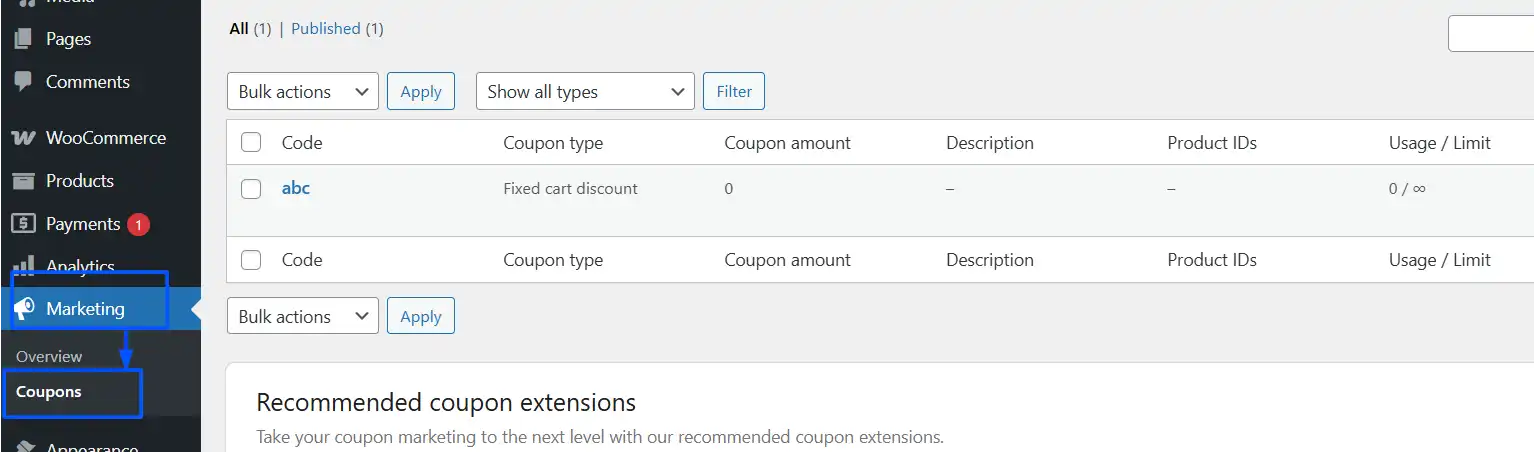
- Coupons: Go to Marketing > Coupons. Bulk delete all.
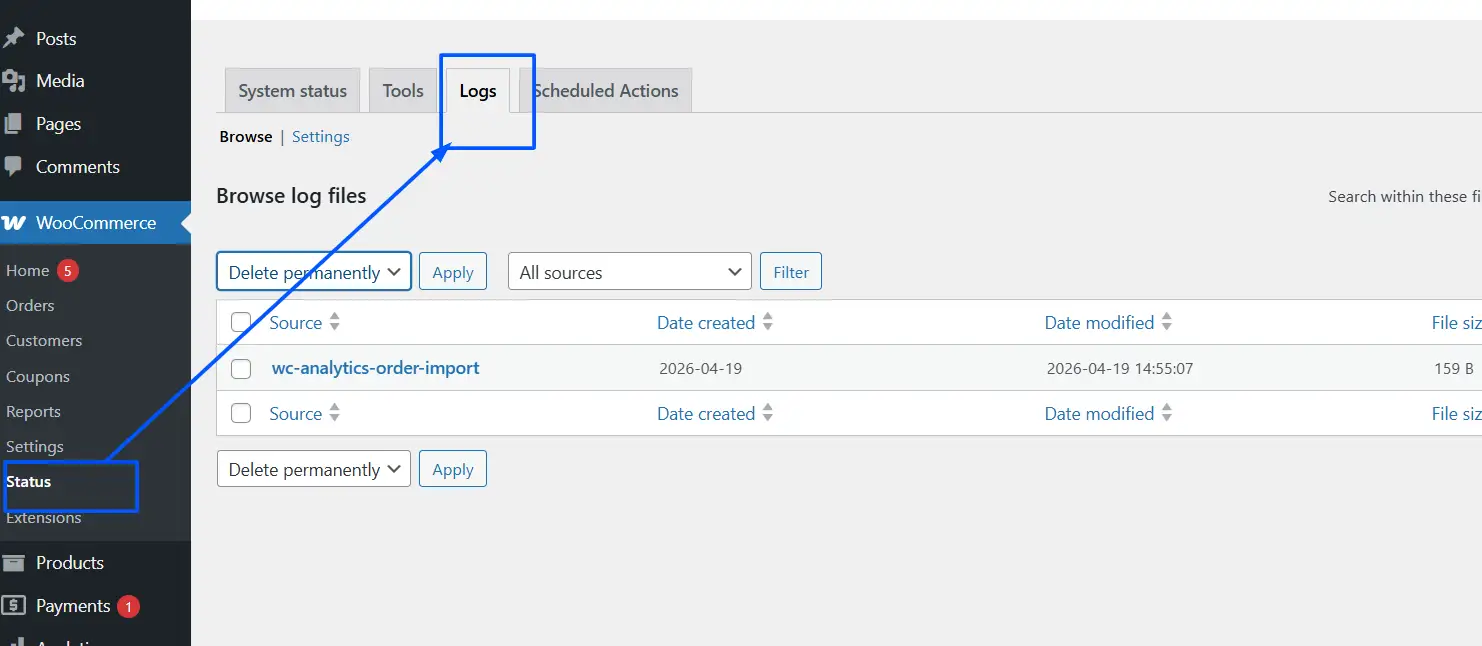
- Log data: Go to WooCommerce > Status > Logs. Delete all log files.
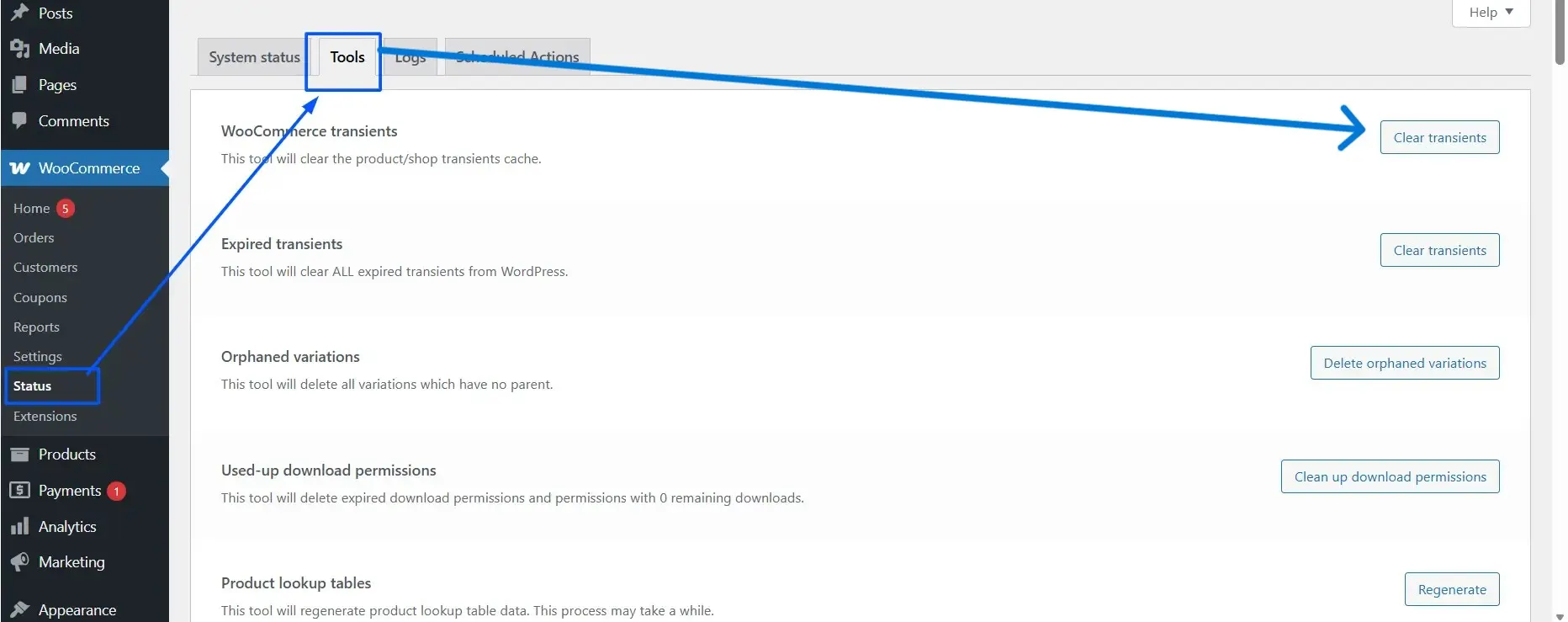
- Transient data: Go to WooCommerce > Status > Tools and click Clear Transients.
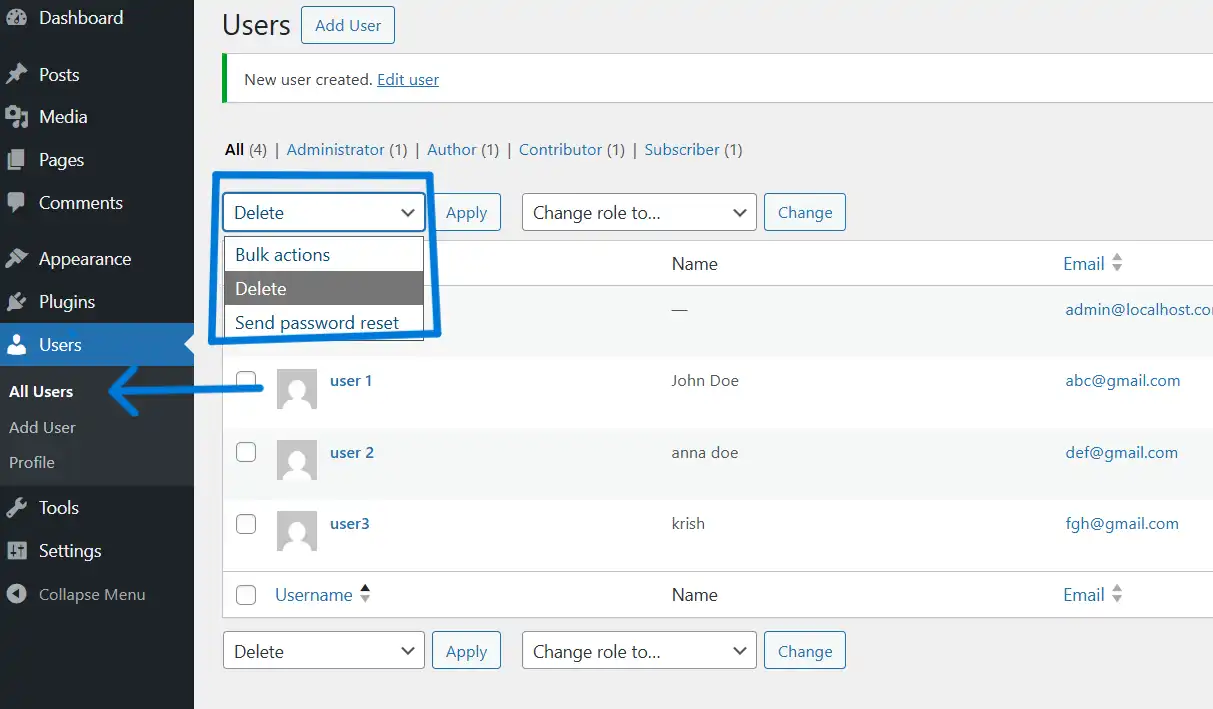
- Customer accounts: Go to Users > All Users and delete the accounts if they’re no longer needed.
After clearing all of this, deactivate and delete the plugin as described above.
Removing WooCommerce Database Tables (Advanced)
Even after using the manual method or the WC_REMOVE_ALL_DATA constant, some database tables can remain — especially if WooCommerce extensions were installed alongside the core plugin.
To check and remove leftover database tables:
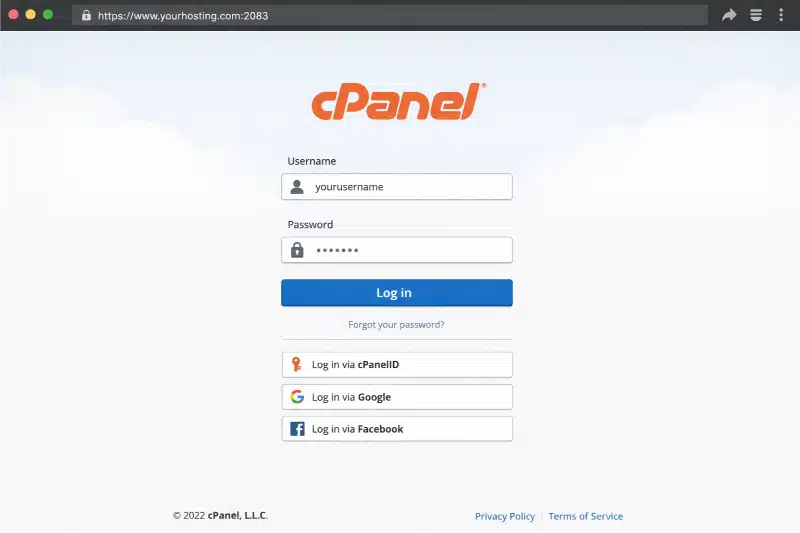
- Log in to your hosting control panel and open phpMyAdmin.
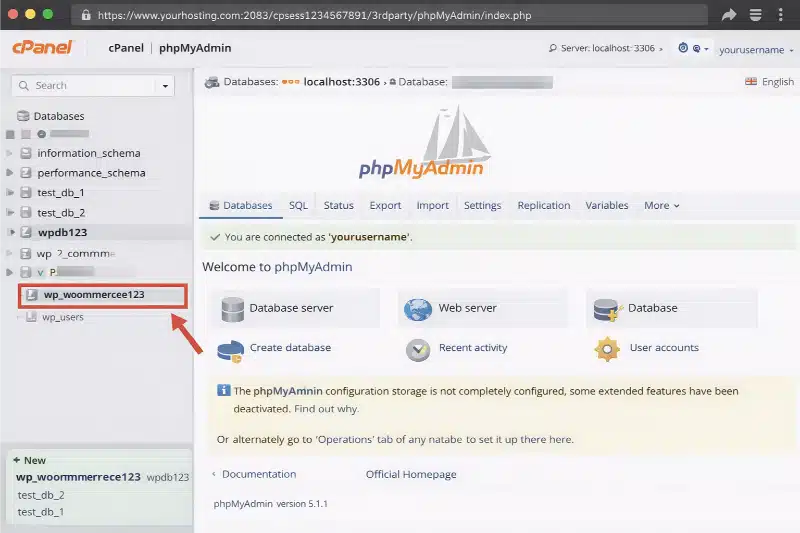
- Select your WordPress database from the left panel.
- Look for tables with the prefix
wp_woocommerce_orwp_wc_. Common ones includewoocommerce_sessions,woocommerce_api_keys,woocommerce_order_items,wc_product_meta_lookup, andwc_tax_rate_classes. Select those tables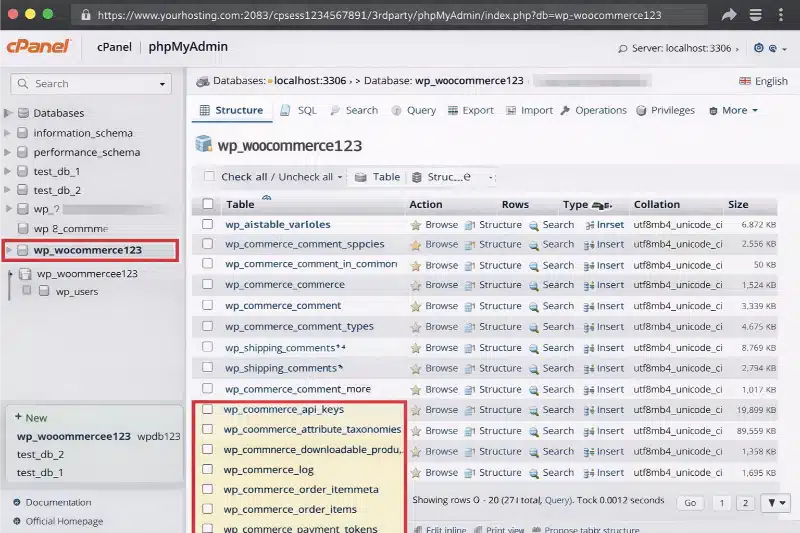
- From the dropdown at the bottom, choose Drop and confirm.
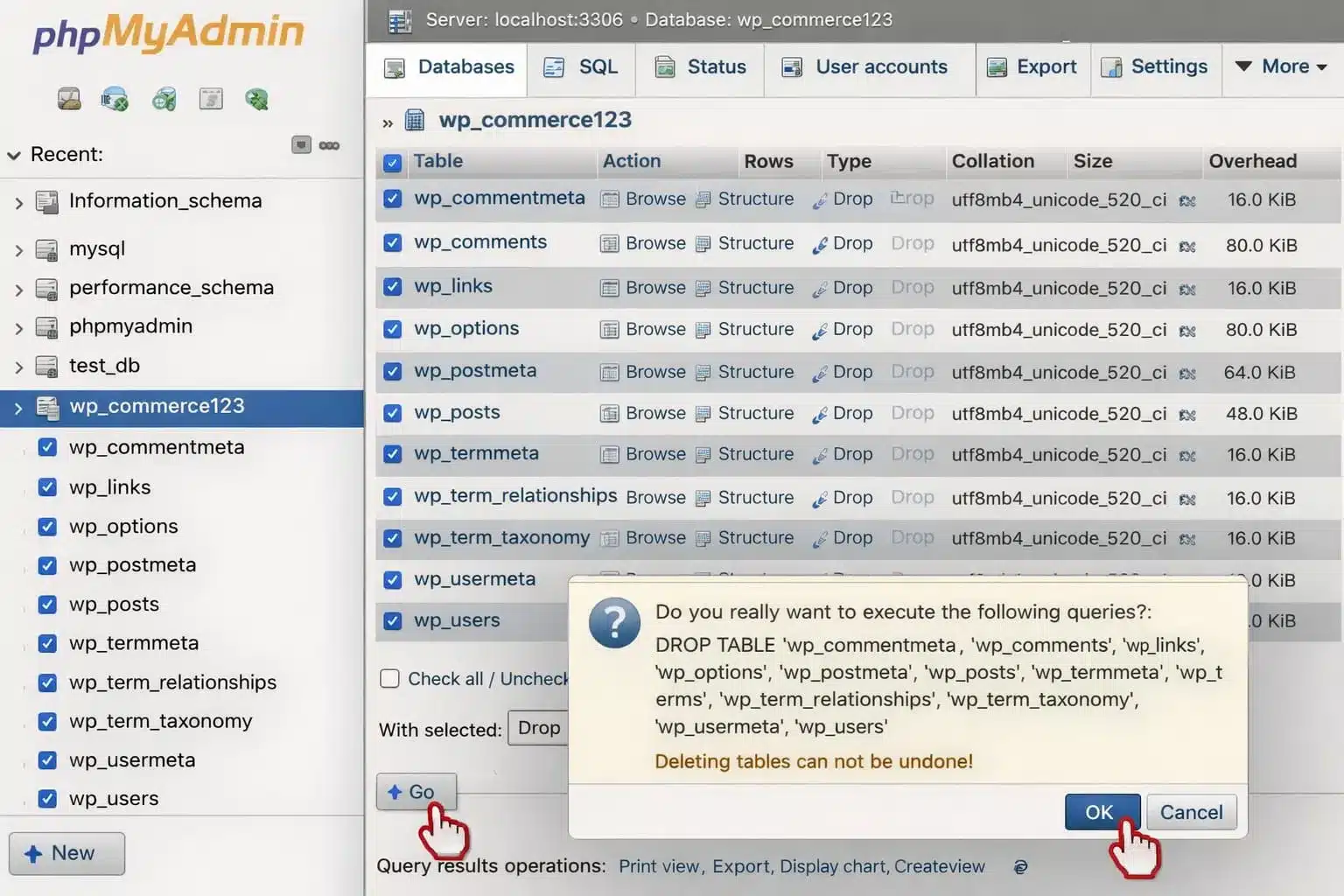
Do not drop tables unless you’re certain they belong to WooCommerce. If you’re unsure, check against the list of default WordPress tables before deleting anything. A mistake in phpMyAdmin can break your site.
Don’t Forget WooCommerce Extension Plugins
Here’s something no other guide covers: removing WooCommerce core doesn’t automatically remove the extension plugins you had installed alongside it.
Things like payment gateway plugins, shipping plugins, and product add-ons are separate plugins. They stay installed and active even after WooCommerce is gone. Some of them will throw errors or warnings because WooCommerce is no longer there for them to hook into.
After removing WooCommerce, go to Plugins > Installed Plugins and look for anything related to WooCommerce. Deactivate and delete each one individually. Common culprits include WooCommerce Payments, WooCommerce Shipping, WooCommerce Subscriptions, and any third-party extensions you added over time.
Each of those extensions may also have left its own data in your database, separate from what WC_REMOVE_ALL_DATA cleans up. For a thorough cleanup, use a plugin like Advanced Database Cleaner to scan for orphaned tables and options from deactivated plugins. Run this after all extensions are removed.
This step is the one most store owners miss. That’s why sites often run slow for months after “removing WooCommerce” — because a dozen extension tables are still sitting in the database.
The SEO Impact of Removing WooCommerce (And How to Handle It)
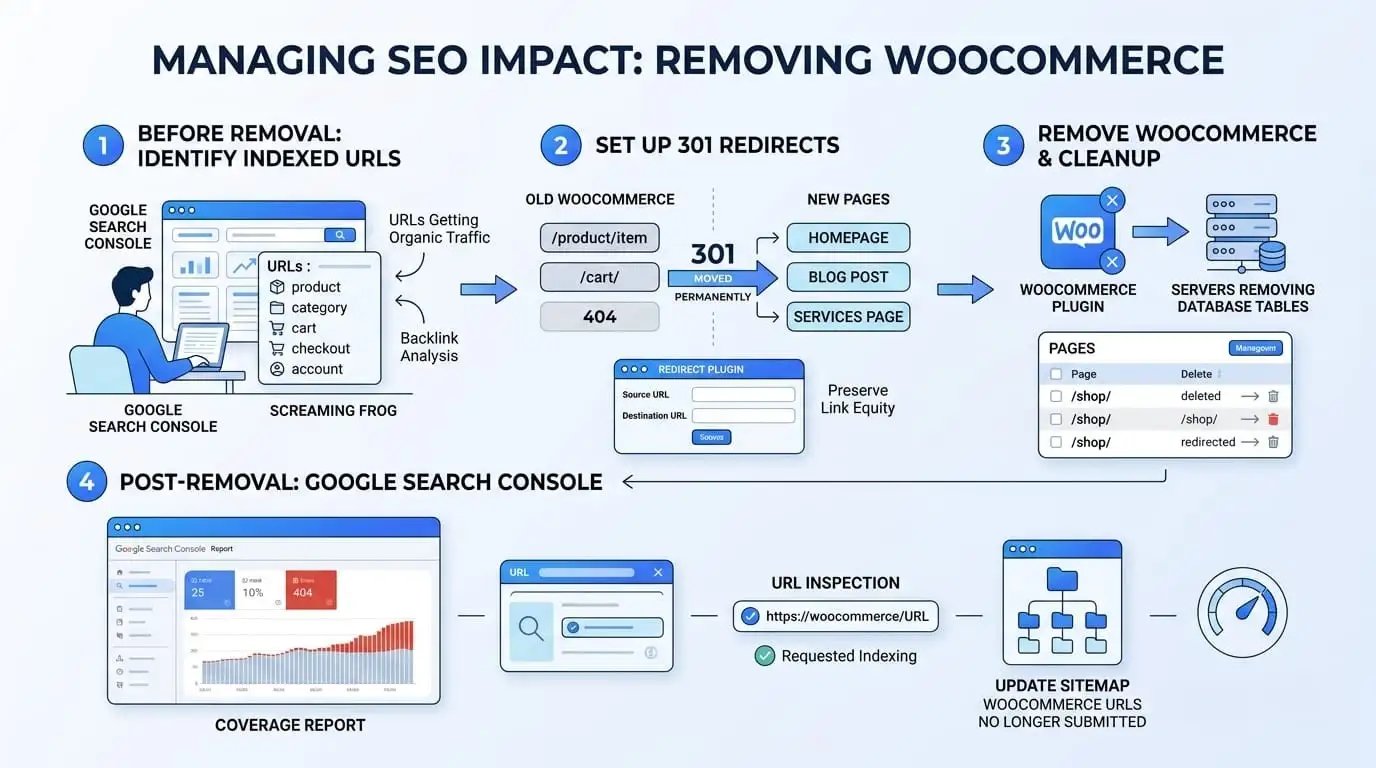
Removing WooCommerce doesn’t just affect your database. It affects your search rankings too and fast, if you don’t handle it correctly.
When WooCommerce is active, it creates URLs for every product page, category page, cart page, checkout page, and account page. These URLs get indexed by Google. When WooCommerce is removed, those URLs return 404 errors. If those pages had organic traffic or backlinks pointing to them, you’ll lose that ranking equity immediately.
This is the part most WooCommerce removal guides completely ignore.
Setting Up 301 Redirects for Old Product Pages
Before removing WooCommerce, identify which product pages were getting organic traffic. Pull a list of indexed WooCommerce URLs from Google Search Console or a tool like Screaming Frog.
For each URL that had meaningful traffic or backlinks, set up a 301 redirect pointing to a relevant page on your site, your homepage, a blog post, a services page, or whatever makes the most sense contextually.
You can manage redirects easily using a free plugin. For a full walkthrough, see our guide on setting up redirects in WordPress.
301 redirects pass link equity from the old URL to the new destination. They won’t fully replace a good ranking product page, but they prevent a total loss and give Google a clear signal that the content has moved.
For WooCommerce system pages specifically: /cart/, /checkout/, /my-account/, /shop/, these were created automatically by WooCommerce. Once the plugin is removed, they return 404s. Either delete them from Pages > All Pages or redirect them to your homepage.
Checking Google Search Console After Removal
After removing WooCommerce and setting up redirects, log in to Google Search Console and check the Coverage report. You’ll start seeing 404 errors flagged there within a few days of removal.
Use the URL Inspection tool to check specific pages. Request indexing for pages you’ve redirected. This speeds up the process of Google recognizing your changes and stops the removed URLs from hurting your rankings long-term.
It’s also worth checking your sitemap. If you’re using an SEO plugin like Yoast SEO or Rank Math, make sure WooCommerce product pages and category pages are no longer being submitted to Google. Submitting 404 URLs in your sitemap wastes crawl budget.
What to Do After Removing WooCommerce
With WooCommerce gone and the cleanup done, a few final steps will put your site in the best possible shape.
- Check your site speed: WooCommerce loads a significant amount of scripts, stylesheets, and database queries on every page load. Once it’s removed, your site will often load noticeably faster. Run a speed test using Google PageSpeed Insights or GTmetrix and compare results before and after. If you need help with ongoing performance, our guide on speeding up a WooCommerce store applies equally well to any WordPress site.
- Review your theme: Many WooCommerce themes include specific template files for the store and enqueue WooCommerce styles even when the plugin is gone. Check your active theme’s functions.php and look for hooks specific to WooCommerce. Remove or comment them out if they’re no longer needed.
- Flush your permalink structure: After removing WooCommerce, go to Settings > Permalinks and click Save Changes without changing anything. This resets WordPress’s rewrite rules and clears any permalink conflicts related to WooCommerce.
- Consider what comes next: If you removed WooCommerce because it wasn’t the right fit rather than because you’re leaving ecommerce entirely, there are solid alternatives worth exploring. Our breakdown of WooCommerce alternatives covers the main options — from lightweight WordPress plugins to fully hosted platforms.
If you’d rather have an expert handle the transition, our WooCommerce development services team can manage the whole process cleanly and without the risk of breaking anything critical.
Conclusion
Removing WooCommerce from WordPress involves more than clicking delete. The plugin, its data, its database tables, and its extension plugins all need to be handled separately and your SEO needs to be protected before any of it is touched.
Back up first, use the WC_REMOVE_ALL_DATA constant or manual cleanup to clear the database, remove extension plugins individually, set up 301 redirects for any product pages with organic traffic, and verify everything in Google Search Console afterward.
Done in the right order, you can fully remove WooCommerce without losing rankings or leaving behind a bloated database that slows your site down for months.
If you’re planning to rebuild or migrate your store, feel free to reach out. Our team has handled WooCommerce transitions of all shapes and sizes.
Frequently Asked Questions (FAQs)
Q1. Can I remove WooCommerce without losing my product data?
Yes, but you need to export your data before deletion. Go to Products > All Products and use the bulk export option to download product data as a CSV. For orders, export from WooCommerce > Reports. Once you delete WooCommerce and its database data, that information is permanently gone from the system.
Q2. Will removing WooCommerce break my WordPress site?
Removing WooCommerce alone won’t break WordPress core. However, it can break pages and functionality that depend on WooCommerce — including any theme features built around it, shortcodes like woocommerce_cart, and extension plugins that hook into WooCommerce. Check your theme and remaining plugins for WooCommerce dependencies after removal.
Q3. Does deactivating WooCommerce delete the data?
No. Deactivating WooCommerce only turns off the plugin. All products, orders, customer data, and database tables remain intact. You need to add the WC_REMOVE_ALL_DATA constant to wp-config.php before deleting the plugin, or manually remove the data yourself, to clear it from the database.
Q4. How do I know if WooCommerce data is still in my database after removing the plugin?
Open phpMyAdmin through your hosting control panel and look for tables prefixed with wp_woocommerce_ or wp_wc_. If those tables are still present, the data wasn’t fully removed. You can drop them manually in phpMyAdmin or use a database cleanup plugin like Advanced Database Cleaner to handle it.
Q5. Can I reinstall WooCommerce after removing it?
Yes. If you removed the plugin without using the WC_REMOVE_ALL_DATA constant, your data likely still exists in the database and will reappear when you reinstall. If you used the constant or manually deleted the data, you’ll start completely fresh, which is what most people removing WooCommerce permanently actually want.