You can fix the 400 bad request error on WordPress yourself in most cases, usually in under ten minutes, without touching a single line of code.
The mistake most guides make is jumping straight to fixes. The smarter first move is figuring out where the error happens, since that one detail points you to the right fix immediately.
This guide walks you through that diagnosis first, then gives you 8 tested fixes in the order that solves the problem fastest for most sites.
Each step is broken down into clear, clickable instructions, so you can follow along and get your site back online right away.
What Is the 400 Bad Request Error?
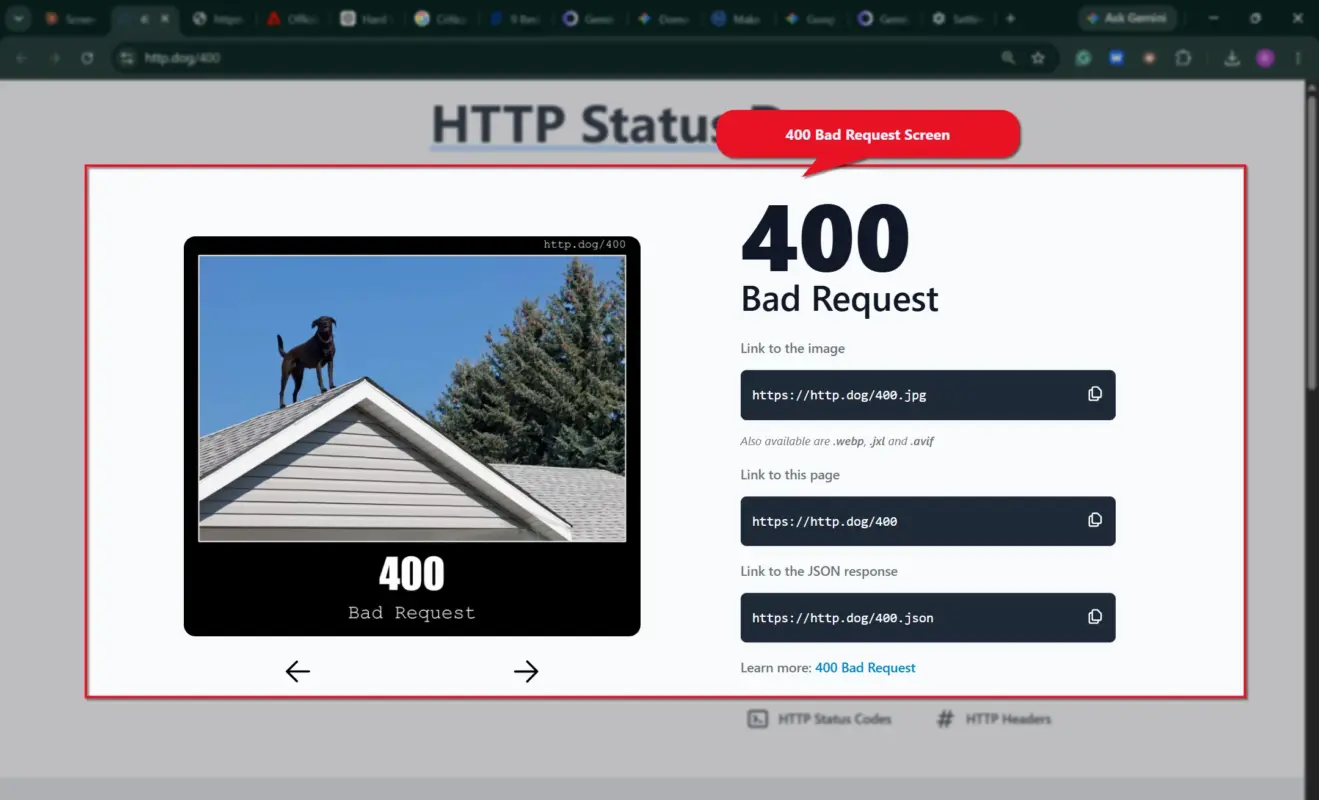
A 400 Bad Request error is an HTTP status code. It means your browser sent a request to the server, but the server could not read or understand it, so it rejected the request before doing anything with it.
That is different from a 404 error. A 404 means the page you asked for does not exist. A 400 means the request itself was broken in some way, whether that’s a bad URL, an oversized cookie, or a corrupted file on your own site.
You might see this error as a blank white page, a plain “400 Bad Request” message from your browser, or a styled error page from your hosting provider. MDN’s HTTP status reference covers the technical definition if you want the full spec.
What Causes the 400 Bad Request Error on WordPress?
Here are the most common causes behind this error, roughly in order of how often they show up:
- Corrupted browser cache or cookies: The most common cause; outdated or oversized cookies confuse the server.
- A broken or bad URL: Typos or incorrectly formed query strings trip this error almost every time.
- A corrupted .htaccess file: Controls permalinks and redirects; one bad line can break the whole site.
- A plugin or theme conflict: A recently updated or poorly coded plugin can send incorrectly formed requests.
- Incorrect file permissions: A server that can’t read a needed file may return a 400 instead.
- Oversized uploads: Files larger than your server’s limit can trigger this error too.
- An expired login session or security token: An expired security token can make a background request fail.
- DNS cache issues: Outdated local DNS data occasionally causes this, especially after a migration.
Find Where the Error Happens First
This step takes thirty seconds and saves you from randomly changing settings that were never the problem. Answer one question: does the error happen on one page, only inside wp-admin, or absolutely everywhere?
If it’s one page only, the cause is almost always a bad URL or a broken link. If it happens only when you’re logged into wp-admin, suspect cookies, a plugin, or an expired session. If it happens on every page for every visitor, the .htaccess file or a server-level issue is the more likely cause.
Write that answer down. It tells you which fix below to try first instead of working through all seven in order.
How to Fix the 400 Bad Request Error on WordPress
Work through these fixes in order. Most people are done after step 1 or step 4. Stop as soon as the error is gone.
1. Clear Your Browser Cache and Cookies
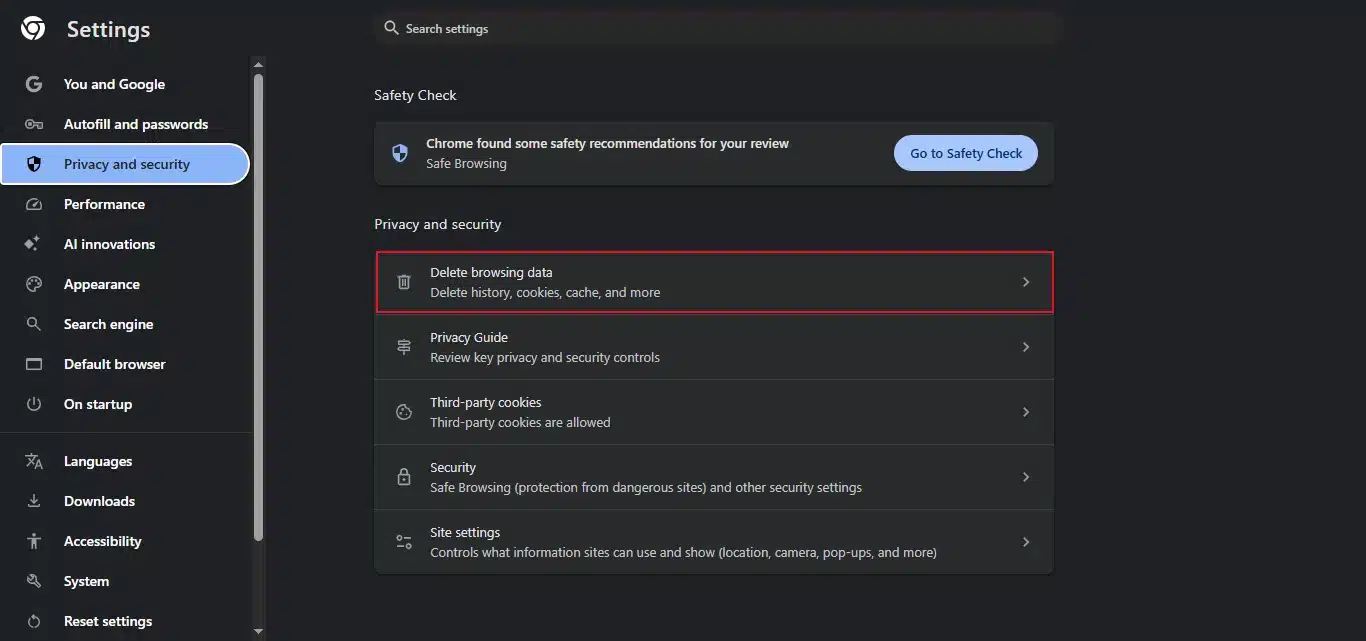
This alone resolves the 400 bad request error on WordPress more often than any other fix on this list. Corrupted cookies are the single most common cause.
Go to your browser settings and look for Privacy or Clear Browsing Data. Select Cookies and other site data and Cached images and files, set the time range to All Time, and clear the data. Restart your browser and reload your WordPress site to check if the error is gone.
2. Check Your URL and Query String
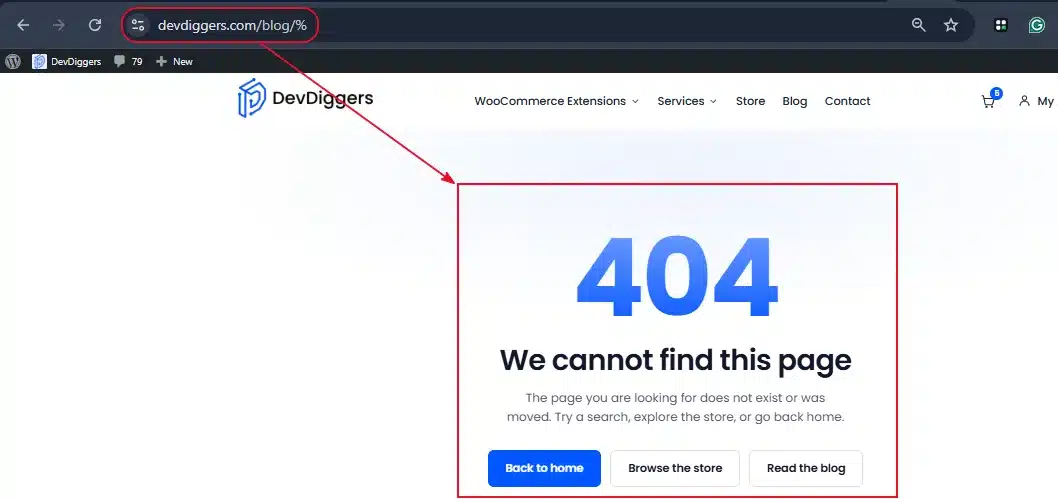
A single stray character in the address bar can trigger this error. Look for extra spaces, stray % symbols, or duplicate “?” characters in the URL, then remove anything after the ? and reload the shortened version. If that loads fine, the query string was the problem, not the page itself.
3. Test in a Private Window or a Different Browser
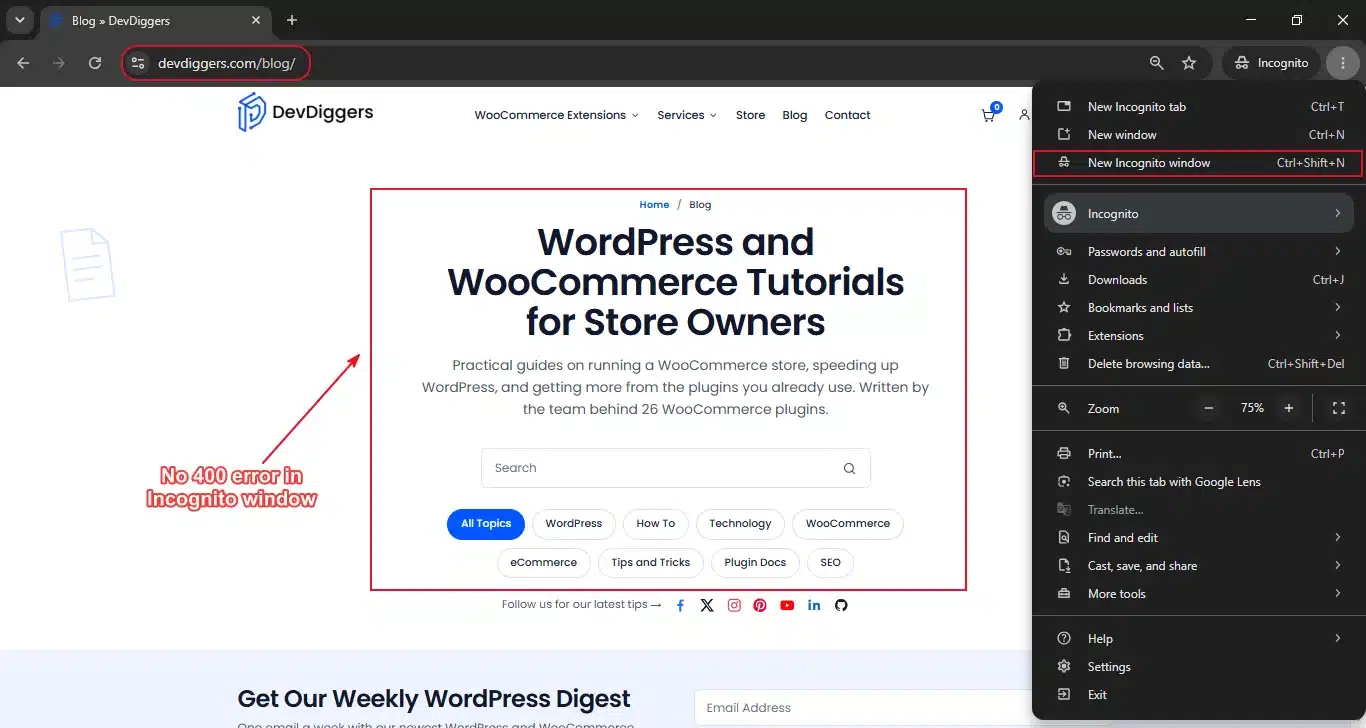
Open a new private or incognito window and load the same page or wp-admin URL that was failing.
- If it loads fine now, the issue is browser-side. Go back and disable your extensions one at a time to find the cause.
- If it still fails in private mode, the problem is on the WordPress side. Move on to the next fixes.
This step tells you whether the problem lives in your browser or on your actual WordPress site.
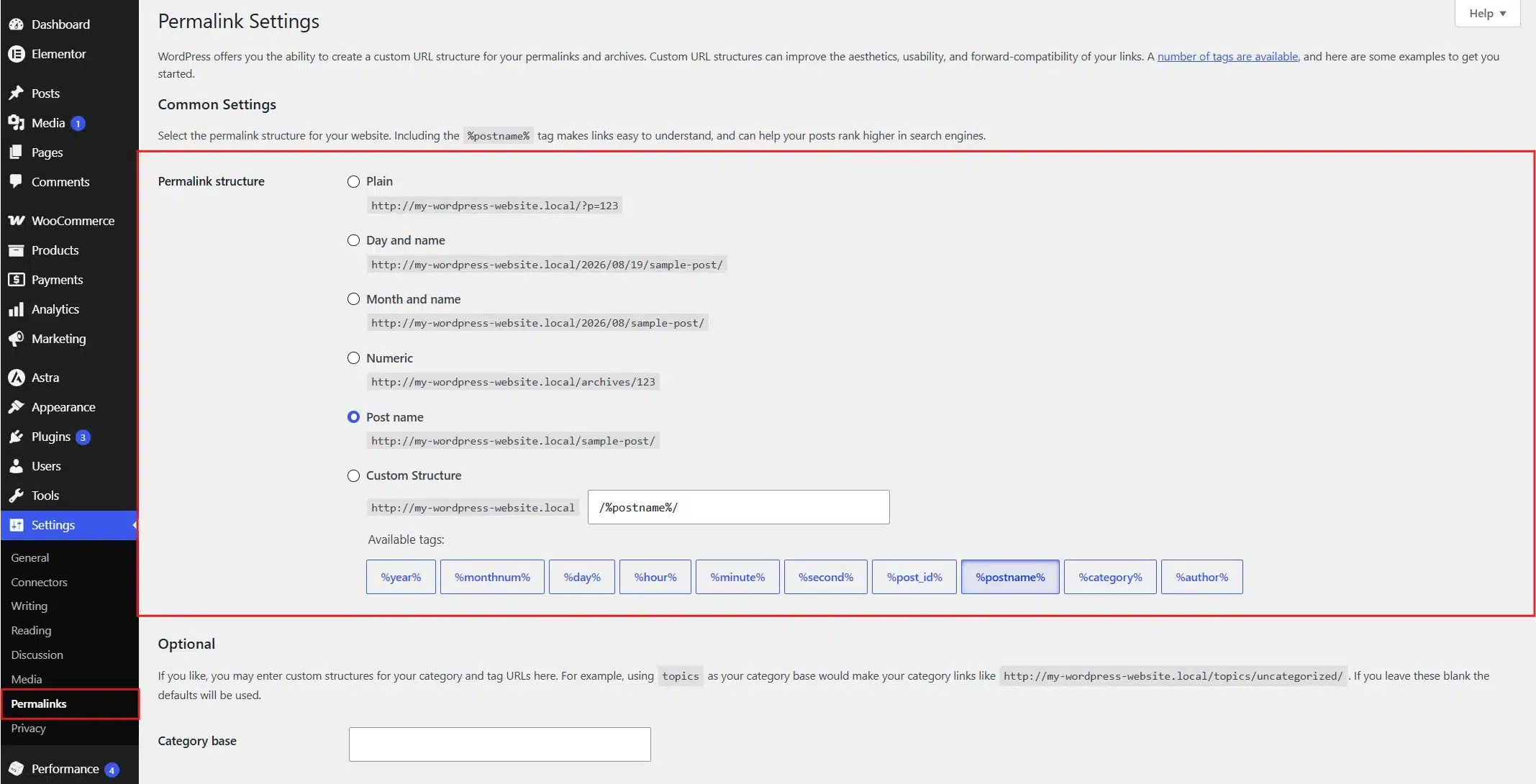
4. Reset Your WordPress Permalinks
WordPress rebuilds the rules that connect URLs to your content whenever you resave this setting. It’s a low-risk fix that solves a surprising number of 400 errors.
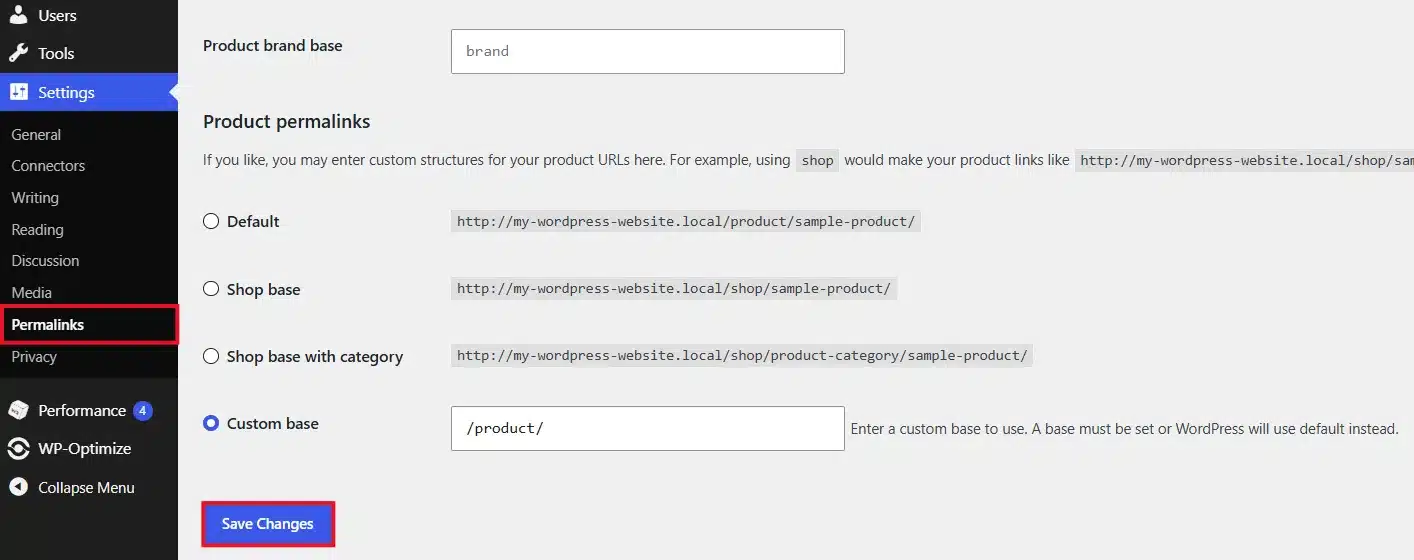
- Log into your WordPress dashboard and go to Settings → Permalinks.
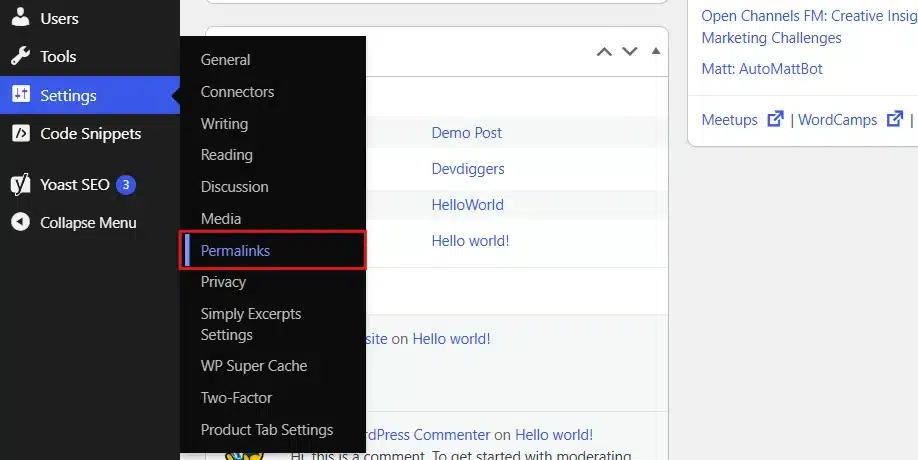
- Switch the permalink structure.
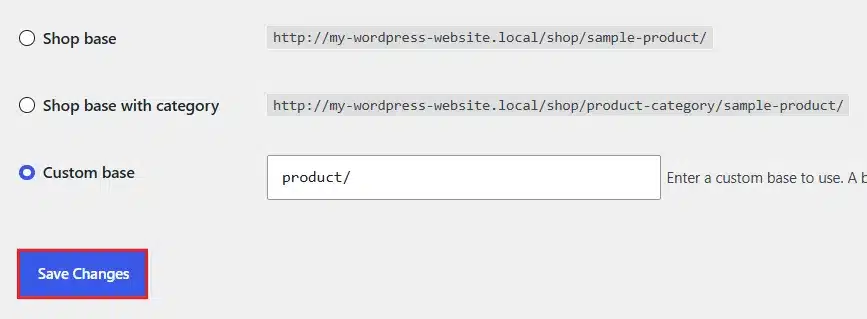
- Click the Save Changes button at the bottom and reload the page.
5. Regenerate the .htaccess File
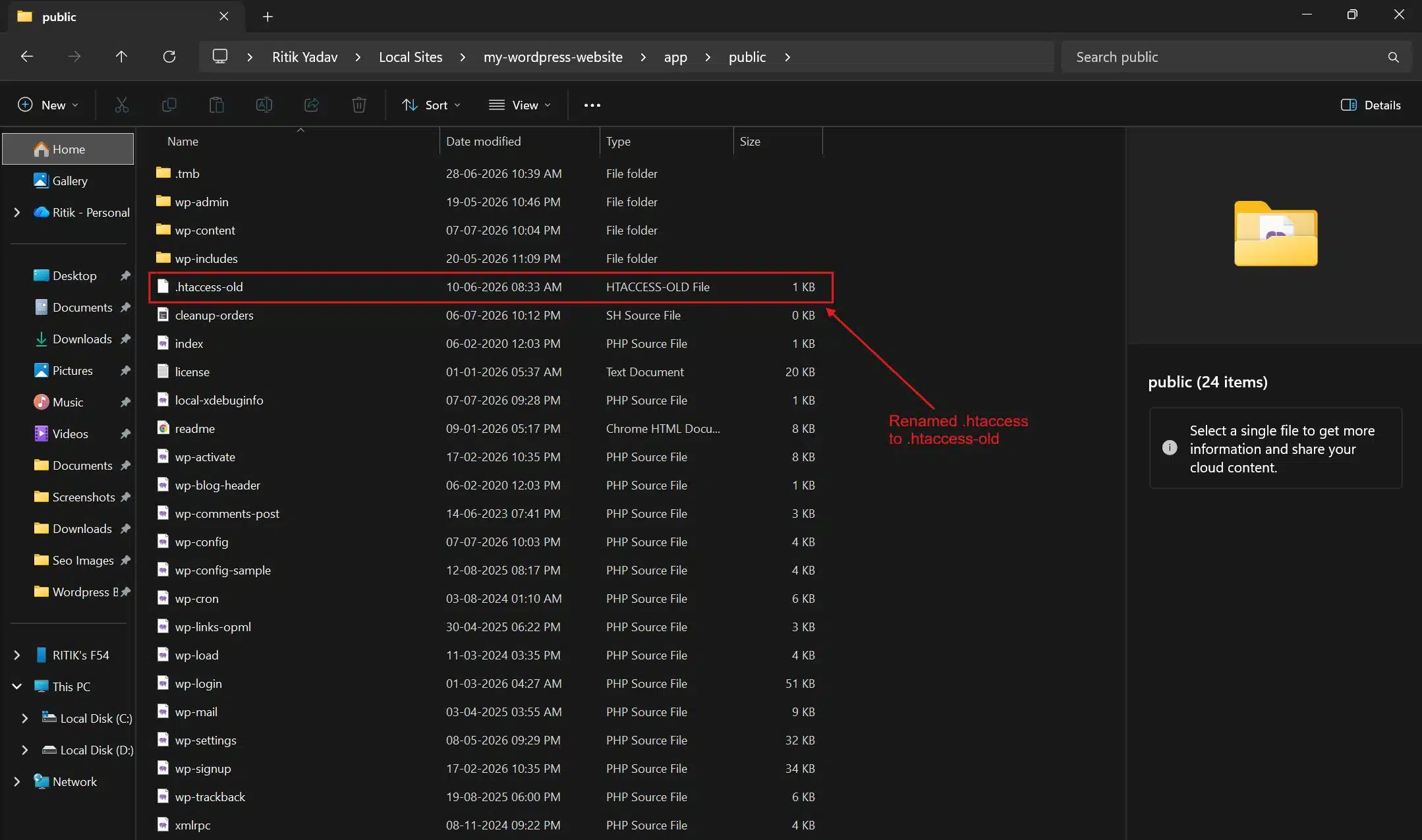
If resaving permalinks didn’t help, the .htaccess file itself may be corrupted. This file lives in your site’s root folder and controls WordPress permalinks.
- Connect to your site using an FTP client or your host’s Site Folder directory.
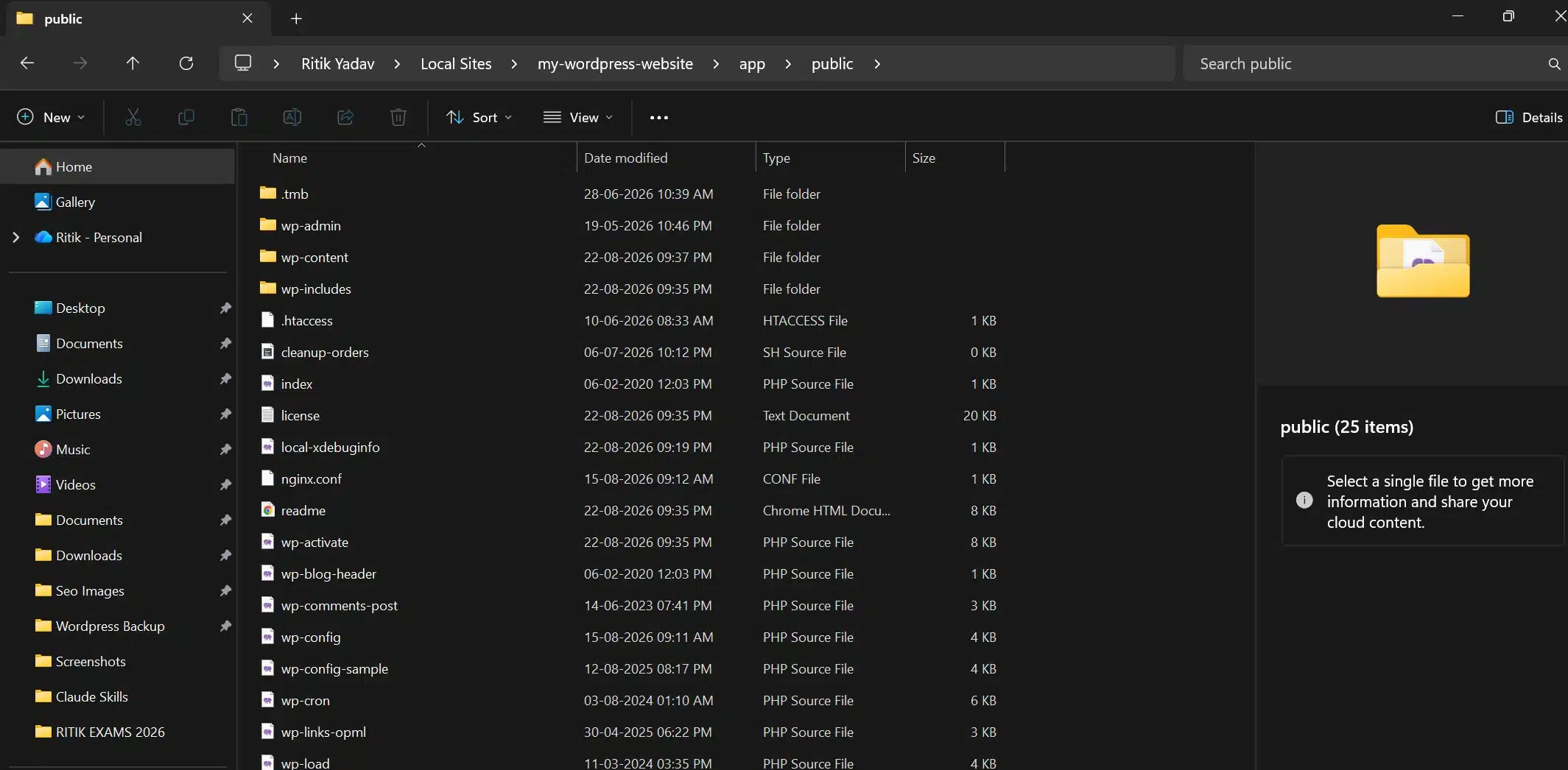
- Navigate to your WordPress root directory, the folder containing
.htaccessfile.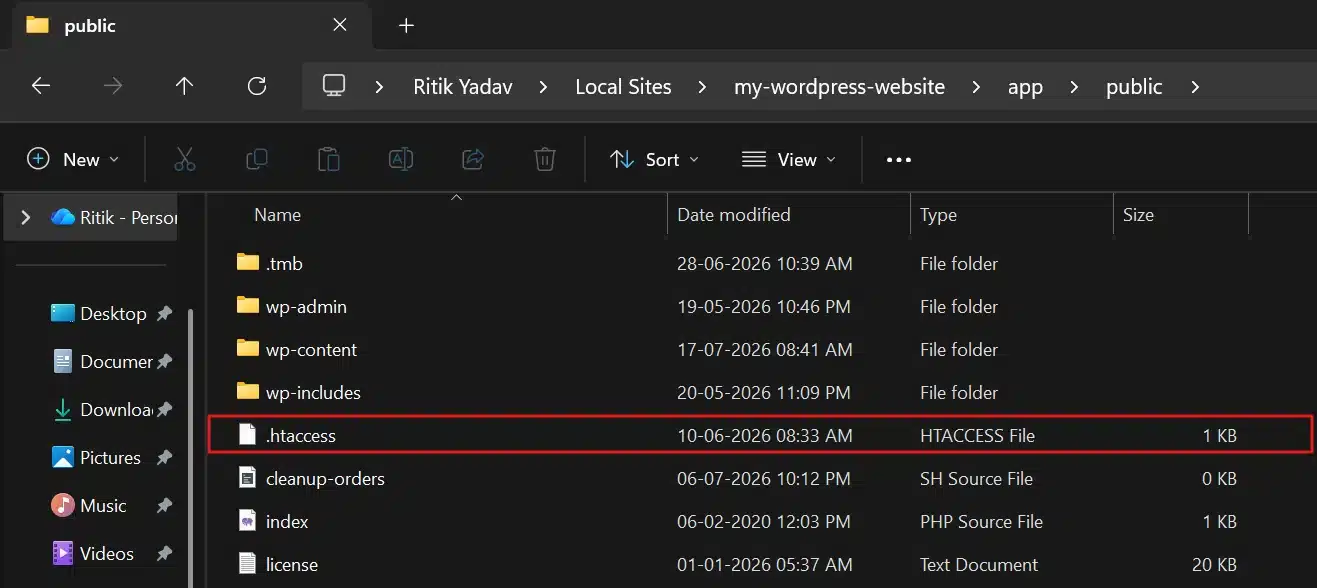
- Right-click it and rename it to .htaccessold. This keeps a copy in case something goes wrong.
- Go back to Settings → Permalinks in your WordPress dashboard and click Save Changes again.
- WordPress will automatically generate a fresh
.htaccessfile.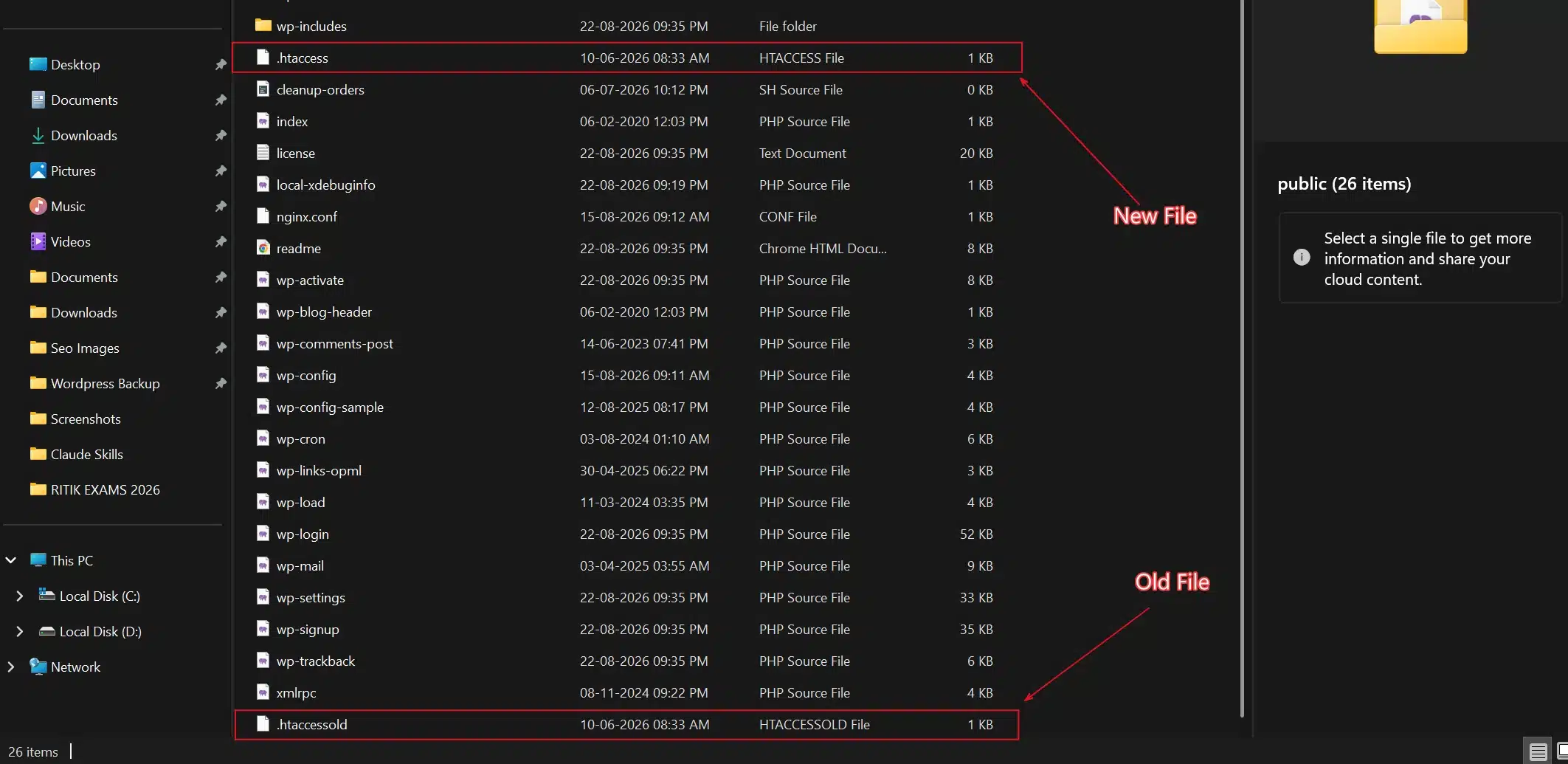
If WordPress doesn’t recreate the file automatically, create a new one manually and paste in this default code:
6. Deactivate Plugins and Switch to a Default Theme
A plugin or theme update is a common trigger, especially if the error started right after you installed or updated one.
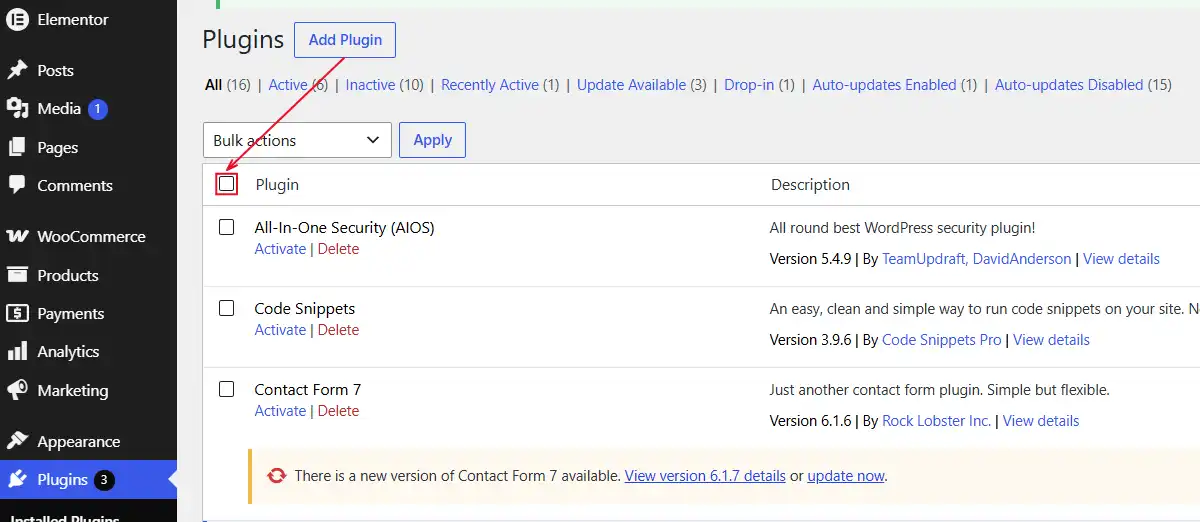
- In your WordPress dashboard, go to Plugins → Installed Plugins.
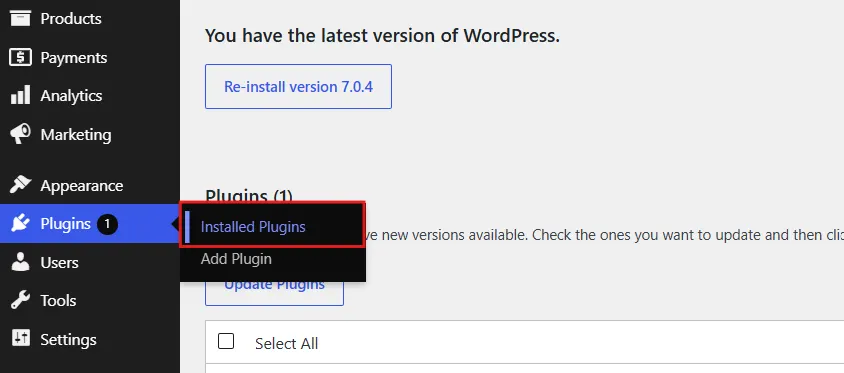
- Select the checkbox at the top to select all plugins.
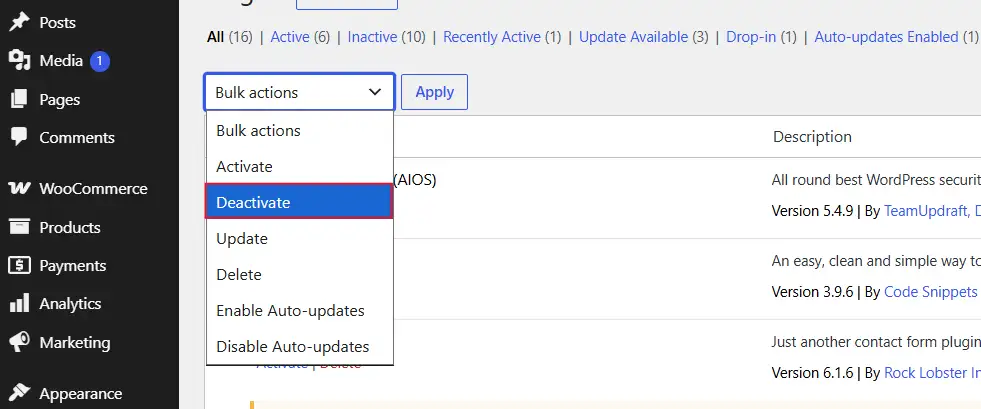
- From the Bulk Actions dropdown, choose Deactivate, then click Apply.
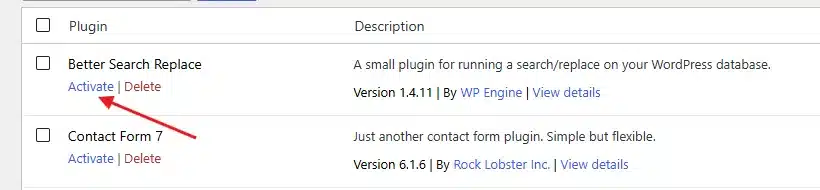
- If the error disappears, reactivate plugins one at a time, checking the site after each one, until the error comes back.
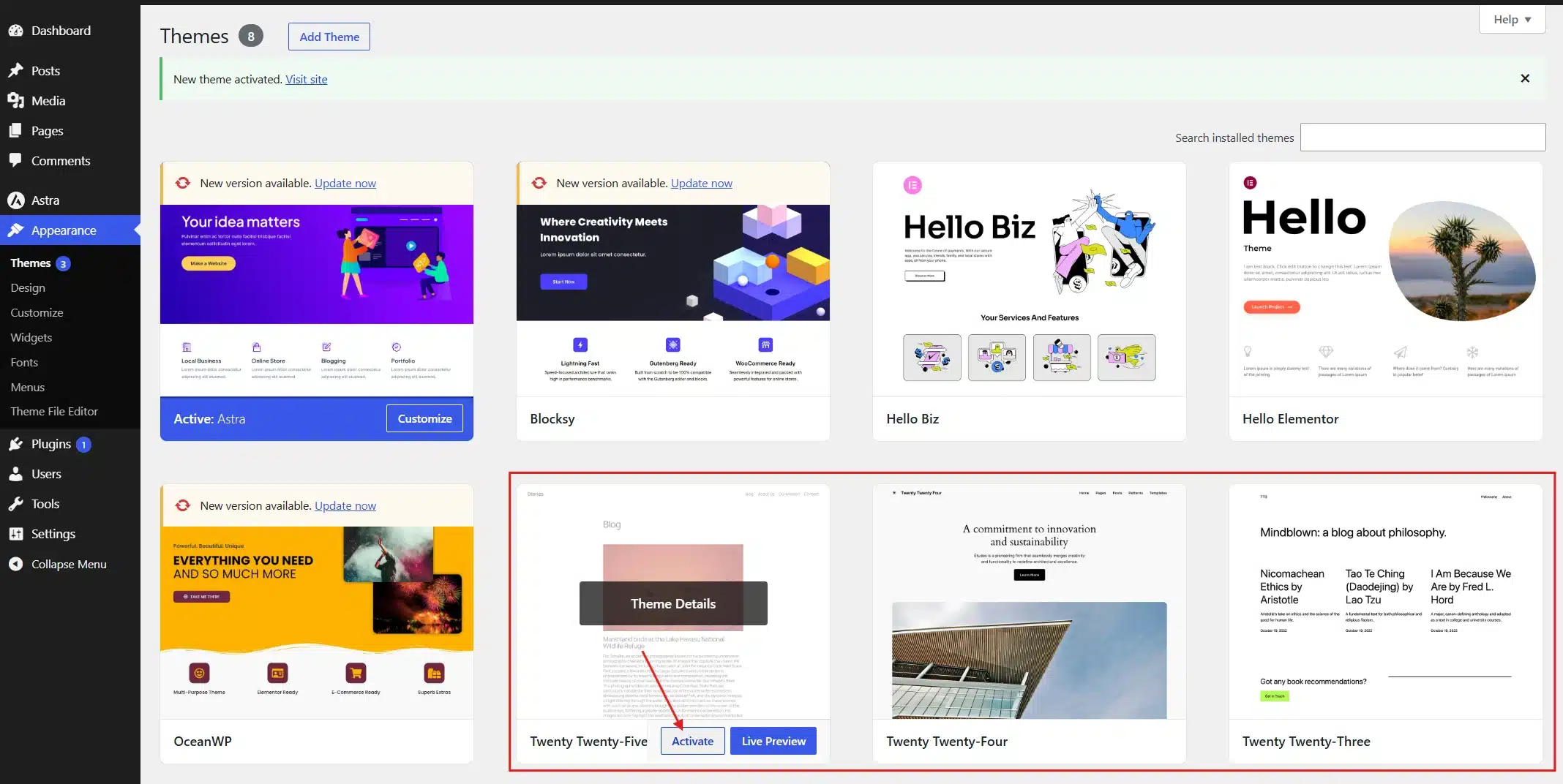
- If deactivating plugins didn’t help, go to Appearance → Themes, and switch to a default theme like Twenty Twenty-Five.
If you’re locked out of wp-admin entirely, you can still do this over FTP. Rename the wp-content/plugins folder to plugins-disabled. This deactivates every plugin at once without needing to log in.
7. Check File Permissions
Wrong permissions stop the server from reading files it needs, and that can show up as a 400 error instead of a clearer message.
- Connect to your site through FTP or your host’s File Manager.
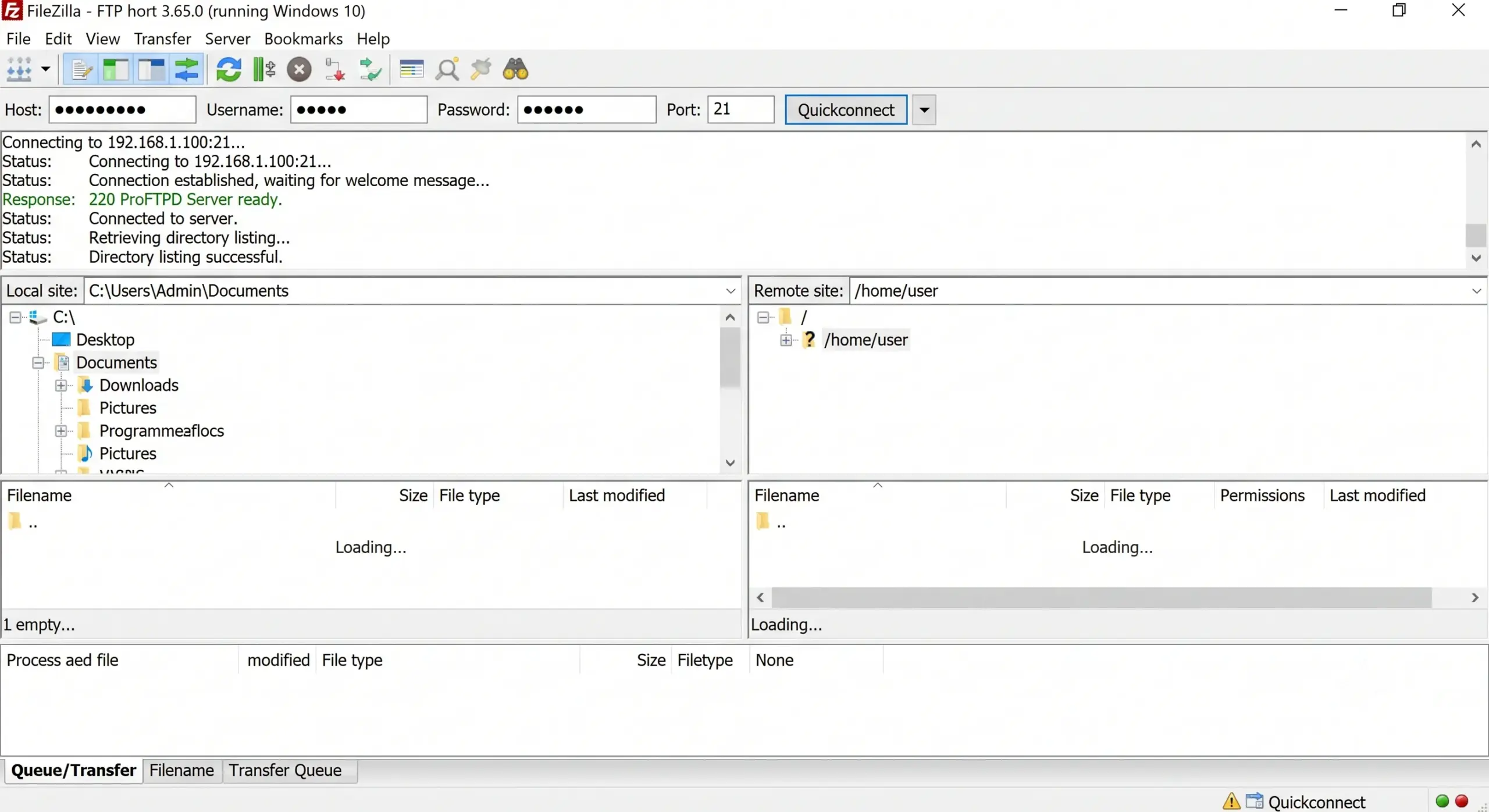
- Confirm that files are set to permission level 644.
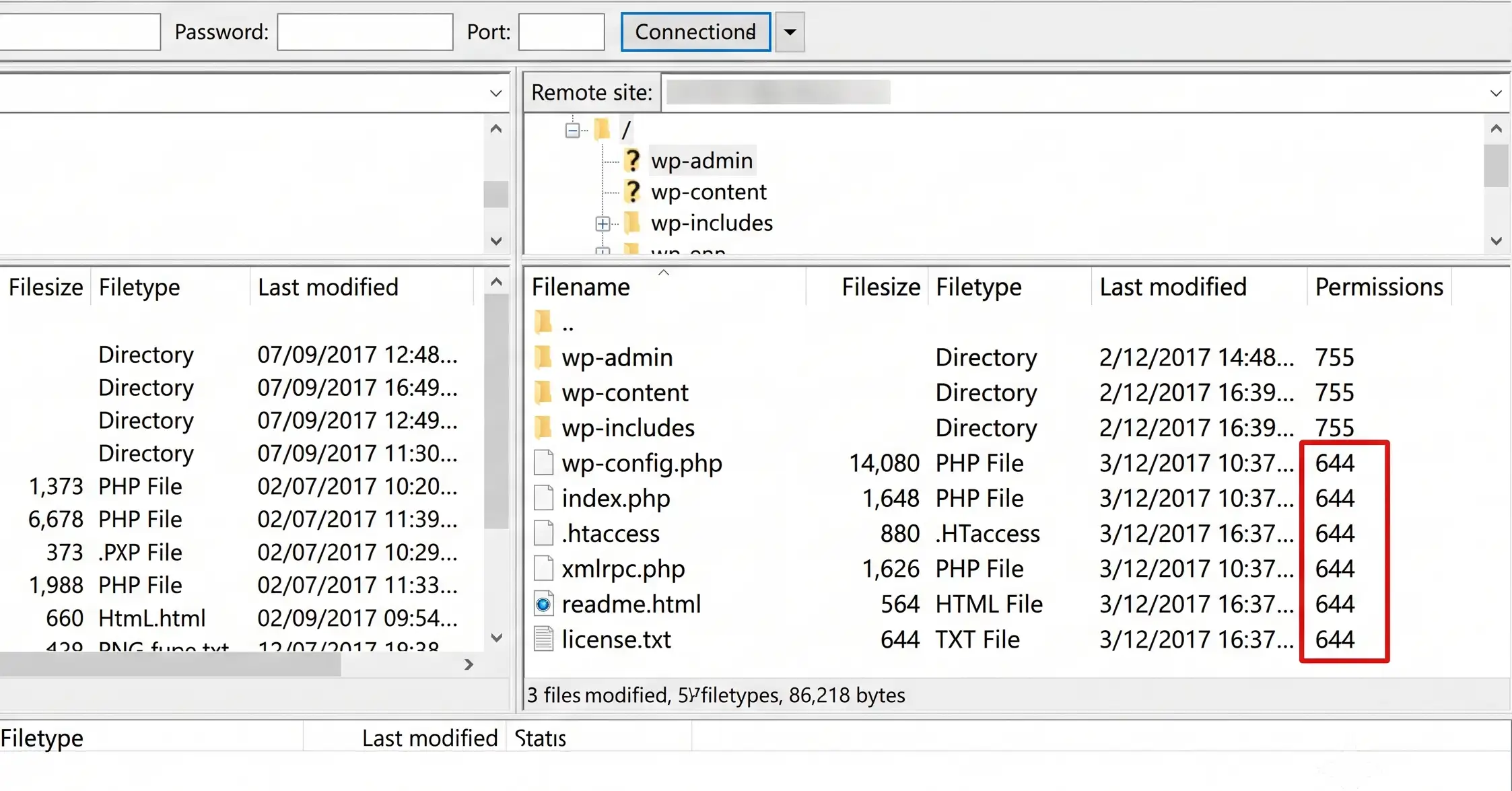
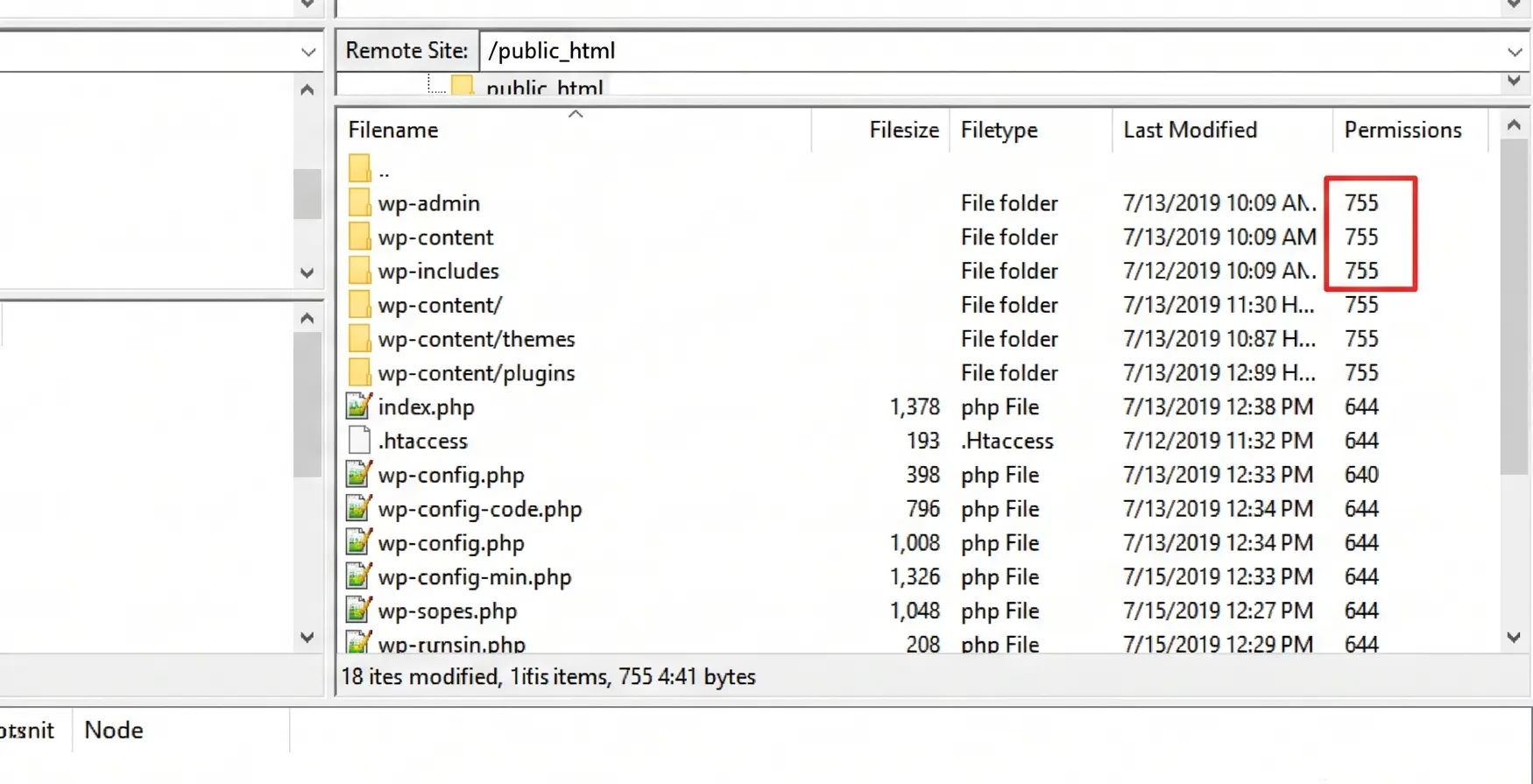
- Confirm that folders are set to permission level 755.
- If any are wrong, right-click the file or folder, select File Permissions or Change Permissions, and update the number.
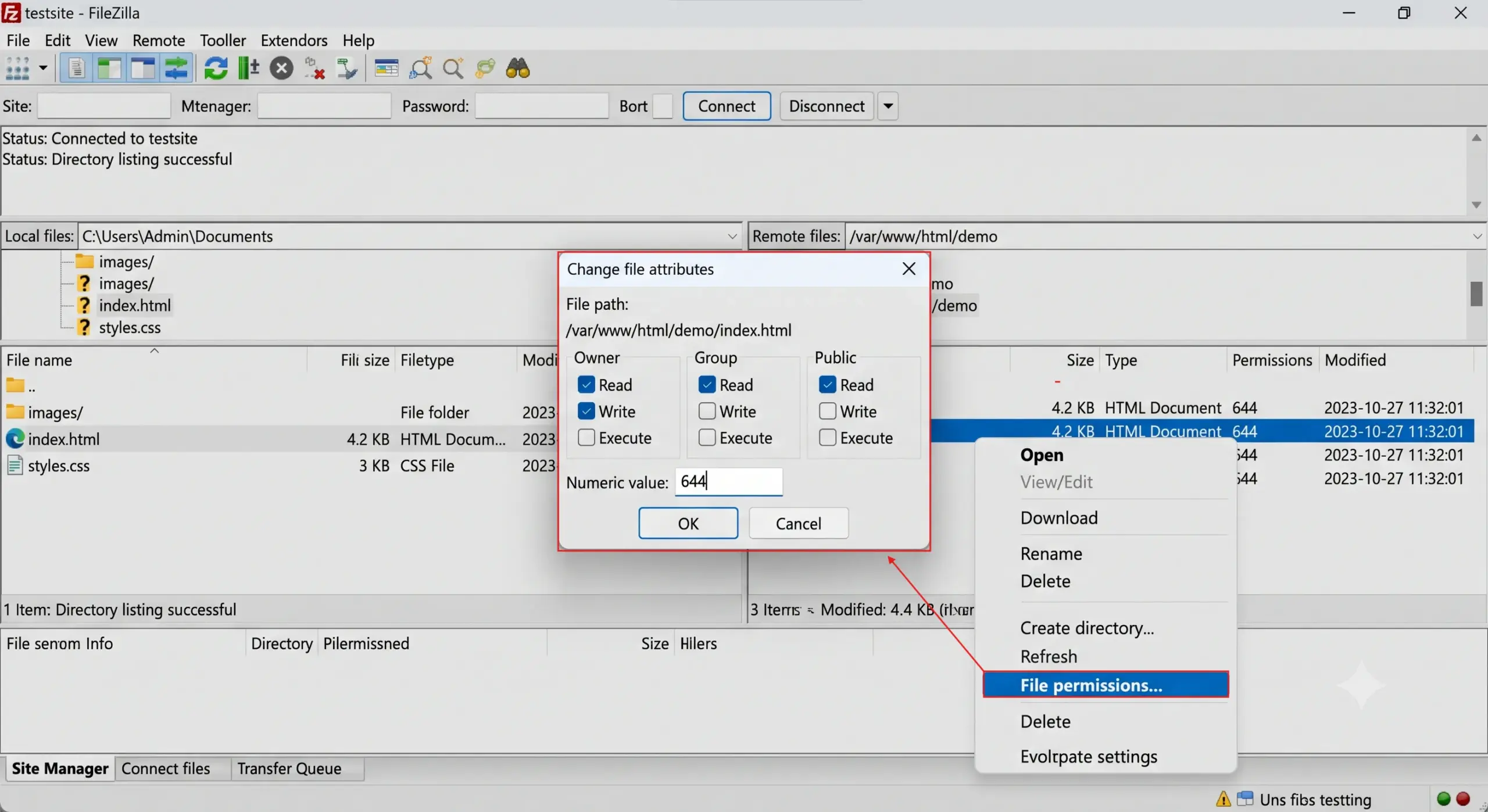
- Apply the change and reload your site.
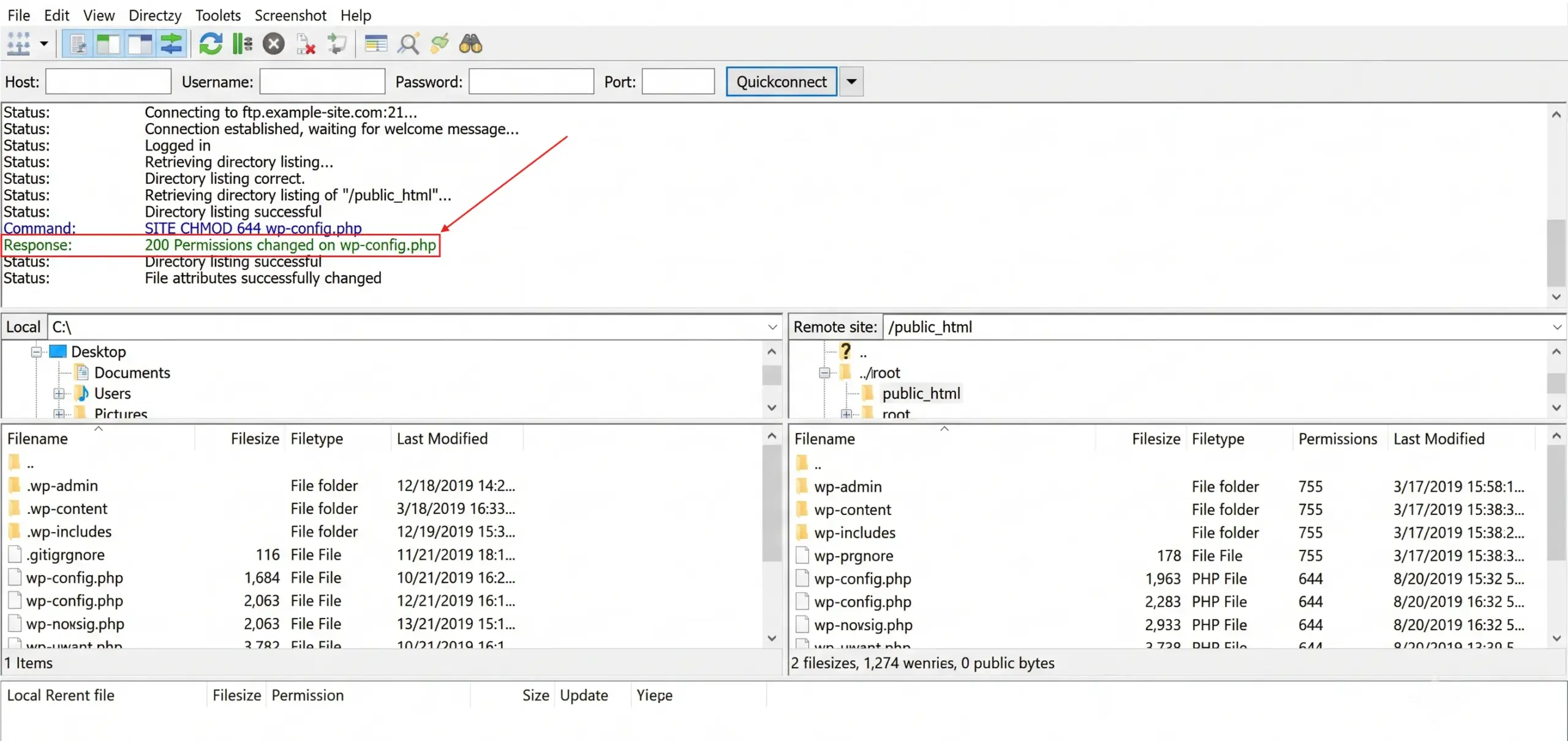
If you don’t have permission to change ownership yourself, this is a quick fix your hosting provider can make in a few minutes.
8. Increase Your PHP Limits
Large uploads or heavy requests can exceed your server’s default limits and get rejected completely. This one is worth trying if the error only shows up during uploads or big form submissions.
- Connect to your site via FTP or Site Folder Directory.
- Locate wp-config.php in your root folder and open it for editing.
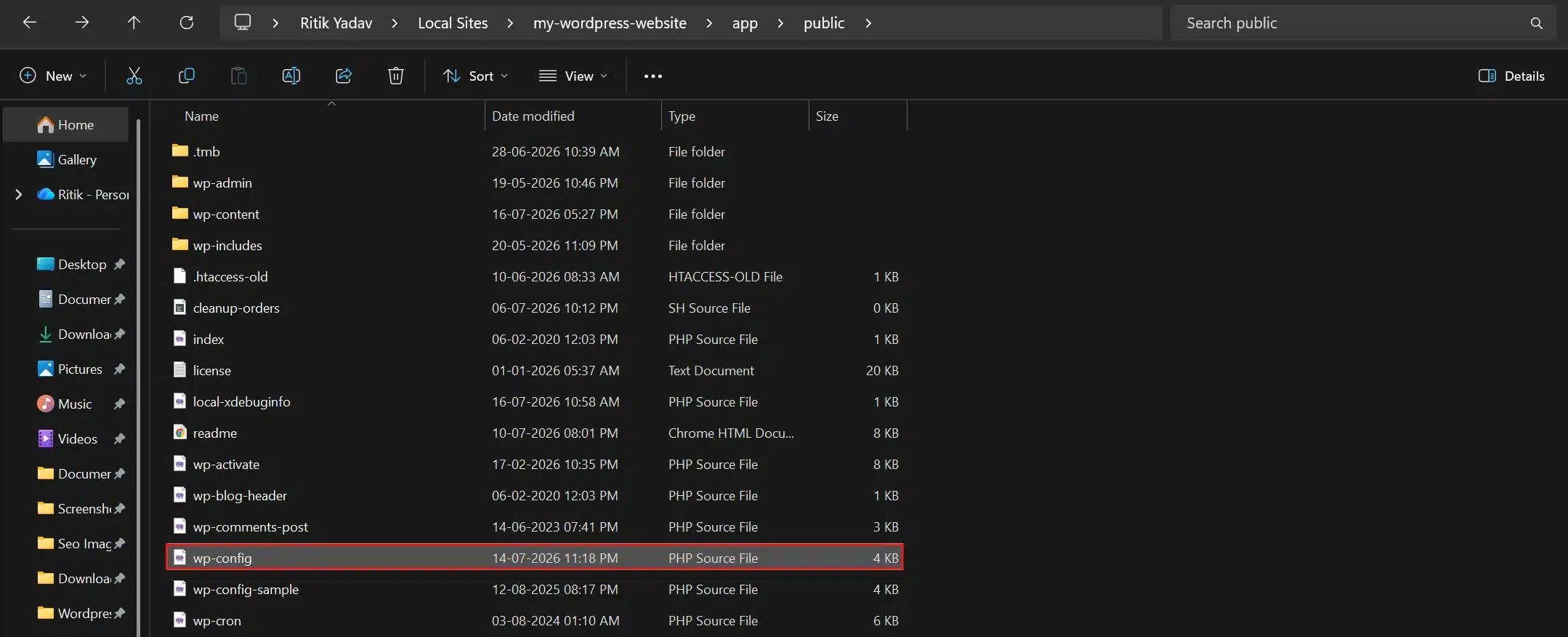
- Add this line just above the comment that says
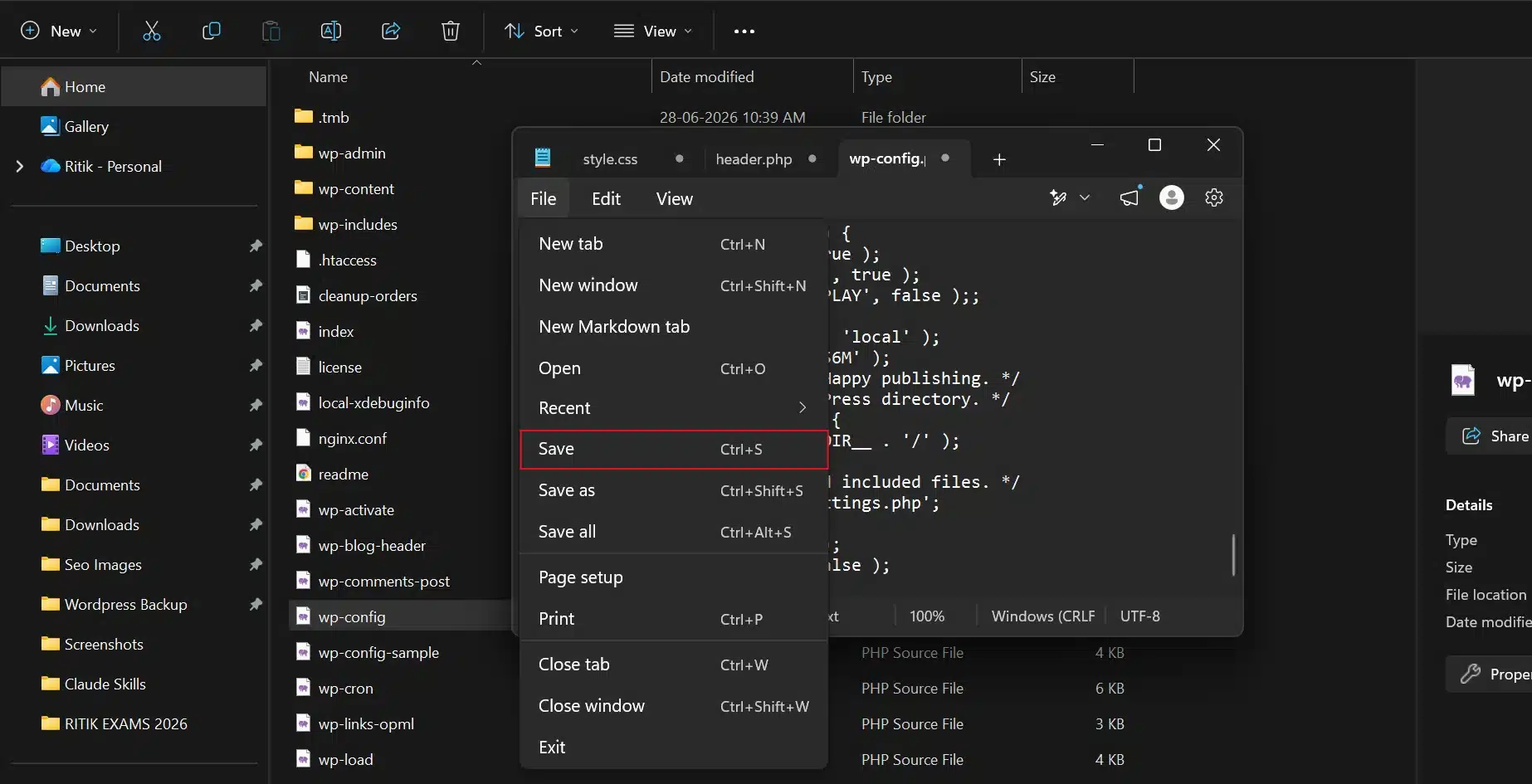
/* That's all, stop editing! */:
define( 'WP_MEMORY_LIMIT', '256M' );
- Save the file.
We see this one often in support tickets from stores running large product catalogs. The default PHP limits on shared hosting are usually too low the moment you start uploading bulk product images or CSV files, so this fix matters more than people expect.
If none of these seven fixes work, the cause is likely sitting deeper in your server configuration, and it’s time to send your host the exact URL, the time the error happened, and what you’ve already tried. That saves a lot of back and forth.
Fixing these errors yourself is doable, but if your site keeps throwing errors like this one, it usually points to a hosting environment or plugin stack that needs a proper cleanup. DevDiggers’ WordPress Development Services team handles exactly this kind of troubleshooting, so you’re not stuck renaming .htaccess files every few months.
How to Prevent the 400 Bad Request Error in the Future
Fixing the error once is one thing. Keeping it from returning takes a few small habits.
- Keep plugins and themes updated: Most plugin-related 400 errors follow updates that change how a plugin builds requests. Check the changelog before updating anything that touches forms, checkout, or WordPress permalinks.
- Avoid stacking security and caching plugins: Each rewrites headers, cookies, or .htaccess rules, and overlapping tools competing for the same request is a common, avoidable cause.
- Set your PHP limits correctly once: If your store handles large product images or bulk CSV imports, configure upload and memory limits instead of raising them after every failed upload.
- Clear your cache after major changes: After updating permalinks, migrating hosts, or changing CDN settings, clear your browser cache, WordPress cache, and host-level cache.
- Back up before editing server files: Before touching .htaccess, wp-config.php, or file permissions, take a quick backup so any risky edit stays reversible.
Conclusion
The 400 bad request error on WordPress looks alarming, but it’s almost always fixable without a developer. Start with the simple stuff: clear your cache, check the URL, and resave your permalinks. Most of the time, that’s the whole fix.
If the error sticks around after that, work through the .htaccess, plugin, and file permission checks in order. A broken .htaccess file is behind more of these errors than people expect, and it’s one of the safest things to reset.
Keep your plugins, themes, and WordPress core updated, and this error will show up a lot less often going forward.
Frequently Asked Questions (FAQs)
Q1. Is the 400 Bad Request error the same on every browser?
No. If it only shows up in one browser, the cause is usually that browser’s stored cookies or an installed extension. Test the same page in a private window or a different browser to confirm before touching any WordPress settings.
Q2. Can a 400 error happen only when I’m logged into WordPress?
Yes, and it’s a common pattern. If the error only appears in wp-admin and the rest of your site loads fine, an expired session, an oversized cookie, or a security plugin blocking admin requests is the likely cause.
Q3. Will resetting permalinks delete any of my content?
No. Resaving your permalink settings only rebuilds the rewrite rules that connect URLs to your posts and pages. Your posts, pages, and media stay exactly as they were.
Q4. Should I contact my hosting provider before trying anything myself?
Not necessarily. Most 400 errors trace back to browser cookies, a bad URL, or a corrupted .htaccess file, all of which you can fix yourself in a few minutes. Contact your host once you’ve ruled those out and the error still won’t budge.
Q5. Can a security plugin cause a 400 Bad Request error?
Yes. Some firewall and security plugins block requests they consider suspicious, including legitimate ones with long form fields or unusual characters. If the error appears only after submitting a form, temporarily deactivate your security plugin to test.