
Usually, a slow Chrome on your iPhone or cases where certain websites won’t load locally are issues that result from the stored browsing data in the app.
Here we explain how to get rid of Chrome cookies on an iPhone and how to remove the cache so that your device can work at its best, and also for privacy reasons.
Behind the Scenes (How Chrome Stores Data on Your iPhone)
Every time you browse the web, Chrome saves bits of data (think images or site settings) to speed things up the next time you visit. That instant loading experience you enjoy – all thanks to cached files and cookies doing their thing in the background.
While these files make browsing faster and more convenient, they also take up space over time. Too much stored data can slow down Chrome on your iPhone or cause pages to behave strangely.
This guide breaks down how this hidden data works and how to clear it when you need it.
It’s the same idea on the website side, too – WordPress site owners regularly clear their cache or use performance plugins to refresh outdated content. From your browser to the sites you check, saved info piles up.
Cleaning stuff every now and then keeps things working better – sometimes even quicker. Yet, even if you clear Chrome’s cache or cookies, a few bits could still hang around.
In the text below, we’ll show you what you can clear, what you can’t, exactly how to fix issues, recover storage, and get Chrome working like new again on your iPhone.
What Сache and Сookies Mean in Chrome on iPhone
When Chrome runs on an iPhone, it stores two main types of web data: cache and cookies. These files help websites open faster and keep personal preferences saved, yet with time, they also slow down the browser and occupy storage space.
- The cache holds images, scripts, and layouts from websites you visit often. Chrome relies on these files to show pages faster without loading them again from the internet.
- Cookies record account details, preferred language, and site settings so each page recognizes you automatically.
This “setup” keeps things easy when you’re surfing around, yet it still tracks bits of your activity online. Also, sometimes once the cache or cookies get outdated, Chrome might glitch – pages can break, sessions may stay open when they shouldn’t, or your storage just gets bloated with junk.
The good news is that it’s quite easy to clean junk files on iPhone. Next, we will explain how you can do it.
How to Remove Cache and Cookies in Chrome
There are two quick and easy methods given below, which demonstrate how to clear cookies on an iPhone in a matter of minutes and in a secure way:
Method 1. The Obvious Way to Clear Chrome Data
The go-to method for most people is through the browser’s built-in settings (yes, as simple as that). Here’s how to clear cookies and site data:
- Open the Chrome app on iPhone.

- Tap the right button in the lower-right corner – it looks like dots (⋯).
- Then choose History, and after it, select Delete Browsing Data.
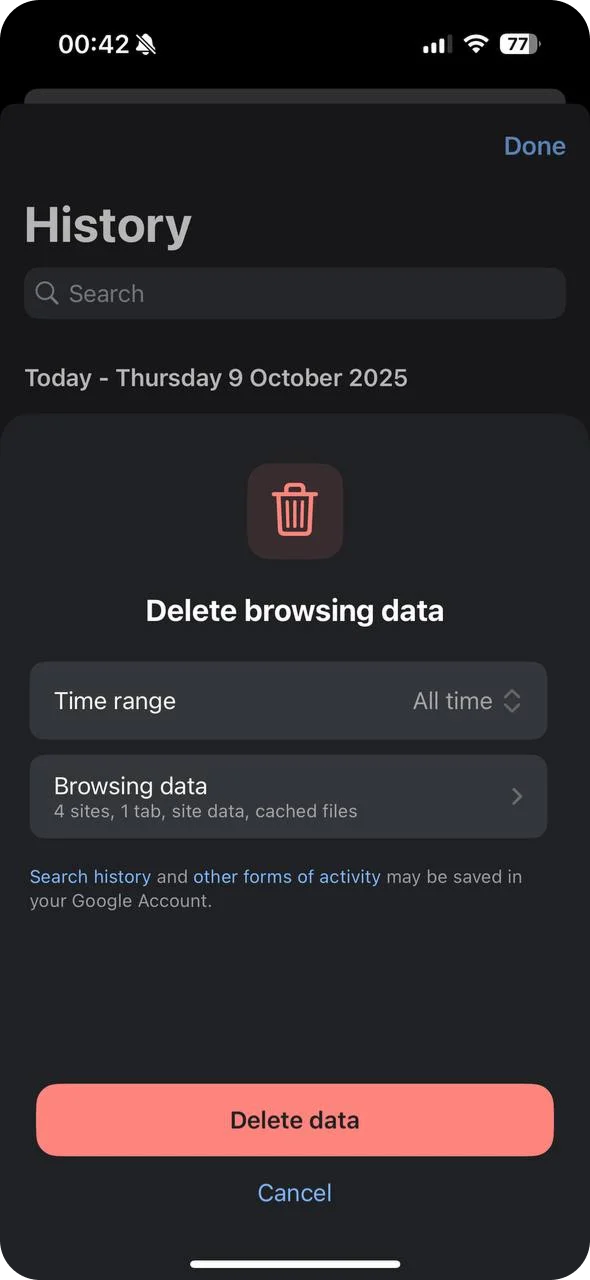
- Check Cookies/Browsing data to delete them.
- Tap Delete Data to confirm.
- Wait until Chrome completes the process and updates the tab list.
Once you confirm the action, Chrome gets rid of all cookies that are associated with the sites you have visited, it also resets the active sessions and removes the stored cache files. There is a possibility that you will need to log in again on certain pages, but the passwords that you have saved and the bookmarks will still be with you.
If there is anybody who is interested in verifying the official process, the entire steps can be found at Google Chrome Help. There, Google provides detailed explanations on how cache and cookies interact with different devices and how each choice impacts the saved data.
But if that did not free up much space, do not stop there. Web data is only one part of the clutter. Photos and videos usually take the biggest share of storage. For a lot of users, the fastest way to tidy up the device is not inside settings – it is through 3rd-party iPhone cleaners.
These tools can detect duplicates, near-identical shots, and massive video files. Whether it is photos, old screenshots, or large clips, they remove useless data with minimal effort and help restore valuable space.
Method 2. Delete and Reinstall the Browser
When standard cleanup fails to remove hidden files, a full reinstall resets the browser completely. By default, iOS stores cached data within system storage, and the removal of the app is one of the ways that delete all the traces.
How to reset your cookies on an iPhone by reinstalling:
- Head over to Settings > General > iPhone storage.
- Scroll down the list, look for, and tap Chrome.
- Tap Delete App, and then click the confirmation.
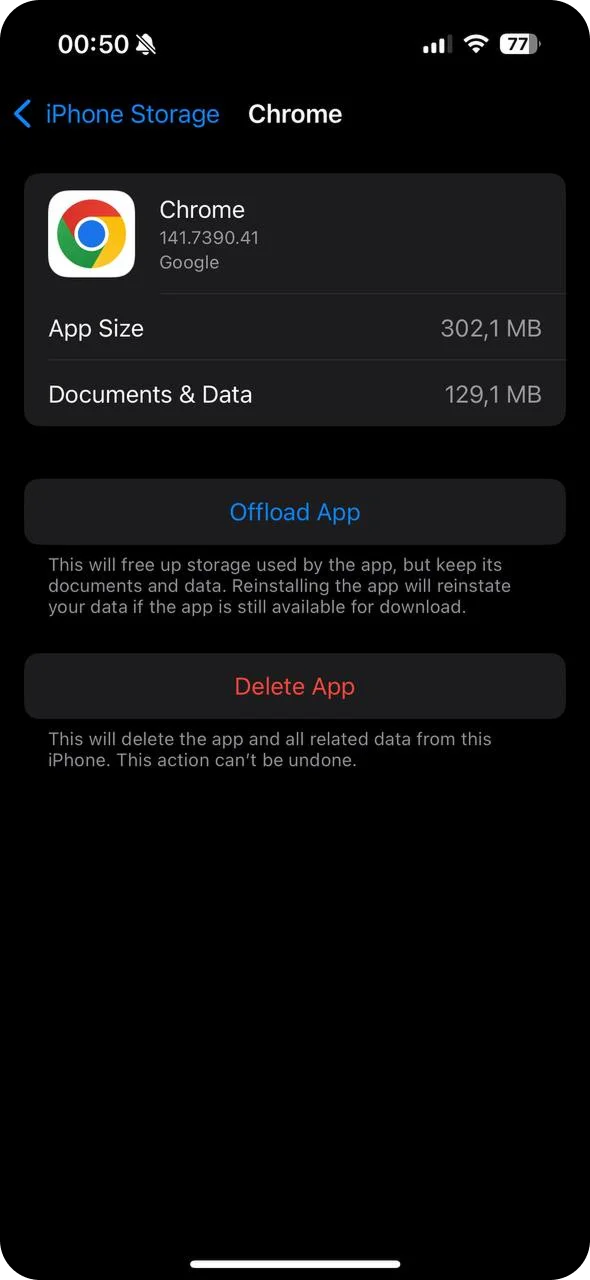
- Run the App Store and type Google Chrome in the search bar.
- Tap Get to have it back on your device.
- Sign in to your Google account to restore bookmarks and passwords.
This method deletes all files Chrome leaves behind – cache fragments, cookies, and stored scripts that normal cleanup skips. The same process suits other browsers, such as Safari, Firefox, or any other app.
How to Clear Browser Cache on iPhone in Safari
If your main browser is the native Safari app and not Chrome, then the steps for clearing will be a little bit different – since Safari is built into iOS, you’ll find the cleanup option right in your iPhone’s Settings app.
Here’s how to clear Safari cache on iPhone:
- Tap the settings icon on your device.
- Go through the menu list, then hit Safari.
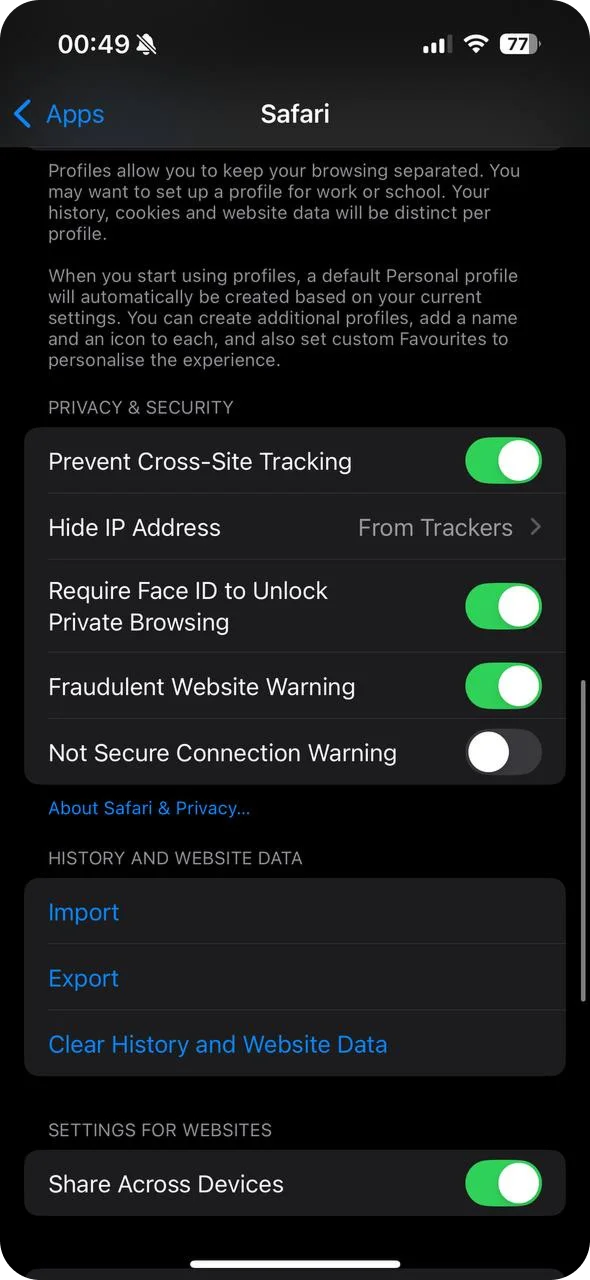
- Choose Clear All history to delete the web cache and stored files.
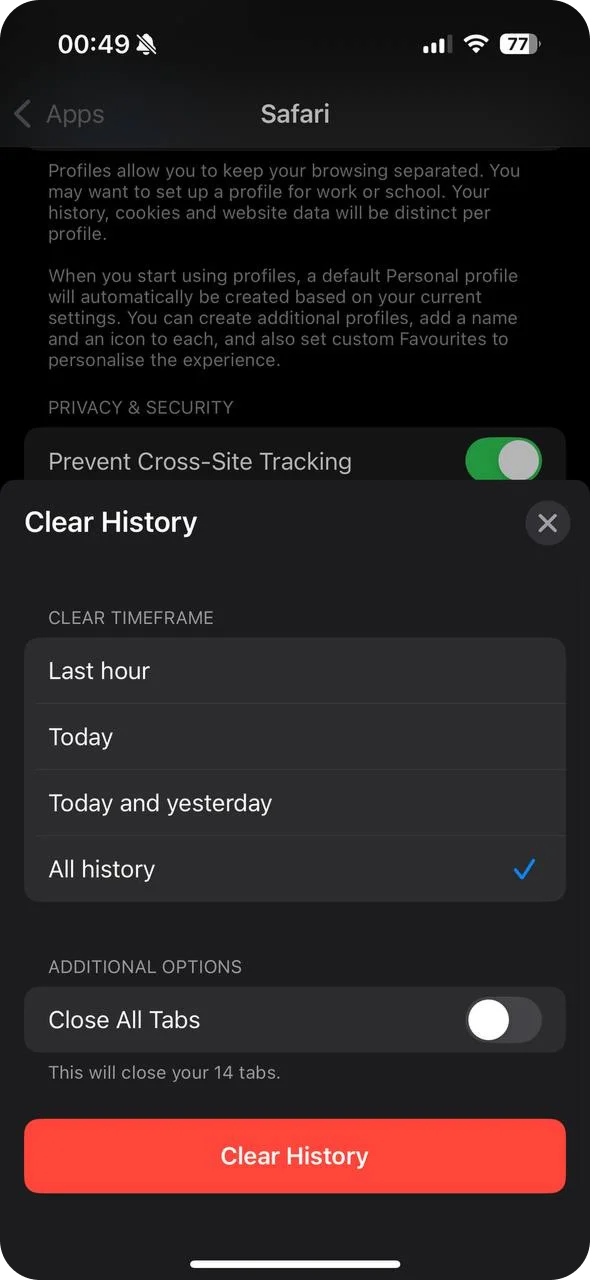
This method clears the leftover cache that Safari cannot remove directly. It also deletes hidden files stored by iOS that reduce speed. After this step, Chrome removes cookies from websites, resets sessions, and deletes cached files. So, you may have to log in again on certain sites, but bookmarks and passwords will be fine.
A Few Words on Cache
Each app on iOS creates cache files. This data helps the system open content faster, but most apps do not include options for manual cleanup. Usually, only browsers and messaging tools allow users to clear cache and cookies. Other apps – such as games or video platforms – depend on iOS to remove temporary files in the background or keep them until the user deletes the app completely.
We added a full reinstall as Method 2 for that reason. This trick works for Chrome users as well as folks curious about wiping iPhone cookies completely – no leftover session traces. Reinstalling wipes all files, bringing the app back to square one.
Conclusion
In the event that cache or cookies do not clear as they should, close all tabs and repeat the process, or restart your iPhone so that the background data will be reset. There are very few instances when a complete reinstall of Chrome is the only option left for deleting system-stored files.
There are some users who report that, after the cleaning, pages continue to load slowly. In most cases, such an issue points to a delay in the network or a situation when the app versions are not updated and not in the cache. The greatest part of the work to bring the speed back to normal is probably going to be done when both Chrome and iOS are updated.
You may also receive storage notifications from other apps that save hidden data. The same cleaning method applies – remove and reinstall them if you want to be sure that the cache is completely removed.
Regular upkeep makes Chrome and Safari light, safe, and functional for daily use.
FAQs
Q1. How to erase cookies on iPhone completely?
Open Chrome > Settings > Privacy > Delete Browsing Data. Mark Cookies, Site Data, then confirm. This step resets all saved sessions and cookie records. Many users on Reddit complain that iOS limits how much cache or cookie data apps can delete. Some users state that a full delete of Chrome followed by a fresh install gives the most complete result for cache and cookie removal.
Q2. Do these steps remove saved passwords or logins?
Passwords saved in Chrome or iCloud Keychain stay safe unless you delete them manually. Only cookies, cache, and temporary website data are removed.
Q3. When should you clear cookies from your iPhone?
Most people find it helps to wipe cookies plus cache every few weeks. Do it sooner if pages fail to load, storage becomes low, or Chrome slows down. Regular cleanup keeps iPhone performance stable and prevents browser issues.
Q4. Can Chrome automatically delete cache after a certain time?
Not quite – iPhones don’t let Chrome wipe cache or cookies on its own, say every few days or once a week. To get rid of that stuff, you’ve got to go into the app’s settings and clear it yourself when it feels like it’s time.