Changing the return to shop link in WooCommerce takes under two minutes, and there are three ways to do it, depending on how comfortable you are with code.
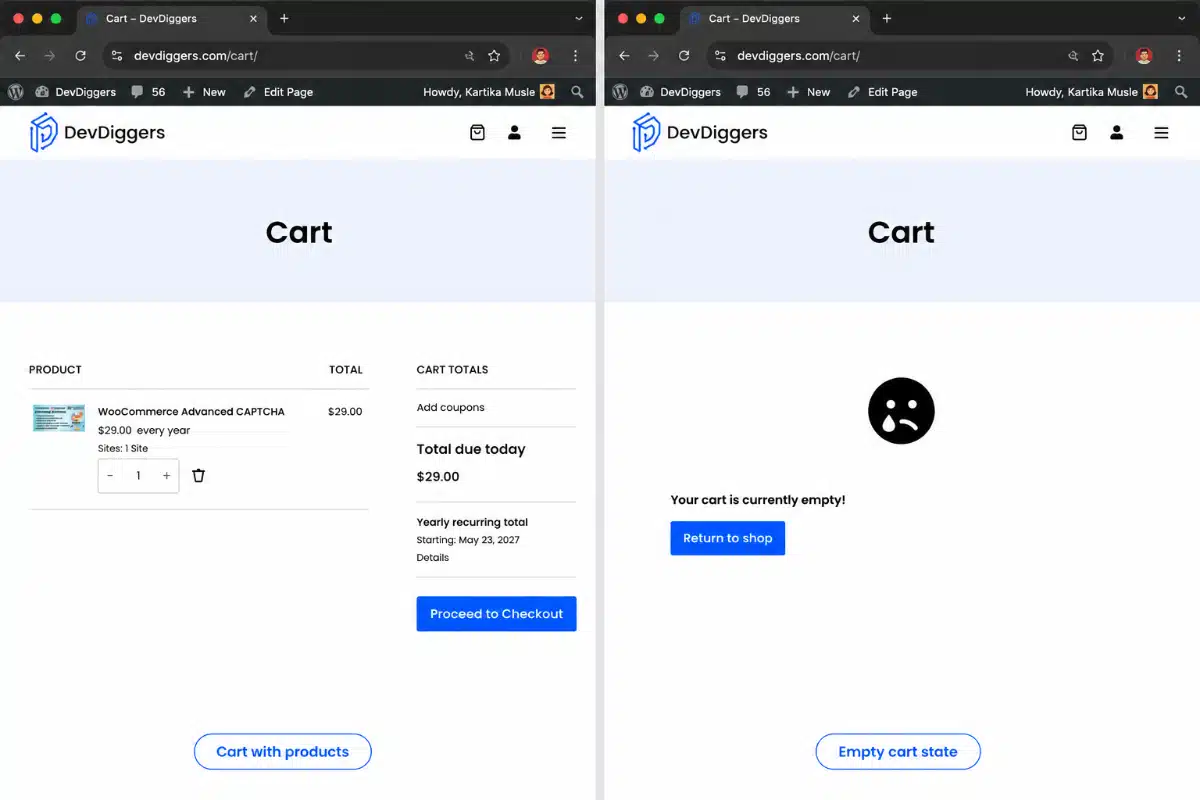
Before you touch anything, though, there is one thing most guides skip entirely: the button only appears when your cart is empty. If you have a product in your cart right now and you are wondering why you cannot see it, that is why.
In this guide, you will learn what the button actually is, which method suits your setup, how to change both the link and the button text, and what to do if your change does not seem to be working.
What Is the Return to Shop Button in WooCommerce?
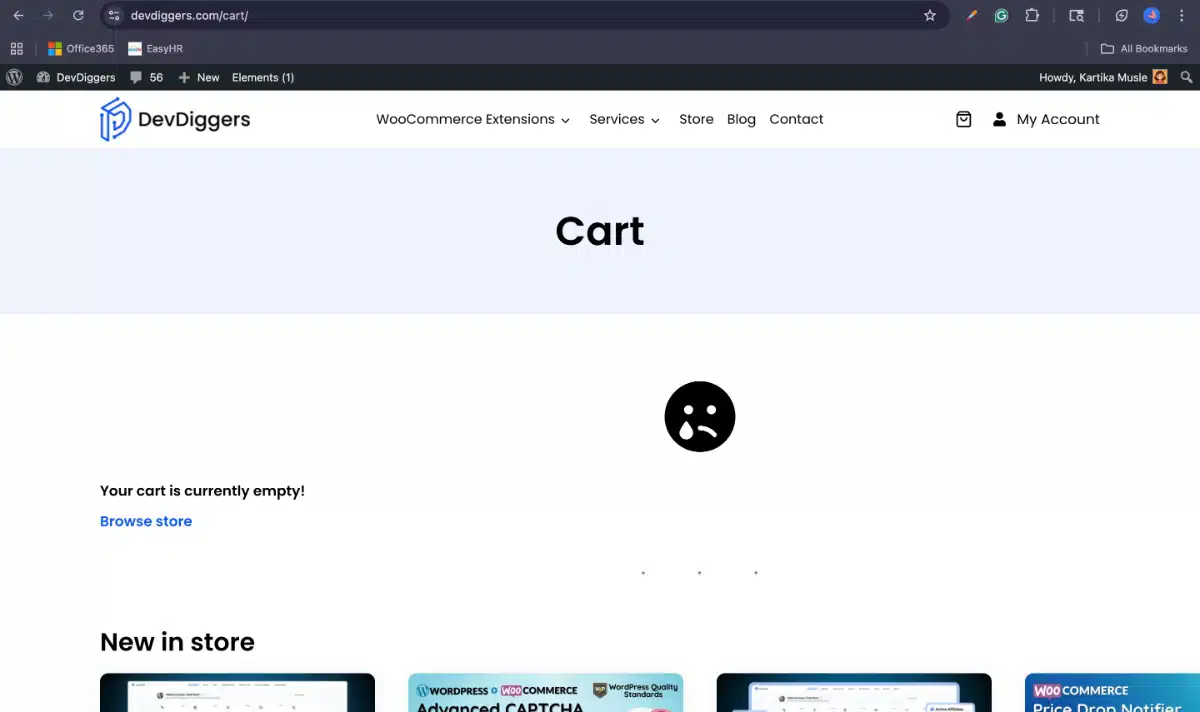
The “Return to Shop” button is a link WooCommerce shows on the cart page when the cart is empty. Its job is to send customers somewhere useful instead of leaving them stuck on a blank cart screen. By default, it points to your WooCommerce shop page.
Worth knowing before you change anything: the button does not appear when the cart has products in it. WooCommerce only shows it in the empty cart state. So if you are testing after a change and you cannot see the button, empty your cart first and refresh the page.
The link is controlled by the woocommerce_return_to_shop_redirect filter hook, which WooCommerce’s official hooks documentation describes as the standard way to manipulate values without editing core files. You have three main options for changing where it points.
Method 1: Change the Shop Page in WooCommerce Settings
This is the fastest option. No code needed. It works when you want the button to point to a different page that already exists on your site and can be set as your WooCommerce shop page.
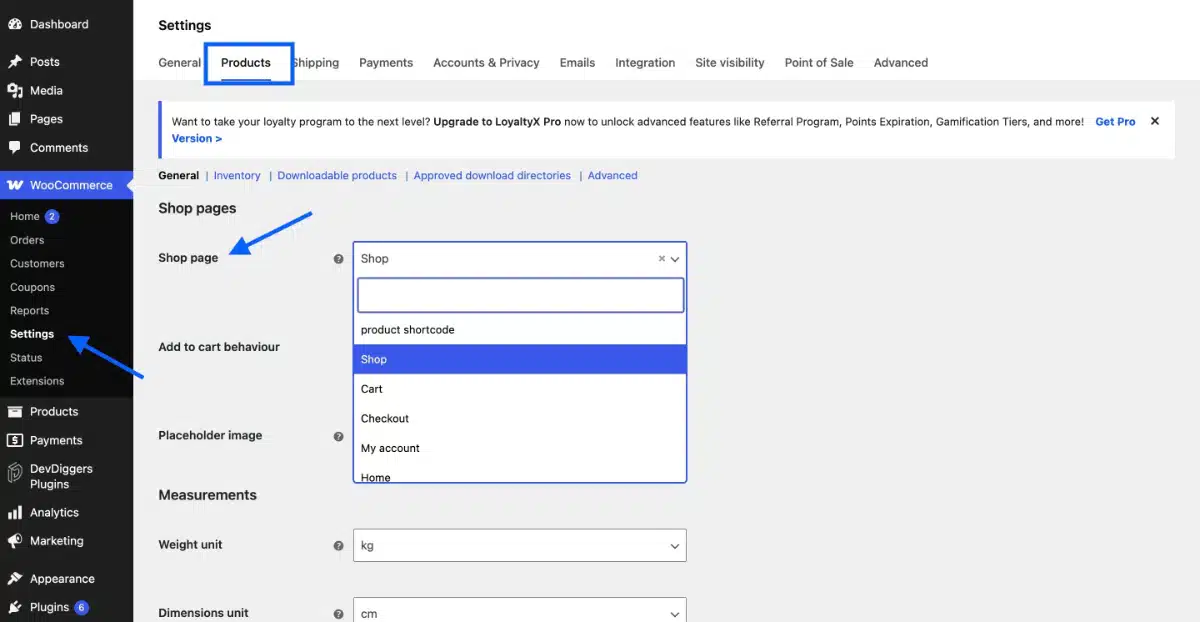
Go to WooCommerce > Settings > Products. At the top of that screen, you will see a Shop page dropdown. Choose the page you want the button to link to, then click Save changes.
That is it. The Return to Shop button will now point to whatever page you selected.
The Trade-Off: This setting changes your shop page globally. It affects breadcrumbs, some theme layouts, and any other place WooCommerce references your shop URL. If you have a fully functional shop page and just want the button to redirect somewhere different, use Method 2 instead. This setting is best for stores that have replaced the default shop page entirely, or stores that never set one up in the first place.
A Note worth Flagging: One of the most common sources of confusion we see in support is stores where the shop page was never assigned at all. If the shop page dropdown is blank, the Return to Shop button has nowhere to go. Assigning any page here will fix that immediately.
Method 2: Use the Filter Hook in Your Child Theme or Code Snippets
This is the right approach when you want to redirect the button to a specific URL without changing your shop page globally. It uses the woocommerce_return_to_shop_redirect filter, a built-in WooCommerce hook that has stayed stable through WooCommerce 9.x.
You have two safe ways to add this code. Pick one.
Option A – Child theme functions.php (for developers and those comfortable with theme files) Option B – Code Snippets plugin (for store owners who prefer not to touch theme files)
Both produce the same result. The Code Snippets plugin is often the safer choice for store owners because the code lives in the database rather than a theme file, so it survives theme updates automatically.
Do not edit your parent theme functions.php directly. Any change you make there will be wiped out the next time the theme updates. Always use a child theme or a plugin like Code Snippets.
Step 1: Get the URL You Want to Redirect to
Copy the full URL of the page you want the button to point to. This could be your homepage, a product category page, a landing page, or any URL on your site.
Step 2: Add the Code
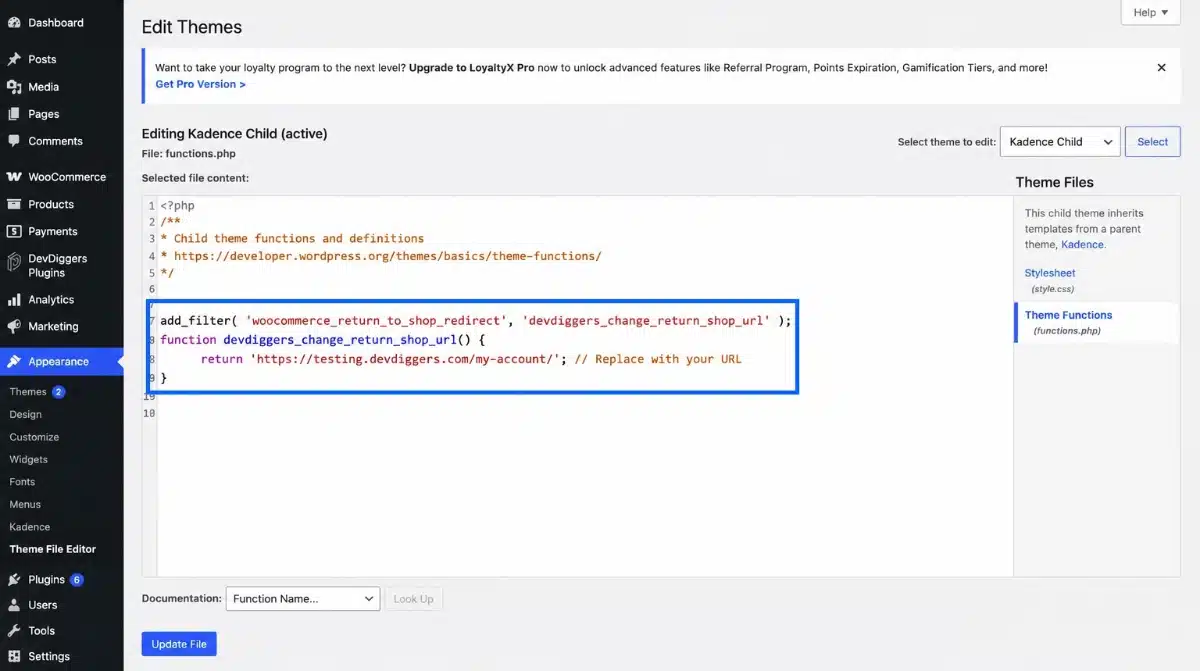
Paste this into your child theme functions.php or into a new snippet in Code Snippets:
add_filter( 'woocommerce_return_to_shop_redirect', 'devdiggers_change_return_shop_url' );
function devdiggers_change_return_shop_url() {
    return 'https://yoursite.com/your-page/'; // Replace with your URL
}
Replace https://yoursite.com/your-page/ with your actual URL. Keep the single quotes around it.
To redirect to your homepage specifically, use home_url() instead of a hardcoded URL:
add_filter( 'woocommerce_return_to_shop_redirect', 'devdiggers_change_return_shop_url' );
function devdiggers_change_return_shop_url() {
    return home_url();
}
Step 3: Change the Button Text (Optional)
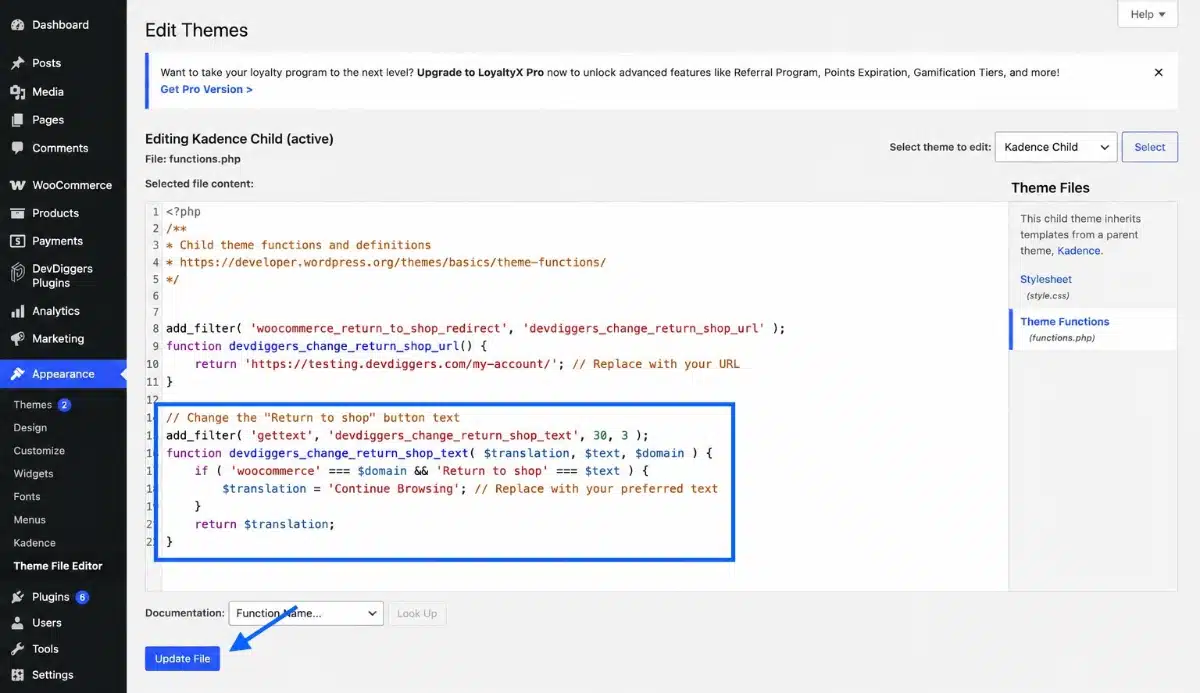
If you also want to change what the button says, add this second snippet alongside the first:
add_filter( 'gettext', 'devdiggers_change_return_shop_text', 30, 3 );
function devdiggers_change_return_shop_text( $translation, $text, $domain ) {
    if ( 'woocommerce' === $domain && 'Return to shop' === $text ) {
        $translation = 'Continue Browsing'; // Replace with your preferred text
    }
    return $translation;
}
Change 'Continue Browsing' to whatever label you want. Note that this filter targets the translated string, so it requires your site to be loading WooCommerce translations in the standard way. It works on the vast majority of setups.
Step 4: Save and Test
If you used Code Snippets, save and activate the snippet. If you used functions.php, save the file. Then:
- Go to your cart page.
- Remove all products from the cart.
- Refresh the page.
- Check that the Return to Shop button appears and click it to confirm the redirect works.
If the button is not showing, see the troubleshooting section below.
If you need to go further and build custom WooCommerce functionality beyond simple hook filters, take a look at our guide on how to create a WooCommerce plugin.
The Button Nobody Talks About: Continue Shopping
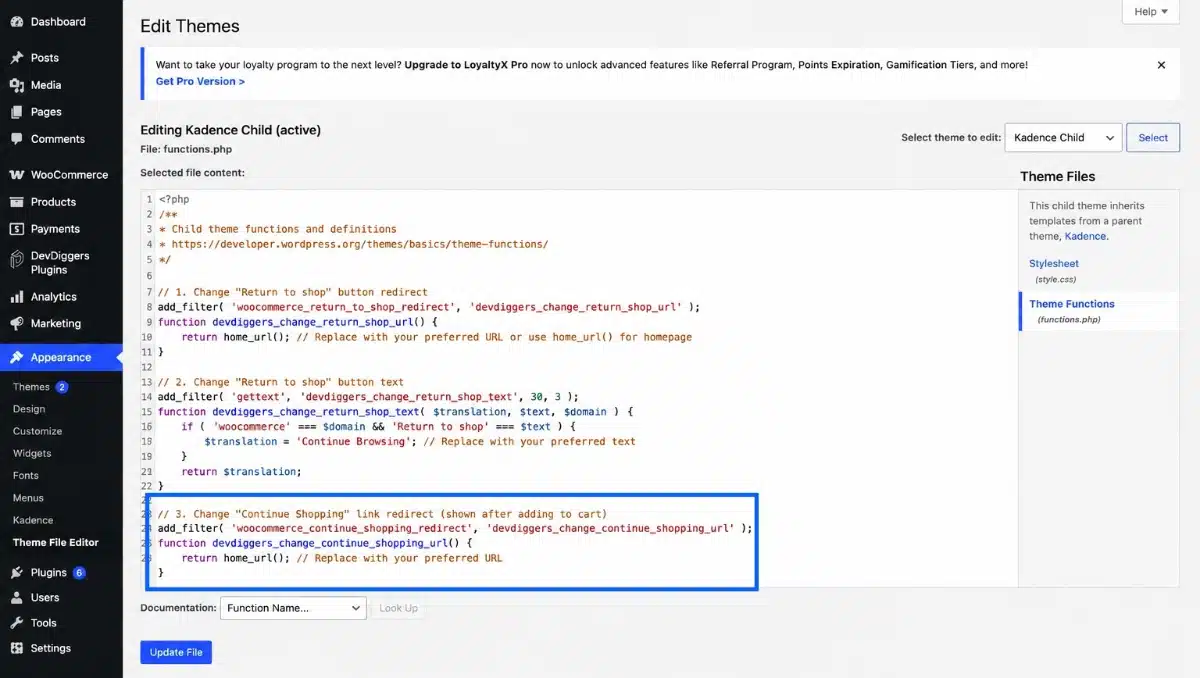
Most guides stop after covering the Return to Shop button. But there is a second link that works in a completely different moment of the shopping flow, and it has its own filter.
When a customer adds a product to their cart and WooCommerce is set to redirect them to the cart page, they may see a “Continue Shopping” link. This is controlled by a separate filter: woocommerce_continue_shopping_redirect.
To change where that link points, add this snippet:
add_filter( 'woocommerce_continue_shopping_redirect', 'devdiggers_change_continue_shopping_url' );
function devdiggers_change_continue_shopping_url() {
    return home_url(); // Replace with your preferred URL
}
These are two different hooks serving two different moments. If you only add the first one and the Continue Shopping link still points somewhere unexpected, this is why.
What to Do If Your Change Is Not Showing
The most likely cause is the cache. Your site or browser is showing you a stored version of the page, not the updated one. This is the single most common reason a correct code change appears to do nothing.
Try these in order:
- Clear your site cache. Go to your caching plugin (WP Super Cache, W3 Total Cache, LiteSpeed Cache, etc.) and purge all. If your host uses server-side caching, clear that too.
- Open the cart page in an incognito window. This bypasses your browser cache.
- Empty your cart and refresh. The button does not show if the cart has any items.
- Check that you used a child theme, not the parent theme. If you edited the parent theme’s
functions.phpand the theme updated since, your code is gone. - Check for a plugin conflict. Some page builder plugins and cart replacement plugins override the WooCommerce empty cart template. Temporarily switch to the Storefront theme, disable non-essential plugins, and test the snippet again.
If none of these work, the most likely culprits are a custom cart-empty.php template in your theme overriding the default WooCommerce output, or a plugin that replaces the cart page entirely.
For more help with how your WooCommerce shop page is set up overall, see our guide on editing your WooCommerce shop page.
Conclusion
Changing the return to shop link in WooCommerce comes down to three things: knowing which method fits your setup, using the right hook, and making sure you test with an empty cart.
The filter method with Code Snippets is the most flexible and the safest option for most stores. If you are pointing the button at a completely different page, pair it with the woocommerce_continue_shopping_redirect filter so both moments in the shopping flow are covered.
Need custom WooCommerce work beyond what a snippet can handle? Our WooCommerce development services team can help.
Frequently Asked Questions
Q1. Does changing the Return to Shop link affect SEO?
No. The Return to Shop button is only visible on the empty cart page and only to logged-in or active sessions. It does not affect crawlable URLs, site structure, or how search engines index your store.
Q2. Can I redirect the Return to Shop button to a specific product category?
Yes. Use the woocommerce_return_to_shop_redirect filter and return the URL of the category page. You can get a category URL in PHP using get_term_link( $category_id, ‘product_cat’ ). Replace $category_id with the numeric ID of your category.
Q3. Will my changes survive a WooCommerce update?
Yes, as long as you added your code to a child theme’s functions.php or a Code Snippets snippet, not to WooCommerce’s own files or your parent theme. The woocommerce_return_to_shop_redirect filter hook has remained stable through WooCommerce 9.x and is not expected to change.
Q4. What is the difference between the Return to Shop button and the Continue Shopping link?
What is the difference between the Return to Shop button and the Continue Shopping link? The Return to Shop button shows on the empty cart page. The Continue Shopping link appears after a customer adds a product to the cart and is redirected. They are controlled by two separate filter hooks: woocommerce_return_to_shop_redirect and woocommerce_continue_shopping_redirect.
Q5. Can I show the Return to Shop button even when the cart is not empty?
Not with the default filter. The button is hard-coded to the empty cart template in cart-empty.php. To show a similar link on a non-empty cart, you need to add a custom button using the woocommerce_cart_actions action hook. This requires adding a small PHP snippet and is covered in the WooCommerce developer documentation.
Q6. Why does the Return to Shop button point to a 404 page?
Your WooCommerce shop page is either not set or points to a page that no longer exists. Go to WooCommerce > Settings > Products > Display and check the Shop page dropdown. If it is blank or points to a deleted page, assign a valid page there and save.