A PDP in eCommerce is your product detail page, where a shopper sees everything about one specific product and decides whether to buy it. It is not your shop page or your category page. It is the page where browsers either become buyers or leave.
Most store owners spend months on their homepage and barely touch their product pages. That is the wrong order of priorities. According to the Baymard Institute, 51% of eCommerce sites deliver a mediocre or worse experience on their product pages, the very pages where purchase decisions get made.
Here is the uncomfortable reality: you can run great ads, drive solid traffic, and still lose most of it on a product page that does not do its job. In this guide, you will learn what a PDP is, how it differs from a product listing page, what it needs to convert, how WooCommerce handles it by default, and the most common mistakes that quietly kill sales.
What is a PDP in eCommerce?
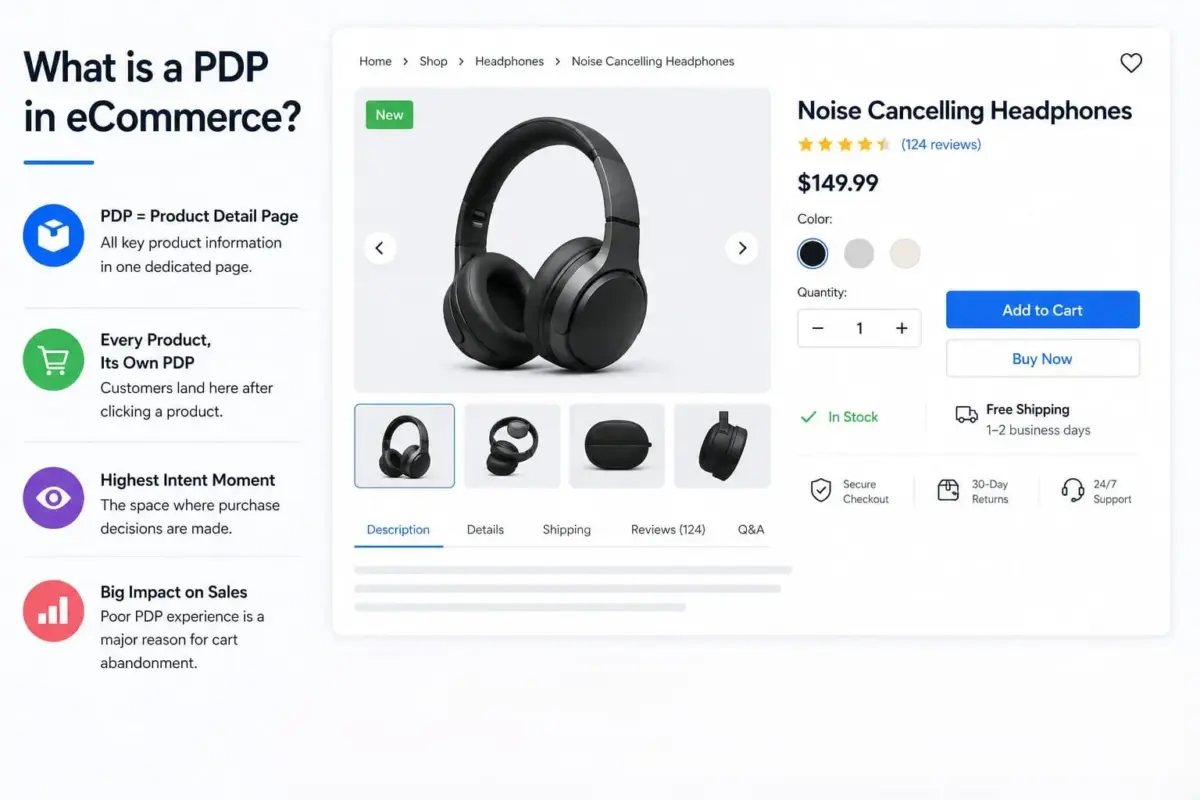
A product detail page (PDP) is a dedicated web page on an ecommerce site that presents all the information a shopper needs about one specific product. This includes the product name, images, pricing, variants, description, availability, shipping details, reviews, and a clear way to purchase.
PDP stands for product detail page. Every product in your store has its own PDP. When a customer clicks on a product from your shop page or a category, that is where they land.
Think of it this way. Your shop page shows the whole shelf. The PDP is what happens when a customer picks up one item and reads the label. It is the moment of highest intent before the cart, and the moment where most stores lose the most sales.
Cart abandonment sits at 69% across ecommerce, and poor product page experience is one of the biggest drivers. That number is not a checkout problem. A large share of it starts right here, on the PDP, when shoppers do not get the information they need.
PDP vs PLP: What Is the Difference?
These two abbreviations get mixed up constantly. Here is the short version: a product listing page (PLP) is where shoppers browse multiple products; a PDP is where they focus on one.
| PDP (Product Detail Page) | PLP (Product Listing Page) | |
|---|---|---|
| Purpose | Sell one specific product | Help shoppers browse and filter |
| Content depth | Deep: specs, images, reviews, variants | Surface-level: name, image, price, rating |
| Shopper stage | High intent (they are close to buying) | Earlier stage (still comparing) |
| SEO role | Ranks for specific product keywords | Ranks for category and collection keywords |
| In WooCommerce | Each individual /product/slug/ page | The /shop/ page and category archive pages |
In WooCommerce, your default shop page is a PLP. Every product you create gets its own PDP automatically. They work together: the PLP helps shoppers narrow down their choices, and the PDP closes the sale.
If you want a deeper look at how PLPs work and how to optimize them separately, our guide to product listing pages in eCommerce covers that in full.
What Does a High-Converting PDP Include?
A PDP can technically contain anything. The question is what it needs to contain to convert. Here are the core elements that matter, and one important distinction most stores miss.
Product Title and Image Gallery
Your title should clearly name the product and include the detail that helps the shopper confirm they are in the right place.
Size range, material, model number, whatever is the deciding factor for your product type. Images need multiple angles, at a minimum. Zoom capability is not optional for anything physical.
A short product video, where you can add one, reduces returns and boosts time on page.
Pricing, Availability, and Variants
Price needs to be visible above the fold. If your product has variants (sizes, colors, or quantities), the variant selector must be clear and update the price and stock status when selected.
Ambiguity here kills conversions. A shopper who cannot tell whether the size they need is in stock will leave rather than email you to ask.
Product Description: Features vs Benefits
Most WooCommerce stores list features. That is not the same as telling the shopper why the product solves their problem. Features describe what the product is; benefits describe what it does for the person buying it.
Write the description from the shopper’s point of view, not a spec sheet. Then use the short description field in WooCommerce for the two or three lines that appear near the Add to Cart button, and save the longer detail for the full description below.
The Add to Cart Button
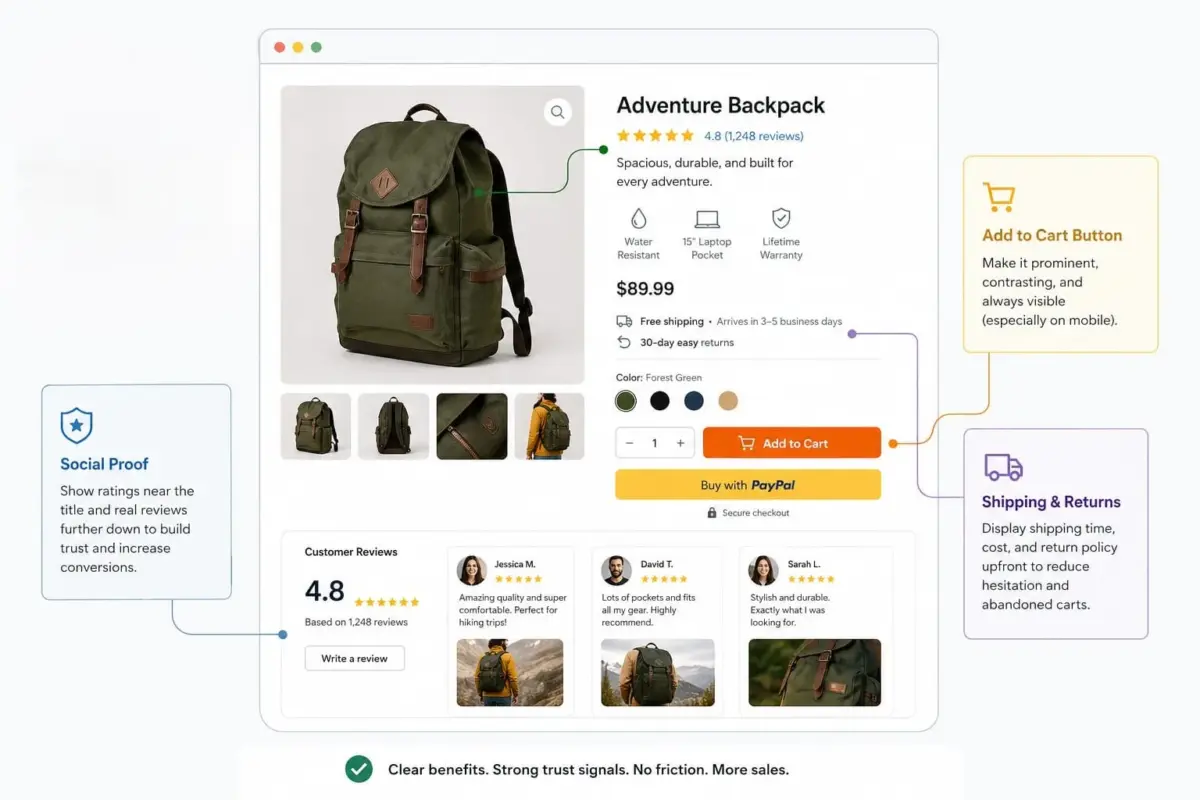
This is the single most important element on the page. Research from Growth Rock found that sticky Add to Cart buttons, ones that stay visible as the shopper scrolls, increase sales on both desktop and mobile.
The button needs a contrasting color, a clear label, and it should never be buried below a wall of description text. If a shopper has to hunt for it, you have already lost part of your audience.
Social Proof
Shoppers do not trust what you say about your own product. They trust what other buyers say. Research from the Spiegel Research Center shows that making reviews visible can increase conversion rates by up to 270%, and the effect is even stronger for higher-priced items.
Place star ratings near the product title, and full review text toward the bottom of the page. User-generated content and real photos from customers using the product work even better than written reviews for some product categories.
Shipping and Returns
Most guides mention this as an afterthought. It should not be. Unexpected extra costs are the number-one reason shoppers abandon carts.
If your shipping cost only appears at checkout, you are losing people who would have bought if they had known upfront. Put shipping cost, delivery timeframe, and your return policy on the PDP. One clear sentence each is enough.
How Does a PDP in WooCommerce Work?
WooCommerce builds a basic product detail page for every product you add to your store. Out of the box, you get the product title, images, short description, price, variant selectors, Add to Cart button, and a product tabs area for full description, attributes, and reviews.
That is the foundation. It is not enough for most stores.
What WooCommerce Gives You by Default
The WooCommerce PDP template is controlled by the single-product.php template file in your theme. The content inside the summary area, the block that contains the title, price, and Add to Cart button, is built using the woocommerce_single_product_summary action hook.
Each element (title, rating, price, excerpt, add to cart, meta) is hooked in at a specific priority number. That means you can reorder, remove, or add elements without touching the core template, as long as you are working in a child theme or a code snippets plugin.
In WooCommerce 8.x and above, Woo introduced block-based product templates via the site editor. If you are on a block theme, your product page is now built with blocks rather than PHP templates.
The hook-based system still works, but certain behaviors differ. If you add a snippet and it does not fire on the front end, check whether your theme is using the legacy PHP template or the newer block template, which is the most common reason hooks behave unexpectedly on modern WooCommerce setups.
What You Typically Need to Add
WooCommerce reviews are enabled by default, but the built-in review system is basic. For stores where social proof is a priority, a more detailed review system that lets customers upload photos alongside their feedback will outperform the default.
For product image galleries, WooCommerce gives you a main image and a thumbnail row. Zoom is included but controlled by theme support. If your theme does not declare woocommerce_zoom_magnify support, Zoom will not appear even if you have high-resolution images uploaded. Check that setting in your child theme’s functions.php file.
For product page schema, the structured data that makes price, rating, and availability show up directly in Google search results — WooCommerce outputs basic Product schema by default, but it is incomplete on many themes.
If your rich results are not appearing in Google Search Console, the first thing to check is whether a caching plugin is stripping the JSON-LD output from the page. This happens more often than the documentation suggests, especially with aggressive full-page caching configurations.
If you want to know how to edit the WooCommerce shop page, the PLP that feeds traffic to your PDPs, we have a step-by-step guide on how to edit the WooCommerce shop page.
How a PDP in eCommerce Helps Your SEO
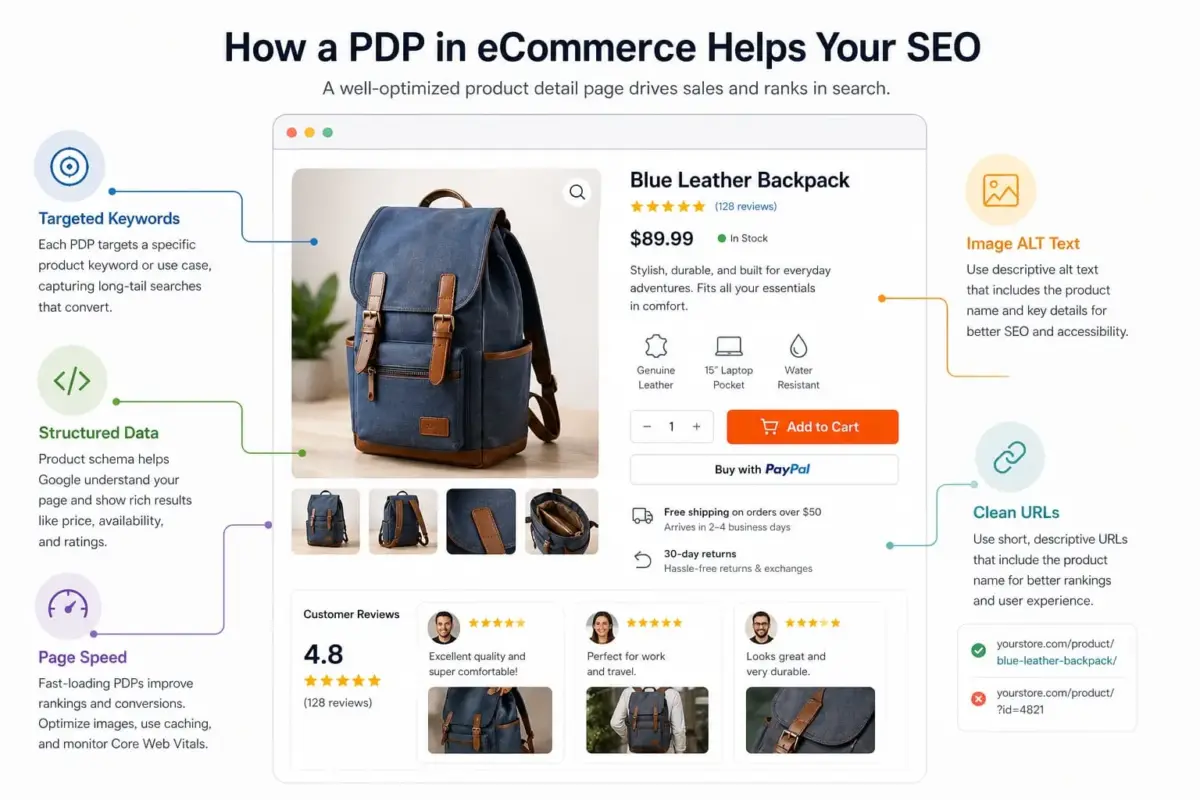
Your product detail page is not just a sales tool. It is also a significant SEO asset if you build it correctly.
Each PDP targets a specific product keyword: the exact product name, model, variant, or use case a shopper might search for. Because PDPs are focused on one product, they tend to have strong relevance signals for long-tail search queries that category pages cannot match.
Structured Data and Rich Results
Product schema markup using the schema.org/Product vocabulary tells Google the specific details on your PDP: price, availability, ratings, and product name. When this is set up correctly, Google can show those details as rich results directly in the search listing, before anyone clicks. That means higher click-through rates from the same ranking position.
WooCommerce outputs Product schema by default, but check your results in Google’s Rich Results Test tool. A misconfigured caching layer or a theme that outputs duplicate schema can cause rich results to disappear or not appear at all.
Image ALT Text and URL Structure
Every product image on your PDP should have descriptive alt text that includes the product name and a relevant detail. This helps with both accessibility and image search.
Your PDP URL should be clean and include the product name: /product/blue-leather-wallet/ outperforms /product/?id=4821 for every metric that matters.
Page Speed
A PDP that loads in over three seconds loses a measurable share of its traffic before the page even renders. Compress product images before upload, use a caching plugin with care (see the schema note above), and check your Core Web Vitals in Google Search Console regularly.
For more on how SEO signals interact across your store, our WooCommerce SEO guide covers the full picture.
The eCommerce space is also shifting fast in search behavior. For context on broader changes affecting how product pages get found, our eCommerce trends post is worth reading alongside this one.
Also Worth Noting: AI product descriptions are becoming more common on PDPs. If you are managing a large catalog, our guide on writing WooCommerce product descriptions with AI can save a significant amount of time without sacrificing quality.
Common PDP Mistakes That Kill Conversions
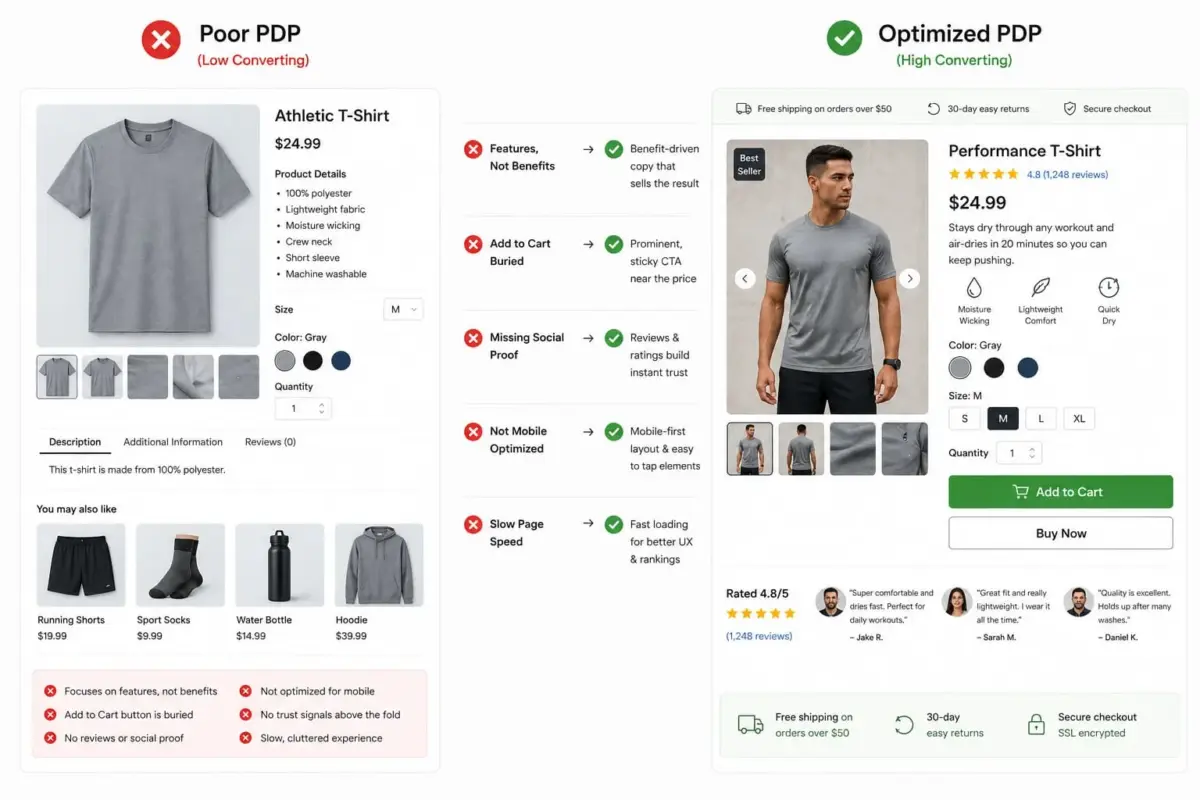
Most PDP problems are not mysterious. They come from the same handful of decisions, made repeatedly, across stores of every size.
Listing Features Instead of Benefits
“Made from 100% polyester” is a feature. “Stays dry through a full workout and air-dries in 20 minutes” is a benefit. Features inform. Benefits persuade.
Your product description needs both, but if it only has one, make it the benefit. This is the most common single mistake on WooCommerce product pages.
Burying the Add to Cart Button
Scrolling to find the buy button is friction. On mobile, where over 70% of eCommerce browsing happens, a buried CTA is a sale you will not recover.
Stick it near the price. Keep it visible as the user scrolls. Test button copy “Add to Cart” and “Buy Now” perform differently depending on product type and price point.
Missing or Outdated Social Proof
A product with zero reviews reads as either new or avoided. Neither builds confidence. Get your first reviews early, consider rewarding customers who leave them, which our guide on rewarding customers for reviews covers in detail.
Outdated reviews, all from three years ago, none recent, send a subtle negative signal too. A product page with active, current reviews converts better than one with the same total rating but no new activity.
No Mobile Consideration
If you built your PDP on a desktop and never checked it on a phone, go do that now. Pinch-to-zoom on product images, tiny Add to Cart buttons, text that wraps awkwardly, these are conversion killers that show up on real devices but not in a browser resize.
Run your product page through Google’s Mobile-Friendly Test and PageSpeed Insights before you consider it done.
Ignoring Page Speed
For a product page receiving any meaningful traffic, that is a real revenue loss. Start with image compression, then check whether your theme is loading unnecessary scripts on the product page.
On WooCommerce specifically, product page speed often suffers from unneeded scripts loaded globally when they are only needed on the cart or checkout pages. A developer can usually fix this with selective script loading in under an hour.
Conclusion
A PDP in eCommerce is where every sale either happens or falls apart. Getting the basics right, clear product information, a visible Add to Cart button, honest social proof, and a page that loads fast on mobile puts you ahead of more than half your competition before you do anything advanced.
For WooCommerce stores specifically, the difference between a PDP that converts and one that does not often comes down to details that are invisible to the shopper but very visible in your analytics: schema markup that is not firing, image zoom that is not enabled, or review systems that are too limited to build real trust. These are solvable problems. Fix them one at a time, and measure the result.
If you want help building or improving your WooCommerce product pages, DevDiggers works on exactly these kinds of problems for WooCommerce stores.
Frequently Asked Questions
Q1. What does PDP stand for in eCommerce?
PDP stands for product detail page. It is the individual web page on an eCommerce store that shows all the information about one specific product: images, price, description, variants, reviews, and the option to buy.
Q2. How many images should a PDP have?
There is no fixed rule, but most WooCommerce developers recommend at least three to five product images showing different angles. For apparel, lifestyle shots of the product being used or worn consistently outperform plain product-only images. For technical products, a detail shot of key components adds useful context.
Q3. Can a PDP rank in Google search results?
Yes. Product detail pages can rank for specific product-related searches, especially long-tail queries. Adding Product schema markup allows Google to show rich results, price, rating, and availability directly in the search listing, which increases click-through rate from the same position.
Q4. What is the difference between a PDP and a landing page?
A landing page is built around one campaign goal, often with no navigation and a single CTA. A PDP is a permanent part of your store, sits within your normal site structure, includes reviews and cross-sells, and targets organic and paid traffic alike. Both aim to convert, but they serve different purposes in the buyer journey.
Q5. How do I know if my WooCommerce PDP is underperforming?
Set up enhanced eCommerce tracking in Google Analytics 4 and look at your product page conversion rate for the percentage of people who view the page and add the product to the cart. If that rate is consistently below 2%, start with the basics: image quality, Add to Cart button visibility, and whether pricing and shipping information is clear before checkout.