The fastest way to hide a WordPress site until ready is to enable a coming soon or maintenance mode plugin, which replaces your public site with a holding page while you build behind the scenes.
Having worked with store owners and developers across dozens of WordPress builds, we’ve seen exactly what happens when sites go live too soon and it’s rarely pretty.
Most guides don’t mention that not all hiding methods are equal, and choosing the wrong one can quietly hurt your SEO before you’ve even launched.
In this guide, you’ll learn five ways to hide your WordPress site, which method suits your situation, and the one technical detail that most WordPress users get completely wrong.
Why Hiding Your WordPress Site Matters?
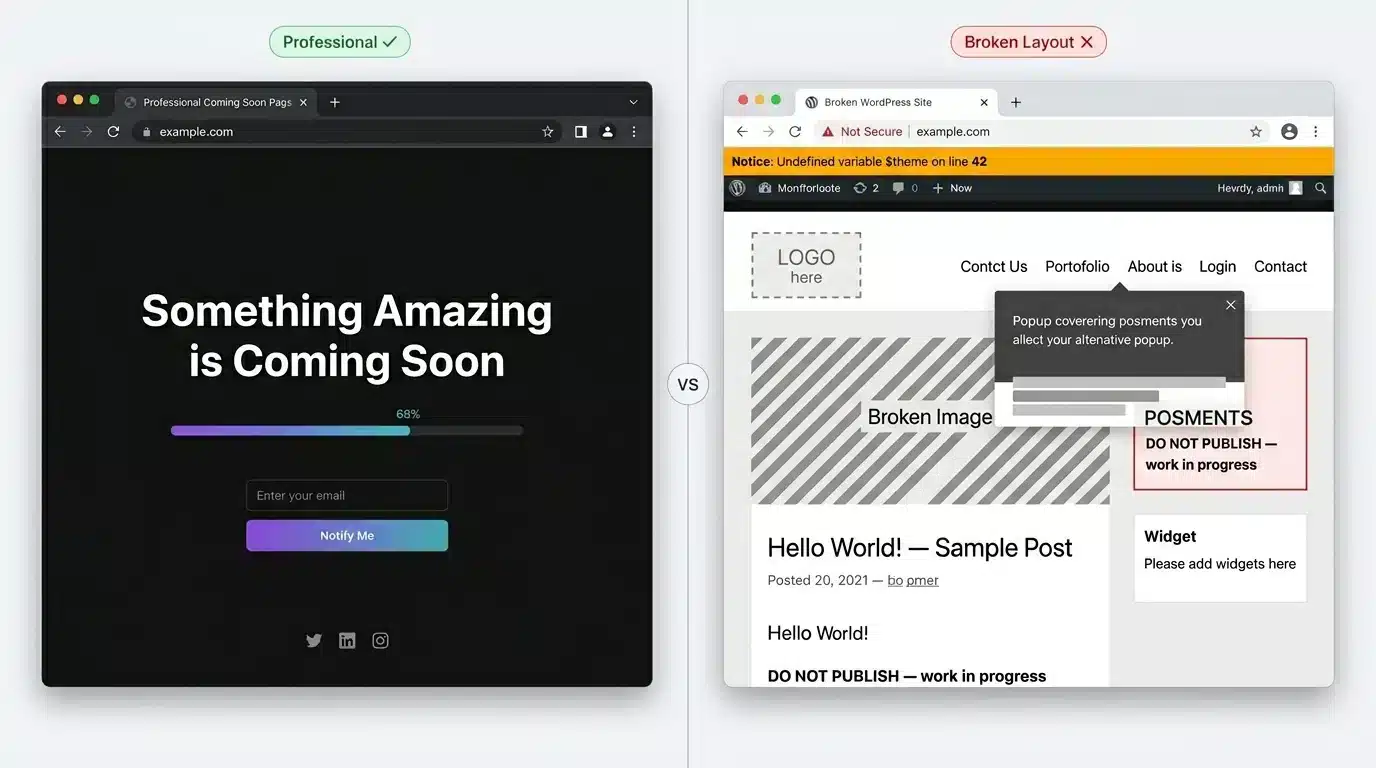
Most people treat this as a cosmetic issue. Keep the unfinished site away from visitors. That’s it. But there’s more going on.
The SEO Risk Nobody Talks About
When your WordPress site is live but unfinished, search engine crawlers quickly get active. Google can find and index your site within hours of it going live if you’ve linked to it from another site or social profile.
If Googlebot visits a page with placeholder text, broken images, and no real content, it gets stored in the index. Worse, thin placeholder content can affect your domain’s initial quality signals before you’ve published a single real page.
The right maintenance mode plugin tells Google, “This page is temporarily unavailable.” Google respects this and holds off on indexing. The wrong method, like just ticking the “discourage search engines” box in WordPress settings, only adds a tag asking, but doesn’t prevent crawlers
First Impressions and Brand Trust
Stanford researchers found that 75% of users judge a website’s credibility based on its visual design. An incomplete site with missing images, broken layouts, or test product listings damages trust before you’ve said a word. A clean, branded coming soon page does the opposite. It signals that something real is on the way.
How to Hide a WordPress Site Until Ready: Which Method Is Right for You?
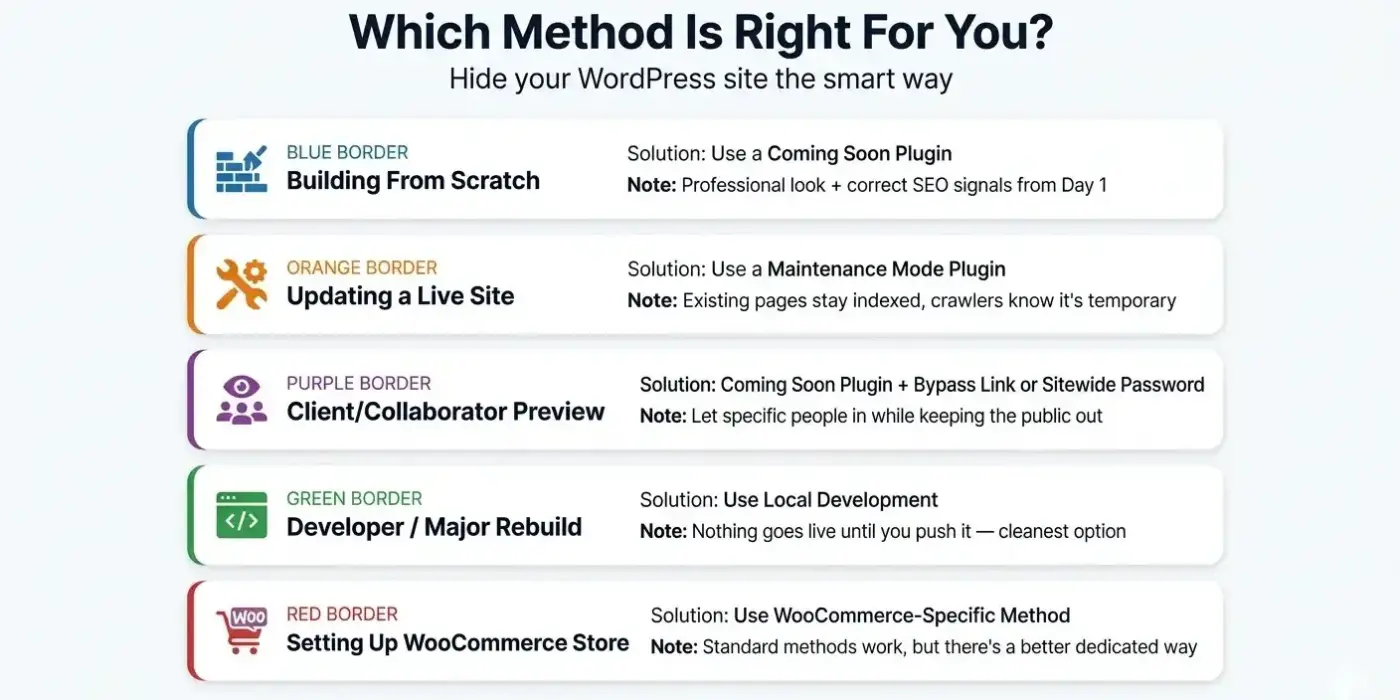
Before walking through each option, here’s a quick way to pick the right one. This is where most guides fail you — they list methods without helping you choose.
- You’re building a new site from scratch: Use a coming soon plugin. It’s clean, professional, and sends the right SEO signals from day one.
- You’re updating an existing live site: Use a maintenance mode plugin. Your existing pages stay indexed, and crawlers know the downtime is temporary.
- You need clients or collaborators to preview your work: Use a coming soon plugin with a bypass link or login, or use password protection at the sitewide level.
- You’re a developer comfortable with code: Local development is often the cleanest option, especially for major rebuilds. Nothing goes live until you push it.
- You’re setting up a WooCommerce store: Skip straight to the WooCommerce-specific section below. The standard methods work, but there’s a better way.
Method 1: Use a Coming Soon or Maintenance Mode Plugin
This is the right choice for most people. It’s the easiest to set up, it looks professional, and it handles the SEO side correctly when configured properly.
Coming Soon Mode vs Maintenance Mode: What’s the Difference?
- Coming soon mode is for new sites that have never been public. It tells visitors and search engines that a brand new site is on the way. Use this when you’re starting from zero.
- Maintenance mode is for sites that are already live and going through an update or redesign. It signals a temporary interruption to an existing site. Use this when your site has existing content, and you’re making changes.
The plugin you choose should support both modes and should send a proper 503 HTTP status code. More on that in a moment.
Step-by-step setup with a free plugin
- Go to your WordPress dashboard and navigate to Plugins > Add Plugin.

- Search for “maintenance mode” or “coming soon.”

- Install and activate the plugin of your choice.
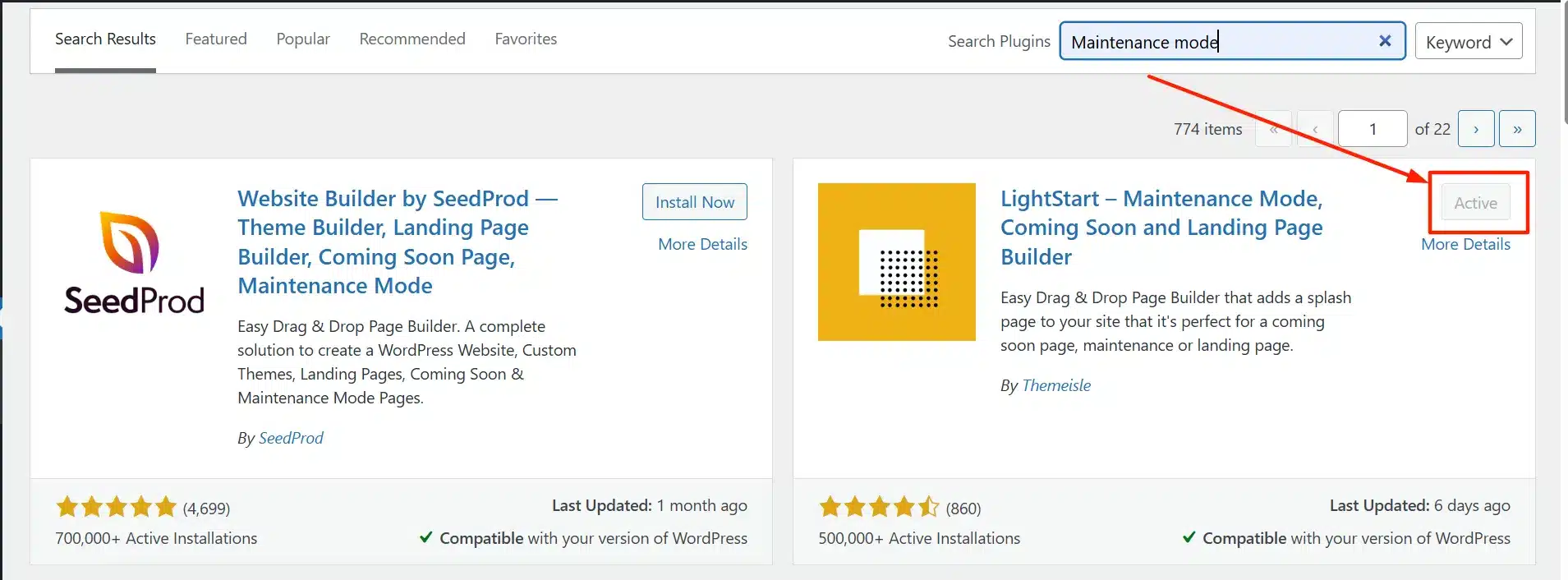
- Go to the plugin’s settings page and enable maintenance or coming soon mode.
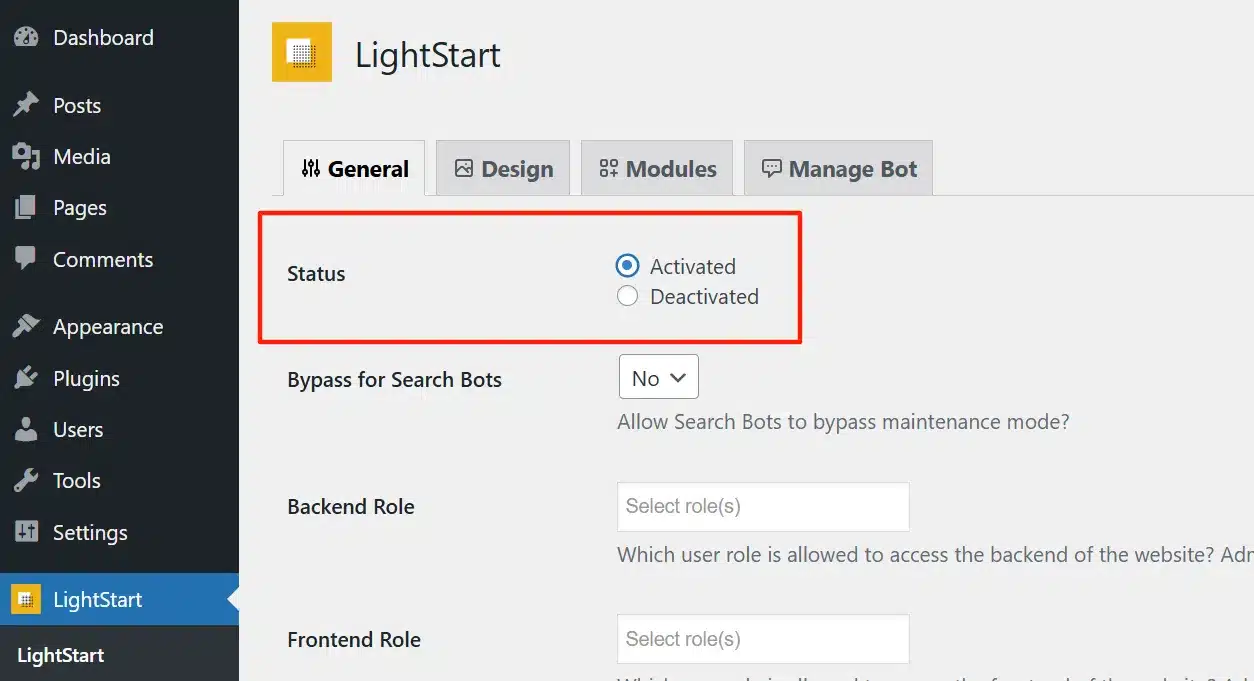
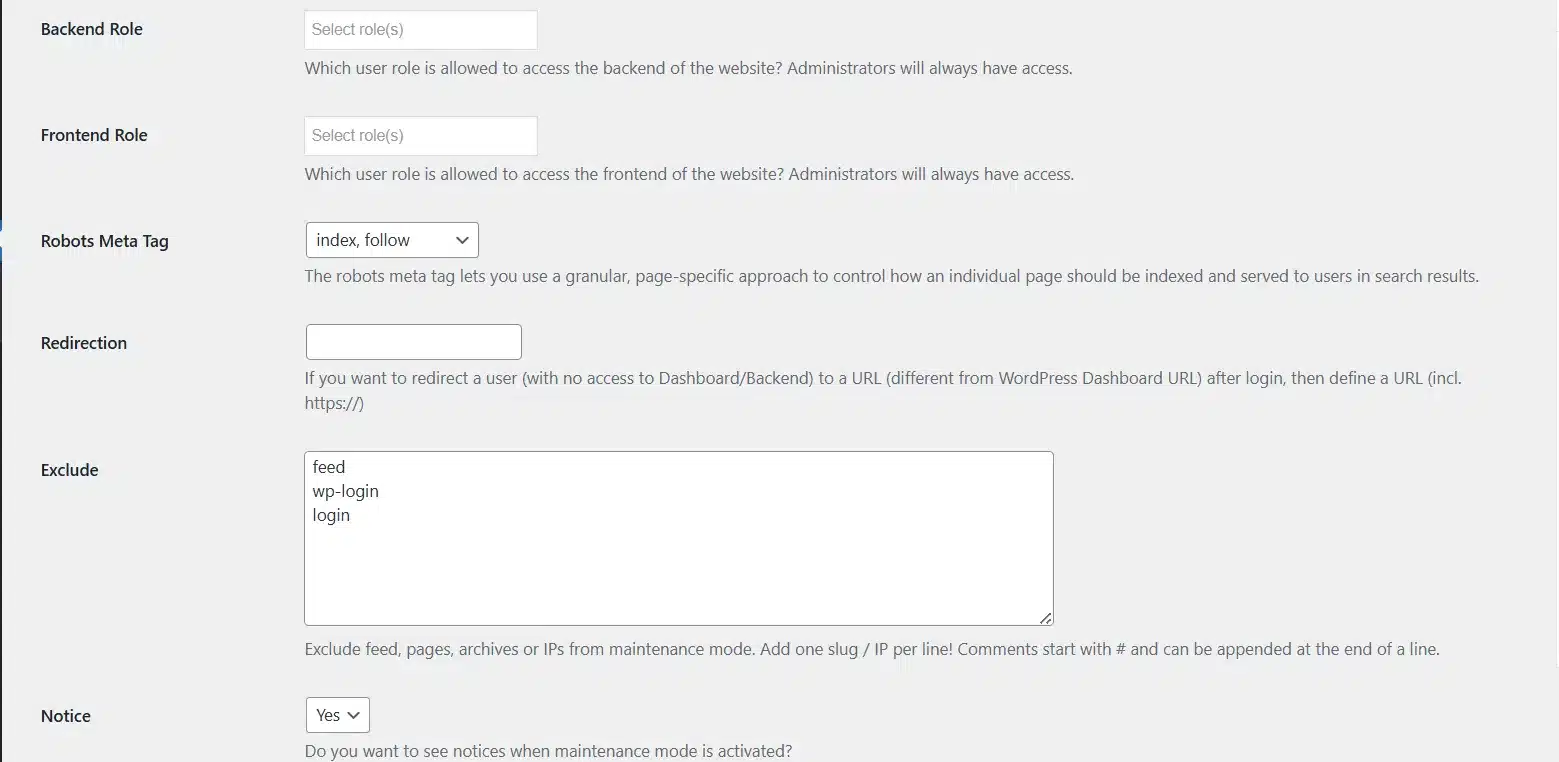
- Customise the page title, message, tag, and role, etc.
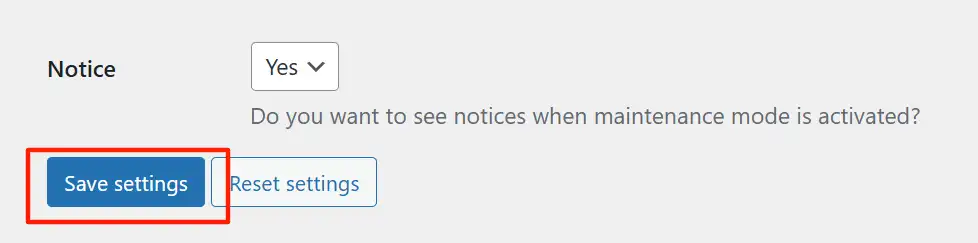
- Save your settings.
You can still log in to your dashboard and work normally. Logged-in users with the right role see the real site. Everyone else sees your holding page.
Method 2: Password Protect Your WordPress Site
Password protection is a solid option if you need to share your work-in-progress with clients or stakeholders without making it fully public.
Using WordPress’s Built-In Page Protection
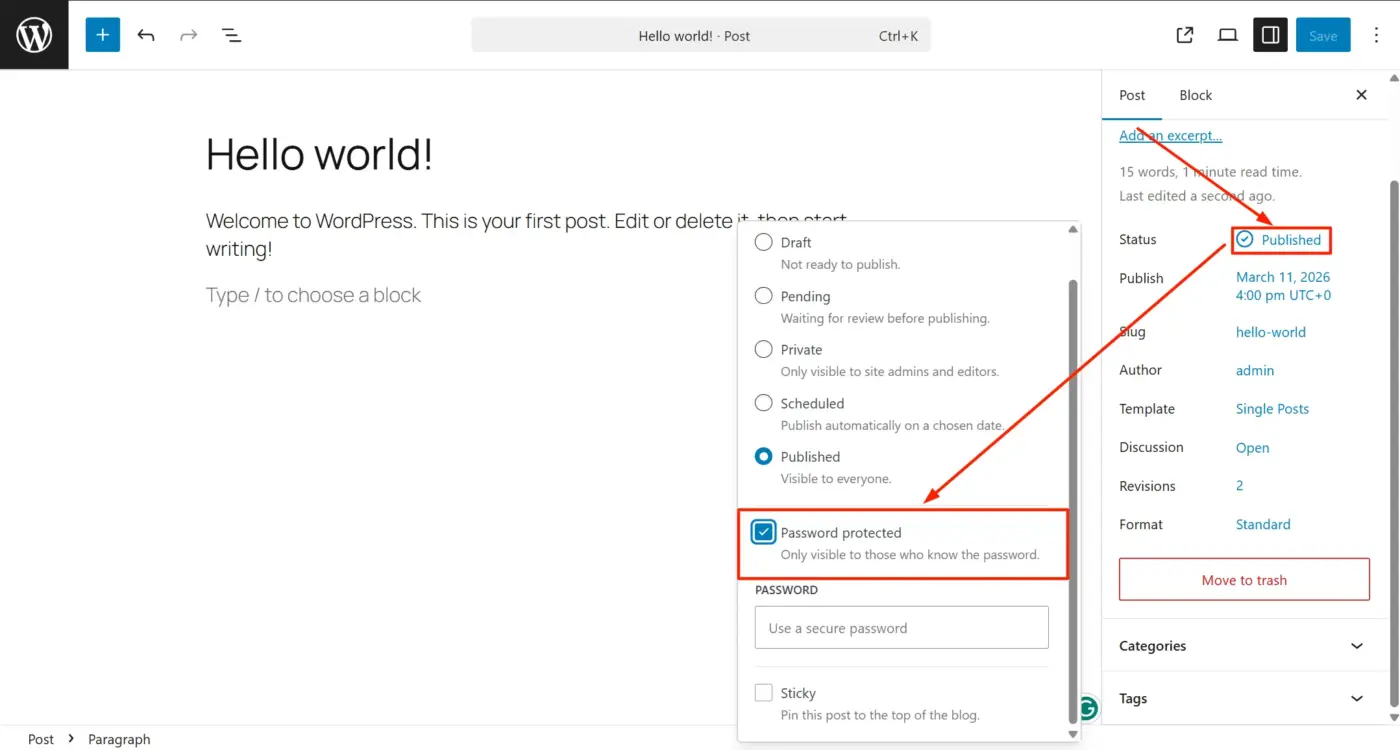
WordPress lets you password-protect individual pages and posts. Go to the page editor, find the Status setting in the Post sidebar, and switch it to Password Protected. Set a password and share it with whoever needs access.
This works for sharing specific pages during review. It doesn’t hide your entire site.
Using a Sitewide Password Protection Plugin
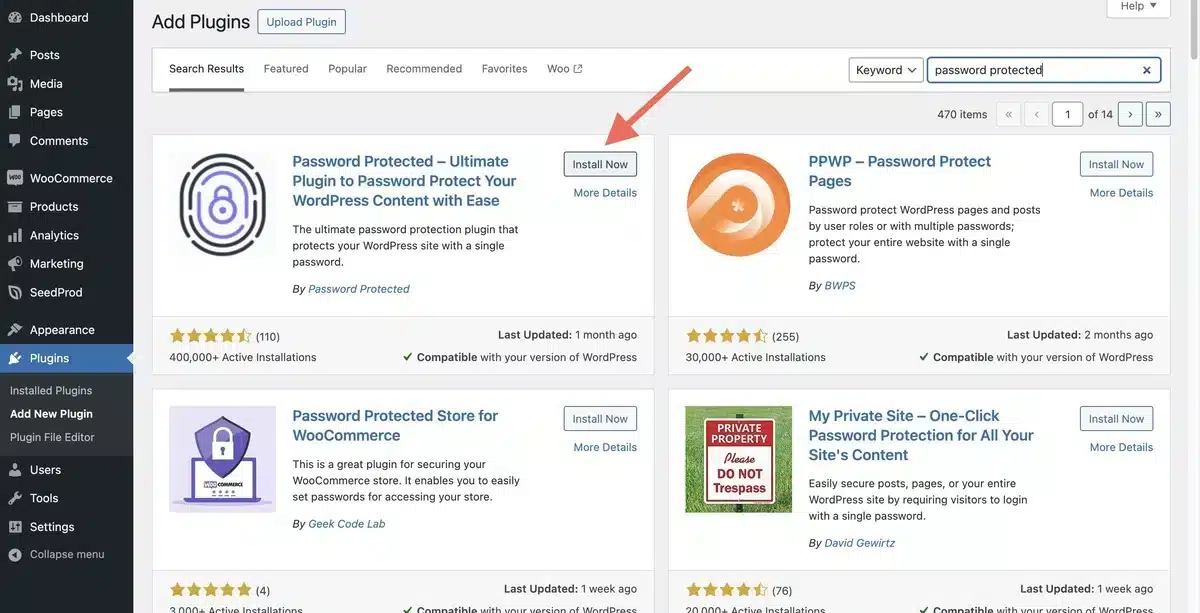
For full sitewide protection, use a plugin like Password Protected or Prevent Direct Access. These add a password wall that covers every page on the site, not just individual posts.
This is a good option for freelancers and agencies. You can give your client a single password to preview the site while keeping it completely hidden from everyone else. No coming soon page needed. No public visibility.
One limitation Sitewide password protection does not send a 503 status code to crawlers. If your site is brand new and not yet indexed, this is fine. If it’s an existing site going through a redesign, a maintenance mode plugin is the better choice from an SEO perspective.
Method 3: Block Search Engines Only
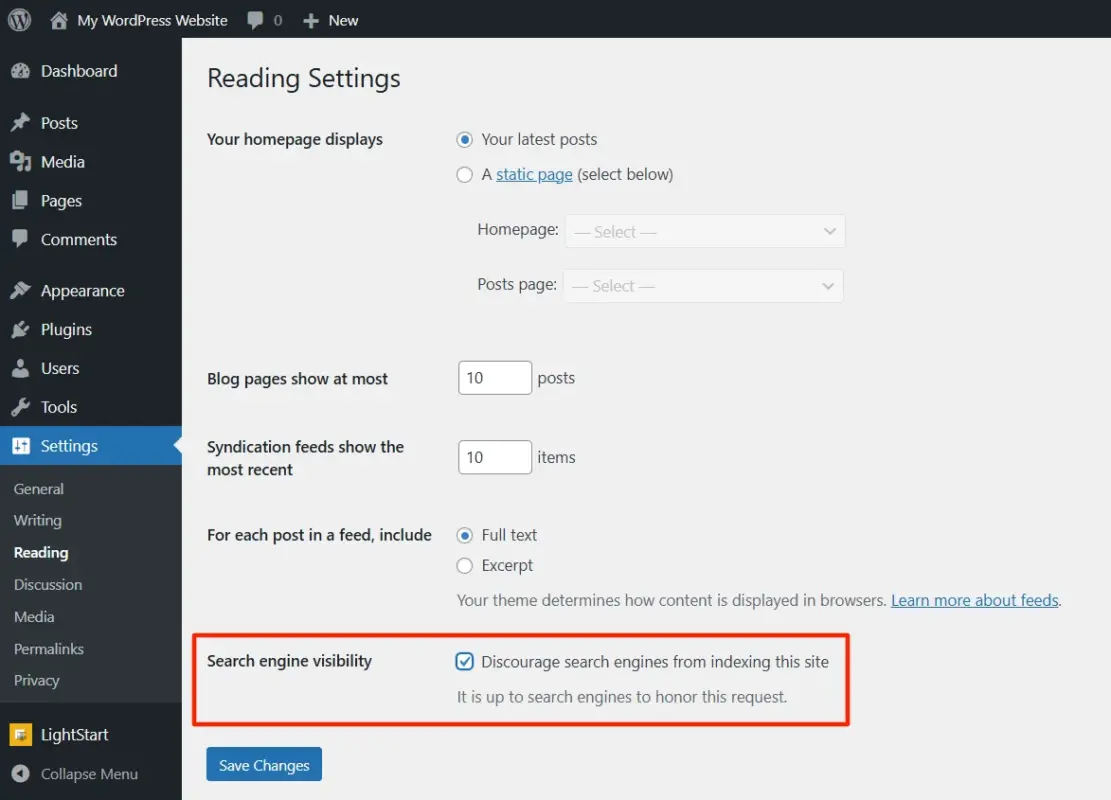
WordPress has a built-in setting for this. Go to Settings > Reading and tick the box labelled “Discourage search engines from indexing this site.” Save your changes.
Why This Setting Alone Won’t Protect You
This option adds a noindex directive to your pages. It asks search engines not to index your content. The problem is that it doesn’t block anyone from visiting your site directly. A real person can still navigate to your URL and see your unfinished work.
This setting is best used as a complement to another method, not as the only solution. For example, use it alongside password protection to add a second layer of search engine protection.
If your hosting account uses a robots.txt file that blocks crawlers entirely, this is more effective than the WordPress setting alone, but it still doesn’t block human visitors. Use it in combination.
Method 4: Build Locally First
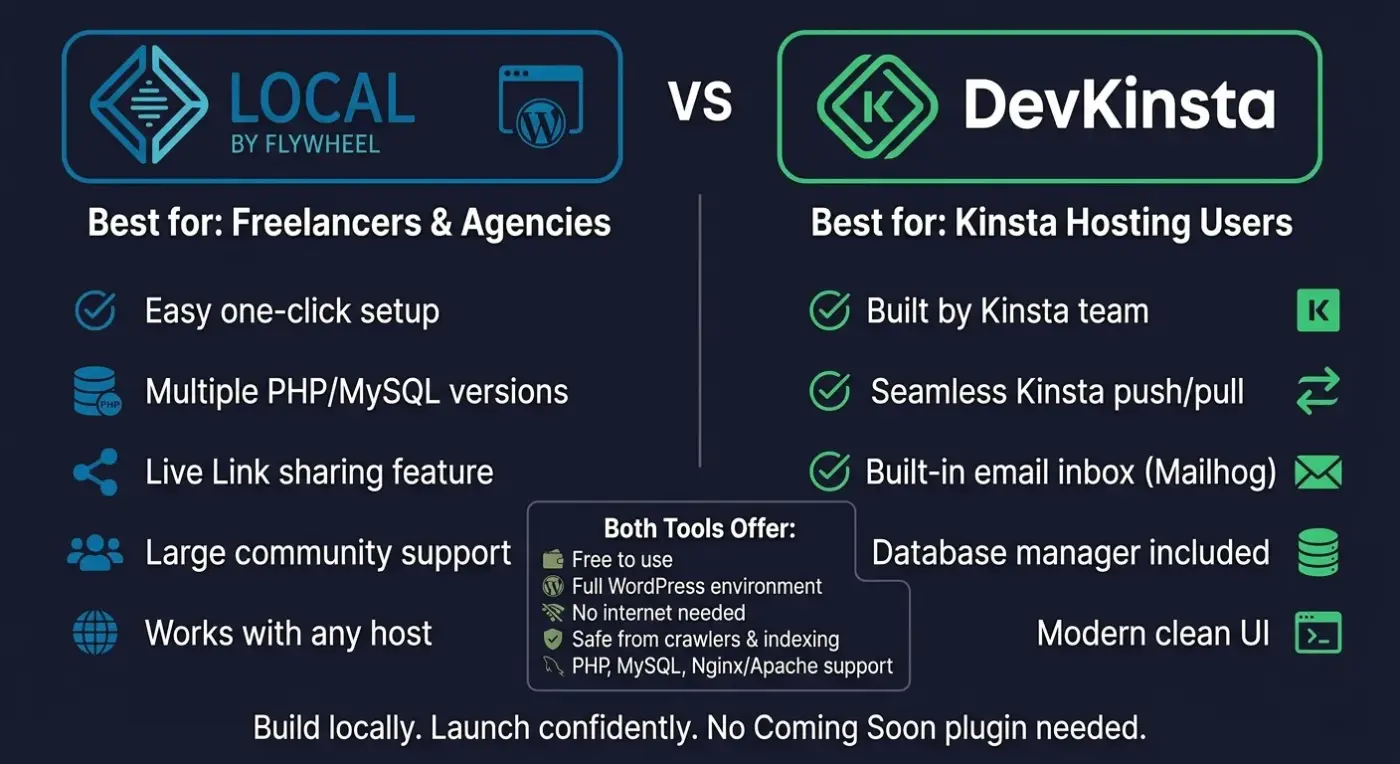
If you’re doing a major rebuild or starting a completely new project, the cleanest approach is to build the site on your local machine before it ever touches a live server.
Tools like Local by Flywheel or DevKinsta let you run a full WordPress installation on your computer. Nothing is publicly accessible. There’s no domain to find. No crawler can reach it. When you’re ready, you export the site and push it to your live server. You can always follow our detailed guide on the Local WP tutorial.
This is the method developers prefer for complex builds. It’s not the easiest option for beginners, and it does require moving the site to a server before launch, which adds a step. But if you’re rebuilding a site from scratch or building something custom, it’s worth doing properly.
For a straightforward new site with a simple theme and standard content, a coming soon plugin is faster and more practical.
What About WooCommerce Stores?
Building a WooCommerce store involves more moving parts than a regular WordPress site. You’re configuring products, setting up shipping zones, connecting payment gateways, and testing the checkout flow. Going live before all of that is in place is a real problem.
A store goes live with products showing a price of $0, a payment gateway in test mode, and a shipping rate that charges everyone. Google crawls the shop page, indexes the products, and now you have incomplete eCommerce pages in the index.
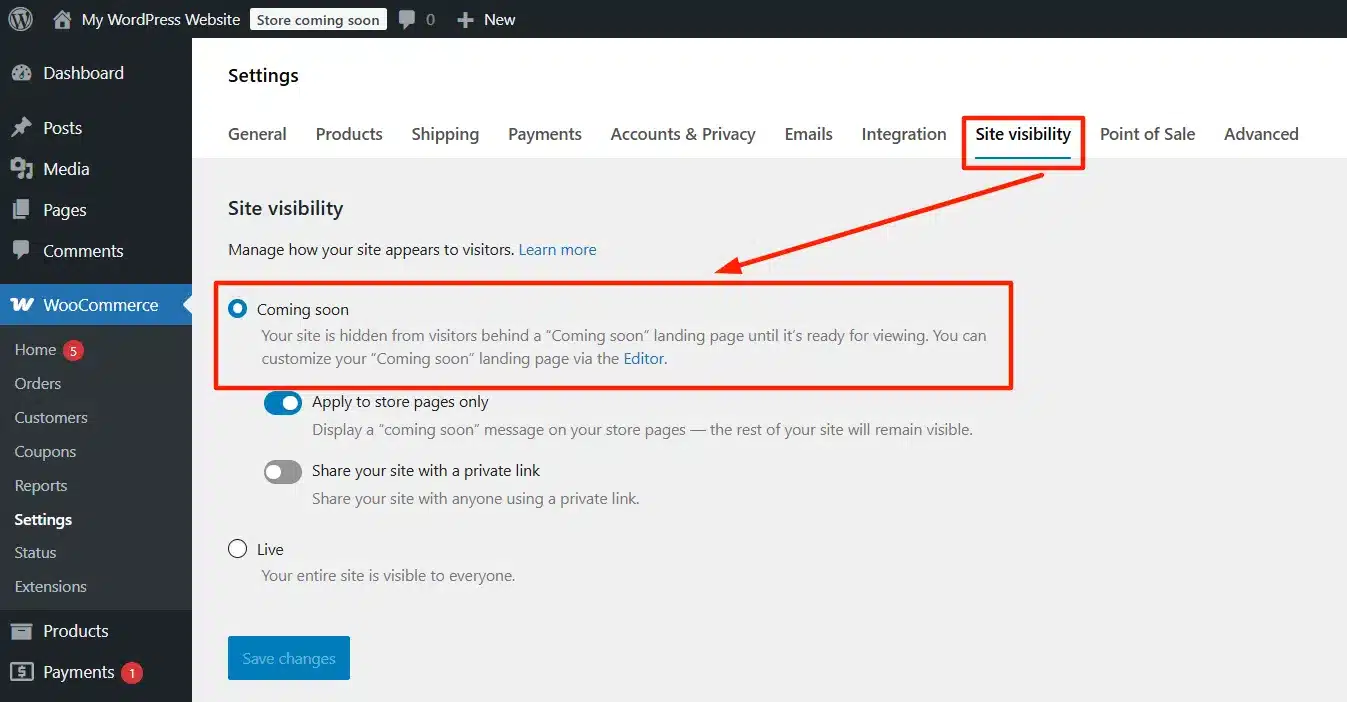
WooCommerce has its own built-in coming soon mode. When setting up WooCommerce for the first time, the setup wizard puts your store in a “Coming Soon” state by default. You’ll see a notice in your dashboard.
If you’ve disabled it, you can re-enable it by going to WooCommerce > Settings and looking for the “Coming Soon” option under the General tab. Or use a maintenance-mode plugin to cover the entire site while you finish configuring your store.
For a full breakdown of how to optimise your WooCommerce store for visibility once you’re ready to launch, our WooCommerce SEO guide walks through everything from product page structure to schema markup.
The 503 Status Code: Why Your Plugin Choice Matters for SEO?
When a search engine crawler visits your site and receives a 200 HTTP response (the standard “everything is fine” response), it treats the page as live content and indexes it. If that page contains “Coming soon, check back later” text, that’s what gets indexed.
A properly configured maintenance mode plugin sends a 503 HTTP status code instead. This tells the crawler that the content is temporarily unavailable. Google’s documentation explicitly states that a 503 tells Googlebot to come back later without indexing the current content. Yoast’s technical SEO guidance on maintenance pages confirms this is the correct approach for handling downtime without SEO damage.
The risk with extended 503 responses, if your site sends a 503 for weeks or months, Google may begin reducing how often it crawls your pages. For a new site, this doesn’t matter much. For an existing site with established rankings, try to keep the maintenance window as short as possible.
Most well-maintained coming soon plugins handle the 503 header automatically. Before installing one, check the plugin documentation or support forum to confirm it sends the correct status code. This one setting separates a safe launch from one that quietly damages your SEO before you’ve even started.
Conclusion
Hiding a WordPress site until it’s ready isn’t complicated, but the method you choose matters. A coming soon plugin is the right default for most new sites.
Maintenance mode suits existing sites undergoing updates. Password protection works well for client previews. Local development is the cleanest path for serious rebuilds. And if you’re launching a WooCommerce store, don’t skip the built-in coming soon setting before your products and checkout are properly tested.
Whatever method you use, make sure it sends a 503 status code to crawlers. That one technical detail is the difference between a clean launch and one that leaves Google indexing your placeholder content.
When you are ready to go live, check out our guide on publishing a WordPress site for the final steps to take before you remove the holding page. And if you need hands-on help with your WordPress build, our WordPress development services team is available to help.
Frequently Asked Questions(FAQs)
Q1. Can I hide my WordPress site from Google without a plugin?
Yes. Go to Settings > Reading in your WordPress dashboard and tick the “Discourage search engines from indexing this site” box. This adds a noindex directive to your pages. It won’t block human visitors, and it doesn’t send a 503 status code, so it’s not the strongest option from an SEO standpoint. For full protection, combine it with sitewide password protection or a maintenance mode plugin.
Q2. Will hiding my WordPress site affect my existing search rankings?
If you’re hiding an existing live site in maintenance mode, a 503 status code tells Google the downtime is temporary, and your rankings should recover once the site is back. If the maintenance period runs longer than a few weeks, some crawl frequency reduction is possible. For new sites, there are no existing rankings to protect, so you can stay in coming soon mode as long as you need.
Q3. How do I let clients or team members see my hidden WordPress site?
Most coming soon and maintenance mode plugins include a bypass option. Logged-in users with admin or editor roles typically see the real site by default. Some plugins also offer a secret bypass URL you can share. Sitewide password protection is another clean option; give your client a single password to view the full site without exposing it to the public.
Q4. What’s the difference between a coming soon page and a maintenance mode page?
A coming soon page is for brand new sites that have never been live. It signals to visitors and search engines that a new site is launching soon. A maintenance mode page is for existing sites temporarily taken offline for updates or changes. The practical difference matters for SEO; maintenance mode paired with a 503 status code signals a temporary disruption to an already-known site, which Google handles differently from a completely new domain.
Q5. Is it safe to use the WordPress “discourage search engines” setting long-term?
No. This setting adds a noindex tag but doesn’t prevent Google from visiting your pages. If you leave it on after launch, search engines won’t index your content, no matter how good it is. It’s a development tool, not a permanent visibility setting. Check Settings > Reading before launching to make sure you’ve turned it off.
Q6. Can I hide just specific pages instead of the whole WordPress site?
Yes. WordPress lets you set individual pages and posts to “Private” (visible only to logged-in users) or “Password Protected” (visible to anyone with the password). This is useful if most of your site is live, but a few pages are still being built. Go to the page editor, click the Visibility setting in the right sidebar, and choose your preferred option.