Ever seen the incorrect author name on a WordPress post? It’s a small thing, but it can confuse your readers, misattribute credit, or even undermine your site’s SEO and editorial integrity.
Whether you are publishing guest content, transferring posts around after a team transition, or just wanting to organize your blog better, learning how to change the author in WordPress is a quick win that keeps your site credible and organized.
There are several ways WordPress lets you change post authors; some are more intuitive than others. And the best part is, you won’t need to change a single line of code in the process.
In this guide, we will cover:
- Why changing a post’s author could be relevant to your content strategy.
- Four simple, beginner-easy ways to change the author in WordPress.
- Pro tips to enhance author profiles for trust, SEO, and a better user experience.
Whether you are a solo blogger, working as a member of a content team, or managing a multi-author site, this guide will help you get those improper bylines sorted the right way—quickly and painlessly.
Why You Might Want to Change an Author in WordPress?
The byline contains far more than just the author’s name. In WordPress, that byline does more than inform the reader; it represents credibility, trust, and even SEO. Thus, knowing how to change an author in WordPress is not just helpful, but a requirement for quite a number of content managers or serious bloggers.
Here are a few real-life scenarios in which changing the author simply makes sense:
- You’re Publishing Guest Posts: If you are accepting contributors to your posts in the form of guest authorship, you will want to assign the content to the proper name to recognize their work credibly. If your name is on content written by someone else, this may confuse your audience and misrepresent your brand!
- You’ve Had Some Team Changes: If you have had someone on your writing team leave for some unforeseen reason, it is a good idea to re-assign those posts to another editor or contributor for ownership purposes and to keep things organized internally.
- You Are Rebranding or Using a Pen Name: There are a lot of bloggers who will evolve in their voice or brand. Even updating old content to reflect a new author’s voice or a pen name will allow for a cohesive blog and brand.
- You Began With “Admin” as the Author: Many novices publish their content under the “admin” account each time. While this is a method of publishing that is practical early on, it also lacks personality or authority. By switching to a real user’s profile, you add a more professional element to your content and build trust.
- SEO and E-E-A-T First: Google’s quality guidelines place a lot of emphasis on Experience, Expertise, Authoritativeness, and Trustworthiness—E-E-A-T. By showing accurate authorship, particularly if you have complete bios, you are signaling to Google who is creating the content. This can improve your search ranking and ultimately, your click-through rates.
Bonus Insight: Properly assigning an author name is more than housekeeping; it is notifying your users (as well as search engines) that the content you deliver is real, and was created and published by actual, qualified humans.
How to Change the Author in WordPress: 4 Effective Methods
WordPress provides several built-in methods for modifying post authors, whether you need to change one article or many at once. We’ll cover the four methods on how to change the author in WordPress.
Method 1: How to Change the Author in the Block Editor (Gutenberg)
More than likely, if you have a WordPress version 5.0 or greater, you are using Block Editor, aka Gutenberg. It is fresh, clean, and easy to use, and you can edit the author with just a few clicks.
Steps
- Select the new author from the list of registered users.
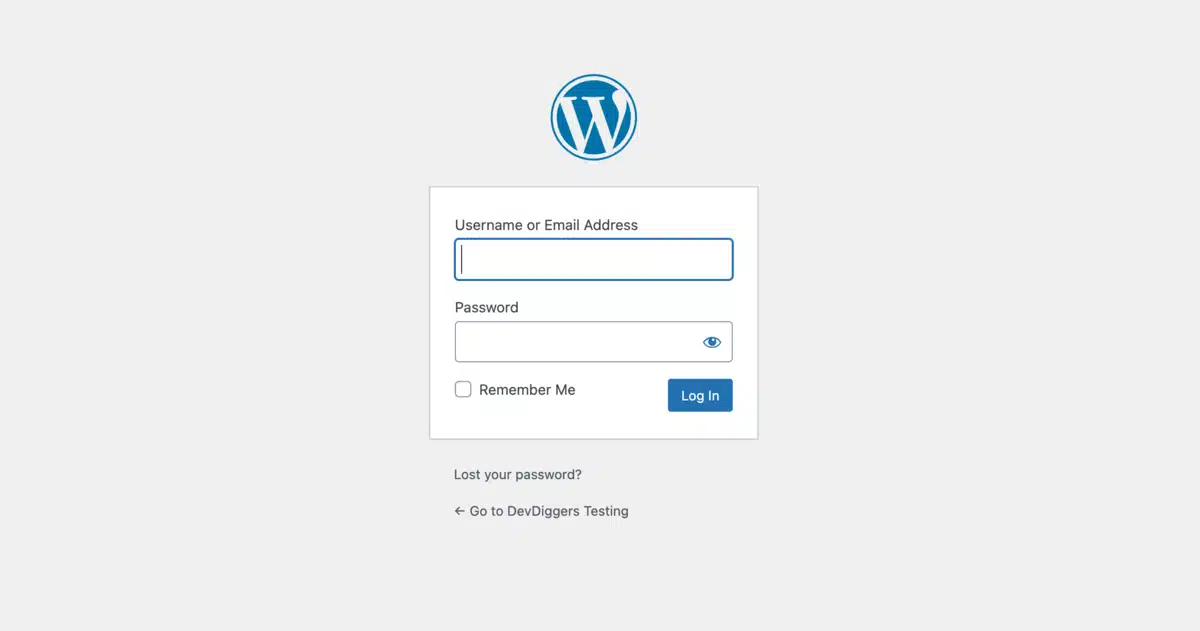
- Log in to your WordPress Dashboard.
- Go to Posts > All Posts.

- Locate the post you want to update and click Edit.

- On the right sidebar, click the Post tab (not Block).

- Scroll down to locate the Author dropdown and select the new author.
- If the sidebar isn’t visible, simply click the gear icon at the top right to toggle it.

- If the sidebar isn’t visible, simply click the gear icon at the top right to toggle it.
That’s it! Your post will now show the correct author on the front end.
Pro Tip: Make sure the new author is already added under Users > Add New. Only registered users with proper roles (Author, Editor, or Admin) will show in the dropdown.
Method 2: How to Change the Author in the Classic Editor
Are you still using the Classic Editor (or the Classic Editor plugin)? Don’t worry, your steps will differ from the other method, but it is still just as simple.
Steps
- Go to Posts > All Posts.
- Select Edit under the post title you want to change.
- Scroll down to the Author box under the content editor.
- If you don’t see an Author box:
- Select Screen Options at the top right of the screen, then check the box for Author.

- Select Screen Options at the top right of the screen, then check the box for Author.
- If you don’t see an Author box:
- Use the drop-down to choose the correct author.

- Click Update.

Just like that, you have changed a post’s author.
Method 3: Changing the Author Using Quick Edit
Quick Edit makes it easy to update the basic properties of posts—title, slug, date, author, and so on—from the posts list. Quick Edit is great for making a quick update without launching the full editor.
Steps
- In your dashboard, go to Posts > All Posts.
- Hover over the post you want to update and click Quick Edit.

- Look to the right side of the screen for the Author dropdown, and choose the correct author from the list.

- Click on Update.

All done in under 10 seconds! This method is helpful for quickly changing author name if you only have a couple posts to jump through.
Method 4: Changing the Author for Multiple WordPress Posts
Are you trying to change the author on dozens or even hundreds of posts? No worries! You do not need to manually edit every post individually! WordPress has a bulk edit option that is built right into the posts listing page.
Steps
- Go to Posts > All Posts.
- Use the checkboxes to select multiple posts on the left.

- At the very top, use the bulk actions dropdown to select Edit and then click Apply.

- A new set of bulk actions will pop up, look for the Author drop-down and choose the new author you’d like to assign.

- Click Update to save.

All the selected posts should now show the new author you selected.
When to use it
- When someone leaves your content team and you need to reassign their posts.
- When you are migrating a blog or rebranding it.
- When you are fixing all the default “admin” bylines across all of your older blog content.
Heads up: This method will change the author for every selected post, so please be careful with your selections before hitting “Update.” There is no undo option!
Final Thoughts
Switching the author of a WordPress post may seem minor, but you now see it’s not. Author content is important for the organization of your blog, accuracy, and credibility in SEO.
This is especially valuable if you are fixing author mistakes from previous publishing, correctly attributing guest author content, or if you have a growing content team and want complete editorial control based on your content team’s changes.
Now you know how to change the author using WordPress, and with four easy ways to accomplish this—plus some profile tips to improve author SEO—you are set up to manage your site like an expert.
In summary, you have learned:
- Why is it more important than you think to update the post authors
- How to change who the author is using the Block Editor, Classic Editor, Quick Edit, and Bulk Edit
Now it’s your turn. Use your WordPress dashboard to make sure you are taking care of those bylines properly. You (and your readers and search engines) will only benefit from it.
Frequently Asked Questions (FAQs)
Q1. Can I change the author in WordPress without editing the post?
Yes! You can use the Quick Edit function directly from the “All Posts” page of your WordPress dashboard, allowing you to change the author without opening the post editor in full.
Q2. Why isn’t the Author dropdown showing on WordPress?
If you cannot see the Author drop-down:
1. In the Classic Editor, go to the Screen Options button (upper right) and check the Author box.
2. In the Block Editor, make sure you are in the Post settings on the right sidebar.
Q3. Can I assign posts to a new user who didn’t write them?
Yes, you can assign any post to any user as long as the user is registered in WordPress, even if they didn’t write that post. This is common when team members leave or when content is being managed from one location.
Q4. Will switching the author impact my SEO rankings?
Not intentionally. But applying the right author increases authority, contributes to E-E-A-T, and improves user trust—all of which ultimately contribute to long-term SEO. Additionally, it creates consistency when optimizing author bios for search engines.