WooCommerce shortcodes are small code snippets, wrapped in square brackets, that let you display store elements like product grids, cart pages, and checkout forms anywhere on your WordPress site without writing a single line of custom code.
Having built 25+ WooCommerce plugins at DevDiggers, we’ve seen how much time a shortcode can save, and how much confusion a misused one can cause. Most guides hand you a list and call it done. That’s not enough.
This guide covers the full WooCommerce shortcode list, real-world placement examples most tutorials skip, a clear breakdown of when to use shortcodes versus Gutenberg blocks, and steps to fix every common shortcode problem.
Understanding WooCommerce Shortcodes
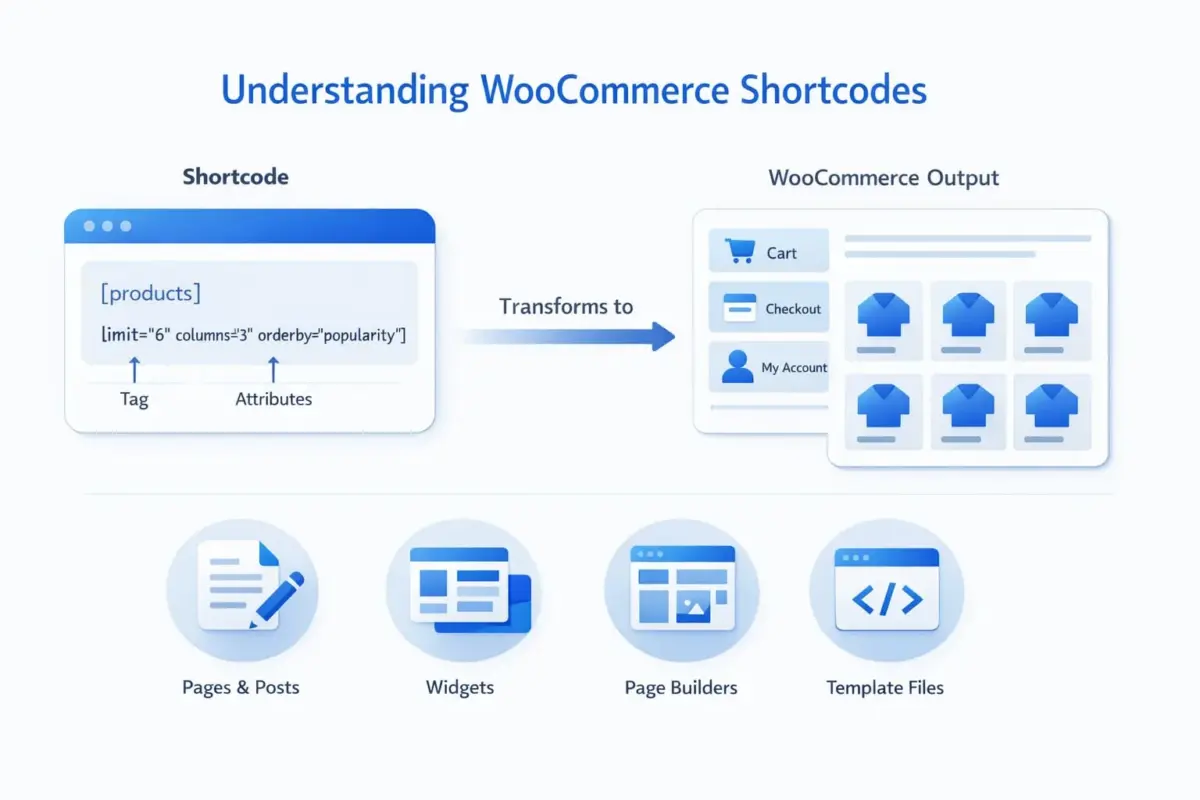
A shortcode is a placeholder. You type something like [woocommerce_cart] into a WordPress page, and when that page loads, WordPress replaces it with a fully functional shopping cart. No PHP, no template edits, no page builder required.
WooCommerce shortcodes follow the same syntax as all WordPress shortcodes: a tag name inside square brackets, with optional attributes to control the output.
[products limit="6" columns="3" orderby="popularity"]
The tag (products) tells WooCommerce what to display. The attributes (limit, columns, orderby) control how it displays. Simple structure, but a lot of flexibility once you understand what each attribute does.
You can use WooCommerce shortcodes in:
- WordPress pages and posts
- Widget areas like sidebars and footers
- Page builders (Elementor, Divi, Beaver Builder all support shortcode elements)
- Theme template files via
do_shortcode()
When WooCommerce is installed, it creates your Cart, Checkout, and My Account pages using shortcodes automatically. If those pages ever get accidentally deleted, you can recreate them from scratch with one shortcode each. Worth knowing.
How to Add a WooCommerce Shortcode to Your Site
Using the Gutenberg Block Editor
This is the most common setup for stores running a modern WordPress theme.
- Open the page or post where you want to add the shortcode.

- Click the + icon to add a new block and search for Shortcode and select the Shortcode block.

- Paste your shortcode into the block, for example
[custom_reset_password].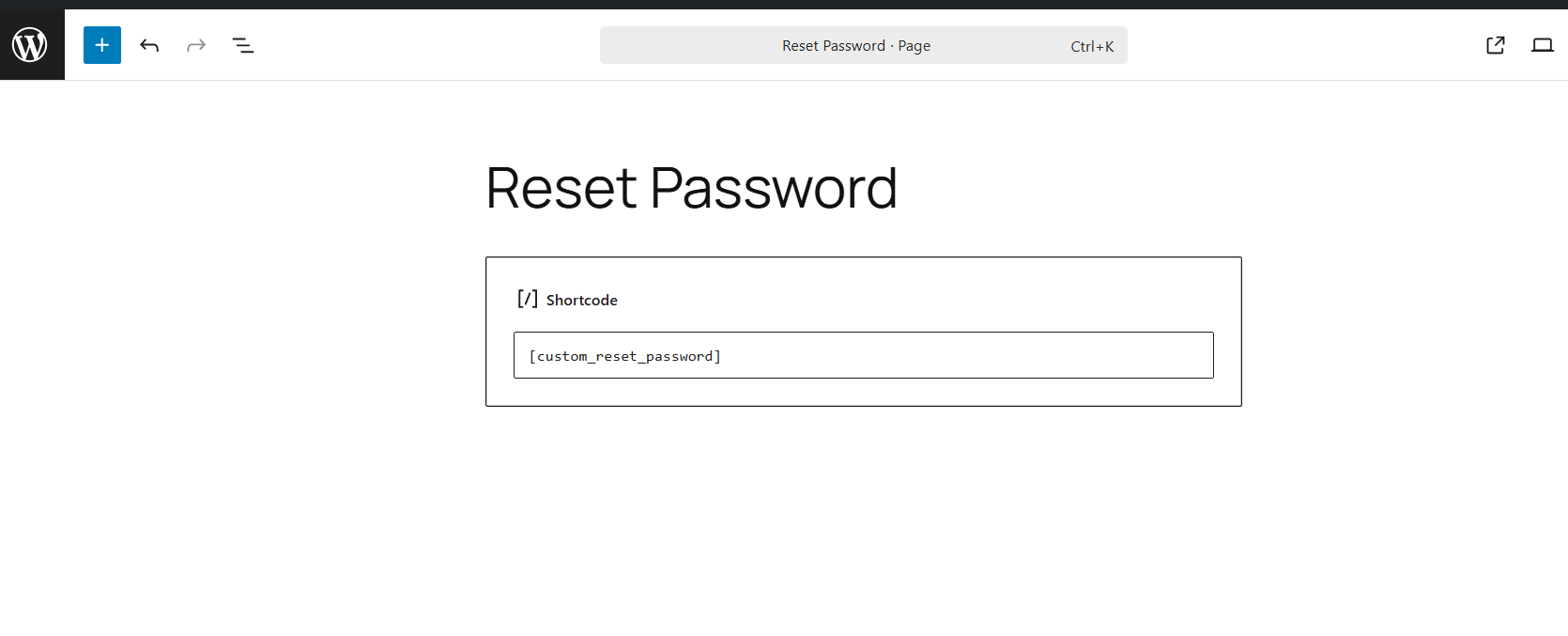
- Click Save or Publish.
Preview the page to confirm the output. The block editor does not render shortcodes live in the editor, so you need to preview to see the result.
Using the Classic Editor
If your store uses the Classic Editor plugin, the process is even simpler.
- Open the page or post.
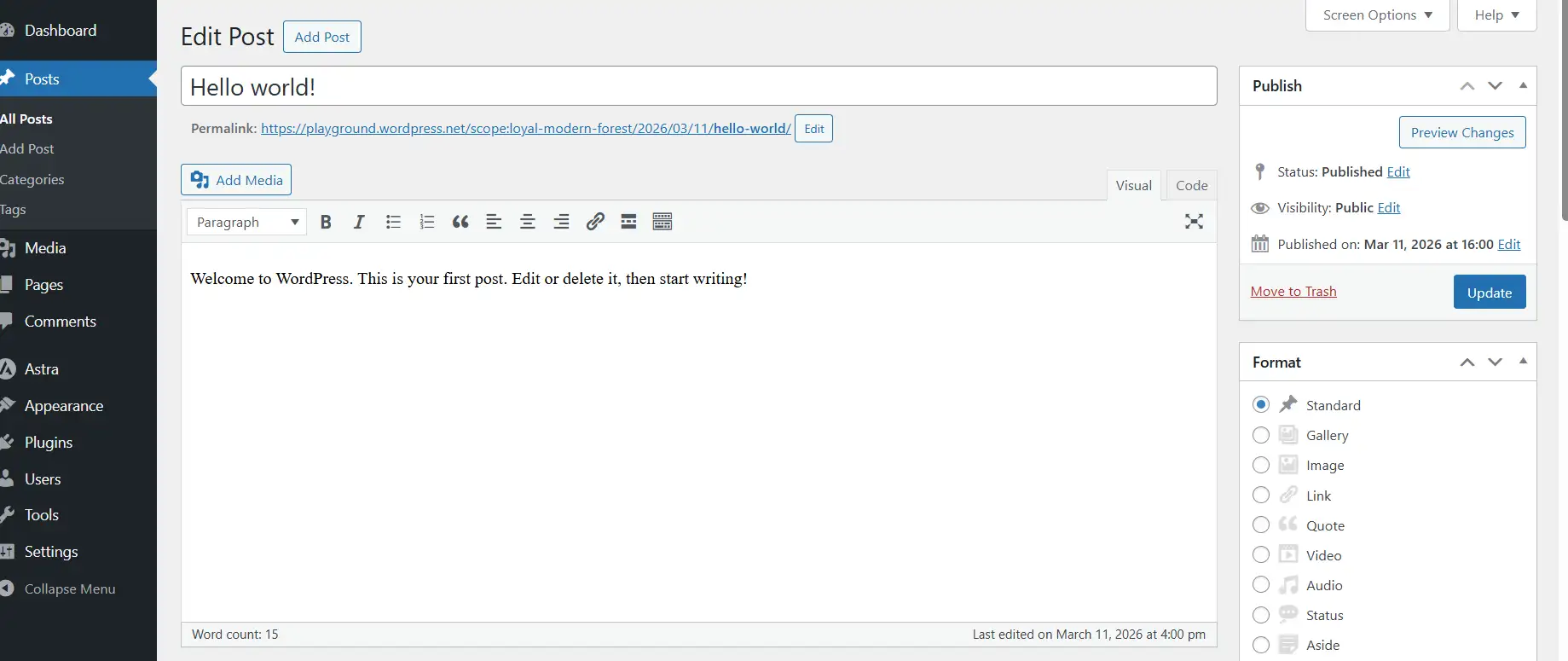
- Paste the shortcode directly into the content area.
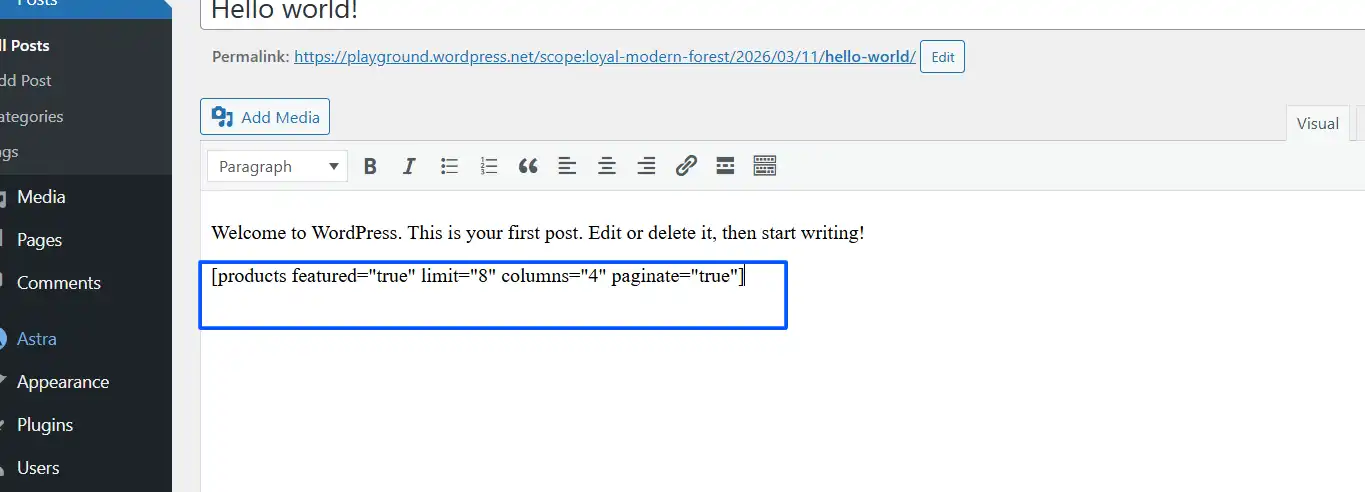
- Click Update or Publish.
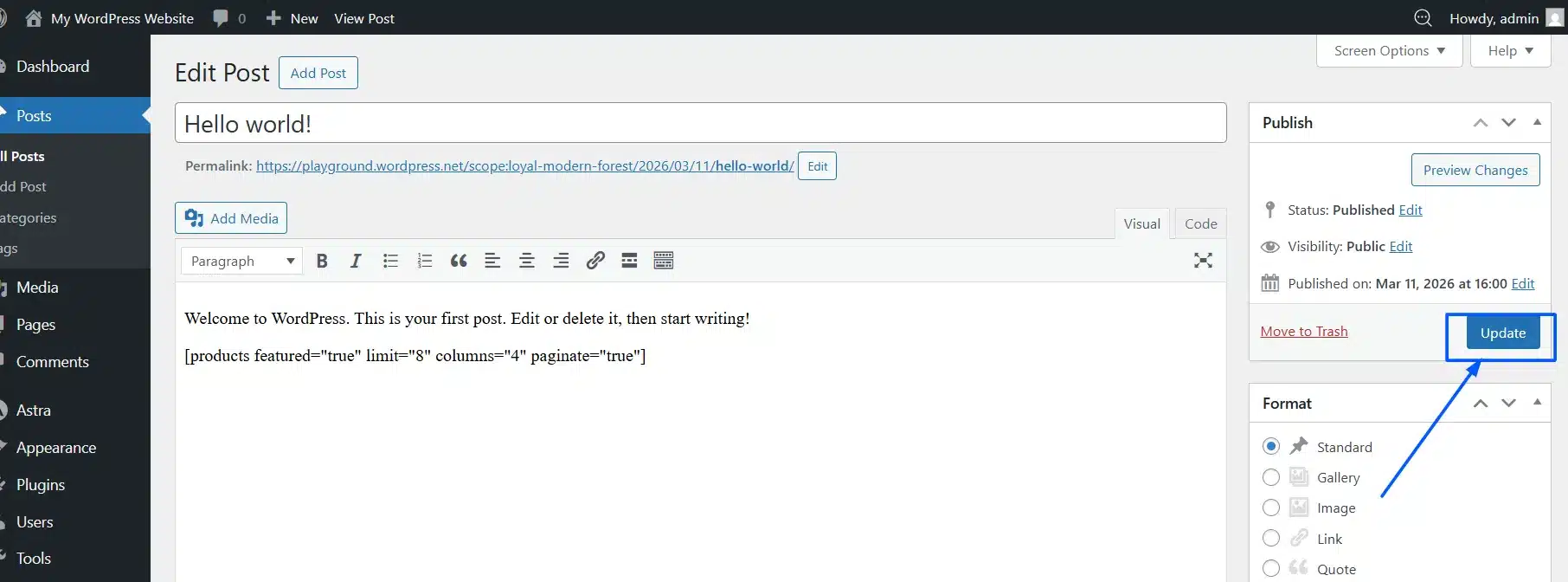
That’s it. The Classic Editor passes shortcodes through WordPress automatically.
Adding Shortcodes to Widgets and Sidebars
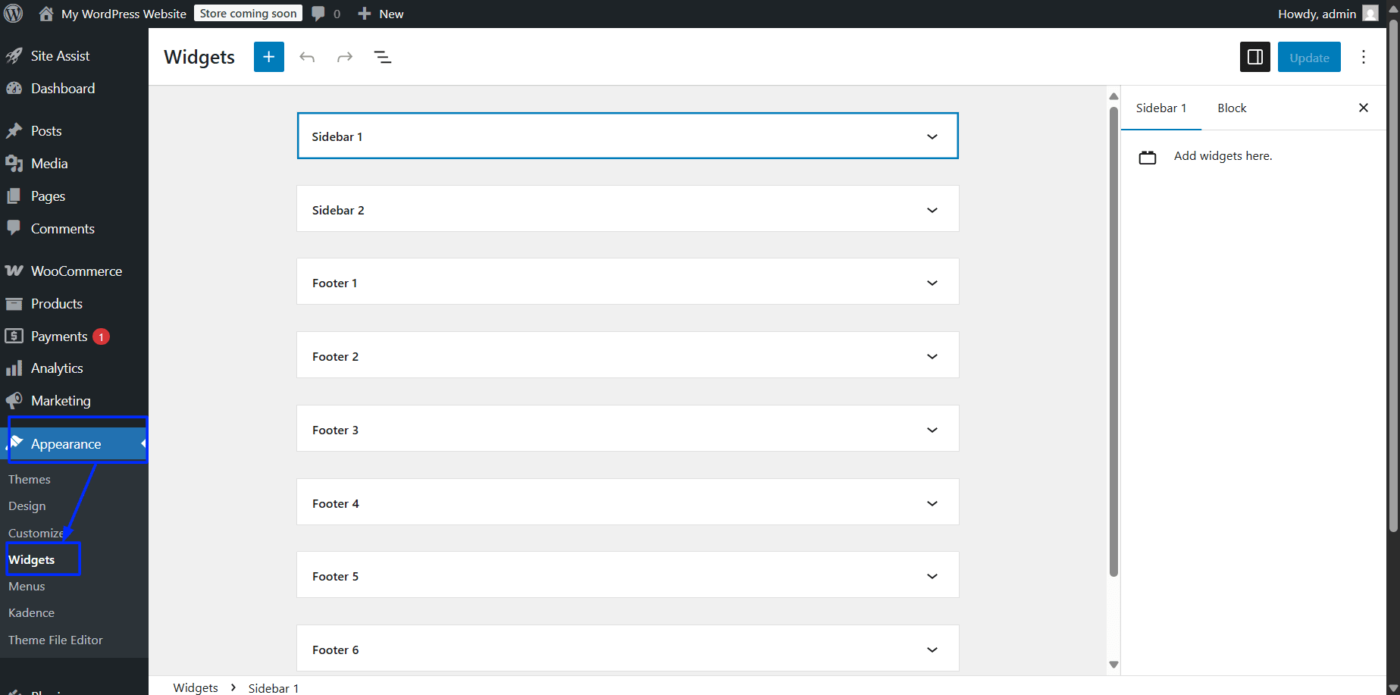
Go to Appearance > Widgets. Add a Custom HTML widget to your chosen widget area. Paste your shortcode inside the widget, then save. This works well for displaying on-sale products or a product category list in a sidebar or footer.
Note: Older Text widgets did not process shortcodes by default. If a shortcode shows as plain text in a widget, switch to the Custom HTML widget instead.
The Complete WooCommerce Shortcode List
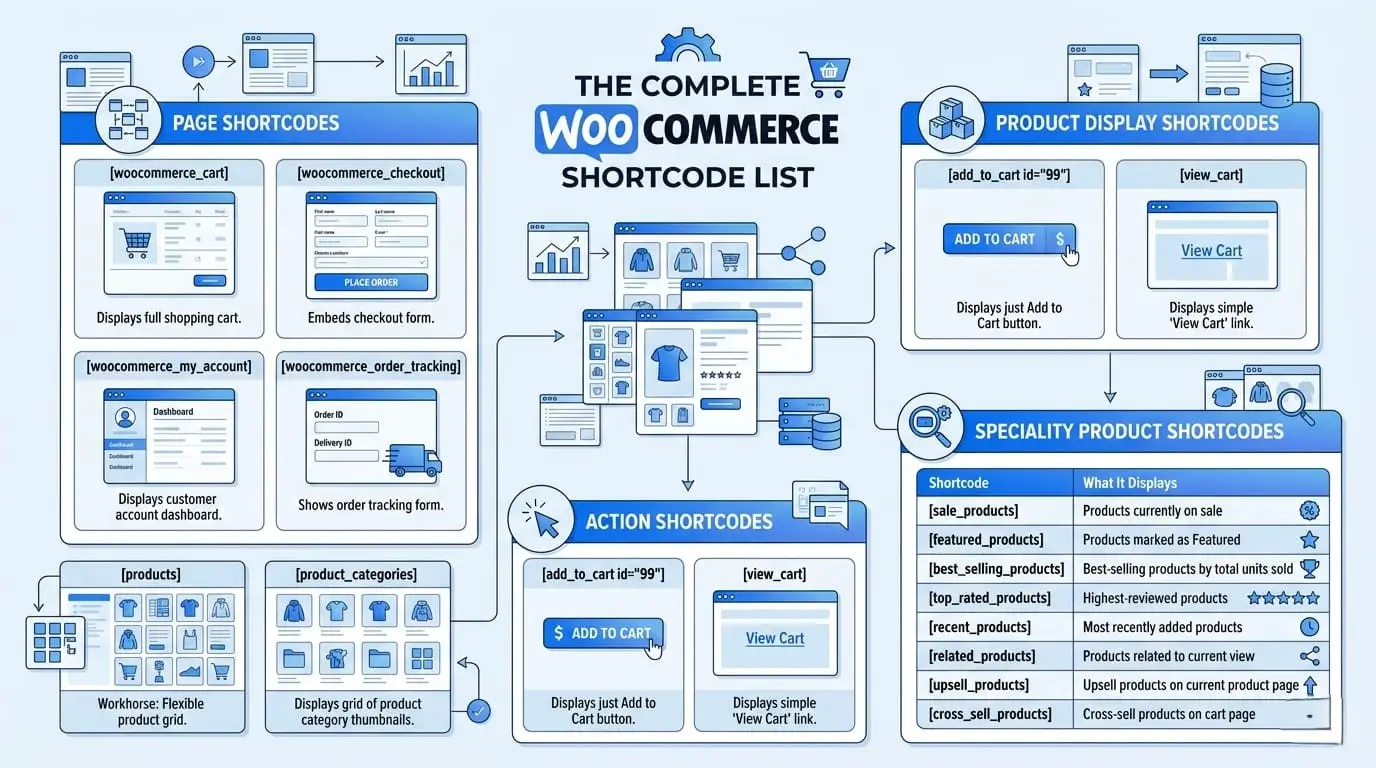
Here is every shortcode that ships with the core WooCommerce plugin. These work on any WordPress site with WooCommerce installed and activated. You do not need any additional plugins.
Page Shortcodes
These four shortcodes power WooCommerce’s most important store pages. WooCommerce creates these pages automatically on install, but if you ever need to rebuild one, these are what you use.
[woocommerce_cart]: Displays the full shopping cart. Shows all items, quantities, subtotals, a coupon field, and a button to proceed to checkout. No attributes available. Just paste it on a blank page, and it works.[woocommerce_checkout]: Embeds the checkout form. Customers fill in billing and shipping details, choose a payment method, and place their order. Again, no attributes. One shortcode, full checkout functionality.[woocommerce_my_account]: Displays the customer account dashboard. Logged in users see their orders, addresses, and account details. Guests see a login form. One attribute is available:login_registration_template— but in practice, most stores use this shortcode as it is.[woocommerce_order_tracking]: Shows an order tracking form. Customers enter their order ID and billing email to check their order status. This is different from the orders tab inside My Account because it does not require the customer to be logged in. Useful for guest checkout stores.
For a deeper look at how the cart page is structured and how to customise it, see our guide on editing the WooCommerce cart page.
Product Display Shortcodes
[products]: This is the workhorse. It can handle almost every product display scenario. See the next section for a full attribute breakdown and real examples.[product_page id="99"]: Embeds a complete single product page, including images, description, reviews, and an add-to-cart button. Replace99with your product’s actual ID. You can also usesku="your-sku"instead of the ID.[product_category category="hoodies"]: Displays all products from a specific category. Replacehoodieswith your category slug. The slug is the friendly for URL of the category name visible in Products > Categories.[product_categories]: Displays a grid of product category thumbnails. Useful on a homepage or a custom landing page where you want shoppers to browse by category first.
Action Shortcodes
[add_to_cart id="99"]: Displays just an Add to Cart button for a specific product. No product image, no name, just the button. Very useful when you are writing a blog post review and want to let readers buy directly from the page. Replace99with the product ID.[view_cart]: Displays a simple “View Cart” link. Handy for landing pages where you want to give shoppers a way to check their cart without relying on the header cart icon.
Speciality Product Shortcodes
All of these support the same basic display attributes: limit, columns, orderby, order. Think of them as pre-filtered versions of [products].
| Shortcode | What It Displays |
|---|---|
[sale_products] | Products currently on sale |
[featured_products] | Products marked as Featured |
[best_selling_products] | Best-selling products by total units sold |
[top_rated_products] | Highest-reviewed products |
[recent_products] | Most recently added products |
[related_products] | Products related to the one currently viewed |
[upsell_products] | Upsell products set on the current product |
[cross_sell_products] | Cross-sell products that appear on the cart page |
For the full attribute reference, see WooCommerce’s official shortcode documentation.
How to Use [products] Shortcode Attributes Effectively
The [products] shortcode is easily the most used and most misunderstood shortcode in WooCommerce. Most stores use it with two or three attributes and miss most of what it can do.
Here are the main attributes:
limit— How many products to show? Default is-1(all products). Use a number to limit the output.columns— Number of columns in the grid. Default is4.orderby— Sort by:date,title,price,popularity,rating,id,rand.order— Sort direction:ASCorDESC.category— Category slug. Use the slug from Products > Categories, not the display name.tag— Product tag slug.ids— Comma-separated list of specific product IDs.skus— Comma-separated list of product SKUs. Do not mixidsandskusin the same shortcode.on_sale— Set totrueto show only sale products.featured— Set totrueto show only featured products.paginate— Set totrueto add pagination when more products exist than thelimit.
Now, here is where it gets useful. Three real store scenarios:
Scenario 1: Clothing store — category sale products
You want to display six sale items from your “Jackets” category on a promotional page, in two columns, sorted by price from lowest to highest.
[products limit="6" columns="2" category="jackets" on_sale="true" orderby="price" order="ASC"]
Scenario 2: Digital downloads store — top rated
You run a store selling digital templates. You want to show your five highest-rated products anywhere on the page, in a single row.
[products limit="5" columns="5" orderby="rating" order="DESC"]
Scenario 3: Homepage featured section with pagination
You want to show featured products, eight at a time, with pagination so shoppers can browse more.
[products featured="true" limit="8" columns="4" paginate="true"]
One thing competitors consistently miss: the ids attribute has a practical limit. If you pass a very large comma-separated list of IDs, the shortcode can return no results at all. For large catalogues, use category or tag filtering instead.
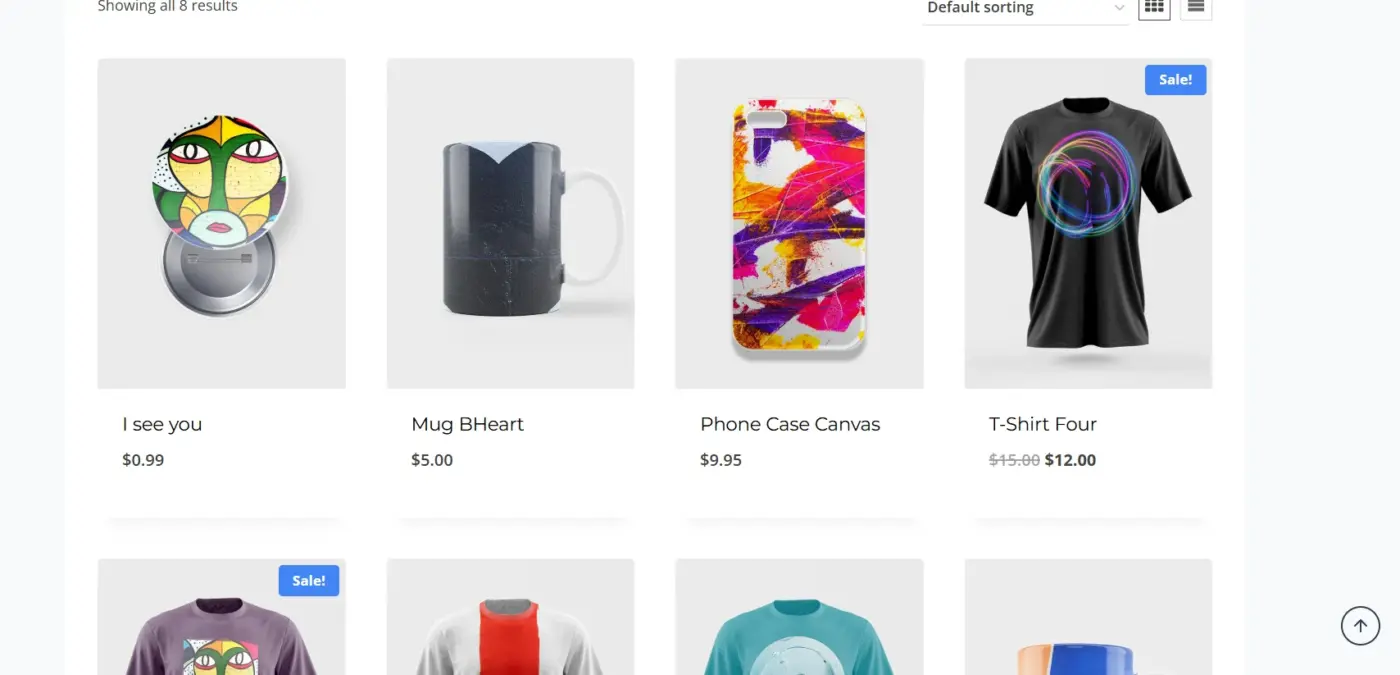
For the complete attribute list with every accepted value, the full [products] shortcode documentation on WooCommerce.com is the best reference.
Real World Ways to Use WooCommerce Shortcodes (That Most Guides Skip)
This is the section most tutorials never write. Knowing what a shortcode does is one thing. Knowing exactly where to put it, and why, is what actually improves your store.
- Embedding
[add_to_cart]in a blog post: Say you run a WooCommerce store selling supplements. You publish a blog post reviewing your protein powder. At the end of the post, instead of just linking to the product page, you drop in[add_to_cart id="142"]. Readers can add the product to their cart without ever leaving the article. That removes a full step from the purchase journey. Small change. Real impact. - Placing
[woocommerce_cart]on a custom landing page: If you are running a paid campaign to a custom landing page, you probably do not want the visitor navigating away to the standard cart page. Embedding the cart directly on your landing page keeps them in your funnel. Just add the[woocommerce_cart]shortcode to a page built in your page builder of choice. - Using
[sale_products]in a sidebar widget: Go to Appearance > Widgets, add a Custom HTML widget to your sidebar, and paste[sale_products limit="4" columns="1"]. Now every page on your site shows four on-sale products in the sidebar. Passive upselling with one shortcode. - Combining multiple shortcodes on one page: You can absolutely use multiple shortcodes on a single page. A common pattern is a product category page that opens with a
[product_categories]grid at the top, followed by[featured_products]below it. Each shortcode block is independent. They do not conflict. What to watch for: do not use[woocommerce_checkout]and[woocommerce_cart]on the same page. They are designed to be separate steps in the checkout flow. Combining them creates a broken user experience and potential payment conflicts. - Plugin shortcodes: This part surprises a lot of store owners. WooCommerce plugins can register their own shortcodes, giving you even more options beyond the core set. For example, our WooCommerce rewards plugin adds shortcodes that let you embed a customer’s current points balance, their rewards history, and a redemption interface anywhere on your site — not just on the My Account page.
That means you can show a points balance in the cart, on a blog post, or on a dedicated loyalty landing page. It’s a genuinely useful pattern for stores running loyalty programs.
For store owners thinking about building their own WooCommerce plugin with custom shortcodes, our WooCommerce plugin development resource is a good starting point.
WooCommerce Shortcodes vs. Gutenberg Blocks: Which Should You Use?
This is the question every store owner hits eventually, and no competitor gives a straight answer. Here is one.
WooCommerce has been moving toward blocks since 2019. As of 2025, WooCommerce officially recommends blocks for displaying products and managing the checkout experience on new stores. Several legacy product shortcodes are being phased out in favour of the Product Collection block.
What blocks do better:
- Live preview in the editor — you see exactly what the output will look like without publishing
- Built-in styling controls that work with your theme
- Better mobile performance on modern setups (blocks use React and the REST API, which can load faster than shortcode-rendered PHP templates)
- Easier to adjust without knowing attribute names
What shortcodes still do better:
- Working inside page builder tools where there is no native WooCommerce block support
- Placing store content in widget areas and sidebars
- Using on sites with older classic themes that do not work with the block
- Quick embeds in blog post content, especially
[add_to_cart] - Any scenario where you need filter control via attributes (blocks are catching up, but attribute filtering in shortcodes is still more flexible in some edge cases)
The honest recommendation:
If you are building a new store on a modern compatible theme for a block like Storefront or a Full Site Editing theme, learn the blocks. They are faster to work with visually and are where WooCommerce’s development focus is.
If you are maintaining an existing store, running a page builder, or working with a classic theme, shortcodes are completely stable. WooCommerce has confirmed they will remain supported. They are not going away.
Most stores will end up using both depending on context. That’s fine.
For a broader look at how WooCommerce stores are built and optimised, the WooCommerce SEO guide covers how your site structure, including how you display products, affects search performance.
How to Create a Custom WooCommerce Shortcode
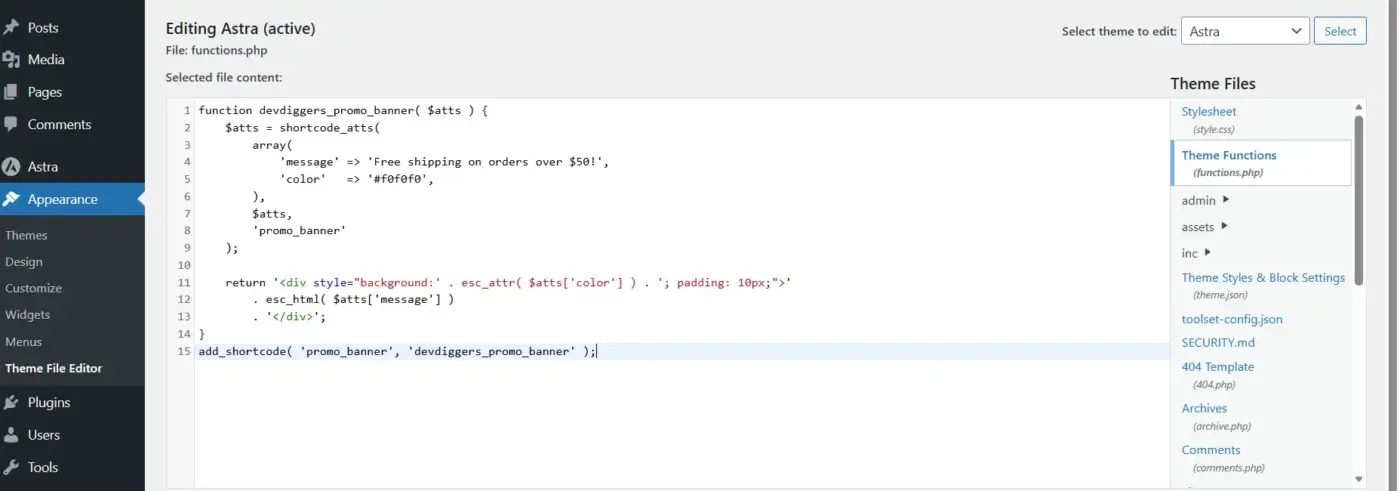
Sometimes the built-in shortcodes do not cover what you need. Maybe you want a shortcode that displays a custom promotional message based on a product category, or one that outputs a specific notice for stores. That is where the WordPress Shortcode API comes in.
Custom shortcodes are created by registering a PHP function using add_shortcode(). This function should always go in your child theme’s functions.php file or in a code snippets plugin. Never edit the parent theme’s functions.php directly, as your changes will be overwritten during theme updates.
Using add_shortcode() in Your Child Theme
Here is a working example. This custom shortcode displays a simple promotional banner.
function devdiggers_promo_banner( $atts ) {
    $atts = shortcode_atts(
        array(
            'message' => 'Free shipping on orders over $50!',
            'color'   => '#f0f0f0',
        ),
        $atts,
        'promo_banner'
    );

    return '<div style="background:' . esc_attr( $atts['color'] ) . '; padding: 10px;">'
        . esc_html( $atts['message'] )
        . '</div>';
}
add_shortcode( 'promo_banner', 'devdiggers_promo_banner' );
Once added to functions.php, you can use [promo_banner] anywhere on your site. You can also pass custom attributes:
[promo_banner message="10% off this weekend only!" color="#fffbe6"]
A few rules to follow when creating custom shortcodes:
- Always use
return, neverecho. If you echo output inside a shortcode function, it will appear in the wrong place on the page. - Always sanitise output. Use
esc_html()for text andesc_attr()for attribute values. - Prefix your shortcode tag name to avoid conflicts with other plugins. For example,
[dd_promo_banner]rather than just[promo_banner]. - Register the shortcode on the
inithook for reliability.
For the full technical reference, see the WordPress Shortcode API documentation and the add_shortcode() function reference.
WooCommerce Shortcodes Not Working? Here’s How to Fix It
Shortcodes are reliable, but a handful of specific issues trip people up repeatedly. Work through these checks in order.
Check 1: Curly Quotes vs. Straight Quotes
This is the most common problem. When you copy a shortcode from a website or a document, the quotation marks around attribute values often get converted to curly quotes (" and ") instead of straight quotes (").
WooCommerce only recognises straight quotes. If your shortcode looks like this:
[products limit="4" columns="2"]
It will not work. Delete the quotes and retype them manually inside the WordPress editor. That forces straight quotes.
Check 2: The <pre> Tag Wrapping Issue
If you pasted a shortcode while switching between the Visual and HTML (Text) editor modes, WordPress may have wrapped it in <pre> tags. These tell browsers to render content as preformatted text, which stops shortcode processing.
To fix it: open the page in the Text/HTML editor tab, find the shortcode, and remove any <pre> or </pre> tags surrounding it.
Check 3: WooCommerce Inactive or Shortcode Misspelt
If the shortcode text is appearing on the front end instead of the output, either WooCommerce is not active, or the shortcode tag is misspelt. Check that WooCommerce is installed and active in Plugins. Then compare your shortcode carefully against the reference list above. A single missing letter ([woocomerce_cart] instead of [woocommerce_cart]) will cause the shortcode to render as plain text.
Check 4: Plugin or Theme Conflict
A poorly coded plugin or theme can interfere with how WordPress processes shortcodes. To isolate the problem:
- Switch your theme to Storefront (the official WooCommerce theme) temporarily.
- If the shortcode works with Storefront, your theme is the cause.
- If it still does not work, go to Plugins, deactivate all plugins except WooCommerce, and test again.
- Reactivate plugins one by one until the problem returns. The last plugin you activated is the conflict.
Check 5: SKU Shortcode Using the Wrong SKU
When using [products skus="your-sku"], there is a specific gotcha. Do not use the SKU from a product variation (Product data > Variable product > Variations > Variation name > SKU). That will return nothing.
Use the SKU from the parent product instead: Product data > Variable product > Inventory > SKU. This is confirmed in WooCommerce’s shortcode troubleshooting guide.
Conclusion
WooCommerce shortcodes give you the ability to place products, cart pages, checkout forms, and custom store content anywhere on your WordPress site without touching code.
The core shortcode list covers most store needs. The [products] shortcode handles nearly every product display scenario once you understand its attributes. And for situations where shortcodes fall short, Gutenberg blocks are now a strong alternative, particularly on new stores built with modern themes.
Use this guide as your reference. When a shortcode is not behaving, the fix is almost always one of the five issues covered in the troubleshooting section. If you are building out a more advanced loyalty or wallet experience for your store, take a look at our WooCommerce Wallet plugin and Points and Rewards for WooCommerce plugin, which both add their own shortcodes for flexible placement across your site.
Got a shortcode question or a use case that isn’t covered here? Drop it in the comments below.
Frequently Asked Questions
Q1. Can I use multiple WooCommerce shortcodes on the same page?
Yes. Each shortcode block renders independently. The one exception to avoid is placing woocommerce_cart and woocommerce_checkout on the same page, as this breaks the intended checkout flow and can cause payment processing issues.
Q2. Do WooCommerce shortcodes slow down my site?
Shortcodes that display large numbers of products can add database queries to the page load. Using specific filters like limit, ids, or category keeps queries lean. For product grids with pagination enabled, keep the limit to 12 or fewer products per page to avoid heavy database calls.
Q3. Are WooCommerce shortcodes being deprecated?
Not removed, but WooCommerce is shifting focus toward Gutenberg blocks. Some legacy product display shortcodes are being deprecated in favour of the Product Collection block, but the core page shortcodes are not going anywhere. Shortcodes will remain supported for backward compatibility.
Q4. Can I use WooCommerce shortcodes inside product descriptions?
By default, WooCommerce does not process shortcodes in product short descriptions for security reasons. You can enable it by adding add_filter(‘woocommerce_short_description’, ‘do_shortcode’) to your child theme’s functions.php. The full product description field does process shortcodes without any modification.
Q5. Why does my shortcode show “No products were found” even though products exist?
This usually means the filter attributes do not match any products in your store. Check that the category or tag slug matches exactly what is in Products > Categories or Products > Tags. Slugs are lowercase and use hyphens, not spaces. Also, confirm the products are published and not set to Draft or Private.