A WooCommerce product backup is a saved copy of your product data, including names, prices, descriptions, SKUs, images, categories, and stock levels, that you can restore when something goes wrong. Most store owners only think about backups after they need one. That’s the expensive lesson.
A full-site backup and a product backup are not the same thing. You can restore a full site backup and still find products mixed up, missing, or broken if the backup captured the wrong database state. Knowing how to back up products specifically, and when each method applies, saves you from that situation.
The built-in CSV export, backup plugins with WooCommerce awareness, and manual database export. You will also learn when to use each, how to restore from a product CSV, and what most store owners get wrong about backup frequency.
What Does a WooCommerce Product Backup Actually Contain?
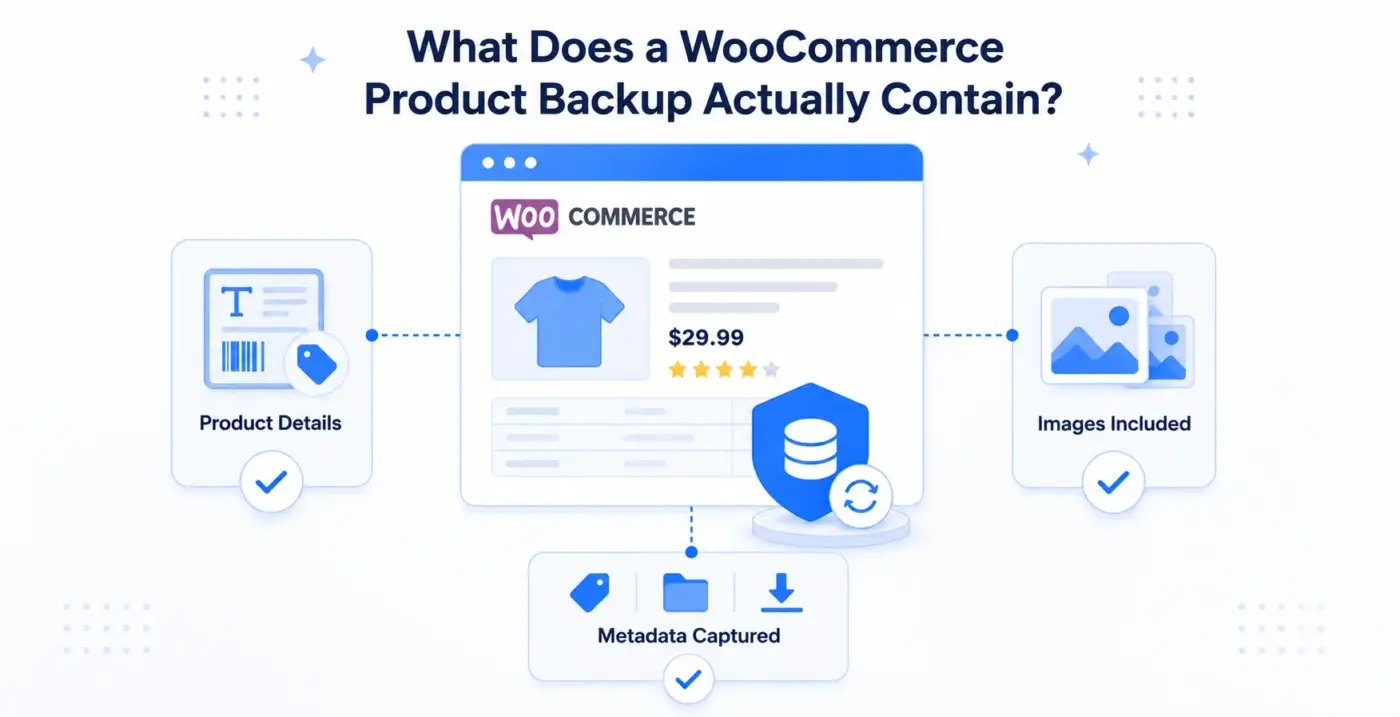
A product backup protects more than just your product names and prices. To restore a product fully, the backup needs to capture every data point WooCommerce stores against it.
A complete WooCommerce product backup includes:
- Product data: title, description, short description, price, sale price, regular price
- SKUs and IDs: your stock keeping units and WooCommerce’s internal product IDs
- Stock levels: quantity on hand, stock status, backorder settings
- Attributes and variations: size, colour, and any other variable product attributes, along with each variation’s individual SKU and price.
- Categories and tags: the categories and tags attached to each product
- Images: the featured image and gallery images (stored as file paths or URLs in the CSV)
- Downloadable file data: file URLs and download limits for digital products
- Custom fields: any metadata added by plugins or custom code
This matters because WooCommerce’s built-in CSV export covers most of the above, but images are a known gap. The CSV stores image URLs, not the image files themselves. If you restore to a new host without migrating your media folder, the image URLs will break.
That is something we see in support fairly often: a store owner restores a CSV, products come back, but every product image shows a broken link because the uploads folder was not part of the export.
Method 1: WooCommerce Built-In CSV Export (The Product-Specific Backup)
This is the fastest and most targeted way to back up WooCommerce products. WooCommerce has included a built-in CSV importer and exporter since version 3.1. No plugin required.
How to Export Your WooCommerce Products as a CSV
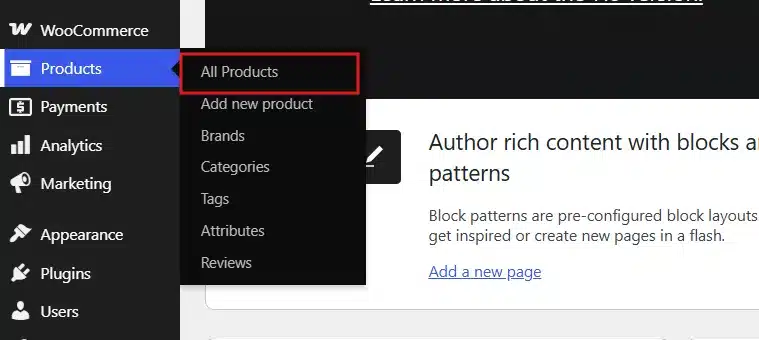
- Go to Products > All Products.
- Click the Export button at the top of the page.
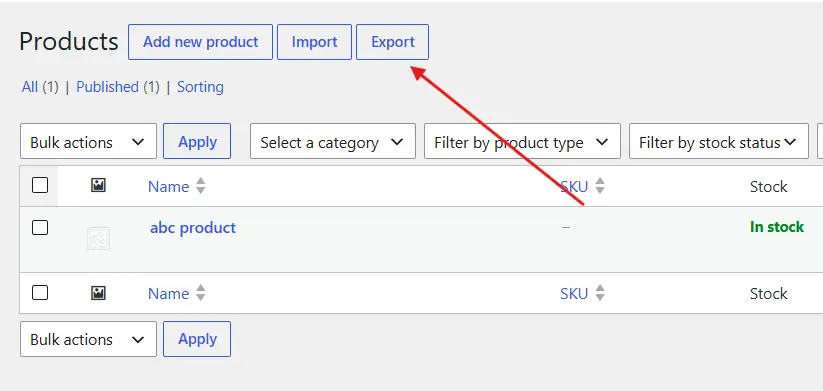
- Choose what to export: all products, or filter by category, type, or stock status.

- Click Generate CSV and save the file somewhere safe.
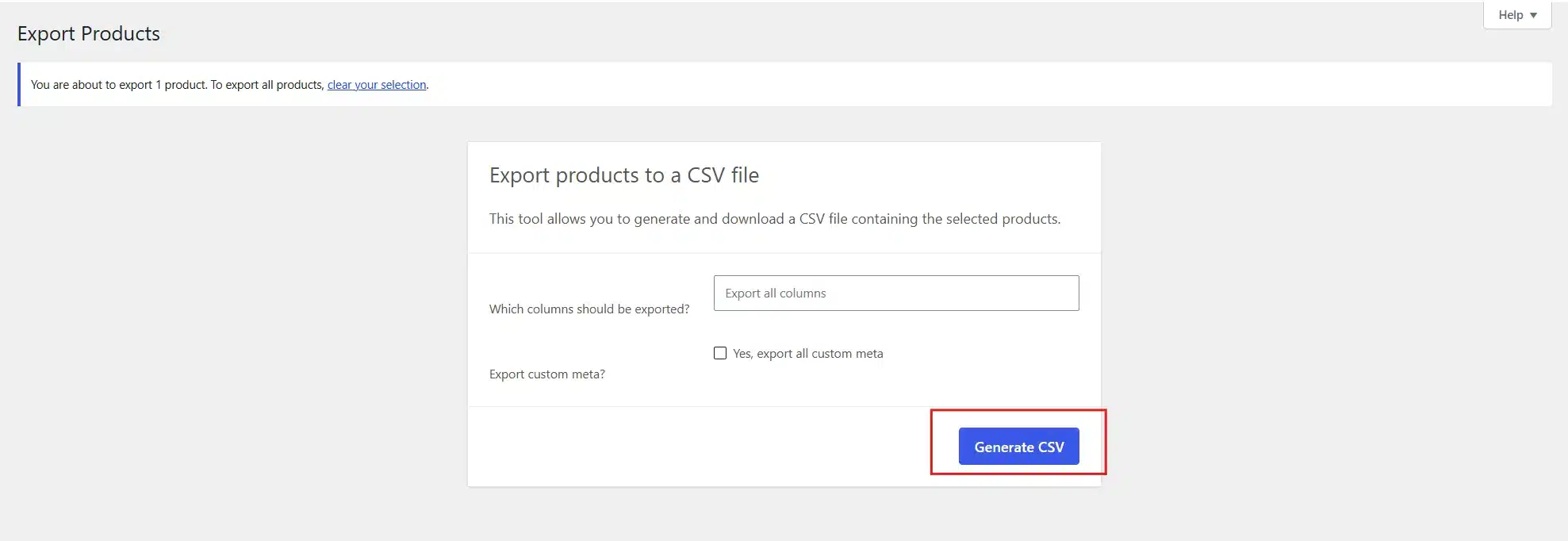
The export runs immediately and downloads a single CSV file. For a store with a few hundred products, this takes under a minute.
For stores with variable products, the CSV includes each variation as its own row. A product with three sizes and four colours produces twelve variations. That looks like a lot, but the importer handles it cleanly as long as you do not edit the column structure.
One technical note: the exporter uses WooCommerce’s own column schema. If you open the CSV in Microsoft Excel, be careful. Excel’s auto-format can corrupt columns that contain leading zeros (for example, some SKUs) or that have special characters. Google Sheets is safer for inspection. Official WooCommerce documentation recommends avoiding Excel for this reason.
When to Run a CSV Export
Run a WooCommerce product export before any of these events:
- Plugin updates: any plugin that touches products, prices, or inventory
- Theme changes: especially if your theme adds custom product fields
- Bulk edits: before updating prices, stock, or descriptions in bulk
- Store migrations: moving to a new host, domain, or WordPress install
- Major WooCommerce version upgrades: WooCommerce 8.x to 9.x introduced HPOS (High Performance Order Storage), which changed how some data is stored
This is a targeted product-level backup. It does not protect your theme, plugins, or site settings. For those, you need Method 2 or 3.
How to Restore WooCommerce Products from a CSV
If you need to restore products:
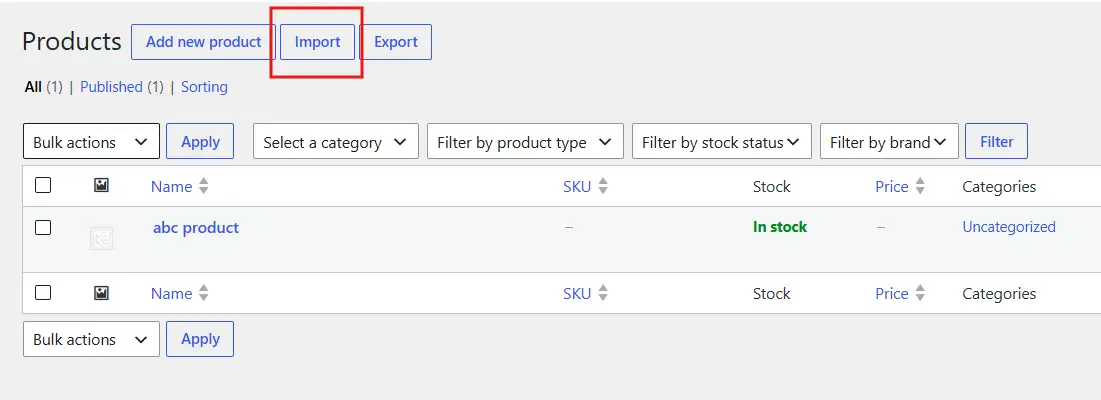
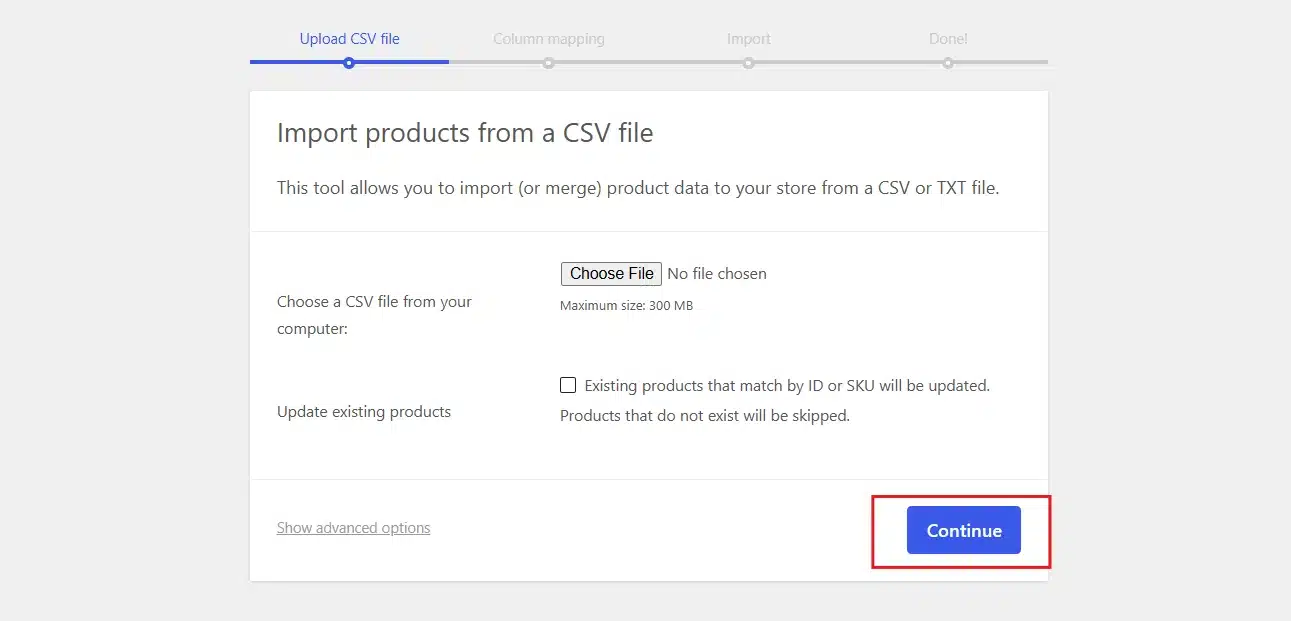
- In the All Products Section, Click Import.
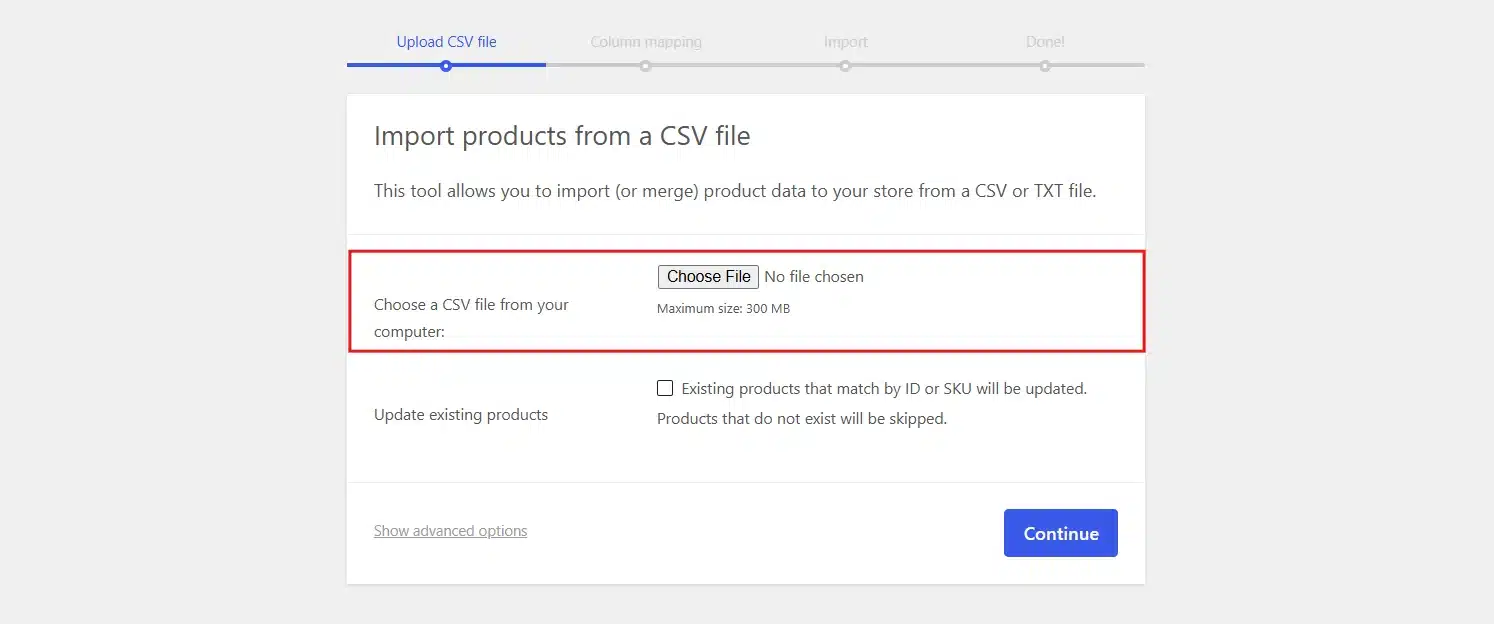
- Upload your saved CSV file.
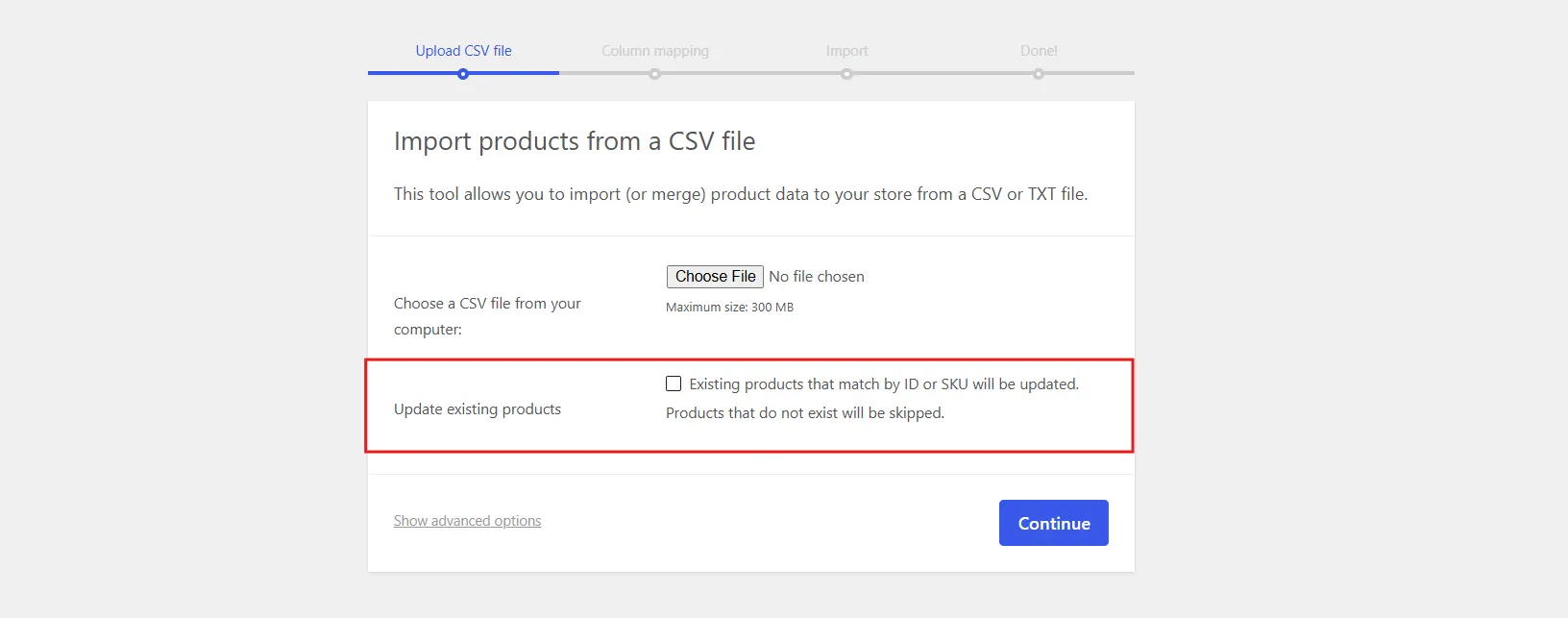
- Check Update existing products if you want to overwrite current data. Skip it if you want to add fresh products only.
- Click Continue and confirm the column mapping.
- Click Run the importer.
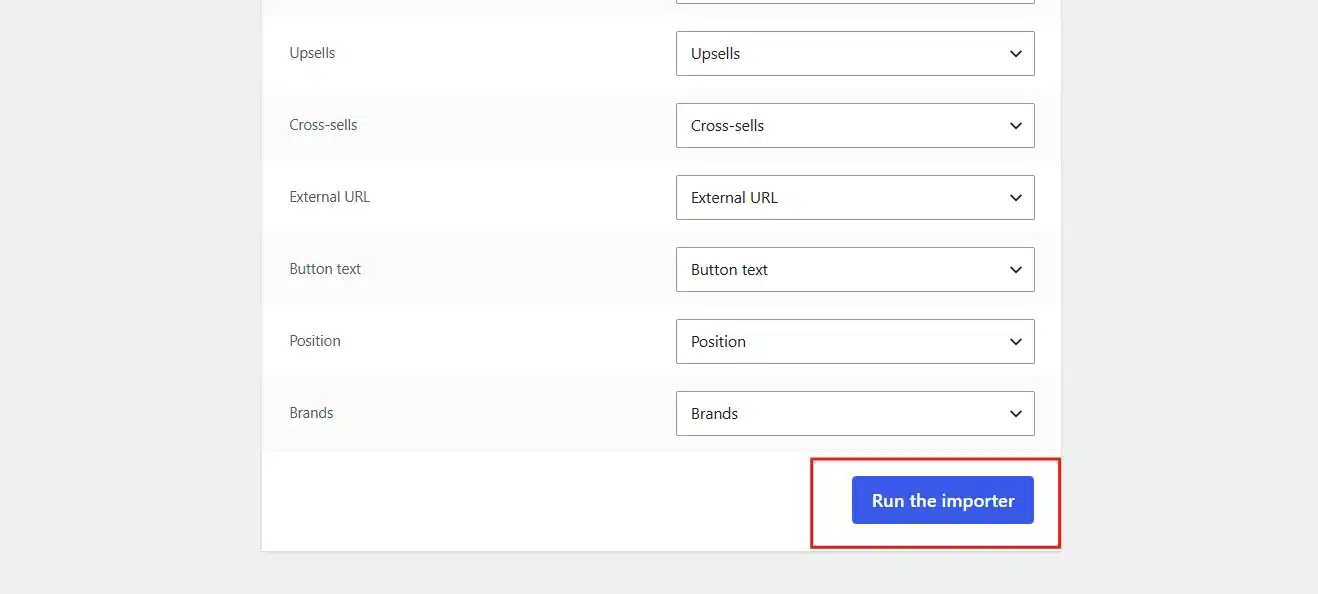
WooCommerce maps columns automatically if you are using a file it originally exported. If the mapping looks wrong, you can adjust it manually before running.
The honest limitation here: image files are not restored. The importer brings back image URLs, so if those URLs still resolve (the same domain and media folder), images appear. If not, you will need to re-upload media separately.
Method 2: Backup Plugins with WooCommerce Awareness

A product CSV export protects your catalogue data. It does not protect orders, customer accounts, coupons, WooCommerce settings, or your site files. For a complete safety net, you need a backup plugin that understands WooCommerce’s structure.
Standard WordPress backup plugins often miss WooCommerce-specific database tables. A WooCommerce-aware backup plugin like Jetpack – WP Security, Backup, Speed, & Growth knows to include tables like wp_woocommerce_order_items, wp_woocommerce_sessions, and custom HPOS tables introduced in recent WooCommerce versions.
What to Look For in a WooCommerce Backup Plugin
Before choosing a plugin, check for these capabilities:
- Partial backups: Instead of copying your full database every time, partial backups only capture what has changed since the last run. This is faster and uses less storage.
- WooCommerce table support: the plugin should explicitly support WooCommerce’s custom tables, not just WordPress core tables.
- Real-time or near-real-time frequency: daily backups are not enough for active stores. An eCommerce SMB can lose $50,000 to $100,000 per hour of downtime. For a store processing ten orders a day, an hourly backup is a reasonable minimum.
- Off-site storage: Backups stored on the same server as your site are lost if the server fails. Google Drive, Amazon S3, or Dropbox are all acceptable off-site destinations.
- One-click restore: verifying backups only helps if you can actually act on them quickly.
Commonly used options include UpdraftPlus, Jetpack Backup, and Duplicator Pro. Each differs in pricing, storage integrations, and restore speed.
The Real-Time Backup Problem for WooCommerce
This is where WooCommerce differs from a regular WordPress blog, and most guides gloss over it.
A blog post goes up once and rarely changes. An order comes in, a stock level changes, a customer creates an account, and a coupon gets redeemed, all in the same hour. A daily backup at midnight misses everything that happened today.
Consider what this means in practice: a backup runs at 2:00 AM. Between then and a server crash at 4:00 PM, your store processed 30 orders, three customers registered, and you updated stock on 12 products. A midnight restore wipes all of that. For product data specifically, those stock changes are the critical loss. Restoring yesterday’s product CSV means you are overselling or underselling against actual inventory.
If you run a store with any consistent order volume, set your backup frequency to at least every 4 to 6 hours. High-traffic stores benefit from real-time or near-real-time backup.
You should also keep your overall security tight. A strong WooCommerce security checklist reduces the chance of needing a restore from a hack in the first place.
Method 3: Manual Database Backup via phpMyAdmin
Manual backups give you the most control and the most risk. This method backs up the raw SQL database that powers everything in WooCommerce: products, orders, customers, settings, and all plugin data.
How to Back Up the WooCommerce Database Manually
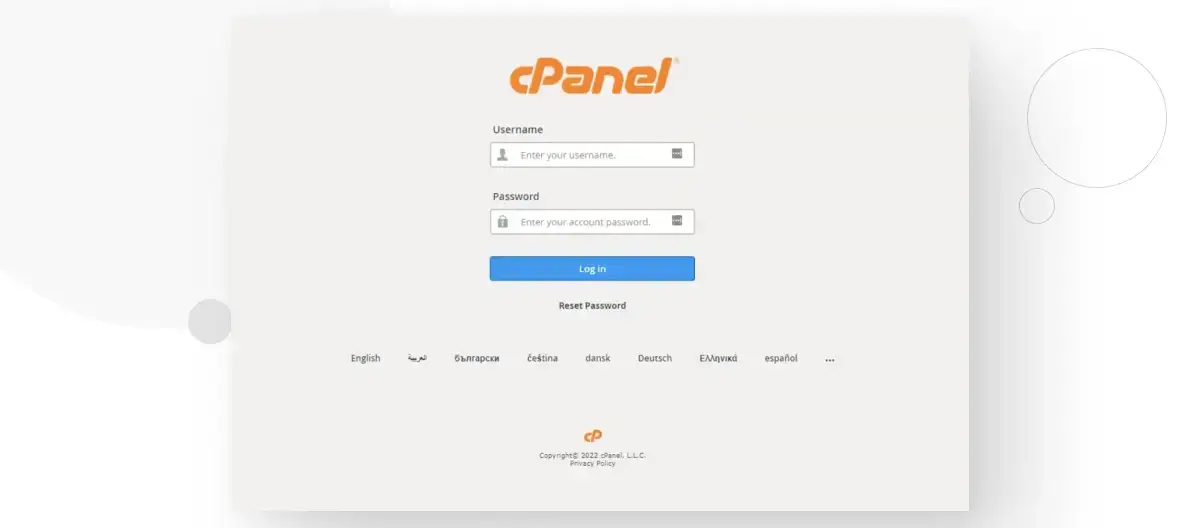
- Log in to your hosting account and open cPanel (or your host’s equivalent).
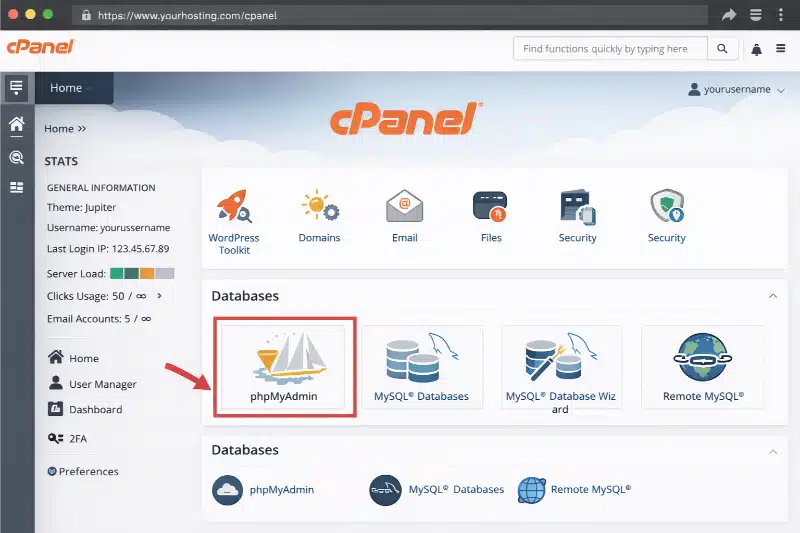
- Navigate to phpMyAdmin under the Databases section.
- Select your WordPress database from the left sidebar.
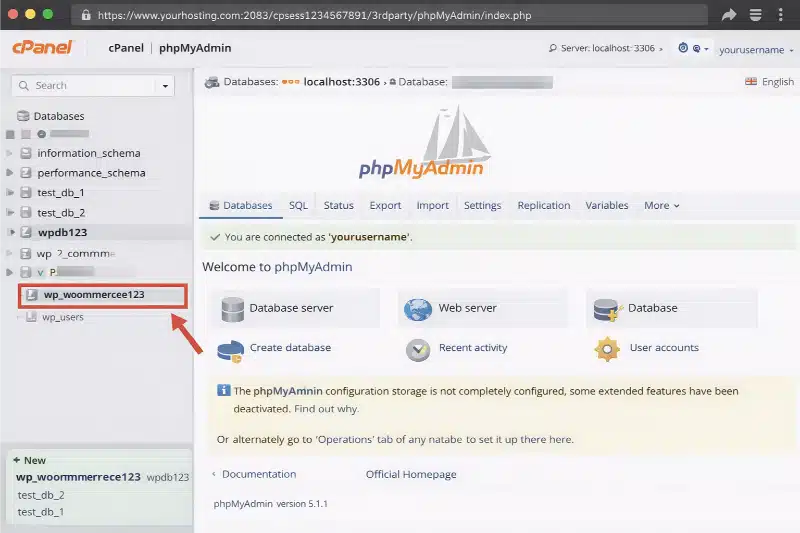
- Click the Export tab.
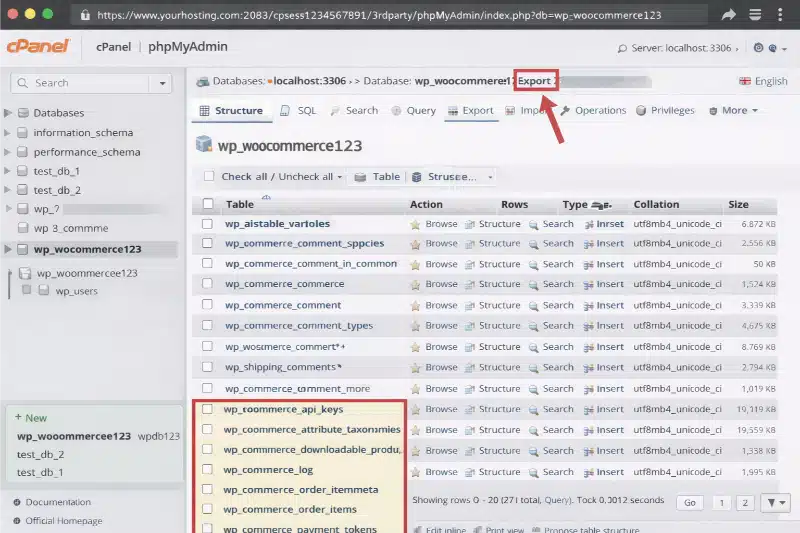
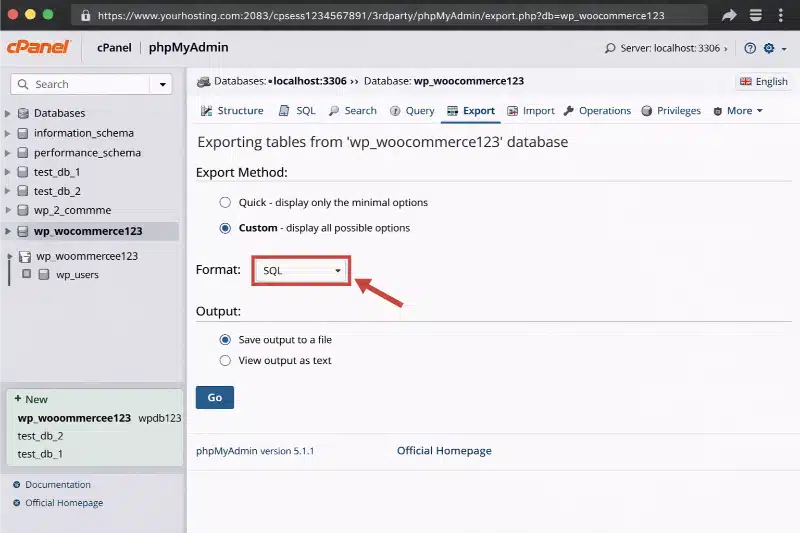
- Choose the Quick export method and SQL format.
- Click Go to download the SQL file.
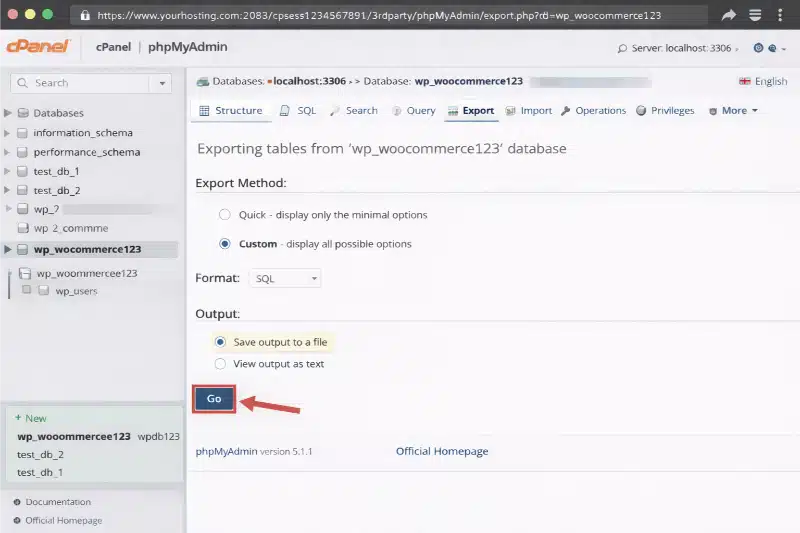
That file contains every table in your database. For WooCommerce, the relevant tables include wp_posts (which stores products), wp_postmeta (product meta fields), wp_terms (categories and tags), and WooCommerce’s own tables for orders and sessions.
A database backup does not include your site files: themes, plugins, or media. To fully restore a WooCommerce store from this alone, you would also need to restore the wp-content folder via FTP.
Manual backups are fine as a one-time safety step before a large change, like before you reset WooCommerce or run a major migration. As an ongoing strategy, they are too slow and too dependent on remembering to do it.
For a dedicated walkthrough of backing up the database, see the guide on WooCommerce database backup.
What a Product-Only Backup Does Not Cover?
Most store owners think they are protected after running a CSV export. They are partially right. The CSV covers your product catalogue. It does not cover:
- Orders and order history: your transaction records live in WooCommerce’s order tables, not in the product CSV
- Customer accounts: registered users, their addresses, and their purchase history
- Coupons: discount codes and their usage limits
- WooCommerce settings: tax rules, shipping zones, payment gateway configurations
- Plugin configurations: settings saved by any plugin that touches your store
- Product images (files): URLs are included, but the image files themselves are not
A product backup is a fast and targeted safety net for your catalogue. It is not a replace for a full-site backup. Use both. The CSV is your quick, portable, human-readable product snapshot. The plugin or database backup is your full restore point.
Think of it this way: the CSV gets your products back on a new install in ten minutes. The full backup gets your entire store back in the same state it was in before the problem.
How Often Should You Back Up WooCommerce Products?
Frequency depends on how often your product data changes. A useful starting point:
| Store Type | Product Data Change Frequency | Recommended Backup Frequency |
|---|---|---|
| Small store, static catalogue | Rarely (monthly updates) | Weekly CSV export |
| Growing store, active pricing | Weekly price and stock updates | Before every bulk edit, plus weekly |
| High-volume store | Daily stock changes | Daily automated backup; CSV before any bulk change |
| Pre-launch or migration | Significant structural changes | Before every major change |
The most overlooked trigger is pre-update backup. Before installing a WooCommerce update, run a fresh CSV export. WooCommerce updates occasionally change how product data is stored or how custom fields behave. Having a clean product CSV before the update gives you a restore path that does not depend on your backup plugin working correctly post-update.
Speaking of updates, keeping WooCommerce lean and fast also reduces the risk of conflicts that cause data problems. If your store is slow to begin with, it is worth reading how to speed up your WooCommerce store before adding more complexity.
Where to Store Your WooCommerce Product Backups?
Storing backups on your server is the same as not backing up. If the server fails, the backup fails with it.
Use at least two storage locations:
- Cloud storage: Google Drive, Dropbox, and Amazon S3 all work. Most backup plugins connect directly to these. For CSV exports, just drag the downloaded file into a cloud folder after each export.
- Local storage: keep a copy on your own computer or an external drive. This is your offline fallback.
A simple habit: after every CSV export, move the file to a dated folder in Google Drive. Name it something like products-backup-2025-06-07.csv. That naming pattern makes it easy to find the right version when you need it under pressure.
For the same reason, do not delete old backups immediately. Keep the last four to six CSV snapshots. If data corruption happened three days ago and you only kept yesterday’s backup, you are restoring corrupted data.
How to Verify Your WooCommerce Product Backup Actually Works
A backup you have never tested is a guess. Verifying it takes about five minutes and is worth doing at least once per quarter.
- Export a product CSV from your live store.
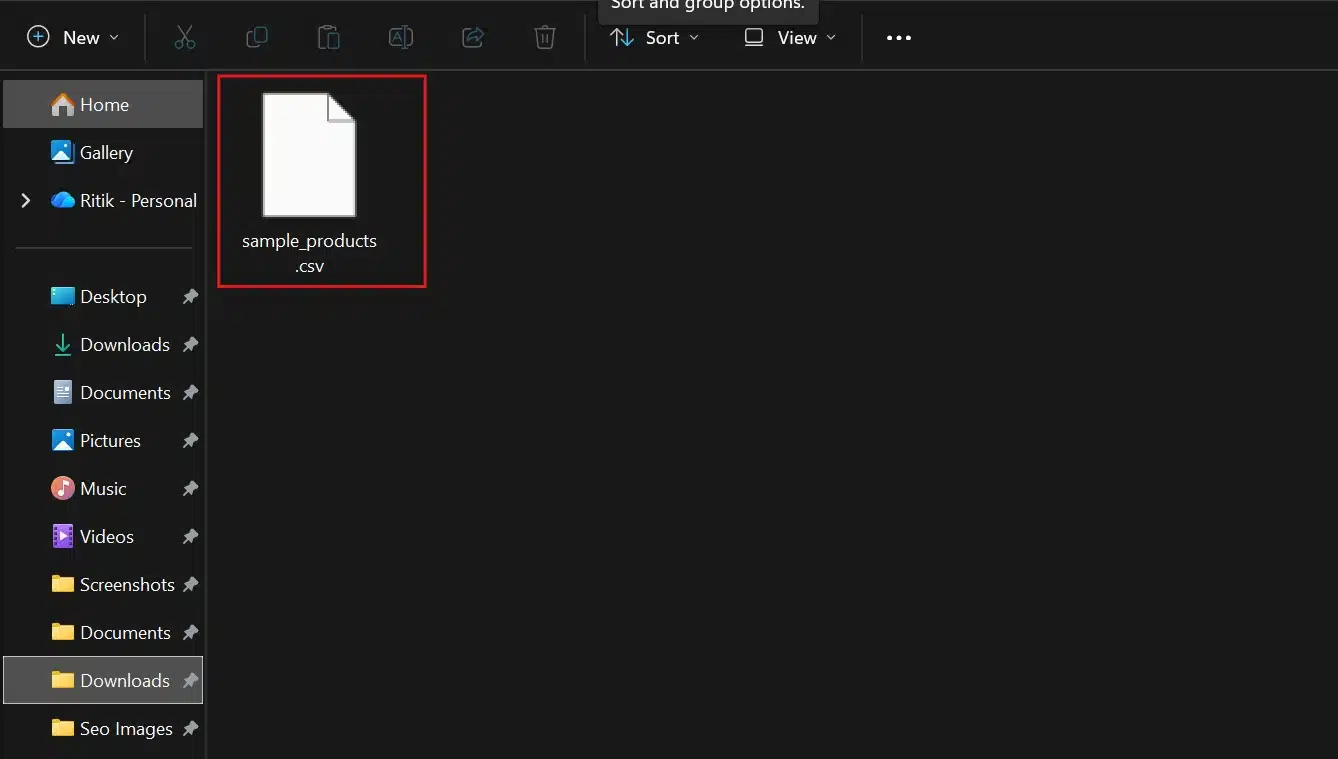
- Set up WordPress in a local environment or on a staging site.
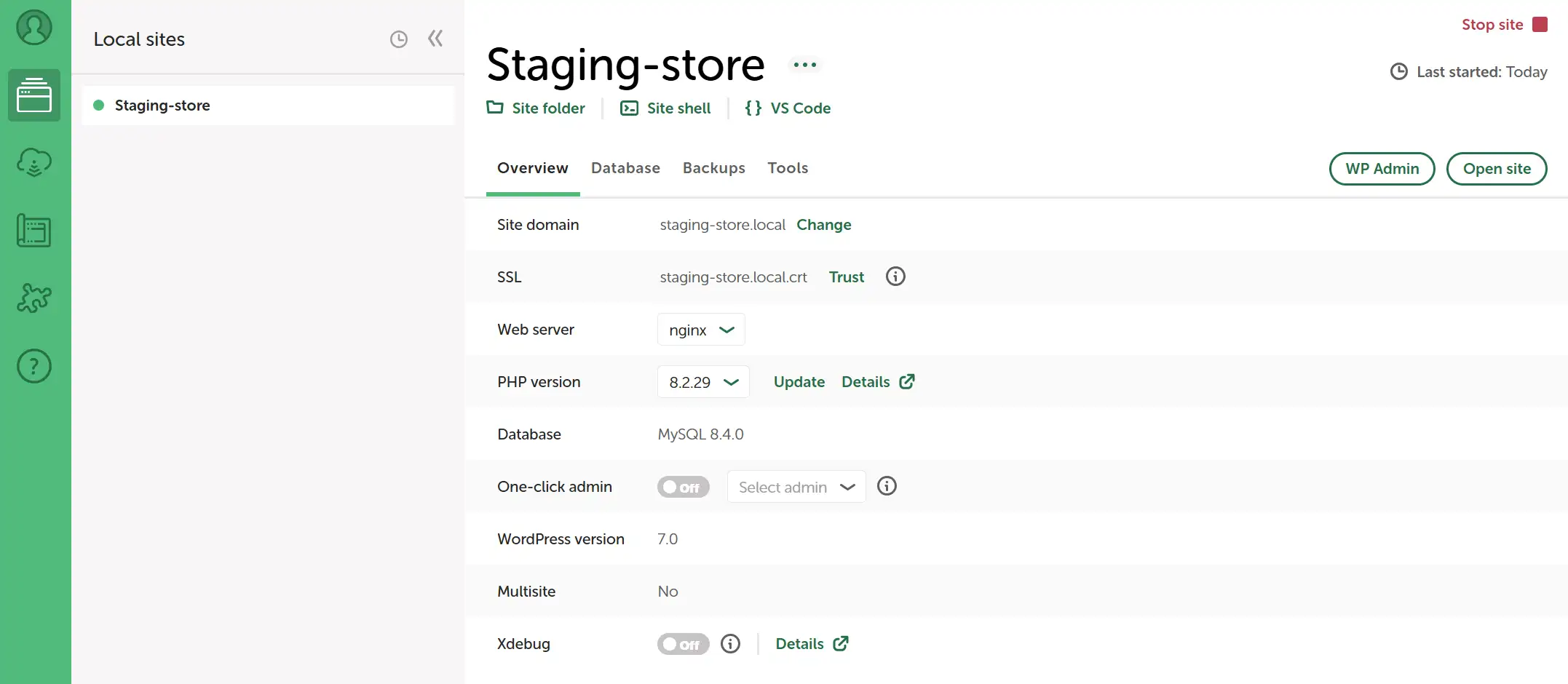
- Install WooCommerce on the staging site.
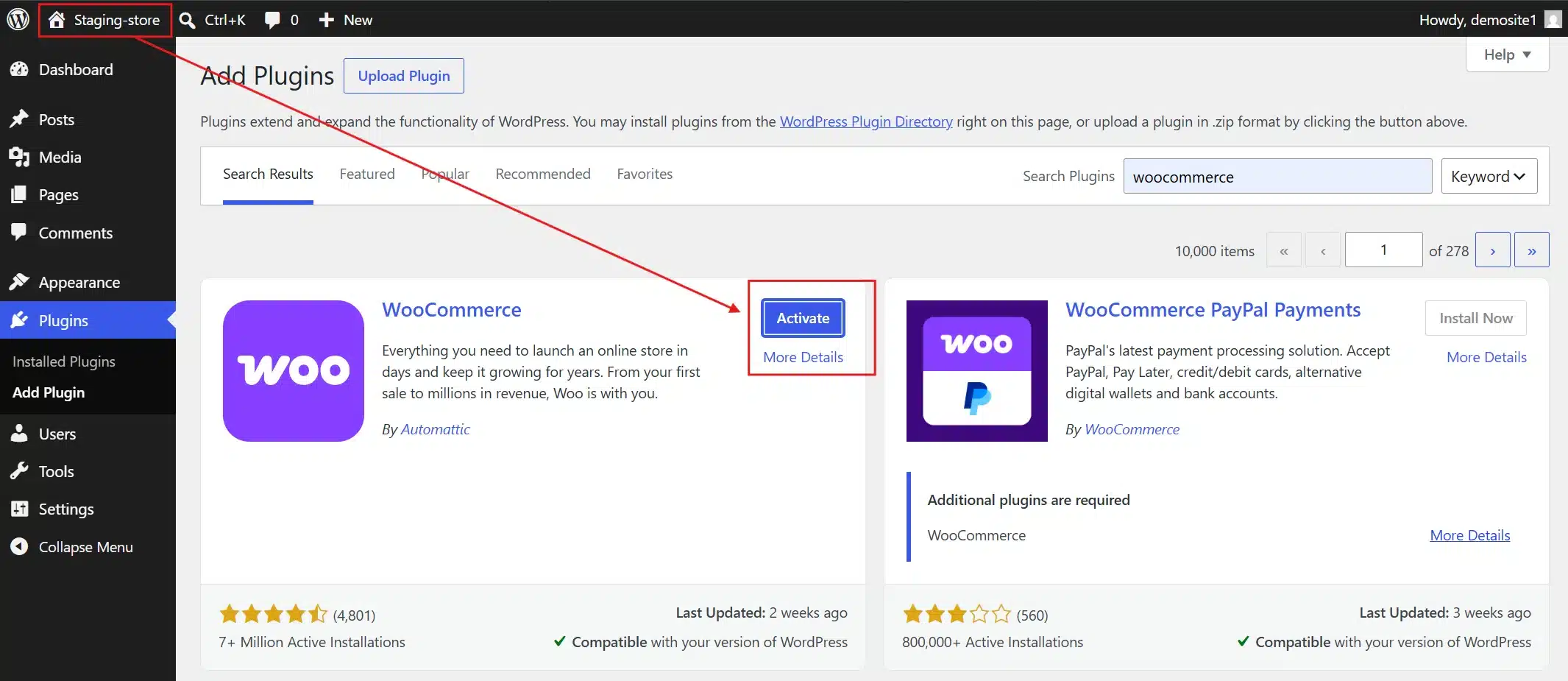
- Go to Products > All Products > Import your CSV and check prices, stock, attributes, and categories.
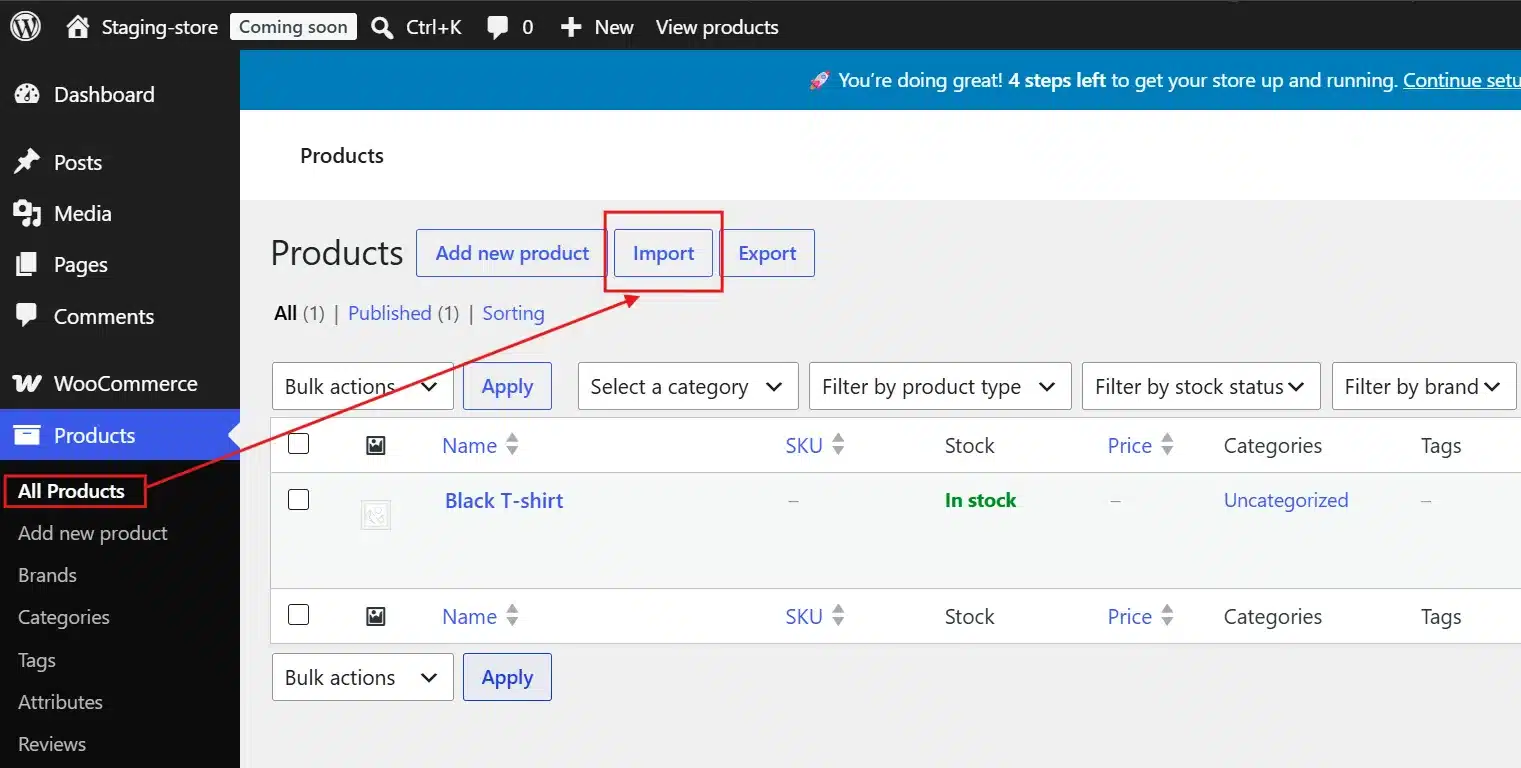
If the products import correctly and the data matches, your backup is valid. If something is missing or wrong, you know before you need the backup for real.
Most store owners skip this step. Then, the one time they need to restore, they find out the backup was incomplete. Testing takes five minutes. A failed restore takes hours.
Conclusion
WooCommerce product backups are not a one-time task; they are a habit that protects everything you have built.
Use the built-in CSV export as your lightweight checkpoint before every bulk edit, plugin update, or WooCommerce version upgrade. Pair it with an automated backup plugin for full coverage of orders, customers, and site files. No single method covers everything on its own, so use them together.
Store copies in at least two locations, one cloud, one local, and keep the last four to six snapshots so you are not restoring corrupted data by accident. Most importantly, test a restore on a staging site at least once a quarter. A backup you have never tested is just an assumption, not a safety net.
Five minutes of verification now can save you hours of recovery later.
Frequently Asked Questions (FAQs)
Q1. Does WooCommerce have a built-in backup tool?
WooCommerce has a built-in CSV importer and exporter for product data, accessible at Products > All Products > Export. This exports your product catalogue to a CSV file that you can import back at any time. It does not back up orders, customers, or site files. For a full-site backup, you need a separate backup plugin or a database export.
Q2. Can I back up WooCommerce products without a plugin?
Yes. WooCommerce’s native export tool requires no additional plugin. Go to Products > All Products and click Export. You can also do a manual database backup via phpMyAdmin through your hosting control panel. Both methods work without installing anything extra, though they require different skill levels.
Q3. What happens to product images when I restore from a CSV?
The CSV file stores image URLs, not the actual image files. When you import the CSV, WooCommerce tries to load images from those URLs. If you are restoring to the same domain and the images still exist in your media library, they appear correctly. If you are migrating to a new host or domain, you also need to migrate the wp-content/uploads folder and update the image URLs, or re-upload the images manually.
Q4. How do I back up WooCommerce variable products?
Variable products export and import using the same built-in CSV tool. Each variation appears as its own row in the CSV, linked to the parent product by ID. No special settings are needed. Just ensure you export all product types (the default) rather than filtering to simple products only.
Q5. Should I run a backup before every WooCommerce update?
Yes, always. Run a CSV export for products and trigger a full-site backup before any WooCommerce version update. Some updates change database table structures or how product meta is stored. Having a clean pre-update backup means you can roll back if the update breaks something specific to your setup.
Q6. Can I use a product CSV from one WooCommerce store on a different store?
Yes, with some limitations. The CSV is portable between WooCommerce installs using the same schema version. Custom fields added by plugins will only restore correctly if those same plugins are active on the destination site. Category IDs may differ between installs, but WooCommerce will create the categories by name during import if they do not already exist.