What is WooCommerce Biometric Login?
WooCommerce Biometric Login is a WordPress plugin that lets customers log in to a WooCommerce store with a fingerprint or face scan. It uses the device’s own biometric authentication, so no password or emailed code is needed at sign-in and nothing extra is installed.
Why replace the password at login
Forgotten passwords are one of the largest causes of abandoned returns to a store. The customer wants to buy, cannot remember the password, starts a reset, waits for the email, and often never comes back to finish.
A biometric login removes that failure entirely. The credential is stored on the customer’s own device and confirmed with a touch or a glance. There is nothing to forget, and nothing worth stealing from your database.
How customers set it up
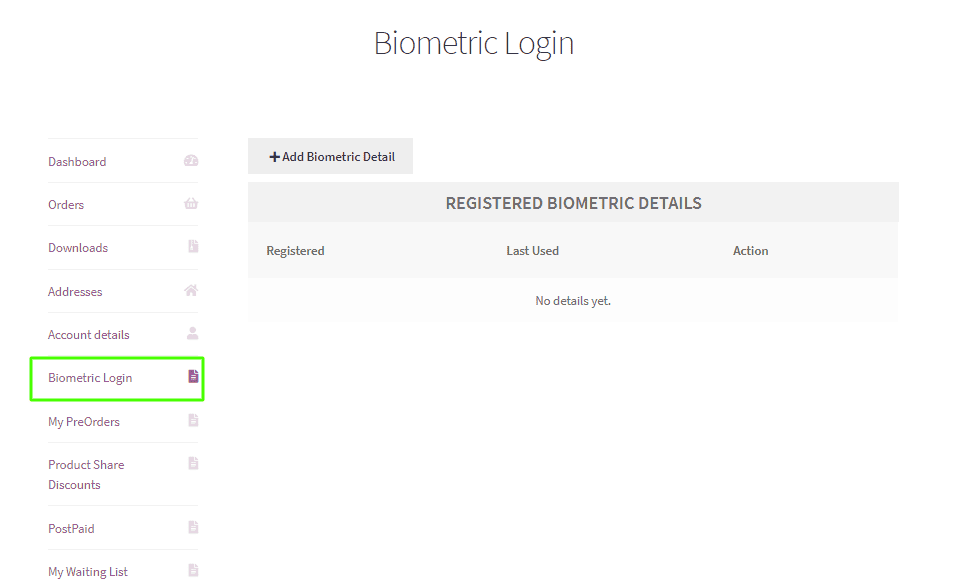
- The customer opens the biometric login menu on their My Account page.
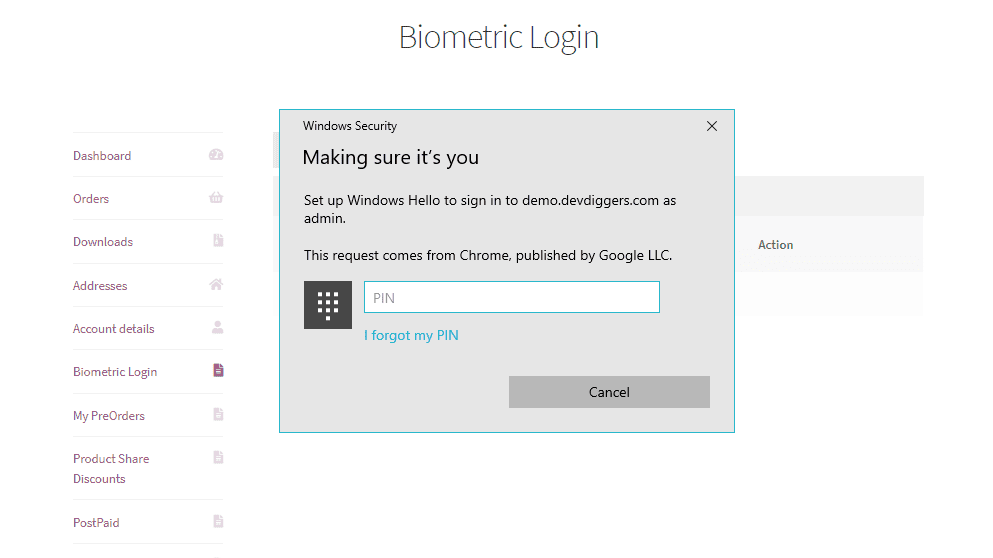
- They tap Add Biometric Detail. Their operating system shows its own authentication prompt.
- On mobile, they choose their screen lock method, such as a fingerprint, and confirm it.
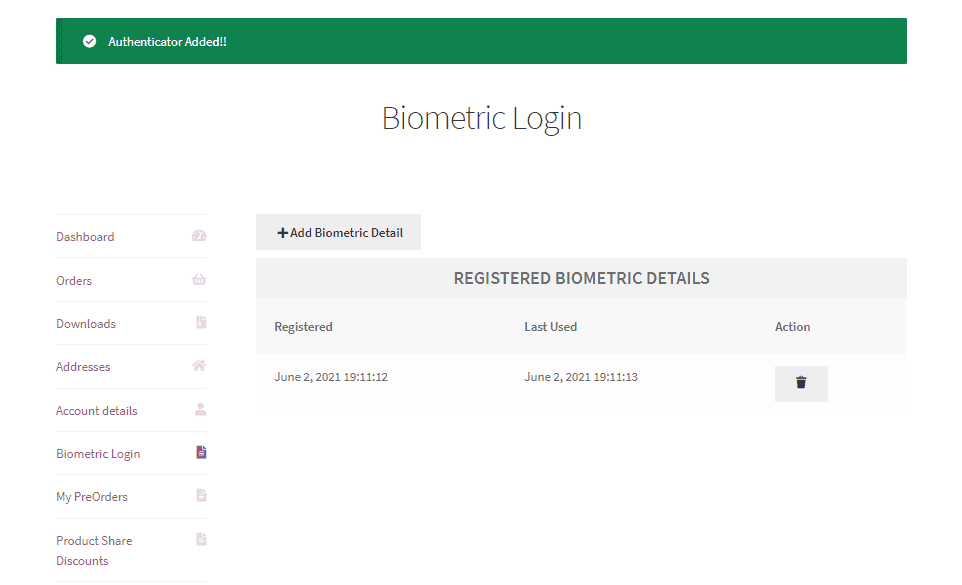
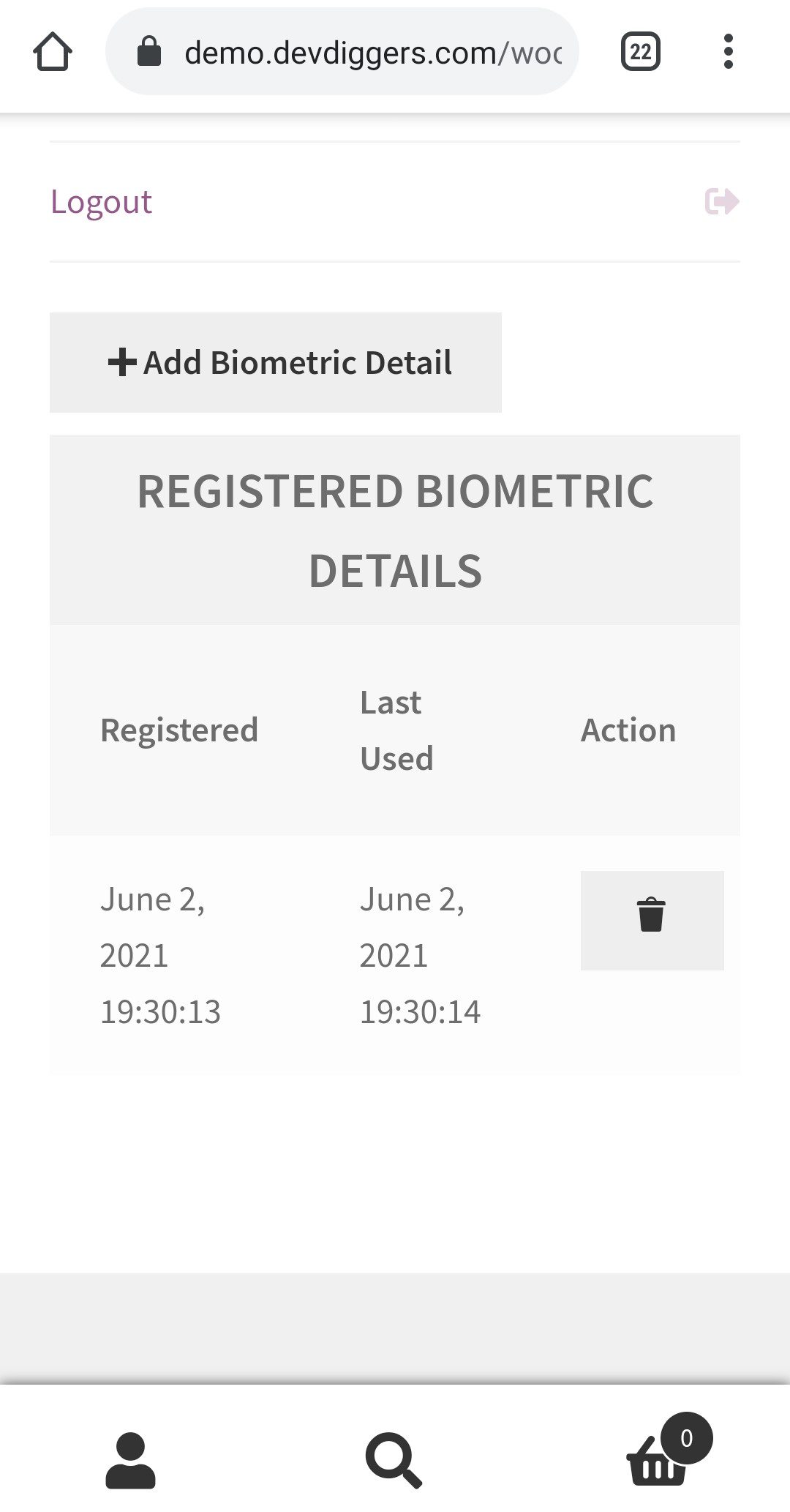
- The device is added to their list. They can remove it later at any time.
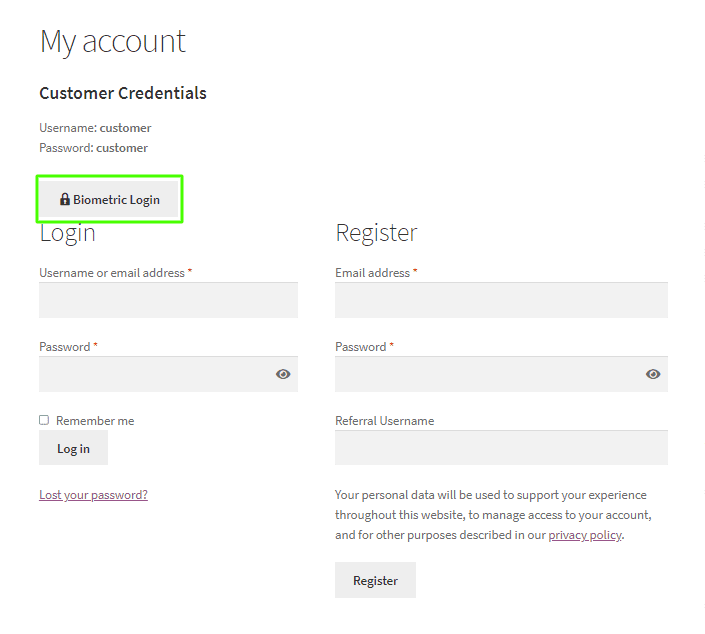
- The login page now shows a biometric option. Tapping it prompts for the fingerprint or face scan and signs them in.
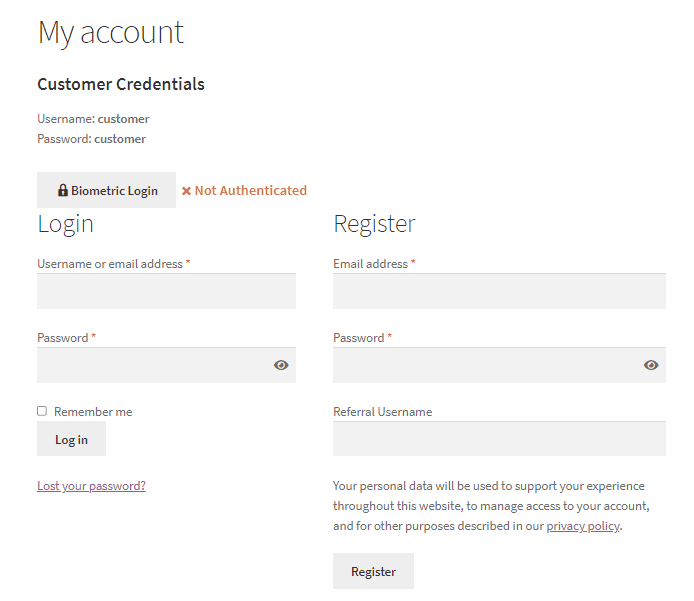
If verification fails the response is Not Authenticated and the customer is not signed in, so the normal password route stays available.
What you control
- Turning the feature on or off for the whole store.
- The wording on the biometric login button and the add biometric details button.
- Extra help text displayed under the enrolment template.
- The endpoint slug and title for the My Account menu, and whether sidebar widgets appear there.
- Shortcodes to place the login button or the enrolment template anywhere in the store.
- Logging, which can be turned on for debugging and off in normal operation.
The logs screen refreshes every five seconds without a page reload, and logs can be cleared when you are done.
Who this plugin is for
Mobile-heavy stores where typing a password on a phone is the main obstacle to a repeat purchase. Subscription and membership stores where customers sign in often. Any store whose support load is dominated by password resets.
Setting up biometric login for WooCommerce
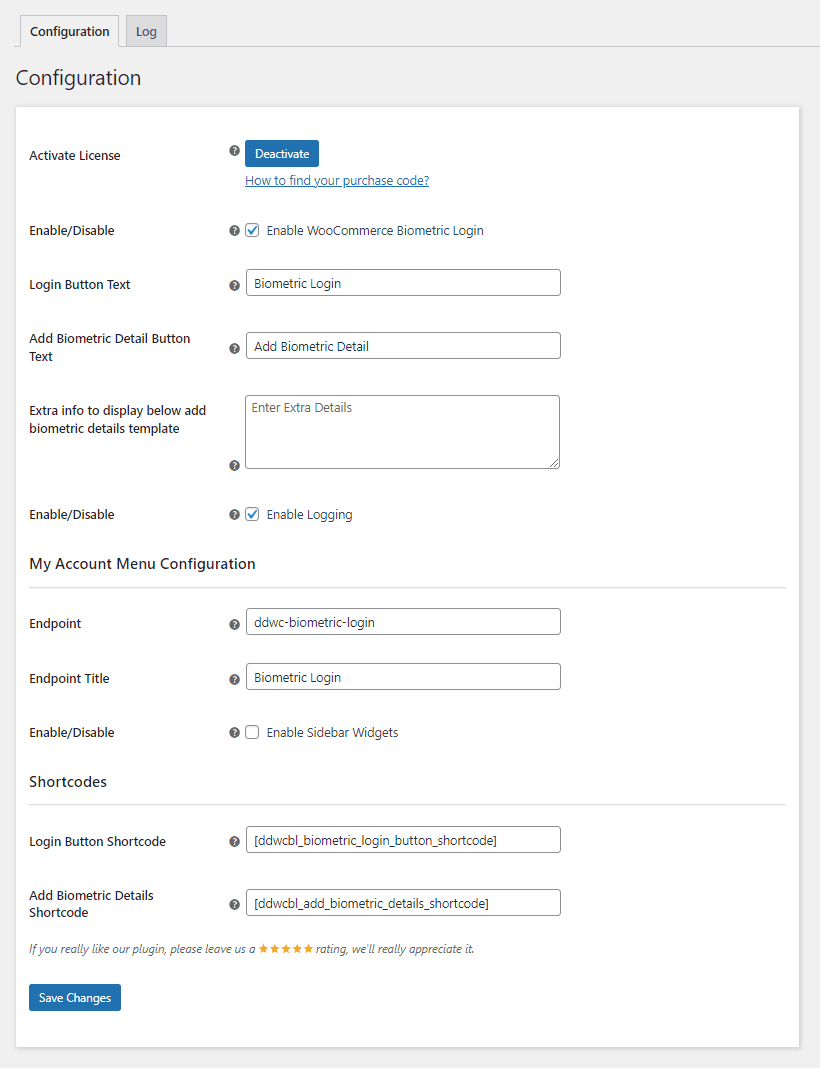
Activate license
Enter your purchase code and email to activate the license before use.
Enable biometric login
Turn fingerprint and face login on or off for customers.
Login button text
Set the wording on the biometric login button.
Add biometric detail button text
Set the wording on the enrolment button.
Extra info below the enrolment template
Add help text under the enrolment form. Use it to reassure customers that biometric data stays on their own device.
Enable logging
Turn logging on while debugging, off in normal operation.
Endpoint
Set the endpoint slug for the biometric menu on the My Account page.
Endpoint title
Set the title shown on that menu.
Sidebar widgets
Show or hide the sidebar widgets on that menu.
Login button shortcode
Place the biometric login button anywhere in the store.
Add biometric details shortcode
Place the enrolment template anywhere in the store.
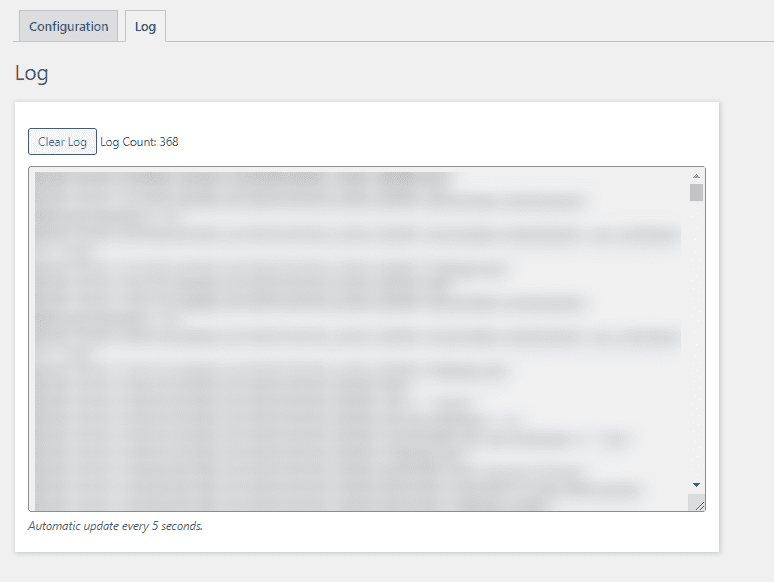
Logs
Logs refresh every five seconds without reloading the page, so you can watch an authentication attempt as it happens. Clear them when you are done.
Biometric login on desktop
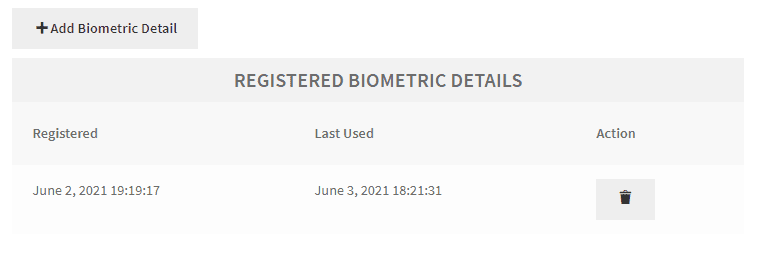
Customers open the biometric login menu on their My Account page to register a device.
Pressing Add Biometric Detail triggers the operating system’s own authentication prompt.
Once confirmed, the device is added to their list. They can remove it at any time.
The login page now offers a biometric option. Customers who have enrolled sign in without typing an email address or password.
Pressing it shows the same system prompt for confirmation.
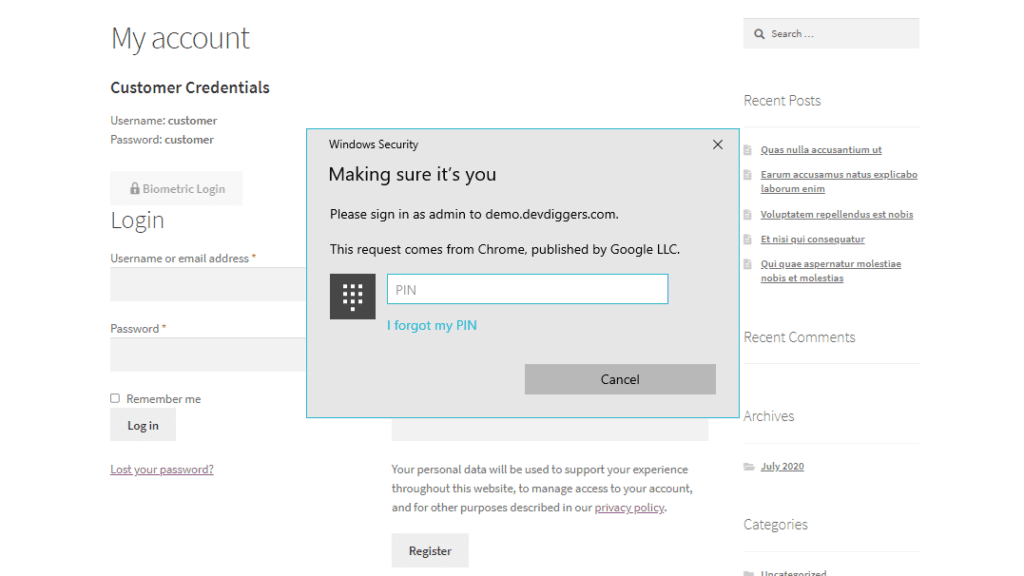
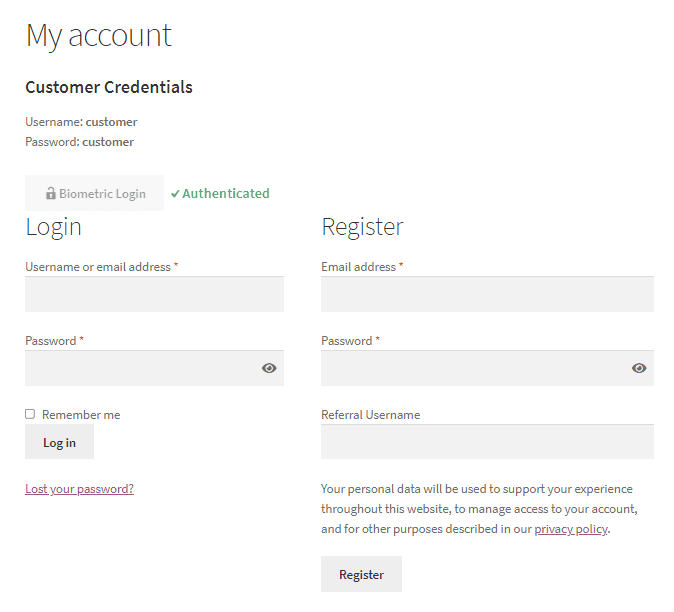
A successful check returns Authenticated and signs the customer in immediately.
A failed check returns Not Authenticated and no login happens. The password route stays available, so nobody is locked out.
Biometric login on mobile
Mobile is where this earns its keep. Typing a password on a phone is the single largest obstacle to a repeat purchase, and a fingerprint removes it.
Customers open the biometric login menu on the My Account page.
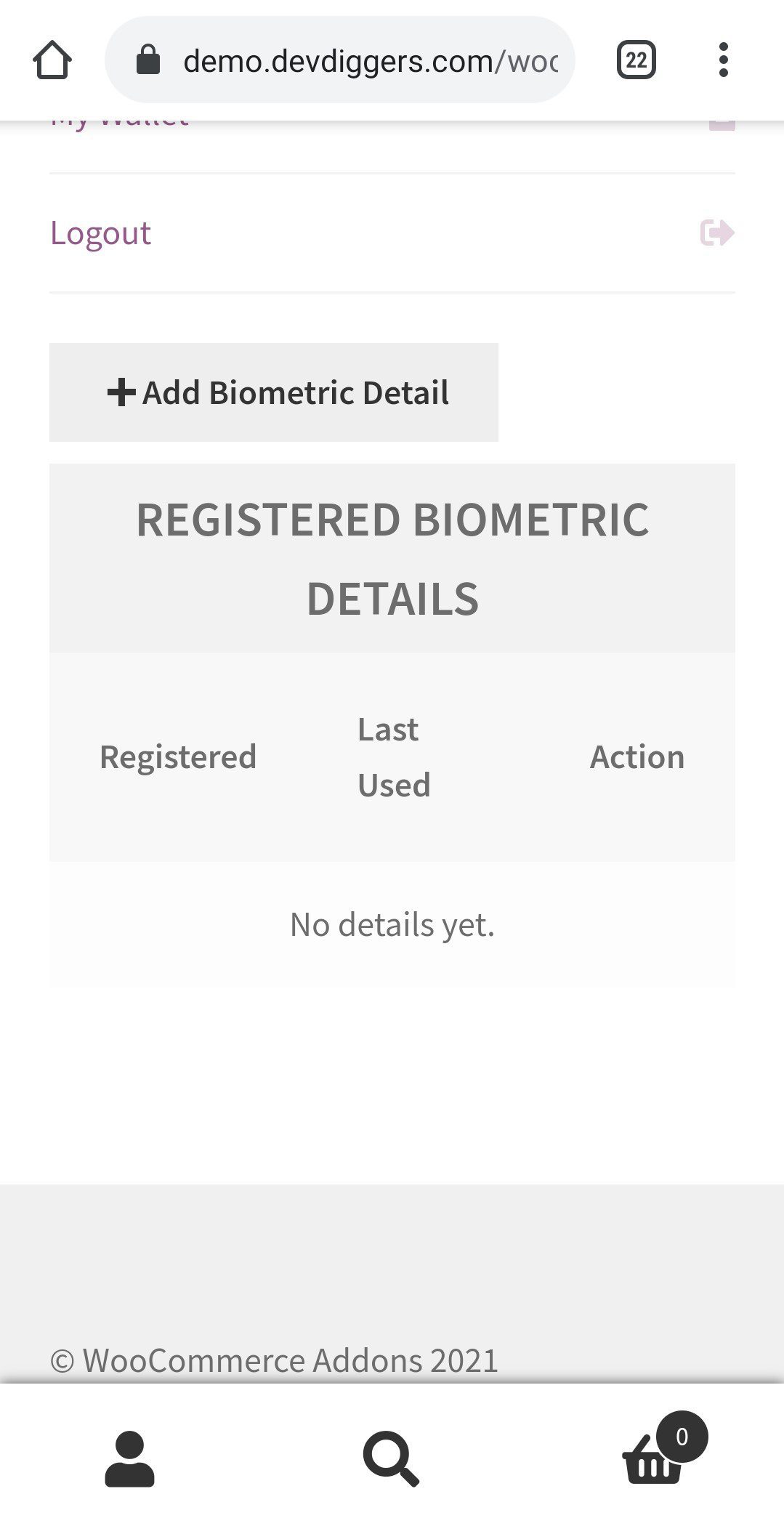
Pressing Add Biometric Detail brings up the authentication method for their operating system.

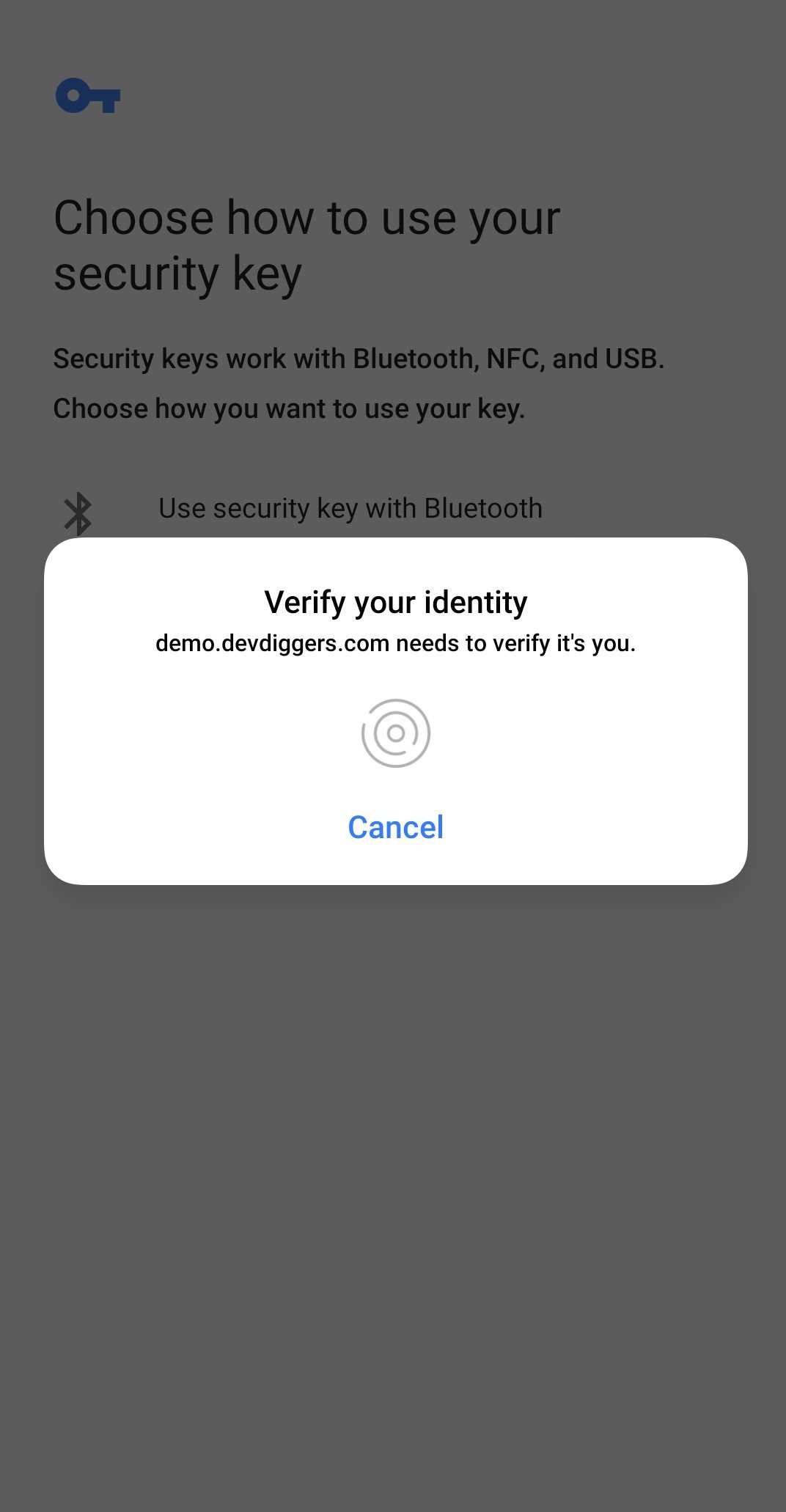
After Get Started, they choose the third option to use their screen lock, such as a fingerprint.
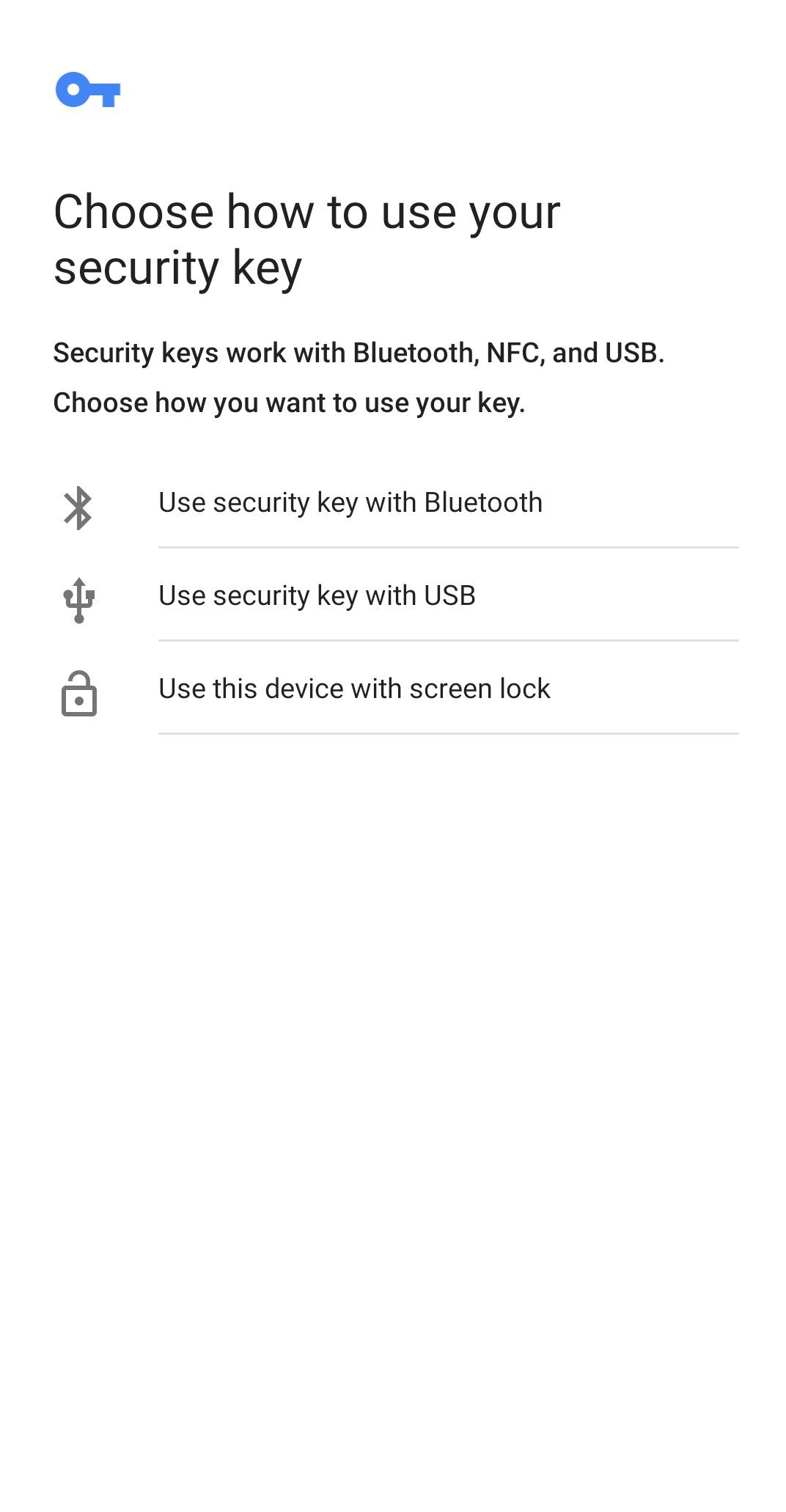
A prompt asks for the fingerprint.
Once confirmed, the device joins their list and can be removed whenever they want.
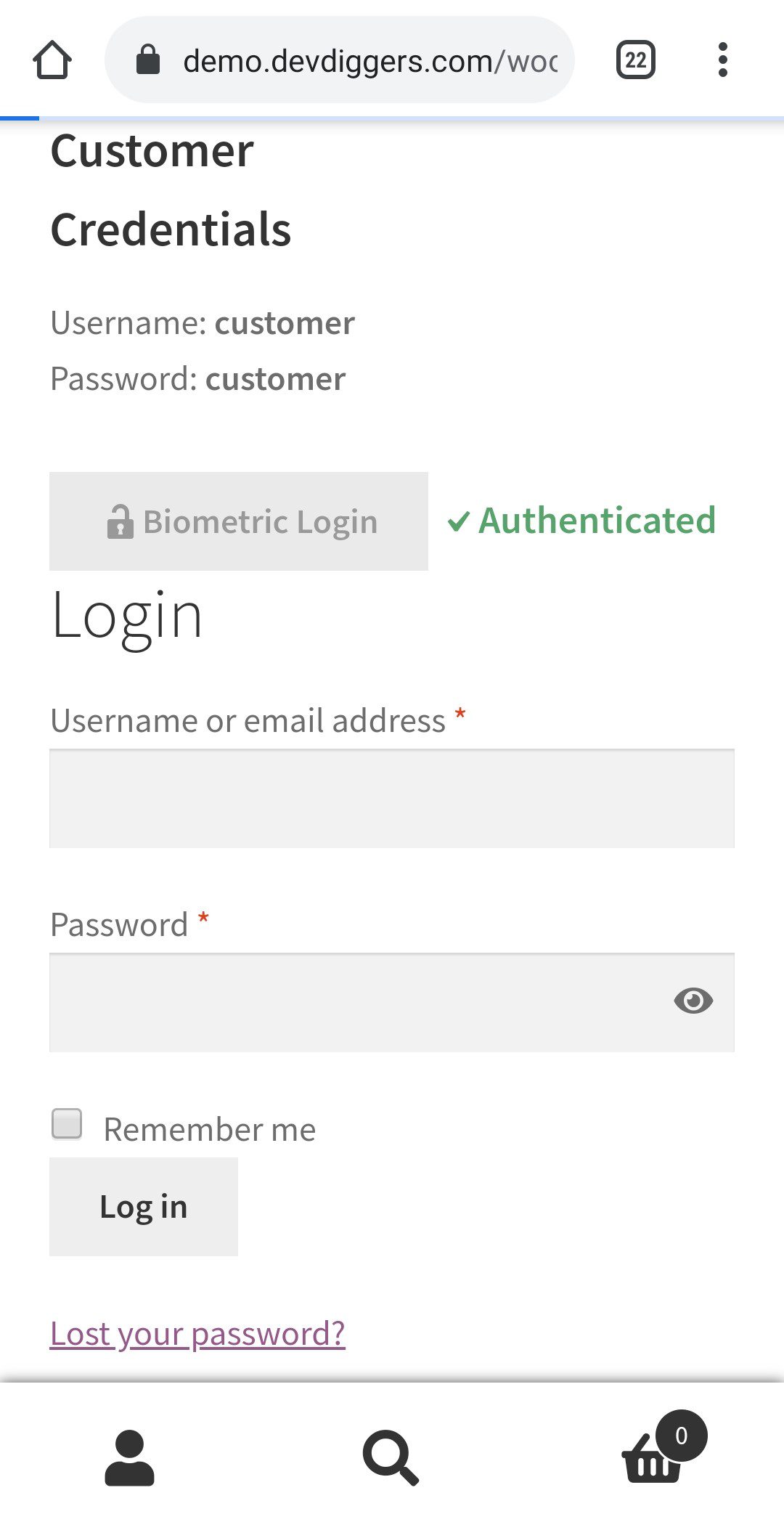
At the login page they see the biometric option and sign in without an email address or password.
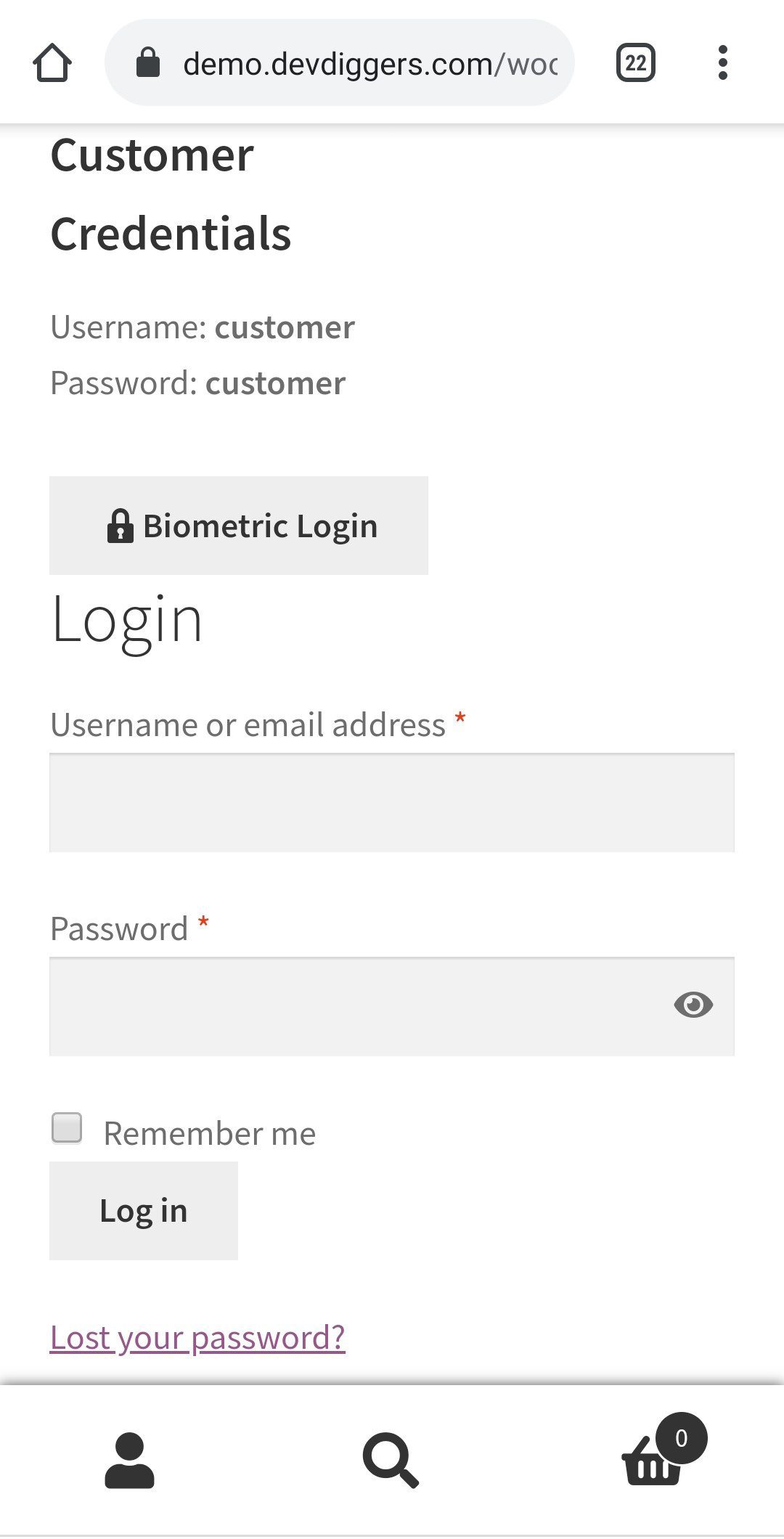
Pressing it shows the same prompt to verify.
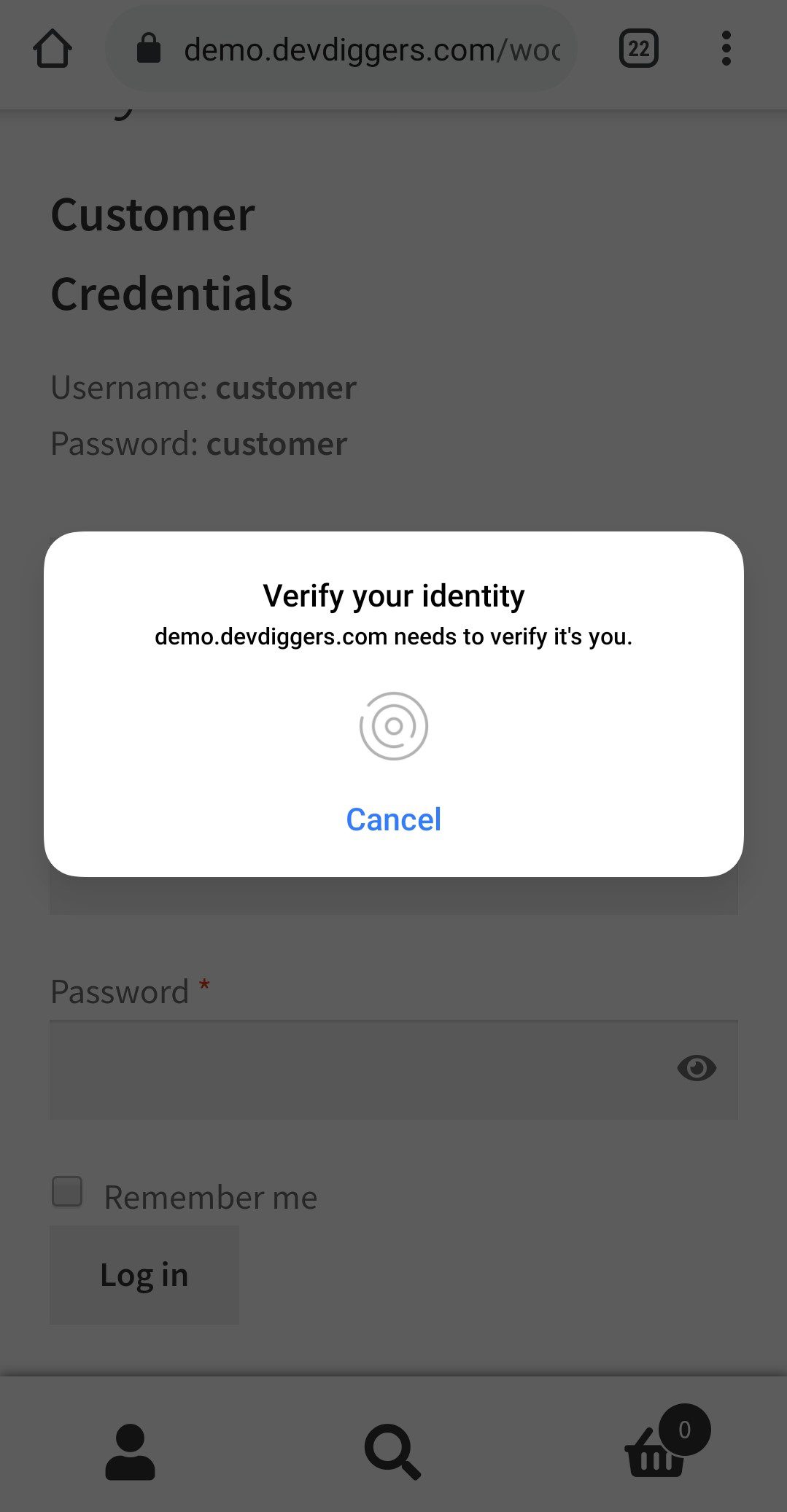
On success they are Authenticated and logged in.
Frequently Asked Questions (FAQs)
Q1. Do customers need to install an app?
No. The plugin uses the biometric authentication already built into the customer’s phone or computer, so nothing extra is installed.
Q2. Does it work on desktop as well as mobile?
Yes. Both are supported, and each shows the authentication prompt belonging to that operating system.
Q3. Can customers still log in with a password?
Yes. Biometric login is an additional option on the login form. Customers who have not enrolled, or who prefer a password, sign in as before.
Q4. Can a customer remove a registered device?
Yes. Registered devices are listed on the My Account menu, and the customer can remove any of them at any time.
Q5. What happens if the fingerprint or face is not recognised?
The response is Not Authenticated and the customer is not logged in. They can try again or use their password.
Q6. Can I put the biometric login button somewhere other than the login page?
Yes. Shortcodes are provided for both the login button and the add biometric details template, so either can be placed anywhere in the store.
Q7. Is there a way to debug login problems?
Yes. Turn on logging and open the logs screen, which updates every five seconds without a page reload. Logs can be deleted when no longer needed.




polboonlapo –
Adds Secure and Flexible Login Options
I really like this feature as it gives customers more login options with advanced security. It’s a great addition that improves both usability and protection.
Velocegallery818 –
High-Quality Plugin with Great Support
This is a high-quality plugin that works exactly as described. It’s very easy to set up, and the support team is really helpful. Great experience overall!
lodolastefano –
Reliable Plugin with Great Improvements
I’ve been using this plugin again after some time, and I’m really happy with how well it works now. It does exactly what it’s supposed to do and runs smoothly without issues.
The setup is simple, and overall performance feels much improved. It’s clear that the plugin has been refined and updated over time. Looking forward to more enhancements in future updates!