
If you want to add Google Analytics on WordPress, you can do it in under 15 minutes without touching a single line of code.
We rechecked each screen and setting against Google’s own docs and the Site Kit plugin page in October 2026. Site Kit by Google is the route most site owners should take, since Google builds it.
You will set up a free account, create a GA4 property and connect it with Site Kit. Then you get two other methods, the WooCommerce purchase setup, a consent note for EU visitors and fixes for common problems.
Why Should You Add Google Analytics on WordPress?
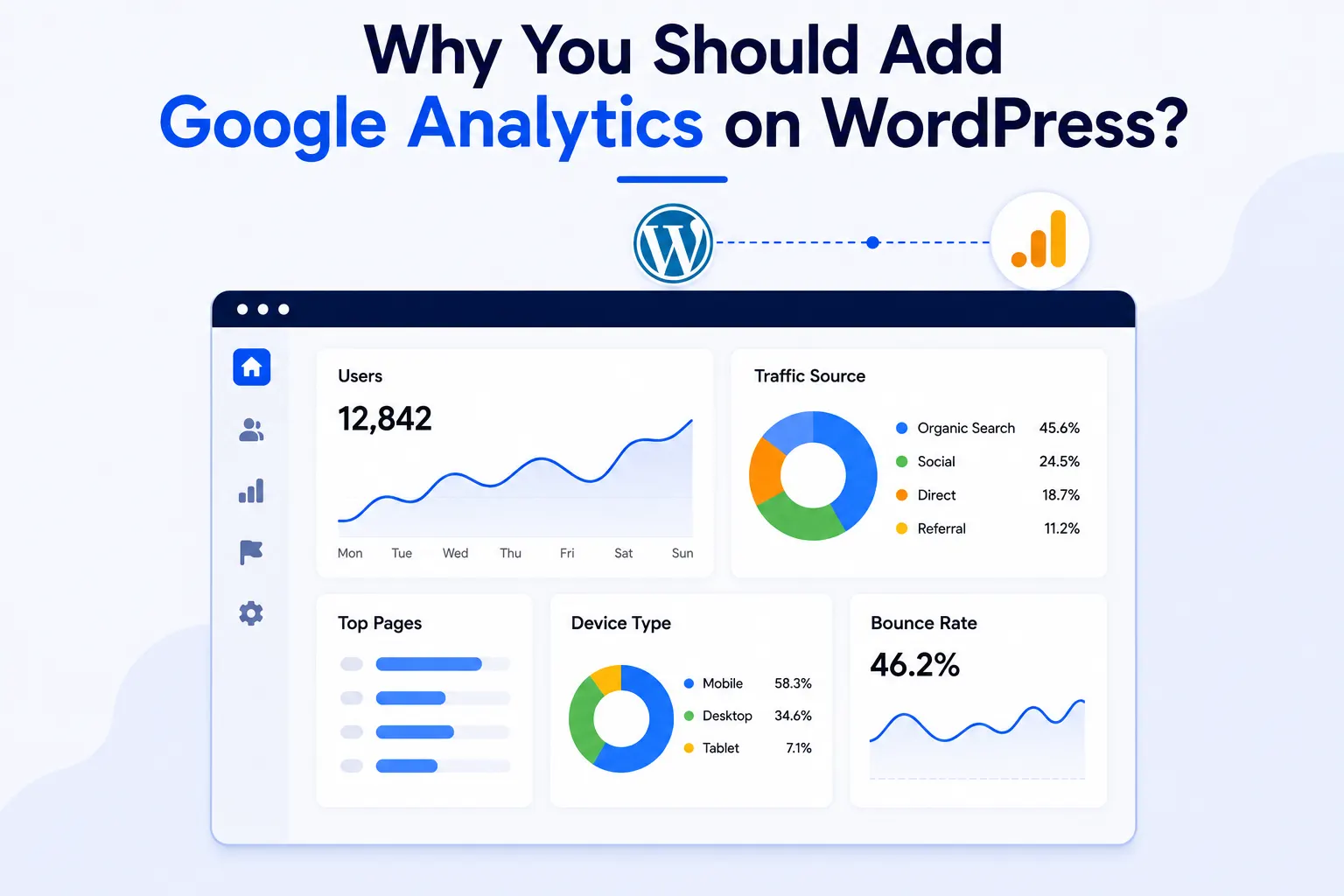
Google Analytics shows what happens after someone lands on your WordPress site. You see how many people visit, where they come from and which pages keep them reading. It is free, and the GA4 version is the only one Google still collects data with.
Once it’s running, you get real numbers instead of guesses:
- Visitor count: How many people show up each day, week, and month.
- Traffic source: Whether visitors arrive from Google search, social media, or a direct link.
- Page behavior: Which pages people read fully, and which ones they leave in seconds.
- Device type: Whether your audience is on phones, tablets, or desktops.
- Bounce rate: In GA4 this is the share of sessions that were not engaged. Google counts a session as engaged after 10 seconds, a key event or 2 page views (per Google).
Simple stats plugins show visit counts. Google Analytics also shows the path someone took through your site.
Analytics shows which pages lose visitors. A heatmap for WordPress shows where on the page they click and scroll.
One thing worth admitting up front: raw GA4 reports look busy the first time you open them. Give yourself 20 minutes to click around before you judge the tool.
How to Add Google Analytics on WordPress
To add Google Analytics on WordPress, create a free Google Analytics account and set up a GA4 property. Next, create a web data stream to get your Measurement ID. Add that ID with a plugin and then confirm in Realtime reports that visits are being tracked.
What You Need Before You Start
Before you can add Google Analytics on WordPress, you need three things ready:
- A Google account
- Admin access to your WordPress dashboard
- Your live website URL
That is the whole checklist. You need no credit card and nothing to download in advance.
Step 1: Create Your Google Analytics Account
- Go to Google Analytics in a new browser tab.
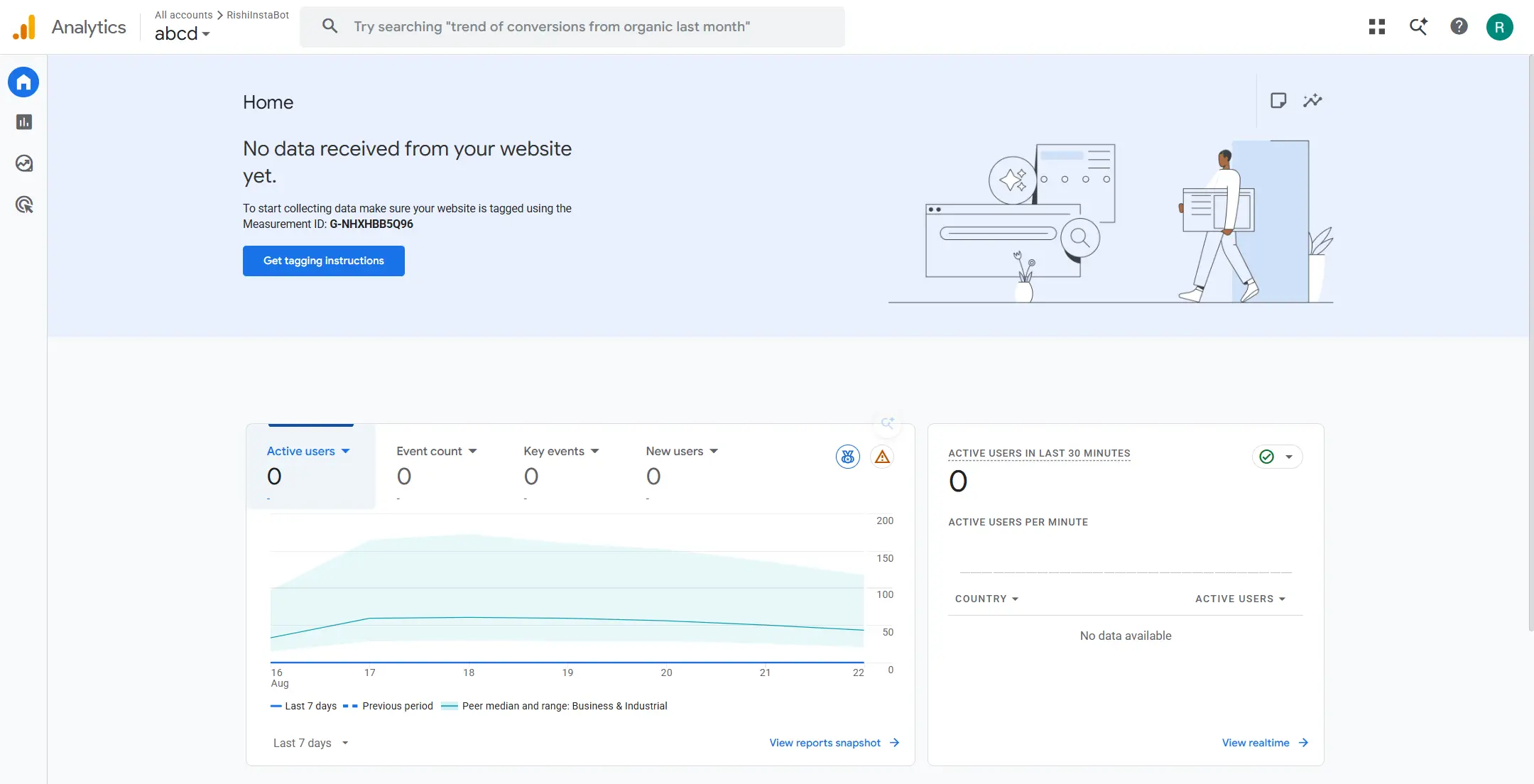
- Sign in with your Google account, or create one if you don’t have it.
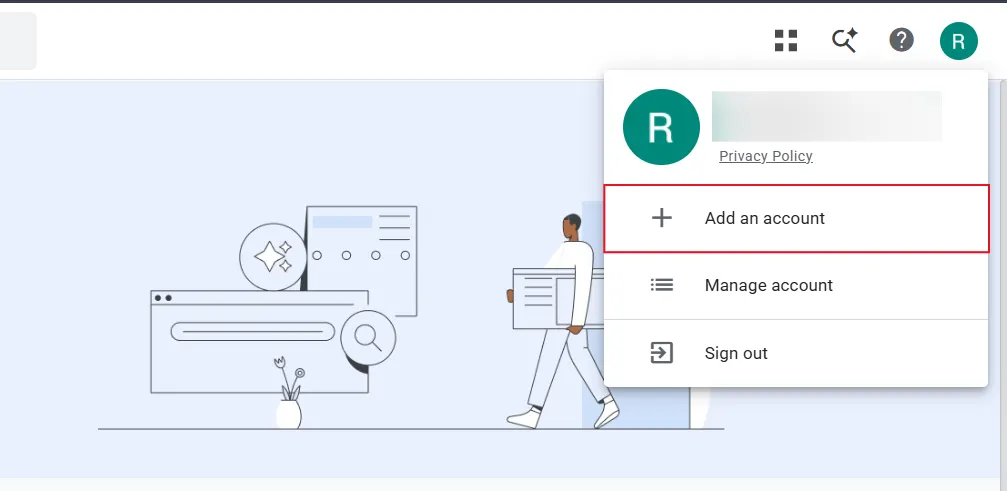
- Click the Start measuring button on the welcome screen.
- Type an account name. Your business or website name works fine here.
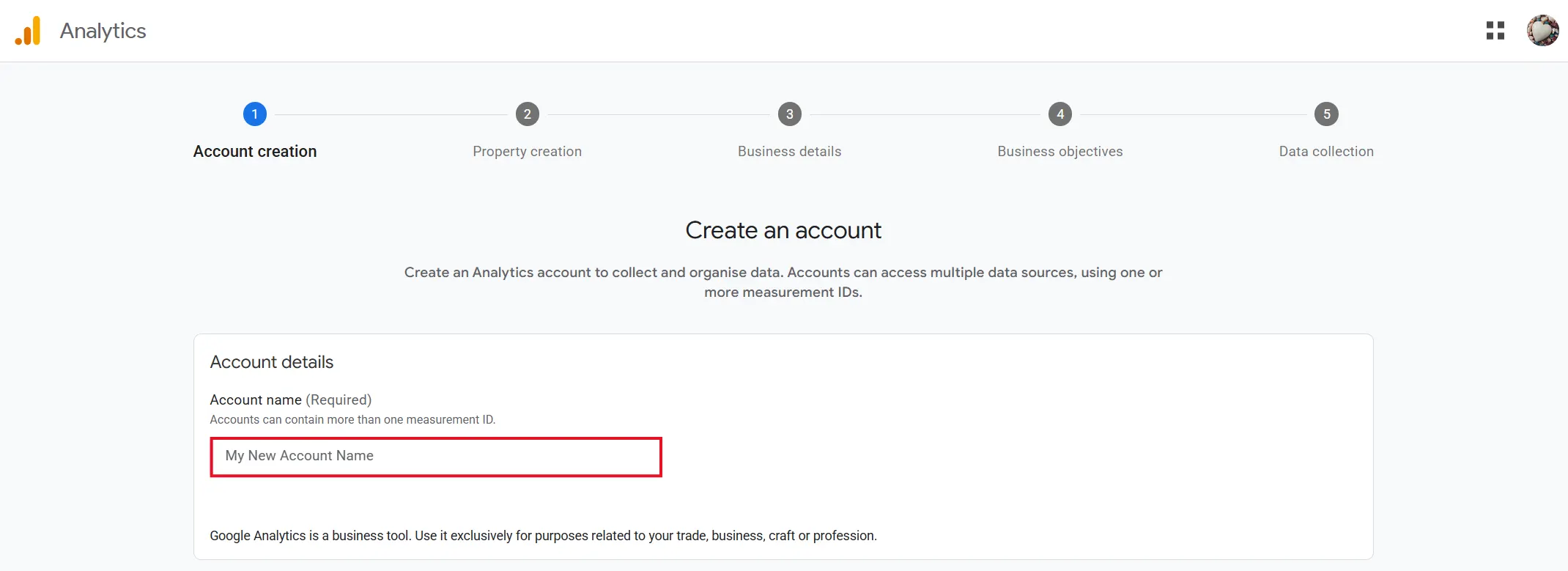
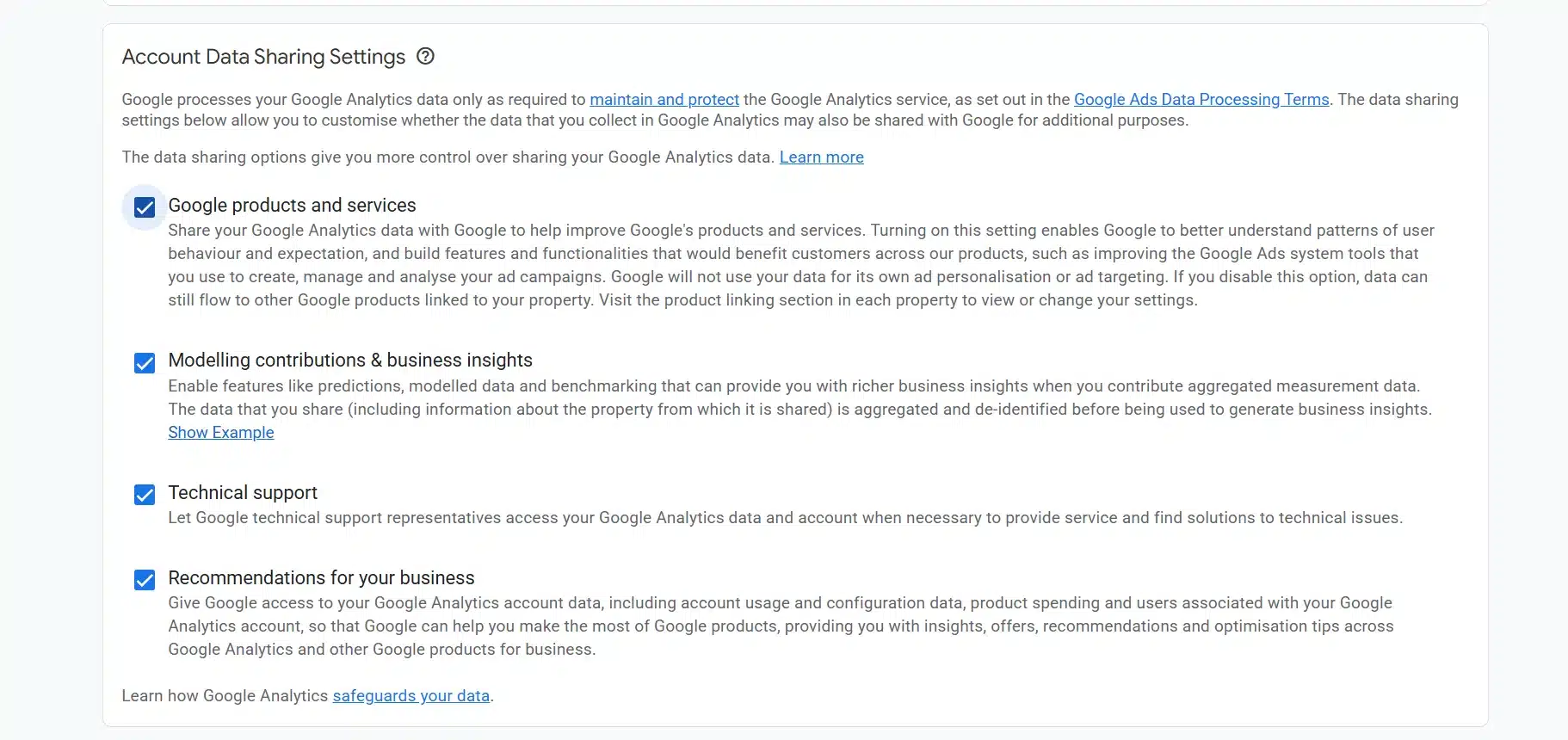
- Scroll down and check the data-sharing settings. The defaults are okay for most sites.
- Click Next.
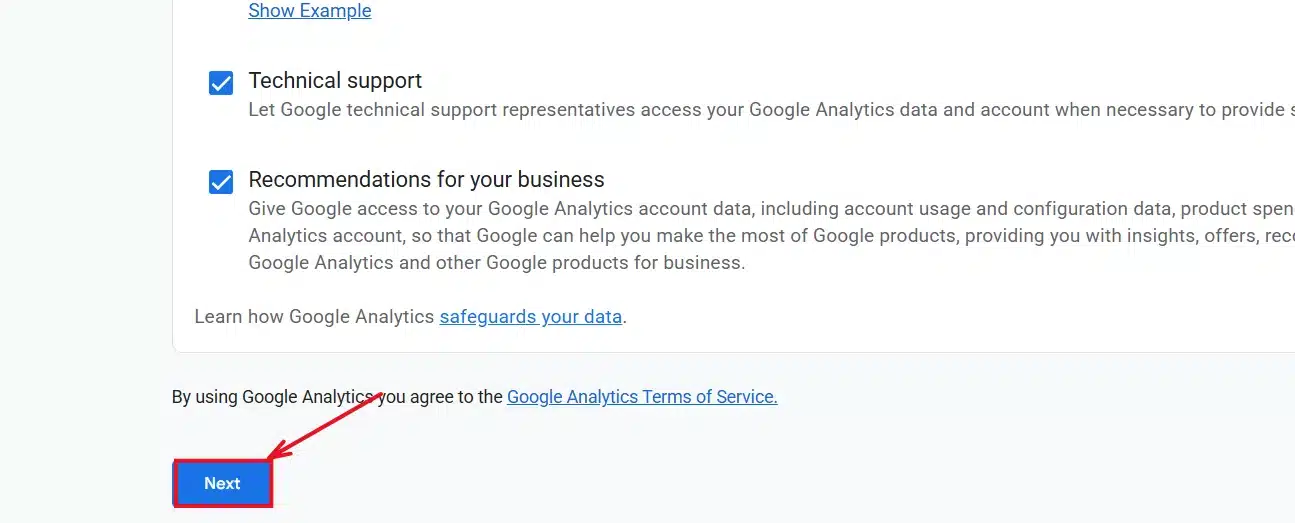
This name is only for your own reference inside Google Analytics. Nobody else sees it.
Step 2: Set Up Your GA4 Property
A property is Google’s term for the specific website you’re tracking. Every account needs at least one.
- Enter a property name (your site name works well).
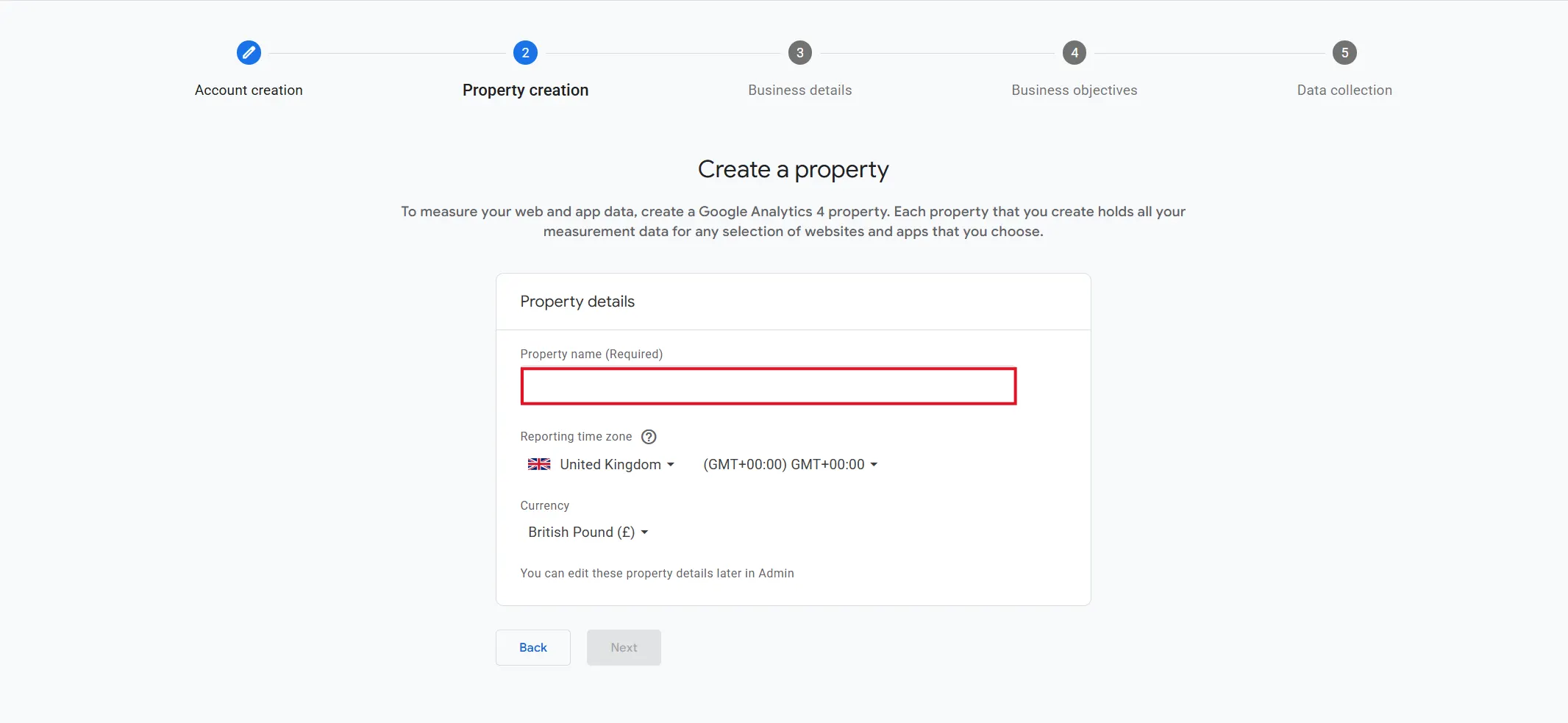
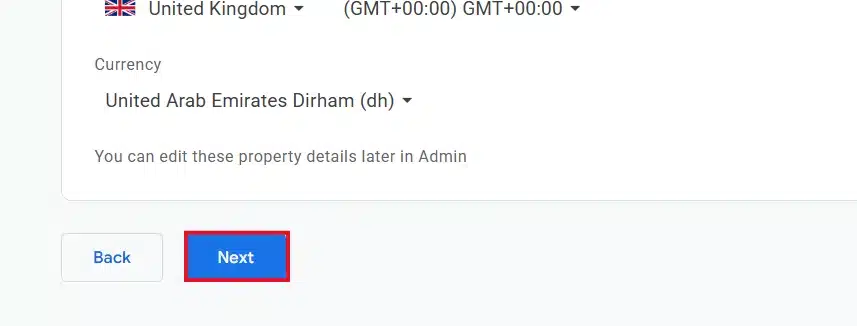
- Choose your reporting time zone and select your currency.
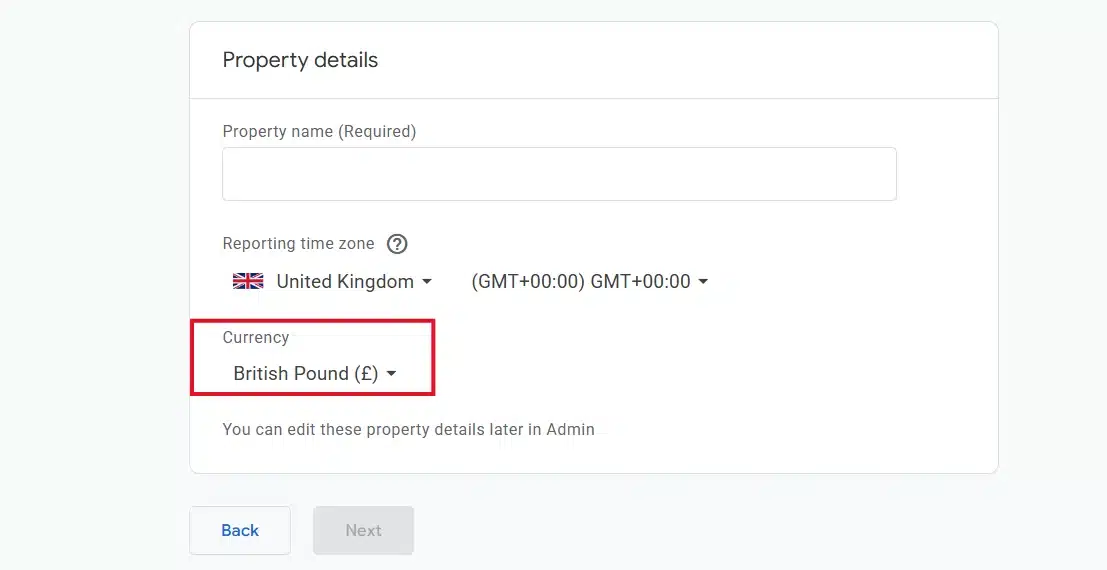
- Click Next.
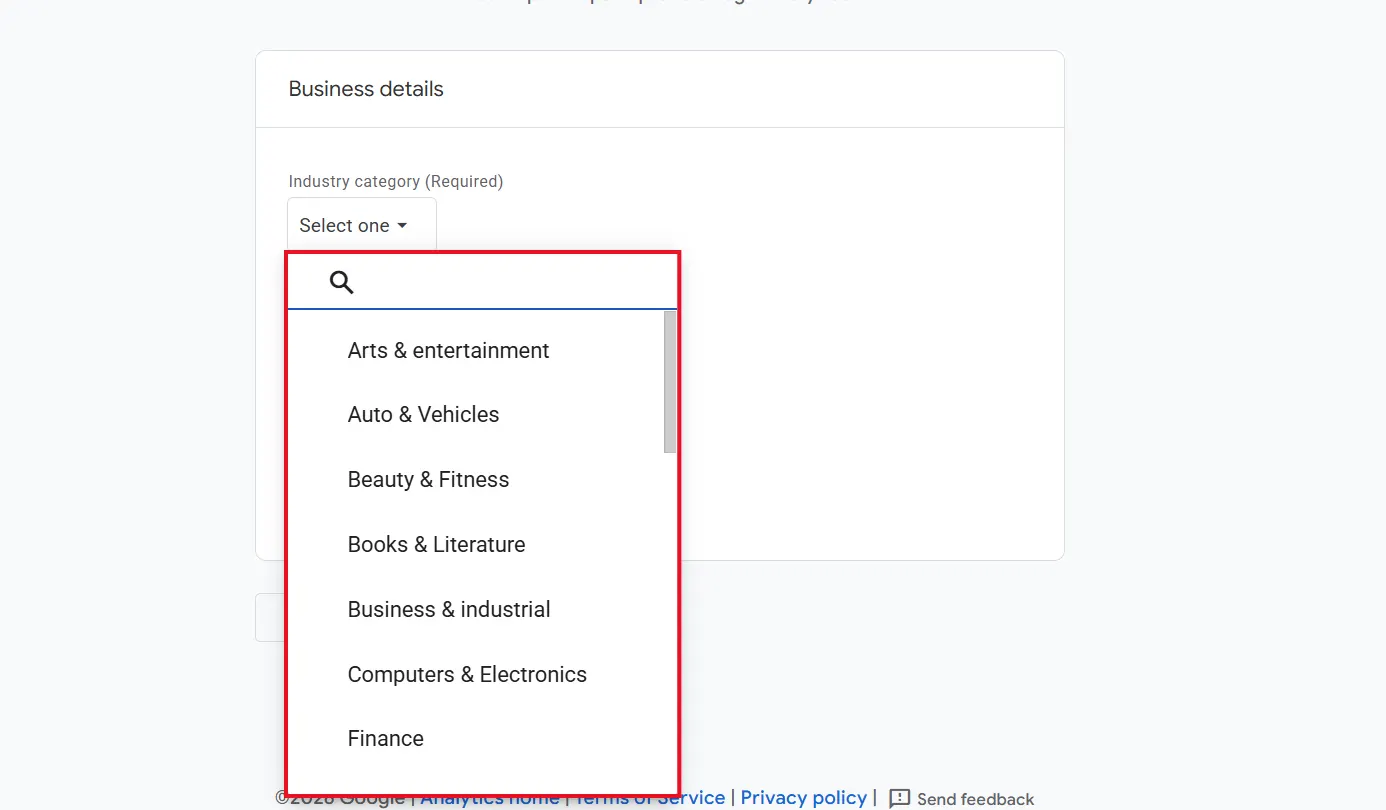
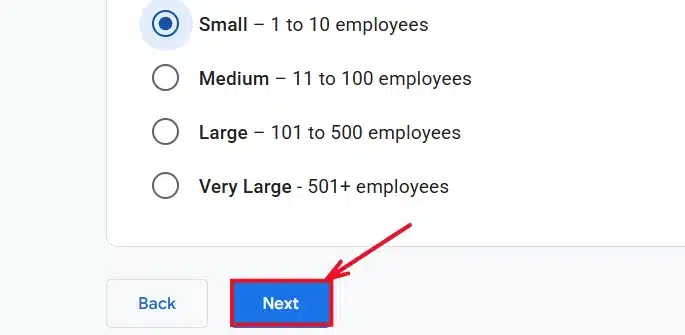
- Pick your industry category from the dropdown.
- Select your business size.
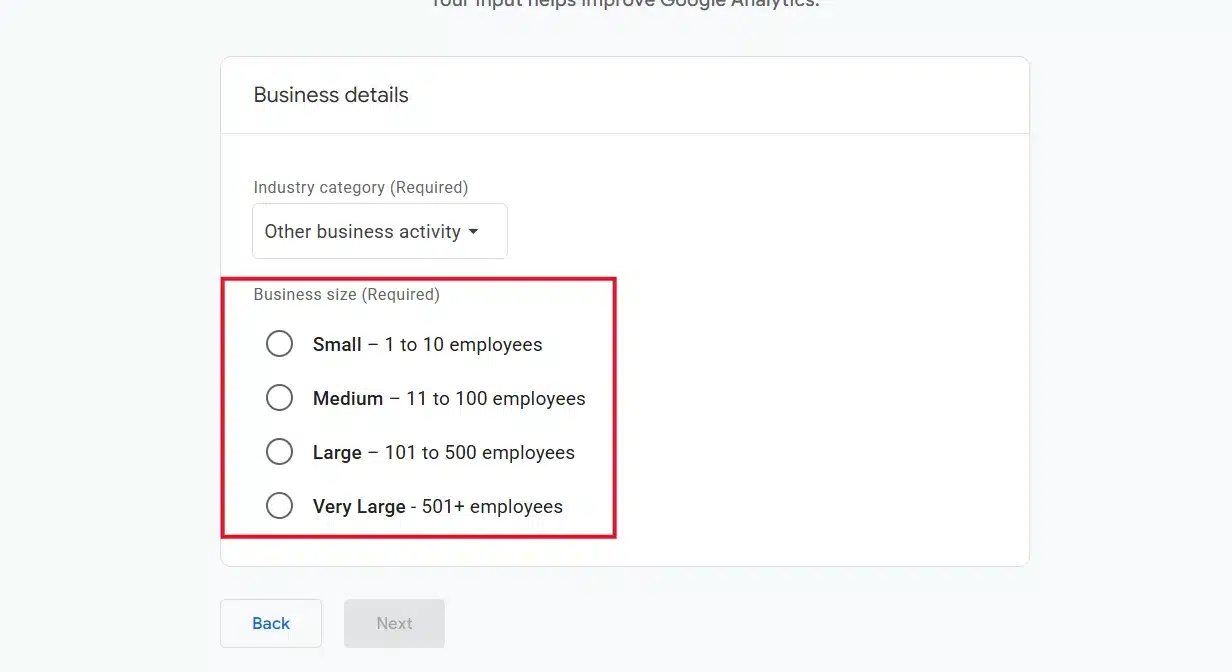
- Click Next.
- Select the option that matches your goal (examples: generate leads, examine user behavior, or raise brand awareness). If you’re not sure, choose Get baseline reports to turn on every standard report.
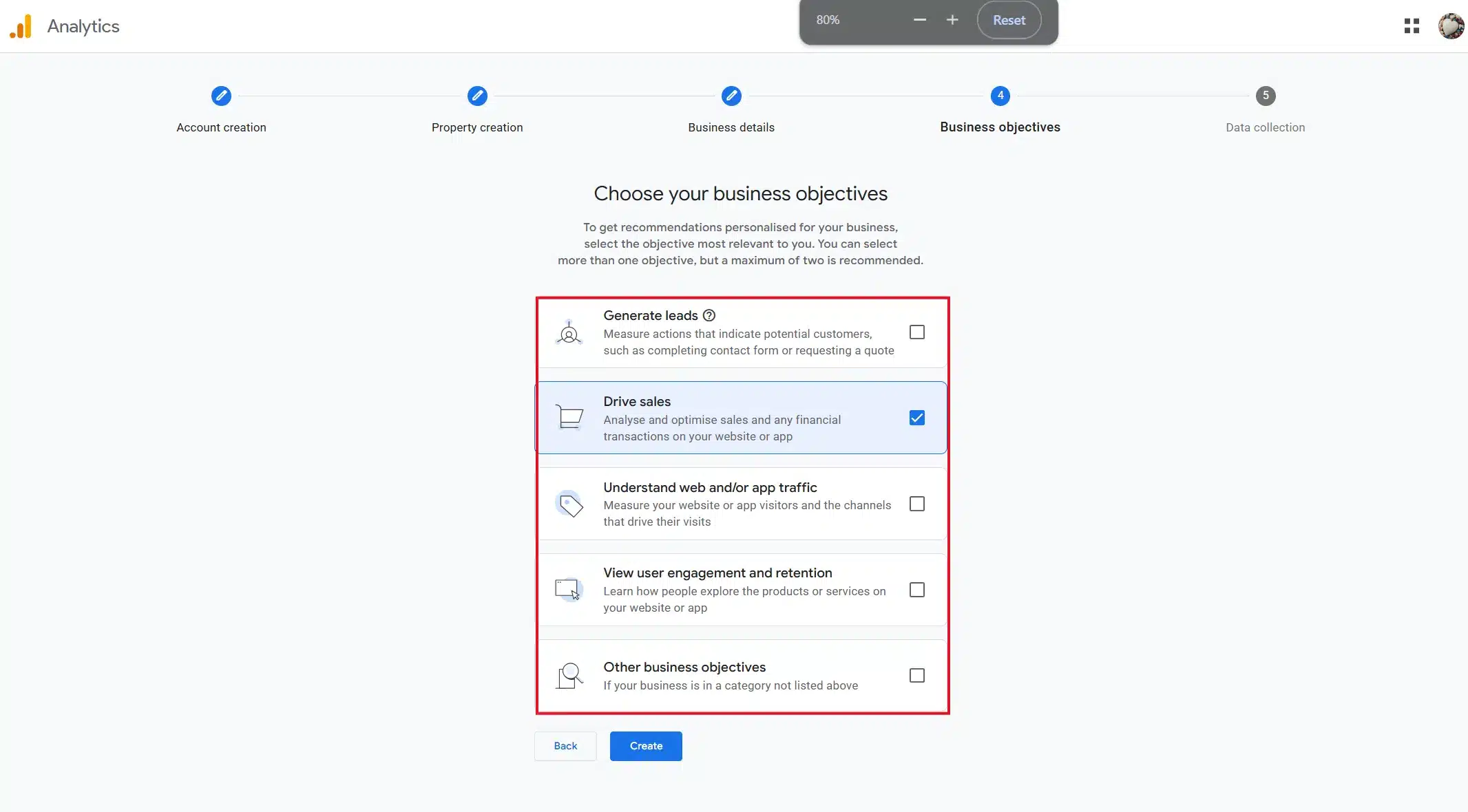
- Click Create.
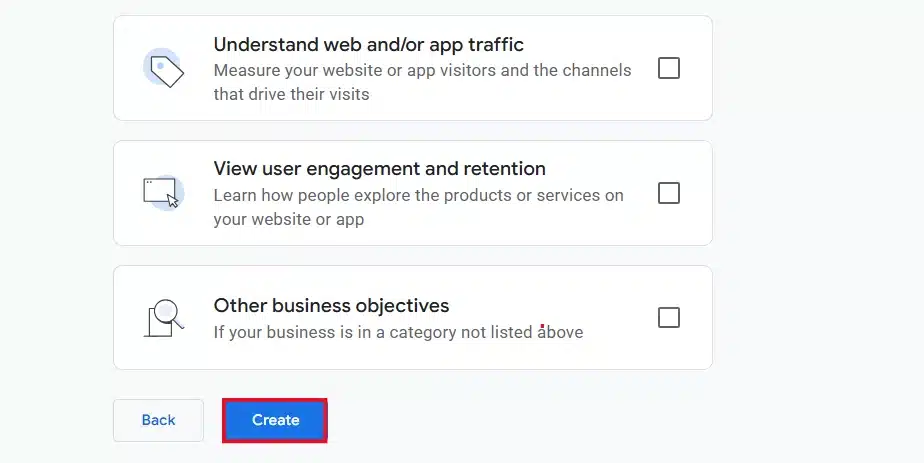
You’ll be asked to accept Google’s terms of service. Accept them, and your property is live.
Step 3: Create a Web Data Stream
This is the step that links Google Analytics to your WordPress website.
- On the platform screen, select Web.
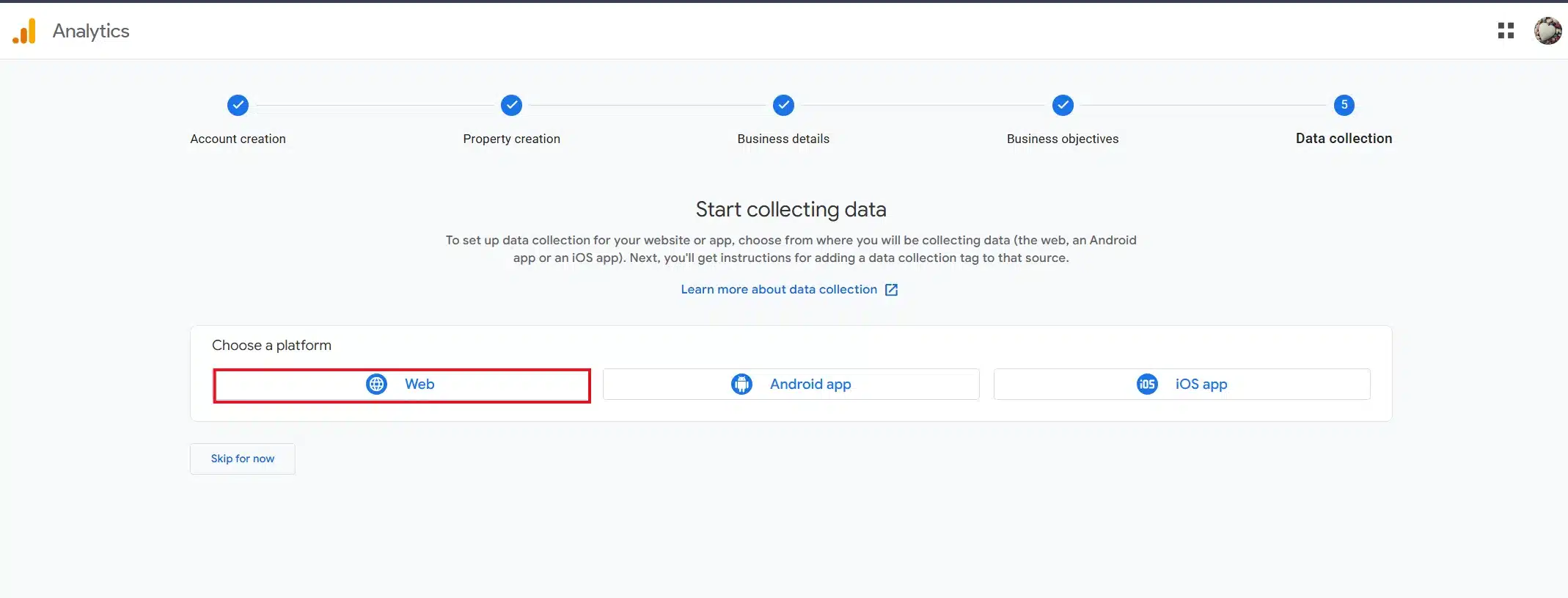
- Enter your website URL exactly as it appears in your browser.
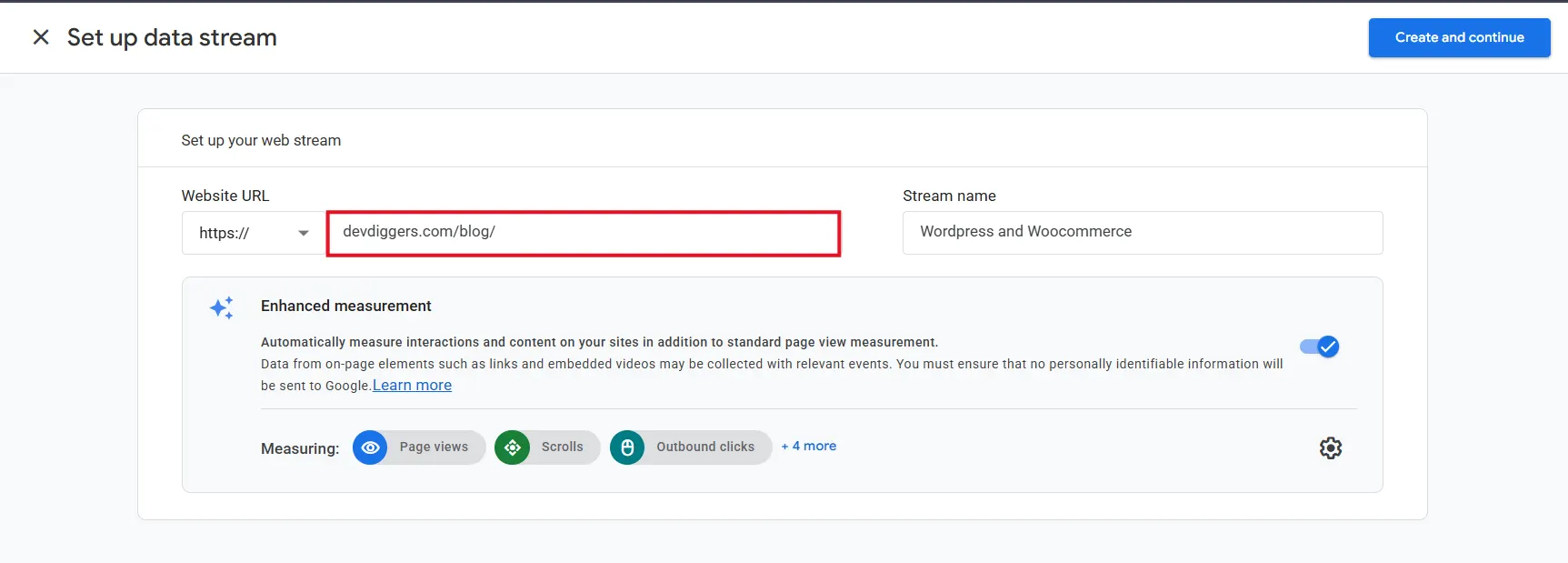
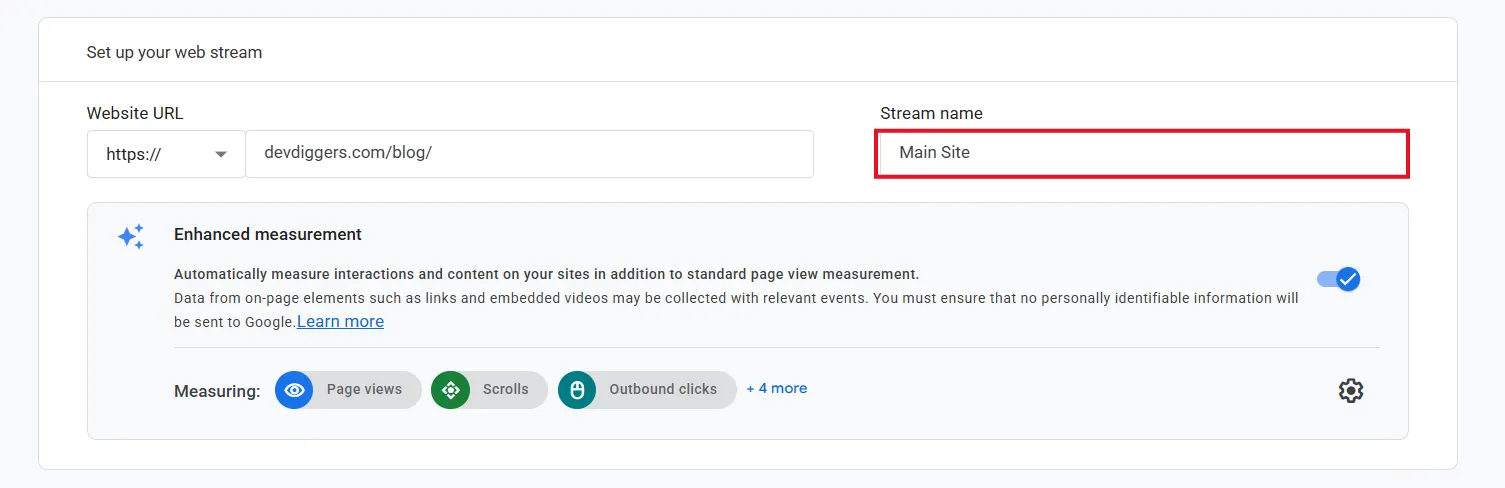
- Type a stream name (something like “Main Site” is fine).
- Click Create stream.
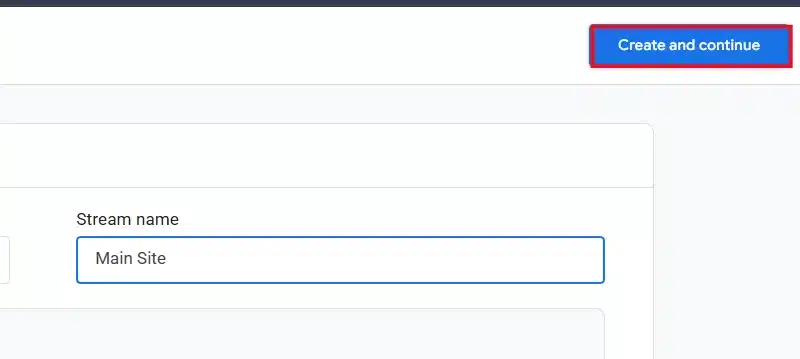
Google will now show you a Measurement ID. It starts with the letter G, followed by a dash and a string of characters (for example, G-XXXXXXX).
Copy this Measurement ID somewhere safe. You will paste it into WordPress in the next step.
Step 4: Add Google Analytics on WordPress Using a Plugin
A plugin is the fastest and safest route for most site owners. We use Site Kit by Google, which Google builds and updates. As of October 2026 it is on version 1.189.0 with more than 5 million active installs.
- Log in to your WordPress dashboard.
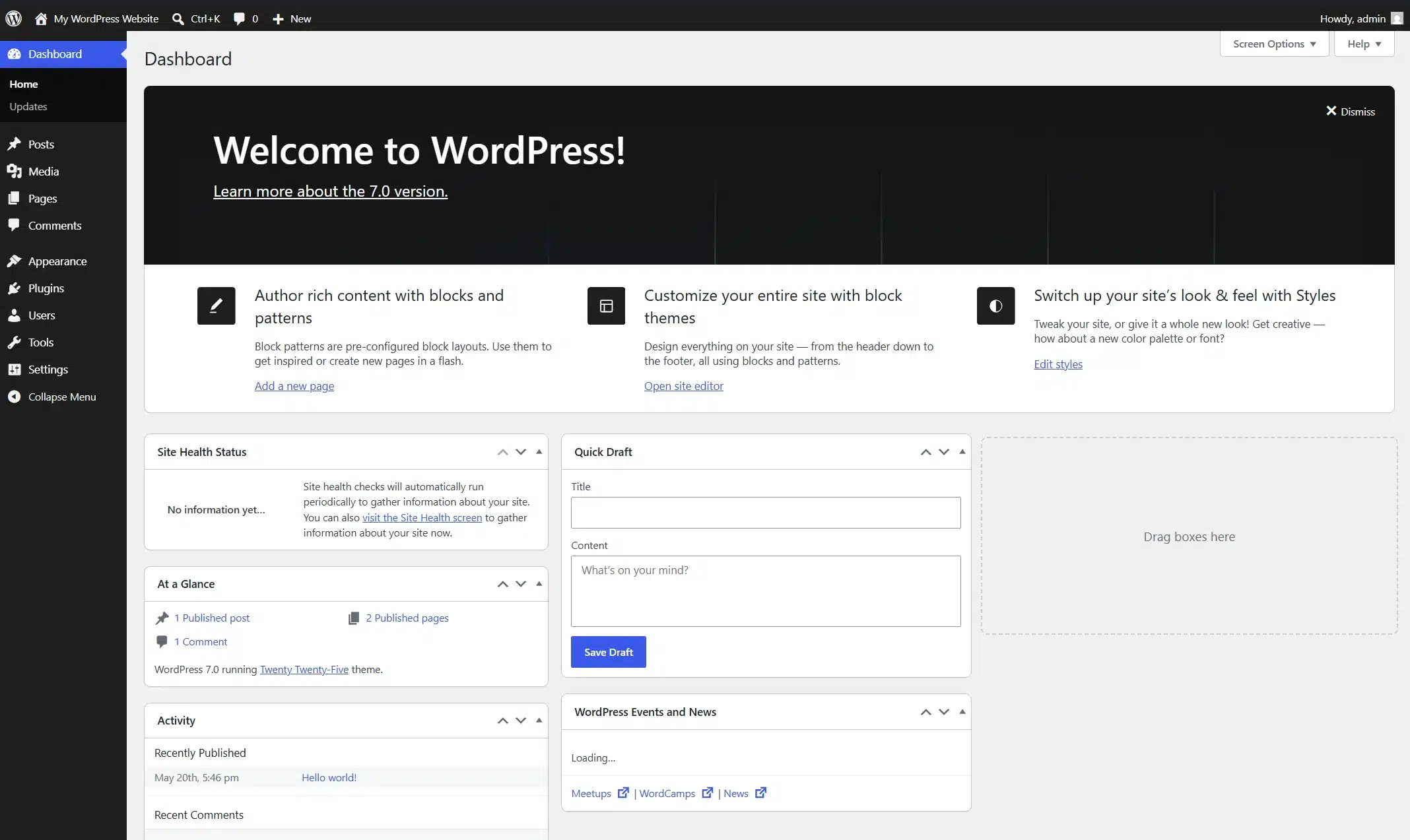
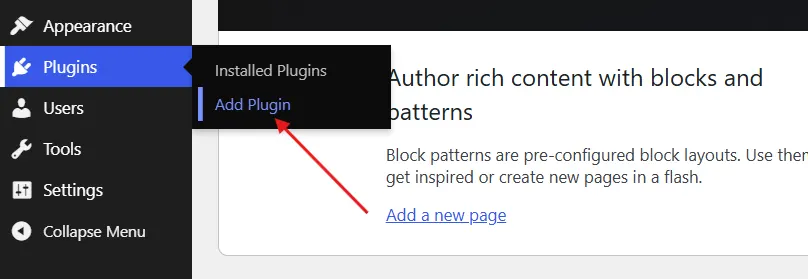
- Go to Plugins > Add Plugin.
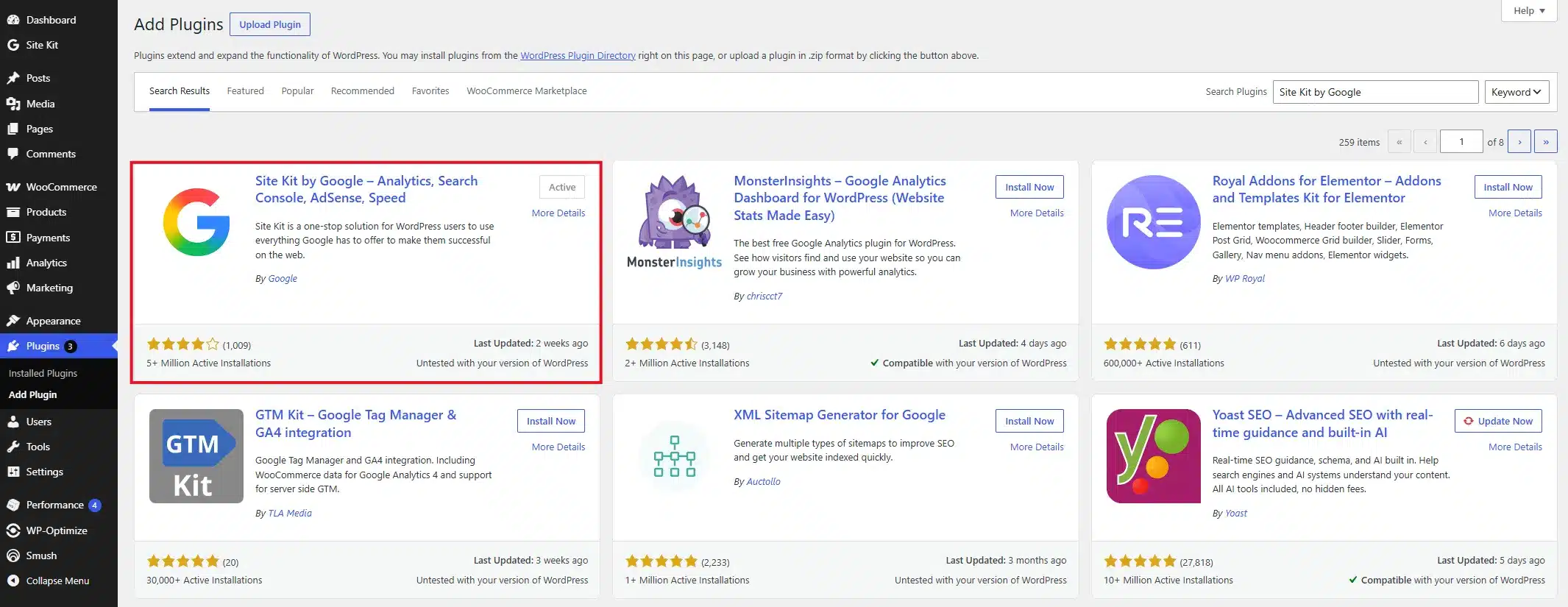
- Install and activate the Site Kit by Google plugin from the WordPress Plugin Directory.
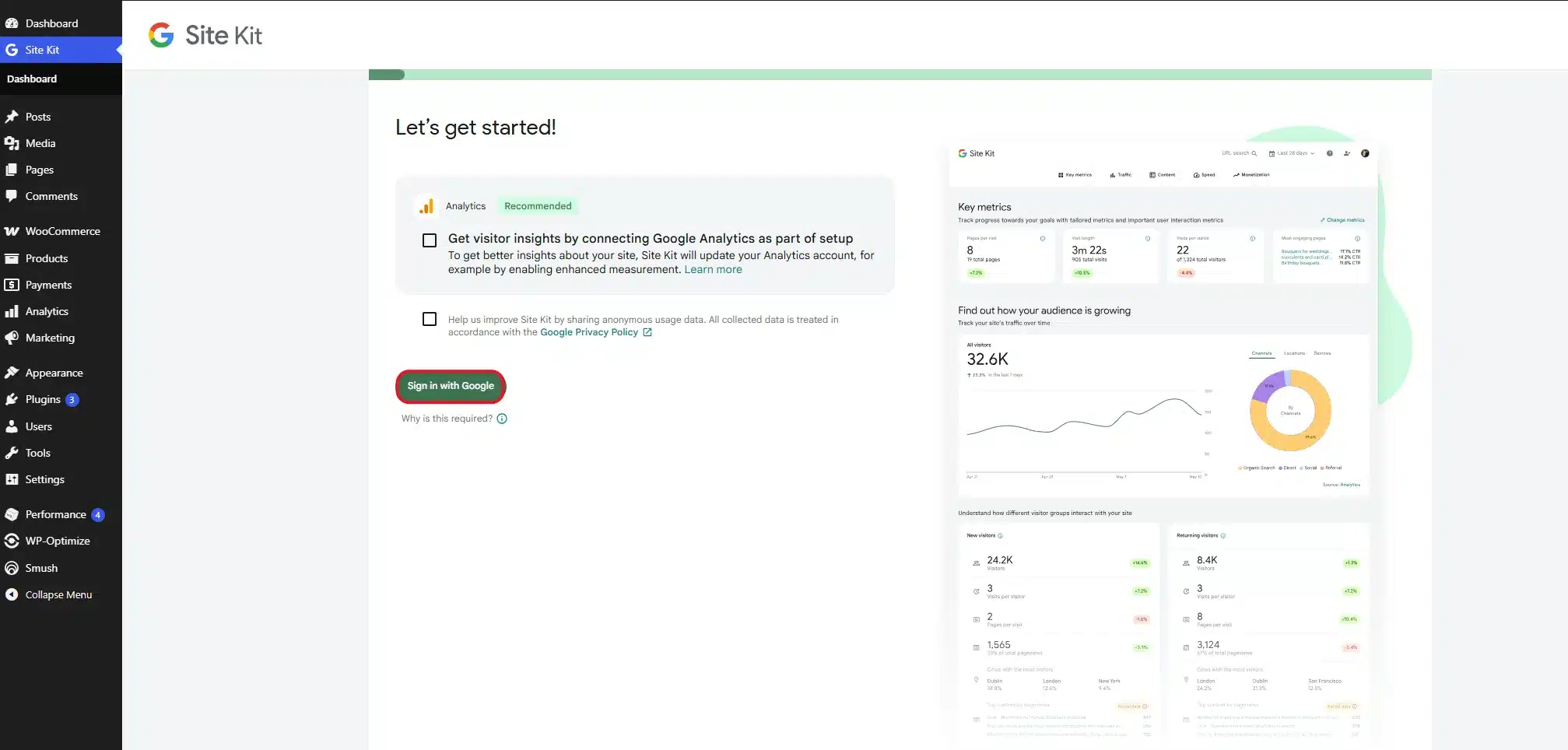
- Go to Site Kit > Dashboard and sign in with the same Google account you used to create your Analytics property.
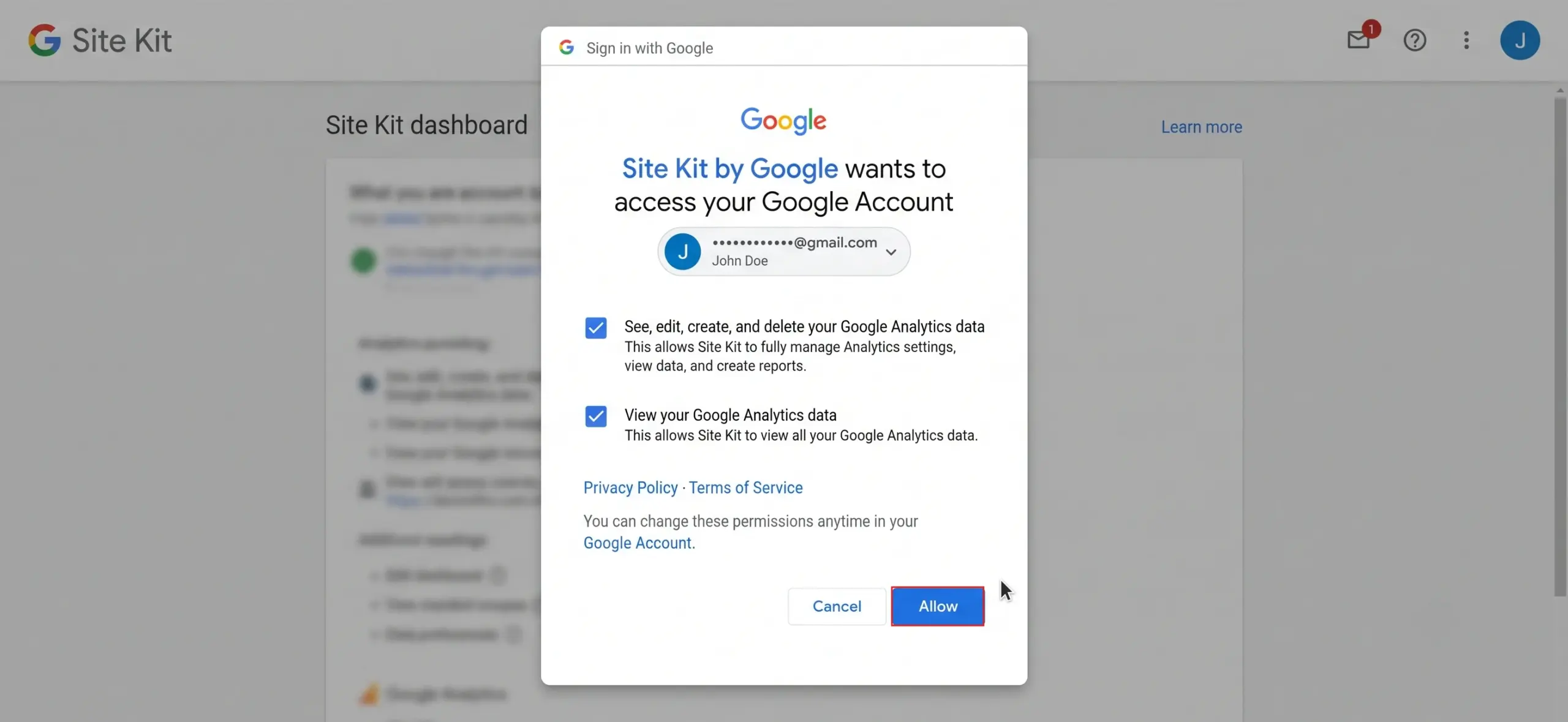
- Click Allow to grant Site Kit permission to read and write your Analytics data.
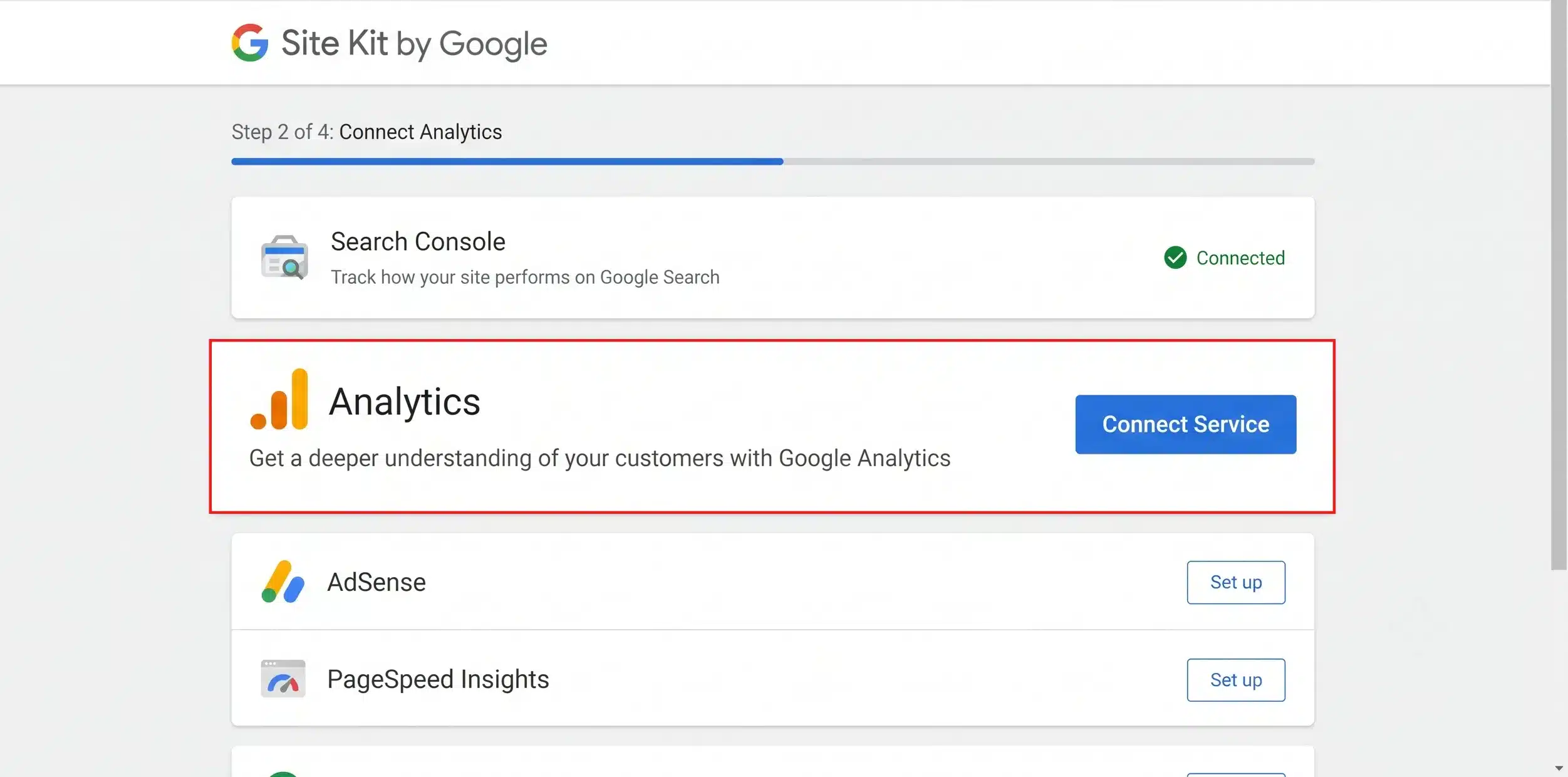
- In the Site Kit setup wizard, find the Analytics module and click Connect Service.
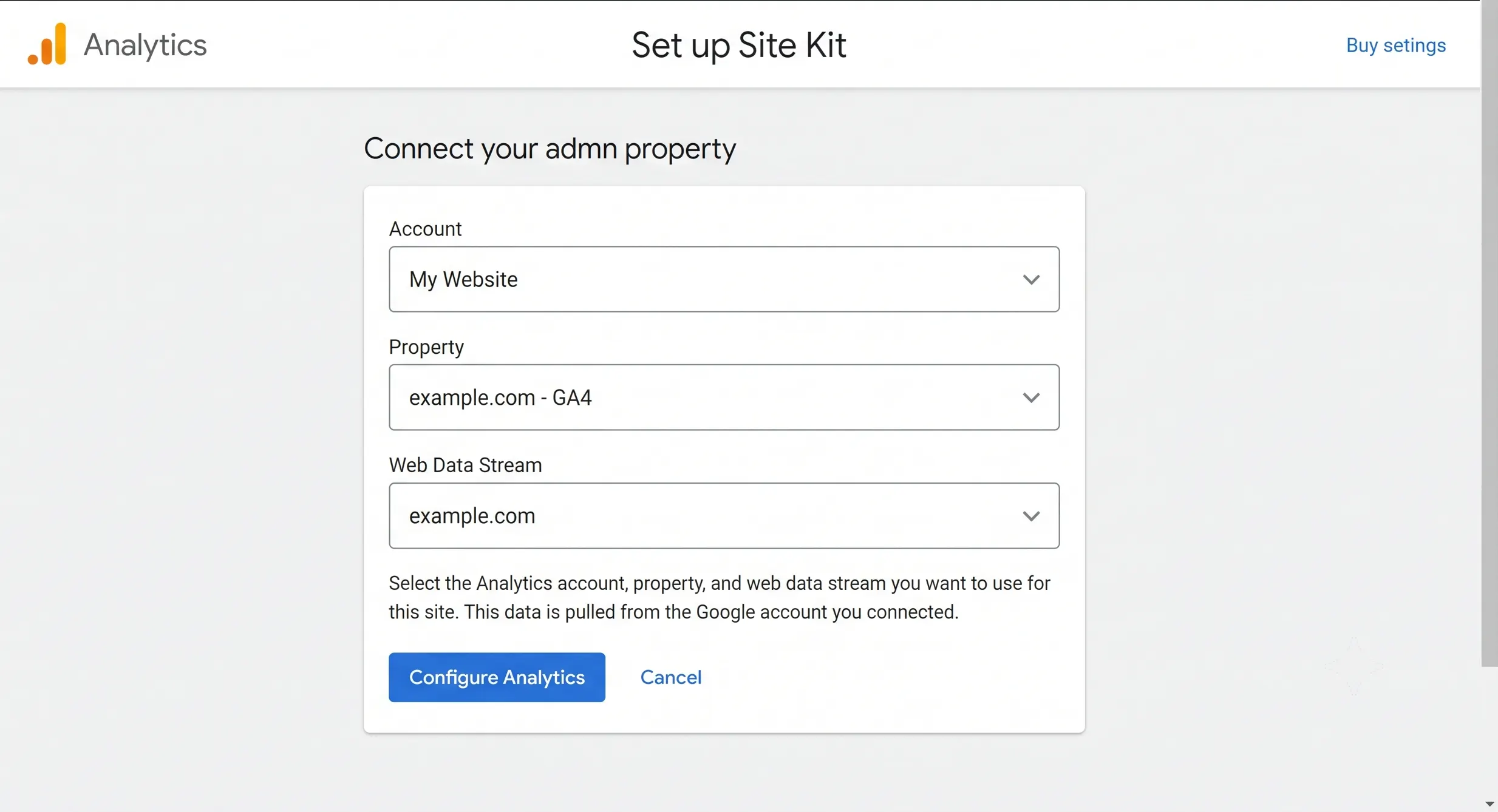
- From the dropdown menus, select the Account, Property, and Data Stream you created earlier.
- Click Complete Setup.
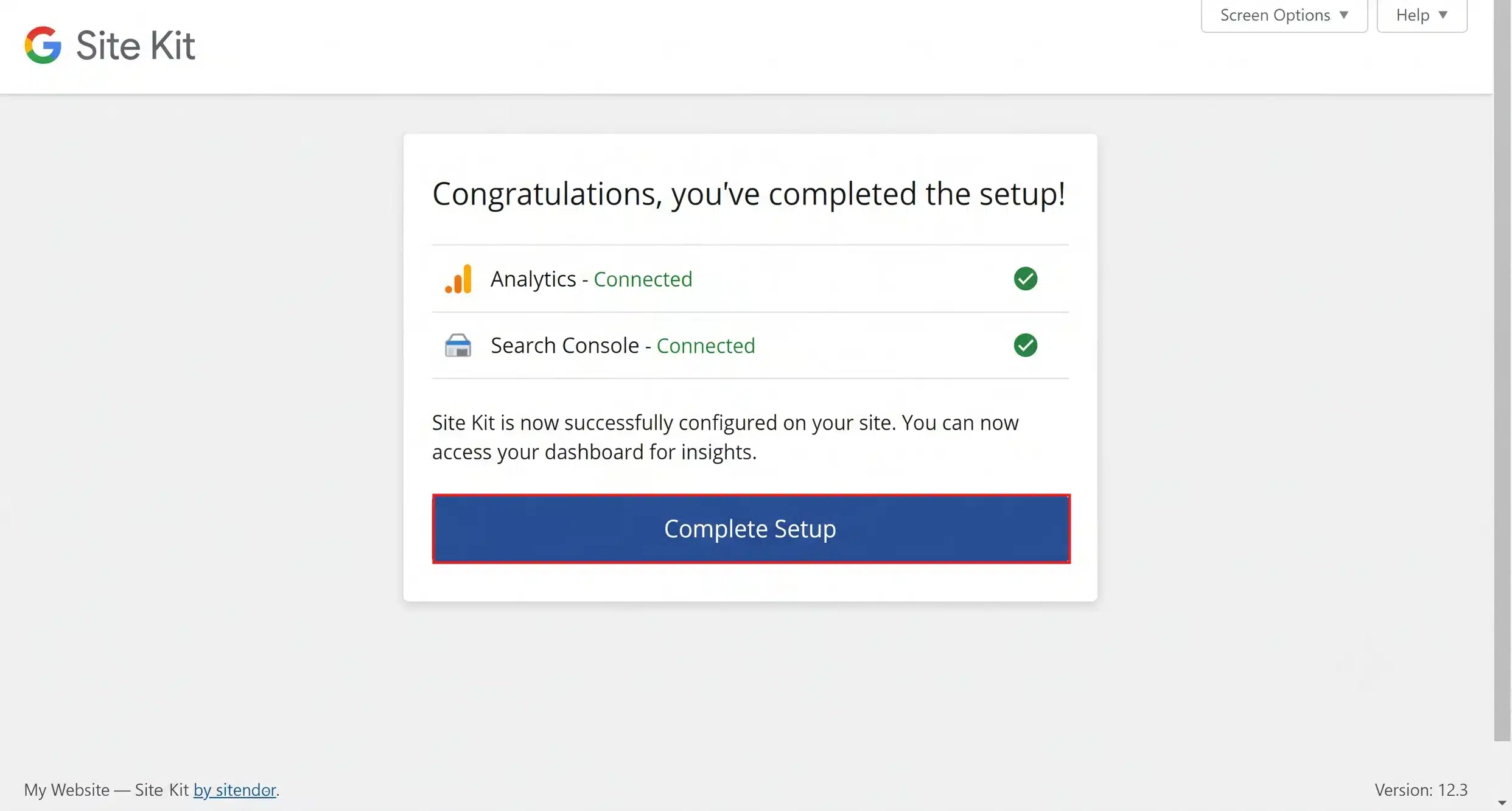
That’s the whole connection. Site Kit inserts the tracking code on every page automatically. You never have to touch a theme file.
Step 5: Confirm Google Analytics Is Tracking Correctly
You’ve added Google Analytics on WordPress. Now confirm it’s working before you walk away.
- Open your Google Analytics dashboard.
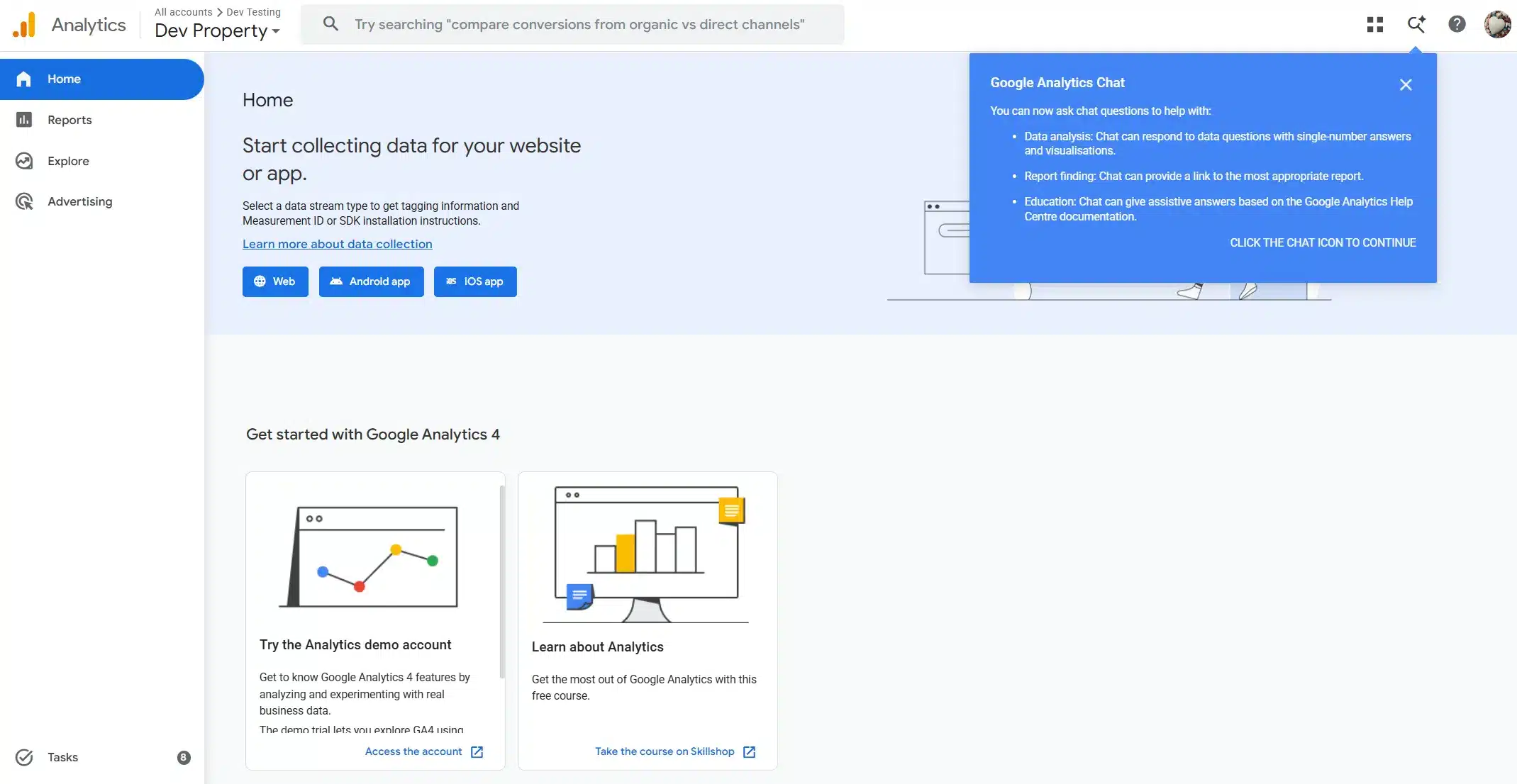
- Click Reports in the left sidebar.
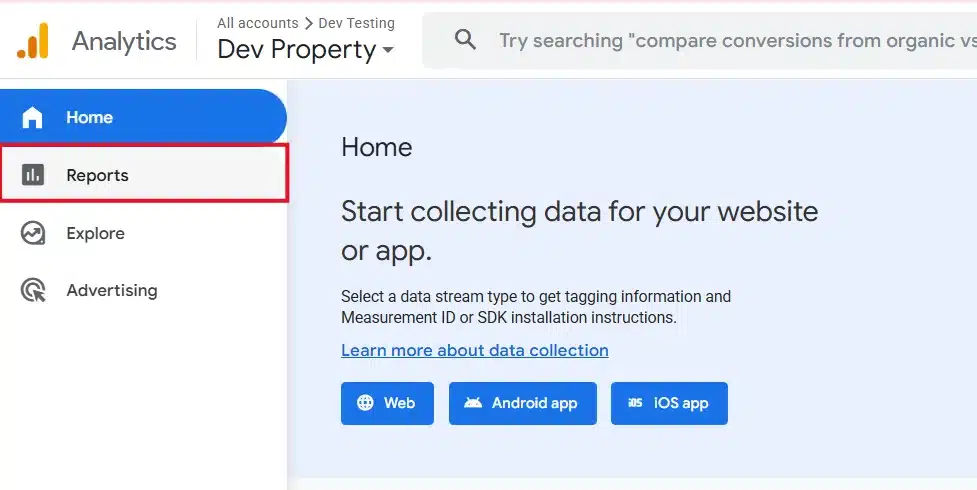
- Visit your live website in a separate tab. Watch the Realtime report. Your visit should appear within 30 seconds.
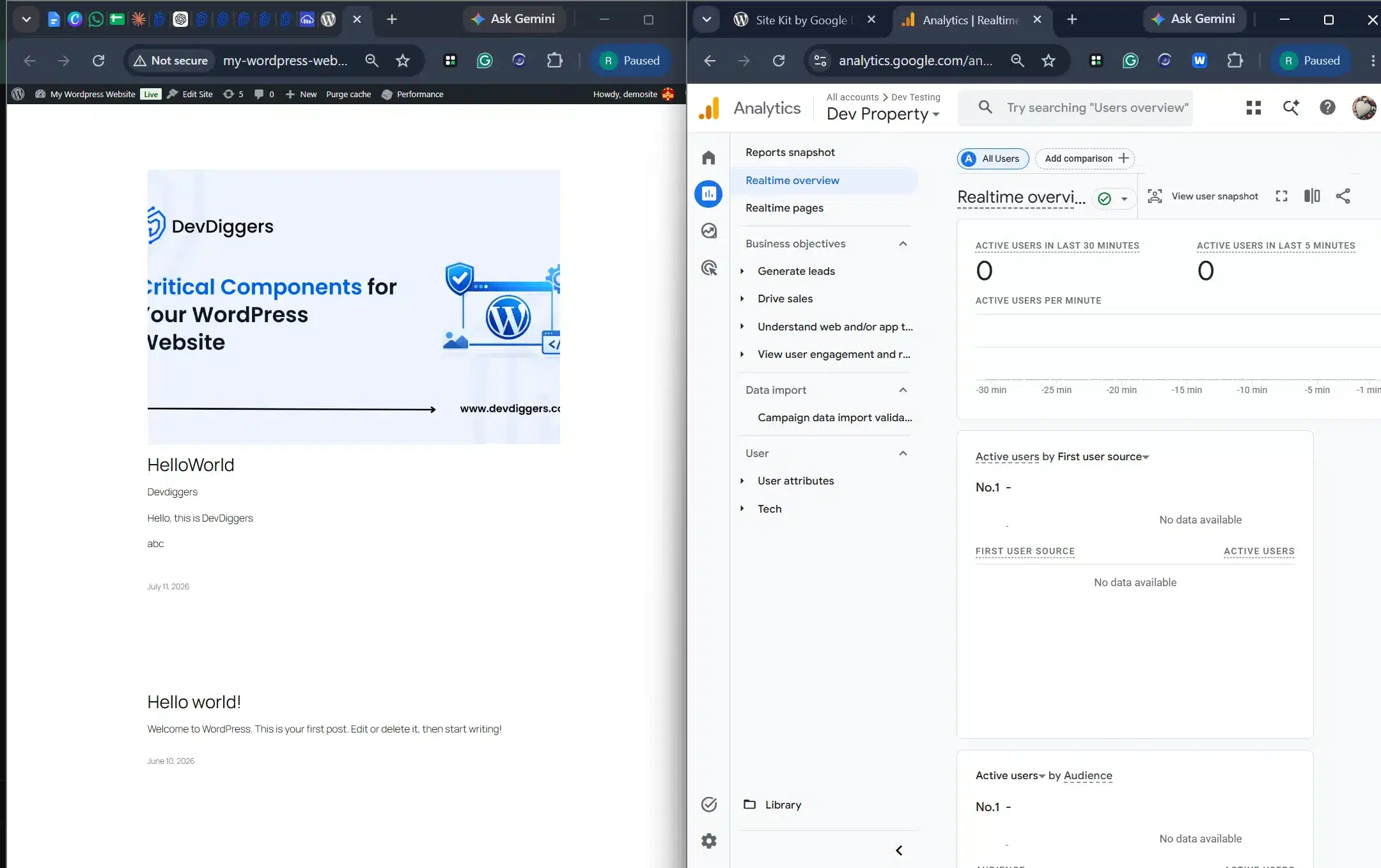
If you see yourself listed as an active user, the setup worked. Full past reports can take 24-48 hours to start populating. Don’t panic if the main dashboard looks empty at first.
Common Problems When You Add Google Analytics on WordPress
A clean setup can still hit a few small problems when you add Google Analytics on WordPress. Most come down to the wrong property, double tracking or a blocked test visit. Here are the common ones and the fix for each.
- No data showing up after a day: Double-check you selected the correct property. It’s an easy mix-up if you manage more than one site.
- Numbers look too high: This often means double tracking. Check whether a plugin and pasted code both send data, and keep only one method.
- Realtime report shows nothing: Ad blockers on your own browser can hide your test visit. Try an incognito window with extensions disabled.
- Data stopped after a theme update: This happens when the tag was pasted into a parent theme file. Move it to a child theme (Method 2) or a plugin like Site Kit so updates can’t touch your tracking code.
What to Track Once Setup Is Done
Once Google Analytics is installed, track a few numbers every week. Top pages, bounce rate by page and key events tell you more than total visits on their own. Start small and add reports only when you have a question to answer.
Start with three habits:
- Top pages each week: Find out which content holds attention and write more like it.
- Bounce rate by page: Compare pages with each other. A high bounce rate on your homepage means something different from one on a blog post.
- Simple key events: Track form submissions or button clicks. You then measure actions as well as visits.
If your site runs on WooCommerce, purchase tracking needs one more plugin. The next section covers it.
Method 2: Paste the Google Tag Yourself
You can add Google Analytics on WordPress without Site Kit by pasting the Google tag yourself. Google says the tag goes right after the opening head tag on every page. A header plugin or a child theme puts it there and keeps it safe from theme updates.
The snippet comes from Google’s Google tag install guide. Replace both TAG_ID values with your G- Measurement ID.
Use a Header and Footer Plugin
The free WPCode plugin adds code to the site header. You do not edit any theme file. Follow these steps:
- Install and activate WPCode from Plugins > Add Plugin.
- Open Code Snippets > Header & Footer.
- Paste the full Google tag into the Header box.
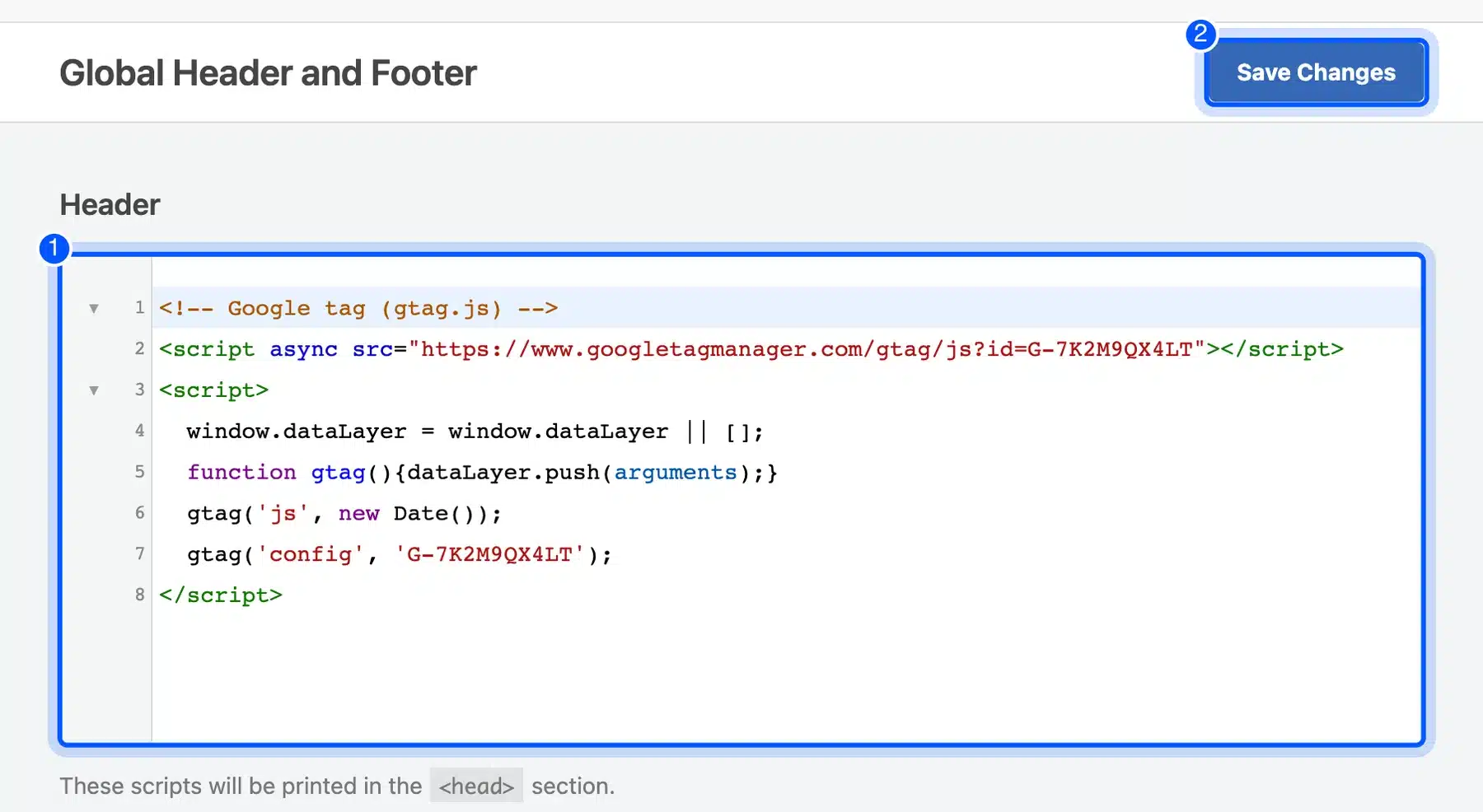
- Click Save Changes and check the Realtime report.
Use a Child Theme
Developers can print the tag from a child theme instead. This code goes in the child theme’s functions.php file and escapes the ID before output:
<?php
// Child theme functions.php: print the Google tag on every front-end page.
add_action( 'wp_head', function () {
	$ga_id = 'G-XXXXXXXXXX'; // Replace with your Measurement ID.
	?>
	<!-- Google tag (gtag.js) -->
	<script async src="https://www.googletagmanager.com/gtag/js?id=<?php echo esc_attr( $ga_id ); ?>"></script>
	<script>
		window.dataLayer = window.dataLayer || [];
		function gtag(){dataLayer.push(arguments);}
		gtag('js', new Date());
		gtag('config', '<?php echo esc_js( $ga_id ); ?>');
	</script>
	<?php
}, 1 );
Never paste the tag into the parent theme’s header.php file. The next theme update deletes it, and tracking stops without warning.
Method 3: Use Google Tag Manager
Google Tag Manager suits sites that run several tags. Common examples are Google Analytics, Google Ads and a Meta pixel. You add the Tag Manager container to WordPress once. Then you add a Google tag with your Measurement ID inside Tag Manager.
We cover the full setup in our guide on how to install Google Tag Manager in WordPress. Use Tag Manager or Site Kit or a pasted tag, never two at once.
How to Track WooCommerce Purchases in GA4
The basic Google tag counts visits but does not send WooCommerce orders to GA4 as purchases. The free Google Analytics for WooCommerce plugin from WooCommerce adds the ecommerce events. As of October 2026 it is on version 2.4.3 with more than 100,000 active installs.
Its listing names events such as view_item, add_to_cart and purchase. Set it up in a few steps:
- Install and activate Google Analytics for WooCommerce.
- Go to WooCommerce > Settings > Integration.
- Paste your G- Measurement ID and save.
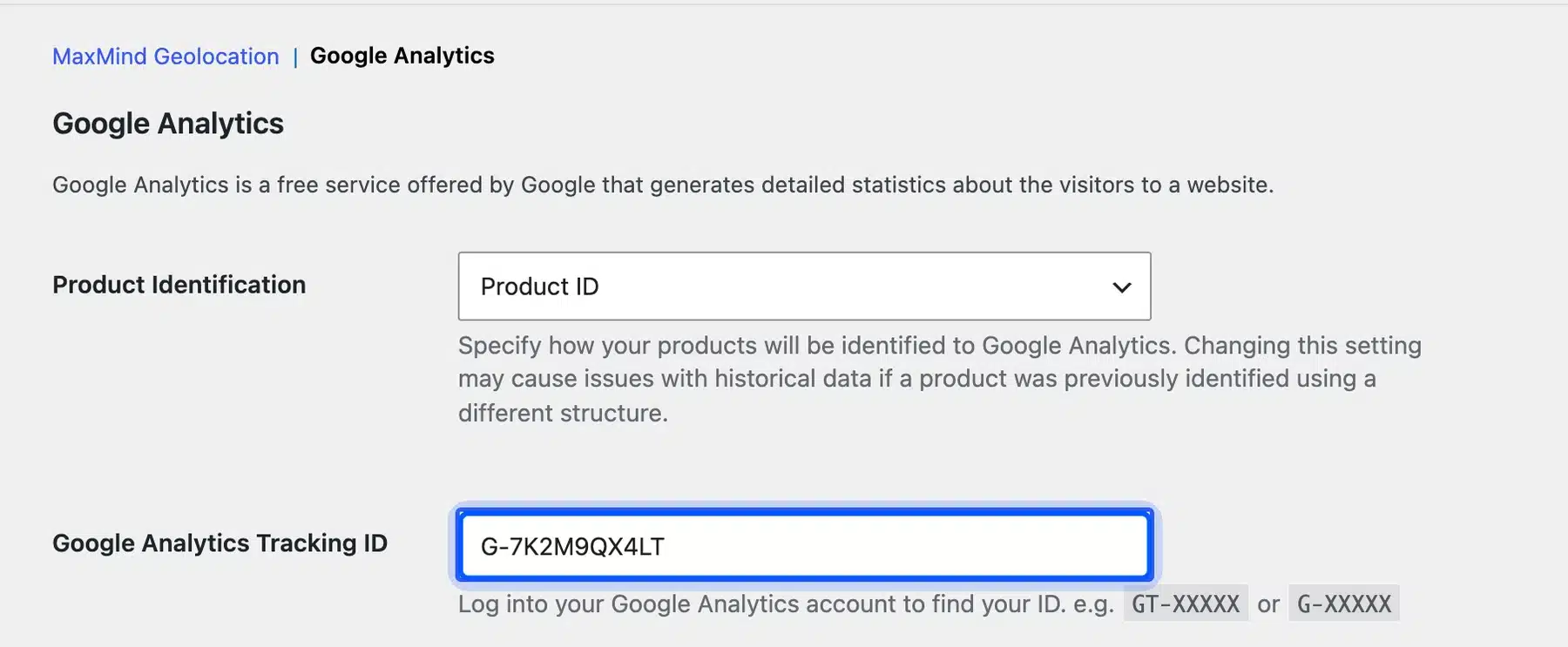
- Place a test order and look for the purchase event in the GA4 Realtime report.
If Site Kit already prints the Google tag, check that the page does not load the tag twice. Double tags count every purchase twice.
Do You Need Consent Mode for EU Visitors?
Google’s consent mode lets your site control data collection based on what each visitor agrees to. Version 2 uses four settings: ad_storage, analytics_storage, ad_user_data and ad_personalization. Sites with visitors from the EU should set it up with a consent banner.
Site Kit does not show the banner itself. Its plugin page says site owners are responsible for notice and consent. A consent plugin shows the banner and passes the choice to Google tags.
Conclusion
You now know how to add Google Analytics on WordPress, from the account to your first tracked visit. Site Kit covers most sites. A pasted tag or Google Tag Manager suits sites that need more control.
Give it 48 hours. Then come back and look at your first full report. That is when the setup starts paying off. You will see which pages your visitors care about most.
Frequently Asked Questions (FAQs)
Q1. Is Google Analytics free to use on WordPress?
Yes. The standard version of Google Analytics is free. Google sells a paid version called Analytics 360 for large companies.
Q2. Will adding Google Analytics slow down my WordPress site?
Only a little. The Google tag loads with the async attribute, per Google’s install guide. It does not block the rest of your page from rendering.
Q3. Can I use more than one Google Analytics plugin at once?
No. Two tracking methods at the same time count every visit twice. Pick one method and stick with it.
Q4. How long does it take for Google Analytics to show data after setup?
Realtime data appears within seconds of your visit. Standard reports such as traffic sources and page views usually take 24 to 48 hours to fill.
Q5. Do I need coding skills to add Google Analytics on WordPress?
No. Site Kit covers the whole setup through point-and-click screens. Code is only needed for the child theme method.
Q6. What is a Measurement ID in Google Analytics?
It is the unique code starting with G- that tells Google Analytics which property your data belongs to. You paste it into the plugin or code that connects your site.
Q7. Can I track a WooCommerce store with Google Analytics?
Yes. The basic tag does not capture purchases and cart data. Add the free Google Analytics for WooCommerce plugin to send ecommerce events to GA4.
Q8. What’s the difference between Google Analytics and Google Search Console?
Google Analytics shows what visitors do on your site, such as which pages they view and how long they stay. Google Search Console shows how your site performs in Google search results before someone clicks.
Q9. Can I add Google Analytics to a WordPress.com site?
Yes, on the Premium, Business and Commerce plans as of October 2026. Paste your Measurement ID into Jetpack > Traffic, per the WordPress.com support guide.
Q10. How do I remove Google Analytics from WordPress if I no longer need it?
If you used Site Kit, deactivate and delete it from your Plugins page. If you used WPCode, delete the tag from Code Snippets > Header & Footer and save.