How to do a website audit comes down to eight checks run in a fixed order. You crawl the site, confirm indexation, measure speed and review security, then check SEO, content and usability. A small WordPress site takes one afternoon with free tools, and the result is a ranked list of fixes.
We ran this exact audit in October 2026 on our WordPress 7.1.3 test site with WooCommerce 11.2, wget, Lighthouse 12.8.2 and Site Health. Before starting, we planted a few known problems to see which tool would catch each one. Every tool found its problem, and the audit also surfaced several issues we had not planted.
Below you get a plain definition of a website audit and the six areas it covers. Then come the eight steps with real screens, a website auditing checklist you can copy, and advice on how often to repeat it.
What Is a Website Audit?
A website audit is a structured check of a site’s health across crawling, indexing, speed, security, SEO, content and usability. Each check produces a list of problems with the page or setting behind them. The output is a prioritized fix list, so you spend time on issues that hurt visitors and search traffic first.
An audit differs from a quick speed test. A speed test grades one page on one day, while an audit looks at every page and every system that serves them.
These are the six areas we check, with a free tool for each one:
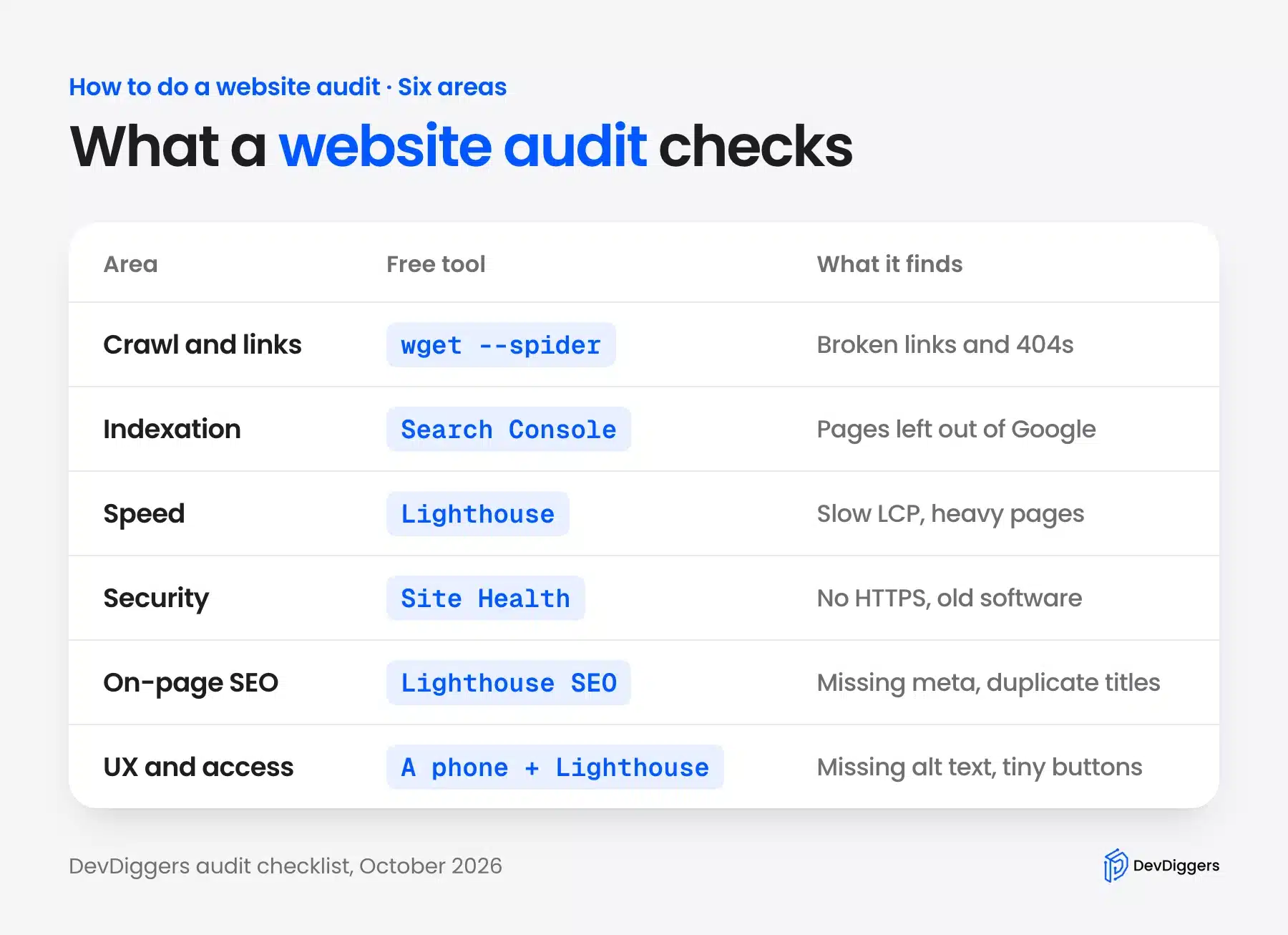
The order matters. A crawl comes first because broken links and blocked pages make every later check less reliable. Security sits in the middle because an infected site can serve spam that ruins the SEO findings.
If you are wondering how to perform a website audit without paid software, these six free tools cover it.
Most sites need all six areas checked at least once a year. A site that never had a full audit usually hides a few years of small problems. Think of deleted pages still linked in old posts, or plugins nobody remembers installing.
How to Do a Website Audit
How to do a website audit well comes down to order: scope, crawl, indexation, speed and security first. Then come on-page SEO and content, usability and accessibility, and a ranked fix list. Each step below shows the tool and the screen we used on our test site.
So how do you audit a website you run yourself? You need admin access to the site, a terminal for two short commands, and Google Chrome. Search Console access helps for step 3, but the rest works without it.
Step 1: Set the Goal and Scope
Start with the symptom that made you want an audit, because it decides where to dig first. A traffic drop points to indexation and SEO, slow pages point to speed, and visits with no sales point to usability and content. A planned redesign needs everything, plus a redirect map.
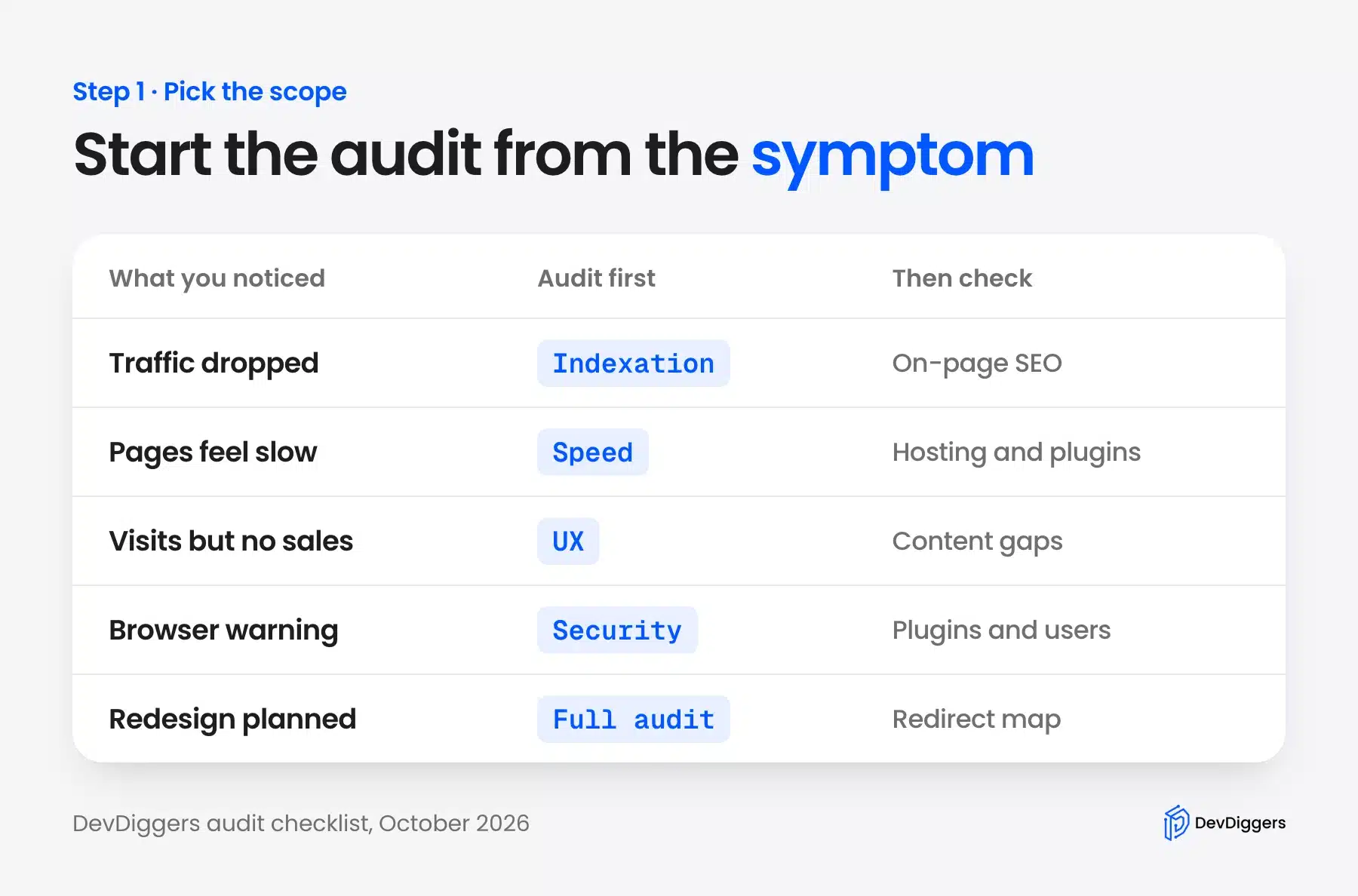
Write the scope down in one sentence before you open a tool. “Find why product pages lost traffic since June” keeps you focused, while “check the whole site” invites three days of reports nobody reads.
Also list what you can change. If the hosting, theme or checkout belongs to another team, note it now. Those findings go to them as a report rather than onto your own fix list.
Step 2: Crawl the Site for Broken Links
A crawl visits every page the way a search engine bot would and records each response. It is how you find broken links, redirect chains and pages nobody links to. Paid crawlers add reports, but the free wget command does the core job from any Mac or Linux terminal.
On our test site, we pointed wget in spider mode at the home page. It checks links without saving pages, and it follows links four levels deep. We skipped admin, login, feed and cart URLs, since those are not pages a visitor reads.
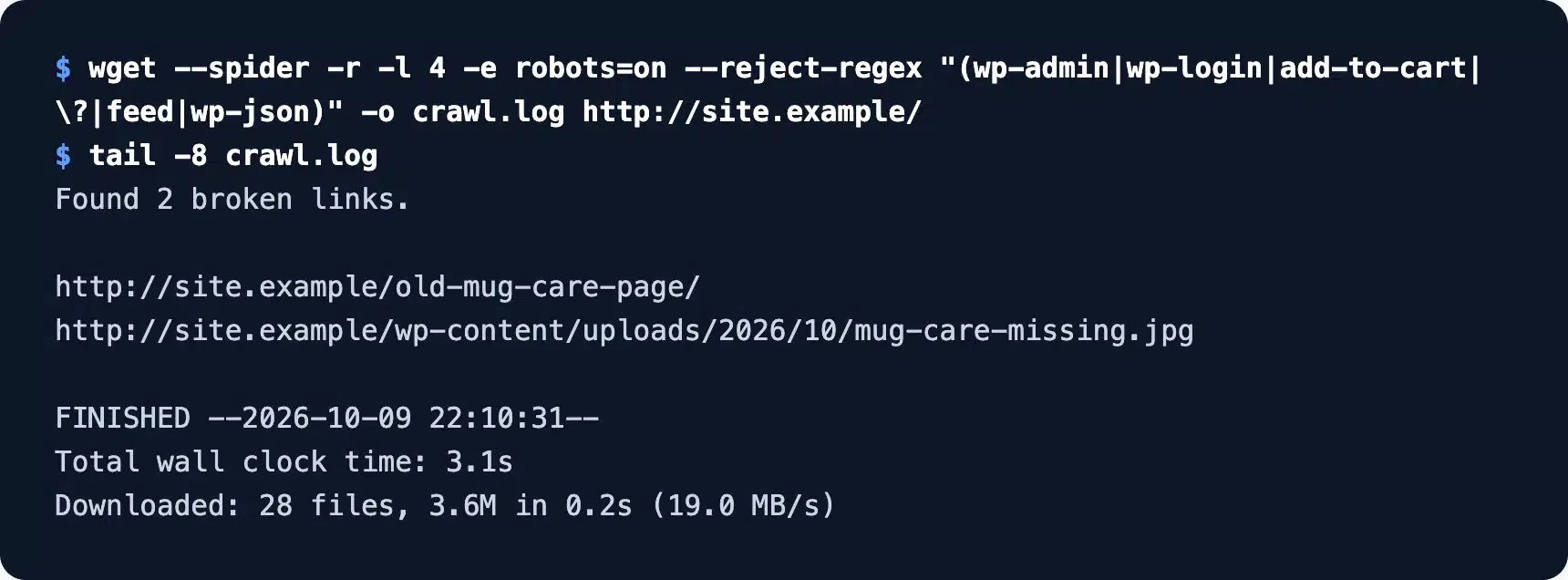
The crawl took 3.1 seconds and finished with “Found 2 broken links”. Both were the ones we planted: a link to a deleted page and an image file that no longer existed.
On a real site, fix each broken link at its source or add a 301 redirect to the closest live page. A large site needs a dedicated crawler for redirect chains and orphan pages, but this command answers the first question in minutes.
Step 3: Check Indexation and the Sitemap
Indexation means Google has stored a page and can show it in results. Check two things: that the pages you want found are in your sitemap and allowed, and that pages you do not want found stay out. One wrong checkbox can hide a whole site from search.
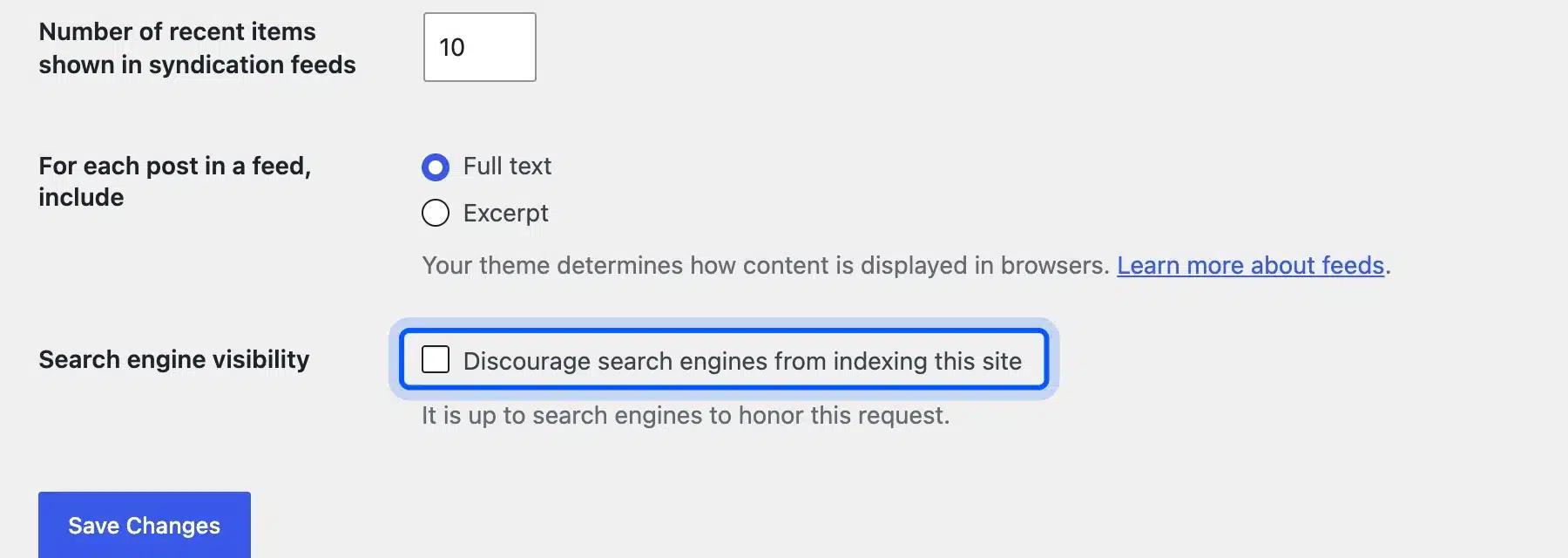
First, open Settings, Reading in WordPress and confirm “Discourage search engines from indexing this site” is unticked. Staging copies often go live with this box still ticked, and the site then disappears from Google over the following weeks.
Next, open the sitemap at /wp-sitemap.xml. Google’s sitemap guide says to include the URLs “that you want to see in Google’s search results”. Our test site’s core sitemap listed 26 URLs, including the cart, checkout and my account pages.
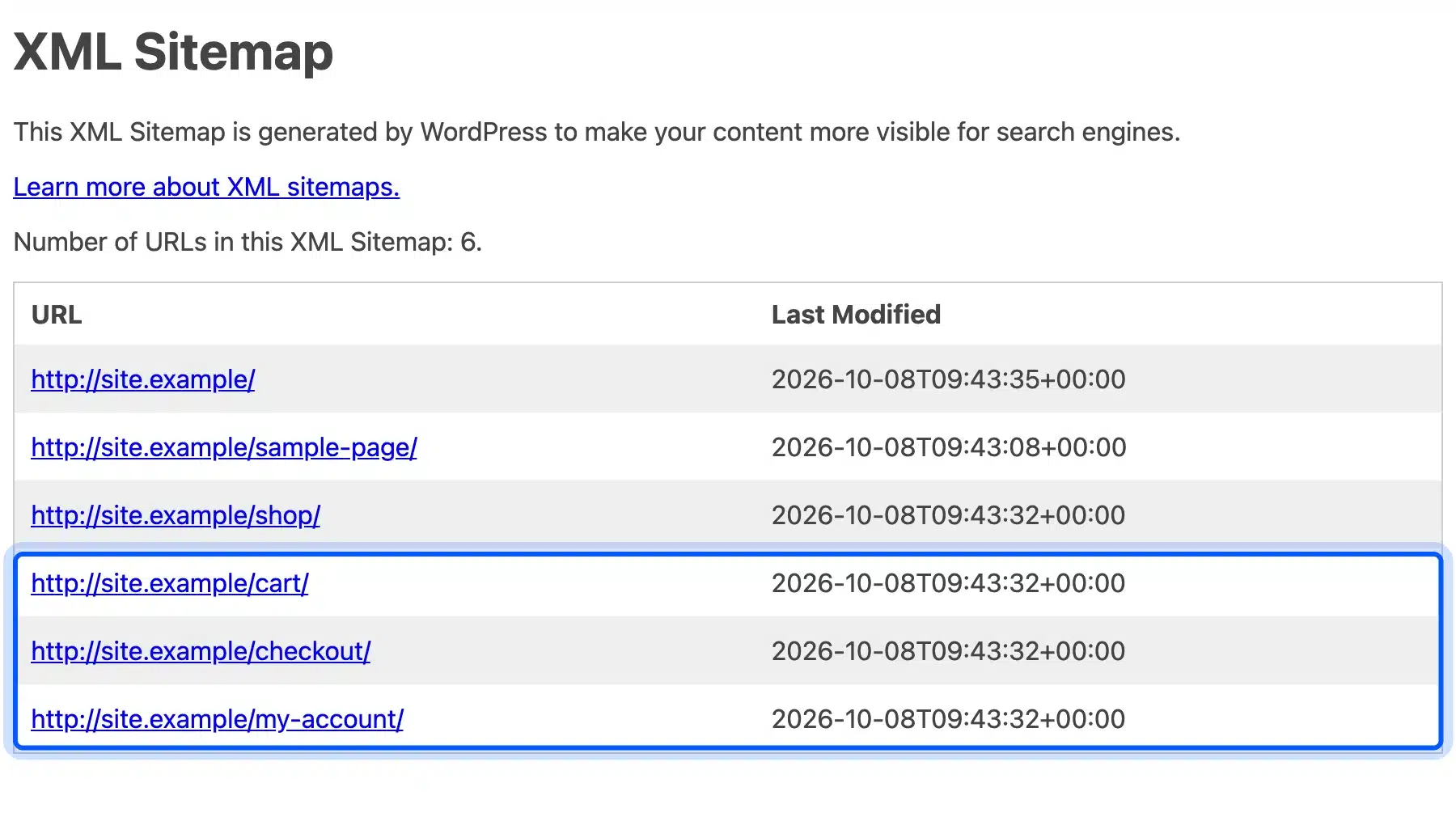
Those three pages carried a noindex tag, and the checkout URL redirected to the cart when the cart was empty. Listing them sends search engines mixed signals, so exclude them with your SEO plugin’s sitemap settings.
Chrome also showed a notice above the styled sitemap saying XSLT support is being removed from the browser. The XML underneath still works for search engines, so treat that notice as a display issue only.
Finally, Search Console’s Page indexing report shows which URLs Google indexed and why others were left out. Google’s Page indexing help also warns: “Don’t expect every URL on your site to be indexed.”
Step 4: Measure Speed and Core Web Vitals
Speed checks tell you how fast real pages load and respond. Run Lighthouse or PageSpeed Insights on your home page, a key landing page and your heaviest template. Compare the results with Google’s Core Web Vitals targets rather than chasing a perfect score.
Google’s Web Vitals guide sets the targets: LCP within 2.5 seconds, INP of 200 milliseconds or less, and CLS of 0.1 or less. Those are measured at the 75th percentile of real visits, which is the field data PageSpeed Insights shows for busy sites.
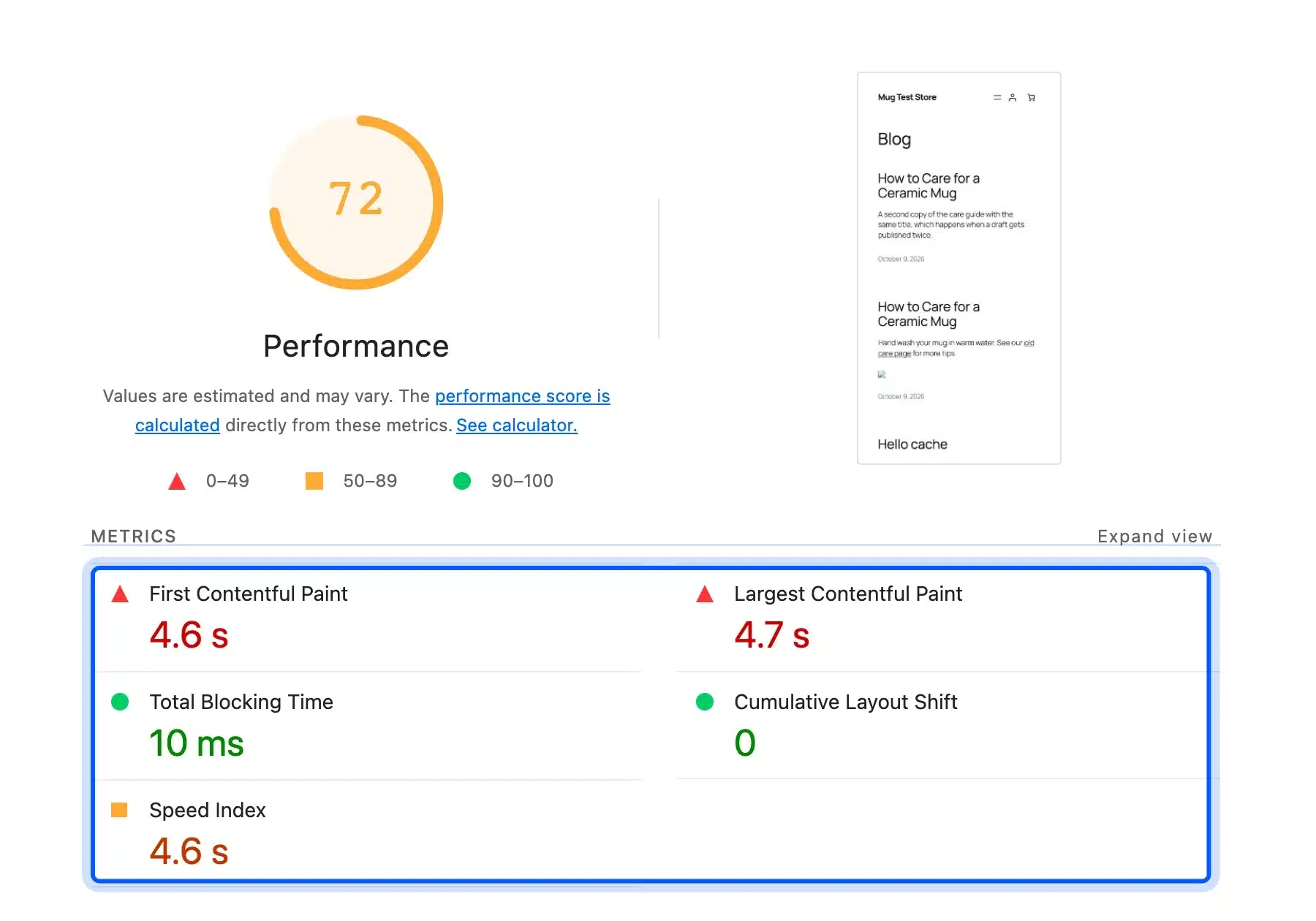
Our home page scored 72 in Lighthouse’s mobile mode, with an LCP of 4.7 seconds and zero layout shift. Lighthouse also warned that the CPU running the test was slower than it expects, so treat that number as a baseline for later runs.
Run each page three times and keep the median, because one run can swing several points. Lighthouse runs from Chrome DevTools, the command line or PageSpeed Insights. Our guide on fixing slow website loading covers what to do with a failing result.
Step 5: Review Security and Site Health
A security check confirms the site runs on HTTPS, uses current software and gives attackers as little information as possible. In WordPress, start at Tools, Site Health, which runs dozens of tests in one click. Then read the site’s response headers from a terminal.
On our test site, Site Health reported 2 critical issues and 6 recommended improvements. The critical pair was “WooCommerce store is not using a secure connection” and a shipping setup with no methods configured. The Site Health documentation explains each test and where it comes from.
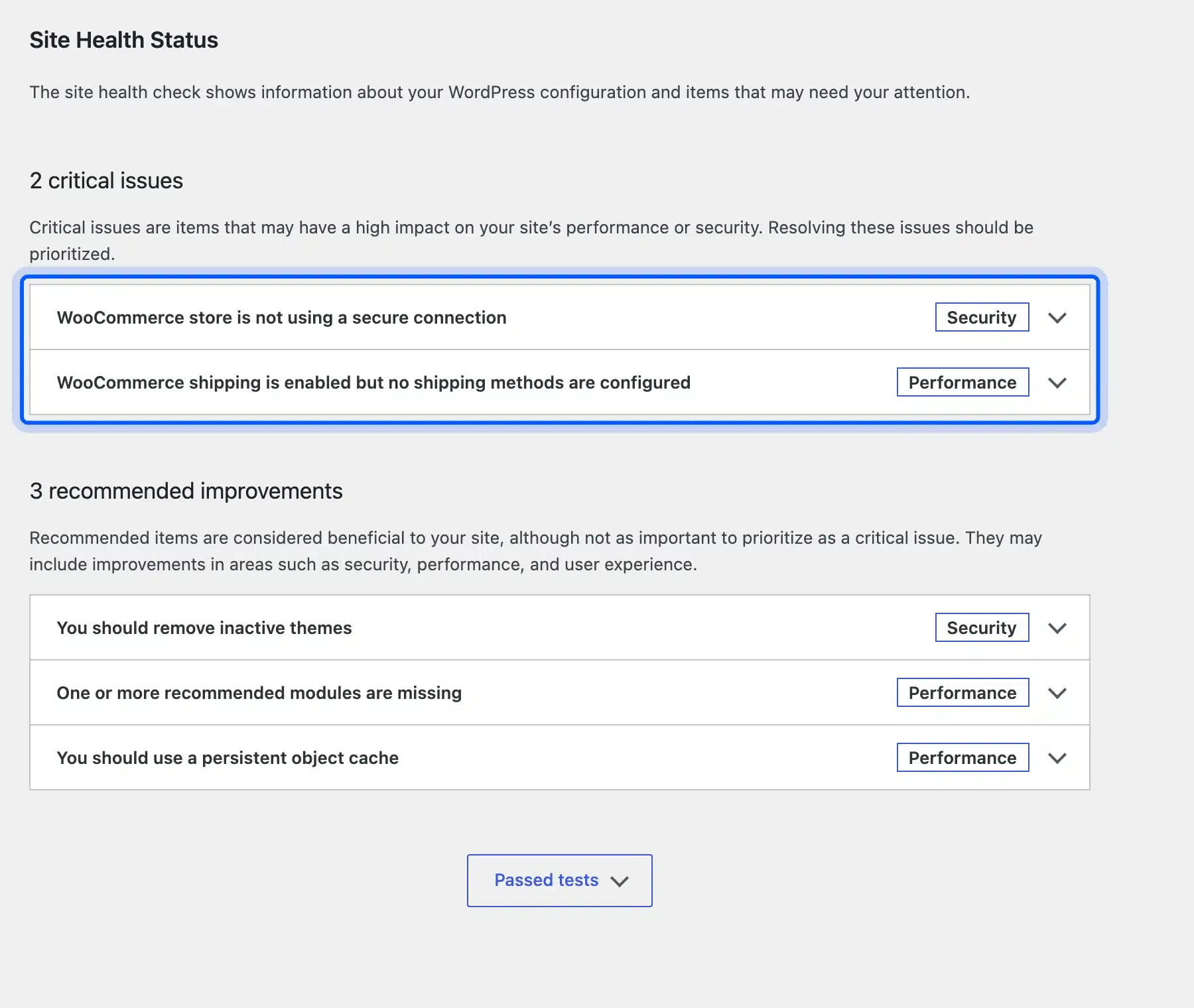
The recommended list added an inactive theme to remove, no persistent object cache and no HTTPS. Background updates also might not be working properly. That matters, because security fixes reach WordPress sites through those updates.
Next, we read the home page’s headers with curl -sI. The reply exposed the exact server and PHP versions and sent none of the common security headers.
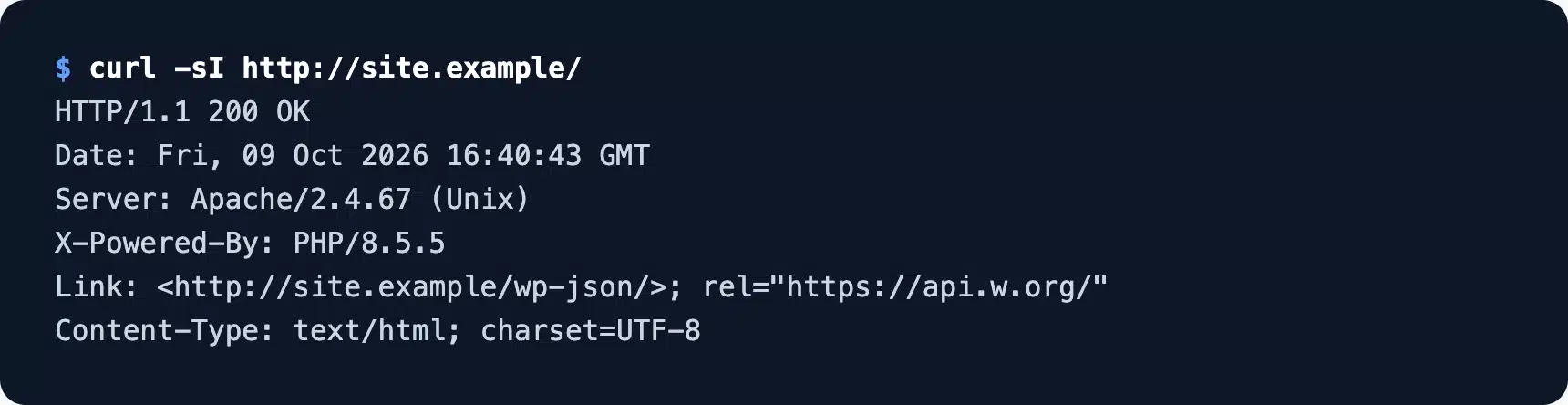
Version numbers help attackers match known exploits, so hide them in the server config. The WordPress hardening guide and our WordPress security checklist cover the remaining fixes.
Step 6: Audit On-Page SEO and Content
An on-page check looks at the elements each page sends to search engines: titles, meta descriptions, headings, image alt text and internal links. A content audit then asks whether each page still deserves to exist. Together they show what to fix, merge, update or delete.
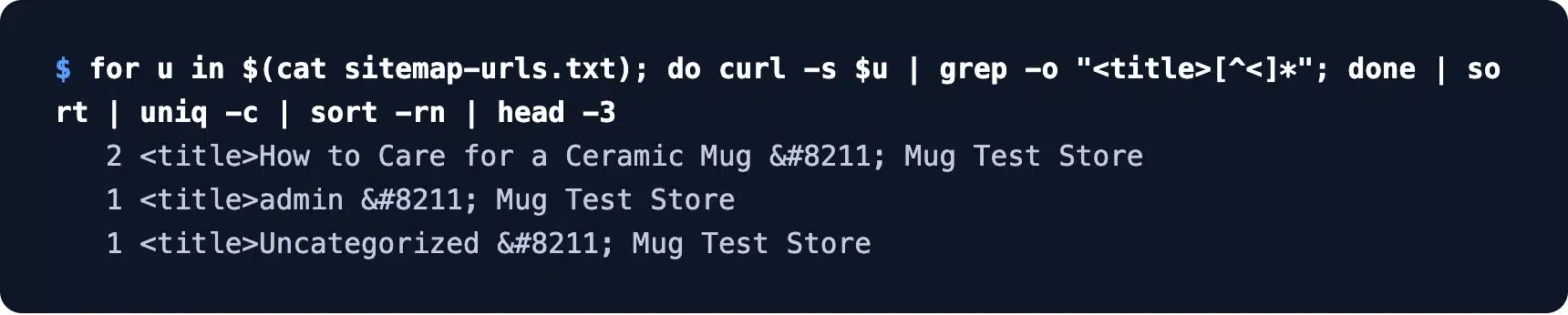
Start with titles, because two pages with the same title compete for the same search. We fetched every URL from the sitemap and counted title tags with one shell loop. “How to Care for a Ceramic Mug” appeared twice, from the duplicate post we had planted.
Then read Lighthouse’s SEO category for each key template. Our home page scored 83 and failed two checks: no meta description and an image with no alt attribute.
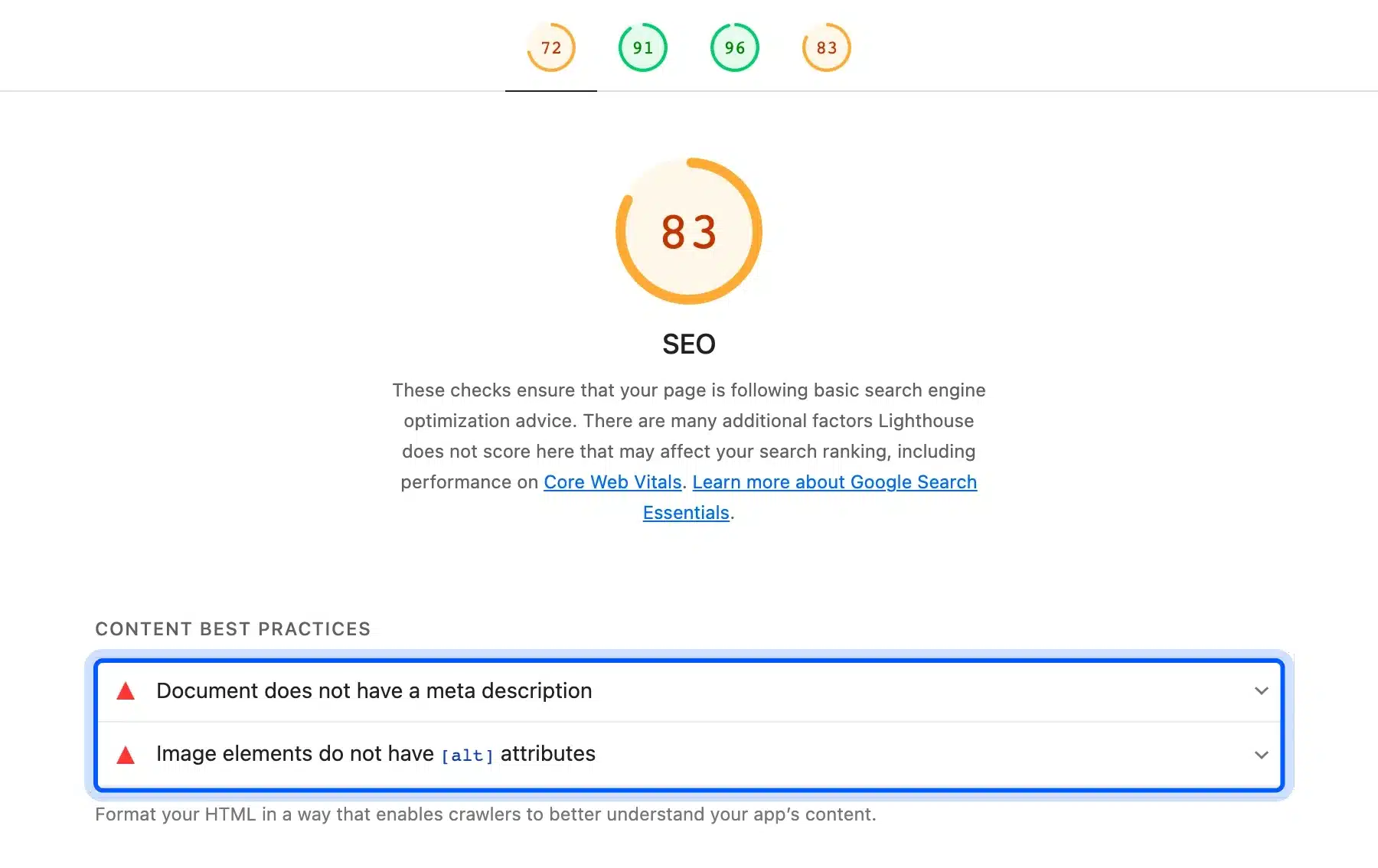
Google’s snippet guide says it “will sometimes use the” meta description to build a search snippet, so write one for every important page. Our guide to removing duplicate title tags in WordPress covers the title side.
For a website content audit, export every URL with its traffic, last update date and target keyword into a sheet. Mark each row keep, update, merge or delete, and look for content gaps where buyers ask questions no page answers. Pages that lose traffic year over year are the first ones to check, and our guide to content decay shows how to spot them.
Step 7: Test Usability and Accessibility
A usability check asks whether a real visitor can find what they need and act on it, on a phone as well as a laptop. Accessibility checks whether people using screen readers or keyboards can do the same. Both decide whether a visit turns into a lead or a sale.
Lighthouse’s accessibility category is the quickest automated start. Our home page scored 91 and failed two checks: an image with no alt attribute and focusable elements hidden from screen readers.
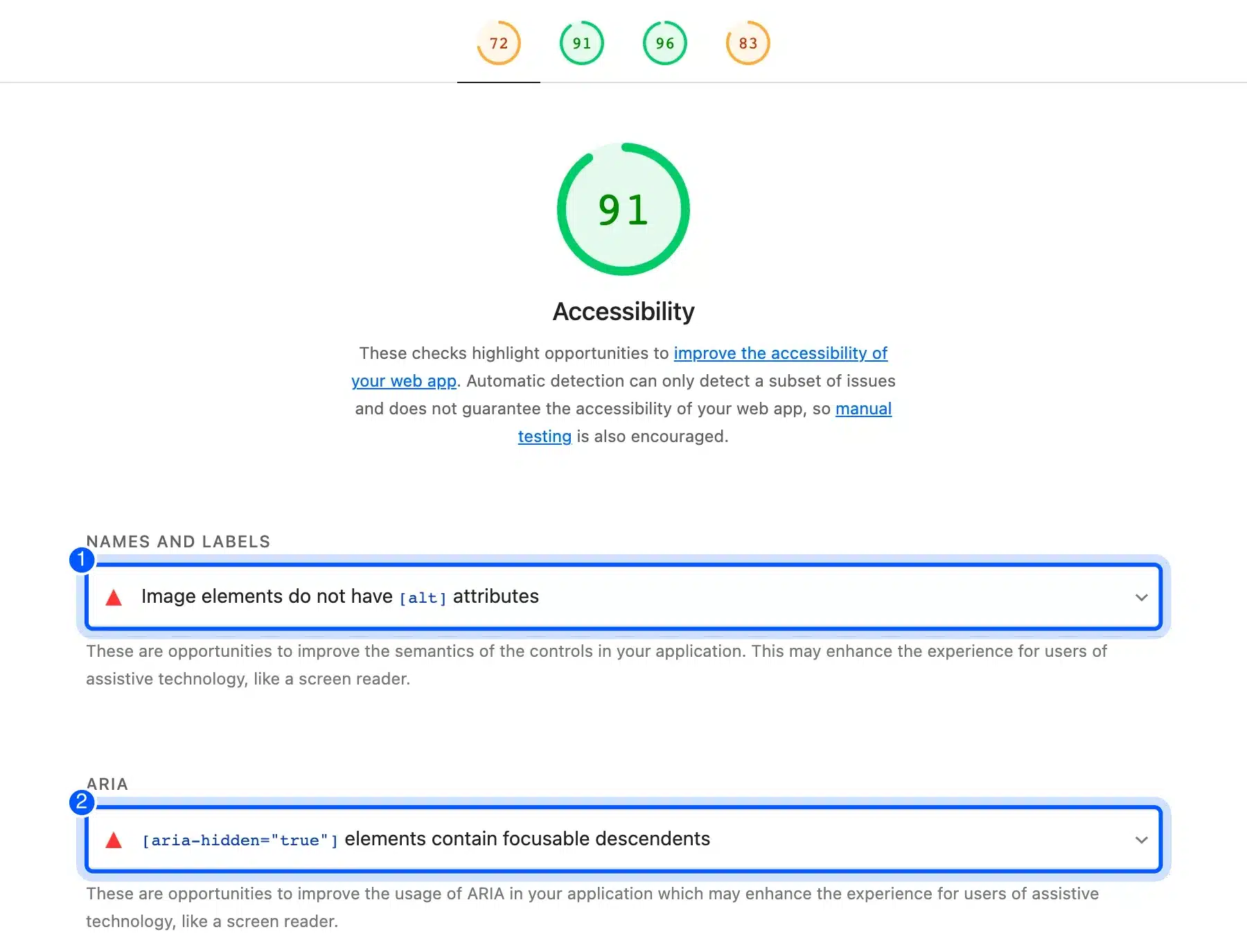
Automated tools miss most of what matters here, and Lighthouse says so on the report itself. So walk the main journey by hand: home, a category, a product or service page, and the contact or checkout form.
Do that walk once with a phone and once with only the keyboard. Note every button that is hard to tap, every label that is unclear, and every place the Tab key skips or gets stuck.
The WCAG standards are the reference for accessibility fixes. Our step-by-step web accessibility audit guide goes deeper than this single step.
Step 8: Prioritize the Fixes and Write the Report
The last step turns findings into an ordered plan. Rank each issue by its impact on visitors or search and the effort to fix it. Then fix the high impact, low effort items first, and give every item an owner and a date.
Here is how our test site’s findings ranked:
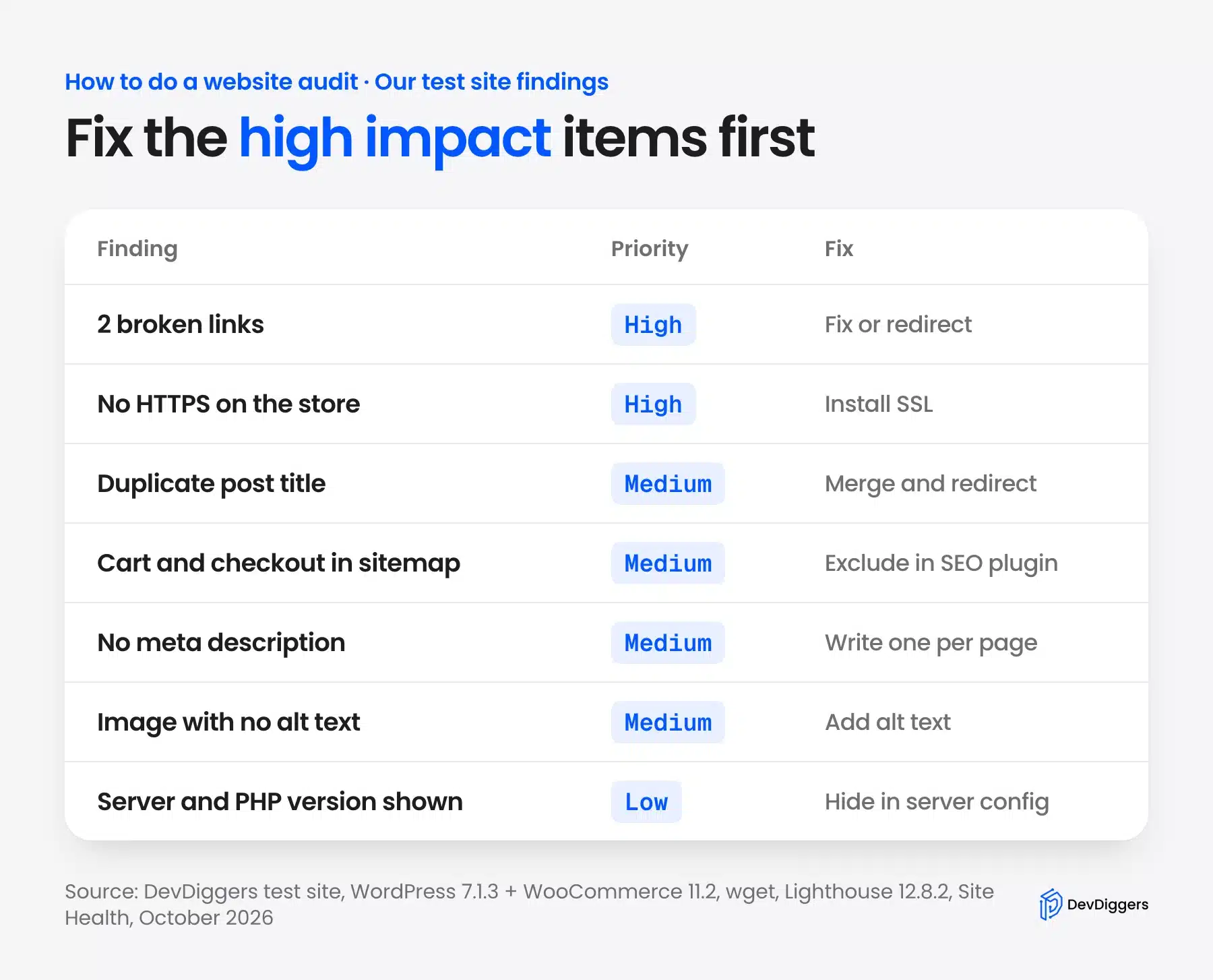
Broken links and the missing HTTPS sit at the top because they hurt every visitor and take minutes to fix. Exposed version numbers sit at the bottom, still worth doing, but no visitor will notice.
Keep the report short. One page with the scope, the top ten fixes and the tool results attached gets read and acted on. A 60 page export usually does not.
Tip: Save the raw outputs from each tool with the date. Next time, you compare two reports instead of starting from zero.
Website Auditing Checklist
A website auditing checklist turns the eight steps into boxes you can tick on every audit. Copy it into a sheet, add a column for the result and a column for the owner. Run the same list every time so the results stay comparable between audits.
These are the checks, in the same order as the steps above:
- Crawl: Zero broken internal links and no redirect chains longer than one hop.
- Search visibility: The “Discourage search engines” box is unticked on the live site.
- Sitemap: Lists only pages you want in search and holds no noindex or redirecting URLs.
- Indexation: Search Console’s Page indexing report shows your key pages as indexed.
- Speed: Key templates meet Core Web Vitals targets in field data, or Lighthouse shows a clear path to them.
- HTTPS: Every page loads over HTTPS with no mixed content warnings.
- Software: WordPress, plugins and themes are current, and unused ones are deleted.
- Headers: Server and PHP versions are hidden from response headers.
- Titles and meta: Every important page has a unique title and a written meta description.
- Images: Every content image has descriptive alt text.
- Content: Each page is marked keep, update, merge or delete.
- Usability: The main journey works on a phone and with a keyboard alone.
Note: A tick means you checked an item, and it says nothing about whether the item passed. Write the result next to each box, even when it passes.
How Often Should You Audit a Website?
Run a full website audit once a year and a short check every quarter. Also audit after any big change: a redesign, a host move, a new theme or a large plugin. Changes like those break links, redirects and settings far more often than time alone does.
The quarterly check covers steps 2, 3 and 5: a crawl, a look at the Page indexing report, and Site Health. It takes under an hour on a small site.
Busy stores and sites that publish weekly need the crawl monthly. Every new post adds links, and every deleted product leaves a few behind.
When an Audit Becomes Ongoing Maintenance
An audit tells you what is wrong today, and maintenance keeps it from coming back. Updates, backups, uptime checks and monthly crawls are the routine that stops the same findings from returning next year. Many site owners do the first audit themselves and hand the routine to someone else.
If that routine is not getting done, our WordPress maintenance services cover updates, backups, security checks and fixes each month. For findings that sit mainly in search, our WordPress SEO services handle the indexing, titles and content work.
Conclusion
Knowing how to do a website audit gives you a repeatable way to find problems before visitors and search engines do. Work in order: scope, crawl, indexation, speed, security, on-page SEO and content, usability, then priorities.
Free tools cover the whole job on a small site. On our test site, wget found both broken links and Lighthouse caught the missing alt text and meta description. Site Health and one curl command flagged the missing HTTPS and the exposed server versions.
Fix the high impact items first, write the results down, and run the same checklist again next quarter.
Frequently Asked Questions (FAQs)
Q1. What is a website audit in SEO?
A website audit in SEO is the part of an audit that checks how well search engines can crawl, index and understand your pages. It covers broken links, sitemaps, indexation, titles, meta descriptions, headings and internal links. The goal is to remove anything that stops good pages from ranking.
Q2. How long does a website audit take?
A small WordPress site with under 100 pages takes about an afternoon with the free tools in this guide. Larger sites take days, mostly because the content review grows with every page. The quarterly check of crawl, indexation and Site Health takes under an hour.
Q3. Can I do a website audit for free?
Yes, every step in this guide uses free tools. wget, Lighthouse, PageSpeed Insights, Search Console and WordPress Site Health cost nothing. Paid crawlers save time on large sites, but they are not required to start.
Q4. What is the difference between a website audit and an SEO audit?
An SEO audit looks only at search visibility, such as crawling, indexing, titles and content. A website audit includes that and adds speed, security, accessibility and usability. Run the full website audit when you want the whole picture, and an SEO audit when traffic is the only concern.
Q5. Can I audit a website without admin access?
You can run the crawl, Lighthouse, PageSpeed Insights and header checks on any public site. Site Health, the Reading settings and plugin versions need a WordPress login, and Search Console needs a verified property. So an outside audit is possible, but it misses the admin side.
Q6. Does a website audit improve rankings by itself?
No, the audit only finds problems. Rankings change when you fix what it found, such as broken links, blocked pages, slow templates or thin content. That is why the last step, ranking and assigning fixes, matters more than the reports.