


Content decay identification means spotting pages that lose clicks, impressions or position slowly over months, long before the traffic is gone. You find them by comparing two date ranges in Google Search Console, sorting pages by lost clicks, and reading the queries behind each drop.
I ran every check in this guide in October 2026 on devdiggers.com’s own Search Console data, covering October 2025 to September 2026. One of our posts went from 84 clicks a quarter to 5, and the data shows exactly which queries it lost.
You get a definition, a four-step method to identify content decay, and the three SEO content decay patterns behind most drops. After that come the word patterns that age a page, the false alarms to rule out, and the fix list we use.
What Is Content Decay?
Content decay is the gradual loss of search traffic on a page that once performed well. Clicks, impressions and average position slide over months as newer pages outrank it, facts go stale, or searches change. It differs from a penalty because nothing breaks: the page just stops being the best answer.
Here is a real case from our own site. Our post on what index.php does in WordPress ranked near position 10 at the end of 2025 and then slid every quarter:
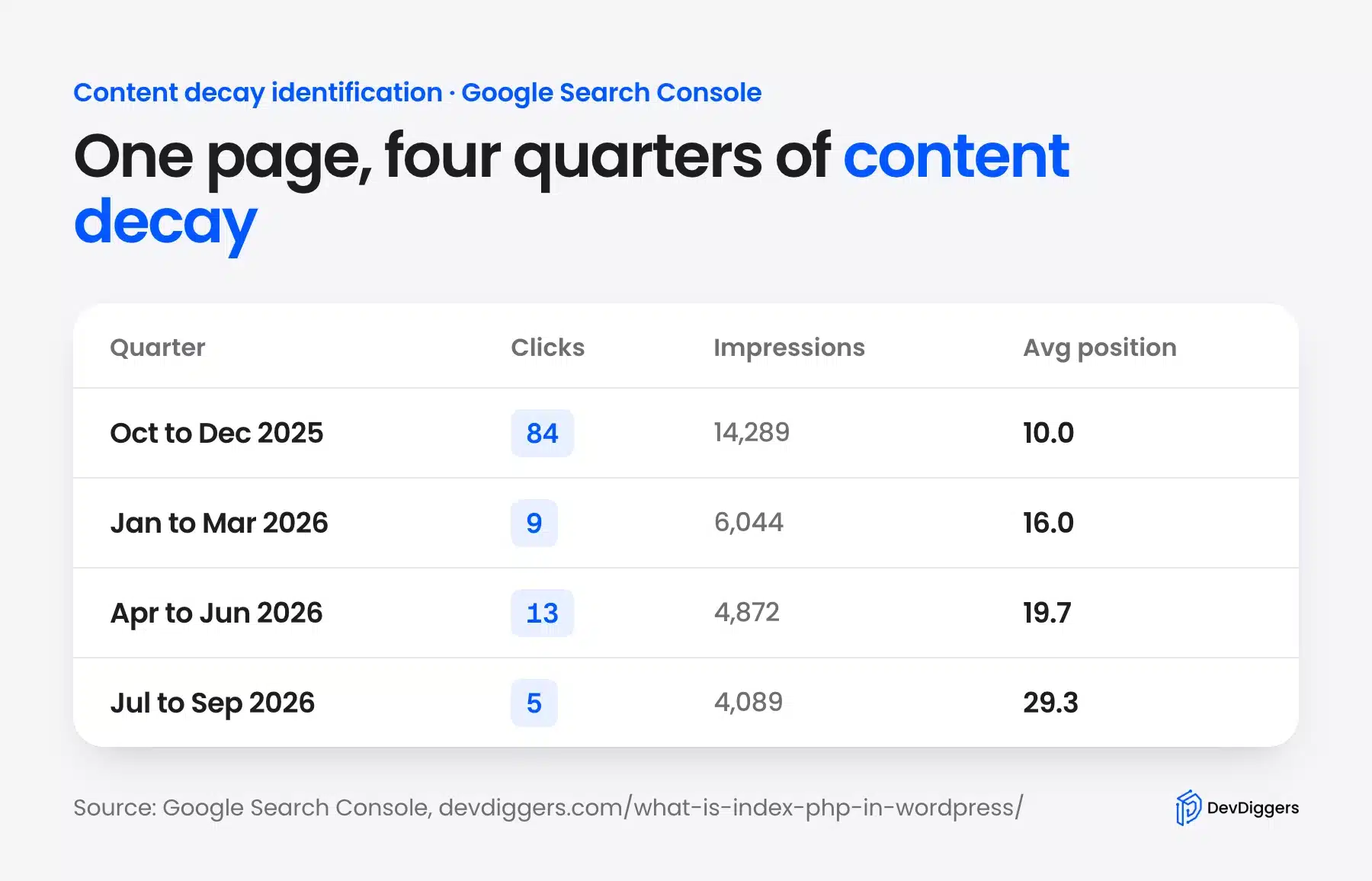
Clicks fell from 84 to 5, impressions from 14,289 to 4,089, and average position from 10.0 to 29.3. No error appeared anywhere, and the page stayed indexed the whole time.
Content decay is also different from a ranking drop across the whole site. When every page falls at once, look for a technical fault or a Google update first.
That is the trap with content decay. Search Console’s Performance report shows it plainly, but only if someone compares periods.
A quarterly check catches decay while the page still ranks on page two or three. Left alone for a year, our example fell to page three.
Content Decay Identification in Google Search Console
Content decay identification starts in Search Console: compare the last three months with the three before and then sort pages by click difference. Rule out pages that dropped for a known reason, such as a noindex tag. Finally, read each decaying page’s queries to see which searches it lost.
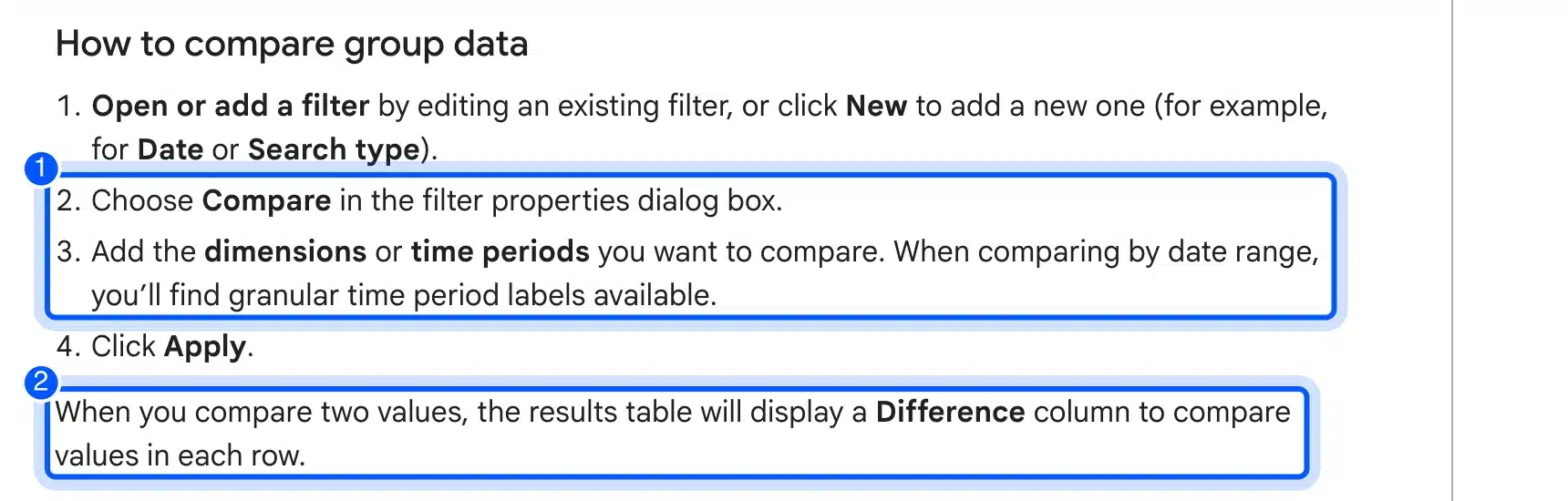
Google’s help page on advanced filtering and comparison explains the Compare option used in step one. The other steps use the same Performance report.
I ran the four steps below on devdiggers.com, comparing July to September 2026 with April to June 2026. The report covered 931 pages.
Compare Two Date Ranges
Open Performance > Search results, click the Date filter and choose the Compare tab. Pick the last three months against the previous three months, or against the same three months last year for seasonal sites.
Google’s help page lists the exact clicks, and it notes that a Difference column appears once you compare two values:
Three months is long enough to smooth out weekly noise. Shorter windows flag pages that only had a quiet week.
Use the same length on both sides. A 90 day period against a 28 day period makes every page look like it grew.
Sort Pages by Lost Clicks
Switch to the Pages tab and sort by the Clicks Difference column, smallest first. The pages at the top lost the most clicks between the two periods. They are your first list of candidates.
On our site, four pages stood out once the obvious noise was removed:
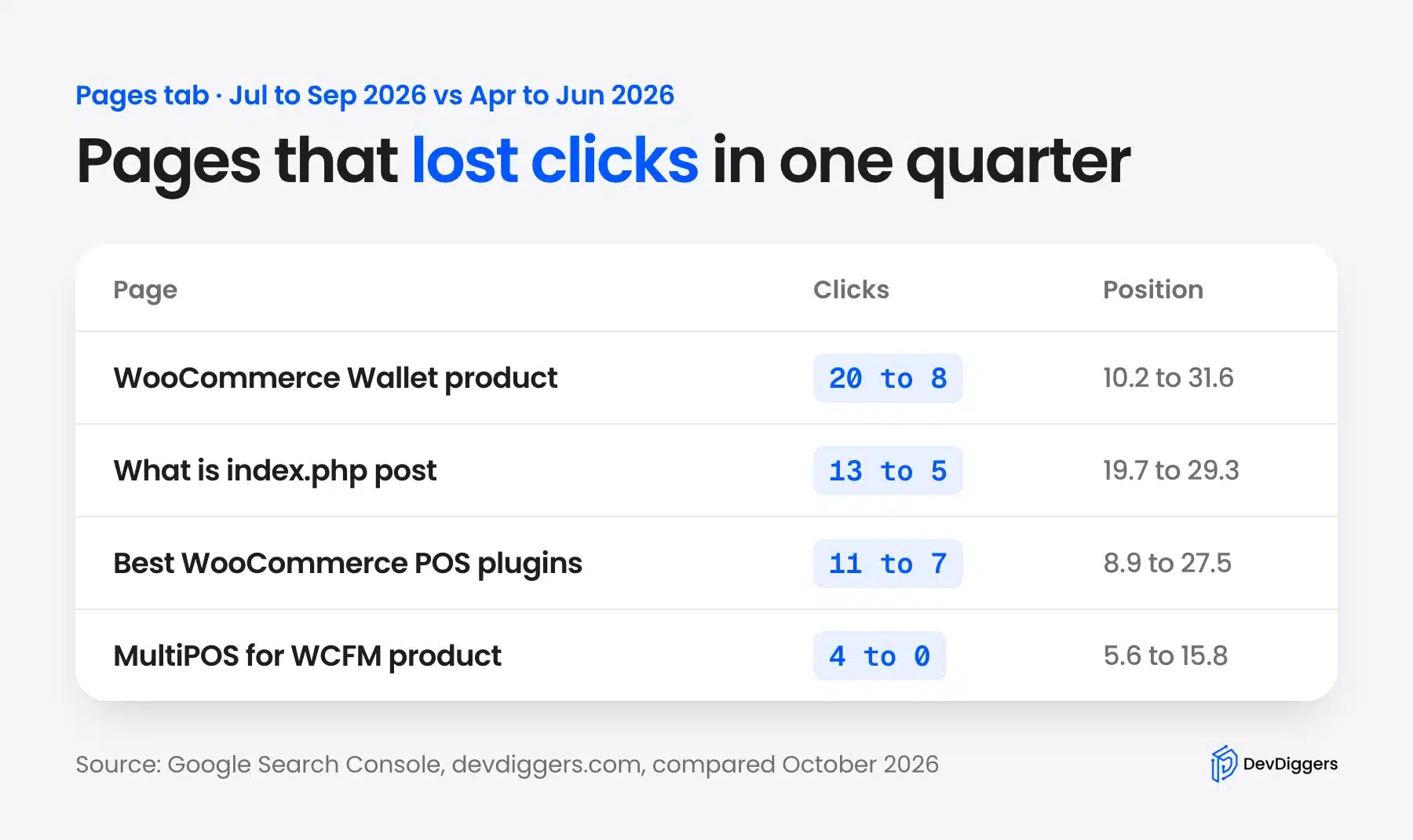
The WooCommerce Wallet product page fell from 20 clicks to 8 as its position dropped from 10.2 to 31.6. The best WooCommerce POS plugins list fell from 11 to 7, with position moving from 8.9 to 27.5.
Also sort by impressions difference. A page can hold its clicks for a while as impressions fall, and that early warning gives you more time.
Rule Out False Positives
Before you call a drop content decay, check whether you caused it. Pages you set to noindex, redirected, merged or deleted will lose all their impressions. That is the plan working, and it is not decay.
Our biggest drops were all deliberate. Three posts went to zero impressions because they carry a noindex tag on purpose:
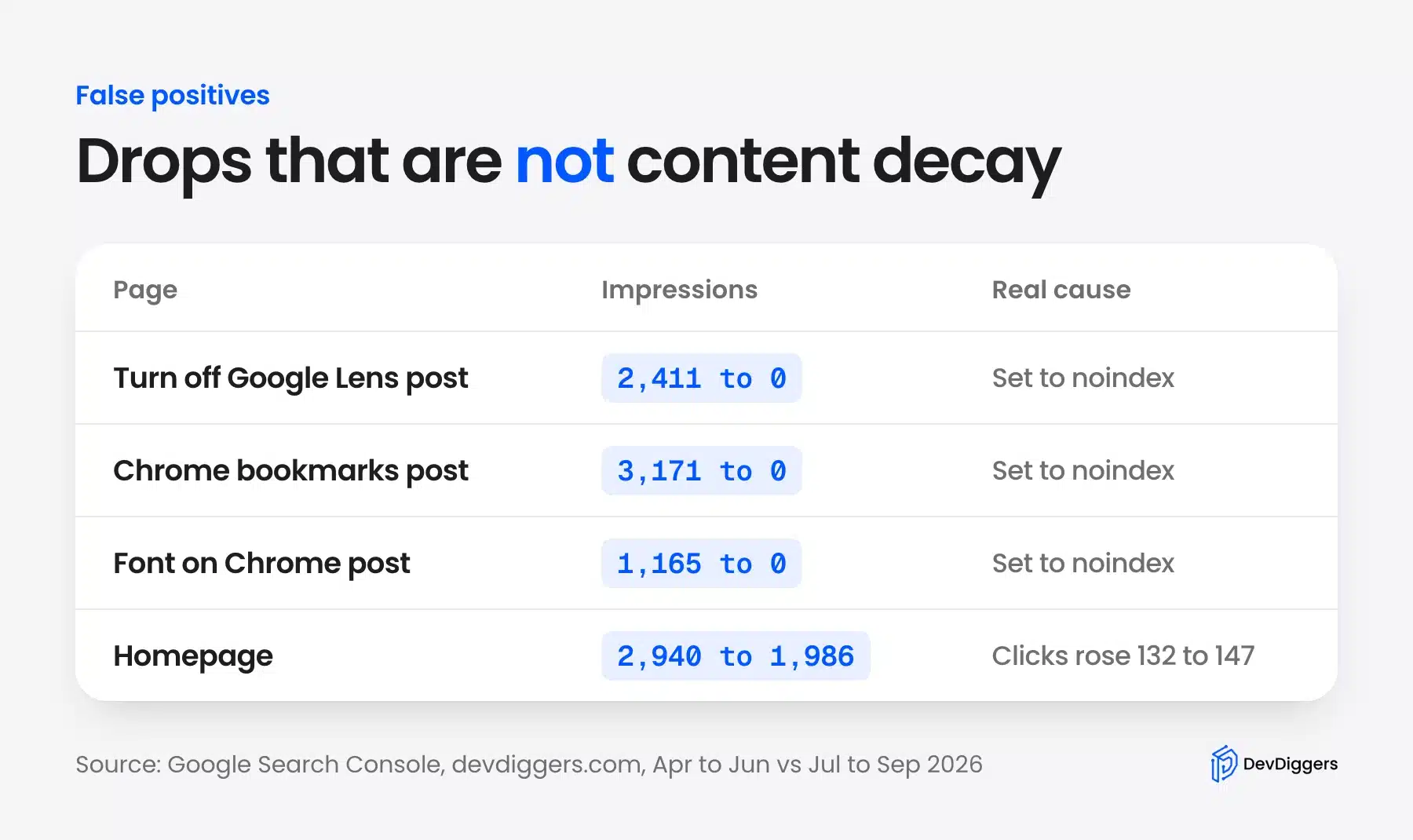
The homepage also lost impressions, from 2,940 to 1,986, yet its clicks rose from 132 to 147. That is a change in which queries it shows for. The page itself lost nothing.
So keep a short log of site changes with dates. When a page drops, the log tells you in seconds whether the cause is known.
Check the Queries Behind the Drop
Click a decaying page to filter by it and then open the Queries tab with the same comparison. This shows which searches the page lost. That tells you what to fix.
For our index.php post, the losses sat in the broad queries:
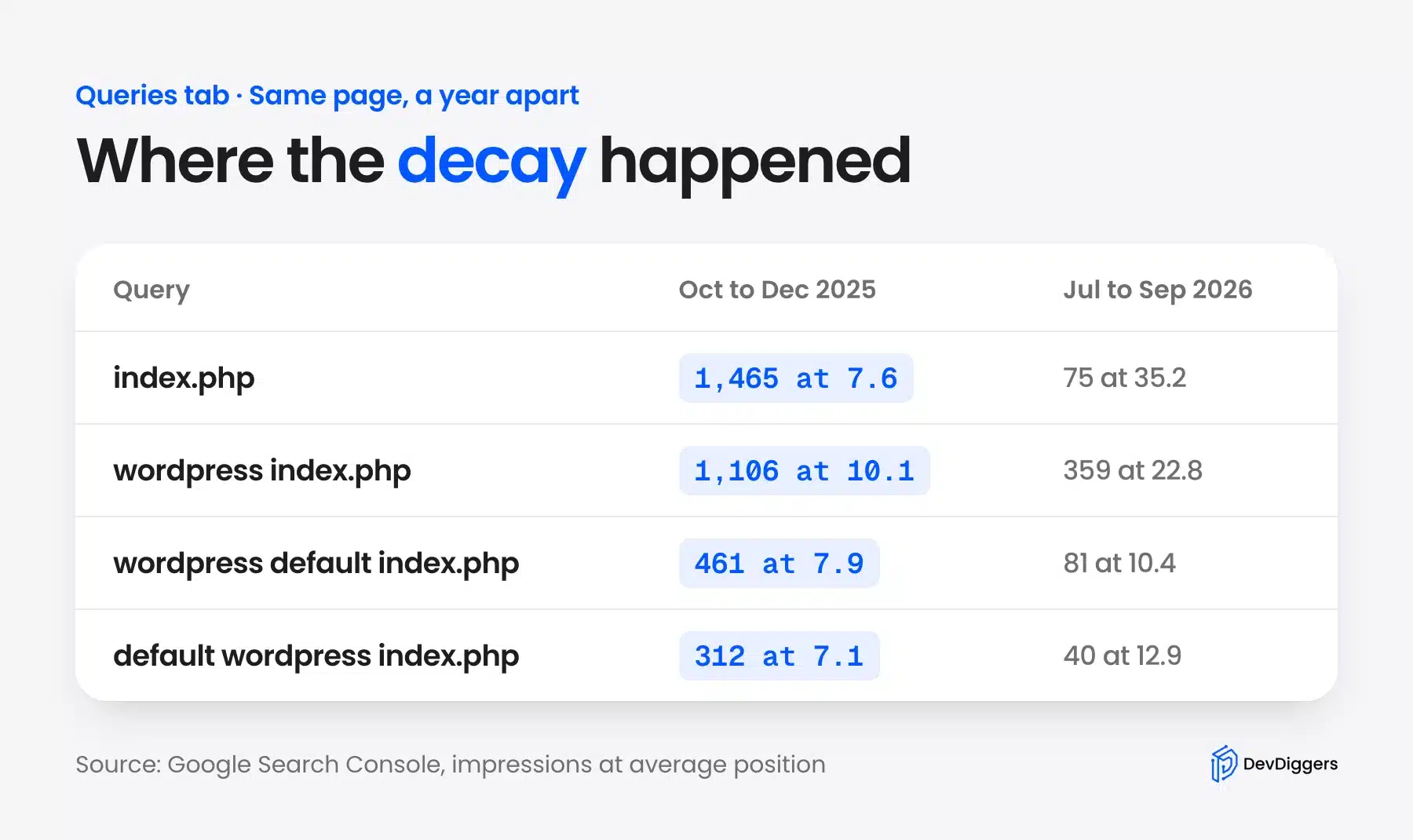
“Index.php” dropped from 1,465 impressions at position 7.6 to 75 at 35.2. Longer queries, such as “default index.php WordPress”, still sat near position 8.5 in the third quarter of 2026.
That pattern points to competition on the head term. The page still answers the specific question well, but other pages now win the general one.
SEO Content Decay Patterns
Most SEO content decay follows one of three patterns: a slow slide, a sudden drop, or a demand fade. A slow slide loses position over months, a sudden drop loses it in weeks, and a demand fade loses clicks while position holds. Each pattern points to a different fix.
Here are the three content decay patterns side by side:
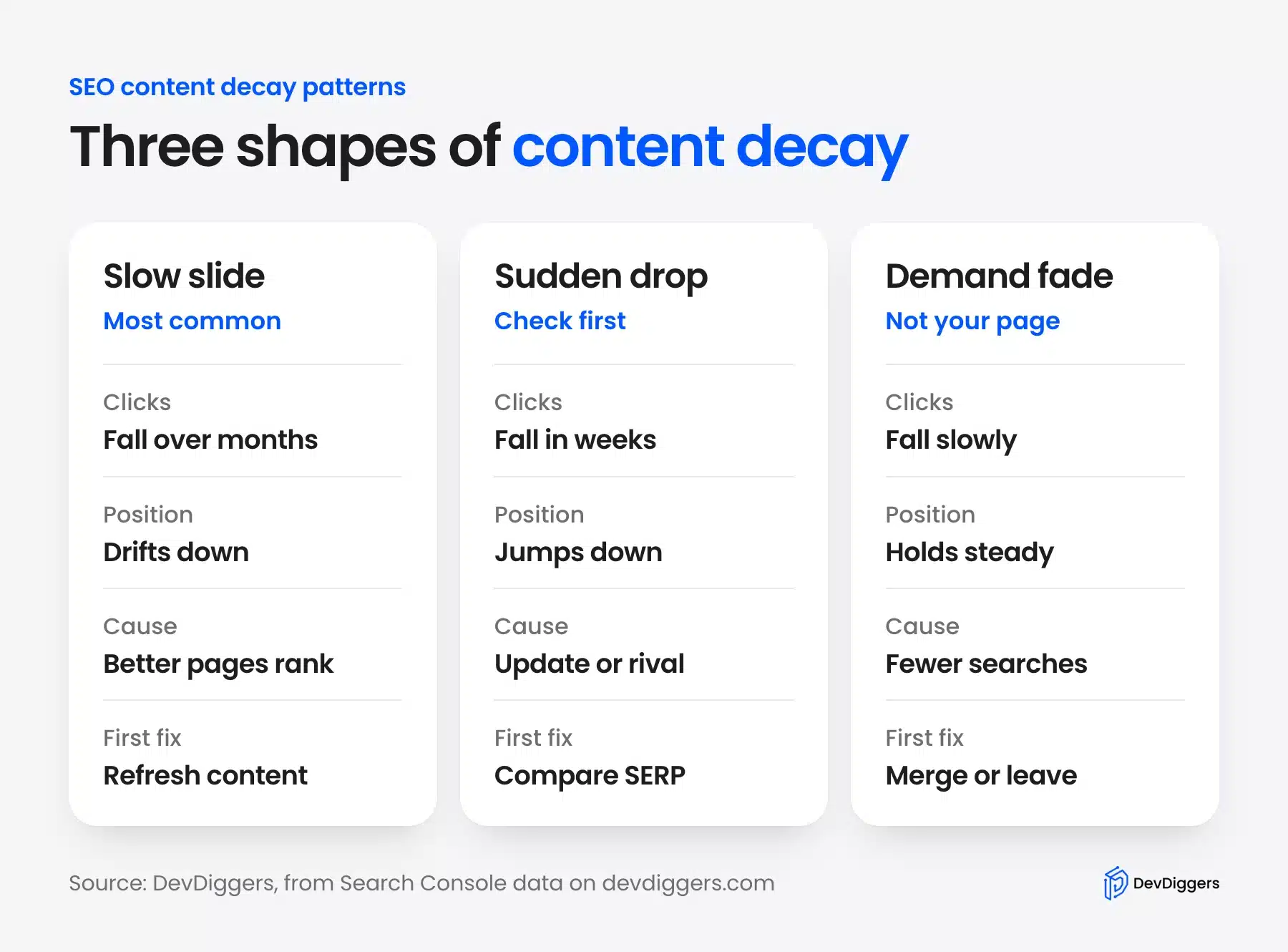
- Slow slide: Our index.php post is the textbook case with position falling a few places every quarter. Newer and better pages pushed it down. The fix is a content refresh.
- Sudden drop: The Wallet product page fell from position 10.2 to 31.6 inside one quarter. A fall that fast usually lines up with a Google update or a new rival. Check the results page before rewriting anything.
- Demand fade: Impressions fall while average position stays flat. Fewer people search the topic. No rewrite will bring the clicks back and merging the page into a broader one often makes more sense.
Google’s ranking systems guide lists freshness as one signal among many. That explains why some topics decay fast and others hold for years.
Seasonal pages look like a fourth pattern but are not. Compare against the same months of last year, and a dip that matches last year’s dip is normal.
Content Decay Word Patterns
Some words make a page decay faster, because they turn false with time. A year in the title, version numbers, “latest” or “new”, prices and named menu items all age on their own. A page full of them needs checks more often than one written in timeless terms.
These are the content decay word patterns to scan for when you audit a page:
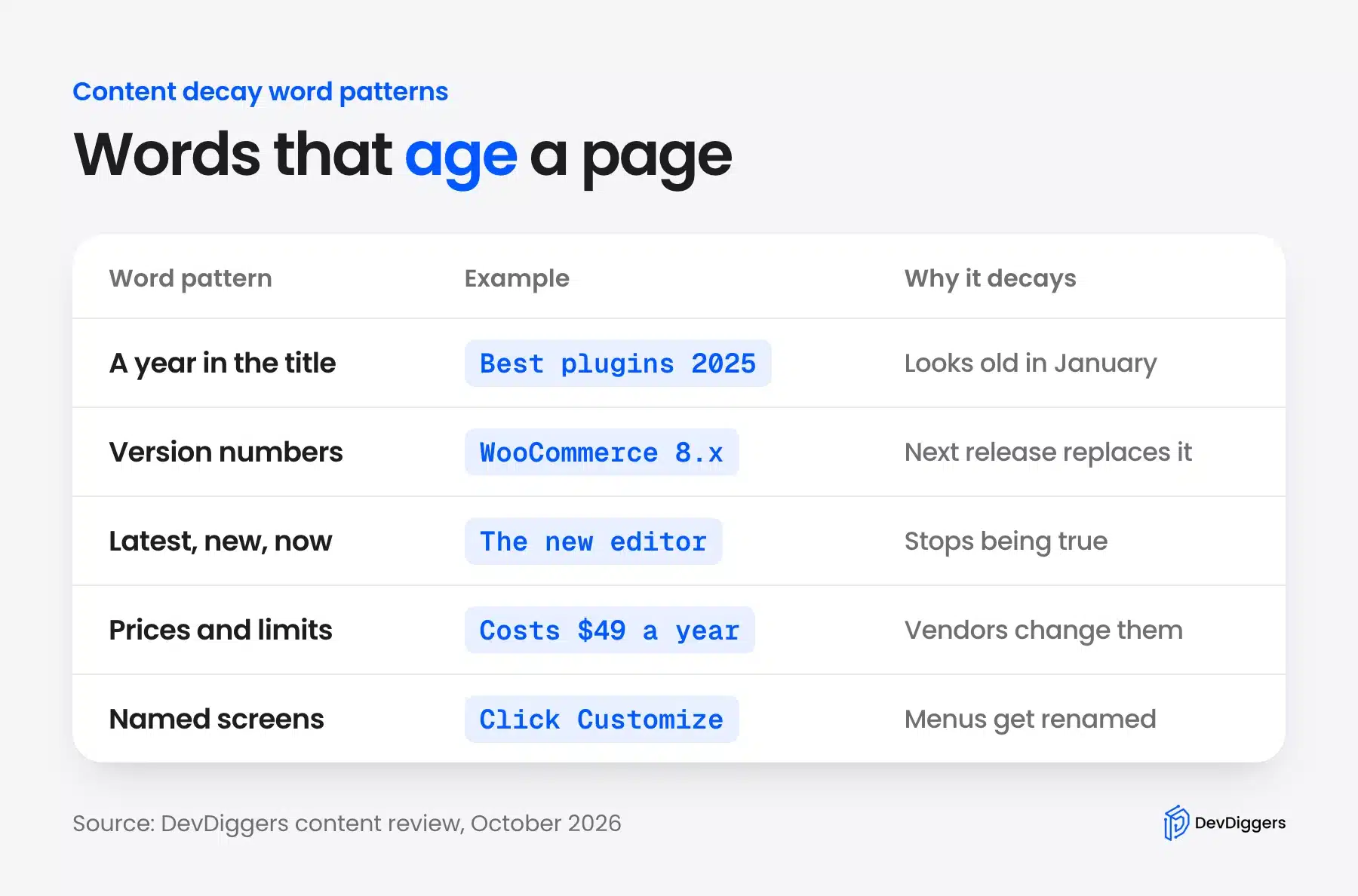
We met the first one on our own blog. In October 2026 we replaced a rolling year shortcode with a fixed year on 132 posts. A year that changes by itself promises freshness the text does not have.
Google’s guidance on publication dates says a date shown on a page should match a real update. Changing the year in a title without changing the content breaks that rule.
Screens named in a tutorial age the same way. A step that says “click Customize” breaks the day a theme moves that menu. Screenshots need a check after every major update.
Lists of tools decay fastest of all. Products get renamed, sold or closed, and a roundup that names five of them needs a review at least twice a year.
So write version numbers and prices with an “as of” date next to them. When you see one during a check, you know at a glance whether the page needs a refresh.
Why Content Decay Happens
Content decay has five causes: better pages appear, facts go out of date, search intent shifts, demand drops, or a technical fault mimics a drop. The last one is a false alarm. Rule it out first. Knowing the cause decides whether a refresh, a rewrite or a merge is the right move.
- Better competition: Someone publishes a fuller, newer or more useful answer. Your page did not get worse, it just stopped being the best one.
- Stale facts: Screens change, versions move on and prices rise. Readers notice, leave sooner, and the page loses its place over time.
- Intent shift: A query that once wanted a guide now wants a tool, a video or a product page. Check the current top results to see which formats rank today.
- Falling demand: Fewer people search the topic. Search Console shows this as impressions falling while position holds steady.
- Technical faults: A broken canonical, a slow template or a blocked resource can look like decay in the charts. Rule these out with a quick crawl before you rewrite any text.
Many decaying pages have more than one cause. Check all five before you decide what to change.
How to Fix Content Decay
To fix content decay, read the queries the page lost, check what ranks for them now, and update every stale fact. Then fill the sections the top results cover and you do not, and add links to the page from newer posts. Re-check the page in Search Console after four to six weeks.
Here is the order we follow when a page shows up on the decay list:
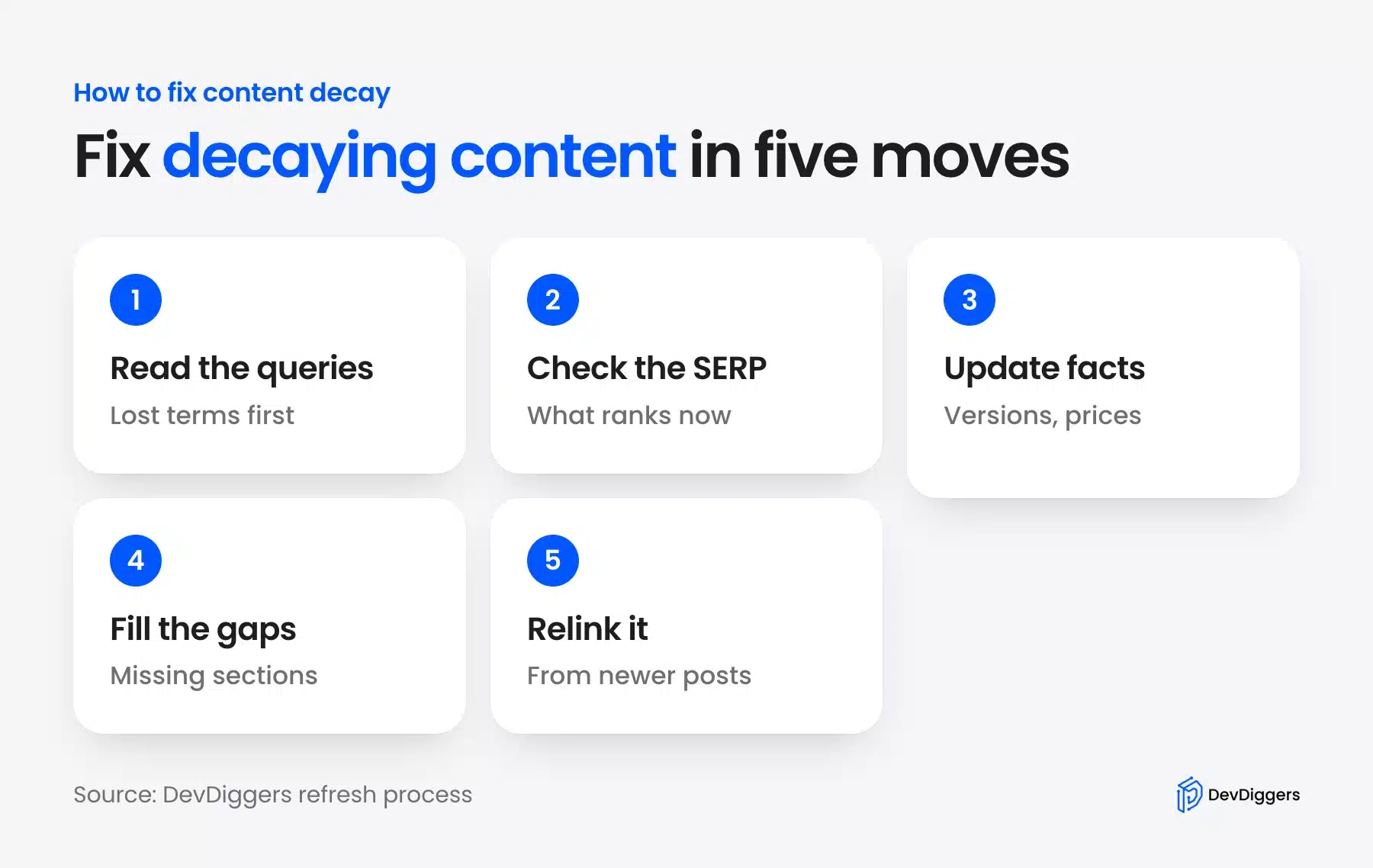
- Read the lost queries: Start with the queries from the Queries tab check above. They tell you which part of the page needs the most work.
- Check the results page: Search the main lost query and read the top three results. Note the sections and formats they share that your page lacks.
- Update every stale fact: Replace old versions, screenshots, prices and dates. Add an “as of” date to anything likely to change again.
- Fill the gaps: Add the missing sections, and give each one an answer paragraph that stands on its own.
- Relink the page: Add links from newer, related posts so crawlers and readers find the refreshed page again.
Change the visible updated date only when the content truly changed. Google’s guidance on publication dates asks for dates that reflect real updates.
Our index.php post was last modified on 23 September 2026. In the last week of that month, its daily average position sat between 9.5 and 14.0, against 40 to 54 for most of August.
That is one week of data. Treat it as a sign to keep watching. It proves nothing yet. Compare the full quarter again in January before calling it a recovery.
If you would rather hand the checks and refreshes to a team, our SEO services for WordPress cover content audits and rewrites. Store owners can also start with our WooCommerce SEO guide.
How to Prevent Content Decay
You cannot stop content decay fully, but you can catch it early. Run the four-step check every quarter, keep a log of site changes, and avoid words that date a page without need. Linking new posts back to older ones also keeps strong pages in front of crawlers.
A quarterly calendar works for most sites. Large sites with hundreds of posts can check the top 50 pages monthly and the rest each quarter.
Link new posts to older ones on the same topic as you publish. Our guide to orphaned content in WordPress shows how to find pages that nothing links to.
Keep a simple sheet of your top pages with their clicks for each quarter. A row that falls two quarters in a row is your early warning, before the page drops off page one.
Refresh pages on a schedule as well as when they drop to keep compound SEO working. A guide that names software versions needs a look whenever a major version ships, whatever the traffic says.
Finally, write for the specific question as well as the head term. Our data shows the long, specific queries held their position while the broad one decayed.
Conclusion
Content decay identification is a quarterly habit that costs nothing but an hour. Compare two date ranges in Search Console, sort pages by lost clicks, rule out drops you caused, and read the queries behind the rest.
Our own data shows why it matters. One post lost 79 of its 84 quarterly clicks over a year, while every technical check stayed green.
Match each drop to its pattern before you act. A slow slide needs a refresh, a sudden drop needs a look at the results page, and a demand fade may need a merge.
Frequently Asked Questions (FAQs)
Q1. How often should I check for content decay?
Once a quarter suits most sites, using three-month windows in Search Console. Sites that publish daily or sell seasonal products can check monthly, comparing against the same month last year.
Q2. Is a drop in impressions always content decay?
No. Impressions also fall when you noindex, redirect or merge a page, and when a page stops showing for unrelated queries. Our homepage lost a third of its impressions in one quarter while its clicks went up.
Q3. Which tool finds content decay for free?
Google Search Console does it for free with the Compare date filter and the Pages tab. Paid SEO suites add alerts and history, but they read the same kind of click and position data.
Q4. How long does it take to recover from content decay?
It depends on the cause and on how often Google recrawls the page. Give a refreshed page four to six weeks before judging it and then compare a full quarter against the quarter before the fix.
Q5. Should I delete pages with content decay?
Delete only pages with no clicks, no links and no topic worth keeping. Most decaying pages are better refreshed or merged into a stronger page on the same subject, with a redirect.
Q6. Does updating the date fix content decay?
No. Changing the date without changing the content does not make a page more useful, and Google’s date guidance asks for dates that match real updates. Update the content first and then the date.