You can increase eCommerce conversions without more traffic by removing the friction that stops ready buyers. Hidden shipping costs, forced accounts, long forms and slow product pages lose orders from visitors you already paid to attract.
Those leaks are measurable, and most cost nothing to fix. In October 2026 we tested eight changes on our WooCommerce 11.2 test store running WordPress 7.1.3 and Twenty Twenty-Five, with Lighthouse 12.8.2 for speed. One server setting cut the mobile product page from 889 KiB to 484 KiB and its LCP from 6.2 to 4.2 seconds.
Below you get the conversion rate formula, a worked example of fixing versus buying traffic, and a way to find your funnel leaks. Then come the eight tested fixes with real screens, our results table, a safe A/B testing routine and the mistakes to skip.
What Is an Ecommerce Conversion Rate?
An eCommerce conversion rate is the share of store sessions that end in an order. You divide orders by sessions and multiply by 100, so 150 orders from 10,000 sessions is a 1.5% rate. It tells you how well the store turns visits into sales, separate from how many visits you get.
The formula is simple, but the inputs need care. Count sessions from one analytics tool and orders from WooCommerce for the same dates, and leave out test orders and refunds. If those two numbers come from different time zones, the rate drifts for no real reason.
Track two companion numbers next to it.
Average order value, or AOV, is revenue divided by orders, and revenue per session is revenue divided by sessions. A change that lifts the conversion rate while cutting AOV can still lose money. That is why every test later in this guide checks all three.
Your rate also changes by device, traffic source and product price. A store selling $15 accessories should not share a target with one selling $1,500 furniture. Compare your store with itself over the last 90 days before you compare it with anyone else.
If you want to improve conversion rate numbers quickly, resist the urge to chase the site-wide figure. Split it by device and by landing page first. A store converting well on desktop and poorly on phones has a mobile problem, and no amount of new copy will fix that.
Why Increase Ecommerce Conversions Before Buying Traffic
You should increase eCommerce conversions before buying traffic because every extra order comes from visitors you already have. Lifting a store from 1.5% to 2% with the same 10,000 sessions adds 50 orders. Getting those same 50 orders through ads means buying about 3,333 more sessions at the old rate, every month.
Here is that example written out, with a $40 AOV in every column:
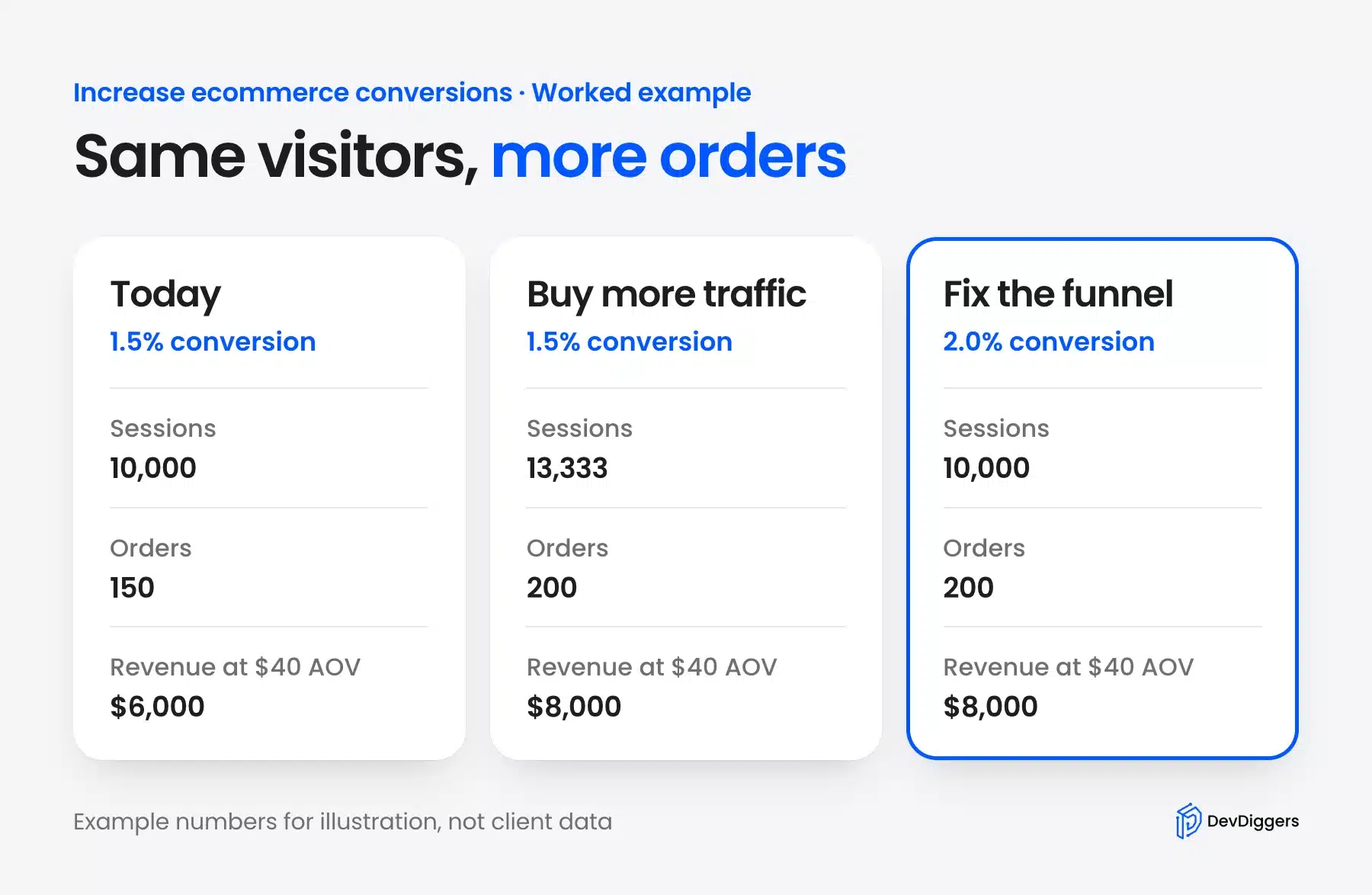
The arithmetic is plain. Today, 10,000 sessions at 1.5% bring 150 orders and $6,000. Buying traffic needs 13,333 sessions to reach 200 orders, while the funnel fix reaches the same 200 orders and $8,000 from the original 10,000.
The research backs the size of the opportunity. Baymard Institute’s cart abandonment research puts the average documented abandonment rate at 70.22%, drawn from 50 studies. The same page estimates that a large eCommerce site could see a 35.26% higher conversion rate from better checkout design alone.
Traffic still matters, and nobody grows on conversion work forever. But a fix keeps paying after you stop spending, while an ad budget stops the day you pause it.
How to Find the Leaks in Your Sales Funnel
Funnel leaks are the steps where shoppers drop out between landing on a product and paying. Map four steps, which are product view, add to cart, checkout start and purchase, then compare how many sessions reach each one. The step with the steepest drop is where your first fix belongs.
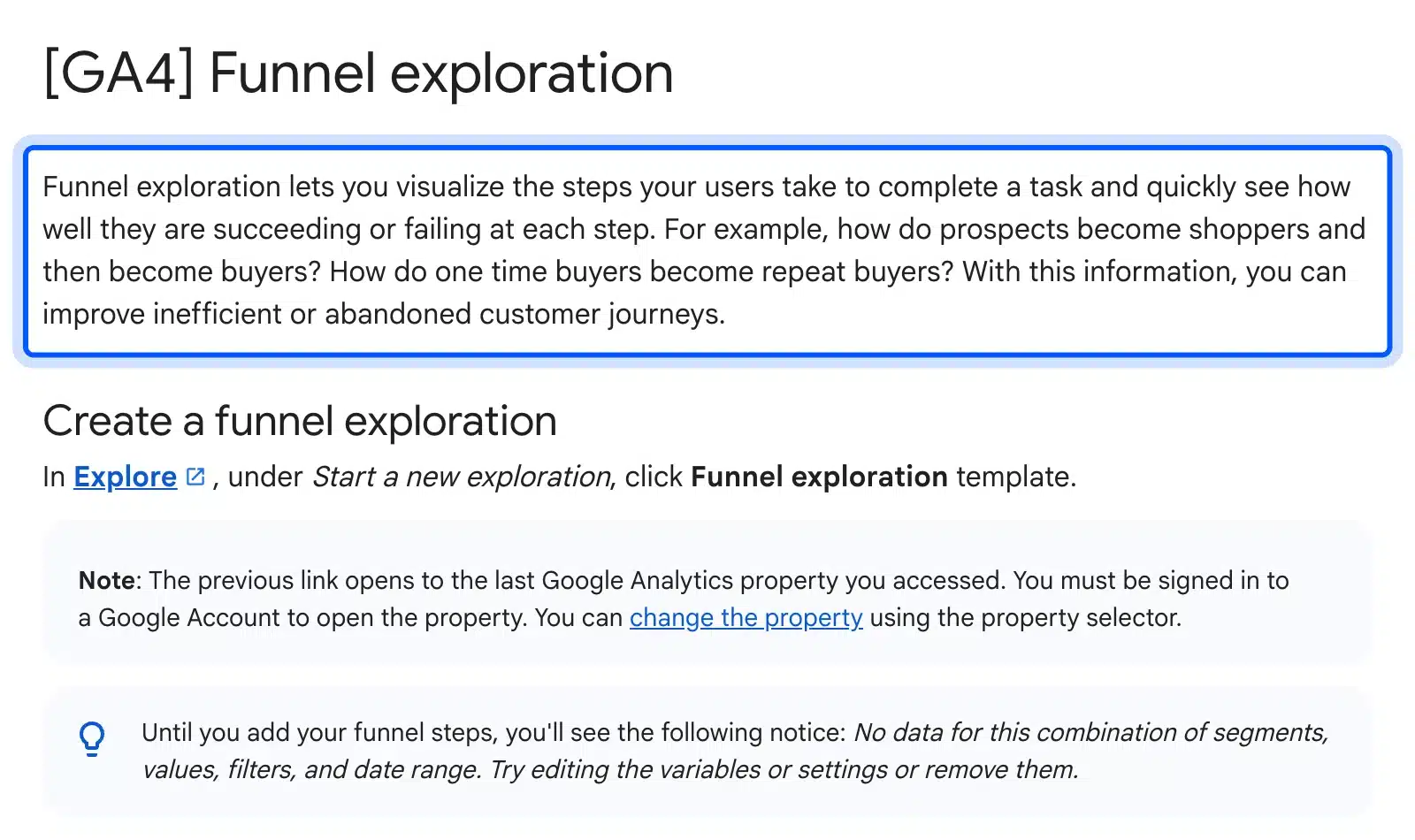
Google Analytics 4 has a built-in report for this. Its funnel exploration guide says the report shows “how well they are succeeding or failing at each step”. You build it under Explore with the Funnel exploration template, adding one step per stage of your checkout.
Read the drop between steps rather than the totals. If 1,000 sessions add to cart and 300 start checkout, the cart page is the leak. If 300 start checkout and 60 buy, look at the checkout form, payment options and surprise costs.
Then walk the funnel yourself as a logged-out shopper, on a phone and on a laptop. Our test store needed four screens from product to payment: product, cart, checkout and order received. Write down every moment you hesitate, because a shopper hesitates there too.
WooCommerce adds its own numbers under Analytics, Orders, where you can see order counts and net sales by day. Line those daily orders up against sessions from your analytics tool. A sudden drop on one date often matches a plugin update, a theme change or a payment gateway outage.
Two cheap sources fill the gaps analytics cannot explain:
- Search terms: Your own site search log shows products people expected and could not find.
- Support questions: Emails asking about delivery dates or returns point to facts missing from product pages.
A high bounce rate on product pages is a different leak from a weak checkout. Our guide to reducing the bounce rate in eCommerce covers that earlier stage of the funnel.
How to Increase Ecommerce Conversion Rates: 8 Fixes We Tested
To increase eCommerce conversion rates, remove checkout friction first and then build product page trust. The eight fixes cover shipping costs, guest checkout, form fields, delivery info, reviews, speed, cross-sells and phone testing. We set up and measured each one on our WooCommerce 11.2 test store.
The order follows Baymard’s survey of why shoppers abandon a checkout. Extra costs led at 40%, slow delivery followed at 20%, and 19% did not trust the site with card details. Forced account creation came next at 18%, then a long checkout at 17%.
1. Show the Shipping Cost in the Cart
Shipping is the first fix because unexpected costs are the top reason people leave. Baymard’s abandonment survey lists “extra costs too high” at 40% and “couldn’t see / calculate total order cost up-front” at 12%. The cart should show shipping before checkout begins.
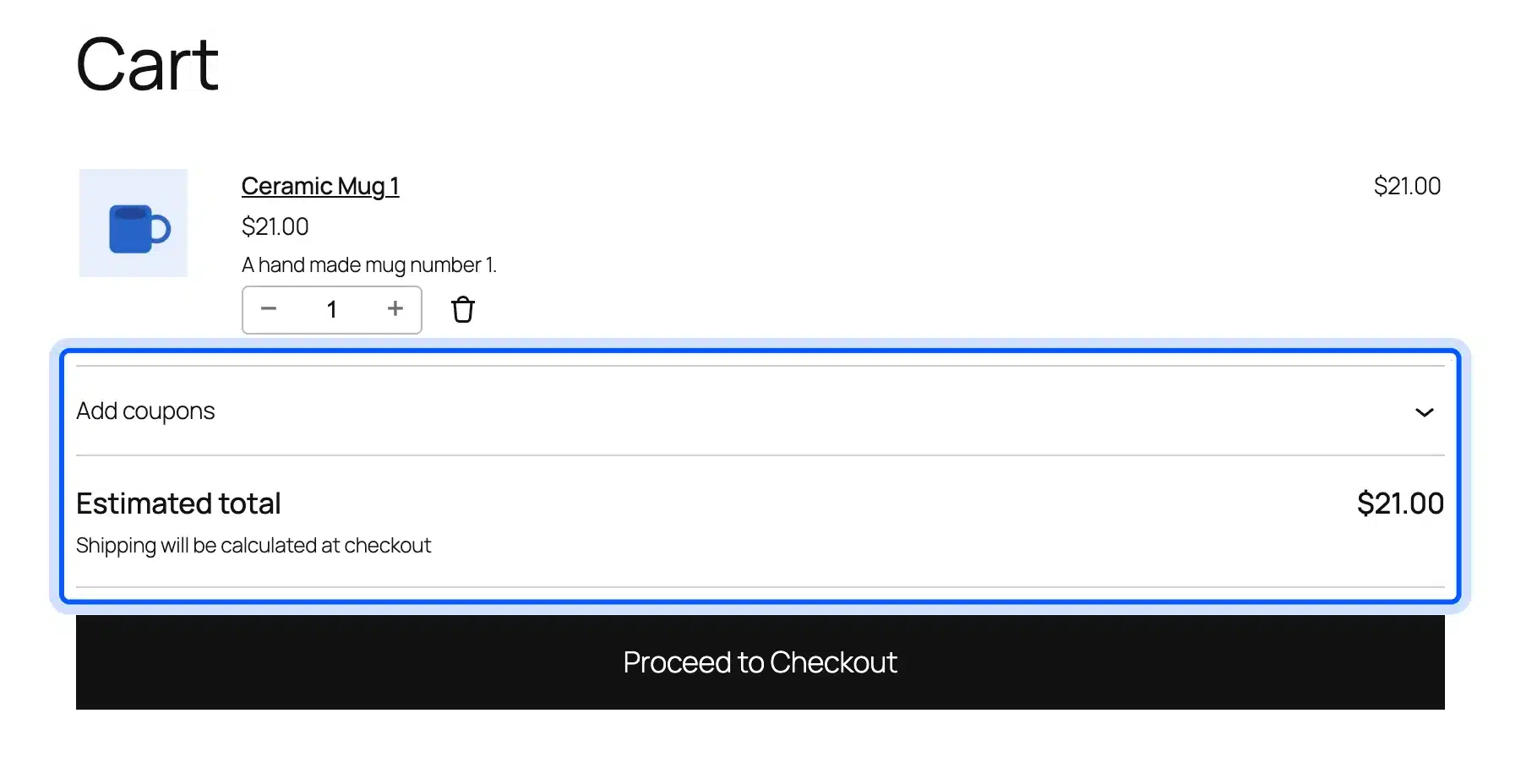
In WooCommerce this comes down to one checkbox under WooCommerce, Settings, Shipping, Shipping settings. On our store, ticking “Hide shipping costs until an address is entered” hid the $7.95 flat rate from the cart. The same screen also notes that the old cart shipping calculator does not work with the cart and checkout blocks.
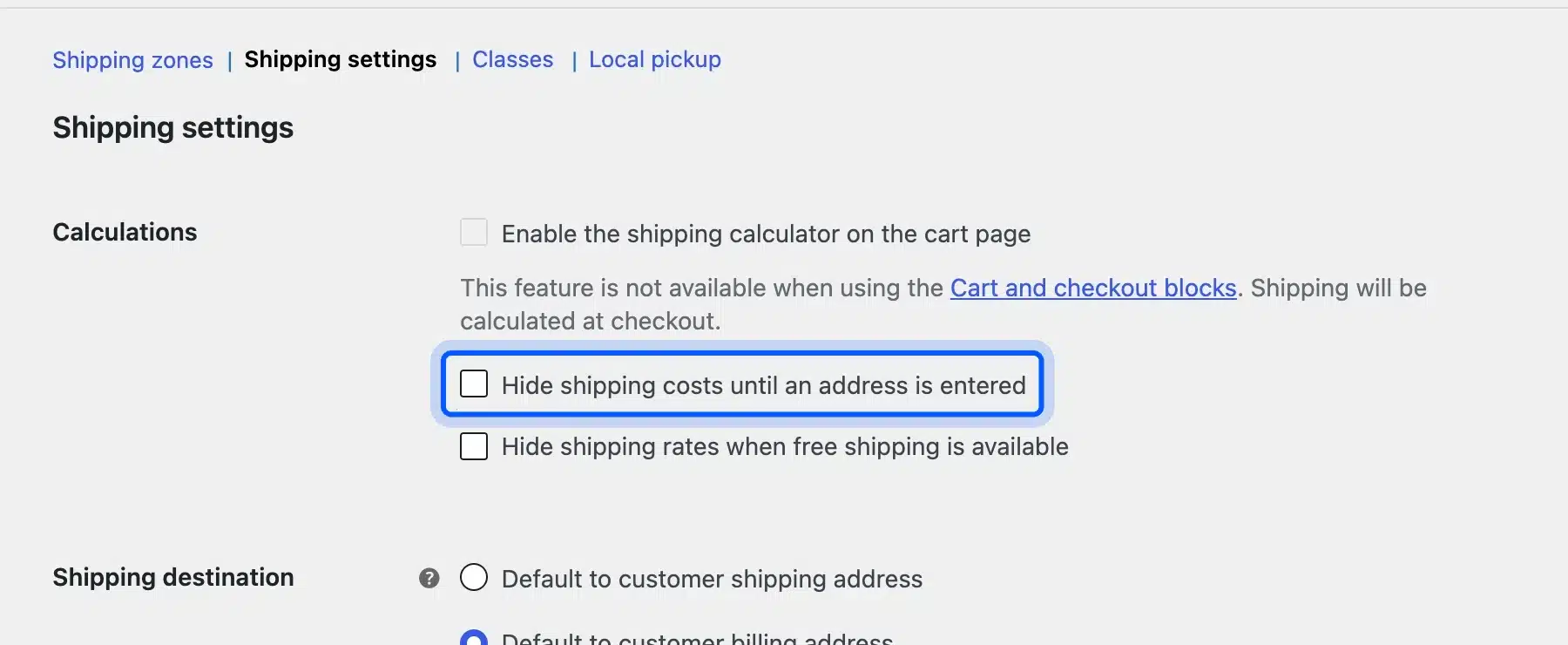
With the box ticked, the cart showed only a $21.00 total and the line “Shipping will be calculated at checkout”. The shopper first learned the real price on the next screen, where it jumped by 38% to $28.95.
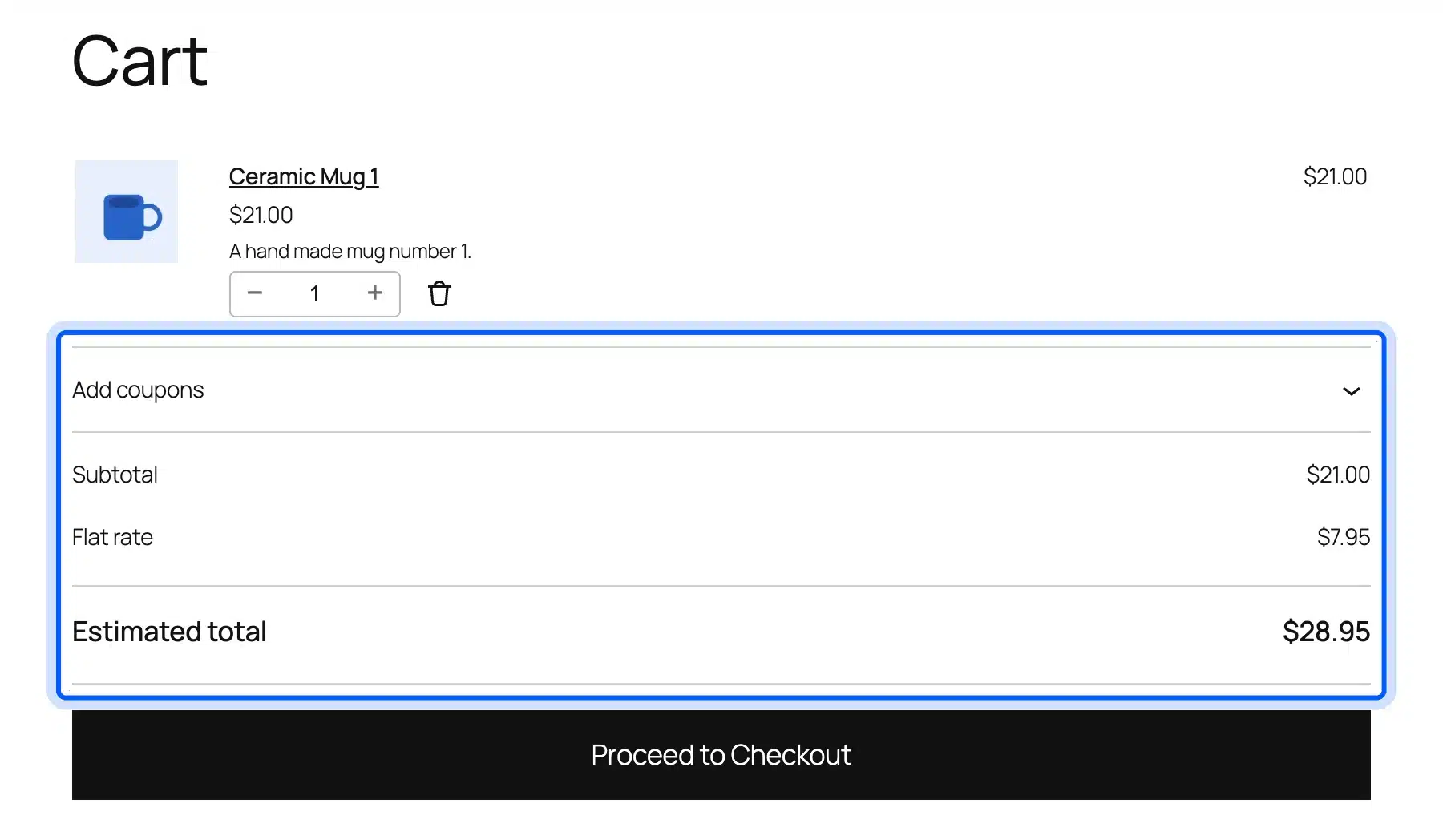
With the box cleared, the cart block estimated shipping from the store’s base location. It showed the flat rate of $7.95 and an estimated total of $28.95 straight away. The shopper did not need to type an address first.
That number matched the checkout total, so nothing changed between the two screens.
If you offer free shipping above a set amount, say so in the cart as well. A line such as “Add $12 more for free shipping” turns a cost into a goal, and it can lift AOV at the same time.
You need a shipping zone that covers the shopper’s country for this to work. WooCommerce’s shipping zones guide explains how zones match an address to a rate.
2. Let Shoppers Check Out as Guests
Guest checkout lets a first-time buyer pay without creating an account, and it is on by default. Turning it off is risky, because 18% of shoppers in Baymard’s survey left when a site wanted an account. Keep guest checkout on and offer the account after the order is placed.
We turned the setting off on our test store to see the worst case. With “Allow customers to create an account during checkout” also off, a logged-out shopper with a full cart reached a page with a single line. It read “You must be logged in to checkout”, with no form at all.
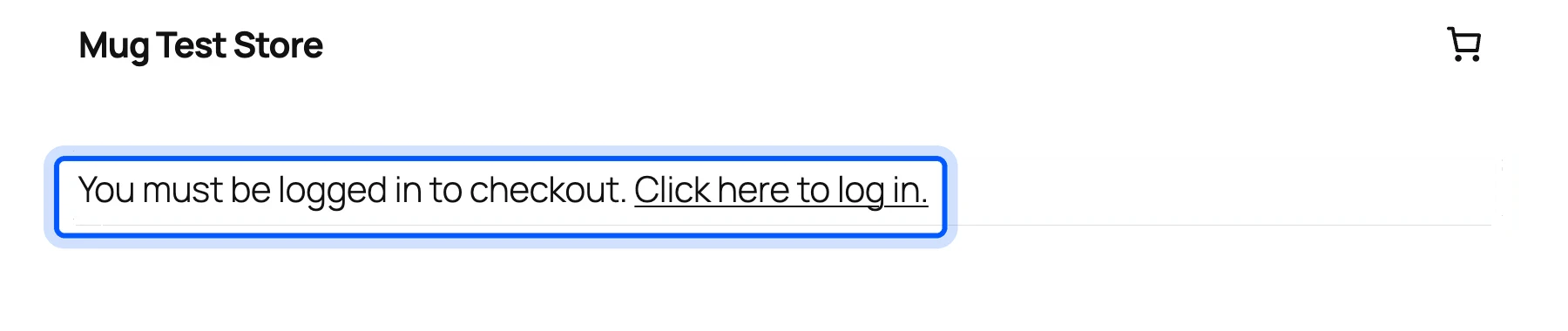
That is a store that cannot take a first order from a new visitor. A real store rarely sets this on purpose, but a membership or wholesale plugin can switch it during setup and nobody notices.
The fix lives under WooCommerce, Settings, Accounts and Privacy. WooCommerce now labels both “Enable guest checkout” and “After checkout” account creation as recommended. The Accounts and Privacy settings guide describes each option on that screen.
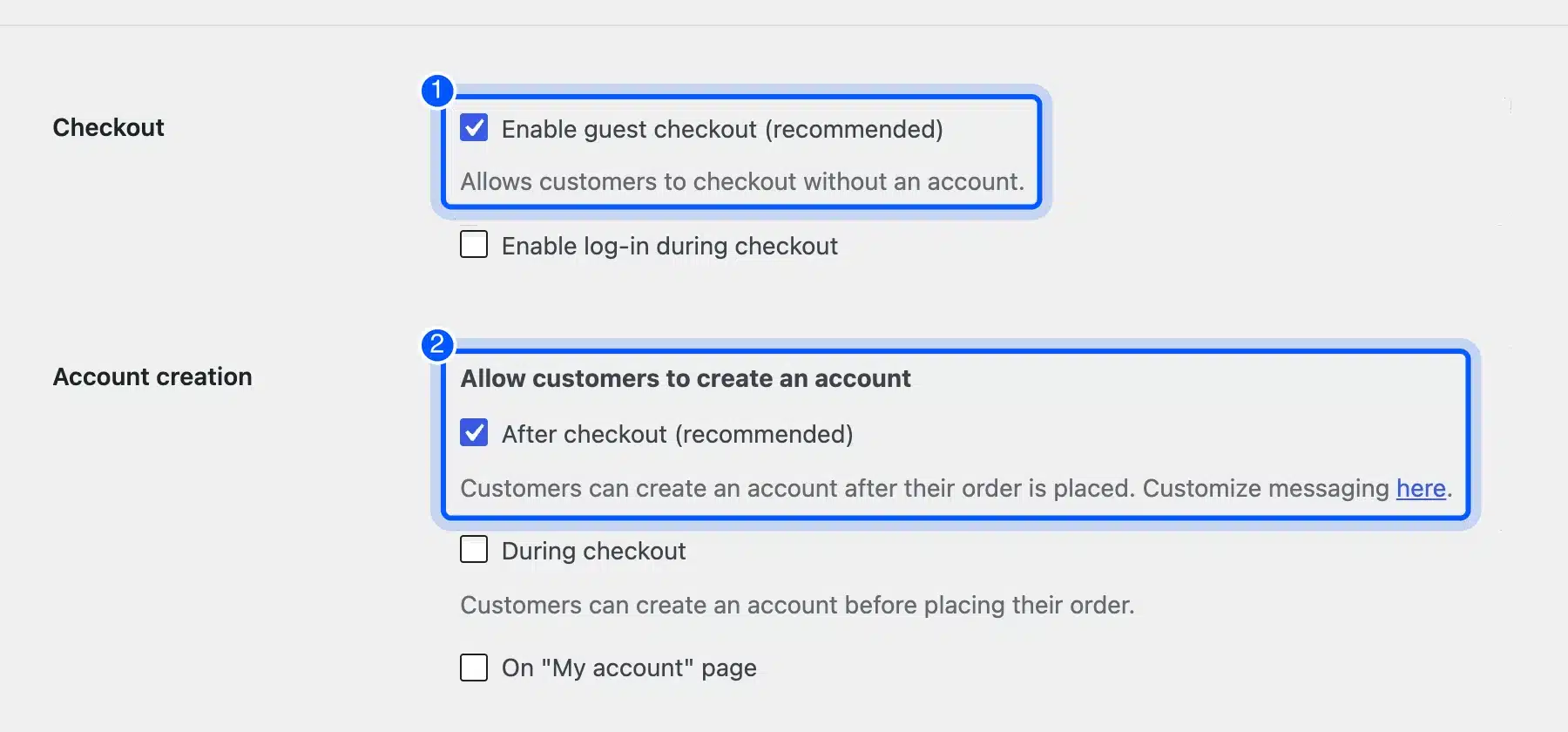
With “After checkout” on, the order is placed first and the customer can save an account from the thank you page. You still collect returning customers, just not as a toll at the door. For an even shorter path, see our guide on setting up one-click checkout in WooCommerce.
3. Cut Checkout Fields You Do Not Use
Fewer fields mean less typing on a small screen and fewer chances to quit. Baymard’s checkout benchmark counts 23.48 form elements on the average US checkout, against an ideal of 12 to 14. A WooCommerce block checkout starts close to that ideal, and plugins push it up.
We counted every visible input, radio and checkbox on our block checkout as a logged-out shopper. The default came to 15 elements, with phone and apartment optional and the company field hidden. Making company and phone required, as some B2B setups do, raised it to 16.
Unticking “Use same address for billing” adds a second address block on top.
Hiding the phone and apartment fields brought the count down to 13 elements, inside Baymard’s ideal band. You change them in the page editor: open the Checkout page, click the shipping address block, and use the Address Fields panel in the sidebar.
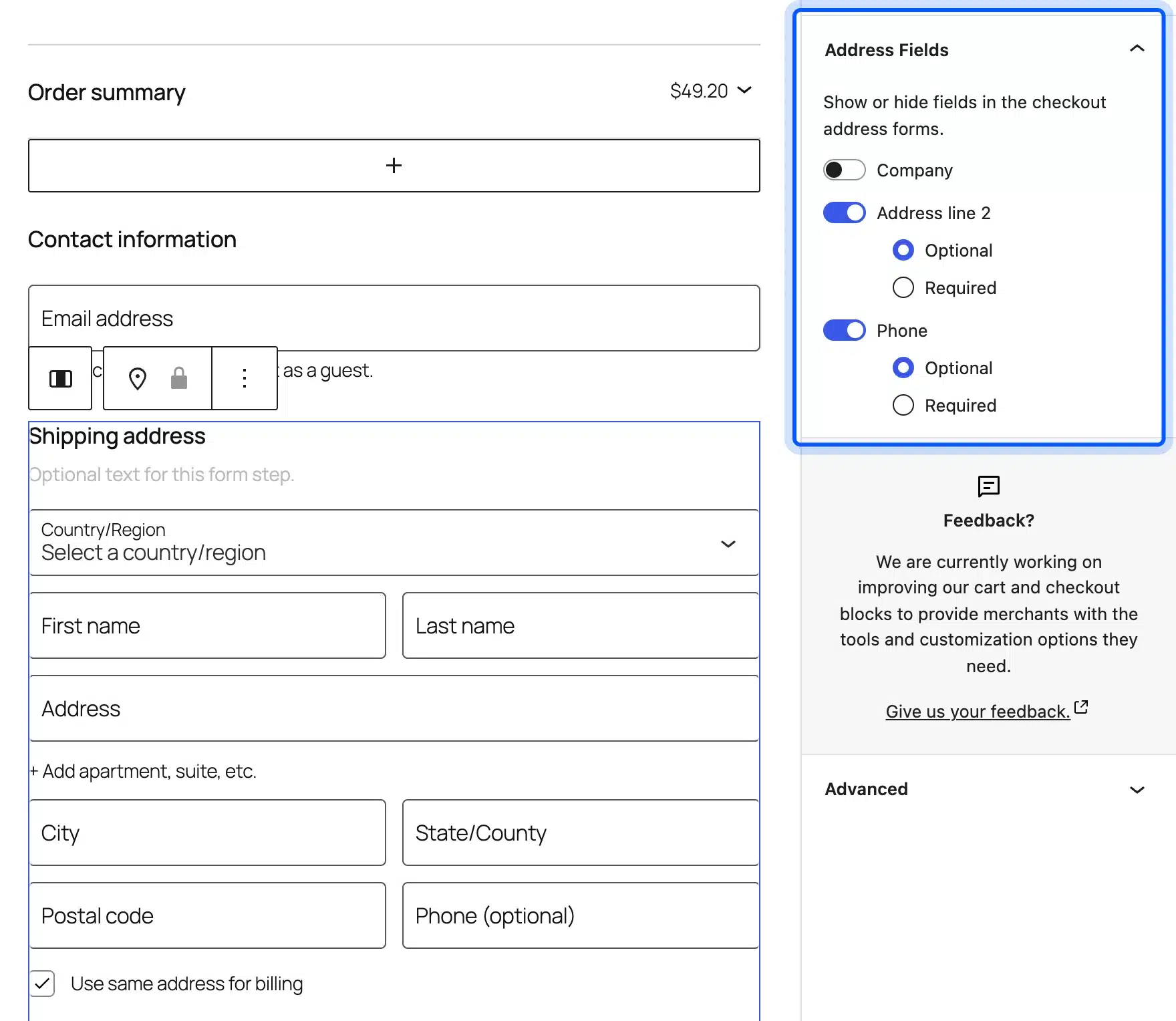
Keep a field only if you use it. Phone numbers help some couriers, so a store that ships heavy goods may want phone optional rather than hidden. WooCommerce’s guide to customizing cart and checkout covers the other block settings.
Worth checking: Every plugin that adds checkout fields, such as gift messages, VAT numbers or marketing opt-ins, adds to this count. Repeat the count after each plugin install.
4. Put Delivery and Returns Info Next to Add to Cart
Delivery time, shipping price and returns belong right beside the Add to cart button. Baymard’s survey found 20% left over slow delivery, 19% over card trust and 13% over the returns policy. A shopper who has to hunt for these facts on another page often never comes back.
On our test product we added one short paragraph under the price. It states the dispatch time of 1 to 2 business days, the $7.95 US shipping rate, the 30 day returns window and the payment methods. In WooCommerce this text goes in the product short description, which Twenty Twenty-Five prints above the button.
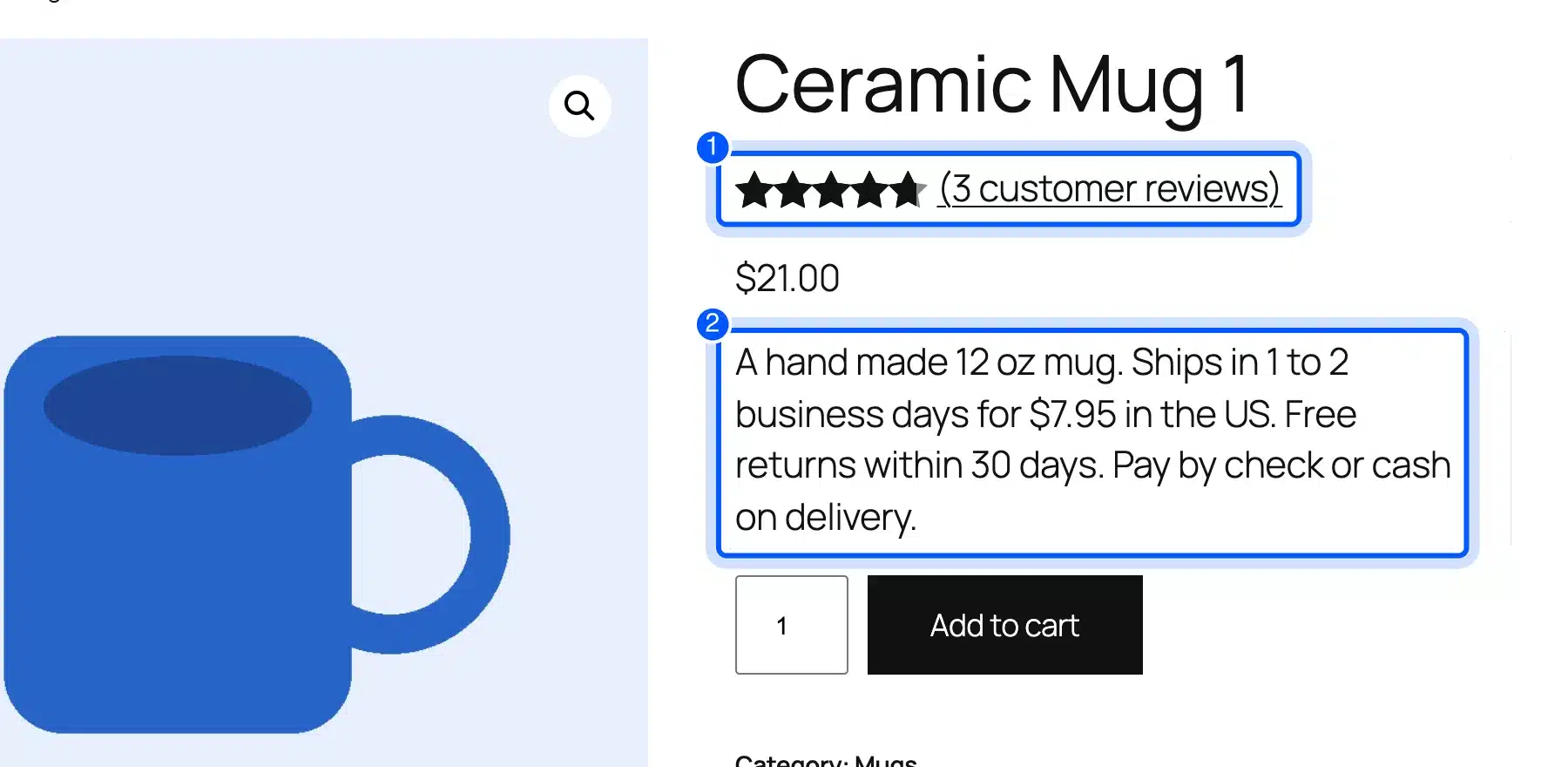
One trap showed up during the test. Twenty Twenty-Five prints the short description as plain text, so a bulleted list we wrote in HTML lost its line breaks and ran together. Write these lines as short sentences, or edit the product template to use a different block.
Keep the paragraph to three or four facts. A wall of badges and guarantees above the button pushes the button itself down the page. On a phone it can fall below the first screen.
The same facts should match your returns policy page word for word. A product page promising 30 days while the policy says 14 is worse than saying nothing. Our guide to building buyer confidence in eCommerce covers more ways to answer doubts before they stop a sale.
5. Show Reviews With a Verified Owner Label
Reviews give shoppers proof from people who already bought, and a verified owner label shows those people were real customers. WooCommerce has both options built in under Settings, Products. Turn on star ratings and the verified owner label so ratings appear next to the product title.
On our test product, three sample reviews produced a 4.67 average and a “(3 customer reviews)” link under the title. WooCommerce also added that rating to the product’s structured data without any extra plugin. Google’s product snippet guide describes this markup and the review stars it can show in results.
So reviews work twice. They reassure the shopper on the page, and they can make the listing stand out before the click.
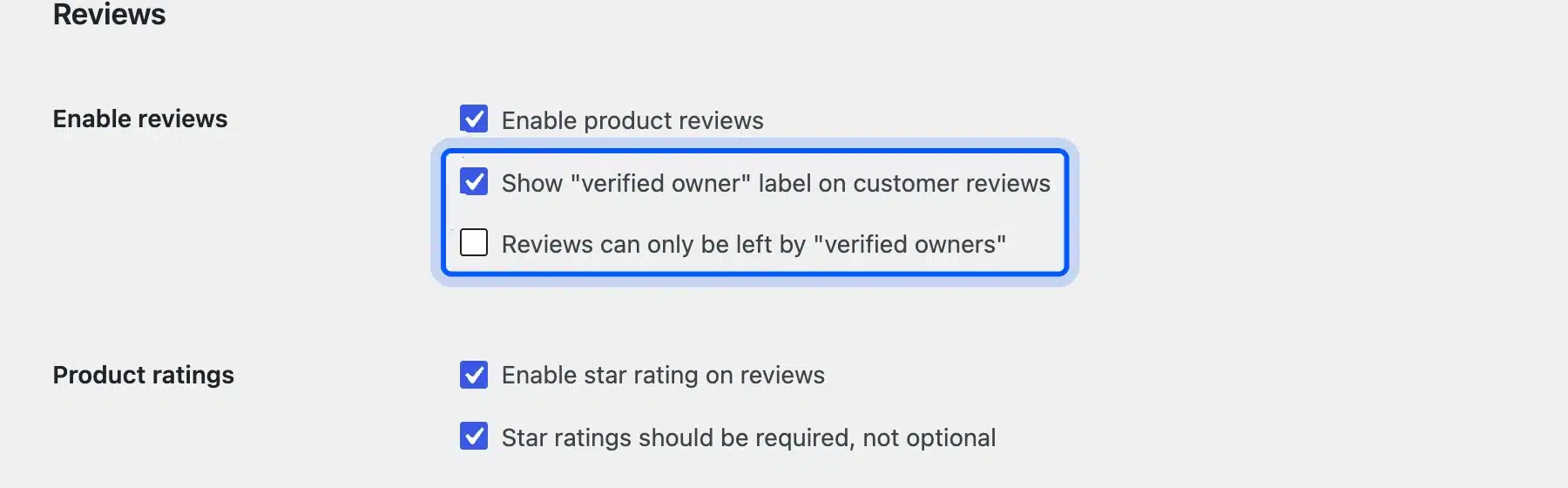
Leave “Reviews can only be left by verified owners” off while you are new. It blocks fake reviews, but it also blocks honest ones from customers who bought from a marketplace or a pop-up stall. Turn it on once real orders bring a steady flow of reviews.
Ask for reviews in the order follow-up email, about a week after delivery. That timing gives the customer time to use the product before they rate it.
6. Make Product Pages Load Faster
Faster product pages convert more of the shoppers who arrive on them. The Deloitte study Milliseconds Make Millions found that a 0.1 second gain in mobile site speed lifted retail conversions by 8.4%. Start with the fixes your server can make for every page at once.
We ran Lighthouse three times in mobile mode on our test product page and took the median. The performance score was 64, the LCP was 6.2 seconds and the page weighed 889 KiB. Google’s LCP guidance asks for 2.5 seconds or less, so that page was far outside the target.
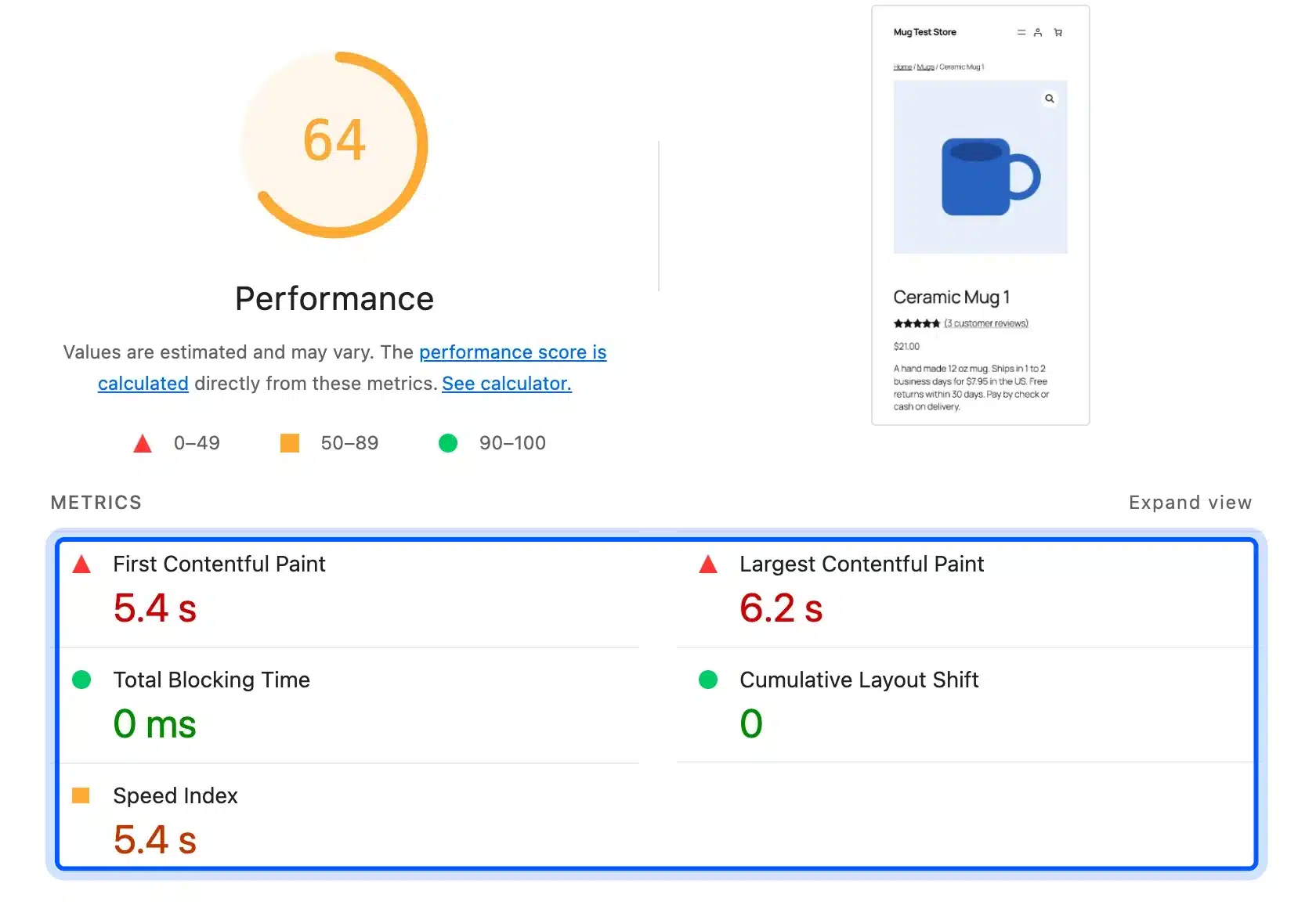
The report’s top opportunity was text compression, worth an estimated 586 KiB. Our test server ran Apache with the compression module loaded but no rule telling it what to compress. The mod_deflate documentation gives the directive, and we added it to the site’s .htaccess file:
<IfModule mod_deflate.c>
AddOutputFilterByType DEFLATE text/html text/css text/plain text/xml application/javascript application/json image/svg+xml
</IfModule>
The product page HTML dropped from 168,905 bytes to 28,196 bytes. Three new Lighthouse runs gave a median score of 79, an LCP of 4.2 seconds and a total weight of 484 KiB.
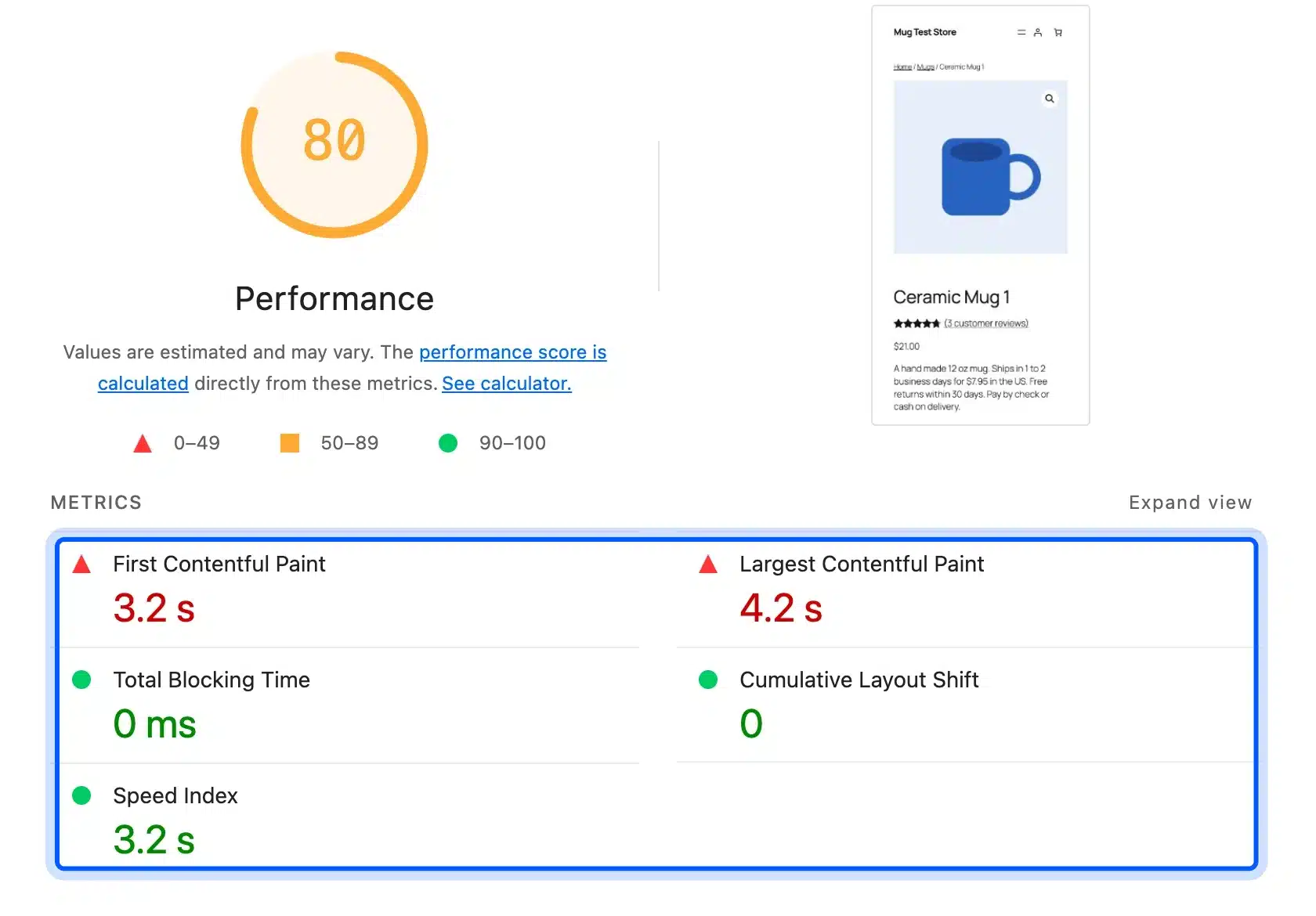
That is still above 2.5 seconds, because jQuery, the full WooCommerce stylesheet and render-blocking CSS remain.
Most managed hosts compress by default, so check yours before editing anything. Run curl -I -H "Accept-Encoding: gzip" against a product URL and look for a Content-Encoding: gzip or br line in the reply. Our guide on fixing slow website loading covers caching, images and the rest of that list.
7. Raise Order Value With Cross-Sells
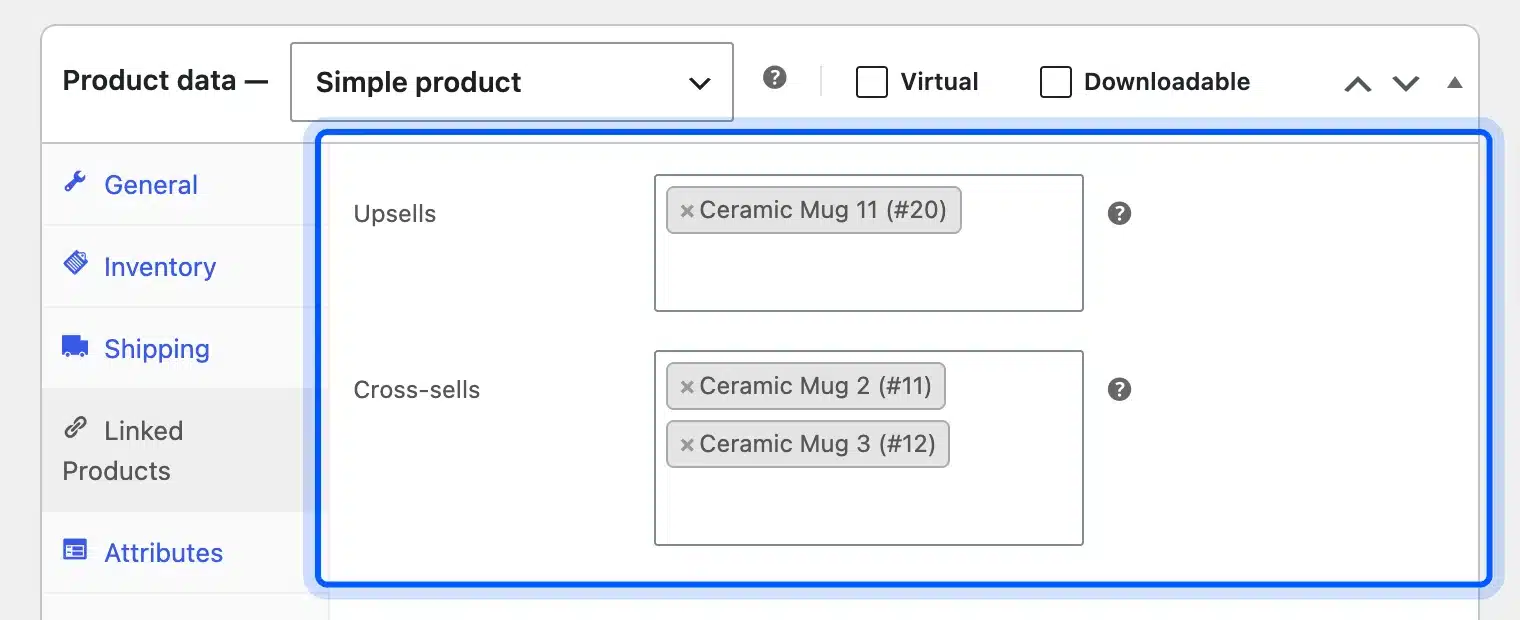
Cross-sells raise AOV, which grows revenue even when the conversion rate stays flat. WooCommerce has two built-in kinds: upsells show on the product page, and cross-sells show in the cart. You set both in the product’s Linked Products tab without any plugin.
On our test mug we added a pricier mug as an upsell and two other mugs as cross-sells. The cart block then showed both cross-sells under “You may be interested in…”, each with its own Add to cart button. WooCommerce’s up-sells and cross-sells guide explains where each kind appears.
Pick items that finish the first purchase, such as a lid for a mug or a case for a phone. A random bestseller in the cart is a distraction at the worst moment.
Quantity discounts are the other route to a bigger basket. The WooCommerce Tiered Pricing plugin, from $49 a year as of October 2026, shows a price table on the product page. Buyers see the next discount before they choose a quantity.
8. Test Every Change on a Phone
Test every change on a phone, because the layout that works on a laptop often hides the very fix you made. A cart that shows shipping on desktop can push that line below the fold on a small screen. Load the cart and checkout at phone width after each change, as a logged-out shopper.
We loaded our store at 390 pixels wide, the size of a common modern phone. The checkout had no sideways scrolling and ran to 1,943 pixels tall, about two and a half screens. In the cart, the two cross-sells sat above the totals, so shoppers had to scroll past them to see the shipping cost.
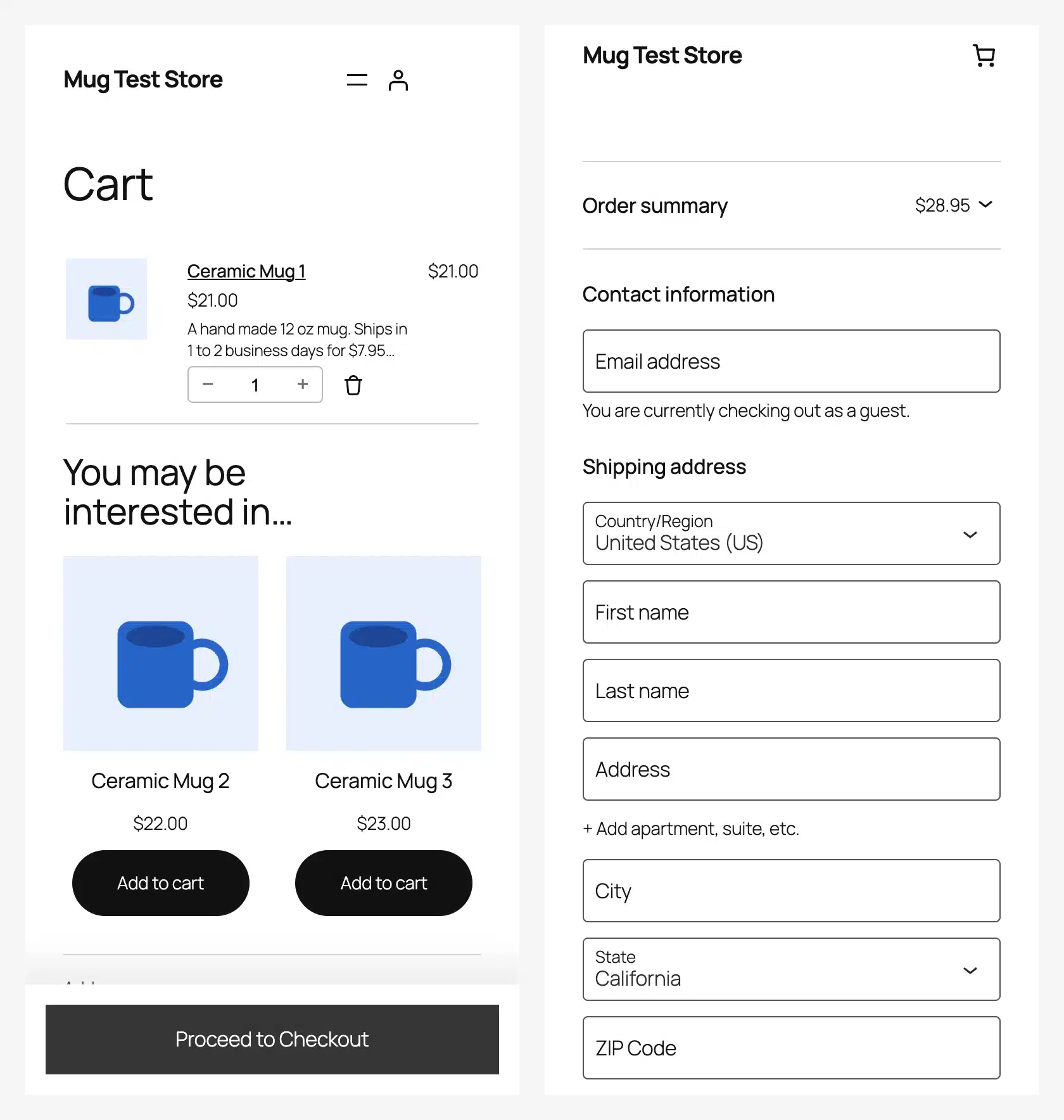
The block cart handles part of this well. A sticky “Proceed to Checkout” bar stays at the bottom of the screen, so shoppers never lose the button while scrolling.
If the totals matter more than the extras on mobile, move the cross-sells block below the totals in the cart page editor. Then check it again on the phone.
What Our Test Store Showed
Our test store showed that the biggest wins came from settings you already have. One shipping checkbox decided whether the full price showed in the cart, and one guest checkout setting decided whether new visitors could buy. A server rule nearly halved page weight and cut 2 seconds from mobile LCP.
Every number below comes from the same test store, measured in October 2026:
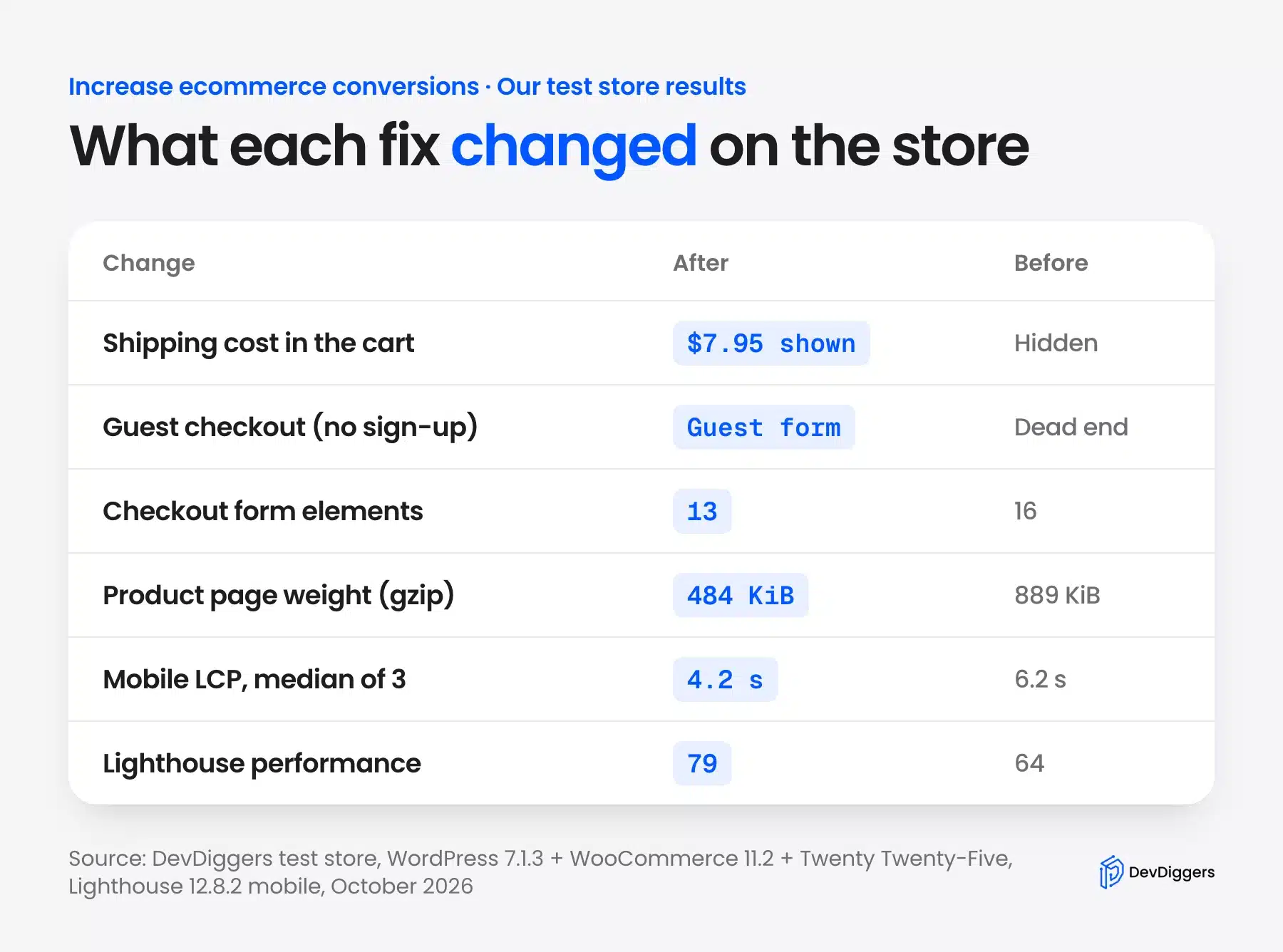
These are setup results rather than sales results. A test store has no real shoppers, so it cannot tell you how much your conversion rate will move. What it shows is that each leak exists in a stock WooCommerce install and that each fix works as described.
The speed gain also needs context. Lighthouse runs a simulated slow mobile connection, so a fast real-world site will see smaller absolute changes. The 32% drop in LCP still points the right way for every visitor on a slow phone.
You can repeat the same four checks on your own store in under an hour:
- Cart total: Add one product as a logged-out shopper and confirm the cart shows shipping.
- Guest path: Open checkout in a private window and confirm a form appears.
- Field count: Count every input, checkbox and radio on the checkout page.
- Speed baseline: Run Lighthouse three times in mobile mode on your best-selling product and note the median.
Write the four results down with the date. When a plugin update or a new theme lands, run them again and compare.
How to A/B Test Changes Without Fooling Yourself
An A/B test shows half your visitors the old page and half a new version, then compares orders. It is the only way to prove a change caused a lift rather than a busy week. Test one change at a time, run it for whole weeks, and judge it on orders and AOV together.
A test you can trust fits in six steps:
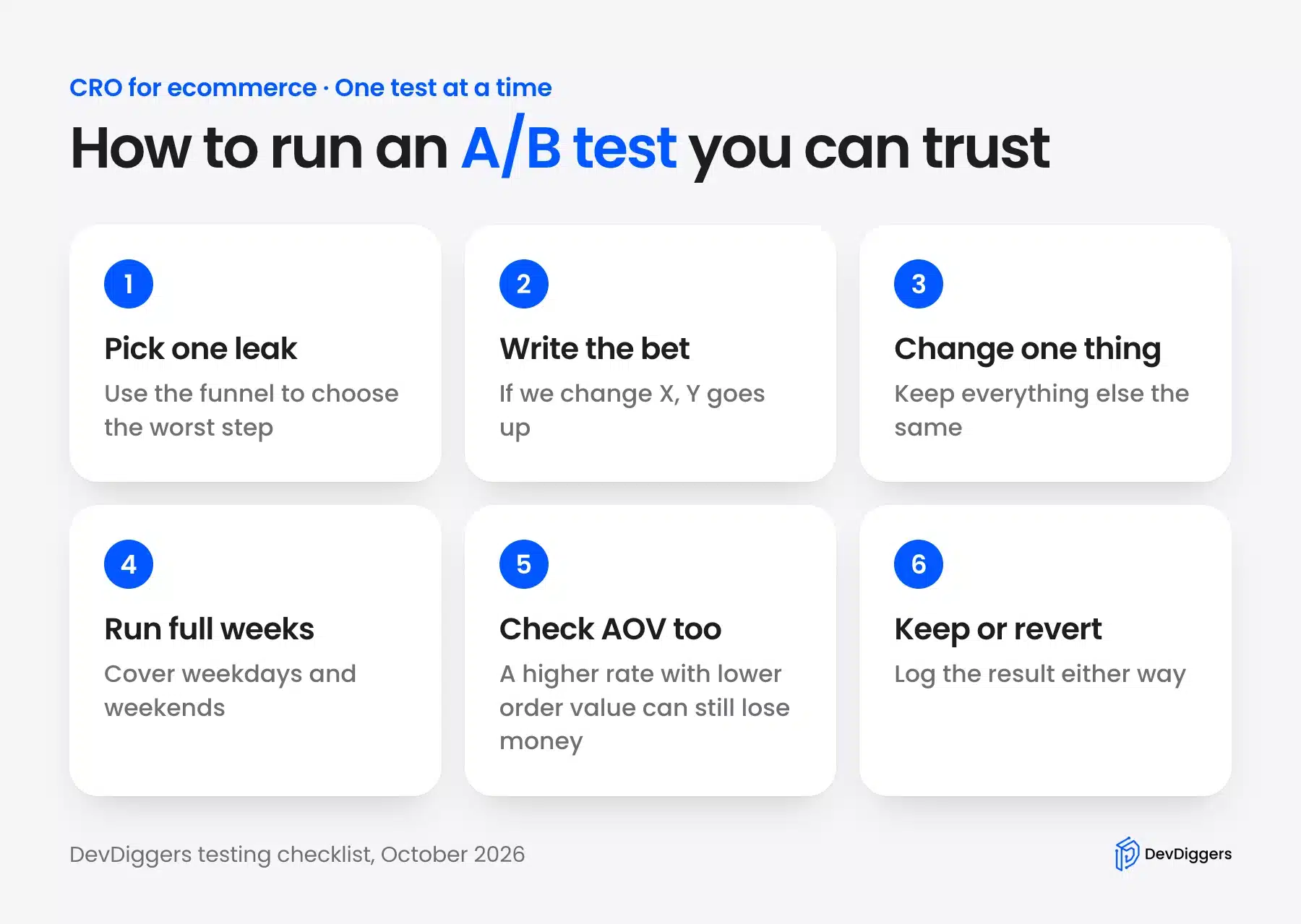
Small stores face a real limit here.
A test needs enough orders in each version to separate a real change from chance. A store with 50 orders a week may wait months for a clear answer. In that case, make the fixes Baymard’s research already supports and watch the funnel report month over month.
A small store should test the big, clear changes first. Showing shipping in the cart or opening guest checkout can move enough orders to see. Button colors and headline wording rarely do, so leave those for later.
Pick your tool with care. Google’s own tool is gone: the Google Optimize sunset notice says it stopped working on September 30, 2023. Most testing tools now plug into Google Analytics 4 instead, and several run as WordPress plugins.
Tip: Note the start date, the change and the result of every test in one shared sheet. Six months later, it stops your team from testing the same idea twice.
Ecommerce Conversion Optimization Mistakes to Avoid
Most eCommerce conversion optimization mistakes come from changing too much at once or trusting the wrong number. A redesign that touches many things at once hides which one helped. Each of these traps is cheap to avoid once you know to look for it:
- Copying another store’s tactic: A countdown timer that works for a flash sale site can feel fake on a store selling furniture.
- Judging by conversion rate alone: Free shipping on every order can lift the rate while cutting AOV and profit.
- Skipping the logged-out test: Admins see a different checkout, so walk it in a private window.
- Adding pop-ups on product pages: A discount pop-up that blocks the Add to cart button costs more than it earns.
- Ignoring mobile: A fix that only works on a laptop misses most shoppers on many stores.
- Testing during a sale: A holiday promotion changes who visits, so results from that week rarely hold afterwards.
- Never removing old fixes: Banners, badges and pop-ups pile up over the years until the product page is slower and noisier than before.
The last one is easy to miss. Once a year, list every element above the Add to cart button and ask whether it still earns its place.
Good CRO for eCommerce is slow and a little boring. You fix one leak, measure it, write it down and pick the next one.
When to Bring In a Developer
Bring in a developer when the fix lives in code rather than settings. Custom checkout fields, a template change for the product page, or server work beyond .htaccess are easy to break on a live store. A staging copy and someone who knows WooCommerce internals keep the checkout taking orders.
Watch for a few signs. A checkout that breaks after plugin updates points to code work. So does a theme that cannot show what you need, or a Lighthouse score that settings alone cannot raise.
That is the point where our custom WooCommerce development services help. We build and test checkout and product page changes on staging first, then move them to the live store.
Conclusion
You can increase eCommerce conversions with the visitors you already have by fixing the leaks between product and payment. Start with the cart and checkout, where hidden shipping, forced accounts and extra fields cause the most exits in Baymard’s research.
Then work on trust and speed. Delivery and returns lines next to the button, verified reviews and a lighter product page all help shoppers commit. Our test store showed each of these fixes working on a stock WooCommerce 11.2 install.
Finally, measure every change against orders and AOV together, on a phone as well as a laptop. Small, logged fixes add up faster than one big redesign.
Frequently Asked Questions (FAQs)
Q1. What is a good eCommerce conversion rate?
There is no single good number, because the rate changes with industry, price, device and traffic source. A cheap accessory store and a high-end furniture store should never share a target. Use your own last 90 days as the baseline and aim to beat it each quarter.
Q2. How do you calculate eCommerce conversion rate?
Divide the number of orders by the number of sessions for the same dates, then multiply by 100. For example, 150 orders from 10,000 sessions gives a 1.5% conversion rate. Use one analytics tool for sessions and leave test orders out of the order count.
Q3. What is conversion rate optimization?
Conversion rate optimization, or CRO, is the practice of changing a store so more visitors complete a purchase. It covers checkout fixes, product page content, speed and testing. The goal is more orders and revenue from the same traffic.
Q4. What is the average cart abandonment rate?
Baymard Institute’s cart abandonment list puts the average documented rate at 70.22%, based on 50 studies. That means about seven in ten shoppers who add an item never finish the order. Part of that is window shopping, and Baymard’s survey shows that costs, accounts and long forms explain much of the rest.
Q5. Does free shipping increase conversions?
Free shipping removes the top abandonment reason, since 40% of shoppers in Baymard’s survey left over extra costs. It can lower your margin, though, so many stores set a free shipping threshold above their current AOV. Always show the shipping cost in the cart, free or not.
Q6. Is guest checkout bad for customer retention?
Guest checkout does not have to cost you repeat customers. WooCommerce can offer account creation after the order is placed, which it labels as recommended in Accounts and Privacy. The shopper buys first and saves an account from the thank you page.
Q7. How long does it take to see results from CRO?
Settings fixes like showing shipping or turning on guest checkout work from the next order. Measuring their effect takes at least two to four full weeks of data, so weekday and weekend patterns even out. Smaller stores need longer, because each week brings fewer orders to compare.