Thinking of starting a WordPress site but want to hold off on hosting and domain purchase? You’re not the only one. A lot of beginners – and developers – want somewhere safe and preferably offline to design and test their site without the pressure of it being live.
That’s why Local WP is here to help! In this beginner’s guide, you are going to learn how to set up WordPress using Local WP, a free desktop application that makes it quick, easy, and code-free to create local WordPress environments.
We’ll help you every step of the way, from where to get Local WP, all the way through to accessing your local WordPress dashboard, advanced features, and other common questions to make the most of your local installation.
Whether you’re starting fresh or are just learning how to fine-tune a client project, this tutorial will help you every step of the way.
What is Local WP?
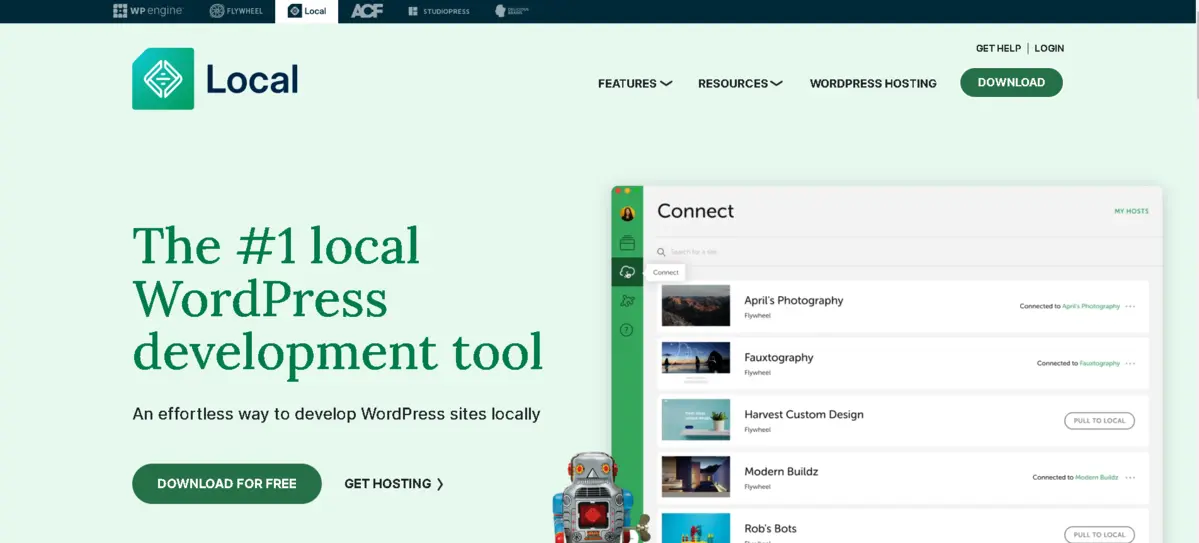
Local WP (formerly known as Local by Flywheel) is a free and powerful local development environment made specifically for WordPress users. Instead of messing around with cPanel, FTP clients, or online hosting, Local WP allows you to create a full WordPress site right on your computer.
Think of it as a personal sandbox, where you can build, break, and rebuild WordPress sites offline with no risk to a live site. It’s great for learning, testing, or even developing client projects.
If you’re wondering how to set up WordPress using Local WP, this is the tool that makes it all possible with just a few clicks.
Key Features of Local WP
- One-click WordPress installs — Forget complicated downloads or setting up a database.
- Predefined environments — Pick from PHP versions, server of choice (Apache or Nginx), and MySQL selection.
- SSL — Build local sites that are HTTPS-ready in an instant.
- Email testing using MailHog — Cry no more about “Did the form send?”
- Blueprints and site cloning — Take project setups and create blueprints for later use.
- Live Link sharing — Share your local site temporarily with colleagues or clients.
- Direct integration with WP Engine and Flywheel — Push directly from your local machine.
It is trusted by thousands of WordPress professionals around the globe, and it is developed and maintained by WP Engine, one of the top managed WordPress hosting companies.
Why Use Local WP for WordPress Development?
As you try to figure out how to set up WordPress using Local WP, you might be asking — why do all the work locally instead of on a live server?
Local WP provides a massive host of benefits that allow WordPress developers, freelancers, and even beginner users who just want to learn for free, to be successful. Let’s clarify:
- No Hosting or Domain Needed: Hosting can get pricey, especially when you’re just trying things out or creating test projects. With Local WP, the only thing that runs is Local itself on your personal computer. No domain, no hosting bills, ever.
- Lightning Speed Development: Again, because you are developing offline, everything happens instantly, no uploading files via FTP, no site being remotely slow to respond, everything happens in real time to provide an even faster workflow.
- Test Safely & No Risk of Breaking Something: The whole reason that someone might hesitate to tinker with a WordPress website is the worry of breaking something. No longer. Local WP provides a safe, secure sandbox environment, so even if your code does crash, it is not going to affect the live website.
- One-click access to wp-admin: Forget about cumbersome login credentials or having to type your username/password every time you log in. Local gives you a magic link to the wp-admin area of your site without entering your credentials.
- Get an instant SSL certificate for HTTPS Testing: Are you testing forms, payment gateways, or secure pages? Local WP provides trusted SSL certificates for every local site, so you can test your site securely with HTTPS without any extra work.
- Fully Offline Development: You can work on WordPress without the need for an internet connection. Once the Local app and site are installed, you can develop WordPress websites just anywhere ~ you can even develop without an internet connection (e.g., flying or a coffee shop).
- Simple Team Collaboration: If you’re working with a teammate on your project, you can either use Git for version control and pull requests if you’re really fancy, or export your site and share it with those collaborators. Importantly, you can use the Live Link feature to share a temporary link to your local site with a client or teammate.
Bonus: This is the perfect tool to learn WordPress. If you’re just getting started with WordPress, or better yet, you are curious to explore themes, plugins, or page builders without risking breaking your live site, there’s no better way than Local WP.
How to Set Up WordPress Using Local WP: Step-by-Step Guide
If you’ve ever Googled how to set up WordPress using Local WP, you are most likely looking for a simple, beginner-friendly, fool-proof, visual guide to build your first local WordPress site without techie complications.
And, of course, whether it’s for a client project or simply messing with WordPress for fun, this is a step-by-step tutorial for going from zero to running WordPress in under 10 minutes.
Let’s structure this into 5 simple steps.
Step 1: Download and Install Local WP
The first step is to have the Local WP app installed on your computer for development.
Here’s how to do it
- Go to the LocalWP official site and click on the Download for Free button.
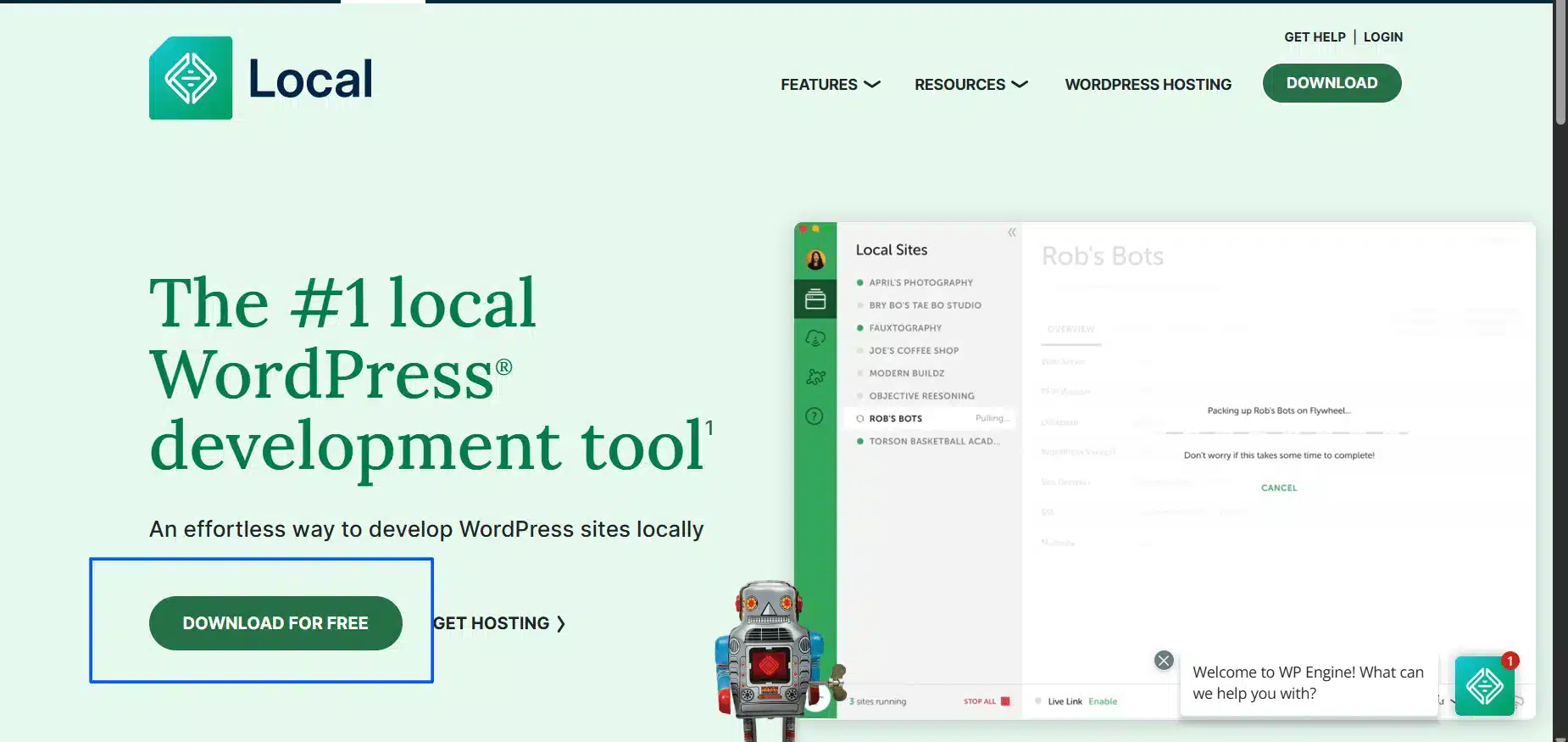
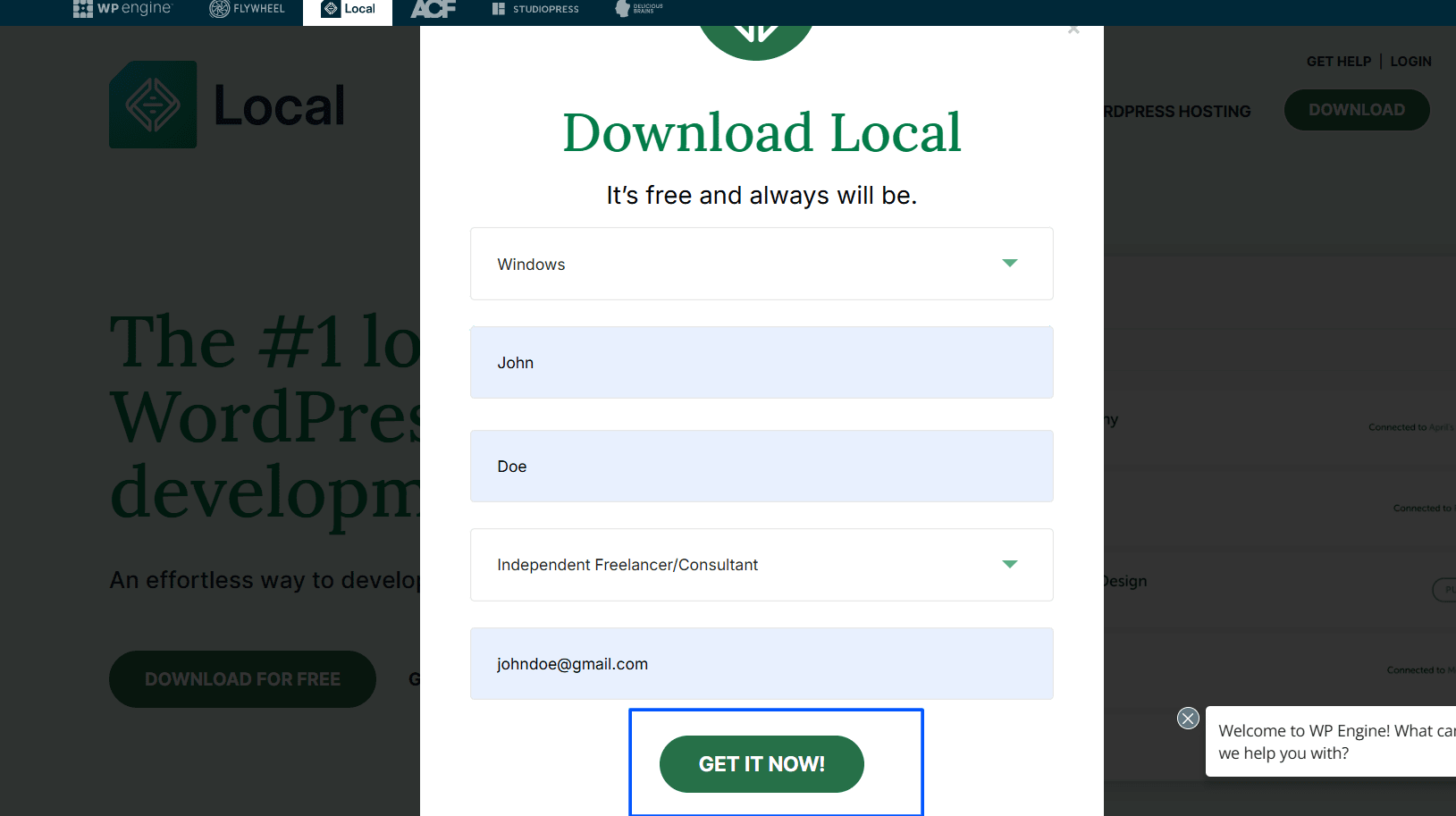
- Select your platform (macOS, Windows, or Linux – beta).

- Enter your information in the field below, then click Get It Now.
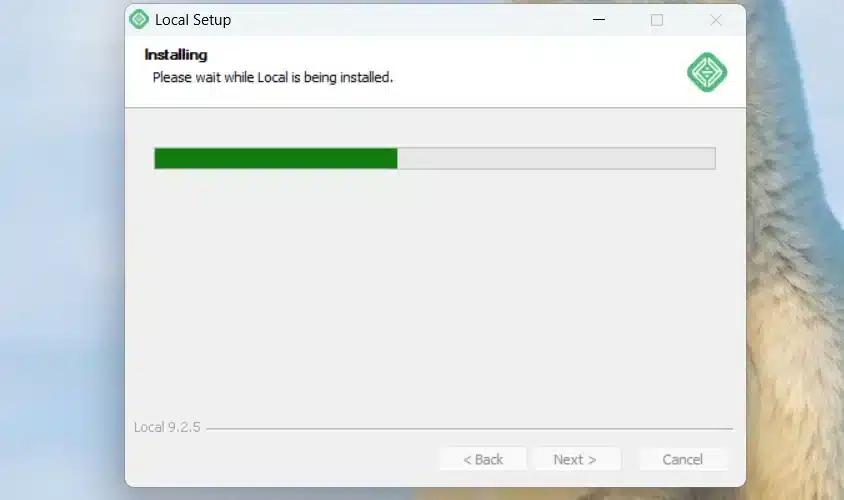
- Once you have downloaded it, you can run the installer and follow the provided instructions.
Why This Matters
Local WP installs all the hard stuff — whether it be Apache or Nginx servers, PHP, MySQL, or WordPress. It easily sets up everything for you. It even installs PHP My Admin, so you have to do absolutely nothing in terminal commands or even set up a database.
Pro Tip: Once you go ahead and install local, open the app and if your firewall or antivirus software prompts for permissions, grant them! This will make things easy going forward.
Step 2: Create a New Local WordPress Site
Now that you have Local WP installed, we need to create your site.
Steps to Create Your First Site
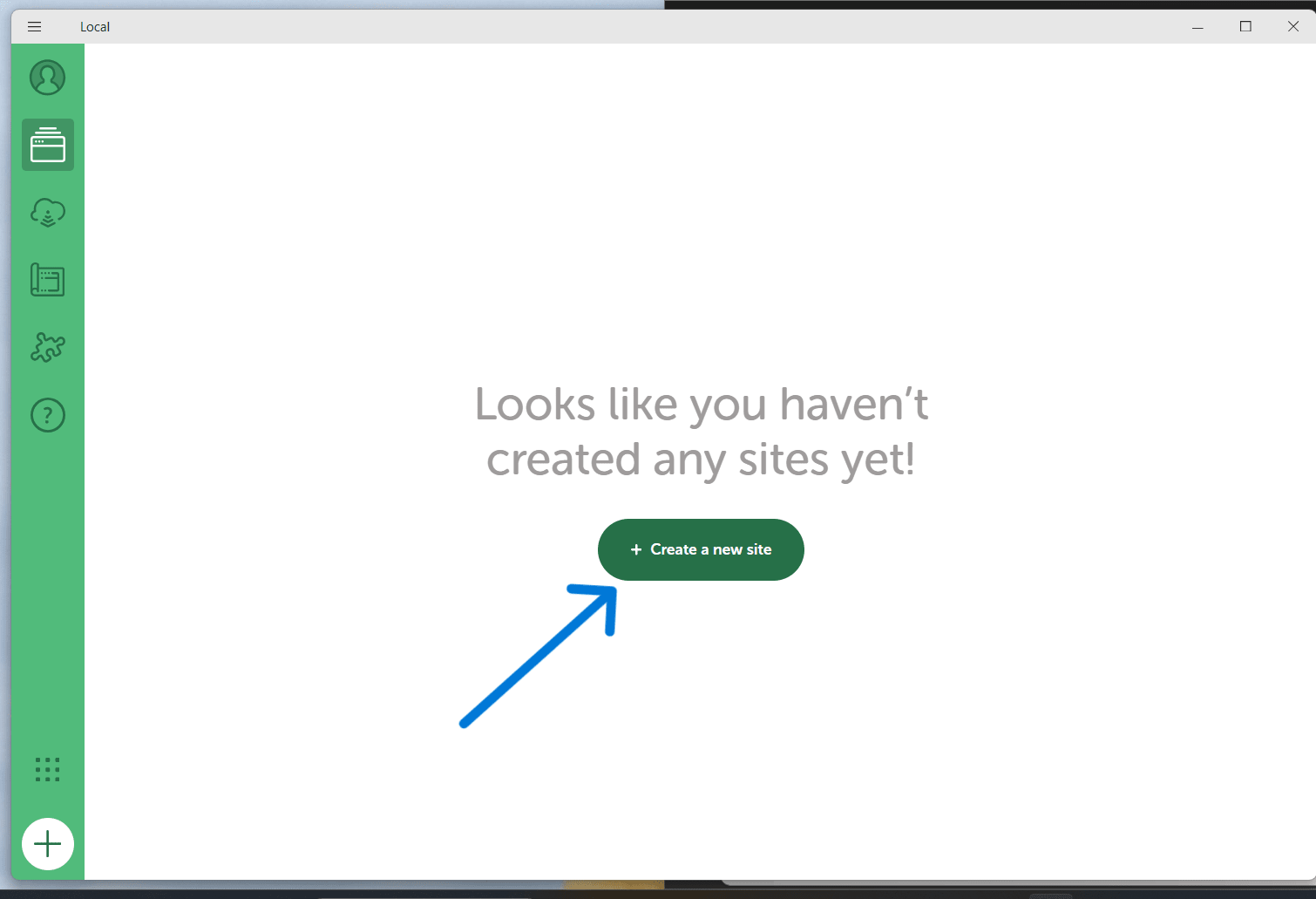
- Click on the green “+ Create a new site” button from the Local dashboard.
- Enter your Site Name – here’s where you will establish the local domain too, e.g.,
wp-test-site.local.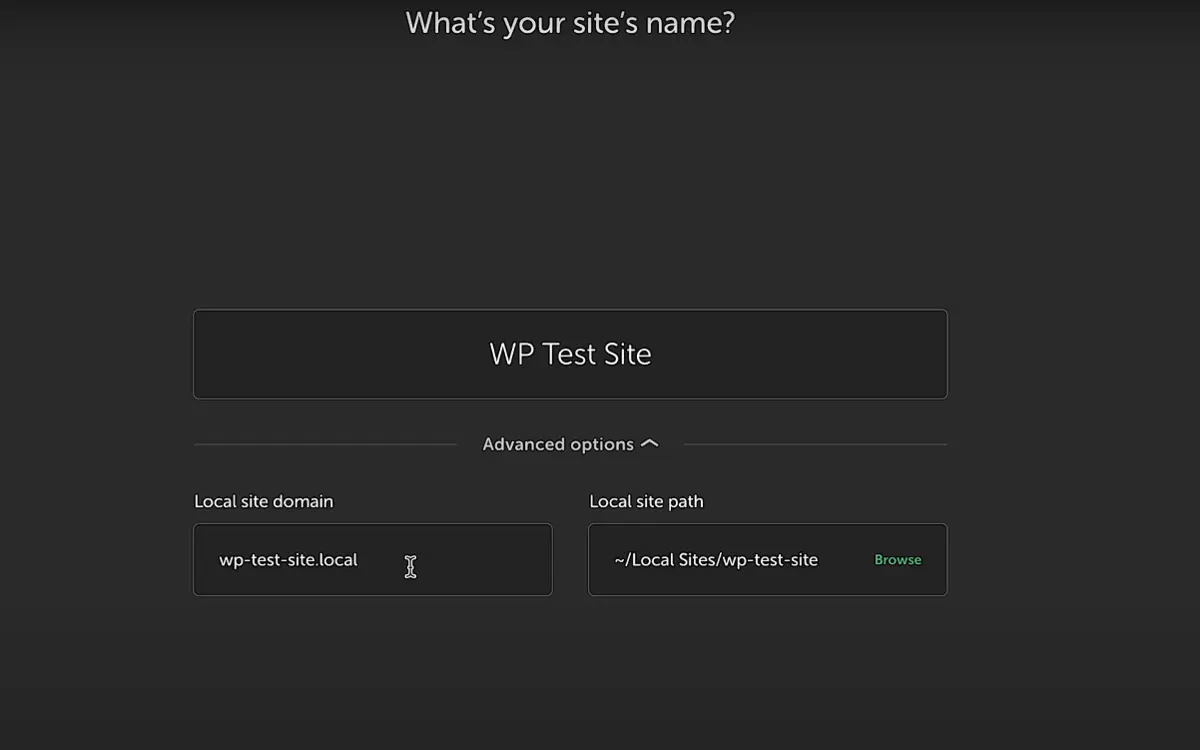
- Choose your Environment:
- Preferred – A pre-defined combo of PHP, MySQL, and web server.
- Custom – Lets you select specific PHP versions (5.6 to 8.x), database engine (MySQL or MariaDB), and web server (Nginx or Apache).
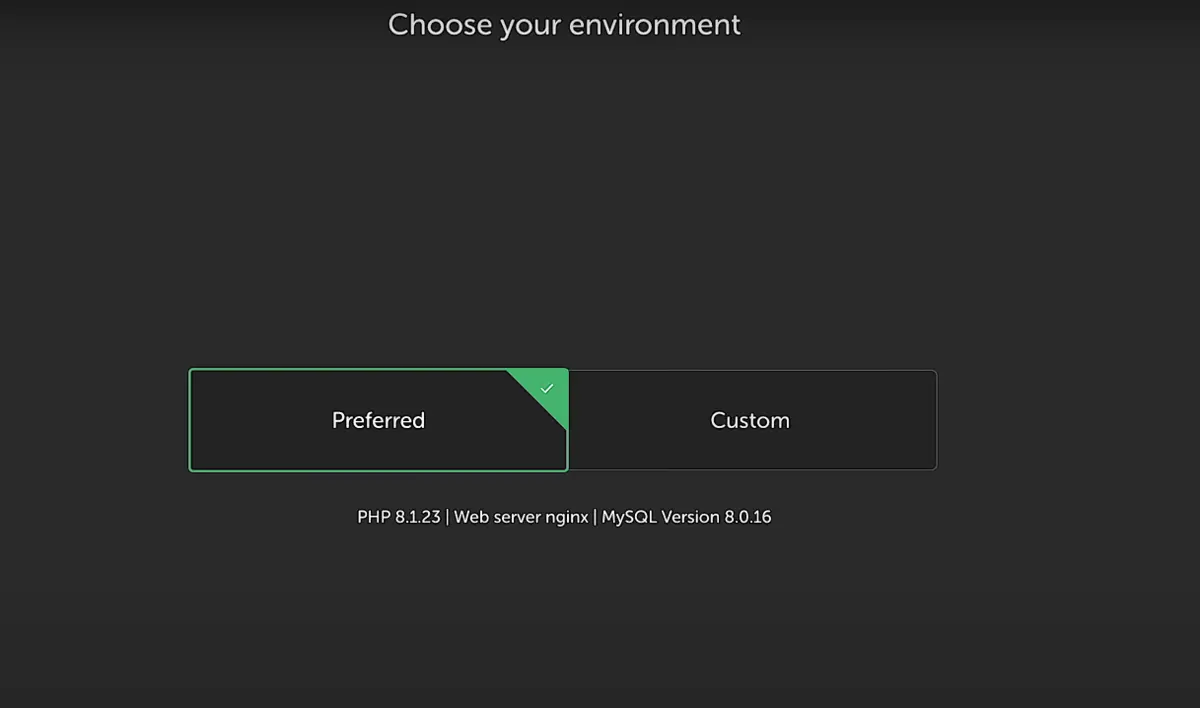
Quick Notes
- Pick “Preferred” if you are not sure.
- “Custom” is great when trying to replicate your client’s live server environment.
Pro Tip: Site names can be edited later, but domain names should reflect your final structure for the project.
Step 3: Create your WordPress Admin User
After you have set up your environment, Local will prompt for your WordPress credentials.
Enter the Following
- USERNAME: Your WP admin login.
- PASSWORD: Use a good, strong password (or password manager).
- EMAIL: This should be a valid email for local notification or test forms.
- You can optionally enable multisite (for network installs – advanced users only).
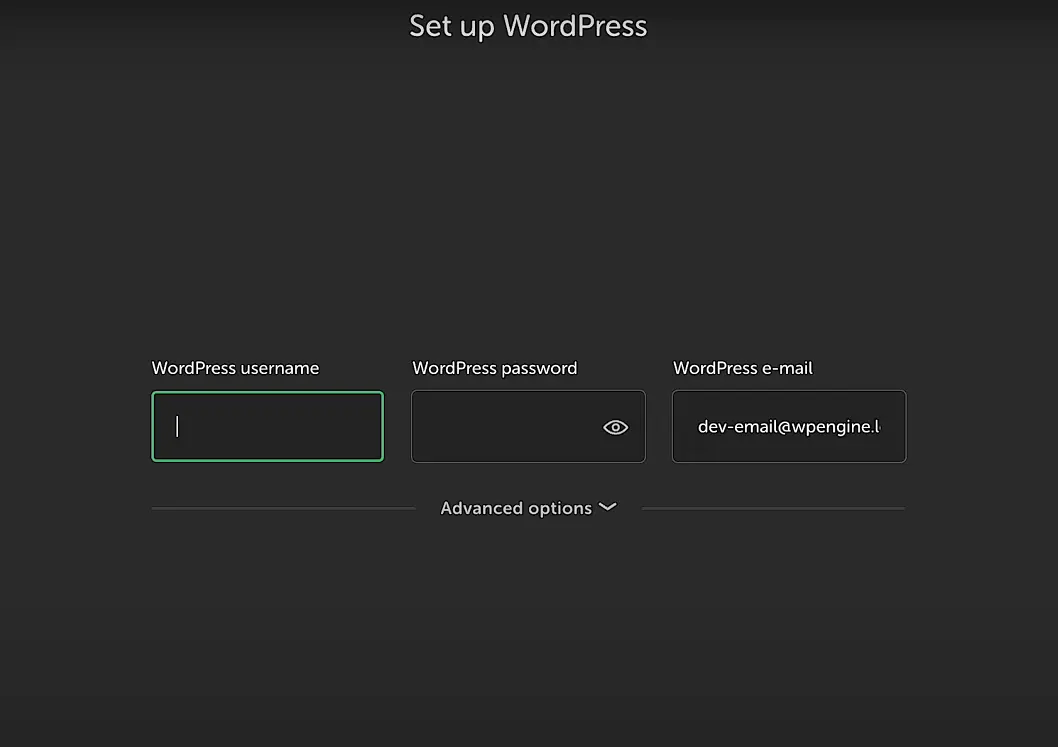
Select Add Site, and Local will start installing your local WordPress environment. This typically takes minutes or less.
What is Happening in the Background
Local WP installs the entire WordPress CMS, sets up a local database, sets up server paths, and gives you a 100% provisioned working WordPress site without any interaction with a live server.
Pro Tip: You can change the admin credentials later from the WP dashboard or database if you need.
Step 4: View Your Local WordPress Site
Once Local has completed the setup process, you will see your new site in the home dashboard.
From Here, You Can
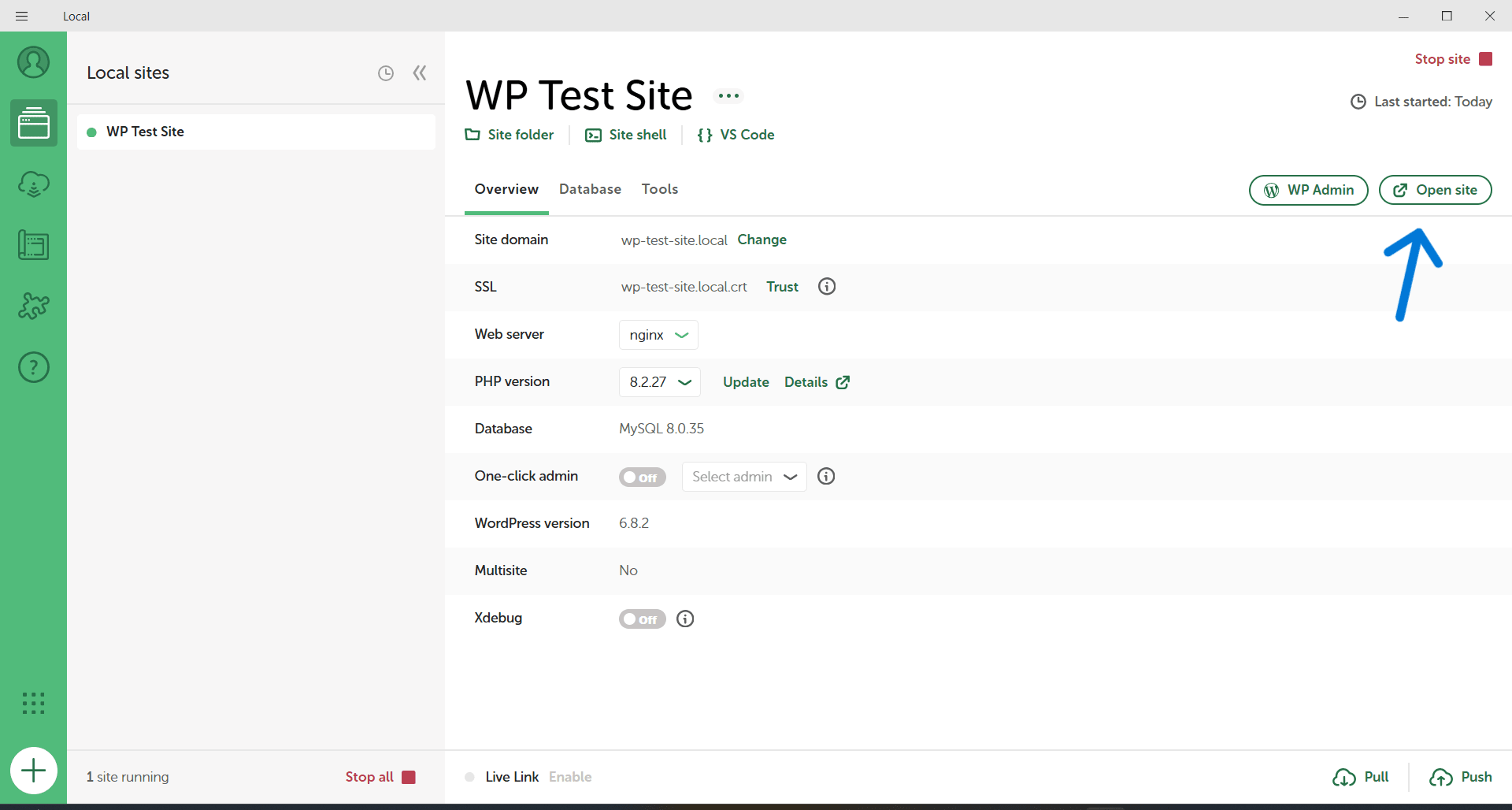
- Click “Open Site” to visit your front-end site (like a normal website).
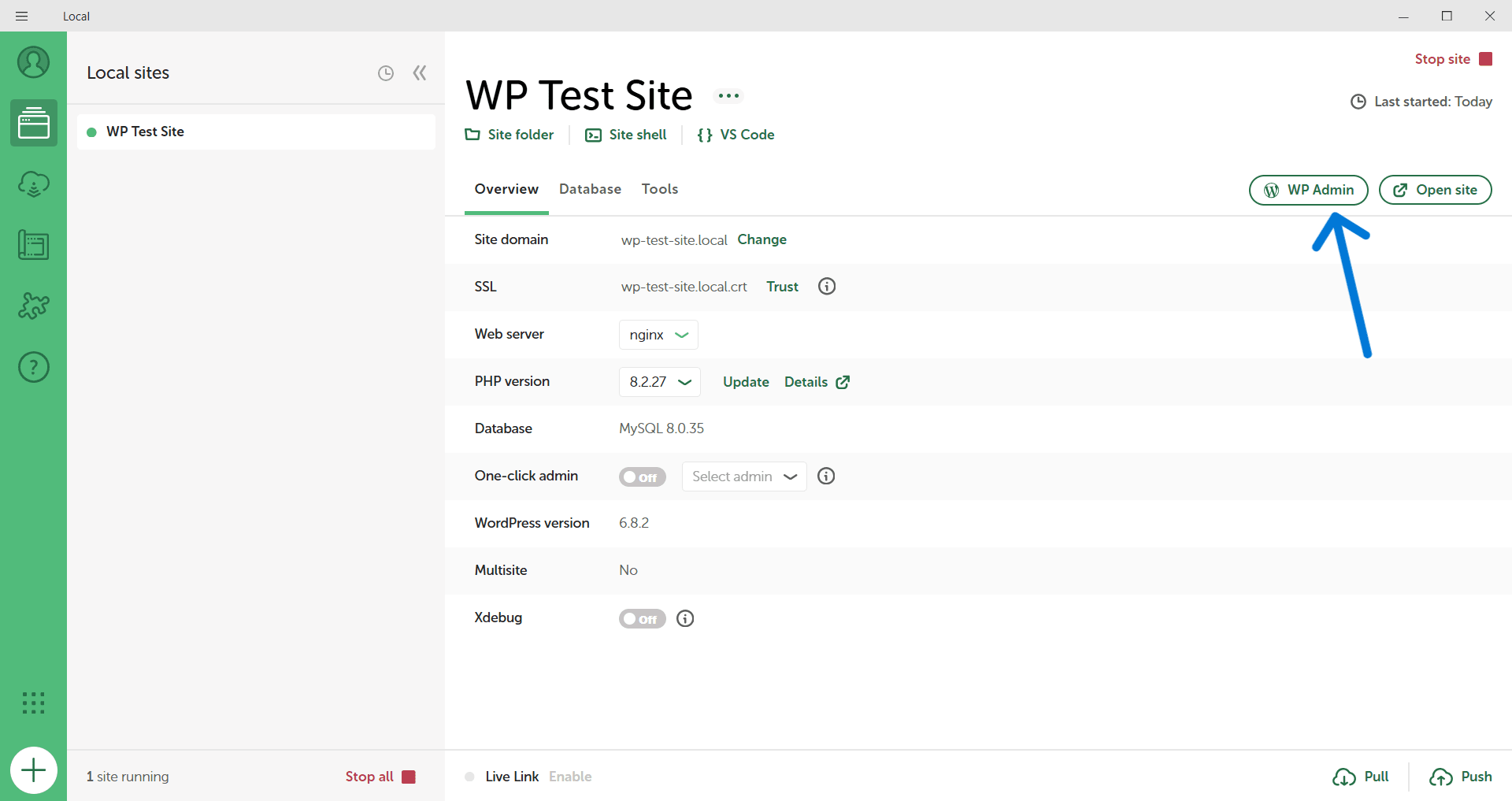
- Click “WP Admin” to log into the backend — no password is needed if you chose to use the magic login.
- Use the Database, SSL, or Utilities tabs for more advanced access.
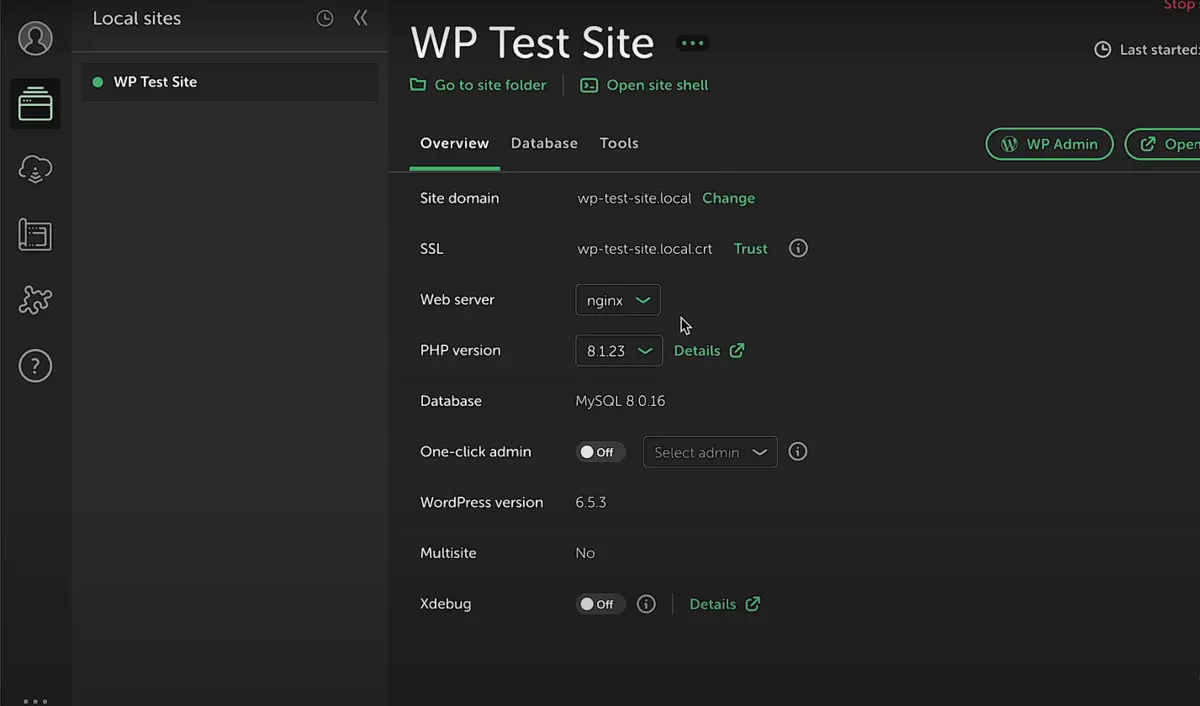
You have a live local site that is completely functional — this is really the same install of WordPress you would be running with paid hosting.
Try This
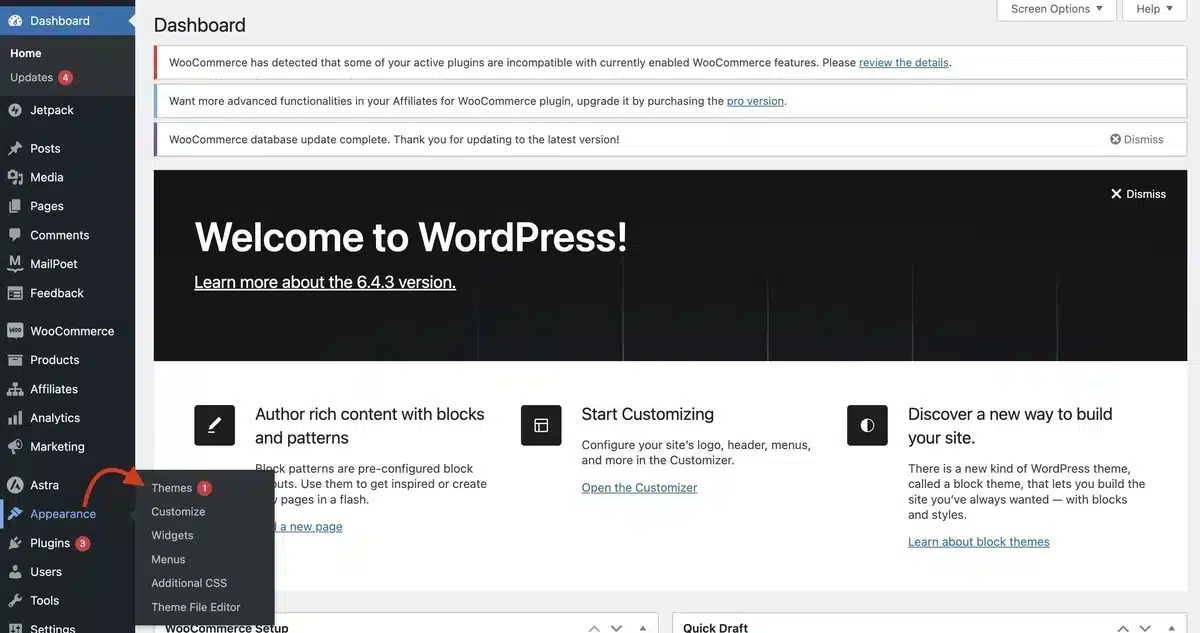
- Install a new theme (Appearance → Themes).
- Add a plugin (Plugins → Add Plugin).

- Create a new page/blog post.
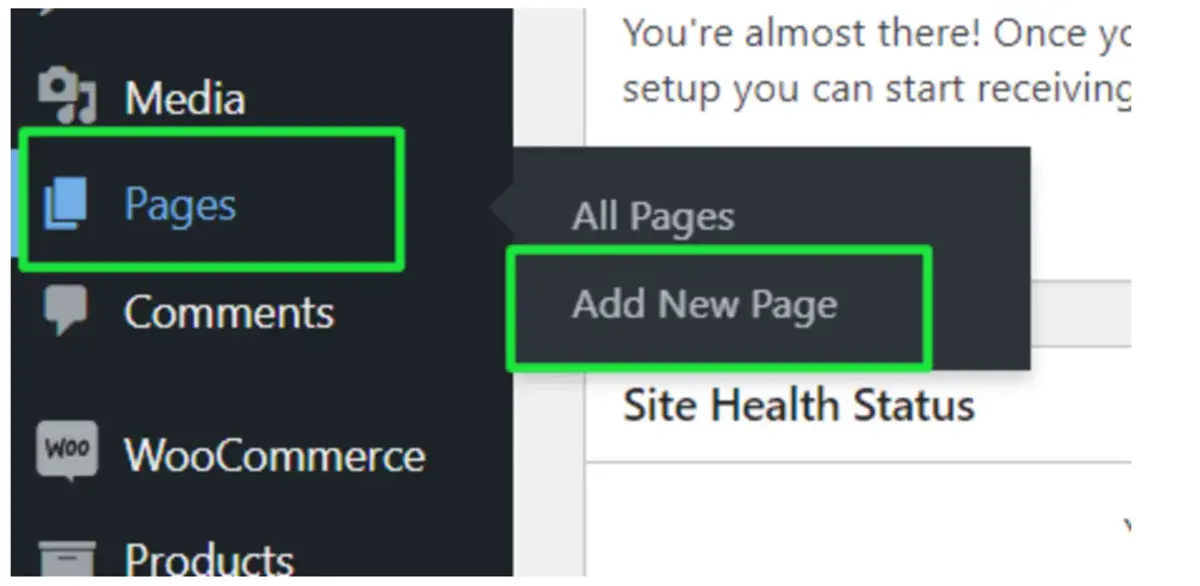
Pro Tip: Use “View Site” but in a separate browser profile to see how it is for a non-logged-in visitor.
Step 5: Getting to Customizing, Testing, and Extending your Local Site
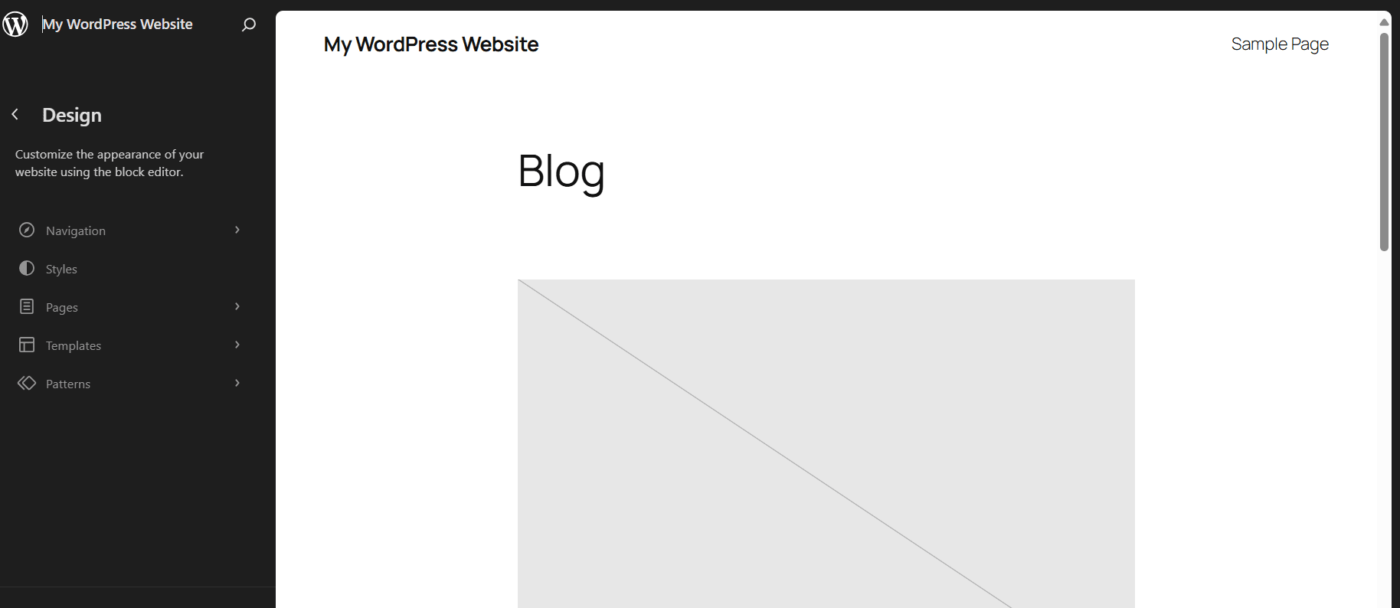
This is the part where the real fun begins. Once you have a WordPress install working on your Local, you can do anything.
Here’s what you can do next
- Design your site using the block editor or page builder using Elementor, Bricks, or Kadence.
- Build custom themes or plugins.
- Test plugin updates, versions of WordPress, or new features without worrying about breaking your live site.
- Clone a site for versioning or sandbox testing.
- Create a Live Link (Pro or experimental) for sharing your local site with a client or user.
Scalable Features to Explore
- PHP & MySQL Switching: Need to switch the default PHP version for hosting your Local site? It’s quick and can save time when testing compatibility.
- MailHog: Need to capture outgoing email from your local site? It’s amazing for testing out forms.
- Logs & Database Access: Access server logs and phpMyAdmin to manage your database.
- Blueprints: Create a blueprint to save and retrieve preferred configuration (plugins, themes, alias configurations and easily apply them to new projects.
Pro Tip: If you’re going live? You’ll also be able to export your local site as a zip and migrate it to a live hosting environment with plugins like All-in-One WP Migration or Duplicator. Or you can always deploy directly via their platform via Flywheel or WP Engine!
Advanced Features of Local WP
By this time, you have learned how to set up WordPress using Local WP — but what if I told you there’s more under the hood? Local WP is not only a beginner tool. There are developer features built in that will make local WordPress development faster, better, and easier, even for serious developers.
Even if you only work on your sites, client sites, or as part of an agency workflow, these advanced features can take your WordPress capabilities to the next level.
1. Site Cloning and Blueprints
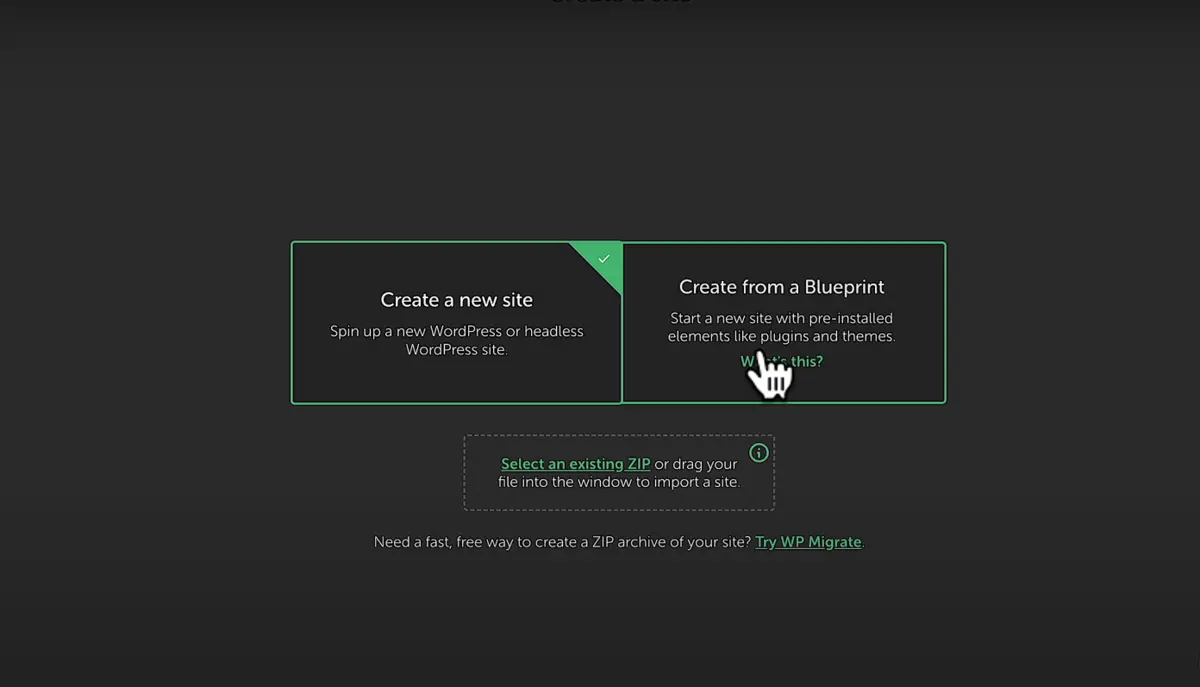
Do you get tired of having to go through the same plugins and themes each time? Local WP has the tools for you with Blueprints and Site Cloning.
Site Cloning
You can clone any of your existing local sites in a few clicks. This is especially useful when:
- You want to work on changes on a copy.
- You want to create stages or backups.
- You are building variations of a base site.
Blueprints
Save a favorite WordPress setup (like a stack of your favorite plugins, settings, and theme) and reuse it as a starter template for any future sites. This is a huge time-saver!
Use Case: Web agencies use blueprints to ensure consistent setups across their client sites. Imagine creating 10 branded sites in 1 hour – boom.
2. Live Link Sharing (Go Public Temporarily)
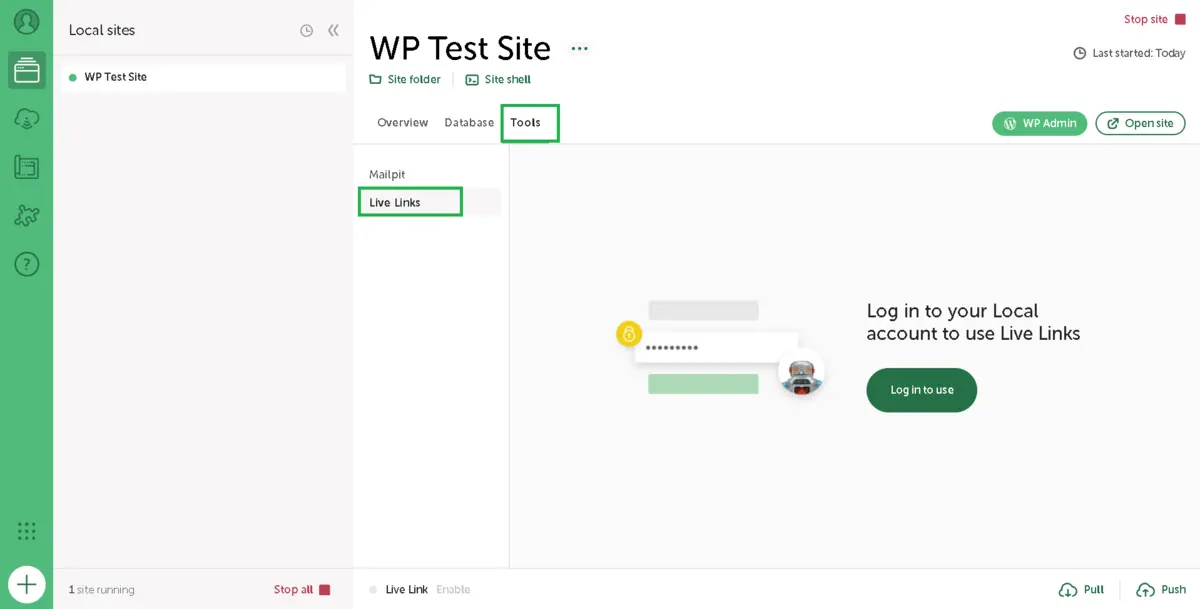
Do you need to share a local site with a client or teammate? Local’s Live Link feature allows you to create a secure, public URL while your site is still running locally!
Use Cases
- Getting client approvals without having to push to staging.
- Letting your teammates QA or test any features.
- Sharing demos for any early-stage projects.
Note: Live Links are temporary and require an active internet connection.
Pro Tip: If you want to have more control over the tunnel when sharing, use a tool like ngrok behind the scenes.
3. Mailpit for Email Testing
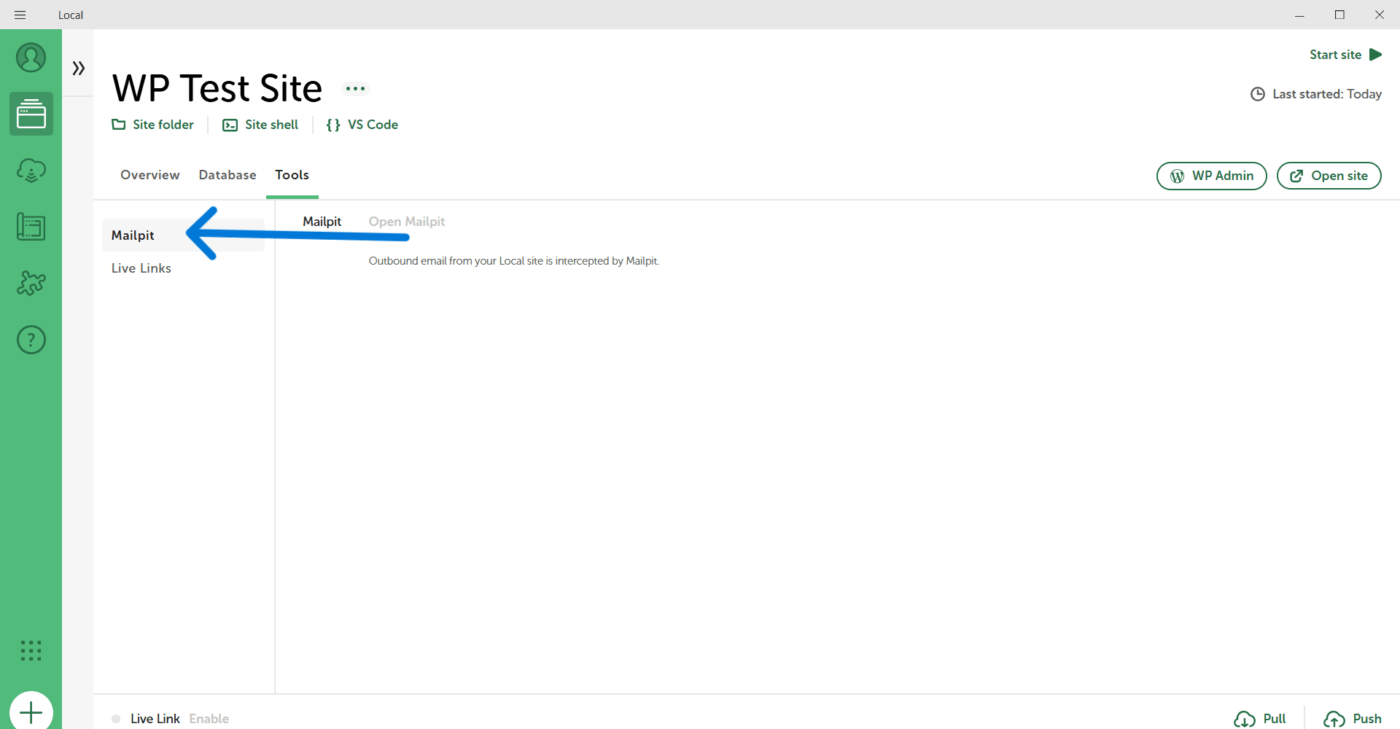
Local WP has Mailpit, a built-in email testing tool enabling you to catch outgoing emails from your local WordPress environment.
So, if you are testing:
- Contact forms
- WooCommerce order confirmations
- Password resets
You won’t need a genuine email account. Just open Mailpit up and view every email that your local WP instance sends, no filtering and no SMTP setup really needed.
It is in the “Tools” tab → Open Mailpit.
4. Flexible Server Environment Choice
Need to test server stacks? Local makes it easy.
You can switch between PHP versions, MySQL vs. MariaDB, and Apache vs. Nginx with clicks, not the command line.
Perfect for:
- Plugin/theme developers validating compatibility
- Troubleshooting performance issues
- Recreating your client’s exact server configuration
You can even assign custom domains and add SSL certificates to replicate production environments.
5. Add-Ons & Developer Tools
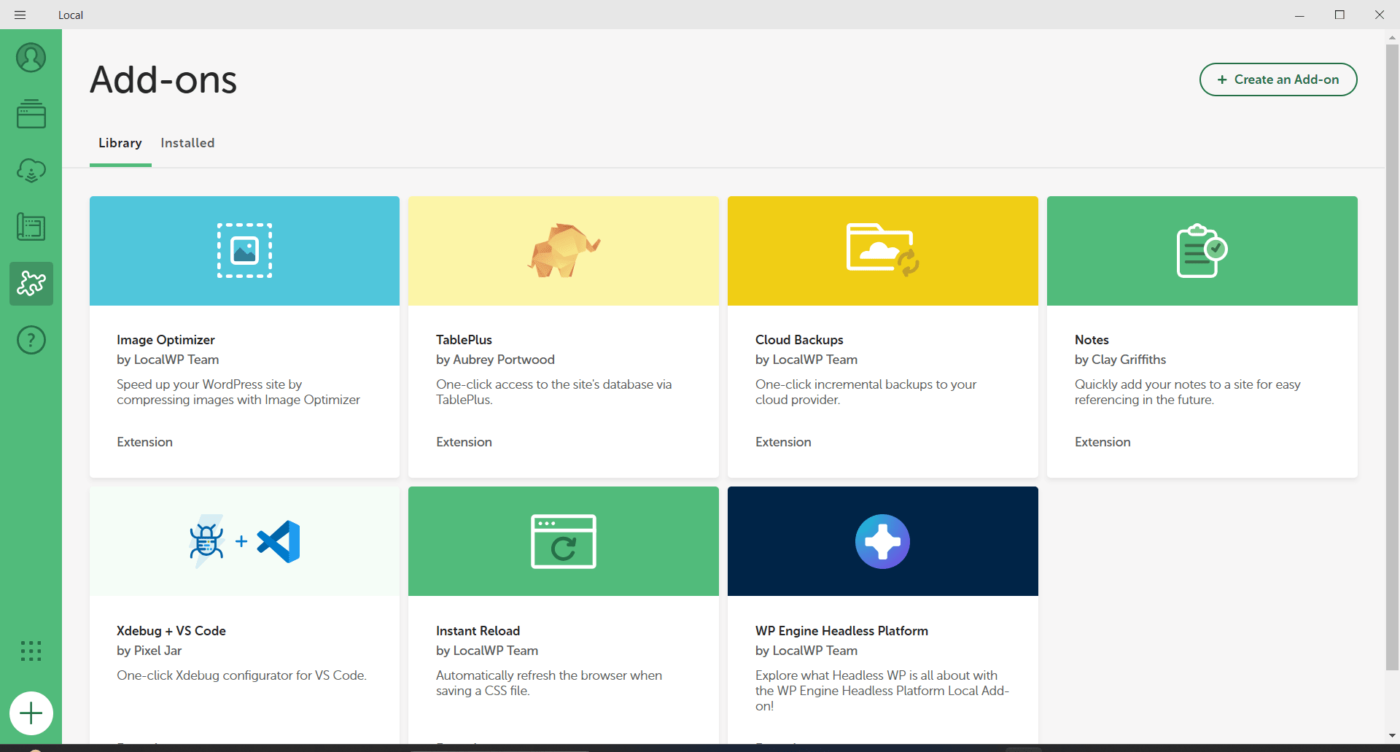
Local WP supports a range of powerful add-ons to extend functionality:
| Add-On | What It Does |
|---|---|
| Image Optimizer | Compresses images directly inside your media library |
| Link Checker | Finds broken links across pages |
| Local Connect | Connects with WP Engine and Flywheel to push/pull sites |
| Xdebug + PHPStorm Integration | Debug your code like a pro |
| TablePlus Integration | Opens your DB in a sleek native GUI |
Pro Tip: Do you want custom workflows? You can also build your own add-ons using Local’s Developer API.
6. Export & Go Live — When You’re Ready
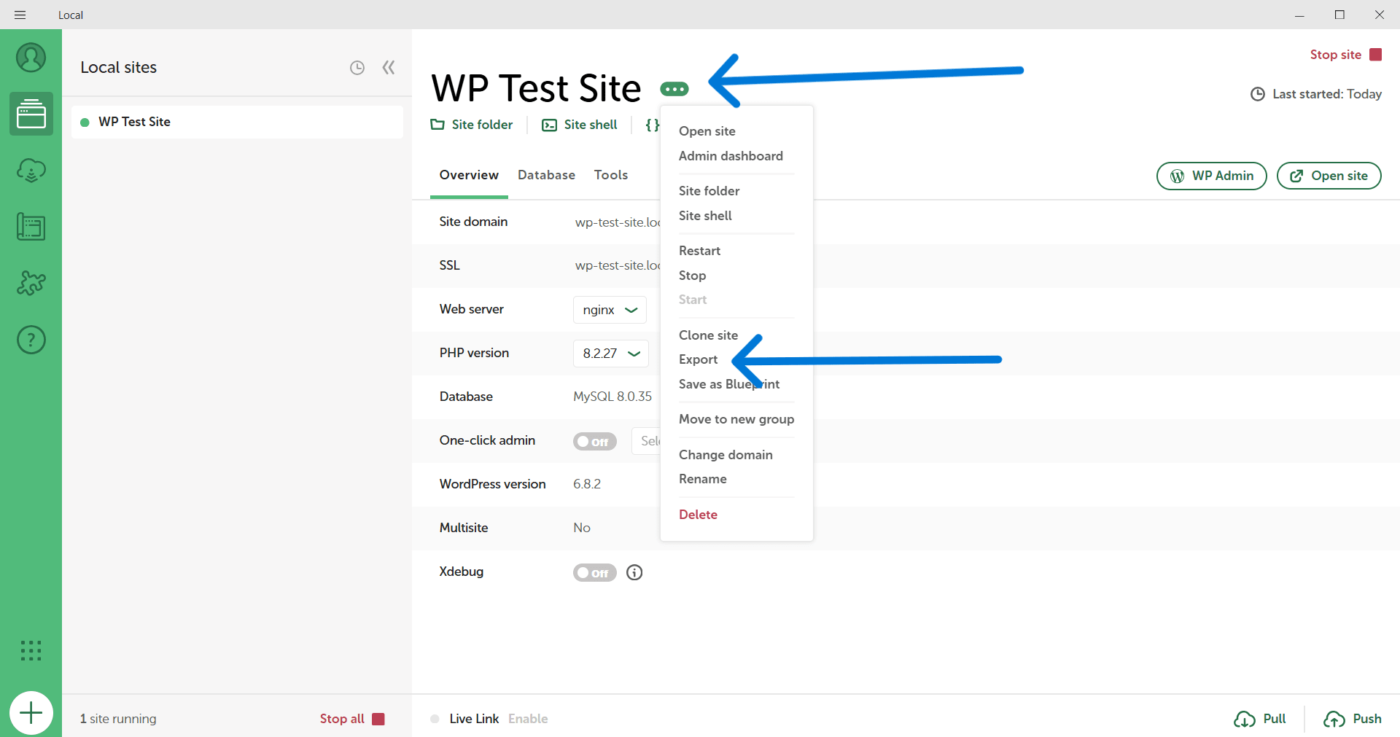
After you’ve developed and tested the site locally, you’re probably wondering, “How do I get this site online?”
Local makes that super simple:
- Use the Export feature to create a site package.
- Move it to any host using a plugin like:
- All-in-One WP Migration
- Duplicator
- WP Migrate Lite
- OR: If you are using Flywheel or WP Engine, push your site to either of those hosts directly from Local without zipping, FTP, and headaches.
Pro Tip: Make sure to always test your exported site locally after import to a staging/live server to confirm everything has migrated successfully.
7. SSL For Every Local Site
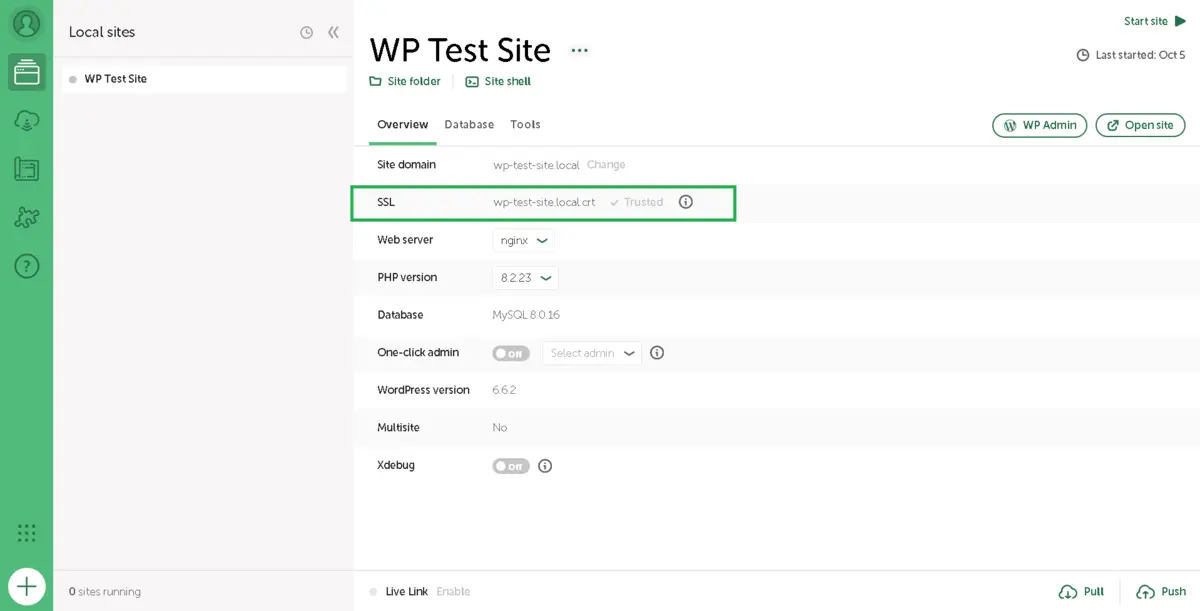
Local WP automatically generates a free SSL certificate for each site you create. You must click the “Trust” button next to the SSL status, and your browser will stop showing your website as unsafe.
This is especially important if you are testing:
- Payment gateways (WooCommerce, Stripe, etc.)
- Login forms or secure-user areas
- Any service or plugin that requires HTTPS
This means your local site acts just like a real, live secure site.
8. Logs, Database Access, and Debugging Tools
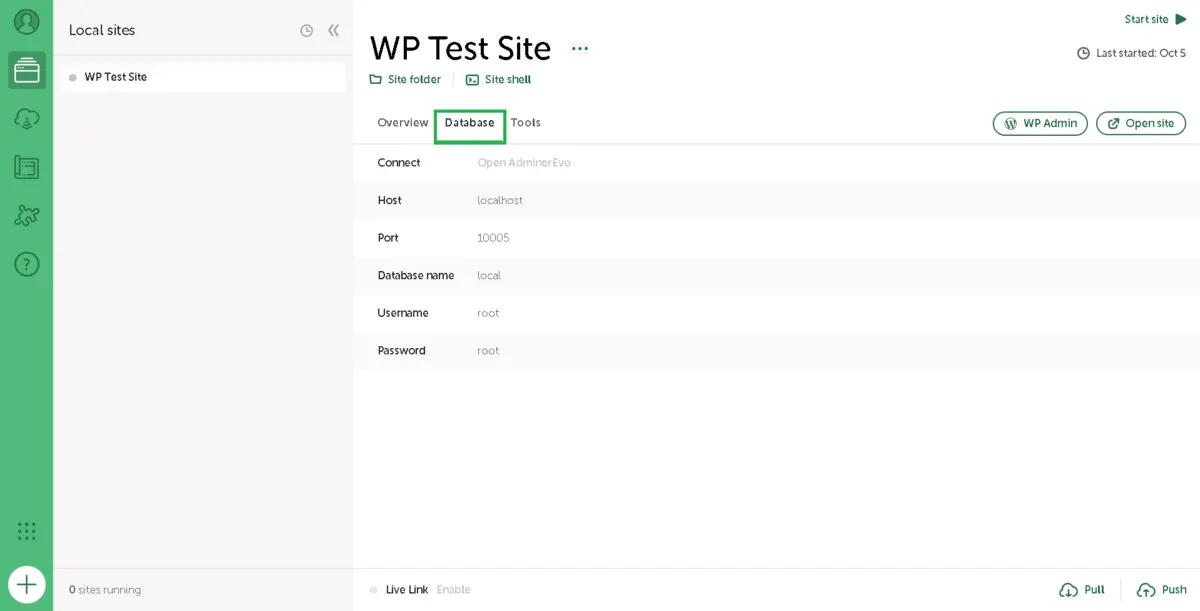
Want complete control over your local server? Local offers you almost complete visibility without the requirement of external services or tools.
What you receive:
- Access logs and error logs.
- One-click access to phpMyAdmin or TablePlus.
- See real-time updates of server activity.
- Enable WP Debug mode directly from the dashboard.
Excellent for plugin issue troubleshooting, catching PHP errors, and improving performance.
Wrapping It Up
If you’ve made it this far, congratulations — you have everything you need to set up WordPress using Local WP and begin your development journey intelligently.
Let’s quickly summarize everything we’ve covered:
- What Local WP is and how it makes building WordPress sites easier and faster than other means.
- Why developers, designers, and beginners prefer Local WP over more traditional means.
- A comprehensive, step-by-step guide to get your local WordPress site up and running in less than 10 minutes.
- Some very powerful advanced features that will help take your workflow to the next level.
- Tools for testing, deploying, and sharing your site without ever touching a live server.
In a world where both time and dependability are of the utmost importance, choosing Local WP and the various tools it provides will help you develop more quickly, safely, and intelligently.
You will never have to rely on hosting, slow FTP uploads, or cPanel logins to simply build or test a WordPress site again. Moreover, with features like Blueprints, MailHog, and Live Links, you’re dabbling in professional-level development all from your desktop.
It doesn’t matter if you’re learning to use WordPress, creating a client project, or working with a team; understanding how to set up WordPress using Local WP, you’re already one step ahead!
FAQs: How to Set Up WordPress Using Local WP
Q1. What is Local WP?
Local WP is a free tool that allows you to simply and efficiently create and manage WordPress websites locally on your computer. There is no need for hosting or a domain.
Q2. Is Local WP easy for beginners?
Yes, Local WP is easy for beginners. It provides a clean interface and one-click WordPress installations, and you do not need any coding knowledge to get started.
Q3. Can I create multiple sites?
Yes. You can create as many local WordPress sites as you want through Local WP – each has its own settings.
Q4. Do I need an internet connection to use Local WP?
Once Local WP is installed, you can build and edit your WordPress sites without an internet connection.
Q5. How do I move a site from Local WP to live hosting?
You have a couple of options. You could export the site and then use a migration plugin such as All-in-One WP Migration or Duplicator, or if you are using WP Engine or Flywheel (two of the best managed WordPress hosts), you can directly deploy the site!