
The best WooCommerce prescription plugins let pharmacy customers attach a doctor’s prescription before they can check out. That way, the store never ships a controlled medicine without proof.
Most WordPress developers who build pharmacy sites hit the same wall. The plugin works fine in testing and then breaks the moment a guest checks out without an account.
That’s the detail nobody warns you about until it costs a support ticket.
This guide compares 6 real options, from a dedicated pharmacy plugin to general file-upload tools you can repurpose for the job. You’ll see pricing, HPOS compatibility, and where each one actually falls short.
What Is a Prescription Plugin and How It Is Used: Quick Introduction
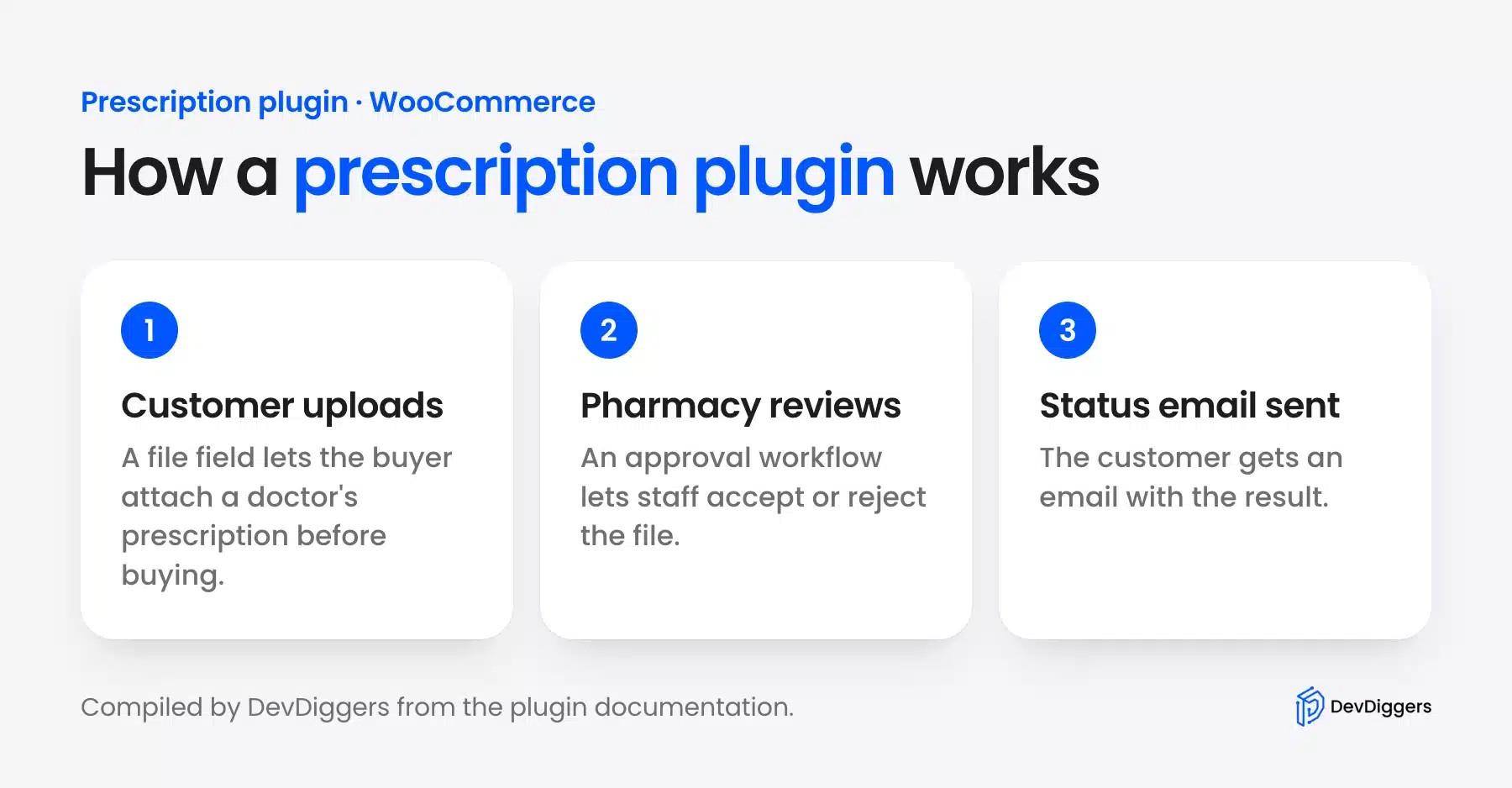
A prescription plugin adds a file field to your store so customers can attach a doctor’s prescription before buying a regulated product. WooCommerce doesn’t include this by default.
Everything you see on a pharmacy checkout comes from a plugin sitting on top of the standard order flow. That includes upload buttons, approval workflows and status emails.
The global online pharmacy market is projected to reach $88.55 billion in 2026, up from $75.86 billion the year before. Every one of those stores needs some way to verify what a customer is buying.
The plugin you pick decides how much of that verification happens automatically, and how much lands on your support inbox.
Quick Comparison: 6 Best WooCommerce Prescription Plugins for Pharmacy Stores
Here’s how the six plugins compare by use case.
| Plugin | Best For |
|---|---|
| WooCommerce Medical Prescription Attachment | Pharmacy review with an order hold and a free edition |
| Advanced Product Fields for WooCommerce | Custom Product Fields |
| Checkout Files Upload for WooCommerce | Checkout-Stage Uploads |
| WooCommerce Product Add-Ons | Flexible Add-On Pricing |
| File Upload for WooCommerce | Charging Fees on Uploads |
| WPForms with File Upload | Standalone Request Forms |
Full pricing and HPOS details are in each plugin’s section below.
6 Best WooCommerce Prescription Plugins for Pharmacy Stores
1. WooCommerce Medical Prescription Attachment
Our WooCommerce prescription plugin is the only option here that holds a paid order until a pharmacist approves the file. Customers upload at checkout, guests included, and the server refuses the order without one. We read its settings and code in October 2026.
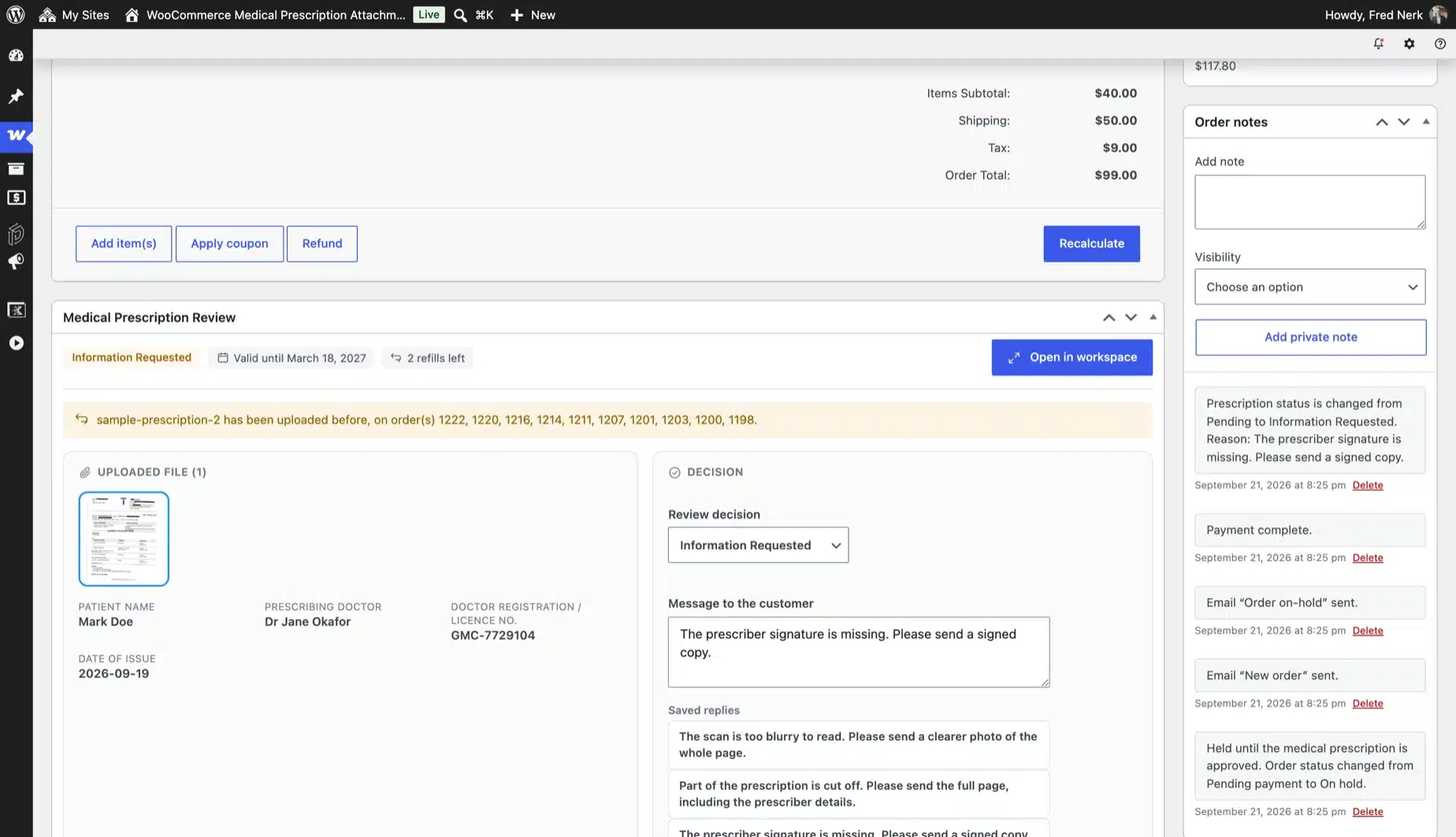
Built by DevDiggers, it turns a file upload into a full review step for pharmacy stores. You mark what needs a prescription, the order waits on hold and a reviewer approves, rejects or asks for a clearer scan. A free edition called Prescription for WooCommerce runs that same workflow on WordPress.org.
- Prescription rules: Require a file by category or across the store, with a per-product override for always, never or follow the rule.
- Upload that cannot be skipped: The box sits on the cart, checkout or order page. It works with classic checkout and the Cart and Checkout blocks.
- Server-side check: Checkout is refused on the server until a file is attached, even when JavaScript is off or an app calls the Store API.
- Order hold: New prescription orders stay in your holding status for card, cash on delivery and bank transfer payments until someone decides.
- Three review decisions: Approve, reject with a required reason or request more information, and the customer gets an email for each one.
- Private file storage: Prescriptions go to a private folder and open only through a permission-checked link for the customer and your staff.
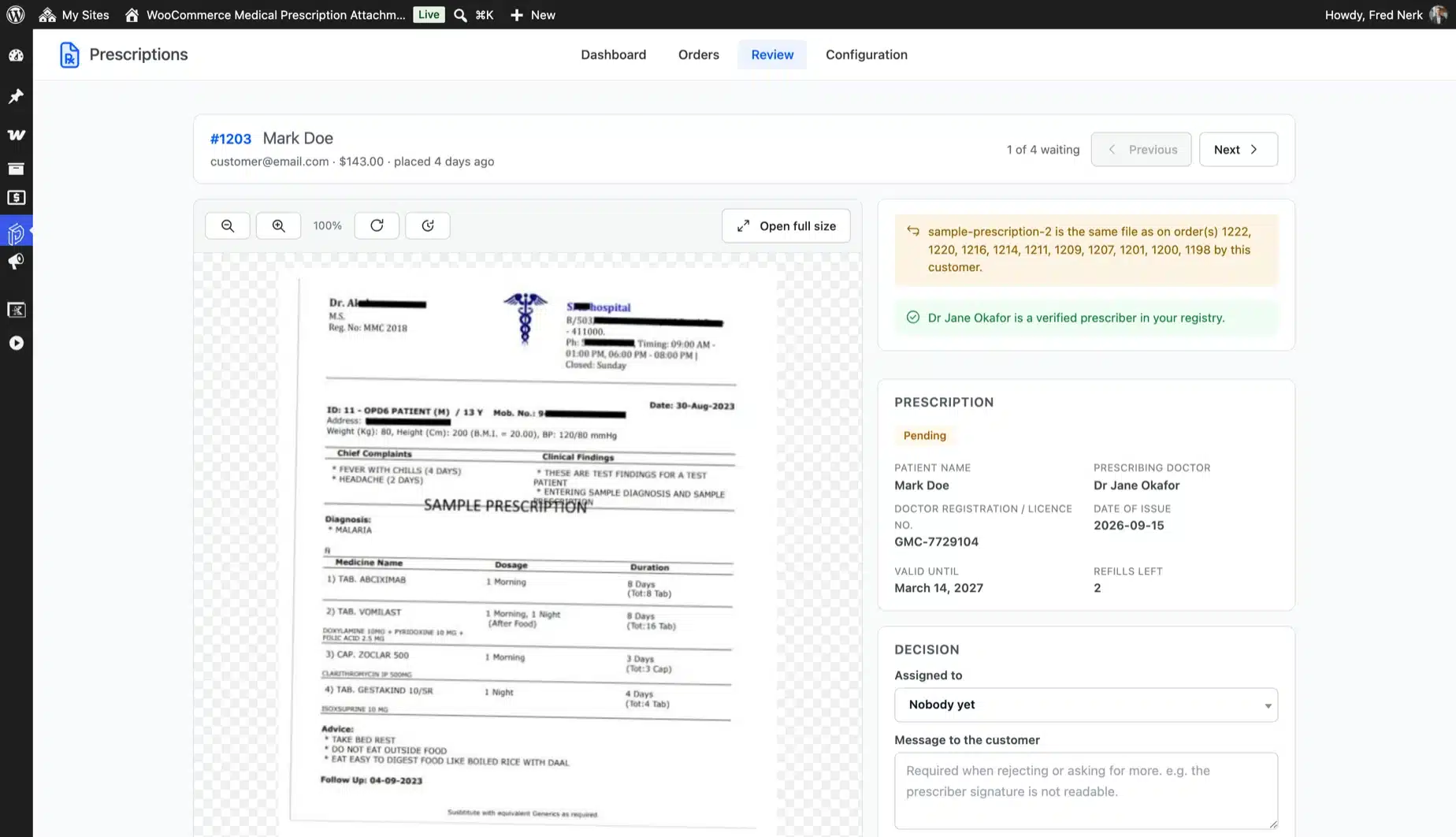
- Prescriber checks: A prescriber registry marks doctors as verified, on watch or blocked, and a private link lets a doctor confirm the prescription.
- Refills and records: Returning patients reuse an approved prescription with a refill allowance, and an audit trail logs every decision and file view.
Pricing
- Free edition: $0 on WordPress.org with no cap on orders or files.
- 1 Site: $49/year
- 5 Sites: $199/year
- 10 Sites: $299/year (prices as of October 2026).
Benefits
- Built for pharmacies: Categories, labels, statuses and emails are written for prescription products and never for generic files.
- Guest checkout works: Guests upload during checkout without creating an account first.
- HPOS ready: It declares support for WooCommerce order storage and the block checkout out of the box.
- Free build that is not a trial: Upload, hold, approve, reject and the customer emails all run in the free edition with no time limit.
Limitations
- A person still decides every order. Neither build reads a prescription automatically or sends it to an outside service.
- Attach Later works for logged-in customers only. Guests must upload during checkout.
- Site-count pricing (1, 5 or 10 sites) can add up for agencies managing many client stores.
Worth knowing: No other plugin in this list holds a paid order until approval or keeps prescriptions in a private folder. None of the others sends a verification link to the prescribing doctor either.
Pro Tip: Use Information Requested before you reject a blurry scan. The customer uploads a clearer file from their order page, and nobody has to place a second order.
2. Advanced Product Fields for WooCommerce: Custom Product Fields
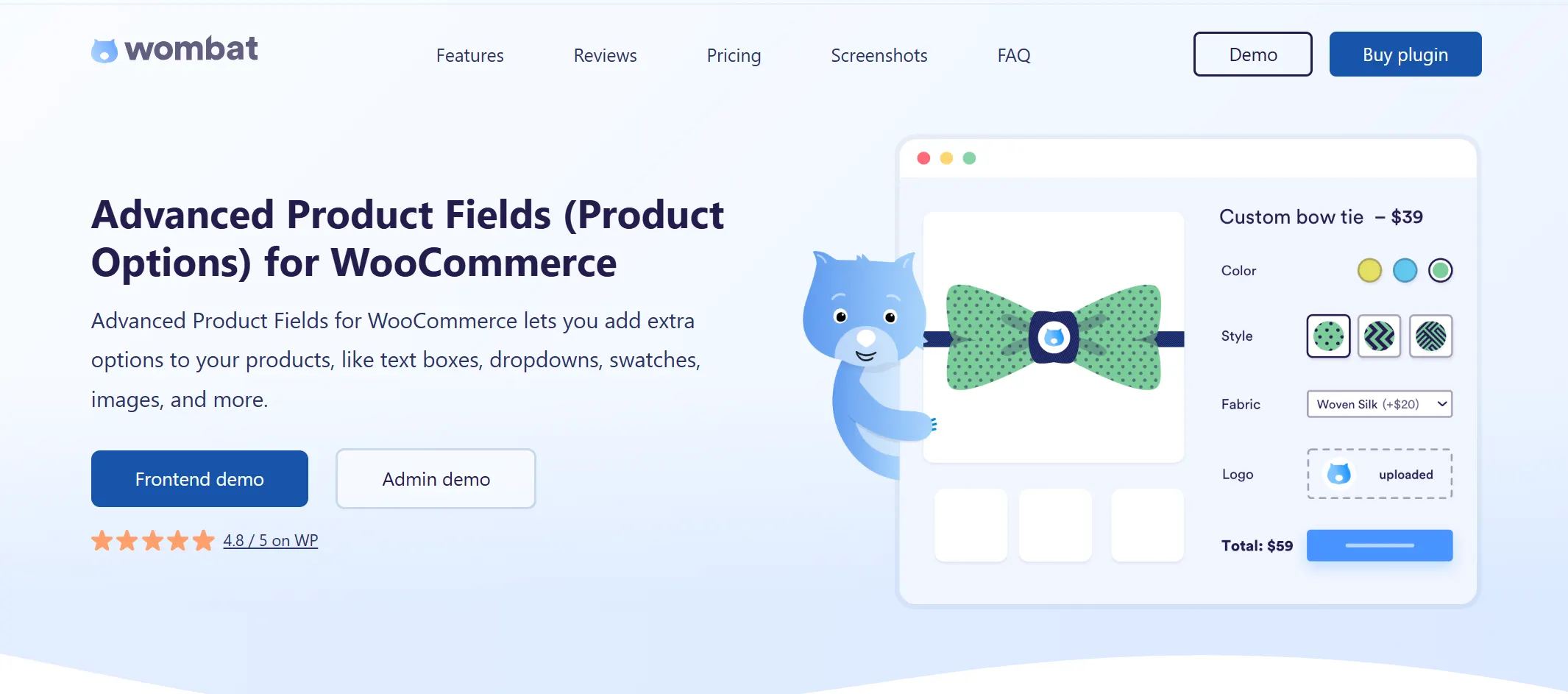
Advanced Product Fields for WooCommerce turns the prescription upload into one of many custom fields on a product page, alongside dropdowns, checkboxes, and text inputs.
- Mandatory file upload field that blocks add-to-cart until a file is attached
- Conditional logic shows or hides fields based on earlier answers
- Editable cart page lets customers change their upload without starting over
- Restricts accepted file types and maximum upload size per field
- Free version available on WordPress.org to try before buying
Pricing
- Annual License: $69/year
Benefits
- Flexible beyond prescriptions: the same plugin handles dosage fields, patient details, and doctor info in one form.
- Conditional logic: fields adjust automatically based on what the customer already entered.
Limitations
- Built as a general custom-fields tool. Approve/reject email workflows need manual setup.
- No dedicated pharmacy labels or categories out of the box.
Pro Tip: Test the conditional logic on mobile first. Multi-field product pages get cramped on small screens, and prescription customers are often uploading straight from a phone camera.
3. Checkout Files Upload for WooCommerce: Checkout-Stage Uploads

Checkout Files Upload for WooCommerce adds a file field directly to the checkout page instead of the product page. That fits stores where every order needs a prescription, regardless of what’s in the cart.
- Lets you add the upload field before or after the checkout form
- Optional fields on the Thank You and My Account pages for late uploads
- Restricts accepted file types and sets a maximum file size
- Can require the upload only for specific product categories or tags
Pricing
- Free version: no cost, one file upload only
- Premium version: price not publicly listed and you must contact WP Wham directly
Benefits
- Free to start: the core plugin costs nothing. You can test the workflow before paying.
- HPOS support recently fixed: patched a compatibility break with WooCommerce’s newer order storage.
Limitations
- The free tier caps you at a single upload, which won’t cover front-and-back prescription photos.
- Some WordPress.org reviewers report friction with the WooCommerce Blocks checkout.
Pro Tip: If you’re on the free tier, warn customers up front that only one file uploads. Many prescriptions need a front and back photo, and a silent one-file limit confuses buyers.
4. WooCommerce Product Add-Ons: Flexible Add-On Pricing
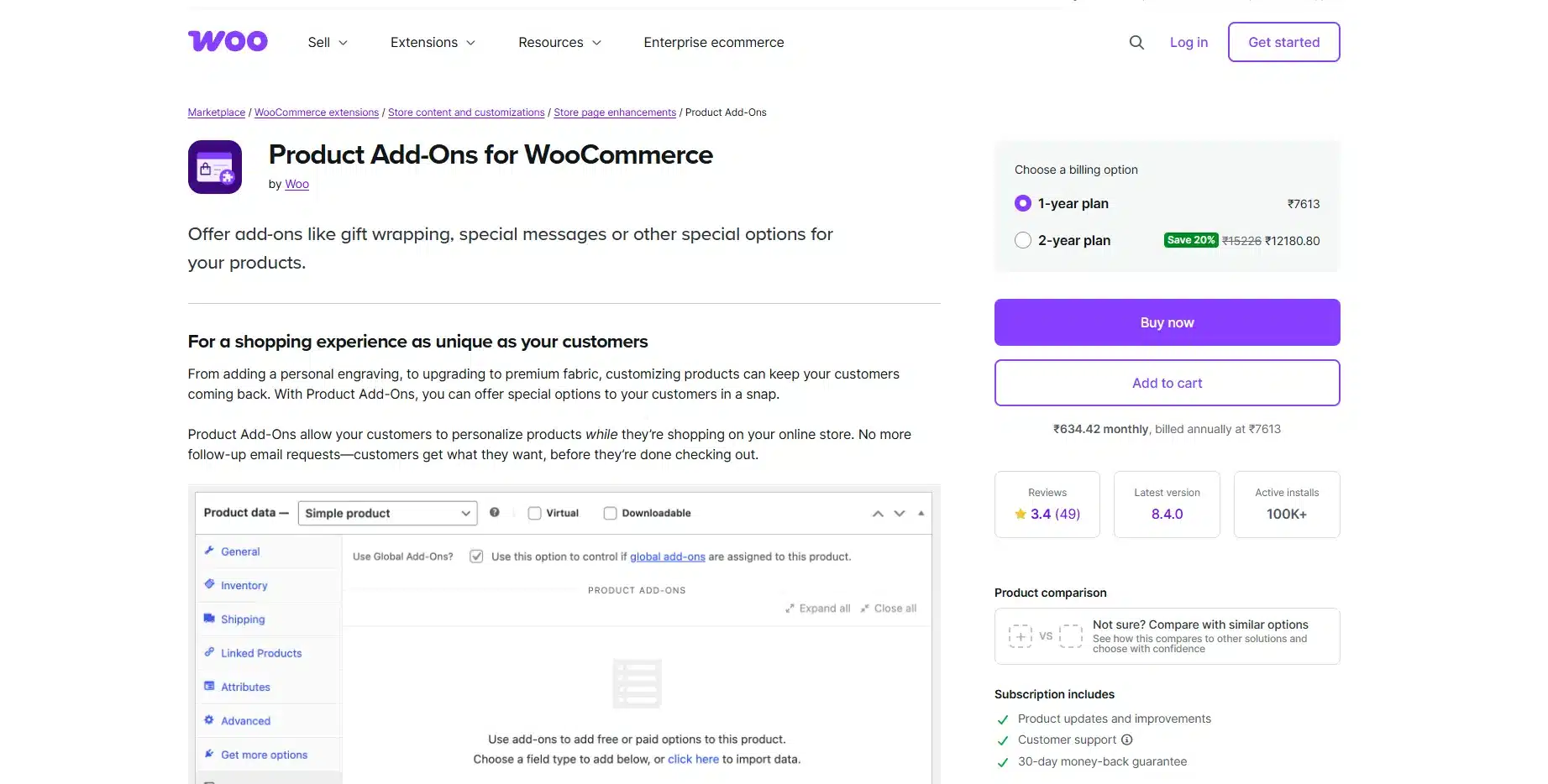
WooCommerce Product Add-Ons is the official WooCommerce.com extension for adding custom fields, including file uploads, to any product with optional pricing attached.
- File upload field type alongside checkboxes, dropdowns, and text inputs
- Global add-ons apply the same upload field to multiple products at once
- Maintained directly by WooCommerce with fast compatibility updates
- Works with variable products and product bundles
Pricing
- Annual License (single site): $79/year
Benefits
- Official support: maintained by the WooCommerce core team, which matters if you already rely on other Woo extensions.
- Global add-ons: apply the prescription field to a whole category in one step instead of editing each product.
Limitations
- No built-in approve/reject workflow. Reviewing uploads still means opening each order manually.
- Costs more than some dedicated alternatives for what’s really one field type among many.
Pro Tip: Set the field as required at the category level and not per product. It’s faster to maintain and it stops a new product from launching without the prescription rule attached.
5. File Upload for WooCommerce: Charging Fees on Uploads

File Upload for WooCommerce by KoalaApps adds an upload button to product, cart, checkout, and order-detail pages. It also gives you the option to charge a fee per upload.
- Drag-and-drop upload on product, cart, checkout, and My Account pages
- Approve or disapprove uploads from the backend with automatic customer emails
- Restricts uploads by product, category, user role, or order status
- Compatible with the WooCommerce Blocks cart and checkout
Pricing
- 1-Year Plan: $49/year
- 2-Year Plan: $78.40 (discounted from $98)
Benefits
- Rule-based control: turn the upload field on only for specific categories, like prescription medications, without touching every product.
- Approval workflow built in: admins approve or reject files without leaving the order screen.
Limitations
- Not written with pharmacy language. You’ll rename fields and messaging yourself for a prescription use case.
- One reviewer reported the plugin conflicting with page updates on lightweight themes.
Pro Tip: Rename every default label before launch. The plugin ships with generic wording like “Upload File,” and pharmacy customers respond better to “Upload Your Prescription” on the button itself.
6. WPForms with File Upload: Standalone Request Forms

WPForms isn’t a WooCommerce plugin at all. It builds a standalone prescription request form you place anywhere on your site, separate from the checkout flow entirely.
- Drag-and-drop file upload field with type and size restrictions
- Conditional logic shows extra fields only when needed
- Multi-page forms split a long prescription request into manageable steps
- Connects to email notifications and, on higher tiers, CRM tools
Pricing
- Basic Plan: $49.50/year first year and renews near $99/year
- Pro Plan: $199.50/year first year and renews near $399/year
Benefits
- Works outside WooCommerce: useful if prescription requests need handling before a customer reaches the shop.
- Familiar builder: most WordPress teams already know WPForms from contact forms elsewhere on the site.
Limitations
- Doesn’t connect the upload to a specific order automatically. You’ll match requests to orders by hand.
- File uploads are a core feature, but conditional logic and payments need the Pro tier.
Pro Tip: Add the order number as a hidden field on the form. Since WPForms doesn’t connect to WooCommerce orders automatically, that one field saves you from manually matching submissions later.
What Nobody Tells You About Prescription Plugin Compliance
None of these plugins make your store HIPAA compliant on their own. A file upload field is just storage. The HIPAA Security Rule from HHS asks for administrative, physical and technical safeguards around it.
The compliance work happens around it, in your hosting, your backup policy, and your legal setup with anyone else who touches those files.
Pharmacy stores can follow the hosting, BAA and encryption steps to make a WordPress site HIPAA compliant.
PCI compliance is a separate concern. It covers payment card data and not prescription images. Treat them as two different projects.
If you’re a developer setting this up for a client, run through a security checklist before you touch a single plugin setting. It catches gaps a plugin’s settings page never will.
Common Mistakes Pharmacy Stores Make With Prescription Uploads
These mistakes repeat across most pharmacy stores.
| Problem | Solution |
|---|---|
| Prescription required on every product including OTC items | Scope the requirement to specific categories only |
| Guest customers can’t upload after checkout | Pick a plugin that supports guest uploads during checkout and not just after |
| Files stored with no size or type limit | Restrict uploads to PDF, JPG, and PNG under 5MB |
| No email sent when a prescription is rejected | Turn on customer notifications so re-uploads happen without a support ticket |
| Approval sits in a generic order note nobody checks | Use a plugin with a dedicated prescription status field admins actually monitor |
Most of these mistakes come down to one thing: testing the workflow as a logged-in admin instead of as a guest. A plugin that works fine in staging can still fail the moment a real customer checks out without one.
Conclusion
Picking the right WooCommerce prescription plugin comes down to three things. Is it built for pharmacies specifically? Does it handle guest checkout? Does the price scale with how many sites you run?
A dedicated plugin like WooCommerce Medical Prescription Attachment saves setup time when pharmacy review is the goal. It holds each order until a pharmacist approves it, and its free edition lets you test the whole workflow first.
A general file-upload tool makes more sense if you’re already customizing products in other ways and don’t want another plugin to maintain.
Start from the comparison table above. Test the guest checkout path before launch. Do not wait until after. That single step catches more prescription-upload problems than anything else on this list.
Frequently Asked Questions (FAQs)
Q1. Do I need a dedicated pharmacy plugin or can I use a general file upload plugin?
Depends on scope. If your whole catalog needs prescriptions with built-in approval emails, a dedicated plugin like WooCommerce Medical Prescription Attachment saves setup time. For uploads on a handful of products alongside other custom fields, a general tool like Advanced Product Fields works fine.
Q2. What file types should I allow for prescription uploads?
PDF, JPG, and PNG cover almost every case, since that’s what a phone camera photo or scanned document produces. Cap the file size around 5MB so uploads don’t stall on a slow mobile connection, and reject anything else by default.
Q3. Can guest customers upload a prescription without creating an account?
Depends on the plugin. WooCommerce Medical Prescription Attachment and File Upload for WooCommerce both support guest uploads at checkout, but guests generally can’t return later to attach a file. Confirm this before launch, since it’s the most common gap tested too late.
Q4. Is HPOS compatibility something I actually need to check?
Yes, if your store runs WooCommerce 8.2 or later, since HPOS is enabled by default for new installations. An incompatible plugin can throw errors on the order screen or fail to save uploaded files against the right order.
Q5. Does a prescription upload plugin make my store HIPAA compliant?
No plugin alone does that. HIPAA compliance depends on your hosting, your data handling agreements and how you store and delete files as well as the upload field. Treat the plugin as one part of a wider compliance setup.
Q6. How much should I budget for a prescription upload plugin in the first year?
Budget between $0 and $300 for the plugin itself. The free edition of our prescription plugin costs nothing, and paid plans run from $49 to $299 a year by site count. Testing the guest checkout path usually takes longer than the install.
Q7. Can I switch prescription plugins later without losing uploaded files?
Usually not cleanly. Most plugins store uploaded files in their own folder structure and reference them through custom order meta. A new plugin often can’t read old files. Back up existing prescription files before you deactivate the old plugin.