A 403 Forbidden error means the server received your request, understood it and refused to serve the page. On a WordPress site the cause is almost always a file permission, a .htaccess rule, a security plugin or a firewall block. Once you read the right log line, the fix is often a one-line change.
We reproduced six of these causes on a scratch Apache 2.4.67 server and an nginx 1.26.1 server, then fixed each one. The status code was 403 every time. The error log line was different every time, and that line tells you which fix to use.
This guide starts with that log line, then walks through nine fixes in the order they usually work. It also covers the 403 on wp-admin, the REST API and form submissions, and how to stop it coming back.
What Is the 403 Forbidden Error?
A 403 Forbidden error is an HTTP status code that means the server understood your request and refuses to serve it. MDN says that for a 403, authenticating or re-authenticating makes no difference. The block comes from a rule on the server, such as a file permission or a deny directive.
That is the difference between a 403 and a 401. A 401 asks you to sign in, and signing in can fix it. A 403 has already decided about you, or about the file, before your login is even read.
Redirect codes are a different family. A 302 sends the visitor to another URL, and our guide to the 302 status code error covers what to do when that goes wrong.
Here is a quick check from our own site. An anonymous POST to the WordPress REST API on devdiggers.com returns a 401 with the code rest_cannot_create. A request for wp-config.php returns a 403, which is exactly what you want, because nobody should read that file.

Note: A 403 is not always a fault. Servers send it on purpose for files such as wp-config.php, so a 403 on a page you meant to protect is the system working.
The messages you might see
The wording changes with the server, the host and the firewall in front of your site. The table below maps the messages people search for to where they usually come from.
| What you see | Where it usually comes from | First place to look |
|---|---|---|
| 403 Forbidden, You don’t have permission to access this resource | Apache rule or file permission | Apache error log |
| 403 Forbidden with an nginx footer | nginx rule, permission or index setting | nginx error log |
| 403 – Forbidden: Access is denied | Windows server running IIS | Folder permissions in IIS |
| Access denied from a CDN or firewall page | A firewall rule at Cloudflare or a similar service | Firewall events in the dashboard |
| A 403 was encountered while trying to use an ErrorDocument | The custom error page is blocked too | The path in your ErrorDocument line |
| Repeat offender autobanned or blocked by a security tool | A ban list in a security plugin or fail2ban | The plugin’s blocked IP list |
| 403 (from disk cache) in DevTools | Your browser replaying an old response | Hard refresh, then a private window |
What Causes a 403 Forbidden Error in WordPress?
Five things cause nearly every 403 on a WordPress site. They are file permissions, a bad .htaccess file, a plugin or firewall rule, an IP block and a missing index file. The server tells you which one in its error log, but the status code never does.
We caused each of these on purpose and wrote down what the log said. Apache and nginx word the same failure differently, so both are in the table.
| Cause we created | Server | What the error log said (shortened) |
|---|---|---|
| File set to mode 000 | Apache | AH00132: file permissions deny server access |
| File set to mode 000 | nginx | open() ... failed (13: Permission denied) |
| Folder set to mode 600 | Apache | AH00529: unable to check htaccess file, ensure it is readable and that the directory is executable |
| No index file and indexes off | Apache | AH01276: Cannot serve directory ... server-generated directory index forbidden by Options directive |
| No index file and indexes off | nginx | directory index of "..." is forbidden |
Require all denied in .htaccess | Apache | AH01630: client denied by server configuration |
deny 127.0.0.1; in a location block | nginx | access forbidden by rule |
Hotlink rule with [F] | Apache | Nothing at all in the error log |
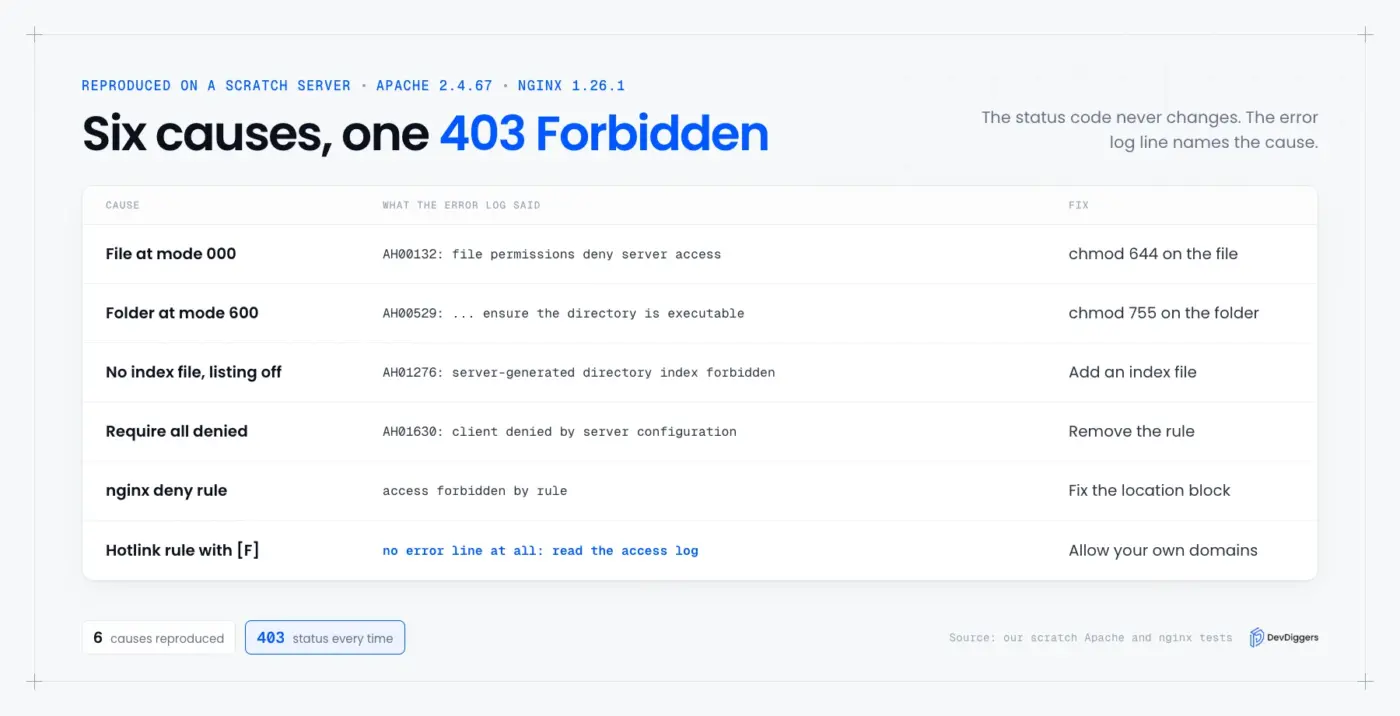
The last row is the one that costs people an hour. A RewriteRule that ends in [F] returns a 403 without writing an error line, so the error log looks clean. In that case the access log is the place to look, because it records the URL and the referrer.
Tip: Open the error log first and search for your own IP address or the time of your request. The matching line names the file and the rule, which saves you from trying fixes that do not apply.
How to Fix the 403 Forbidden Error
To fix a 403 Forbidden error, work from the cheapest check to the most invasive one. Read the log, confirm the URL, clear the cache, fix permissions, reset .htaccess, then test plugins. Each step below says what the fix does and how you know it worked.
If you are searching for how to fix 403 Forbidden on a live store, do not start by changing settings at random. Every 403 Forbidden error fix below depends on one fact, which is what the server logged.
The order matters. A fix that takes 30 seconds and a fix that takes an hour can both cure the same error, so the short ones go first.
1. Read the error log
The error log names the file and the rule that blocked the request. On Apache it is usually called error_log or sits under /var/log/apache2/. On nginx it is error.log.
Most hosts show it in the control panel under Logs or Errors.
Match the line against the table above. A line that mentions permissions points you to fix 4. A line that mentions the client being denied points you to fixes 5 to 7.
If your host hides the logs, skip ahead and tell support the exact time of the error.
2. Check the URL and the index file
A 403 on a folder URL, such as /uploads/, often means the folder has no index file and directory listing is off. That is normal behavior, and the server is protecting your file list. Visit a real page instead of the folder.
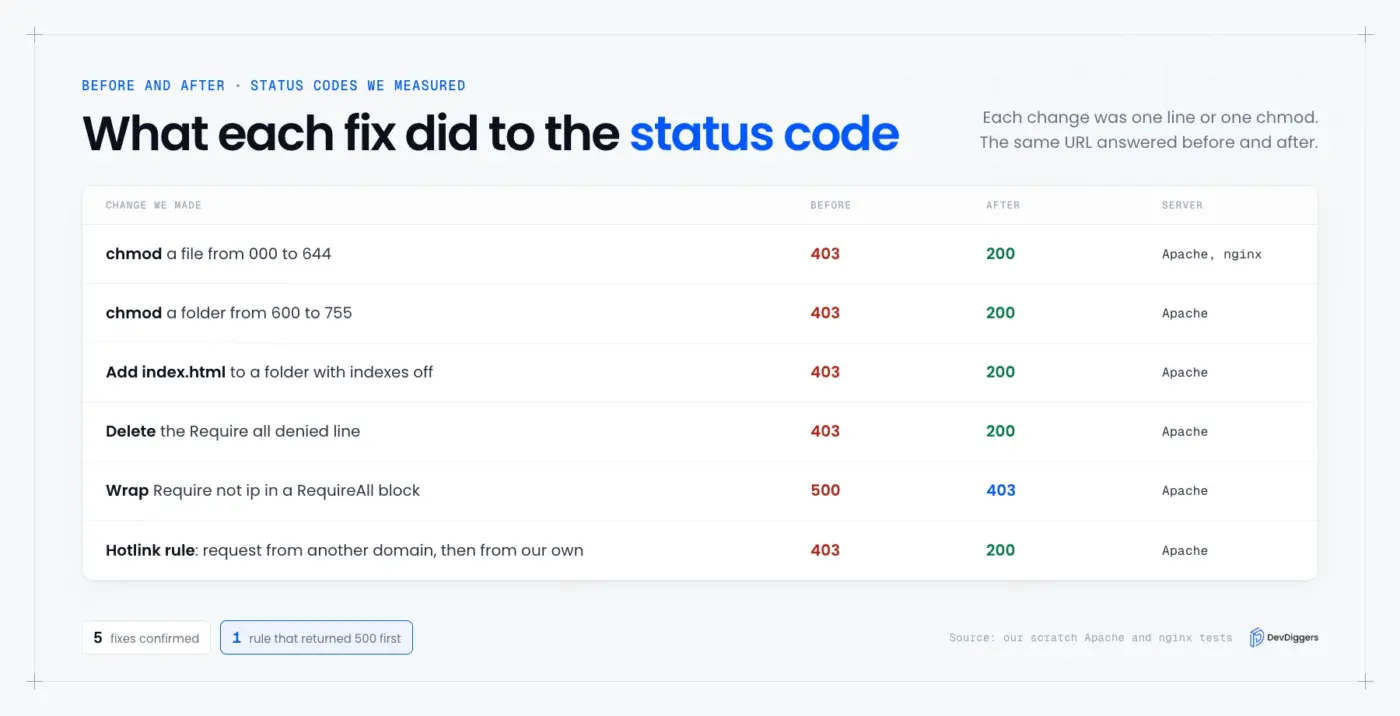
In our test, a folder with Options -Indexes and no index.html returned a 403. A file inside the same folder returned 200. Adding an index.html to the folder changed the folder URL to 200 as well.
If your homepage returns a 403, check that index.php exists in the site root. Our guide to what index.php does in WordPress shows what a healthy root folder holds.
3. Clear your cache and test another browser
Your browser can replay an old 403 from its cache. Chrome labels this (from disk cache) in DevTools.
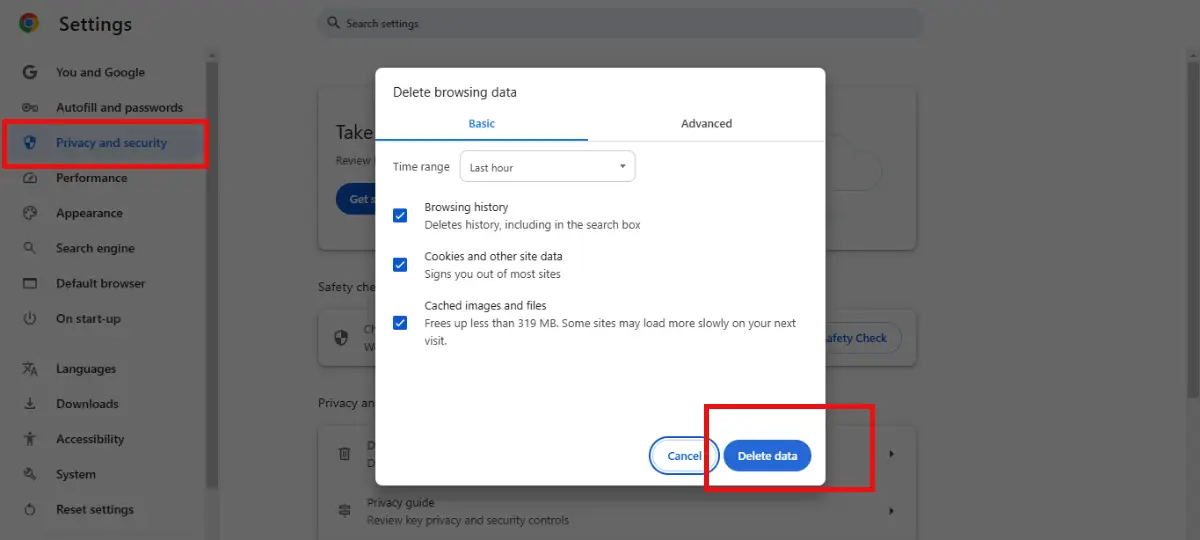
Open the page in a private window first. If it loads there, clear the cache and cookies for that site in your normal window.
Also flush any page cache or CDN cache on the site. A caching plugin can serve an old error page for hours after you have fixed the real cause. Purge it, then test again.
4. Fix file and folder permissions
WordPress’s developer handbook says directories should be 755 and files 644. It also says wp-config.php should be readable only by you and the web server, which means 400 or 440.
We tested both failures. A file at mode 000 returned 403 on Apache and on nginx.
A folder at mode 600 also returned 403 on Apache, because the server needs the execute bit to enter a folder. Setting the file to 644 and the folder to 755 returned 200 for both.
To reset a whole install over SSH, run these two commands from the site root:
find . -type d -exec chmod 755 {} \;
find . -type f -exec chmod 644 {} \;
Warning: Never use 777. It makes every file writable by any process on the server, and it does not fix a 403 that comes from ownership. If the owner is wrong, run chown for your hosting user instead.
5. Regenerate the .htaccess file
A corrupted or hand-edited .htaccess file is the second most common cause. Apache reads it on every request, so one bad line can block the whole site. Rename the file to .htaccess-old and load your site.
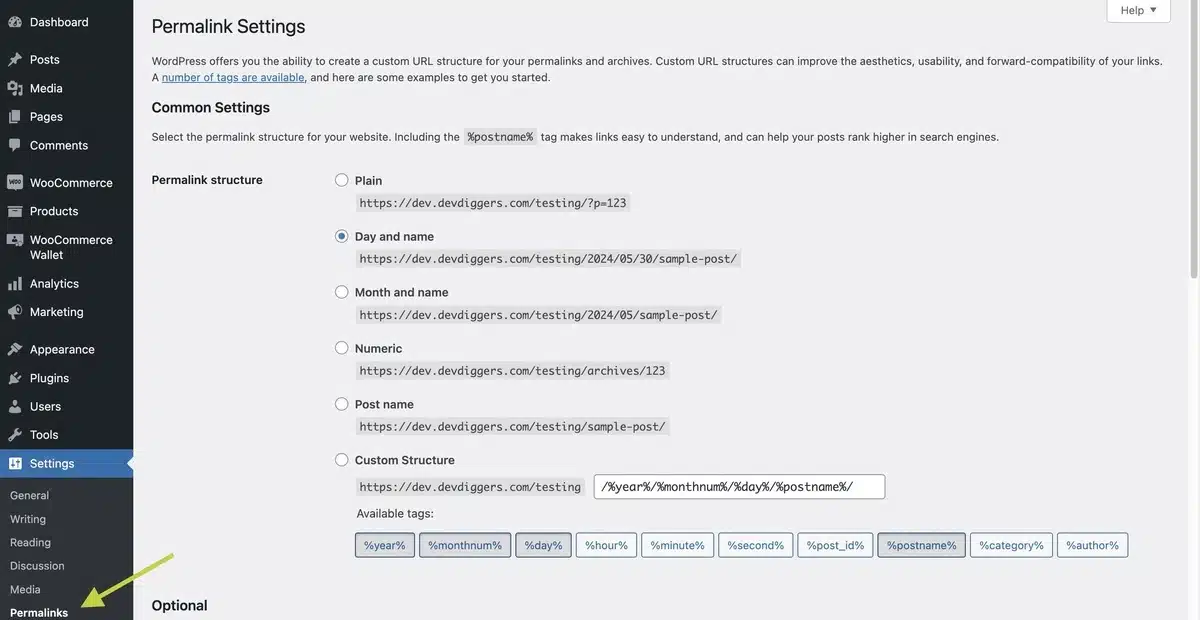
If the site loads, go to Settings, then Permalinks, and click Save Changes. WordPress writes a fresh .htaccess with its default rules.
In our test, a single Require all denied line in a folder’s .htaccess returned a 403 for the whole folder. Deleting the line returned 200.
Here is the default block WordPress writes for a standard install:
# BEGIN WordPress
<IfModule mod_rewrite.c>
RewriteEngine On
RewriteRule .* - [E=HTTP_AUTHORIZATION:%{HTTP:Authorization}]
RewriteBase /
RewriteRule ^index\.php$ - [L]
RewriteCond %{REQUEST_FILENAME} !-f
RewriteCond %{REQUEST_FILENAME} !-d
RewriteRule . /index.php [L]
</IfModule>
# END WordPress
Nginx has no .htaccess, so this step does not apply there. Check the location blocks in the site’s server config instead.
6. Deactivate your plugins
Security plugins, firewall plugins and some caching plugins can return a 403 on their own. Deactivate them all from the Plugins screen. If you cannot reach wp-admin, rename the wp-content/plugins folder to plugins-off over FTP or your file manager.
If the error goes away, rename the folder back and reactivate the plugins one at a time. Test the page after each one.
The plugin that brings the 403 back is the cause. Its settings usually have a blocked IP list or a firewall mode you can loosen.
A plugin problem is easy to confirm and easy to fix. This is also why the 400 bad request error on WordPress shares the same first step, and the fix loop is the same.
7. Check IP blocks and firewall rules
A 403 that hits only you, or only one network, is usually an IP block. Your own IP can land on a ban list after too many failed logins. Check your security plugin’s blocked list, your host’s firewall page and any fail2ban jail.
We reproduced this with two different rules. On Apache, Require not ip 127.0.0.1 inside a <RequireAll> block returned 403. On nginx, deny 127.0.0.1; returned 403 with access forbidden by rule in the log.
Note: On Apache, a Require not ip line on its own returned a 500 in our test, with the log line negative Require directive has no effect in <RequireAny> directive. Negative rules must sit inside <RequireAll> next to a positive rule, as the Apache authorization docs explain.
If a CDN or web application firewall sits in front of your site, look at its event log too. A firewall rule blocks the request before your server sees it, so your own logs stay empty.
8. Turn off hotlink protection to test it
Hotlink protection returns a 403 when the request comes from a page on another domain. It is meant for images, but a loose rule can also block your own CDN, an email client or a feed reader.
In our test, a request with no referrer returned 200 and a request from our own site returned 200. A request with a referrer from other-site.example returned 403, and the error log stayed empty.
Disable the rule for a minute. If the file loads, tighten the rule to allow your own domains and CDN host.
9. Fix an ErrorDocument loop
If your page says a 403 was encountered while trying to use an ErrorDocument, the custom error page itself is blocked. Apache tried to show your 403 page, was refused again and gave up.
Open the ErrorDocument 403 line in .htaccess or the server config. Point it at a file that exists and that the web server can read. A relative path such as /errors/403.html must sit inside the document root.
When none of these work
Scan the site for malware, because an infection often rewrites .htaccess and adds deny rules. Then contact your host with four facts: the URL, the exact time, your IP address and the error log line. That message gets a real answer much faster than “my site shows 403”.
If you would rather hand it over, our WordPress security services include finding and cleaning the rule that is blocking you.
How to Fix a 403 Forbidden Error on nginx
To fix a 403 Forbidden error on nginx, read error.log, then check three things in the server block. They are deny rules, the index setting and folder permissions. There is no .htaccess file, so every rule lives in the server config and needs a reload to take effect.
We tested all three on nginx 1.26.1. A deny 127.0.0.1; inside a location block returned 403 and logged access forbidden by rule. The nginx docs say the allow and deny rules are checked in order until one matches, so a broad deny all; above an allow line blocks everyone.
A folder request with no index file returned 403 and logged directory index of "..." is forbidden. Add an index.php or index.html to the folder, or check that the index directive names a file that exists. A file at mode 000 returned 403 with (13: Permission denied), which is the same permission fix as on Apache.
After any change, test the config and reload it:
nginx -t
nginx -s reload
Worth checking: A managed host may run nginx in front of Apache or behind a proxy. If your .htaccess edits change nothing, ask your host which server answers the request first.
Why the 403 Forbidden Error Appears on wp-admin, the REST API or a Form
A 403 on wp-admin, wp-login.php, the REST API or a form submission usually comes from a security rule or an expired nonce. The rest of the site loads fine, which is the clue. Check the security plugin and the firewall first.
For wp-admin and wp-login.php, look for a login limit, a country block or a rule that only allows one IP. For the REST API, check whether a plugin restricts it to logged-in users. That returns a 401 for signed-out requests, as we saw earlier, and a 403 for signed-in users without the right role.
For forms, the usual cause is a page cache serving an old security token. The WordPress nonce documentation says a nonce is tied to a user and a time window. A cached page keeps a token that has expired.
Exclude the form page from the cache, or clear the cache after the token lifetime passes. Test the form while logged out, because that is how most visitors submit it.
A firewall rule can also match the form data itself. If a form only fails when it contains a link or a code snippet, ask your host whether ModSecurity blocked it. Ask for the rule ID.
How to Prevent 403 Forbidden Errors
You prevent most 403 errors by keeping folder permissions at 755 and file permissions at 644. Back up .htaccess before you edit it, and test every rule change on a staging copy first. Log each security plugin change too, so you know what to undo when a page stops loading.
- Permissions check: Run the two
findcommands after any migration or restore, because copy tools often change modes. - Rule changes: Edit
.htaccessone rule at a time and load the site after each change. - Firewall rules: Whitelist your own office IP and your CDN before you turn on a strict mode.
- Backups: Keep the last working
.htaccessin a file next to it. - Log access: Learn where your host keeps the error log before you need it, because some hosts only show it after you enable it.
- Ownership: After a restore, confirm the files belong to your hosting user and not to root. The web server cannot read files it does not own or share a group with.
Database problems produce different errors. A restore that also breaks the database connection shows a different message. If you see one about choosing a database instead, read our guide on MySQL error 1046, which has its own fixes.
Conclusion
A 403 Forbidden error is a server saying no, and the error log says why. Read the log, match it to a cause, then fix permissions, .htaccess, plugins, IP blocks or hotlink rules in that order.
Most fixes take a few minutes once you know the cause. A wrong guess costs more time than the fix itself, which is why the log comes first.
If your site still returns a 403 after these steps, the rule is probably at the host or CDN level. Send your host the URL, the time and the log line, and ask them to name the rule.
Frequently Asked Questions (FAQs)
Q1. What does a 403 Forbidden error mean?
It means the server understood your request and refuses to serve it. A file permission, a deny rule, a plugin or a firewall usually causes it. Signing in again does not change the result, as MDN’s status page explains.
Q2. What is the difference between a 403 Forbidden error and a 403 access denied message?
They are the same status code with different wording. “403 Forbidden” is the standard text from Apache and nginx. “Access is denied” comes from Windows servers, and “access denied” pages often come from a CDN or firewall.
Q3. Can a 403 Forbidden error hurt my SEO?
Yes, if it lasts. Google’s documentation on HTTP errors says it does not use content from 4xx URLs and drops indexed ones. Fix the error quickly, then check the page in Search Console.
Q4. Why do I get a 403 Forbidden error only on wp-admin?
A security rule is the usual cause. Login limits, country blocks and IP allowlists all target wp-admin and wp-login.php. Check your security plugin and your host’s firewall, and confirm your IP is not on a block list.
Q5. Is a 403 Forbidden error the same as a 404?
No. A 404 means the server cannot find the page, and a 403 means it found the page and refuses access. MDN adds that servers sometimes send a 404 instead to hide that a protected file exists.
Q6. How do I fix a 403 Forbidden error after moving a site?
Reset permissions to 755 for folders and 644 for files, then regenerate .htaccess from Settings, then Permalinks. Migrations often change file owners and modes, and the old host’s rules may not exist on the new one.
Q7. What does “repeat offender autobanned” mean?
A security tool blocked your IP after repeated failed requests. Log in from another network or ask your host to remove the ban. Then check the tool’s settings so your own IP is on the allow list.