WooCommerce tax not working almost always comes down to a setting that is off or does not match. Taxes are switched off, no rate matches the buyer’s address, or the product is not taxable. Most stores find the cause in under ten minutes by checking those three first.
I tested every cause in this guide on a local store running WooCommerce 11.2 in October 2026. I used one $21 product and read the cart totals after each change. Seven different settings made the tax drop to $0.00, and none of them showed an error message.
You get a fix order to follow and then each cause with the screen where you fix it. You also get the test results, the rules for automated taxes and the checks to run when the settings all look right.
How to Fix WooCommerce Tax Not Working
To fix WooCommerce tax not working, turn on taxes in the General settings. Then check that a tax rate matches the buyer’s country, state and ZIP code. Confirm the product is Taxable and its tax class has rates. Then clear the cache and test with a real address.
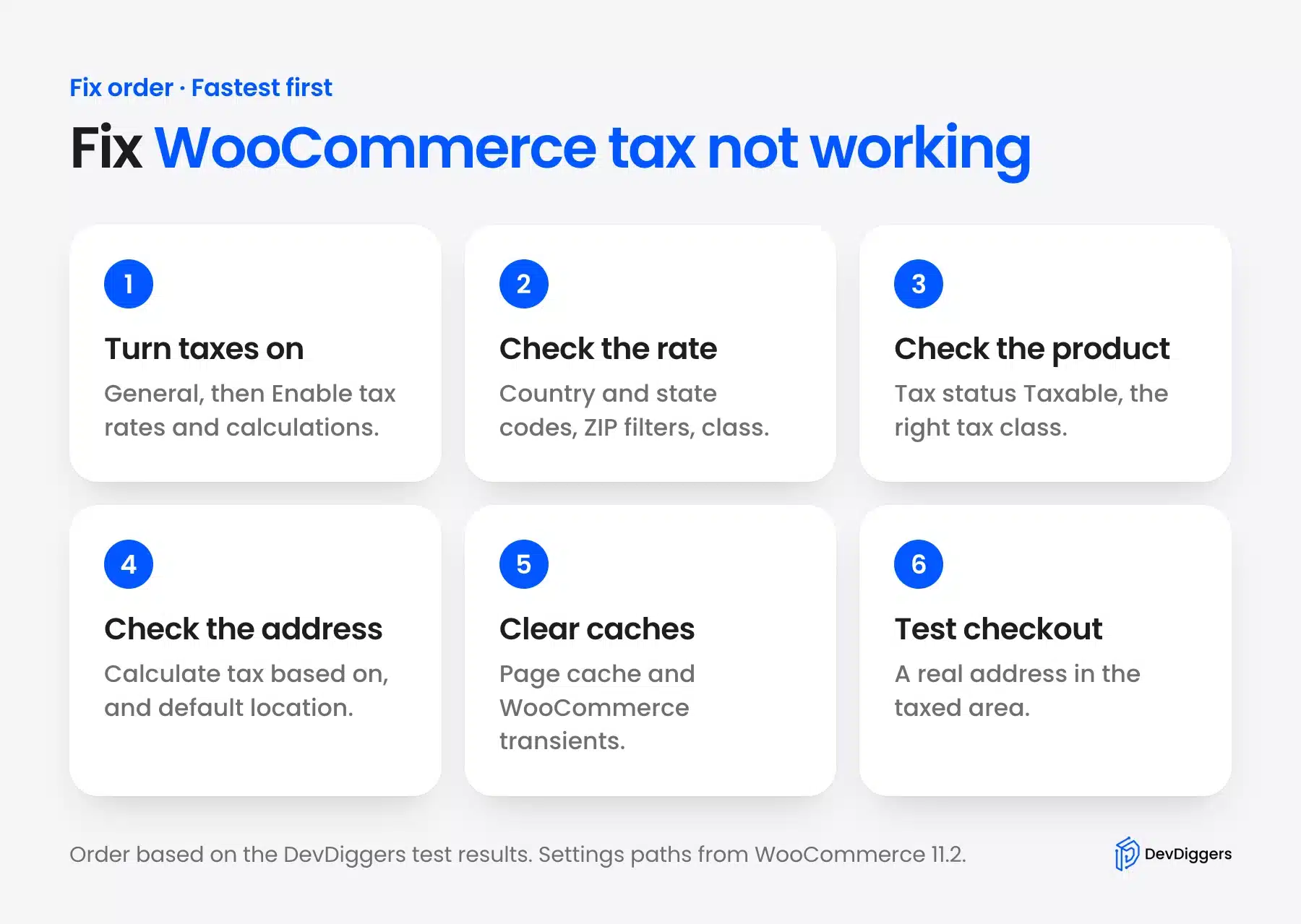
Work through the checks in this order, because each one depends on the one before it:
- Taxes on: The Tax tab only exists once taxes are enabled.
- A matching rate: A rate must fit the address WooCommerce uses.
- A taxable product: The product must be Taxable and use a class that has rates.
- The right address: The Calculate tax based on setting picks which address counts.
- No stale cache: A page cache can show old totals.
- A real test: Use an address inside the taxed area.
The WooCommerce tax setup docs cover each setting in more depth. The sections below show what each one did in my test.
Cause 1: Taxes Are Turned Off
WooCommerce ships with taxes turned off. A new store charges no tax until you enable it. The switch is the Enable tax rates and calculations box under WooCommerce > Settings > General. On my fresh test store it was unchecked, and the cart showed $0.00 tax.
People search for a toggle tax for WooCommerce switch, and this box is it. Everything else depends on it. Here is how to turn it on:
- Open the settings: Go to WooCommerce > Settings > General.
- Find Enable taxes: Scroll to the Enable taxes row near the bottom.
- Tick the box: Check Enable tax rates and calculations and then click Save changes.

After saving, a Tax tab appears next to Shipping and Payments. On my test store, turning taxes on still left the tax at $0.00, because no rates existed yet.
Enabling taxes only opens the door. Cause 3 covers the rates.
Cause 2: WooCommerce Tax Status Not Showing on Products
The WooCommerce tax status field is hidden while taxes are turned off. Open a product with taxes disabled and the General tab shows only the regular and sale prices. Turn taxes on and the Tax status and Tax class dropdowns appear under the prices.
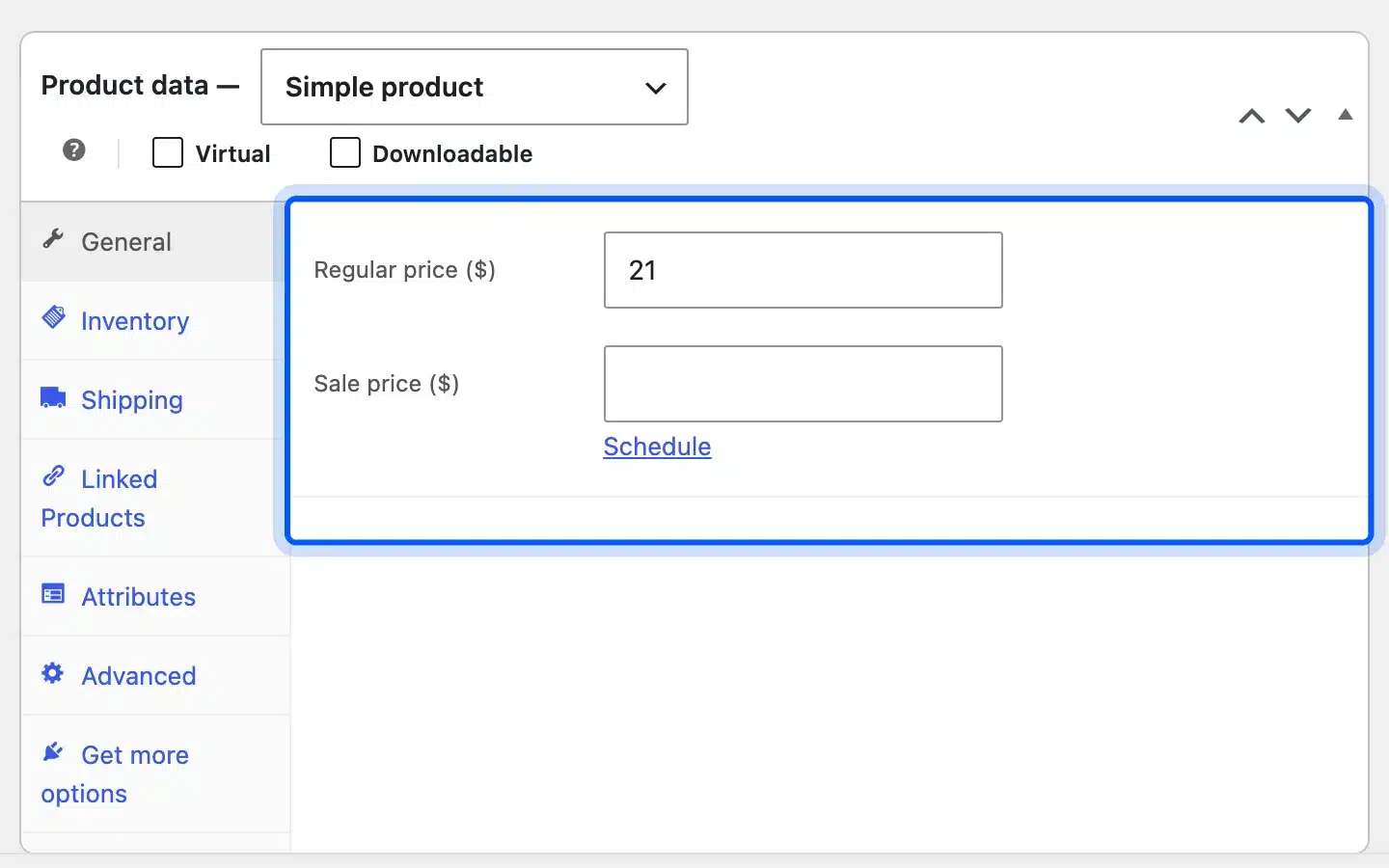
I checked the same product with taxes off and on. With taxes off, the price label read “Regular price ($)” and nothing else sat below the sale price. With taxes on, it read “Regular price ($) (ex. tax)” and the two tax fields showed up.
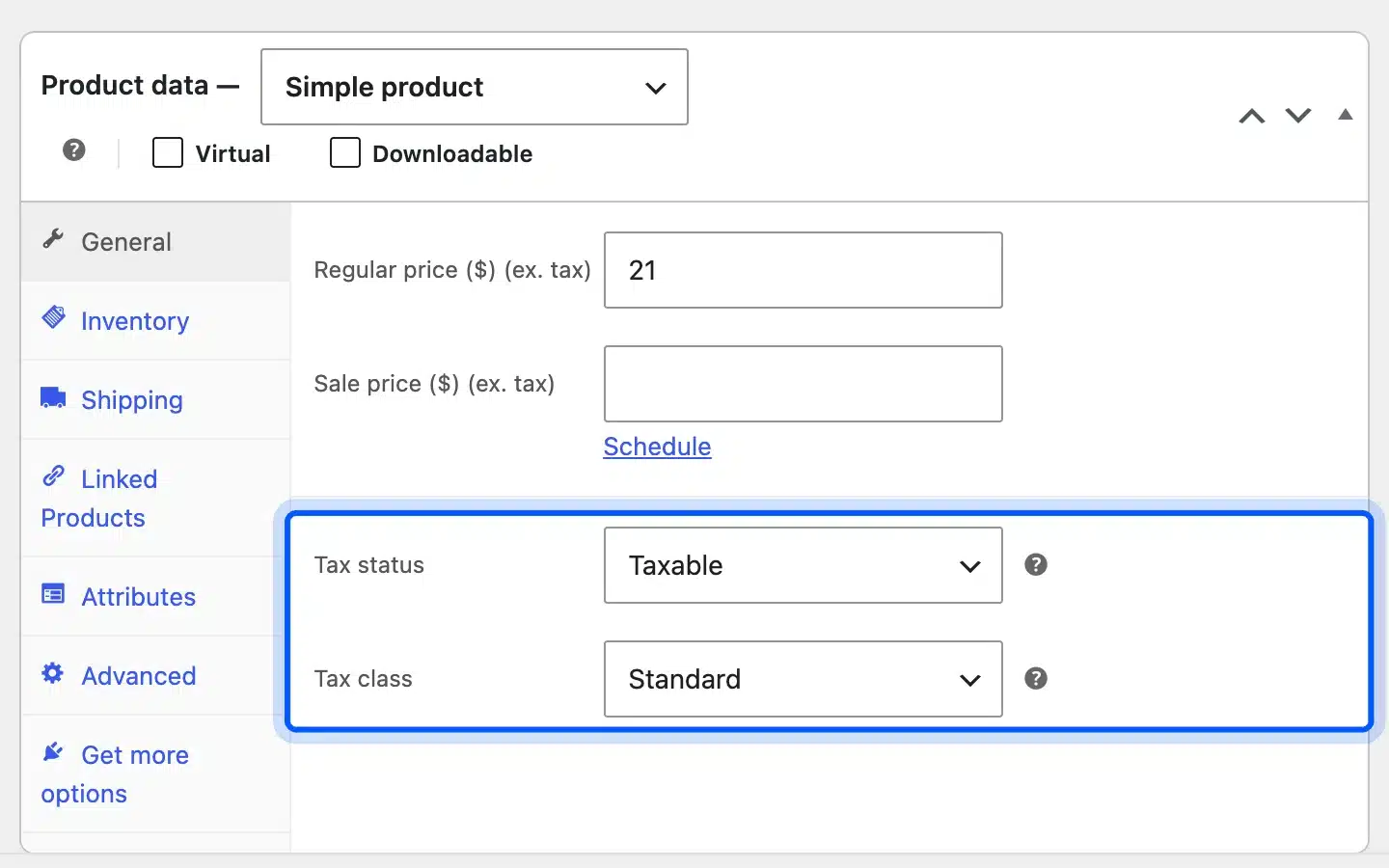
Once the fields show, check both on any product that charges no tax:
- Tax status: Taxable charges tax on the product, Shipping only taxes the delivery and None charges nothing.
- Tax class: Standard uses the standard rates table, while Reduced rate and Zero rate use their own tables.
In my test, setting Tax status to None dropped the tax on the $21 product from $1.52 to $0.00. Each variation of a variable product has its own Tax class dropdown. Check those when only some sizes charge tax.
Cause 3: No Tax Rate Matches the Customer
WooCommerce only charges tax when a rate row matches the address it checks. A rate for California does nothing for a buyer in New York. Check the country code, the state code and any ZIP filter in WooCommerce > Settings > Tax > Standard rates.
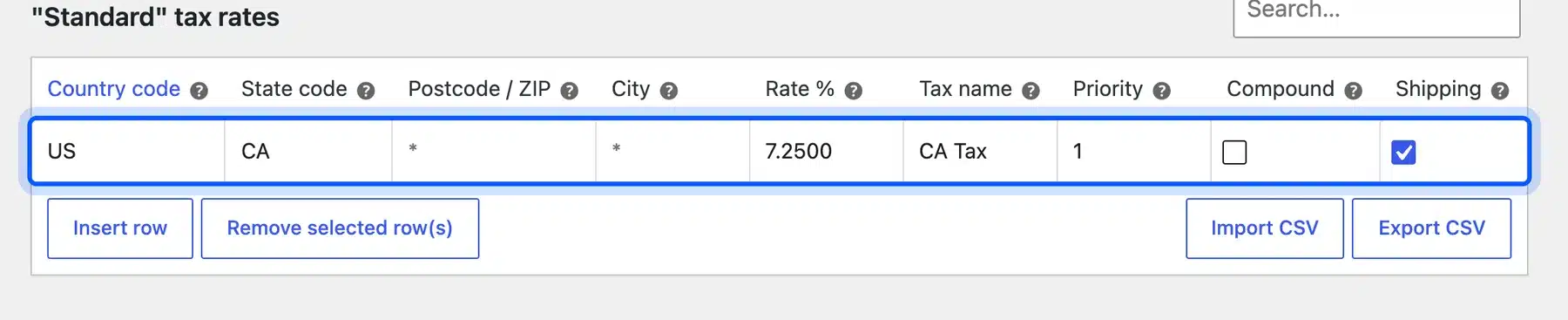
I added one rate: country US, state CA, 7.25%. A buyer with a California address paid $1.52 on the $21 product. A buyer in New York paid $0.00, and nothing warned me about it.
Three details in the rate row caused most of my zero-tax results:
- State code format: I typed the state as California instead of CA, and tax dropped to $0.00.
- ZIP filters: A postcode of
94*matched a buyer at 94105 and missed one at 90210. - Tax class tables: A product set to Reduced rate paid $0.00, because the Reduced rate table was empty.
The WooCommerce tax docs say the country field takes a two-letter code. The state field accepts a code or a name in its suggestions, but the saved value must match the address format. Pick the state from the suggestion list instead of typing it out.
Tip: Leave the state and ZIP fields as a wildcard for a country-wide rate. A single row with country US and nothing else charges every US buyer.
Cause 4: Tax Is Calculated From the Wrong Address
The Calculate tax based on setting decides which address WooCommerce matches against your rates. The default is the customer shipping address, and the other options are billing address and shop base address. If that address falls outside your rates, tax shows as zero.
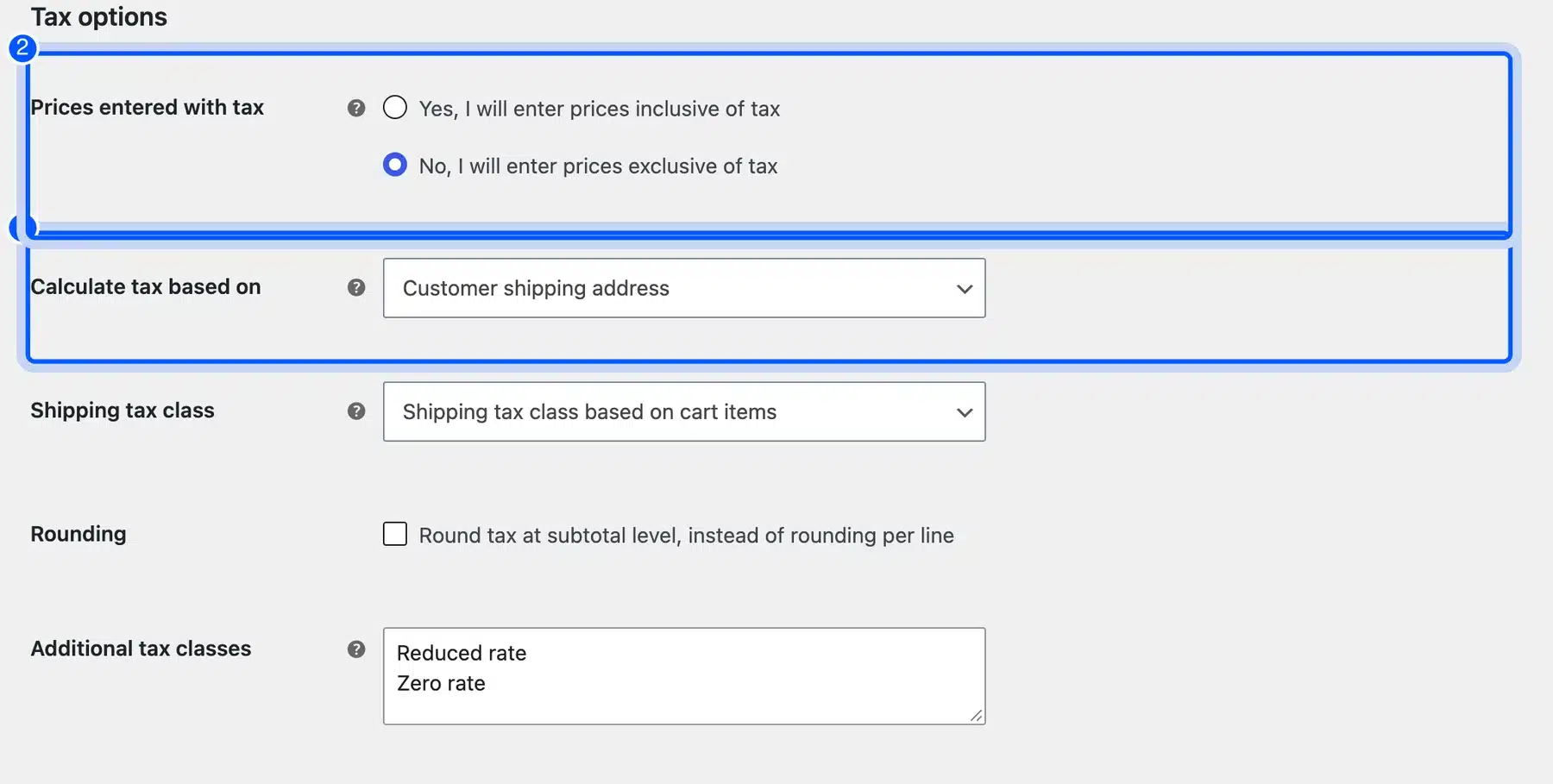
I tested the New York buyer again with this setting changed. On Customer shipping address, they paid $0.00 against my California rate. On Shop base address, they paid $1.52, because my store’s base was California.
Shop base address is rarely right for a US store that ships across states. It charges your home rate to everyone, which is wrong for most sales tax rules. Use it only when your tax advisor says so.
The empty cart is a separate trap. The Default customer location setting under General decides what WooCommerce assumes before the buyer types an address. With Shop base address, my cart showed $1.52 tax at once.
With No location by default, it showed $0.00 until an address was entered.
Cause 5: Prices Entered With Tax Change the Totals
The Prices entered with tax setting does not stop tax, but it changes the numbers enough to look broken. With prices inclusive of tax, WooCommerce takes the tax out of your price instead of adding it on top. The total stays at the price you typed.
In my test, the $21 product with prices exclusive of tax had $1.52 tax and a $22.52 total. With prices inclusive of tax, the total stayed at $21.00. WooCommerce split it into $19.58 for the product and $1.42 tax.
So a store owner who expects “$21 plus tax” sees $21 at checkout and thinks tax failed. Check this setting before anything else when the tax line shows but the total looks too low.
Set it once, before you add products. Switching it later means every price you typed now means something else.
What My WooCommerce Tax Test Showed
My WooCommerce tax test changed one setting at a time on a $21 product and read the cart total through the WooCommerce Store API. Seven settings produced $0.00 tax, and none of them showed a warning in the admin or the cart. Only the working setup with a matching California rate charged $1.52.
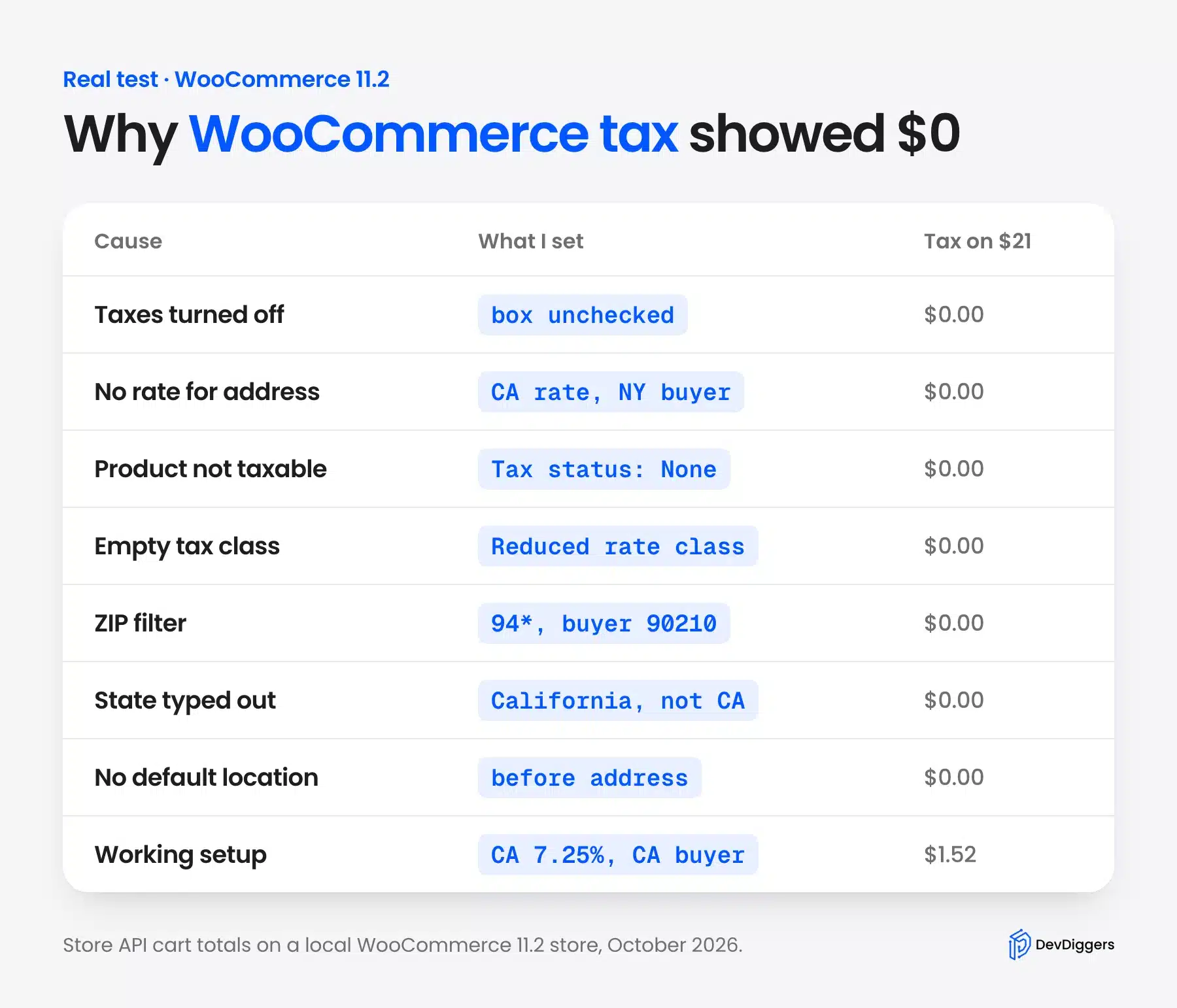
Here are the full results:
| Setting changed | Buyer | Tax on $21 |
|---|---|---|
| Taxes turned off | California | $0.00 |
| Taxes on with no rates | California | $0.00 |
| CA rate at 7.25% | California | $1.52 |
| CA rate at 7.25% | New York | $0.00 |
| Based on shop base address | New York | $1.52 |
| Tax status None | California | $0.00 |
| Reduced rate class with an empty table | California | $0.00 |
| ZIP filter 94* | ZIP 90210 | $0.00 |
| ZIP filter 94* | ZIP 94105 | $1.52 |
| State saved as California | California | $0.00 |
| Prices include tax | California | $1.42 |
I read each total from the WooCommerce Store API cart endpoint, after adding the product and setting the address. That is the same data the block cart and checkout use.
The math checks out: 7.25% of $21 is $1.5225, which rounds to $1.52. For the inclusive price, $21 divided by 1.0725 is $19.58, which leaves $1.42 of tax.
The working cart then showed the tax as its own line, named after the rate:
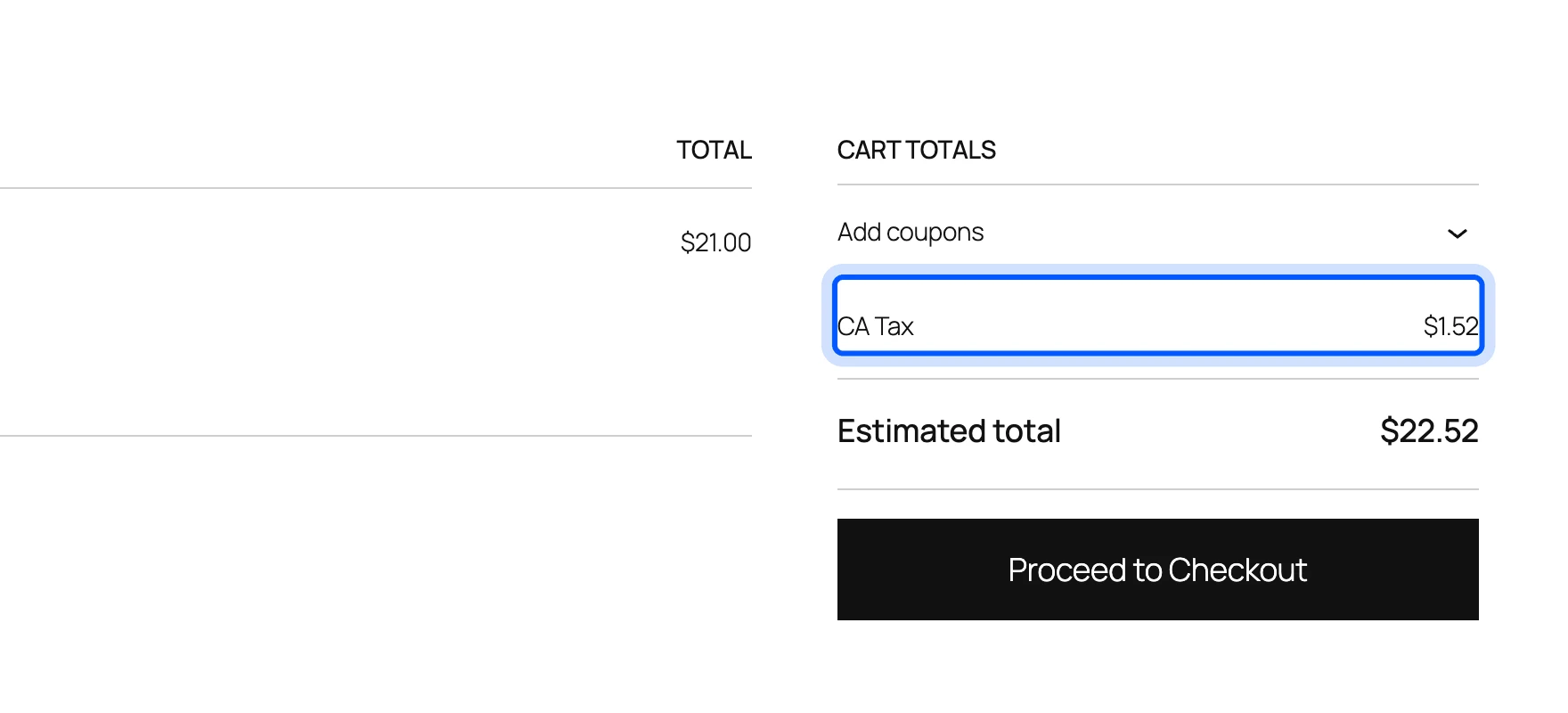
Worth checking: The tax line takes its label from the Tax name field in the rate row. Mine said CA Tax because that is what I typed.
How WooCommerce Automated Taxes Work
WooCommerce automated taxes come from the free WooCommerce Tax plugin, which looks up rates for you instead of a manual table. It needs a complete store address and a WordPress.com connection. It removes your manual rates when you turn it on, after saving a backup CSV.
The WooCommerce Tax docs say the WordPress.com connection is required to use the service. They say the standalone Jetpack plugin is not required. They also list the supported store countries, including the United States, Canada, Australia, the United Kingdom and a set of EU countries.
The rate backup is the detail that catches people out. The same docs say WooCommerce Tax backs up manual rates to a downloadable CSV and then removes them from the tax-rate table. So if you switch automated taxes off later, re-import that CSV or your manual rates are gone.
I did not connect this service on my test store, because it needs a WordPress.com account. Everything in this section comes from the WooCommerce Tax docs.
If automated taxes are on and tax still shows zero, check the store address first. The docs say WooCommerce Tax uses that address as your primary tax location.
When the Settings Look Right but Tax Still Fails
When every setting looks right and WooCommerce taxes are not working anyway, the cause is usually a cache, a plugin conflict or an old version. Clear the caches first and then test with other plugins turned off. Update WooCommerce last after a backup.
These checks cover what the settings cannot:
- Page cache: Exclude the cart and checkout pages from your cache plugin and then clear it.
- WooCommerce transients: Go to WooCommerce > Status > Tools and run Clear transients.
- Plugin conflicts: Turn off plugins that change prices, checkout or shipping, one at a time.
- Theme overrides: Switch to a default theme for a test, since a theme can override the cart templates.
- Versions: Check that WordPress and WooCommerce are up to date.
Our guide on how to check for plugin conflicts on WordPress walks through the one-at-a-time method. If an update broke tax, you can downgrade the WooCommerce plugin while you wait for a fix.
If a custom plugin of yours touches prices, it may be skipping the tax step. Our guide on how to create a WooCommerce plugin covers the basics of hooking into WooCommerce safely. For a store that needs a custom tax setup, our WooCommerce developers can review it.
Conclusion
WooCommerce tax not working is a settings problem in most cases, and my test showed seven quiet ways to land on $0.00. Turn taxes on, add a rate that matches the buyer, keep products Taxable and check which address WooCommerce uses.
Then clear the caches and test with a real address in the taxed area. For more store tweaks, see our list of WooCommerce shortcodes. If you are planning loyalty rewards next, compare the best WooCommerce points and rewards plugins.
Frequently Asked Questions (FAQs)
Q1. Why is WooCommerce not charging tax at checkout?
Usually taxes are off, no rate matches the buyer’s address, or the product is not Taxable. In my test, each of these gave $0.00 tax with no warning. Check them in that order.
Q2. How do I toggle tax on in WooCommerce?
Go to WooCommerce > Settings > General and tick Enable tax rates and calculations. Click Save changes. A Tax tab then appears for your rates.
Q3. Why does WooCommerce show tax on the cart but not the product page?
Product pages show prices based on the Display prices in the shop setting under the Tax tab. Set it to including tax if you want shoppers to see the tax in the product price.
Q4. Does WooCommerce calculate sales tax automatically?
Not by default. You add rates by hand, or install the free WooCommerce Tax plugin for automated rates. That plugin needs a WordPress.com connection and a complete store address.
Q5. Why is tax wrong for some states only?
A rate is missing for those states, or a ZIP filter excludes them. In my test, a 94* ZIP filter taxed a buyer at 94105 but not one at 90210.
Q6. Do I need a tax rate for every ZIP code?
No. A rate with only the country and state charges every buyer in that state. Add ZIP rows only where a local rate differs from the state rate.
Q7. Why are WooCommerce taxes not working after an update?
An update can reset a plugin’s checkout changes or clash with an older cart template in your theme. Clear transients and caches first and then test with a default theme. If that fixes it, update or replace the theme or plugin that broke.