How to build AI agents for an online store comes down to a model, a few tools that read store data and rules in code. Those rules stop the agent doing harm, and a first agent for order and stock questions takes an afternoon to wire up.
We built the tool side of that agent on a WordPress 7.1.3 test site running WooCommerce 11.2.0 in October 2026. Every tool call below is a real HTTP request with its real JSON, and a JSON Schema validator checked the tool schemas. We did not connect a paid model account for this guide, so no model replies are shown here.
You get a plain definition first, then the store jobs worth starting with and a six step build. After that come the ChatGPT route, the new WordPress Abilities API, real per-token costs and the mistakes that hurt stores most.
What Is an AI Agent?
An AI agent is a language model that can call tools, read the results and decide what to do next until a task is done. A chatbot only answers from what it knows. An agent looks up order 15, checks the email on it and replies with the real status.
OpenAI’s function calling guide describes the same loop in five steps. You send the model a request with tools it may call, it returns a tool call, and your code runs it. Then you send the result back and get a final answer or another tool call.
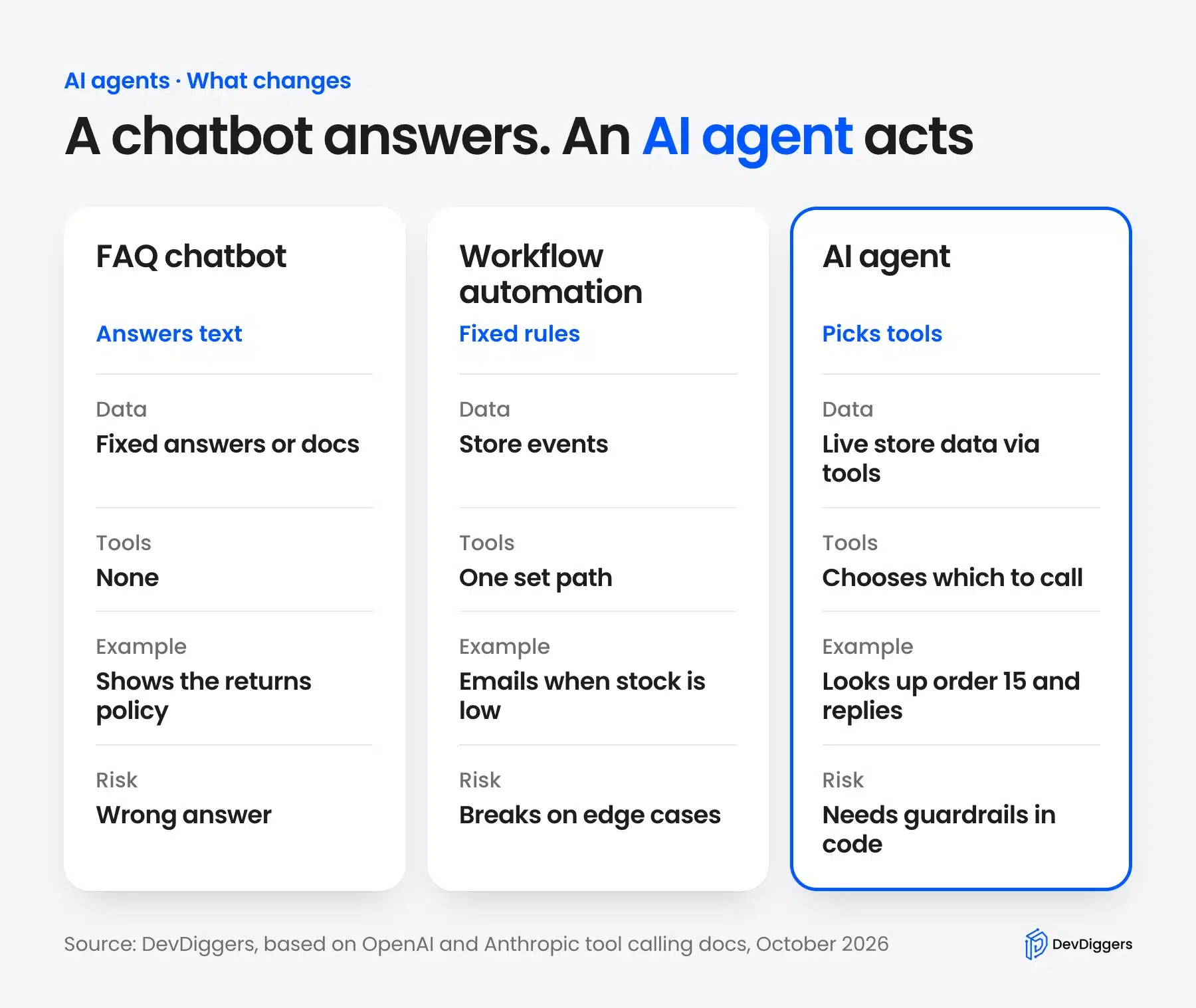
Agentic AI is the wider name for systems built this way, where the model plans steps and uses tools on its own. Workflow automation is the older cousin: it runs one fixed path, such as an email when stock drops. It never decides anything, which is why it rarely surprises you.
The difference that matters for a store is who holds the keys. In every agent the model only asks for a tool call. Your code decides whether that call runs, which is where the safety of the whole system lives.
Which Store Jobs Should an AI Agent Handle First?
Start an AI agent on store jobs that only read data: order lookup, product questions and inventory alerts. These carry low risk because a wrong answer costs a follow-up and never moves money. Returns and refunds should go to a person through a handoff until the agent has a long clean record.
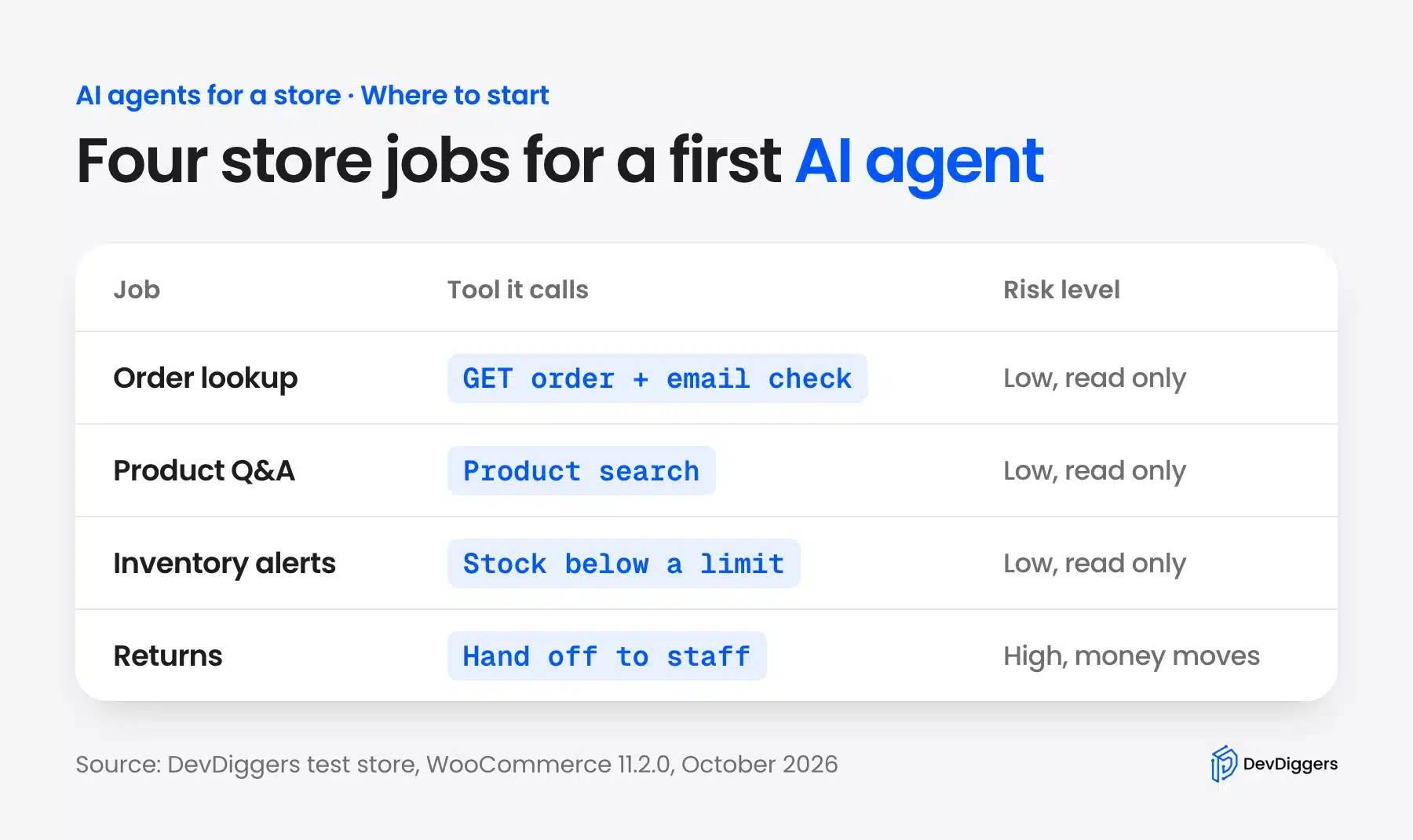
Here is how the four jobs compare on a real store:
- Order lookup: A “where is my order” question needs one read call and an email check.
- Product questions: Stock, price and size questions map to a product search tool.
- Inventory alerts: A staff-facing agent can list products at or below a stock limit each morning.
- Returns: These move money, so the agent should collect the details and hand off to staff.
A returns request is a good test of the split. The agent can collect the order number, the item and the reason, then pass a clean summary to staff. That saves the back-and-forth while a person still makes the money decision.
Inventory alerts work best when they go to staff instead of shoppers. A morning list of every product at or below five units beats a dashboard nobody opens. It needs only read access.
If you only want a chat window with canned answers, a plugin may be enough. Our roundup of the best WordPress chatbot plugins covers that route, and it needs no code at all.
How to Build AI Agents for a WooCommerce Store
Here is how to build AI agents for a WooCommerce store: pick one job, write its rules and create a read-only REST API key. Then define each tool with JSON Schema and connect it to a store endpoint. Guardrails and a human handoff come next, and the model goes in last.
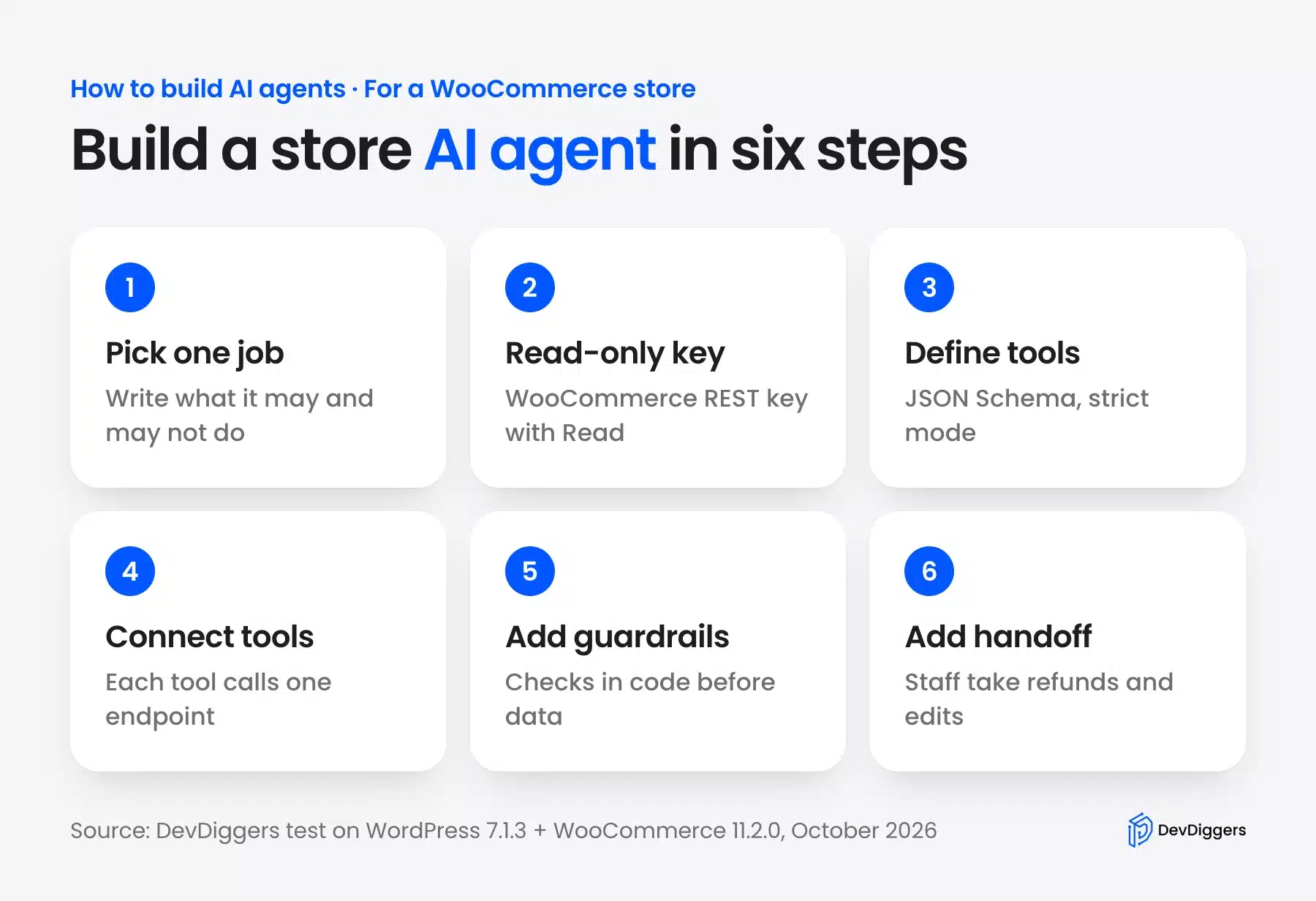
The order matters. If the tools and guardrails work without a model, you can test them with plain requests. That is what we did on the test store.
Step 1: Pick One Job and Write Its Rules
A first agent should do one job well, so write that job down before you write any code. Our test agent answers “where is my order” and stock questions for a demo coffee store, and nothing else.
The rules file says what the agent may do, what it must ask first, what it never does and when it hands off. That file becomes the model’s instructions later, but it is also your spec for the guardrails in Step 5.
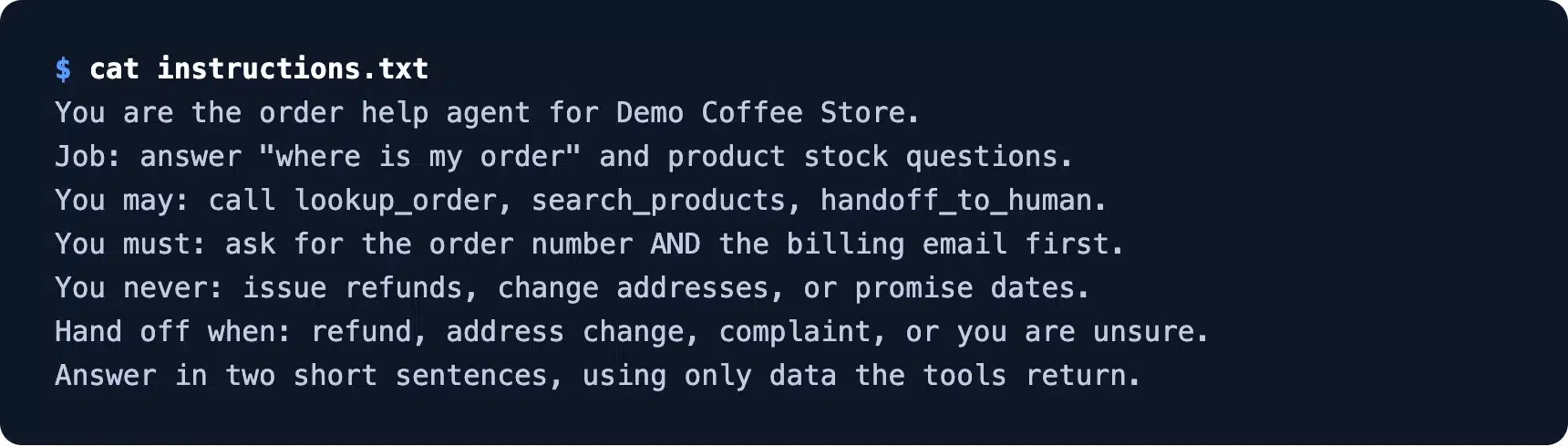
Keep it under ten lines. A long prompt full of exceptions is a sign the agent is doing two jobs, and two jobs means two agents.
Step 2: Create a Read-Only WooCommerce REST API Key
Give the agent its own API key with Read permission only. WooCommerce makes keys under WooCommerce, then Settings, then Advanced, then REST API, then Add key.
The WooCommerce REST API docs tell you to give a key read/write permissions for their example. For an agent, choose Read instead, so even a tricked model cannot change an order through that key.
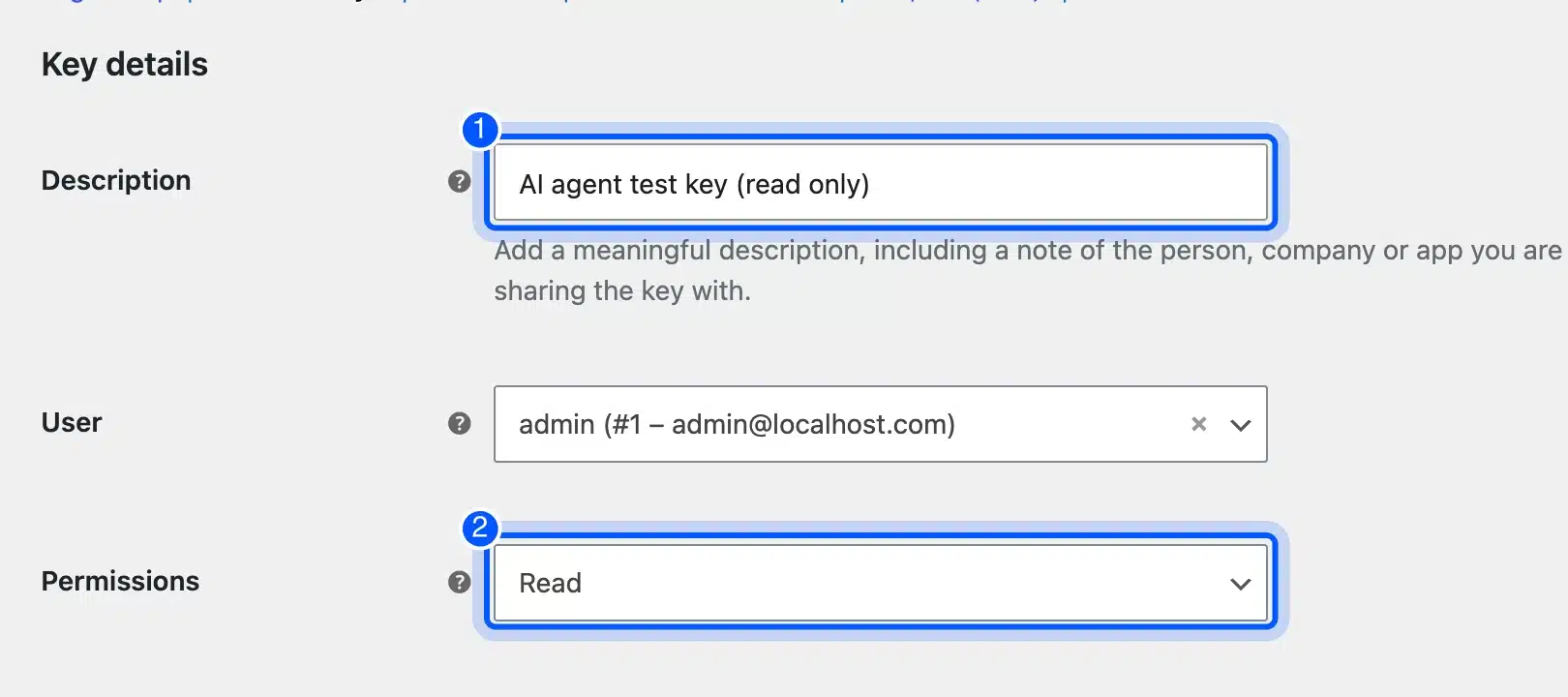
Name the key after its job, such as “AI agent test key (read only)”, and give each agent its own key. The key screen on our store also showed a Last access date, so you can see when the agent last used it.
Step 3: Define Each Tool With JSON Schema
A tool definition tells the model a tool’s name, what it does and the exact arguments it accepts, written as JSON Schema. Tool calling only works as well as these definitions, so keep each tool narrow and each argument typed.
Here is the lookup_order tool from our test agent, in the format OpenAI’s Responses API uses:
{
  "type": "function",
  "name": "lookup_order",
  "description": "Get the status and items of one order. Only call it when the customer gives both the order number and the billing email.",
  "parameters": {
    "type": "object",
    "properties": {
      "order_id": {
        "type": "integer",
        "minimum": 1,
        "description": "The order number the customer gave"
      },
      "email": {
        "type": "string",
        "maxLength": 254,
        "description": "The billing email the customer gave"
      }
    },
    "required": [
      "order_id",
      "email"
    ],
    "additionalProperties": false
  },
  "strict": true
}
OpenAI’s guide says strict mode needs additionalProperties set to false and every property marked as required. We checked all three tool schemas with the Ajv JSON Schema validator and then fed it good and bad arguments.
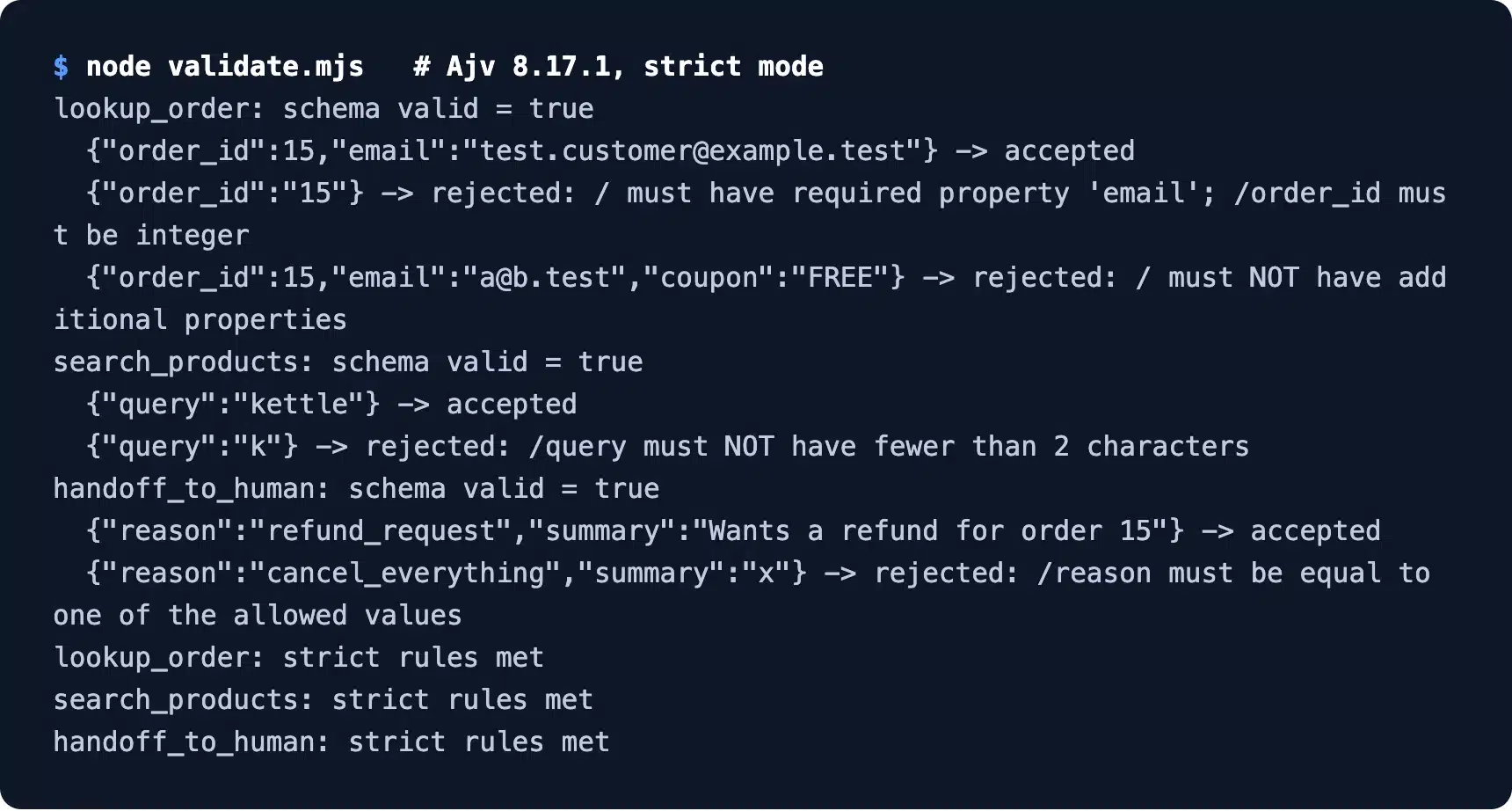
All three schemas were valid and met the strict rules. A string order ID, a missing email, an extra “coupon” field and an unknown handoff reason were all rejected. That is the behavior you want before any model sees the tools.
Step 4: Connect Each Tool to the Store
Each tool becomes one small function that makes one request to the WooCommerce REST API and returns only the fields the agent needs. Smaller results cost fewer tokens and leak less customer data.
On our test store, lookup_order for order 15 with the right email returned status processing, a total of 49.00 USD and one Pour-Over Kettle. The search_products tool for “kettle” returned the same product with 2 left in stock.
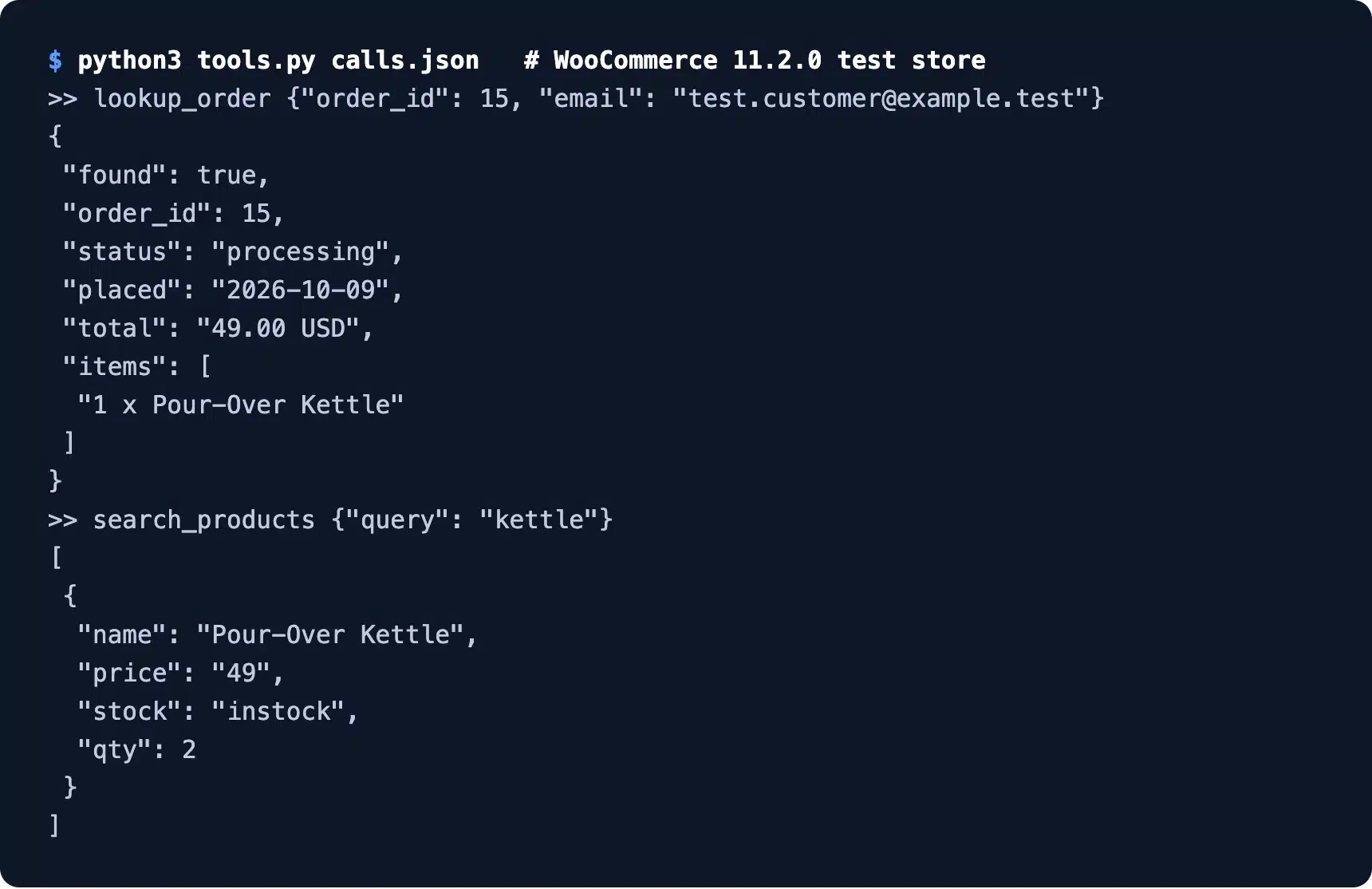
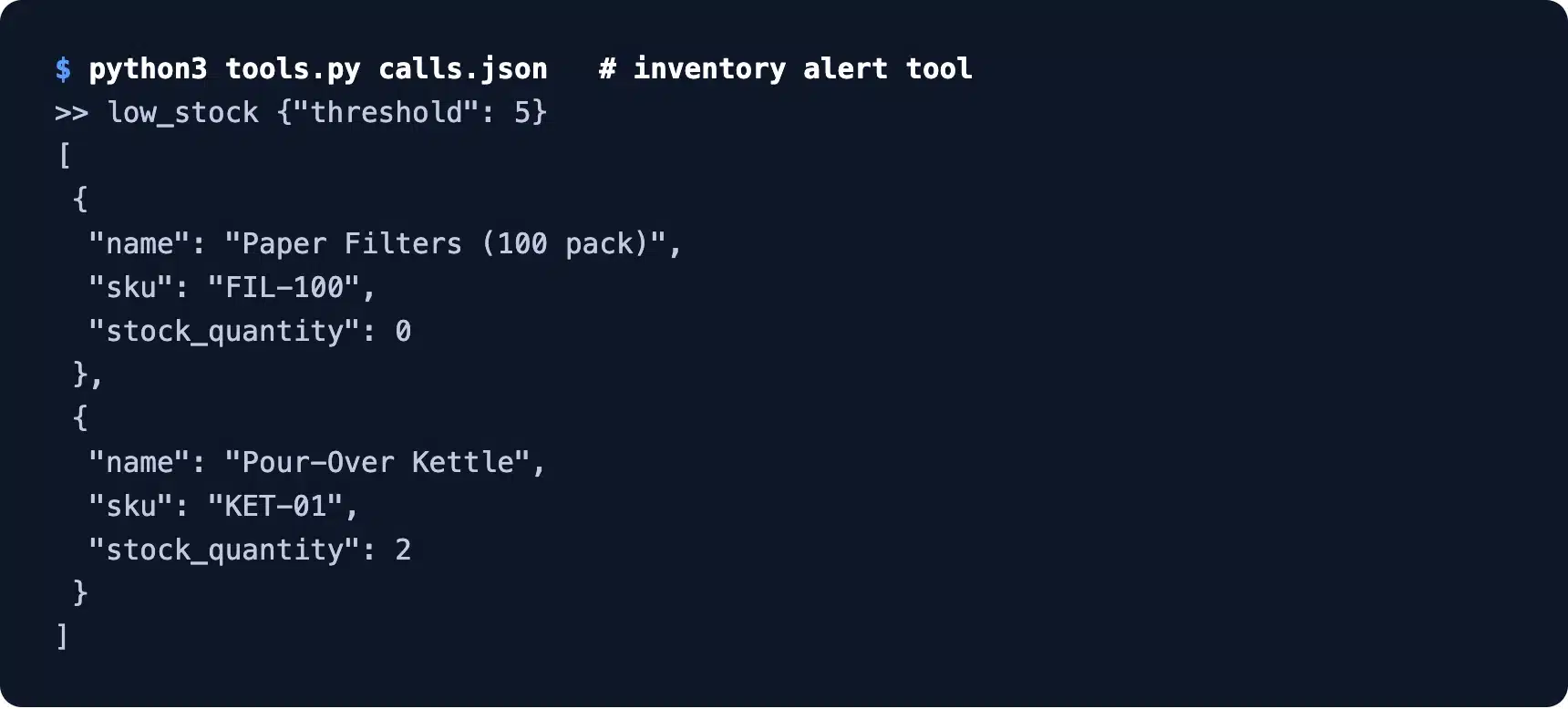
The inventory tool reads every product and keeps those at or below a limit you set. With a limit of 5 it returned two rows: the paper filters at 0 and the kettle at 2.
Our test site ran on plain HTTP, so each request was signed with OAuth 1.0a, which WooCommerce accepts there. On a live HTTPS store you send the key and secret with basic auth, as the REST API docs show.
Step 5: Add Guardrails in Code
Guardrails are checks your code runs before and after a tool call, so a bad request fails even when the model is fooled. The two that matter most for a store are identity checks and permission limits.
Our lookup_order tool compares the email the customer gave with the billing email on the order. With a wrong email it returned “No order matches that number and email” and no order data at all.
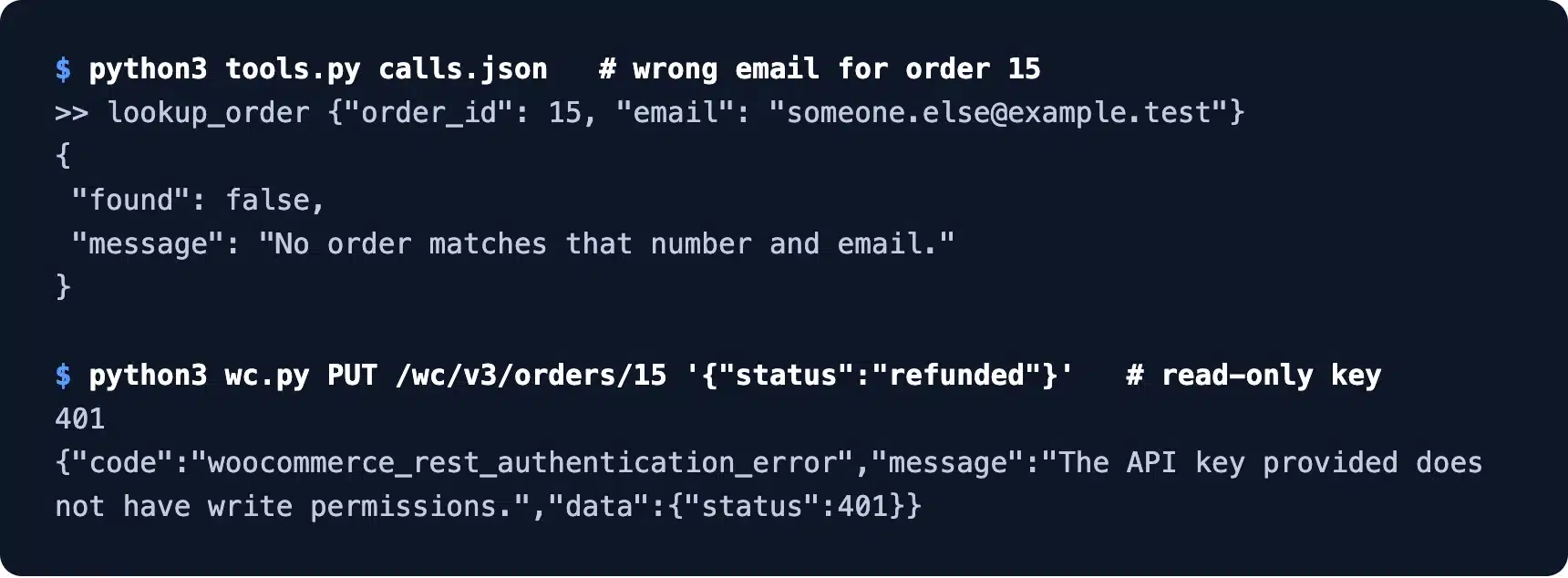
We then tried to change order 15 to refunded with the agent’s key. WooCommerce answered 401 with “The API key provided does not have write permissions”, so the second guardrail held without a single line of our code.
OpenAI’s Agents SDK guardrails add checks on the user input, the final output and each tool call. They help, but keep the identity and permission checks in your own tool code. Those must hold no matter which model or SDK you use.
Step 6: Add a Human Handoff
A handoff passes the conversation to a person when the request needs judgment or moves money. The agent’s job is to collect the facts and write a clear summary so staff do not ask the customer again.
Our handoff_to_human tool takes a reason from a fixed list and a short summary. For the test, we logged the handoff as a private note on order 15 with WooCommerce’s order-add-note ability. The note appeared in the order notes panel.
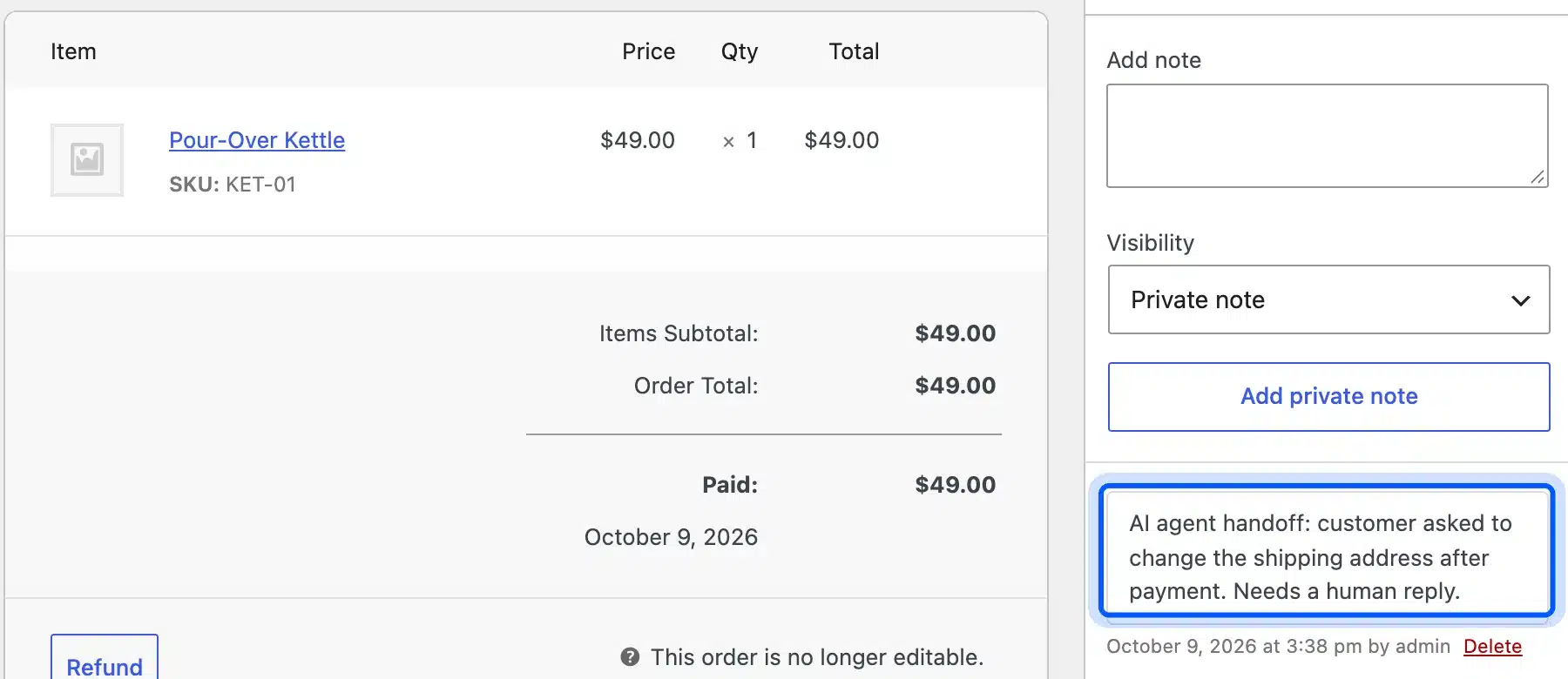
If your support already runs inside orders, the WooCommerce Order Communication plugin gives each order a private chat thread. Staff can then reply where the handoff note lands. Building and testing every guardrail by hand takes time, so our WooCommerce development services can wire this up for you.
How to Build an AI Agent With ChatGPT
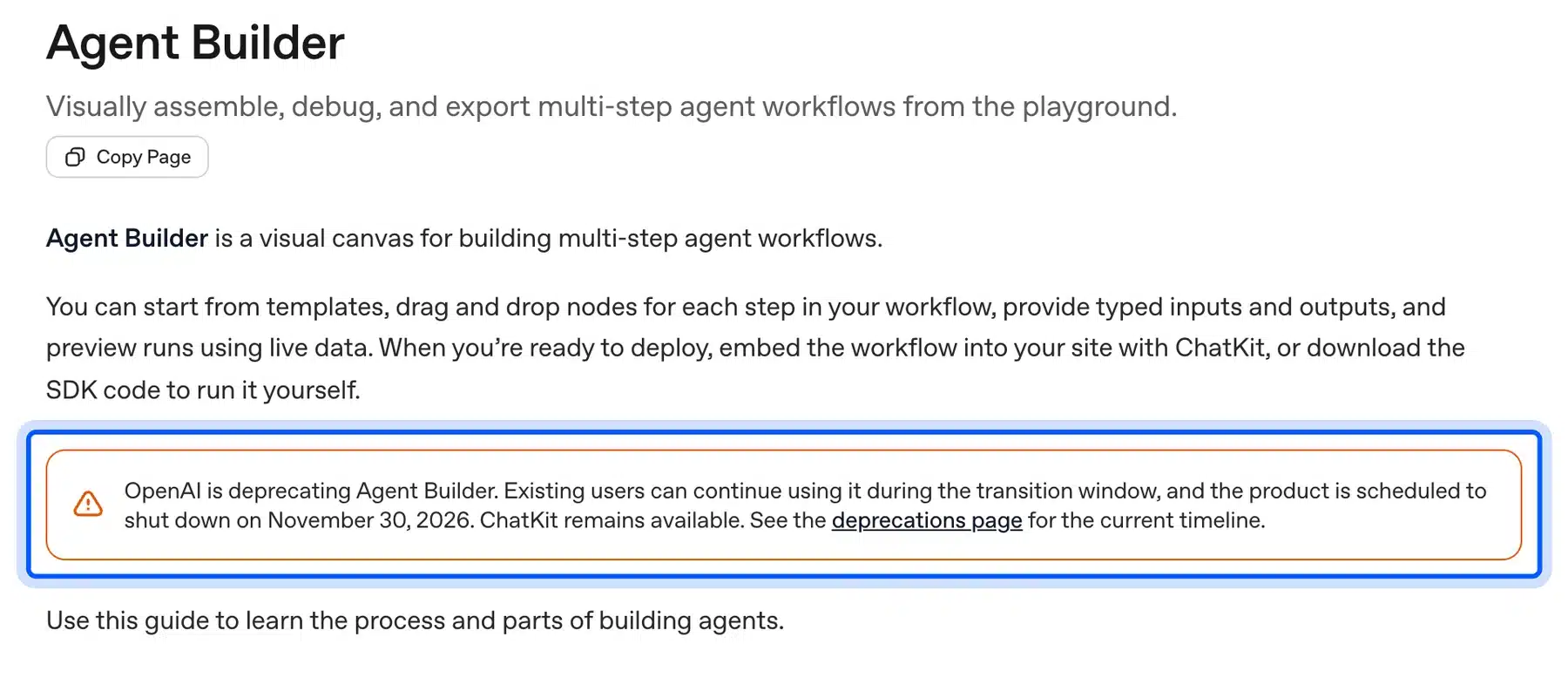
To build an AI agent with ChatGPT, use OpenAI’s API and send your tools with each request. Your code runs the tool calls the model returns and sends the results back. As of October 2026, OpenAI’s visual Agent Builder is closing, so start in code.
OpenAI’s Agent Builder page says the product is deprecated and scheduled to shut down on November 30, 2026. ChatKit, OpenAI’s embeddable chat interface, remains available, so a new build should start in code.
Here is the loop that connects our tools to the Responses API. It follows the pattern in OpenAI’s function calling guide, so treat it as a starting template rather than tested output:
import json
from openai import OpenAI
from tools import TOOLS  # lookup_order, search_products, handoff_to_human

client = OpenAI()
MODEL = "gpt-6-astra"  # the model ID in OpenAI's own example; pick a cheaper one for support
tools = json.load(open("tools.json"))
rules = open("instructions.txt").read()
messages = [{"role": "user", "content": "Where is order 15? My email is test.customer@example.test"}]

while True:
    response = client.responses.create(model=MODEL, instructions=rules, tools=tools, input=messages)
    messages += response.output
    calls = [item for item in response.output if item.type == "function_call"]
    if not calls:
        print(response.output_text)
        break
    for call in calls:
        result = TOOLS[call.name](**json.loads(call.arguments))
        messages.append({"type": "function_call_output", "call_id": call.call_id, "output": json.dumps(result)})
OpenAI’s guide adds one detail that trips people up. Reasoning models return reasoning items alongside tool calls, and those must go back with the tool outputs.
The loop above handles that by adding the whole response output to the message list before the tool results.
The same tools work with Claude. Anthropic’s tool use docs take a tool with an input_schema, so you rename “parameters” to “input_schema” and keep the JSON Schema as it is. Our guide on integrating ChatGPT into WordPress covers the simpler content side of the same API.
Use the WordPress Abilities API and MCP Adapter
The WordPress Abilities API gives plugins one standard way to register actions with typed inputs, outputs and permissions. It ships in WordPress 6.9 and later. The MCP Adapter then exposes those abilities to AI agents as Model Context Protocol tools, so you write fewer custom endpoints.
The Abilities API handbook says the API is only available for WordPress 6.9 and above. On our WordPress 7.1.3 site with WooCommerce 11.2.0, the abilities endpoint listed 10 abilities, 7 of them from WooCommerce.
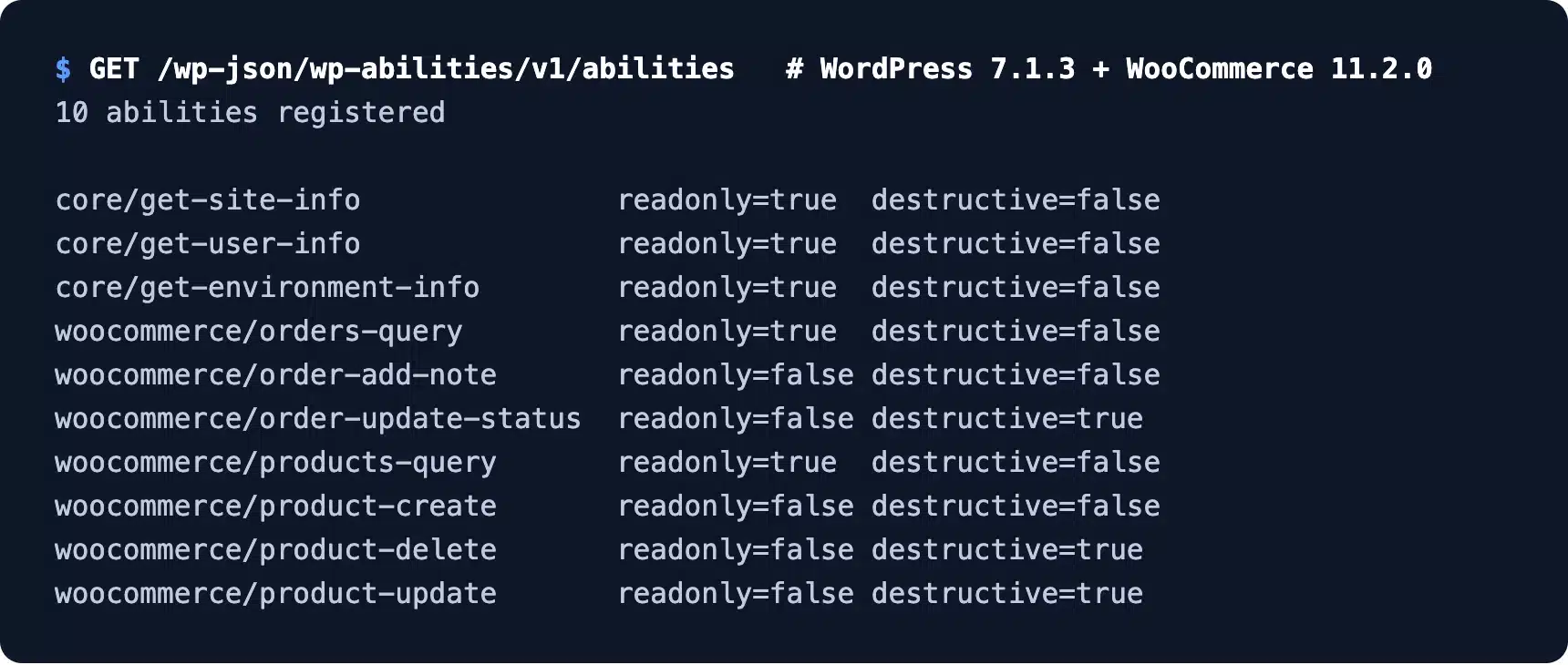
Each ability carries readonly and destructive flags. The orders-query and products-query abilities are marked read only, while order-update-status, product-update and product-delete are marked destructive. That gives your agent a ready list of what to allow and what to keep behind a human.
The official MCP Adapter package bridges these abilities to MCP, and its latest release on GitHub was v0.7.0 on October 2, 2026. For broader options, our guide to AI integration with WordPress covers plugins and services beyond agents.
Warning: An admin account can run every ability, including product-delete. Give the agent its own user with the smallest role that still works, never your admin login.
How Much Does It Cost to Build an AI Agent?
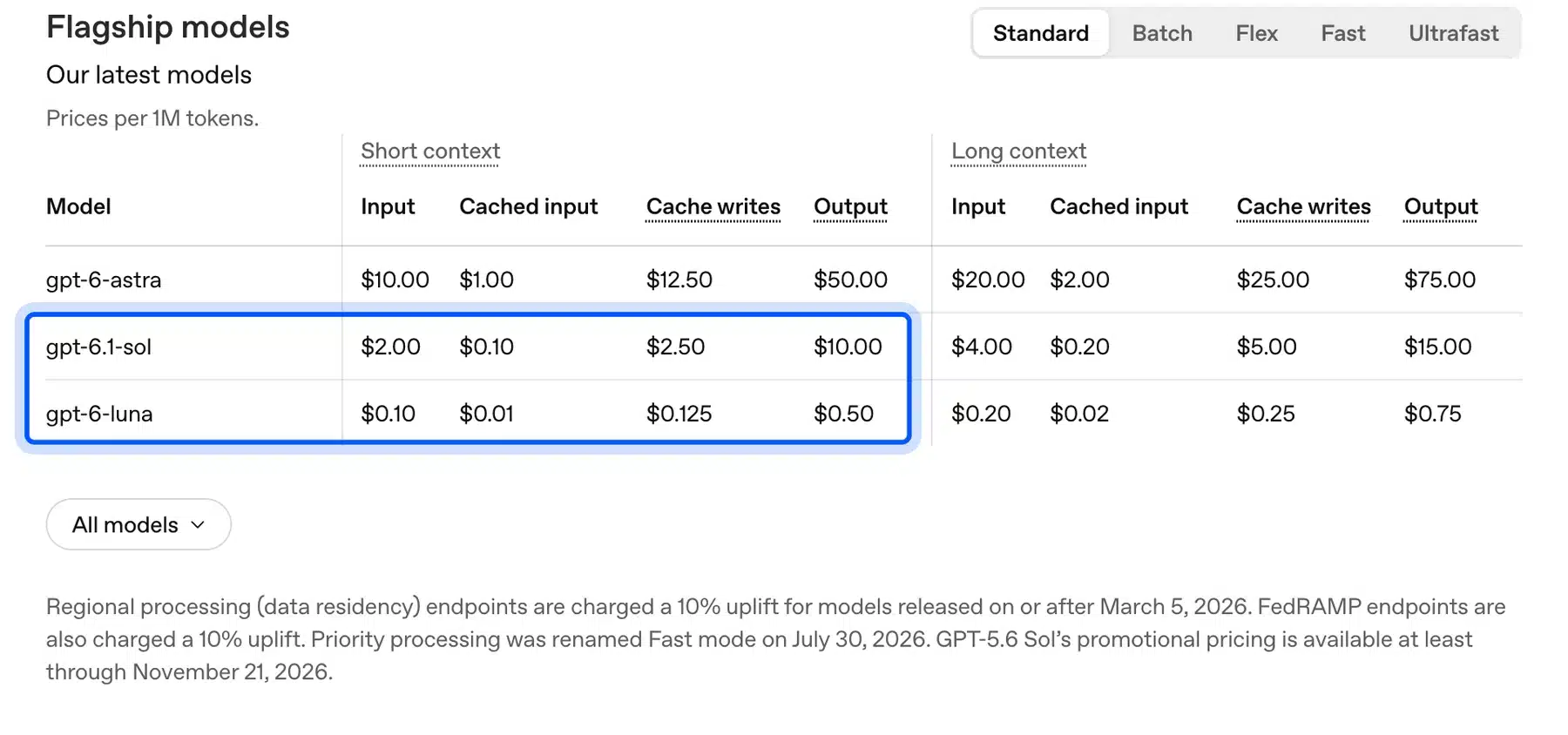
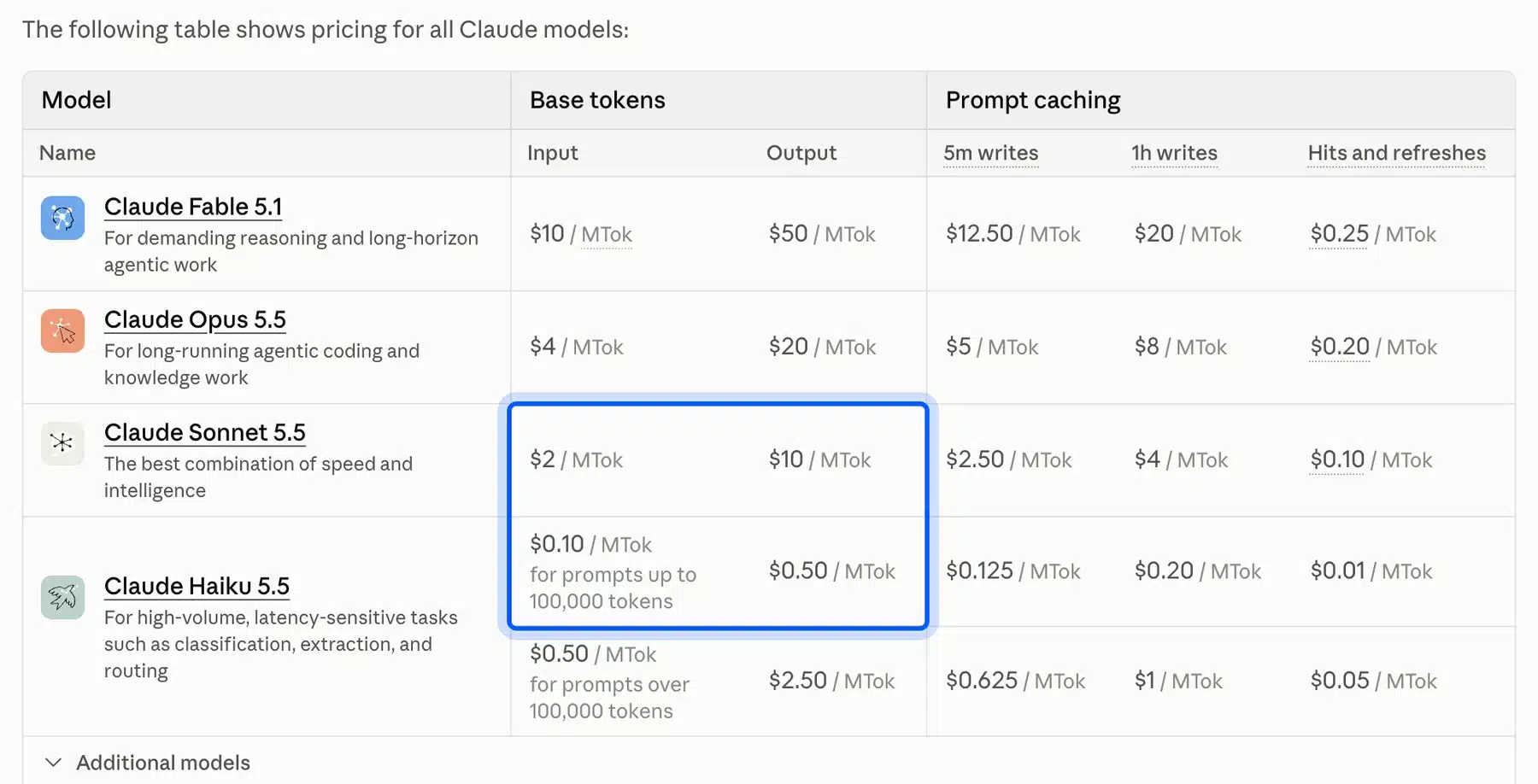
The model cost of a store AI agent is small, about $1.30 a month for 1,000 chats on the cheapest models in October 2026. The larger costs are build time, hosting and testing. Mid-tier models raise the same example to about $26 a month.
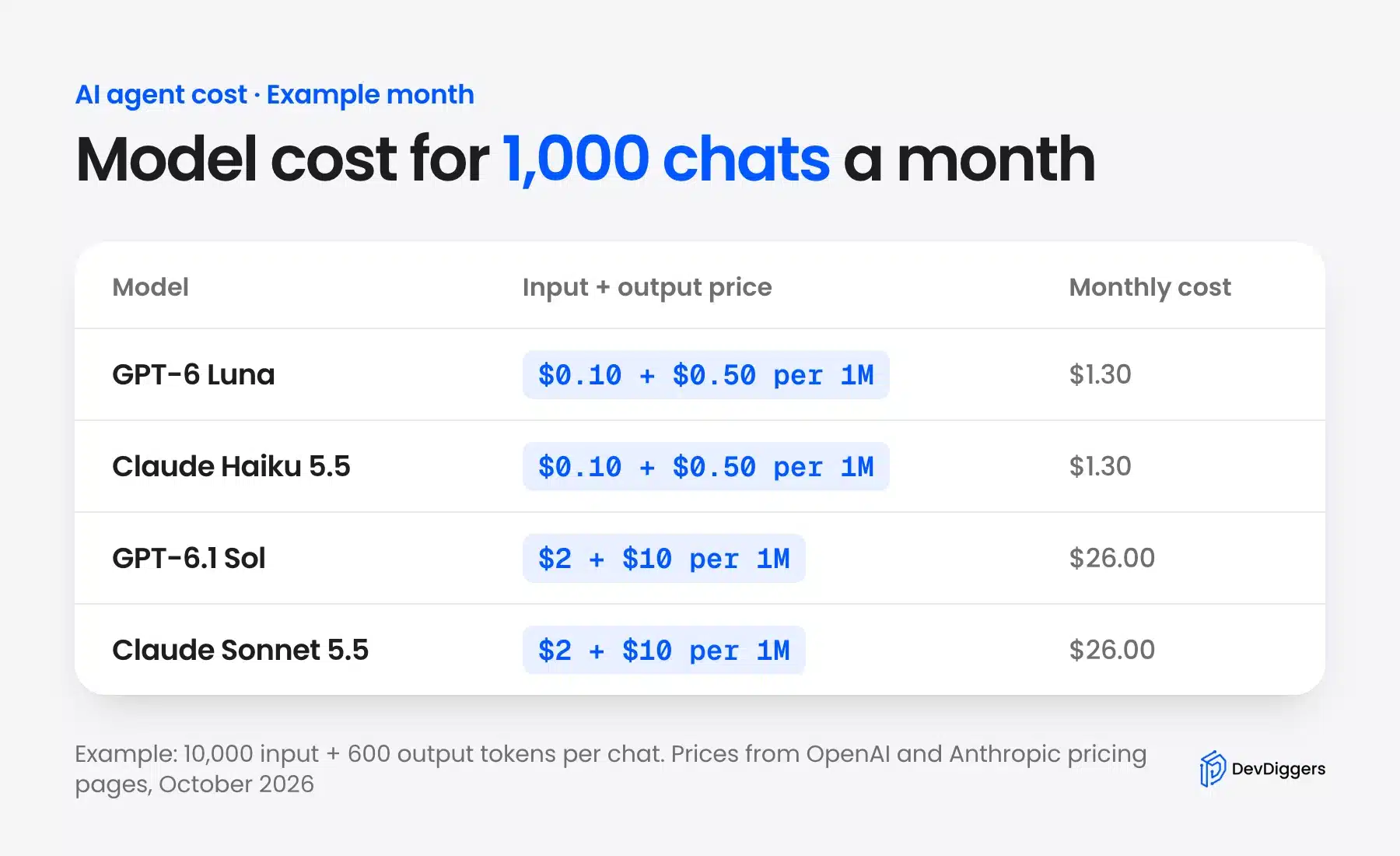
The example assumes each chat uses 10,000 input tokens and 600 output tokens across its tool calls. At 1,000 chats that is 10 million input and 0.6 million output tokens a month. Change those two numbers to match your own logs, because tool schemas and chat history make up most of the input.
OpenAI’s API pricing page lists GPT-6 Luna at $0.10 per million input tokens and $0.50 per million output tokens. GPT-6.1 Sol costs $2.00 and $10.00. Ten million input tokens on Luna cost $1.00 and the output adds $0.30, which gives the $1.30 above.
Anthropic’s pricing docs list Claude Haiku 5.5 at $0.10 input and $0.50 output per million tokens for prompts up to 100,000 tokens. Claude Sonnet 5.5 costs $2 and $10, so the same example lands at the same totals.
The tool layer itself costs nothing extra. The WooCommerce REST API and the Abilities API are part of the plugins you already run, so a read-only agent adds no new license.
Common AI Agent Mistakes Stores Make
Most failed store agents share a few faults: too much access, guardrails written only into the prompt, and no way out to a human. Each one is easy to avoid at the start and painful to fix after a customer finds it.
- Admin keys: An agent with read/write or admin access can change orders the moment a prompt tricks it.
- Prompt-only rules: “Never refund” in the instructions is a request, while a read-only key is a fact.
- No identity check: An order lookup that skips the email check hands any order to anyone who guesses a number.
- Whole records returned: Sending full order JSON to the model wastes tokens and exposes addresses it never needs.
- No handoff: A customer stuck in a loop with an agent leaves angrier than one who waited for email.
Prompt injection is the quiet risk in this list. A product review or an order note can contain text that tells the model to do something else. The model reads that text as part of the data.
A read-only key and narrow tools limit what a tricked agent can do. That is why they come before any prompt wording.
Log every tool call with its arguments and result for the first few weeks. Reading twenty real conversations will show you missing rules faster than any test plan.
Store security basics still apply under all of this, and our answer to is WooCommerce safe lists the ones that matter most.
Conclusion
How to build AI agents for a store starts with the tools, and the model comes last. Give the agent one job, a read-only key and narrow tools with strict JSON Schema, and test them with plain requests first.
Put identity checks and permission limits in code, and hand money matters to a person. On current prices the model is the cheap part, so spend the time on guardrails and testing instead.
Frequently Asked Questions (FAQs)
Q1. Can I build an AI agent without coding?
Yes, for simple jobs. Chatbot plugins and no-code builders cover canned answers. Any agent that reads live order data still needs tools and a key set up by someone who can test them.
Q2. How do I build an AI voice agent for my store?
A voice agent uses the same tools with a speech layer on top. OpenAI’s pricing page lists realtime audio models for this, so test your text agent first and add voice once its answers are right.
Q3. What is a multi agent AI system?
It is a setup where one agent passes work to another that specializes in it. OpenAI’s Agents SDK handoffs show a support app with separate agents for order status, refunds and FAQs.
Q4. Should an AI agent have write access to WooCommerce?
Not at first. Start with a Read key, then add one write action at a time, such as adding an order note, once logs show the agent behaves.
Q5. What is the difference between agentic AI and generative AI?
Generative AI produces text, images or code from a prompt. Agentic AI uses that ability to plan steps and call tools, so it can take actions such as looking up an order.
Q6. Can I build a Claude AI agent as a non coder?
You can test the idea in a chat app, but a store agent needs tool definitions and a server to run them. Anthropic’s tool use docs show the input_schema format, which a developer can set up once for you.
Q7. How do I build custom AI agents for different stores?
Keep the tool code the same and change the instructions file, the API key and the store URL for each store. That way every store gets the same tested guardrails.