Are you finding it challenging to arrange and visualize user-submitted data on your WordPress site? Whether you are creating a business directory, a searchable list of recipes, a job board, or a real estate repository, static pages are not going to suffice.
This is where searchable databases come in. With searchable databases, visitors can search, filter, and interact with dynamic content, all without creating a complicated and overwhelming experience for you on the back-end.
In this guide, you will be shown step-by-step how to create a searchable database in WordPress using the Formidable Forms plugin. No coding, no tech headaches – just five easy steps to build your WordPress site and provide a searchable intelligence that your users will appreciate.
What is a Searchable Database?
A searchable database in WordPress is a live collection of content entries (like user submissions, listings, or custom data) that your users can browse, search, and filter right on your site.
Unlike static pages, these types of databases allow non-logged-in visitors to engage with your content in real time. Visitors can simply type in keywords, select from dropdown filters, or use advanced search criteria to find exactly what they’re looking for.
Some everyday examples might be:
- Job boards where users can search by job title, location, or industry.
- Real estate listings with filtering by price, number of bedrooms, or city.
- Staff directories are searchable by name, department, or role.
- Online collections of recipes searchable by ingredients, cook time, or dietary need.
- Product catalogs with filterable attributes such as color, size, or price.
These types of searchable databases improve usability and site performance by giving visitors direct access to the content they care about, without scrolling or clicking through pages of irrelevant content.
In short, if you want your WordPress site to act like a smart app or a directory-style site, you’ll need a searchable, filterable, and interactive database to give it life.
Why Create a Searchable Database in WordPress?
So, what difference does it make learning how to create a searchable database in WordPress? Because it can completely change how your site works—and how users experience it too.
From its beginnings as a blogging tool to an effective CMS supporting dynamic and interactive websites, WordPress can take things further, allowing users to access the minutiae of the content they need—quickly—by building a searchable database.
Here’s why you should install a searchable database:
- Enhanced User Experience: Now your users can search by keywords, categories, tags, filters, or even custom fields. No more infinite scrolling. The better the experience you can provide, the more time people will spend on your site.
- Dynamic and Automated Content Display: No more creating new pages or posts for every new submission. You can now compile submissions and publish the entries dynamically, in real-time. Real-time analysis of online employment with job postings, real estate listings, or user reviews… with real-time updates.
- Better Data Management: One can simply treat the form entries as the data source. And you don’t have to worry about custom post types or having your data on some obscure third-party database anymore. You just have to construct a form, and the entries will feed into it seamlessly.
- Custom Functionality for any Niche: You want to construct staff directories? Event calendars? Product directories? Client testimonials? In today’s landscape, if you are looking to display searchable databases, the good news is that they scale easily and are flexible no matter the use case.
- Improved SEO Performance: Since databases create dynamically created pages filled with structured data, their chances of ranking well are much improved. Add additional keyworded content with search filters and internal linking, and you will have an SEO authority site!
- Ideal for Membership or Community Sites: If you manage a members-only portal or online community, providing a searchable database allows your users to filter member profiles, access records, or reference past submissions – all within a secure site!
How To Create a Searchable Database in WordPress: 5 Steps Using Formidable Forms
Creating a searchable database in WordPress may seem technical, but with a good plugin, it can be as easy as pie. Formidable Forms Pro is ideal for this task because it allows you to collect data through forms, then display and filter that data in a searchable format on the front end.
Now let’s take a look at how to do this all in 5 steps– from installation to a complete, filterable database.
Step 1: Install and Activate Formidable Forms Pro
To get started, we need the Pro version of Formidable Forms. The Pro version enables the “Views” feature that gets permission to display your search-ready, dynamic data on your site.
How do we install?
- In your WordPress dashboard, go to Plugins > Add Plugin.

- Search for the Formidable Forms plugin. Click Install Now and then Activate.
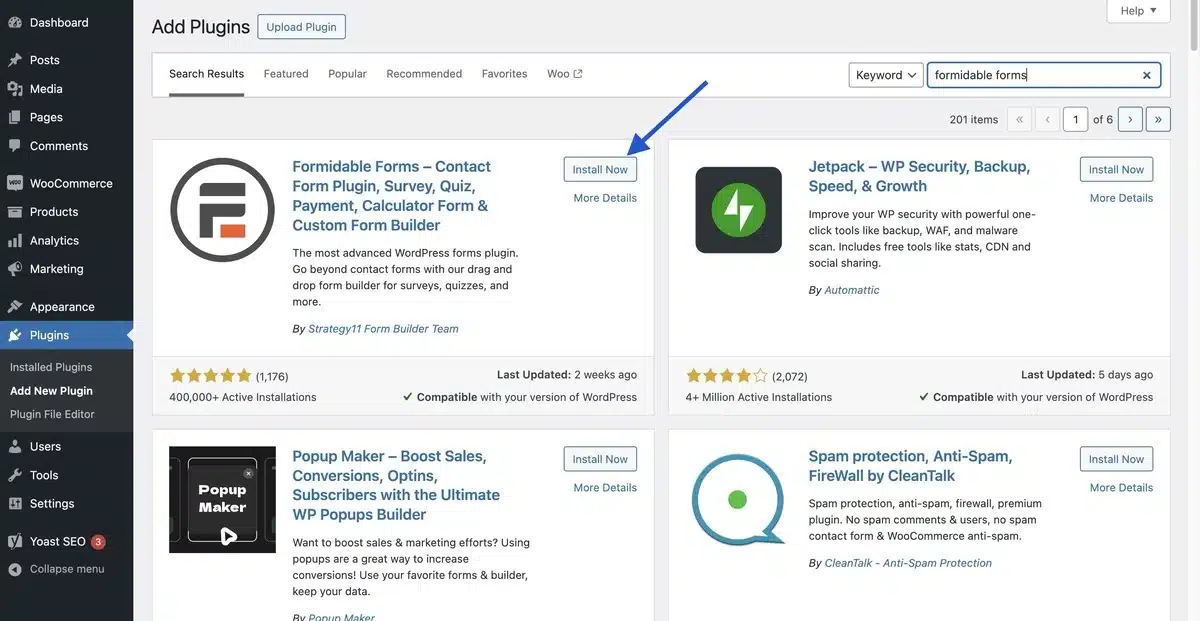
Pro Tip: If you’re running a job board, you can create a form and allow employers to submit their listing, and in turn display all listings in a format that can be searched by job seekers in an instant.
Step 2: Create a Custom Form to Collect Data
Next, you are going to create a custom form, which acts as the input layer of your database. Each time someone fills out this form, a record will be generated in the backend database.
To create a form:
- Navigate to Formidable > Forms > Create New Form.
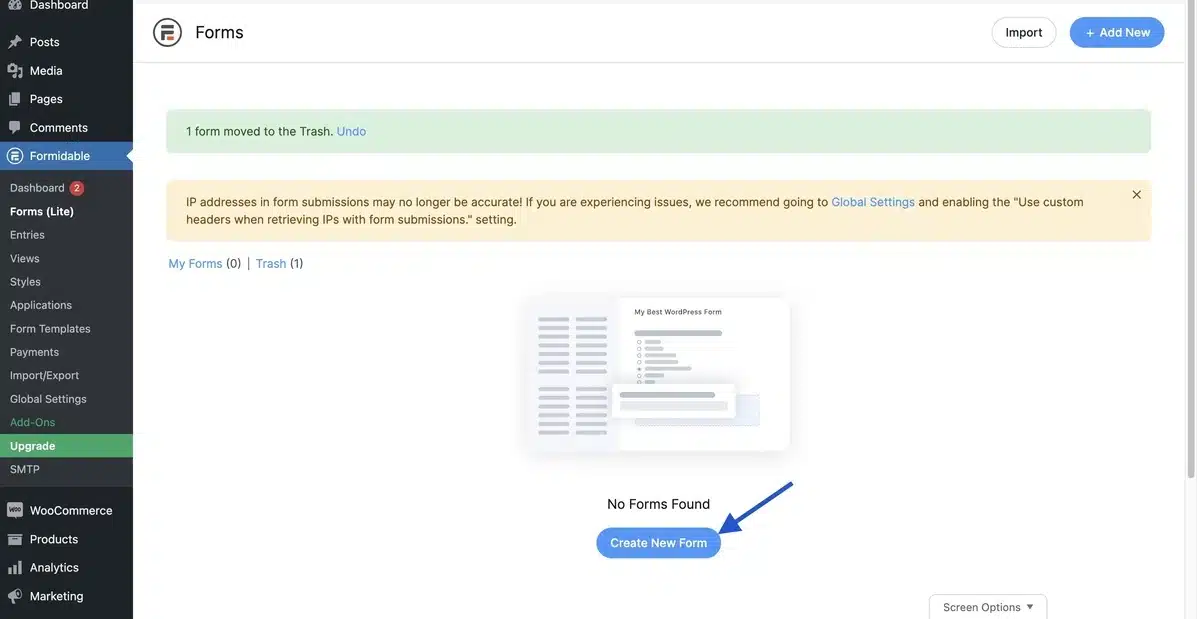
- Choose between a Blank Form or a pre-built template.
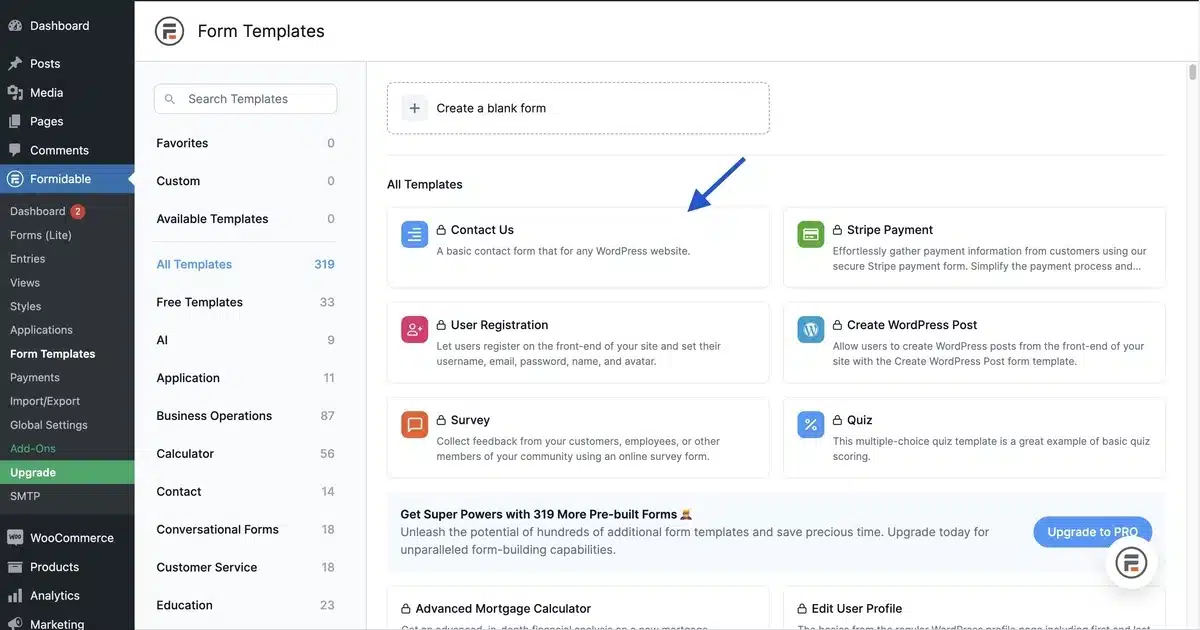
- Drag and drop all of the fields you need based on your use case.
- Text (e.g., Name, Title)
- Dropdown (e.g., Category, Type)
- Paragraph (e.g., Description)
- File upload (e.g., Images or documents)
- Checkbox or Radio button (e.g., Tags or Options)
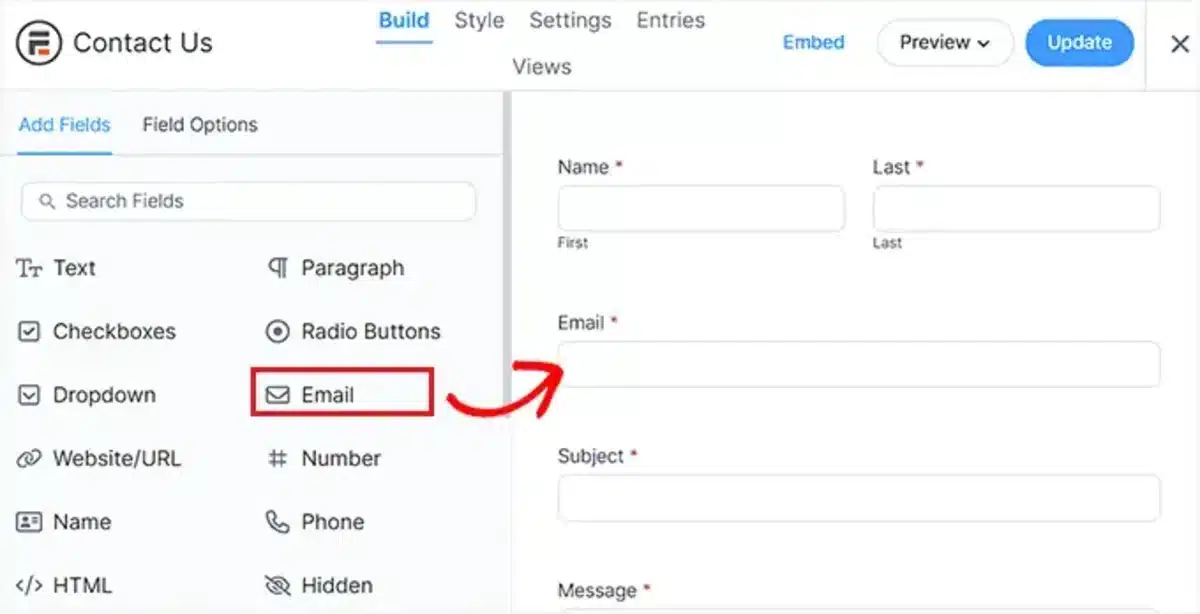
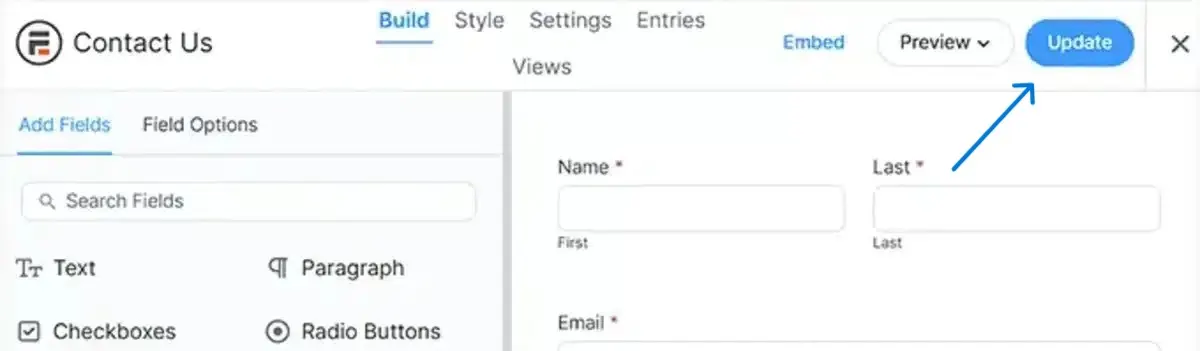
- Once you are finished, click Update.
Real Example:
For a Recipe Directory, your form would look like this:
- Recipe Title (Text)
- Category (Dropdown: Dessert, Vegan, Quick Meals)
- Cook Time (Number)
- Ingredients (Paragraph Text)
- Image (File Upload)
This form will become the “data entry” point for finding the recipe in the directory. All future searches will come from the form’s submissions.
Step 3: Create a View to Display the Database
Here’s where it gets fun. Views allow you to show form entries on the front end of your WordPress site. You can customize each entry’s display–like lists or tables, cards, or even calendars!
How to create a View:
- Go to Formidable > Views > Add New.
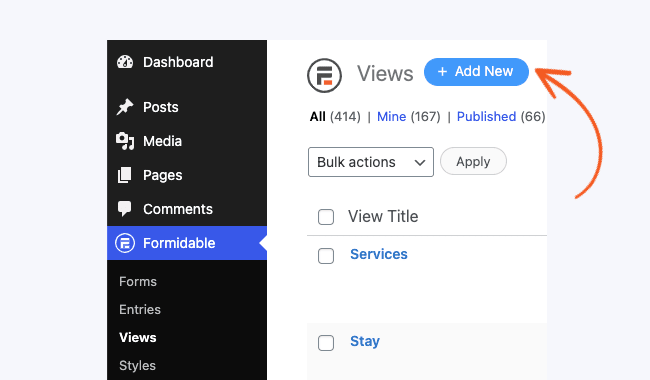
- Select the form you set up to collect data.

- Select View Type.
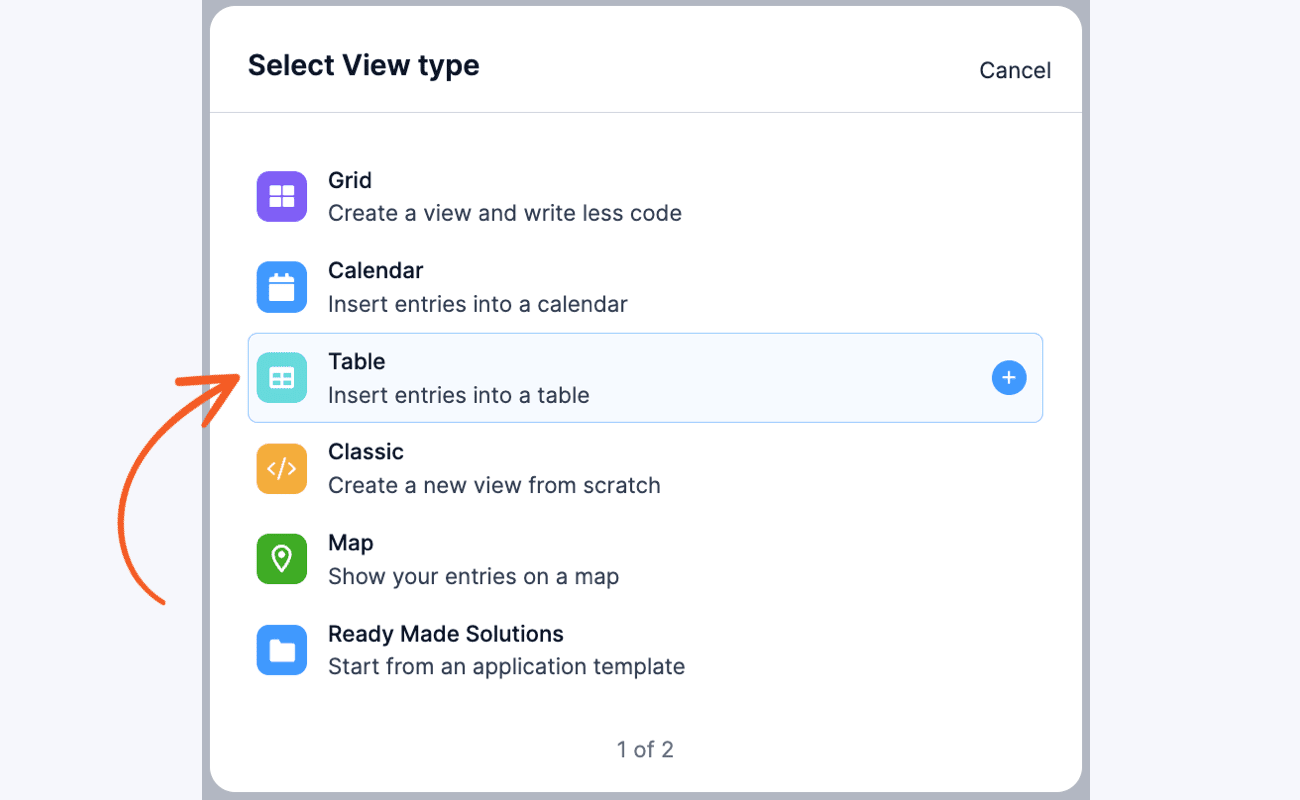
- Add fields to the display template using smart shortcodes.
Sample Display (to think about in your Recipe Directory):
<h3>[Recipe Title]</h3>
<p>Category: [Category]</p>
<p>Cook Time: [Cook Time] minutes</p>
<p>[Ingredients]</p>
[if Image]<img src="[Image]">[/if]
Pro Tip: Conditional logic may be used here. For example, you can hide the cook time if it is not filled out, or only display the image if it is filled out.
Real World Example:
For a school project showcase, the view could include:
- Student Name
- Project Title
- Subject
- Download link (PDF or ZIP files)
Step 4: Add Search and Filter Functionality
Here is where the “searchable” part really comes to life.
Formidable Forms allows you to add a search bar and filtering fields to your View so that your users can search for entries using criteria they set.
To add filters:
- In your View, scroll to the Filter & Sort section and enable the Search form.

- You are done!!
Filter Examples:
Let’s say you’re making a staff directory. You might have the following filters:
- Department (Dropdown)
- Name Search (Text Input)
- Job Title (Text)
- Location (Dropdown or Radio Button)
These input filters appear above your database and can filter the results in real-time.
No need for users to refresh the page—this all works instantly through Formidable Forms.
Step 5: Embed the Searchable Database Anywhere
After you have created your View and made your selections for filters, it is time to publish it live on your site.
To embed:
- Go to the WordPress page or post where you want the searchable database to be displayed.

- Use the Formidable Forms block (if you are using Gutenberg), or paste the shortcode
[display-frm-data id=123]where 123 is your View ID.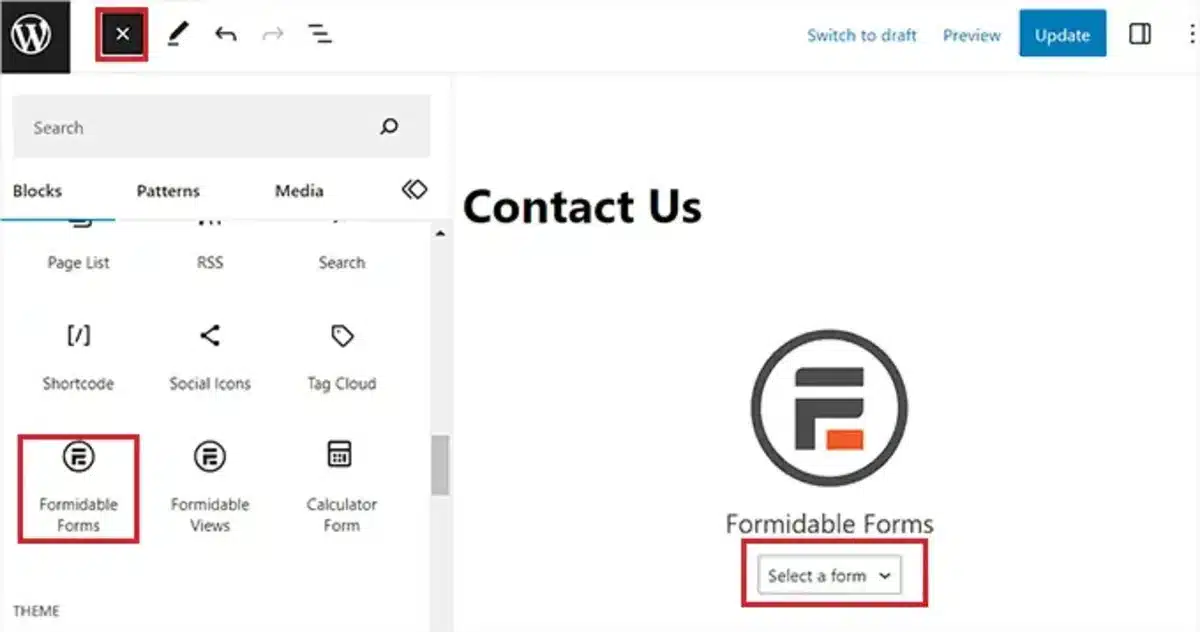
That’s all there is to it! Your searchable database using Formidable Forms in WordPress is now live, working, and ready to be used.
Real-Life Examples by Industry
Let’s make this practical. Here are examples of searchable databases you can build using this exact method:
| Industry | Database Example | Filters/Search Fields |
|---|---|---|
| Real Estate | Property Listings | City, Price Range, Bedrooms, Type |
| Education | Student Projects or Research Archive | Grade, Subject, Year |
| Events | Event Calendar or Past Events Archive | Date, Category, Speaker |
| Healthcare | Doctor Directory or Medical Records | Specialty, Location, Language, Gender |
| eCommerce | Product Catalog or Parts Inventory | Category, Price, Stock Status |
| Nonprofit | Donor or Volunteer Database | Name, Role, Location |
Final Thoughts on Creating a Searchable Database in WordPress
You’ve now learned how to create a searchable database in WordPress without writing a single line of code.
Using Formidable Forms Pro, you can build a live, interactive, and searchable interface on your WordPress website that allows users to efficiently search, filter, and examine your content. This process can apply to websites for directories, listing pages, product catalogs, or anything else you can think of by following a 5-step process for data input and data output.
This configuration works especially well because of its flexibility. You are not locked into one type of dataset or any specific static content. You can build a student database, recipe index, staff directory, and everything in between with a few clicks to make everything searchable.
Plus, this solution runs inside WordPress, so it is customizable and can placate even the non-developer user to manage with winding about it. You get all the features of a real database and can avoid using an external DBMS, and can work seamlessly with your theme, preferred page builders, and your chosen SEO plugins.
If you’re serious about improving user experience, managing content efficiently, and providing smart filtering tools, building a searchable database in WordPress is the best decision you can make.
Frequently Asked Questions
Q1. What is a searchable database?
A searchable database allows your users to filter, find, and view dynamic content on your website, such as directories, listings, or user-generated content.
Q2. Do I need to know how to code to create a searchable database in WordPress?
No! You can create a searchable database in WordPress without coding by using a form-building plugin, such as Formidable Forms.
Q3. What is the best plugin to create searchable databases in WordPress?
Formidable Forms Pro remains one of the best tools for creating searchable databases because it allows for form submissions, dynamic display, and advanced filtering.
Q4. Can users search through the database entries on the front end?
Yes, if you set it up correctly, users can search and filter relevant results directly on your website, by keyword, Category, Date, or custom fields.
Q5. Will the content from my searchable database be indexed in Google?
Yes, when displayed using proper HTML-based views, your database entries will be crawled like any active web content and indexed as such.