Are you trying to do something important, but facing blocked pop-ups? You’re not the only one. Thankfully, Chrome has an embedded pop-up blocker that blocks over 1 billion unwanted pop-ups daily (Google Transparency Report). However, sometimes it also blocks helpful content by mistake.
Whether you are trying to access a payment gateway, securely log in to your banking portal, or maybe even open a chat window with customer support, nothing is more frustrating than being greeted with a pop-up blocker. If you have ever wondered how to turn off pop-up blocker on Chrome, you’ve come to the right post.
In this comprehensive guide, we will walk you through the exact steps to turn off pop-up blocker on Chrome on all major operating systems, including Windows, Mac, Android, and iOS. You’ll also learn how to allow pop-ups for specific websites, as well as how to troubleshoot common blocked pop-up issues and manage settings safely.
Why You May Need to Turn Off Pop-Up Blocker on Chrome
Google Chrome is blocking millions of pop-ups each day to keep users safe from malicious content and annoying ads. Although a recent study by Statista found that almost 23% of users have difficulty accessing legitimate content because of the strictness of pop-up blockers.
Many websites make use of pop-ups to provide important services. Sometimes Chrome blocks these services, which disrupts the browsing experience by preventing you from:
- Logging in
- Completing multi-part online forms
- Checking out and completing payment
- Receiving system notifications
- Utilizing the live customer support chat feature
- Opening PDFs or important documents
This is the reason why it is imperative to know how to disable pop-up blocker on Chrome. Understanding how to adjust your pop-up settings in a responsible manner will help you balance the two, safety versus accessibility.
How to Turn Off Pop-Up Blocker on Chrome (Windows, Linux & Mac)
If you’re using Chrome on a desktop (Windows, Linux or Mac), the steps to turn off the pop-up blocker are nearly the same. Follow the simple steps below to find out how to turn off the pop-up blocker on Chrome:
- Open up Google Chrome on your computer.
- With the browser open, click the three-dot menu icon in the top-right corner of the browser window.
- Select Settings from the dropdown to open Chrome’s main settings window.

- In the left sidebar, click on Privacy and security.

- In this section, choose Site Settings in order to customize how Chrome handles various types of website permissions.
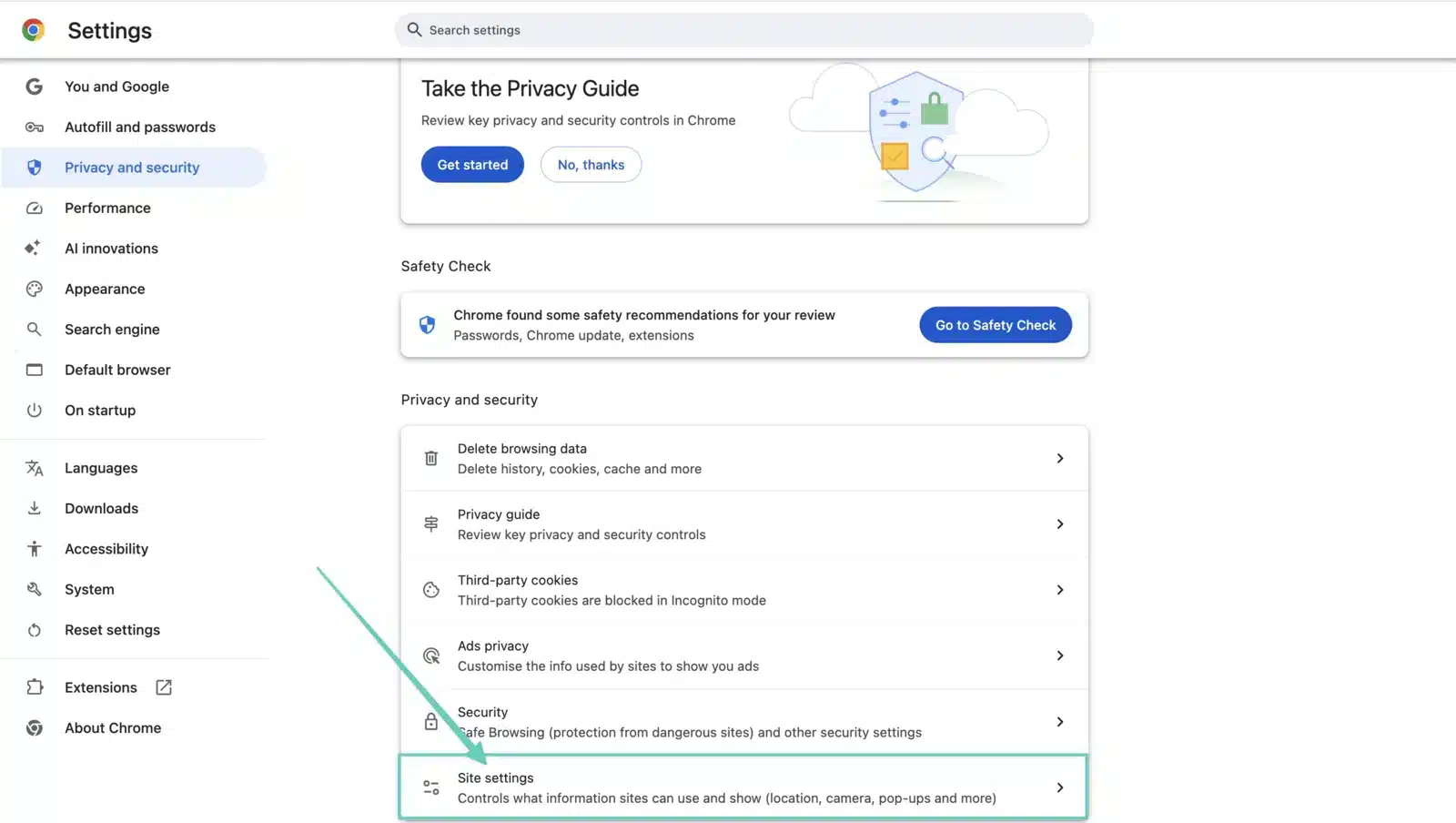
- Scroll down until you see the Content section.
- Click on Pop-ups and redirects to view the pop-up management screen.
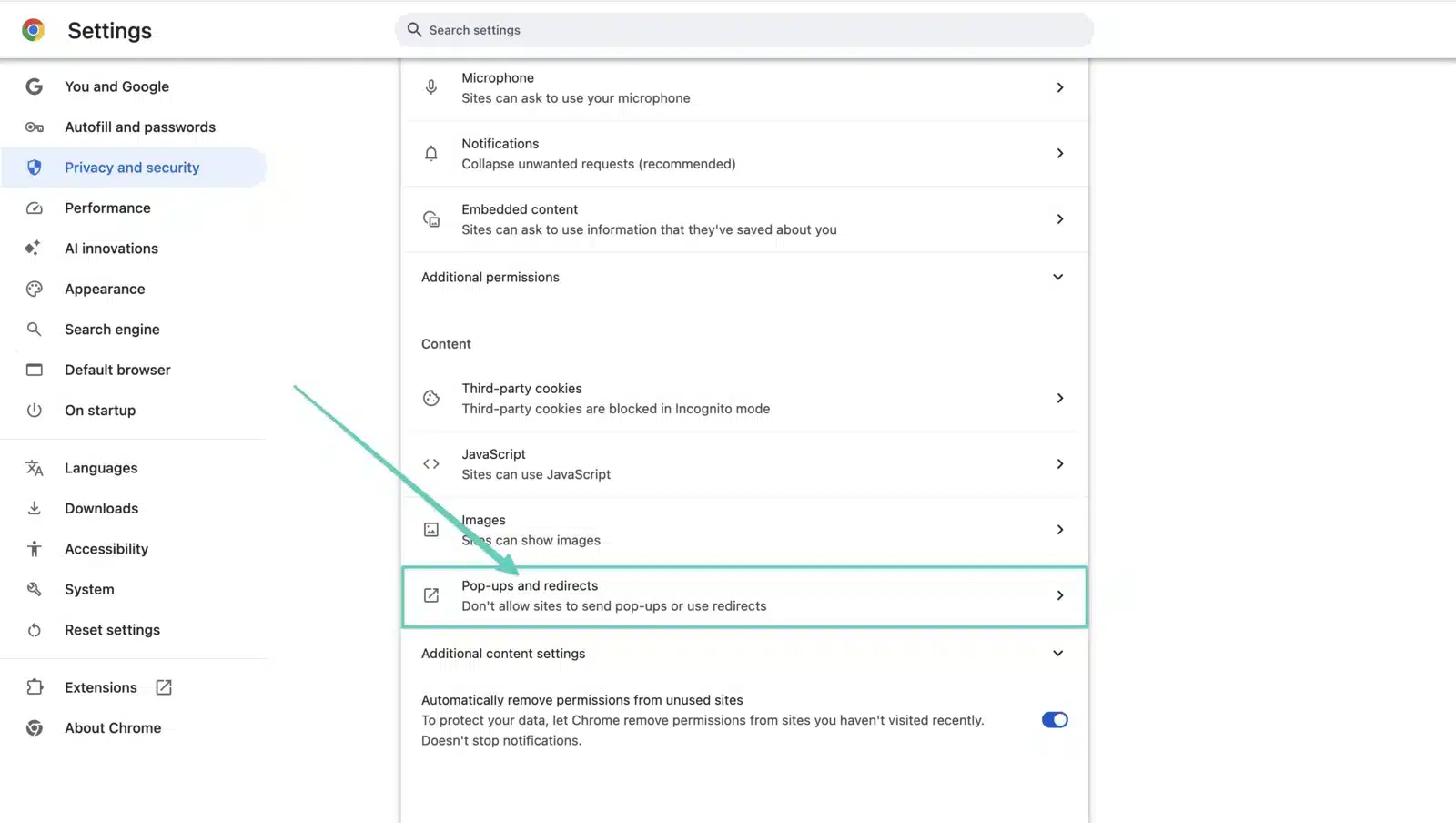
- You should now see two primary options:

- Sites can send pop-ups and use redirects
- Don’t allow sites to send pop-ups or use redirects (recommended)
- Select Sites can send pop-ups and use redirects to completely disable the pop-up blocker on Chrome.

Allow Pop-Ups for Specific Sites (Optional):
If you want to allow pop-ups only on certain trusted websites, and not disable the pop-up blocker completely:
- In the same Pop-ups and redirects section, look for Customised behaviours.
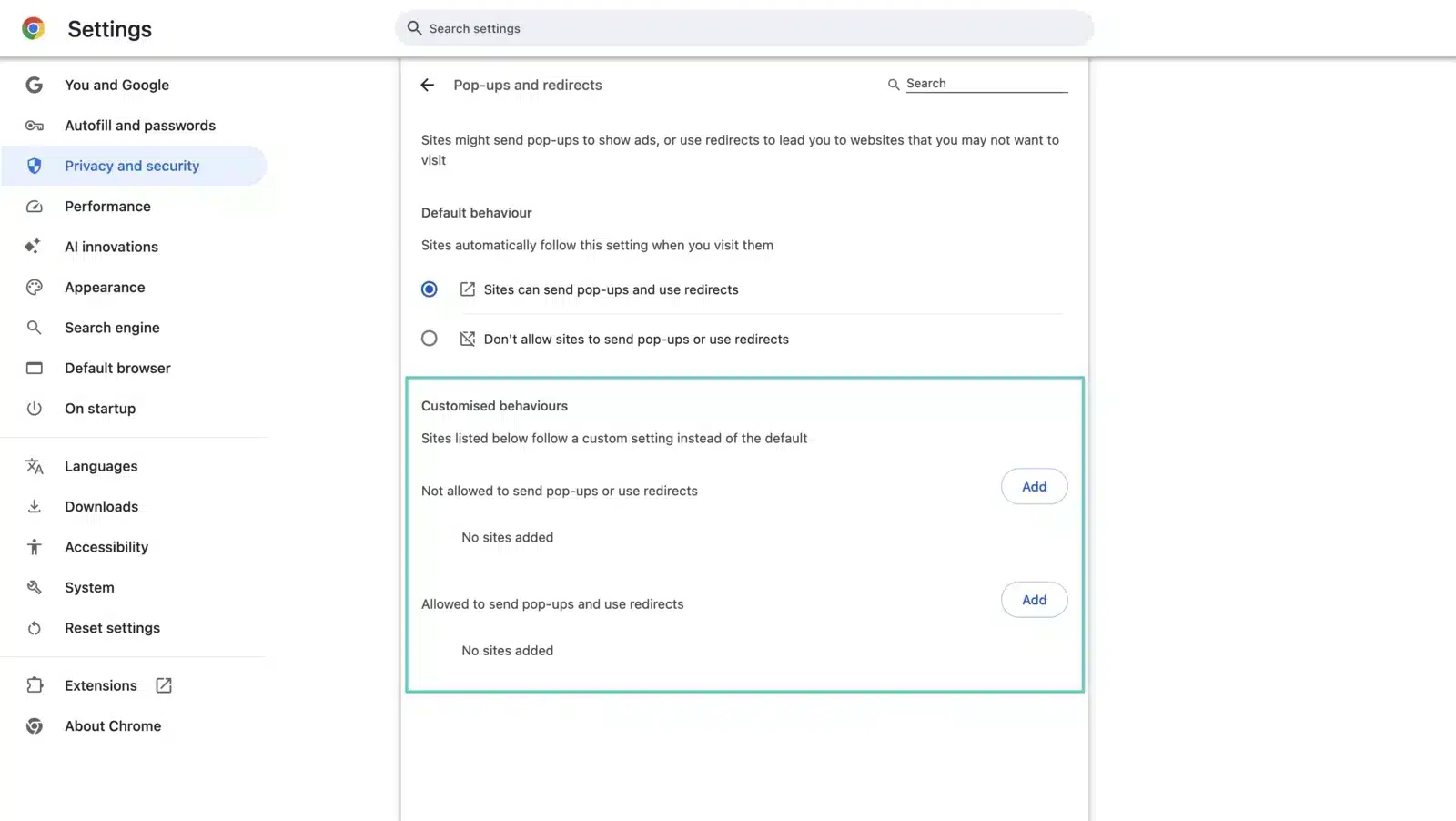
- Under Allowed to send pop-ups and use redirects, click Add.

- Enter the complete URL of the trusted website you want to allow.
- Click Add.

Now you have steps on how to turn off the pop-up blocker on Chrome or allow pop-ups selectively depending on your needs.
How to Turn Off Pop-Up Blocker on Chrome (Android)
When you’re browsing on an Android tablet or phone, Chrome provides you with additional control over pop-up settings. Here’s exactly how to disable the pop-up blocker on Chrome for Android devices.
- Open the Google Chrome app on your Android device.
- Tap the three vertically stacked dots (menu icon) in the top right-hand corner of the screen.
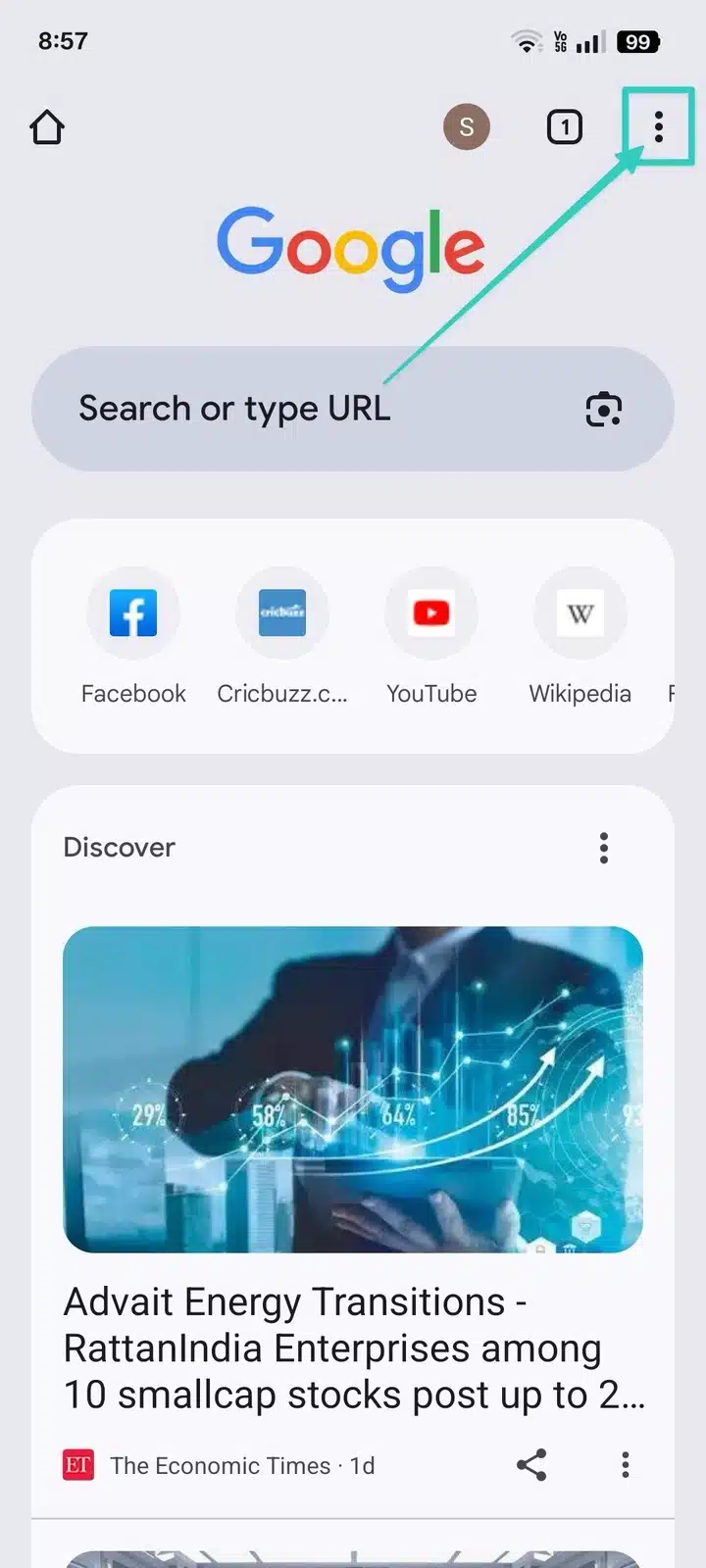
- When the dropdown opens, select Settings.

- Scroll down the Settings page.
- Tap on Site settings – You control the permissions allowed for the features of various sites from this page.
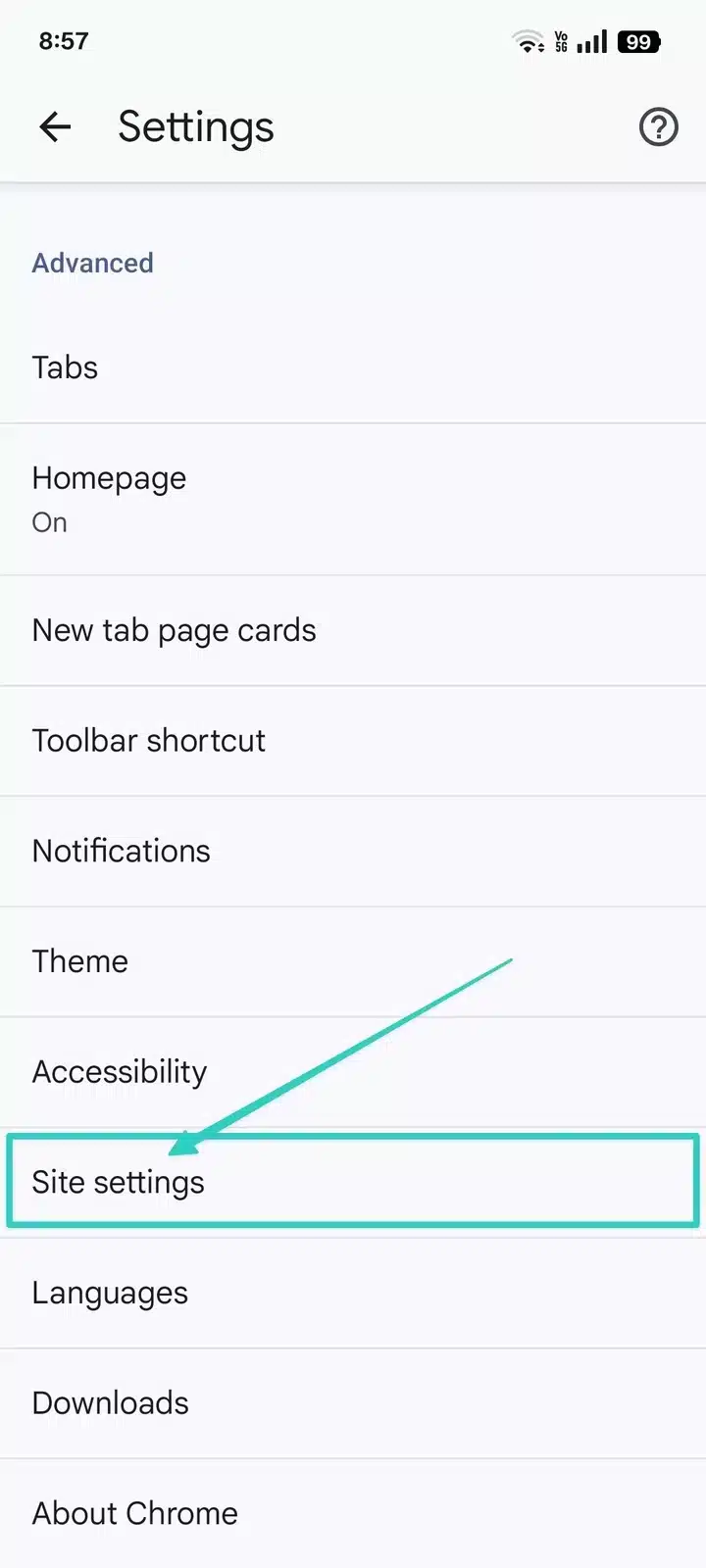
- Inside Site settings, tap on Pop-ups and redirects.

- You will see a toggle switch. If it’s turned off (blocking pop-ups), then just toggle it to the ON position.

How to Turn Off Pop-Up Blocker on Chrome (iPhone & iPad)
If you’re using Chrome on an iPhone or iPad, its interface is somewhat different from the desktop version and the Android version. Here’s how to turn off pop-up blocker on Chrome for iOS devices:
- Launch the Google Chrome app on your iPhone or iPad.
- Click on the three-dot menu icon, which is located at the bottom right of the screen.
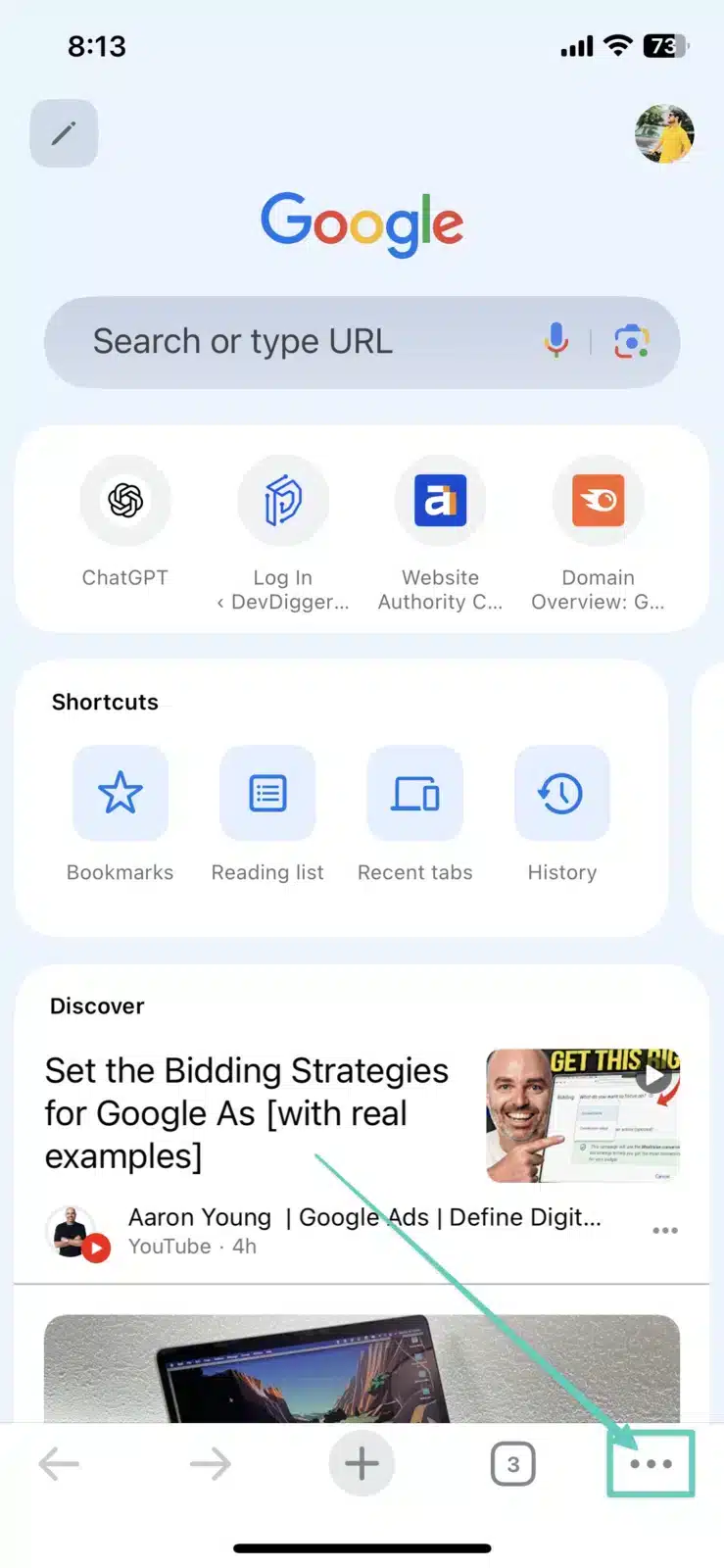
- From that menu, click on Settings.
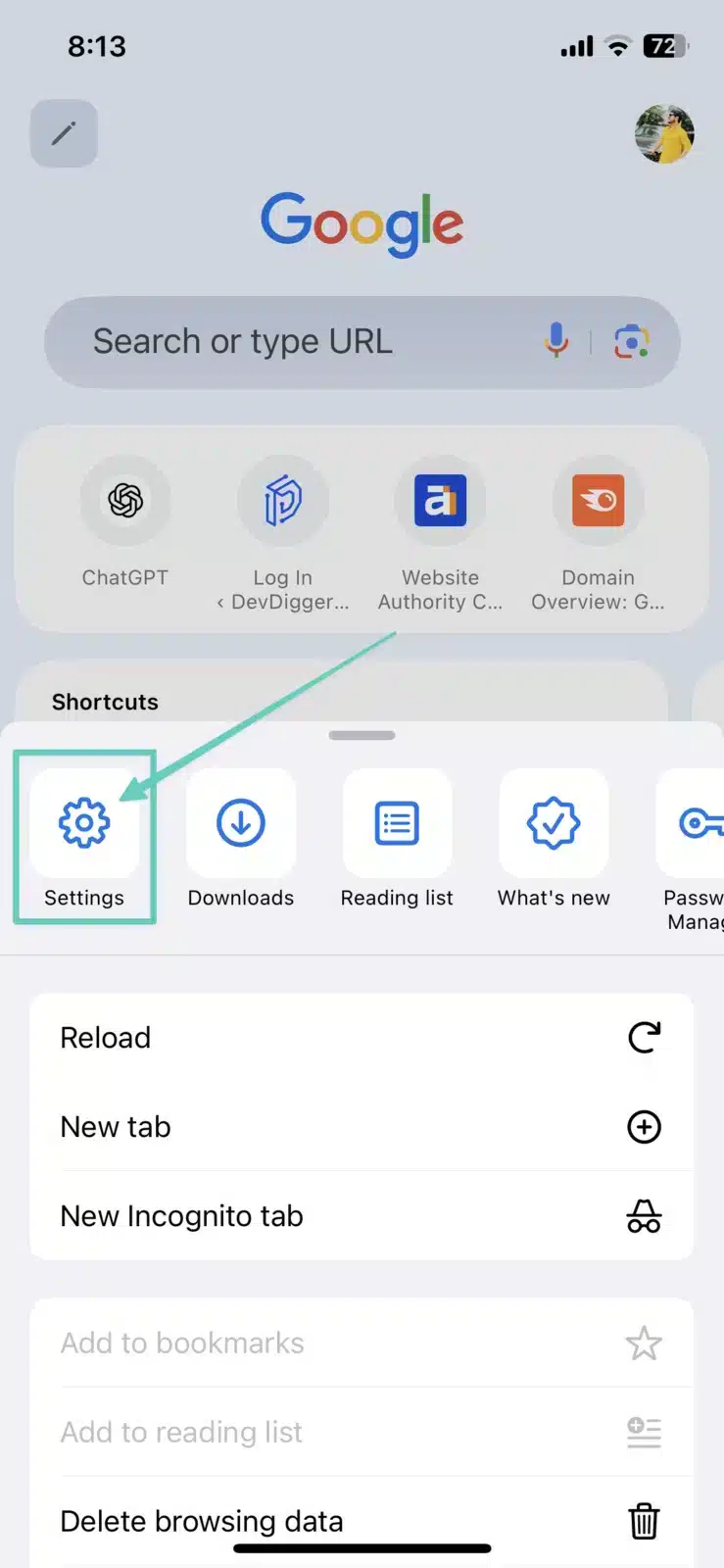
- Scroll down a bit to find Content Settings, which is where Chrome takes care of permissions related to websites.
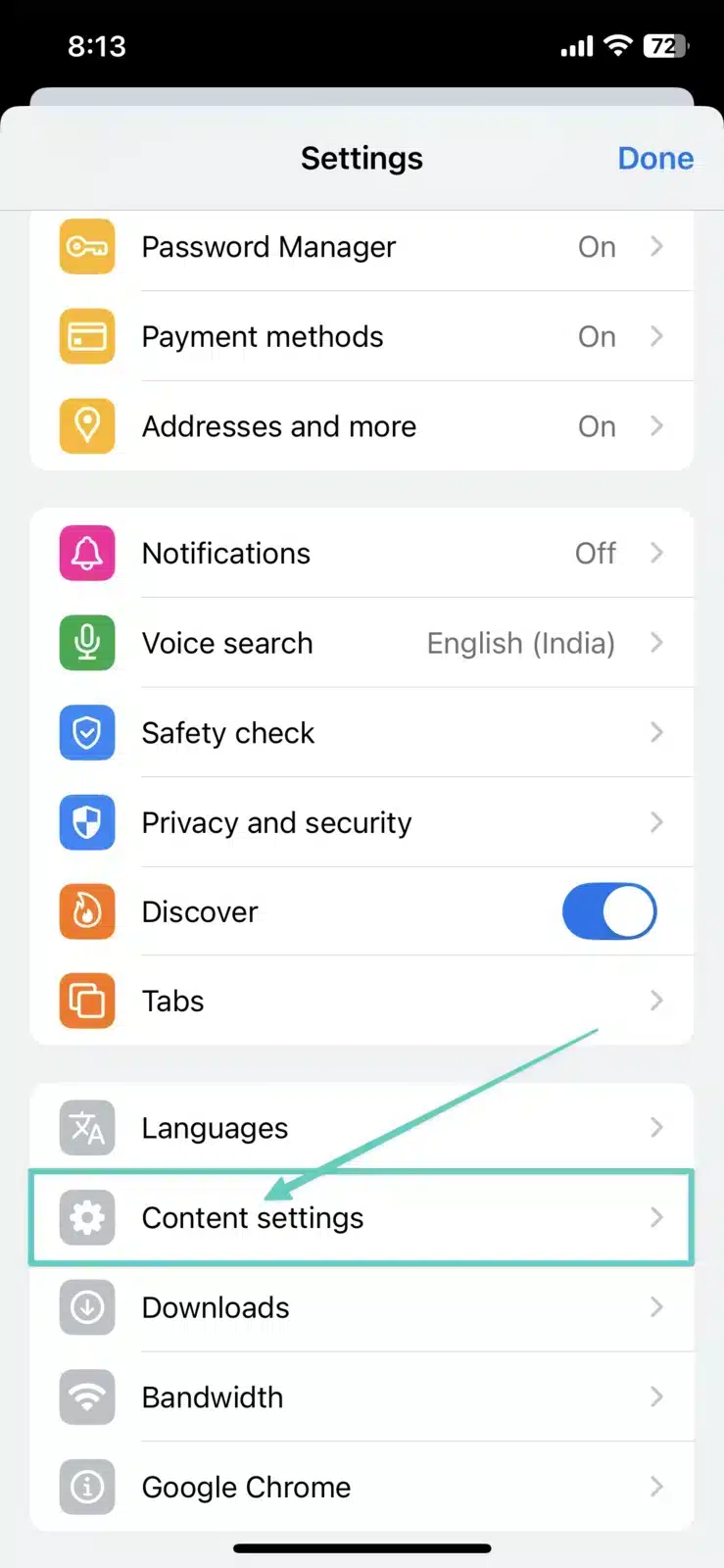
- Click on Block Pop-ups.

- Turn off the Block Pop-Ups switch.

Note: The location of these settings may be slightly different for some versions of iOS. If you do not see Content Settings, please make sure to update your Chrome app to the latest version on the App Store.
Once you have completed these steps, Chrome will allow pop-ups, based on your preference, while keeping the security of potentially harmful sites.
Conclusion
Now you know how to turn off pop-up blocker on Chrome – whether you’re using a Desktop, Android or iOS device. Although the built-in pop-up blocker on Chrome does a great job of keeping you safe from unwarranted ads and malicious content, sometimes certain websites need pop-ups before they will work properly.
Be careful when disabling your pop-up blocker. Only give permission to trusted sites, remember to re-enable the pop-up blocker when you’re finished, and keep your browser up to date in order to be safe.
By following the steps outlined above, you’ll be able to customise your pop-up settings and have the ability to browse in a smoother, safer and more controlled way.
As you examine your Chrome page setup, check if you want to disable Google Lens so your search experience is as it traditionally was.
FAQs About Turning Off Pop-Up Blocker on Chrome
Q1. Why does Chrome block pop-ups by default?
By default, Chrome blocks pop-ups to protect users from annoying ads, evil scripts, phishing attempts, and horrible browsing experiences. The majority of unwanted pop-ups are either evil, annoying or a combination of both which improves security and usability to block pop-up windows by default.
Q2. Is it safe to turn off the pop-up blocker on Chrome?
It’s usually a safe decision to turn off your pop-up blocker if you are allowing pop-ups from only trusted websites. But, if you completely disable it, you may be at risk for malicious ads, phishing scams or harmful content. Always stay vigilant and enable exceptions for any trusted sites along the way.
Q3. How do I allow pop-ups for only one website on Chrome?
You can allow pop-ups for specific website(s) by going to Chrome Settings → Privacy and security → Site Settings → Pop-ups and redirects then adding the trusted site(s) under the Allowed section.
Q4. Why am I still blocked on pop-ups if I turned off the block?
Pop-ups can sometimes still be blocked even if the pop-up blocker is turned off due to an ad-blocker extension, Chrome being outdated, security software finding a suspicious link, or even at the network level by the internet provider. Disabling extensions, making sure you are using the most current version of Chrome, or clearing your cache should help you overcome the issue.
Q5. Is it possible to disable the pop-up blocker on Chrome mobile?
Yes. On Android, open Chrome Settings → Site settings → Pop-ups and redirects to disable the blocker. On iPhone/iPad, open Chrome Settings → Content Settings → Block Pop-ups to turn the blocker off. Note that currently iOS does not allow for site-specific exceptions.