
How to create a knowledge base in WordPress? Install a knowledge base plugin, set up categories, and publish your first article, all without touching a line of code.
Most site owners try this once, get stuck on plugin settings, and give up halfway through.
The setup itself takes under an hour. The part people skip, deciding what to write, is the part that takes time.
This guide walks through every click, from installing your first plugin to organizing categories, writing articles, and fixing the mistakes beginners usually make.
By the end, your knowledge base will be live and ready for real content.
What Is a Knowledge Base and How Does It Work?
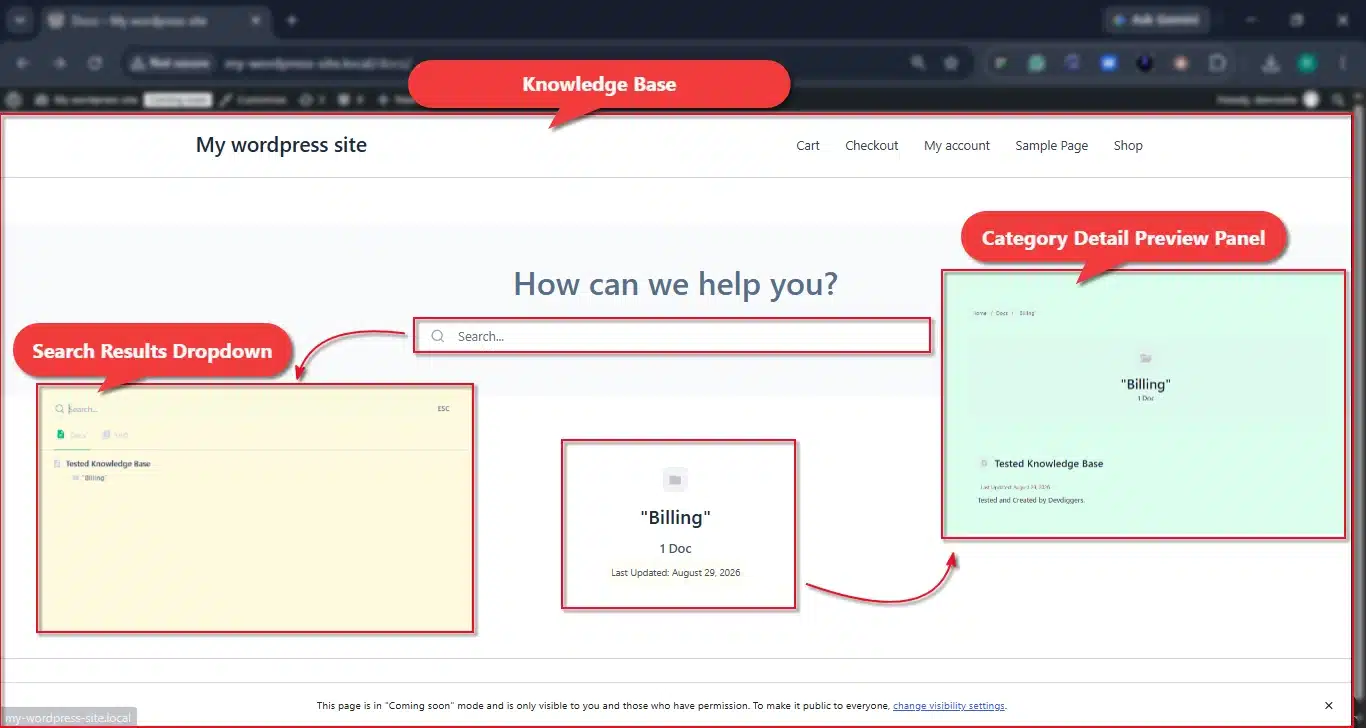
A knowledge base is a self-service library that helps customers find answers without emailing your team. It usually includes a mix of content types, not just one long FAQ page.
A typical knowledge base includes:
- FAQs: Short answers to the questions customers ask most often.
- Help articles: Step-by-step guides for specific tasks or fixes.
- How-to guides: Full walkthroughs covering every feature of your product.
- Video tutorials: Visual guides for customers who prefer watching over reading.
The point is simple. Give customers what they need to solve their own problem, and fewer of them ever pick up the phone or open a support ticket.
It also frees up your support team. Instead of answering the same three questions every day, they can spend their time on the harder cases that need a real person.
How to Create a Knowledge Base in WordPress
Here is how to create a knowledge base in WordPress, step by step, with nothing skipped. Follow these five steps in order.
Step 1: Install a Knowledge Base Plugin
Installing a knowledge base plugin is the first real step to creating a knowledge base in WordPress. Free and paid options both work well, so pick based on the features you need.
- Log into your WordPress dashboard by going to
yourdomain.com/wp-adminand signing in with your admin account.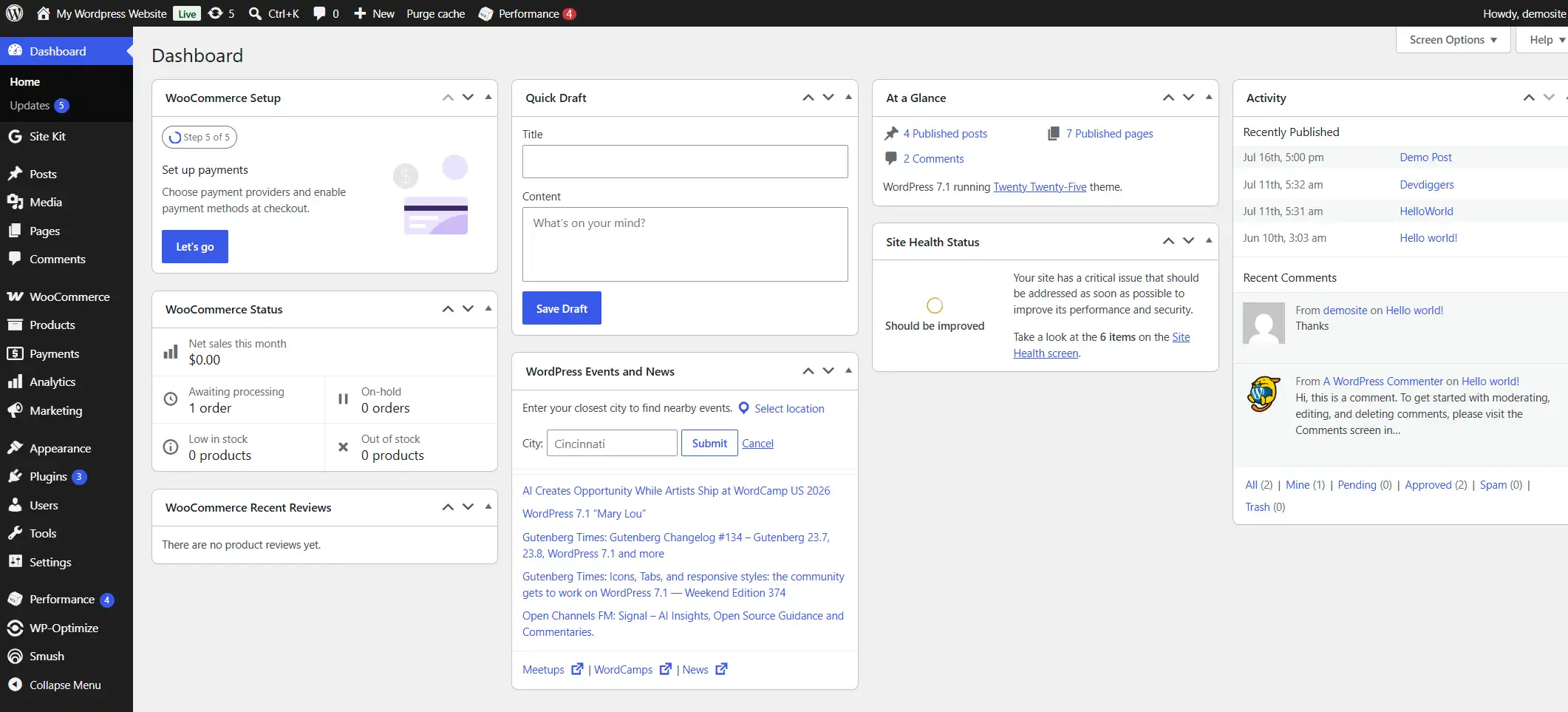
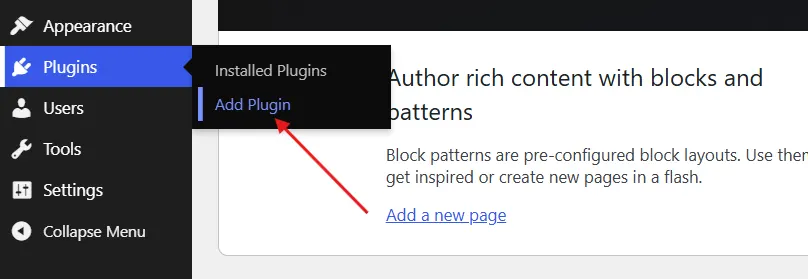
- Now, go to Plugins → Add Plugin inside your WordPress Dashboard.
- Install and activate the BetterDocs or Heroic KB plugin from the WordPress Plugins Directory.
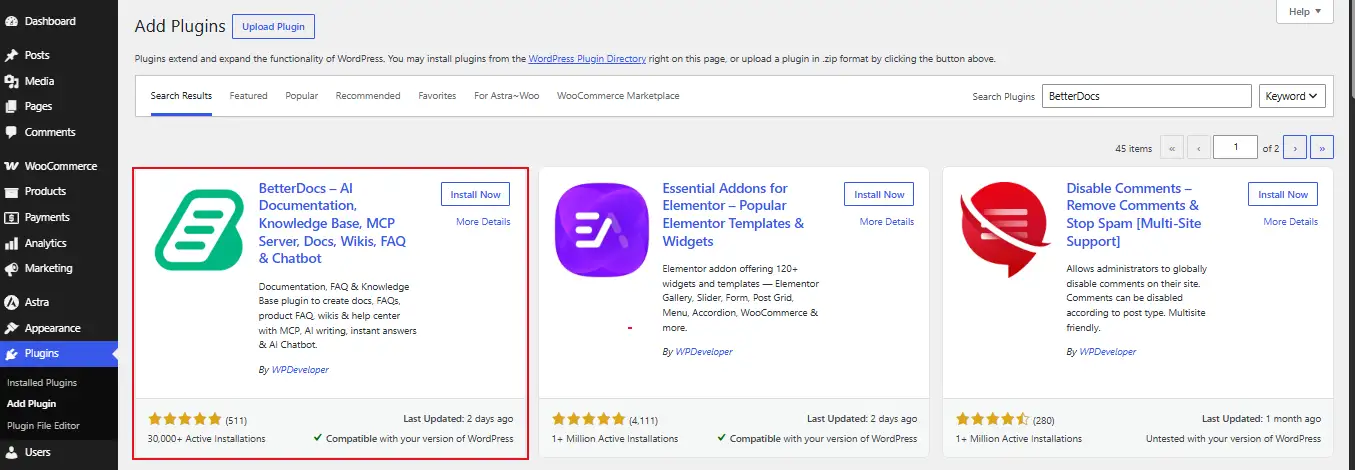
Step 2: Set Up Categories for Your Knowledge Base
Categories keep your articles organized from day one. Set these up before you write anything, not after.
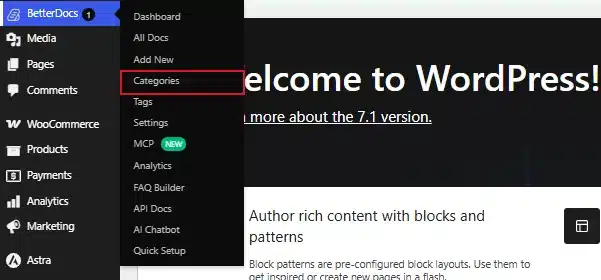
- Open your BetterDocs or Heroic KB → Categories to open the category management screen.
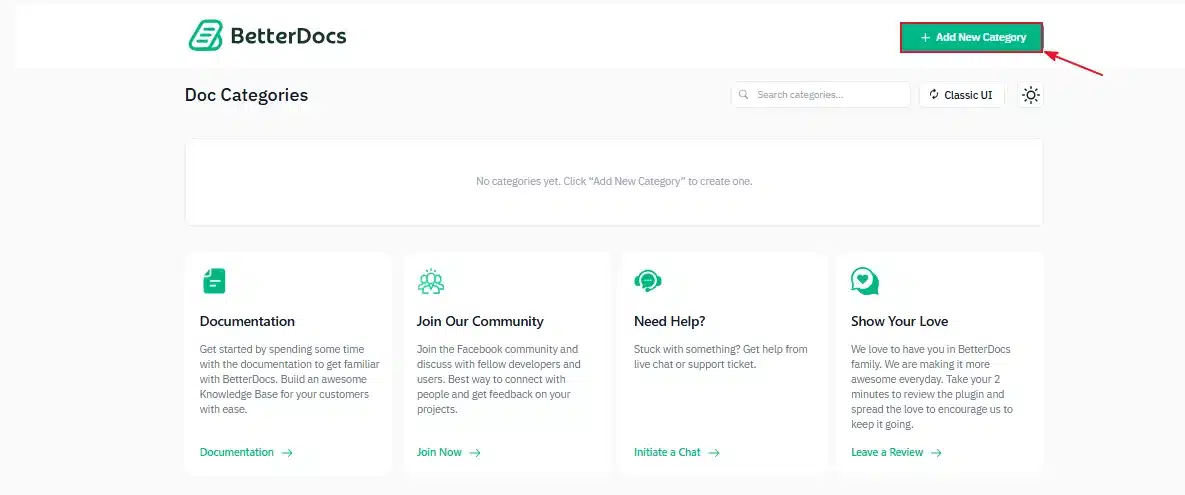
- Click the Add New Category button to create a category.
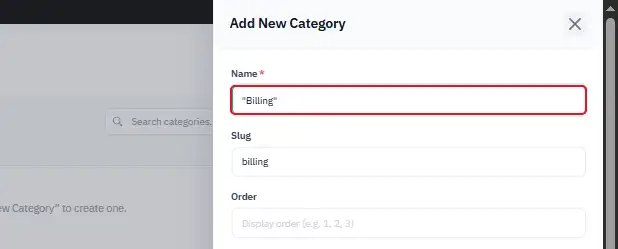
- Name your first category using something specific, like “Billing” or “Getting Started,” not a vague label.
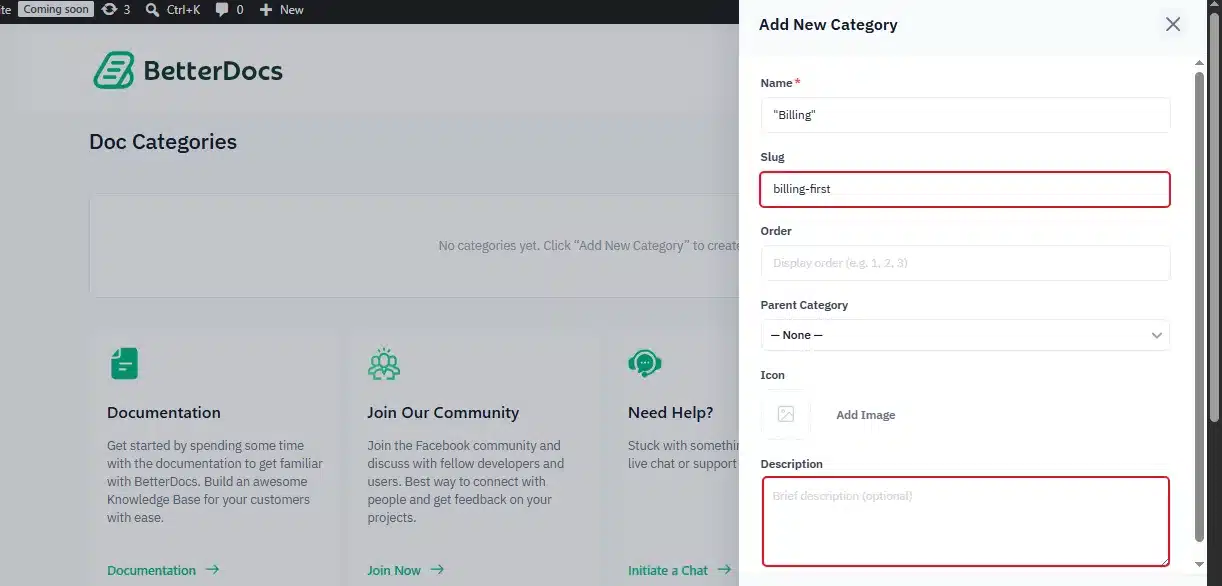
- Add a slug and description. The slug becomes part of the article URL, and the description is optional.
- Click Add Category, then repeat this step for every category you plan to use.
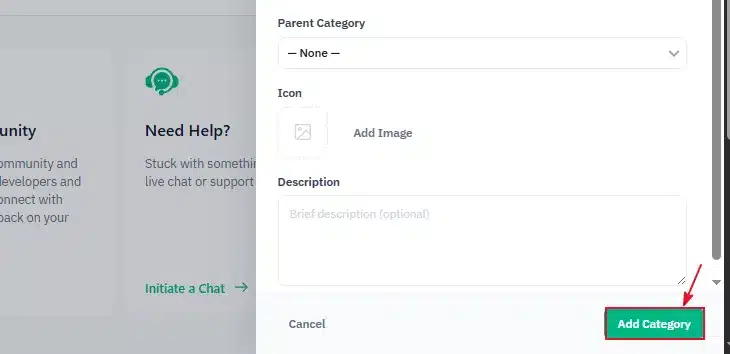
If you want more detail on this step, our guide on adding categories in WordPress covers the process for regular posts too, and the same logic applies here.
Step 3: Write and Publish Your First Article
This is where the actual content gets created. Keep the first few articles short and focused on one problem each.
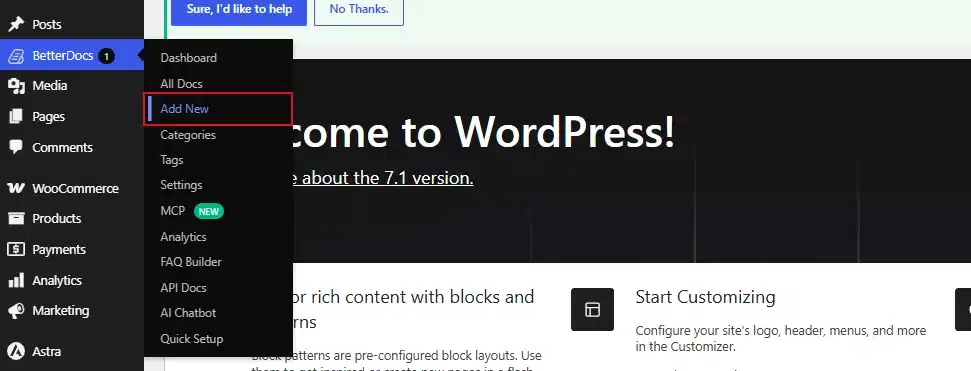
- Now, go to BetterDocs → Add New to open an editor that looks like the normal WordPress post editor.
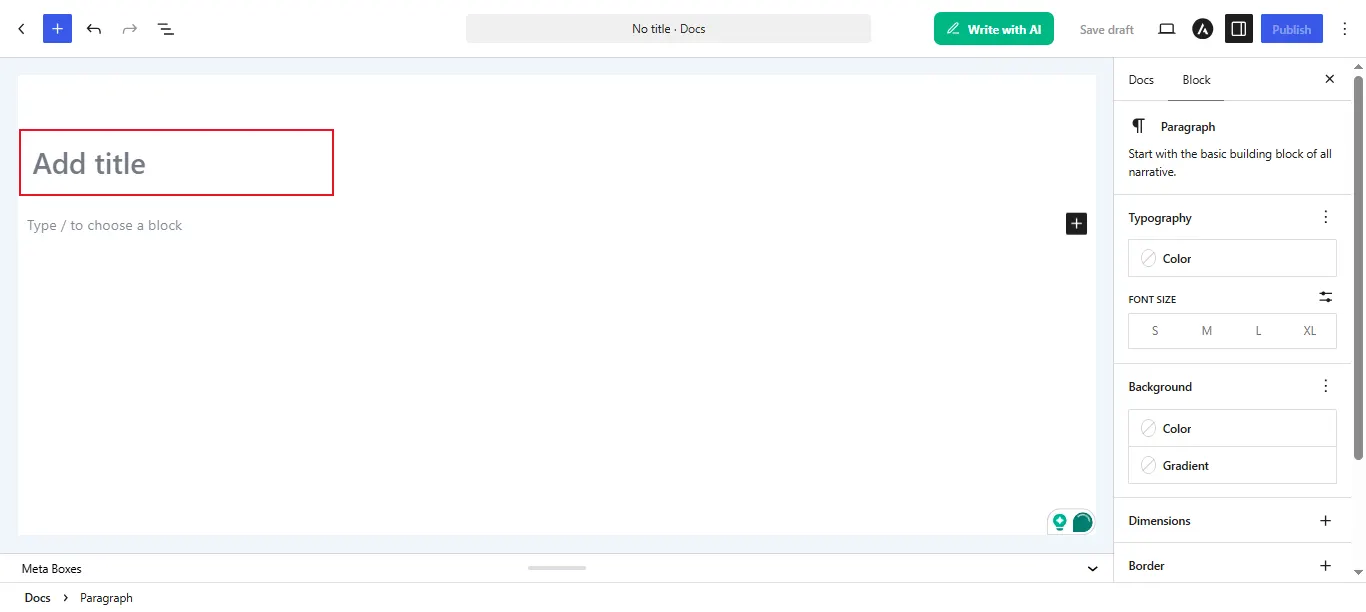
- Write a clear Title using the exact phrase a customer would search for, not a clever headline.
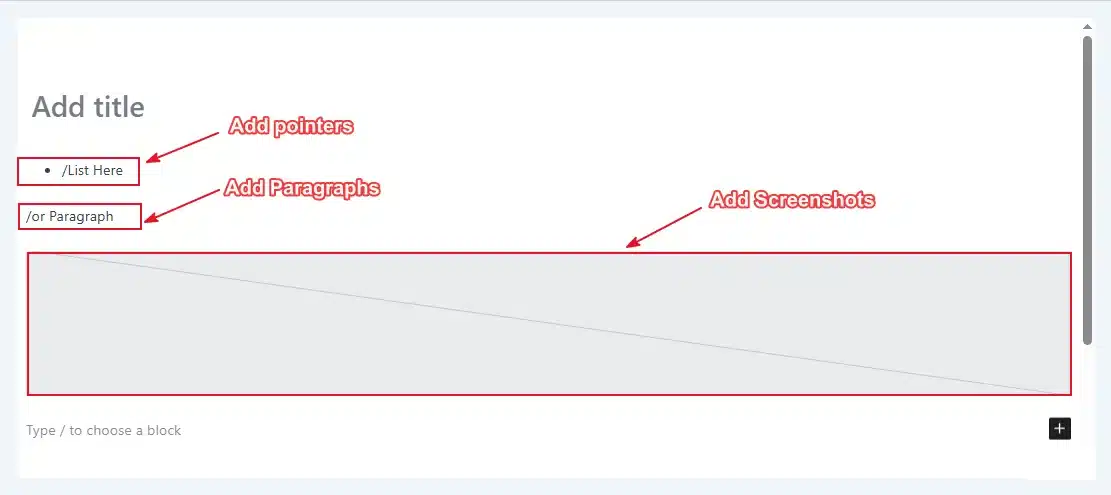
- Add your content using short paragraphs, numbered steps, or screenshots where helpful.
- Assign a category by picking the one you created in Step 2 from the panel on the right side of the screen.

- Click Publish, and your article goes live and becomes searchable inside your knowledge base.

Step 4: Choose Where Your Knowledge Base Displays
Most plugins create a default page for you, but you should confirm it and add it to your site navigation.
- Go to the default page. Most plugins automatically create one, like
yourdomain.com/Docsto check if Knowledge Base is running properly.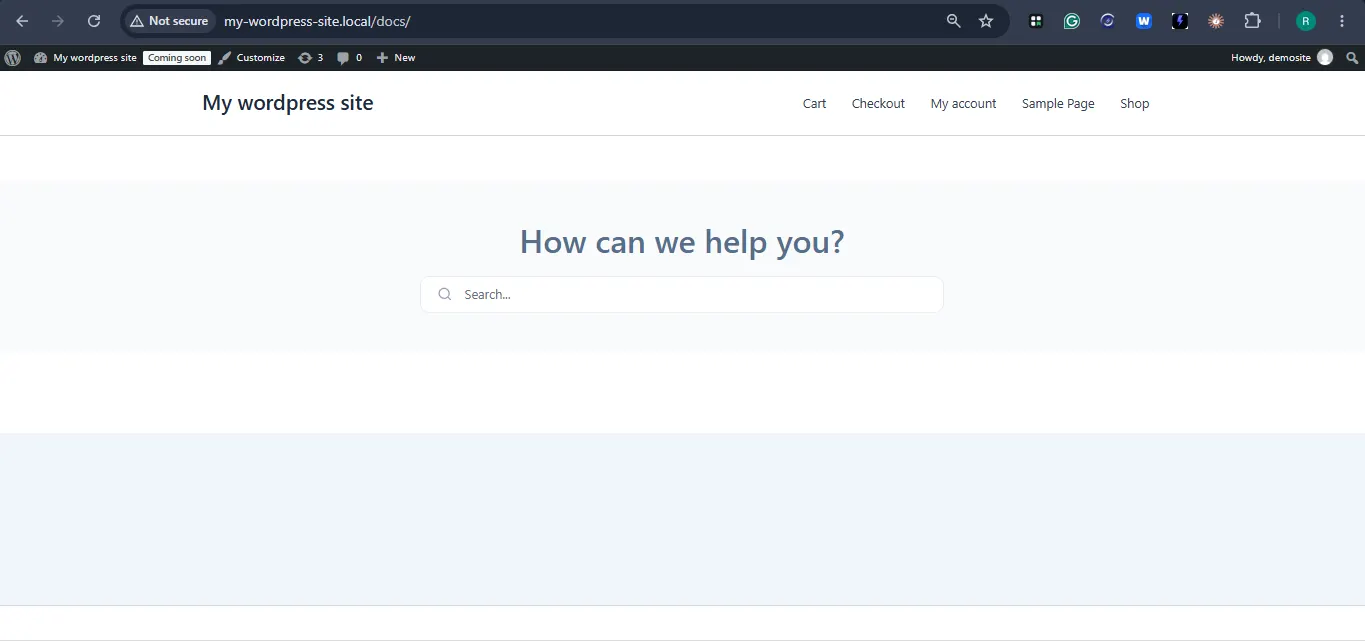
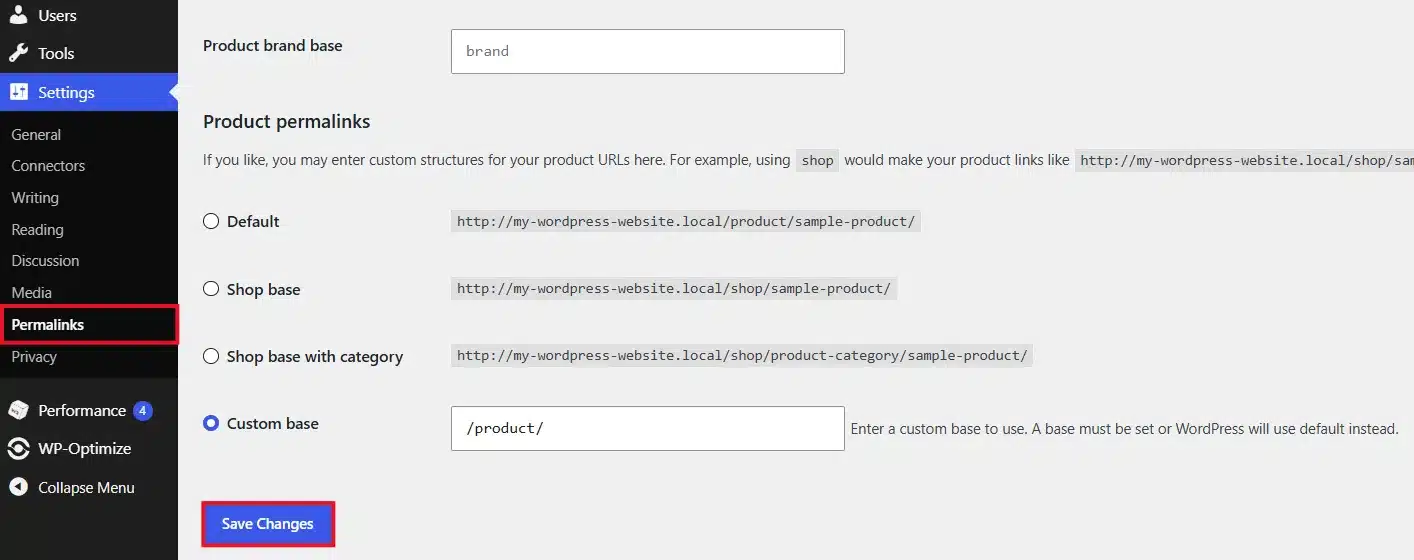
- Update the permalink if needed by going to Settings → Permalinks and clicking Save Changes to apply any URL updates. Our guide on setting up permalinks in WordPress walks through this in more detail.
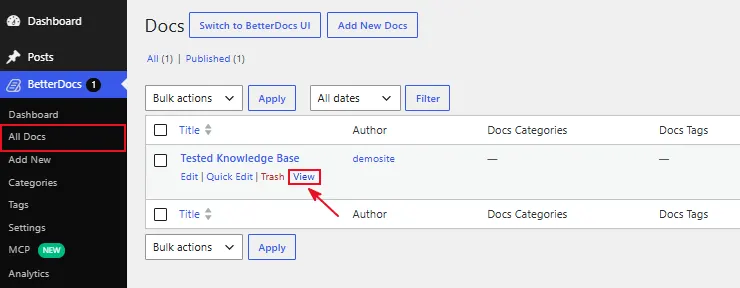
- Go to BetterDocs → All Docs and tap View on your knowledge base.
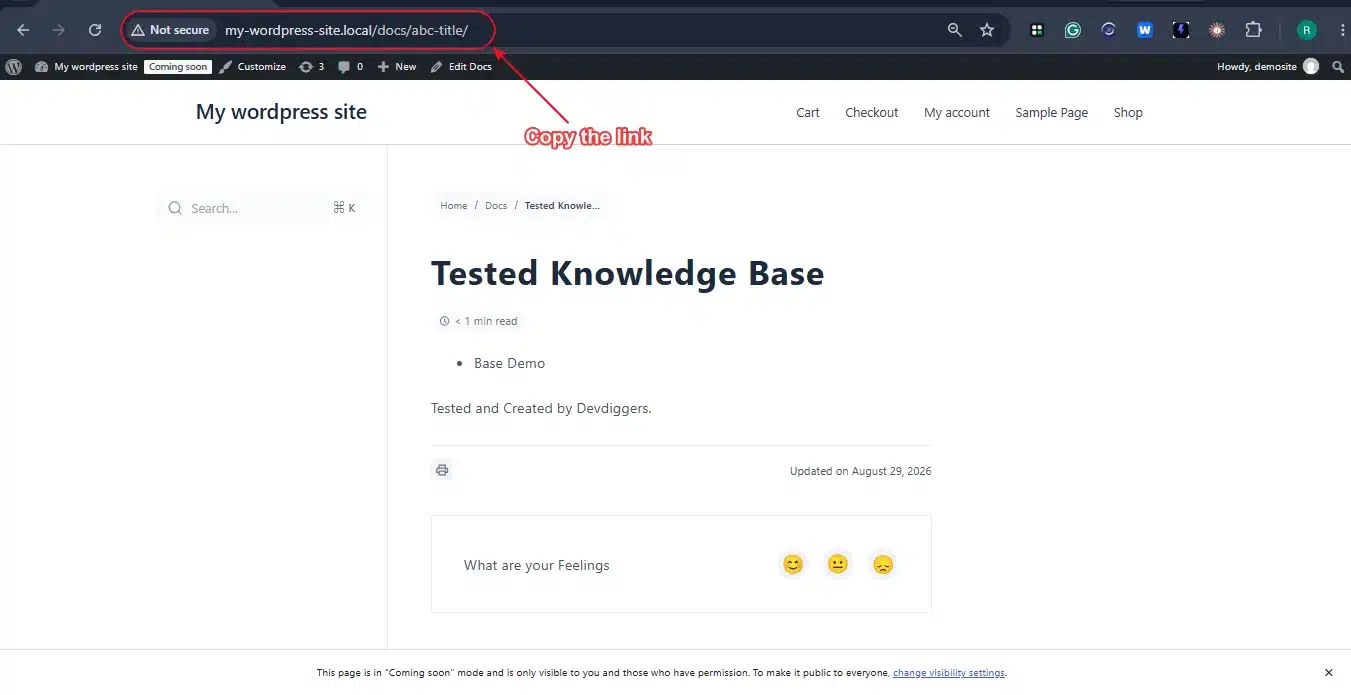
- Copy the base link from the search bar.
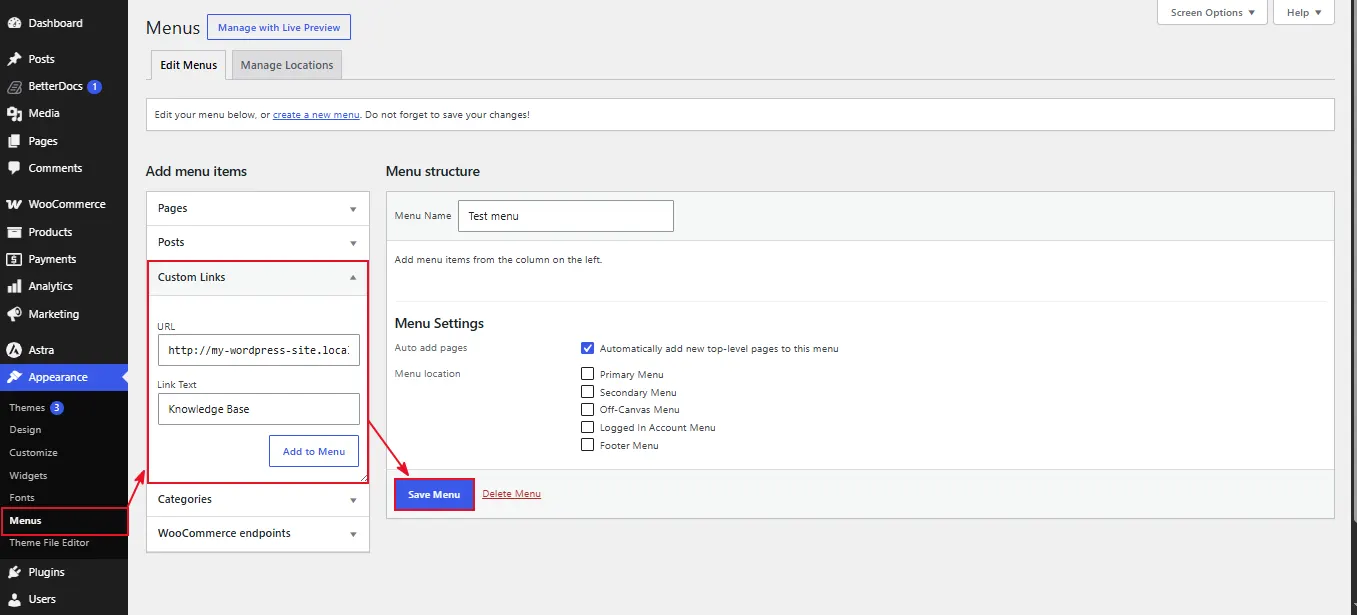
- Add the knowledge base to your menu by going to Appearance → Menus → Custom Links → Paste URL so visitors can find it.
Step 5: Customize the Look and Settings
The last step is making the knowledge base match your site and work the way customers expect.
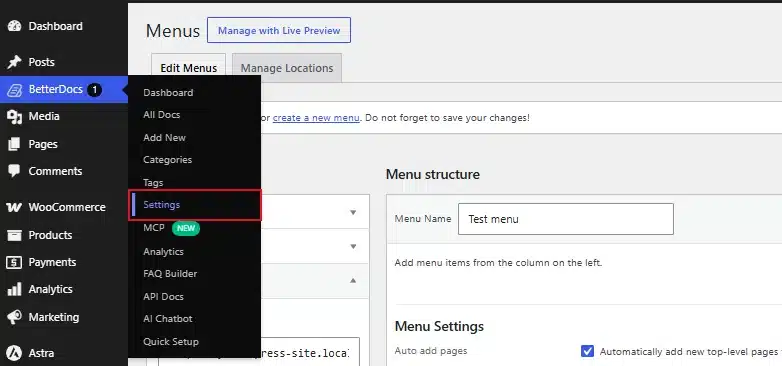
- Go to BetterDocs → Settings to open plugin settings.
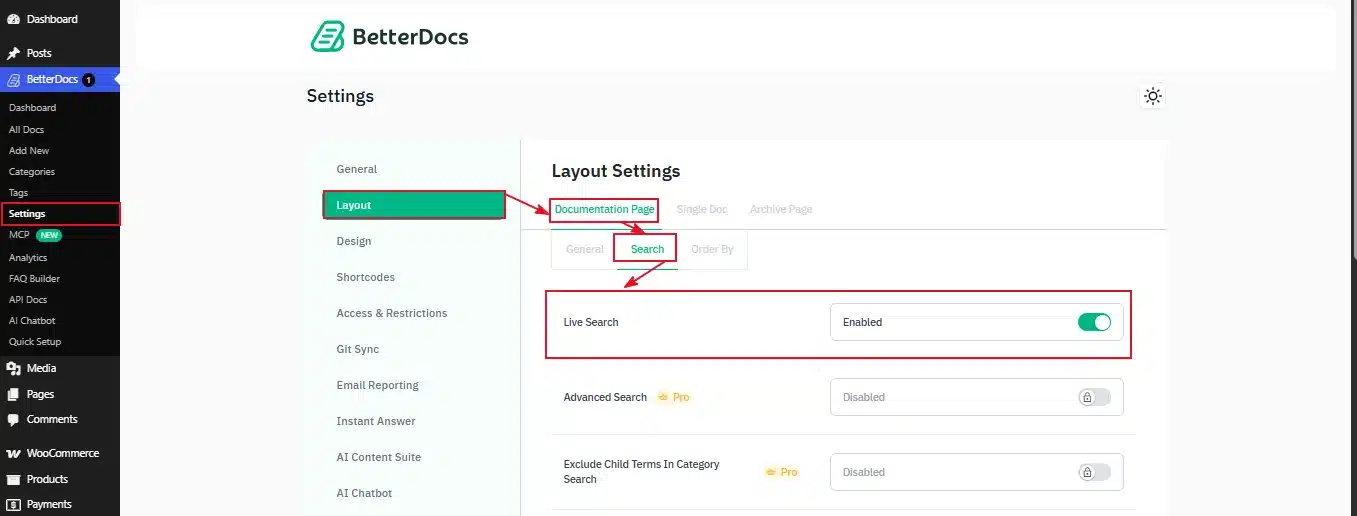
- Go to Layout → Documentation → Search to turn on the search bar so customers can find articles without browsing every category.
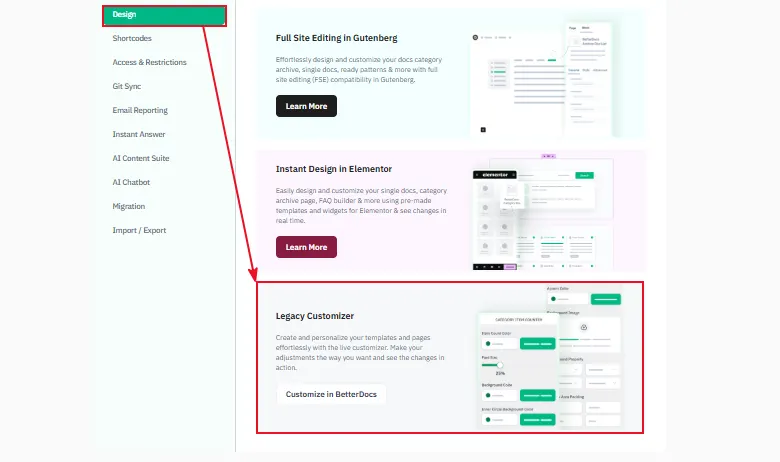
- Go to Design → Legacy Customizer to adjust colors and branding to match the knowledge base design to the rest of your site.
- Save your changes by clicking Save, then refresh the front end to confirm everything works.

You do not need a developer to get this running. But if you would rather hand off the setup and focus on running your store, that option exists too.
How Is a Knowledge Base Used?
A knowledge base does more than answer support tickets. Here is where it fits across a business.
| What It’s Used For | How It’s Used |
|---|---|
| Customer support | Customers find answers to common issues before ever contacting your team. |
| Internal team docs | Employees look up processes and tools without asking a manager every time. |
| Product onboarding | New users learn features through guided articles instead of a live demo call. |
| SEO and organic traffic | Search engines index articles, bringing in readers who never needed support at all. |
Point to know: the same articles that cut down your support workload can also bring in new site visitors through search, so writing them well pays off twice.
Importance of a Customer Support Knowledge Base in WordPress
A knowledge base is not just a support tool. Here is why it matters for the business as a whole.
- Happy customers, empowered customers: People solve their own problems faster than waiting on a reply.
- Lower support ticket volume: Fewer repetitive questions means your team spends time where it matters most.
- Better SEO and organic reach: Well-written articles rank in search and bring in new visitors.
- Scales without adding the number of employees: One good article answers the same question for thousands of customers.
- Builds trust and authority: A detailed, organized knowledge base shows customers you know your product inside out.
Mistakes Beginners Make Setting Up a Knowledge Base
Most knowledge bases fail for the same handful of reasons.
| Mistake | Fix |
|---|---|
| No search function | Enable the built-in search option in your plugin settings so people can find articles fast. |
| Articles written in Technical words | Use plain language a first-time customer would understand, not internal team terms. |
| No categories or a messy structure | Group articles into clear categories before you publish more than a handful of them. |
| Never update old articles | Set a Regular reminder to review and refresh articles every few months. |
| Hiding the knowledge base | Link to it in your main menu and footer so customers can find it. |
Note: A knowledge base only works if people can find it and trust what it says. Fix the search function and category structure first, then focus on writing better articles. Small technical mistakes quietly undo weeks of good content work.
Conclusion
You now know how to create a knowledge base in WordPress, from installing the plugin to publishing your first article.
The plugin setup takes under an hour. The categories, the first few articles, and the ongoing updates are where the real value comes from.
Start small. Publish five solid articles before you worry about design or extra features.
If you want help with the WordPress side of your store beyond the knowledge base, DevDiggers offers WordPress development services for exactly that kind of work.
Frequently Asked Questions (FAQs)
Q1. How much does it cost to create a knowledge base in WordPress?
Free plugins cover the basics, including categories, articles, and a search bar, so you can launch a working knowledge base without spending anything. Premium plugins like BetterDocs or Heroic KB add analytics, feedback voting, and more design control, usually starting around 50 to 100 dollars a year, billed annually per site.
Q2. Do I need coding skills to build a knowledge base?
No. Every step in this guide uses the WordPress dashboard and a plugin interface, the same tools you already use to write blog posts. You will not need to touch code unless you want deep custom styling later, and even then, most plugins offer built-in customization options first.
Q3. Can I use a knowledge base as my entire website?
Yes. Some site owners skip the plugin route entirely and use a dedicated knowledge base theme, turning the whole site into a searchable library from the homepage down. This approach works well for documentation-heavy products, software companies, and teams whose entire offering is information rather than a physical product.
Q4. How many articles should I start with?
Start with five to ten articles covering your most common customer questions, the ones your support inbox already answers on repeat. You can always add more once you see what people search for inside your knowledge base, using that data to guide which topics come next.
Q5. Is a knowledge base good for SEO?
Yes. Knowledge base articles target specific questions people search for, which search engines reward with better rankings over time compared to vague, general pages. They also create natural opportunities for internal links across the rest of your site, helping both readers and search engines find related content.
Q6. What is the difference between a knowledge base and a blog?
A blog covers general topics, opinions, and updates over time, often written for browsing rather than searching. A knowledge base answers specific product or service questions, organized by category, meant to be searched rather than read start to finish, with each article solving one clear problem.
Q7. Can I password-protect certain knowledge base articles?
Most premium plugins, including BetterDocs and Heroic KB, support password-protected or restricted articles that only certain visitors can view. This works well if some content is only meant for paying customers, logged-in users, or internal staff, keeping sensitive documentation separate from public-facing help articles.
Q8. Will a knowledge base slow down my WordPress site?
A well-built plugin adds Very small load to your site, similar to adding any other normal page or post type. Heavy image use, outdated plugins, or poorly coded themes can slow things down, so stick to trusted, actively updated options and compress images before uploading them to your articles.
Q9. Can I migrate my knowledge base if I switch plugins later?
Usually yes. Most knowledge base plugins store articles as a custom post type, so you can export and import content between them without starting over. Formatting, categories, and custom fields may need manual cleanup after the move, so back up your content before switching to a new plugin.
Q10. How do I know if my knowledge base is working?
Check your plugin’s built-in analytics, if it has them, for search terms, popular articles, and searches that returned no results at all. A Regular drop in support tickets for topics you have already covered is usually the clearest sign your knowledge base is doing its job well.