


To have 2 lines of text in a WordPress header, stack two blocks or add a line break inside one block. Typing an HTML br line break tag into the Site Title field does not work, because WordPress shows the tag as plain text.
I tested every method in October 2026 on a WordPress 7.1.3 site. I used the Twenty Twenty-Five block theme and the Twenty Twenty-One classic theme, and checked each result on the live front end.
This guide covers the Site Editor, the Customizer and custom CSS, with a screenshot of every result. It also shows how to add header code, such as a tracking script, without breaking the layout.
Why a Line Break in the Site Title Does Not Work
WordPress cleans the Site Title before it saves it. HTML tags are removed or escaped. When I typed “Cache Test”, a br tag and “Store” under Settings > General the header printed the tag as visible text. So the break has to come from the header layout instead.
Here is the field I used:
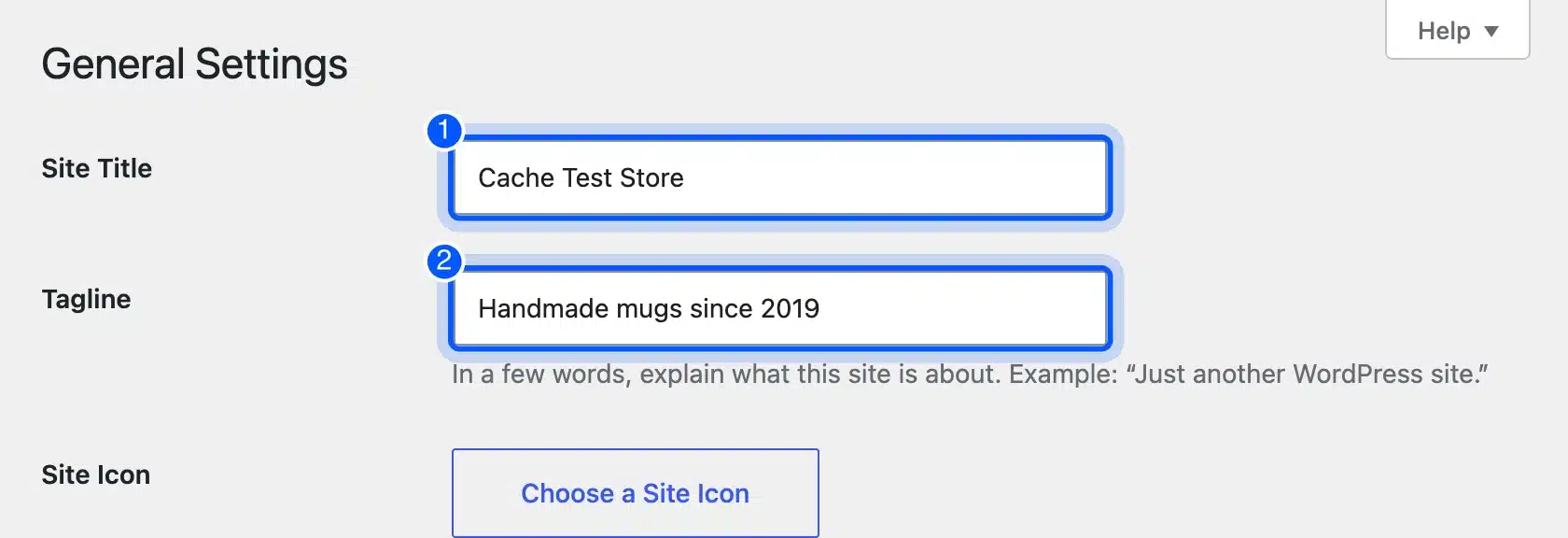
And here is what the header showed after saving:

The tag reached the page as escaped characters, which the browser draws as text. The same title also appears in the browser tab, in search results and in RSS feeds. A tag there would show up in all of them.
The Site Title block documentation confirms the block simply prints the title from your settings. Use one of the methods below instead.
How to Have 2 Lines of Text in a WordPress Header
To have 2 lines of text in a WordPress header, pick the method that matches your theme. Block themes stack a Site Title and Site Tagline block, or use a Paragraph with a line break. Classic themes show the tagline from the Customizer, and CSS works on both.
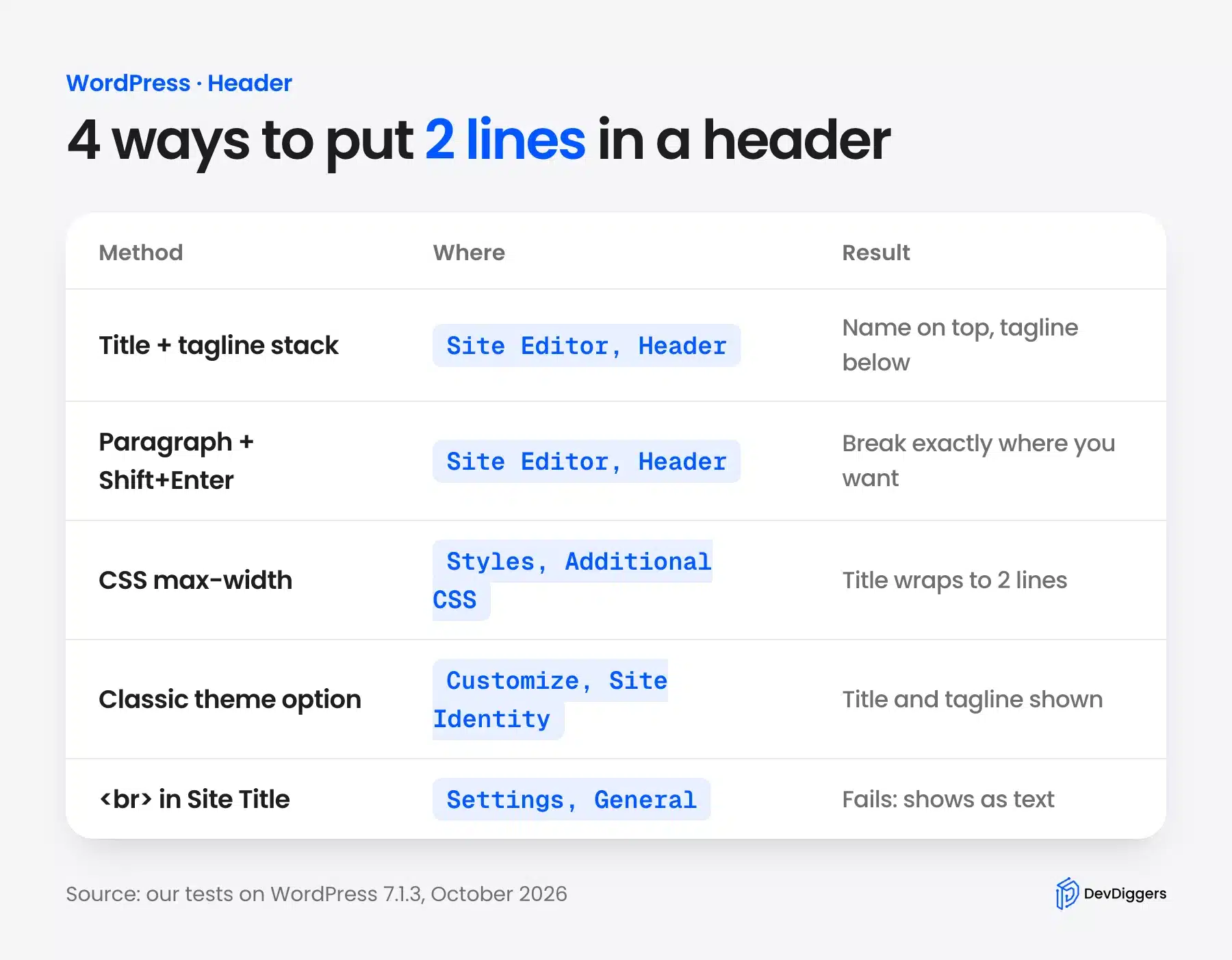
Here is the quick version:
- Title and tagline stack: Best for most block themes, because both lines stay linked to your settings.
- Paragraph with Shift+Enter: Best when you want the break at an exact word.
- CSS max-width: Best when you want the title itself to wrap and add no new blocks.
- Customizer option: Best for classic themes that already support a tagline.
Each one is shown in its own section below.
Method 1: Stack the Site Title and Tagline in the Site Editor
In a block theme, put the Site Title and Site Tagline blocks inside a Stack group in the Header template part. The site name sits on the first line and the tagline on the second. Both still update from Settings > General. You never edit the header twice.
Follow these steps:
- Go to Appearance > Editor > Patterns and open the Header template part.
- Open the List View with the icon at the top left.
- Select the Site Title block, open its menu and choose Group. Then change the group to Stack.
- Add a Site Tagline block below the Site Title inside the same Stack.
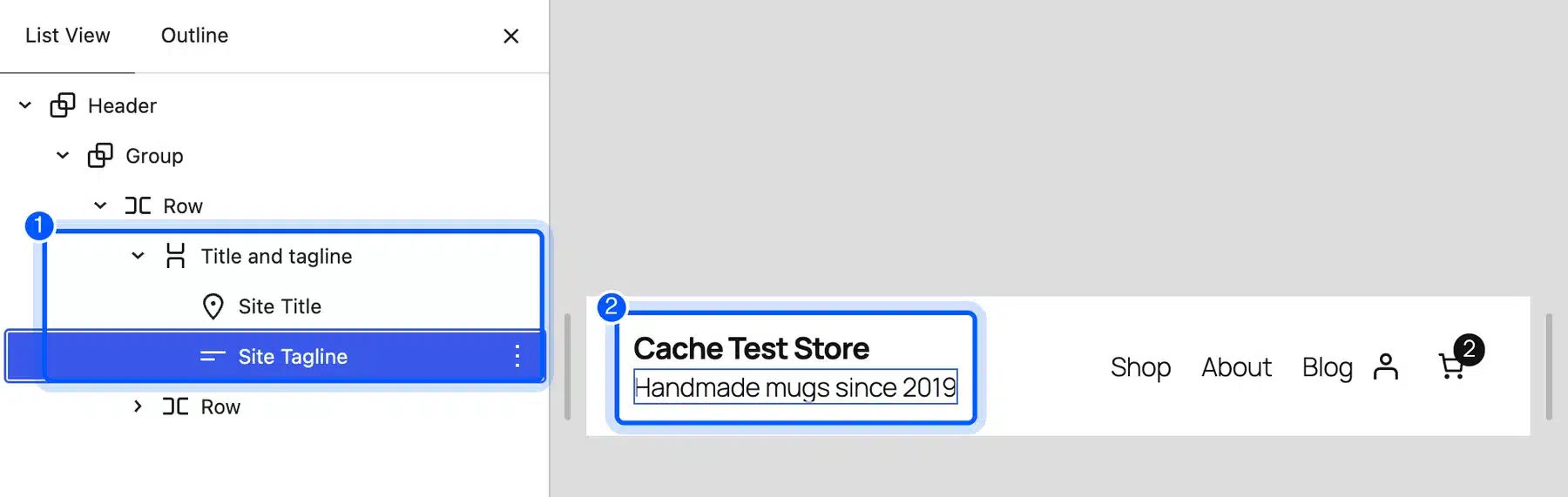
- Set the tagline’s font size to Small, set the Stack’s block spacing to 0, and click Save.
Here is the result on the front end:

I checked the same header on a 390 pixel phone screen. The two lines stayed stacked, and the menu collapsed into its own button as normal.
The same Header template part can hold a short site-wide message, and a guide to adding an alert bar shows the Group block steps.
The Site Tagline block guide lists its other settings, such as alignment and color.
Method 2: Use a Paragraph With a Line Break
A Paragraph block lets you choose exactly where the second line starts. Replace the Site Title with a Paragraph, type the first line, press Shift+Enter and type the second line. Then link the text to your home page so it still works like a site title.
- Open the Header template part in the Site Editor.
- Add a Paragraph block next to the Site Title and then delete the Site Title.
- Type the first line, press Shift+Enter, and type the second line.
- Select all the text, click the link icon and enter your home page address.
- Set the font size and weight to match your old title and then click Save.
Shift+Enter adds a br line break inside the paragraph, which the editor allows, unlike the Site Title field. Plain Enter would start a new paragraph instead, with extra space between the lines. The MDN br reference explains how a line break element behaves.

This method has one drawback. The text no longer follows Settings > General. A name change means editing the header by hand.
Method 3: Wrap the Site Title With CSS
CSS can force the existing Site Title onto two lines without touching any blocks. Give the title link a maximum width a little shorter than the full name, and the last word drops to the next line. Add the code under Styles > Additional CSS in a block theme.
Here is the code I used:
.wp-block-site-title a {
	display: inline-block;
	max-width: 11ch;
	line-height: 1.1;
}
The ch unit is the width of one character. So 11ch fits about 11 characters per line. “Cache Test” is 10 characters. That kept it on the first line and pushed “Store” to the second.
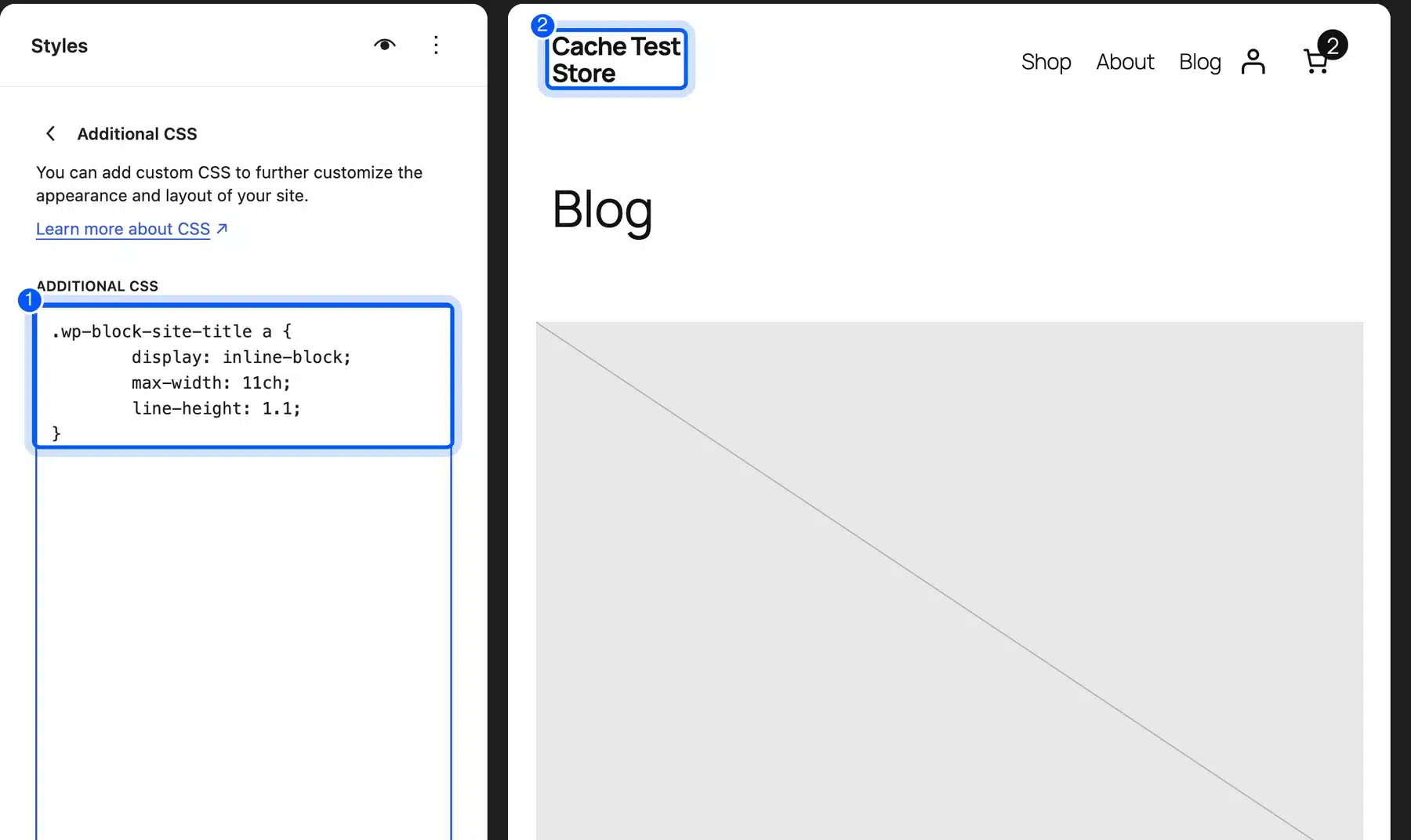
My first try used 6ch, and it broke the title into three lines, one word each. Count the characters in your first line and add one.

In a classic theme, add the same code under Appearance > Customize > Additional CSS. The class name differs. Right click the title, choose Inspect and copy the class you see. The MDN max-width reference explains the property.
Method 4: Show the Tagline in a Classic Theme
Most classic themes print the site title and tagline as two lines already. Go to Appearance > Customize > Site Identity, fill in both fields and tick Display Site Title and Tagline. The preview updates as you type, and Publish saves it.
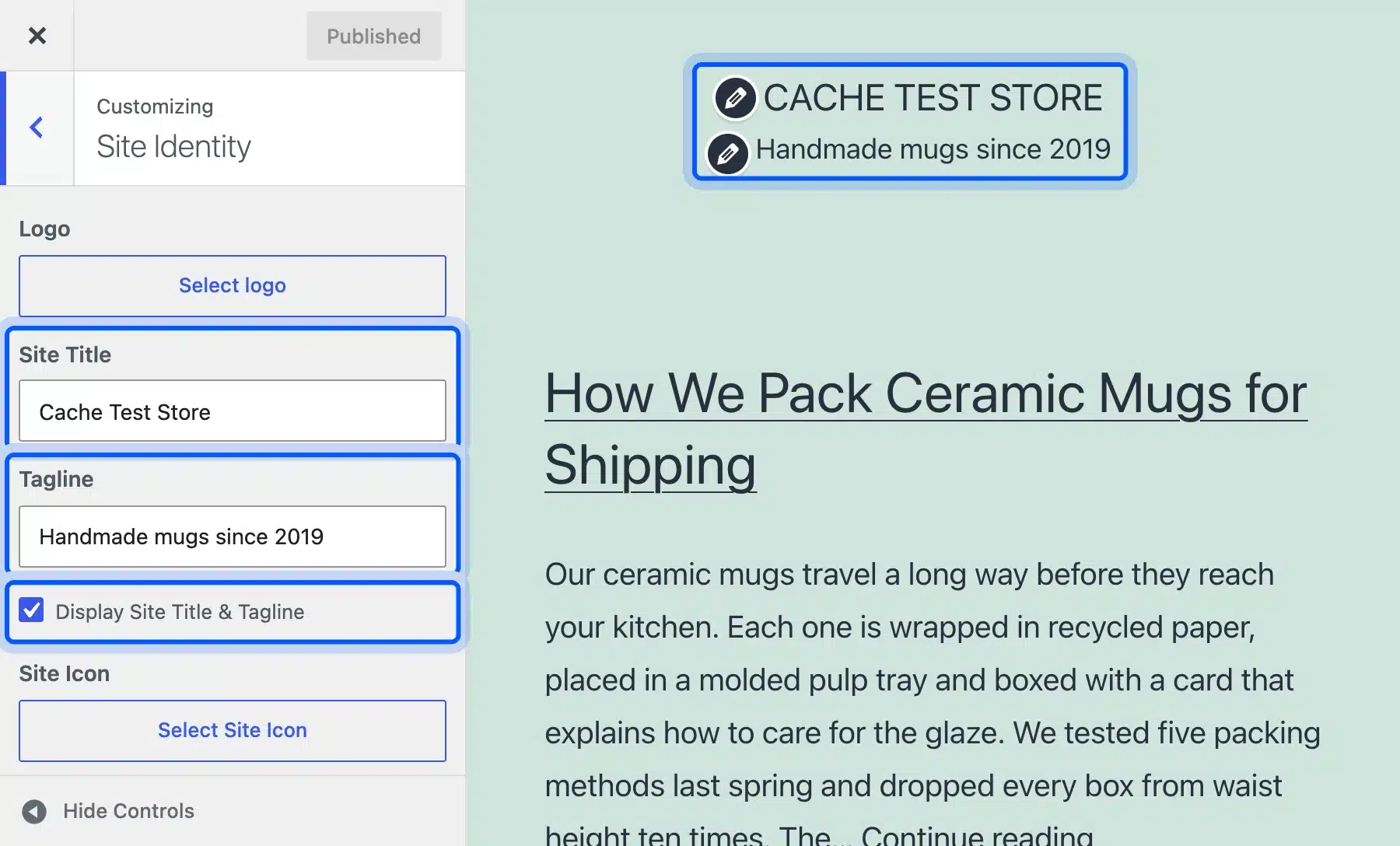
In Twenty Twenty-One, the title and tagline sat on two centered lines with no extra work. The Customizer documentation covers the other Site Identity options, such as the logo and site icon.
Block themes hide the Customizer. This option only appears with classic themes. If your theme has its own header builder, look for a tagline or subtitle field there first.
How to Add a Line in WordPress Content
To add a line in WordPress content, press Shift+Enter for a line break or Enter for a new paragraph. For a visible horizontal line, add a Separator block from the inserter. All three work in posts, pages and template parts.
Here is the difference:
- Shift+Enter: A soft line break that adds no extra space above the next line.
- Enter: A new paragraph with the theme’s normal space between paragraphs.
- Separator block: A drawn line across the content with a choice of styles.
Line spacing inside a paragraph is a different setting. Our guide on how to change line spacing in WordPress covers it. To make the second header line smaller, see how to change font size in WordPress.
How to Add Code to the WordPress Header
Header code usually means scripts or meta tags in the page’s head section, which is separate from the visible header. Add it with the wp_head hook in a child theme or a small plugin, never inside the Header template part. My test meta tag printed inside the head on every page.
Here is the snippet I used:
add_action( 'wp_head', function () {
	echo '<meta name="dd-test" content="header-code-works">' . "\n";
} );
The tag appeared just above </head>, which is where analytics and verification codes belong. The wp_head reference explains when the hook runs.
Never paste scripts into a Custom HTML block in the visible header. They load inside the page body instead of the head, and some tracking tools then fail. For Google Tag Manager, follow our guide on installing Google Tag Manager in WordPress.
Common Header Problems and Fixes
Most two line header problems come from spacing, mobile wrapping or editing the wrong template part. Check the block gap first. Then check the phone view. Then check which header the page uses. Each fix takes a minute once you know where to look.
Watch for these:
- Big gap between the lines: Set the Stack’s block spacing to 0, or use Shift+Enter instead of Enter.
- Title wraps into three lines: Raise the CSS
max-widthby a fewch. - Change does not show: The page uses a different header. Check its template in the Site Editor.
- Tagline missing: The tagline field under Settings > General is empty.
- Menu pushed down: Shorten the second line, or let the header row wrap on small screens.
If a header section still will not change, it may sit in a part you cannot edit from the page. Our guide on why there are sections in WordPress you can’t edit explains where each part lives.
Conclusion
To have 2 lines of text in a WordPress header, change the header layout rather than the Site Title field. A br tag in the title only prints as text.
In a block theme, stack the Site Title and Site Tagline, or use a Paragraph with Shift+Enter for an exact break. CSS can wrap the title on any theme, and classic themes show the tagline from the Customizer.
Check the result on a phone before you finish. Header code for scripts belongs in wp_head and never in the visible header.
Frequently Asked Questions (FAQs)
Q1. Can I put a line break in the WordPress site title?
No. WordPress escapes HTML in the Site Title field. A br tag shows as text in the header. Use a Paragraph with Shift+Enter or stack the title and tagline instead.
Q2. How do I show the tagline under the site title?
In a block theme, add a Site Tagline block below the Site Title inside a Stack group in the Header template part. In a classic theme, tick Display Site Title and Tagline under Customize > Site Identity.
Q3. How do I edit the header in a block theme?
Go to Appearance > Editor > Patterns and open the Header template part. Changes there apply to every page that uses that header.
Q4. Why is there a big gap between my two header lines?
The Stack group’s block spacing or a paragraph margin adds the gap. Set block spacing to 0, or use Shift+Enter inside one paragraph instead of two paragraphs.
Q5. Where do I add custom code to the WordPress header?
Use the wp_head hook in a child theme’s functions.php or a small plugin. That prints scripts and meta tags inside the head section of every page.
Q6. Will a two line header look right on mobile?
Usually yes. In my test, the stacked title and tagline stayed on two lines at 390 pixels wide. Check your own header on a phone, and shorten the second line if the menu gets pushed down.