You can change font size in WordPress in under five minutes, and you don’t need to touch a single line of code to do it. Whether you’re using the block editor, a classic theme, or a page builder, WordPress gives you at least one built-in way to resize your text without breaking your layout.
This guide walks through six proven methods, from the simplest block-level tweak to full site-wide typography control. Each one includes the exact clicks you need, in order, so you can follow along and take a screenshot at every step if you want a reference for later.
Pick the method that matches your theme and comfort level, and you’ll have larger, more readable text on your site before you finish your coffee.
Why Font Size Matters in WordPress?
Font size directly affects how long visitors stay on your page and how much of your content they actually read. Text that’s too small forces people to squint, skim, or leave, and it works against your best WordPress fonts instead of with them.
Nielsen Norman Group’s reading-speed study of 352 participants found that people read 11% slower for every 20 years they age, which means undersized text quietly locks out a big share of your audience.
Bigger, legible text keeps readers on the page longer and makes your content easier to scan and come back to. If accessibility is a priority for your site, it’s worth pairing font size changes with a full web accessibility audit.
How to Change Font Size in WordPress: 6 Methods
Depending on your theme and comfort level, here are six ways to change font size in WordPress. Jump to the method that fits your setup.
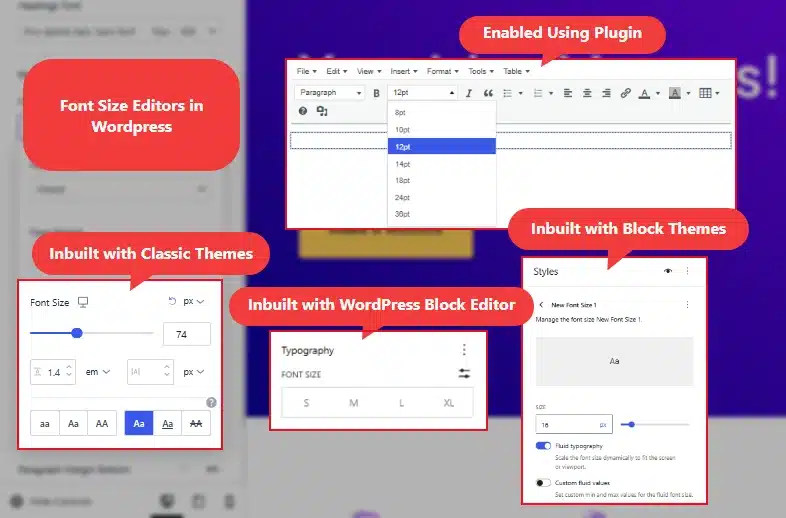
Method 1: Using the Gutenberg Block Editor
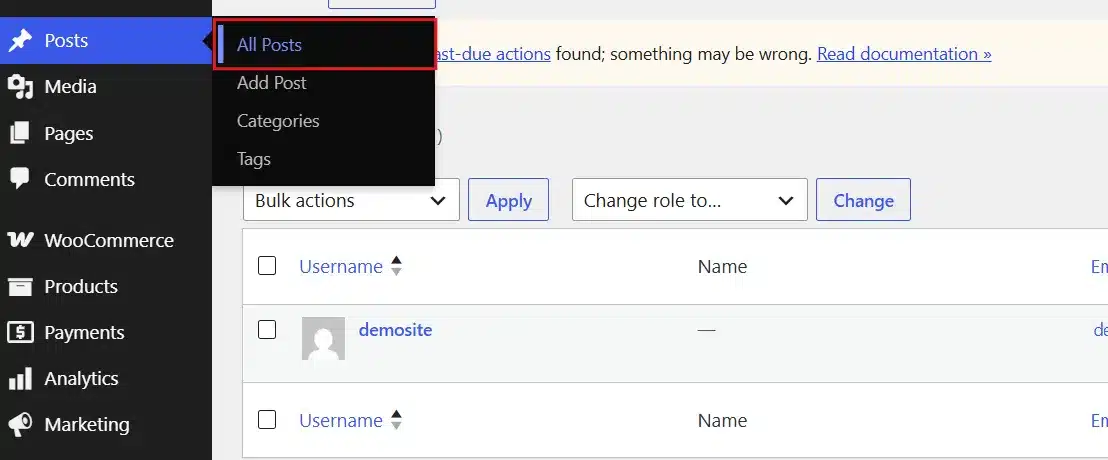
- Log in to your WordPress dashboard and open Posts or Pages from the left sidebar.
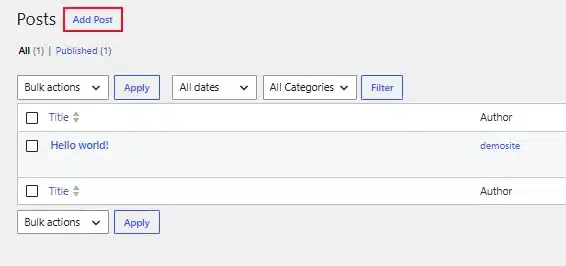
- Click the post or page you want to edit, or select Add Post to start fresh.
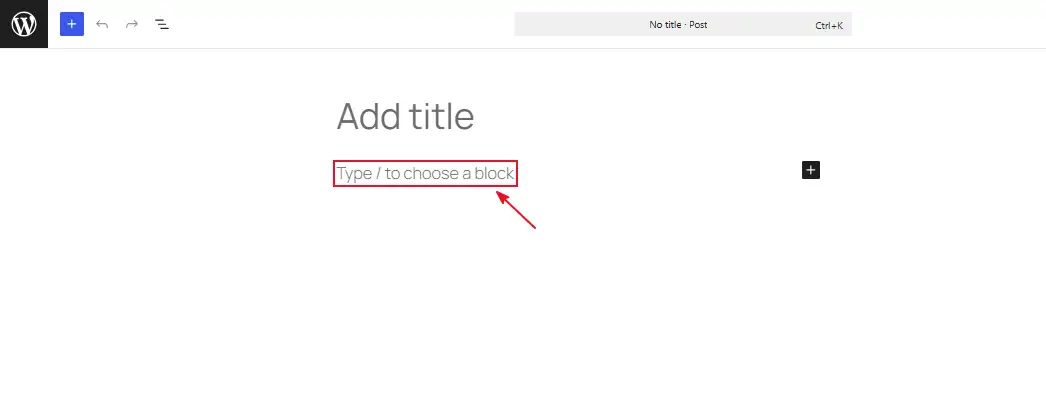
- Click directly on the paragraph or heading block whose text you want to resize.
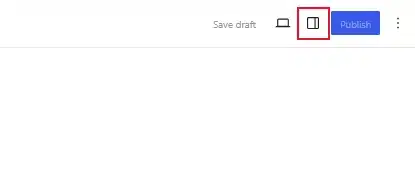
- Look at the right sidebar and click the Settings icon (a square with two uneven columns) if the panel isn’t already open.
- Scroll to the Typography section inside the block settings panel.
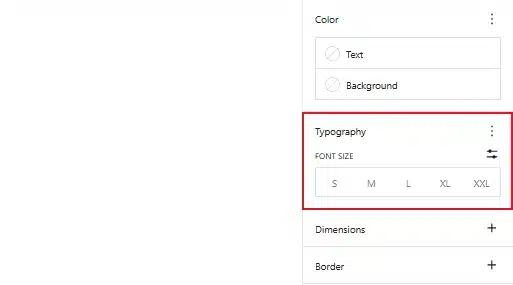
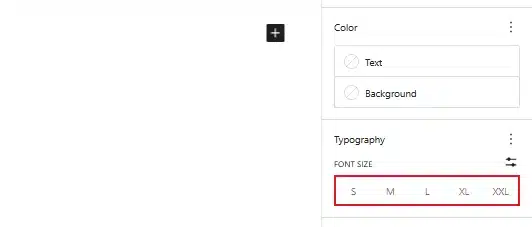
- Click one of the preset sizes, Small, Medium, Large, or Extra Large
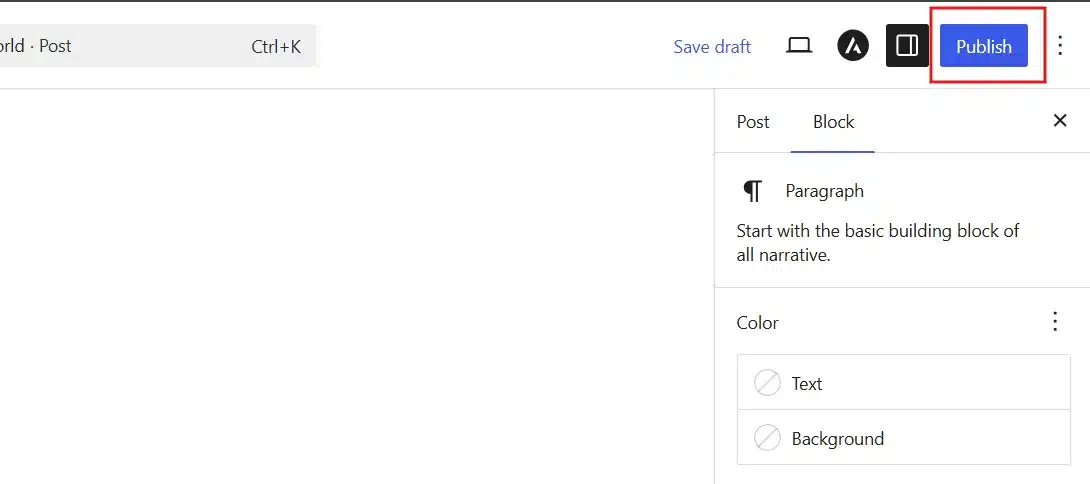
- Click Update or Publish in the top right corner to save your change.
Method 2: Using the Full Site Editor (Block Themes)
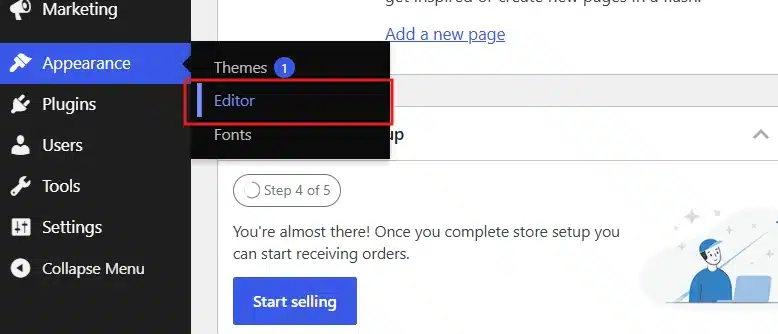
- From your WordPress dashboard, go to Appearance → Editor.
- Click the Styles icon in the top right corner. It looks like a black-and-white circle.
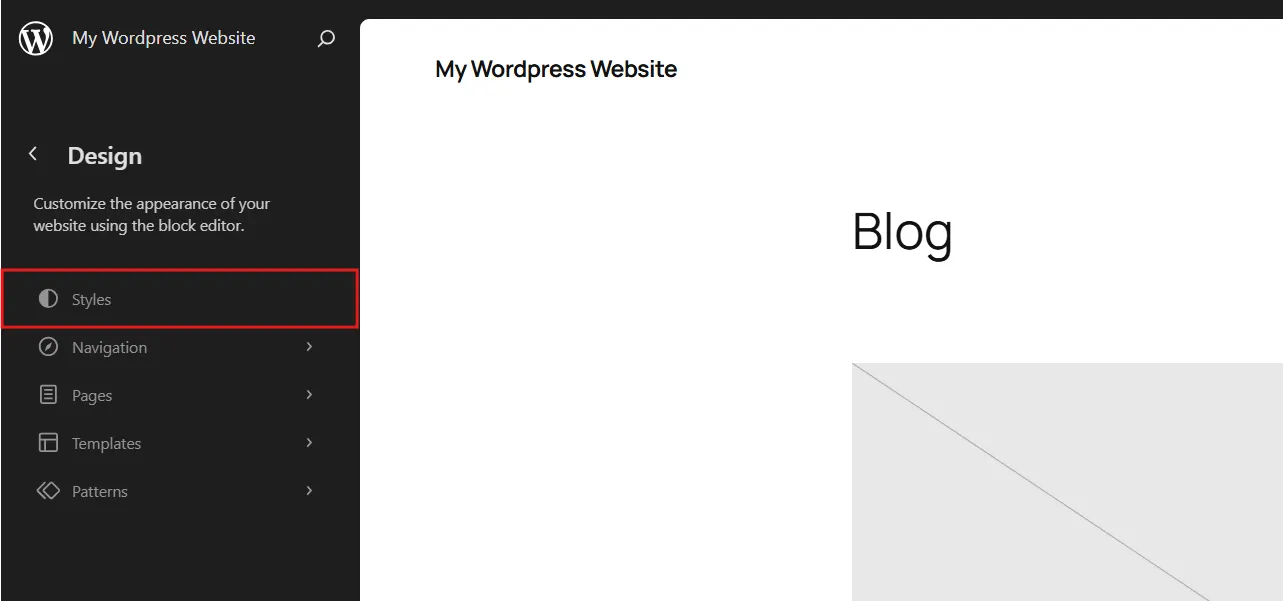
- Select Typography from the panel that opens.
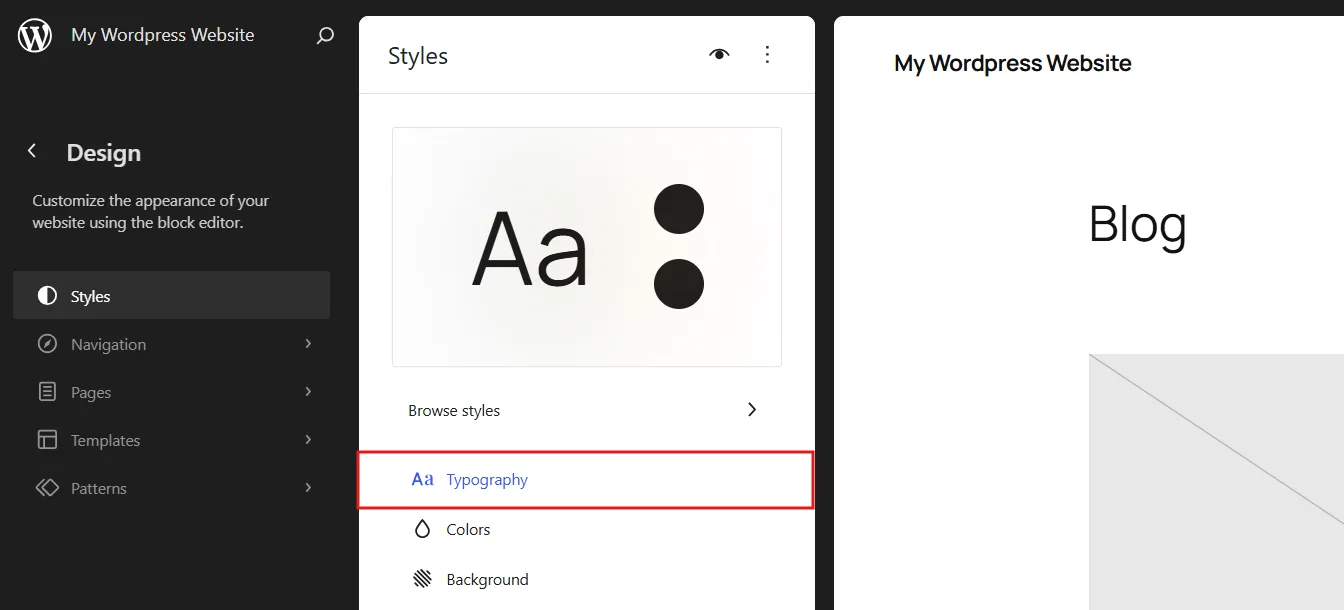
- Choose an element to edit, such as Text, Headings, or Links.
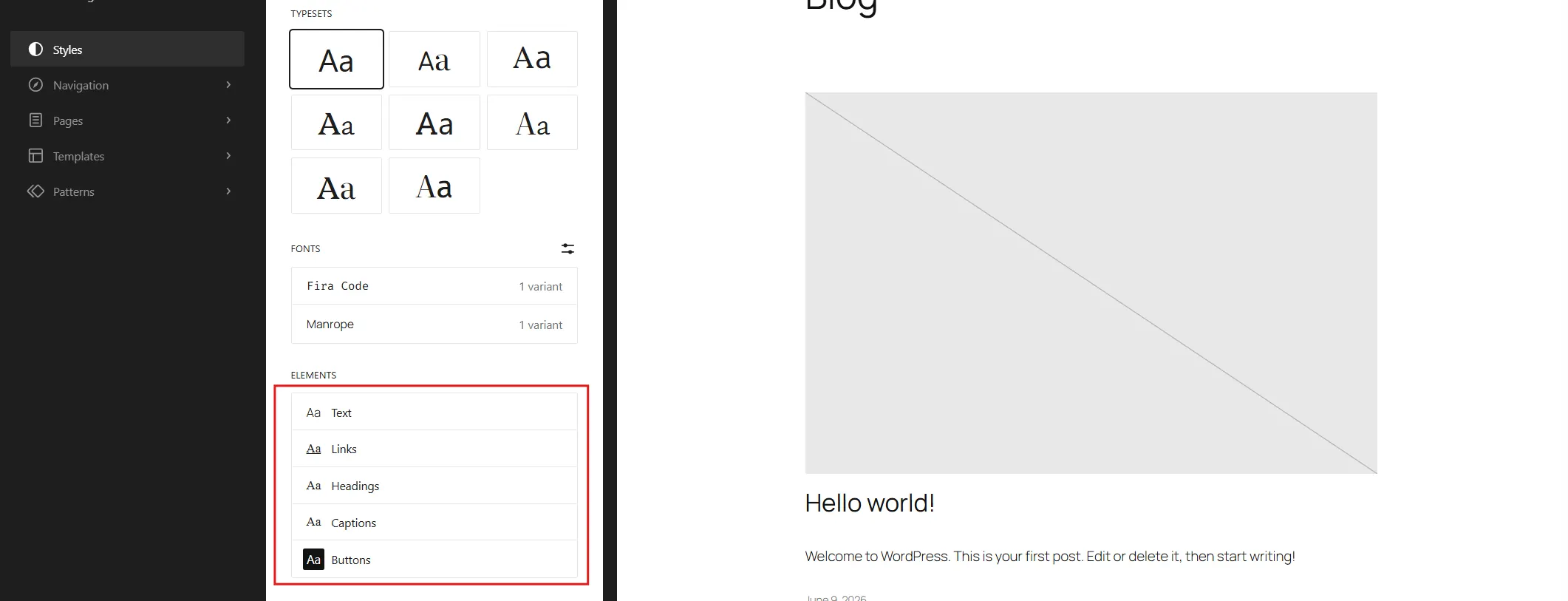
- Click the Font Size Presets Section to see the default preset options.
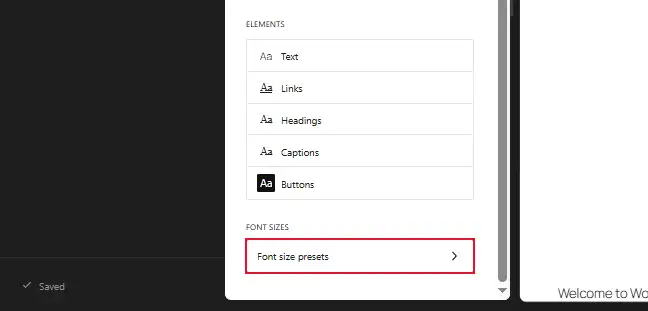
- Click the “+” icon next to Size to make a custom font preset.
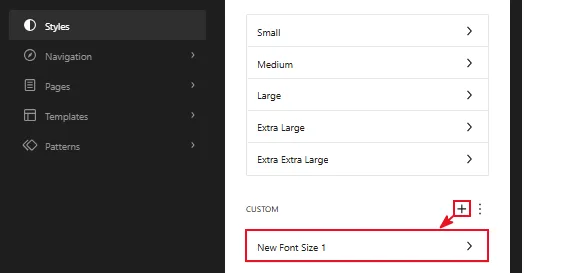
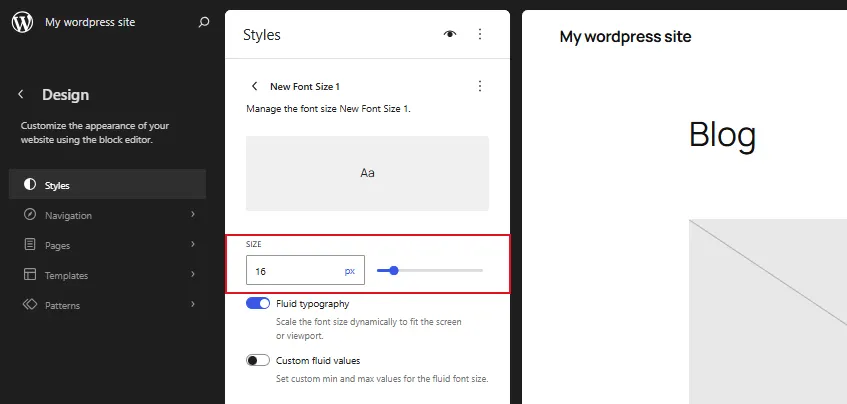
- In this preset, enter a custom number, or drag the slider left or right.
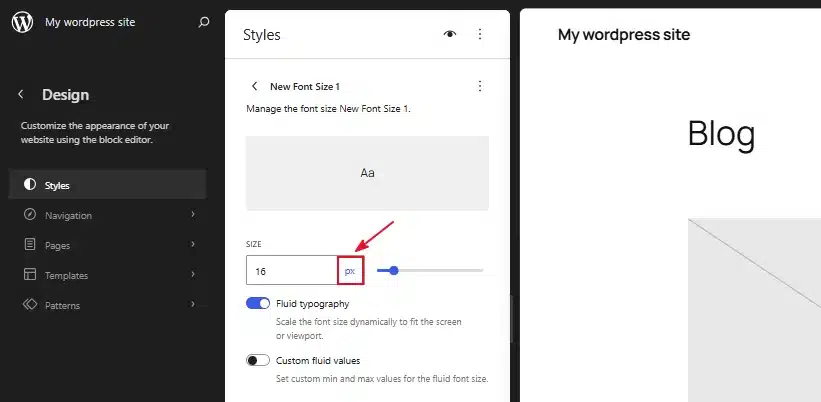
- Click the unit label (px, em, or rem) if you want to switch measurement units.
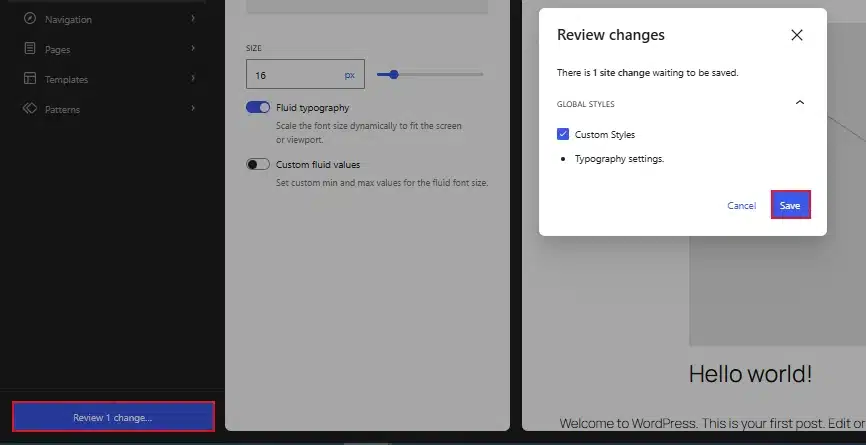
- Click Review Change → Save in the top right corner to apply the change site-wide.
Block themes store these settings in a file called theme.json. If you’re curious how it works under the hood, WordPress’s own typography settings documentation breaks down every option.
Method 3: Using the WordPress Customizer (Classic Themes)
- From your dashboard, go to Appearance → Customize.
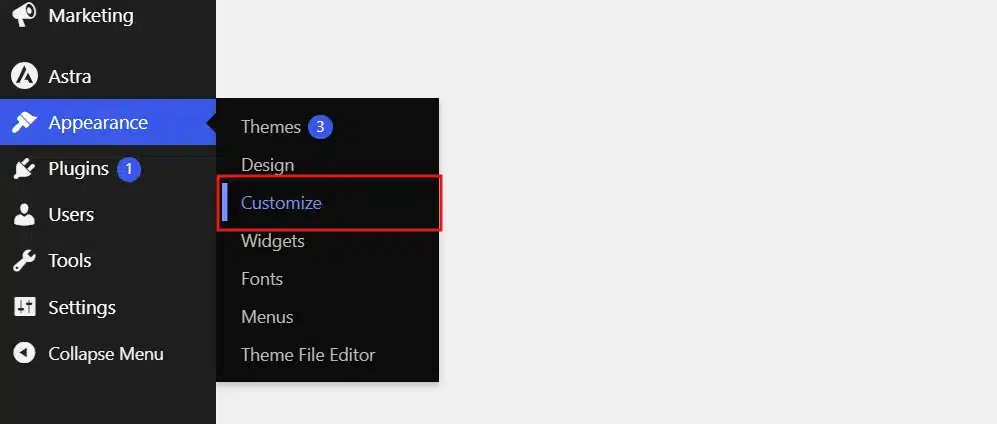
- Look for a menu item called Global → Typography, Fonts, or Theme Options. The exact label depends on your theme.
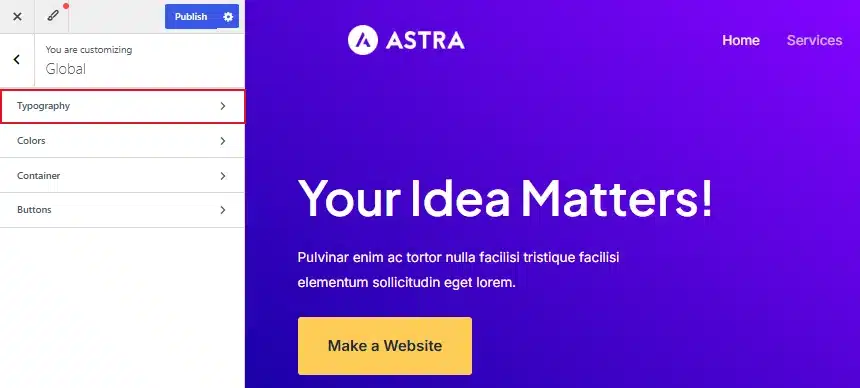
- Select the element you want to resize, such as Body Text, H1, or H2.
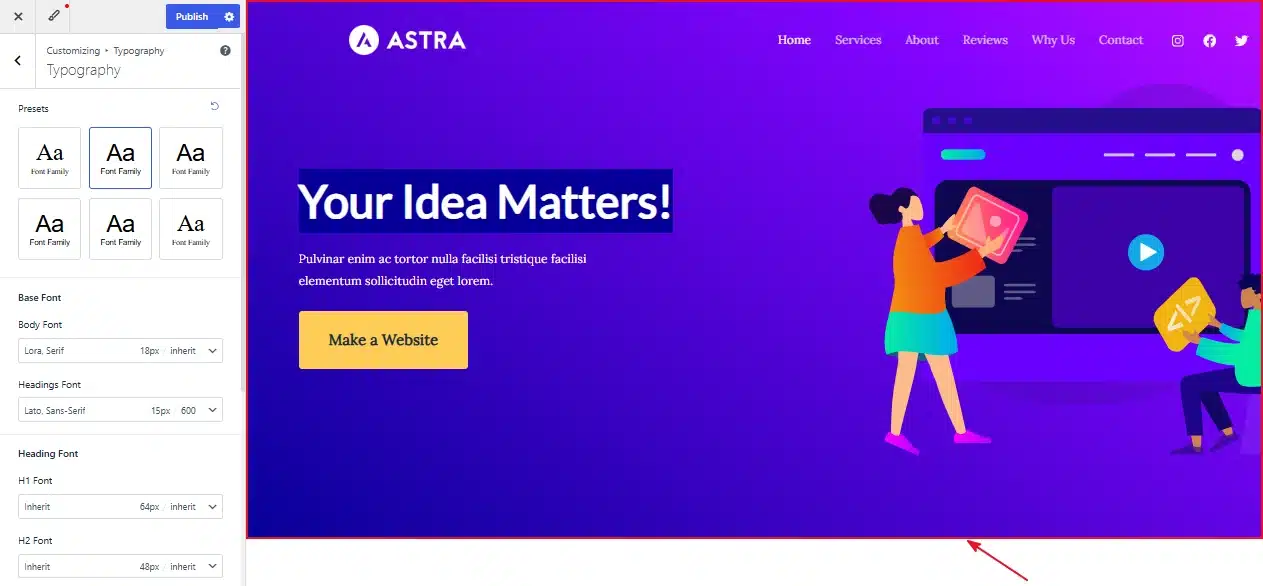
- Use the slider or number field to set your new font size.
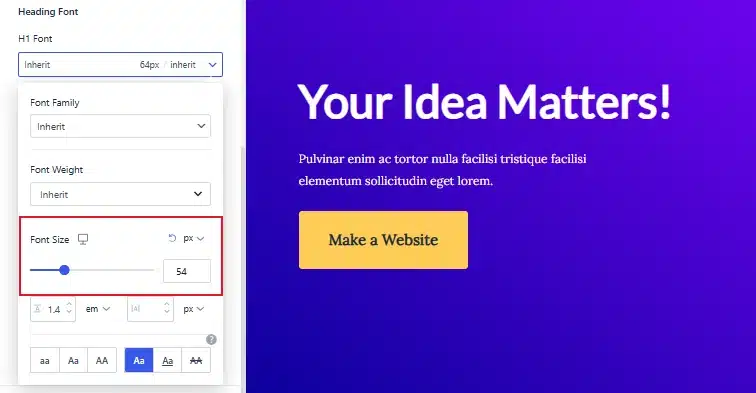
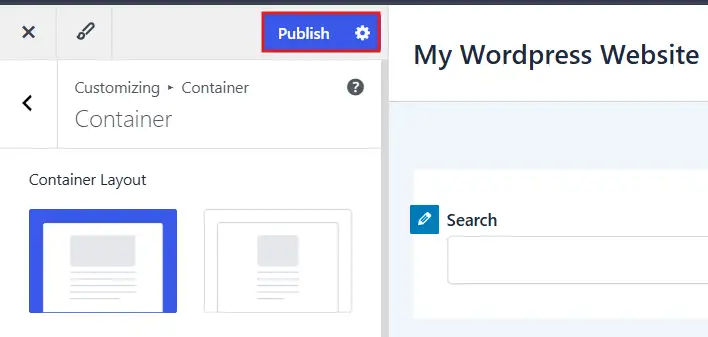
- Click the blue Publish button at the top of the Customizer to save your changes site-wide.
Method 4: Using a Plugin (Advanced Editor Tools)
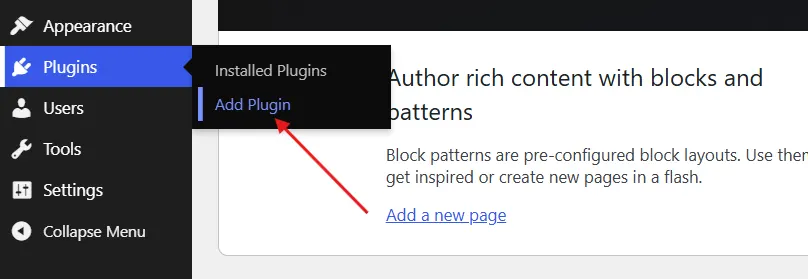
- Go to Plugins → Add New in your dashboard.
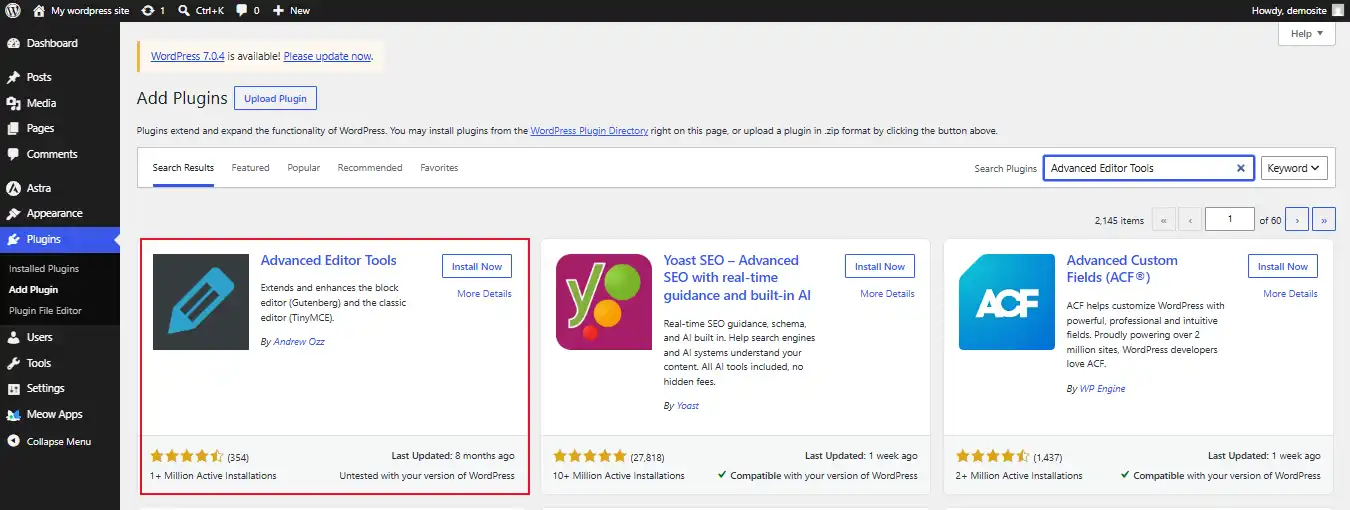
- Install and activate the Advanced Editor Tools Plugin from the WordPress plugin Directory.
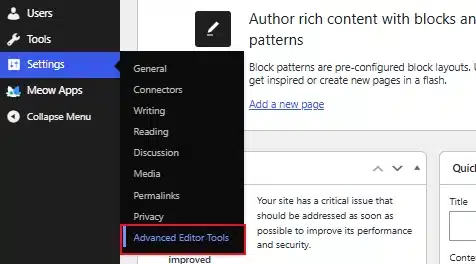
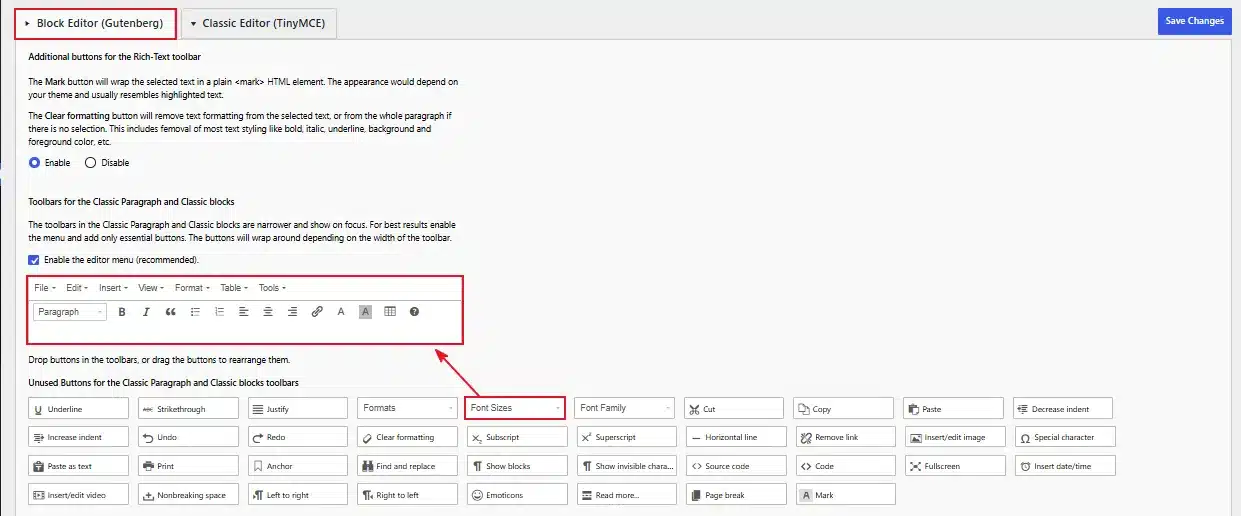
- Go to Settings → Advanced Editor Tools in the left sidebar.
- Drag the Font Sizes option from Unused Buttons into the Block Paragraph toolbar.
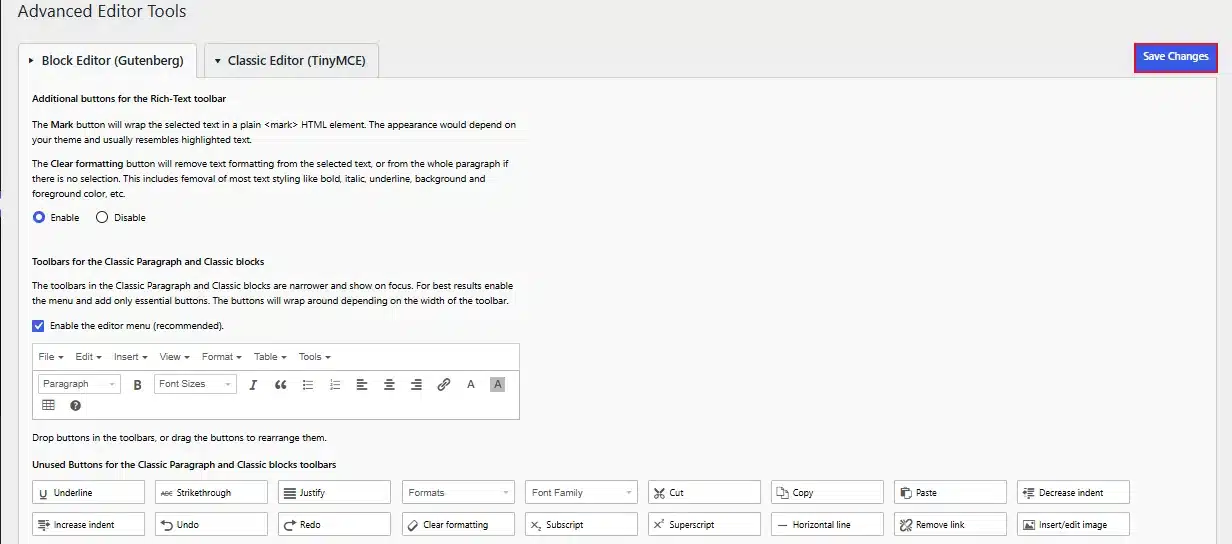
- Click Save Changes at the bottom of the page.
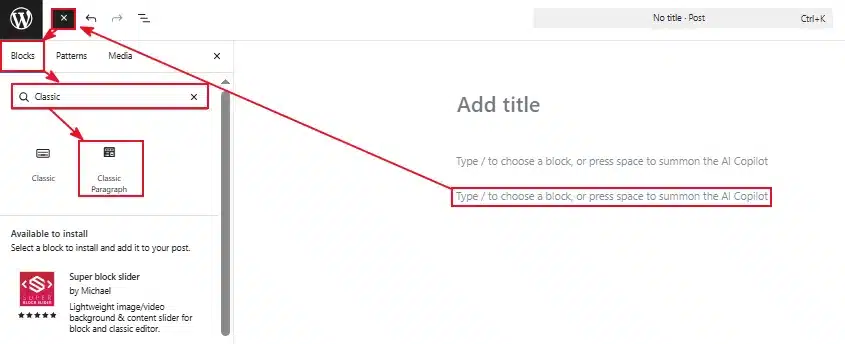
- Open any post or page and add a Classic Paragraph block.
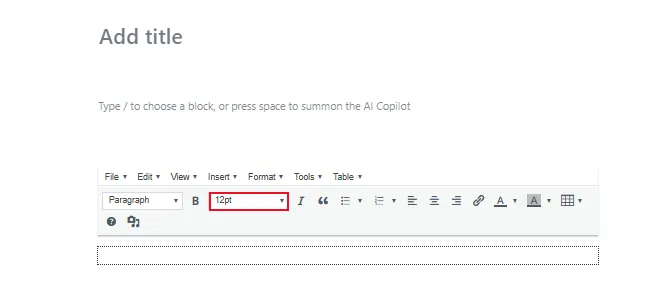
- Highlight the text you want to resize, then choose a size from the new Font Sizes dropdown.
- Click Update or Publish to save.
The same plugin also adds controls to change font color in WordPress, so it’s worth exploring once you’re comfortable with the font size dropdown.
Method 5: Using Custom CSS
- From your dashboard, go to Appearance → Customize.
- Click Additional CSS at the bottom of the menu list.
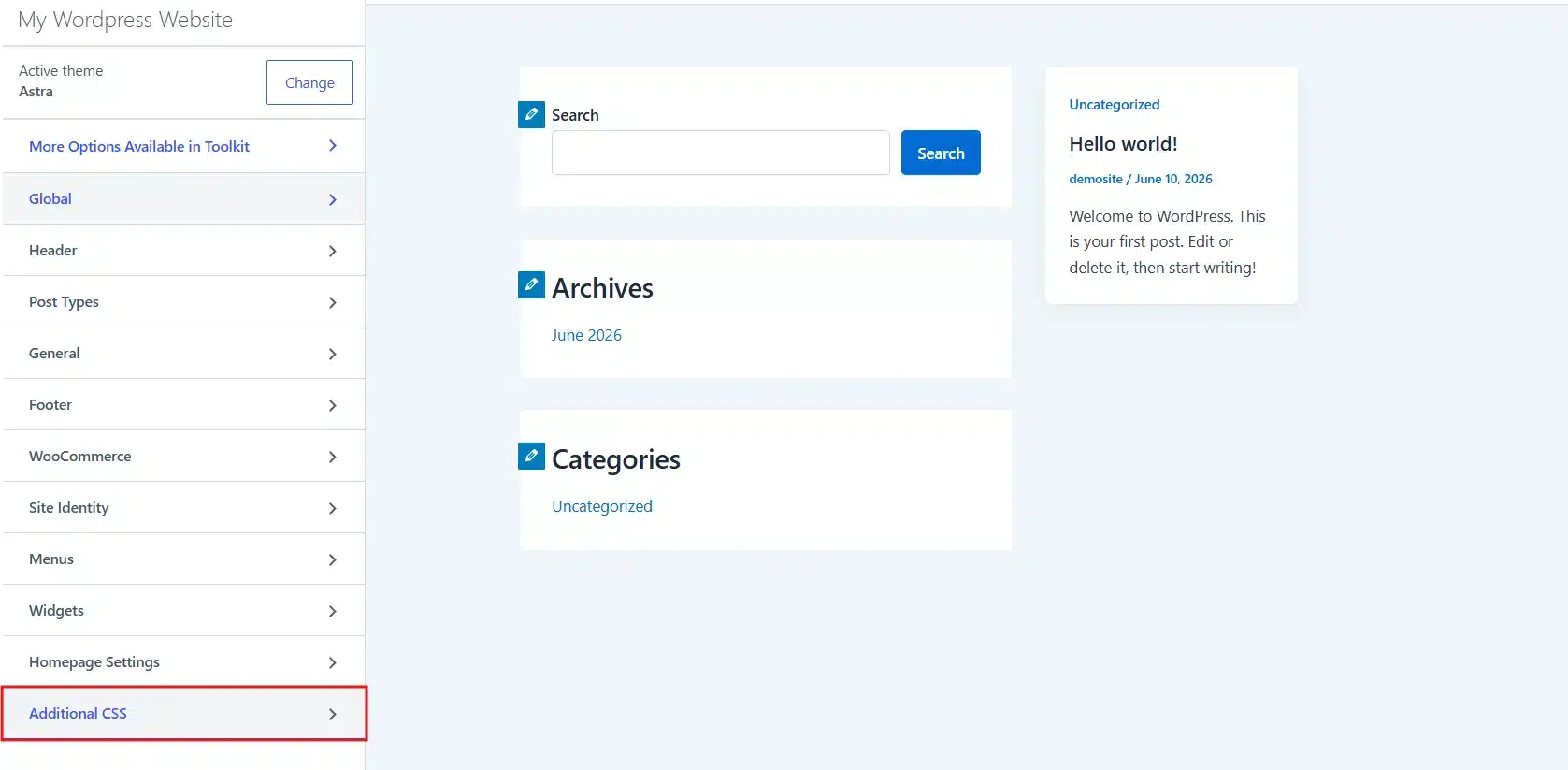
- Type a CSS rule targeting the element you want to resize. For example:
p { font-size: 18px; }
h2 { font-size: 30px; }
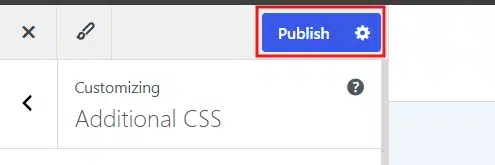
- Click Publish at the top of the Customizer to save your custom CSS.
Which Method Should You Use?
Every method above works, but the best choice depends on your theme, your comfort with code, and how much of the site you’re changing.
| User Level | Best Method | Why |
|---|---|---|
| Complete beginner | Gutenberg Block Editor | No setup, works on any post or page instantly |
| Non-technical site owner | Full Site Editor or Customizer | Changes fonts site-wide without touching code |
| Frequent content editor | Advanced Editor Tools plugin | Adds a permanent font-size dropdown to every post |
| Developer or advanced user | Custom CSS | Full control over every element, no plugin needed |
If you’re not sure where to start, use the Gutenberg Block Editor for single posts, and switch to the Full Site Editor or Customizer once you’re ready to set a consistent font size across your entire site.
How to Make Font Size Responsive Across Devices
Font size that looks perfect on desktop can feel too small on a phone screen. A quick side step fixes this without a separate mobile site.
Use relative units like rem or em instead of fixed pixels, since these scale automatically with a visitor’s device settings.
Add a simple media query in your Additional CSS panel:
@media (max-width: 600px) {
  p { font-size: 17px; }
}
This targets only screens narrower than 600 pixels, so your desktop font size stays untouched. It’s also worth pairing this with a look at how you change line spacing in WordPress, since tight line spacing makes even a well-sized font harder to read on small screens.
Relative units matter for accessibility too. W3C’s guidance on resizable text recommends that text can scale up to 200% without breaking your layout or hiding content.
Troubleshooting: Why Your Font Size Change Isn’t Showing Up
- Your browser is showing a cached version: Clear your browser cache and your WordPress caching plugin’s cache, then reload the page.
- Your theme’s CSS is overriding your change: Use your browser’s Inspect tool to check which CSS rule is winning, then add a more specific selector or use
!importantsparingly. - The change was made in the wrong place: Confirm you edited the actual block, page, or global style you meant to change, not a duplicate draft.
- A plugin conflict is blocking the update: Deactivate other typography or page-builder plugins one at a time to find the conflict.
- Your host’s server cache hasn’t cleared: Ask your hosting provider to purge Varnish or Memcache if you’re on managed WordPress hosting.
Conclusion
Changing font size in WordPress comes down to picking the method that fits your setup, not memorizing every option.
For quick, one-off edits, the Block Editor gets the job done in seconds. For site-wide consistency, the Full Site Editor, Customizer, or custom CSS give you lasting control.
Refer back to the comparison table above whenever you’re unsure which method fits your situation best.
Once your text is sized right, your content becomes easier to read, and easier for visitors to stick around for. If your site still feels sluggish after the update, a quick look at WordPress speed optimization services can help you get the rest of the page performing just as well.
Frequently Asked Questions (FAQs)
Q1. Can I change the font size without any coding?
Yes. The Gutenberg Block Editor, the Full Site Editor, and the WordPress Customizer all let you change font size in WordPress without writing a single line of code. Custom CSS is only needed if you want pixel-level control over a specific element.
Q2. What’s the best font size for readability on WordPress?
A body text size between 16px and 18px works well for most WordPress sites. Headings should scale up from there, with H1 typically set between 32px and 40px depending on your theme.
Q3. Can I change font size for just one word or sentence?
Yes. Open the block containing that text in the Block Editor, highlight just the word or sentence you want to resize, and pick a size from the Typography panel that appears in the toolbar.
Q4. Will changing font size affect my site’s SEO?
Changing font size doesn’t directly affect rankings, but it does affect how long visitors stay on your page. Better readability tends to lower bounce rate, which is a signal search engines do consider.
Q5. How do I reset font size back to default?
Open the block or element you resized, click the three-dot menu next to the Typography settings, and select Reset. This returns the text to your theme’s default size.
Q6. Does changing font size work the same on all WordPress themes?
Not exactly. Classic themes rely on the Customizer or custom CSS for typography control, while block themes use the Full Site Editor. Some budget themes limit typography options entirely, in which case a plugin or custom CSS becomes your only route.
Q7. Can I use Google Fonts alongside a custom font size?
Yes. Font size and font family are independent settings. You can pick a Google Font through a plugin like Easy Google Fonts and still control its size using any of the six methods in this guide.
Q8. What units should I use, px, em, or rem?
Pixels (px) give you a fixed size that never changes regardless of context. Em and rem are relative units that scale with the parent or root element, which makes them a better choice for accessibility. Most developers recommend rem for body text.
Q9. Is there a way to increase font size only for mobile users?
Yes. Add a CSS media query with a max-width condition, like the one shown in the responsive section above, so the rule only applies to smaller screens and leaves your desktop font size untouched.
Q10. Can I let visitors adjust the font size themselves on the front end?
Not by default, but you can add a text-resize widget using a plugin or a small piece of custom JavaScript. Most visitors never notice or use these widgets, so choosing a well-sized default matters more than adding a resize control.