Picking the best WooCommerce order tracking plugins for your store isn’t about finding one universal winner. It’s about matching a plugin to how your store ships.
A one-person print-on-demand shop and a 500-order-a-day supplement brand need very different tools, even though both are shopping for the same thing: order tracking.
Some plugins keep tracking data on your own server. Others run through a cloud dashboard with a branded page and marketing tools built in. Neither approach is wrong. It depends on your carrier mix, your order volume, and how much control you want over customer data.
This guide breaks down seven tested options, how to choose between them, and how to get one running on your store this week.
Order Tracking Plugins in WooCommerce: A Quick Introduction
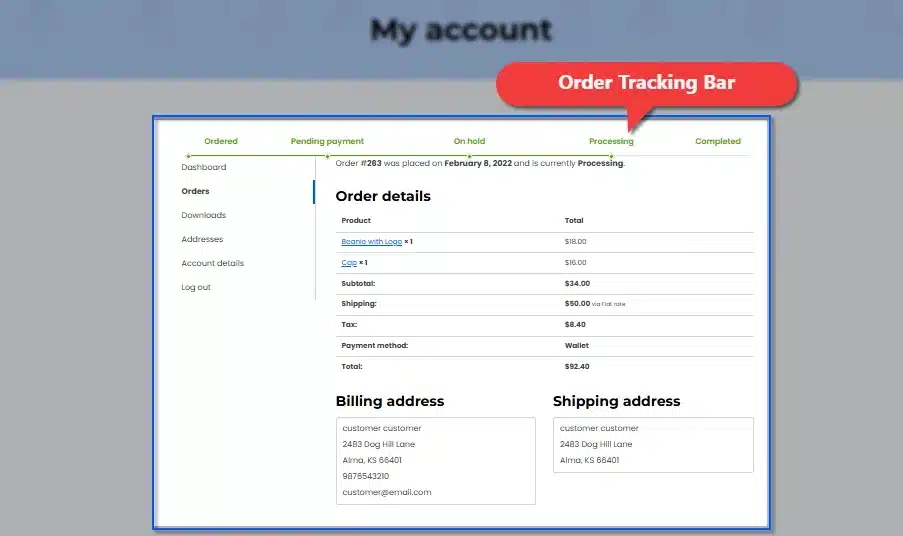
WooCommerce doesn’t ship with order tracking built in. Out of the box, you get shipping zones, flat rates, and local pickup, but nothing that tells a customer where their package is right now. An order tracking plugin fills that gap, turning a carrier’s tracking number into a clickable link, a branded page, or a visual status bar.
The need is measurable. WISMO tickets, meaning “Where Is My Order,” make up 40-60% of all inbound customer service contacts for stores without advance tracking notifications <sub>[1]</sub>.A tracking plugin cuts that volume directly, since customers stop needing to ask when they can check for themselves. Pairing tracking with advance updates, like our WooCommerce Order Communication plugin, covers delivery exceptions a tracking link alone misses.
Quick Comparison: Best WooCommerce Order Tracking Plugins
Compare all seven WooCommerce order tracking plugins at a glance before the full breakdown below.
| Plugin | Type | Best For | Starting Price |
|---|---|---|---|
| WooCommerce Order Progress Bar | Self-hosted | Visual status timeline | $29/ year |
| YITH WooCommerce Order and Shipment Tracking | Self-hosted | Broad carrier coverage | $79.99/year |
| Advanced Shipment Tracking (AST) | Self-hosted | Free and feature-rich | $129/year |
| AfterShip for WooCommerce | SaaS | Global carrier coverage | $11/month |
| ParcelPanel (ParcelWILL) Order Tracking | SaaS | Branded page with marketing | $11/month |
| WooCommerce Shipment Tracking | Self-hosted | Official Woo compatibility | $59/year |
| TrackShip for WooCommerce | SaaS | Automated status sync | $11/month |
Self-hosted plugins charge once or run a flat annual fee and keep tracking data on your own server. SaaS options like AfterShip, ParcelWILL, and TrackShip run through a cloud dashboard with a free tier, then scale pricing by shipment volume.
Carrier count also swings widely: some plugins cover roughly 15 native carriers, others top 1,000. Check that figure against what you ship with before comparing price alone.
7 Best WooCommerce Order Tracking Plugins: Detailed Review
1. WooCommerce Order Progress Bar Plugin
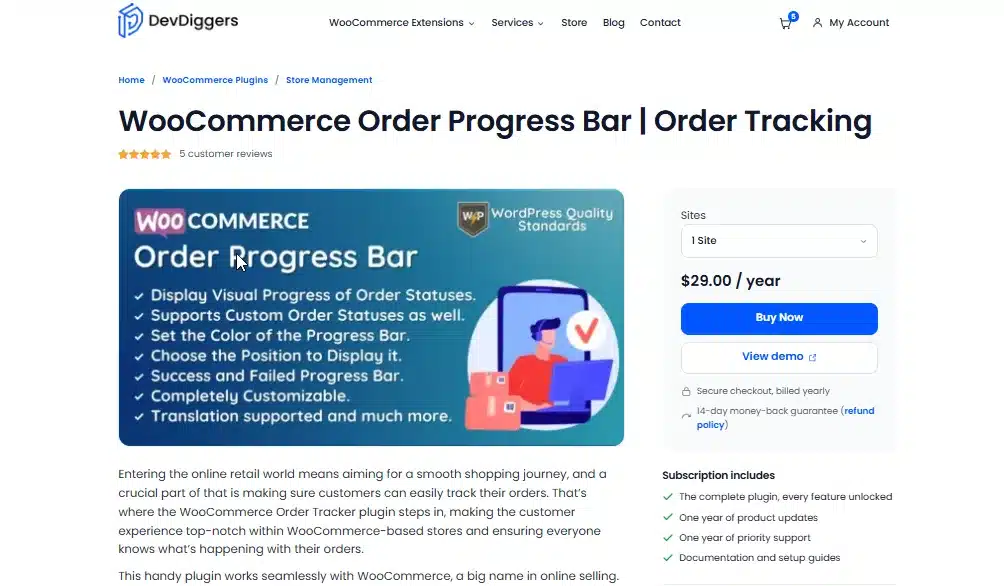
WooCommerce Order Progress Bar is a self-hosted plugin that displays a visual status bar instead of a plain carrier link. Customers see exactly which stage their order is in, from payment confirmation through shipping to delivery, without leaving your site. Store owners control which statuses appear and in what order, which matters for stores with custom fulfillment steps.
Best For
Stores that want a branded, on-site status display with tracking data kept on their own server.
Key Features
- Visual progress bar showing order status stages
- Customizable status labels and stage order
- Enable or disable specific statuses per workflow
Pricing
- 1 Site Licence: $29/year
- 5 Site Licence: $129/year
- 10 Sites Licence: $179/year
Benefits
- Data stays put: No third-party server handles your tracking data.
- Flat annual pricing: Cost is fixed by site count, not order volume.
- Brand consistency: Matches your site’s design, not a carrier page.
Limitations
Carrier list is smaller than SaaS competitors with API-based detection
Common mistake everybody makes: Store owners forget to map custom order statuses into the progress bar. Orders using a non-standard status get stuck showing as “processing” even after they ship. Review the status mapping whenever a new fulfillment stage gets added.
2. YITH WooCommerce Order and Shipment Tracking
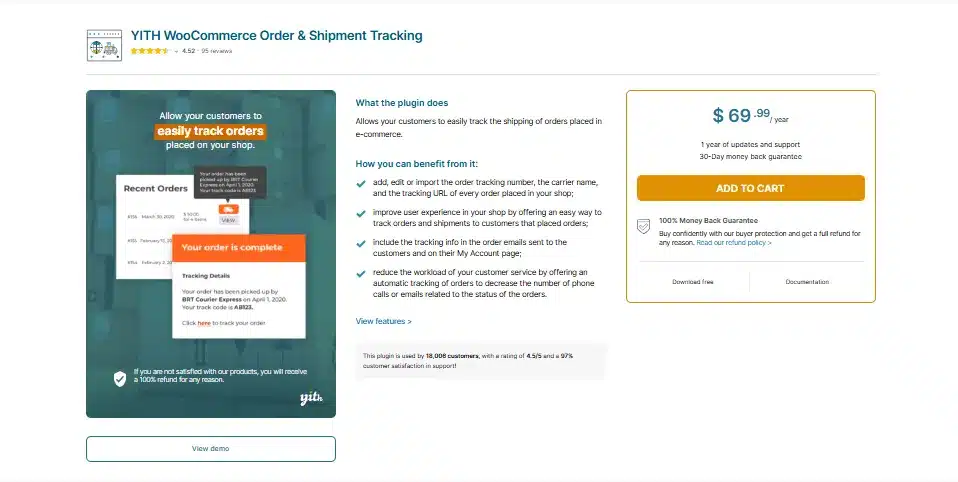
YITH WooCommerce Order and Shipment Tracking adds shipping details, carrier name, delivery date, and tracking code directly to every order. The free version connects with hundreds of carriers worldwide and generates tracking links automatically once you select a provider. Customers see the same information in their account dashboard, order emails, and order history, all without an external account.
Best For
Stores that want wide carrier coverage without paying a monthly subscription fee.
Key Features
- Connects automatically with 489+ global and regional carriers
- Adds a “Track” button linking to the carrier’s page
- Shows tracking data in emails, My Account, and order history
Pricing
- 1 Site Licence: $79.99/year
Benefits
- Carrier reach: Covers nearly 500 carriers, including regional couriers.
- Zero recurring cost: The free version has no subscription fee.
- Simple setup: Works directly from the order edit screen.
Limitations
- No on-site branded tracking page; customers redirect to the carrier’s site
- Premium tier needed for packing slip integration.
Common mistake everybody makes: Store owners often skip selecting a default carrier in settings, so tracking links fail to generate on new orders. Set a default carrier during setup, and double-check it after any plugin update, since preferences occasionally reset.
3. Advanced Shipment Tracking (AST)
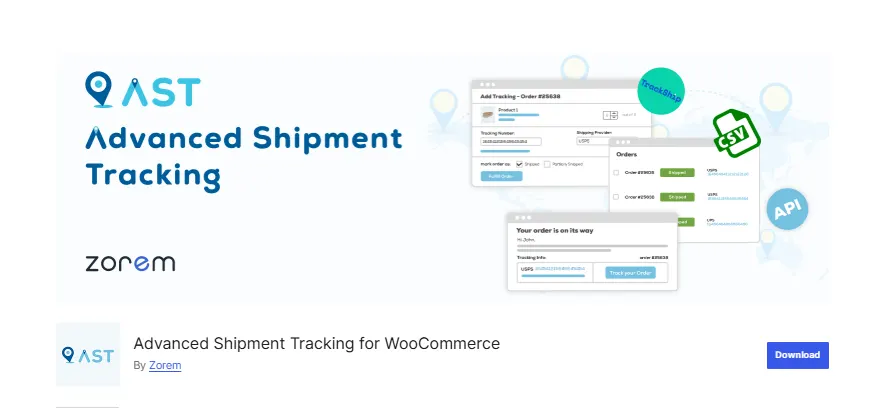
Advanced Shipment Tracking is the most installed WooCommerce tracking plugin on WordPress.org, trusted by over 60,000 active stores. The free version supports more than 1,000 preconfigured carriers, a customizable tracking widget, and a full fulfillment workflow with Shipped and Partially Shipped statuses. A REST API lets external services push tracking data automatically.
Best For
Budget-conscious stores that want enterprise-level carrier coverage at no cost.
Key Features
- 1,010+ preconfigured shipping carriers
- Bulk CSV import for tracking numbers
- REST API for third-party integrations
- HPOS and block checkout compatible
Pricing
- AST PRO: $129/year (per vendor)
Benefits
- No monthly fee: The free version covers most stores’ needs.
- Carrier depth: Over 1,000 carriers reduce manual link entry.
- Future-proof: Confirmed HPOS and Cart Block compatibility.
Limitations
- Interface looks dated next to newer SaaS dashboards
- Some features moved to the paid PRO tier over time
Common mistake everybody makes: Store owners install AST alongside another tracking plugin and end up with duplicate tracking fields on the order screen. Fully deactivate any previous tracking plugin before installing AST, since leftover settings can cause conflicting notifications.
4. AfterShip for WooCommerce
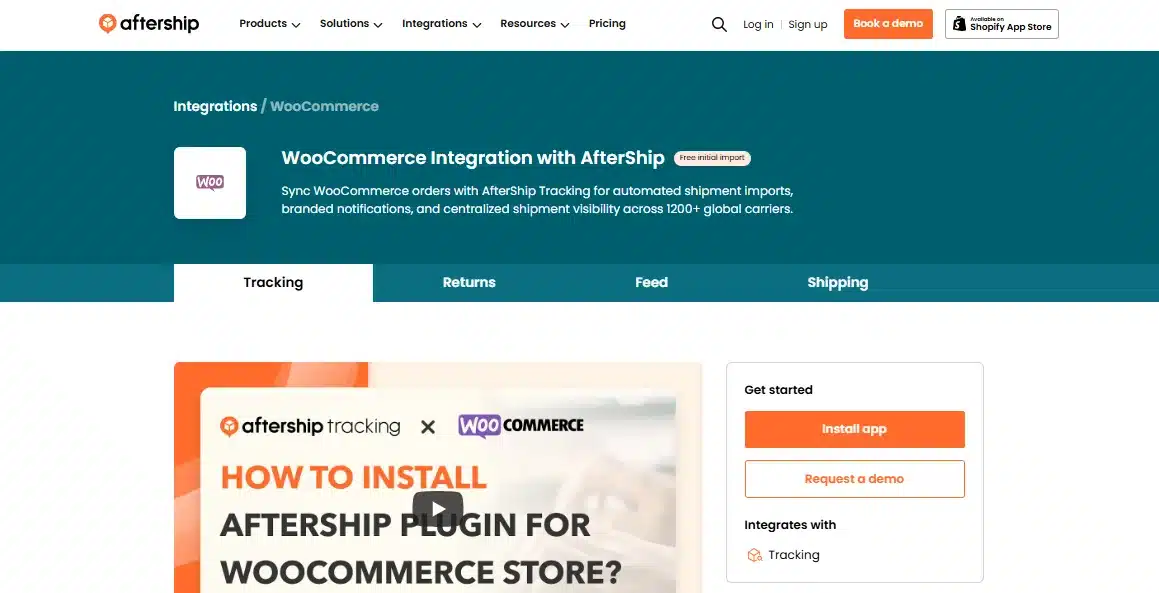
AfterShip for WooCommerce is a cloud tracking platform with a WooCommerce plugin layered on top, connecting stores with over 900 carriers worldwide. Carrier detection happens automatically based on tracking number format, so you’re not manually selecting a provider for every order. The plugin adds branded tracking pages, delivery predictions, and multi-language support.
Best For
International stores juggling many regional carriers who want automation over manual entry.
Key Features
- Automatic carrier detection from tracking number format
- Branded, on-site tracking page
- Email and SMS delivery notifications
- Shipping performance analytics dashboard
Pricing
- Essentials: $11/month (100 shipments)
- Pro: $119/month
Benefits
- Carrier breadth: Recognizes 900+ providers without manual setup.
- Branded page: Keeps customers on your domain, not the carrier’s.
- Multi-language: Serves international storefronts in several languages.
Limitations
- Tracking data routes through AfterShip’s servers, not just your own
- Free tier caps out fast for high-volume stores
Common mistake everybody makes: Merchants connect AfterShip but never customize the default tracking page template, leaving it looking generic instead of on-brand. Spend the ten minutes in the page editor; that page gets more repeat visits than almost any other.
5. ParcelPanel (ParcelWILL) Order Tracking
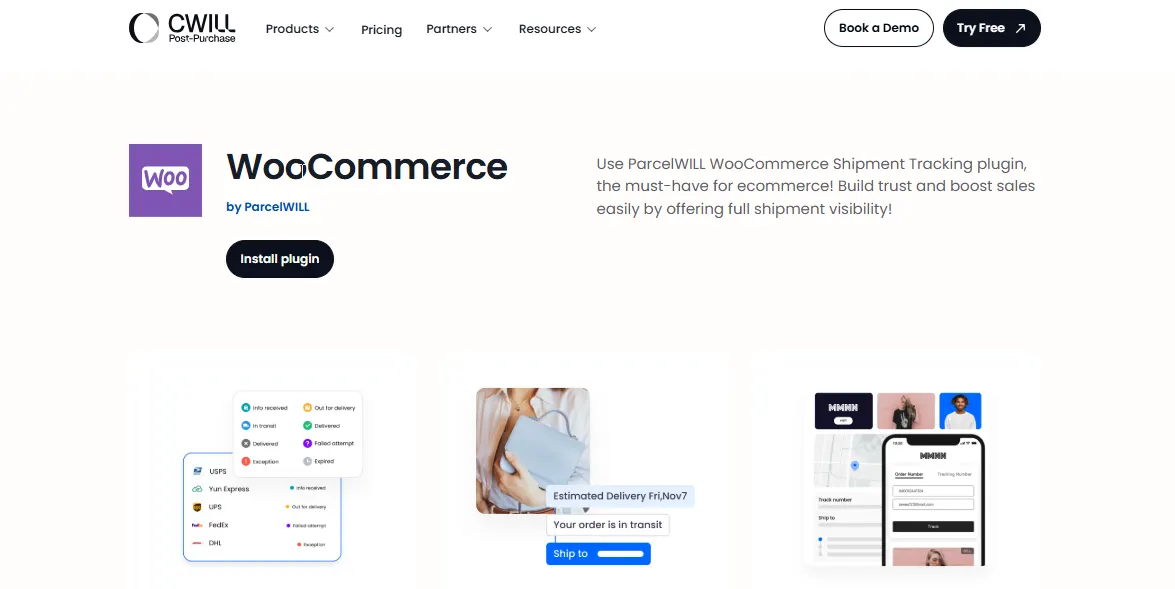
ParcelPanel, now rebranding as ParcelWILL, focuses on turning the tracking page into a marketing touchpoint. Along with a shipment timeline and map view, it displays product recommendations directly on the page customers check most often after checkout. The plugin syncs orders automatically from WooCommerce and supports over 1,100 carriers, with GDPR compliance built in.
Best For
Stores that want the tracking page to drive repeat purchases, not just answer status questions.
Key Features
- Branded tracking page with product recommendations
- Real-time sync from WooCommerce orders
- Supports 1,100+ global carriers
- GDPR-compliant data handling
Pricing
- Essential: $11/month (200 orders)
- Professional: $59/month
Benefits
- Marketing space: The tracking page doubles as an upsell opportunity.
- Auto-sync: Orders populate without manual tracking entry.
- Compliance built in: GDPR handling reduces legal guesswork.
Limitations
- Marketing features go unused if you just want simple tracking
- Free plan shipment limits fill up quickly for active stores
Common mistake everybody makes: Store owners enable every marketing widget on the tracking page at once, cluttering the one moment customers want a clear answer. Start with the timeline alone, then add recommendations once tracking works reliably.
6. WooCommerce Shipment Tracking (Official)
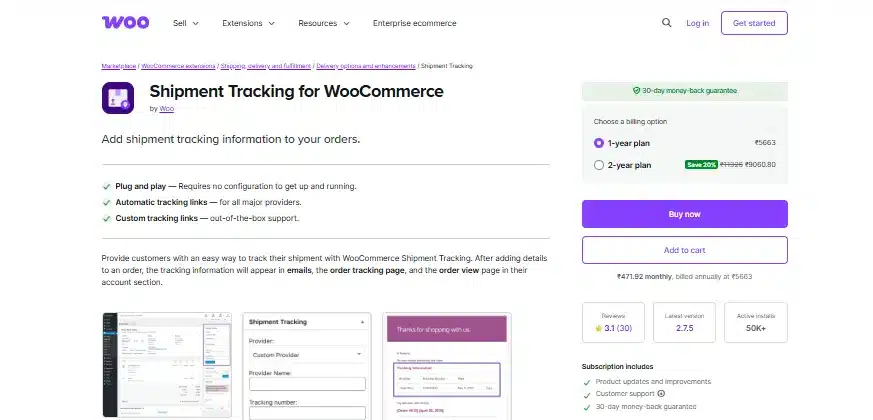
WooCommerce Shipment Tracking is the official extension from WooCommerce itself, priced around $59/year. It does exactly what the name promises: add a tracking number and carrier to any order, and the plugin generates a link automatically. Mobile app support lets staff add tracking numbers on the go.
Best For
Stores that want official compatibility and the simplest possible setup.
Key Features
- Tracking numbers added from the order edit screen
- Automatic tracking link generation for major carriers
- WooCommerce Mobile App integration
- Tracking shown in emails and the order view page
Pricing
- Annual license: $59/year (includes updates and support)
Benefits
- Official support: Built and maintained by WooCommerce.
- Guaranteed compatibility: Updates alongside core WooCommerce releases.
- Simple setup: Takes minutes with no external account.
Limitations
- No branded on-site tracking timeline
- Roughly 15 native carriers versus 900+ on SaaS options
Common mistake everybody makes: Store owners expect the official extension to include SMS or branded pages, since “official” implies fuller features. It doesn’t. Check the feature list against actual needs before assuming this covers marketing or automation.
7. TrackShip for WooCommerce
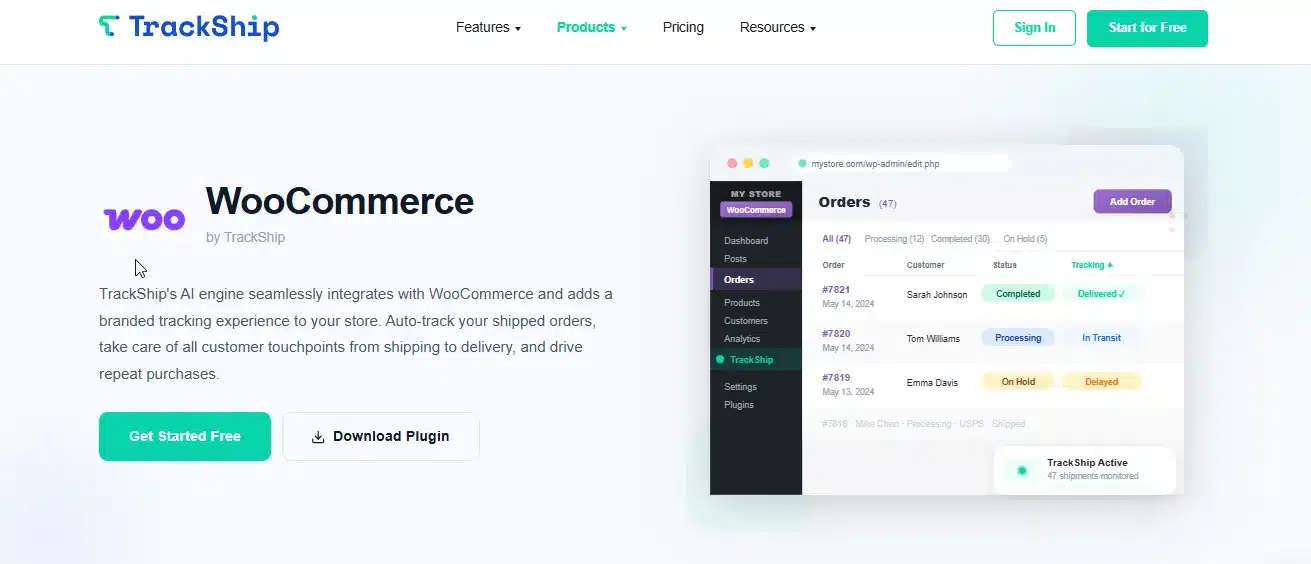
TrackShip for WooCommerce syncs tracking data from the carrier and updates your WooCommerce order status automatically, including marking orders delivered once the carrier confirms it. TrackShip’s automation handles status checks in the background across more than 800 supported carriers. A 15-day free trial covers up to 100 shipments with full premium features included.
Best For
Higher-volume stores that want status updates automated, not manually checked.
Key Features
- Automatic order status sync from carrier data
- Branded on-site tracking experience
- SMS and email delivery notifications
- AI-powered shipping performance insights
Pricing
- Starter: $11/month (100 shipments)
- Scales to $59/month (1,000 shipments)
Benefits
- Automation: Status updates happen without manual checks.
- Delivery confirmation: Orders mark delivered automatically.
- Insights: AI-powered analytics highlight carrier performance issues.
Limitations
- Recurring subscription cost scales with order volume
- More than needed for stores shipping only a handful of orders daily
Common mistake everybody makes: Stores sign up for TrackShip but keep manually updating order statuses out of habit, missing the point of the automation. Trust the sync once configured, and check logs only when something looks off.
How to Choose the Right Order Tracking Plugin for Your Store
- Install → Activate: Go to Plugins → Add New in wp-admin, search your chosen plugin, install and activate it.
- Open an Order: Go to WooCommerce → Orders and select a paid order to edit.
- Select Carrier → Enter Tracking Number: Choose the shipping carrier from the dropdown, then paste in the tracking number.
- Save → Generate Link: Save the order; the plugin auto-generates the tracking link.
- Test the Email: Trigger a test order notification to confirm tracking appears correctly.
- Verify on Storefront: Check the customer’s My Account → Orders page to confirm the link displays.
Your Tracking Setup Might Not Be Working
A few signs tell you it’s time to switch tools rather than tweak your current setup.
- Support tickets haven’t dropped: If “where is my order” messages keep coming after installing a tracking plugin, customers can’t find the link, or don’t trust it.
- Manual copying still happens daily: If your team still pastes tracking numbers from a label service by hand, an automation-focused plugin saves real hours.
- Tracking data disappears after updates: This usually points to an HPOS or checkout block compatibility issue. Our guide to making a plugin HPOS compatible explains what to check before assuming the problem is on your end.
Conclusion
There’s no single winner among the best WooCommerce order tracking plugins covered here. The right pick depends on your carrier list, your order volume, and whether tracking data staying on your own server matters to you.
Start with the comparison table above and rule out anything that doesn’t match your carrier count or budget. From there, weigh self-hosted against SaaS based on how much you want a third party touching your tracking data.
Picking one rarely takes long once you know what to check. Scroll back to the table, shortlist two or three options, and install the one that fits how your store ships.
Frequently Asked Questions (FAQs)
Q1. Does WooCommerce have built-in order tracking?
No. WooCommerce handles shipping zones, rates, and delivery methods, but it doesn’t include shipment tracking. You need a plugin to add tracking numbers, carrier links, or a branded tracking page.
Q2. Are these plugins compatible with HPOS and the new checkout blocks?
It depends on the plugin and how recently it was updated. Check the compatibility notice on each plugin’s listing page before installing. Test tracking data on a staging site first if you’re running HPOS in production.
Q3. Can I use more than one tracking plugin at once?
Technically yes, but it’s not a good idea. Running two tracking plugins usually means duplicate tracking fields on the order screen and conflicting data in customer emails. Pick one and set it up properly.
Q4. Do I need a paid plugin, or is a free option good enough?
For a small store shipping with one or two carriers, a free plugin covers the basics fine. WooCommerce Shipment Tracking or the free tier of AST both work. Paid plugins earn their price with wider carrier support, branded pages, and automation once your order volume grows.
Q5. What’s the difference between a shipping plugin and a tracking plugin?
A shipping plugin calculates rates and prints labels. A tracking plugin takes the tracking number generated during shipping and displays its status to the customer. Some tools, like TrackShip, bridge both by pulling tracking data automatically once a label is created elsewhere.
Q6. Will a SaaS tracking plugin slow down my WooCommerce store?
Most SaaS tracking widgets load asynchronously, so they shouldn’t block your page from rendering. Still, test your site speed after installing any plugin, since script-heavy tracking pages with maps or product recommendations can add measurable load time.
Q6. How soon after an order ships should tracking information appear?
Add the tracking number once the carrier scans the package, not the moment you print the shipping label. A label doesn’t mean the package moved yet. Customers who see tracking with no carrier activity for a day or two tend to assume something went wrong, even when nothing did. Our post on auto-sending tracking emails in WooCommerce covers how to time those notifications correctly.
Q7. Do order tracking plugins work with dropshipping suppliers?
Yes, as long as your supplier provides a tracking number you can enter into WooCommerce. Some plugins, SaaS options with API-based carrier detection especially, handle the unusual tracking number formats that some overseas dropshipping carriers use. Simple link-based plugins tend to struggle with those formats.