Understanding the is_plugin_active WordPress Action starts with one fact. It is a built-in function that checks whether a plugin is turned on. You can set it up in under ten minutes.
Most tutorials skip the part where you pick a method that fits your comfort level with code. Some guides jump straight into a code editor. This one does not.
This guide walks through two paths. One needs zero code. The other uses a few lines you paste into a file. Either way, you will end with a working check and a clear way to confirm it worked, screenshot by screenshot.
What Is “is_plugin_active” in WordPress?
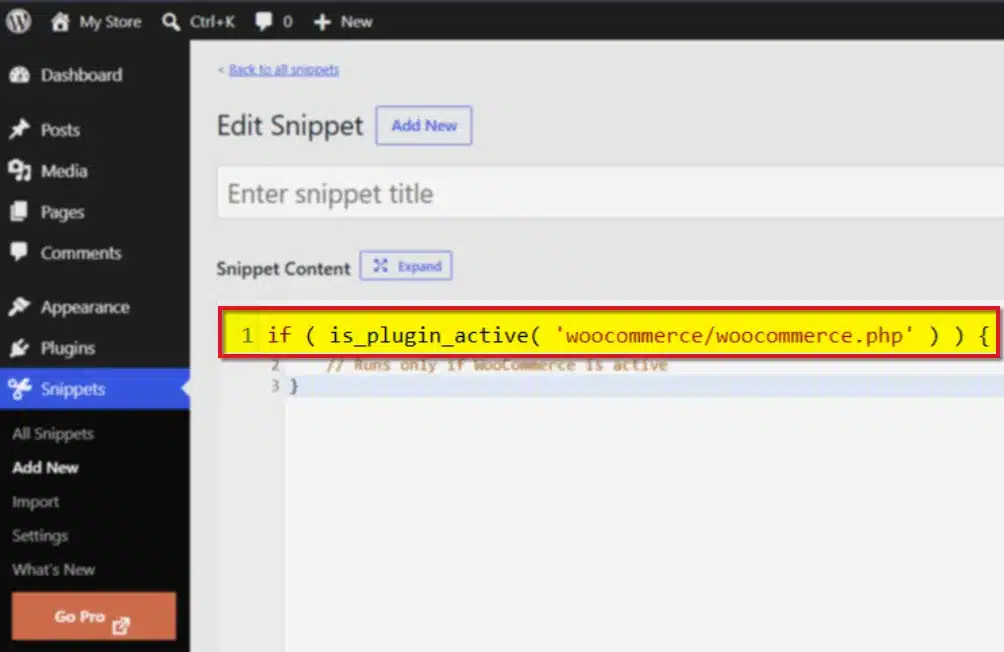
is_plugin_active is a WordPress function that checks if a specific plugin is active on your site, as documented in the official WordPress developer reference. It returns true or false. Nothing more complicated than that.
Plugins add features to WordPress without touching the core files. That part is by design. But every plugin you add also raises the odds of two features clashing, or two plugins doing the same job twice.
is_plugin_active is how your code asks WordPress a direct question: is this other plugin switched on right now? Based on the answer, you can load a feature, skip it, or show a warning.
Here is what the basic check looks like in code:
include_once( ABSPATH . 'wp-admin/includes/plugin.php' );

if ( is_plugin_active( 'plugin-folder/plugin-file.php' ) ) {
    // Code that runs only when the plugin is active
}
Swap plugin-folder/plugin-file.php for the real plugin path, and this small block does the checking for you.
Picture a small supplement store running WooCommerce. The owner installs a custom loyalty script that only makes sense if WooCommerce is present. Without a check, that script could throw errors the moment someone deactivates WooCommerce for maintenance. With is_plugin_active guarding the code, the script simply stays quiet instead of breaking the site.
That is the whole point of the function. It does not install anything. It does not activate anything. It only answers a yes or no question, and your code decides what to do with the answer.
Why Check If a Plugin Is Active?
Three reasons come up again and again in real projects.
- Avoiding conflicts: Two caching plugins running at once can fight over the same job. If you want the fuller picture on this, our guide on how to check for plugin conflicts on WordPress covers it in more depth. A quick
is_plugin_activecheck lets your code step aside instead:
if ( ! is_plugin_active( 'wp-super-cache/wp-cache.php' ) ) {
    // Run your own caching logic only if WP Super Cache is not already doing it
}
- Managing dependencies: Some plugins only make sense alongside another one. If your code needs WooCommerce, checking for it first stops a crash before it starts:
if ( ! is_plugin_active( 'woocommerce/woocommerce.php' ) ) {
    add_action( 'admin_notices', function() {
        echo '<div class="notice notice-error"><p>This feature needs WooCommerce active.</p></div>';
    } );
}
- Loading features conditionally: You might want extra options to appear only when Elementor or a specific plugin is active. This keeps your site lighter for everyone else:
if ( is_plugin_active( 'elementor/elementor.php' ) ) {
    add_action( 'elementor/widgets/register', 'load_custom_elementor_widget' );
}
None of this requires deep PHP knowledge. It requires one function, a plugin path, and a clear idea of what should happen on each side of the check.
Two Ways to Use the is_plugin_active WordPress Action
Pick the path that matches your comfort level. Both get you to the same result.
If you have never opened functions.php and would rather not start now, go with Path 1. It keeps everything inside a familiar plugin interface, with no risk of a typo taking down your whole site.
If you already write custom code, Path 2 fits better. The same applies if you want the check to live inside a plugin you are building, rather than a separate tool. It keeps the logic close to the rest of your project instead of scattered across a snippets manager.
Neither path is more “correct” than the other. WordPress does not care which route you took to get is_plugin_active running. It only cares that the include line loads before the check runs.
Path 1: No Code, Using a Code Snippets Plugin
This path skips file editing completely. Good if you have never touched functions.php and would rather not start today.
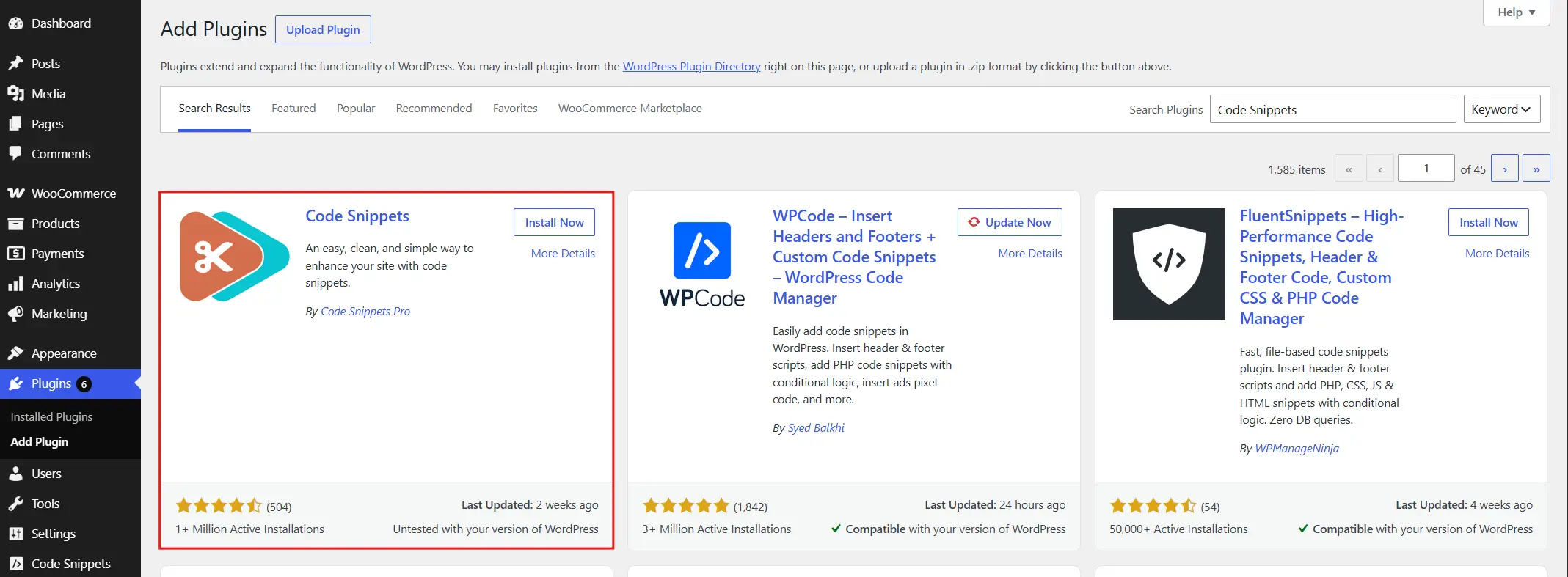
- Go to Plugins → Add Plugin. Search for the Code Snippets plugin. Install and activate it.
- In your dashboard sidebar, click Snippets → Add New. You’ll see a title field and a code box.
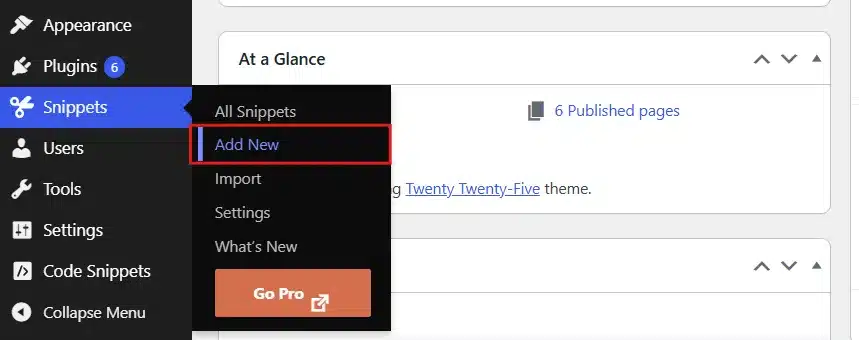
- Drop this into the code box, replacing the plugin path with the one you want to check:
if ( is_plugin_active( 'woocommerce/woocommerce.php' ) ) {
    // Runs only if WooCommerce is active
}
- Choose “Run everywhere” from the dropdown unless you have a reason to limit it.
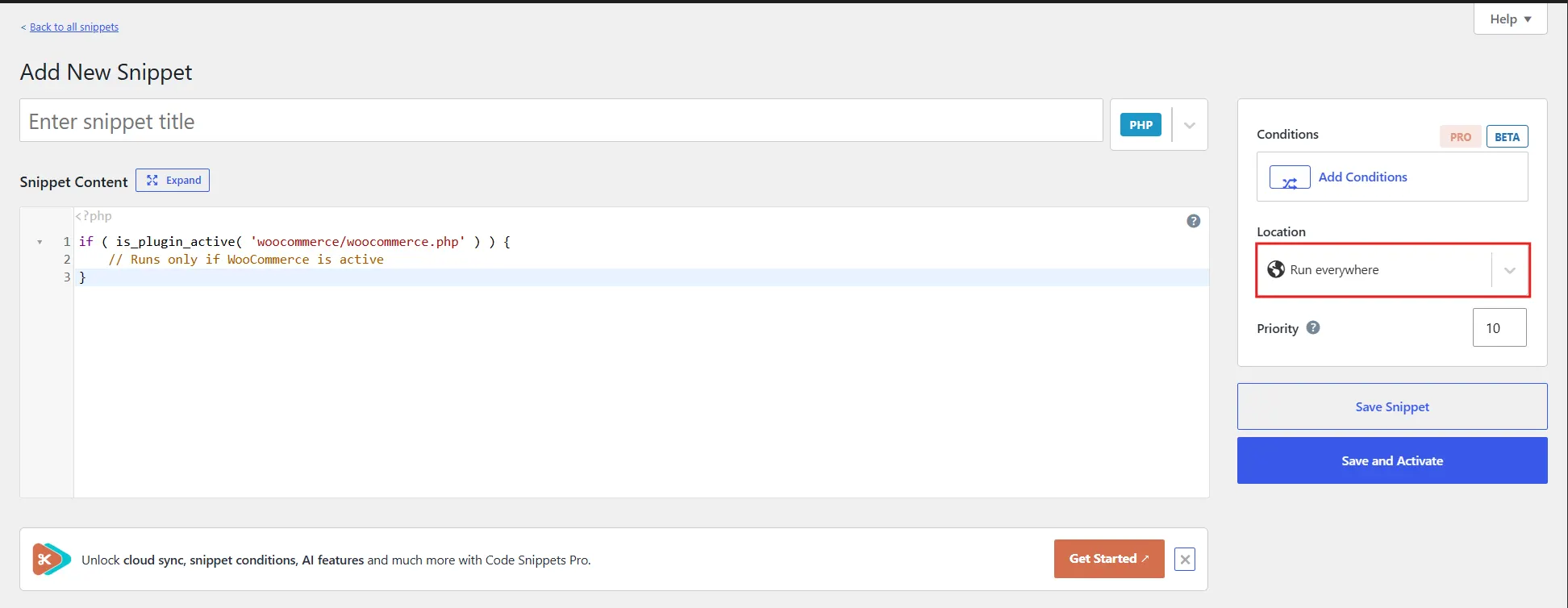
- Click Save and Activate. The check is now live on your site.
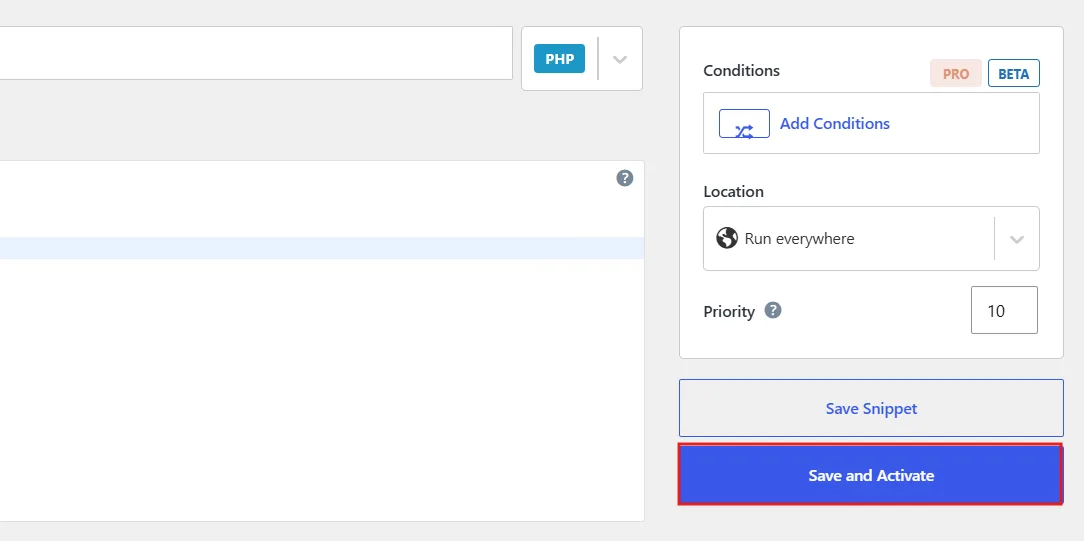
That’s the entire no-code path. Six steps, zero FTP, zero risk of breaking functions.php with a stray character.
Path 2: Direct Code, Editing functions.php or a Plugin File
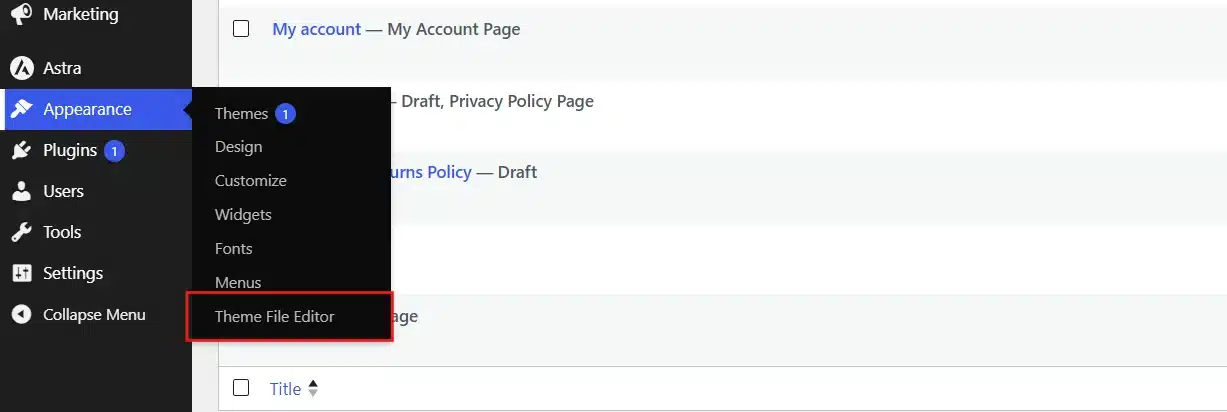
- Go to Appearance → Theme File Editor. Or connect through FTP if you’d rather edit locally.
- On the right side of the editor, find and click
functions.phpfor your active theme.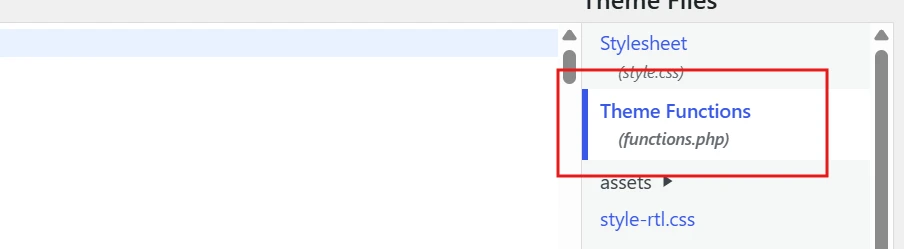
- Paste this near the top of the file, after the opening
<?phptag:
include_once( ABSPATH . 'wp-admin/includes/plugin.php' );

if ( is_plugin_active( 'elementor/elementor.php' ) ) {
    // Runs only when Elementor is active
}
- Click Update File. WordPress will flag a fatal error immediately if something is wrong with the syntax.
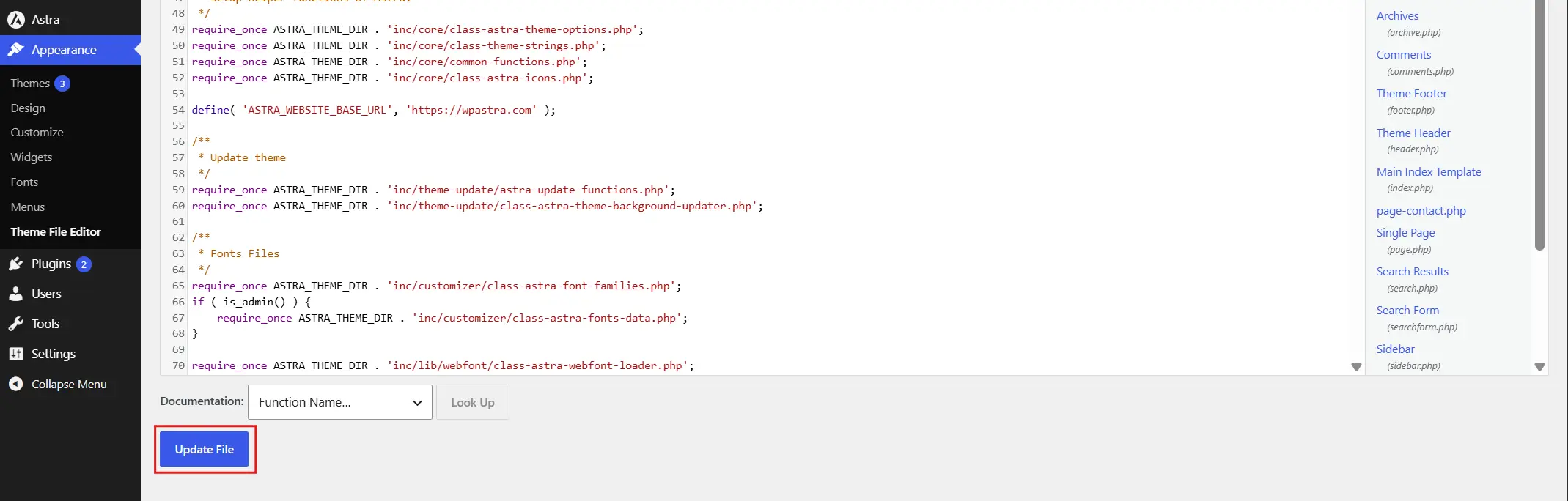
A child theme keeps this change safe from disappearing during a theme update, worth setting up first if you haven’t already.
Important Note: Before proceeding to any code, copy the existing content somewhere safe before you touch anything. Skipping this step is how small mistakes turn into a broken site.
Verify It Worked
Do not skip this part. A silent failure here is worse than an error message.
Add a quick visible test. Paste this version temporarily, right after your is_plugin_active check:
if ( is_plugin_active( 'woocommerce/woocommerce.php' ) ) {
    echo 'WooCommerce is active.';
} else {
    echo 'WooCommerce is not active.';
}
Load the page. You should see one of those two messages print on the screen. If nothing shows up, the include line is likely missing, or the plugin path has a typo.
Not comfortable troubleshooting a stuck check on your own? Our team handles exactly this kind of setup through DevDiggers’ WordPress development services, from a single function check to a full custom build.
Once you confirm the message, delete the echo lines. They were only there to prove the check works.
There is a second way to verify without printing anything to the page. Open your browser’s developer tools, go to the Console tab, and add a temporary error_log() call instead of echo.
if ( is_plugin_active( 'woocommerce/woocommerce.php' ) ) {
    error_log( 'WooCommerce check: active' );
} else {
    error_log( 'WooCommerce check: not active' );
}
The result lands in your server’s debug log rather than on the live page. That matters if you are testing on a site real visitors can already see.
Either method works. Pick the one that fits where you are testing. A staging site can handle a visible message on screen without confusing anyone. A live site probably should not, so the log-file route is the safer default once a site is public.
Multisite: Using is_plugin_active_for_network
Running a multisite network changes the picture slightly. A plugin can be active network-wide without showing as “active” through the standard check on every individual site.
For that scenario, WordPress provides a companion function:
if ( is_multisite() && is_plugin_active_for_network( 'plugin-folder/plugin-file.php' ) ) {
    // Runs when the plugin is active across the whole network
}
Use is_plugin_active for single sites and per-site checks. Use is_plugin_active_for_network when you specifically need to know about network-wide activation.
Skipping this distinction is a common mistake. A plugin that looks inactive on one subsite might still be running fine at the network level, and your check will miss it.
Here is why the mix-up happens so often. Network activation stores its list of plugins in a different database option than per-site activation does. A plain is_plugin_active call only reads the per-site list. It has no visibility into what the network administrator switched on for every site at once.
This distinction trips up experienced developers just as often as beginners, mainly because both functions look interchangeable at a glance. The names are similar enough that a copy-paste from an old project can quietly introduce a bug on a new multisite build.
If you are building anything meant to work across a multisite network, test both functions during development. Activate a plugin network-wide, then check it with plain is_plugin_active on an individual subsite. Watching it return false, while is_plugin_active_for_network correctly returns true, makes the distinction click far faster than reading about it.
Real Examples You Can Adapt
These three scenarios cover most of what comes up in day-to-day theme and plugin work.
- Loading theme features only when a plugin supports them: A theme built for WooCommerce stores often needs to hide certain sections when WooCommerce isn’t installed. This keeps the theme usable as a general-purpose option too:
include_once( ABSPATH . 'wp-admin/includes/plugin.php' );

if ( is_plugin_active( 'woocommerce/woocommerce.php' ) ) {
    add_action( 'woocommerce_after_main_content', 'custom_woocommerce_content' );
}
- Turning off a custom feature when a dedicated plugin already does the job: Say you built a lightweight caching routine into your own plugin, but you don’t want it running alongside a full caching plugin:
include_once( ABSPATH . 'wp-admin/includes/plugin.php' );

if ( ! is_plugin_active( 'wp-super-cache/wp-cache.php' ) ) {
    // Run your custom caching only when WP Super Cache is absent
}
- Warning users when a required plugin is missing: If your plugin extends Elementor, a silent failure is confusing. A clear admin notice saves a support ticket. If you’re working on something more involved, our guide on how to build a custom WooCommerce plugin shows the fuller setup:
function my_plugin_activation_check() {
    if ( ! is_plugin_active( 'elementor/elementor.php' ) ) {
        add_action( 'admin_notices', function() {
            echo '<div class="notice notice-error"><p>Elementor is required for this plugin to work. Please activate it.</p></div>';
        } );
    }
}
add_action( 'admin_init', 'my_plugin_activation_check' );
Each of these follows the same shape: check first, then decide. The logic barely changes between projects, only the plugin path and the action you take.
Best Practices for the is_plugin_active WordPress Action
A handful of habits keep this function from turning into spaghetti code as a project grows.
Keep dependencies to a minimum. Every plugin your code checks for is one more thing that can change without warning. Check only for what your feature truly needs.
Always plan a fallback. If your feature depends on a plugin that might not be active, decide in advance what happens instead of crashing silently.
Store the result if you check the same plugin more than once on a page. Calling is_plugin_active inside a loop, over and over, adds unnecessary overhead:
$has_woocommerce = is_plugin_active( 'woocommerce/woocommerce.php' );

if ( $has_woocommerce ) {
    // First use of the result
}

if ( $has_woocommerce ) {
    // Second use, no repeated function call
}
Document the dependency somewhere visible, whether that is a comment in the code or a line in your plugin’s settings screen. Future you, or whoever inherits the project, will thank you.
Hook your check into the right moment. Running is_plugin_active before WordPress has fully loaded every plugin can return a false result even when the plugin is active and running. Wrapping your check inside plugins_loaded or init avoids that timing issue entirely, and it costs nothing extra to set up.
One honest trade-off worth naming here. Leaning on is_plugin_active for every feature toggle can make a codebase harder to follow. That happens when it gets used everywhere without a consistent pattern. For a handful of checks, it is the simplest tool available. For a plugin with a dozen or more dependencies, a proper dependency-management library is usually the better long-term choice.
is_plugin_active vs Related Functions
A few related functions solve slightly different problems. Knowing when to reach for each one saves time later.
is_plugin_activevsget_option('active_plugins'): The option approach reads the raw list of active plugins straight from the database:
$active_plugins = get_option( 'active_plugins' );

if ( in_array( 'woocommerce/woocommerce.php', $active_plugins ) ) {
    // WooCommerce is active
}
This works, but it skips network-activated plugins and the built-in filters that is_plugin_active already account for. Stick with is_plugin_active for anything standard. Reach for get_option only when you need a raw list of every active plugin at once, rather than a single yes-or-no answer.
is_plugin_activevsis_plugin_inactive: This one is simply the mirror image:
if ( is_plugin_inactive( 'plugin-folder/plugin-file.php' ) ) {
    // Runs when the plugin is NOT active
}
Some developers prefer is_plugin_inactive for readability when the whole point of a check is confirming something is off. Both approaches reach the same result. Pick whichever version reads better in your own code.
is_plugin_activevs checking a class or function exists: A different, looser pattern checks for a class the plugin defines instead of the plugin file itself:
if ( class_exists( 'WooCommerce' ) ) {
    // WooCommerce is loaded
}
This can catch cases where a plugin loads through an unusual method outside the standard plugin system. It is less precise than is_plugin_active, though, since a class name collision from an unrelated plugin could produce a false positive. Use the file-path check as your default, and fall back to a class check only when a specific plugin leaves you no other option.
Common Errors With the is_plugin_active WordPress Action
Every one of these shows up regularly in support tickets. Here is what causes each one and how to fix it.
- Function not found: This happens when
plugin.phpwas never included. Addinclude_once( ABSPATH . 'wp-admin/includes/plugin.php' );before your check, especially on the front end. If a bad edit already crashed your site, our guide on how to fix a plugin activation fatal error walks through recovery. - Wrong plugin path: The path must match the plugin’s folder and main file exactly, like
woocommerce/woocommerce.php. Check the Plugins screen or the plugin’s own folder name to confirm it. - Check runs too early: Calling
is_plugin_activebefore plugins have loaded can return a false negative. Hook your check intoplugins_loadedorinitinstead of running it immediately. - Must-use plugins always return false: This is not a bug. Plugins in the
mu-pluginsfolder cannot be “activated” in the normal sense, so the function will never report them as active.
We see the “function not found” error most often in support. It is almost always tied to a snippet copied straight from a tutorial without the include line. Worth checking first if your code throws an error immediately after saving.
Version Notes Worth Knowing
is_plugin_active has stayed part of WordPress core since the earliest plugin API, and its behavior has not changed in any recent release. That stability is rare in an ecosystem that updates constantly, and it is one reason so many themes and plugins still lean on it today.
What does shift, occasionally, is how plugins organize their own files. A plugin that used plugin-name/plugin-name.php in one version might restructure its folder in a later release, especially after a rebrand or a major rewrite.
If a check that worked for months suddenly starts failing after a plugin update, start with the file path. Confirm it against the plugin’s current folder structure before assuming the function itself broke. Nine times out of ten, a renamed folder is the real culprit.
On WordPress installs running current versions alongside WooCommerce’s High-Performance Order Storage, is_plugin_active behaves exactly the same as it always has. The function checks plugin activation status, not order storage, so HPOS has no bearing on it either way.
Conclusion
Understanding the is_plugin_active WordPress Action comes down to one small function doing one clear job: telling your code whether a plugin is switched on. Whether you used the no-code Snippets path or edited functions.php directly, the result works the same way inside WordPress.
The habits that matter most are simple. Back up before editing files. Verify with a visible test before trusting the check silently. And reach for is_plugin_active_for_network the moment multisite enters the picture.
Get those three right, and this function becomes one less thing you have to think about.
Frequently Asked Questions (FAQs)
Q1. Does is_plugin_active slow down my site?
A single check has no noticeable impact. Running it repeatedly inside a loop can add up, though. Store the result in a variable if you are checking the same plugin more than once.
Q2. Can I use is_plugin_active on the front end without extra steps?
Not without one extra step. The function lives in a file that only loads automatically in the admin area. You need the include_once line on any front-end page or template.
Q3. What happens if the plugin file path is wrong?
The function simply returns false, as if the plugin were inactive. It will not throw an error, which is exactly why a wrong path is easy to miss during testing.
Q4. Does is_plugin_active work for must-use plugins?
No. Plugins placed in the mu-plugins folder load automatically and cannot be deactivated, so is_plugin_active always returns false for them regardless of their real status.
Q5. Can I check if a plugin is active without writing any code?
Yes. The Code Snippets path covered earlier lets you paste a ready-made check into a plugin interface, with no file editing or FTP access required.
Q6. Will a WordPress update break my is_plugin_active check?
Rarely, since the function itself has stayed stable for years. What can break is the plugin path, if a plugin you are checking changes its main file name during a major update. Test after any plugin update that touches a dependency you check for.
Q7. Is there a way to check several plugins at once?
Yes. Loop through an array of plugin paths and check each one inside the loop. Store the results in variables you can reuse across the page, instead of calling the function separately for every plugin.