A WooCommerce POS for restaurants is a plugin that connects your in-store ordering directly to your existing WooCommerce site. Orders placed at the table or counter sync straight to your WooCommerce database, keeping stock accurate and operations clean across both channels. You don’t need a separate system running in parallel. One store. One source of truth.
Most restaurant owners run into setting up WooCommerce for online orders, then bolt on a standalone POS for in-house sales. Now they’re managing two inventories, reconciling two order lists, and fixing stock errors every single week. Customers wait longer. Staff make avoidable mistakes.
That’s what this guide is about. We’ll cover what to look for in a WooCommerce POS built specifically for restaurants, which features matter most in a real service environment, how to set one up, and whether it’s the right fit for your type of food business.
What Is WooCommerce POS for Restaurants?
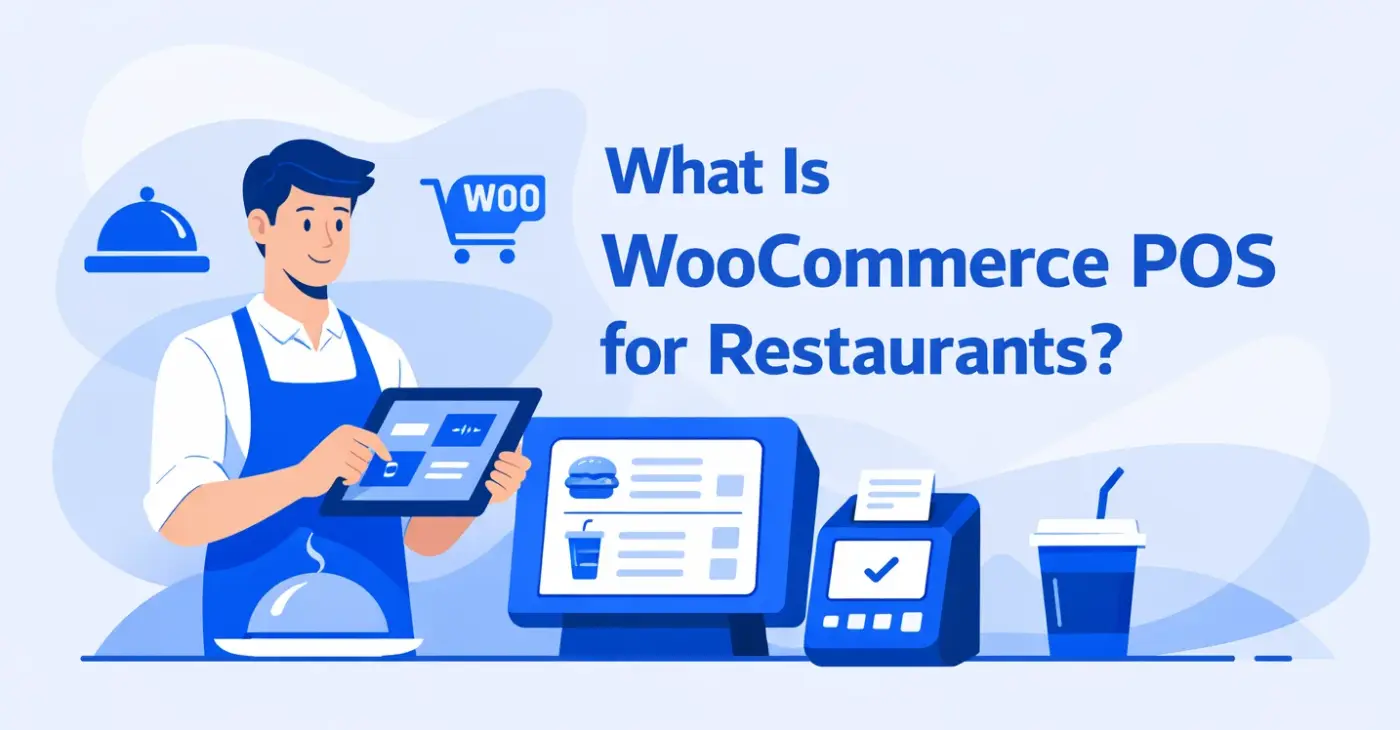
A WooCommerce POS for restaurants is a point-of-sale system that runs directly inside your WordPress and WooCommerce environment. It handles dine-in table management, takeaway orders, kitchen communication, and payment processing.
This is different from a standalone POS. In a standalone system, every sale you process in-store has to be manually reconciled with your online stock. Whereas in WooCommerce-native POS, when a customer orders a dish at the table, it updates immediately. If you sell the last portion of something at the counter, it comes off your online menu, too.
The restaurant use case adds specific requirements on top of a standard retail POS setup. You need table management, kitchen order routing, and the ability to handle dine-in and takeaway in the same session. Not every WooCommerce POS handles this. Most are built for retail, with restaurant mode added as an afterthought — if it’s there at all.
Why Restaurants Are Moving to WooCommerce POS Systems
According to Grand View Research, the global restaurant POS terminal market was valued at over $22 billion in 2023 and is projected to reach $38.16 billion by 2030, growing at a CAGR of 8%. That’s a significant shift in how food businesses are investing.
The food businesses running WooCommerce for online orders or delivery integrations added a standalone POS, due to which they’re managing two different dashboards every day.
Standalone POS systems charge monthly fees per transaction, your online ordering platform, and the staff time spent reconciling two systems every shift, and you’re spending more than you should.
Running a unified WooCommerce POS removes those extra recurring costs and reconciliation burden entirely. For a two-location restaurant with multiple terminals, that’s a meaningful saving each year, with no per-transaction fees.
Must-Have Features in a WooCommerce Restaurant POS
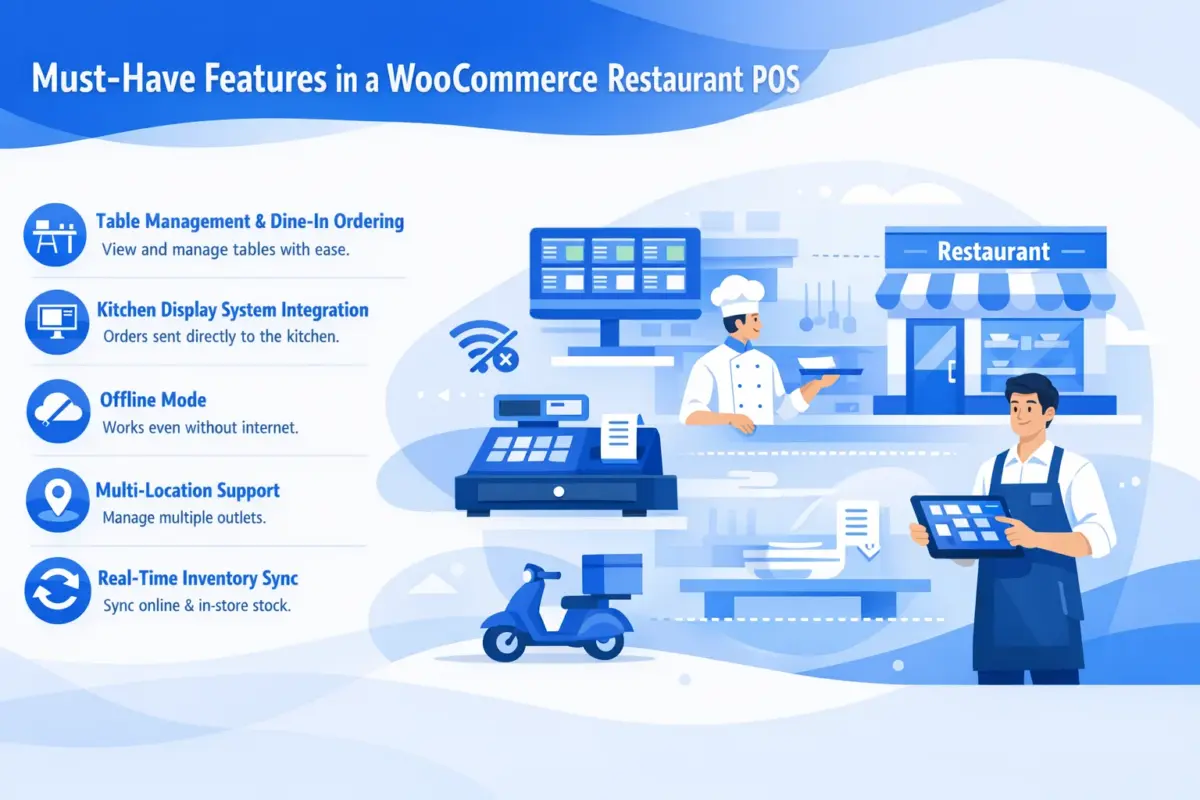
Most articles list generic POS features and call it done. Restaurants need something more specific. Here’s what matters in a real service environment — and why each one counts.
1. Table Management and Dine-In Ordering: A proper table management system lets you see every table in your dining room at a glance, know which ones are occupied, assign orders to specific tables, and track where each order sits in its lifecycle.
2. Kitchen Display System (KDS) Integration: When a server hits a table order from the POS, it appears immediately on a screen in the kitchen. The team sees and makes it done. The server can track the status from the front.
3. Offline Mode: A WooCommerce POS with offline mode stores everything locally. Transactions keep processing. Orders keep going to the kitchen. When connectivity returns, everything syncs automatically. You don’t lose a single order.
4. Multi-Location or Outlet Support: Multi-outlet support means creating distinct store locations inside a single WooCommerce installation. Each location gets its own cashiers, inventory, and receipt templates. You get combined reporting from one admin panel.
5. Real-Time Inventory Sync Across Online and In-Store: A sale and online order at the POS reduces inventory in WooCommerce. Both channels pull from the same stock count. You stop overselling dishes and can’t make and stop manually updating availability mid-service.
What Type of Restaurant Is WooCommerce POS Best Suited For?
This is a question most articles skip entirely, but it’s worth being honest about. WooCommerce POS isn’t the right fit for every food business. Here’s a clear breakdown.
Restaurants that already run WooCommerce for online ordering or takeaway are the obvious best fit. Your menu is already in WooCommerce. Adding a POS layer is a natural extension.
Small to mid-sized restaurants with 1-5 locations are well served here. You get multi-outlet support, per-location inventory, and consolidated reporting without enterprise pricing.
Cafes, fast-casual restaurants, and food businesses that handle both walk-in and online orders regularly see the biggest benefit from real-time stock sync.
Restaurant owners who want to avoid long-term SaaS subscription fees tied to transaction volume will also find WooCommerce POS attractive. You pay for the plugin license once per year, no matter how busy your service gets.
How MultiPOS Handles Restaurant Operations on WooCommerce
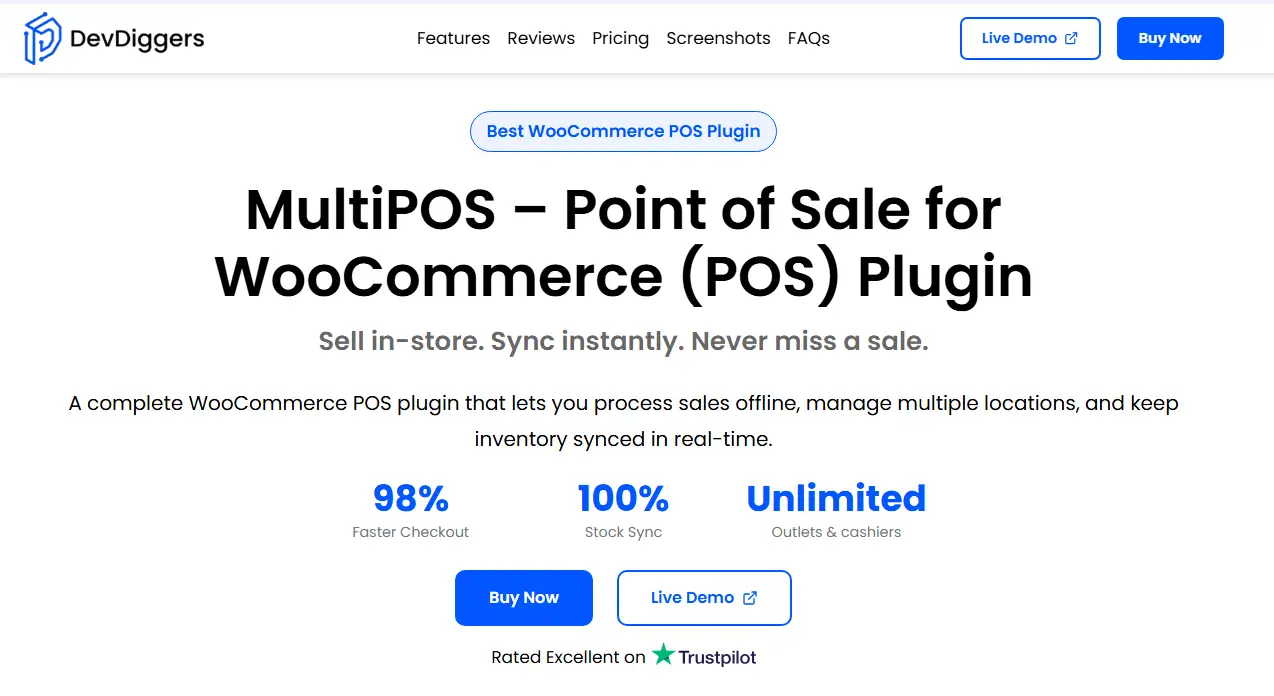
Our MultiPOS is the #1 WooCommerce point of sale plugin built specifically for WooCommerce stores operating physical locations. The restaurant features aren’t an afterthought; they’re a dedicated outlet mode with purpose-built tooling for food service operations.
Here’s how it handles the scenarios that matter most to restaurant owners.
Restaurant and Table Management Built In
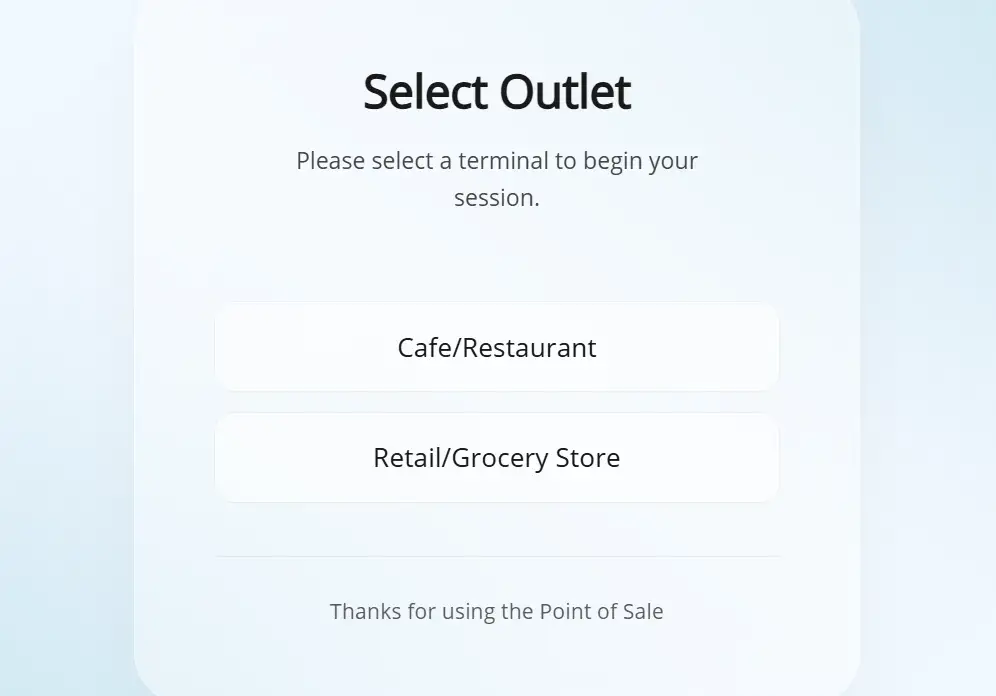
When you set up an outlet in MultiPOS, you choose between retail mode and restaurant mode. Switch to restaurant mode, and you get a visual table layout. Add your tables, assign them to the outlet, and then your servers can see live table status.
Staff can add items across multiple rounds without closing and reopening the order. The table stays occupied in the system until the bill is settled and closed. You can configure as many tables as your floor plan needs; there’s no limit.
Dine-In and Takeaway Modes
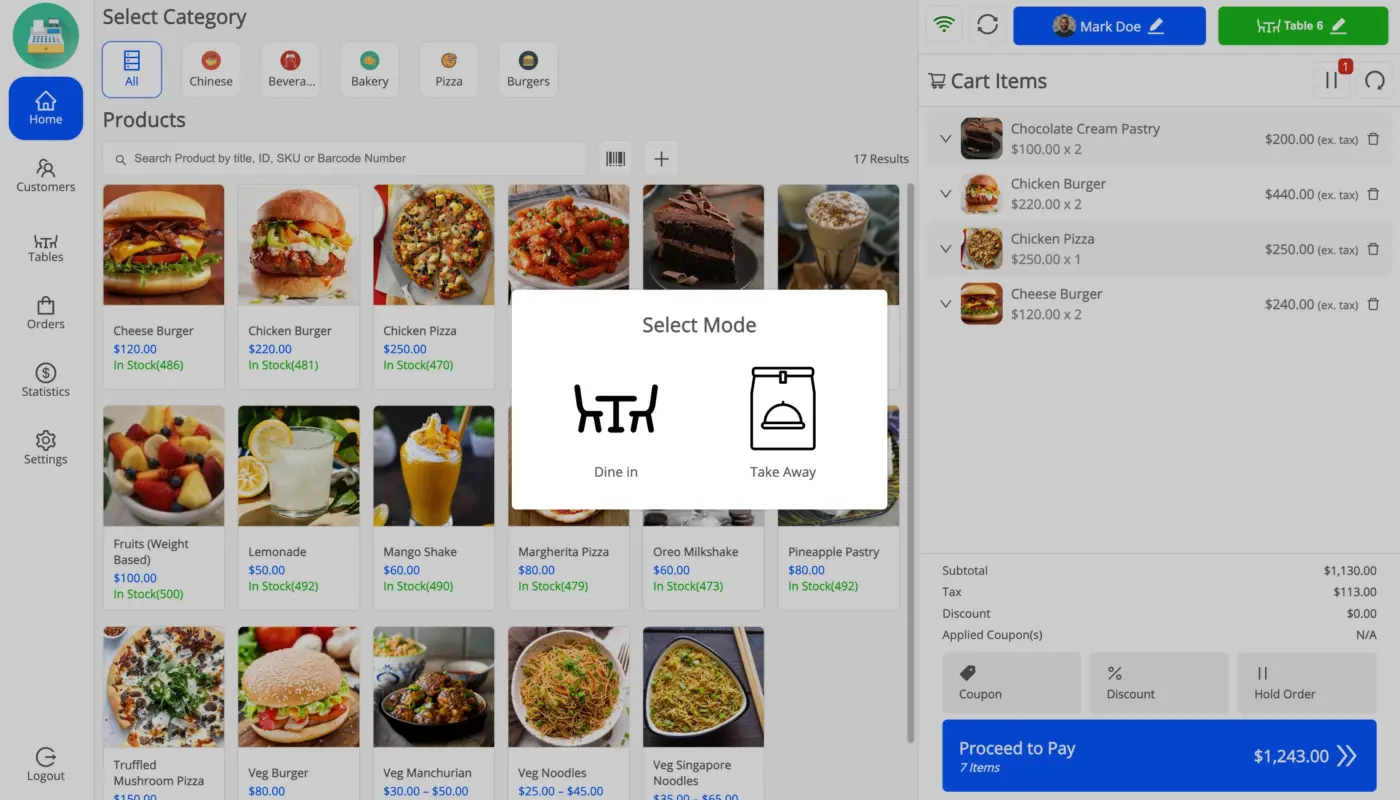
MultiPOS handles dine-in and takeaway orders from the same POS terminal. Staff chooses the order type at the start of the transaction. Dine-in orders are routed to a table. Takeaway orders are processed through the standard checkout flow.
A takeaway order and a dine-in order for the same dish need different handling. The kitchen needs to know. MultiPOS routes them correctly so your kitchen always has the full picture.
Kitchen View for Order Coordination
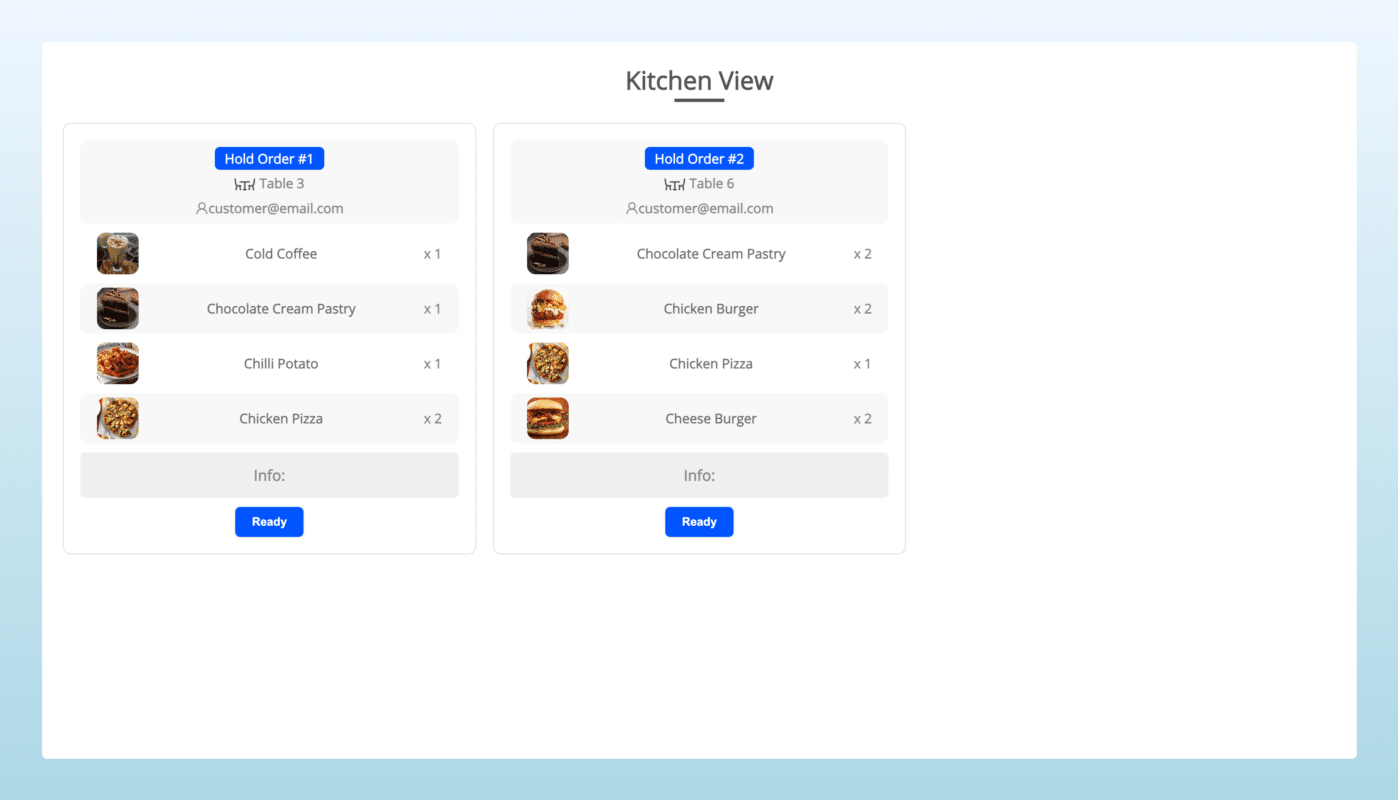
MultiPOS includes a built-in kitchen view screen. This is a separate display — typically mounted in the kitchen — that shows incoming orders in real time. Your kitchen team opens it on any device without needing a POS login. They see the order, prepare it, and mark it done.
The moment a server confirms an order at the table, it appears on the kitchen screen. No paper. No shouting. No order gets lost in a busy service.
Works on Any Device, Including Tablets and iPads
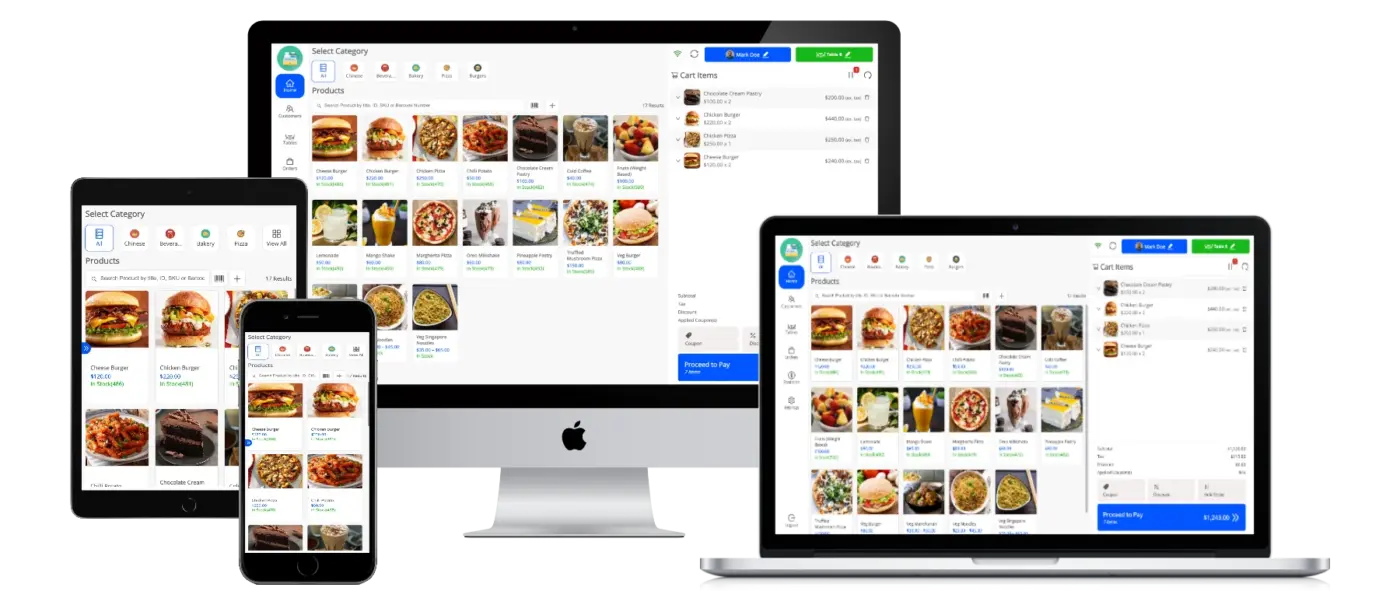
MultiPOS runs as a Progressive Web App, which means you install it on any device and it behaves like a native app. It runs on iPads, Android tablets, smartphones, and desktop computers.
It connects to standard POS hardware too, 80mm and 58mm thermal receipt printers, USB and Bluetooth barcode scanners, and cash drawers that open through the printer connection. You don’t need any specialist hardware.
Sales Reports That Actually Tell You Something Useful
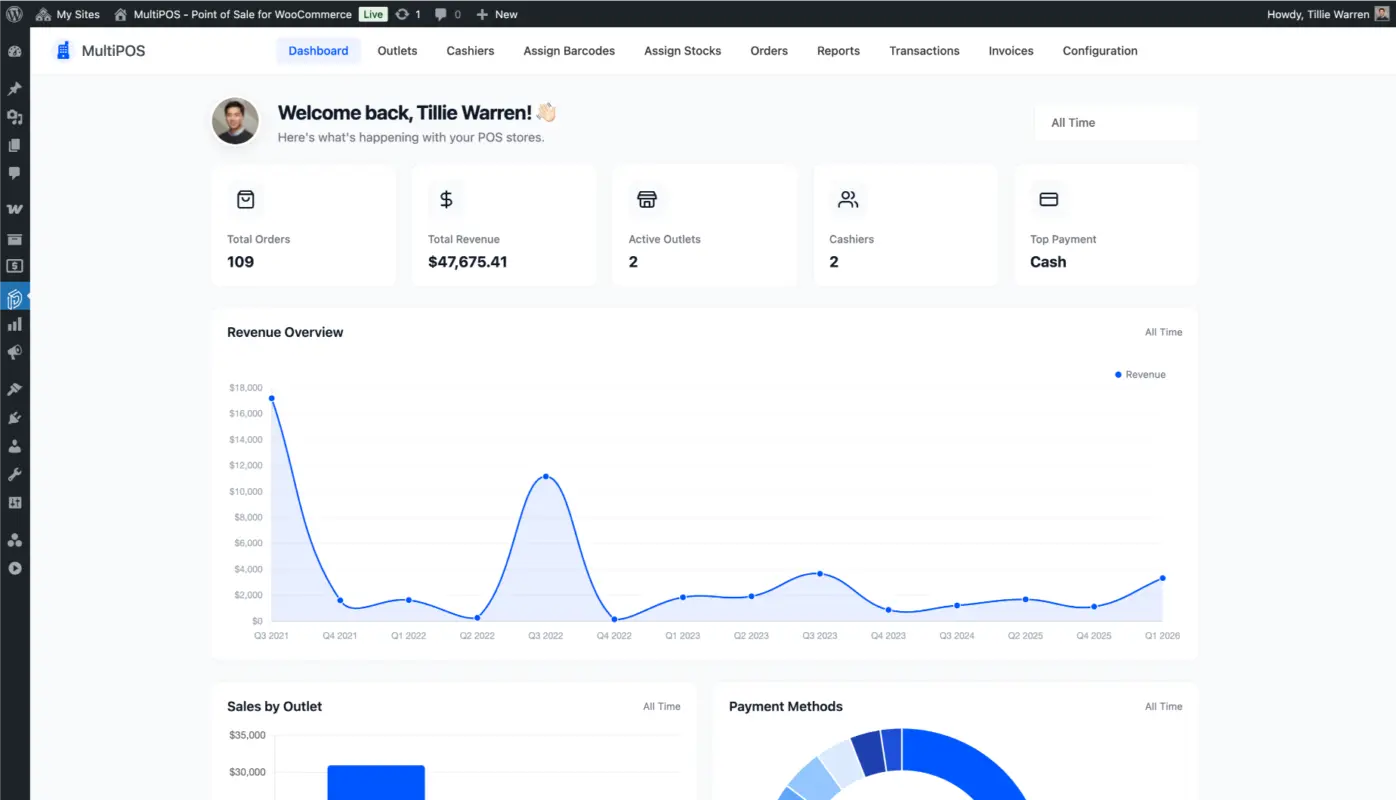
MultiPOS gives you a real-time sales dashboard that breaks down performance by outlet, cashier, and time period. You can see which dishes are selling most at each location, which payment methods your customers prefer, and how today’s service compares to last week’s.
This replaces the end-of-day guesswork. That is the kind of data that helps you make menu decisions, staffing decisions, and purchasing decisions with confidence.
You can try the full restaurant mode yourself through the live MultiPOS demo before committing to anything.
How to Set Up WooCommerce POS for Your Restaurant
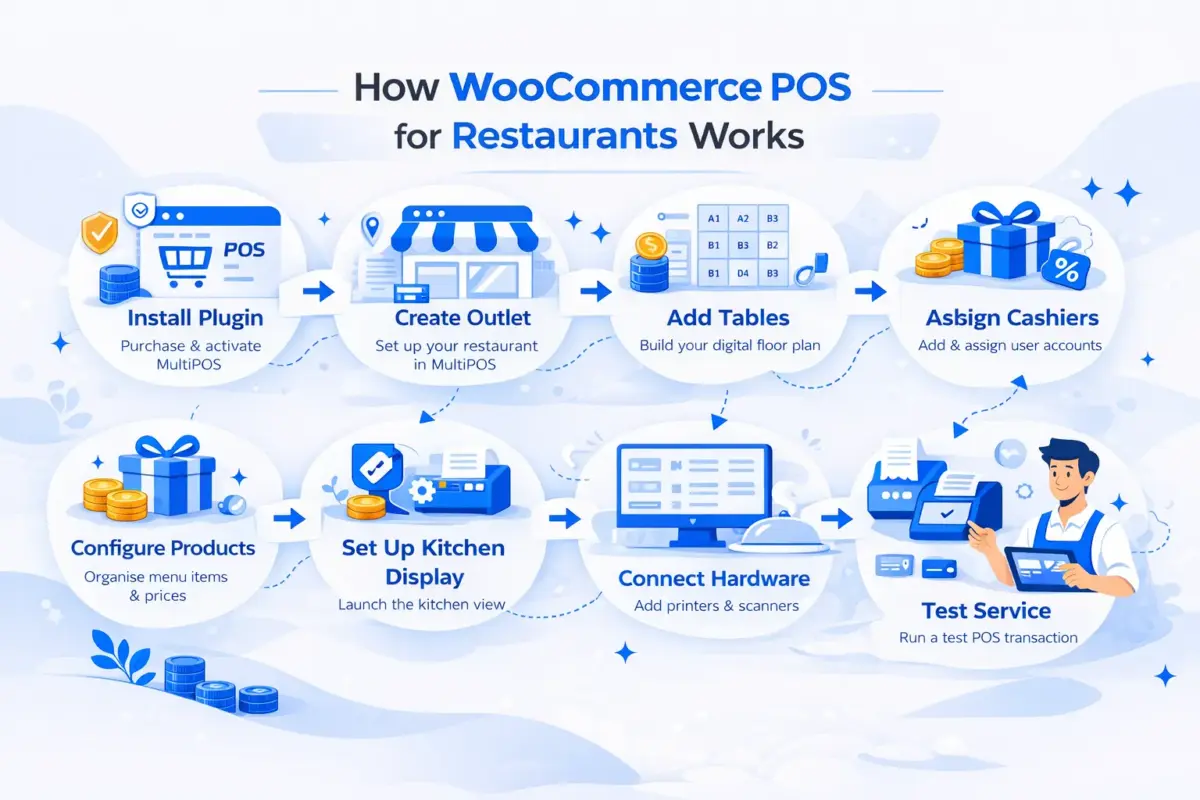
Setting up a WooCommerce restaurant POS doesn’t need to take days. Here’s a clean path from installation to first service.
- Install and activate the plugin: Purchase and install our MultiPOS plugin on your WooCommerce site. Activate your license key from the plugin settings.
- Create your restaurant outlet: Go to MultiPOS settings and add a new outlet. Set the outlet type to “Restaurant.” Give it a name that matches your location or dining area.
- Add your tables: In the outlet settings, add your tables. Name or number them to match your physical floor plan. These appear as a visual grid when your staff opens the POS.
- Assign cashiers: Create cashier accounts for your staff. Assign each cashier to the relevant outlet. You can set role-based permissions to control what each person can access — including discount approvals and refund processing.
- Configure your products: Your existing WooCommerce products are automatically available in the POS. Organise them by category so staff can find menu items quickly. You can also create custom products on the fly for daily specials or off-menu items.
- Set up your kitchen display: Open the kitchen view URL on a screen or tablet mounted in your kitchen. No login needed. It will show incoming orders automatically once your outlet goes live.
- Connect your hardware: Pair your thermal printer and barcode scanner if applicable. Configure printer settings in the MultiPOS backend. Run a test print to confirm everything connects cleanly.
- Run a test service: Before going live, work through a full transaction, open a table, add items, send to the kitchen, process payment, and print a receipt. Make sure the full flow runs correctly.
Once this is set up, your POS is live. Everything from this point syncs with WooCommerce in real time.
Conclusion
Running a restaurant means you’re already juggling more than enough. Your POS system shouldn’t add to that load.
A WooCommerce POS for restaurants brings your in-store and online operations under one roof. Stock stays accurate. Kitchen communication is clear. And you’re not manually reconciling two systems at the end of every shift.
Three things to take from this guide is offline mode is not optional for serious restaurant use, kitchen display integration needs to be native, not bolted on, and real-time inventory sync is what actually prevents the overselling and stockout problems that hurt service quality.
If you’re already running WooCommerce and want a POS that handles restaurant operations properly, our MultiPOS plugin includes table management, kitchen view, dine-in and takeaway support, and offline capability — all out of the box. No per-transaction fees. No separate system to manage.
Try the live demo and see how it handles a full restaurant service before you decide. If you’d like help with a custom setup, our WooCommerce development services team is available to get everything running exactly as you need it.
Frequently Asked Questions(FAQs)
Q1. Can I use WooCommerce as a restaurant POS system?
Yes. With the right plugin, WooCommerce can function as a full restaurant POS. You need a plugin that supports restaurant outlet mode with table management, kitchen order routing, and offline capability. MultiPOS adds all of this directly to your existing WooCommerce store without requiring a separate system.
Q2. Does a WooCommerce restaurant POS work offline?
It depends on the plugin. MultiPOS operates offline by storing transaction data locally and syncing automatically when connectivity is restored. Your team keeps processing orders and sending them to the kitchen even if the internet drops mid-service.
Q3. How does a kitchen display system work with WooCommerce POS?
When a server places an order from the POS terminal, it appears in real time on a separate kitchen view screen. The kitchen team sees the order, prepares it, and marks it complete. MultiPOS includes a built-in kitchen view that opens.
Q4. What hardware does a WooCommerce restaurant POS support?
MultiPOS works with standard POS hardware, including 80mm and 58mm thermal receipt printers, USB and Bluetooth barcode scanners, and cash drawers connected through the printer. It also installs as a PWA on tablets, iPads, Android devices, and desktop computers.
Q5. Is WooCommerce POS suitable for a café or fast-casual restaurant?
Yes. Cafés and fast-casual restaurants are some of the best fits for WooCommerce POS. You can handle walk-in counter orders and online pre-orders through the same system. Real-time inventory sync means that when you sell the last item at the counter, your WooCommerce menu updates immediately.
Q6. Do I need coding skills to set up a WooCommerce restaurant POS?
No. MultiPOS is configured entirely from the WordPress admin without any coding. You create outlets, add tables, assign cashiers, and connect hardware through the settings interface. If you want a custom setup, our WooCommerce development services team can handle it for you.