You can change your Gravatar on WordPress in two different places. Most guides only tell you about one of them.
There’s your personal Gravatar: the photo tied to the email address that follows you around the internet.
And there’s the site-wide default avatar: the placeholder image visitors see when they comment without a Gravatar of their own.
Both take under five minutes. This guide covers both, plus what to do when the change doesn’t stick.
Quick version, so you land in the right section:
- Want to update your own picture when you comment on blogs? → Personal Gravatar
- Want the grey silhouette(outline image) to stop showing on your own site? → Default avatar setting
- Want zero dependency on a third-party service? → Local avatar plugin
What a Gravatar Is and Why WordPress Uses It
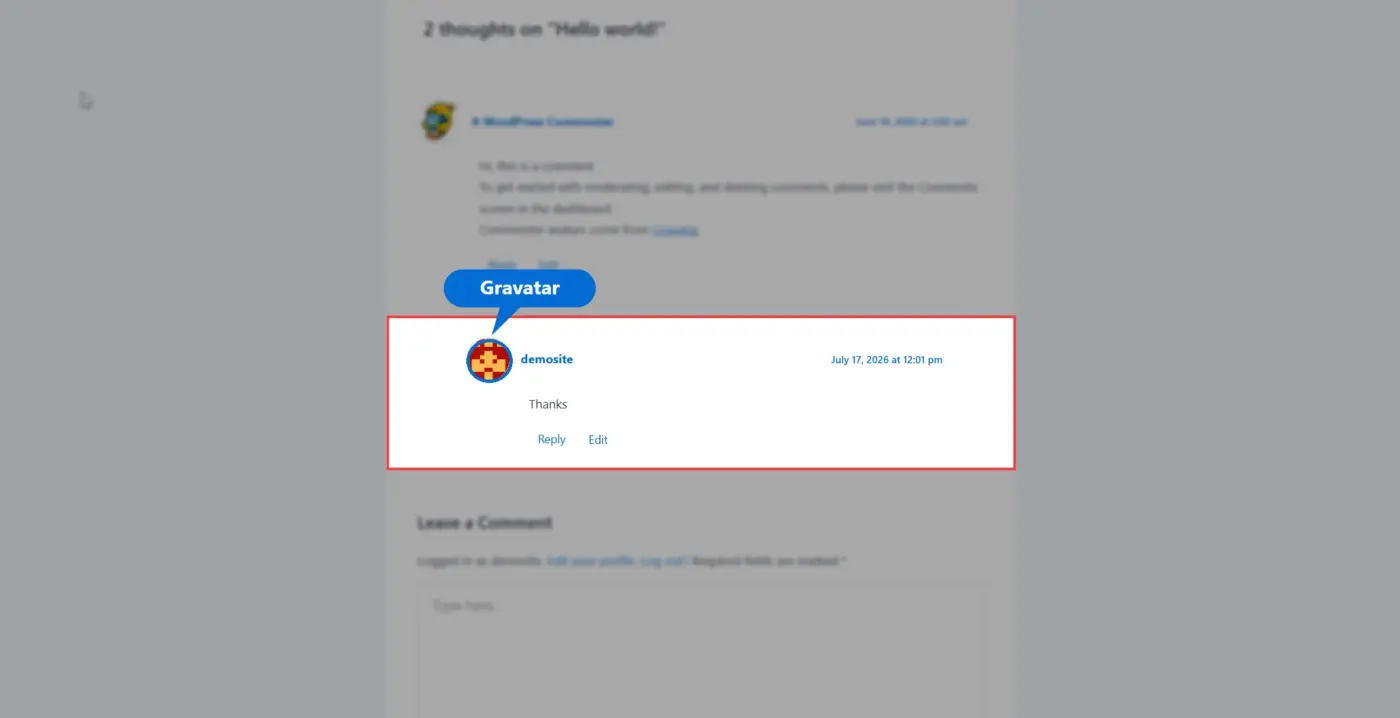
A Gravatar is Automattic’s Globally Recognized Avatar service. Upload one photo to gravatar.com, tie it to an email address, and that photo shows up anywhere Gravatar is supported. That includes WordPress comments, GitHub, and Slack.
Gravatar was created by developer Tom Preston-Werner. Automattic, the company behind WordPress.com, has owned it since 2007. WordPress has had Gravatar support built in since version 2.5.
Whenever a theme calls the get_avatar() function, WordPress hashes the commenter’s email address. It then asks Gravatar’s servers for a matching image.
- If a match exists → it displays.
- If not → WordPress falls back to whatever default you’ve configured.
That’s the whole system. One photo, one email address, and it follows you everywhere.
A Gravatar account also comes with a bio page, a list of verified social accounts, and support for “Gravatar Hovercards” (the popup card that appears when someone hovers over a comment avatar). None of that is required to change your picture. It just explains why some commenters show a rich profile card, and others show a flat image.
Small identity details like this add up. The same logic applies to how to change your WordPress favicon, the tiny icon in a browser tab. Neither takes long, and both get noticed more than you’d expect.
How to Change Personal Gravatar: Own Profile Picture
This is what most people mean when they search for this. It’s the picture next to your name when you comment on someone else’s WordPress site, post in a Gravatar-supported forum, or show up anywhere else Automattic’s service is plugged in.
Here’s how to update it:
- Go to gravatar.com and sign in. Your account is tied to whichever email address you registered with.
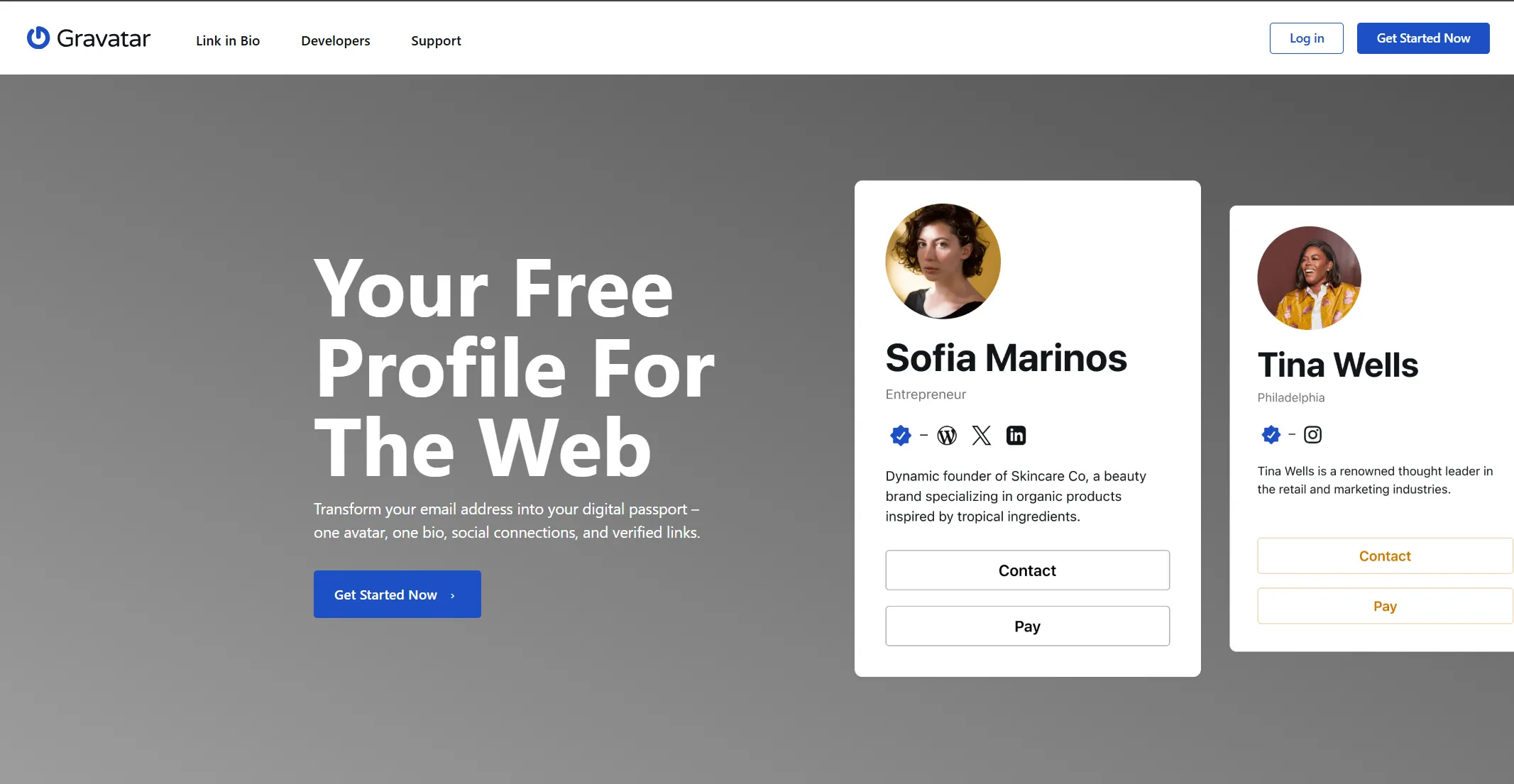
- Tap on Start now; it will redirect you to your profile.
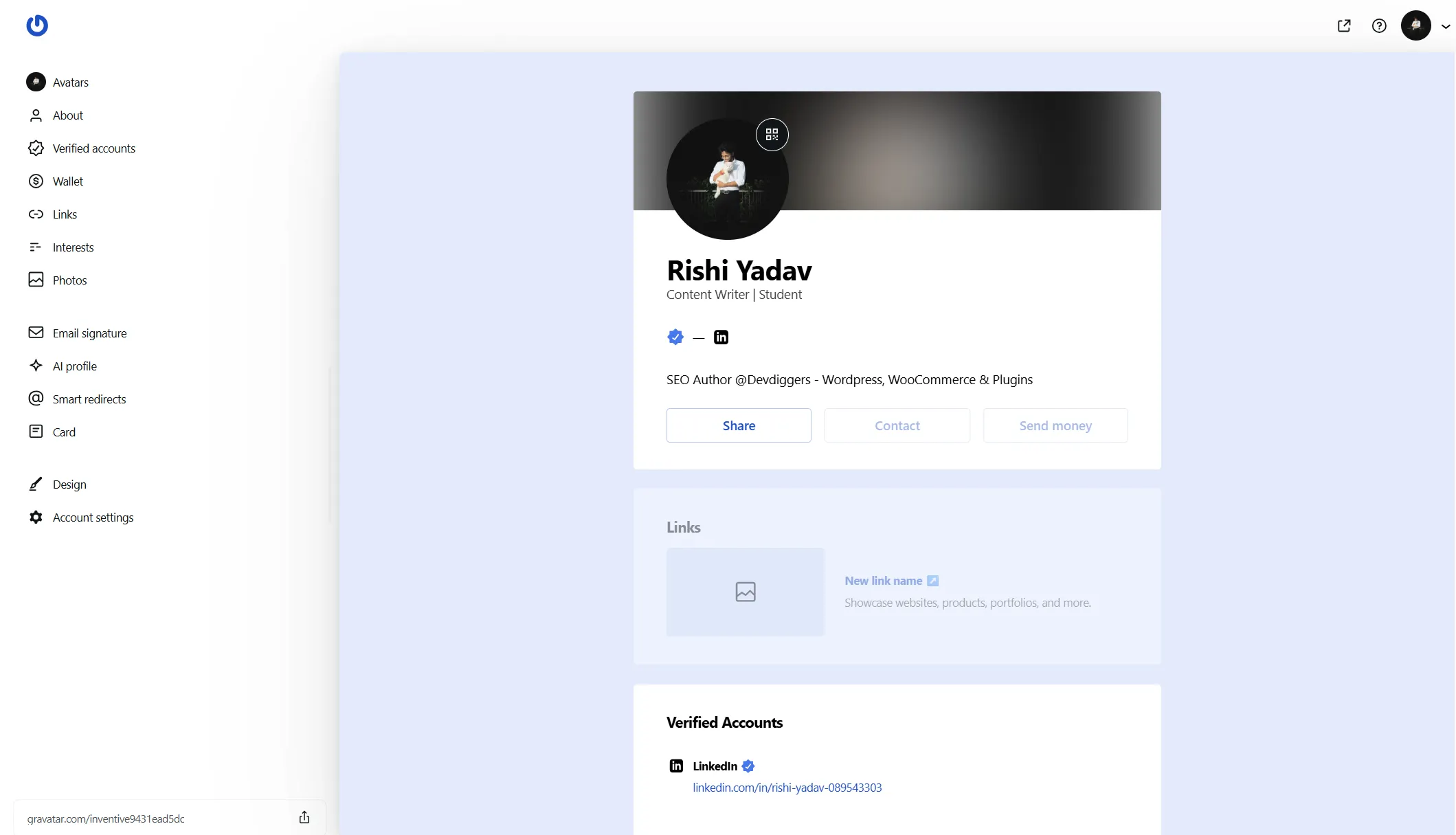
- Click the avatar section to add a new image.
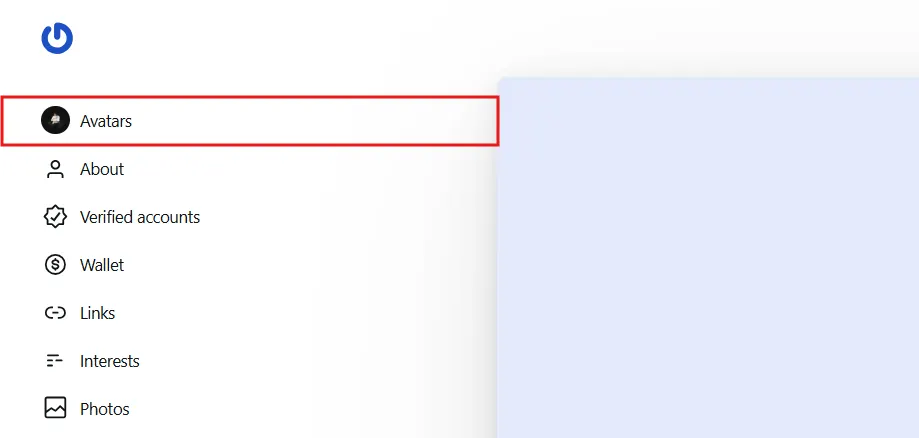
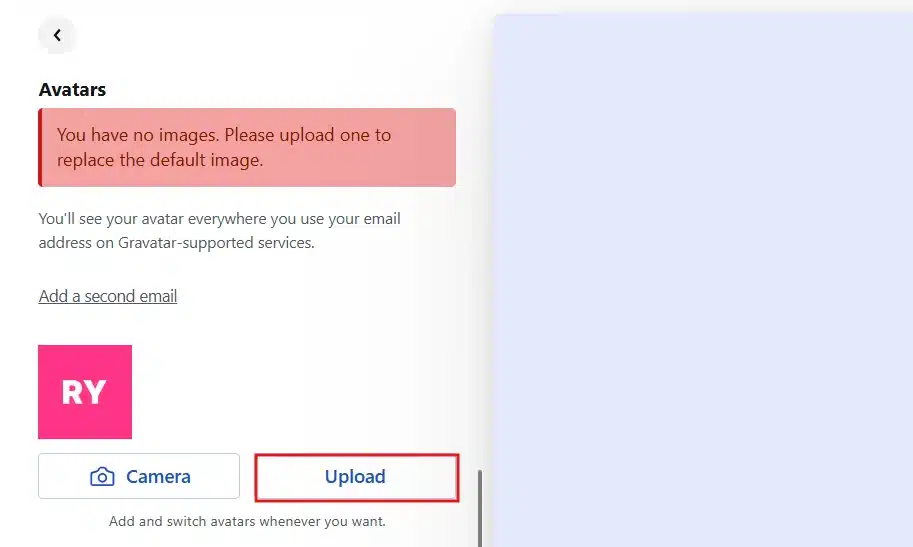
- Upload a photo from your device, or pull one from an existing online source if that option is available.
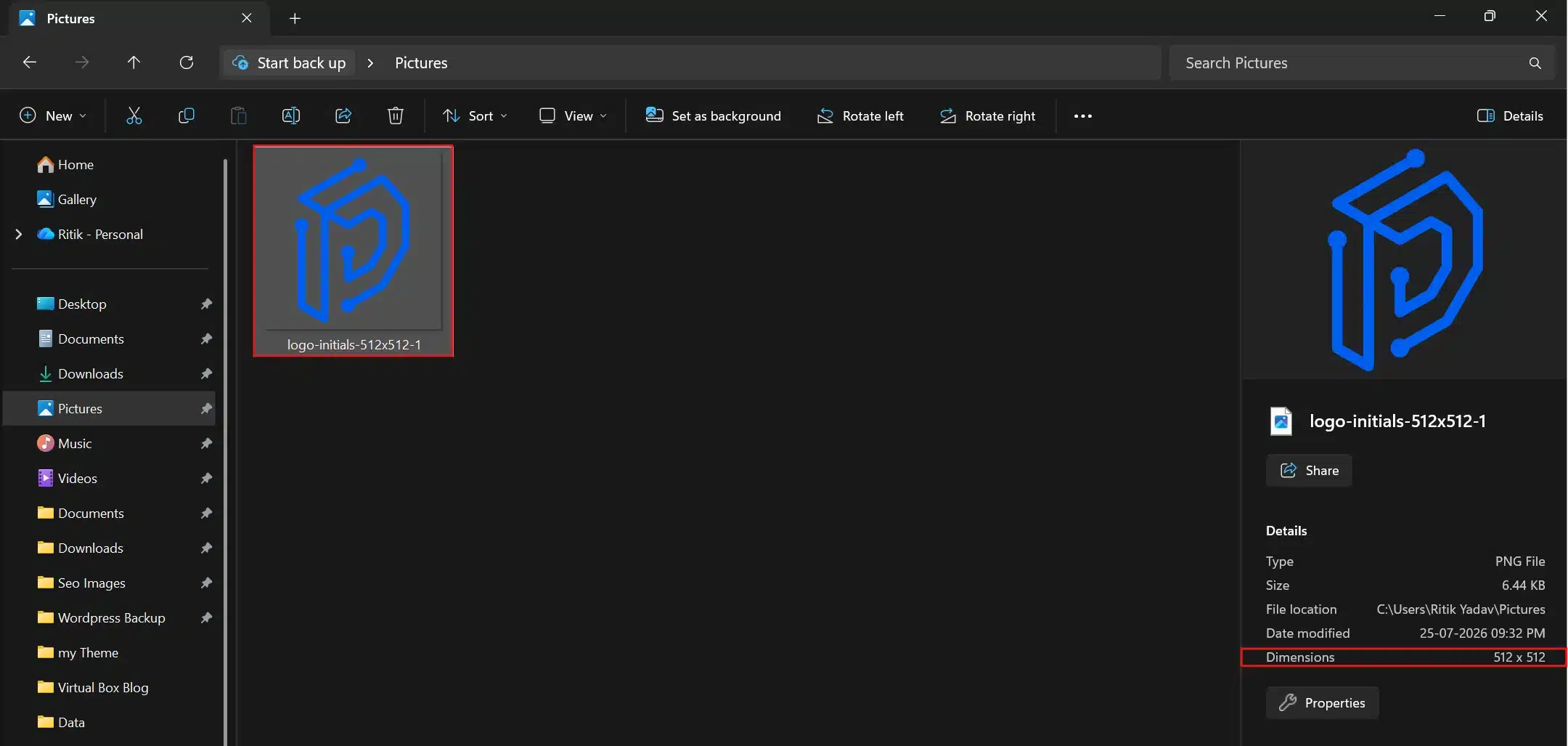
- Crop the image to a square. Gravatar recommends at least 512 x 512 pixels so it stays sharp at every size WordPress requests.
- Set a rating (G, PG, R, or X) and then save the changes.
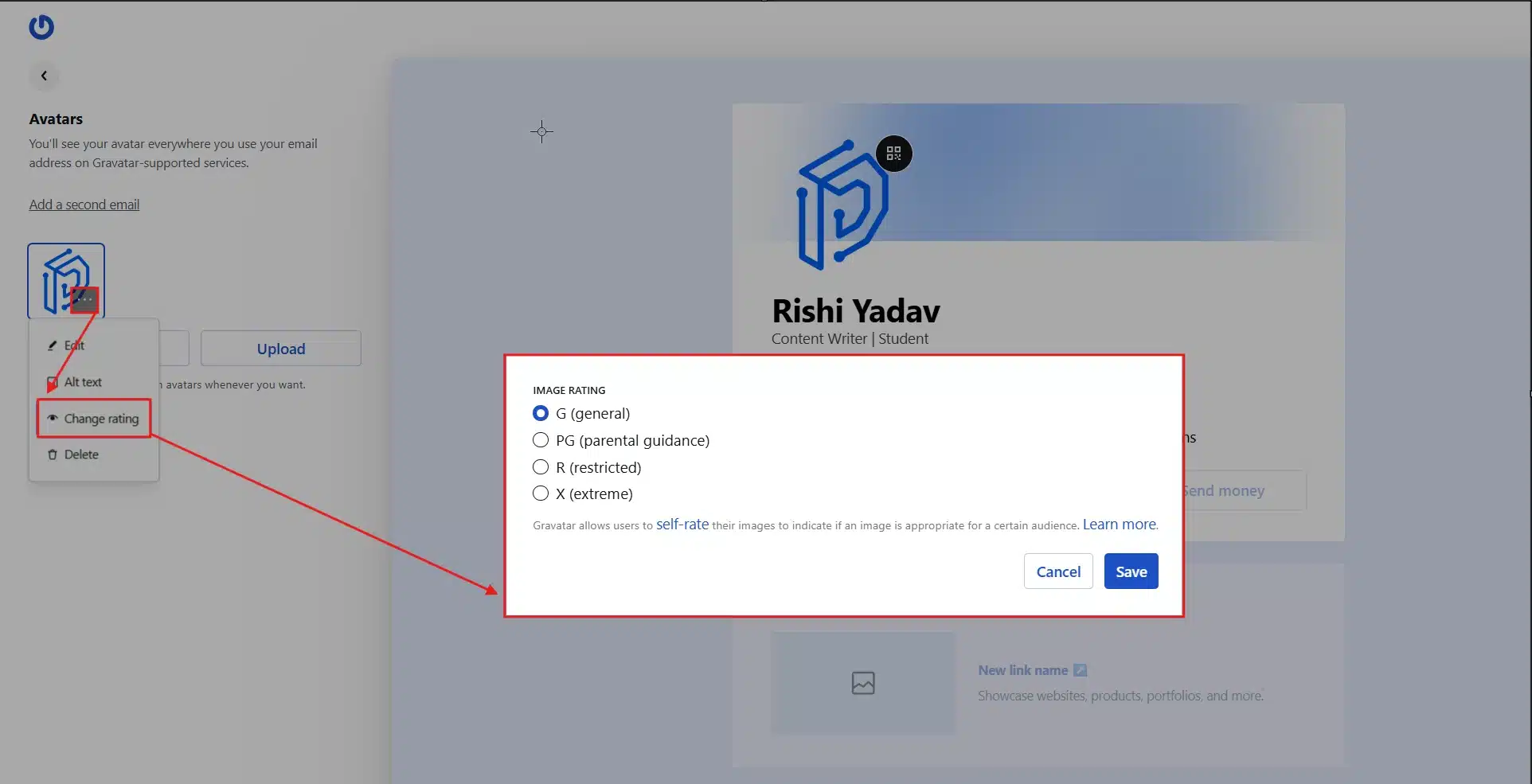
Most sites only display G-rated images by default. Pick G unless you have a specific reason not to.
That’s it. Your new photo now applies everywhere that email address pulls a Gravatar, not just on one site.
Remember: each email address needs its own Gravatar. They don’t share automatically. (ie., Work email and personal email? → Two separate Gravatars)
A few more useful things Gravatar lets you do:
- Multiple images per account: Assign a different photo to each verified email. A professional headshot for work, something more casual for a personal address.
- Remove a photo entirely: Delete it from your Gravatar dashboard, not from WordPress. WordPress has no control over your Gravatar account beyond reading whatever image it finds.
How to Change Your Gravatar on WordPress: Site-Wide Avatar
This is the other half of the equation. It’s an admin-level setting, not a personal one.
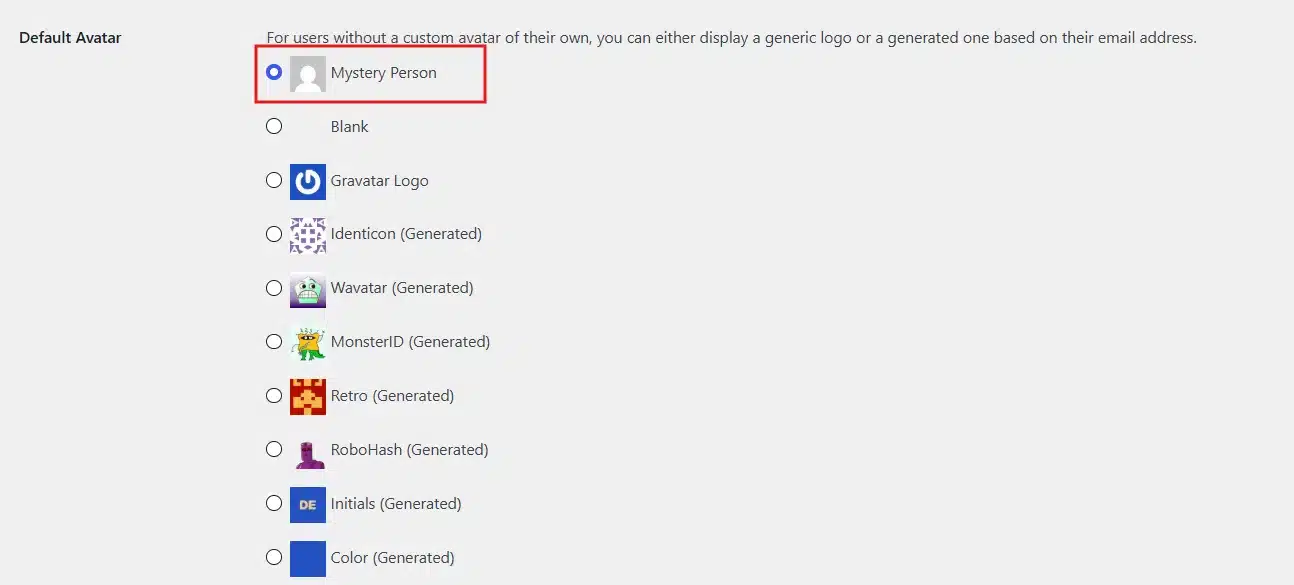
It controls what image shows up for any commenter without a Gravatar account. Out of the box, that’s the grey Mystery Person silhouette. Here’s how to change it:
- Log in to your WordPress dashboard.
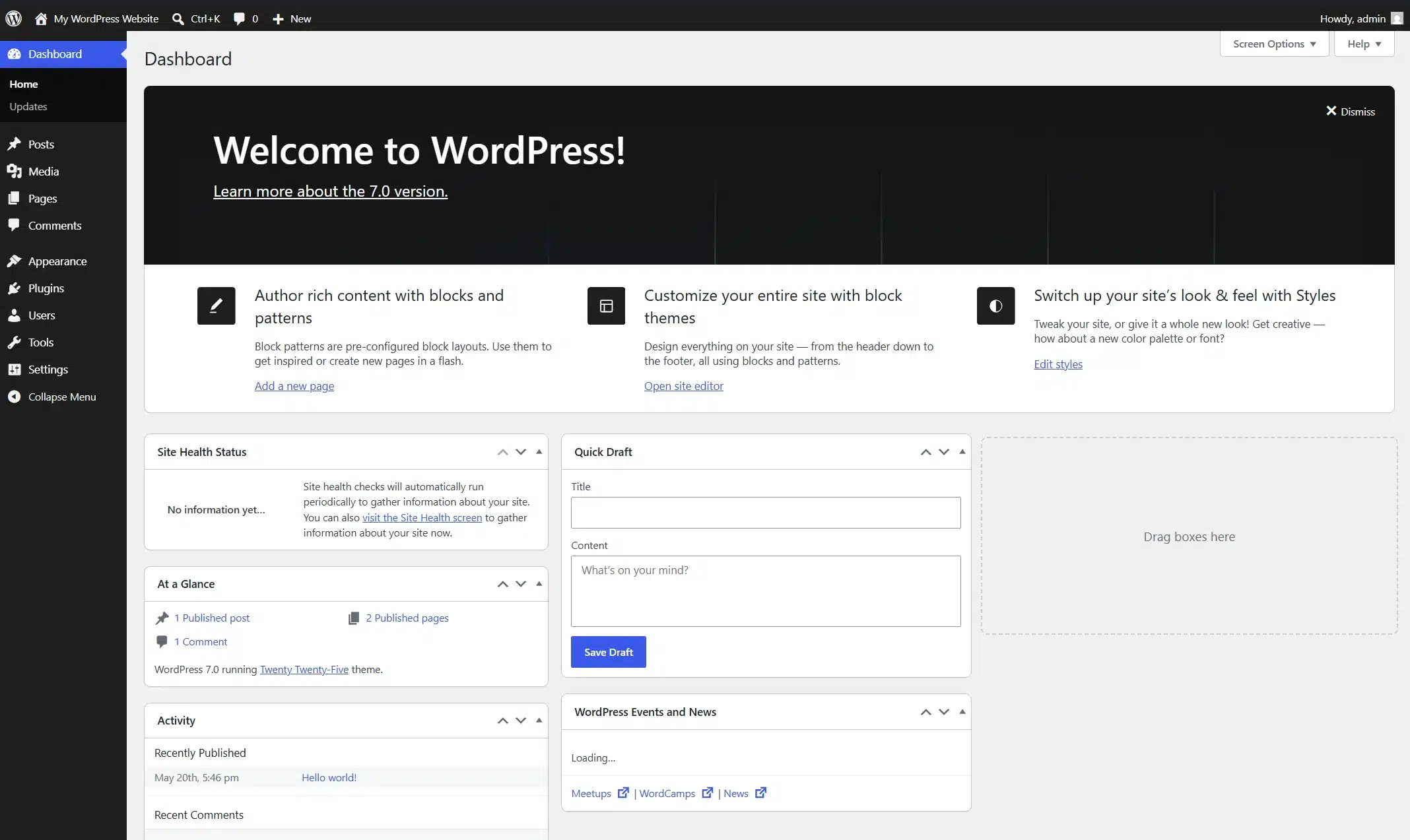
- Go to Settings > Discussion.

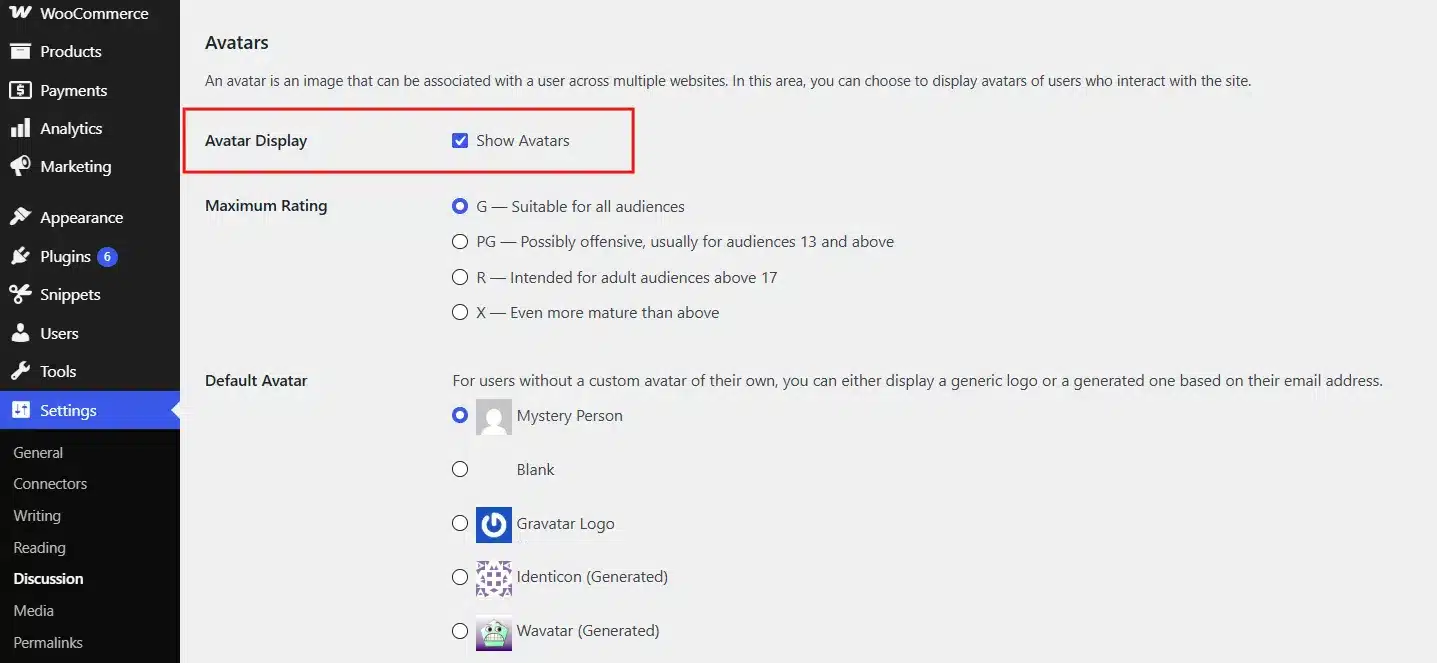
- Scroll to the Avatars section near the bottom. Confirm Show Avatars is checked. If it isn’t, nothing below matters, since avatars are off entirely.
- Under Default Avatar, pick one: Mystery Person, Blank, Gravatar Logo, Identicon, Wavatar, or MonsterID.
- Click Save Changes.
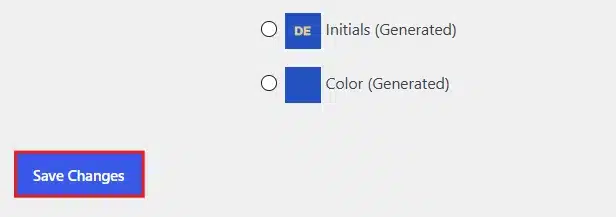
Refresh a post with existing comments, and the new default should appear for anyone without a Gravatar.
Know More: Identicon, Wavatar, and MonsterID are each generated from the commenter’s email hash. Every visitor without a Gravatar gets a slightly different image, instead of the same silhouette repeated down a long comment thread. On a busy blog, that small variation reads as more polished than it sounds on paper.
One important limit: this setting only controls the fallback. Anyone who already has a Gravatar keeps their own picture no matter what default you pick.
Where the Default Avatar Shows Up on Your Site
This setting isn’t just for comments. WordPress calls the same get_avatar() function in several places:
- The comments list under every post
- The author byline on single posts, if your theme shows one
- Author archive pages (
/author/username/) - Users > All Users in your admin dashboard
- Each user’s own profile screen in the admin
- Newer block-theme Author Avatar blocks
For your authors, editors, and admins: the default only applies if that person hasn’t set up their own Gravatar. Once they connect an email to a Gravatar account, their photo overrides your default everywhere, including their byline.
How to Use a Custom Image Instead of Gravatar
WordPress’s built-in Default Avatar list has no upload field. Want your logo or a branded image instead? You’ll need a plugin or a small snippet of code.
If you haven’t set your branding up yet, it’s worth reading how to change your WordPress logo first, so your default avatar matches it.
Option 1: A plugin
- Install and activate the Simple Local Avatars Plugin.
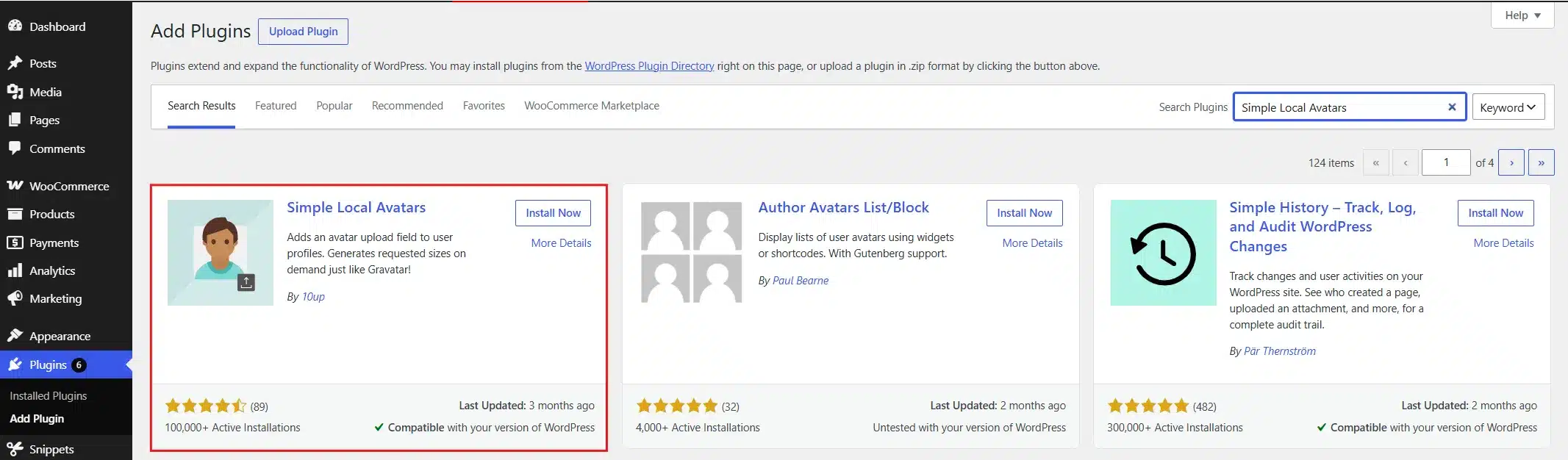
- Go to the new Default Avatar upload option (it replaces the old radio buttons).
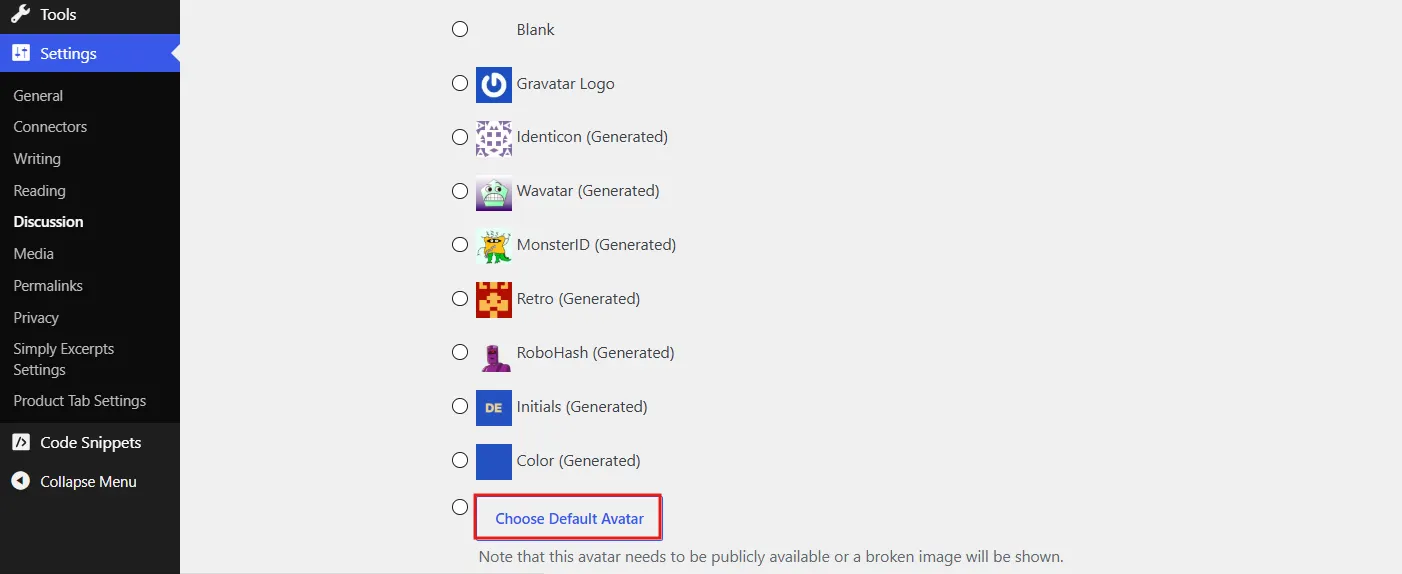
- Upload your image and save.
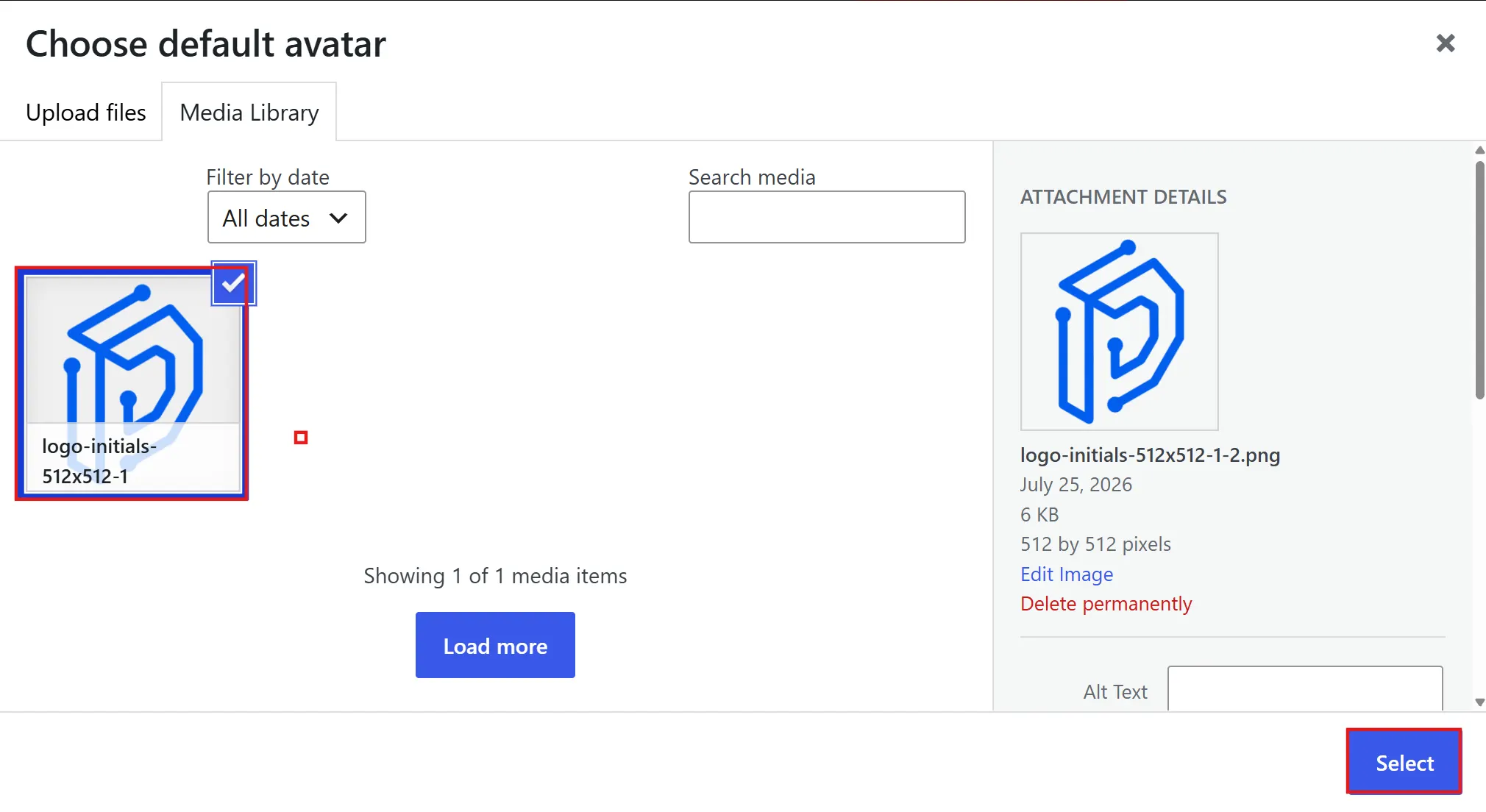
From here, avatars are served from your own server instead of Gravatar.
Option 2: A theme snippet
Skip the plugin. Add this to your child theme’s functions.php file:
add_filter( 'avatar_defaults', 'devdiggers_custom_default_avatar' );
function devdiggers_custom_default_avatar( $avatar_defaults ) {
    $custom_avatar_url = get_stylesheet_directory_uri() . '/images/default-avatar.png';
    $avatar_defaults[ $custom_avatar_url ] = 'Custom Default';
    return $avatar_defaults;
}
Drop your image into that theme folder → go back to Settings > Discussion → your custom option now shows up in the radio list → select it → save.
A 96×96 pixel square PNG works well. JPEG is fine too if it’s a photo rather than a logo needing transparency.
Which path fits your situation?
| Scenario | What to change |
|---|---|
| Your own comment photo, updated everywhere | Personal Gravatar account |
| Something other than the grey silhouette for strangers | Site-wide default avatar |
| Full control, no dependency on gravatar.com | Local avatar plugin |
Running a multi-author WordPress or WooCommerce site? Local avatars are usually the better long-term call.
- Each contributor gets a distinct, on-brand picture.
- None of it depends on a third-party server staying reachable.
- Support teams replying in a WooCommerce store’s comments look more trustworthy with a real staff photo than a generic silhouette.
A lot of teams that reach for a local avatar plugin are also mid-project on other custom work: role-based avatar rules, membership-tier avatars, comment sections tied to a specific brand system. That’s exactly the kind of work our WordPress development services handle for stores that have outgrown a stock plugin.
Why Your Gravatar Isn’t Updating: Common Mistakes
You made the change. It’s still not showing. This happens more than you’d think, and it’s rarely a real bug.
- Caching is the most common cause: Your browser, or a plugin like WP Rocket or W3 Total Cache, may be serving a saved version of the page. Clear the cache, log out, and hard-refresh as a logged-out visitor first.
- Gravatar’s own servers cache too: A change on gravatar.com can take a few hours to propagate everywhere. Give it time before troubleshooting further.
- The rating might be too strict: A Gravatar rated above G won’t show on a site that only displays G-rated images (the WordPress default). Log back in and check the rating.
- Wrong email address: Your Gravatar is tied to one specific email. A mismatched WordPress profile email means WordPress looks for an avatar under the wrong hash, and falls back to the default instead.
- Non-square custom images: Avatars render in a fixed square box. Crop to square before uploading, or it gets squeezed.
- A broken image path in the theme snippet: WordPress fetches the file to build the preview. A 404 quietly drops your option from the list, with no error shown.
- Assuming a new default replaces existing Gravatars: It doesn’t. Anyone with one already set keeps showing their own picture.
The Privacy Catch Nobody Mentions
Here’s what most tutorials skip: loading a Gravatar sends data to a third party on every single page view.
What happens under the hood
- WordPress hashes each commenter’s email and sends it to Gravatar’s servers to fetch the image.
- Gravatar sees the IP address of everyone who loads the page, including people who never typed an email anywhere.
- An email hash isn’t as anonymous as it looks. In October 2020, a researcher demonstrated a technique for scraping Gravatar’s public data at scale. According to Have I Been Pwned, 167 million names, usernames, and MD5 email hashes were scraped and distributed, and a large share were later cracked back into readable addresses.
For EU visitors, this falls under GDPR. There’s no consent step for that lookup in stock WordPress. Our WordPress security checklist covers similar ground on third-party requests and quiet data sharing.
Better Suggestion
- Disable avatars entirely under Settings > Discussion → cleanest for privacy, least interesting visually.
- Switch to a local avatar plugin → stops the Gravatar request completely.
- Keep Gravatar, document it in your privacy policy → the minimum if you want the convenience.
Not sure comments are worth the hassle at all? It may be simpler to disable comments in WordPress rather than manage avatars for a feature you don’t need.
If you disable avatars, test it on a busy comment thread first. Regulars sometimes notice the change immediately.
If you keep Gravatar, one sentence in your privacy policy covers it: “Comments may display a profile picture retrieved from Gravatar, a third-party service, based on a hashed version of the commenter’s email address.”
Conclusion
Two settings, two totally different jobs. Mix them up, and you’ll spend twenty minutes troubleshooting the wrong one.
Want your own face to follow you around the internet? That’s gravatar.com, not your WordPress dashboard.
Tired of the grey ghost showing up under every anonymous comment? That’s Settings > Discussion, and it takes about ten seconds to swap.
Want zero reliance on a third-party server that occasionally has privacy small problems? Skip Gravatar altogether with a local avatar plugin.
Figure out which one you were actually trying to fix, make the change, then give it a few minutes to propagate before you assume it’s broken. Most of the time, it isn’t. It’s just cache being cache.
Frequently Asked Questions (FAQs)
Q1. Does changing my Gravatar affect every WordPress site I comment on?
Yes. Your Gravatar is tied to your email address, not to any single site, so the new image follows you anywhere Gravatar displays an avatar.
Q2. Can I use a different photo for different websites?
Not through Gravatar directly. Each account is tied to one email address and shows the same image everywhere. Different photos on different sites means different email addresses, or a local avatar plugin for the sites where you want a distinct look.
Q3. Why does my Gravatar show up on some sites but not others?
The site may have avatars disabled, may be using a local avatar plugin instead of Gravatar, or may be caching an older page. Check the site’s comment settings if you manage it, or wait out the cache if you don’t.
Q4. Is it safe to keep using Gravatar after the 2020 data scraping incident?
Gravatar patched the vulnerability. The bigger question is whether you’re comfortable with the ongoing privacy trade-off of a third party seeing commenter IPs and email hashes, separate from the 2020 incident itself.
Q5. Do I need a plugin to change my Gravatar?
No. Both your personal Gravatar and the site default can be changed through gravatar.com and Settings > Discussion, no installation required. A plugin is only needed for a fully custom default image.
Q6. How long does a Gravatar change take to show up?
Usually a few minutes. Browser caching, page caching plugins, and Gravatar’s own CDN can occasionally stretch that to an hour.
Q7. What image size should I use for a custom default avatar?
A 96 x 96 pixel square works for most themes. For your personal Gravatar, upload at least 512 x 512 pixels so it stays sharp at larger sizes.
Q8. Can I remove Gravatar from my site completely?
Yes. Untick Show Avatars under Settings > Discussion. WordPress stops calling Gravatar’s servers entirely, and no avatar images appear anywhere on your site.