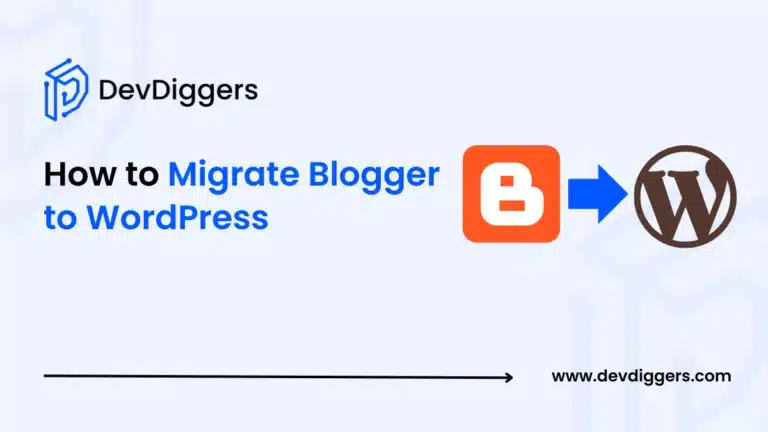
You migrate Blogger to WordPress by exporting your Blogger XML file, importing it through WordPress’s built-in Blogger importer, matching your permalink structure, and setting up 301 redirects so search engines and readers land on your new site instead of a dead page.
The whole process takes about an hour or two for a small blog. Bigger blogs with 1,000+ posts can take longer, mostly because of image cleanup. Either way, you don’t need to touch a line of code to get through it.
Blogger got you started. That’s fine. It’s a good training-wheels platform. But once you want real themes, plugin support, or a shot at turning your blog into something bigger, WordPress is the obvious next stop. This guide walks through the move without losing your rankings or your existing readers.
Why Migrate from Blogger to WordPress?
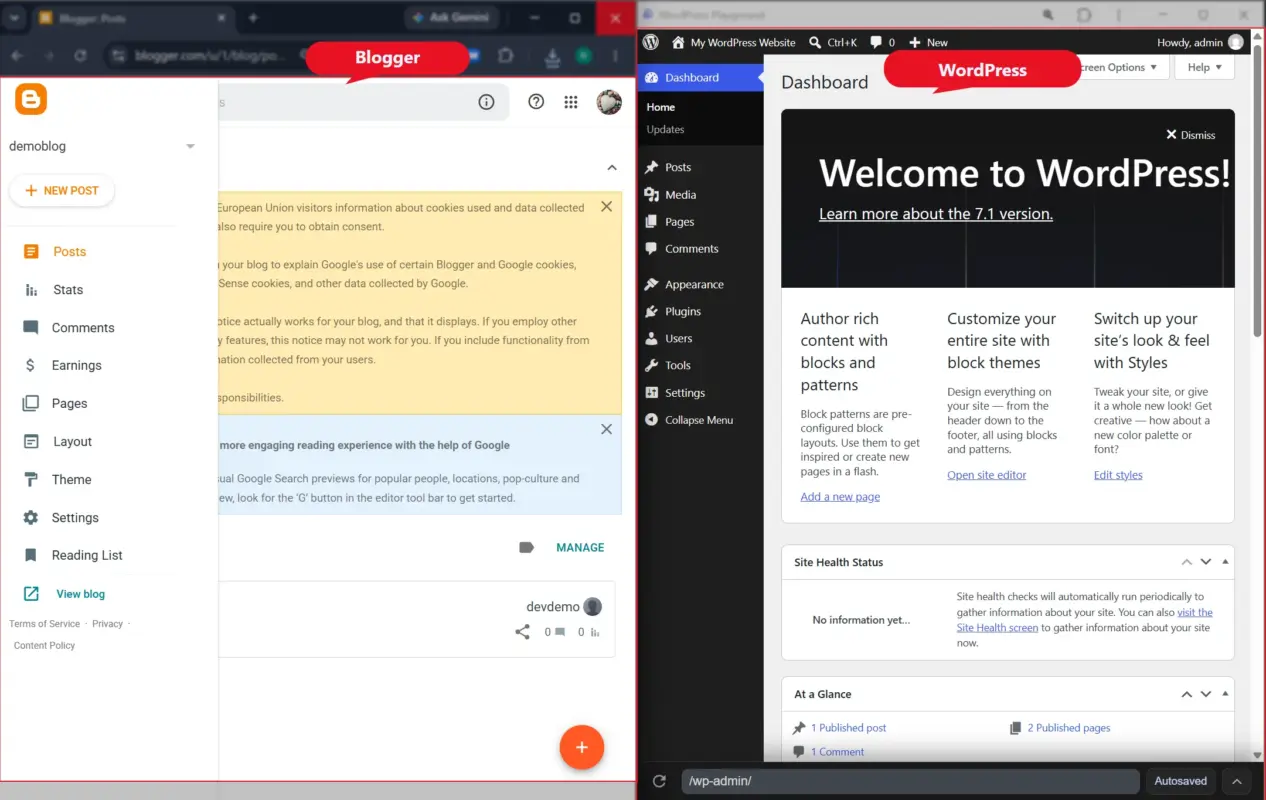
Blogger is free, and it’s simple. That’s the whole pitch. But “simple” starts to feel like “limited” once your blog grows past a hobby project.
Here’s what changes when you move to self-hosted WordPress:
- Full ownership: Your content sits on your own hosting, not on Google’s servers under Google’s terms.
- Plugin access: Thousands of free plugins add SEO tools, forms, security, and more. Blogger has none of that.
- Design freedom: WordPress has thousands of themes. Blogger gives you a dozen basic templates.
- Room to grow: Want to sell something later? WordPress can run a full online store. Blogger can’t.
None of this means Blogger was a bad choice to start with. It just has a ceiling, and a lot of bloggers hit it.
Before You Start: A Quick Checklist
Most guides jump straight into exporting. Do this first instead, or you’ll end up fixing avoidable mistakes later.
| Step | What To Do | Why It Matters |
|---|---|---|
| Back up everything | Export your Blogger content and save a copy of your theme’s HTML somewhere safe | Protects you if anything goes wrong mid-migration |
| Write down your permalink pattern | Open a few posts and note the URL format | You’ll need to match it later to avoid broken links |
| List your pages | Note down pages like About or Contact | Blogger’s importer only grabs posts, not pages, so these get missed otherwise |
| Check your image count | Do a quick scan to see whether you’re dealing with 20 images or 2,000 | Changes how much cleanup time to budget |
| Pick your hosting and theme in advance | Decide before you start exporting | Avoids choosing a host mid-migration |
Skip this step, and you’ll likely find out about a missing page or a broken image weeks after the fact, usually when a reader emails you about it.
How to Migrate Blogger to WordPress in 5 Steps
This is the part that moves your content. Follow it in order.
Step 1: Get WordPress Hosting Set Up
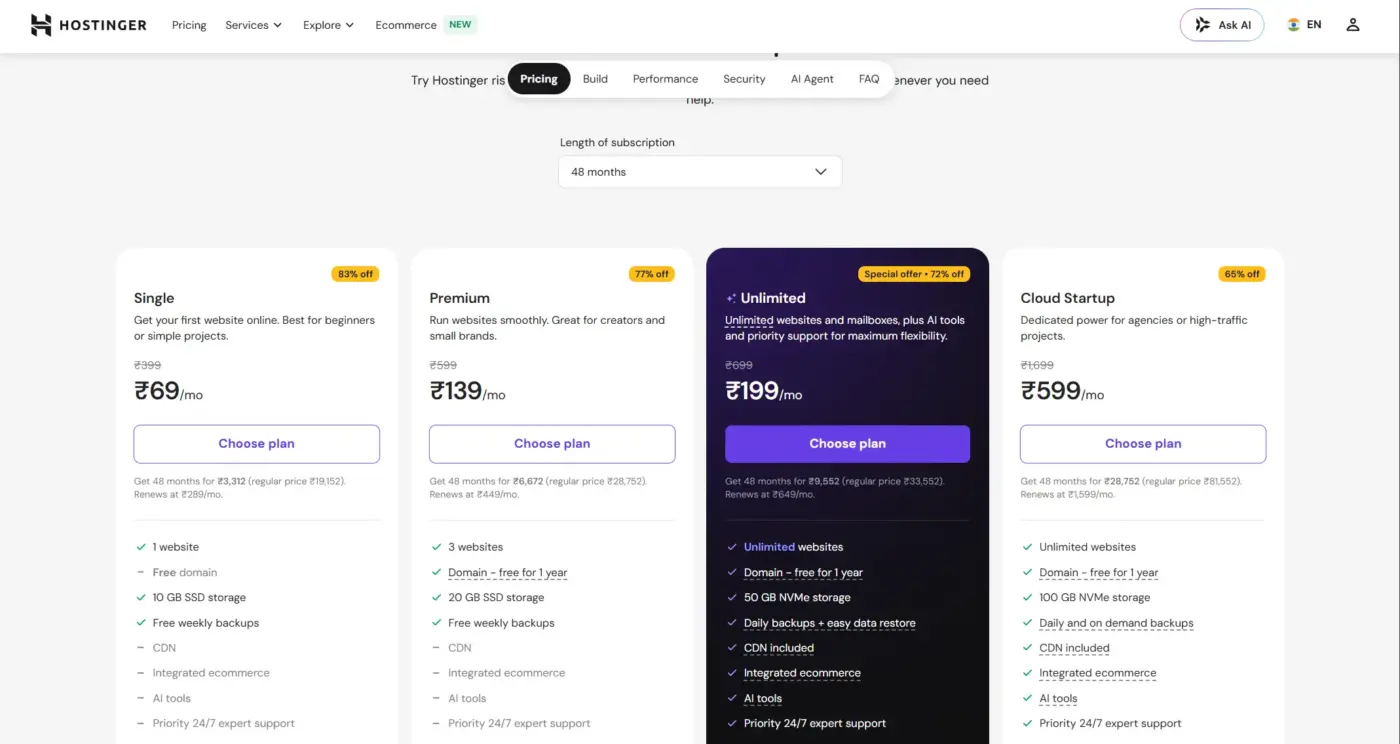
WordPress needs a home. Unlike Blogger, it doesn’t come with free hosting attached.
Pick a WordPress hosting plan, register or point your domain, and install WordPress. Most hosts offer one-click WordPress installs, so this step rarely takes more than a few minutes.
If you’re moving your blog into an existing WordPress site rather than starting fresh, skip ahead. You already have a home for your content. More on that case below.
Step 2: Export Your Blogger Content
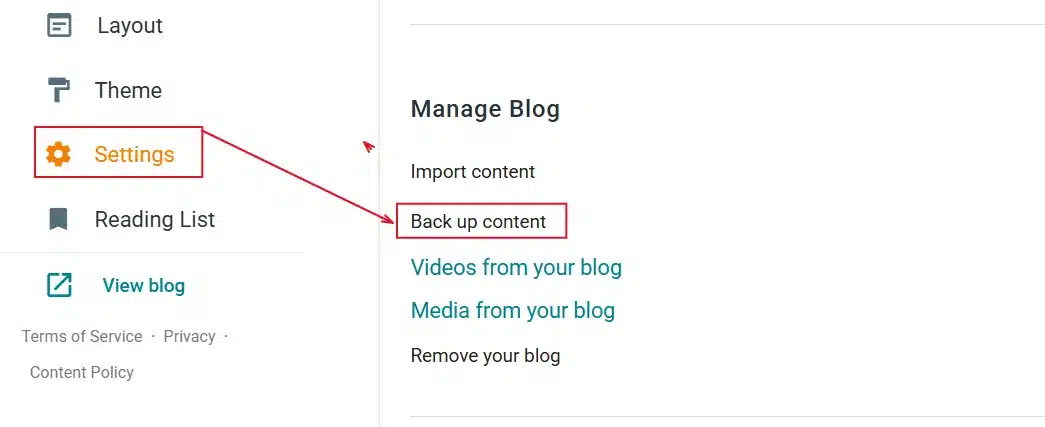
Log in to Blogger and go to Settings. Scroll to the Manage Blog section and click Back Up Content. Blogger generates an XML file containing your posts, pages, and comments. Click Download and save it somewhere you won’t lose it.
Keep this file around after the migration finishes. It’s your only backup of the original content if something goes wrong down the line.
Step 3: Import Into WordPress
- In your WordPress dashboard, go to Tools → Import. Find Blogger in the list and click Install Now, then Run Importer.
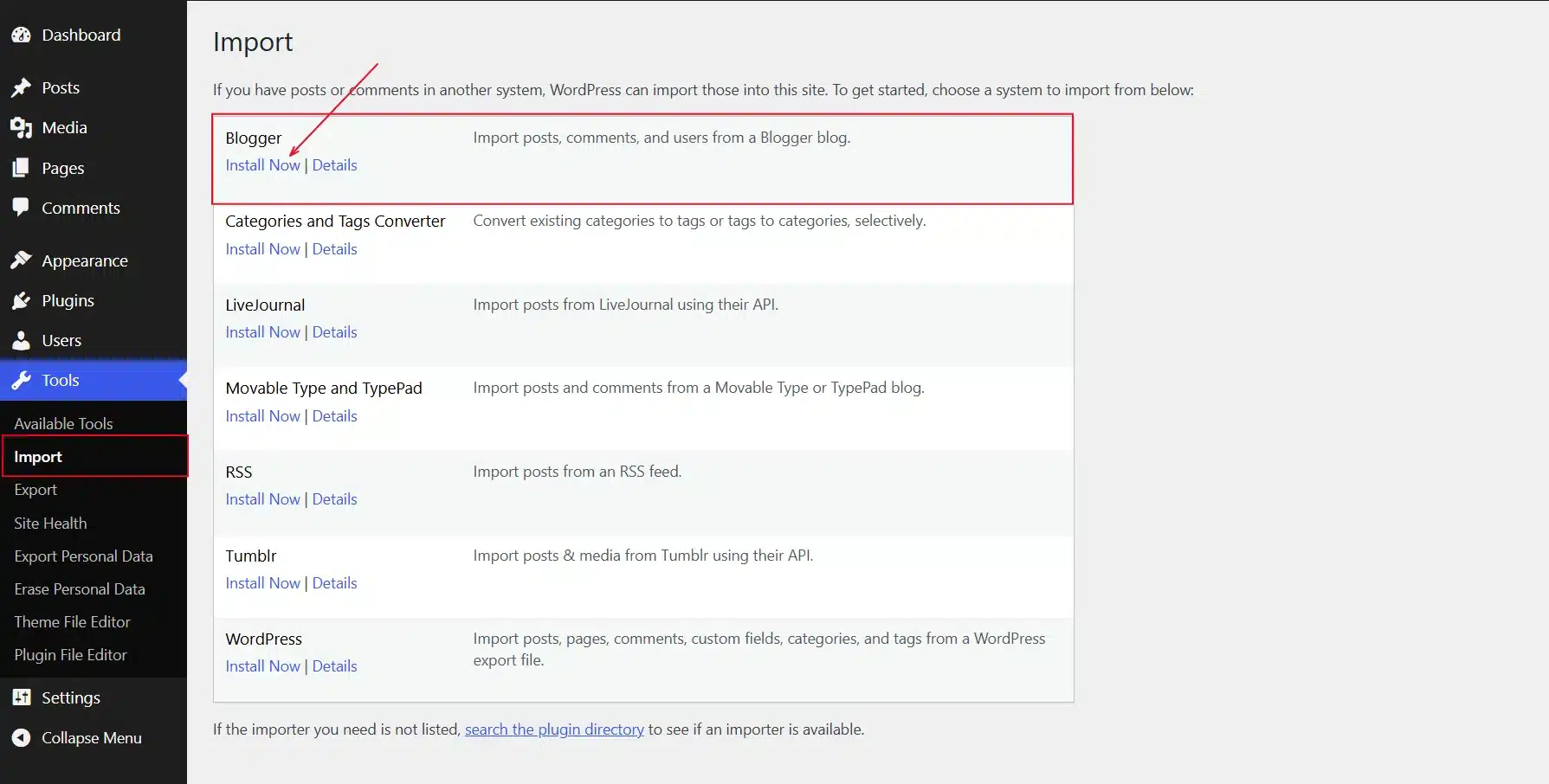
- Upload the XML file you just downloaded. WordPress will ask you to assign an author to the imported posts. Pick an existing user or create a new one.
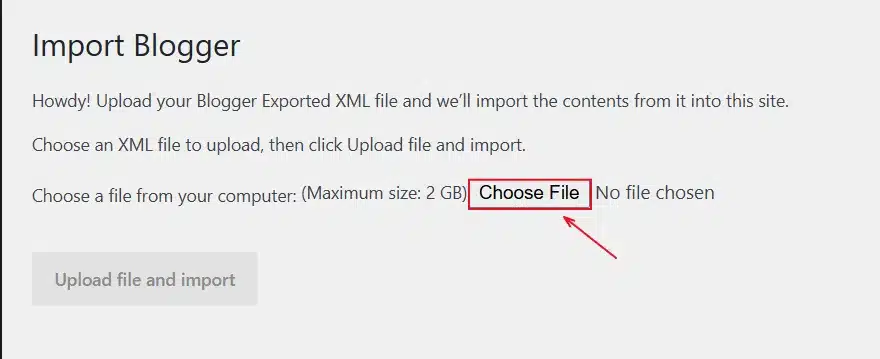
- Click Submit and wait. Larger files take a few minutes. Once it’s done, check Posts » All Posts to confirm everything came through.
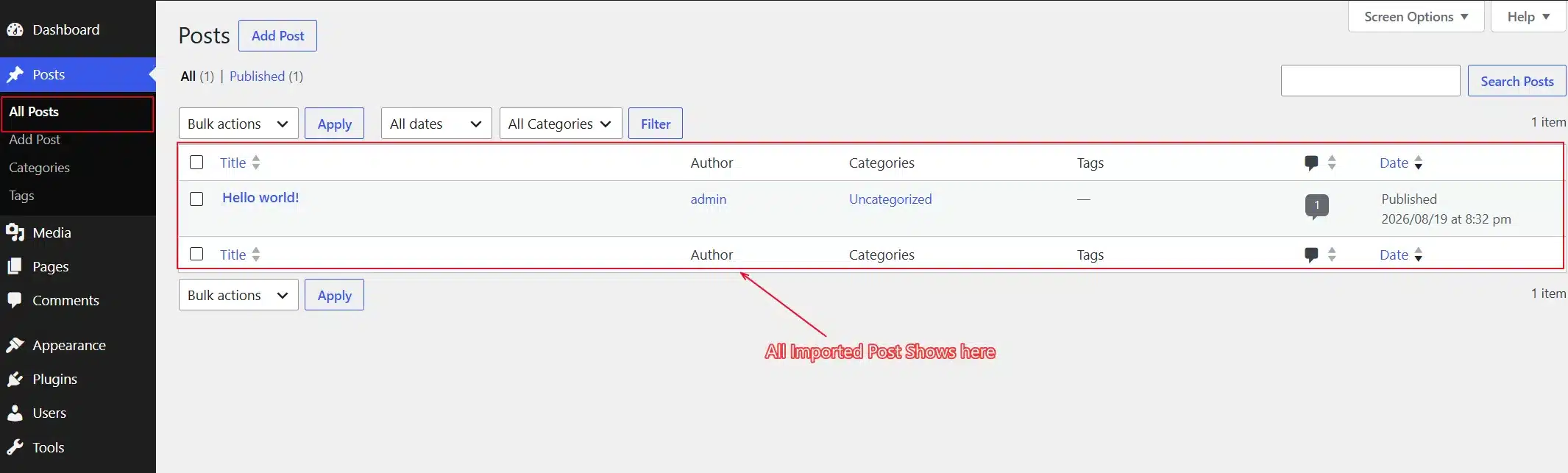
One catch: The Blogger Importer plugin only pulls in posts and comments. Pages don’t transfer. You’ll need to copy those over manually using the list you made in the checklist above.
Step 4: Match Your Permalinks
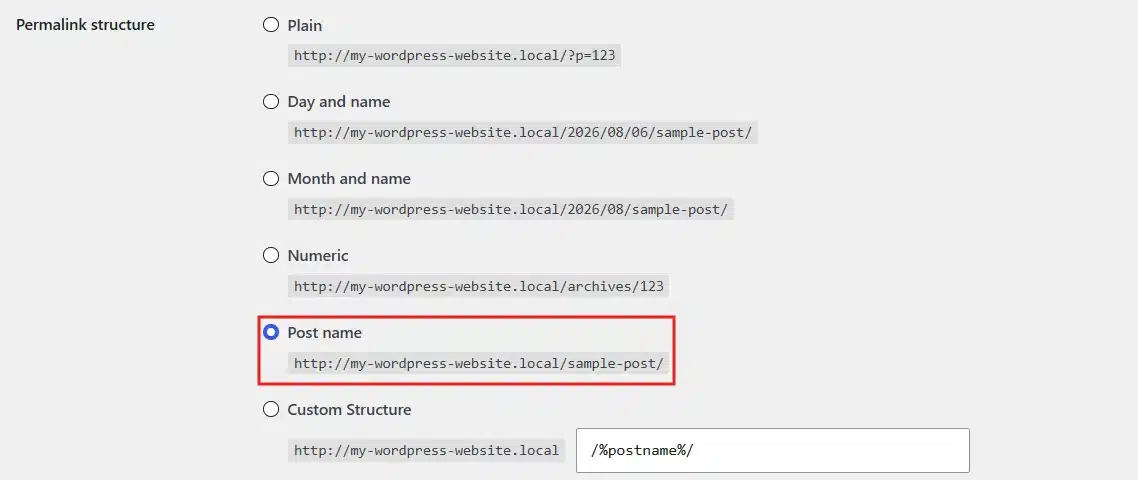
This step protects your search rankings, so don’t skip it.
Go to Settings → Permalinks and choose Custom Structure. Enter this pattern:
/%year%/%monthnum%/%postname%.html
This mirrors Blogger’s default URL format closely enough that most of your post URLs will line up automatically. If your Blogger blog used a different structure, adjust this to match what you noted earlier.
Not every slug will match perfectly. Blogger sometimes shortens slugs in ways WordPress won’t replicate exactly. You’ll catch the mismatches in the next step.
Step 5: Set Up Redirects and Verify in Search Console
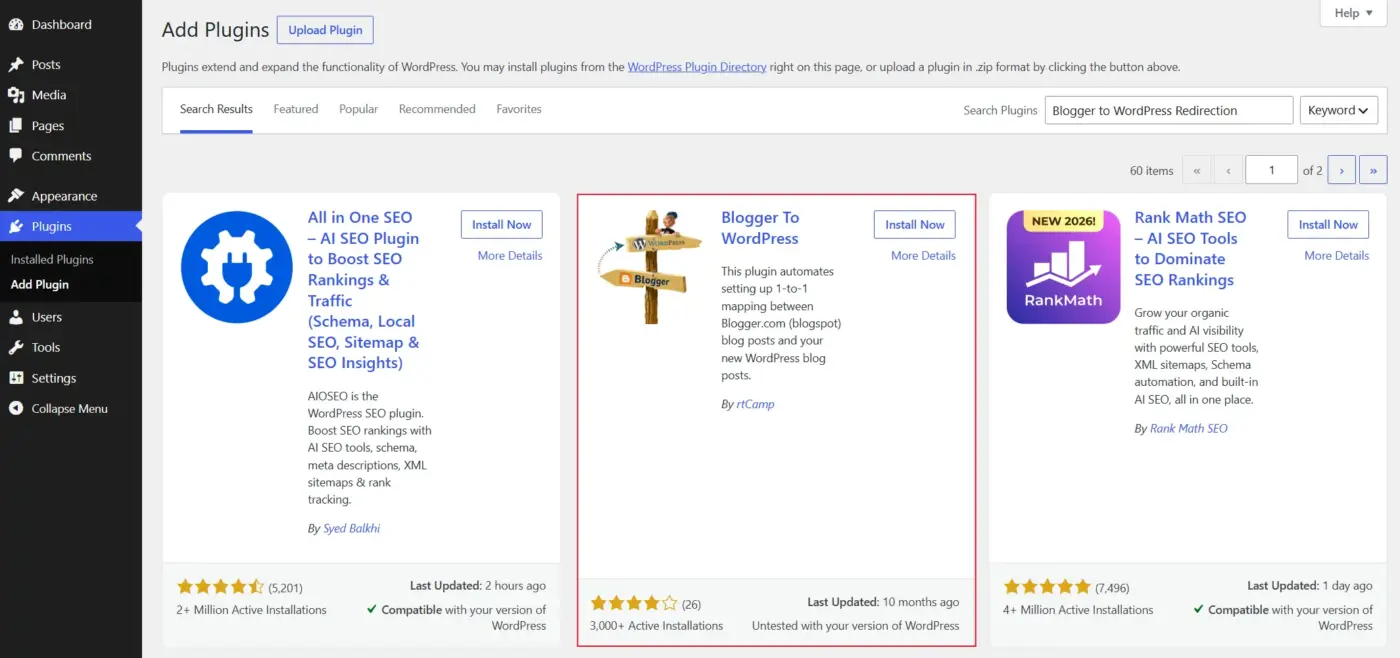
Even with matching permalinks, some URLs won’t line up. Redirects catch the rest.
Install a redirection plugin built for this exact move, such as Blogger to WordPress Redirection. Run its setup, which generates a code snippet. Paste that snippet into your Blogger theme’s HTML editor and save.
This tells anyone who lands on your old Blogspot URL, including Google’s crawlers, to land on the matching WordPress page instead.
Once redirects are live, add your new site to Google Search Console and submit your new sitemap. This speeds up how fast Google notices the move and re-crawls your content.
Give it a couple of weeks. Rankings can dip slightly during any platform migration. Solid redirects usually mean that dip is small and short.
What Doesn’t Transfer Automatically
The importer handles posts and comments well. Everything else needs manual attention, and this is where most migrations run into trouble.
- Your theme and design don’t move at all. Blogger themes and WordPress themes are built on completely different systems. You’ll pick a new WordPress theme from scratch, which is honestly a decent excuse to refresh a design that’s been stale for years.
- Pages like About, Contact, or Privacy Policy have to be recreated by hand. Open each one in Blogger, copy the text, and paste it into a new WordPress page.
- Widgets in your Blogger sidebar, like a follower count or a recent-posts list, need to be rebuilt using WordPress widgets under Appearance → Widgets.
Images hosted on Blogger’s servers will still display after import, but they’re not stored in your WordPress media library yet. Run an external-image importer plugin to pull them in properly. Skip this step, and you’re at the mercy of Google’s servers for every image on your site.
Migrating Into an Existing WordPress or WooCommerce Site
Most guides assume you’re building a brand-new WordPress site from zero. Plenty of store owners are doing something different: folding an old Blogger blog into a WordPress or WooCommerce site that’s already live.
This version needs a bit more care. A few things to watch:
- Category and tag collisions: If your store already has categories, imported Blogger labels can create duplicates with slightly different names. Clean these up right after import, not months later.
- Permalink conflicts: If your store already uses a custom permalink structure, matching Blogger’s date-based format exactly isn’t always possible. In that case, set up individual redirects for each old post instead of relying on a global structure.
- Author mapping: Assign imported posts to an existing team member rather than creating a throwaway account nobody will ever log into again.
The upside is real. A blog with an existing readership dropped into a working store gives you built-in traffic and an audience that’s already primed to trust your brand.
Conclusion
Migrating Blogger to WordPress isn’t complicated once you know the order of operations: export, import, match permalinks, redirect, verify. The part that trips people up isn’t the technical steps. It’s skipping the small stuff, like pages and widgets, that never made it into the export file in the first place.
Give yourself an afternoon, work through the steps in order, and don’t delete your old Blogger blog until you’ve confirmed every redirect works. If you’d rather have someone else handle the setup, WordPress development services can take the technical side off your plate entirely.
Frequently Asked Questions (FAQs)
Q1. Will I lose my Google rankings when I migrate Blogger to WordPress?
Not if your redirects are set up correctly. The 301 redirects tell Google your content has moved permanently, so ranking value transfers to the new URLs instead of getting lost.
Q2. Do my Blogger pages transfer automatically?
No. The Blogger importer only pulls in posts and comments. Pages like About or Contact need to be manually recreated in WordPress.
Q3. Can I keep using my custom domain after migrating?
Yes. You’ll point your domain’s nameservers to your new WordPress host instead of Blogger, and the domain itself stays exactly the same.
Q4. What happens to my Blogger view count after migration?
Your Blogger view count stays visible in Blogger’s own dashboard, but it doesn’t transfer to WordPress. Once you’re live on WordPress, install an analytics tool there to start tracking fresh.
Q5. Can I migrate a Blogger blog into an existing WooCommerce store?
Yes, and it’s a common move for store owners who built an audience on Blogger first. Watch for category collisions and permalink conflicts, since your store likely already has its own URL structure in place.
Q6. Should I delete my old Blogger blog after migrating?
Not right away. Keep it live with the redirect code in place for several months. Deleting it too early breaks the redirects and sends both visitors and search engines to a dead end.
Q7. How long does the migration take?
For a small blog under a few hundred posts, expect one to two hours of active work. Larger blogs take longer, mostly due to image cleanup and manual page recreation.
Q8. Do I need any coding experience to do this myself?
No. Every step in this guide uses built-in WordPress tools or plugins. The one code snippet involved, for redirects, is copy-and-paste, not something you write yourself.