


Rank Math SEO is a free WordPress plugin that handles titles, sitemaps, schema and redirects for your site. On a WooCommerce store, the free version covers almost everything a shop needs. Its setup wizard runs over 10 short screens, and most of them need one click.
We installed it on a fresh test store in October 2026, running WordPress 7.1.3, WooCommerce 11.2.1 and Rank Math 1.0.280 from WordPress.org. Every screen below is from that store. DevDiggers also runs Rank Math on its own WooCommerce site, which is where two of the lessons in this guide come from.
You get the full setup wizard step by step, then the settings that matter for products. After that come the focus keyword score, redirects and the 404 monitor. Then two noindex and schema tests, and an honest look at Free vs PRO.
What Rank Math SEO Does for a WooCommerce Store
Rank Math SEO adds the search basics WordPress lacks: editable title tags and meta descriptions, an XML sitemap, schema markup and robots controls. On a store it also adds Product schema with prices to every product page. The redirect manager and 404 log are free too, so most shops never need a second SEO plugin.
The Rank Math SEO listing on WordPress.org showed 4 million+ active installs and a 4.8 rating from 7,511 reviews on 10 October 2026. Version 1.0.280 was tested up to WordPress 7.1.3, the same version our store ran.
The plugin is built from modules. Each one switches on or off, so a store can keep the sitemap and schema and skip the parts it never uses.
Our test product, an Organic Cotton Hoodie, showed what the WooCommerce module does without any setup. Its page carried a Product node with an offers block, an ItemPage node, and the Organization and WebSite nodes.
Rank Math does not rank a page by itself. It writes the tags and markup that let search engines read your products correctly, and the rest still comes from content, links and speed. Our WooCommerce SEO guide covers those other parts.
How to Set Up Rank Math SEO on WooCommerce
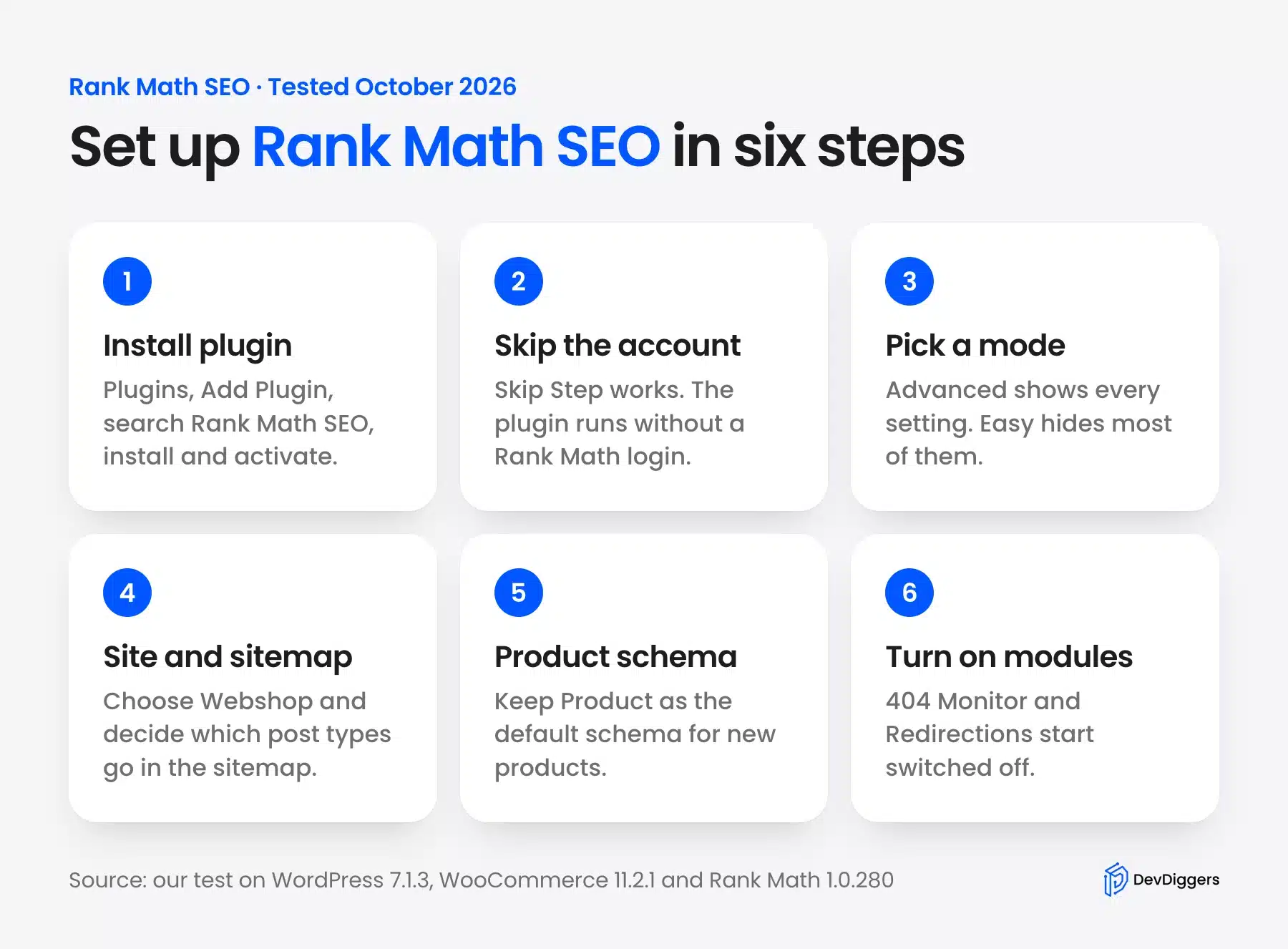
The Rank Math configuration runs in seven wizard steps. Install the plugin, skip the account screen, pick a mode, set the site type, choose sitemap content, set the SEO tweaks, then confirm product schema. The wizard saves each step as you go, and every choice can change later.
Step 1: Install Rank Math SEO From WordPress.org
Open Plugins, then Add Plugin, and search for “Rank Math SEO”. The right card is by Rank Math SEO, with the purple bar chart logo.
- Search the plugin: Type the name into the search field at the top right of the Add Plugins screen.
- Install it: Click Install Now on the Rank Math SEO card.
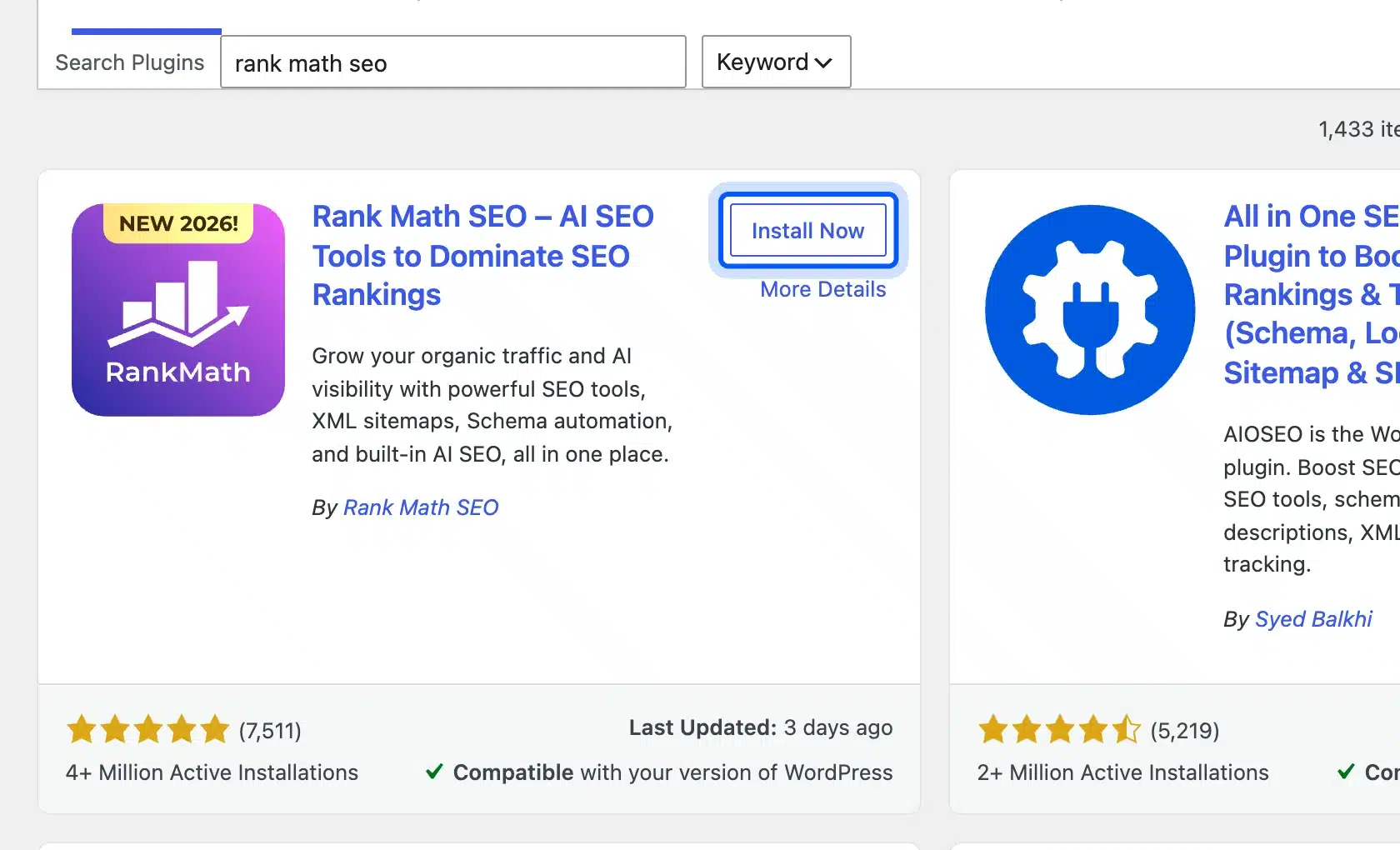
- Activate it: The same button turns into Activate. Click it, and WordPress opens the Rank Math setup screen.
WooCommerce stayed active on our test store after activation, and no notice warned about a plugin conflict.
Step 2: Skip the Account Connection
The first screen asks you to connect a free Rank Math account. We skipped it on purpose, because the plugin works without one and this guide never signs in to an outside service.
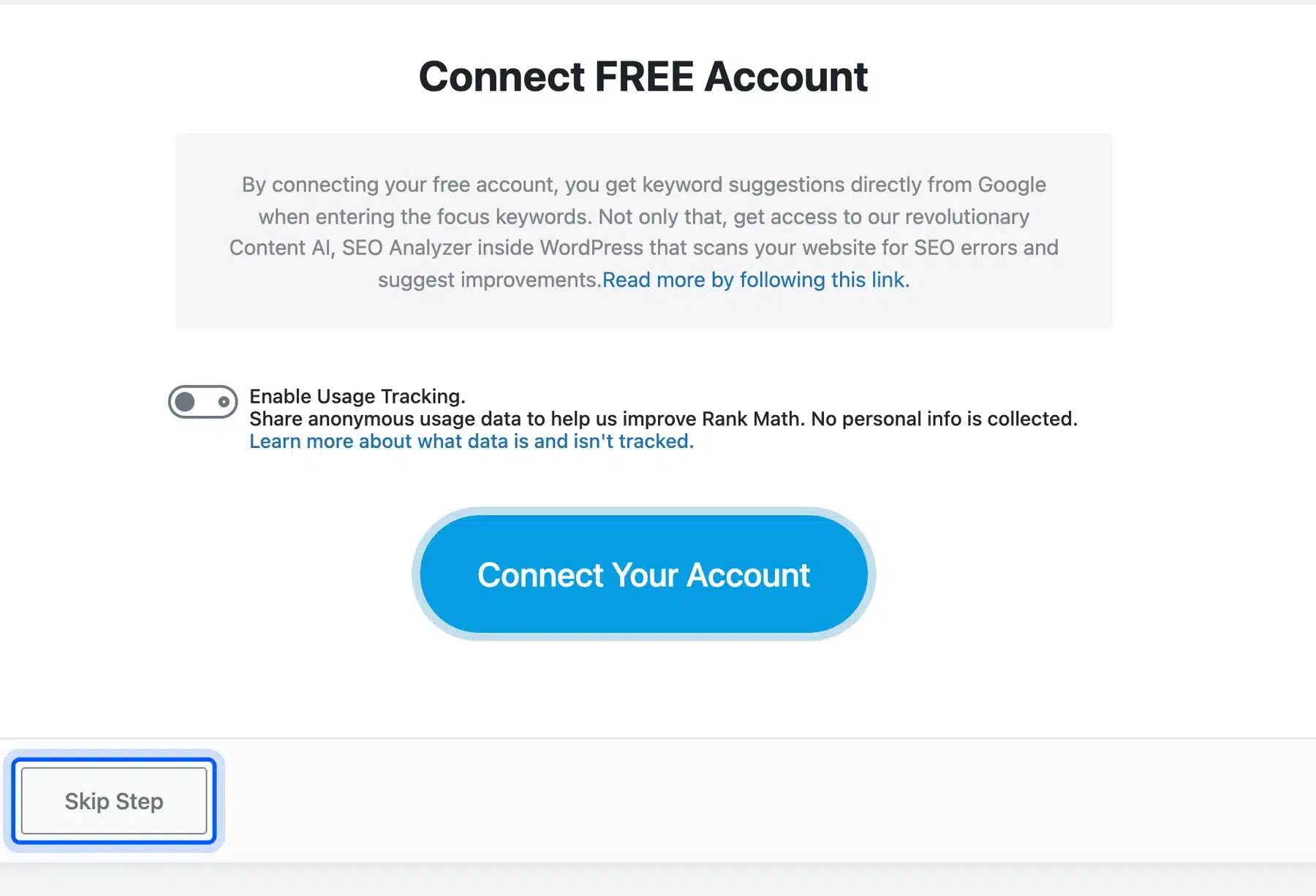
Connecting adds keyword suggestions, the Content AI trial and one-click Google Search Console setup. Skipping only removes those extras. The sitemap, schema, redirects and the editor score all worked for us without a login.
Usage Tracking sits on the same screen and was off by default. Leave it off unless you want to share anonymous data with the plugin team.
Step 3: Pick Easy or Advanced Mode
Rank Math offers Easy, Advanced and a PRO-only Custom Mode. Advanced was already selected on our install, and it is the right pick for a store.
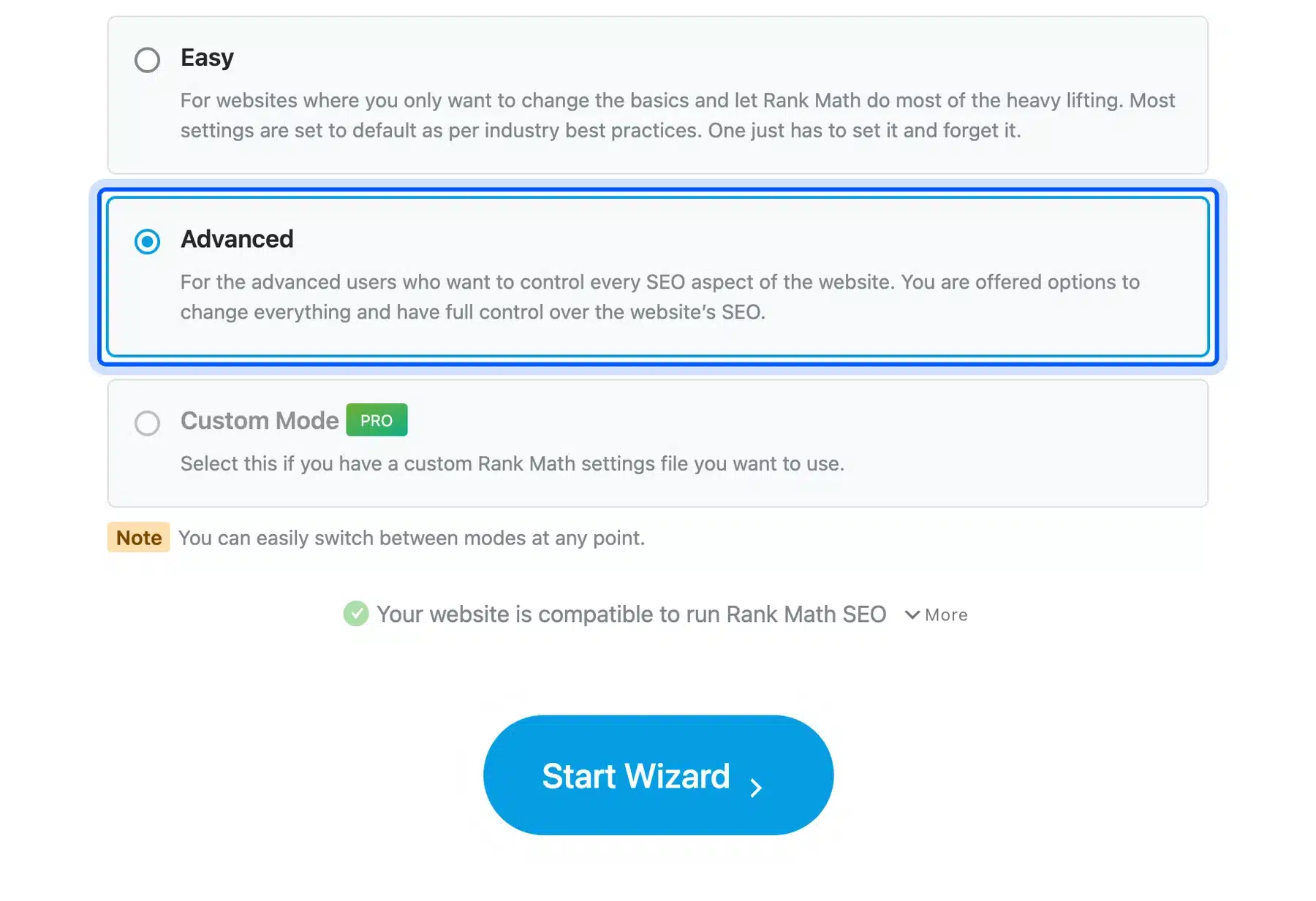
Easy mode hides most settings and keeps the defaults. Advanced shows every option, including the extra wizard steps for schema and redirects. The screen notes that you can switch modes at any point, from the toggle at the top right of the Rank Math dashboard.
Step 4: Set Your Site Type to Webshop
The Your Site step tells Rank Math what kind of site it is working on. Open the “is a…” menu and choose Webshop.
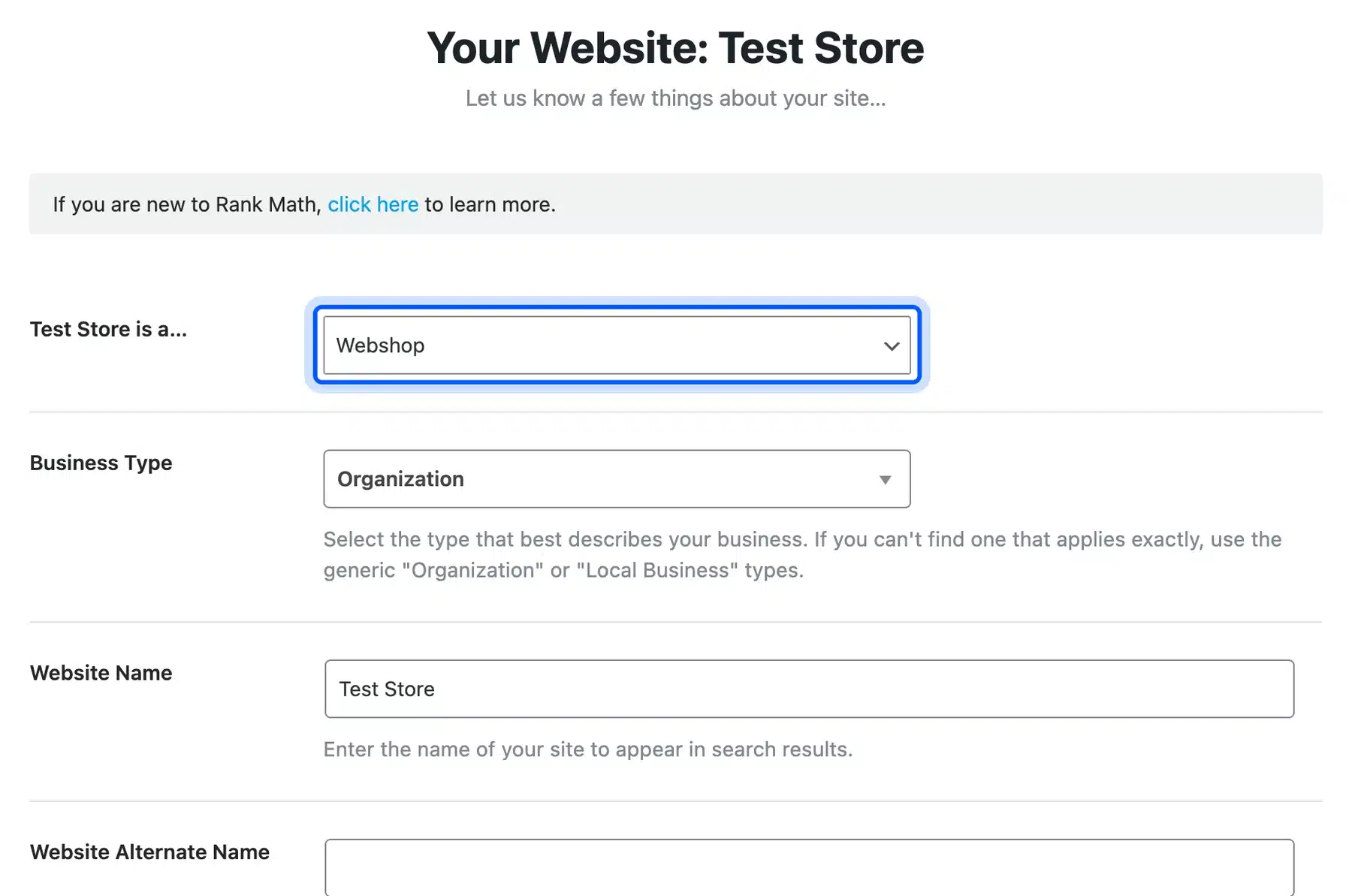
Below it, check Business Type, Website Name and Person/Organization Name. These feed the Organization node in your schema, so use the real store name.
Add a square logo of at least 112 x 112 pixels in Logo for Google. The Default Social Share Image is the fallback picture when a product has no image of its own. Our guide on what image WordPress shows on preview explains how that fallback gets picked.
The Analytics step comes next. It needs a connected account, so we clicked Skip Step there as well.
Step 5: Choose What Goes in the Sitemap
The Sitemaps step decides which content types get SEO options and a place in the XML sitemap. On our store, Posts, Pages and Products were ticked by default, and so was Categories.
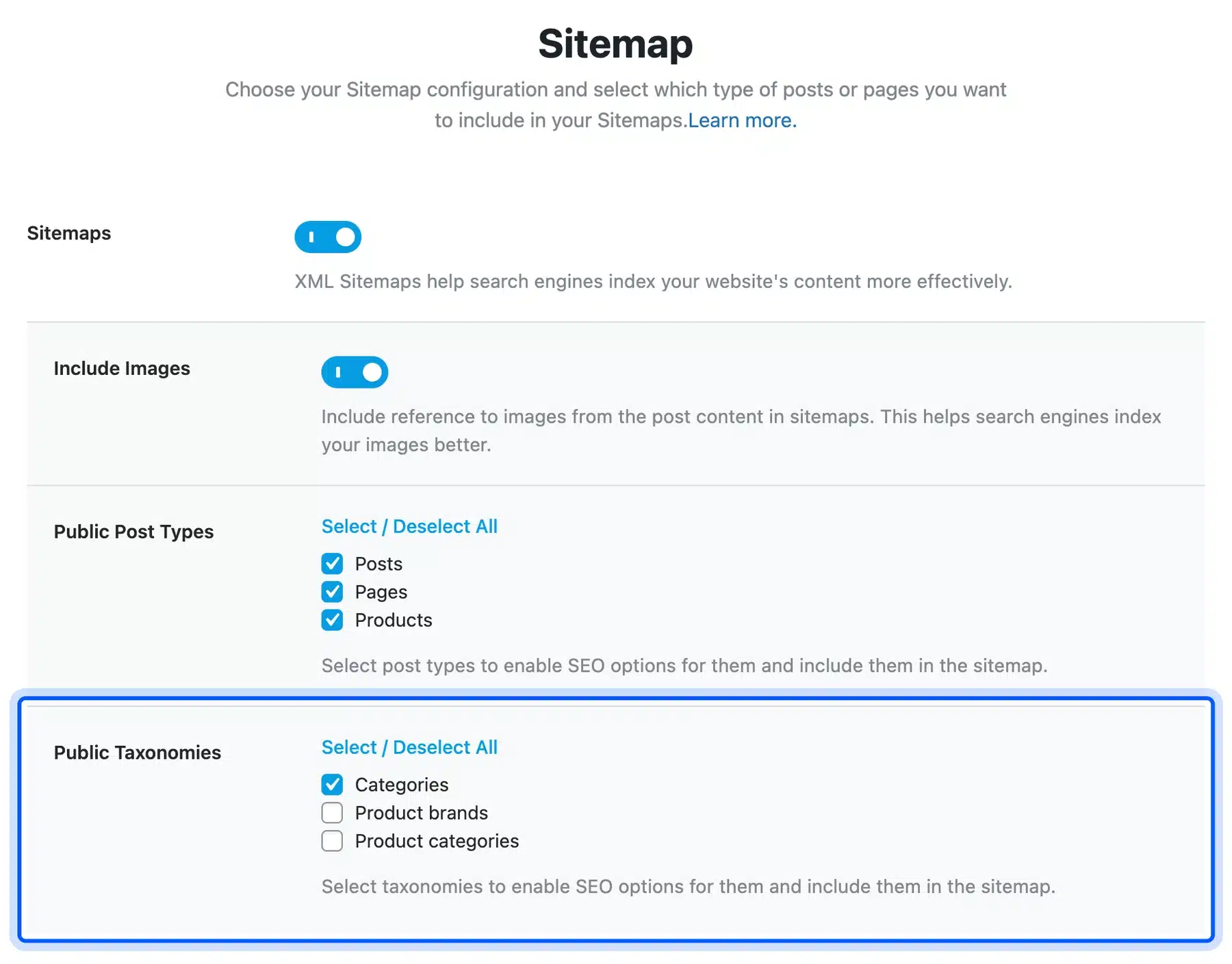
Product categories and Product brands were not ticked. On a store with real category pages, tick Product categories, because those pages often rank for broad searches like “linen shirts”.
Google’s own guide to building a sitemap says to include the URLs you want to see in search results. So leave out any type that only holds thin or private pages.
Step 6: Set the SEO Tweaks
The Optimization step holds three switches. Two were on by default on our store: Noindex Empty Category and Tag Archives, and Open External Links in New Tab/Window.
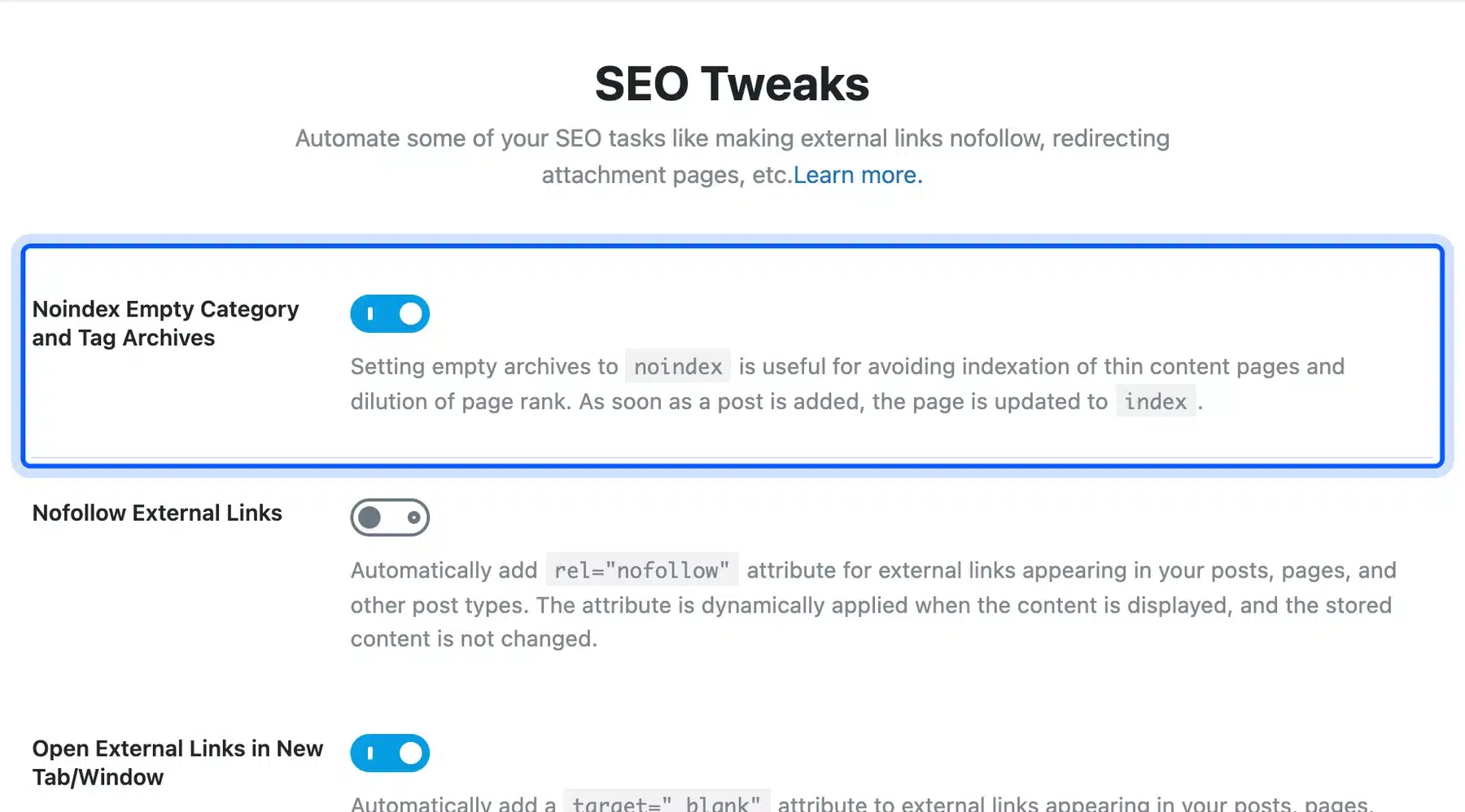
Keep the noindex switch on. An empty category page has nothing to show a searcher, and Rank Math flips it back to index once a product lands in it.
Nofollow External Links was off, and we left it off. A link to a supplier or a size guide is a normal editorial link, and the attribute is added at display time anyway.
Step 7: Set Product Schema in Advanced Options
The Ready screen has a Setup Advanced Options button. It opens three more steps: Role Manager, 404 + Redirection and Schema Markup.
- Role Manager: Leave it off unless other staff need limited access to Rank Math settings.
- 404 + Redirection: Both switches were off by default. You can turn them on here, or in the modules screen later.
- Schema Markup: Check Schema Type for Products. Ours defaulted to Product, which is the right value for a store.
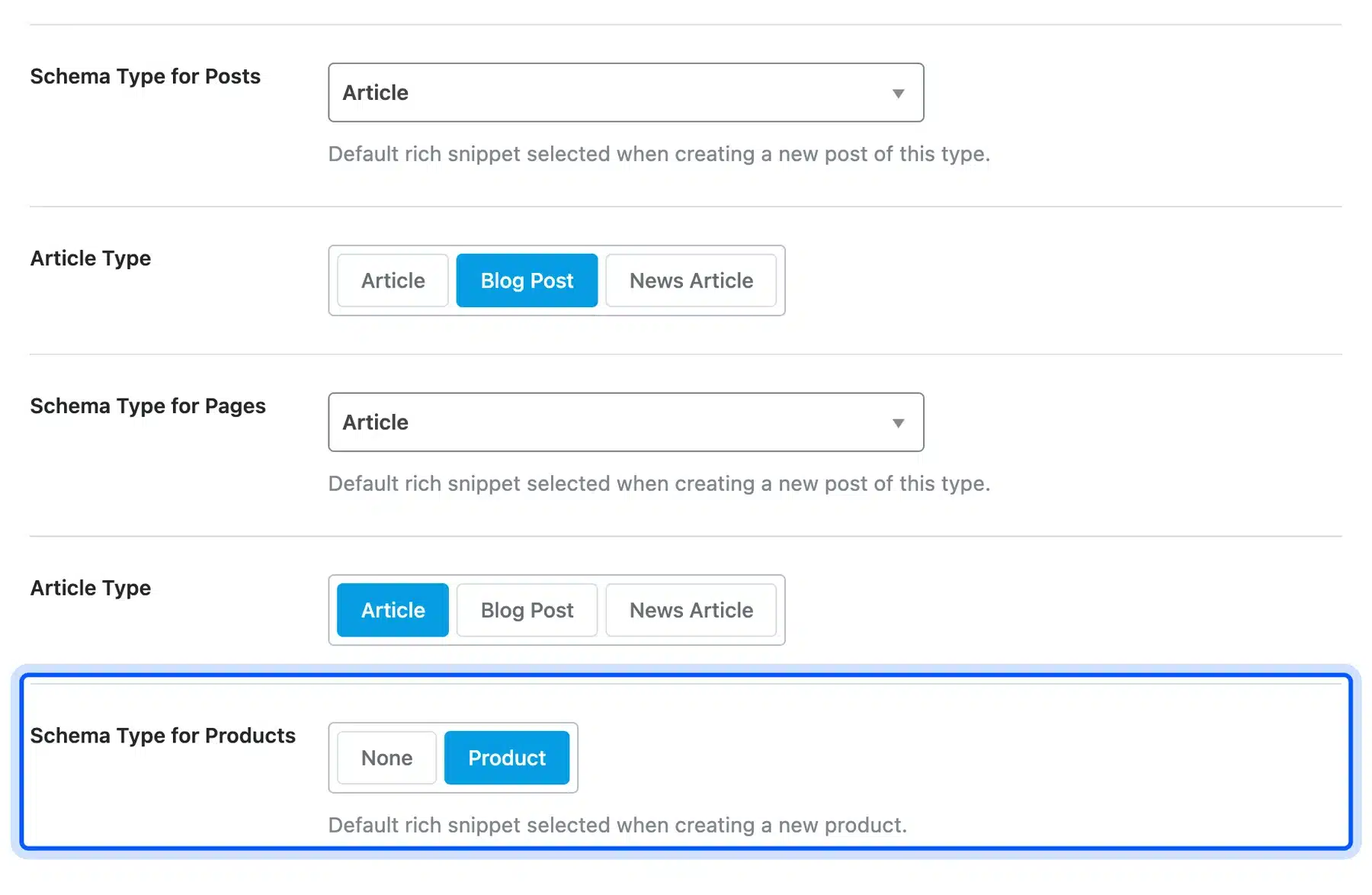
Posts defaulted to Article with the Blog Post subtype, and Pages defaulted to Article. That Pages default matters, and the testing section below explains why.
If you would rather hand this part over, our WordPress SEO services team sets up Rank Math, schema and redirects on live stores. The steps above are the same ones we follow.
How to Turn On the Modules You Need
After the wizard, Rank Math opens its Modules screen, where every feature is a card with a switch. Ten modules were already on in our store, including WooCommerce, Sitemap and Schema. 404 Monitor and Redirections were off, so we switched both on.
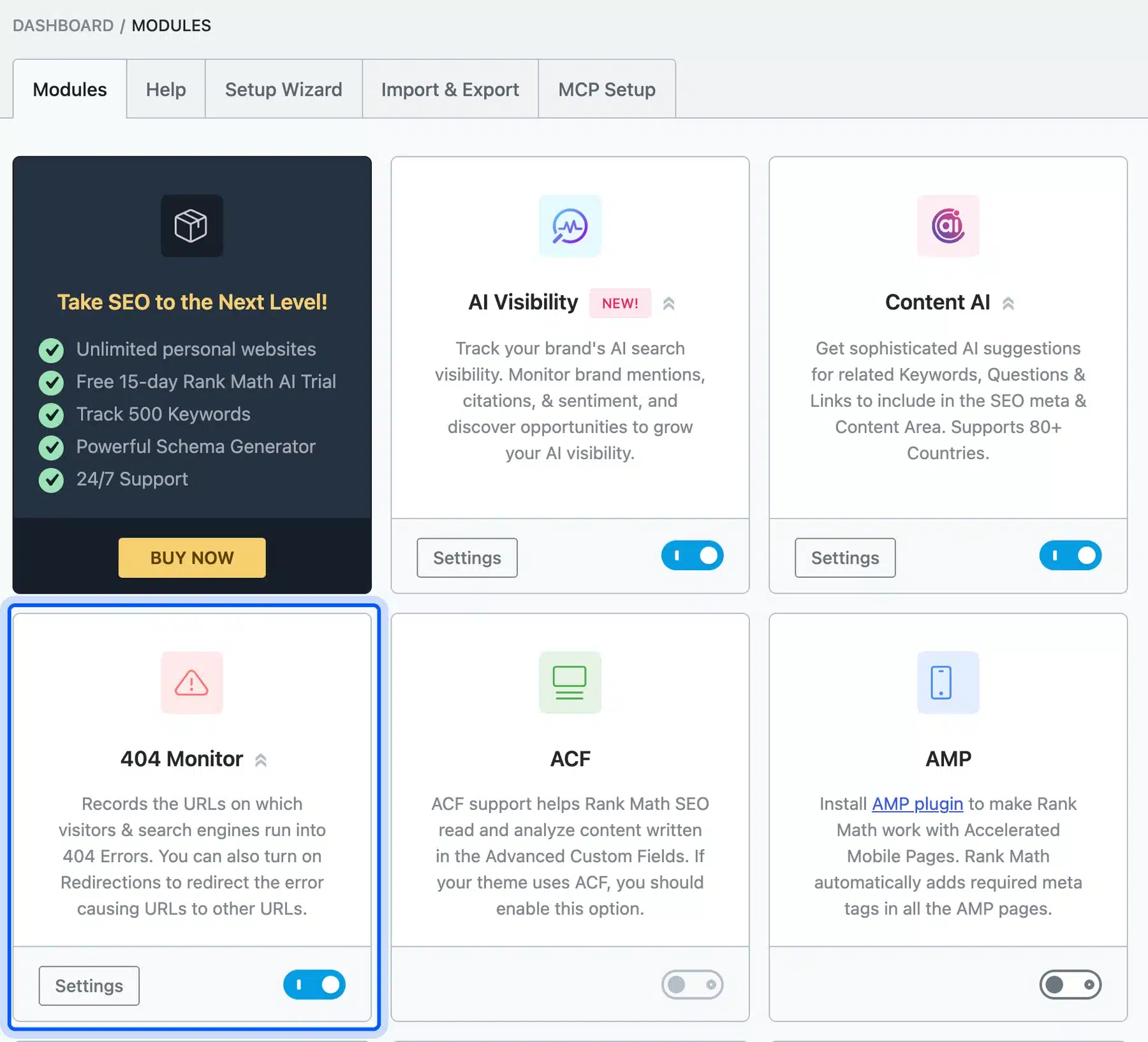
The WooCommerce module turned itself on because WooCommerce was active. It adds the product schema, the product SEO fields and the store settings covered next.
Some cards carry a PRO badge, such as News Sitemap, Video Sitemap, Podcast and AI Link Genius. Their switches are grayed out on the free plugin.
A LLMS Txt module was also listed and switched off. It serves an llms.txt file for AI crawlers, and it is free to turn on if you want one.
Leave off what you do not use. bbPress, BuddyPress, AMP and ACF only matter if those plugins run on your site.
Rank Math Titles and Meta Settings for Products
Titles & Meta sets the default title, description, schema and robots tags for each content type. For a store, the Products tab matters most. Ours used %title% %sep% %sitename% for product titles and the product excerpt for the description, with WooCommerce Product as the schema type.
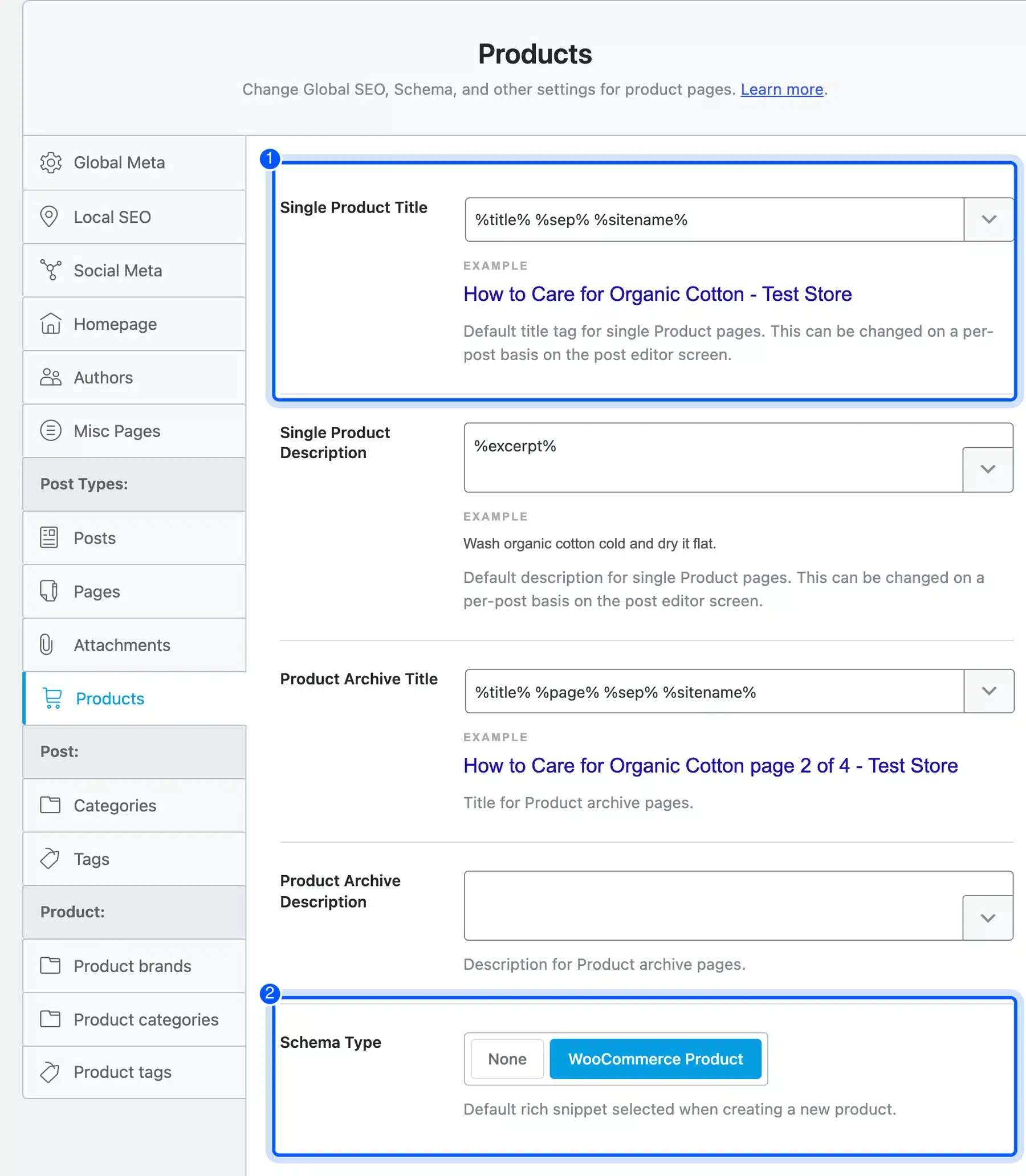
Those defaults are a sound starting point. Write a real short description on each product, because the excerpt variable copies it into the meta description.
Product categories and Product tags have their own tabs in the same menu. Set tags to noindex if you use them only for filtering.
The global robots defaults sit under Global Meta. Index is the default there, and every product, post or page can override it in its own editor.
WooCommerce Settings in Rank Math
The Rank Math WooCommerce settings live under General Settings, then WooCommerce. They control product URL bases, the WooCommerce generator tag and schema on shop archives.
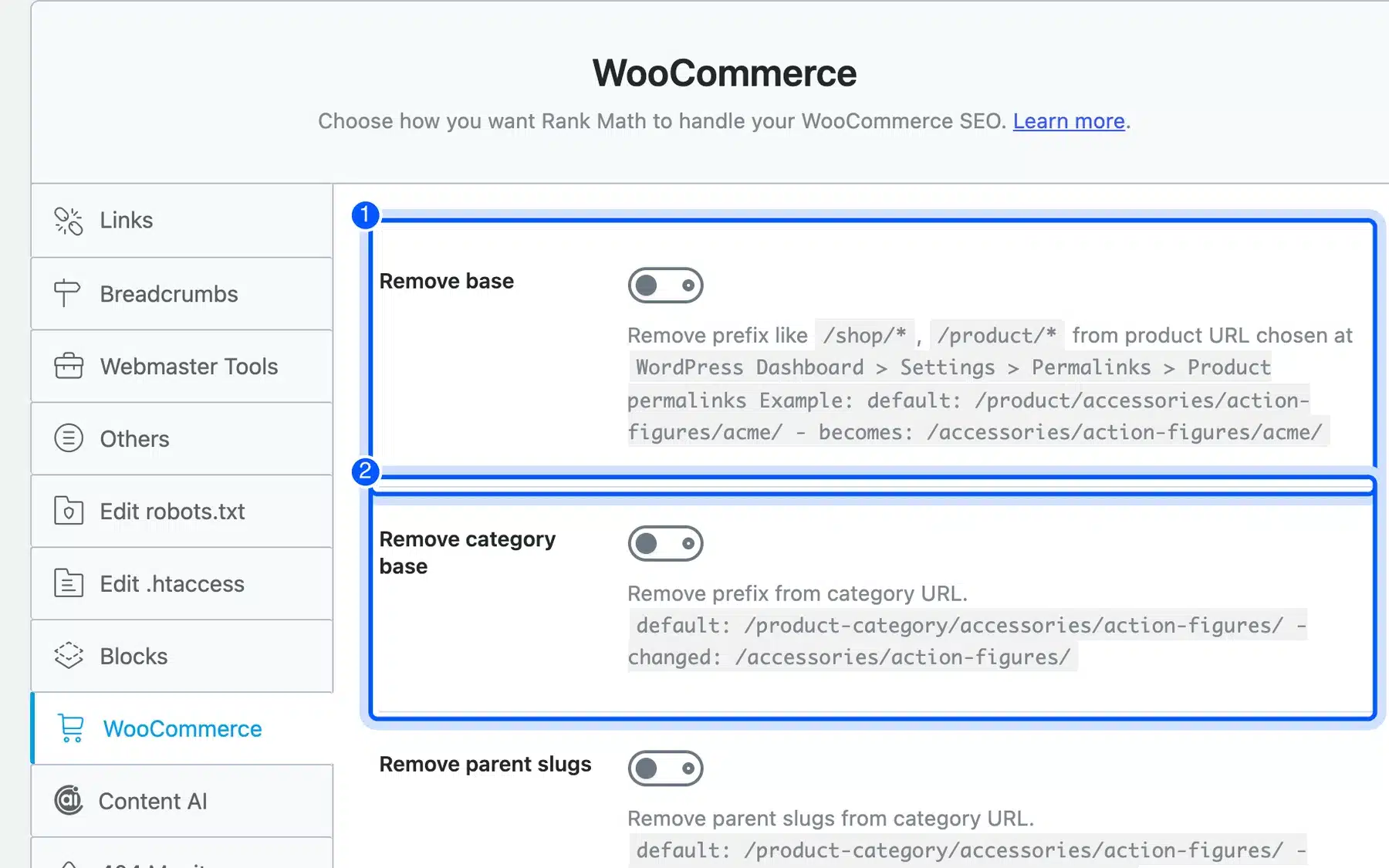
Remove base strips /product/ from product URLs, and Remove category base strips /product-category/. Both were off on our store.
Leave them off on a store that already has traffic. Changing every product URL at once needs redirects for each one, and a short URL earns nothing on its own.
Breadcrumbs sit in the same General Settings menu. Turn them on there, then place the shortcode or theme function the screen gives you.
Rank Math Sitemap Settings for WooCommerce
Rank Math builds an XML sitemap index at /sitemap_index.xml as soon as the Sitemap module is on. Our test store listed four child sitemaps there: posts, pages, products and categories. Each content type then has its own tab under Sitemap Settings, with an Include in Sitemap switch.
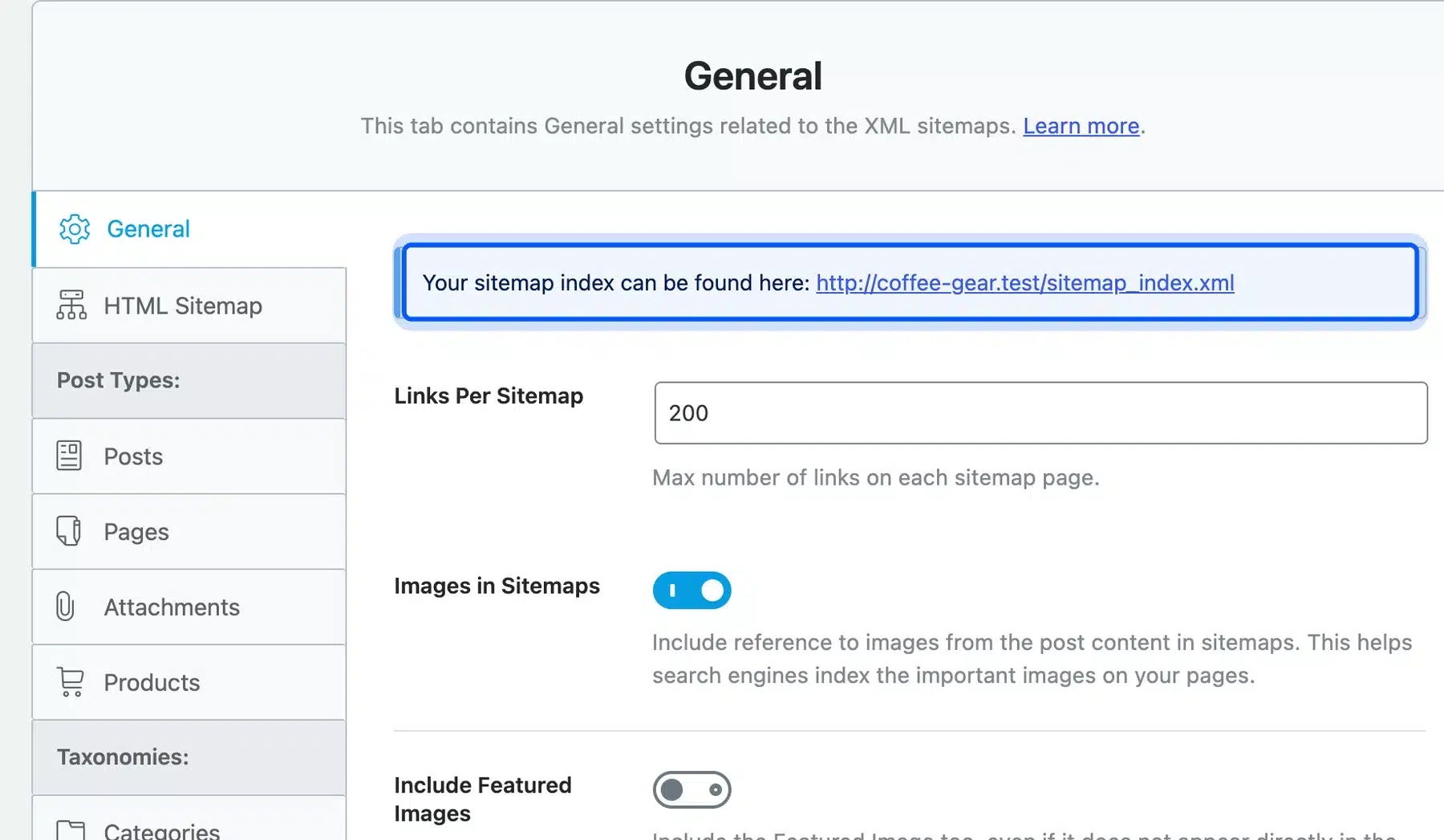
The General tab sets Links Per Sitemap, 200 by default, and has Exclude Posts and Exclude Terms fields for IDs. Submit the index URL in Google Search Console once, and Google finds the child sitemaps from there.
Product categories were not in our index, because the wizard left them unticked. Their tab confirmed it, with Include in Sitemap switched off.
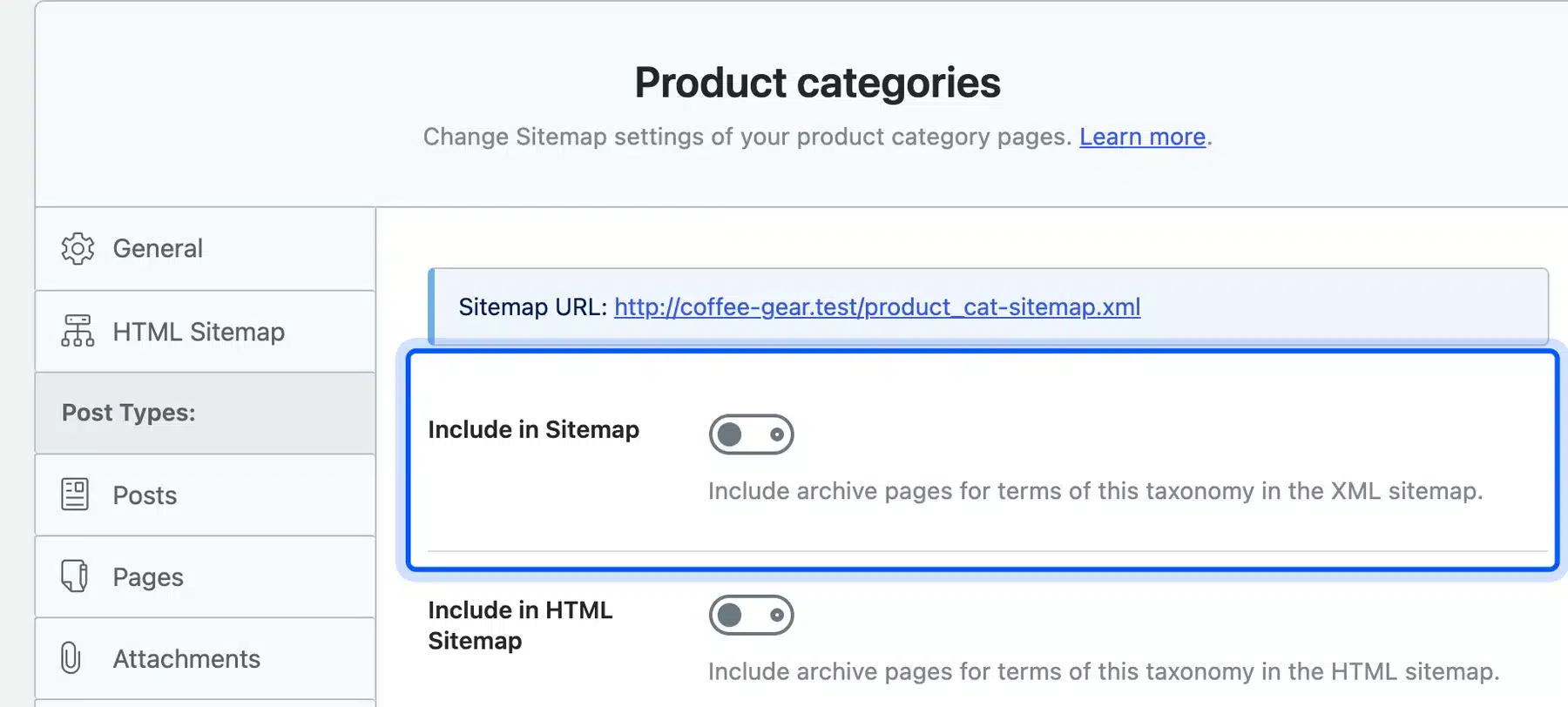
Switch it on for a store whose category pages matter, then reload the index to check. If you also want a sitemap page for visitors, see how to create an HTML sitemap in WordPress.
Worth knowing: Chrome showed a red banner on our styled sitemap page, warning that XSLT support is being removed. Chrome’s XSLT deprecation notice says XSLT stops working in Chrome 158 on 17 November 2026. The XML itself stays, so Google can still read the file.
How to Use the Focus Keyword and SEO Score
The focus keyword sits in the Rank Math SEO box under every product, post and page. Type the search phrase the page targets, press Enter, and the score updates at once. It checks the title, URL, description and content against that phrase and lists every test that failed.
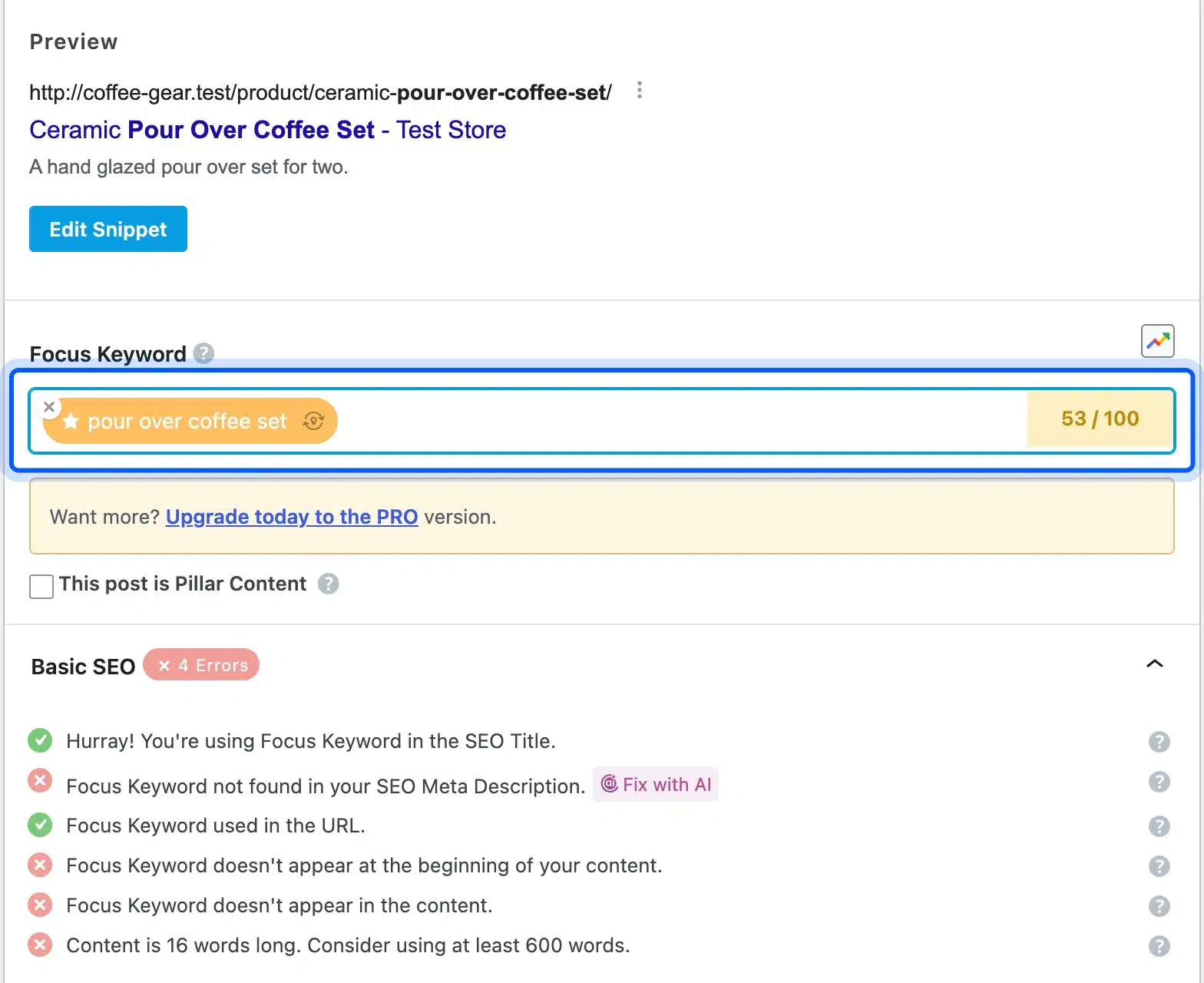
On our Ceramic Pour Over Coffee Set product, the score was 7/100 with no keyword. Adding “pour over coffee set” moved it to 53/100, because the phrase already sat in the title and URL.
The remaining fails were the phrase missing from the meta description and the content, plus a product text of only 16 words. Those are fair notes, and the fix is a real description rather than repeated keywords.
Treat the score as a checklist. A product at 70 with a clear, honest description will usually serve buyers better than one stuffed to reach 100.
Redirections and the 404 Monitor
The 404 Monitor logs every URL a visitor or crawler requested that returned Not Found. The Redirections module then sends that URL to a working page with a 301, 302 or 307 status. Together they catch broken links after you delete, rename or merge products.
We requested three URLs that did not exist on our store, and all three returned 404. The monitor logged each one with its hit count and time.
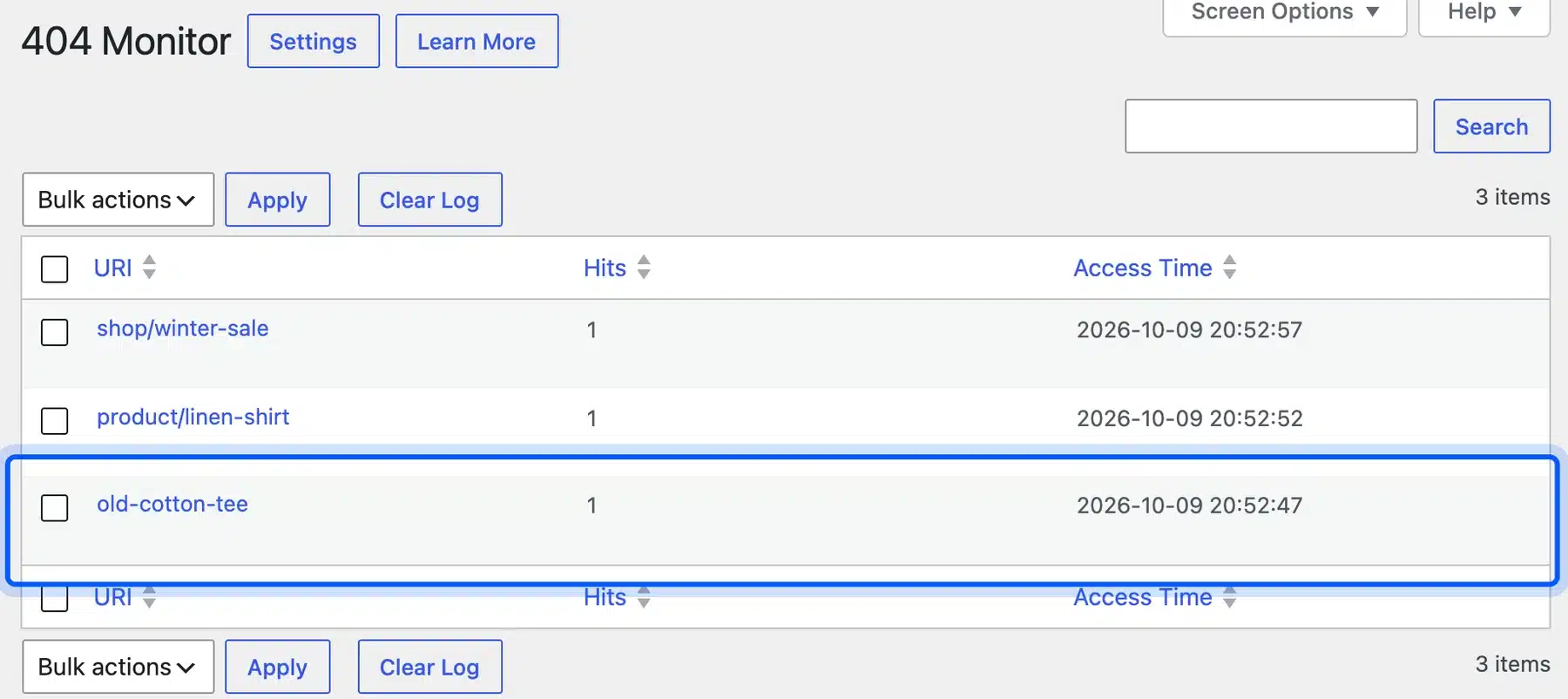
Hover a row and click Redirect, and Rank Math opens the redirect form with the source already filled in. We pointed old-cotton-tee at the Organic Cotton Hoodie with a 301.
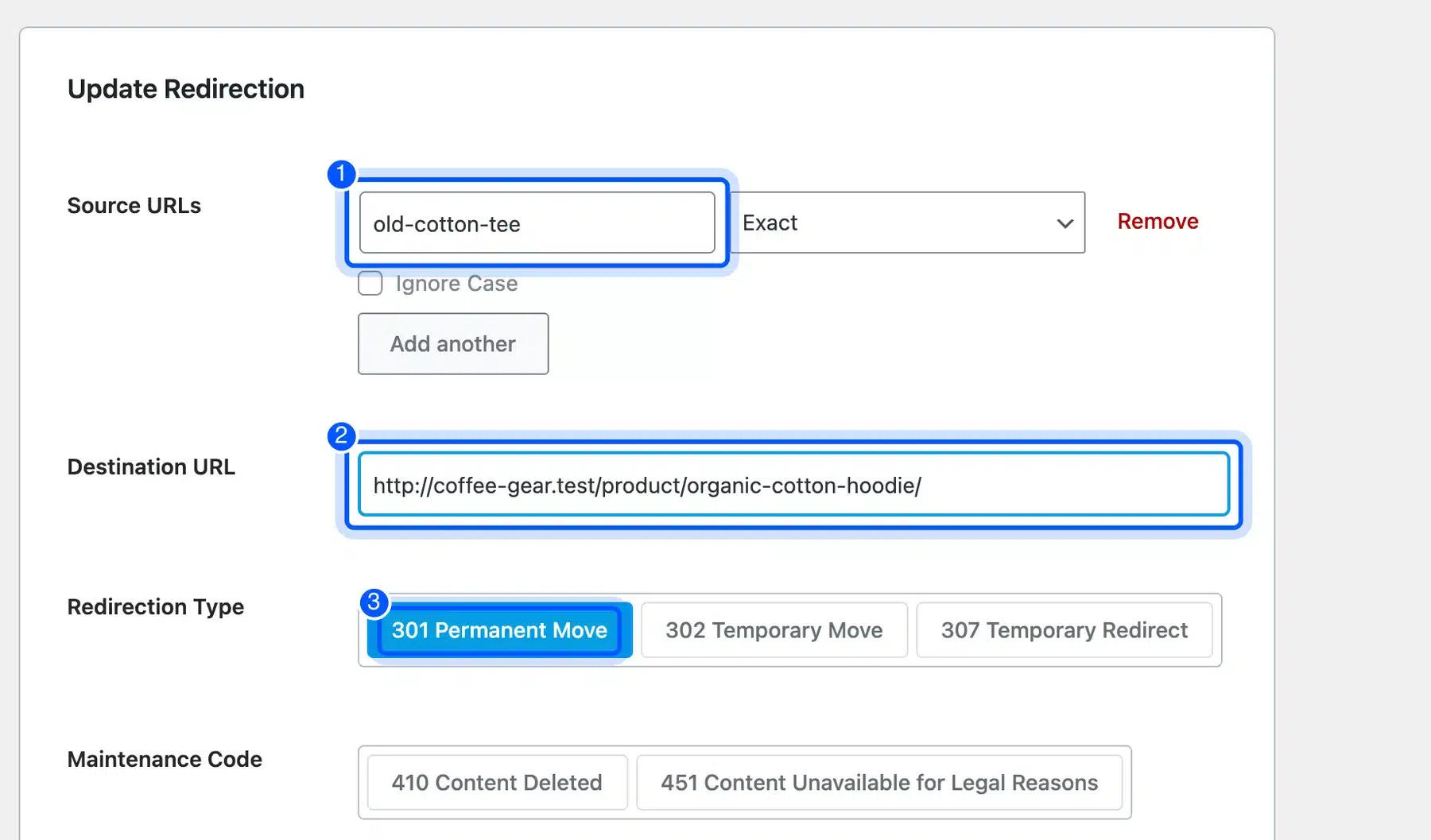
After saving, the old URL returned a 301 to the hoodie page. Google’s guide to redirects calls a 301 a permanent redirect, which suits a product that is gone for good.
The same form also offers 410 Content Deleted for products you will never bring back. For more redirect methods, read how to redirect a page or URL in WordPress.
What We Found Testing Noindex and Schema Settings
We tested two settings that look small and cause real damage on stores. A product set to noindex dropped out of the Rank Math sitemap at once. A page whose schema was deleted lost every JSON-LD block, including the site-wide Organization and WebSite nodes.
Noindex Removes a Product From the Sitemap
Open the product, go to the Rank Math box, then the Advanced tab. We ticked No Index on the Organic Cotton Hoodie and clicked Update.
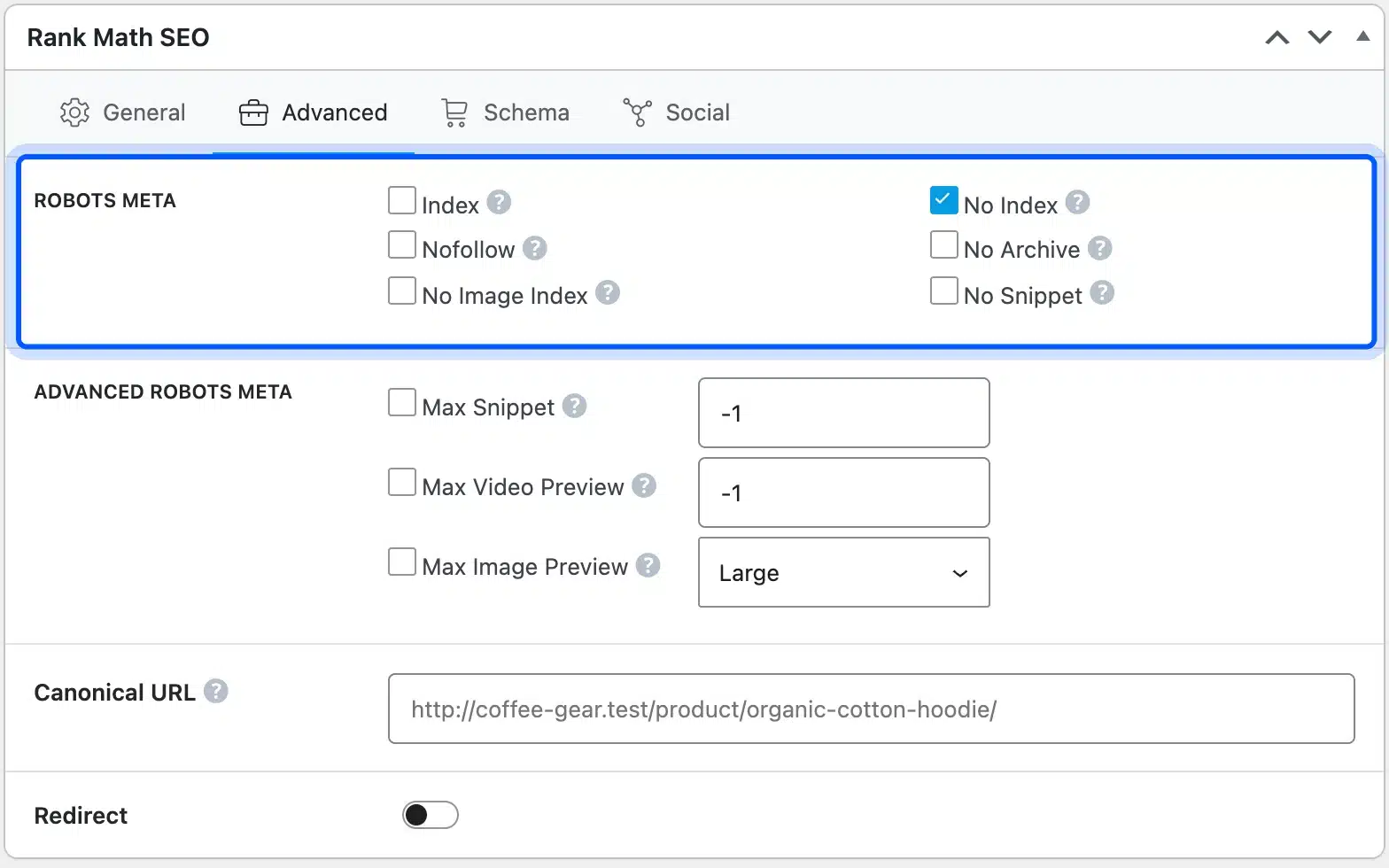
The product page then served follow, noindex as its robots tag. The product sitemap went from four URLs to three, with the hoodie gone.
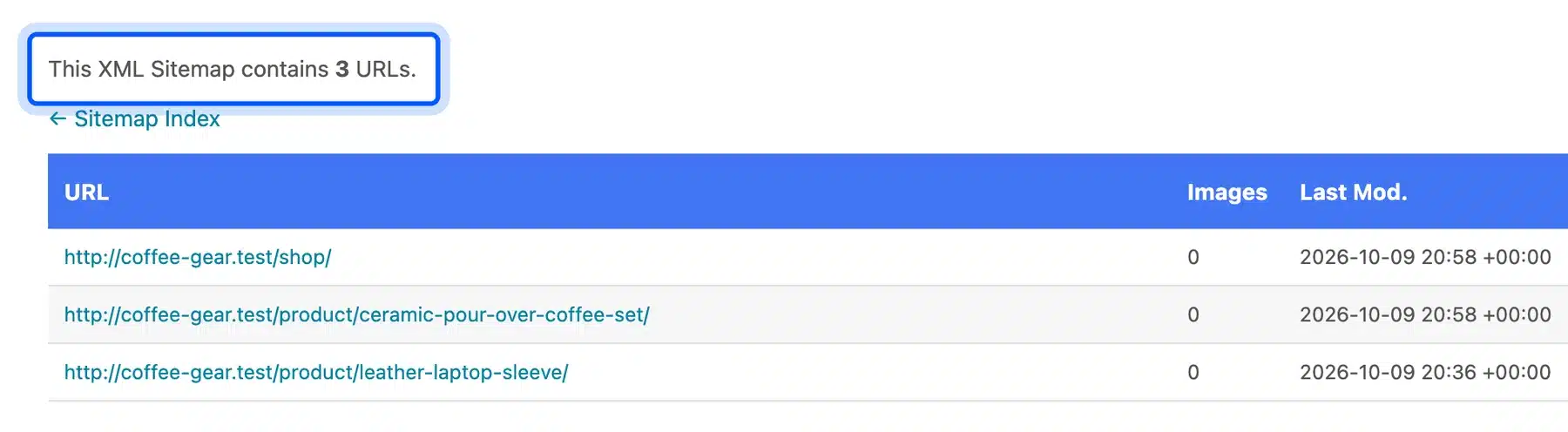
This is the right way to keep a URL out of search. Google’s noindex documentation says a noindex rule stops the page from showing in search results, and Rank Math removes it from the sitemap too.
So set noindex in the Rank Math box itself, where the sitemap follows the change. If a page is stuck on noindex by mistake, read how to remove the noindex tag in WordPress.
Never Delete a Page’s Schema to Fix Its Type
In the block editor, the Rank Math sidebar has a Schema tab. Our Sample Page showed Article under Schema in Use, inherited from the Pages default set in the wizard.
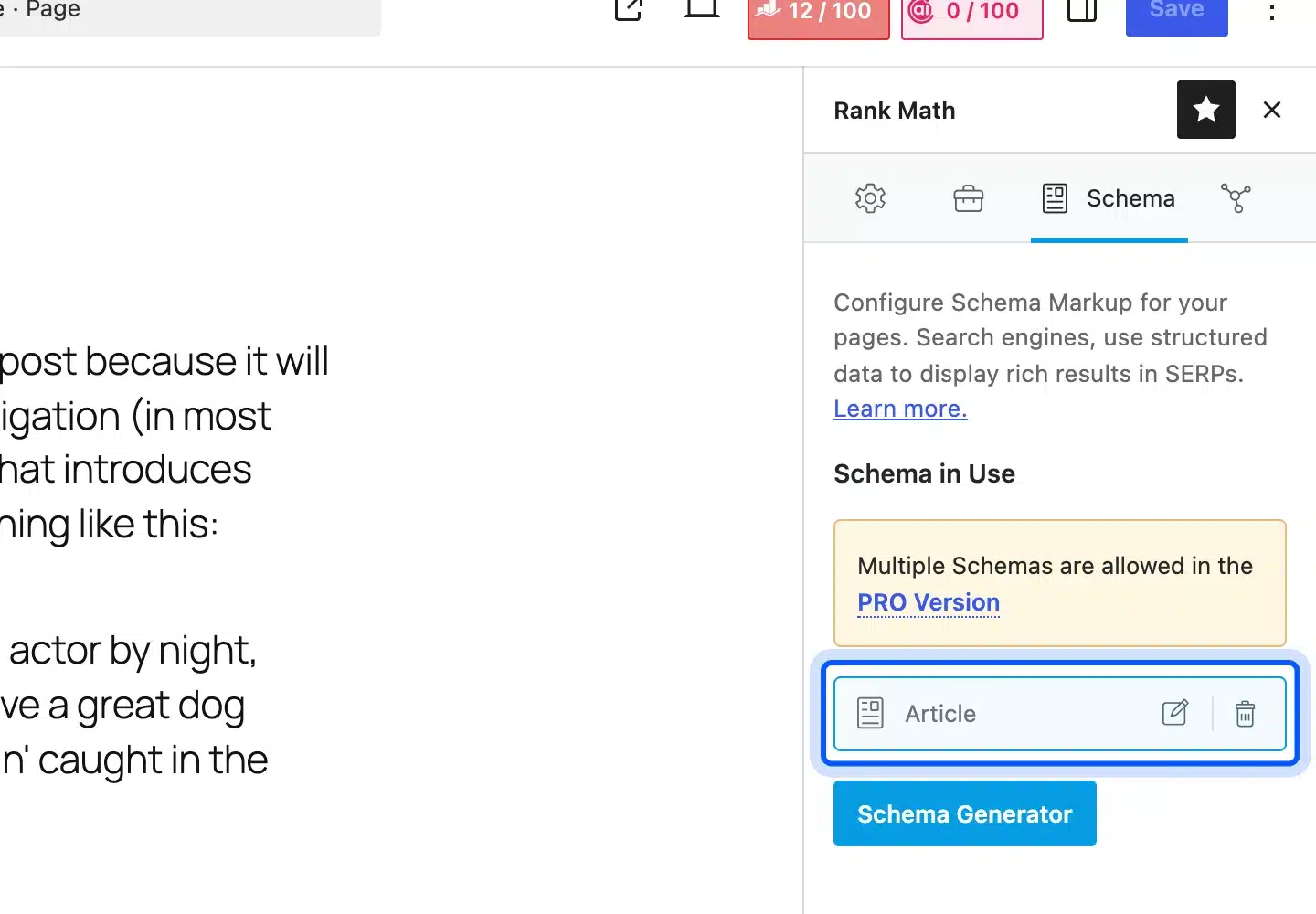
We deleted that Article schema with the trash icon and saved. The page then served no JSON-LD at all, and the Organization, WebSite and WebPage nodes went with it.
A blog post on the same store still carried all of those nodes. So deleting a page’s schema strips its site-wide markup, which is far worse than one wrong type.
The fix is to set the correct type instead. Pick it with the Schema Generator in that tab, or change the Pages default under Titles & Meta. For a business page, our guide to local business schema in WordPress shows the right type.
Rank Math Free vs PRO
The free Rank Math SEO plugin covered every step in this guide: wizard, sitemap, schema, redirects, 404 log and the editor score. PRO adds multiple schemas per post, keyword rank tracking, the schema generator library and daily Google data. Plans start at €7.99 a month billed yearly, as of October 2026.
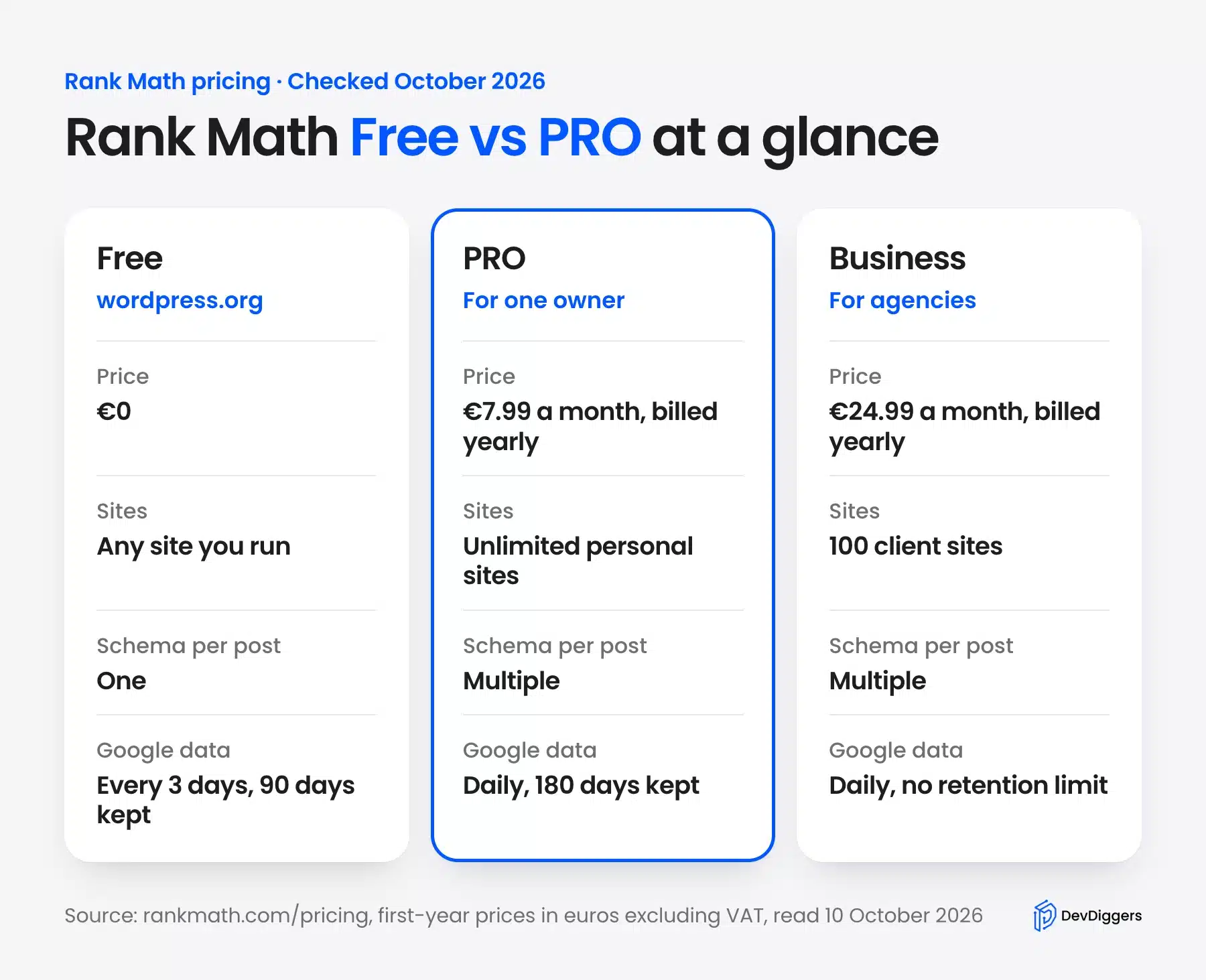
The Rank Math pricing page listed three paid plans on 10 October 2026, priced in euros excluding VAT:
| Plan | First year | Renews at | Sites | Tracked keywords |
|---|---|---|---|---|
| PRO | €7.99 a month, billed yearly | €8.99 a month | Unlimited personal sites | 500 |
| Business | €24.99 a month, billed yearly | €27.99 a month | 100 client sites | 10,000 |
| Agency | €54.99 a month, billed yearly | €64.99 a month | 500 client sites | 50,000 |
The page also showed a 30 day money back guarantee. The first-year price is a discount, so budget for the renewal price.
A single store rarely needs PRO on day one. Buy it when you need more than one schema type on a product, or when you want rank tracking inside WordPress.
The free plugin also kept one schema per post on our store. The Schema tab showed “Multiple Schemas are allowed in the PRO Version” right above the Article entry.
Common Rank Math Mistakes on a Store
Most Rank Math problems on a store come from changing defaults without a reason. The five below came straight out of our test store, and each one has a plain fix. None of them needs PRO, and most take one settings change to undo.
- Two SEO plugins at once: The WordPress.org FAQ advises turning off the overlapping features if another SEO plugin stays active. Run one plugin for titles and schema.
- Removing the product base on a live store: Every product URL changes at once. Set redirects first, or leave the base alone.
- Deleting schema to fix a type: Our test showed it strips the Organization and WebSite nodes too. Set the right type instead.
- Chasing 100/100: The score checks keyword placement. A clear description helps buyers more than an extra repeat of the phrase.
- Forgetting product categories: They start outside the sitemap. Tick them in Sitemap Settings if your category pages should rank.
Rank Math’s own setup wizard guide and its sitemap configuration guide document every field if a screen differs on your version.
Conclusion
Rank Math SEO gives a WooCommerce store titles, a sitemap, Product schema and redirects for free. The wizard handles most of it in 10 short screens. Two defaults deserve a second look: product categories start outside the sitemap, and 404 Monitor and Redirections start switched off.
Our tests also showed two rules worth keeping. Noindex a page in Rank Math itself so it leaves the sitemap. Never delete a page’s schema, because the site-wide markup goes with it.
Start with the free plugin. Upgrade only when you need rank tracking or multiple schema types per product.
Frequently Asked Questions (FAQs)
Q1. Is Rank Math SEO free to use?
Yes. The free plugin on WordPress.org includes the setup wizard, sitemaps, schema, redirects and the 404 monitor. Paid plans add rank tracking, multiple schemas per post and daily Google data.
Q2. Do I need a Rank Math account to use the plugin?
No. We clicked Skip Step on the account screen and every feature in this guide still worked. An account only adds keyword suggestions, the Content AI trial and one-click Search Console setup.
Q3. Can I use Rank Math and Yoast SEO together?
It is not a good idea. The Rank Math FAQ on WordPress.org recommends turning off overlapping features if you keep another SEO plugin. Two plugins writing titles and schema will print duplicate tags.
Q4. Where is the Rank Math sitemap URL?
The sitemap index sits at /sitemap_index.xml on your domain. Sitemap Settings, then General, shows the full link, and each content type has its own child sitemap.
Q5. Can I switch from Advanced mode to Easy mode later?
Yes. The wizard notes that you can switch modes at any point. The Easy Mode and Advanced Mode toggle sits at the top right of the Rank Math dashboard.
Q6. Does Rank Math add product schema to WooCommerce automatically?
Yes. With the WooCommerce module on, each product page served a Product node with an offers block in our test. You only need to keep Product as the default schema type for products.
Q7. How do I get a 100/100 score in Rank Math?
Place the focus keyword in the title, URL, description and first paragraph, and write enough content. Treat the score as a checklist rather than a target, because a clear product page matters more.