Yes, you should remove polyfill from WordPress if your visitors are on modern browsers, and this guide shows you exactly how, screenshot by screenshot.
Most guides on this topic stop at “edit your functions.php file” and leave beginners stuck. That’s the part nobody warns you about: editing code directly can break your site if you skip one safety step first.
In the next few minutes, you’ll check whether your audience still needs a polyfill, pick between a no-code method and a code method, then test everything safely afterwards.
What Is a Polyfill in WordPress?
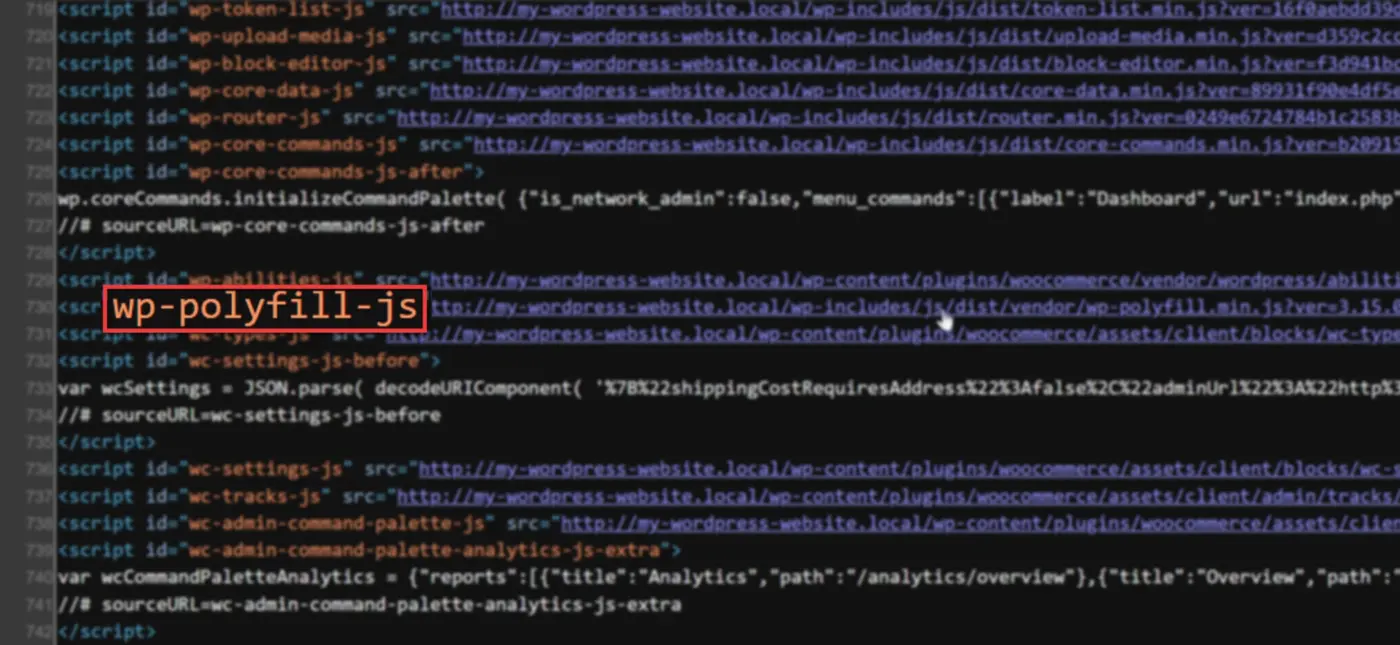
A polyfill is a small piece of JavaScript. It lets older browsers run modern web features they don’t support by default.
Think of it as a translator. Newer JavaScript methods like Promise or Array.prototype.includes mean nothing to an old browser. The polyfill script steps in and fills that gap. This is the exact script most people mean when they ask how to remove polyfill from WordPress.
WordPress ships its own version called wp-polyfill. It loads automatically on most sites, whether you need it or not. That’s exactly why so many site owners look into how to remove polyfill from WordPress in the first place.
Here’s the part most articles skip. WordPress used to lean on polyfills heavily to support Internet Explorer 11. That changed years ago. WordPress officially dropped support for Internet Explorer 11 in 2021, and the script has been shrinking ever since.
That single fact answers half the question everyone asks before they even open their dashboard.
Here’s what that looks like in practice. Say your theme uses Array.prototype.includes to filter a product list. On a modern browser, that line runs instantly. On an ancient version of Internet Explorer, the browser throws a silent error, and the filter never loads. The polyfill was the patch that quietly prevented that error.
That’s the whole trade-off in one example. Keep the patch, and every visitor gets the same experience regardless of their browser’s age. Remove it, and you shed a small file, but only for the browsers that never needed the patch in the first place.
Should You Remove Polyfill from WordPress? The Quick Answer
If your visitors are on Chrome, Safari, Edge, or Firefox, you can safely remove polyfill from WordPress without breaking anything for them.
Here’s the number that settles most doubts. Chrome alone holds 65.23% of the global browser market, and Safari adds another 18.12%. Together with Edge and Firefox, modern evergreen browsers now account for the overwhelming majority of web traffic.
The script itself has already gotten leaner on WordPress’s end. wp-polyfill.min.js dropped from 115 KB in WordPress 6.4 to 39 KB in WordPress 6.5, and WordPress core keeps trimming it release by release. So why remove it manually at all? Because 39 KB of unused JavaScript on every page load still adds up; it’s one more file the browser has to load, process, and run before your page finishes rendering.
If you’re already working on load times, this fits well alongside fixes like reducing HTTP requests or reducing TTFB. None of these changes is dramatic alone, but stacked together, they are.
One exception worth naming: if even 3-4% of your visitors are on outdated browsers, or you run a site for an older, less tech-savvy audience, keep the polyfill. Removing it isn’t reversible for a visitor mid-session, only for you, in your code.
Site owners often assume their audience mirrors general browser statistics, and most of the time they’re close. But niche audiences, government agencies, older groups of people, and certain corporate intranets can carry a surprising share of outdated browsers, well above the global average. That’s exactly why the next step matters more than any statistic here.
Check Your Browser Compatibility First
Don’t skip this. It takes five minutes and tells you exactly how risky the removal will be for your specific audience.
- Log in to your WordPress site and open Google Analytics in a new tab.

- Go to Reports → Tech → Tech Details.
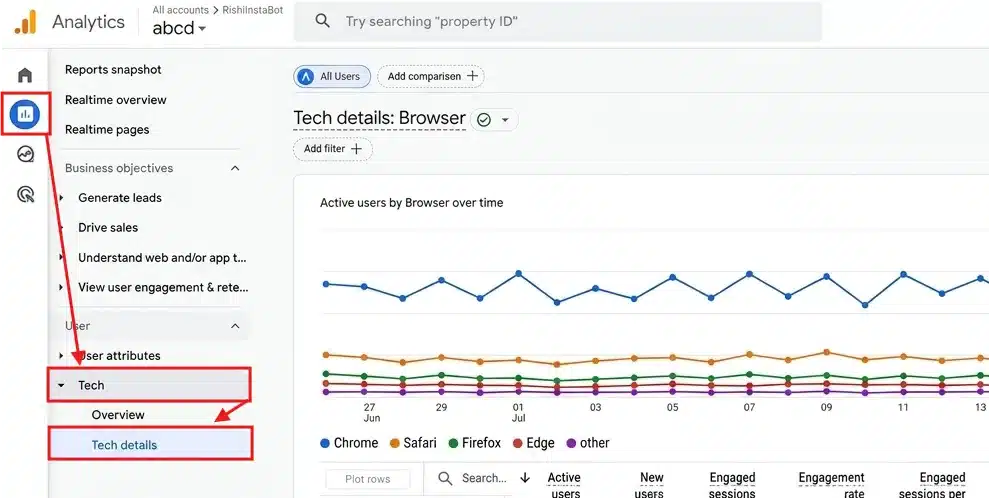
- Set the primary dimension to Browser.
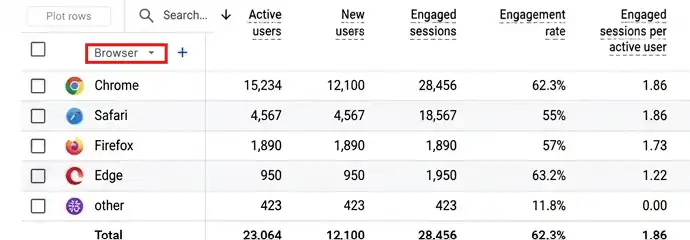
- Look at the percentage next to Engaged sessions. Anything under 1% total across outdated browsers is a low-risk removal. Note these numbers or percentages. You’ll want it later if anything looks off after testing
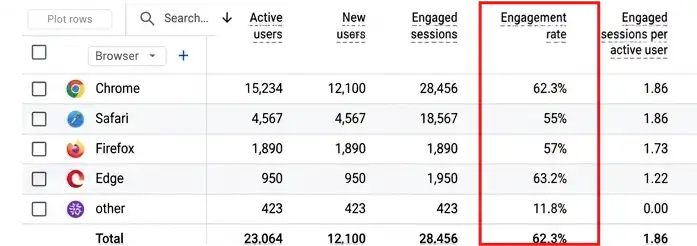
If you don’t have Google Analytics connected, most caching and security plugins also log user agents. Check your hosting dashboard’s analytics panel as a backup option.
What counts as “low risk” in practice? Anything under roughly 1% of total sessions across all outdated browser versions combined is a comfortable safe limit for most sites. If you’re closer to 3% or higher, it’s still your call, but weigh what those specific visitors do on your site. A blog post reader bouncing off a broken animation matters less than a shopper stuck at checkout.
Do this Before You Touch Any Code
This step gets skipped constantly, and it’s the reason so many people give up on editing functions.php after one bad experience.
If you edit your active theme’s functions.php file directly, every line you add disappears the next time that theme updates. WordPress overwrites the whole file.
The fix is simple. Create a WordPress child theme first, or use the no-code plugin method below instead. Either one protects your changes permanently.
If you’re not comfortable creating a child theme yet, jump straight to Method 1 below. It skips this entire risk.
How to Remove Polyfill from WordPress (2 Beginner-Friendly Methods)
You have two paths here. Pick the one that matches your comfort level, not the one a tutorial assumes you should already know.
Method 1: Using a Plugin (No Code Required)
This is the safest way to remove a polyfill from WordPress if you’ve never opened a PHP file before. No child theme required, no risk of a typo breaking your site.
- In your WordPress dashboard, go to Plugins → Add New Plugin.
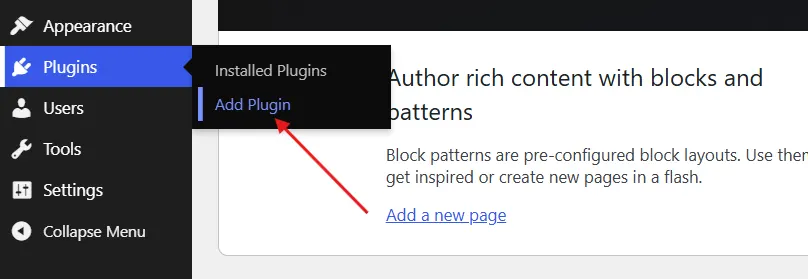
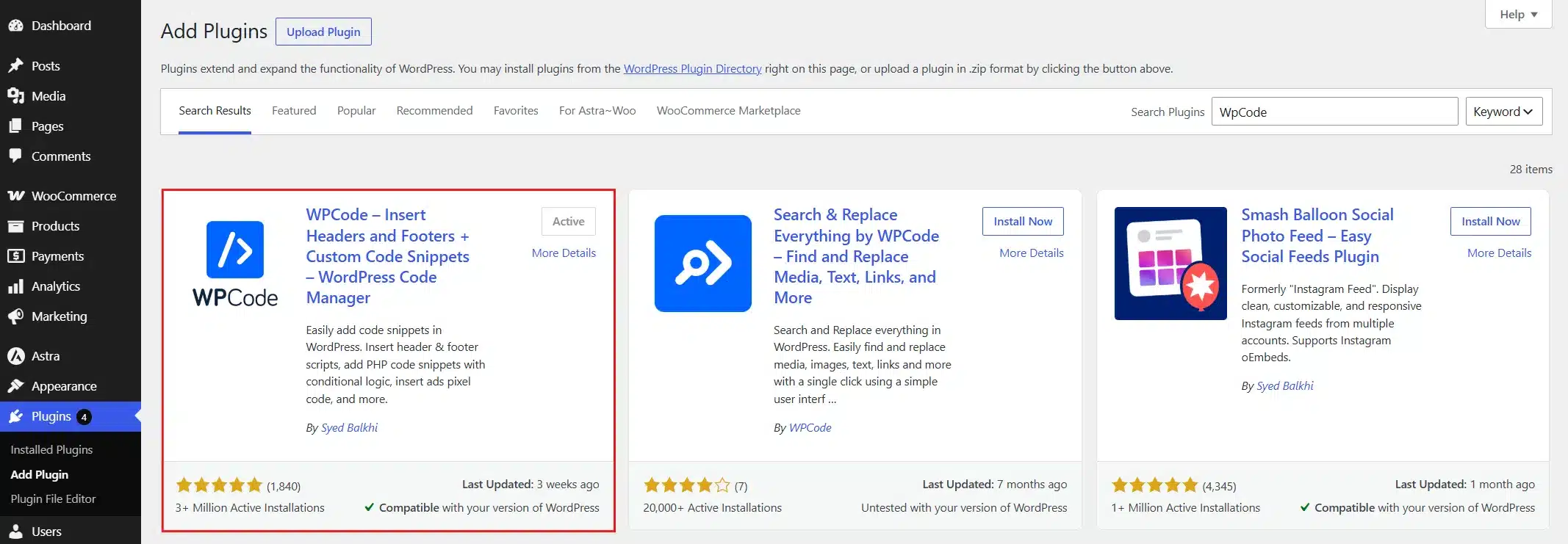
- Now, install and activate the WPCode Plugin.
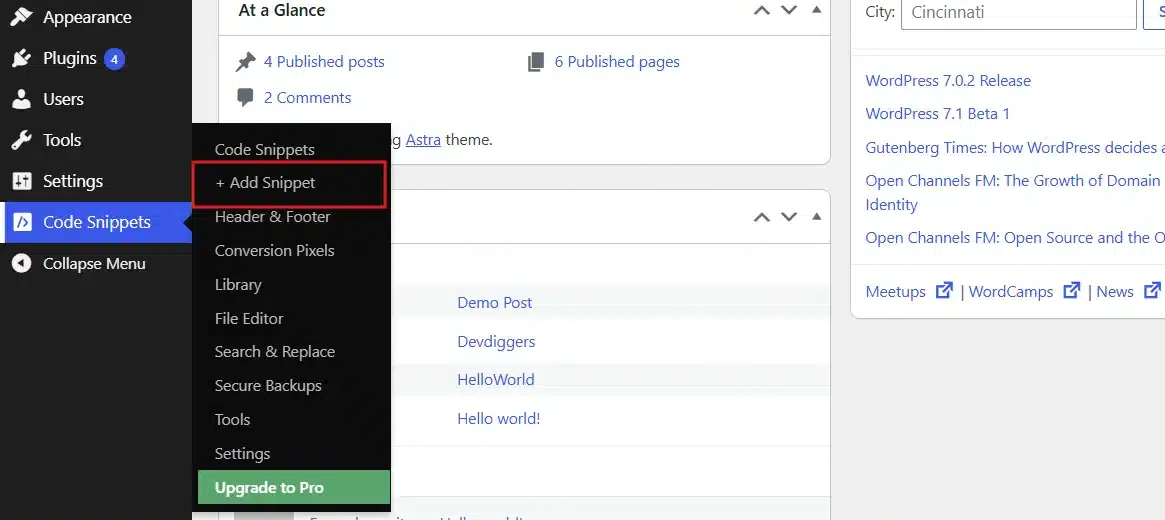
- From the left sidebar, click Code Snippets → Add Snippet.
- Choose Add Your Custom Code (New Snippet).
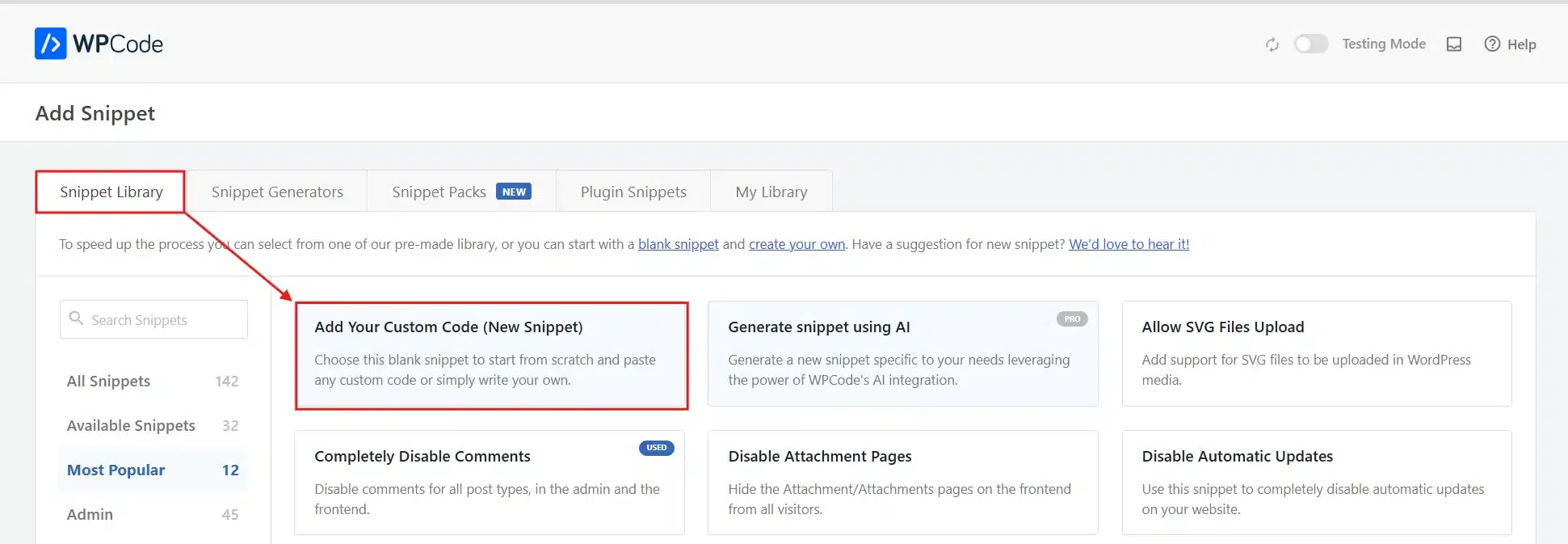
- Set the Code Type → PHP Snippet.
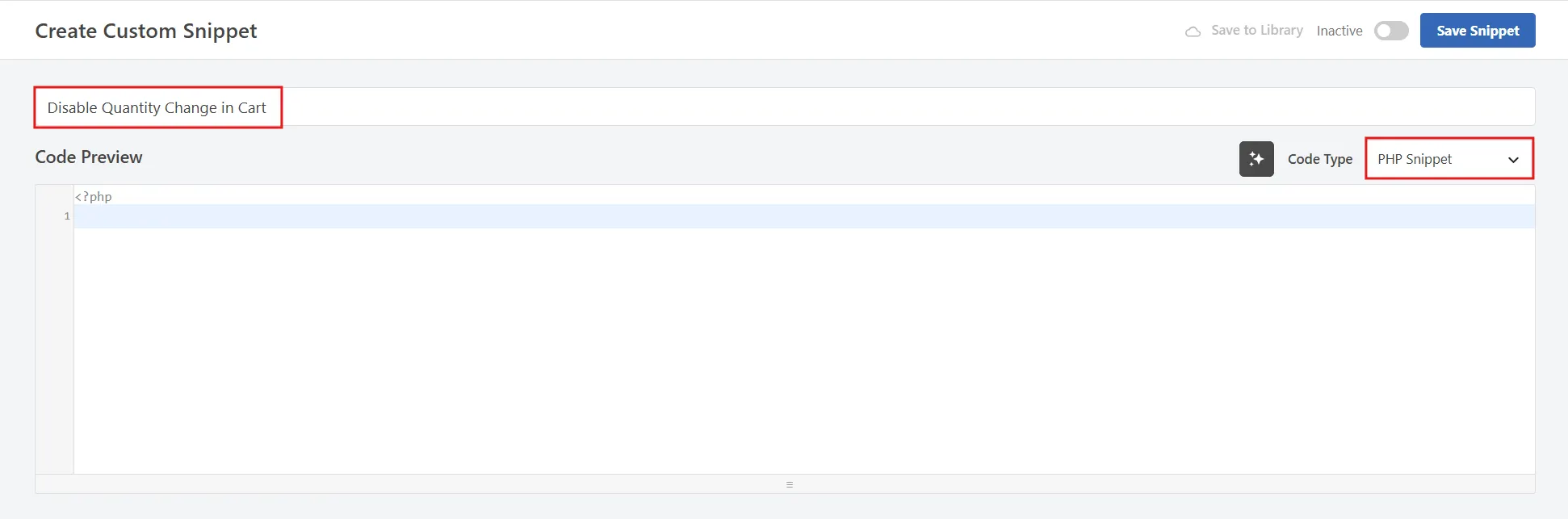
- Paste this code into the code box:
function remove_wp_polyfill_script() {
    wp_deregister_script( 'wp-polyfill' );
}
add_action( 'wp_enqueue_scripts', 'remove_wp_polyfill_script', 100 );
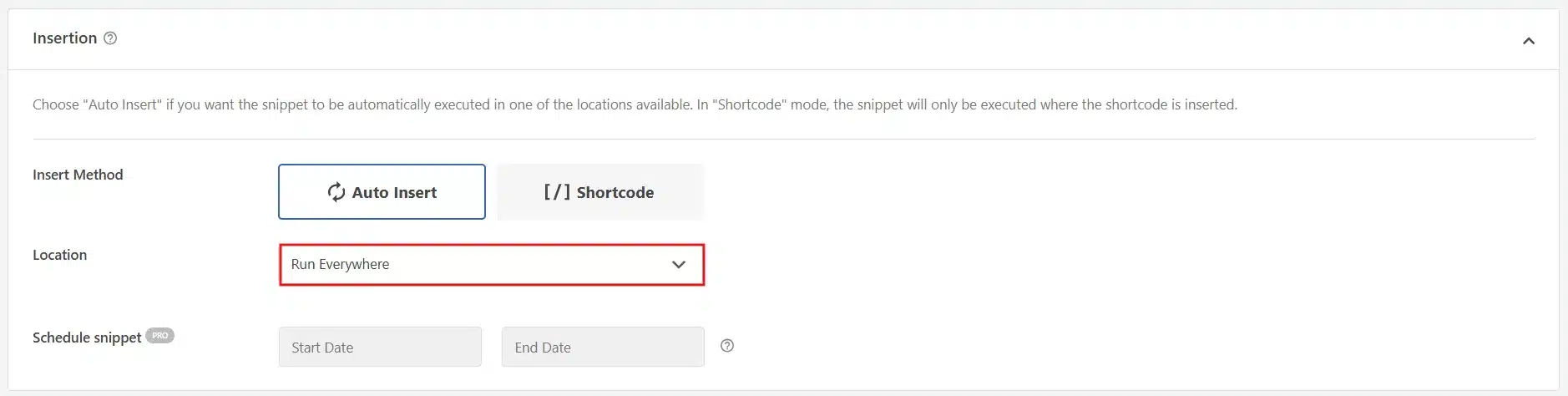
- Scroll down to Insertion → Auto Insert → Run Everywhere.
- Toggle the switch at the top from Inactive to Active → Save Snippet.
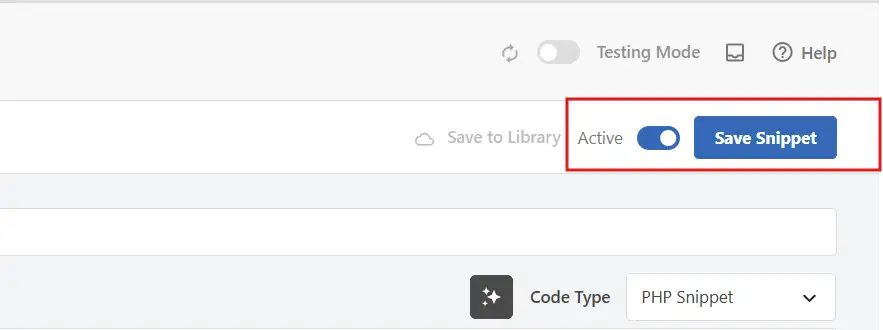
That’s it. No theme files touched, no risk of losing the change on the next update.
Note: Some caching plugins store an old version of your pages even after you activate a new snippet. Clear your site’s cache and your host’s cache if you use a managed WordPress host before assuming the change failed.
Method 2: Editing functions.php (For Developers)
If you already created a child theme in the previous step, this method works well and keeps your site leaner without adding another plugin.
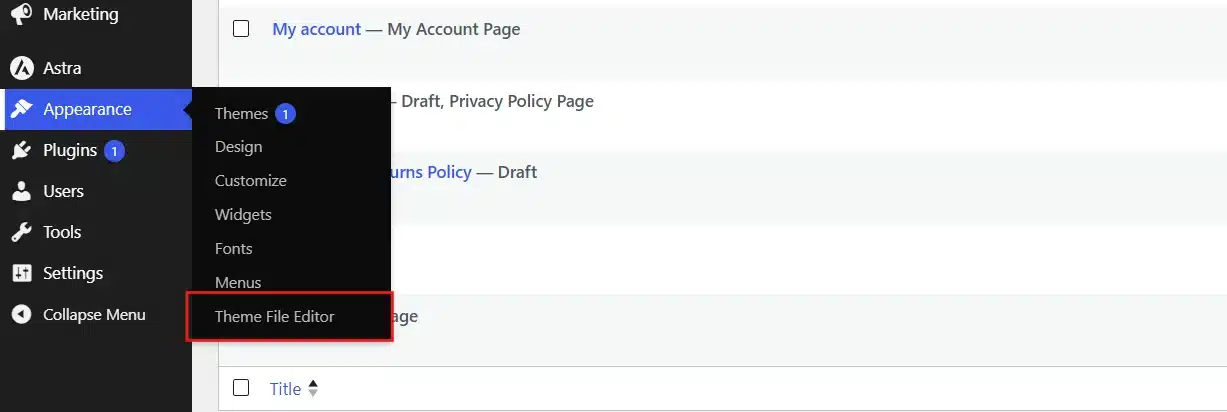
- In your dashboard, go to Appearance → Theme File Editor.
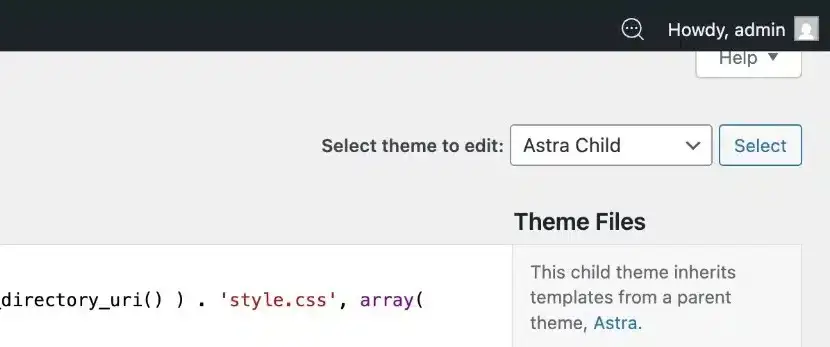
- Confirm the dropdown in the top right shows your child theme, not the parent theme.
- Open
functions.phpfrom the file list on the right.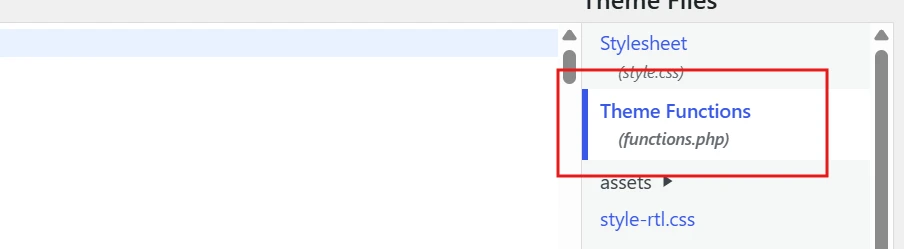
- Scroll to the bottom of the file and add this snippet:
function remove_wp_polyfill() {
    wp_deregister_script( 'wp-polyfill' );
}
add_action( 'wp_enqueue_scripts', 'remove_wp_polyfill', 100 );
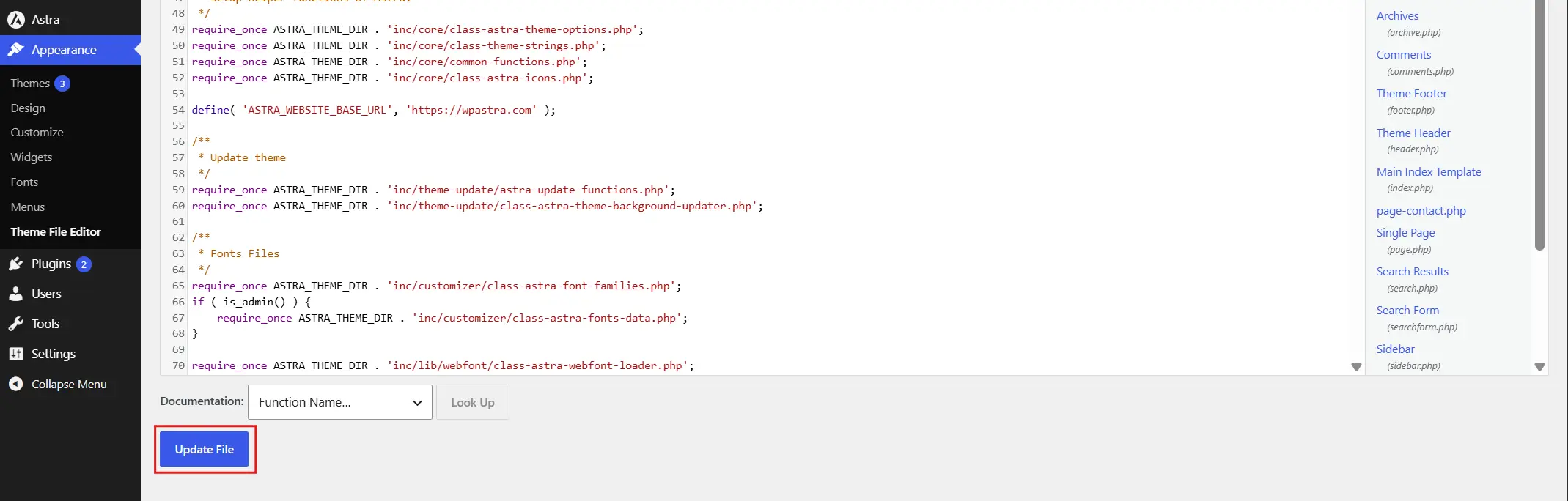
- Click Update button below to Save the changes.
- Open your site in an incognito window and confirm nothing looks broken.
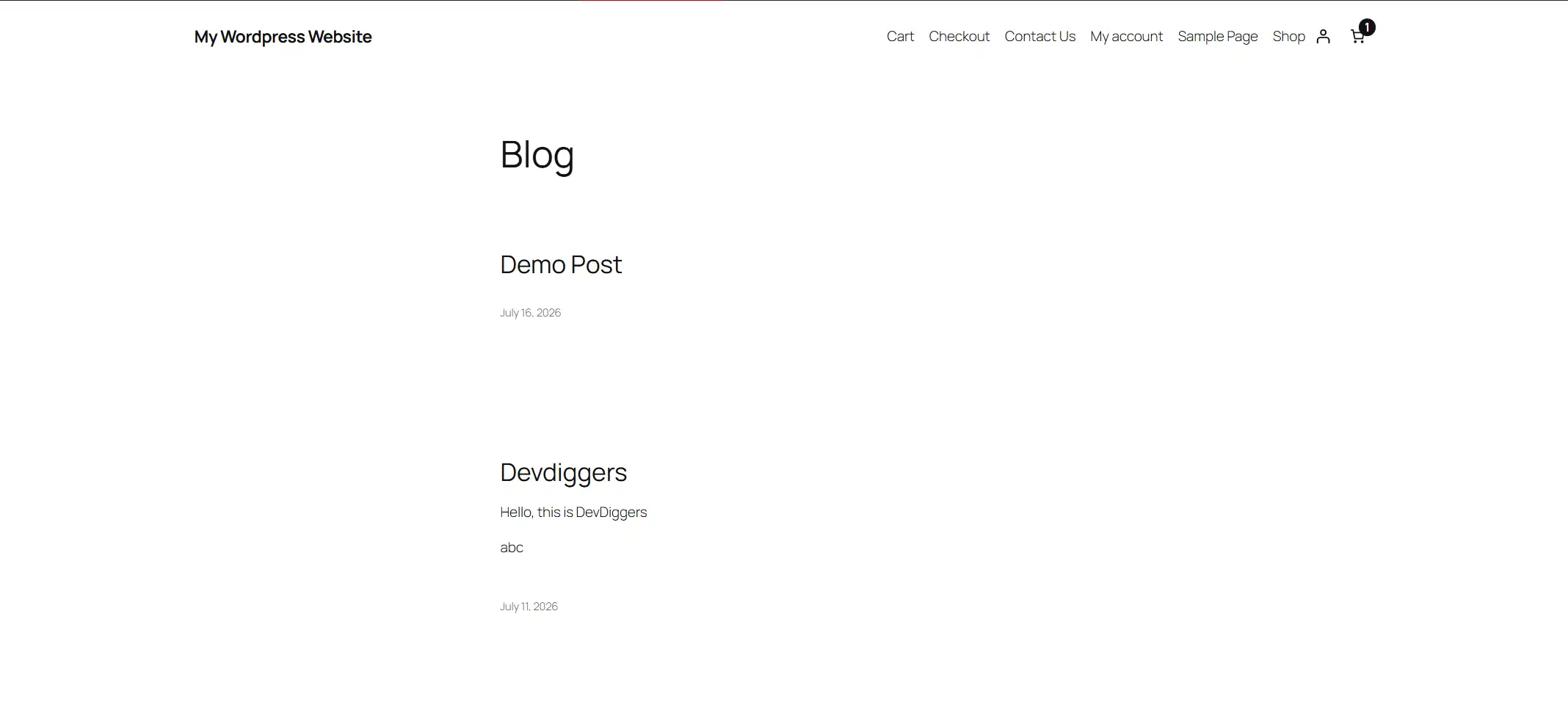
If your theme editor is disabled for security reasons, which is common and good practice, use an FTP client instead. Connect to your server, navigate to your child theme’s folder, and edit functions.php there.
One version note worth flagging here. On WordPress 6.5 and later, wp-polyfill is the correct script handle for the code above. Earlier versions occasionally used slightly different internal handles for specific polyfilled features, like wp-polyfill-inert or wp-polyfill-element-closest. If the standard snippet doesn’t seem to remove anything, check your specific WordPress version against the developer.wordpress.org script reference. That confirms the exact handle your site is using.
Test Your Site After You Remove Polyfill from WordPress
Don’t stop at “it looks fine.” A few specific checks catch problems the average glance misses.
- Open your homepage in an incognito or private window. This avoids cached versions confusing your results.
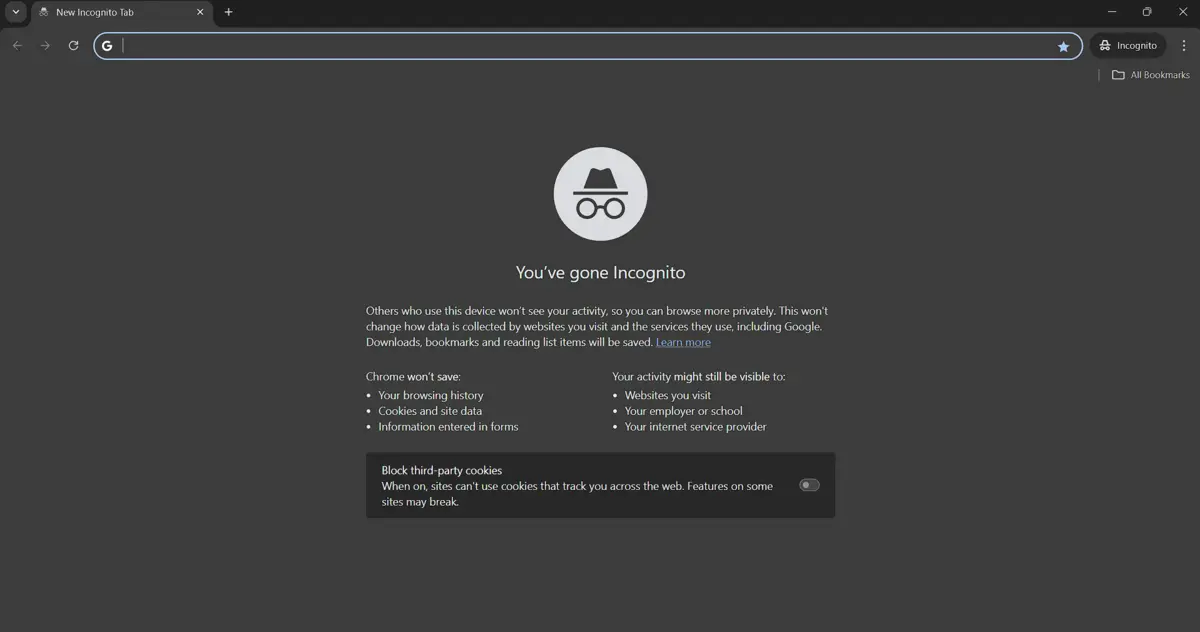
- Click through your main navigation and open your browser’s developer tools by navigating to the Inspect → Console tab.
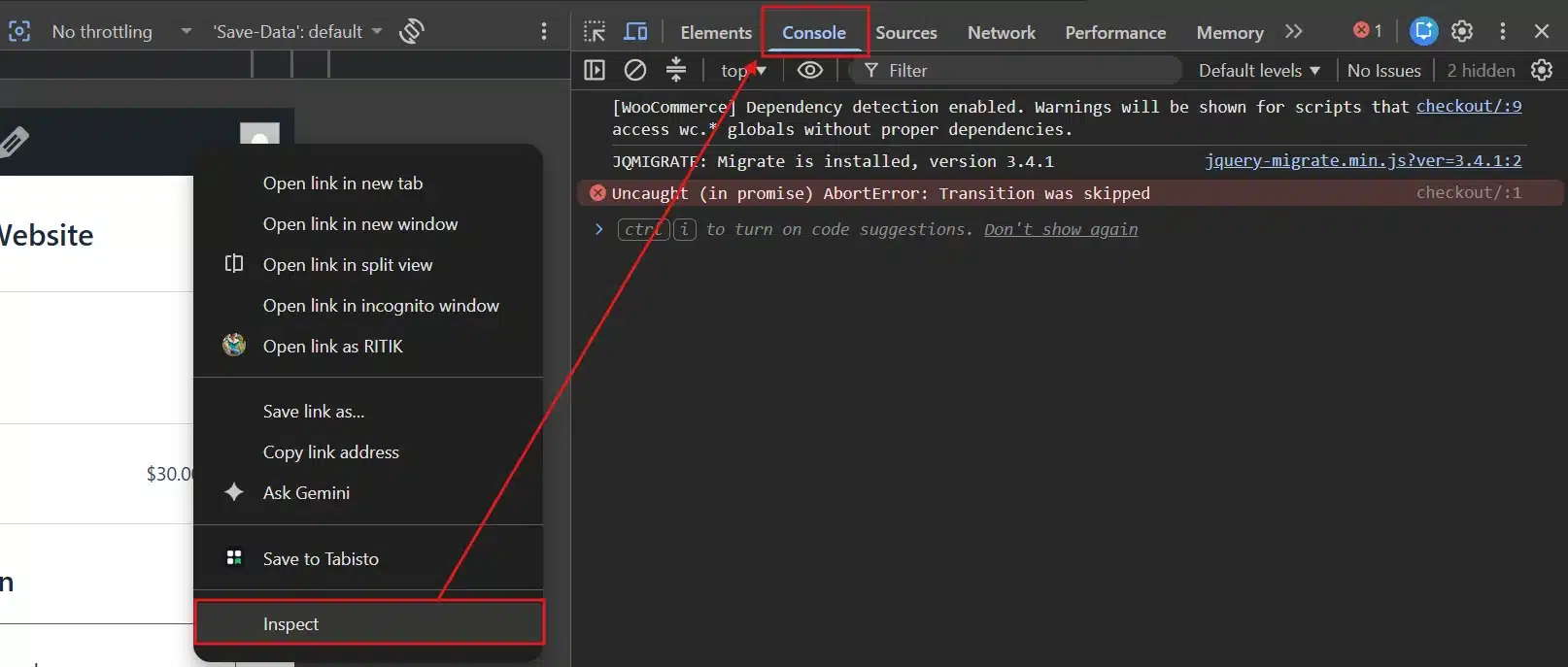
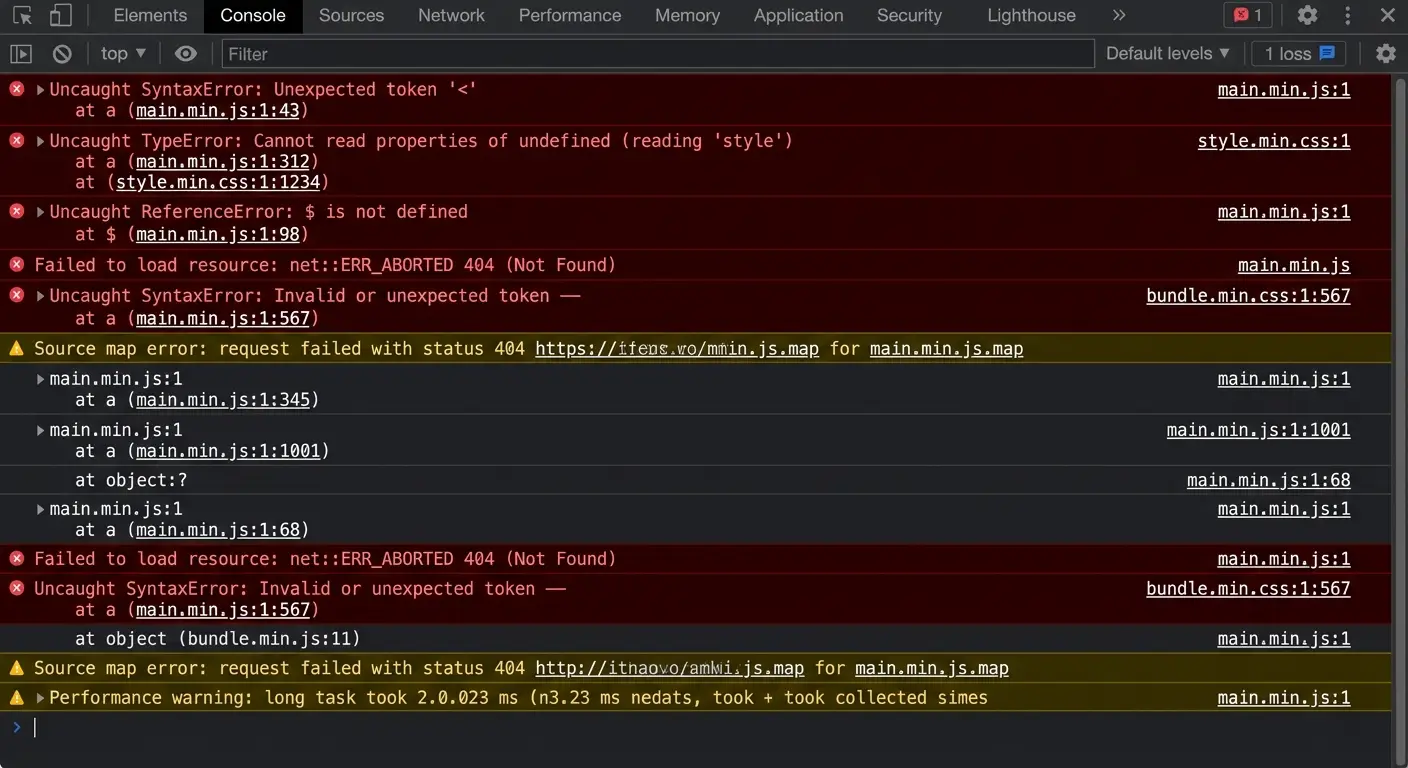
- Look for red error messages. A clean console means nothing broke.
- Run your homepage through Google PageSpeed Insights to confirm the script dropped from your page weight for good.
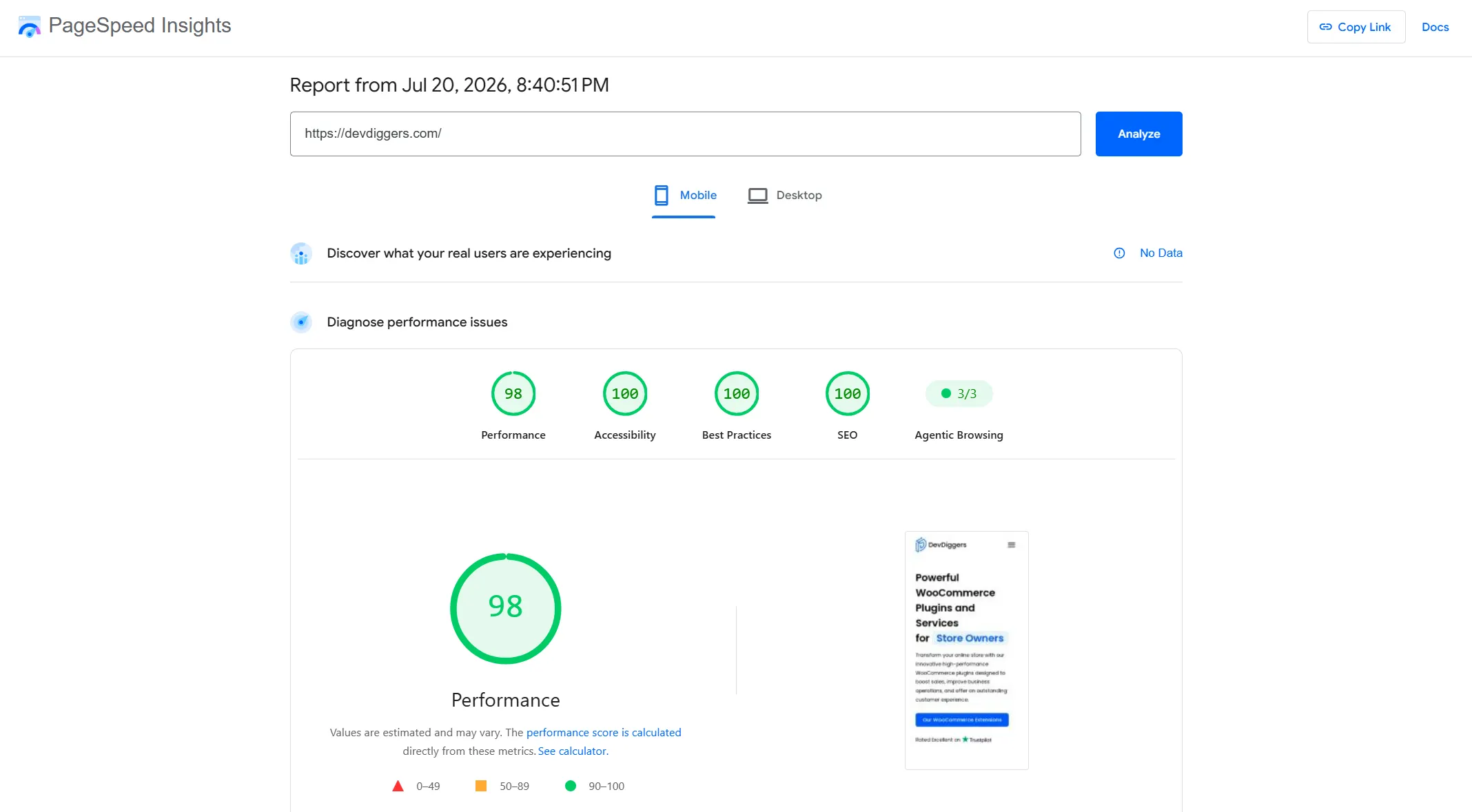
Don’t stop at desktop, either. Pull up your site on an actual phone, not a resized browser window, and repeat the same click-through. Mobile Safari and mobile Chrome sometimes handle JavaScript slightly differently than their desktop versions, and that gap is exactly where issues hide.
If everything checks out, you’re done. If you spot broken elements, jump to the fix-it section below before panicking.
Watch Out for the Polyfill.io Security Risk
This is separate from everything above, and almost nobody covers it. It’s worth five minutes of your attention regardless of what you decided earlier.
In mid-2024, a company bought the domain polyfill.io, a popular third-party CDN that many sites, including some WordPress plugins, used to load polyfill scripts externally. More than 100,000 websites were affected when the new owner injected malware into the scripts it served.
This is a different issue than WordPress’s built-in wp-polyfill script, which loads locally from your own server and was never compromised. The risk sits specifically with sites pulling scripts from the external polyfill.io domain.
Check your theme and plugins for any script tag pointing to cdn.polyfill.io. If you find one, remove or replace it immediately, regardless of whether you decide to keep WordPress’s own polyfill script active.
Here’s a fast way to check without digging through code. Open your site, press F12 to load developer tools, click the Network tab, and reload the page. Type “polyfill” into the filter box at the top. If any request shows a domain other than your own site, look closely at where it points.
Some plugins loaded polyfill.io scripts to support older browsers for specific features like maps or video embeds. If you find one, check the plugin’s changelog first. Many were already patched, and updating the plugin removes the risk without you touching any code yourself.
If a plugin hasn’t been updated and still calls the compromised domain, don’t try to patch it yourself. Contact the plugin developer directly, or switch to an actively maintained alternative instead.
What to Do If Something Breaks
If a feature stopped working after removing polyfill, don’t assume the worst. This is usually a quick fix.
Deactivate the WPCode snippet, or comment out the code you added tofunctions.php, by placing // before each line. The polyfill script loads again immediately.
From there, test which specific feature broke. Most of the time it’s a single plugin using an older JavaScript pattern, not your whole site.
A quick way to narrow it down: deactivate your plugins one at a time, checking the broken feature after each one. The plugin that fixes it when deactivated is the one relying on the polyfill you removed. From there, you can either keep the polyfill active site-wide or look for an updated version of that specific plugin.
If speed was your main reason for making this change, a broader WordPress speed optimization service can help. It checks your whole script stack instead of tackling one file at a time, and catches issues like this before they reach your live site.
Common Mistakes to Avoid When Removing Polyfill from WordPress
Most of the problems people run into when they remove polyfill from WordPress aren’t caused by the removal itself. They’re caused by skipping a step that felt optional at the time.
- Editing the parent theme’s functions.php directly: This is the single most common support ticket on this topic. The edit works fine, right up until the theme updates and wipes it out. Always use a child theme or the plugin method instead.
- Skipping the browser check entirely: Removing polyfill without checking your traffic first is a guess, not a decision. Five minutes in Google Analytics turns that guess into an informed call.
- Assuming a broken feature is unrelated: If something breaks a week after you removed polyfill, it’s easy to blame a plugin update instead. Check your change first. It’s the simplest thing to rule out.
- Confusing wp-polyfill with the
polyfill.ioCDN issue: These are two separate things with two separate risk levels. One is a core WordPress script that’s perfectly safe. The other was a supply chain attack. Don’t let the similar name cause confusion about which one you’re dealing with. - Not testing on mobile: Desktop testing catches most issues, but mobile browsers sometimes behave differently. Pull up your site on an actual phone before calling the job done, not just a resized desktop window.
Alternatives to Removing Polyfill from WordPress
Maybe you’re still unsure whether to remove polyfill from WordPress. Or your browser check came back with a real amount of older traffic. Either way, you’re not out of options for speeding up your site.
- Caching stores a ready-made version of your pages so WordPress doesn’t rebuild them on every visit. This alone often outweighs the savings from removing a single script.
- Image optimization usually delivers a bigger, more noticeable speed gain than script trimming. Most sites carry far more weight in oversized images than in a 39 KB polyfill file.
- Minification strips extra characters from your CSS and JavaScript files without removing any functionality, polyfill included.
None of these requires touching a single line of code, and all of them work alongside a polyfill removal rather than instead of it. You don’t have to pick one approach and stop there.
Conclusion
Removing polyfills from WordPress is a safe, worthwhile change for most modern sites. Just check your audience first and follow a method that protects your edits.
Start with the browser check. If your numbers look clean, pick Method 1 if you want zero risk, or Method 2 if you’re comfortable with a child theme. Test afterwards on desktop and mobile, and keep an eye on that separate polyfill.io security issue no matter which path you choose.
None of this needs to happen in one sitting. Run the browser check today, sit with the numbers for a day if you want, and come back to the removal step once you’re confident. The script isn’t going anywhere in the meantime, and neither is the small performance gain waiting for you on the other side.
Frequently Asked Questions (FAQs)
Q1. Does removing wp-polyfill affect WordPress admin functionality?
Rarely, but check the block editor specifically after removing it. Some older plugin-built blocks still lean on polyfilled JavaScript methods, so testing the editor screen is worth the extra two minutes.
Q2. Can I remove polyfill without a plugin or coding at all?
Not fully. Some managed hosting providers offer script management tools in their dashboard. For most WordPress sites, though, you’ll need either the WPCode plugin method or a direct code edit.
Q3. How much faster will my site be after removing polyfill?
Usually a small, measurable gain rather than a dramatic one. Since wp-polyfill is already down to 39 KB in current WordPress versions, expect a modest drop in page weight rather than a huge speed jump.
Q4. Will removing polyfill hurt my SEO?
No, and it can help slightly. Fewer unnecessary scripts generally support faster load times, which is a minor but real ranking factor.
Q5. Do I need to remove polyfill again after every WordPress update?
No, not if you used a child theme or the WPCode plugin. Both survive WordPress core and theme updates. Only edits made directly to a parent theme’s functions.php file get wiped.
Q6. Is wp-polyfill the same thing as the polyfill.io script?
No, and this trips people up often. wp-polyfill is a local WordPress core file. Polyfill.io was a third-party CDN service and a different product entirely that suffered a real security incident in 2024.
Q7. What happens if I remove polyfill and then change my mind?
Nothing permanent. Deactivate the WPCode snippet or remove the functions.php code, and wp-polyfill loads exactly as it did before. There’s no cleanup required on either side.
Q8. Should a small blog remove polyfill, or is this only worth it for bigger sites?
Site size doesn’t change the decision much. What matters is your specific audience’s browser mix, not your traffic volume. A small blog can remove polyfill from WordPress and get the same clean benefit as a large store would.