

Video SEO is the work of making your videos easy for Google and YouTube to find, understand and show in search. It covers the page a video lives on, its structured data, thumbnail, transcript and, on YouTube, the title, description and chapters.
This guide is built on tests we ran in October 2026 and on Google’s video docs, YouTube Help and the WordPress 7.1 Video block docs. Google last updated its video structured data guide on September 24, 2026. We also checked a live VideoObject on ted.com and measured a standard YouTube embed against a lite embed in Chrome at phone width.
You will see how Google indexes a video, how to add video schema and key moments, and how to build a video sitemap. Then come YouTube SEO in five steps, the YouTube versus self-hosted trade-off, transcripts, and the WordPress settings that keep video pages fast.
What Is Video SEO?
Video SEO is the practice of getting a video indexed and shown in search features such as video results, key moments and YouTube search. On Google it depends on a crawlable watch page, a thumbnail and structured data. On YouTube it depends on relevance, viewer engagement and channel quality signals.
People often treat video SEO as one job, but it is two. Google indexes videos on your own pages, while YouTube ranks videos inside its own search and recommendations. The same video can win in one place and stay invisible in the other.
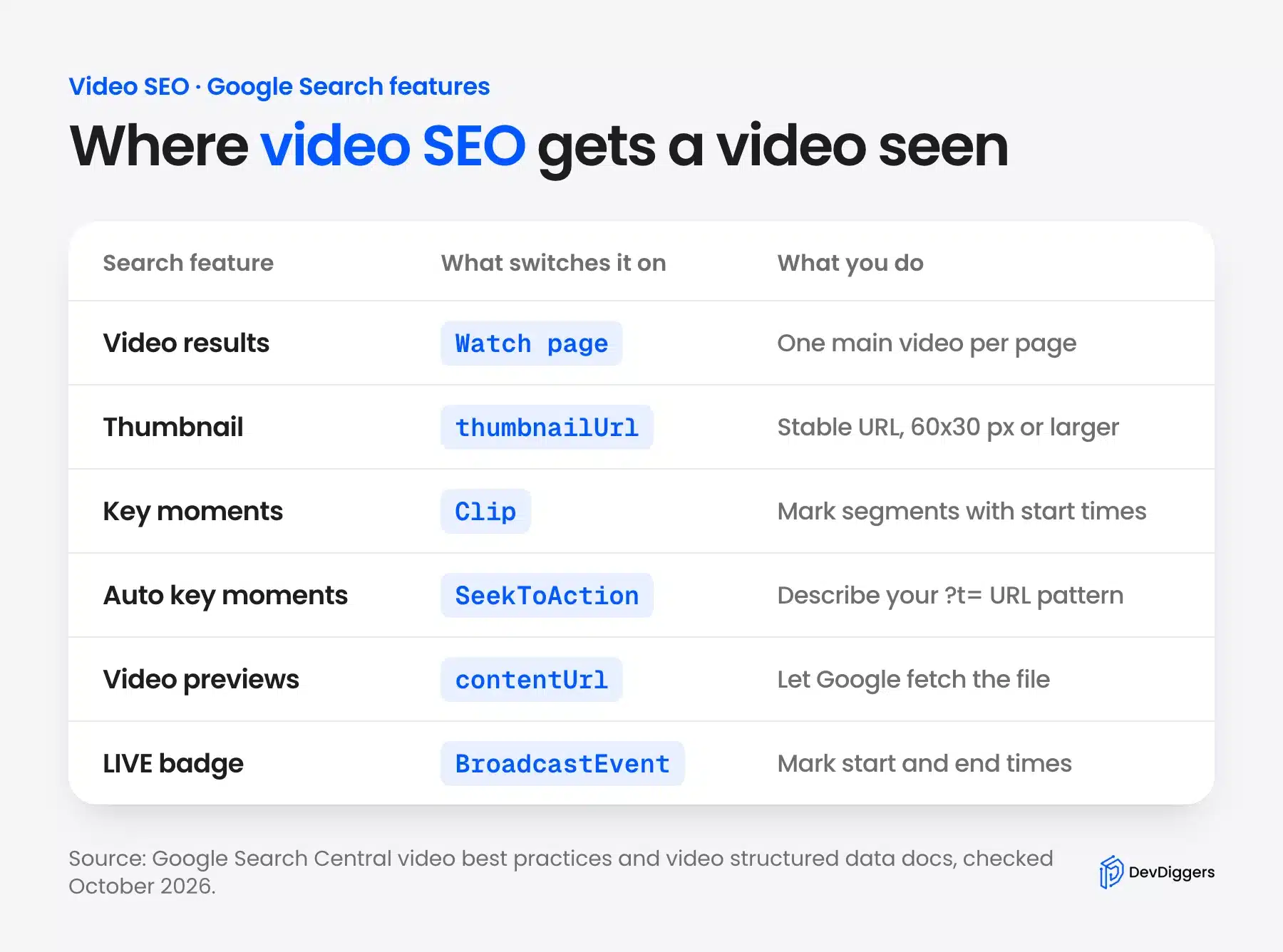
The table above maps each Google video feature to what switches it on. A watch page and a stable thumbnail come first, because nothing else works without them. Key moments, previews and the LIVE badge are extras layered on top.
It also helps to know the three URLs Google talks about. Google’s URL guide separates the watch page, the video player URL and the video file URL.
The watch page is the page a person visits. The player URL is the embed address, which goes in embedUrl, and the file URL points at the actual video bytes, which goes in contentUrl.
Video SEO optimization also looks different by goal. A store that wants product demos found on Google cares most about watch pages and schema. A creator who wants subscribers cares most about YouTube titles, thumbnails and watch time.
How Google Finds and Indexes Videos
Google indexes a video only when it sits on an indexed page, as the main content, with a valid thumbnail. Google’s video best practices also ask for standard embed elements and stable file URLs. The Video indexing report in Search Console shows which pages pass and why others fail.
Google’s video best practices state that an indexed watch page does not guarantee an indexed video. The page has to perform well in Search first, and then the video itself has to meet the rules below.
Put Each Video on Its Own Watch Page
A watch page is a page whose main purpose is to show one video. Google lists video landing pages, TV episode player pages and sports highlight pages as examples. It says a blog post that reviews an embedded video and a product page with a 360 video are not watch pages.
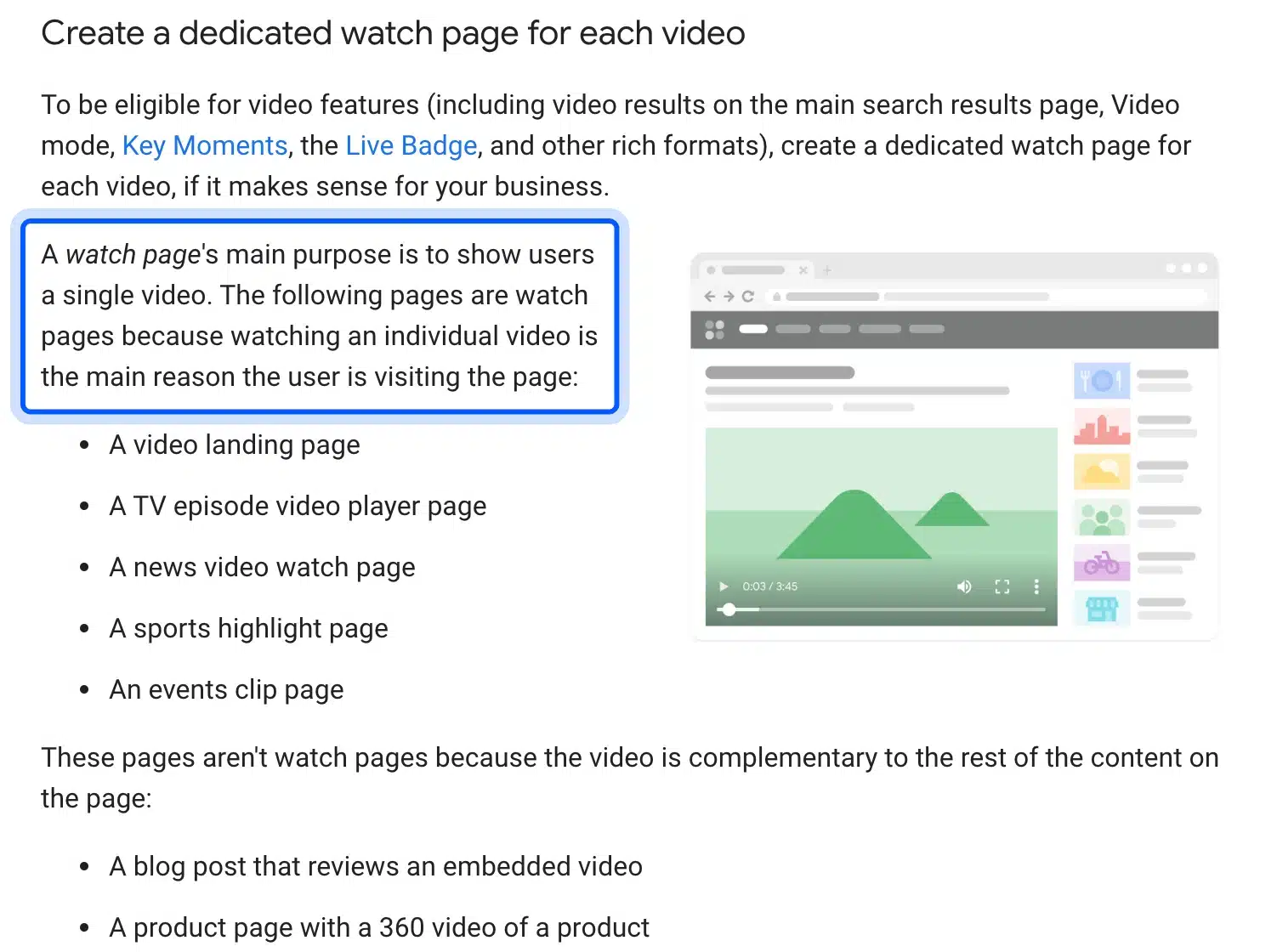
This is the rule most sites miss. If your video is a small part of a long article, Google may index the article and skip the video. Give each video that matters its own page, with a title and description unique to that video.
Use an Embed Google Can Read
Google can find videos placed with the HTML video, embed, iframe or object elements. It cannot use a player that needs a click, swipe or typing before the video loads. Players from YouTube, Vimeo or Facebook are fine, and Google may index the video on both your page and the platform’s page.
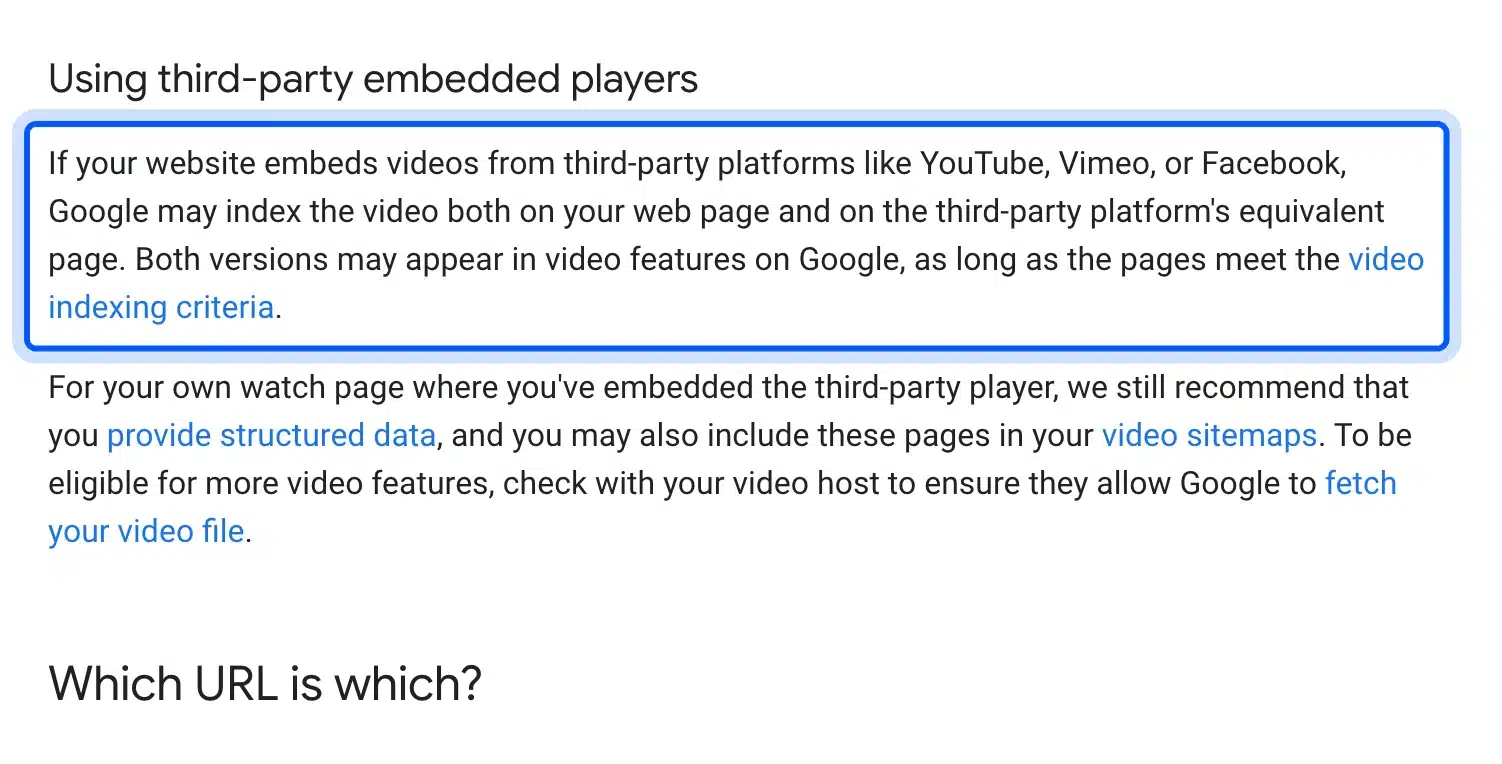
Google’s embedded player guidance still recommends structured data on your own watch page when the player comes from YouTube. That tells Google which page is yours and what the video covers. Avoid loading the video through a fragment identifier, since Google’s docs say not to.
Give Every Video a Stable Thumbnail
Every indexed video needs a thumbnail at a URL that does not change. Google accepts BMP, GIF, JPEG, PNG, WebP, SVG and AVIF, at a minimum of 60 by 30 pixels. At least 80% of the thumbnail’s pixels must be close to fully opaque, so transparent images fail.
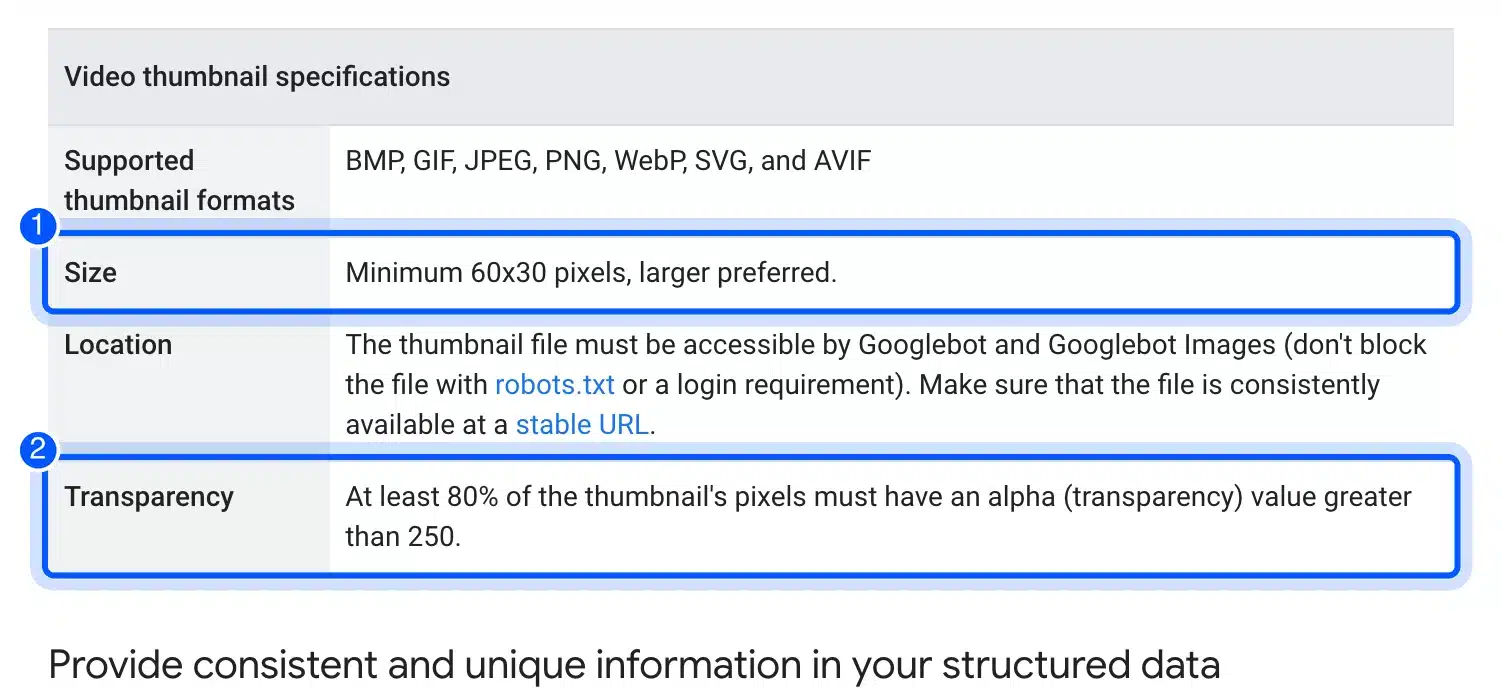
Some CDNs hand out signed URLs that expire after a few hours. Google warns that a thumbnail URL that changes too often can stop a video from being indexed. Use one stable thumbnail URL per video and do not block it in robots.txt.
The same care applies to how you name and describe images. Our guides on naming images for SEO and adding alt tags in WordPress cover the image side of the page.
Check the Video Indexing Report
The Video indexing report in Search Console lists every page where Google found a video. Each page shows Video indexed or No video indexed, with a reason. On content sites, the reason you will often see first is that the video is not on a watch page.
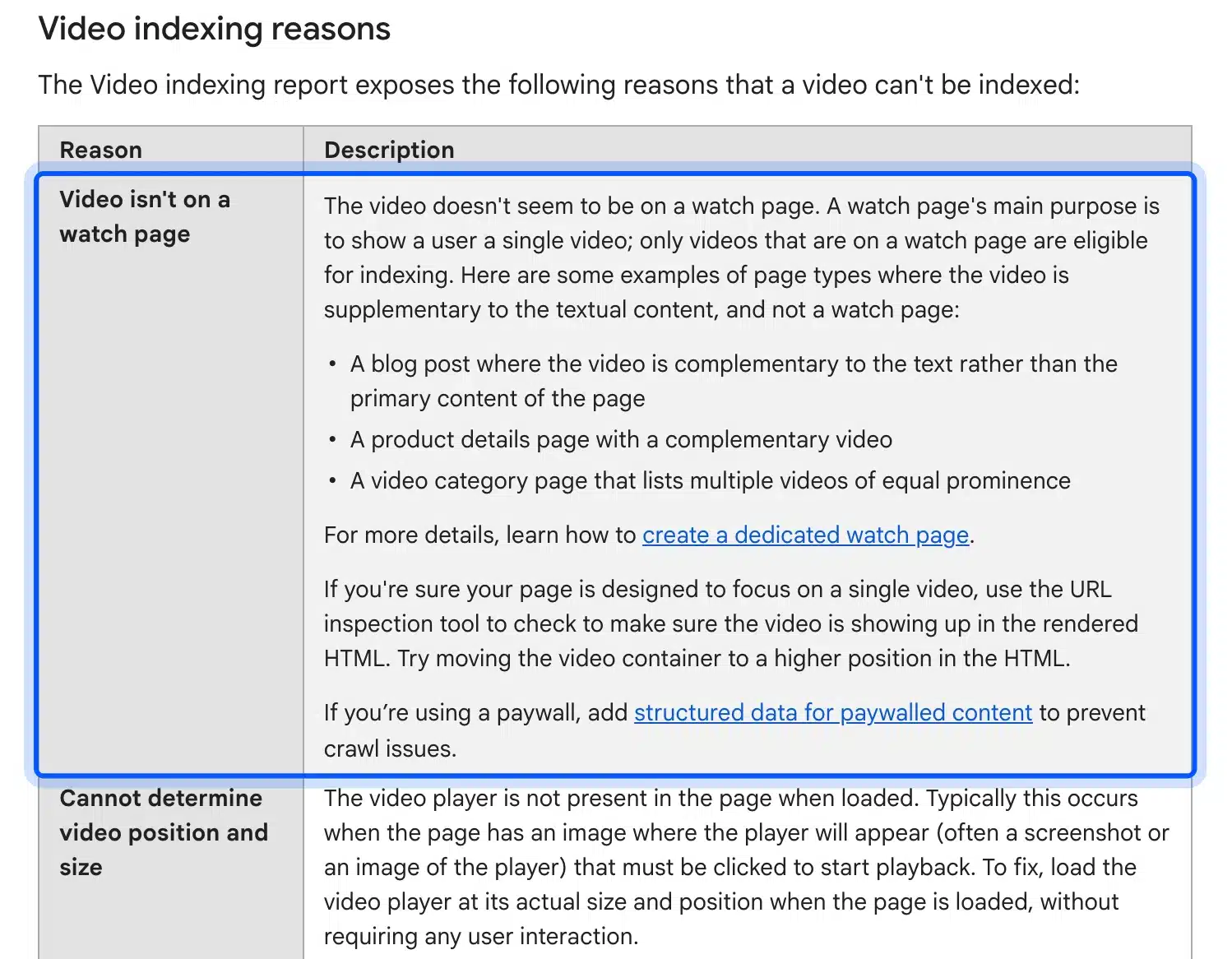
Other reasons point at the thumbnail: no thumbnail URL, an unsupported format, a blocked file or one that is too transparent. “Cannot determine video position and size” means the player was not on the page when it loaded. Fix the cause, then use the report’s Validate fix button.
How to Add Video Schema (VideoObject)
Video schema is VideoObject schema markup that tells Google a video’s title, thumbnail, upload date and more. Google requires three properties, name, thumbnailUrl and uploadDate, and recommends others such as description, duration, embedUrl and contentUrl. It is usually added as JSON-LD in the page’s head or body.
Without the required properties, Google’s video structured data guide says it may not be able to extract information about the video. The recommended ones add detail and switch on features such as key moments.
Required and Recommended Properties
Google’s guide sorts VideoObject properties into required and recommended groups. The three required ones identify the video, and the recommended ones describe it, point to the player or file, and add segments. Each value should match what the visitor sees on the page.
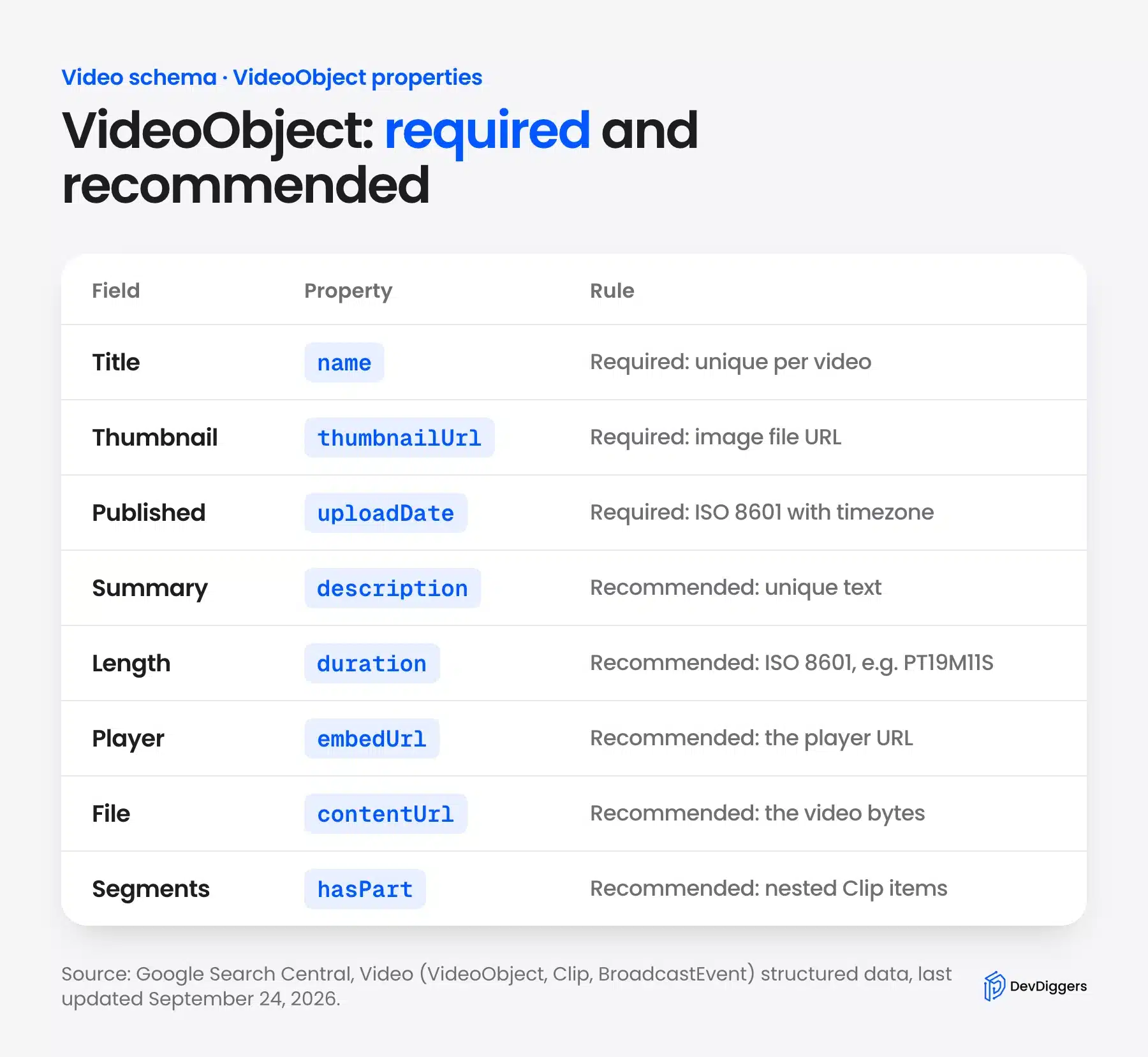
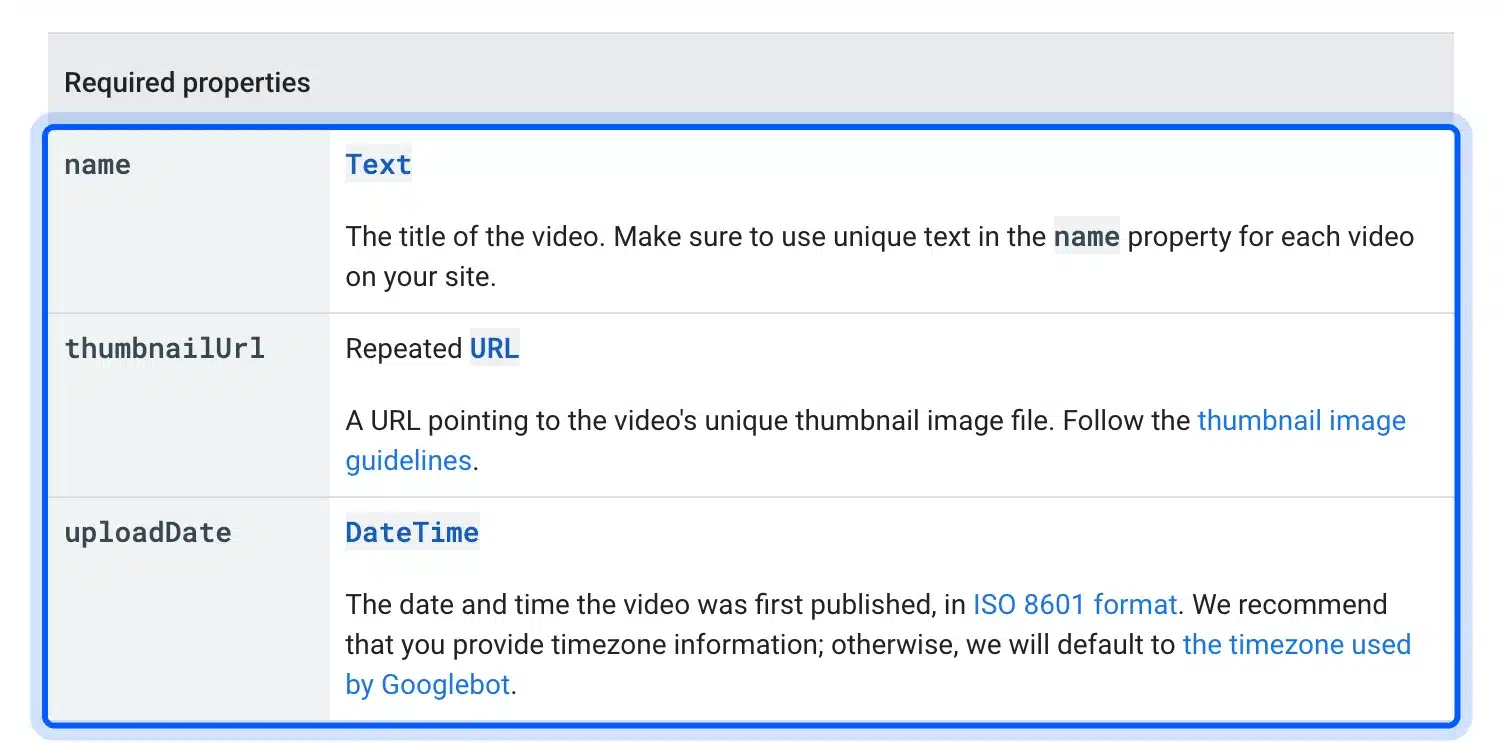
The table in Google’s VideoObject reference lists name, thumbnailUrl and uploadDate as required. uploadDate takes an ISO 8601 date, and Google recommends adding a timezone.
Here is a minimal VideoObject with the three required properties and four recommended ones. Swap in your own values:
<script type="application/ld+json">
{
  "@context": "https://schema.org",
  "@type": "VideoObject",
  "name": "How to set up a product video gallery",
  "description": "A four minute walkthrough of adding a video to a product gallery.",
  "thumbnailUrl": "https://example.com/thumbs/product-video-gallery.jpg",
  "uploadDate": "2026-10-10T09:00:00+05:30",
  "duration": "PT4M12S",
  "embedUrl": "https://www.youtube.com/embed/VIDEO_ID",
  "contentUrl": "https://example.com/videos/product-video-gallery.mp4"
}
</script>
On WordPress, an SEO plugin usually prints this markup for you. Check that the plugin’s values match the page and that you are not printing two VideoObject blocks for one video.
What a Real VideoObject Looks Like
We opened the JSON-LD on a ted.com talk page on October 10, 2026, to see how a large video site does it. It carried every required property plus duration, embedUrl, contentUrl, author, interactionStatistic and a 3,170 word transcript. Its SeekToAction block was the one gap.
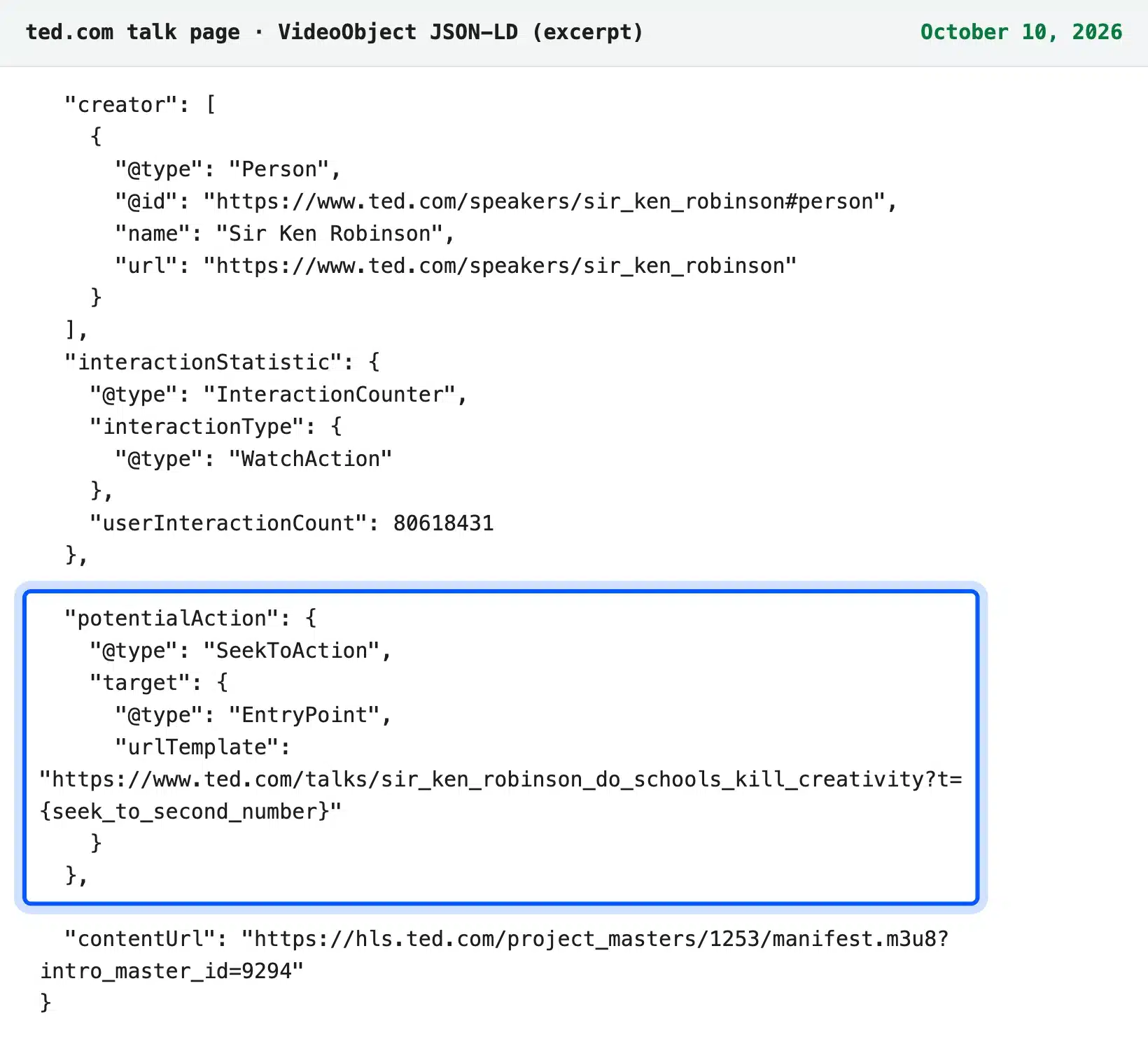
Google lists startOffset-input as a required SeekToAction property, and the TED block had only the target URL template. A missing required property can make Google skip that feature. Even big sites ship small schema gaps, so test your own markup rather than copying another site.
Google’s guide points to the Rich Results Test for validation and to the Video rich result report in Search Console after launch. Run the test on one live watch page before you roll a template out to every video.
How to Get Key Moments in Google Search
Key moments are the clickable chapters Google shows under a video result, set in three ways. Mark segments with Clip markup, let Google detect them with SeekToAction, or add timestamps to a YouTube description. Google says it prioritizes moments you set.
Google’s video best practices say it will prioritize key moments set by you, through structured data or the YouTube description. To opt out of key moments completely, Google suggests the nosnippet robots meta tag.
Video previews work the same way. Google picks a few seconds of your video to play as a moving preview, and it needs to fetch the file to do that. The video previews section explains how the max-video-preview robots meta tag limits the length.
Mark Segments With Clip
Clip markup names each segment of the video and gives its start time in seconds. Google’s Clip reference requires name, startOffset and url for each clip, and recommends endOffset. The url must use the same path as the video with a time parameter, such as ?t=120 for two minutes.
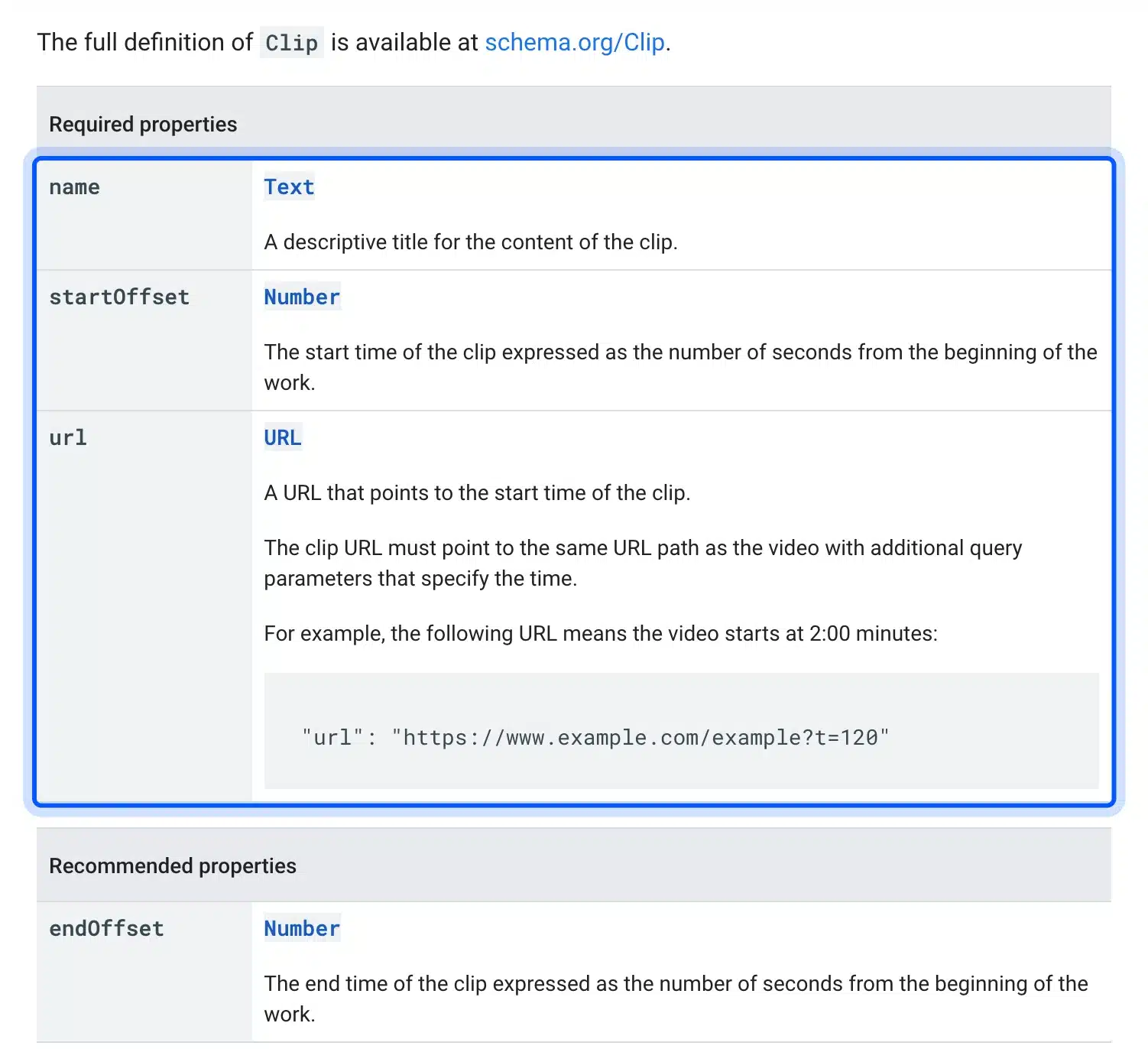
Clip has three guidelines worth checking before you start. The video must support deep links to a point other than the start, and it must run at least 30 seconds. Also, no two clips on one page may share a start time.
This snippet nests two clips inside the VideoObject from the example above:
"hasPart": [
  {
    "@type": "Clip",
    "name": "Upload the video",
    "startOffset": 30,
    "endOffset": 95,
    "url": "https://example.com/product-video-gallery/?t=30"
  },
  {
    "@type": "Clip",
    "name": "Set the gallery order",
    "startOffset": 95,
    "url": "https://example.com/product-video-gallery/?t=95"
  }
]
Let Google Find Moments With SeekToAction
SeekToAction tells Google how your page’s time URLs work, so it can detect key moments by itself. You add a potentialAction with two required parts: a target URL containing a placeholder and a startOffset-input value. Google then fills in the seconds when it links to a moment.
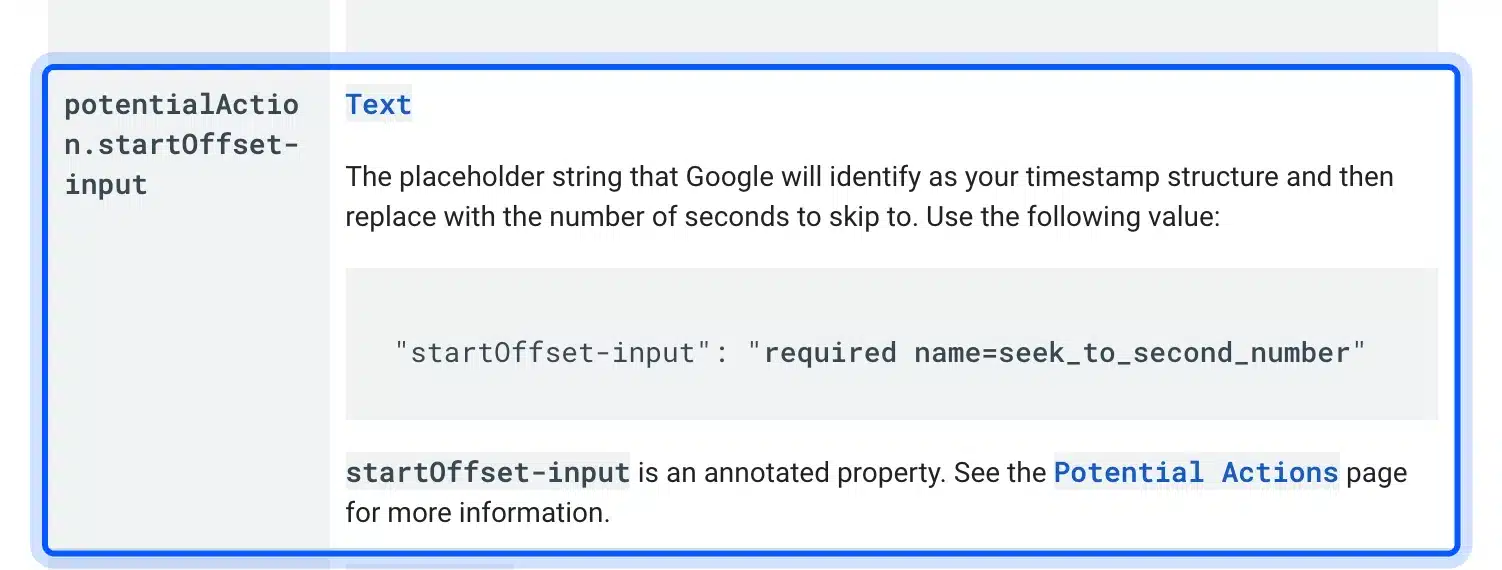
The startOffset-input value is always the same string, as Google’s docs show:
"potentialAction": {
  "@type": "SeekToAction",
  "target": "https://example.com/product-video-gallery/?t={seek_to_second_number}",
  "startOffset-input": "required name=seek_to_second_number"
}
SeekToAction also needs Google to fetch your video file, since Google has to watch the video to find the moments. If you block the file or Google cannot reach it, use Clip instead.
How to Build a Video Sitemap
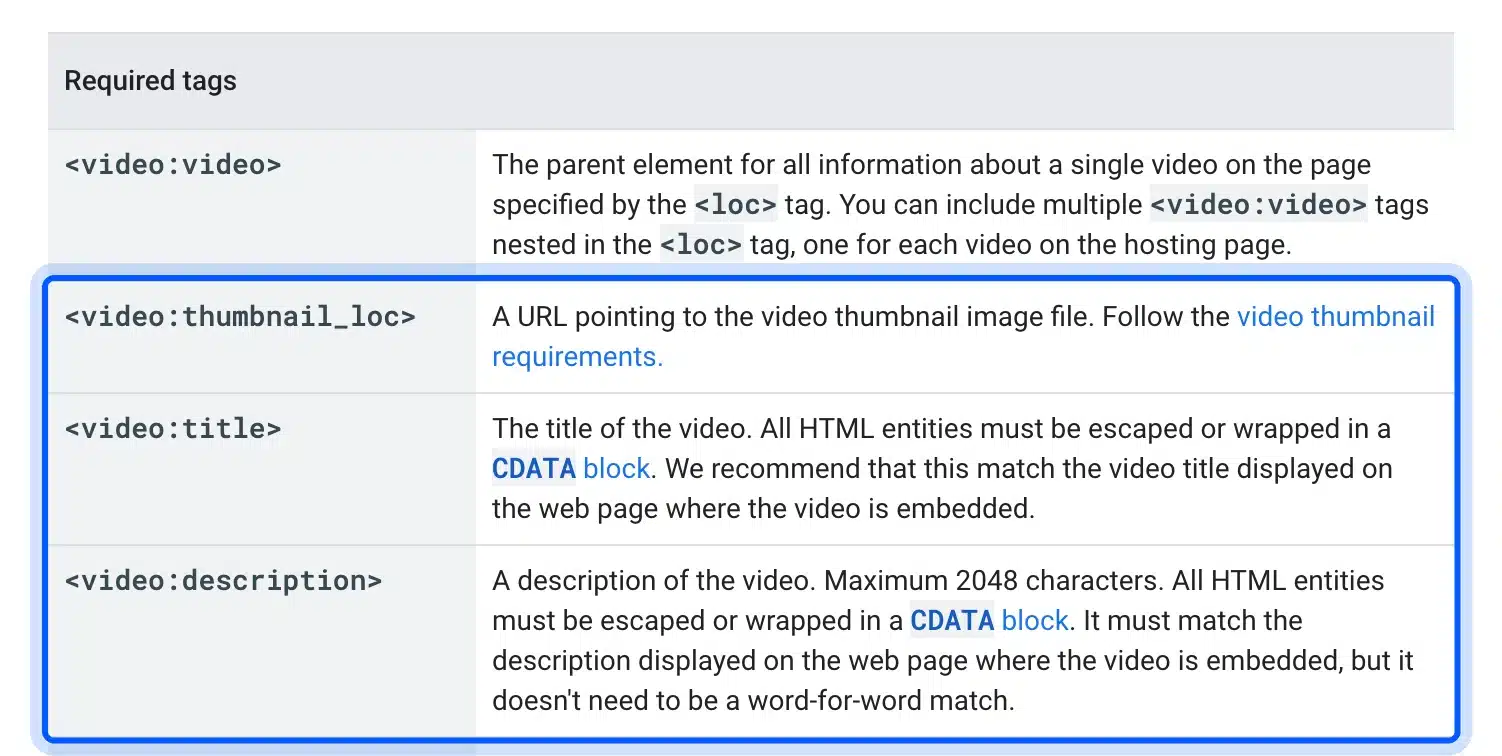
A video sitemap is an XML sitemap with extra tags that describe each video on a page. Google requires a thumbnail_loc, a title, a description and either a content_loc or a player_loc for each video. It is optional when you already use structured data, but it gives Google a second way to find each video.
Google’s video sitemap reference caps the description at 2,048 characters. It also asks you to escape HTML entities or wrap them in a CDATA block.
Here is one entry with the required tags. Use player_loc for a YouTube or Vimeo embed, and content_loc for a file you host:
<urlset xmlns="http://www.sitemaps.org/schemas/sitemap/0.9"
        xmlns:video="http://www.google.com/schemas/sitemap-video/1.1">
  <url>
    <loc>https://example.com/product-video-gallery/</loc>
    <video:video>
      <video:thumbnail_loc>https://example.com/thumbs/product-video-gallery.jpg</video:thumbnail_loc>
      <video:title>How to set up a product video gallery</video:title>
      <video:description>A four minute walkthrough of adding a video to a product gallery.</video:description>
      <video:player_loc>https://www.youtube.com/embed/VIDEO_ID</video:player_loc>
      <video:duration>252</video:duration>
    </video:video>
  </url>
</urlset>
Google’s reference recommends content_loc over player_loc when you have the file, since that is the most direct way for Google to fetch it. A few limits catch people out: duration must sit between 1 and 28,800 seconds, and each video takes at most 32 tag entries.
If you restrict a video by country, the sitemap allows only one video:restriction tag per video entry, listing allowed or denied country codes. Keep those values in step with any regionsAllowed setting in your schema, because two sources that disagree confuse more than they help.
Google’s sitemap guide says it also accepts mRSS feeds, though it recommends video sitemaps. Most WordPress SEO plugins can build one, and you submit it in Search Console like any other sitemap. The same reasoning we cover for HTML sitemaps in WordPress applies: a sitemap helps discovery, but it does not make a weak page rank.
YouTube vs Self-Hosted Video: Which Is Better for SEO?
YouTube is better for reach, because the video can rank in YouTube search and in Google on two pages. Self-hosting is better when your watch page must be the only result and you want control of the player. Many sites do both, using YouTube for reach and a watch page for Google.
Google’s best practices say a video embedded from YouTube may be indexed on your page and on YouTube’s own page. Both versions may show in Google’s video features, so the two can compete for the same search.
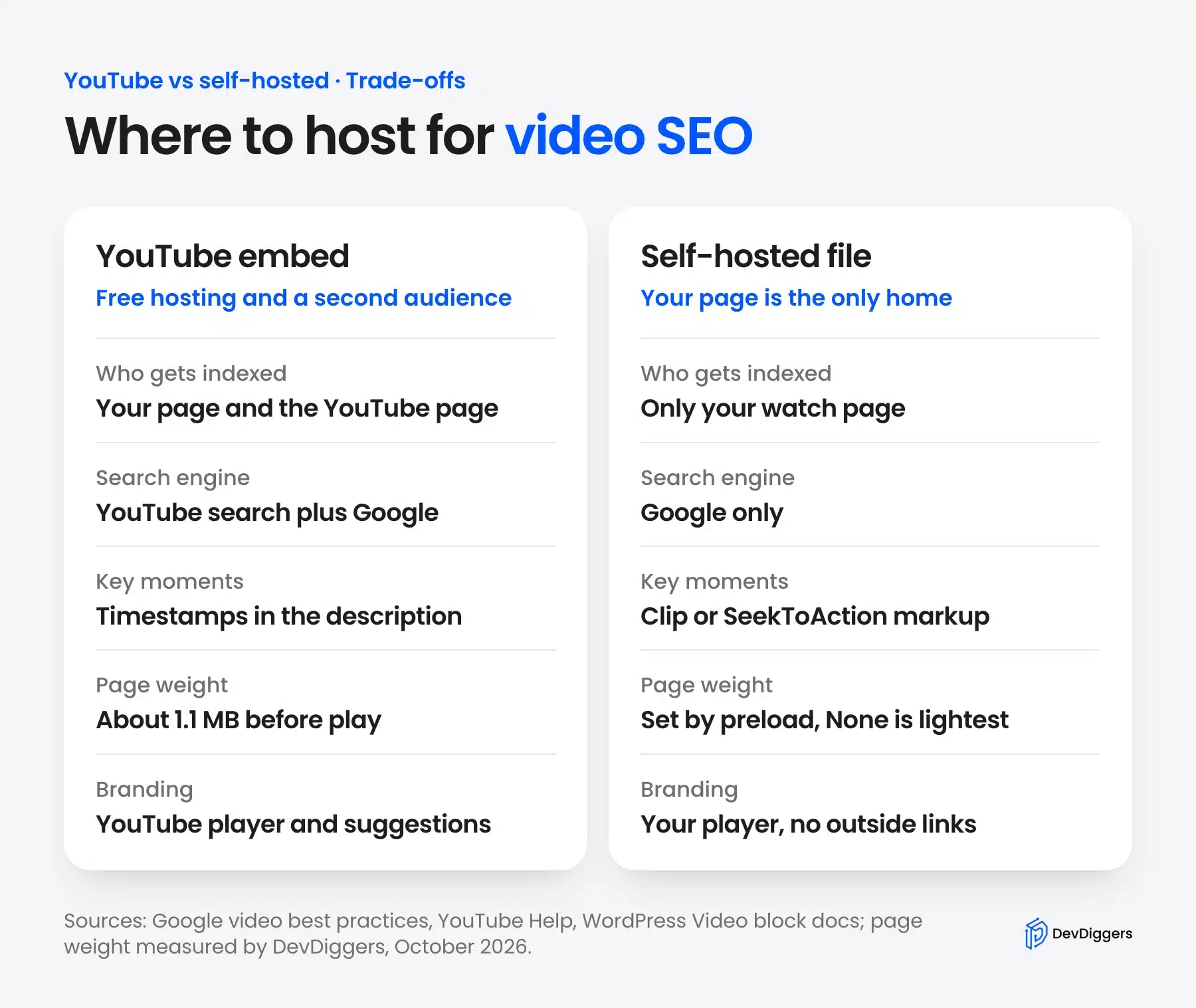
Hosting cost matters too. A self-hosted file uses your bandwidth on every play, and a busy store can feel that on its hosting bill. YouTube hosts for free but adds its player, its suggestions and its scripts to your page.
Using both is common, and it works if you keep the roles clear. Upload to YouTube for reach, then embed that video on a watch page on your own site with its own title, description and transcript.
Your VideoObject on that page cannot point contentUrl at a YouTube file, because YouTube does not hand out the file. Google’s VideoObject reference says to provide embedUrl as the alternative when contentUrl is not available.
Self-hosting makes the most sense for paid courses, members-only video and product demos you do not want next to a competitor’s suggested video. In those cases the watch page is the asset, so the extra markup work pays for itself.
The page weight row in the table comes from our own test, covered in the WordPress section below. A standard YouTube iframe transferred about 1.1 MB before anyone pressed play.
How to Optimize YouTube Videos for SEO
To optimize YouTube videos for SEO, match a real search, write a clear title and description, add captions, upload a custom thumbnail and add chapters. That is also how you do SEO for a YouTube video in general. YouTube ranks results by relevance, engagement such as watch time, and quality.
YouTube SEO has a much bigger audience than Google’s video results. SE Ranking data from September 2026 shows “YouTube SEO” with about five times the US searches of “video SEO”. The five steps below follow YouTube’s own help pages.
Step 1: Match a Real Search
YouTube’s help page on how search works names three main elements: relevance, engagement and quality. Relevance compares your title, tags, description and video content with the query. Engagement includes the watch time a video earns for that query.
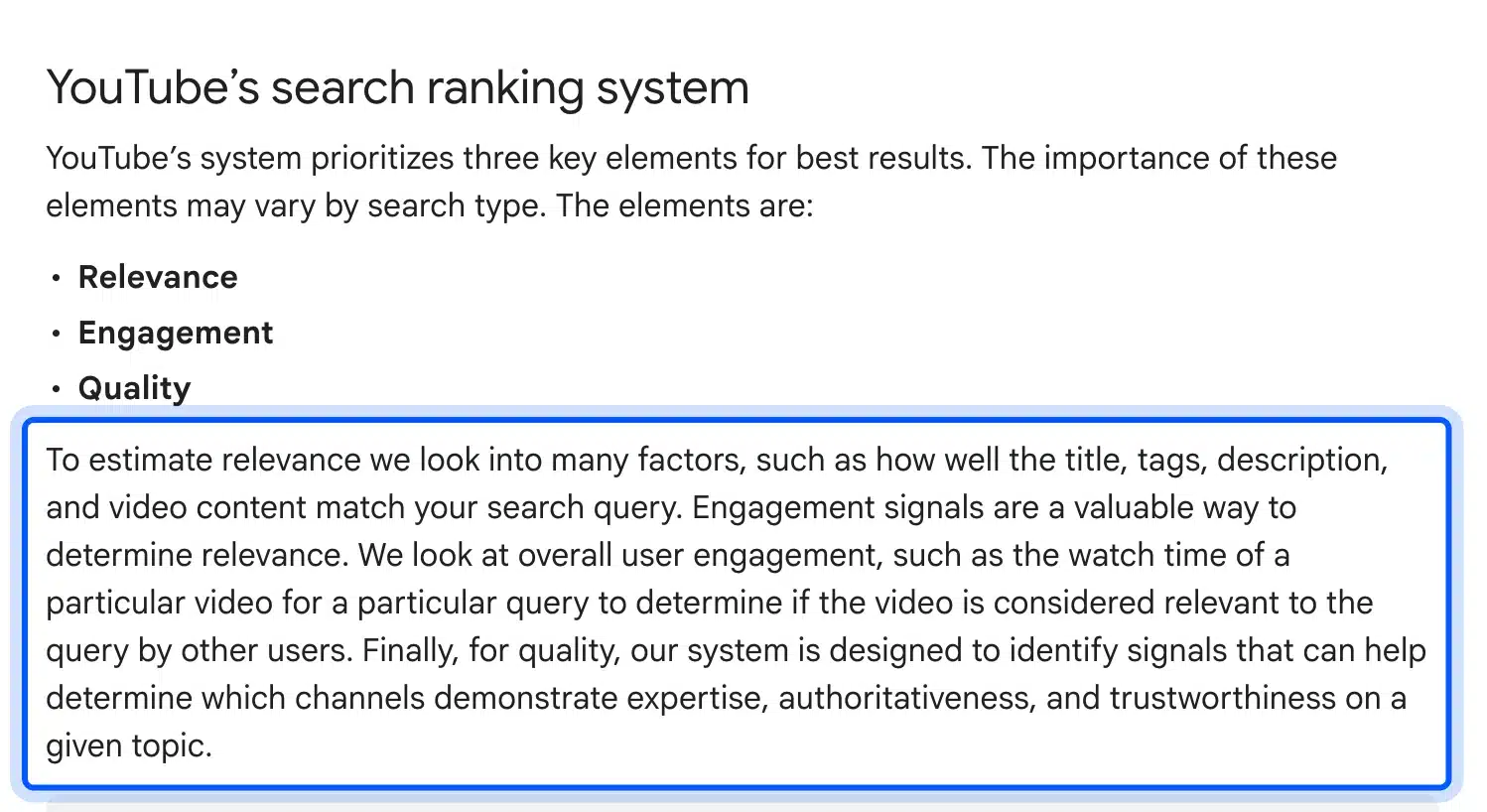
Start with the words people type, which YouTube’s search box suggests as you type a topic. Pick one clear query per video, then make the video answer it early. YouTube’s ranking page ties engagement to the watch time a video earns for that query.
Step 2: Write the Title and Description
A YouTube title can hold 100 characters and a description can hold 5,000, according to YouTube’s video settings help. Put the main query near the start of the title. Use the first lines of the description to say what the video covers.
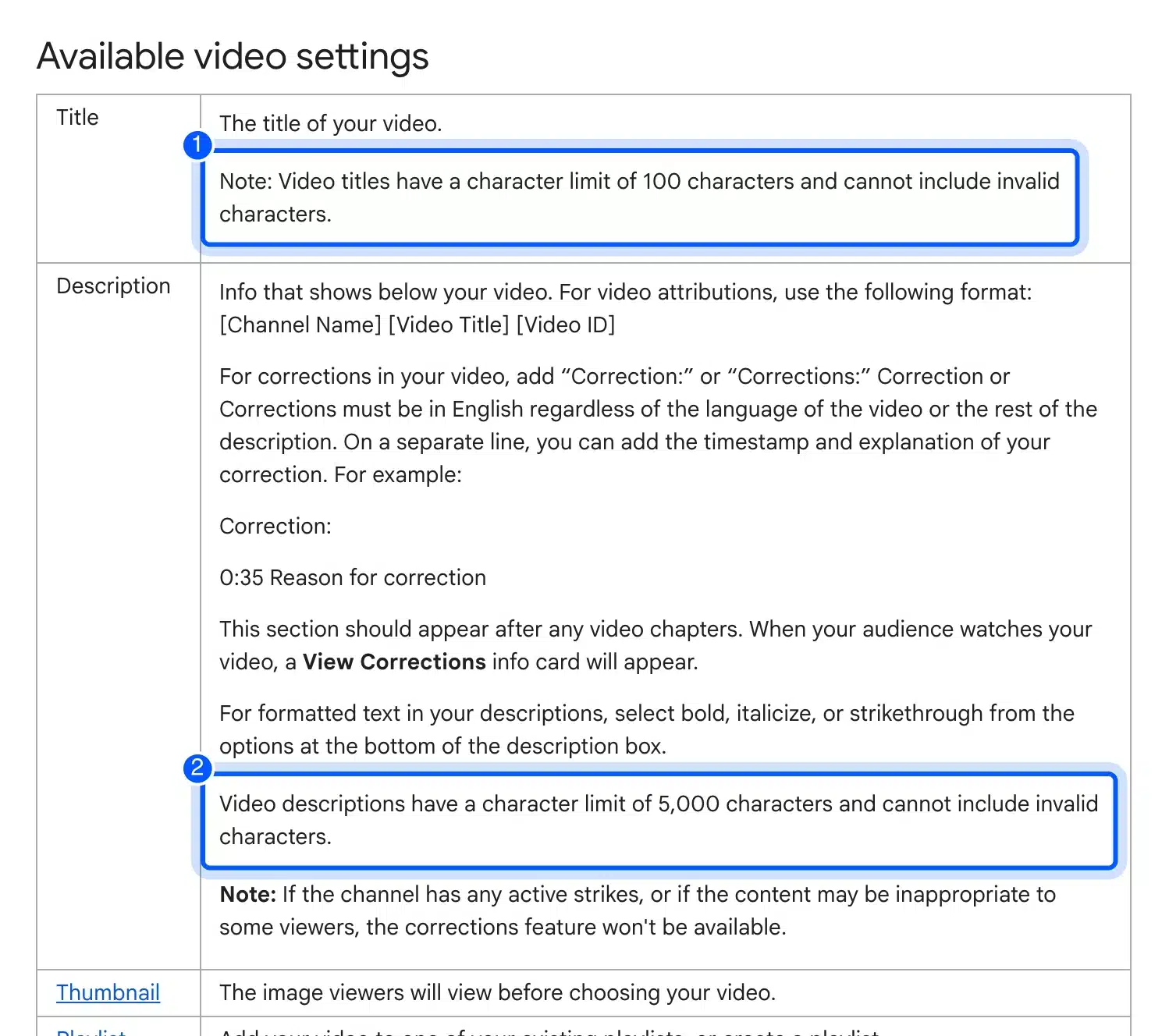
The description is also where links, credits and chapters go. Write it for a person deciding whether to watch, with the query in plain words rather than a list of tags.
Here is a worked example for a product tutorial. A weak title reads “Gallery settings video”. A stronger one reads “How to Add a Video to a WooCommerce Product Gallery”.
The second title matches the phrase a store owner types, and it stays well under the 100 character limit.
Step 3: Add Captions and a Transcript
Captions help viewers who watch with the sound off, and they give YouTube the spoken words as text. In YouTube Studio you open Subtitles from the left menu, pick the video and add a language. You can upload a file, auto-sync a transcript or type it in.
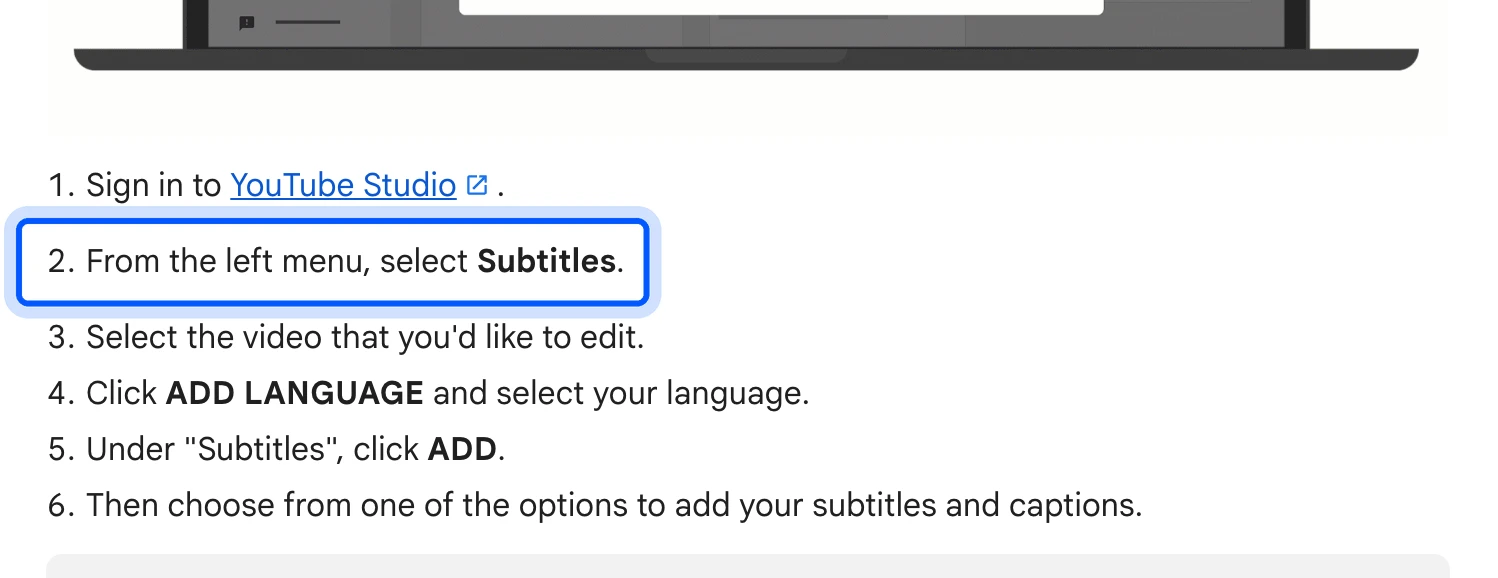
Auto-sync is the quickest route when you already have a script. Paste the transcript, and YouTube’s captions help says it matches the text to the video’s timing for you.
Step 4: Upload a Custom Thumbnail
YouTube now recommends 3,840 by 2,160 pixel thumbnails for videos, with a minimum width of 640 pixels and a 16:9 shape. Files can be JPG or PNG, up to 50 MB from a desktop or 2 MB from a phone.
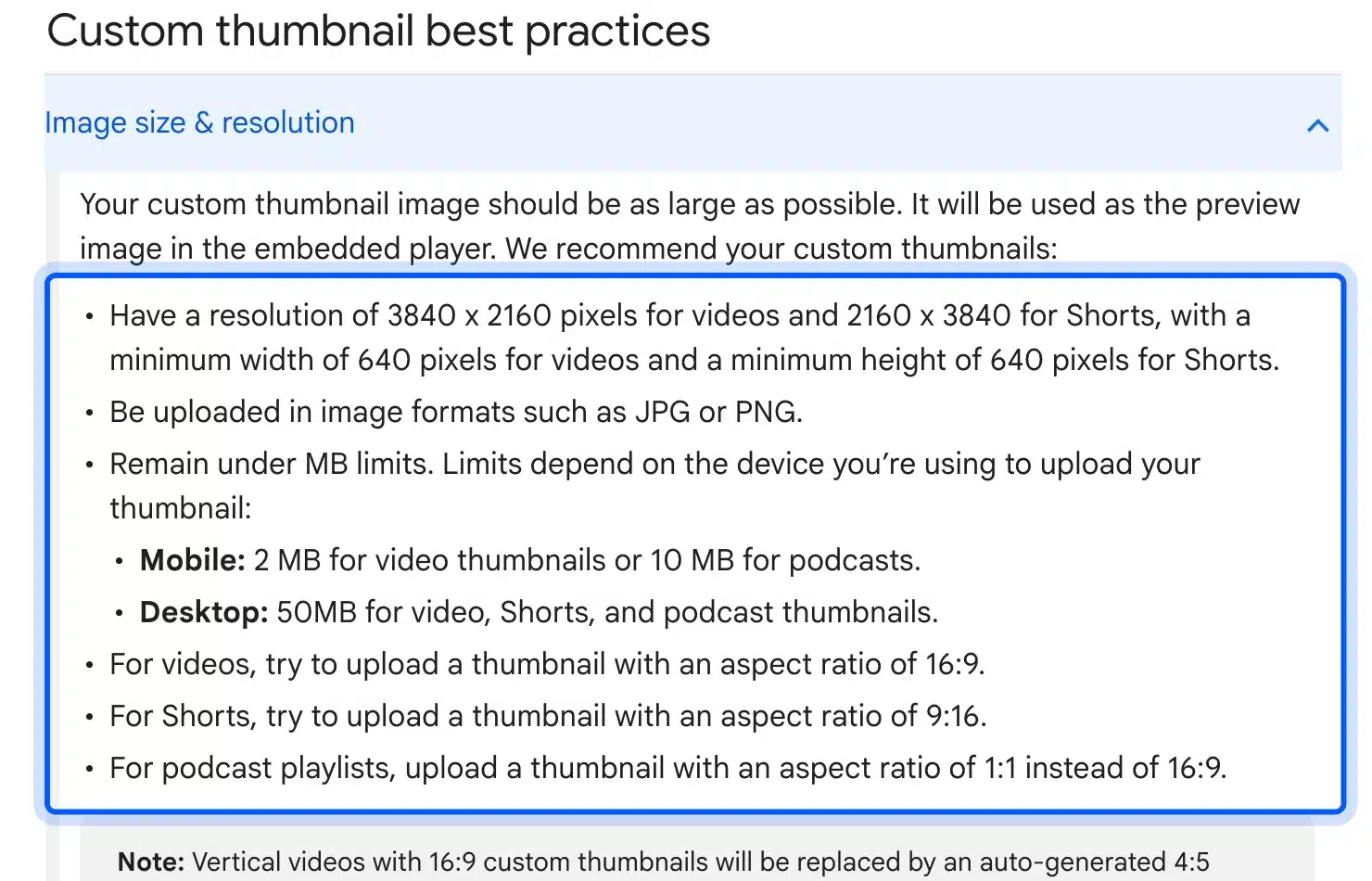
The thumbnail is often the first thing a searcher judges, so it shapes clicks before the title does. Use one clear subject, large readable text if any, and keep it honest to the video. YouTube’s thumbnail help lists these size rules under Image size and resolution.
Your YouTube thumbnail can also serve your own watch page. If you embed the same video, reuse that image as the thumbnailUrl in your schema. Host it at a stable URL on your site, so Google and YouTube show the same picture.
Step 5: Add Chapters With Timestamps
Chapters split a YouTube video into labeled parts, and Google can use the same timestamps as key moments. YouTube requires the first timestamp to start at 00:00, at least three timestamps in ascending order, and chapters of at least 10 seconds. You add them as a list in the description.
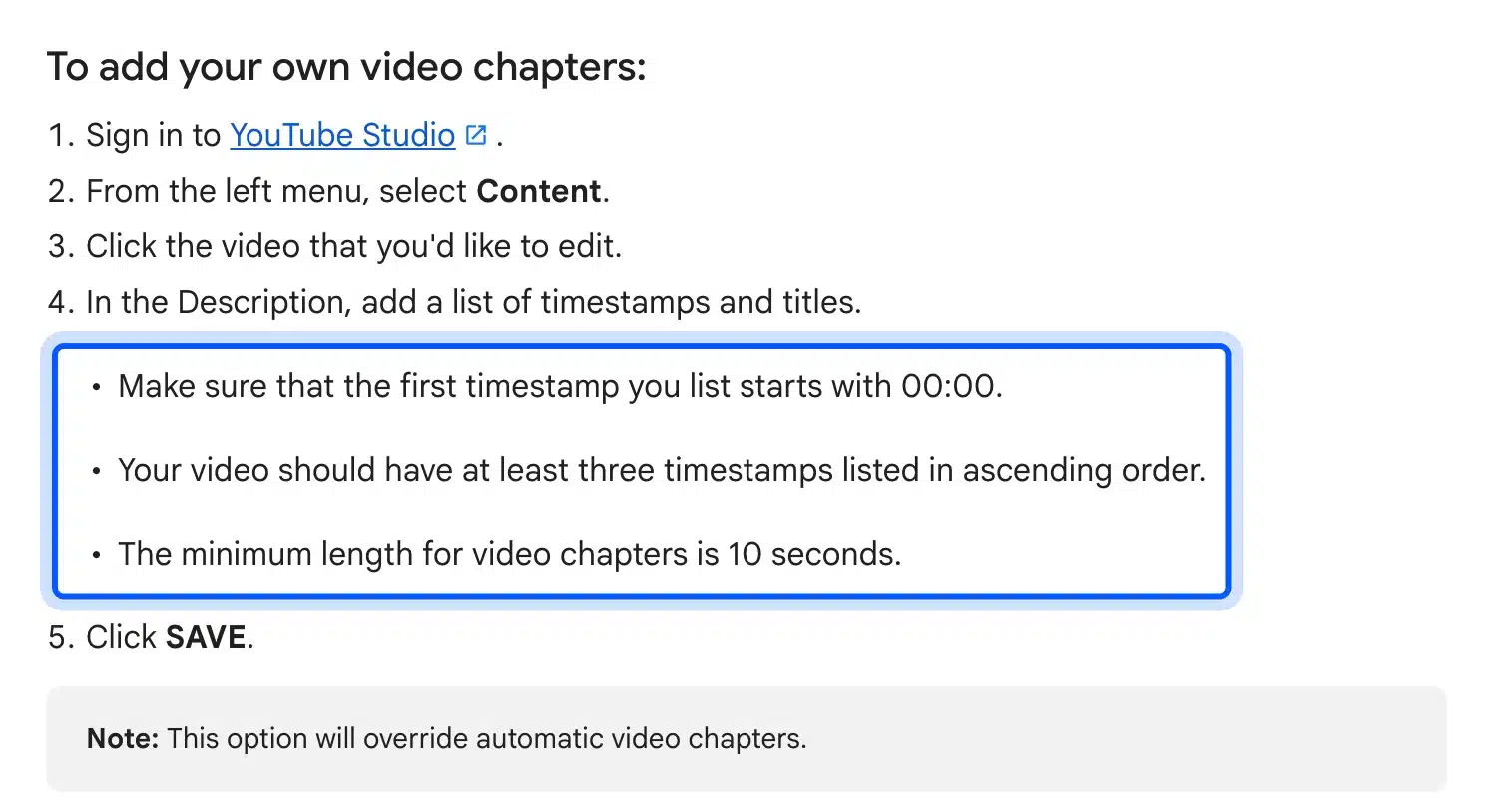
A chapter list in the description looks like this:
00:00 Intro
00:30 Upload the video
01:35 Set the gallery order
03:10 Check the product page
YouTube’s chapters help says your own chapters override automatic ones. Google’s structured data guide adds that each label needs at least one word and each timestamp its own line.
Transcripts and Captions on Your Own Site
A transcript is the full text of what is said in a video, and captions are that text timed to the playback. On your own site, a transcript on the watch page gives readers and Google text to read. Captions in WebVTT format make a self-hosted video usable with the sound off.
The WordPress Video block docs say text tracks use the WebVTT format, saved as .vtt files. You add them from the Text tracks option in the block toolbar and pick a kind such as Captions, Subtitles or Chapters.
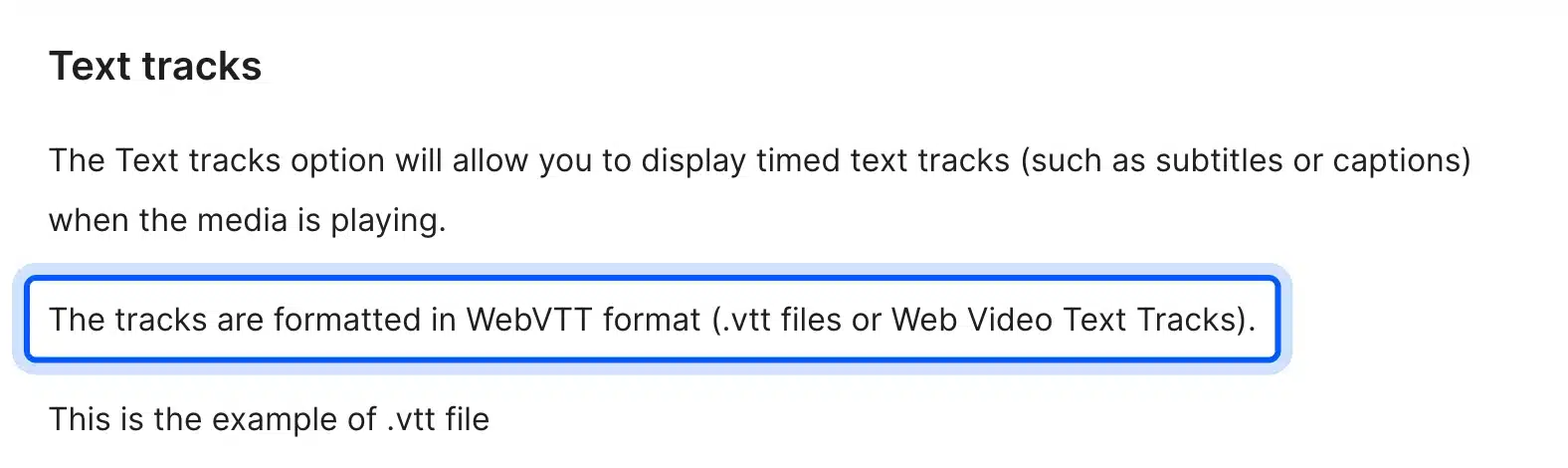
The kind you pick changes how the browser uses the file. Captions cover dialogue plus sounds and music cues for viewers who cannot hear the audio. Subtitles translate the dialogue, and Descriptions are read aloud by screen readers.
Each track also needs a label and a source language, written as a BCP 47 tag such as en or es. The docs say the source language must be set when the kind is Subtitles, so fill it in every time to be safe.
Put the transcript below the player as normal text, broken into short paragraphs under subheadings. A wall of auto-generated text helps nobody, so clean up names and filler words first.
TED goes further and puts its full transcript inside the VideoObject markup, as our check above found. You do not need to copy that, but a visible transcript on the page is cheap and serves readers and search alike.
Video SEO in WordPress
WordPress lets you upload a file with the Video block or paste a YouTube or Vimeo link into an embed block. Both can work for video SEO. The settings that matter most are the Video block’s Preload option and how the embed loads, since a heavy player slows the page.
If you sell products, our guide on adding video to a WooCommerce product gallery covers the store side. Remember that Google does not treat a product page with a supporting video as a watch page.
Upload With the Video Block
The WordPress Video block uploads a file to your Media Library and plays it with the browser’s own player. Its Preload setting decides how much of the file downloads with the page: Auto, Metadata or None. The block docs call None the fastest setting.
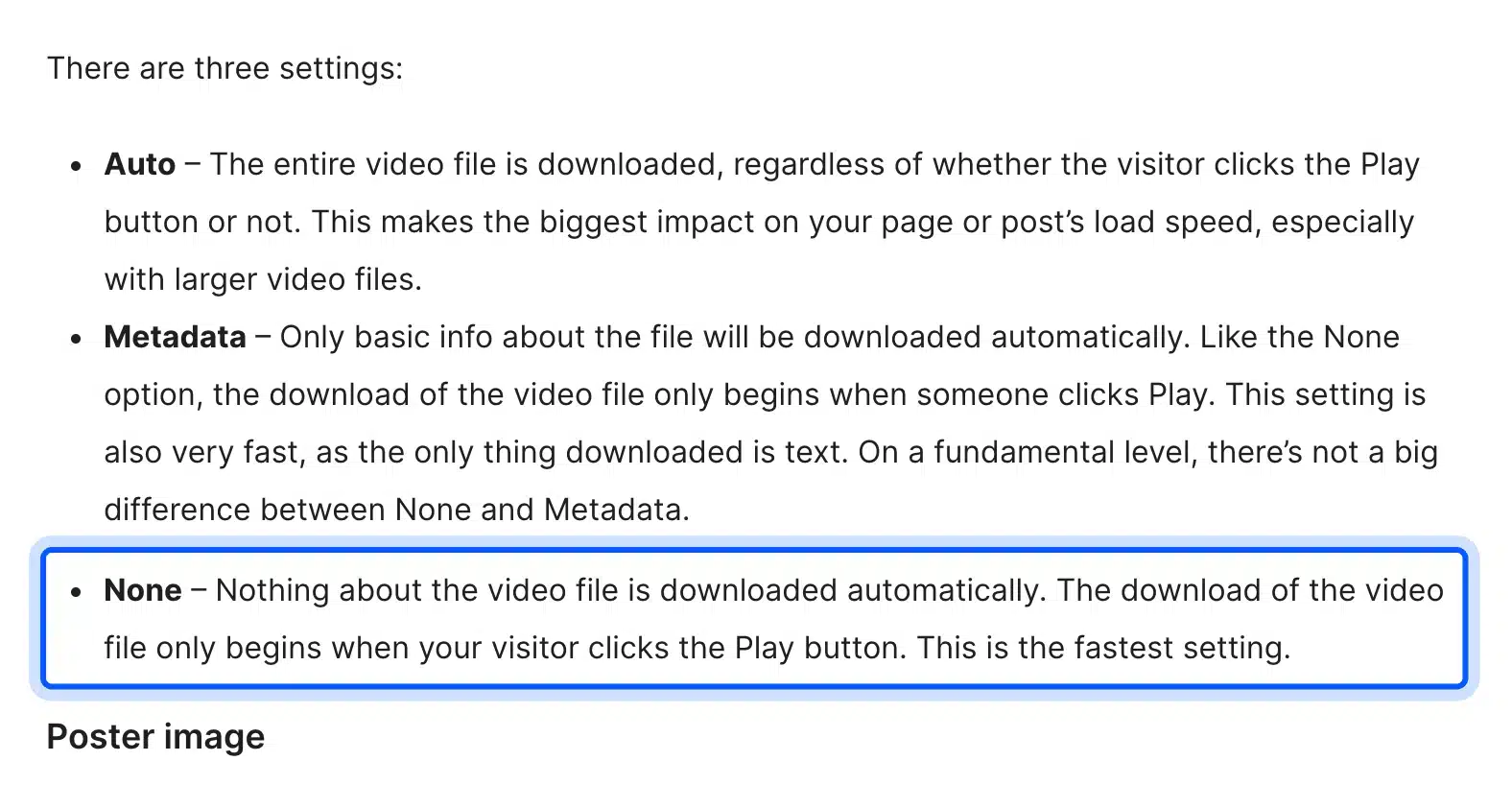
Auto downloads the whole file even if nobody presses play, which the docs say has the biggest impact on load speed. Use Metadata or None, and set a Poster image so the player shows a real frame instead of a black box. The poster also gives you a thumbnail to reuse in your schema.
Embed YouTube With the Embed Block
The Video block docs say a pasted YouTube URL turns into a YouTube embed block, which prints an iframe. WordPress has added loading=”lazy” to iframes since version 5.7, so embeds below the first screen wait until the visitor scrolls near them. That helps speed but does not shrink the player.
We checked the HTML of a WordPress.org News post that embeds YouTube on October 10, 2026. Each YouTube iframe carried loading=”lazy”, and the page had no VideoObject markup at all.
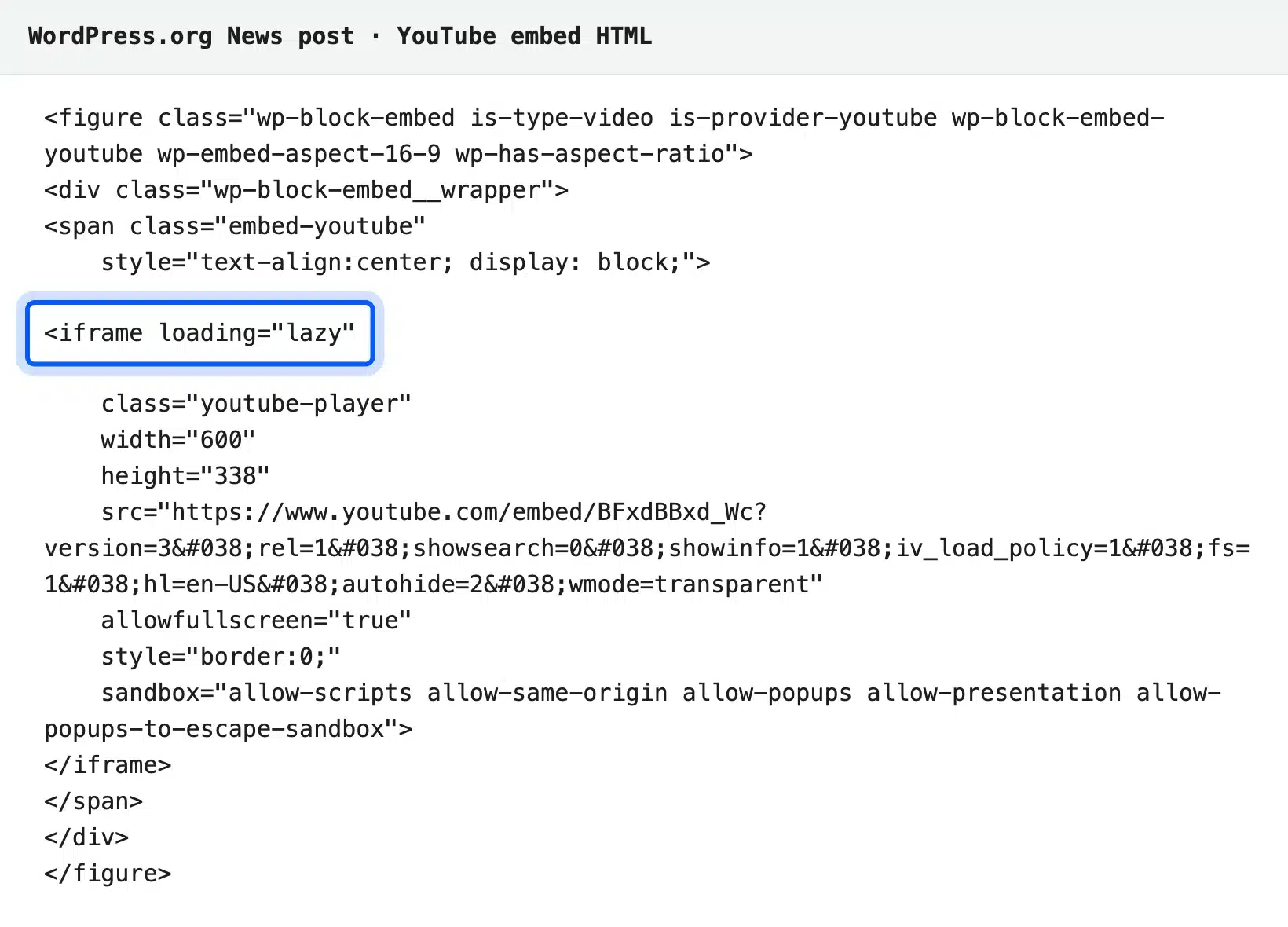
That post is a news article, so it is not a watch page and needs no video schema. A dedicated video page on your site should add VideoObject markup on top of the embed. The WordPress lazy-loading dev note explains the core change.
Use a Lite Embed for Speed
A lite embed shows the YouTube thumbnail and a play button, and loads the real player only after a click. In our test, a standard YouTube iframe made 18 requests and transferred 1,161 KB before play. The same video as a lite-youtube facade made 5 requests and transferred 20 KB.
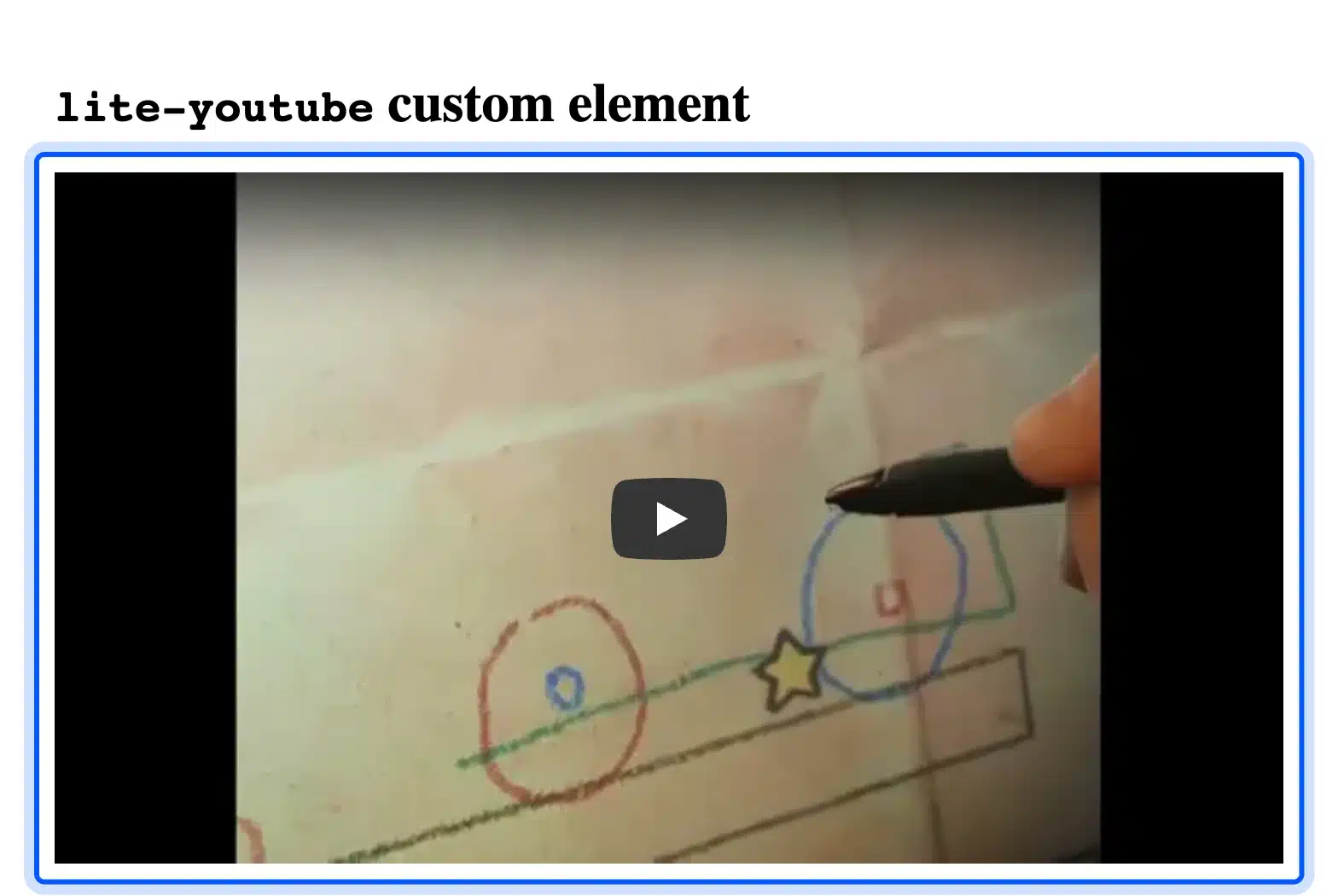
We loaded both demo pages from the open source lite-youtube-embed project three times each in Chrome, at a 412 pixel mobile width. The numbers below are the medians, counted from every request before anyone clicked play.
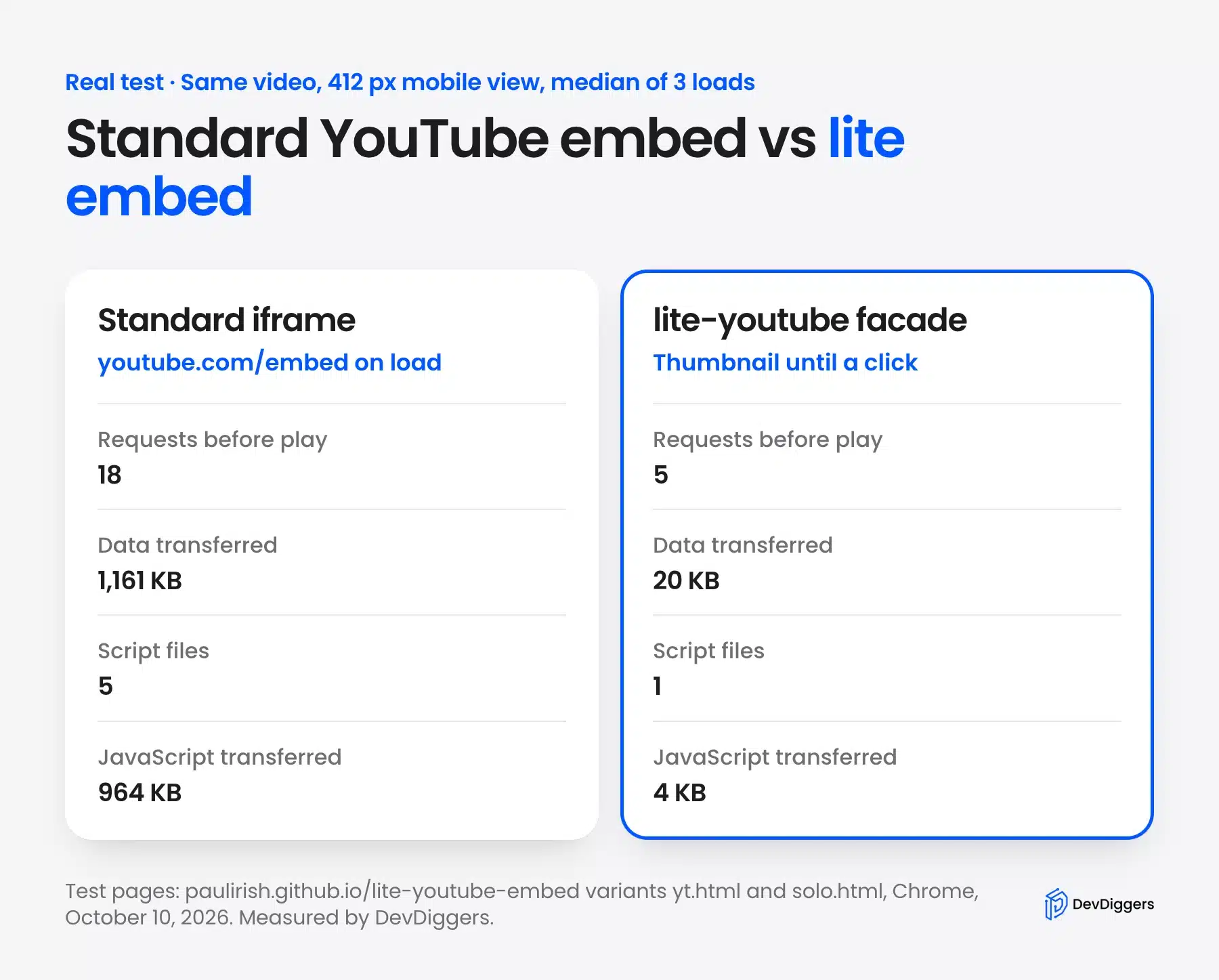
The markup is short. You load the script and stylesheet, then use the custom element with the video ID:
<link rel="stylesheet" href="lite-yt-embed.css" />
<script src="lite-yt-embed.js"></script>
<lite-youtube videoid="VIDEO_ID" playlabel="Play: How to set up a product video gallery"></lite-youtube>
Worth knowing: The saving only lasts until someone presses play, when the full player loads anyway. A facade suits pages where most visitors read rather than watch, such as tutorials with an optional video.
Cutting the player’s requests also fits the wider advice in our guide to reducing HTTP requests in WordPress. If you would rather hand the whole setup to someone, our SEO services for WordPress cover watch pages, schema and video sitemaps.
How to Measure Video SEO Results
Measure video SEO in two places: Search Console for Google and YouTube Studio for YouTube. Search Console’s Video indexing report, Video rich result report and the Performance report’s video filter show indexing and clicks. YouTube Studio shows how viewers found each video, including YouTube search and the terms they typed.
Google’s monitoring section names those three Search Console tools. Start with the Video indexing report, because a video that is not indexed has no clicks to measure.
Then open the Performance report and filter by search appearance to see video results on their own. Compare clicks and impressions for your watch pages before and after a change. Use at least four weeks on each side, so a normal weekly swing does not fool you.
After you ship new markup, the Video rich result report shows errors and warnings for each template. Fix the critical errors first, then request validation from the report so Google rechecks the affected pages.
On YouTube, open the video’s analytics and look at the Reach tab. YouTube’s traffic sources help defines YouTube search as traffic from YouTube search results, and its card lists the search terms that brought viewers in.
Those terms are the best keyword research you will get for the next video. If a video draws views for a phrase you never targeted, use that phrase in a title, a chapter label or a follow-up video.
Watch time and retention tell you whether the video kept the people that search sent. A high click count with short views usually means the title or thumbnail promised more than the first minute delivered.
Video SEO Mistakes to Avoid
Most video SEO problems come from a few repeat mistakes, such as a missing watch page or a changing thumbnail URL. Others are markup that does not match the page and heavy players. Each one stops indexing or slows the page, and none needs a new video.
Watch for these:
- Video as a side element: A video tucked under a long article rarely counts as the main content of the page.
- Expiring thumbnail URLs: Signed CDN links that change every few hours can stop the video from being indexed.
- Mismatched schema: A name or description in the markup that differs from the page confuses more than it helps.
- Duplicate markup: Two plugins printing VideoObject for one video send Google two conflicting versions.
- Preload set to Auto: The whole file downloads for every visitor, even those who never press play.
- Blocked video files: A video file blocked in robots.txt or served with noindex cannot be fetched, which rules out previews and key moments.
- Data URLs and fragments: Google’s docs say data URLs are not supported and a video should not load through a fragment identifier.
- Old expiry dates: A video whose expires value is in the past drops out of video results, even if the page stays live.
- Missing startOffset-input: A SeekToAction block without it, as on the TED page we checked, misses a required property.
Google’s best practices page covers the expiry and removal rules.
A short audit catches most of these. Open the Video indexing report and test one watch page with the Rich Results Test. Then check the page’s weight before and after a click.
Conclusion
Video SEO starts with a page Google can treat as a watch page, a stable thumbnail and VideoObject markup with the three required properties. Key moments, video sitemaps and transcripts build on that base.
On YouTube, the work is a clear title and description, captions, a strong thumbnail and chapters, judged by watch time. On WordPress, keep Preload off Auto and consider a lite embed. In our test it cut the player’s data before play from 1,161 KB to 20 KB.
Frequently Asked Questions (FAQs)
Q1. Does adding a video to a page help its SEO?
A video can earn video features in Google only when the page is a watch page with the video as its main content. On a normal article, the video helps readers but Google may index the page and not the video, as its video best practices explain.
Q2. Do YouTube tags still matter for YouTube SEO?
Tags still count, but they are one input among several. YouTube’s search help lists the title, tags, description and video content as the parts it matches against a query. The title and description carry far more words, so put your effort there.
Q3. Is a video sitemap required for video SEO?
No. Google can read video details from structured data, a video sitemap or Open Graph tags. A sitemap is still handy on large sites, because it lists every watch page and video in one file.
Q4. Can every video get key moments in Google?
No. Google’s Clip guidelines say the video must run at least 30 seconds and support links to a point other than the start. Google’s docs also say markup does not guarantee that a video feature will show.
Q5. How do I fix “Video isn’t on a watch page” in Search Console?
Move the video to a page built around it, near the top, with a title and description about that video. If the page already does that, check the rendered HTML in URL Inspection. Google’s Video indexing report help also suggests moving the player higher in the HTML.
Q6. Can a WooCommerce product page count as a watch page?
Usually not. Google’s video best practices list a product page with a 360 video as a page where the video supports other content. Product videos still help shoppers, so keep them, and build a separate watch page if you want the video itself in search.
Q7. What is watch time on YouTube?
Watch time is the total time viewers spend watching a video. YouTube’s search help names the watch time of a video for a particular query as an engagement signal. A video that holds viewers for a search has a better chance to rank for it.