
Trust badges are small icons and seals that tell shoppers a store is safe to buy from. The common ones are payment logos, SSL seals, guarantees, review ratings and shipping promises. They help most at the moment a shopper types in card details, and they help least when they are fake or scattered everywhere.
The evidence here comes only from primary research such as Baymard Institute’s checkout studies, never recycled lift numbers. We also tested the free Trust Badges plugin on our WooCommerce 11.2 test store in October 2026 and added a checkout trust message by hand.
You will see the five badge types, what the research says about whether they work, and where to place each one. Then come both setup methods with real screens, the difference between real and fake seals, and the mistakes that make badges backfire.
What Are Trust Badges?
Trust badges are visual signals on an online store that answer one question for the shopper: is it safe to pay here? They cover security seals, payment method logos, guarantees, review ratings and shipping promises. Some are issued by a third party, while others are the store’s own promise shown as a badge.
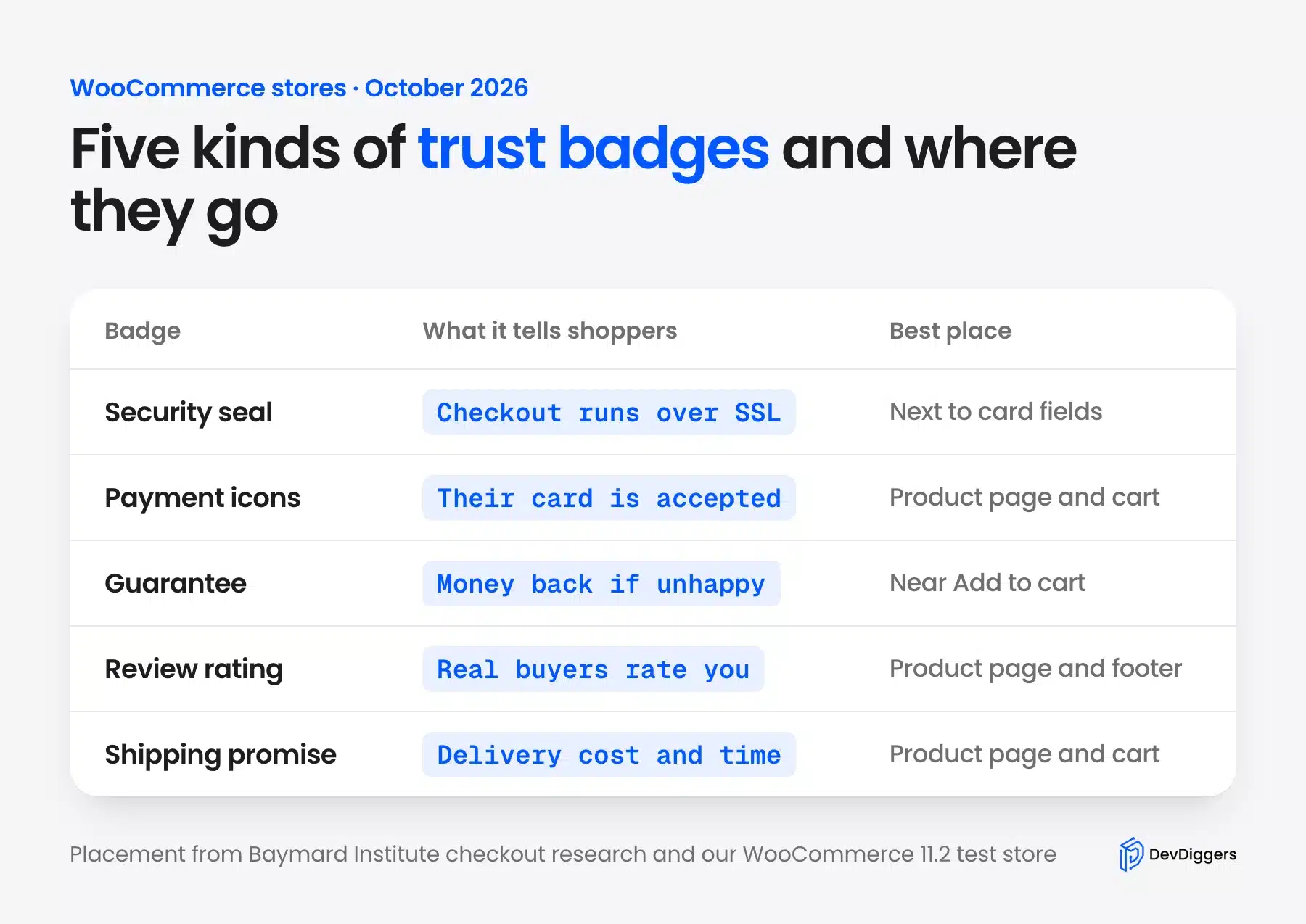
The five kinds do different jobs, so they belong in different places:
- Security seals: An SSL or security vendor seal, such as Norton or a “secure checkout” padlock, that says the payment form is protected.
- Payment icons: Card and wallet logos such as Visa, Mastercard and PayPal, which tell shoppers before checkout that their card is accepted.
- Guarantees: A money-back or returns promise, which lowers the risk of buying from a store the shopper does not know.
- Review ratings: A star score from a third party such as Trustpilot or Google, which shows other buyers were happy.
- Shipping promises: Free shipping, delivery times or tracked delivery, shown before the shopper reaches the total.
Only the first kind says anything about security. The other four are about the business, which matters just as much, as the research below shows.
Do Trust Badges Increase Conversions?
Trust badges can increase conversions when shoppers doubt a store’s safety, and Baymard Institute holds the best primary evidence. In its cart abandonment research, 19% of US shoppers who abandoned an order said they did not trust the site with their card details. That is a real problem that a well placed badge can address.
Baymard’s cart abandonment statistics also put that 19% in context. Extra costs such as shipping, tax and fees came first at 40%, slow delivery second at 20%, and forced account creation sat at 18%.
So a trust badge fixes one cause out of many. A store losing buyers to a surprise shipping fee at checkout will not fix that with a Norton seal.
Baymard has also tested which seals people trust. Its 2023 trust seal study found that the Norton SSL seal “dominates”, followed by three trust seals. Several SSL seals from other vendors scored low.
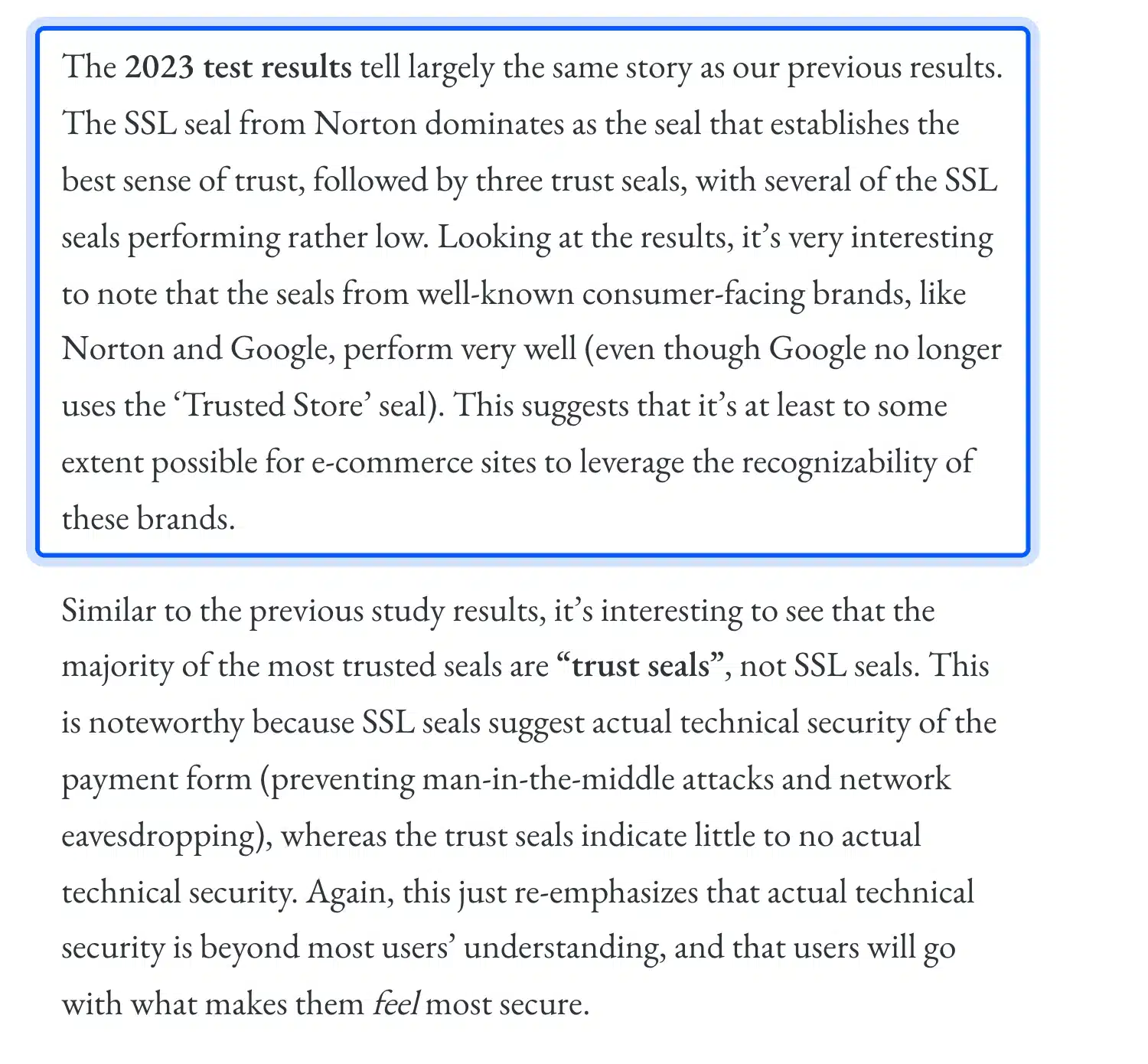
The most surprising result sits in the same study. A homemade seal, invented for the test, performed significantly better than the SSL seals from established vendors except Norton. Baymard’s reading is that shoppers judge security by how a page looks and feels.
Technical knowledge plays little part in that judgment.
That points to two practical lessons. Some visible reassurance near the card fields helps, and a famous brand name helps more than an unknown vendor’s seal.
Worth knowing: Baymard’s earlier 2013 survey of 2,510 US adults found that 1,286 of them picked a seal at all. The rest chose “Don’t know or no preference”, so many shoppers do not have a favorite badge.
We found no independent, published A/B test that gives one reliable conversion lift for trust badges across stores. Treat any single percentage you see online with suspicion. Placement testing on your own store, one badge position at a time, tells you more.
Where to Place Trust Badges on a WooCommerce Store
Place trust badges where the shopper hesitates: payment icons and a guarantee next to Add to cart, and a security message beside the card fields. Review ratings fit the product page and the footer. A badge far from the moment of doubt does little work.
Baymard’s own placement advice is specific. Its research recommends keeping security cues close to the card fields and grouping those fields with a border or background. The sensitive part of the form then feels protected.
These are the spots that matter most on a WooCommerce store:
- Product page: Payment icons and a short guarantee line just under Add to cart, where the buy decision happens.
- Cart page: Payment icons next to Proceed to Checkout, so the shopper knows their method is accepted before they commit.
- Checkout page: A security message or seal inside the payment section, as close to the card fields as your gateway allows.
- Footer: Review ratings and payment icons that apply to the whole store.
A clear product page does a lot of the same work.
Our guide to the product detail page in eCommerce covers the other elements that sit around these badges. Interactive views help too. Our round up of WooCommerce 3D product view plugins shows one way to let shoppers inspect a product before they buy.
Method 1: Add Trust Badges With a Free Plugin
The quickest way to add trust badges to WooCommerce is a free plugin from WordPress.org. We tested Trust Badges 1.2.0, which adds payment icons, security seals and guarantee badges to the product page, the cart and the footer. It ships 459 SVG badges and needs no account.
These are the steps we followed on our test store:
- Install the plugin: Go to Plugins, click Add Plugin, search for “Trust Badges” and install Trust Badges, Payment Icons and Secure Checkout Seals for WooCommerce. The plugin’s WordPress.org page listed version 1.2.0 when we tested it.
- Open its settings: Go to Settings, then Trust Badges. Three groups were already switched on after activation: Product Page, Cart and Footer.
- Set up the product page group: Open the Product Page group to change the header text, the badge style and the alignment. The Badge Placement box ties it to WooCommerce and gives you a shortcode for any other spot.
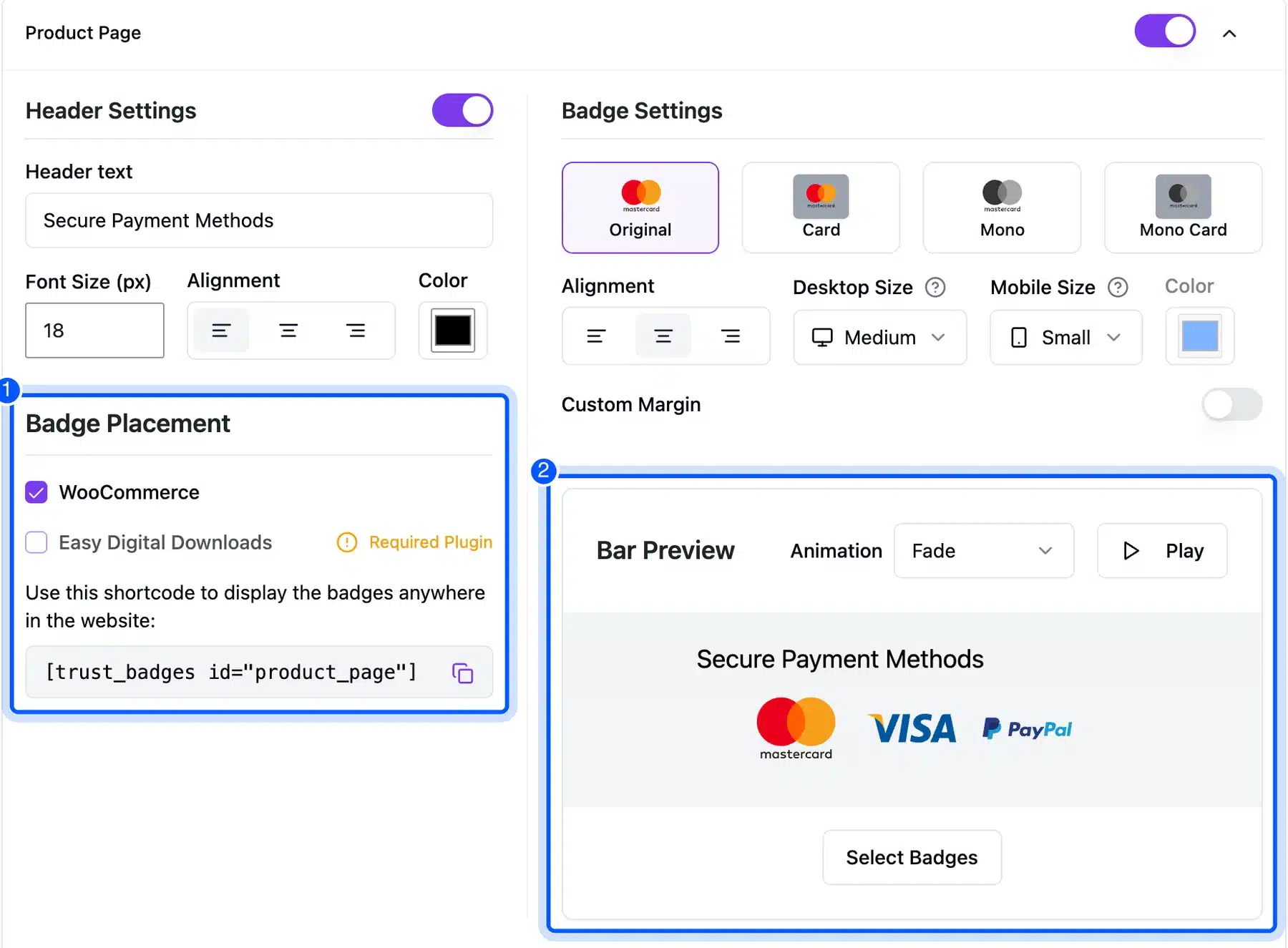
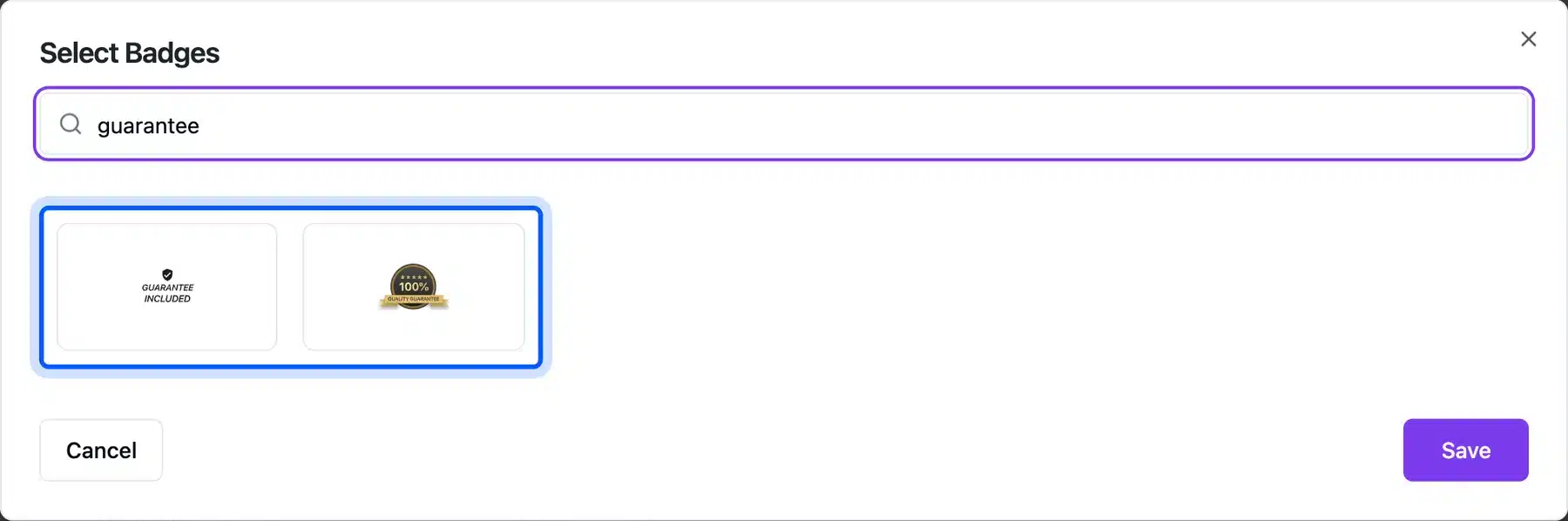
- Choose your badges: Click Select Badges and search the library. A search for “guarantee” returned only two badges, so plan to use your own wording for a guarantee.
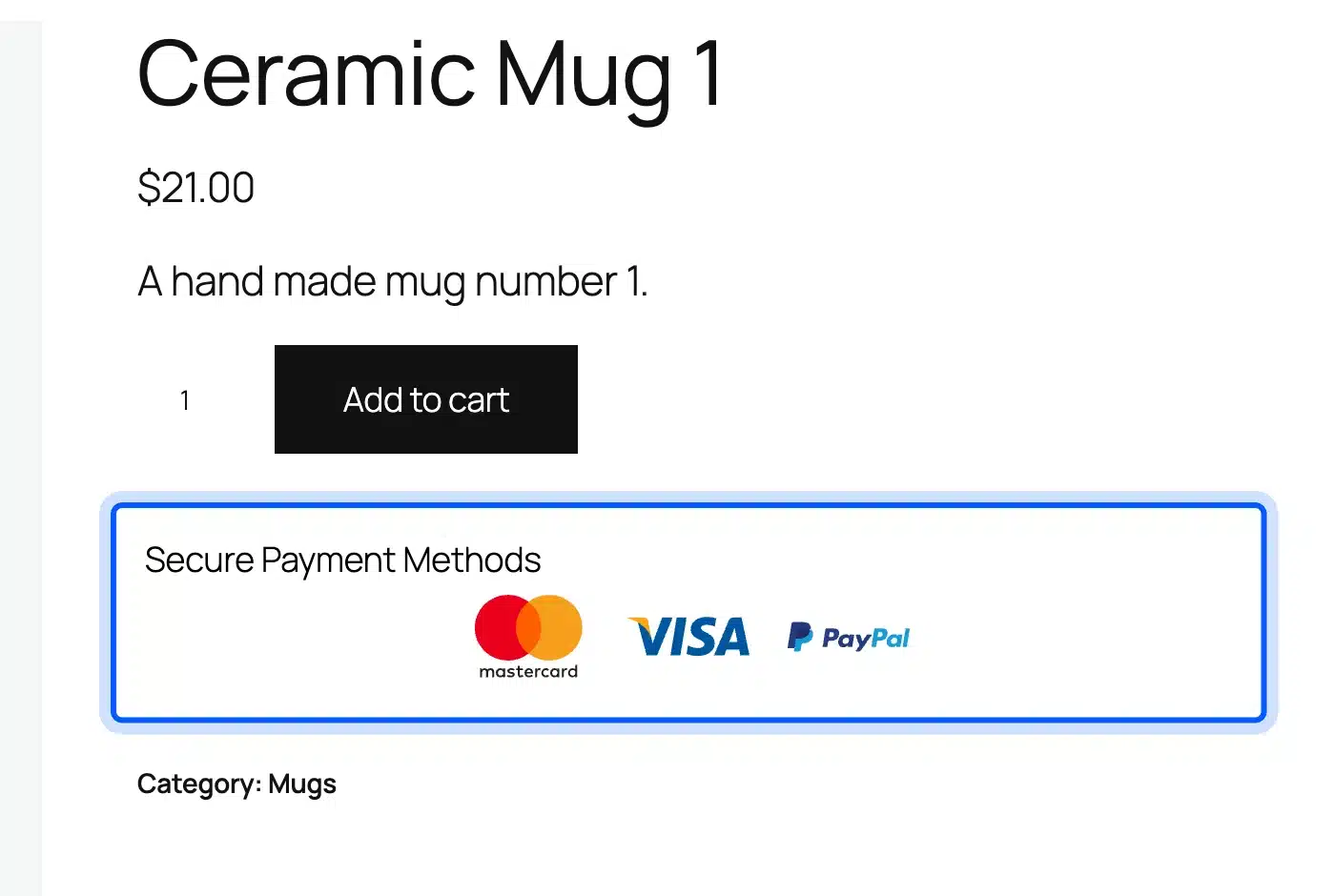
- Check the product page: Open a product while logged out. The “Secure Payment Methods” row appeared right under Add to cart, which is exactly where the hesitation happens.
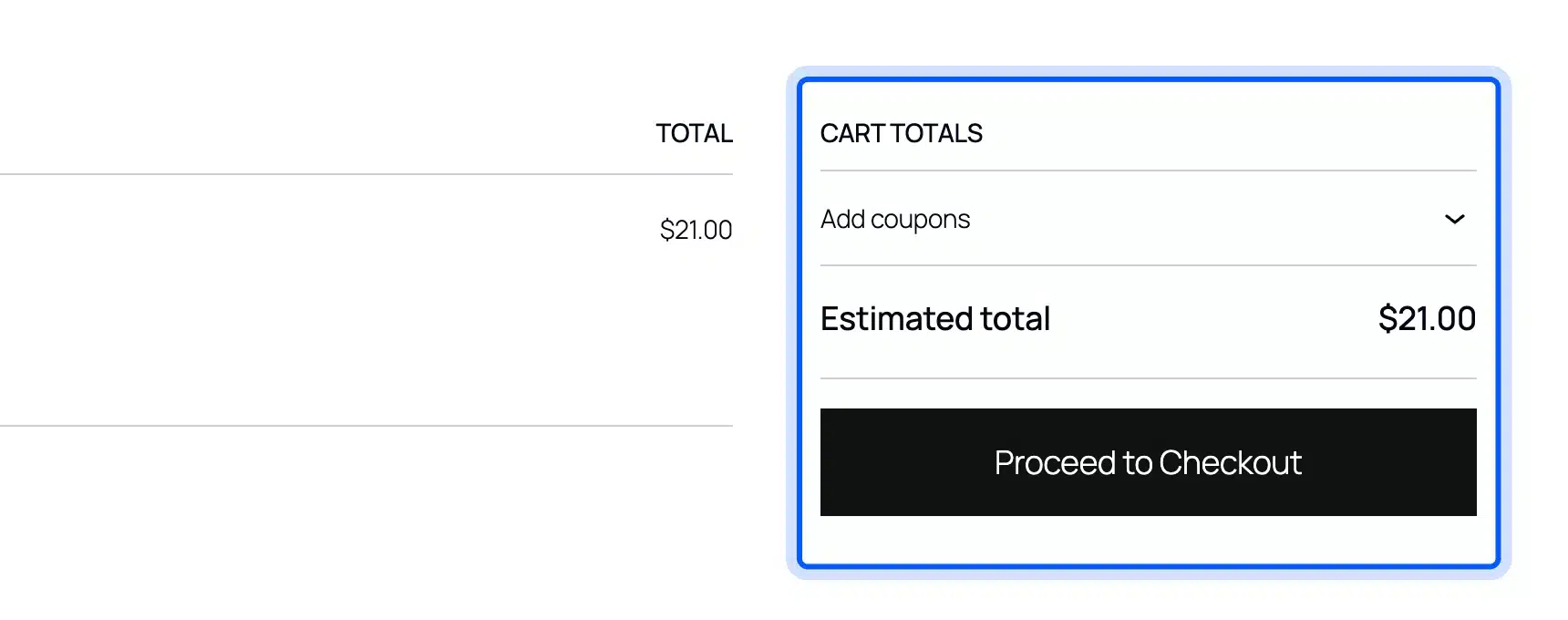
- Check the cart: Add a product and open the cart. Our store uses the WooCommerce 11.2 Cart block with Twenty Twenty-Five. No badges appeared next to Cart totals even though the Cart group was on.
- Check the footer: The Footer group printed a “Payment Options” row below the theme’s own footer, at the very bottom of every page.

The plugin’s readme says version 1.2.0 supports the Cart block, so the missing cart badges may depend on your theme. Always check each placement on the live front end instead of trusting the settings screen, because a switch that says on is not proof.
The header text alignment did not match the centered icons on our theme either. A small detail, but one worth fixing with the plugin’s alignment setting before you go live.
Method 2: Add a Trust Message in the Checkout Block
WooCommerce’s block checkout lets you add your own content without a plugin. Open the Checkout page in the block editor and add a Paragraph block under Payment options with your security and guarantee line. A Shortcode block below the Checkout block can then show payment icons.
We tried both on our test store. The paragraph sat inside the checkout form, between the payment method and the order note. That is as close to the payment area as the block checkout gets without code.
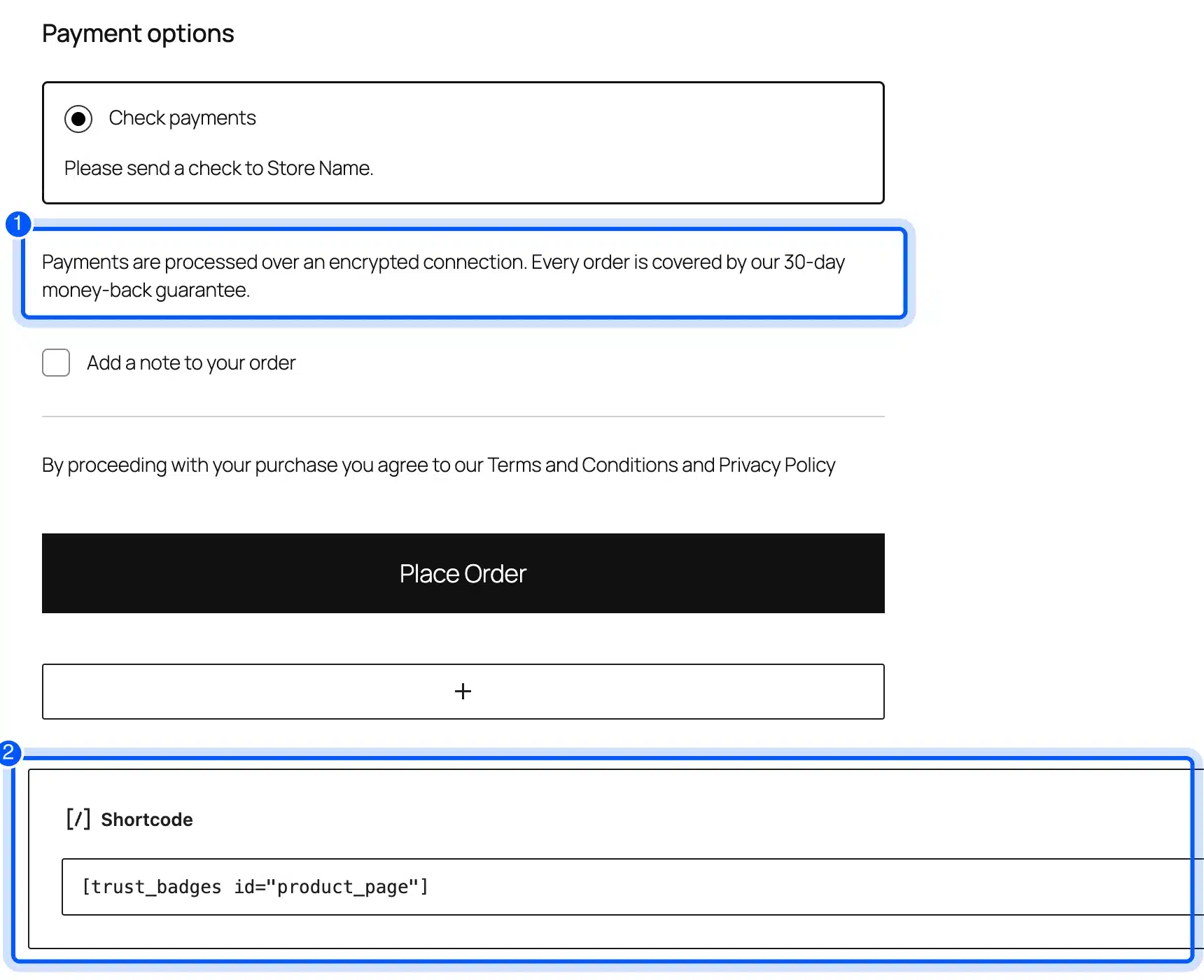
On the front end, the paragraph showed right under the payment method. The plugin’s shortcode, placed in a Shortcode block after the Checkout block, printed its payment icons below the Place Order button.
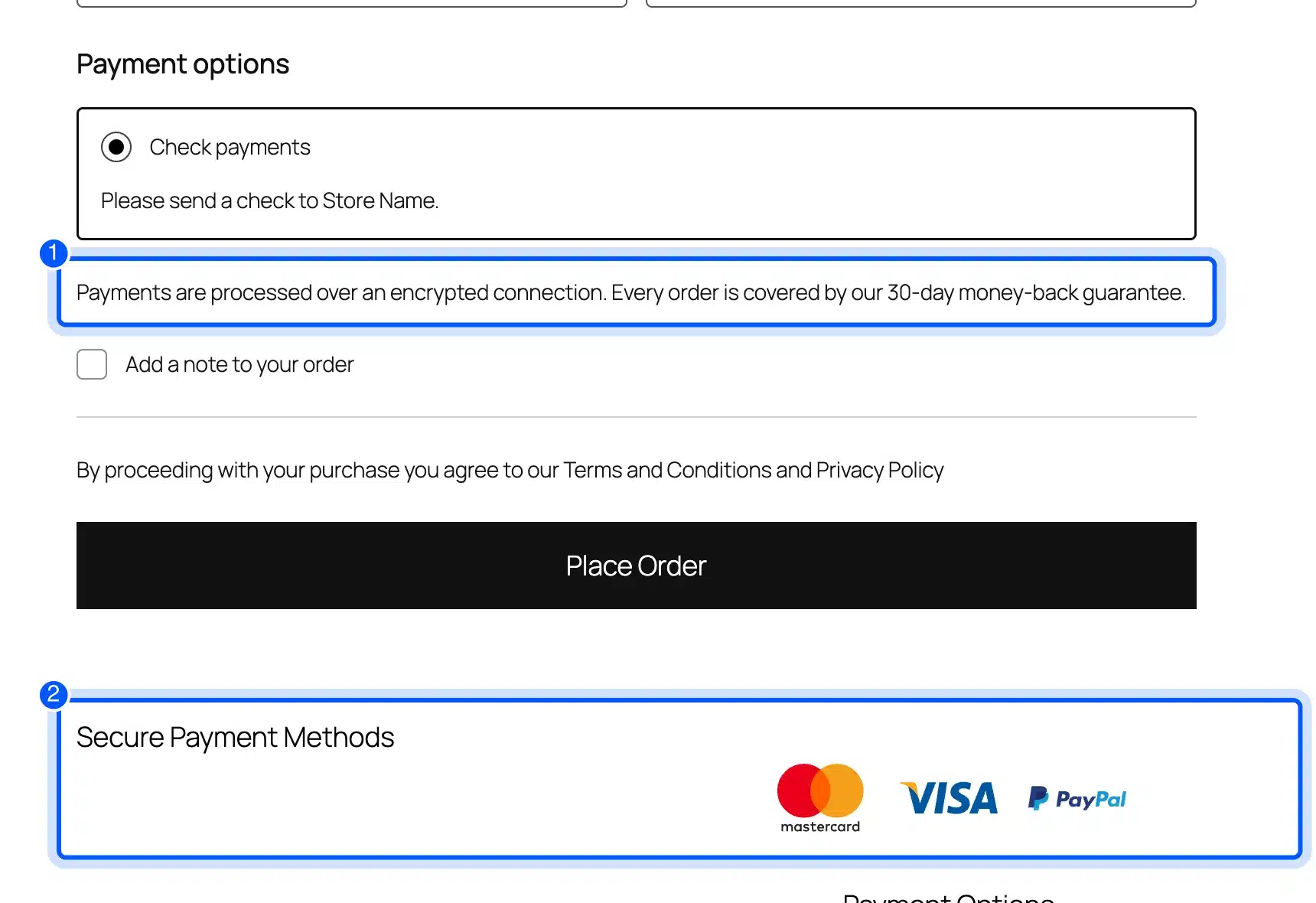
Below Place Order is too late for most shoppers, since they hesitate before the click. So use the paragraph for the message that matters and keep the icons on the product page and cart.
Our example line mentions a 30-day money-back guarantee only as sample text. Write only the promise your store keeps, in the same words as your refund policy.
A store that needs badges inside the card fields themselves, or a custom checkout layout, needs code or a payment gateway that supports it. Our WooCommerce development services team builds that kind of checkout change when a plugin cannot reach the right spot.
Trust Seals and Security Badges in eCommerce: What Is Real
Trust seals and security badges in eCommerce are only worth showing when they are real and current. A genuine seal comes from the vendor that checked your site, usually as a script or a verified link. A seal copied as an image, or a “100% secure” graphic you made yourself, proves nothing about your checkout.
Most questions about security badges eCommerce stores show start with SSL, and that part is simple. A WooCommerce store needs an SSL certificate anyway, and the browser already shows that the connection is secure. A seal adds a visible reminder of it near the card fields, which is where Baymard found the reminder helps.
Third-party trust seals are different. Services such as TrustedSite issue a seal after their own checks, and the TrustedSite plugin on WordPress.org connects to an account with them. We did not set one up, because it needs a TrustedSite account, so we cannot report how its seal behaves.
Warning: Never show a seal from a company that has not certified you. A copied logo uses that brand without its permission. Shoppers who click a fake seal and find nothing behind it trust the store less than before.
Checkout Trust Signals Beyond Badges
Checkout trust signals go well beyond badges. Clear total costs, a visible returns policy, guest checkout and real reviews all answer the same doubt that a badge answers. Baymard’s abandonment data shows extra costs and forced accounts lose more orders than distrust of card handling does.
These signals often do more than another badge:
- No surprise costs: Show shipping and fees before the checkout page, since extra costs were the top abandonment reason at 40%.
- Guest checkout: Let shoppers buy without an account, which 18% of abandoners in Baymard’s data were forced to create.
- A clear returns policy: Link it near the Place Order button. An unsatisfying returns policy was the reason for 13%.
- Real reviews with names: This social proof from a third party carries more weight than a store’s own claims. Our guide to rewarding customers for writing reviews in WooCommerce shows how to collect more of them.
- Order follow up: Confirmation and shipping emails reassure buyers after they pay. Our list of the best email marketing plugins for WooCommerce covers tools for those messages.
DevDiggers handles its own ratings the same way. Our site shows the Trustpilot, Google and Envato scores separately, each linked to the platform that holds it, instead of one blended badge.
For the wider picture, our guide to building buyer confidence in eCommerce covers trust across the whole store, from the home page to delivery.
Common Trust Badge Mistakes
The most common trust badge mistakes are fake seals, too many badges and badges in the wrong place. Each one either wastes the badge or makes the store look less safe. Most are easy to fix once you look at your own pages with a shopper’s eyes.
These are the mistakes to check for:
- Fake or expired seals: A seal from a vendor that never checked your site, or a lapsed one, is worse than none.
- Badge clutter: Ten logos in a row look like a cheap template. Show the payment methods you accept and one guarantee.
- Wrong placement: Icons buried in the footer only do little for a shopper deciding on the product page.
- Logos for methods you do not accept: Showing Apple Pay when your gateway does not offer it breaks trust at the worst moment.
- Promises you cannot keep: A “free returns” badge must match your actual refund policy, word for word.
- Never checking the front end: Our cart test showed a placement switched on in settings that did not appear on the page.
Conclusion
Trust badges work when they answer a real doubt at the moment it appears. Payment icons and a guarantee belong under Add to cart, and a security message belongs next to the card fields.
Baymard’s research supports both the problem and the fix: 19% of abandoners distrusted card handling, and visible reassurance near the payment form helps. Keep every badge real and the set small. Then check each one on the live store after you add it, as Baymard’s abandonment data gives the reason to bother.
Frequently Asked Questions (FAQs)
Q1. Are trust badges free?
Payment logos and guarantee badges are free to show, and free plugins such as Trust Badges include hundreds of them. Third-party seals from security or review companies usually need an account with that company, and many are part of a paid plan.
Q2. Can I make my own trust badge?
Yes, for your own promises, such as a returns policy or free shipping. Never design a badge that imitates a security company or a payment brand you do not use.
Q3. Does the SSL padlock count as a trust badge?
The browser’s padlock shows the connection is secure, but most shoppers never look at it. A visible security message near the card fields repeats that reassurance where their eyes already are.
Q4. How many trust badges should a store show?
Show only what shoppers need at each step: your accepted payment methods, one guarantee and one rating source. A short row looks deliberate, while a long one looks like decoration.
Q5. Do trust badges slow down a WooCommerce store?
Small SVG badges add very little weight. The Trust Badges plugin’s readme says it uses SVG badges and no front-end JavaScript, while third-party seal scripts load extra code from outside your site.
Q6. Do trust badges help with SEO?
No. Search engines do not rank a page higher for showing badges. Their value is in how shoppers feel at the product page and checkout.